Installing Communicator on Citrix
XenApp and Windows Servers
You can install ShoreTel Communicator for Windows on Citrix XenApp and Windows Servers to provide ShoreTel Communicator functionality to terminal license server clients. ShoreTel Communicator for Windows supports desktop and published modes in standard environments, but does not support isolation
environments.
This appendix describes how to install ShoreTel Communicator for Windows on Citrix XenApp and Windows Servers. For more information on Citrix XenApp and Windows Servers, refer to the documentation from the manufacturer.
The topics discussed in this appendix include:
• “Citrix XenApp Support Considerations” on page 345 • “Windows Server Support Considerations” on page 346
• “Installing ShoreTel Communicator on Citrix XenApp or Windows Servers” on
page 347
• “Using Third-Party Applications with ShoreTel Communicator on a Citrix
Server” on page 348
C.1
Citrix XenApp Support Considerations
This section provides information about best practices and restrictions when installing ShoreTel Communicator for Windows in a Citrix XenApp environment.
C.1.1
Citrix XenApp Environment Best Practices
Citrix XenApp is a Windows application delivery system that manages applications in the datacenter and delivers them as an on-demand service to users anywhere. Citrix XenApp users usually log into the Citrix environment using a web interface.
• Perform frequent defragmentation of the XenApp server disk.
• Co-locate the Citrix/WTS server with the headquarters server or the DVS
servicing the ShoreTel Communicator clients.
C.1.2
Citrix XenApp Restrictions
ShoreTel Communicator for Windows does not support the following XenApp operations:
• Streaming mode.
• Application Isolation Environment (AIE). • Virtual deployment.
• XenDesktop.
The following ShoreTel Communicator for Windows features are not supported in the Citrix XenApp environment:
• SoftPhone. • Video.
• Docking in Seamless Mode (Docked Top, Docked Bottom, Docked Left, Docked
Right).
NOTEPresenter for Java must be used because ShoreTel does not support Presenter for Windows (ShoreTel Conferencing).
C.2
Windows Server Support Considerations
This section provides information about restrictions when installing ShoreTel Communicator for Windows in a Windows Server environment.
NOTEIn Windows Server 2008 and Windows Server 2008 R2, Windows Terminal Services is known as Remote Terminal Services.
C.2.1
Windows Server Restrictions
The following ShoreTel Communicator for Windows features are not supported in the Windows Server environment:
• SoftPhone. • Video.
C.3
Installing ShoreTel Communicator on Citrix
XenApp or Windows Servers
ShoreTel 13.3 supports ShoreTel Communicator on the following platforms:
• XenApp 5.0 on Windows Server 2008, 32-bit, SP2 (Isolation mode is not
supported).
• XenApp 6.0 only on Windows Server 2008, 64-bit, R2 (Isolation mode is not
supported).
C.3.1
Preliminary Steps for Upgrading ShoreTel Communicator
on 64-bit Platforms
ShoreTel Communicator for Windows requires .NET Framework version 3.5 or higher on 64-bit Windows server platforms. ShoreTel does not ship the .NET Framework as part of the software package. The first time the .NET Framework is required, Communicator prompts you to download and save it to a file on the ShoreTel server.
NOTEIf the .NET Framework is not installed on the target server and the .NET Framework file in the ShoreTel folder is empty, the target server must be able to access the Internet so that the .NET Framework can be downloaded during the Communicator installation process.
C.3.2
Installing ShoreTel Communicator for Windows on a
Windows Server
NOTEAdministrative rights on the server are required in order to install ShoreTel Communicator for Windows.
Step 1 Open a browser on the server.
Step 2Enter the following URL:
http://<ShoreTel_server_name>/ShoreWareresources/clientinstall ShoreTel_server_name is the name or IP address of the ShoreTel
headquarters server or DVS that manages the client software on the server.
The ShoreTel Communicator Install page for Windows computers is opened (Figure C-1).
Step 3Review the information on this page, then click “Click Here to Install ShoreTel Communicator.”
NOTEOn 32-bit systems, the installation process places files in this folder by default: C:\Program Files\Shoreline Communications\ShoreWare Client
Figure C-1 ShoreTel Communicator Install Page for Windows
C.4
Using Third-Party Applications with ShoreTel
Communicator on a Citrix Server
Third-party applications can interact with ShoreTel Communicator for Windows on a Citrix server only if the server is running the ShoreTel Telephony Interface (STI). This section describes how to set up the Citrix server to use third-party applications with ShoreTel Communicator for Windows.
C.4.1
Installing the Microsoft Office 2007/2010/2013 Outlook
Add-in
Windows Server/Citrix XenApp supports the Microsoft Office 2007/2010/2013 Outlook add-in for ShoreTel Communicator.
This feature supports contact import, voice mail, conference scheduling, call handling mode, and Outlook presence.
NOTEYou must install Microsoft Outlook prior to installing ShoreTel Communicator.
Step 1 Log on to the Citrix XenApp server for the desired individual user.
Step 2Start Communicator.
installing the add-in, refer to the ShoreTel Communicator for Windows User Guide.
C.4.2
Installing ShoreTel Telephony Interface (STI) on a Citrix or
Windows Server
Step 1 Install (or upgrade) ShoreTel Communicator.
Step 2Install ShoreTel Telephony Interface:
Step a Launch Windows Explorer.
Step bEnter the following URL:
http://serverIP/shorewareresources/shoreteltelephonyinterface
The ShoreTel Telephony Interface Install site is opened.
Step c Click the link to install the ShoreTel Telephony Interface (download and install the interface on the client computer).
Step 3 Reboot the server.
Step 4 Launch the Control Panel.
Step 5 Select Phone and Modem Options.
The Phone and Modem Options dialog is opened.
NOTEIf this is the first time this option is activated, another dialog box is opened first, requiring outbound dialing information.
Step 6 Click Advanced.
Step 7 Remove all ShoreTel providers.
Step 8 Click OK.
The changes are saved and the dialog is closed.
Step 9 On the server, click Start > Run.
Step 10Type cmd, then click OK.
The Command Prompt is opened.
Step 11Navigate to the directory where the ShoreTel Telephony Interface is installed (\Program Files\ShoreTel\ShoreTel 3rd Party).
Step 14Verify that multiple lines are provided for the ShoreTel Telephony Interface:
Step a On the server, navigate to the Phone and Modem Options Advanced tab.
Step bIn the Provider list, select the ShoreTel provider, then click Configure. The ShoreTel Remote TSP dialog is opened (Figure C-3). If the
ShoreTel Remote TAPI Service Provider is connected to the ShoreTel Server, the fields are populated automatically. If an error message is posted in Provider Status and Server Name and Login are blank, the ShoreTel Remote TAPI Service Provider must be removed.
To remove the provider: Go to the Control Panel and open Phone and Modem Options Advanced. Click ShoreTel Remote TAPI Service Provider. Click Remove.
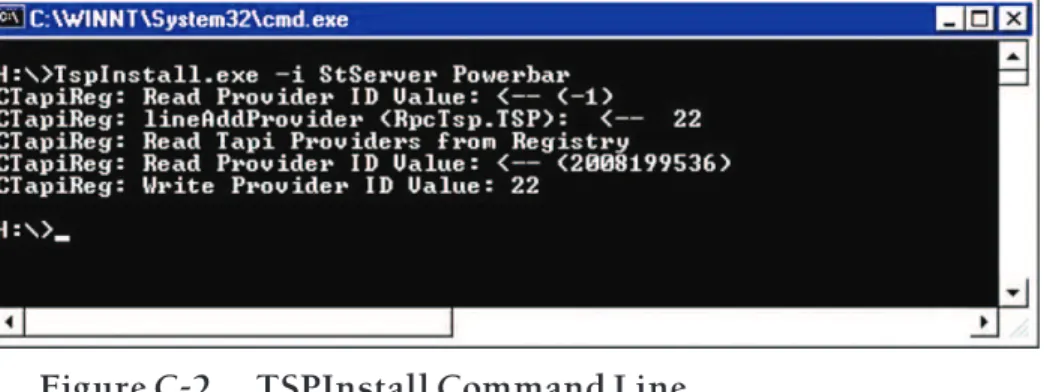
Figure C-2 TSPInstall Command Line