Technical white paper
Installing Microsoft Windows 8
on HP ElitePad 900 G1 Tablet
Commercial Managed IT
Table of contents
Executive summary ... 2
System requirements and prerequisites ... 2
Installing the OS, drivers, and enhancements ... 2
Drivers and enhancements ... 4
Appendix A: Using HP SoftPaq Download Manager ... 5
Appendix B: Installing preboot applications and tools ... 7
Applications accessible during startup ... 7
Creating or restoring a preboot partition on the hard drive ... 7
HP_TOOLS partition errors ... 7
Appendix C: Q & A ... 8
Appendix D: Installing .NET Framework 3.5 on Windows 8 ... 9
Installing .NET Framework 3.5 on demand ... 9
Using the Control Panel to enable .NET Framework 3.5 ... 10
Executive summary
This white paper provides instructions for installing 32-bit versions of the Microsoft® Windows® 8 operating system along with applicable HP drivers and applications on the HP ElitePad 900 G1 Tablet.
Windows 8 delivers a modern user interface while maintaining all of the compatibility, manageability, and security features for which Windows is known.1
Target audience: This white paper is intended for IT staff.
System requirements and prerequisites
Warning
Before proceeding with the installation of Windows, you should back up all personal data, such as files, photos, and videos. If not backed up, your personal data will be lost.
Unless Windows is installed using recovery media from HP, you will not have access to the HP Store or applications that are only distributed via the HP Store such as HP PageLift.
Thefollowing additional items are recommended when installing Windows 8 on your HP ElitePad 900 G1 Tablet: • HP ElitePad Docking Station
• USB keyboard and pointing device
• Windows 8 OS media on DVD or USB flash storage (see Warning above) Note that using media from an alternate source requires a product ID (PID)2
• High-speed Internet access to drivers and OS enhancements provided by HP, via either the “Dowload drivers & software page” on hp.com or HP SoftPaq Download Manager (hp.com/go/sdm)
Important
Make sure you have the latest compatible versions of drivers and enhancements (Table 1). In addition, you must have a Microsoft operating system license for each system on which you are installing Windows 8.
Installing the OS, drivers, and enhancements
This section provides guidelines for users performing a clean installation of Windows 8.
Important
Follow the installation instructions in the order provided. Failure to complete these steps in the proper order can result in an unsuccessful or unstable installation.
These instructions are independent of the operating system currently installed on the HP EliteBook 900 G1 Tablet.
1. Download the driver(s) for the network interface card and/or wireless LAN adapter driver from the Download drivers & software page for the HP ElitePad 900 G1 Tablet. Save to a USB storage device.
2. Connect the HP ElitePad 900 G1 Tablet to an HP ElitePad Docking Station with USB flash storage, keyboard, and pointing device attached.
3. Power on the tablet and press the F9 key repeatedly during power on self test (POST).
1 For more information on Windows 8 features, refer to the appropriate Windows 8 product guide. Search on “Windows 8 product guide” at the Microsoft website.
4. When prompted, select USB Hard Drive as the boot device.
Note
For USB disk on key (DOK) installation, a bootable DOK with WinPE 4.0 32-bit is required.
If network connectivity is needed for OS deployment, add the HP WinPE 4.0 Driver Pack to the WinPE boot image.
5. Follow on-screen instructions to install Windows 8.
6. Install communications driver(s) from the USB storage device used in Step 1.
Note
A reboot may be required to complete installation of the communication drivers.
7. Install the following Microsoft patches from the Windows update site: • KB 931125 – Root Certificate Update
• KB 2756872 – Windows 8 Client General Availability Update Rollup Reboot the system after these patches have been installed.
8. Install HP updates, which may be downloaded from the Download drivers and software page for the HP ElitePad 900 G1 Tablet.
A. Download the HP ElitePad 900 Driver & Firmware Update package (see Table 1 for the particular version) to update the BIOS, firmware, and drivers.
Note
The HP ElitePad 900 Driver & Firmware Update package (FDSetup) contains bundled drivers, firmware, and BIOS updates that should be installed together in order to optimize the performance of the HP ElitePad 900 G1 Tablet.
i. Extract the contents of the package by running the executable (SPxxxxx.EXE) as follows: SPxxxxx.EXE /e /f <desired output location>
ii. Execute the installation from <desired output location>. Parameters are as follows: • FDSetup-s – Standard silent install
• FDSetup-s-f – Must be used with –s; forces FDSetup to run, regardless of previous version installed. • -p<PasswordFileName>
The password file is generated by the HPQPSWD utility and is encrypted to ensure the security of the password.
There are no spaces between –p and the file name. If you need to use spaces in the file name, put quotes around them.
A network location should not be used for the password file. To enhance security, this file is deleted after FDSetup has run.
iii. Restart the computer after the installation of the HP ElitePad Driver & Firmware Update package has completed.
B. Download and install the remaining drivers and enhancements listed in Table 1 using either of the following methods;
i. Automatic – via HP SoftPaq Download Manager (hp.com/go/sdm)
ii. Manual – via hp.com (Download drivers and software page for the HP ElitePad 900 G1 Tablet). For more information on using HP SoftPaq Download Manager, refer to Appendix A.
Drivers and enhancements
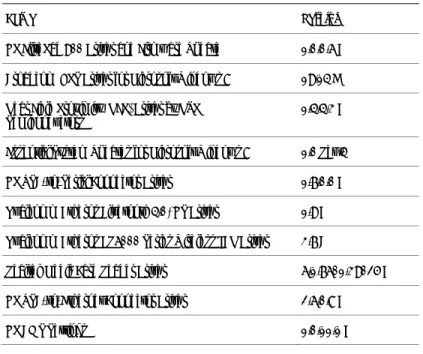
Table 1 lists the minimum version for each HP driver and enhancement required for Windows 8 when running on the HP ElitePad 900 G1 Tablet PC. In general, it is a best practice to download and install the latest versions that are available on the HP website.
Table 1. Minimum required software versions for the HP ElitePad 900 G1 Tablet PC
Name Version
HP ElitePad 900 Driver and Firmware Update 1.0.0.6 A Broadcom GPS Driver for Microsoft Windows 8 19.14 E Near Field Proximity (NFP) Driver by NXP
Semiconductors 1.4.4.3 A
Essential System Updates for Microsoft Windows 8 1.0 Rev 4 HP USB-to-Serial Connector Driver 1.7.0.0 A Qualcomm Atheros Bluetooth 4.0+HS Driver 1.9 A Qualcomm Atheros AR6000 Series Wireless LAN Driver 3.7 B
Realtek Media Card Reader Driver 6.1.7601.39025 A HP USB-to-Ethernet Connector Driver 2.6.0.8 A HP BIOS Settings 1.0.11.1 A
Note
Microsoft .NET Framework 4.5 is native in Windows 8; some software may require an earlier version of .NET Framework. Refer to Appendix D: Installing .NET Framework 3.5 on Windows 8 for more information on installing an earlier version.
Appendix A: Using HP SoftPaq Download Manager
Perform the following procedure to use HP SoftPaq Download Manager to update your current platform: 1. Boot the Windows OS.
2. Open Microsoft Internet Explorer.
Note
.NET Framework 3.5 must be installed prior to installing HP SoftPaq Download Manager.
Instructions for installing .NET Framework 3.5 are provided in Appendix D: Installing .NET Framework 3.5 on Windows 8.
3. Download and install HP SoftPaq Download Manager from hp.com/go/sdm 4. Launch HP SoftPaq Download Manager.
5. When prompted, select Show software for this model only, as shown in Figure A-1.
Note
You can use the Check software updates for this model option to automatically install updates on the current system or to download SoftPaqs to install on systems similar to the current platform.
Figure A-1. HP SoftPaq Download Manager menu
6. Select the desired SoftPaqs from the Available SoftPaqs list, shown in Figure A-2.
Figure A-2. Available SoftPaqs list
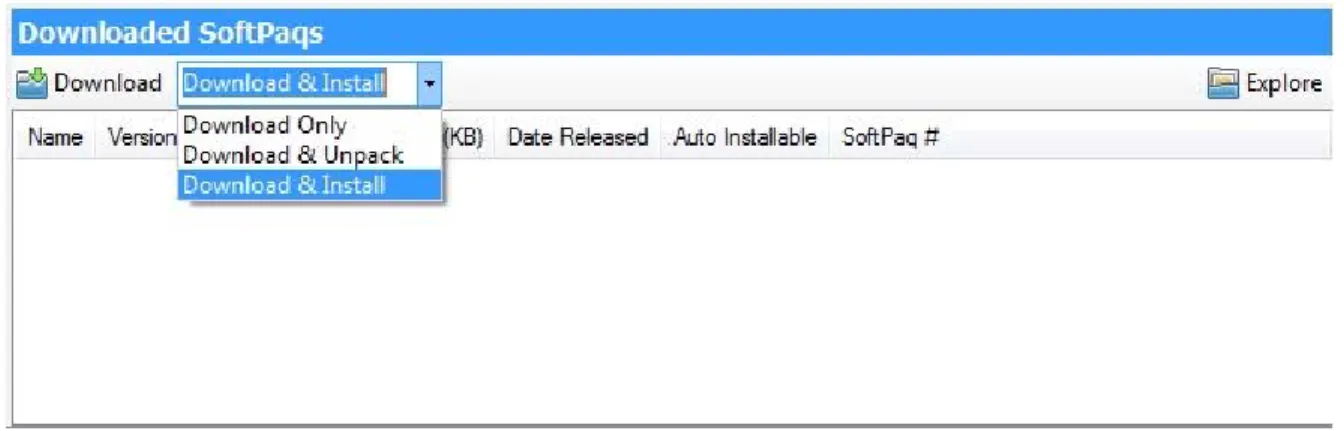
7. Select the desired option from the Download menu in the Downloaded SoftPaqs window (as shown in Figure A-3): • Download Only – Download selected SoftPaqs to C:\ProgramData\HP\HP SoftPaq Download Manger\SWDownload • Download & Unpack – Download selected SoftPaqs to C:\ProgramData\HP\HP SoftPaq Download
Manger\SWDownload and unpack each SoftPaq in a unique folder based on the particular SoftPaq number ( \SPxxxxx)
• Download and Install – Download selected SoftPaqs to C:\ProgramData\HP\HP SoftPaq Download Manger\SWDownload and then install each on the current system
Figure A-3. Downloaded SoftPaqs window
For more information on using HP SoftPaq Download Manager, refer to the Help documentation associated with the tool. Additional information is available via the SDM Support Forum (SDMHelpSupport Forum).
Appendix B: Installing preboot applications and tools
The HP_TOOLS partition and the preboot applications on this partition are not required for the basic operation of HP notebook computers. However, if the HP_TOOLS partition or applications are missing, the features described in this appendix will not be available.
Applications accessible during startup
The HP_TOOLS partition includes the following applications and utilities that are accessible during startup: • HP System Diagnostics – Allows you to perform diagnostic tests on select system components • BIOS Recovery – Performs automatic BIOS corruption detection and recovery
Creating or restoring a preboot partition on the hard drive
Use the following steps to create the HP preboot partition and install preboot SoftPaqs onto the partition:
1. Download the SoftPaqs for HP Unified Extensible Firmware Interface (UEFI) Support Environment and HP ElitePad 900 Driver & Firmware Update to the operating system partition. These SoftPaqs are available from the Download drivers and software page for the HP ElitePad 900 G1 Tablet.
Note
Install the HP UEFI Support Environment Setup SoftPaq first.
2. Verify that the SoftPaqs run and unbundle into the C:\swsetup directory.
3. Verify that the preboot application is installed in the correct location in the FAT32 partition. 4. Verify that all preboot applications have signature (.sig) files.
5. Verify that each application works as expected after installation.
HP_TOOLS partition errors
If the preboot application launch keys fail to operate (see the list below for examples), the partition may have become corrupt. Reinstall the application using the HP UEFI Support Environment Setup SoftPaq. If the reinstalled application still does not work, contact technical support.
The following errors may be displayed if a problem occurs when launching EFI and preboot applications: • Preboot partition not found: can’t find FAT32 partition starting with HP_TOOLS.
• Application not found: can’t find preboot application in directory.
• Invalid signature: BIOS fails to verify the signature of the preboot application.
If there is a backup version of the application in BIOS flash, the BIOS launches the backup; otherwise, the BIOS displays an error message.
Warning
Do not encrypt HP_TOOLS partition using software encryption programs such as Windows BitLocker or Full Volume Encryption for HP ProtectTools. When the partition is encrypted, HP preboot applications cannot function.
Appendix C: Q & A
Q: Are my accessories compatible with Windows 8?
A: Software and hardware compatibility can be checked at the Compatibility Center for Windows 8 on Microsoft’s website. Q: Will I have access to HP Store following the installation of Windows 8?
A: That depends on the particular Windows 8 installation scenario:
• Using volume license (VL) or key management service (KMS) server – No access to HP Store, thus no HP Windows Store apps are preloaded
• Using retail key – No access to HP Store, thus no HP Windows Store apps are preloaded • Using clean OS with HP Digital Product Key (DPK) and HP Recovery Image – Access to HP Store Q: Can Windows Store apps be deployed outside the Windows Store?
Appendix D: Installing .NET Framework 3.5 on Windows 8
.NET Framework 4.5 is included with Windows 8 and installed on your computer with the operating system; however, .NET Framework 3.5 is not automatically installed with Windows 8. Thus, to run applications that require .NET Framework 3.5 on a Windows 8 system, you must first enable this version using one of the following methods:
• Installing .NET Framework 3.5 on demand (that is, whenever an application that requires .NET Framework 3.5 finds that this version is not available)
• Using the Control Panel to enable .NET Framework 3.5
These two options are outlined below; for more information, refer to the appropriate MSDN article.
Important
Use .NET Framework 3.5 for applications built for .NET Framework 3.5, 3.0, or 2.5.
Installing a Windows language pack on Windows 8 before installing .NET Framework 3.5 causes the .NET Framework 3.5 installation to fail. Thus, you should install .NET Framework 3.5 before installing any Windows language pack.
Windows CardSpace is not available with .NET Framework 3.5 on Windows 8.
Installing .NET Framework 3.5 on demand
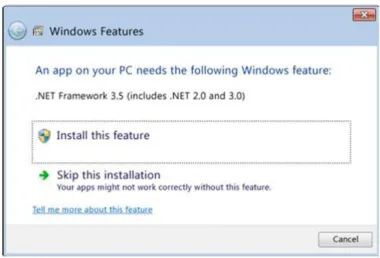
If an application requires .NET Framework 3.5 but does not find this version enabled on your system, the message shown in Figure D-1 is displayed, either when you install the application or when you run it for the first time.
Figure D-1. Message that allows you to install .Network Framework 3.5
Using the Control Panel to enable .NET Framework 3.5
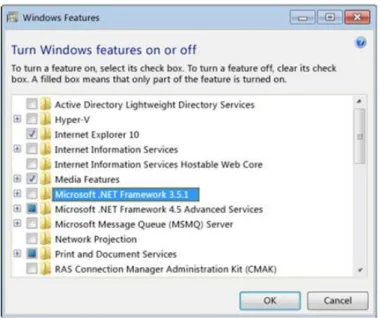
To enable .NET Framework 3.5 via the Control Panel, select Control PanelPrograms and FeaturesTurn Windows features on or off, as shown in Figure D-2.
Figure D-2. Windows feature list that allows you to install .Network Framework 3.5.1
Sign up for updates
hp.com/go/getupdated
For more information
Microsoft .NET Framework: microsoft.com/net/
Microsoft Windows 8 Compatibility Center:
microsoft.com/en-us/windows/compatibility/en-us/CompatCenter/Home HP Support, Drivers & Downloads
hp.com/go/support HP & Windows 8 page hp.com/go/windows8
To learn more about HP business notebooks, contact your local HP sales representative or visit hp.com/go/notebooks.