Report Number: C4 – 056R-00
Guide to Securing Microsoft
Windows 2000
®
Active Directory
Operating Systems Division
of the
Systems and Network Attack Center (SNAC)
Updated: December 2000 Author:
Version 1.0 Mark J. Sanderson
David C. Rice
National Security Agency
9800 Savage Rd. Suite 6704
Ft. Meade, MD 20755-6704
[email protected]
Warnings
Do not attempt to configure any of the recommendations in this guide without first testing in a non-operational environment.
This document is only a guide containing recommended security configurations. It is not meant to replace well-structured policy or sound judgment. Furthermore this guide does not address site-specific configuration issues. Care must be taken when implementing this guide while using products such as Microsoft Exchange, IIS, and SMS.
The security changes described in this document only apply to Microsoft Windows 2000 Service Pack 1 systems and should not be applied to any other Windows 2000 or Windows NT versions or operating systems.
You can severely impair or disable a Windows 2000 system with incorrect changes or accidental deletions when using programs (Examples: Security Configuration Tool Set, Regedt32.exe, and Regedit.exe) to change the system configuration. Therefore, it is extremely important to test all settings recommended in this guide before installing them on an operational network.
Currently, no Undo function exists for deletions made within the Windows 2000 registry. The registry editor (Regedt32.exe or Regedit.exe) prompts you to confirm the deletions if Confirm On Delete is selected from the options menu. When you delete a registry key, the message does not include the name of the key you are deleting. Therefore, check your selection carefully before proceeding with any deletion.
SOFTWARE IS PROVIDED "AS IS" AND ANY EXPRESS OR IMPLIED WARRANTIES, INCLUDING, BUT NOT LIMITED TO, THE IMPLIED WARRANTIES OF MERCHANTABILITY AND FITNESS FOR A PARTICULAR PURPOSE ARE EXPRESSLY DISCLAIMED. IN NO EVENT SHALL THE CONTRIBUTORS BE LIABLE FOR ANY DIRECT, INDIRECT, INCIDENTAL, SPECIAL, EXEMPLARY, OR CONSEQUENTIAL DAMAGES (INCLUDING, BUT NOT LIMITED TO, PROCUREMENT OF SUBSTITUTE GOODS OR SERVICES; LOSS OF USE, DATA, OR PROFITS; OR BUSINESS INTERRUPTION) HOWEVER CAUSED AND ON ANY THEORY OF LIABILITY, WHETHER IN CONTRACT, STRICT LIABILITY, OR TORT (INCLUDING NEGLIGENCE OR OTHERWISE) ARISING IN ANY WAY OUT OF THE USE OF THIS SOFTWARE, EVEN IF ADVISED OF THE POSSIBILITY OF SUCH DAMAGE.Warnings
Acknowledgements
The authors would like to acknowledge the authors of the “Guide to Implementing Windows NT in Secure Network Environments” and the “Guide to Securing Microsoft Windows NT Networks” versions 2.0, 2.1, and 3.0, 4.0, and 4.1.
The authors would also like to acknowledge Paul Bartock and Julie Haney for reviewing and editing the document.
Some parts of this document were drawn from Microsoft copyright materials with their permission.
Acknowledgements
Trademark Information
Trademark Information
Microsoft, MS-DOS, Windows, Windows 2000, Windows NT, Windows 98, Windows 95, Windows for Workgroups, and Windows 3.1 are either registered trademarks or trademarks of Microsoft Corporation in the U.S.A. and other countries.
Table of Contents
Warnings ...iii
Acknowledgements ...v
Trademark Information ...vi
Table of Contents ...vii
Table of Figures ...ix
Introduction...1
Getting the Most from this Guide ...1
Commonly Used Names ...2
About the Guide to Securing Microsoft Windows 2000: Active Directory ...2
Comments...2
Chapter 1 Active Directory Overview ...3
Chapter 2 Domain Name System (DNS) ...5
Active Directory Integrated Zones ...5
Active Directory DNS Interface ...6
Static Service Locations...7
Chapter Security Summary...7
Chapter 3 Active Directory Installation ...9
Active Directory Default Permissions...9
Directory Services Restore Mode ...11
Chapter Security Summary...11
Chapter 4 Domains and Organizational Units ...13
Domain Basics ...13
Domain Administrators...14
Group Policy Objects ...14
Default Users and Computers...15
Hiding Active Directory Objects in OUs ...15
Domain Controller Security ...16
Chapter Security Summary...17
Chapter 5 Trees and Forests ...19
Design Considerations...19
Active Directory Trusts...20
Chapter Security Summary...23
Table of Contents
Table of Contents
Chapter 6 Object Access Control ... 25
Active Directory Groups... 26
Object Ownership and Delegation of Control ... 27
Default Access Control Security Settings... 28
Group Policy and Object Access Control ... 29
Schema Access Control ... 29
Moving Active Directory Objects ... 29
ACL Tools ... 29
Access to Published Resources... 30
Controlling Access to MMC Consoles ... 31
Chapter Security Summary ... 32
Chapter 7 Replication ... 33
Replication Events and Conflicts... 33
Site Replication... 34
Replication Monitor... 35
Chapter Security Summary ... 36
Chapter 8 Operations Masters ... 37
Operations Master Roles... 37
Operations Masters Placement ... 38
Global Catalog Server ... 38
Chapter Security Summary ... 39
Chapter 9 Auditing ... 41
Enabling Auditing on AD Objects ... 41
Reviewing Audit events ... 42
Chapter Security Summary ... 43
Chapter 10 Backup/Restore and Database Maintenance... 45
Backup... 45
Restore ... 45
Chapter Security Summary ... 47
Table of Figures
Figure 1 DNS Security Tab... 6
Figure 2 Active Directory Default Permissions ... 10
Figure 3 Domain and OU Structure ... 13
Figure 4 GPO Inheritance... 15
Figure 5 SYSKEY Password Storage ... 17
Figure 6 Forest Trust Relationships ... 21
Figure 7 Object Security Properties... 26
Figure 8 Modify Permissions on an Object... 28
Table of Figures
Introduction
This document is a DRAFT only and may be incomplete. The purpose of this document is to provide Active Directory security configuration guidance and recommendations. This draft is meant to be a starting point for Windows 2000 Active Directory security and does not include numerous Windows 2000 functions and applications associated with Active Directory. This document is a companion to the “Guide to Securing Microsoft Windows 2000: Security Configuration Tool Set” and other documents that comprise the overall NSA Windows 2000 guidance.
The following essential assumptions have been made to limit the scope of this document:
The network consists only of machines running Microsoft Windows 2000 clean-installed machines (i.e. not upgraded) with Service Pack 1.
All network machines are Intel-based architecture.
Applications are Windows 2000 compatible.
Users of this guide have installed or have access to the Windows 2000 tools and utilities contained in the Microsoft Windows 2000 Server Resource Kit.
Users of this guide have a working knowledge of Windows 2000 installation and basic system administration skills.This document is intended for Windows 2000 network administrators, but should be read by anyone involved or interested in Windows 2000 or network security.
WARNING: This guide does not address security issues for the Microsoft Windows 2000 operating system that are not specifically related to the Active Directory and its implementation.
Getting the Most from this Guide
The following list contains suggestions to successfully secure the Windows 2000 Active Directory according to this guide:
WARNING: This list does not address site-specific issues and every setting in this book should be tested on a non-operational network.
Read the guide in its entirety. Omitting or deleting steps can potentially lead to an unstable system and/or network that will require reconfiguration and reinstallation of software.
Perform pre-configuration recommendations:
Perform a complete backup of your system before implementing any of the recommendations in this guide
Follow the security settings that are appropriate for your environment.
Introduction
Introduction
Commonly Used Names
Throughout this guide the network name “test.gov” and the subnet 192.168.0 may be used in the examples, screenshots, and listings.
WARNING: It is extremely important to replace “test.gov” and 192.169.0 with the appropriate network name and subnet for the networks being secured. These names are not real networks and have been used for demonstration purposes only.
About the Guide to Securing Microsoft Windows 2000: Active Directory
This document consists of the following chapters:Chapter 1, “Active Directory Overview,” discusses the approach of the Active Directory Mini-guide and provides some topology considerations.
Chapter 2, “Domain Name System,’’ provides guidance about the Domain Name System (DNS) as it relates to Active Directory. Information about Active Directory DNS security functionality and requirements is provided; bugs and incompatibilities are pointed out.
Chapter 3, “Active Directory Installation,” explains Active Directory installation requirements and security issues.
Chapter 4, “Domains and Organizational Units,” illustrates the security properties of a domain as an Active Directory container object. Active Directory object access control is explained, and domain controller physical security and vulnerability issues are discussed.
Chapter 5, “Trees and Forests,” explains how multiple domains can be configured using Active Directory trusts.
Chapter 6, “Object Access Control,” discusses Active Directory object security.
Chapter 7, “Replication,” discusses replication conflicts that can occur and how to minimize conflicts. Active Directory site issues are explored.
Chapter 8, “Operations Masters,” provides placement guidelines for managing the various operations masters and the Global Catalog.
Chapter 9, “Auditing,” tells how to audit an Active Directory container or leaf object and how to view and manage audit output.
Chapter 10, “Backup/Restore and Database Maintenance,” discusses security issues related to backup/restore and restore mode password protection.
Comments
As this document is a work in progress, comments, suggestions, questions, and bug reports are welcome and encouraged. Send an email to [email protected] describing the issue in detail.
1
Chapter
Active Directory Overview
Active Directory is the directory service used for Windows 2000 domain controllers. According to Microsoft, a directory is a source used to store information about objects. A
directory service includes both the information source and the services making the information available to users.
In its simplest definition, Active Directory is a hierarchical namespace of objects that is tightly integrated with the Domain Name System (DNS). Active Directory holds information on objects stored in underlying domains, trees, and forests. Active Directory also provides mechanisms for safeguarding directory objects from unauthorized access. Since Active Directory holds the important pieces of information for a Windows 2000 network, special care must be taken to protect its integrity and contents.
The Active Directory mini-guide is intended to highlight Windows 2000 Active Directory security capabilities and issues and provide security configuration guidance and recommendations for system administrators. The reader is assumed to have basic knowledge of Windows 2000 configuration and the role Active Directory plays in a Windows 2000 network. This is a companion volume to other mini-guides that are part of the overall NSA Guide to Securing Microsoft Windows 2000. Because the Guide to Securing Microsoft Windows 2000 is intended to provide guidance and tools to improve the security configuration of Windows 2000 systems in a “typical” operational environment, it does not advocate specific design or integration policies.
The approach of this mini-guide is somewhat different than the approach of other security guides. Some guides provide discrete settings that implement a predictable security configuration outcome. The recommendations provided in this mini-guide are somewhat more flexible and are intended to inform administrators and to aid decision-makers in arriving at their own policy implementations.
Chapter 1 –
Active Directory Ove
rview
2
Chapter
Domain Name System (DNS)
Active Directory uses the Domain Name System (DNS) for name resolution, to locate services, and to establish the domain namespace for the Active Directory hierarchy. DNS affects the design of the organizational layout including forests, trees, domains, and sites. For this reason, DNS should be the first concept designed. DNS design should not be taken lightly because Active Directory does not currently allow the naming convention to be changed without completely re-installing Active Directory for all affected domains. This section provides guidance on the Domain Name Service (DNS) as it relates specifically to Active Directory. Additional DNS guidance can be found in the Guide to Securing Microsoft Windows 2000 DNS mini-guide.
NOTE: Active Directory requires DNS Service Resource Record (SRV RR) support and BIND 8.1.2 or higher.
DNS can be configured via the DNS Installation Wizard. The wizard can be used to perform the following functions:
Install the DNS Server Service
Create a forward lookup zone
Configure the zone as Active Directory Integrated
Enable secure dynamic updates for the zoneActive Directory Integrated Zones
Active Directory integrated zones allow access control over who can update DNS and provide better replication and fault tolerance capability. Using Active Directory integrated zones, the DNS server properties interface can be used to manage Access Control Lists (ACLs) for which groups and users can access and modify a specified zone or resource record.
Chapter 2 –
Domain Na
me System
Chapter 2 –
Domain Na
me System
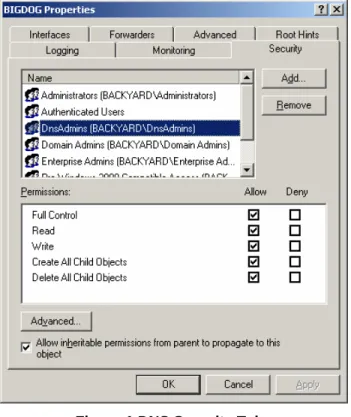
Figure 1 DNS Security Tab
The DNS server properties security tab can be used to link users and the designated DNS administrators groups, such as the DnsAdmins group shown in Figure 1, and to configure permissions. Groups and users can then be placed into a designated Organizational Unit (OU) or other container so that the appropriate Group Policy Object (GPO) can be applied (see also the Guide to Securing Microsoft Windows 2000 Group Policy mini-guide).
With directory-integrated storage, dynamic zone updates are propagated within the multi-master Active Directory replication scheme. This avoids the traditional DNS multi-master server becoming a single point of failure. Furthermore, zones are replicated and synchronized to new domain controllers automatically whenever a new zone is added to an Active Directory domain.
Active Directory DNS Interface
The Active Directory DNS interface allows administrators to specify the servers allowed to participate in zone transfers. The DNS interface also allows logging and monitoring of certain events. Captured DNS audit events are viewable from the “DNS Server” log in the Event Viewer.
Enabling only secure DNS updates at a server causes all updates to the particular server to be encrypted during transmission over the network. Microsoft has published a warning about how a DHCP server can compromise secure dynamic updates.
WARNING: In the Windows 2000 on-line help for Dynamic
Update is the following caution: “For Windows 2000, the use
a DHCP server on a domain controller when Windows 2000 DHCP server is configured to perform registration of DNS records on behalf of its clients. To avoid this issue, deploy DHCP servers and domain controllers on separate computers. If you are not concerned about security of reverse lookup (PTR) records, this precaution is only advisable if the DHCP server is configured to perform registration of host (A) records on behalf of its clients (which is not a default behavior).”
Static Service Locations
Instead of using dynamic service location, Active Directory uses static service locations. This leads to a problem where service records remain in DNS after a service has been removed or otherwise become unavailable – servers and clients will continue to believe that the service is still available.
To address this problem, Microsoft provides a proprietary server aging/scavenging solution that makes use of a previously unused DNS extension. The aging/scavenging functionality allows Active Directory DNS servers to age out and remove old DNS service records. The default time is seven days. One problem with this is that services will appear available to servers and clients until they have been scavenged (this problem may also affect locating new services). Another problem is that non-Windows 2000 DNS servers do not have the ability to age or scavenge old service records. This issue must be considered when deciding if or how to implement DNS in a non-Windows 2000 DNS server or mixed DNS server environment.
Chapter Security Summary
Recommendations
Implement Active Directory integrated zones.
Use or create Active Directory DNS administrators groups and users to manage DNS.
Link only the designated DNS administrators groups and users and configure permissions through the DNS server properties security tab.
Place the DNS administrators groups and users into a designated Organizational Unit (OU) and apply the appropriate Group Policy.
See also the Guide to Securing Windows 2000 DNS mini-guide.
Good Practices
Configure support for dynamic updates and incremental zone transfers.
Enable secure dynamic updates for the zone.
Routinely check currency of service records and manually scavenge as needed.
Make use of the Windows 2000 DNS installation wizard when creating zones.
Chapter 2 –
Domain Na
me System
Chapter 2 –
Domain Na
me System
Become familiar with and test issues regarding interoperating with non-Windows 2000 DNS servers, such as SRV RR support, service record aging and scavenging, and version stability.
Create an enterprise DNS audit policy; use Active Directory DNS interface to log and monitor DNS events.
Use more than one DNS server to host each zone, for fault tolerance.
DNS servers should be local, not across a site connection (i.e., not across a WAN or slow-speed link).
3
Chapter
Active Directory Installation
After installing a Windows 2000 server product (server, advanced server, or data center), the server can be promoted to a domain controller by installing Active Directory. Active Directory is installed using the Active Directory Installation Wizard. This wizard is launched by running DCPROMO.EXE from the command prompt or by running Configure
Your Server on the Administrative Tools menu of the Start menu. The Active Directory
Wizard can perform the following functions:
Add a domain controller to an existing domain
Create the first domain controller of a new domain
Create a new child domain
Create a new domain tree
Install a DNS server with a default configuration
Create the database and database log files
Create the shared system volume
Remove Active Directory services from a domain controllerIt is recommended that Active Directory domain, Organization Unit (OU), and site topologies be carefully considered before Active Directory installation. It is also recommended that DNS services be installed and configured prior to Active Directory installation unless the default Active Directory Installation Wizard DNS configuration is acceptable. For further guidance, see also the Guide to Securing Microsoft Windows 2000 DNS mini-guide and the DNS section of this mini-guide.
Active Directory Default Permissions
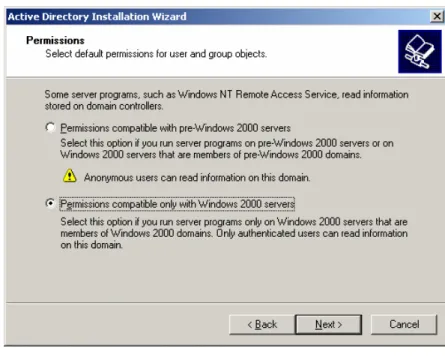
During Active Directory installation, a dialog box prompts for one of the following two permission preferences (see Figure 2):
Chapter 3 –
Active Directory Ins
tallation
Chapter 3 –
Active Directory Ins
tallation
Figure 2 Active Directory Default Permissions
• Permissions compatible with pre-Windows 2000 servers • Permissions compatible only with Windows 2000 servers
Permissions should be set to be compatible only with Windows 2000 servers, if possible. Permissions compatible with pre-Windows 2000 servers allows anonymous users read access to information on the domain.
No matter which option is selected, the built-in Pre-Windows 2000 Compatible Access group is added in the access control lists (ACLs) and user rights throughout Active Directory and the domain controller. However, with the first option, permissions compatible with pre-Windows 2000-based servers are selected, and the Everyone group is nested in the Pre-Windows 2000 Compatible Access group, which allows anonymous connections to the server. With the second option, the Everyone group is not nested. To later change this permission setting to be compatible with pre-Windows 2000 or only with Windows 2000 servers, the Everyone group can be added or deleted from the Pre-Windows 2000 Compatibility Access group. The following run commands will add or delete the Everyone group:
net localgroup "Pre-Windows 2000 Compatible Access"
everyone /add
net localgroup "Pre-Windows 2000 Compatible Access"
everyone /delete
If pre-Windows compatible access is needed for a mixed-mode Windows 2000/NT environment, steps should be taken to reduce exposure to Everyone group access. See also the Guide to Securing Microsoft Windows 2000 Group Policy: Security Configuration Toolset mini-guide for more information on limiting permissions of the Everyone group.
Directory Services Restore Mode
During Active Directory installation, a value for the Directory Services Restore Mode Administrator’s password is supplied. The Directory Services Restore Mode Administrator’s password is used to restore the Active Directory database from a backup and to protect access to the Active Directory database file (ntds.dit) stored on the server. Therefore, it is important to protect this password. The restore mode password, unlike typical Windows 2000 group and user passwords, is stored in the server’s local Security Accounts Manager (SAM) data store. Therefore, good password management guidelines should be used to reduce the effectiveness of password-cracking utilities against this password. SYSKEY can be used to provide additional protection of the SAMs of all domain controllers. SYSKEY is discussed in greater detail later in this guide.
Chapter Security Summary
Recommendations
Set permissions compatible only with Windows 2000 servers, if possible (i.e., if not in mixed-mode).
Use robust password guidelines (e.g., length, complexity) when setting the Directory Services Restore Mode Administrator’s password. Consider using SYSKEY for additional security.
Good Practices
Carefully consider Active Directory topologies before installing Active Directory.
DNS services should be installed and configured prior to Active Directory installation, unless the default configuration is acceptable.
Chapter 3 –
Active Directory Ins
tallation
4
Chapter
Domains and Organizational Units
As stated earlier, Active Directory is a hierarchical structure. Domains are the fundamental container objects in Active Directory. Within domains, Organizational Units (OUs) are created to further organize objects.
This chapter discusses the security concerns specifically related to domains and OUs.
Domain Basics
Windows 2000 domains maintain backward compatibility with Windows NT domains and must match DNS names. Active Directory domains represent a security boundary or partition because permissions and authority do not flow in or out of a domain. Permissions can, however, flow in and out of sites and Organizational Units (sites are discussed in the Replication section).
i l i i i unit izati it i organizat ona unit
group user
organizat onal unit
organ zat onal user
organ onal un
group pr nt queue server
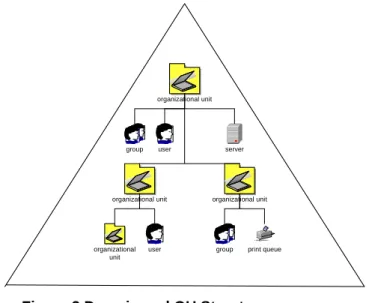
Figure 3 Domain and OU Structure
An OU is typically created within the domain to further organize and contains individual resource objects (leaf objects) such as users, computers, and shared folders. OUs are illustrated as “directory folder” objects within a domain triangle in Figure 3. OUs are the primary container object used to delegate authority and to link Group Policy Objects (GPOs). The other container objects used to delegate authority and link to GPOs are domains and sites.
When creating a new child domain, the Active Directory Installation Wizard:
Creates a new domainChapter 4 –
Domains and Organizational
Un
its
Chapter 4 –
Domains and Organizational
Units
Promotes the computer to a new domain controller
Establishes a transitive, two-way trust relationship with the parent domain
Replicates schema and configuration directory partitionsDomain Administrators
Within the domain, domain administrators (members of the Domain Admins group and the built-in Administrator account) not only have full control by default, they also have the right to take ownership of any object in the domain. Using this right, domain administrators can gain full control over any object in the domain, regardless of the permissions that have been set on that object. Specifically, there is no way to prevent a domain admin or administrator from being able to take ownership (control) of an OU anywhere in the domain. The Active Directory interface indicates that blocking or denying permissions is effective in blocking out any group or user including domain administrators, which is misleading.
Because domain administrators have full control throughout the domain, membership of the domains administrators group should be kept small and controlled. Also, members of the domain administrators group should not be placed in OUs to manage sub-domain elements of the directory tree. One approach for delegating administration within a domain is as follows:
Create an OU for each logical subdivision of the domain
Create a local group for each subdivision representing the highest level administration in that subdivision
Assign the given group full control over its OU
If the subdivision is allowed to set their membership, place the subdivision’s administrators group into the OU. Otherwise, leave the group outside the OU.Group Policy Objects
When an object is created in the directory, a default access control list (ACL) is applied. The default ACL is described in the schema definition of the object class. Beyond these default permissions, security management for Active Directory user and computer objects is largely performed with Group Policy Objects (GPOs) that are linked (applied) to domain, OU and site container objects. Additional Group Policy guidance can be found in the Guide to Securing Microsoft Windows 2000 Group Policy mini-guide.
By default, GPOs are inherited. Inheritance flows from site to domain to OU. Child OUs, for example, inherit GPOs from parent OUs. There is no GPO inheritance hierarchy for domains as there is for OUs, such as from parent OU to child OU and so forth. Figure 4
domain.com GPO
GPO GPO
domain to OU inheritance
OU to OU inheritance no inheritance
between domains no inheritance
between domains
sub .dom ain.co m different.com
Figure 4 GPO Inheritance
Default Users and Computers
When Active Directory is installed on the first domain controller in a new domain, several default objects are created. These objects include Builtin, Computers, and Users folders. Because effective Active Directory management depends on implementing an OU
structure within a domain for delegation of administrative control and Group Policy, the default users and computers folders should only be used, if needed, to initially plan and create a manageable OU structure. As soon as possible, user and computer objects should be relocated to OUs within the target structure.
Hiding Active Directory Objects in OUs
OUs can be created to hide objects. Blocking the “List Contents” permission for an OU makes the OU and its contents invisible to affected users. Only users who can modify the access control list (ACL) on an OU can hide objects in this way. This feature can be used to compartment the logical structure of the directory to meet management policies and objectives. On the negative side, this feature also could be used to “backdoor” a system, i.e., to create a privileged user and place that user into a hidden OU container. When an administrator attempts to view a hidden OU, the OU object will appear as an object without an icon. When the object’s security tab is selected, the security information will be unavailable. These are the indications to administrators that an OU has been created to hide Active Directory objects. If such activity is suspicious, the administrator can perform the following steps to regain control of the hidden object:
Open another object to which the administrator has privilege
View the security settings of the other object
Return to view the security tab of the hidden object
The security settings will now be visible and can be managed by the administratorChapter 4 –
Domains and Organizational
Un
its
Chapter 4 –
Domains and Organizational
Units
The administrator can now grant other objects rights to this OU
The administrator can now reset inherited permissionsThe steps to find and take control of hidden OU objects must be done manually.
Domain Controller Security
Domain controllers contain sensitive information, such as copies of users’ secret keys used for domain authentication. Therefore, the security of domain controllers should be a high priority.
Physical Security
Having fewer copies of domain controller information physically accessible to unsupervised persons reduces the risk for unauthorized access. Domain controllers must be kept physically secure from unauthorized access. For example, it is recommended that domain controllers be located in a locked room with limited access. Physical access can allow an intruder to obtain copies of encrypted password data to use for an off-line password attack.
SYSKEY Concerns
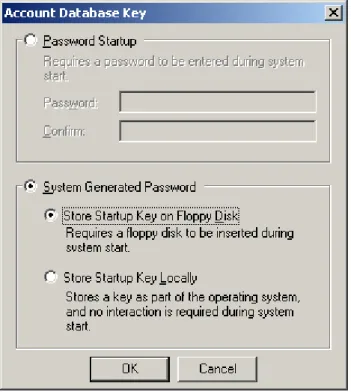
The use of SYSKEY introduces additional security and ease of use issues, as described by Microsoft in http://support.microsoft.com/support/kb/articles/q143/4/75.asp. For example, SYSKEY uses its own key that must also be protected. Because the SYSKEY binary key is needed to boot a domain controller (computer), if a floppy disk containing the binary key were stored insecurely near the target machine, for example, it could be used to bypass SYSKEY. Unattended system restart could require that the SYSKEY material be stored on the local hard drive so that the system can be restarted without Administrator response, thus reducing the level of security. If the SYSKEY password is forgotten or the removable media is lost, it may not be possible to start the system. Also, SYSKEY could affect repair options for system recovery. Figure 5 shows the options for the storage of SYSKEY startup keys.
Figure 5 SYSKEY Password Storage
Fault Tolerance
Immediately after Active Directory is installed on the first domain controller, at least one additional domain controller should be installed to prevent loss of the database if the first server crashes.
Chapter Security Summary
Recommendations
Create separate domains as needed to partition or compartment portions of Active Directory requiring different security or administrative policies.
Physically secure domain controllers.
As soon as possible, move default user and computer objects into OUs within the target OU structure.
Good Practices
Membership of the domain administrators group should be kept small and controlled.
Members of the domain administrators group generally should not be placed in OUs to manage sub-domain elements of the directory tree.
Take steps to ensure that unauthorized hidden OU objects do not exist within the directory structure.
Chapter 4 –
Domains and Organizational
Un
its
Chapter 4 –
Domains and Organizational
Units
Use SYSKEY to augment the physical protection of domain controllers.
At least one sub-domain or replica domain controller should be installed shortly after the first domain controller is installed to prevent loss of the database if the first server crashes.
5
Chapter
Trees and Forests
A tree is a collection of domains, connected by trust relationships, which share a contiguous DNS namespace. A forest is a collection of domains, connected by trust relationships, whose DNS namespace is not contiguous. All domains in trees or forests have the following in common:
Global Catalog - Holds a copy (replica) of every object in Active Directory, but with a limited number of each object’s attributes. The Global Catalog stores those attributes most frequently used in search operations and user logon, and attributes required to locate a full replica of the object.
Schema - Defines the classes and attributes of objects that can be created in the Active Directory database.
Configuration - A naming context that is replicated to every domain controller in the forest. The Configuration holds and uses site information to make connections.Design Considerations
In Active Directory, the first domain created is the root domain controller, tree root domain, and forest root domain, even though there is only one domain. The first domain controller stores the Global Catalog, Schema and Configuration. As the forest root domain, the two predefined security groups created to manage forests are:
Enterprise Admins -A universal group if the domain is in native mode, a global group if the domain is in mixed mode. This group is authorized to make changes to the entire forest in Active Directory, such as adding child domains.
Schema Admins - A universal group if the domain is in native mode, a global group if the domain is in mixed mode. This group is authorized to make schema changes in Active Directory.In Active Directory, DNS, tree, and forest implementation hinges on the first domain created. Subdomains and Active Directory trees that will be included in a forest must be linked with the first domain as their Active Directory configurations are installed. An established domain or tree cannot later join a forest. Although non-transitive trust relationships can be provided to established domains, trees and forests, the preferred Active Directory two-way, transitive trust relationship is not available to domains and trees that were not installed into the forest root domain.
Active Directory is a new technology and does not yet provide tools or methods to change or add flexibility to tree and forest design. Most tree and forest implementations are permanent and cannot be changed or undone without reinstalling domain controllers or entire trees. Significant planning must be done before creating the DNS namespace, trees, and forests.
After the first domain is created, subsequent Active Directory installations within a forest can accomplish the following:
Chapter 5 –
Trees and Forests
Chapter 5 –
Trees and Forests
Create a replica within a domain
Create a subdomain that extends the namespace
Create a subdomain with a non-contiguous namespaceWhen subsequent domain controllers are installed, Active Directory will begin to exchange copies or replicas of the Global Catalog, Schema, and Configuration among the domain controllers. Within a domain, large portions of these databases are exchanged. Between domains only the changes or updates are exchanged.
Advantages of a Single Domain Architecture
The primary advantage of having a single domain for the entire system or enterprise is to simplify system management. The security benefits of a single domain system include the following:
It is easier to manage and trace Active Directory object access control and Group Policy inheritance since permissions are contained within the domain boundary.
Domain administrators have complete control over the entire system because they cannot be blocked out of containers.Advantages of a Multiple Domain Architecture
Some general and security-related benefits of having multiple domains in the system or enterprise include the following:
Multiple domains can reduce replication traffic since replication between domains only involves changes to the Active Directory database
It might be easier to implement distinct security settings by using separate domains
Multiple domains might aid in the transition from Windows NT domains to Windows 2000 domains
Separate domains may be required to block administrative authority from one part of a system to anotherActive Directory Trusts
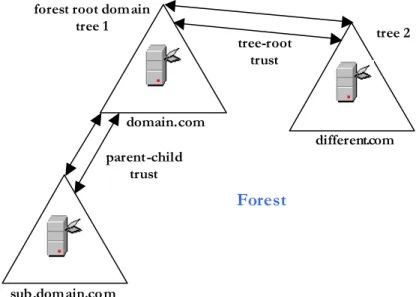
As each new domain controller is installed into a forest, Active Directory automatically and transparently creates a two-way, transitive trust between the forest root or the parent domain and the new domain. Because the trust is two-way, the trust paths between the domains extend in both directions. Because the trust is transitive, the trust relationship is extended to all domains that are connected together with a transitive trust. Transitive trusts can be distinguished as either parent-child trusts, or as trusts between tree roots.
domain.com
different.com forest root dom ain
tree 1 tree-root trust parent-child trust
Forest
tree 2sub .dom ain.co m
Figure 6 Forest Trust Relationships
Kerberos V5 verifies trust relationships in Active Directory. When a user in a trusted domain tries to access a resource in another domain, the user’s computer contacts the domain controller in its local domain to get authentication to the resource. If the resource is not in the user’s domain, the local domain controller uses the trust relationship with its parent to refer the requesting computer to the parent domain controller. This chain of requests continues through the trust hierarchy until the request reaches the domain in which the resource resides. Kerberos is further described in the Kerberos mini-guide. Within a forest, a shortcut trust can be created to reduce the length of the trust hierarchy between network resources.
Non-transitive Trusts
A non-transitive, or one-way, trust can be created between Active Directory domains where a transitive trust relationship does not or cannot exist. Care must be taken when explicitly establishing a one-way trust. Only necessary trusts should be created.
Non-transitive trusts can be used in the following situations:
Between a Windows 2000 domain and a Windows NT domain.
Between a Windows 2000 domain in one forest and a Windows 2000 domain in another forest.
Between a Windows 2000 domain and a Kerberos V5 protocol security realm. Non-transitive trusts are manually created and are one-way, although a one-way non-transitive trust can be created for both directions to accomplish a two-way non-non-transitive trust relationship.Trusts can be viewed, verified, or removed in Active Directory Domains and Trusts as follows:
Select Start → Programs → Administrative Tools → Active Directory Domains andTrusts
Chapter 5 –
Trees and Forests
Chapter 5 –
Trees and Forests
Right-click a domain and click Properties. The domains trusted by this domain and the domains that trust this domain are visibleTo verify a trust relationship:
From the Trusts tab, select a domain to verify and click Edit
Click Verify/ResetTo remove a trust:
From the Trusts tab, select a domain to remove and click RemoveTrusts Between Multiple Forests
It is possible to link multiple forests together with non-transitive trust relationships. Linking multiple forests may be necessary due to any number of circumstances such as organizations or companies merging together or operational needs to merge systems that were previously separate. While there is yet no graceful forest merge capability with Active Directory, system decision-makers are basically faced with the following choices:
Maintain separate forests
Manually recreate and copy objects from one forest to anotherSome of the consequences of having multiple forests include the following:
There will be multiple schemas. Maintaining consistency between them will create overhead and be difficult.
There will be multiple Configuration containers. Network topology changes will have to be replicated to each affected forest, and maintaining consistency will create overhead.
Explicit trusts between individual domains will need to be established and maintained. There are no transitive trusts between forests, so multiple domains requiring inter-forest trust relationships will require a mesh of one-way explicit trusts.
Users will need to make explicit queries for resources outside their forest.
Any replication of information between forests will be manual and will require an administrative process for keeping such information up-to-date.
Users logging on to computers in forests outside their own must use the default (full domain path) UPN when logging on.
Accounts cannot be easily moved between forests. Account moves between forests must use cloning or a bulk import utility.NOTE: When user accounts are bulk imported, the pre-import account password cannot be preserved. It is possible to specify a new password during the bulk import, but managing unique passwords for a large number of imported accounts is probably somewhat unwieldy, thus it would be tempting to use generic passwords. Also, the new passwords must somehow be distributed to affected users, which presents an additional potential security problem. Therefore, it is recommended that bulk imported accounts be imported as inactive. Users can later create or change their passwords as their accounts are activated.
Chapter Security Summary
Recommendations
Significant planning must be done before creating the DNS namespace, trees, and forests because many aspects of these structures cannot be later modified.
Maintain separate domains as needed to block administrative authority from one part of a system to another.
Bulk imported accounts should be inactive; a secure method to create or change the account password as each account is activated should be locally devised.
Good Practices
Avoid the use of multiple forests.
Create shortcut trusts between frequently accessed domains with long trust paths.
Use separate domains to implement distinct security settings.
Chapter 5 –
Trees and Forests
6
Chapter
Object Access Control
Like file permissions in NTFS, the security of Active Directory objects is based on access control lists (ACLs). This chapter discusses the basics behind Active Directory object ACLs and strategies for managing these ACLs.
The Active Directory security components are as follows:
Security Principals - User, security group, service, and computer; Identified by a unique ID
Security Identifiers (SIDs) - Uniquely identify security principals; Are never reused
Security Descriptors - Security information associated with an object; Contains Discretionary Access Control Lists (DACLs) and System Access Control Lists (SACLs)Access control for Active Directory services works through security descriptors associated with every directory object or property. Each security descriptor contains a discretionary access control list (DACL) and a system access control list (SACL). The DACL is a set of access control entries (ACEs), each having a security identifier (SID) that represents the security principal (user, group, or computer) to whom the ACE applies, and permissions, which allow or deny users and groups rights to the objects. An ACE is used to determine which accesses a security principal is allowed to an object, or for a SACL, which accesses are audited. An example of a permission attached to an object is Read permission on a container attribute. The DACL determines who can see the object and what actions can be performed.
If auditing is configured for the object, its security descriptor also contains a system access control list (SACL) that controls how the security subsystem audits attempt to access the object.
Inheritance
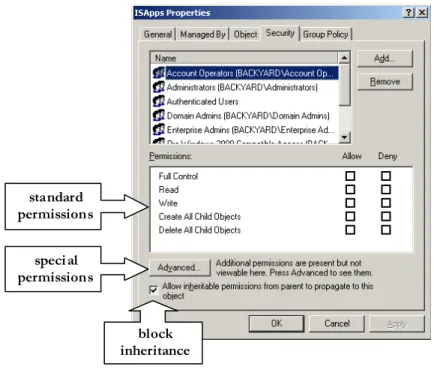
Through inheritance, the ACEs in a parent object’s security descriptor are passed to a child object’s descriptor. ACE inheritance propagation from parent to child object happens when a child object is created or when a DACL or SACL on the parent object is modified. To prevent child objects from inheriting permissions, uncheck the Allow
inheritable permissions from parent to propagate to this object check box. When
permissions are blocked, the administrator is asked to choose whether to copy the previously inherited permissions to the object, or remove them.
Modifying Object Permissions
To view, add or change permissions or to block inheritance to child objects, perform the following steps:
Chapter 6 –
Object Access Control
Chapter 6 –
Object Access Control
Click Start → Programs → Administrative Tools → Active Directory Users and
Computers
On the View menu, click Advanced Features
Right-click the object and select Properties
In the Properties dialog box, click the Security tab
standard permission s
speci al permission s
block inheritance
Figure 7 Object Security Properties
An example of an object’s security properties is shown in Figure 7.
Active Directory permissions can be allowed or denied. When permission to perform an action is not explicitly assigned, it is implicitly denied. Permissions can also be explicitly denied. Object permissions can be set as standard or special. Special permissions provide a finer degree of control for assigning access to objects.
Active Directory Groups
In Active Directory there are two group types:
Security Groups – used with access controls
Distribution Groups – used with email (Exchange) applicationsSecurity groups are listed in DACLs that define permissions on resources and objects. Distribution groups are not security-enabled. They cannot be listed in DACLs, but are used only with email applications, such as Exchange, to send email to a group of individuals. Distribution groups should never be used to create a general-purpose group and should be avoided.
Universal
Global
Domain LocalUniversal groups are available only in native mode. Universal groups are useful to consolidate groups that span multiple domains, but can cause replication overhead (see the Replication chapter in this guide). When processing a logon request for a user in a native-mode domain, a domain controller sends a query to a global catalog server to determine the user’s universal group memberships. Since groups can be explicitly denied access to a resource, complete knowledge of a user’s group memberships is necessary to enforce access control correctly. If a domain controller of a native-mode domain cannot contact a global catalog server when a user tries to log on, the domain controller refuses the logon request. In a single domain environment, global catalog servers are not required to process a user logon request.
Microsoft recommends the following group nesting strategy:
Place domain users into Global Groups.
Nest Global Groups as needed to increase flexibility in the event of organizational and network changes.
Nest Global Groups into Universal Groups to consolidate groups that span multiple domains.
Place Global and Universal Groups into Domain Local Groups at the location where they will be managed.
Assign permissions to the Domain Local Groups.A successful group nesting strategy aids security management by administering security policies consistently among groups and reduces errors that arise from managing and auditing Active Directory object access on a person-by-person basis. When setting Access Control Entries (ACEs) on Active Directory objects, it is much easier to allow and deny permissions to groups of users than to individuals. Security management by groups allows changes to security permissions to be updated more easily and accurately.
Object Ownership and Delegation of Control
Every object has an owner. The owner controls how permissions are set on an object, and to whom permissions are assigned. If a member of the Administrators group takes ownership, the default owner is the group, not the individual user. Whoever takes ownership is listed in the Access Control Settings dialog (from the object Properties
Security tab Advanced button).
Object permissions for a user or group include permission to modify permissions and ownership. These permissions are viewed by performing the following actions:
Right-click an object
Click Properties
Chapter 6 –
Object Access Control
Chapter 6 –
Object Access Control
Click the Security tab
Click the Advanced button
Select a permission entity
Click the View/Edit button
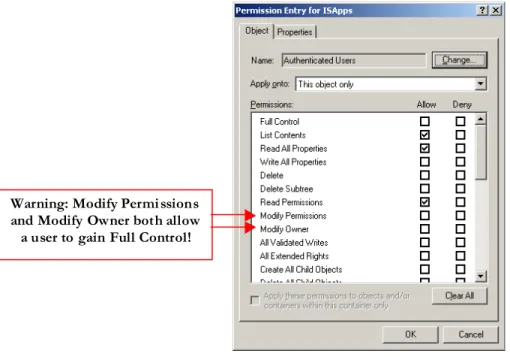
Allowing Modify Permissions or Modify Ownership permissions gives the user or group authority to gain Full Control over the object (See Figure 8).
Warning: Modify Permi ssions and Modify Owner both allow a user to gain Full Control!
Figure 8 Modify Permissions on an Object
Delegating Object Control
A preferred way to delegate administrative control over Active Directory objects is to create OUs within a domain and use the Delegation of Control Wizard to assign granular permissions for administrators. To start the Delegation of Control Wizard, right-click an object in Active Directory Computers and Users, or select Delegate Control from the
Action pull-down menu.
Default Access Control Security Settings
During the installation of Active Directory, security is enabled on the directory service and the file replication folders to control access to Active Directory objects. Default Discretionary Access Control Lists (DACLs) are configured on Active Directory objects. The default security settings for Windows 2000 are held in the following templates:
Workstations - %systemroot%\inf\defltwk.inf
Member Servers - %systemroot%\inf\defltsv.infThese default templates can be viewed and edited through the Security Templates snap-in for the Microsoft Management Console (MMC). See the Guide to Securing Microsoft Windows 2000 Group Policy: Security Configuration Toolset mini-guide for more information on using security templates.
Group Policy and Object Access Control
The templates contained in the Security Configuration Toolset can be used to create default GPOs for Active Directory Computer objects. GPOs can be linked to Active Directory Computer and User objects in domains, OUs and sites, as described in the
Guide to Securing Microsoft Windows 2000 Group Policy mini-guide. When a GPO for a Computer object is applied to a workstation or stand-alone computer (through a template or through the Group Policy MMC snap-in), users who log on to that computer can inherit the user rights for the GPOs that apply to them. Templates and GPOs are generally the best approach to implementing a given security policy for a group or category of users.
Schema Access Control
The Schema defines the classes and attributes of objects that can be created in the Active Directory database. The grouping of properties is defined by the property set attribute of a property in the schema.
When an object is created in the directory, a default ACL is applied. The default ACL is described in the schema definition of the object class.
Moving Active Directory Objects
Most Active Directory objects can be moved within a domain, including computer accounts, OUs, and user and group accounts.
When moving an Active Directory object, permissions assigned to the local object move with it. Inherited permissions do not move with the object, and the object will inherit permissions at the destination container.
Within a domain, the Active Directory Users and Computers administration tool can be used to move objects. Active Directory Users and Computers cannot move user accounts between domains, however. To move objects between domains, Movetree or one of the other support tools must be used to copy objects from a source domain to a destination domain and then delete the object at the source domain.
ACL Tools
Active Directory provides basic ACL tools to view and edit object ACLs. Other tools are available from the Microsoft Resource Kit. A list of some of these tools follows.
Security Analysis and Configuration is a snap-in that analyzes and configures local machine system security. This snap-in can review security analysis results and provide recommendations together with current system settings. The snap-in can also resolve
UNCLASSIFIED
Chapter 6 –
Object Access Control
Chapter 6 –
Object Access Control
any discrepancies revealed by analysis, and configure local computer settings. It can import security templates created with the Security Templates snap-in, and apply these to the GPO for the local computer to change the local computer security settings to the desired template. See the Guide to Securing Microsoft Windows 2000 Group Policy: Security Configuration Toolset mini-guide for more information on this snap-in.
SECEDIT.EXE is the command-line version of the Security Analysis and Configuration snap-in. This program can be called from a batch program or automatic task scheduler to automatically create and apply templates and analyze system security. See the Guide to Securing Microsoft Windows 2000 Group Policy: Security Configuration Toolset mini-guide for more information on this tool.
DSACLS.EXE is a command-line tool that can query and edit security attributes. It is the command-line equivalent to the Security page on various Active Directory snap-in tools.
ACLDIAG.EXE is a command-line tool that reads security attributes from an ACL. Output can be formatted as readable or tab-delimited. ACLDIAG can perform the following:
Compare the ACL on a directory services object to the permissions defined in the schema defaults
Check of fix standard delegations performed using templates from the Delegation of Control Wizard in Active Directory Users and Computers
Grant effective permissions to a specific user or group or to all users and groups that are listed in the ACLACLDIAG cannot read GPO permissions because a GPO is a virtual object.
Access to Published Resources
Windows 2000 allows users access to published information and resources. This feature is designed to allow the publishing of information and resources not already in Active Directory. Publishing resources allows an administrator to publish non-Active Directory resources with the benefit of Active Directory security and access control. This section will briefly describe the publishing of printers and shared folders, in particular.
In Windows 2000, any printer shared by a print server that has an account in an Active Directory domain is published in Active Directory by default. To remove printer publishing, clear the List in the Directory check box on the printer’s Sharing tab in Active Directory Computers and Users.
NOTE: It may help to click User, Groups, and Computers as containers on the View menu of Active Directory Computers and Users.
Moving printers into a single OU improves security management allowing administration to be controlled by Group Policy. Also, discretionary access control lists (DACLs) on published resources can be used to limit access.
Shared folders can be published using Active Directory Users and Computers. Because a shared resource and a published Active Directory object that refer to the same shared resource are separate entities, each has its own DACL. The DACL for a shared printer, for example, controls who is allowed to print to the printer and who is allowed to manage print jobs. The DACL on the corresponding Active Directory printQueue object controls who can view or change the properties of the published object. Similarly, the DACL for a shared folder and the DACL for an Active Directory Shared Folder object control different attributes.
Controlling Access to MMC Consoles
Providing custom MMC consoles to administrators could be a means to limit the range of administrative utilities available to groups of administrators. A custom MMC console is created as follows:
Start → Run → mmc
Add desired snap-ins and extensions from the Add/Remove Snap-ins dialog
Open the Option dialog and click the Console tab
Select User (or Author) mode
Configure the allowable view
Save the MMC console
Author and User modes determine how easily the target administrator can change the console. Author mode freely allows any changes to the console. In User mode the console is not changeable by default. Regardless of whether the custom MMC console was saved in Author or User mode, a user can always modify the console by right-clicking the console, right-clicking Author, and then changing the console. The only way to prevent this is to not assign NTFS Write permission to the .msc file. Also, the only way to prevent a user from creating their own MMC console and including restricted utilities is to remove the utilities or deny file permissions on the target computer.
There are several ways to distribute a custom MMC console, including the following:
File (through email or on a removable media)
Group Policy
Shared FolderOnly the shared folder distribution method allows NTFS file permissions to prevent the recipient from changing the file after receiving it.
Chapter 6 –
Object Access Control
Chapter 6 –
Object Access Control
Chapter Security Summary
Recommendations
Use groups and group nesting to manage user permissions and to manage and audit access to Active Directory objects.
Do not grant Modify Permissions or Modify Ownership permissions.
Apply templates from the Security Configuration Toolset (See also the Security Configuration Toolset mini-guide).
Establish a policy to use system security tools to monitor and manage access control and security settings.
Move printers into a single OU (or central OUs) to simplify security management and to apply a GPO.
Use DACLs on published resources to manage access.
Do not assign NTFS Write permission to a custom MMC console .msc file if it is to remain unchanged.
Distribute custom MMC consoles via shared folder with only Read & Execute
NTFS permissions for users.
Good Practices
Avoid the use of Distribution Groups.
Track the delegation of permission assignments.
Use Deny Permissions sparingly.
Delegate to Groups and add specific users to those groups.
When changing or reviewing a DACL for a published resource, remember to examine the corresponding DACL for the Active Directory object (and vice versa).
7
Chapter
Replication
In Active Directory, each domain controller keeps copies of a certain portion of the Active Directory database. The process of updating and synchronizing this information is replication. Active Directory uses multi-master replication with loose convergence. Multi-master replication allows a multi-domain controller network to function if a single domain controller becomes temporarily unavailable, with a few exceptions. Loose convergence means that the process of updating and synchronizing takes place at various intervals and schedules throughout a given network, not all at once at a predictable time.
Replication Events and Conflicts
Replication occurs when the following actions are performed on Active Directory information stored on a domain controller:
Add
Move
Modify
Delete
Delays or latencies between replication updates are based on change notifications received by a domain controller. Replication latencies between two domain controllers within a site occur based on the following schedules:
5 minutes – default replication latency with change notification
One hour – latency when no changes occur
Urgent replication – latency with immediate change notification
From time to time, replication updates on separate master replicas is inconsistent due to factors such as multiple updates occurring within a latency period. This inconsistency may lead to a replication conflict. These conflicts are resolved using timestamps containing the version number, time, and server ID.
Replication conflicts may affect the addition or update of object attributes that impact on security. For example, changes to group membership, ACLs and ACEs, or Group Policy attributes may occasionally behave unpredictably.
As mentioned in the Group Policy section above, there may be replication and synchronization issues regarding GPO updates. For example, if two or more
Chapter 7 –
Replication
Chapter 7 –
Replication
administrators edit the same GPO from different domain controllers, the last update will overwrite any previous updates. If an administrator makes more than one change to a GPO, the replication of a previous change could overwrite a later change. It is recommended that administrators ensure that previous GPO updates are fully replicated before proceeding to make additional updates.
Over time, Active Directory information automatically propagates from one domain controller to another, based on latency times. Active Directory provides a “Replicate Now” function to manually initiate the replication process. The “Replicate Now” function for each server in Active Directory Sites and Services is limited to the server pair selected from the details pane. To manually initiate replication throughout a given domain from any domain controller in the domain, do the following:
Start → Programs → Administrative Tools → Active Directory Sites and Services
Expand or double-click the Sites folder
Expand or double-click the Site Name icon (Default-First-Site-Name unless it has been renamed)
Expand or double-click the Servers folder
Expand or double-click the domain-root server icon (i.e., the name of the root server)
Select (left-click) the NTDS Settings for the domain-root server icon
In the details pane, all of the other servers should be shown
Right-click a site link connection in the details pane and select Replicate Now from the top of the pop-up menu
Repeat the above step for all remaining site link connections
Inter-site links can similarly be replicated from the Inter-Site Transports folder of the Active Directory Sites and Services interface.
Universal Groups can be used to consolidate groups that span multiple domains. However, membership changes to a Universal Group are updated in the Global Catalog and replicated to all global catalog servers in the forest. Further, any Universal Group changes cause the entire membership list to be replicated. Global and domain local groups are listed in the Global Catalog, but their membership is not. Thus, changes to a global or domain local group will not cause Global Catalog replication to occur.
Site Replication
Active Directory uses sites to segment or partition normal replication within high-speed connections and reduce replication traffic across slow-speed connections, namely WAN links. Sites are physically defined by IP subnets and the specific parameters for replication between them. Sites are also used to control logon traffic.
Within sites, replication occurs between domain controllers based on change notifications and the latency values for normal replication. The network is assumed to be fast and highly reliable and replication traffic is uncompressed.