Pervasive DataExchange
Getting Started with Pervasive
DataExchange
Data Synchronization Edition
Pervasive Software Inc. 12365 Riata Trace Parkway
Building B Austin, TX 78727 USA
Telephone: 512 231 6000 or 800 287 4383 Fax: 512 231 6010
Email: [email protected] Web: http://www.pervasive.com
OF THE ACCOMPANYING LICENSE AGREEMENT. PERVASIVE SOFTWARE INC. MAKES NO OTHER WARRANTIES WHATSOEVER, EITHER EXPRESS OR IMPLIED, REGARDING THE SOFTWARE OR THE CONTENT OF THE DOCUMENTATION; PERVASIVE SOFTWARE INC. HEREBY EXPRESSLY STATES AND YOU OR YOUR COMPANY ACKNOWLEDGES THAT PERVASIVE SOFTWARE INC. DOES NOT MAKE ANY WARRANTIES, INCLUDING, FOR EXAMPLE, WITH RESPECT TO MERCHANTABILITY, TITLE, OR FITNESS FOR ANY PARTICULAR PURPOSE OR ARISING FROM COURSE OF DEALING OR USAGE OF TRADE, AMONG OTHERS. t r a d e m a r k s Btrieve, Client/Server in a Box, Pervasive, Pervasive Software, Pervasive DataExchange,
and the Pervasive Software and the Pervasive DataExchange logos are trademarks or registered trademarks of Pervasive Software Inc.
Built on Pervasive Software, Pervasive AuditMaster, “know who’s doing what to your data when, where and how,” MicroKernel Database Engine, MicroKernel Database Architecture,
Pervasive.SQL, Solution Network, Ultralight, and ZDBA are trademarks of Pervasive Software Inc. Microsoft, MS-DOS, Windows, Windows 95, Windows 98, Windows NT, Windows Millennium, Windows 2000, Windows XP, Win32, Win32s, and Visual Basic are registered trademarks of Microsoft Corporation.
NetWare and Novell are registered trademarks of Novell, Inc. NetWare Loadable Module, NLM, Novell DOS, Transaction Tracking System, and TTS are trademarks of Novell, Inc.
The Regex++ library is Copyright (c) 1998-2001 by Dr John Maddock.
This product features PeerDirect™ software. Pervasive Software, Inc. is a licensed user of the trademark "PeerDirect," and that trademark and PeerDirect are owned by PeerDirect Inc. PeerDirect software © 1993-2001 PeerDirect Inc. All Rights Reserved.
All other company and product names are the trademarks or registered trademarks of their respective companies.
© Copyright 2010 Pervasive Software Inc. All rights reserved. Reproduction, photocopying, or transmittal of this publication, or portions of this publication, is prohibited without the express prior written consent of the publisher.
Getting Started with Pervasive DataExchange General Release October 2010
iii
Contents
About This Manual . . . vii
Who Should Read This Manual . . . viii
Manual Organization . . . . ix
Conventions . . . x
1 Welcome to Pervasive DataExchange . . . 1-1
A Basic Introduction to Pervasive DataExchange
What’s New in Pervasive DataExchange . . . 1-2 About Pervasive DataExchange . . . 1-3 Overview of How Pervasive DataExchange Works . . . 1-4 Where to Install DataExchange . . . 1-6 DataExchange Licensing . . . 1-7
2 Preparing to Install Pervasive DataExchange . . . 2-1
Preparation Needed for Pervasive DataExchange Installation
DataExchange Installation Overview . . . 2-2 DataExchange Components . . . 2-2 DataExchange Installation Checklists . . . 2-4 Quick Checklist. . . 2-4 Precautions . . . . 2-4 Ensure Adequate Permissions . . . 2-4 Activation License . . . 2-5 The DataExchangeReadme File . . . 2-5
3 Installing Pervasive DataExchange with No Previous Installation . 3-1
Instructions for First-time Installation
Before You Install DataExchange . . . 3-2 Windows Platform Notes . . . 3-2 Installing Over Windows Terminal Services . . . 3-2 Installing Pervasive DataExchange. . . 3-5 After You Install DataExchange. . . 3-9 Pervasive Security . . . 3-9 Common Questions After Installing Pervasive DataExchange . . . 3-10 Uninstalling Pervasive DataExchange . . . 3-12
A Upgrading Your Pervasive DataExchange Installation . . . A-1
Instructions for Upgrading an Existing Pervasive DataExchange Installation
Before You Upgrade DataExchange . . . A-2 Windows Platform Notes . . . A-2
DataExchange Readme File. . . A-2 Back Up Data Files . . . A-2 Upgrading Pervasive DataExchange . . . A-3 Common Questions After Upgrading Pervasive DataExchange . . . A-7
v
Figures
3-1 Setup Type . . . 3-7 3-2 Site Information . . . 3-8 A-1 General Upgrade Message . . . A-4 A-2 Message When Upgrading from Pervasive PSQL V8 to v9 . . . A-4
1-1 Comparison of Pervasive DataExchange Editions . . . 1-3 2-1 Summary of Main Pervasive DataExchange Utilities . . . 2-2 3-1 Pervasive DataExchange Default Windows Installation Location . . . 3-11
vii
About This Manual
This manual explains how to get started using Pervasive DataExchange for data synchronization. Topics include
requirements for installation, installation steps, upgrade steps, and answers to common questions following an installation.
Who Should Read This Manual
This manual provides information for users who install and run Pervasive DataExchange (Data Synchronization Edition). This manual is also useful for system administrators who are responsible for installing and maintaining applications that use DataExchange replication.
Pervasive Software would appreciate your comments and
suggestions about this manual. As a user of our documentation, you are in a unique position to provide ideas that can have a direct impact on future releases of this and other manuals. If you have comments or suggestions for the product documentation, post your request at http://www.pervasive.com/devtalk.
ix
Manual Organization
This manual is divided into the following sections:
Chapter 1—Welcome to Pervasive DataExchange
This chapter provides a basic introduction to Pervasive DataExchange.
Chapter 2—Preparing to Install Pervasive DataExchange
This chapter discusses preparations that you should undertake before attempting to install Pervasive DataExchange.
Chapter 3—Installing Pervasive DataExchange with No
Previous Installation
This chapter describes how to install DataExchange for the first time.
Appendix A—Upgrading Your Pervasive DataExchange
Installation
This chapter explains how to upgrade a previous version of DataExchange.
Conventions
Unless otherwise noted, command syntax, code, and examples use the following conventions:
CASE Commands and reserved words typically appear in uppercase letters. Unless the manual states otherwise, you can enter these items using uppercase, lowercase, or both. For example, you can type MYPROG, myprog, or MYprog.
Bold Words appearing in bold include the following: menu names, dialog box names, commands, options, buttons, statements, etc.
Monospaced font
Monospaced font is reserved for words you enter, such as command syntax.
[ ] Square brackets enclose optional information, as in [log_name]. If information is not enclosed in square brackets, it is required.
| A vertical bar indicates a choice of information to enter, as in [file name | @file name].
< > Angle brackets enclose multiple choices for a required item, as in /D=<5|6|7>.
variable Words appearing in italics are variables that you must replace with appropriate values, as in file name.
... An ellipsis following information indicates you can repeat the information more than one time, as in [parameter ...]. ::= The symbol ::= means one item is defined in terms of another.
1-1
c h a p t e r1
Welcome to Pervasive
DataExchange
A Basic Introduction to Pervasive DataExchange
Thank you for purchasing Pervasive DataExchange. This chapter contains the following topics:
What’s New in Pervasive DataExchange
About Pervasive DataExchange
Overview of How Pervasive DataExchange Works
Where to Install DataExchange
What’s New in Pervasive DataExchange
The following features are new in this release of Pervasive DataExchange:
Support for the current version of Pervasive PSQL.
Use and administration of replication features through the Java
user interface in Pervasive PSQL.
Support for replication of table names beginning with the prefix
1-3
About Pervasive DataExchangeAbout Pervasive DataExchange
Pervasive DataExchange is Pervasive Software’s database replication solution. It reliably moves data between two or more Pervasive PSQL databases to maintain a current backup system, drive data into reporting servers, or synchronize multiple remote databases. In short, Pervasive DataExchange offers several ways to help you replicate your data.
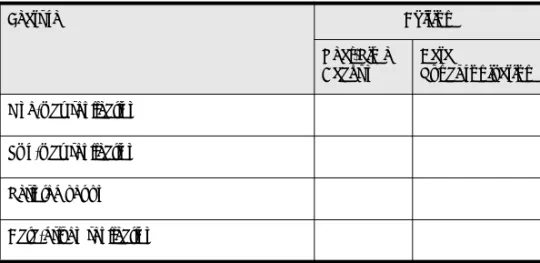
Pervasive DataExchange is available in two editions: Real-Time Backup and Data Synchronization.The following table summarizes the features of Pervasive DataExchange based on the edition.
Table 1-1 Comparison of Pervasive DataExchange Editions
Feature Edition
Real-Time Backup
Data
Synchronization
One-way replication
Two-way replication
Scripted set up
Overview of How Pervasive DataExchange Works
The DataExchange technology works by capturing and sharing changes from one Pervasive PSQL database to other databases in a DataExchange replication network. Each database is augmented with DataExchange, which adds two software components to a Pervasive PSQL database: the Replication Event Handler and the Replication Engine.
The Replication Event Handler (REH) plugs directly into the
Pervasive PSQL database engine. Specifically, the REH is a set of DLLs that operate within the database engine, so if the database is running, the replication event handler is running as well. The database engine activates the REH when there is a change event (insert, update, delete). The REH then makes note of the event in one of its private control tables.
The Replication Engine is a separate process that performs the
actual replication task. It reads the control tables to determine what records have changed since the last replication session. It then groups these changes into packets and shares them with the other replication engines participating in a DataExchange network. These other engines then apply the updates to their own databases. The replication process occurs either
continuously, at scheduled intervals, or on demand. The replication engine does not require constant network connectivity, so DataExchange is suitable for scenarios with intermittent connectivity, like remote users with dialup connections.
Notification Agent
The notification agent, or agent for short, is another component installed by DataExchange. Its purpose is to initiate an e-mail if a replication failure occurs. The agent requires the basic Simple Mail Transfer Protocol (SMTP) to communicate with a mail server. Note that the agent is installed only if the machine contains the Pervasive PSQL Server product. The agent is not available if you install DataExchange on a machine with the Pervasive PSQL Workgroup product.
1-5
Overview of How Pervasive DataExchange WorksReplication-specific Files
DataExchange adds its own tables on the machine where replication executes. It uses two types of tables: system configuration and replication control. Configuration tables record information such as the databases being replicated, the sites to which data is replicated, and replication schedules.
Control tables shadow data files and track the replication state of each record in the data. Each data table or file has a control table counterpart. Similarly, each data record has a companion control table record. Through the control tables, the replication engine determines what records need to be replicated when.
DataExchange tables for replication configuration and control can reside with the files to be replicated or separately in their own database. The choice of location depends on your replication needs. Replication of entire tables can be done with a separate replication database.
Every kind of available replication solution is covered in Pervasive
Where to Install DataExchange
Pervasive DataExchange must be installed on the same computer as
the Pervasive PSQL Server or Workgroup engine. See also Preparing
1-7
DataExchange LicensingDataExchange Licensing
Pervasive DataExchange Data Synchronization Edition requires an activation license for each machine involved in a replication network. A replication network consists of a First Site and one or more Partner Sites. The installation program prompts you to enter a license string and decodes it to ensure that it is valid.
You may install an evaluation version of Pervasive DataExchange without a license. At the end of the evaluation period, the replication engine returns an error when it attempts to start. Use the Event Viewer of your operating system to view the error in the Application event log.
You may initially install an evaluation version then later apply an activation license. Use the following steps to replace an evaluation license with a nonevaluation license.
³
To upgrade an evaluation license1 Obtain the license key from one of the following locations:
Case of the DataExchange installation CD
Product registration card
Printed license agreement
2 If you need to purchase a license, contact Sales Support at
Pervasive Software ([email protected]). See also How
to Get Additional Help in Pervasive DataExchange User’s Guide.
3 Apply the license using the Pervasive PSQL License
Administrator utility. See the License Administrator chapter in
2-1
c h a p t e r2
Preparing to Install
Pervasive DataExchange
Preparation Needed for Pervasive DataExchange Installation
This chapter contains the following topics: DataExchange Installation Overview DataExchange Installation Checklists
DataExchange Installation Overview
This section provides an overview to the components that make up Pervasive DataExchange and information on the files included in the different types of installation.
DataExchange
Components
Pervasive DataExchange consists of the following product components:
Replication Event Handler
Replication Engine
Notification Agent
Utilities
Documentation
See Overview of How Pervasive DataExchange Works for a
discussion of the replication event handler, replication engine, and notification agent.
Utilities
Pervasive DataExchange includes several utilities designed to help you control and manage the replication process. The following table lists the main utilities. All of the utilities are discussed in Pervasive
DataExchange User’s Guide. Refer to “Using the DataExchange
Utilities and Services,” in that guide.
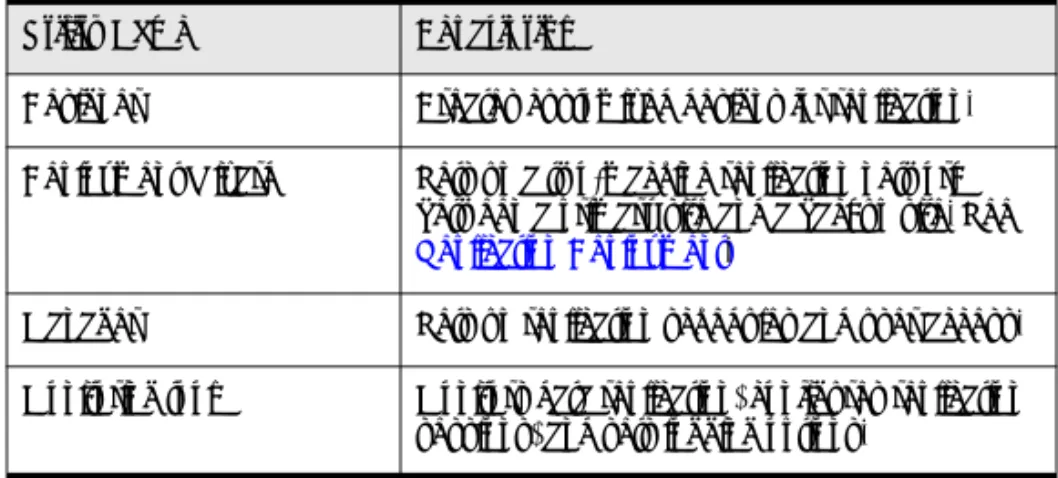
Table 2-1 Summary of Main Pervasive DataExchange Utilities
Utility Name Description
Designer Creates customized designs for replication. Deployment Wizard Sets up a two-machine replication network
between a primary site and a backup site. See
Replication Deployment.
Manager Sets up replication schedules and user access. Monitoring tool Monitors data replication, configures replication
2-3
DataExchange Installation OverviewDocumentation
The installation of Pervasive DataExchange includes the
documentation in HTMLHelp and PDF format. The documentation consists of the following:
This book—Getting Started with Pervasive DataExchange (Data
Synchronization Edition)—helps you to get Pervasive
DataExchange installed and setup. This book is also provided in hardcopy.
Pervasive DataExchange User’s Guide—provides conceptual information and tasks to help you use the DataExchange products. The User’s Guide covers both the Real-Time Backup Edition and the Data Synchronization Edition. You may order a hardcopy version of this manual through Pervasive Software Sales.
Getting Started with Pervasive DataExchange (Real-Time Backup Edition)—provided as an additional reference in case you want
to learn more about the Real-Time Backup Edition. You may order a hardcopy version of this manual through Pervasive Software Sales.
Activation tool Enable a database to participate in replication and establish the database as belonging to a site on the replication network.
Deactivation tool Removes a database from the list of those available for replication. If you want to delete a replicated database from physical storage, you must deactivate it first.
Table 2-1 Summary of Main Pervasive DataExchange Utilities continued
DataExchange Installation Checklists
This section provides you with checklists and other information to prepare you for installation.
Quick Checklist
Each of the following items is described in more detail in the topics that follow.R
You have observed the appropriate precautions before installingPervasive DataExchange.
R
Your system hardware and software meets the minimumrequirements to install Pervasive DataExchange.
Tip The hardware and software requirements are listed on the Pervasive Software web site.
R
You have full administrator-level rights on the machine whereyou plan to install the product.
R
You have a license (unless you want an evaluation version).R
You have checked any special configuration issues, such asinstalling into a clustered environment.
R
At the end of the installation, you have access to the Readme filefor important, late-breaking information.
Precautions
The Pervasive PSQL database engine must be stopped and restarted during the installation of Pervasive DataExchange. If your business requirements prohibit stopping the database engine during certain hours, install DataExchange during an acceptable period.Back up any important files on the target hard drive, including data files, before you begin the installation.
Ensure
Adequate
Permissions
To install DataExchange, you must have full administrator-level rights on the machine.
2-5
DataExchange Installation ChecklistsActivation
License
See DataExchange Licensing for a discussion of the activation license.
The
DataExchange
Readme File
Pervasive Software strongly recommends that you read the information contained in the Readme file. This file contains important product news that could not be included in the product documentation but may be essential to your installation and use of the product release.
3-1
c h a p t e r3
Installing Pervasive
DataExchange with No Previous
Installation
Instructions for First-time Installation
This chapter contains procedures for installing Pervasive DataExchange. The chapter contains the following sections: Before You Install DataExchange
Installing Pervasive DataExchange
Common Questions After Installing Pervasive DataExchange
Before You Install DataExchange
This section contains information with which you need to be familiar to successfully install Pervasive DataExchange. Before installing Pervasive DataExchange, review the following information:
Preparing to Install Pervasive DataExchange. This chapter provides important information including system requirements and platform specific notes that are relevant to your operation.
Readme file. This file contains late-breaking product news that
could not be included in the product documentation. This file is located on the distribution media.
Windows
Platform Notes
Be aware of the following conditions.
You must have full administrator-level rights on the machine
where you install Pervasive DataExchange.
You may need to disable antivirus software or change its settings
to allow installation of Pervasive DataExchange.
Installing Over
Windows
Terminal
Services
Microsoft Terminal Services is a multisession environment that provides remote computers access to Windows-based programs running on a server. (Citrix MetaFrame extends Windows Terminal Services with additional client and server functionality.)
Tip See the Pervasive Software web site for a list of supported environments.
To install DataExchange to a Terminal Server client, you must first modify a registry setting on the Terminal Server client. The default value for the registry setting prevents you from performing Pervasive PSQL administrative functions. You must have administrative authority to install DataExchange.
Use the following steps to modify the registry setting. You must have administrative authority on the Terminal Server client.
Caution Incorrectly editing your computer’s registry can damage the registry. The damage can cause undesirable results,
3-3
Common Questions After Installing Pervasive DataExchangesuch as your computer not being able to boot. If you do not feel comfortable editing the registry, obtain the services of a qualified technician. Pervasive Software accepts no responsibility for a damaged registry.
³
To modify the security registry setting on a Terminal Server clientNote We suggest that you create a backup of your registry before editing the registry. Refer to the online help for your operating system. Look for index entries such as “registry, backing up,” or “emergency repair disk.”
1 Click Start Run, enter regedt32, and click OK.
Registry Editor opens.
2 Find the following registry key:
HKEY_LOCAL_MACHINE\Software\Pervasive
Software\Utilities Interface\Settings\Restricted Access On WTS client
3 Double-click REG_DWORD for the key.
The Edit DWORD Value dialog box opens.
4 In the Value Data field, change the value from 1 to 0 (zero).
5 Click OK.
The REG_DWORD value should read 0x00000000 (0).
Note Changing this registry setting to zero grants Pervasive PSQL administrative authority to everyone who has access to the Terminal Server client machine. To restrict Pervasive PSQL administrative authority, you may want to restore the default value of the registry setting after DataExchange is installed. To do
this, change the REG_DWORD value back to 1 (see step 4 in To
modify the security registry setting on a Terminal Server client). You may also use regedt32 to change the permissions on the registry key so that only certain users are allowed to modify the key value.
3-5
Common Questions After Installing Pervasive DataExchangeInstalling Pervasive DataExchange
You must install Pervasive DataExchange on a machine that contains a Pervasive PSQL Server or Workgroup engine.
Note The Pervasive PSQL database engine is stopped and restarted during the installation of Pervasive DataExchange. If your business requirements prohibit stopping the database engine during certain hours, install DataExchange during an acceptable period.
If the installation fails before the program copies any files to the target installation directory, refer to the installation log file (replinst.log) in the <drive>:\Windows directory.
DataExchange installs a service called the notification agent if the machine contains the Pervasive PSQL Server product. The
notification agent is not available if you install DataExchange on a
machine with the Pervasive PSQL Workgroup product. See dxagent
³
To install Pervasive DataExchangeYou will run the installation twice: once on the First Site and once on a Partner Site.
1 Launch the installation program from your Windows machine
by doing one of the following:
Insert the Pervasive DataExchange CD in the CD-ROM
drive.
If the installation does not start automatically, click Start
then Run, and type drive:\setup where drive is the drive
letter of your CD-ROM device. The Welcome window appears.
2 Click Next.
The Software License Agreement appears.
3 Read the license agreement. To accept it, click Yes.
The installation asks for a DataExchange license key.
4 In the License field, do one of the following:
Type or paste the license key.
Leave it blank to install an evaluatation copy of
DataExchange.
A First Site and a Partner Site use the same key, which is provided on the case of the DataExchange installation CD, the product registration card, and the printed license agreement.
At the end of the evaluation period, the replication engine returns an error when it tries to start. You may apply a license key
at any time. See To upgrade an evaluation license.
5 Click Next.
3-7
Common Questions After Installing Pervasive DataExchangeFigure 3-1 Setup Type
6 Choose one of the following:
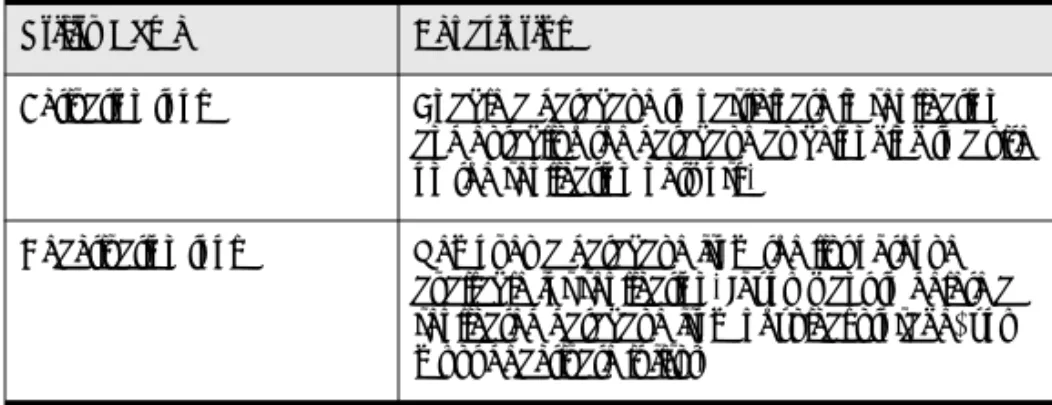
First Site: Design, administer, replicate
You will use a First Site to design and configure the replication network. Its components include the DataExchange Designer, administrative utilities, and replication engine.
Partner Site: Administer, replicate
A Partner Site replicates data with the First Site. Its components include the DataExchange administrative utilities and replication engine. You may install a Partner Site before installing a First Site, but you must initialize and configure the replication network from the First Site. Caution Do not install more than one First Site on a network, or replication conflicts may occur.
7 Click Next, then continue as follows:
To install a First Site, continue with step 8.
To install a Partner Site, skip to step 9.
8 Read the message that appears about the installation of
DataExchange Designer as part of a First Site installation.
Click Yes if you have not installed a First Site on your replication
network. Otherwise, click No to return to the dialog on which
you specify a setup type.
9 Specify a folder for the Start menu. You may accept the default,
type a name into the Program Folders field, or double-click a
folder name in the Existing Folders list.
10 Click Next.
A dialog appears on which you specify site information.
Figure 3-2 Site Information
Both names default to the host name of your machine. The Site Name identifies your machine on the replication
network. The name can be whatever you want. Accept the default or enter a more descriptive site name.
The Host Name identifies this machine to the DataExchange Engine. If your machine has a fixed IP address and you prefer to use it, enter it here. If the address is assigned by DHCP, accept the machine host name by default.
11 Click Next.
A summary of installation settings appears.
12 Review the settings and click Next if they are correct. You may
click Back to change a setting.
The DataExchange installation process continues, displaying a series of status messages that inform you what action is taking place. Most of the message dialogs contain a progress bar to indicate the amount of time elapsed.
The following types of status messages appear:
Stopping the Pervasive PSQL database engine
Copying components
Installing components
Initializing components
Registering components
Restarting the Pervasive PSQL database engine
At the end of the installation, setup informs you that it is complete and prompts you to view the readme file.
3-9
Common Questions After Installing Pervasive DataExchangePervasive Software strongly recommends that you view the readme file for important release notes concerning
configuration and use of the product.
13 Click Finish.
14 Do one of the following:
If you chose to view the readme file, it appears in a browser
window. You must close the browser window to exit setup.
If you cleared the View the readme file option, setup exits.
After You Install
DataExchange
Pervasive DataExchange Data Synchronization Edition provides different methods to design and deploy a database for replication. The methods involve a variety of decisions, which are explained in
Pervasive DataExchange User’s Guide. See Data Synchronization Deployment Models in that guide.
Pervasive
Security
Pervasive provides security models for Btrieve applications. However, the activated databases created by DXdeploy do not contain security, even if the source database does. You may addsecurity to a replication database if you choose. See Pervasive PSQL
Security in Pervasive DataExchange User’s Guide. For more details, see also the chapter on Pervasive Security in the Pervasive PSQL
Common Questions After Installing Pervasive
DataExchange
This section contains information that you may have after running the installation program.
Do I Have to Configure Anything in Pervasive Control Center (PCC) for DataExchange?
No. DataExchange requires no special settings in PCC.
Does DataExchange Create Any Log Files?
Yes. See Log Files in Pervasive DataExchange User’s Guide.
How Do I Automate a Scheduled Replication?
See Schedule Tasks in Pervasive DataExchange User’s Guide.
How Do I Get Notified by E-mail for a Replication Failure?
See Pervasive DataExchange Agent in Pervasive DataExchange User’s
Guide.
What happened to PVSW\BIN?
Since the release of Pervasive PSQL v10, Pervasive DataExchange files are no longer installed to <drive>:\pvsw\bin. This change comes as Pervasive Software adopts the same program and security guidelines established by Microsoft for the Vista operating system.
Where are the Pervasive DataExchange files installed?
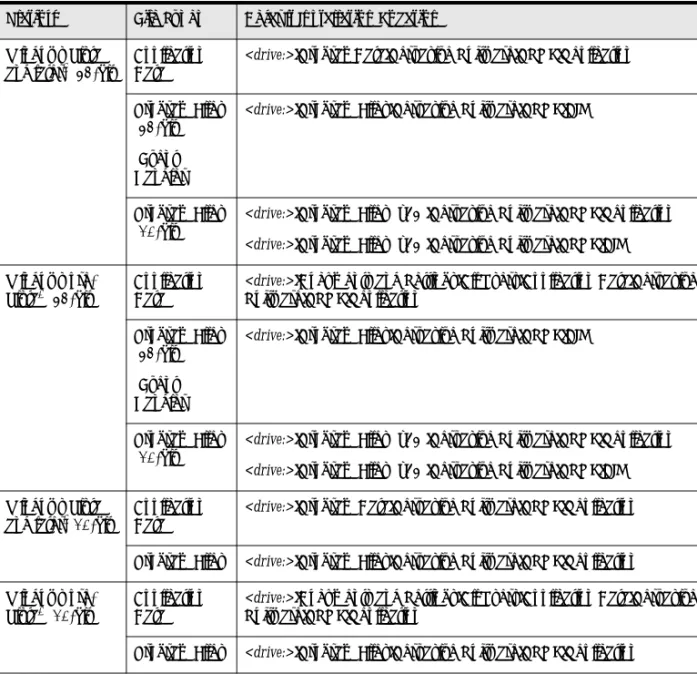
To comply with the new guidelines established by Microsoft for the Vista operating system, new installations of Pervasive DataExchange are in the following default location:
3-11
Common Questions After Installing Pervasive DataExchangeTable 3-1 Pervasive DataExchange Default Windows Installation Location
Platform File Types Default Installation Location
Windows Vista and later1 (64-bit)
Application Data
<drive:>\ProgramData\Pervasive Software\PSQL\Replication Program Files
(64-bit) (Event Handler)
<drive:>\Program Files\Pervasive Software\PSQL\BIN
Program Files (32-bit)
<drive:>\Program Files (x86)\Pervasive Software\PSQL\Replication
<drive:>\Program Files (x86)\Pervasive Software\PSQL\BIN Windows
pre-Vista2 (64-bit)
Application Data
<drive:>\Documents and Settings\All Users\Application Data\Pervasive Software\PSQL\Replication
Program Files (64-bit) (Event Handler)
<drive:>\Program Files\Pervasive Software\PSQL\BIN
Program Files (32-bit)
<drive:>\Program Files (x86)\Pervasive Software\PSQL\Replication
<drive:>\Program Files (x86)\Pervasive Software\PSQL\BIN Windows Vista
and later1(32-bit)
Application Data
<drive:>\Program Data\Pervasive Software\PSQL\Replication Program Files <drive:>\Program Files\Pervasive Software\PSQL\Replication Windows
pre-Vista2 (32-bit)
Application Data
<drive:>\Documents and Settings\All Users\Application Data\Pervasive Software\PSQL\Replication
Program Files <drive:>\Program Files\Pervasive Software\PSQL\Replication
Note: The DataExchange Event Handler files are installed on all 64-bit platforms at <drive:>\Program Files\Pervasive Software\PSQL\BIN
1Windows Vista and later refers to Windows Vista and any Windows operating system released after Windows Vista that is currently supported by Pervasive PSQL.
2Windows pre-Vista refers to any Windows operating system currently supported by Pervasive PSQL that was released prior to Windows Vista.
Uninstalling Pervasive DataExchange
The uninstall program removes all DataExchange components from your system. Uninstall removes databases registered by Pervasive that are located under <Installation Directory >\Replication. The uninstall program does not remove any databases that were created in locations other than under <Installation Directory
>\Replication. It also does not remove the DSNs and database names
associated with these databases.
If you have activated databases located under <Installation Directory
>\Replication, perform the following actions before you uninstall
DataExchange:
Deactivate each database with the dxdeact utility. See dxdeact in
Pervasive DataExchange User’s Guide.
Remove the template with Template Remover wizard. See
trwizard in Pervasive DataExchange User’s Guide.
Optionally, if you no longer need the data, delete the source
database or specific tables using the Drop Database wizard or the Drop Table wizard in Pervasive Control Center (PCC).
If you do not deactivate the database before you remove the template, uninstall leaves the database files and the associated replication files. The replication files do not cause any problems but you may prefer to reclaim physical storage by deleting them.
Note The Pervasive database engine must be stopped and restarted during the uninstall of Pervasive DataExchange. If your business requirements prohibit stopping the database engine during certain hours, uninstall DataExchange during an acceptable period.
3-13
Common Questions After Installing Pervasive DataExchange³
To uninstall Pervasive DataExchangeNote You are not required to uninstall DataExchange before upgrading it. If you want to upgrade DataExchange, see Upgrading Pervasive DataExchange. An uninstall removes all DataExchange design and activated database information from your system, as well as any databases created under the
<Installation Directory >\Replication directory. Uninstalling
requires that you redesign your replication databases.
1 Access the Add/Remove Programs from Control Panel on your
Windows operating system.
2 Click Pervasive DataExchange in the list.
3 Click the button to remove a program. The button may be
labelled Add/Remove or Remove. The program to uninstall
Pervasive DataExchange begins.
4 Click OK in response to the message about completely removing
DataExchange.
5 Click Yes (and OK to confirm) in response to any messages
about removing shared components in the Pervasive directory structure.
6 Click OK when the uninstall program completes.
A-1
A p p e n d i xA
Upgrading Your Pervasive
DataExchange Installation
Instructions for Upgrading an Existing Pervasive DataExchange Installation
This appendix explains the steps to upgrade your current Pervasive DataExchange product installation. It contains the following sections:
Before You Upgrade DataExchange Upgrading Pervasive DataExchange
Before You Upgrade DataExchange
Before upgrading Pervasive DataExchange, review the following information:
R
Preparing to Install Pervasive DataExchange. This chapter provides important information including system requirements and platform specific notes that are relevant to your operation.R
Readme file. This file is located on the distribution media andcontains late-breaking product news that could not be included in the product documentation.
Upgrading means that you are installing a newer version of the product than the version currently installed. You do not have to uninstall the previous version to upgrade.
Windows
Platform Notes
Be aware of the following conditions.
You must have full administrator-level rights on the machine
where you install Pervasive DataExchange.
If you run with Advanced Power Management, disable it while
installing Pervasive DataExchange. The power management can cause an installation to fail if the server is suspended during the install. You control the advanced power management via the Power Options in the Control Panel.
DataExchange
Readme File
Pervasive Software strongly recommends that you read the information contained in the Readme file. This file contains important product news that could not be included in the product documentation but may be essential to your installation and use of the product release.The Readme file is located at the root on the installation CD.
Back Up Data
Files
Ensure that you have a current backup of all of your data files prior to beginning the upgrade installation. You may also want to perform and test a full system backup. A full system backup is a general precaution prior to any software installation on a server.A-3
Upgrading Pervasive DataExchangeUpgrading Pervasive DataExchange
The upgrade of DataExchange requires a previously installed version of the product.
Note You are not required to uninstall DataExchange before upgrading it. An uninstall removes all DataExchange design and activated database information from your system, as well as any databases created under the <Installation Directory
>\Replication directory. Uninstalling requires that you redesign
your replication databases.
If the upgrade installation fails before the program copies any files to the target installation directory, refer to the installation log file (replinst.log) in the Windows directory.
³
To upgrade Pervasive DataExchangeRemember to upgrade all sites used in replication.
1 If needed, replicate to ensure that data at all sites is current.
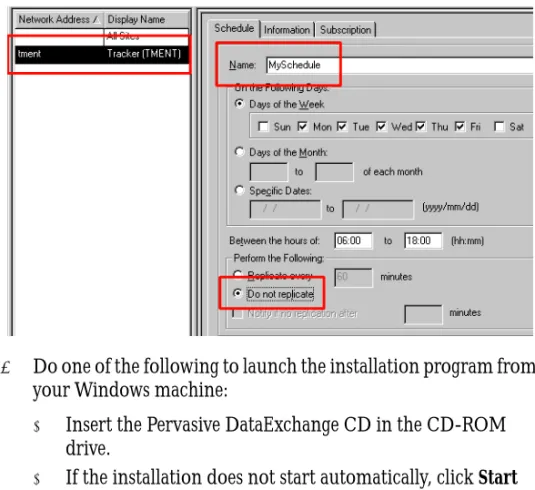
2 Stop all replication schedules.
In PCC, click the database for which you have a schedule set
up.
Select DataExchange Manager.
Log on. By default, the Login Name is ADMIN and the
Password is password. Both are case-sensitive.
Click the desired site in the site list.
Click the Schedule tab.
Select each schedule in the Name list (one at a time).
3 Do one of the following to launch the installation program from your Windows machine:
Insert the Pervasive DataExchange CD in the CD-ROM
drive.
If the installation does not start automatically, click Start
then Run, and type drive:\setup where drive is the drive
letter of your CD-ROM device.
Setup checks for a previous version of DataExchange. If found, messages about upgrading appear:
Figure A-1 General Upgrade Message
Figure A-2 Message When Upgrading from Pervasive PSQL V8 to v9
A-5
Upgrading Pervasive DataExchangeThe Welcome screen appears.
5 Click Next.
The Software License Agreement appears.
6 Read the license agreement. To accept it, click Yes.
If your existing DataExchange license key needs updating, setup asks for a new one. If not, skip to step 8.
7 In the License field, do one of the following:
Type or paste the license key.
Leave it blank to install an evaluatation copy of
DataExchange.
A First Site and a Partner Site use the same key, which is provided on the case of the DataExchange installation CD, the product registration card, and the printed license agreement.
At the end of the evaluation period, the replication engine returns an error when it tries to start. You may apply a license key
at any time. See To upgrade an evaluation license.
8 Click Next.
The installation program automatically determines the settings for the previously installed version of DataExchange on the machine. A summary of installation settings appears.
9 Click Next.
The upgrade continues, displaying status messages. The following types of messages appear:
Stopping the Pervasive PSQL database engine
Copying components
Installing components
Initializing components
Registering components
Restarting the Pervasive PSQL database engine
At the end of the installation, setup informs you that it is complete and prompts you to view the readme file.
10 View the Readme file. Pervasive Software strongly recommends you do so to learn important information that could not be included in the product documentation but may be essential to your configuration and use of the product.
11 Click Finish.
12 Do one of the following:
If you chose to view the readme file, it appears in a browser
window. You must close the browser window to exit setup.
If you cleared the View the readme file option, setup exits.
To view it later, open the Pervasive DataExchange readme.htm file.
13 Restart existing replication schedules.
In PCC, click the database for which have you set up a
schedule.
Click DataExchangeManager.
Log on. By default, the Login Name is ADMIN and the
Password is password. Both are case-sensitive.
Click the desired site in the site list.
Click the Schedule tab.
Select each schedule in the Name list (one at a time).
A-7
Common Questions After Upgrading Pervasive DataExchangeCommon Questions After Upgrading Pervasive
DataExchange
See also Common Questions After Installing Pervasive
DataExchange.
Will my activated databases still replicate after I upgrade?
Yes. All replication information is retained for your activated databases. Your only task to use the activated databases is to restart any replication schedules that you had established before the upgrade.
Are all of my DataExchange registry settings retained after I upgrade?
Index 1
Index
A
Agent
See DataExchange notification agent
C
Checklists for installing DataExchange 2-4
Control tables
used for replication 1-5
D
Data Synchronization Edition 1-3
DataExchange agent 1-4
Data control table 1-5
documentation 2-3
editions 1-3
files location 3-10
installing
how to uninstall 3-12
steps for no previous installation of product 3-6
licensing 1-7
notification agent 1-4
product overview 1-3
readme file 2-5
uninstalling 3-12
upgrading A-3
common questions after A-7
steps A-3
utilities 2-2
DataExchange installation 3-1
checklists 2-4
common questions after 3-10
operating system rights required 3-2
over Terminal Services 3-2
permission required 2-4
Documentation
for DataExchange 2-3
F
File locations
for DataExchange 3-10
I
Installation
DataExchange upgrade A-3
Installation of DataExchange See DataExchange installation
L
License
server activation 1-7
upgrade from evaluation type 1-7
Licensing for DataExchange 1-7
Locations
no longer used by Pervasive PSQL 3-10
of DataExchange files installed 3-10
N
Notification agent 1-4
P
Permissions
required to install DataExchange 2-4
Pervasive PSQL
PVSW\BIN location 3-10
PVSW\BIN
no longer used 3-10
R
Readme file 2-5
Real-Time Backup Edition 1-3
REH
See Replication Event Handler Replication engine 1-4
T
Tables
added for control of replication 1-5
Terminal Services
installing DataExchange with 3-2
U
Uninstalling DataExchange 3-12
Upgrading
DataExchange installation A-3
Utilities