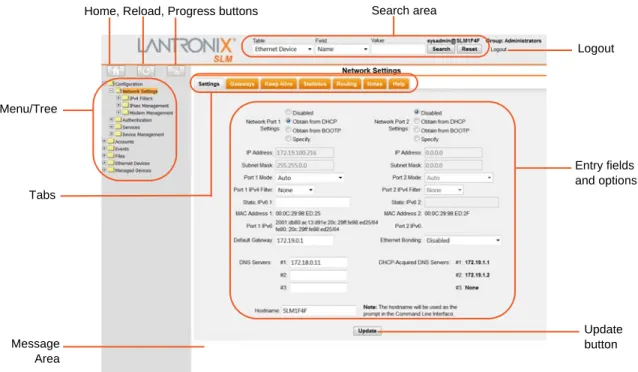
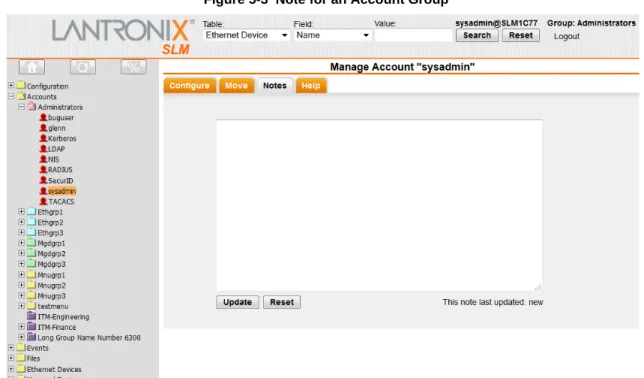
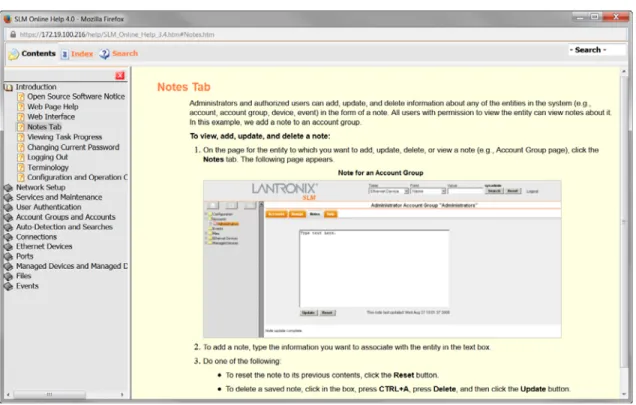
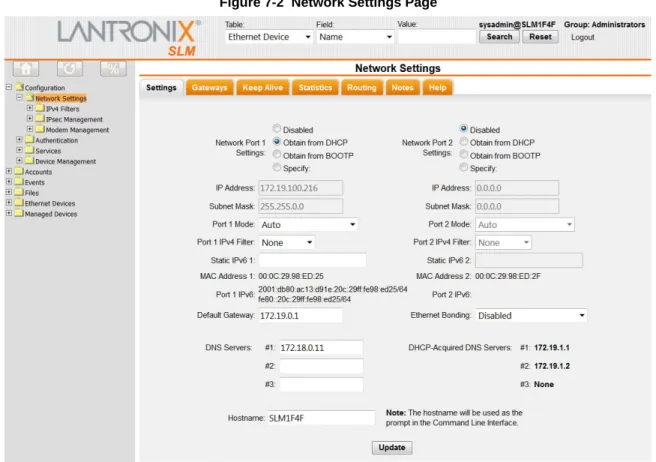
Part Number 900-737-R Revision C September 2015
vSLM™ 2
Secure Management Software
User Guide
Intellectual Property
© 2015 Lantronix, Inc. All rights reserved. No part of the contents of this publication may be transmitted or reproduced in any form or by any means without the written permission of Lantronix. Lantronix, WiBox, XPort, PremierWave, and EDS-MD are registered trademarks of Lantronix, Inc. in the U.S. and other countries. SLM, vSLM, SLC, SLB, SLP, SLK, SDS, UDS, DeviceInstaller, Spider, and Spider Duo are trademarks of Lantronix, Inc.
Patented: patents.lantronix.com; Additional patents pending.
Windows and InternetExplorer are registered trademarks of Microsoft Corporation. Firefox is a registered trademark of the Mozilla Foundation. Opera is a trademark of Opera Software ASA. All other trademarks and trade names are the property of their respective holders.
Open Source Software
Some applications are Open Source software licensed under the Berkeley Software Distribution (BSD) license or the GNU General Public License (GPL) as published by the Free Software Foundation (FSF). Redistribution or incorporation of BSD or GPL licensed software into hosts other than this product must be done under their terms. A machine readable copy of the corresponding portions of GPL licensed source code is available at the cost of distribution. Such Open Source Software is distributed WITHOUT ANY WARRANTY, INCLUDING ANY IMPLIED WARRANTY OF MERCHANTABILITY OR FITNESS FOR A PARTICULAR PURPOSE. See the GPL and BSD for details.
The BSD license is available at http://opensource.org/licenses. The GNU General Public License is available at http://www.gnu.org/licenses/. Your use of each Open Source component or software is subject to the terms of the applicable license.
Warranty
For details on the Lantronix warranty policy, please go to our web site at www.lantronix.com/support/warranty.
Contacts
Lantronix, Inc.
7535 Irvine Center Drive Suite 100 Irvine, CA 92618, USA Toll Free: 800-526-8766 Phone: 949-453-3990 Fax: 949-453-3995 Technical Support Online: www.lantronix.com/support Sales Offices
For a current list of our domestic and international sales offices, go to the Lantronix web site at: www.lantronix.com/about/contact
vSLM™ 2 Secure Management Software User Guide 3
Disclaimer
All information contained herein is provided “AS IS.” Lantronix undertakes no obligation to update the information in this publication. Lantronix does not make, and specifically disclaims, all warranties of any kind (express, implied or otherwise) regarding title, non-infringement, fitness, quality, accuracy, completeness, usefulness, suitability or performance of the information provided herein. Lantronix shall have no liability whatsoever to any user for any damages, losses and causes of action (whether in contract or in tort or otherwise) in connection with the user’s access or usage of any of the information or content contained herein. The information and specifications contained in this document are subject to change without notice.Operation of this equipment in a residential area is likely to cause interference, in which case the user, at his or her own expense, will be required to take whatever measures may be required to correct the interference.
Note: This equipment has been tested and found to comply with the limits for Class A digital device pursuant to Part 15 of the FCC Rules. These limits are designed to provide reasonable protection against harmful interference when the equipment is operated in a commercial environment. This equipment generates, uses, and can radiate radio frequency energy and, if not installed and used in accordance with this User Guide, may clause interference to radio communications. Operation of this equipment in a residential area is likely to cause interference, in which case the user will be required to correct the interference at his or her own expense.
The user is cautioned that changes and modifications made to the equipment without approval of the manufacturer could void the user's authority to operate this equipment.
Changes or modifications to this device not explicitly approved by Lantronix will void the user's authority to operate this device.
Revision History
Date Rev. Comments
December 2014 A Initial release.
April 2015 B Updated firmware information.
September 2015 C Updated document to firmware release 4.1.0.0. to include support for Server Technology PDU/CDU Sentry 3 MIB and 4 MIB for PRO2 models (under “RPM/ SLP” in the left navigation menu), the ability to view routing information, the ability to set port viewing for Lantronix devices, and updated CLI commands.
Table of Contents
Intellectual Property ________________________________________________________ 2 Open Source Software ______________________________________________________ 2 Warranty _________________________________________________________________ 2 Contacts _________________________________________________________________ 2 Disclaimer ________________________________________________________________ 3 Revision History ___________________________________________________________ 3 List of Figures ____________________________________________________________ 12 List of Tables _____________________________________________________________ 17
1: About This Guide
21
Purpose and Audience _____________________________________________________ 21 Chapter Summaries _______________________________________________________ 21 Additional Documentation ___________________________________________________ 22 Terminology _____________________________________________________________ 23
2: Introduction
25
Benefits _________________________________________________________________ 25 IT Management Application _________________________________________________ 26 Firmware ________________________________________________________________ 27 Protocols Supported _______________________________________________________ 273: Quick Setup Utility
28
Quick Network Setup ______________________________________________________ 28 Required Information ___________________________________________________ 28 Using Quick Setup on the Command Line Interface ____________________________ 28 Quick Setup Command _________________________________________________ 31 Syntax _______________________________________________________________ 31 Description ___________________________________________________________ 31 Using the Web Interface _________________________________________________ 31 Next Steps _______________________________________________________________ 36
4: vSLM 2 Deployment
37
Minimum Hardware Requirements ____________________________________________ 37 Deployment Instructions ____________________________________________________ 37 30-Day Trial License _______________________________________________________ 39
5: Web and Command Line Interfaces
40
vSLM™ 2 Secure Management Software User Guide 5 Typical vSLM 2 Web Page _______________________________________________ 41 Notes _______________________________________________________________ 42 Web Page Help _______________________________________________________ 43 Logging Out of the Web Interface __________________________________________ 44 Command Line Interface (CLI) _______________________________________________ 44 Logging into the CLI ____________________________________________________ 44 Commands ___________________________________________________________ 45 Command Help ________________________________________________________ 46 Tips _________________________________________________________________ 46 Logging Out of the CLI __________________________________________________ 46 CLI Commands ___________________________________________________________ 47 Session Commands _______________________________________________________ 48 Syntax _______________________________________________________________ 48
6: Configuration and Operation Overview
49
Step 1: Configure Network Settings ___________________________________________ 49 Step 2: Define Authentication Methods _________________________________________ 49 Step 3: Set Up User Account Groups and Accounts _______________________________ 49 Step 4: Auto-Detect Devices _________________________________________________ 50 Step 5: Associate Account Groups with Ethernet and Managed Devices _______________ 50 Step 6: Manage Devices ____________________________________________________ 50 Step 7: Maintain the vSLM 2 Software _________________________________________ 51
7: Network and Modem Settings
52
IP Address and Other Required Information _____________________________________ 52 Using the Web Interface ____________________________________________________ 53 Network Port(s) ___________________________________________________________ 54 Network Gateways _____________________________________________________ 57 Keep Alive ___________________________________________________________ 59 Viewing Network Statistics _______________________________________________ 59 Routing ______________________________________________________________ 60 Changing the Current User's Password _____________________________________ 61 Network Commands _______________________________________________________ 61 IPv4 Filters ______________________________________________________________ 64 Viewing a List of IPv4 Filters _____________________________________________ 64 Adding an IPv4 Filter ___________________________________________________ 64 Updating or Deleting an IPv4 Filter _________________________________________ 66 Viewing the System IPv4 Filter Sets ________________________________________ 68 Setting Properties of an IPv4 Filter _________________________________________ 70 IPv4 Filter Commands ______________________________________________________ 71 IPsec Management ________________________________________________________ 73 Internet Key Exchange (IKE) Policies _______________________________________ 73 Viewing a List of IKE Policies _____________________________________________ 73
Adding an IKE Policy: ___________________________________________________ 74 Updating or Deleting an IKE Policy ________________________________________ 77 VPN Connections ______________________________________________________ 78 Viewing a List of VPNs __________________________________________________ 78 Adding a VPN _________________________________________________________ 79 Updating or Deleting a VPN ______________________________________________ 80 Connecting a VPN _____________________________________________________ 81 Modem Management ______________________________________________________ 81 Viewing a List of Modems ________________________________________________ 81 Configuring a Modem ___________________________________________________ 82 Enabling or Disabling Dial-in Connections ___________________________________ 83 Viewing a List of Profiles ________________________________________________ 84 Adding a Profile _______________________________________________________ 85 Updating and Deleting a Profile ___________________________________________ 88 Discovering a USB Modem ______________________________________________ 89 Modem Commands ________________________________________________________ 89 Dial Account Commands ____________________________________________________ 91
8: User Management
95
User Authentication Methods ________________________________________________ 95 NIS _________________________________________________________________ 97 LDAP _______________________________________________________________ 99 RADIUS ____________________________________________________________ 101 Kerberos ____________________________________________________________ 103 TACACS+ ___________________________________________________________ 104 SSH Keys ___________________________________________________________ 105 Copy Keys ______________________________________________________________ 109 Authentication Commands _________________________________________________ 109 Account Groups _________________________________________________________ 115 Account Group Types __________________________________________________ 115 Viewing Account Groups _______________________________________________ 116 Adding an Account Group ______________________________________________ 117 Updating or Deleting an Account Group ____________________________________ 117 Setting Password Requirements for User Accounts ___________________________ 118 Assigning Account Group Device Rights ___________________________________ 119 Viewing Currently Logged-In Accounts ________________________________________ 123 Account Group Commands _________________________________________________ 124 Accounts _______________________________________________________________ 125 Viewing Accounts _____________________________________________________ 125 Adding an Account to the Administrators Account Group _______________________ 128 Adding an Account to an Ethernet or Managed Device Account Group ____________ 130 Updating or Deleting an Account _________________________________________ 132
vSLM™ 2 Secure Management Software User Guide 7
9: Ethernet Device Management
136
Auto-Detecting Devices ____________________________________________________ 136 Auto-Detect Commands ___________________________________________________ 138 Ethernet Devices _________________________________________________________ 140 Listing Devices _______________________________________________________ 140 Adding a Device Manually ______________________________________________ 142 Updating or Deleting Ethernet Device Settings ______________________________ 148 Device Locator __________________________________________________________ 150 Configuring Device Racks ______________________________________________ 150 Assigning Devices to Racks _____________________________________________ 151 Viewing Ethernet Device and Rack Locations _______________________________ 152 Persistent Connections ____________________________________________________ 154 Polling ______________________________________________________________ 158 SLC/SLB Local Connections ________________________________________________ 160 Device Modem __________________________________________________________ 161 Viewing Session & Audit Log Files, Ping and SNMP Walk ______________________ 163 Traps ______________________________________________________________ 164 Properties (Ethernet Device Menu Tree) ___________________________________ 166 Port Access _________________________________________________________ 167 Updating Passwords in Bulk _____________________________________________ 172 Changing SNMP Settings for SLC, SLB and RPM/SLP Devices in Bulk ___________ 174 SLM Proxy __________________________________________________________ 175 Ethernet Device Commands ________________________________________________ 176 Persistent Connection Commands ___________________________________________ 181 Trap Commands _________________________________________________________ 183 Ports __________________________________________________________________ 184 Viewing a List of Ports _________________________________________________ 185 Adding a Port ________________________________________________________ 186 Updating or Deleting a Port _____________________________________________ 189 Connecting Directly to the Port of an SLC or SLB Device ______________________ 191 Statistics ____________________________________________________________ 193 Applying Power to RPM/SLP Ports on a Single Device ________________________ 194 Viewing Port Logs _____________________________________________________ 195 Port Commands _________________________________________________________ 196
10: Managed Devices
198
Managed Device Groups __________________________________________________ 199 Viewing All Managed Devices ___________________________________________ 199 Viewing Managed Device Groups ________________________________________ 200 Adding a Managed Device Group ________________________________________ 201 Updating or Deleting a Managed Device Group ______________________________ 202 Configuring Polling Settings ________________________________________________ 202
Managed Device Group Commands __________________________________________ 203 Connecting to a Managed Device ____________________________________________ 205 Creating Individual Managed Devices _________________________________________ 207 From a Port __________________________________________________________ 207 From a Ports List _____________________________________________________ 208 From an Ethernet Device _______________________________________________ 210 Fusing Managed Devices __________________________________________________ 211 Methods of Fusing ____________________________________________________ 211 Guidelines ___________________________________________________________ 211 Fusing a Port with an Existing Managed Device _____________________________ 211 Fusing an Ethernet Device with an Existing Managed Device ___________________ 213 Continuing the One-at-a-Time Fusion Process ______________________________ 214 Fusing Managed Devices on the Managed Device Group Page _________________ 215 Configuring a Modem Connection to a Managed Device _______________________ 218 Configuring a Managed Device ______________________________________________ 220 Updating or Deleting a Managed Device ___________________________________ 221 Managed Device Commands _______________________________________________ 222 Administrators, Ethernet Account Users and Menu Only Users __________________ 222 Managed Device Users ________________________________________________ 226
11: Operation and Maintenance 228
Searching for Ethernet Devices, Ports, Persistent Connections,Managed Devices, and Users _______________________________________________ 228 Search for an Ethernet Device ___________________________________________ 229 Search for Ports ______________________________________________________ 231 Search for Persistent Connections ________________________________________ 232 Search for Managed Devices ____________________________________________ 233 Search for Users ______________________________________________________ 234 Using Wildcards ______________________________________________________ 235 Search Commands _______________________________________________________ 236 Connecting to Ethernet and Managed Devices __________________________________ 237 Connections Overview _________________________________________________ 237 Ethernet Devices - Connection Methods ___________________________________ 237 Managed Devices - Connection Methods ___________________________________ 238 Browsing to an Ethernet or Managed Device's Web Page _________________________ 238 Making a Secure Channel Connection to an SLC, SLM, or SLB Device ___________ 239 Making an SSH Connection to an Ethernet or Managed Device _________________ 240 Making a Web Channel Connection to an SLC Console Manager ________________ 241 Making a Telnet Connection to an Ethernet device ___________________________ 242 Connection Commands ____________________________________________________ 243 Administrators, Ethernet Users and Menu Only Users _________________________ 243 Managed Device Users ________________________________________________ 245
vSLM™ 2 Secure Management Software User Guide 9 Banners ________________________________________________________________ 248 SSL ___________________________________________________________________ 249 Status _________________________________________________________________ 250 Services Commands ______________________________________________________ 254 Maintenance ____________________________________________________________ 256 Maintenance Commands __________________________________________________ 258 Date and Time ___________________________________________________________ 261 Date and Time Commands _________________________________________________ 262 SNMP & Syslog __________________________________________________________ 263 Device Firmware Updates __________________________________________________ 265 SLM Firmware _______________________________________________________ 265 SLC/SLB Firmware ____________________________________________________ 267 RPM/SLP Firmware ___________________________________________________ 269 Spider Firmware ______________________________________________________ 271 WiBox Firmware ______________________________________________________ 272 UDS/SDS Firmware Updates ____________________________________________ 273 Managing Alternate SLM Devices ____________________________________________ 274 Managing Devices Through the Actions Tab ___________________________________ 275 Using the Actions Tab _________________________________________________ 275 Rebooting or Shutting Down _____________________________________________ 276 Getting a Log File _____________________________________________________ 276 Getting or Restoring a Configuration File ___________________________________ 277 Getting a Sysconfig File ________________________________________________ 277 Getting or Pushing SSH Keys ___________________________________________ 277 Reading Information ___________________________________________________ 278 Add Applet __________________________________________________________ 279 Issuing a CLI Command ________________________________________________ 279 Getting or Pushing Groups ______________________________________________ 280 Setting the Location and Sub-Location _____________________________________ 281 Viewing Progress of Update FW and CLI Commands _________________________ 281 Events _________________________________________________________________ 282 Event Management ___________________________________________________ 282 Updating and Deleting Events ___________________________________________ 286 Viewing the Event Log _________________________________________________ 287 Clearing the Event Log _________________________________________________ 288 Files ___________________________________________________________________ 288 File Types ___________________________________________________________ 288 File Format __________________________________________________________ 290 Viewing, Deleting, and Renaming Files ____________________________________ 290 Exporting, Uploading, and Downloading Files _______________________________ 292 Copying Files ________________________________________________________ 294 Setting up NFS _______________________________________________________ 295 Setting up CIFS ______________________________________________________ 296
Setting up Log Properties _______________________________________________ 298 Logging Commands ______________________________________________________ 300
12: Using vSLM 2 Software on a Mobile Browser
307
Requirements ___________________________________________________________ 307 Using the SLM Mobile Browser ______________________________________________ 307 Logging in to the vSLM 2 Software ________________________________________ 307 Using Links to Select Options ____________________________________________ 308 Using the Keypad to Select Options _______________________________________ 308 Obtaining More Data __________________________________________________ 308 Logging Out _________________________________________________________ 309 Main Menu _____________________________________________________________ 310 Status Menu ____________________________________________________________ 311 System Information ____________________________________________________ 311 Connections _________________________________________________________ 312 Route Information _____________________________________________________ 313 Device Menu ____________________________________________________________ 313 Ethernet Devices _____________________________________________________ 314 Ethernet Unreachable Devices ___________________________________________ 315 Managed Devices _____________________________________________________ 316 Log Menu ______________________________________________________________ 317 Filtering Logs ________________________________________________________ 317 View Logs ___________________________________________________________ 318
Appendix A: Command Reference
320
Introduction to Commands _________________________________________________ 320 Command Syntax _____________________________________________________ 320 Command Help _______________________________________________________ 321 Tips ________________________________________________________________ 321 Authentication Commands _________________________________________________ 322 Syntax ______________________________________________________________ 324 Parameters __________________________________________________________ 324 Description __________________________________________________________ 324 Account Commands ______________________________________________________ 326 Account Group Commands _________________________________________________ 328 Administrative Commands _________________________________________________ 330 All Devices Commands ____________________________________________________ 335 Auto-Detect Commands ___________________________________________________ 335 CLI Commands __________________________________________________________ 337 Connection Commands ____________________________________________________ 338 Administrators, Ethernet Users and Menu Only Users _________________________ 338 Managed Device Users ________________________________________________ 340
vSLM™ 2 Secure Management Software User Guide 11 Date and Time Commands _________________________________________________ 342 Diagnostic Commands ____________________________________________________ 342 Dial Account Commands ___________________________________________________ 344 Ethernet Device Commands ________________________________________________ 347 IPv4 Filter Commands _____________________________________________________ 352 Logging Commands ______________________________________________________ 354 Audit Log ___________________________________________________________ 354 Event Log ___________________________________________________________ 356 Port Log ____________________________________________________________ 356 Session Log _________________________________________________________ 359 System Log __________________________________________________________ 360 Trap Log ____________________________________________________________ 362 Maintenance Commands __________________________________________________ 364 Managed Devices ________________________________________________________ 366 Administrators, Ethernet Account Users and Menu Only Users __________________ 366 Managed Device Users ________________________________________________ 371 Menu Commands ________________________________________________________ 373 Modem Commands _______________________________________________________ 374 Network Commands ______________________________________________________ 376 Persistent Connection Commands ___________________________________________ 378 Port Commands _________________________________________________________ 380 Search Commands _______________________________________________________ 382 Services Commands ______________________________________________________ 383 Session Commands ______________________________________________________ 384 SSH Key Commands _____________________________________________________ 385 Task Progress Command __________________________________________________ 386
Appendix B: Security Considerations
387
Security Practice _________________________________________________________ 387 Factors Affecting Security __________________________________________________ 387 Available Services and Port Numbers _________________________________________ 387
List of Figures
Figure 1-1 Rights of Ethernet Device Group and Managed Device Group to Devices ___________ 24 Figure 2-1 vSLM 2 Overview________________________________________________________ 26 Figure 3-1 Beginning of Quick Setup Script ____________________________________________ 29 Figure 3-3 Completed Quick Setup___________________________________________________ 30 Figure 3-4 SLM Home Page ________________________________________________________ 31 Figure 3-5 Network - Settings Page __________________________________________________ 32 Figure 3-7 Network Settings - Gateways Tab ___________________________________________ 33 Figure 3-9 Network Settings - Routing Tab_____________________________________________ 34 Figure 3-10 Date & Time Page ______________________________________________________ 34 Figure 3-12 Account Page for Sysadmin ______________________________________________ 35 Figure 5-1 Web Page Layout _______________________________________________________ 41 Figure 5-2 Menu/Tree _____________________________________________________________ 41 Figure 5-3 Note for an Account Group ________________________________________________ 42 Figure 5-4 Example of a Help Page __________________________________________________ 43 Figure 5-5 Logout on the Page Header________________________________________________ 44 Figure 7-1 SLM Configuration Page __________________________________________________ 53 Figure 7-2 Network Settings Page ___________________________________________________ 54 Figure 7-6 Network Settings - Gateways Tab ___________________________________________ 57 Figure 7-9 Network Settings - Statistics Tab____________________________________________ 59 Figure 7-11 Network Settings - Routing Tab____________________________________________ 60 Figure 7-12 Configuration Page - Password Tab ________________________________________ 61 Figure 7-13 IPv4 Filter Definitions - List Tab____________________________________________ 64 Figure 7-14 New IPv4 Filter Definition - Configure Tab ___________________________________ 65 Figure 7-16 IPv4 Filter - Configure Tab________________________________________________ 67 Figure 7-17 IPv4 Filter Definitions - Show Tab __________________________________________ 68 Figure 7-18 IPv4 Filter - Show Tab ___________________________________________________ 69 Figure 7-19 IPv4 Filter Definitions - Properties Tab ______________________________________ 70 Figure 7-21 Internet Key Exchange Policies Page _______________________________________ 73 Figure 7-23 Add Internet Key Exchange Policy Page _____________________________________ 75 Figure 7-25 Internet Key Exchange Policiy - Configure Tab _______________________________ 77 Figure 7-26 VPN Connections Page _________________________________________________ 78 Figure 7-29 VPN Connection - Configure Tab __________________________________________ 80 Figure 7-30 Modems Page_________________________________________________________ 81 Figure 7-32 Modem Page - Configure Tab _____________________________________________ 82 Figure 7-34 Modem - Dial in Tab ____________________________________________________ 83
vSLM™ 2 Secure Management Software User Guide 13 Figure 7-38 New Profile-Configure Tab _______________________________________________ 86 Figure 7-42 Modem Profile Page - Configure Tab _______________________________________ 88 Figure 8-1 User Authentication - Configure Tab _________________________________________ 96 Figure 8-3 NIS Authentication Page - Configure Tab _____________________________________ 98 Figure 8-5 LDAP Authentication Page - Configure Tab __________________________________ 100 Figure 8-7 RADIUS Authentication Page - Configure Tab ________________________________ 102 Figure 8-9 Kerberos Authentication Page - Configure Tab ________________________________ 103 Figure 8-11 TACACS+ Authentication Page - Configure Tab ______________________________ 104 Figure 8-13 Manage SSH Keys - SLM Keys Tab _______________________________________ 106 Figure 8-17 Manage SSH Keys - SLC/SLB Keys Tab ___________________________________ 108 Figure 8-19 Manage SSH Keys - Copy Keys Tab_______________________________________ 109 Figure 8-20 Account Groups Page - Accounts Tab _____________________________________ 116 Figure 8-21 Account Groups Page - Members Tab _____________________________________ 117 Figure 8-22 Account Group Page - Group Tab _________________________________________ 117 Figure 8-24 Account Groups - Group Tab_____________________________________________ 118 Figure 8-25 Account Groups Page - Passwords Tab ____________________________________ 118 Figure 8-27 Ethernet Device Account Group - Accounts Tab ______________________________ 120 Figure 8-28 Ethernet Device Account Group - Assign Tab ________________________________ 121 Figure 8-29 Managed Device Account Group - Accounts Tab _____________________________ 122 Figure 8-30 Managed Device Account Group - Assign Tab _______________________________ 122 Figure 8-31 Account Groups - Connections Tab________________________________________ 123 Figure 8-34 Account Groups - Accounts Tab __________________________________________ 126 Figure 8-36 Account Page - Configure Tab ___________________________________________ 127 Figure 8-37 Administrator Account Group - Accounts Tab ________________________________ 128 Figure 8-38 Add New Account to Group “Administrators”- Configure Tab ____________________ 128 Figure 8-41 Add New Accounts to Group (Nonadministrative) - Configure Tab ________________ 130 Figure 8-43 Manage Account - Configure Tab _________________________________________ 132 Figure 9-1 Automatic Device Detection Page - Configure Tab _____________________________ 136 Figure 9-3 All Ethernet Devices Page - List Tab ________________________________________ 141 Figure 9-4 Manage “SLC” Group Page - List Tab _______________________________________ 142 Figure 9-5 Add SLM Device Page - Configure Tab______________________________________ 143 Figure 9-6 Add SLC Device Page - Configure Tab ______________________________________ 143 Figure 9-7 Add SLK Device Page - Configure Tab ______________________________________ 144 Figure 9-8 Add RPM/SLP Device Page - Configure Tab _________________________________ 144 Figure 9-9 Add Spider Device Page - Configure Tab____________________________________ 145 Figure 9-10 Add Other Lantronix Device Page - Configure Tab ___________________________ 145 Figure 9-11 Add Non Lantronix Device Page - Configure Tab_____________________________ 146 Figure 9-13 Update SLC Device Page - Configure Tab __________________________________ 149
Figure 9-14 Device Locator - Configure Tab___________________________________________ 151 Figure 9-15 Device Locator - Assign Tab _____________________________________________ 152 Figure 9-16 Device Locator - View Tab_______________________________________________ 152 Figure 9-17 Device Page - PerCons Search___________________________________________ 154 Figure 9-18 Device Page - Persistent Connection ______________________________________ 155 Figure 9-19 Add Persistent Connection ______________________________________________ 155 Figure 9-21 Edit Persistent Connection ______________________________________________ 157 Figure 9-22 All Ethernet Devices - Polling Tab _________________________________________ 158 Figure 9-24 Device Page - LocalCons Tab ____________________________________________ 160 Figure 9-25 Device Page - Modem Tab ______________________________________________ 161 Figure 9-27 Device Page - Utilities Tab ______________________________________________ 163 Figure 9-29 Selected Ethernet Device - Traps Tab______________________________________ 165 Figure 9-32 All Ethernet Devices Page - Properties Tab _________________________________ 166 Figure 9-34 Manage SLC Group - SLC Tab ___________________________________________ 168 Figure 9-35 Manage SLB Group - Port Access Tab _____________________________________ 169 Figure 9-36 Manage RPM/SLP Group - Port Access Tab ________________________________ 170 Figure 9-37 Manage Spider Group - Port Access Tab ___________________________________ 171 Figure 9-38 Manage UDS/SDS Group - Port Access Tab ________________________________ 172 Figure 9-39 All Ethernet Devices Page - Passwords Tab _________________________________ 173 Figure 9-41 All Ethernet Devices Page - SNMP Tab ____________________________________ 174 Figure 9-43 All Ethernet Devices - vSLM 2 Proxy Tab ___________________________________ 175 Figure 9-44 Device - Ports Tab _____________________________________________________ 185 Figure 9-46 New SLC Port Page - Configure Tab_______________________________________ 187 Figure 9-51 Port Page - Configure Tab_______________________________________________ 190 Figure 9-53 Manage SLC Group Page - Port Access Page _______________________________ 191 Figure 9-54 Connection to Selected SLC Port _________________________________________ 192 Figure 9-55 Port Page - Statistics Tab _______________________________________________ 193 Figure 9-56 RPM/SLP Power Manager's Device Page - Ports Tab _________________________ 194 Figure 9-57 Port Page - Logs Tab __________________________________________________ 195 Figure 10-1 Virtual Managed Device_________________________________________________ 198 Figure 10-2 Managed Device Groups Page - Devices Tab _______________________________ 199 Figure 10-4 Managed Device Groups Page - List Tab ___________________________________ 200 Figure 10-5 Managed Device Group Page - List Tab ____________________________________ 201 Figure 10-6 New Managed Device Group Page - Configure Tab ___________________________ 201 Figure 10-7 Managed Device Group Page - Configure Tab _______________________________ 202 Figure 10-8 Managed Device Groups - Polling Tab _____________________________________ 203 Figure 10-10 Managed Device Page - Connect Tab_____________________________________ 205
vSLM™ 2 Secure Management Software User Guide 15 Figure 10-13 Link to a Managed Device Page - Configure Tab ____________________________ 208 Figure 10-14 Managed Device Page - Connect Tab_____________________________________ 208 Figure 10-15 Device Page - Ports Tab _______________________________________________ 209 Figure 10-16 Device Page for an SLC Device _________________________________________ 210 Figure 10-17 Fusing on a Port Page - Configure Tab ___________________________________ 212 Figure 10-18 Virtual Managed Device Page with Two Connections _________________________ 213 Figure 10-19 Fusing a Managed Device on the Device Page______________________________ 213 Figure 10-20 Virtual Managed Device on Managed Device Page - Connect Tab ______________ 214 Figure 10-21 Managed Device Group - List Tab________________________________________ 215 Figure 10-22 Managed Device Group Page - List Tab (After Fusion)________________________ 216 Figure 10-23 Virtual Managed Device after Fusion _____________________________________ 217 Figure 10-24 Managed Device Page - Configure Tab ___________________________________ 218 Figure 10-25 Managed Device Page - Modem Tab _____________________________________ 219 Figure 10-27 Managed Device Page - Configure Tab ___________________________________ 220 Figure 10-30 Managed Device - Configure Tab ________________________________________ 221 Figure 11-1 Search Fields_________________________________________________________ 228 Figure 11-3 Example of a Search by “EDS” Ethernet Device ______________________________ 230 Figure 11-6 Example of a Search by Port _____________________________________________ 231 Figure 11-8 Example of a Search by Persistent Connection ______________________________ 232 Figure 11-10 Example of a Search by Managed Device__________________________________ 233 Figure 11-13 Example of a Search by User ___________________________________________ 234 Figure 11-18 Secure Channel Connection to an SLC Console Manager _____________________ 239 Figure 11-20 SSH Login to SLC Console Manager _____________________________________ 241 Figure 11-21 Web Channel Connection to an SLC Device________________________________ 242 Figure 11-22 Telnet Connection ____________________________________________________ 242 Figure 11-23 SLM Services Page ___________________________________________________ 246 Figure 11-25 Services Page - Banners Tab ___________________________________________ 248 Figure 11-27 Services - SSL Tab ___________________________________________________ 249 Figure 11-29 Services Page - Status Tab _____________________________________________ 250 Figure 11-30 SLM Maintenance Page _______________________________________________ 256 Figure 11-35 Date & Time Page ____________________________________________________ 261 Figure 11-38 SNMP & Syslog Page _________________________________________________ 263 Figure 11-40 Device Firmware Update Page - SLM Tab _________________________________ 265 Figure 11-43 Device Firmware Update Page - SLC/SLB Tab______________________________ 267 Figure 11-46 Device Firmware Update - RPM/SLP Tab __________________________________ 269 Figure 11-49 Device Firmware Update Page - Spider Tab ________________________________ 271 Figure 11-51 Device Firmware Update Page - WiBox Tab ________________________________ 272 Figure 11-53 Device Firmware Update Page - UDS/SDS Tab _____________________________ 273
Figure 11-55 Auto Saving a Configuration ____________________________________________ 274 Figure 11-57 Manage "SLC" Group Actions Tab _______________________________________ 275 Figure 11-58 Issuing a CLI Command ______________________________________________ 280 Figure 11-59 Viewing Progress of Update FW and CLI Commands_________________________ 281 Figure 11-61 Background Task Progress - Dev Status Tab ______________________________ 282 Figure 11-62 Event Management Page - Events Tab____________________________________ 283 Figure 11-65 SNMP Trap Configuration (from Lantronix Tech Support FAQ) _________________ 286 Figure 11-66 Manage Event Page -Event Tab _________________________________________ 287 Figure 11-67 Event Management Page - Log Tab ______________________________________ 288 Figure 11-69 SLM Syslog Files Page - Files Tab _______________________________________ 291 Figure 11-70 SLM Syslog Files Page - Display Tab _____________________________________ 291 Figure 11-71 Files Page __________________________________________________________ 293 Figure 11-72 File Management Page - Copy Tab_______________________________________ 294 Figure 11-75 File Management Page - NFS Tab _______________________________________ 295 Figure 11-78 File Management - CIFS Tab ___________________________________________ 296 Figure 11-81 File Management Page - Logging Tab ____________________________________ 298
vSLM™ 2 Secure Management Software User Guide 17
List of Tables
Table 3-2 Quick Setup Script _______________________________________________________ 29 Table 3-6 Network Port Settings ____________________________________________________ 32 Table 3-8 Network Gateway Settings _________________________________________________ 33 Table 3-11 Date & Time ___________________________________________________________ 35 Table 5-6 CLI Commands _________________________________________________________ 45 Table 5-7 Actions and Category Options ______________________________________________ 45 Table 7-3 Network Port Settings ____________________________________________________ 54 Table 7-4 DNS Servers ___________________________________________________________ 56 Table 7-5 Hostname ______________________________________________________________ 57 Table 7-7 Network Gateway ________________________________________________________ 57 Table 7-8 Keep Alive Settings ______________________________________________________ 59 Table 7-10 Counters for Rx and Tx Transmissions ______________________________________ 60 Table 7-15 IPv4 Filter Definition - Configuration Tab _____________________________________ 65 Table 7-20 IPv4 Filter Definitions - Properties Tab ______________________________________ 70 Table 7-22 Ike Policy Exchange Information ___________________________________________ 74 Table 7-24 Add Internet Key Exchange Policy - Configure Tab _____________________________ 75 Table 7-27 VPN Connection Settings ________________________________________________ 78 Table 7-28 Add VPN Connection Settings _____________________________________________ 79 Table 7-31 Modem - List Tab _______________________________________________________ 82 Table 7-33 Modem - Configure Tab __________________________________________________ 83 Table 7-35 Modem - Dial-In Tab ____________________________________________________ 84 Table 7-37 Modem Profile - List Tab _________________________________________________ 84 Table 7-39 New Profile - Configure Tab - Profile _______________________________________ 86 Table 7-40 New Profile - Configure Tab - Text Mode ____________________________________ 87 Table 7-41 New Profile - Configure Tab - PPP Mode ____________________________________ 87 Table 8-2 User Authentication - Configure Tab _________________________________________ 96 Table 8-4 NIS Authentication - Configure Tab __________________________________________ 98 Table 8-6 LDAP Authentication Settings _____________________________________________ 100 Table 8-8 RADIUS Authentication Settings ___________________________________________ 102 Table 8-10 Kerberos Authentication Settings __________________________________________ 103 Table 8-12 TACACS+ Authentication Settings ________________________________________ 105 Table 8-14 Host and Login SSH Key Settings _________________________________________ 106 Table 8-15 Imported Key Settings __________________________________________________ 107 Table 8-16 Exported Keys Settings _________________________________________________ 107 Table 8-18 Manage SSH Keys - SLC Keys Tab _______________________________________ 108 Table 8-23 Account Group - Group Tab ______________________________________________ 117
Table 8-26 Password Requirement Settings __________________________________________ 119 Table 8-32 Inbound Connections ___________________________________________________ 123 Table 8-33 Outbound Connections _________________________________________________ 123 Table 8-35 Account Groups - Accounts Tab __________________________________________ 126 Table 8-39 Add New Account to an Administrator Group - Configure Tab ___________________ 129 Table 8-40 Add New Account to Group (Administrator) - Configure Tab - Permissions _________ 129 Table 8-42 Add New Account to Group - Configure Tab _________________________________ 131 Table 9-2 Automatic Device Detection - Configure Tab __________________________________ 137 Table 9-12 Manually Added New Device Details _______________________________________ 146 Table 9-20 Add Persistent Connection - Configure Tab _________________________________ 156 Table 9-23 Poll Settings __________________________________________________________ 158 Table 9-26 Device - Modem Tab ___________________________________________________ 162 Table 9-28 Device Session Log File Name Components ________________________________ 163 Table 9-30 Trap Settings _________________________________________________________ 165 Table 9-31 Clear or Export Trap Log Settings _________________________________________ 165 Table 9-33 All Ethernet Devices - Properties Tab ______________________________________ 167 Table 9-40 Settings to Update Passwords in Bulk _____________________________________ 173 Table 9-42 Settings to Update SNMPs in Bulk ________________________________________ 174 Table 9-45 Device - Ports Tab _____________________________________________________ 186 Table 9-47 New Port - Configure Tab _______________________________________________ 187 Table 9-48 New Port - Configure Tab - Data Settings ___________________________________ 188 Table 9-49 New Port - Configure Tab - Hardware Signal Triggers _________________________ 189 Table 9-50 New Port - Configure Tab - IP Settings _____________________________________ 189 Table 9-52 Port - Configure Tab ___________________________________________________ 190 Table 9-58 Port - Logs Tab _______________________________________________________ 195 Table 10-3 Managed Device Groups - Devices Tab ____________________________________ 200 Table 10-9 Managed Device Groups - Polling _________________________________________ 203 Table 10-11 Connection Icons and Buttons on the Connect Tab __________________________ 205 Table 10-26 Managed Device - Modem Tab __________________________________________ 219 Table 10-28 Managed Device - Configure Tab ________________________________________ 220 Table 10-29 Managed Device - Configure Tab (View Only) ______________________________ 221 Table 11-2 Available Search Fields _________________________________________________ 229 Table 11-4 Device Search Results __________________________________________________ 230 Table 11-5 Search by Port ________________________________________________________ 231 Table 11-7 Search Results - Ports __________________________________________________ 231 Table 11-9 Search by Persistent Connection __________________________________________ 232 Table 11-11 Search by Managed Device _____________________________________________ 233
vSLM™ 2 Secure Management Software User Guide 19 Table 11-14 Search Results - Users ________________________________________________ 235 Table 11-15 Searching with Wildcards _______________________________________________ 236 Table 11-16 Methods of Connecting to Ethernet Devices ________________________________ 237 Table 11-17 Methods of Connecting to Managed Devices _______________________________ 238 Table 11-19 Secure Channel Error Codes ____________________________________________ 240 Table 11-24 SLM Services - Configure Tab ___________________________________________ 247 Table 11-26 SLM Services - Banners _______________________________________________ 248 Table 11-28 SLM Services - SSL Tab _______________________________________________ 249 Table 11-31 SLM Maintenance - General Maintenance ________________________________ 256 Table 11-32 SLM Maintenance - Password Synchronization _____________________________ 257 Table 11-33 SLM Maintenance - Boot Banks _________________________________________ 257 Table 11-34 SLM Maintenance - Configuration Management ____________________________ 257 Table 11-36 Date & Time - Configure Tab ____________________________________________ 261 Table 11-37 Date & Time - Configure NTP ___________________________________________ 262 Table 11-39 SNMP & Syslog - Configure ____________________________________________ 263 Table 11-41 Device Firmware Update - SLM Tab ______________________________________ 265 Table 11-42 Device Firmware Update - SLM Tab - FTP/SFTP Server ______________________ 266 Table 11-44 Device Firmware Update - SLC/SLB Tab __________________________________ 267 Table 11-45 Device Firmware Update - SLC/SLB Tab - FTP/SFTP Server __________________ 268 Table 11-47 Device Firmware Update - RPM/SLP Tab __________________________________ 269 Table 11-48 Device Firmware Update - RPM/SLP Tab - FTP/SFTP Server __________________ 270 Table 11-50 Device Firmware Update - Spider ________________________________________ 271 Table 11-52 Device Firmware Update - WiBox ________________________________________ 272 Table 11-54 Device Firmware Update - UDS/SDS _____________________________________ 273 Table 11-56 Manage Alternate SLM Devices - Select Tab _______________________________ 274 Table 11-60 Manage "SLC" Group - Actions Tab ______________________________________ 281 Table 11-63 Event Management - Events Tab - Alarm Type _____________________________ 283 Table 11-64 Event Management - Events Tab - Trigger Type _____________________________ 284 Table 11-68 File Format __________________________________________________________ 290 Table 11-73 File Management - Copy Tab ___________________________________________ 294 Table 11-74 File Management - Copy Tab - FTP/SFTP Server ____________________________ 294 Table 11-76 File Management - NFS Tab - Remote Directory ____________________________ 295 Table 11-77 File Management - NFS Tab - Local Directory ______________________________ 296 Table 11-79 File Management - CFS Tab - Remote Directory ____________________________ 297 Table 11-80 File Management - CFS Tab - Local Directory ______________________________ 297 Table 11-82 File Management - Logging Tab - Port Logs ________________________________ 298 Table 11-83 File Management - Logging Tab - Audit Logs _______________________________ 299 Table 11-84 File Management - Logging Tab - Session Logs _____________________________ 299
Table 11-85 File Management - Logging Tab - System Logs _____________________________ 299 Table 11-86 File Management - Logging Tab - Persistent Connection Logs _________________ 299 Table 12-1 Navigation Summary ___________________________________________________ 309 Table 12-2 Log Filter by Last and Date/Time __________________________________________ 317 Table A-1 Command Syntax ______________________________________________________ 320 Table A-2 Actions and Category Options _____________________________________________ 320 Table B-1 Administration _________________________________________________________ 387 Table B-2 Management __________________________________________________________ 388 Table B-3 Device Access _________________________________________________________ 388
vSLM™ 2 Secure Management Software User Guide 21
1:
About This Guide
Purpose and Audience
This guide provides the information needed to install, configure, and use the Lantronix® vSLM™ secure management software. The vSLM 2 software enables IT professionals to remotely and securely configure and administer multiple Lantronix and non-Lantronix devices.
Chapter Summaries
The remaining chapters in this guide include:
Chapter Description
Chapter 2: Introduction Describes the vSLM 2 software’s main features and the protocols it supports.
Chapter 3: Quick Setup Utility Provides instructions for getting your unit up and running. Describes connection formats and power supplies and how to configure network, date, and time settings so you can use the vSLM 2 secure management software on the network. Chapter 4: vSLM 2 Deployment Provides directions on how to deploy vSLM 2 secure
management software. Chapter 5: Web and Command Line
Interfaces
Describes the web and command line interfaces available for configuring the unit.
Note: The configuration chapters (6-9) provide detailed instructions for using the web interface and include command line interface commands.
Chapter 6: Configuration and Operation Overview
Outlines the process of setting up and using the vSLM 2 software and explains the responsibilities of administrators and other user groups.
Chapter 7: Network and Modem Settings Provides instructions on entering network, date, and time information.
Chapter 8: User Management Provides instructions for configuring user authentication methods and setting up user accounts and account groups.
Chapter 9: Ethernet Device Management
Provides instructions for detecting devices on the network, entering information about the devices and ports, granting read/ write permissions for devices and ports, and auto-saving an vSLM 2 configuration to another vSLM 2 secure management software.
Chapter 10: Managed Devices Explains how to add, update, and delete Managed Device Groups as well as how to create and "fuse" individual managed devices. Provides information about connecting to and
1: About This Guide
Additional Documentation
Visit the Lantronix website at www.lantronix.com/support/documentation for the latest documentation and the following additional documentation.
Chapter 11: Operation and Maintenance Explains how the user can search for devices, access notes and logs about the SLC™ console manager and its ports, and open the RPM/SLP™ power manager, SLK™ remote KVM manager and SLC device interfaces using SSH, secure channel (SLC console manager only), or a browser.
Provides instructions for upgrading firmware, viewing system logs and diagnostics, and generating reports. Includes
information about web pages and commands used to shut down and reboot the vSLM 2 secure management software.
Chapter 12: Using vSLM 2 Software on a Mobile Browser
Provides instructions for accessing and monitoring the vSLM 2 secure management software using a mobile phone.
Appendix A: Command Reference Lists and describes all of the commands used on the vSLM 2 software command line interface.
Appendix B: Security Considerations Provides tips for enhancing vSLM 2 secure management software security.
Appendix C: Protocol Glossary Briefly describes networking protocols.
Document Description
vSLM 2 Secure Management Software Product Brief
Provides basic overview of product information for the vSLM 2 secure management software.
vSLM 2 Secure Management Software - Installation Procedure for ESX, ESXi from vSphere Client
Provides installation procedures for ESX and ESXi from vSphere Client for use with the vSLM 2 software.
vSLM 2 Secure Management Software - Installation Procedure for VMware Workstation
Provides installation procedures for the VMware workstation for use with the vSLM 2 software.
SLM Management Appliance Online Help for the Command Line Interface
Provides online Help for configuring and operating the vSLM 2 software using commands.
SLM Management Appliance Online Help for the Web Interface
Provides online Help for configuring and operating the vSLM 2 software using the web interface.
1: About This Guide
vSLM™ 2 Secure Management Software User Guide 23
Terminology
In this User Guide, we use the following terms:
Term Definition
Ethernet Device A Lantronix or non-Lantronix device that the vSLM 2 secure management software discovers on the network. Ethernet devices include:
Secure IT Management Devices: Members of the secure IT management family of products include the SLC console manager, remote power manager (RPM), SLP power manager, SLK KVM manager, WiBox® device, SLB™ branch office manager, and Spider™ device. These devices enable you to remotely and securely access and manage networking equipment.
Note: “RPM/SLP” in the document refer to remote power managers (PDU.)
Management Devices: Lantronix devices that enable you to manage networking equipment. The SCS™05/20 secure console server is an example.
Lantronix Devices: Other Lantronix products that network-enable serial devices so you can remotely control, monitor, diagnose, and troubleshoot your equipment over a network or the Internet.
Other Devices: Non-Lantronix Ethernet devices.
Port A connector (e.g., serial, power, or KVM) on a management device (e.g., SLC, RPM/SLP, SLK, SCS devices) that allows for control of another device.
Managed Device A device (such as a Unix server) that has one or more of its connections (e.g., serial, power, or KVM) exposed to allow control and configuration changes by Managed Device Users. A managed device belongs to a Managed Device Group.
Managed Device Group A group created to allow logical clustering of managed devices (e.g., devices of the same type or devices in the same physical location). A managed device may not be created until at least one Managed Device Group has been defined.
Account Individual users; must belong to an account group, from which they inherit permissions.
Account Group A group of accounts (users) with the same privileges. The four types of account groups include:
Administrators Group: The sysadmin account, which has all privileges and others with specified configuration privileges.
Note: Throughout this user guide, the term "administrator" means the person using the sysadmin user name and those members of the Administrators Group permitted to perform the task.
Ethernet Device Account Groups: Have access to specified Ethernet devices and the managed devices connected to them.
Managed Device Account Groups: Have access to devices attached to specified Ethernet device ports.
Menu Only Account Groups: May only access the command line interface and use a limited menu of options.
1: About This Guide
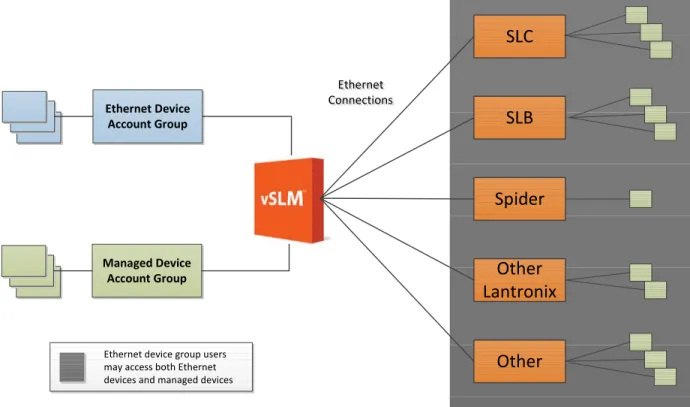
Figure 1-1 Rights of Ethernet Device Group and Managed Device Group to Devices
Ethernet Connections Ethernet Connections Ethernet Device Account Group Managed Device Account Group
SLC
SLB
Spider
Other
Lantronix
Other
Ethernet device group users
may access both Ethernet
vSLM™ 2 Secure Management Software User Guide 25
2:
Introduction
The vSLM 2 secure management software is a member of the secure IT management family of products. There are three models of SLM: the vSLM 2 model which is the virtual, software-only version of the vSLM 2 secure management software as well as the SLM-01 and SLM-02 models which include both the hardware and software. This user guide provides information on only the vSLM 2 software. Other products in the Lantronix secure IT management family include, but are not limited to: the SLC 8000 Console Managers, the SLB Branch Office Managers, and Spiders. These products offer systems administrators and other IT professionals a variety of tools for remotely and securely accessing and managing their networking equipment.
Note: For more information about the vSLM 2 software, please see the Lantronix website at www.lantronix.com/vslm.
The vSLM 2 software manages Lantronix and non-Lantronix devices. It "auto-detects" and then displays them in a single, concise view through a web or a command line interface (CLI). A user can search the web view for a desired device or device port (in the case of an SLC console manager or SLK KVM manager) and then connect to a found device or port without using a separate interface. With an SLC device, the user logs in only once, to the vSLM 2 software, and then any subsequent device logins are automatic. The SLM management device can also use LDAP, RADIUS, NIS, Kerberos, TACACS+, and SSH public key to authenticate users connecting remotely to the command line interface.
Benefits
With the vSLM 2 software, you can:
Consolidate management of IT infrastructure through a simple browser interface.
Maintain a secure, central point of access to all equipment with centralized console logging.
Reduce equipment diagnosis and repair time while minimizing the cost of ownership and administrative resources.
2: Introduction
IT Management Application
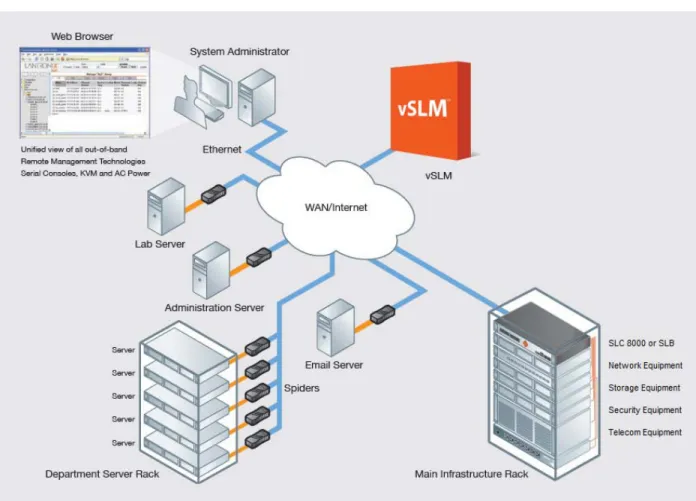
The following diagram shows how a user can perform management activities through the vSLM 2 secure management software.
2: Introduction
vSLM™ 2 Secure Management Software User Guide 27
Firmware
The SLM firmware has the following features:
User and events logging
Email notification of trap events, log file events, and Ethernet down
ID/Password security, configurable access rights
SSH and SSL security
External authentication through RADIUS, LDAP, NIS, Kerberos, and TACACS+
Shared authentication among SLM and SLC devices
SLC firmware version storage and updates
Local access through a console port
Web presentation of SLC device and ports in a user-configured view
Web administration (using most browsers)
Direct SSH access to SLC devices or SLC ports from the web view
Auto-discovery of devices and other Lantronix and non-Lantronix Ethernet devices
Support for an internal PCI or external USB modem
SNMP MIB2 and private MIB
SNMP trap target
Mobile phone WAP browser access
Protocols Supported
In addition to supporting the TCP/IP network protocol, the vSLM 2 secure management software supports:
SSH for connections in and out of the SLM
SMTP for mail transfer
SNMP for remote monitoring and management
SFTP and FTP for file transfers and firmware upgrades
DHCP and BOOTP for IP address assignment
HTTPS (SSL) for secure browser-based configuration
NTP for time synchronization
LDAP, NIS, RADIUS, Kerberos, and TACACS+, and SSH public key encryption for remote user authentication
WAP for mobile phone access
3:
Quick Setup Utility
This chapter provides instructions for entering basic network settings so you can configure and use the SLM on a network. For instructions on setting up the vSLM 2 secure management software, go to Chapter 4: vSLM 2 Deployment.
Quick Network Setup
This section helps get the IP network port up and running quickly, so you can administer the vSLM 2 secure management software using your network. Your vSLM 2 software must have a unique IP address on your network. The vSLM 2 secure management software receives an IP address in one of three ways:
Automatically: The first time you power up the vSLM 2 software, Network Port 1 tries to obtain its IP address via DHCP. If you have connected Network Port 1 to a network with a DHCP server, it acquires an IP address. Smaller networks may use BOOTP.
Using DeviceInstaller™ Utility: This software allows you to quickly assign a static IP address to a unit that has an automatically assigned IP address. This utility can be downloaded from the Lantronix website, by selecting the Management Platform product from the Firmware/Downloads page: www.lantronix.com/support/downloads.
Manually: If the vSLM 2 secure management software cannot obtain an IP address by means of DHCP, you must manually enter one using the vSLM 2 console port window, which is the window display by the virtualization software.
The administrator generally provides the IP address and corresponding subnet mask and gateway. If you assign an IP address manually, it must be within a valid range and unique to your network.
Required Information
To set up the vSLM 2 software quickly so you can use it on your network, you must first enter some basic information about one network port and the network.
IP address (if not already assigned): ______. ______ . ______ . ______ Subnet mask (if not already assigned): ______. ______ . ______ . ______ Gateway: ______. ______ . ______ . ______
Using Quick Setup on the Command Line Interface
If the vSLM 2 secure management software does not have an IP address, you can use the vSLM 2 console port window to access the command line interface. If the unit already has an IP address, you can use SSH to connect to the command line interface and add or change the IP address or other network-related information.
To complete the command line interface Quick Setup script:
Note: Chapter 5: Web and Command Line Interfaces describes the command line interface in detail.
3: Quick Setup Utility
vSLM™ 2 Secure Management Software User Guide 29
Enter.
With a network connection, use an SSH program to connect to xx.xx.xx.xx (the IP address in dot quad notation) and press Enter. The login prompt displays.
2. Type sysadmin (case sensitive) as the user name and press Enter. 3. Type PASS (case sensitive) as the password and press Enter.
Figure 3-1 Beginning of Quick Setup Script
Firmware revision: 4.1.0.0 (FW update success - 08/20 15:58) Login name: sysadmin
Group name: Administrators Authentication type: Local User vSLM License: 28 days remaining Login time: Thu Aug 20 16:34:18 2015 For a list of commands, type 'help'. Do you want to do quick setup? [no] yes
4. In response to the prompt asking whether you want to do the quick setup, type yes and press Enter.
Note: The prompt displays the first time you log in only. If you want to run the script again, type admin quicksetup.
5. Enter the following information at the prompts:
Note: To accept a default or to skip an entry that is not required, press Enter.
Table 3-2 Quick Setup Script
Script Description
Configure Port 1 or 2 Select one of the following:
<1> obtain IP Address from DHCP: The unit will acquire the IP address and gateway from the DHCP server. (The DHCP server may provide the gateway, depending on its setup.) This is the default setting.
<2> obtain IP Address from BOOTP: Permits a network node to request configuration information from a BOOTP "server" node.
<3> static IP Address: Requires you to assign a static IP address manually. The administrator generally provides the IP address.
Note: For SLM-01, Network Port 1 is 10/100/1000Base-T, while Network Port 2 is 10/100Base-T. For SLM-02, both Network Ports 1 and 2 are 10/ 100/1000Base-T.
IP Address (if specifying) An IP address that will be unique and valid on your network and in the same subnet as your PC. There is no default.
If you selected DHCP or BOOTP, this prompt does not display.
3: Quick Setup Utility
Figure 3-3 Completed Quick Setup
Quick Setup will now step you through configuring a few basic settings. The current settings are shown in brackets ('[]').
You can accept the current setting for each question by pressing <return>.
____Ethernet Port and Default Gateway___________________________________ The SLM has two ethernet ports, Port 1 and Port 2.
Current settings are:
Port State IP address Subnet mask Mode IPv4 filter ---- --- --- --- ---1 DHCP ---172.---19.---100.2---16 255.255.0.0 Auto-negotiate (None) 2 Disabled 0.0.0.0 0.0.0.0 Auto-negotiate (None) Port Static IPv6 address Link IPv6 address
---- --- ---1 fe80::20c:29ff:fe98:ed25/64 2
Configure Port 1 or 2: [1]
Configure Port 1: (1) obtain IP Address from DHCP(172.19.100.216) (2) obtain IP Address from BOOTP
(3) static IP Address Enter 1-3: [1]
Specify a hostname: [SLM1F4F]
____Time Zone___________________________________________________________ The current time zone is 'US/Pacific'.
Enter time zone: [US/Pacific]
Subnet Mask The subnet mask specifies the network segment on which the SLC console manager resides. There is no default. If you selected DHCP or BOOTP, this prompt does not display.
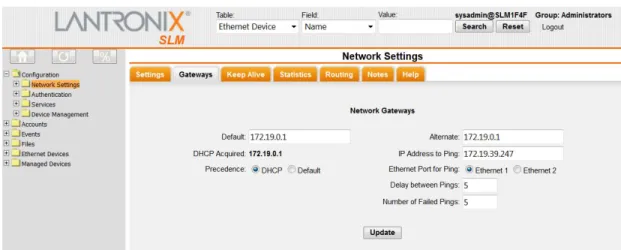
Gateway IP Address IP address of the router for this network.
Hostname The default host name is vSLM 2 secure management software. The host name can be a short host name or a fully qualified domain name. For example, we might add lantronix.com to the factory default name of vSLM 2 software to get SLM.lantronix.com. There is a 64-character limit (contiguous characters).
Time Zone If the time zone displayed is incorrect, enter the correct time zone and press
Enter. If the entry is not a valid time zone, the system guides you through selecting a time zone. A list of valid regions and countries displays. At the prompts, enter the correct region and country.
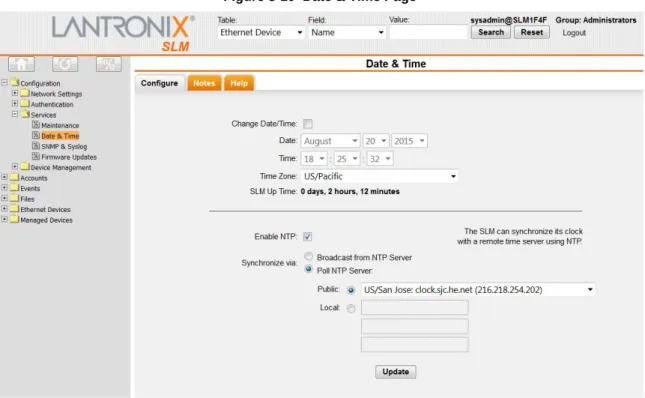
Date/Time If the date and time displayed are correct, type n and continue. If the date and time are incorrect, type y and enter the correct date and time in the formats shown at the prompts.
Sysadmin password Enter a new password for the sysadmin account. It can be up to 128 characters and is case sensitive.