Chapter 4: Explore!
Decision-Making
Objectives
In this chapter, you learn to:
• Create an Android project with a custom icon
• Change the text color in controls using
hexadecimal colors
• Align controls using the Change Gravity tool
• Determine layout with the Change Margins tool
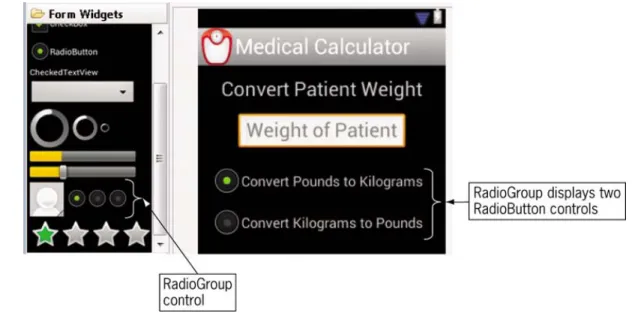
• Place a RadioGroup and RadioButtons in Android
applications
Objectives
(continued)• Make decisions using an If statement
• Make decisions using an If Else statement
• Make decisions using logical operators
• Display an Android toast notification
• Test the isChecked property
The Medical Calculator App
• We will be creating an app to convert pounds to
kilograms and kilograms to pounds
– Formulas needed:
• Kilograms = pounds * 2.2 • Pounds = kilograms / 2.2
• App is designed to be used in a hospital setting to
administer medication to patients based on patient
weight
– Hospital scales register pounds
– Meds (based on patient weight) dispensed in kilograms
The Medical Calculator App
(cont’d)Figure 4-1 Opening Screen of the Medical Calculator
Figure 4-2 Results Screen of the Medical Calculator
The Medical Calculator App
(cont’d)• Steps to complete the App
1. Create a customized launcher icon.
2. Define a TextField for the data entry of the weight of the patient.
3. Define a RadioGroup to select pounds to kilograms or kilograms to pounds.
4. Display a Toast message for data validation. 5. Convert data so it can be used for arithmetic
operations.
The Launcher Icon
•
The Launcher Icon allows you to view which apps
are available
– High-quality launcher icons can influence users to purchase your app
– Icons can establish brand identity
– Simple images with clear visual cues have a memorable impact
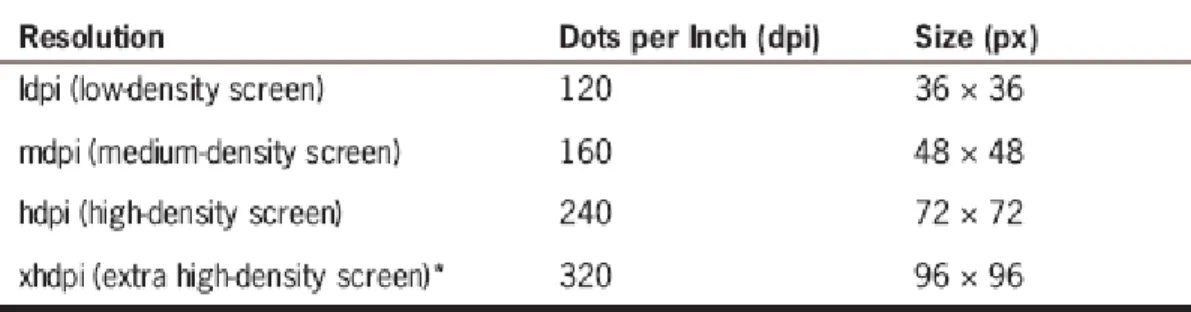
– Icon dimensions are 72 X 72 pixels for the high-density screen
– Vector graphics as best for icon design because images are easily resized
The Launcher Icon
(continued)Table 4-1 Launcher icon sizes
• When you publish an app to the Android Market, you must provide a 512 512 pixel, high-resolution application icon in the developer console as you upload your program. This icon is displayed in the Android Market to provide a
description of the app and does not replace your launcher icon.
The Launcher Icon
(continued)•
Customizing a Launcher Icon
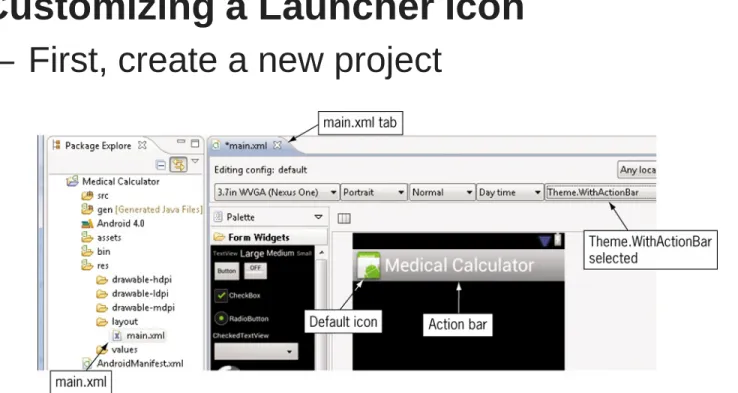
– First, create a new project
The Launcher Icon
(continued)•
Customizing a Launcher Icon
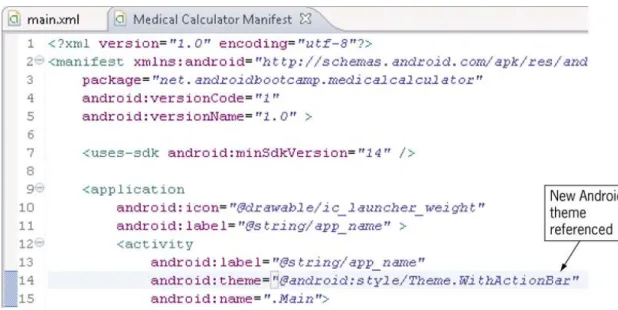
(continued)– Next, drag the icon image into the drawable-hdpi folder – Then, modify the code in the
Android Manifest file • Click in the line
android:icon=“drawable/ic_launcher”.
• Change the filename portion from
ic_launcher” to
The Launcher Icon
(continued)•
Customizing a Launcher Icon
(continued)– Finally, add the selected theme to the Android Manifest file
RadioButton and RadioGroup Controls
•
RadioButton control selects or deselects an option
– Can be arranged horizontally or vertically – Have a label defined by the text property
– Can be initially set to checked or unchecked – Typically used together in a RadioGroup
• Only one RadioButton in the group can be selected at a time
– Good to offer a default selection (checked = true) for the option that is used most
RadioButton and RadioGroup Controls
(cont’d)•
Changing the Text Color of Android Controls
– Use hexadecimal color codes to represent RGB (Red, Green, Blue) values
– Codes range from 00 to FF (00 = none, FF = full) – Codes are identified by a pound sign, followed by
the RGB values
• #FF0000 is all RED
• #00FF00 is all GREEN
• #0000FF is all BLUE
•
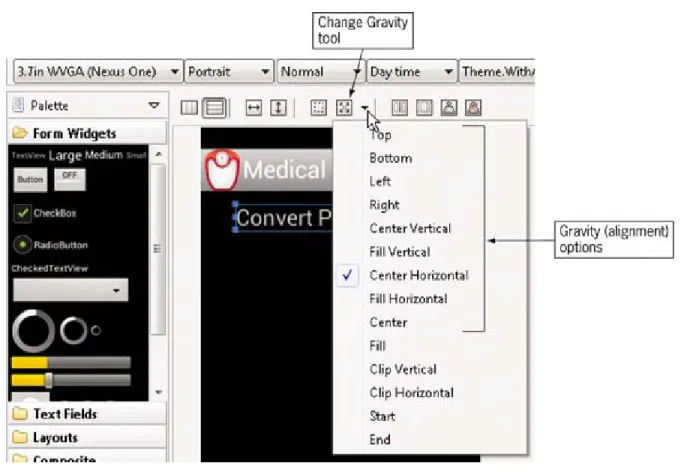
Changing the Layout Gravity
– Linear layout is the default setting on the emulator – The Change Gravity tool changes the alignment
• Works like the left, center, right, top or bottom buttons on the Microsoft Office ribbon
RadioButton and RadioGroup Controls
(cont’d)•
Changing the Margins
– Margins allow for more flexibility in controlling your layout
– Set independent pixel values instead of “eyeballing” to create equal spaces around controls
– Using the same specified margins creates a symmetrical layout
•
Adding the RadioButton Group
– Use the prefix rad (radLbToKilo) to name the control
RadioButton and RadioGroup Controls
(cont’d)•
Coding a RadioButton Control
final RadioButton lbsToKilo = (RadioButton) findViewById(R.id.radLbToKilo); final RadioButton kiloToLbs = (RadioButton) findViewById(R.id.radKiloToLb);
– Decision structures are used to test conditions
• Using an If Statement
If (condition) {
// Statements completed if condition is true
}
– Statements between the opening and closing braces are executed if the condition is true
Making Decisions with Conditional
Statements
• Using If Else Statements
If (condition) {
// Statements completed if condition is true
} else {
// Statements completed if condition is false
}
– One set of statements are executed if the condition is true and a different set of statements are executed if the condition is false
Making Decisions with Conditional
Statements
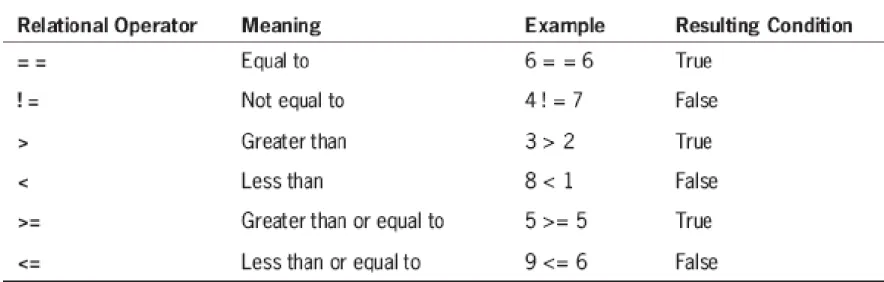
(continued)• Relational Operators
– Java strings are compared with the equals method (==) of the string class
Making Decisions with Conditional
Statements
(continued)– Use the compareTo method to check if two strings are equal
Making Decisions with Conditional
Statements
(continued)• Logical Operators
– When more than one condition is tested the conditions are called a compound condition
Making Decisions with Conditional
Statements
(continued)• Data Validation
– User entries must be checked for reasonable values
• Toast Notification
– A toast notification communicates messages to the
user (message slides upward into view like toast popping out of a toaster)
– Uses a Toast Object and the MakeText() method
Toast.makeText(Main.this,"Pounds must be less than 500", Toast.LENGTH_LONG).show();
Making Decisions with Conditional
Statements
(continued)• Using the isChecked() Method of RadioButton
Controls
– The isChecked() method determines if the RadioButton object has been selected
if (lbToKilo.isChecked) {
// statements completed if condition is true } else {
// statements completed if condition is false }
Making Decisions with Conditional
Statements
(continued)• Nested If Statements
– If statements are nested when one if statement is inside of another if statement
if (lbToKilo.isChecked) {
if (weightEntered <=500){
convertedWeight = weightEntered / conversionRate; } else {
Toast.makeText (Main.this,"Pounds must be less than 500", Toast.LENGTH_LONG).show();
}