User Guide
Printed
in
Canada
N
6
21
0
9356027
NOKIA INC.
7725 Woodland Center Boulevard, Suite 150, Tampa, FL 33614 Phone: 1-888-NOKIA-2U (1-888-665-4228) Fax: 1-813-249-9619 Text Telephone/Telecommunication Device for the Deaf (TTY/TDD) Users:
1-800-24-NOKIA (1-800-246-6542)
Thank you for purchasing a
Nokia 6200 phone.
We’re here for you!
www.nokiahowto.com
Learn how to use your new Nokia phone.
www.nokia.com/us
Get answers to your questions.
Register your phone’s warranty
so we can better serve your needs!
Phone notes
My Nokia information Notes Information source
My number Wireless service provider
Voice mail number Wireless service provider
Provider’s customer care Wireless service provider
Message center number Wireless service provider
Default recipient number (e-mail gateway number)
Wireless service provider
International Mobile
Equipment Identifier (IMEI) Label on back of phone (under battery). See “Find
your phone label” on page 16.
Model number 6200
The wireless phone described in this guide is approved for use in GSM/GPRS/EDGE 850, 1800, and 1900 networks.
LEGAL INFORMATION Part No. 9356027, Issue No. 1
Copyright © 2003 Nokia. All rights reserved.
Nokia, Nokia Connecting People, Nokia 6200, and Pop-Port are trademarks or registered trademarks of Nokia Corporation. All other product and company names mentioned herein may be trademarks or tradenames of their respective owners.
Printed in Canada 03/2003
US Patent No 5818437 and other pending patents.
T9 text input software Copyright ©1999-2003. Tegic Communications, Inc. All rights reserved.
Includes RSA BSAFE cryptographic or security protocol software from RSA Security.
Java is a trademark of Sun Microsystems, Inc.
The information in this user guide was written for the Nokia 6200phone. Nokia operates a policy of continuous development. Nokia reserves the right to make changes and improvements to any of the products described in this document without prior notice.
UNDER NO CIRCUMSTANCES SHALL NOKIA BE RESPONSIBLE FOR ANY LOSS OF DATA OR INCOME OR ANY SPECIAL, INCIDENTAL, AND CONSEQUENTIAL OR INDIRECT DAMAGES HOWSOEVER CAUSED.
THE CONTENTS OF THIS DOCUMENT ARE PROVIDED “AS IS.” EXCEPT AS REQUIRED BY APPLICABLE LAW, NO WARRANTIES OF ANY KIND, EITHER EXPRESS OR IMPLIED, INCLUDING, BUT NOT LIMITED TO, THE IMPLIED WARRANTIES OF MERCHANTABILITY AND FITNESS FOR A PARTICULAR PURPOSE, ARE MADE IN RELATION TO THE ACCURACY AND RELIABILITY OR CONTENTS OF THIS DOCUMENT. NOKIA RESERVES THE RIGHT TO REVISE THIS DOCUMENT OR WITHDRAW IT AT ANY TIME WITHOUT PRIOR NOTICE.
EXPORT CONTROLS
This product contains commodities, technology or software exported from the United States in accordance with the Export Administration regulations. Diversion contrary to U.S. or Canadian law is prohibited.
FCC/INDUSTRY CANADA NOTICE
Manufactured or sold under one or more following US Patents.
Asterisk (*) indicates design patents pending.
4868846 5519885 5827082 5966378 6112099 6266330
4969192 5526366 5835889 5970059 6115617 6282436
5001372 5553125 5839101 5987137 6118775 6285888
5045973 5557639 584884 5991716 6121846 6292668
5101175 5565821 5845219 5991857 6122498 6295286
5212834 5570369 5857151 5999523 6128322 6308084
5230091 5581244 5862178 6005857 6128509 6310609
5233634 5597102 5870683 6011853 6138091 6311054
5241284 5625274 5887266 6014573 6140966 6314166
5241583 5640395 5889770 6018277 6144243 6324412
5266782 5664004 5892475 6026161 6144676 6347218
5311151 5664053 5898925 6028567 6148209 6356759
5311179 5669069 5907823 6029128 6151485 6359904
5317283 5677620 5914690 6038238 6151507 6363259
5331638 5678224 5914796 6043760 6163609 6370362
5335362 5692032 5915440 6047196 6164547 6370390
5353328 5699406 5917868 6049796 6167248 6377803
5378935 5699482 5920826 6050415 6170073 6393121
5384782 5701392 5926138 6055439 6178535 6430721
5390223 5729534 5926769 6060193 6185295 6434133
5396657 5729541 5930233 6069923 6188909 *29170209
5400949 5734683 5946651 6072787 6195338 *29170227
5416435 5754976 5956332 6081534 6199035 *29170247
5442521 5760568 5956625 6084962 6201876 *29170248
5444816 5782646 5956633 6088746 6219560
5446364 5794142 5960354 6094587 6240076
5479476 5802465 5960389 6097964 6240079
5487084 5805084 5963901 6105784 6249584
Contents
1 For your safety . . . 1
2 Overview of functions . . . 3
Multimedia messaging service (MMS) . . . .3
Polyphonic sound (MIDI) . . . .3
(E)GPRS and EDGE . . . .3
Speakerphone. . . .4
JavaTM applications . . . .4
FM radio . . . .4
3 Welcome and quick guide . . . 5
Get the most out of this guide . . . .5
Understand wireless network services . . . .6
Register your phone . . . .6
Learn about accessibility solutions . . . .6
Understand your phone. . . .7
Get started with the Quick Guide . . . .14
Menu shortcuts . . . .15
Get help . . . .16
4 Basic operations . . . 18
Switch your phone on or off. . . .18
Make and answer calls . . . .18
Options during a call . . . .20
Check the Start screen . . . .22
Browse phone menus . . . .24
Set up your phone . . . .29
5 Text entry . . . 31
Standard mode. . . .31
Predictive text input . . . .32
6 Manage phone security . . . 35
Security levels . . . .35
Fixed dialing . . . .36
7 Contacts . . . 41
View the contacts list . . . 41
Save contacts . . . 42
Copy contact list entries . . . 46
1-touch dialing . . . 47
Voice dialing . . . 49
View info, service, and own numbers . . . 52
Set up a caller group . . . 53
8 Menu functions . . . 54
Messages (Menu 1) . . . 54
Tips for composing a message . . . 56
Text messages . . . 56
Picture messages . . . 59
E-mail . . . 61
Multimedia messages . . . 63
Voice messages . . . 69
Message options . . . 71
Organize messages with folders . . . 72
Delete messages. . . 74
Change text, e-mail, and picture message settings . . . 75
Use the info message service . . . 77
Call log (Menu 2) . . . 78
Call log options . . . 78
View missed calls . . . 79
View received calls. . . 79
View dialed numbers . . . 80
Delete call lists . . . 80
View call duration . . . 81
Profiles (Menu 3) . . . 82
Select a profile . . . 82
Customize a profile . . . 82
Settings (Menu 4) . . . 85
Right selection key settings . . . .85
Time and date settings . . . .86
Call settings . . . .88
Phone settings . . . .92
Display settings . . . .95
Tone settings . . . .97
Enhancement settings. . . .97
Security settings . . . .100
Restore factory settings . . . .100
Alarm clock (Menu 5) . . . 101
Set an alarm. . . .101
Radio (Menu 6) . . . 103
Turn the radio on and off . . . .103
Use the radio . . . .103
Save a radio channel . . . .104
Gallery (Menu 7) . . . 105
Open the gallery . . . .105
View folders . . . .106
Organizer (Menu 8) . . . 107
Use the calendar . . . .107
Send and receive calendar notes . . . .110
Make a to-do list . . . .111
Games (Menu 9) . . . 113
Launch a game. . . .113
Applications (Menu 10) . . . 115
Launch an application . . . .115
Download applications . . . .116
View application memory status . . . .117
Extras (Menu 11) . . . 118
Use the calculator . . . .118
Voice recorder . . . 120
Voice commands . . . 121
Connectivity (Menu 12) . . . 124
Infrared . . . 124
(E)GPRS . . . 125
Synchronization . . . 128
Nokia PC Suite . . . 131
Services (Menu 13) . . . 133
Notes on wireless Internet access . . . 133
Sign on to the wireless Internet . . . 134
Use browser options . . . 134
Navigate the wireless Internet . . . 135
Use bookmarks . . . 137
Security issues . . . 137
9 Reference information. . . 139
Battery statements . . . 139
Use proper care and maintenance . . . 140
Understand important safety information . . . 141
Emergency calls . . . 144
Certification information (SAR) . . . 145
Battery information . . . 147
Technical information . . . 148
Enhancements . . . 149
Glossary . . . 153
Frequently asked questions . . . 155
Troubleshooting . . . 158
Nokia One-Year Limited Warranty . . . 159
Appendix A Message from the CTIA to all users of mobile phones. . . 165
Appendix B Message from the FDA to all users of mobile phones. . . 169
1
For your safety
Read these simple guidelines. Breaking the rules may be dangerous or illegal. Further detailed information is given in this manual.
Do not switch on the phone when wireless phone use is prohibited or when it may cause interference or danger.
ROAD SAFETY COMES FIRST
Don't use a handheld phone while driving.
INTERFERENCE
All wireless phones may get interference, which could affect performance.
SWITCH OFF IN HOSPITALS
Follow any regulations or rules. Switch the phone off near medical equipment.
SWITCH OFF IN AIRCRAFT
Wireless devices can cause interference in aircraft.
SWITCH OFF WHEN REFUELING
Don't use the phone at a refueling point. Don't use near fuel or chemicals.
SWITCH OFF NEAR BLASTING
Don't use the phone where blasting is in progress. Observe restrictions, and follow any regulations or rules.
USE SENSIBLY
Use only in the normal position. Don't touch the antenna unnecessarily.
QUALIFIED SERVICE
ENHANCEMENTS AND BATTERIES
Use only approved enhancements and batteries. Do not connect incompatible products.
WATER-RESISTANCE
Your phone is not water-resistant. Keep it dry.
BACKUP COPIES
Remember to make backup copies of all important data.
CONNECTING TO OTHER DEVICES
When connecting to any other device, read its user guide for detailed safety instructions. Do not connect incompatible products.
CALLING
Ensure the phone is switched on and in service. Enter the phone number, including the area code, then press h. To end a call, press i. To answer a call, press h.
EMERGENCY CALLS
Overview of functions
2
Overview of functions
• MULTIMEDIA MESSAGING SERVICE (MMS)
Your phone can send and receive multimedia messages made up of text and pictures. You can also save pictures and ringing tones to personalize your phone. You may also be able to receive polyphonic ringing tones. See “Multimedia messages” on page 63 for more information.
Important: This feature uses shared memory. See “Shared memory” on page 12 for more information.
• POLYPHONIC SOUND (MIDI)
Polyphonic sounds are used in ringing tones and message alert tones. They consist of several sound components played at the same time, like an actual melody through a speaker. Your phone has sound components from over 40 instruments that can be used for polyphonic sounds and the phone can play up to eight instruments simultaneously. The phone supports scalable polyphonic MIDI (SP-MIDI) format.
You can receive polyphonic ringing tones via multimedia service (see “Read and reply to a multimedia message” on page 67), or download them via the gallery menu (see “Gallery (Menu 7)” on page 105).
• (E)GPRS AND EDGE
General packet radio service (GPRS) and enhanced general packet radio service (EGPRS), also known as enhanced data rates for global evolution (EDGE), technology allows mobile phones to send and receive data over a mobile network.
Applications such as xHTML, MMS, text messaging, and JavaTM use
Before using (E)GPRS technology:
• Contact your network operator or service provider for availability and subscription to the (E)GPRS service.
• Save the (E)GPRS settings for each of the applications used over (E)GPRS.
PRICING FOR (E)GPRS AND APPLICATIONS
Your wireless provider may charge for (E)GPRS services. For more information on pricing, contact your wireless provider.
• SPEAKERPHONE
You can use your phone as a speakerphone during a call. Do not hold the phone to your ear during speakerphone operation.
• To activate the speakerphone, press Loudsp.
• To deactivate the speakerphone during a call, press Handset. The speakerphone deactivates automatically when you end the call, attempt to make a new call, or when you connect a headset.
• JAVA
TMAPPLICATIONS
Your phone supports JavaTM and includes some Java applications and games
that have been specially designed for mobile phones. You may be able to download new applications and games to your phone from a PC with Java installer software or from some mobile Internet services. See “Applications (Menu 10)” on page 115 for more information.
Important: This feature uses shared memory. See “Shared memory” on page 12 for more information.
• FM RADIO
Welcome and quick guide
3
Welcome and quick guide
Congratulations on your purchase of the Nokia 6200 mobile phone. Your phone provides many functions which are practical for daily use, such as a calendar, radio, alarm clock, calculator, voice recorder, speakerphone and more. Your phone can also connect to a PC, laptop, or other device using the data cable or built-in IR port.
• GET THE MOST OUT OF THIS GUIDE
The following tips can help you get the most from this guide as you learn to use your phone.
Learn text conventions
This user guide provides text clues to help make instructions clear and easy to follow. These clues are called conventions.
Follow graphic clues
This guide uses certain icons to alert you to important information.
Tip: Indicates a shortcut or alternate method of doing something.
Note: Explains a feature or points out an important concept.
Important: Indicates critical information on using a feature.
Caution: Warns when you may lose information.
Warning: Helps you avoid personal injury, damage to the phone, or property damage.
Convention What it means
bold The word or phrase appears on the phone display.
bold and blue The text refers to an address on the world wide web.
Look for updates
From time to time, Nokia updates this guide to reflect changes. The latest version may be available at www.nokia.com/us. Also, an interactive tutorial may be available at www.nokiahowto.com.
• UNDERSTAND WIRELESS NETWORK SERVICES
A number of features in this guide are called network services. These are special services that you arrange through your wireless service provider. Before you can take advantage of any of these network services, you must subscribe to them through your wireless provider and obtain instructions for their use from your service provider.
• REGISTER YOUR PHONE
Make sure to register your phone at www.warranty.nokiausa.com or 1-888-NOKIA-2U (1-888-665-4228) so that we can serve your needs better if you should need to call the center or have your phone repaired.
E-Newsletters
When you register your phone, you can sign up for Nokia's e-newsletter, Nokia Connections, if you would like. You will receive tips and tricks on using your phone, enhancement information, and special offers.
• LEARN ABOUT ACCESSIBILITY SOLUTIONS
Welcome and quick guide
• UNDERSTAND YOUR PHONE
Power key
Volume keys
Left selection key
Right selection key End key Talk key
Display screen Earpiece
Number keys
IR Port
Microphone Pop-PortTM connector
Charger jack
4-way scroll keys
+
Use the antenna
Your phone has a built-in antenna. As with any other radio transmitting device, avoid touching the antenna unnecessarily when the phone is switched on. Contact with the antenna affects call quality and may cause the phone to operate at a higher power level than otherwise needed. Not touching the antenna area during a phone call optimizes the antenna performance and the talk time of your phone.
Use the battery
CHARGE THE BATTERY
1 Plug the charger into a standard ac outlet.
2 Insert the charger output plug into the round connector at the bottom end of the phone.
After a few seconds, the battery indicator in the display starts to scroll from bottom to top. If the
battery is completely empty, it may take a few minutes before the charging indicator appears on the display or any calls can be made.
Tip: You can use the phone while the charger is connected.
IMPORTANT BATTERY INFORMATION
Important: Your phone is powered by a rechargeable battery.
Use only batteries approved by Nokia and recharge your battery only with the chargers approved by Nokia. Never use any charger or battery which is damaged.
Welcome and quick guide
PROLONG THE BATTERY
Use the following guidelines to obtain the best performance from your battery:
• With your phone turned off, charge your new battery for three hours before its first use. Use the battery until it is fully discharged. Repeat this procedure twice for a total of three charging cycles.
• Note that the full performance of a new battery is achieved only after two or three complete charge and discharge cycles. Battery operation times may be less than the estimated times during the first charges. This condition is normal.
• You can use your phone while the battery is charging. However, if the battery is completely empty, it may need to recharge a few minutes before you can make or receive calls or the battery indicator appears. • After the first charge, you can make and receive calls during the
charging cycle, but the calls lengthen the charging time. When the phone call ends, the charge will resume.
• The bars on the screen stop scrolling and remain constant when the phone is fully charged. If you leave the phone connected to the charger, the battery receives an additional charge. If you switch the phone on when charging is complete, the Battery full message momentarily appears in the display.
Note: The battery will accept a “trickle charge" for an additional two hours.
REPLACE THE BATTERY
You will need to remove the existing battery if you want to replace the battery or insert the SIM card. Make sure the phone has been turned off for 10 seconds before removing the battery.
REMOVE THE BACK COVER
1 With the back of the phone facing you, push down on the back cover release button.
2 Slide the back cover toward the bottom of the phone and remove.
REMOVE THE BATTERY
3 After you have removed the back cover, insert your finger into the finger grip and lift the battery from its compartment.
Install the SIM card
The SIM card and its contacts can easily be damaged by scratches or bending, so be careful when handling, inserting, or removing the card.
Before installing the SIM card, always make sure that the phone is switched off and that you have removed the cover and battery.
Warning: Keep all SIM cards out of reach of small children.
1 Slide the SIM card holder toward the bottom end of the phone until it unlocks.
2 Swing the SIM card holder open.
1
2
3
1
Welcome and quick guide
3 Insert the SIM card into the holder (beveled corner last) with the gold contacts facing toward the top end of the phone.
4 Close the SIM card holder.
5 Slide the SIM card holder toward the top end of the phone until it locks into place.
INSTALL THE BATTERY
The SIM card must be installed before
installing the battery.
1 Position the battery so the gold contacts match up with those on the phone. The battery label should be facing awayfrom the phone.
2 Insert the battery, contact end first into the battery slot.
3 Snap the other end of the battery into place. REPLACE THE BACK COVER
4 Slide the back cover toward the top of the phone until you hear a click and see the back cover release button.
3
4
Use the selection and scroll keys
Below each corner of the display are the selection keys. Press b when Menu appears above it to show the first of numerous menus. Page through the rest of the menus using the up and down scroll keys (d or g). Press c
when Contacts appears above it to enter the contacts list.
Note: The function of the right selection key (c) can be modified so that your most frequently used functions can be quickly accessed from the Start screen. See “Right selection key settings” on page 85 for details.
Tip: Press an up or down scroll key (d or g) from the Start screen to view any entries in your contacts list.
Use four-way scrolling
In features, such as the calendar monthly view, text messages, and special characters, you can move the cursor up and down as well as left and right. To move the cursor:
Shared memory
The following features in this phone may share memory: contacts, text and multimedia messages, images and ringing tones in gallery, calendar and to-do notes, Java games and applications, and voice recorder and commands. Using any such features may reduce the memory available for any features sharing memory. This is especially true with heavy use of any of the features (although some of these features may have a certain amount of memory specially allotted to them in addition to the amount of memory shared with other features).
Left, press f
Up, press d
Down, press g
Right, press e
Right select Left
Welcome and quick guide
For example, saving many images, bookmarks, Java applications, or other features sharing memory may take all of the shared memory and your phone may display a message that the memory is full. In this case, delete some of the information or entries stored in the shared memory features before continuing.
The following functions use shared memory that is dependent on the data quantity per item and shared memory available at a time in the Nokia 6200 phone:
• Contacts
• Short messaging service (SMS) messages
• Calendar notes
• To-do list
• Voice tags for commands
• Voice tags for contacts
• Multimedia messages (MMS)
• MIDI ringing tones
• Images
• GET STARTED WITH THE QUICK GUIDE
Make a call Enter a phone number and press h.Answer a call Press h or press Options and select Answer call.
Answer a call with a call waiting
Press Answer or h.
End a call Press i.
Ignore a call Press Silence or i when your phone rings.
Redial last number Press h twice.
Adjust call volume Press up or down on the side volume key.
Use the in-call menu While in a call, press Options.
Use 1-touch dialing (if activated)
Press and hold any key 2 through 9.
Save a contact Enter a number, press Options, and select Save.Enter a name and press OK.
Recall a contact Press Contacts and select Find or press g and select the name.
Check voice mail Press and hold
1
or dial your voice mailbox number.Write and send a text message
Press Menu 01-1-1. After a pause, write the message. Press Options, scroll to Send, press Select, enter the recipient’s number, and press OK.
Write and send an e-mail message
Press Menu 01-1-3. After a pause, enter the recipient’s e-mail address. Press OK, enter a subject, and press OK. Write your e-mail message, press Options, scroll to Send e-mail, and press Select. Enter the e-mail server number if necessary, and press OK.The e-mail message is sent.
Read a new message Press Show and, if necessary, press Select.
Reply to a message Press Options, select Reply, write the reply, press
Options, select Send, and press OK.
Reply to an e-mail message
Press Options, scroll to Reply, and press Select. Compose your message and press Options. Scroll to Sending options
and press Select. Scroll to Sending profile and press Select. Highlight your e-mail profile and press Select. Press
Options, Accept, enter the e-mail address, and press OK.
Welcome and quick guide
• MENU SHORTCUTS
To access a menu or item, press Menu, then enter the numbers associated with the desired menu or item. For example, press Menu 2-1 (Call log > Missed calls) to view any missed calls.
1 MESSAGES Text messages . . . 01-1 Multimedia msgs . . . 01-2 Voice messages . . . 01-3 Info messages1. . . 01-4 Message settings . . . 01-5 Service commands . . . 01-6
2 CALL LOG
Missed calls. . . 2-1 Received calls . . . 2-2 Dialed numbers. . . 2-3 Delete recent call lists . . . 2-4 Call timers. . . 2-5 GPRS data counter . . . 2-6 GPRS connection timer . . . 2-7
3 PROFILES
Normal . . . 3-1 Silent . . . 3-2 Meeting . . . 3-3 Outdoor . . . 3-4 Pager . . . 3-5
4 SETTINGS
Right selection key settings. . 4-1 Time and date settings. . . 4-2 Call settings . . . 4-3 Phone settings . . . 4-4 Display settings . . . 4-5 Tone settings. . . 4-6 Enhancement settings . . . 4-7 Security settings. . . 4-8 Restore factory settings. . . 4-9
5 ALARM CLOCK
6 RADIO
7 GALLERY
8 ORGANIZER
Calendar. . . 8-1 To-do list . . . 8-2
9 GAMES
Select game . . . 9-1 Game downloads. . . 9-2 Memory . . . 9-3 Settings . . . 9-4
10 APPLICATIONS
Select application . . . 10-1 App. downloads . . . 10-2 Memory . . . 10-3
11 EXTRAS
Calculator . . . 11-1 Voice recorder . . . 11-2 Voice commands . . . 11-3
12 CONNECTIVITY
Infrared . . . 12-1 GPRS. . . 12-2 Synchronization. . . 12-3
13 SERVICES
• GET HELP
If you need help, Nokia Customer Care is available for assistance. Before calling, please read “Frequently asked questions” on page 155 and “Troubleshooting” on page 158.
We also recommend that you write down the following information and have it available if you call:
• The International Mobile Equipment Identifier (IMEI) on the type label of your phone
• Your zip code
Find your phone label
The IMEI information can be found on the type label, which is located on the back of the phone, beneath the battery.
Contact Nokia
Please have your phone or Nokia product with you when contacting any of the numbers below:
Nokia Customer Care Center, USA Customer Care Centre, Canada Nokia Mobile Phones
7725 Woodland Center Boulevard Suite #150
Tampa, Florida 33614
Tel: 1-888-NOKIA-2U (1-888-665-4228)
Fax: 1-813-249-9619
For TTY users: 1-800-24-NOKIA (1-800-246-6542)
Nokia Products Ltd. 601 Westney Road South Ajax, Ontario L1S 4N7
Tel: 1-888-22-NOKIA (1-888-226-6542)
Fax: 1-905-427-1070
Welcome and quick guide
Contact your service provider
To use the network services available in your phone, you will need to sign up with a wireless provider. In many cases, the wireless provider will make available descriptions of their services and instructions for using features such as:
• Voice mail and voice privacy
• Call waiting, call forwarding, and caller ID
• Messaging
• News and information services
• Selected Internet services
4
Basic operations
• SWITCH YOUR PHONE ON OR OFF
Warning: Do not switch the phone on when wireless phone use is prohibited or when it may cause interference or danger.
1 To turn your phone on or off, press and hold the power key (
a
) on top of the phone for at least4 seconds until the display light comes on.
If the phone displays Insert SIM card even though the SIM card is properly inserted, or SIM card not supported, contact your wireless provider.
2 Enter the PIN code if necessary and press OK. For information on the PIN code, see “PIN code” on page 39.
3 Enter the security code if necessary and press OK. For information on the security code, see “Security code” on page 38.
Note: If the language that appears in your display is not correct, see “Set the display language” on page 92 for information on changing your phone’s display language.
• MAKE AND ANSWER CALLS
Note: Your phone must be switched on to use this function. Donot switch the phone on when wireless phone use is prohibited or when it may cause interference or danger.
Use the keypad
1 Enter the phone number (including the area code) and press h. (To delete a character to the left of the cursor, press Clear.)
Basic operations
Use the contacts list
1 At the Start screen, press d or g and scroll to the entry you wish to view.
2 Press h to make the call or press Details to view details of the entry.
Tip: To quickly search the list of entries while in your contacts list, press any key in which the letters match the first letter of the name for which you are searching.
Answer or reject an incoming call
• Press h to answer the call.
• Press i to reject the call; the call is diverted to your voice mail if you have activated call forwarding to your voice mailbox number (see “Call forwarding” on page 88 for details).
If you press c to Silence the call, only the ringing tone is muted. You can then either press Options to answer the call or Decline to reject the incoming call.
Tip: If the HDB-4 or HDS-3 headset is connected, you can answer or end a call by pressing the key on the headset.
Answer a call with the keypad locked
To answer a call with Keyguard on, simply press h. During the call, all features function as normal. When you end or reject the call, the keypad automatically relocks. For more information on Keyguard, see “Lock the keypad (Keyguard)” on page 35.
Note: When the phone is locked, calls may be possible to the emergency number programmed into your phone (for example, 911). Key in the emergency number and press h. The number is displayed only after you have keyed in the last digit.
Redial the last number
1 At the Start screen, press h to display the last 20 numbers dialed.
Adjust the earpiece volume
• To increase the volume of a call, press the volume up key on the left side of the phone.
• To decrease the volume of a call, press the volume down key on the left side of the phone.
When adjusting the volume, a bar chart appears in the display screen indicating the volume level.
Make a conference call
Conference calling is a network service that allows up to six persons to take part in a conference call.
1 Make a call to the first participant.
2 To call a new participant, press Options, scroll to New call, and press Select.
3 Enter the phone number of the new participant (or press Find to retrieve a number from your contacts list) and press Call. The first call is put on hold.
4 When the new call picks up, press Options, scroll to Conference, and press Select to connect the calls.
5 To add a new participant to the call, repeat Steps 2 through 4. HAVE A PRIVATE CONVERSATION WITH ONE OF THE PARTICIPANTS:
6 Press Options, select Private call, and select the desired participant. Rejoin the conference call as described in Step 4.
7 To end the conference call, press i.
• OPTIONS DURING A CALL
Many of the options that you can use during a call are network services. Contact your service provider for more information.
Basic operations
1 Press Options during a call to display those in the following table:
2 Scroll to an option and press Select to activate the option or enter its submenu.
3 Press Swap to switch between the active call and the call on hold, press Transfer to connect a call on hold, and press i to disconnect from all calls.
Option Function
Hold/Unhold Places the current call on hold or takes the current call off hold.
Loudspeaker/ Handset
Enables one of the handsfree features in your phone.
Lock keypad Locks the keypad to prevent accidental key-presses.
Record Voice recorder records an active phone conversation.
End call/End all calls
Disconnects the current call or all participants in a conference call.
New call Places a new call; the first call is put on hold.
Touch tones Sends touch tones generated by your phone keypad.
Contacts Displays the contacts list.
Menu Displays the main menus.
• CHECK THE START SCREEN
The Start screen is “home base” and indicates your phone is in idle mode.
What’s on the Start screen
HOME Your wireless provider’s name may appear here.
Signal strength A higher bar indicates a stronger network signal.
Battery level A higher bar indicates more power in the battery.
b Left selection key; press this key when Menu is on the Start screen to enter the menu list.
c
Right selection key; press this key when Contacts is on the Start screen to enter the contacts list. If you have modified the right selection key settings in your phone,
Go to is on the Start screen. See “Right selection key settings” on page 85 for details.
d or g
Scroll keys; press either of these keys at the Start screen to display the entries in your contacts list.
f Left scroll key; press this key at the Start screen to quickly create a SMS or MMS message.
e
Right scroll key; press this key at the Start screen to quickly view the calendar.
Battery level
Contacts Signal strength
Basic operations
Understand indicators and icons
Icon Indicates...
You have one or more text or picture messages. See “Reply to a message or e-mail” on page 62.
You have one or more multimedia messages. See “Read and reply to a multimedia message” on page 67.
You have one or more voice messages. See “Voice messages” on page 69.
Your phone keypad is locked. See “Lock the keypad (Keyguard)” on page 35.
Your phone is set to the Silent profile. See “Profiles (Menu 3)” on page 82.
The alarm clock is set to On. See “Alarm clock (Menu 5)” on page 101.
An (E)GPRS dial-up connection is active. See “(E)GPRS dial-up connections” on page 126.
An (E)GPRS connection is available (if Always online is selected) but not active. See “(E)GPRS dial-up connections” on page 126.
You have an incoming or outgoing call during a (E)GPRS dial-up connection. (E)GPRS is suspended.
IR connection indicator. See “Infrared” on page 124.
Forward all voice calls. All calls are forwarded to another number. If you have two phone lines, the indicator for line 1 is and for line 2 .
• BROWSE PHONE MENUS
Your phone features are grouped according to function and are accessed through the main menus. Each main menu contains submenus and lists from which you can select or view items and customize phone features. You can access these menus and submenus by using the scroll method or by using a shortcut.
Note: Some features may not be available, depending on your network. For more information, contact your wireless provider.
Use the scroll method
At the Start screen, press Menu, then use the up and down scroll keys (d or g) to scroll through the main menus.
As you scroll through the menus, the menu number appears in the upper right corner of the display. Below the menu number is a scroll bar with a tab. The tab moves up or down as you scroll through the menus, providing a visual representation of your current position in the menu structure.
Integrated handsfree is active. See “Speakerphone” on page 4.
Calls are limited to a closed user group. See “Closed user groups” on page 38.
The timed profile is selected. See “Profiles (Menu 3)” on page 82.
or A headset or loopset is connected to the phone.
The phone is connected to a car kit.
or Voice privacy encryption is active (or is not active) in the network.
Icon Indicates...
Menu number
Basic operations
When you arrive at a menu or submenu:
• Press Select (b) to access submenus.
• Press Back (c) to return to the previous menu.
• Press i or Exit to return to the Start screen from any menu or submenu.
Check in-phone help
Many features have brief descriptions (help text) which can be viewed on the display. To view these descriptions, scroll to a feature and wait for about 15 seconds. Press More to view all of the description (if necessary), or press Back to exit.
The default setting for help text is On. However, you can turn help text on or off by doing the following:
1 At the Start screen, press Menu, scroll to Settings and press Select.
2 Scroll to Phone settings and press Select.
3 Scroll to Help text activation and press Select. On and Off appear in the display.
4 Scroll to On or Off and press Select. A confirmation message appears in the display indicating your selection.
Use a shortcut
You can go directly to almost any menu or submenu, as well as activate most features by using a shortcut.
Press Menu, then within 3 seconds, press the key or keys associated with the menu function you want to view or activate.
For example, to select the Meeting profile, press Menu 3-3-1 from the Start screen (Menu > 3Profiles > 3Meeting > 1Select). After a brief pause, the Meeting profile is activated.
Menu shortcuts
To access a menu or item, press Menu, then enter the numbers associated with the desired menu or item. For example, press Menu 2-1 (Call log > Missed calls) to view any missed calls.
Note: Some shortcuts may not be available, depending on your network. For availability, contact your wireless service provider.
1 MESSAGES
TEXT MESSAGES . . . 01-1 Create message . . . 01-1-1 Inbox . . . 01-1-2 Create e-mail . . . 01-1-3 Sent items . . . 01-1-4 Archive. . . 01-1-5 Templates . . . 01-1-6 My folders . . . 01-1-7 Distribution lists . . . 01-1-8 Delete messages . . . 01-1-9 MULTIMEDIA MSGS. . . 01-2 VOICE MESSAGES . . . 01-3
Listen to voice
messages . . . 01-3-1 Voice mailbox number . 01-3-2 INFO MESSAGES . . . 01-4 Info service . . . 01-4-1 Topics . . . 01-4-2 Language . . . 01-4-3 Info topics saved on
SIM card . . . 01-4-4 Read (if received only) . 01-4-5 MESSAGE SETTINGS . . . 01-5 Text messages . . . 01-5-1 Multimedia msgs. . . 01-5-2 Other settings . . . 01-5-3 SERVICE COMMANDS . . . 01-6
2 CALL LOG
MISSED CALLS . . . 2-1 RECEIVED CALLS . . . 2-2 DIALED NUMBERS . . . 2-3 DELETE RECENT CALL LISTS . 2-4 All . . . 2-4-1 Missed . . . 2-4-2 Received . . . 2-4-3 Dialed . . . 2-4-4 CALL TIMERS . . . 2-5 Duration of last call. . . 2-5-1 Duration of received
calls. . . 2-5-2 Duration of dialed
calls. . . 2-5-3 Duration of all calls. . . 2-5-4 Clear timers . . . 2-5-5 GPRS DATA COUNTER. . . 2-6
Data sent in last
session . . . 2-6-1 Data received
Basic operations
3 PROFILES
NORMAL . . . 3-1 Select . . . .3-1-1 Customize . . . .3-1-2 Ringing options. . . . .3-1-2-1 Ringing tone . . . .3-1-2-2 Ringing volume. . . . .3-1-2-3 Vibrating alert. . . .3-1-2-4 Message alert tone . .3-1-2-5 Keypad tones. . . .3-1-2-6 Warning tones . . . . .3-1-2-7 Alert for . . . .3-1-2-8 Timed. . . .3-1-3 SILENT. . . 3-2 Select . . . .3-2-1 Customize . . . .3-2-2 Ringing options. . . . .3-2-2-1 Ringing tone . . . .3-2-2-2 Ringing volume. . . . .3-2-2-3 Vibrating alert. . . .3-2-2-4 Message alert tone . .3-2-2-5 Keypad tones. . . .3-2-2-6 Warning tones . . . . .3-2-2-7 Alert for . . . .3-2-2-8 Profile name . . . .3-2-2-9 Timed. . . .3-2-3 MEETING . . . 3-3 OUTDOOR . . . 3-4 PAGER . . . 3-5
Submenus for Meeting, Outdoor, and Pager are the same as Silent.
4 SETTINGS
RIGHT SELECTION KEY
SETTINGS . . . 4-1 Select options. . . .4-1-1 Organize . . . .4-1-2
TIME AND DATE SETTINGS . . 4-2 Clock . . . 4-2-1 Date . . . 4-2-2 Auto-update of
date & time . . . 4-2-3 CALL SETTINGS . . . 4-3 Call forwarding . . . 4-3-1 Anykey answer . . . 4-3-2 Automatic redial . . . 4-3-3 1-touch dialing . . . 4-3-4 Call waiting . . . 4-3-5 Summary after call . . . 4-3-6 Send my caller identity. . 4-3-7 Line for outgoing calls . . 4-3-8 PHONE SETTINGS . . . 4-4 Language . . . 4-4-1 Automatic keyguard . . . . 4-4-2 Cell info display. . . 4-4-3 Welcome note . . . 4-4-4 System selection . . . 4-4-5 Confirm SIM service
ENHANCEMENT SETTINGS. . . 4-7 Headset . . . 4-7-1 Default profile . . . 4-7-1-1 Automatic answer . . 4-7-1-2 Handsfree . . . 4-7-2 Default profile . . . 4-7-2-1 Automatic answer . . 4-7-2-2 Lights . . . 4-7-2-3 Loopset . . . 4-7-3 Default profile . . . 4-7-3-1 Automatic answer . . 4-7-3-2 TTY/TDD . . . 4-7-4 Use TTY. . . 4-7-4-1 Music stand. . . 4-7-5 SECURITY SETTINGS. . . 4-8 PIN code request. . . 4-8-1 Call restrictions . . . 4-8-2 Fixed dialing . . . 4-8-3 Closed user group . . . 4-8-4 Security level. . . 4-8-5 Access codes . . . 4-8-6 RESTORE FACTORY
SETTINGS. . . 4-9
5 ALARM CLOCK
6 RADIO
7 GALLERY
8 ORGANIZER
CALENDAR. . . 8-1 TO-DO LIST . . . 8-2
9 GAMES
SELECT GAME . . . 9-1 GAME DOWNLOADS . . . 9-2 MEMORY. . . 9-3 SETTINGS. . . 9-4
10 APPLICATIONS
SELECT APPLICATION . . . 10-1 APP. DOWNLOADS . . . 10-2 MEMORY . . . 10-3
11 EXTRAS
CALCULATOR . . . .11-1 VOICE RECORDER . . . .11-2 VOICE COMMANDS . . . .11-3
12 CONNECTIVITY
INFRARED. . . 12-1 GPRS . . . 12-2 GPRS connection . . . 12-2-1 GPRS modem settings . . 12-2-2 SYNCHRONIZATION . . . 12-3 Synchronize . . . 12-3-1 Settings . . . 12-3-2
13 SERVICES
Basic operations
• SET UP YOUR PHONE
Adjust display brightness
1 Press Menu 4-5-5 (Settings > Display settings > Display brightness). After a brief pause, a bar chart appears in the display indicating the current brightness level.
2 Press f or e to adjust the brightness to your preference, then press OK.
Set the clock
Before many functions such as call timers, alarms, and other features will operate properly, you need to set the clock.
1 At the Start screen, press Menu 4-2-1 (Settings > Time and date settings > Clock). After a brief pause, Show clock (or Hide clock),
Set the time, and Time format appear in the display with Show clock
(or Hide clock)highlighted.
2 Scroll to Set the time and press Select.
3 Enter the time (in hh:mm format) and press OK.
4 Scroll to am or pm and press Select. The time is set.
Call and setup your voice mail
See “Voice messages” on page 69 for complete instructions and information on setting up your voice mail.
1 Once you have saved the voice mailbox number, press and hold
1
. 2 When you connect and the prerecorded greeting begins, follow theautomated instructions to setup your voice mail.
Listen to your voice messages
Once you have setup voice mail, you can dial the number one of three ways:
• Dial the number using the keypad.
• Press and hold
1
.When you connect and the prerecorded greeting begins, follow the automated instructions to listen to your voice messages.
Use the optional headset
The HDB-4 headset kit may be purchased with your phone or separately as an enhancement.
CONNECT THE HEADSET
1 Insert the headset plug into the Pop-PortTM connector at the bottom
end of your phone.
2 Position the headset on your ear as it appears in the illustration to the right.
With the headset connected, you can make, answer, and end calls as usual:
• Use the keypad to enter numbers.
• Press h to place a call.
Text entry
5
Text entry
You can use two methods for entering text and numbers.
• The standard mode is the only way to enter names into the contacts list or rename caller groups.
• Predictive text input is a quick and easy method for writing messages or making calendar notes.
• STANDARD MODE
Enter text (Abc)
• Press a key once to insert the first letter on the key, twice for the second letter, and so on. If you pause briefly, the last letter in the display is accepted and your phone awaits the next entry.
• Press
0
to enter a space, thereby accepting a completed word.• Press
1
to enter a period (.).• Press
s
to display special characters. See more about specialcharacters on the following pages.
Enter numbers (123)
To switch to 123 mode from Abc mode, press and hold
p
at any messageentry screen until the icon in the upper left corner of the display switches from Abc to 123 (or vice versa).
CLEAR THE SCREEN
• Press Clear to backspace the cursor and delete a character. • Press and hold Clear to backspace continuously and delete multiple
Enter punctuation and special characters
While at any text entry screen in standard mode, press
s
to displayspecial characters. If predictive text is on, press and hold
s
to displayspecial characters. The following characters are available:
Use four-way scrolling
Navigate special characters using the scroll keys much as you would a joystick. Once a character is highlighted, press Insert to insert the character into your message.
• PREDICTIVE TEXT INPUT
Predictive text allows you to quickly write messages using your keypad and the built-in dictionary. It is much faster than using the traditional “multi-tap” method. For each letter of the word that you are spelling, you only need to press the corresponding key on your keypad once. You can use predictive text to write messages, create calendar notes, make to-do lists, and more.
Activate/deactivate predictive text
1 At a text entry screen, press and hold Options. T9 prediction off or
T9 prediction on appears (depending on the prior mode).
OR
If predictive text is off, press Options, scroll to Predictive text, and press Select.
. , ‘ ? ! “ - ( )
@ / : _ ; + & % *
= < > £ $ ¥ ¤ [
] { } \ ~ ^ ¡ ¿ §
# l
Up
Down
Text entry
2 Scroll to the language of your choice and press Select. Predictive text is turned on. The predictive text icon ( ) appears in the upper left corner of the display.
Note: The language setting in predictive text affects the time and date formats of the clock, alarm clock, and calendar.
Write with predictive text
For example, to write Nokia with the English dictionary selected, press each of the following keys only once: (with predictive text on). The illustration below simulates your display each time a key is pressed.
6
6
5
4
2
PREDICTIVE TEXT TIPS
• Press
0
to enter a space and begin writing the next word.• If a displayed word is not correct, press
s
to see other matches.• If ? appears after a word, press Spell to add the word to the dictionary. • Press
1
to insert a period into your message.• Press and hold Options to turn predictive text on and off.
• Press and hold
s
to display special characters. See “Enter punctuationand special characters” and “Use four-way scrolling” on the previous page for the easiest way to enter special characters.
Note: Press
p
to switch predictive text on and off or to cyclethrough the available modes. As you press
p
, the following icons(not descriptions) appear in the display:
Uppercase text. Predictive text is Off.
Lowercase text. Predictive text is Off.
Sentence case text. Predictive text is On.
Add new words to the dictionary
If you encounter a word that predictive text does not recognize, a question mark (?) follows the word and Spell appears in the lower left of the display.
• Press Spell, enter your new word using the keypad, and press Save. The word is added to the dictionary as well as to the message you are writing.
NOTES ABOUT ADDING WORDS
• New words that you accept by pressing Select,
0
, or deleting thespace between two words are saved to the dictionary.
• Depending on the language and the length of the words, you may be able to add hundreds of words to the dictionary.
Manage phone security
6
Manage phone security
Lock the keypad (Keyguard)
Remember to lock your phone keypad to prevent accidental calls. If the keypad is locked, it unlocks when you receive a call. After the call, the lock automatically reactivates.
Important: When the phone is locked, calls may be possible to emergency numbers (for example, 911). Key in the emergency number and press h. The number appears in the display after you have keyed in the last digit.
To lock the keypad, press Menu
s
at the Start screen.Unlock the keypad
At the Start screen, press Unlock
s
.• SECURITY LEVELS
The security level determines your access to features when a “nonowner” SIM card is used. A nonowner SIM card is one (other than the original) that is inserted after you power off the phone. There are three security levels:
Set your security level
1 At the Start screen, press Menu 4-8-5 (Settings > Security settings > Security level). After a brief pause, you are prompted to enter the security code. The default code is 12345.
Off Owner and nonowner cards are treated the same.
Memory Nonowner cards can access SIM memory. Any changes to the memory setting requires the security code.
The owner card has access to all features, but the security code is required to change a memory setting.
2 Enter the security code and press OK.
3 Scroll to Off, Memory, or Phone and press Select. A message appears in the display confirming your selection
• FIXED DIALING
Once you setup and activate a fixed dialing list, your phone can make calls
onlyto those numbers that you have defined in the fixed dialing list. Fixed dialing is a network feature and must be supported by your wireless provider.
Note: When fixed dialing is set on, calls may be possible to certain emergency numbers in some networks (for example, 911 or other official emergency number).
Set up and activate a fixed dialing list
1 At the Start screen, press Menu 4-8-3 (Settings > Security Settings > Fixed dialing). After a brief pause, the options in the following table appear in the display:
Note: If you activate fixed dialing and the number list is empty, a “Call not allowed” message is displayed if you attempt outgoing calls, except for emergency numbers such as 911.
2 Scroll to Number list and press Select. Fixed dialing not active and then Fixed dialing list empty appear in the display. You are prompted to enter the PIN2 code.
3 Enter the PIN2 code and press OK. If you do not know your PIN2 code, see “PIN2 Code” on page 40 for more information.
4 Enter the fixed dialing number, or press Find to retrieve a number from your contacts list, and press OK.
On Activate fixed dialing (see note above).
Off Deactivate fixed dialing.
Manage phone security
5 Enter a name for the number and press OK. A confirmation note appears in the display and you are returned to the fixed dialing number list.
6 Press Back, scroll to On, and press Select to activate fixed dialing.
View or edit the fixed dialing list
1 At the Start screen, press Menu 4-8-3 (Settings > Security Settings > Fixed dialing).
2 Scroll to Number list and press Select. You are prompted to enter the PIN2 code.
3 Enter the PIN2 code and press OK. Any numbers which you have assigned to fixed dialing appear in the display.
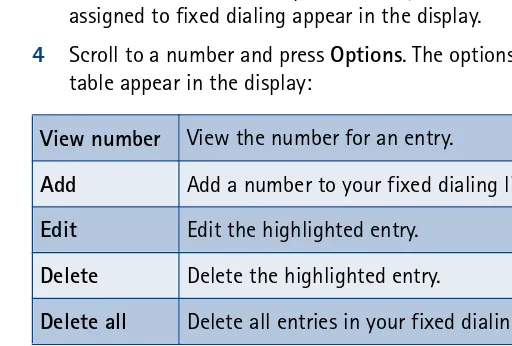
4 Scroll to a number and press Options. The options in the following table appear in the display:
• Use the scroll keys to highlight an option.
• Press Select to activate or enter the submenu of an option.
Notes about fixed dialing
• If a SIM card with fixed dialing that is activated is inserted into a phone that does not support fixed dialing, the SIM card is rejected.
• If you try to add a name (without a number) to the fixed dialing list, you will receive an error message.
View number View the number for an entry.
Add Add a number to your fixed dialing list.
Edit Edit the highlighted entry.
Delete Delete the highlighted entry.
• If you try to browse the fixed dialing list, but have not stored any numbers, Fixed dialing list empty appears in the display.
• You cannot access SIM memory manually (view or copy numbers on the SIM card) while fixed dialing is active.
Closed user groups
A closed user group is a network service that specifies the group of people whom you can call and who can call you. For more information contact your network operator or service provider.
Note: When calls are limited to closed user groups, calls may be possible to certain emergency numbers in some networks (for example, 911).
• ACCESS CODES
Use access codes to change your security code, PIN code, and PIN2 code.
Note: Avoid using codes similar to emergency numbers such as 911 to prevent accidental dialing of the emergency number.
Security code
The security code controls access to features such as the security level and is supplied with the phone. The preset code is 12345.
Note: If you enter the wrong security code five times in succession, you will not be able to enter a code for five minutes, even if you power off the phone between incorrect entries.
CHANGE YOUR SECURITY CODE
Once you change the security code from its preset of 12345, keep the new code secret, and in a safe place separate from your phone.
1 Press Menu 4-8-6-1 (Settings > Security settings > Access codes > Change security code). After a brief pause, you are prompted to enter the current security code (default is 12345).
Manage phone security
3 Enter the new security code (up to 10 characters) and press OK. You are asked to re-enter the new security code for verification.
4 Enter the new security code again and press OK. A message appears in the display confirming your security code has been changed.
PIN code
The PIN code protects the SIM card from unauthorized access. The PIN code can be 4-8 digits in length. After three successive incorrect entries the PIN code is blocked and you will be asked to enter the personal unblocking key (PUK) code. See “Personal unblocking key (PUK) codes” on page 40.
Note: The PIN code must be obtained from your wireless provider. The PIN code is typically provided with your SIM card.
PIN CODE REQUEST
Enable your phone to request the PIN code upon power-up. This provides extra security in case your phone is lost or stolen.
1 Press Menu 4-8-1 (Settings > Security settings > PIN code request). After a brief pause, you are prompted to enter the current PIN code.
2 Enter the PIN code and press OK.
3 Scroll to On and press OK.A message appears in the display confirming your selection.
CHANGE YOUR PIN CODE
Before you can change your PIN code, you will need to enable PIN code request. See “PIN code request” immediately preceding this section.
1 Press Menu 4-8-6-2 (Settings > Security settings > Access codes > Change PIN code). After a brief pause, you are prompted to enter the current PIN code.
2 Enter the current PIN code and press OK. You are prompted to enter the new PIN code.
3 Enter the new PIN code and press OK. You are prompted to re-enter the new PIN code for verification.
PIN2 Code
The PIN2 code is required for features such as fixed dialing. If you enter an incorrect PIN2 code three times in succession, the PIN2 code is blocked and you will have to enter the PUK2 code.
Note: The original PIN2 code must be obtained from your wireless provider.
CHANGE YOUR PIN2 CODE
1 Press Menu 4-8-6-3 (Settings > Security settings > Access codes > Change PIN2 code). You are prompted to enter the current PIN2 code.
2 Enter the current PIN2 code and press OK. You are prompted to enter the new PIN2 code.
3 Enter the new PIN2 code and press OK. You are asked to verify the new PIN2 code by entering it again.
4 Enter the new PIN2 code again and press OK. A message appears in the display confirming you have changed the PIN2 code.
Personal unblocking key (PUK) codes
PUK and PUK2 codes are used to restore blocked PIN and PIN2 codes. Both PUK and PUK2 codes are eight characters in length and cannot be changed. PUK and PUK2 codes must be obtained from your wireless provider.
Contacts
7
Contacts
Your contacts list can save up to 500 names, with multiple numbers and text notes for each name. The amount of numbers and text entries that you can save may vary, depending on their length and the total number of entries in the contacts list.
Note: This feature uses shared memory. See “Shared memory” on page 12 for more information.
• VIEW THE CONTACTS LIST
1 At the Start screen, press the right selection key (c) under Contacts. The menu items in the left column of the following table appear in the display:
Note: If you have changed the function of the right selection key on your phone, Go to is on the Start screen. See “Right selection key settings” on page 85 for details.
Menu item Function
Find Find a name or select from a list.
Add entry Add an entry to your contacts list.
Edit name Edit an existing contact.
Delete Delete a contact and its associated numbers.
Copy Copy entries from phone memory to SIM or SIM to phone memory.
Add number Add a number to an existing contact.
2 Scroll to an item, and press Select to activate the feature or enter its submenu.
• SAVE CONTACTS
You can save contacts to phone memory or to SIM card memory.
Quickly save a contact (name and number)
1 At the Start screen, enter the phone number you wish to save.
2 Press Options, ensure Save is highlighted, and press Select.
3 Enter a name for the number and press OK. A confirmation message appears in the display indicating your entry has been saved.
Quickly save a number only
You can save a phone number as a stand-alone entry in your contacts list.
1 At the Start screen, enter the number you wish to save.
2 Press and hold Options. A save confirmation is displayed.
1-touch dialing
Displays the list of 1-touch dialing numbers saved to memory.
Voice tags “Tags” are voice signals so you can call by speaking the signal into your phone.
Info numbers Contact your wireless provider to obtain information.
Service numbers
Contact your wireless provider to obtain service.
Own numbers Displays the numbers (line 1, line 2, data) in use by your SIM card.
Caller groups View and edit the properties (such as the ring tone) for any of the caller groups.
Contacts
Save an entry using the contacts list
1 At the Start screen, press Contacts, scroll to Add entry, and press Select.
2 Enter a name using the keypad and press OK.
3 Enter a number and press OK.
4 Press Done to return to the Start screen.
Save addresses and notes
To save an e-mail address, web address, street address, or a note, you will need to add it to an existing contact.
1 Find the contact (name) in your contacts list to which you would like to add an address or note.
2 With the entry highlighted, press Details.
3 Press Options, scroll to Add detail, and press Select.
4 Scroll to the address or note of your choice and press Select.
5 Enter the text for the note or address and press OK.
Note: Address and notes information cannot be saved into the SIM card memory.
Select your contacts view and memory
1 Press Contacts, scroll to Settings, and press Select.
2 Scroll to any of the options in the following table, and press Select to enter the submenu.
Option Function
Memory in use
Select the memory you wish to use. Options are Phone, SIM card, or Phone and SIM combined. With Phone and SIM
Save multiple numbers and text items per contact
You can save different types of phone numbers and short text items per contact to the contacts list. The first number you save for any entry is automatically set as the default, or primary number.
1 At the Start screen, press d or g and scroll to the entry to which you wish to add a number or text item.
2 Press Details, then press Options.
3 Scroll to Add number or Add detail and press Select.
4 Scroll to one of the following types and press Select:
5 Enter the number or text for the type you have selected and press OK. (To change the type, select Change type in the options list.)
CHANGE THE DEFAULT (PRIMARY) NUMBER
1 At the Start screen, press d or g, scroll to the entry you wish to change, and press Details.
2 Scroll to the number you wish to set as default and press Options.
3 Scroll to Asprimary number and press Select.
Contacts view
Select the Name list, Name and number, or Name only view.
Memory status
View the amount of phone or SIM card memory used as well as the amount of phone or SIM card memory available.
General Mobile Home Work Fax
E-mail address
Web address
Street address
Contacts
Search for a name in the contacts list
1 At the Start screen, press d or g to display the contents of your contacts list.
2 Press the key which corresponds to the first letter of the name for which you are performing a search.
3 Press d or g to scroll up and down through contacts in the list. Press f or eto move the cursor left or right in the search window at the bottom of the display, if necessary.
4 Press Details to view the details of the selected contact.
Edit a name, number, or text item
1 Search for the entry as described in the previous section and press Details.
2 Scroll to the name, number, or text item you wish to edit and press Options.
3 Scroll to Edit name, Edit number, or Edit detail and press Select.
4 Edit the name, number, or detail to your preference and press OK.
Delete contacts
1 At the Start screen, press Contacts, scroll to Delete, and press Select.
2 To delete individual names and numbers, scroll to One by one and press Select.
3 Scroll to the entry you wish to delete, press Delete, and press OK to confirm the deletion.
4 To delete the entire contents of your contacts list, scroll to Delete all, then scroll to the contacts list you wish to delete (Phone or SIM card).
5 Press Delete, thenpress OK to confirm. You are asked to enter the security code.
• COPY CONTACT LIST ENTRIES
1 At the Start screen, press Contacts, scroll to Copy, and press Select.
2 Scroll to From phone to SIM card or From SIM card to phone and press Select. The following options appear in the display:
3 Scroll to the copy method of your choice and press Select. a) If you selected One by one, go to Step 4.
b) If you selected All or Primary numbers., go to Step 6.
4 Scroll to the entry you wish to copy and press Copy.
5 Scroll to Keep original or Move original and press Select. The entry is copied and you are returned to the list of contact list entries.
6 If you selected All or Primary numbers in Step 3, scroll to Keep original or Move original and press Select.
Caution: Select Keep original if you are unsure of which copy method to use. This ensures original entries are merely copied to the new location. Move original deletes files after copying.
7 Press OK to confirm your choice. All entries are copied to the selected destination.
8 Press Back to return to the list of contact list entries, or press i to exit and return to the Start screen.
Send and receive business cards
You can send and receive an entry in your contacts list using IR or a text message, if supported by your wireless provider.
One by one Select and copy entries one by one.
All Copies all entries from the SIM card or phone.
Contact