HDLC Module
User Manual
Part Number 1200222L1
901 Explorer Boulevard P.O. Box 140000 Huntsville, AL 35814-4000
YEAR 2000 Compliance
All ADTRAN transmission hardware and software products have been tested and found to be fully compliant with the YEAR 2000 requirements. This is true for all models and revisions regardless of the date of manufacture or delivery.
Federal Communications Commission
Radio Frequency Interference Statement
This equipment has been tested and found to comply with the limits for a Class A digital device, pur-suant to Part 15 of the FCC Rules. These limits are designed to provide reasonable protection against harmful interference when the equipment is operated in a commercial environment. This equipment generates, uses, and can radiate radio frequency energy and, if not installed and used in accordance with the instruction manual, may cause harmful interference to radio frequencies. Operation of this equipment in a residential area is likely to cause harmful interference in which case the user will be required to correct the interference at his own expense.
Table of Contents
List of Figures ... vii
List of Tables... vii
Chapter 1 Introduction ... 1-1
What is HDLC? ... 1-1 HDLC Module Overview ... 1-1 HDLC module - when is it needed? ... 1-2 ATLAS Support of HDLC Controllers ... 1-3 Examples Using the HDLC Module ... 1-3 HDLC Module Functional Description ... 1-4 Features ... 1-4 Physical Description ... 1-4
Chapter 2 Installation ... 2-1
Unpack and Inspect ... 2-1 Contents of ADTRAN Shipment ... 2-1 Installing the HDLC Module ... 2-1 Power-Up and Initialization ... 2-2 Warranty and Customer Service ... 2-2
Chapter 3 Operation ... 3-1
Table of Contents
DS0s Used ...3-6 DS0 Rate, 56 / 64 K ...3-6 TX Frames ...3-6 RX Frames ...3-6 Error Counters ...3-7 Clr Cntr ...3-7 ATLAS Features used with the HDLC Module ...3-7 System Self- Test ...3-7
List of Figures
Figure 1-1. ATLAS Private Frame Relay Application ... 1-1 Figure 1-2. HDLC Module ... 1-5 Figure 2-1. Installing the HDLC Module ... 2-2 Figure 3-1. Modules Menu Tree for HDLC Module ... 3-2 Figure 3-2. Modules Menu ... 3-2 Figure 3-3. Menus Panel ... 3-5 Figure 3-4. Modules/Info Panel ... 3-5 Figure 3-5. Status Submenu ... 3-6 Figure 3-6. Resource Status Submenu ... 3-6
List of Tables
Chapter 1
Introduction
WHAT IS HDLC?
HDLC (High-Level Data Link Control) is a synchronous, bit-oriented data link control protocol that is used extensively in wide-area networks. Because of its popularity, HDLC has been the basis for a number of other protocols including LAPD (ISDN), PPP, and Frame Relay.
HDLC MODULE OVERVIEW
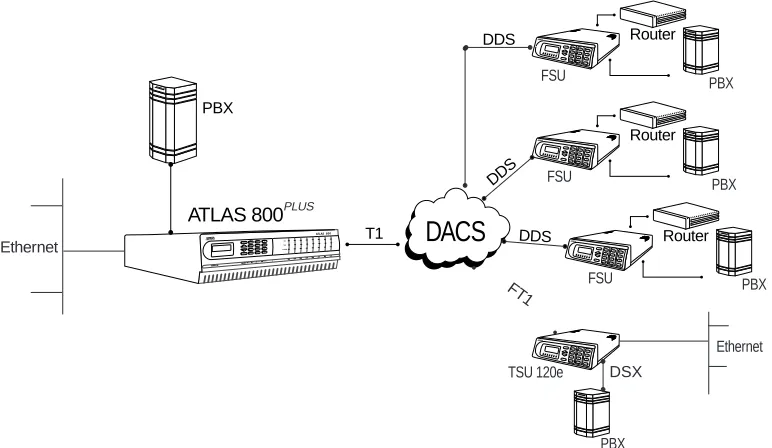
The HDLC Module combines with other ATLAS components to imple-ment a high-capacity HDLC resource pool in the ATLAS Integrated Access System. The HDLC Module, which occupies a single slot in the ATLAS chassis, supports 8 Mbps worth of HDLC traffic. This bandwidth is utilized through user-defined channels that range from 56 kbps to 2.048 Mbps each. Applications of the HDLC Module include private frame relay and Primary Rate ISDN (PRI) D channel implementation. Figure 1-1 shows a sample frame relay application using the HDLC Module.
Figure 1-1. ATLAS Private Frame Relay Application
DACS
DDS
DDS
ATLAS 800
T1 PBX
Router
FSU PBX
DDS
Router
FSU PBX
Router
FSU PBX
TSU 120e
PBX DSX
Ethernet
PLUS
Ethernet
Chapter 1. Introduction
HDLC MODULE - WHEN IS IT NEEDED?
The HDLC Module is required for ATLAS applications requiring a large number of HDLC Controllers(the HDLC Module includes 128 HDLC Con-trollers). As a resource module for the ATLAS system, the HDLC Module has no external physical interfaces. All information is passed to and from the HDLC Module via the ATLAS internal backplane.
Whether an HDLC module is required is determined by the user-applica-tion. An HDLC Controller is needed to process the following:
• An ISDN D Channel. The HDLC Module is needed to terminate a PRI from the ATLAS T3 Module (PN 1200223L1 and 1200225L1). One HDLC controller is needed for every D Channel that ATLAS handles, regardless if it is PRI or BRI. For example, a system configured to vert a single PRI circuit into 11 BRI circuits would need 12 HDLC con-trollers. This can also be accomplished without the HDLC module, using the HDLC controllers that are built into the Octal BRI module and the Base Unit (assuming the PRI circuit is connected to the inter-face provided on the Base Unit).
• An ISDN B Channel, but only if the call is being processed by ATLAS, as in the case of remote access applications. For remote access applica-tions, one HDLC controller is required for every B Channel call that is being terminated inside ATLAS. For example, an ATLAS system con-figured to support a single PRI line’s worth of ISDN calls for remote access, that directs all the calls to async ports, would need 24 HDLC controllers - one for the D Channel and 23 for the B channels.
In situations where ATLAS is not terminating the ISDN calls, as in the case for PRI to T1 conversion, HDLC controllers are not needed for the B Channels, just for the D Channel.
• A frame relay link. One HDLC controller is required for every frame relay link in an ATLAS system. For example, a single T1 connection to the public frame relay network would require one HDLC controller. In a private frame relay network, each DS0 in a T1 may represent a frame relay link to a particular remote site, in which case 24 HDLC controllers would be required.
Frame relay links can be found on the DTE interface as well as the net-work interface. If ATLAS is passing frame relay out individual V.35 ports, each V.35 port passing frame relay is counted as a frame relay link and requires an HDLC controller.
Chapter 1. Introduction
ATLAS SUPPORT OF HDLC CONTROLLERS
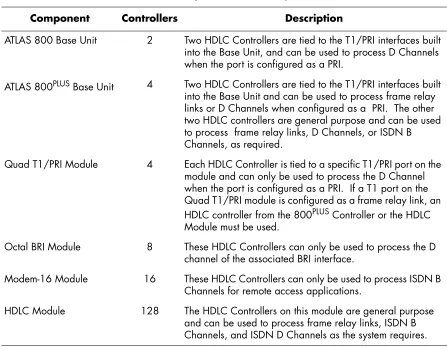
ATLAS allocates HDLC Controllers to meet the user-application require-ments without user intervention. Table 1-1 describes ATLAS hardware components that include HDLC controllers.
EXAMPLES USING THE HDLC MODULE
Some examples using the HDLC Module are listed below:
1. Remote Access - Mostly ISDN Calls
For remote access applications, use the HDLC module when the ma-jority of calls are expected to be ISDN. While it is possible to populate a system with Modem-16 Modules solely for the purpose of process-ing ISDN calls, a more economical route would be to install a sprocess-ingle HDLC Module to accomplish the same task.
2. Private Frame Relay Application
In a private frame relay application, you might see 24 individual frame relay links inside a T1 circuit, going to 24 different destinations.
Table 1-1. ATLAS Components and Integrated HDLC Controllers
Component Controllers Description
ATLAS 800 Base Unit 2 Two HDLC Controllers are tied to the T1/PRI interfaces built into the Base Unit, and can be used to process D Channels when the port is configured as a PRI.
ATLAS 800PLUS Base Unit 4 Two HDLC Controllers are tied to the T1/PRI interfaces built into the Base Unit and can be used to process frame relay links or D Channels when configured as a PRI. The other two HDLC controllers are general purpose and can be used to process frame relay links, D Channels, or ISDN B Channels, as required.
Quad T1/PRI Module 4 Each HDLC Controller is tied to a specific T1/PRI port on the module and can only be used to process the D Channel when the port is configured as a PRI. If a T1 port on the Quad T1/PRI module is configured as a frame relay link, an HDLC controller from the 800PLUS Controller or the HDLC Module must be used.
Octal BRI Module 8 These HDLC Controllers can only be used to process the D channel of the associated BRI interface.
Modem-16 Module 16 These HDLC Controllers can only be used to process ISDN B Channels for remote access applications.
Chapter 1. Introduction
This situation requires 24 HDLC Controllers and, therefore, requires the HDLC Module.
3. T3 Transporting One or More PRI Circuits
When a T3 circuit is transporting one or more PRI circuits, the HDLC Module is required to process the PRIs' D Channels.
HDLC MODULE FUNCTIONAL DESCRIPTION
The HDLC Module installs into any available slot in the ATLAS chassis (Base Unit). The ATLAS Front Panel displays the module status. Addi-tional status information is available via the terminal menu, accessible through either a VT-100 terminal connected to the ATLAS Base Unit’s control port, or via a Telnet session established through the Base Unit’s Ethernet port. If needed, application software necessary for the HDLC Module can be downloaded using the terminal menu.
Features
• Each module provides up to 8.192 Mbps of bandwidth.
• Each module supports up to 128 bidirectional HDLC channels. • For each channel, bandwidth is selectable to be Nx56/64 kbps
(N=1-32).
• Each channel’s HDLC receiver supports flag sequence detection, bit destuffing, and CRC-16 validation.
• Each channel’s HDLC transmitter supports flag sequence generation, bit stuffing, and CRC-16 generation.
• Performance information such as the number of frames transmitted and received is provided on a per channel basis.
• Errors that occur such as CRC errors and aborted frames are reported on a per channel basis.
PHYSICAL DESCRIPTION
The HDLC Module provides no external interfaces. Both the network and customer interfaces are provided on other ATLAS components. Information is passed to and from the HDLC Module via ATLAS’ internal bus.
Chapter 2
Installation
UNPACK AND INSPECT
Carefully inspect the HDLC Module for shipping damages. If damage is suspected, file a claim immediately with the carrier and then contact ADTRAN Technical Support. If possible, keep the original shipping con-tainer for use in returning the HDLC Module for repair or for verification of shipping damage.
Contents of ADTRAN Shipment
The following items are included in the ADTRAN shipment: • HDLC Module
• HDLC Module User Manual (insert into main ATLAS User Manual)
INSTALLING THE HDLC MODULE
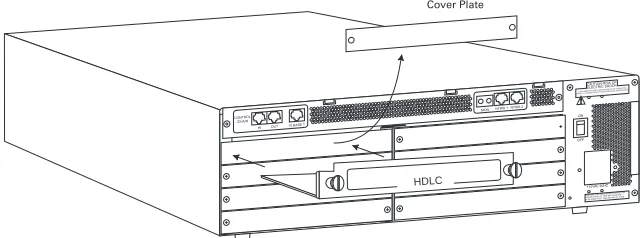
The installation procedure is described below, and Figure 2-1 shows the proper placement of the HDLC Module.
Step Action
1 Remove the cover plate (corresponding to the slot in which the HDLC Module will be installed) from the ATLAS chassis rear panel.
2 Slide the HDLC Module into the ATLAS chassis until the module is posi-tioned firmly against the front of the ATLAS unit.
3 Fasten the thumbscrews at both edges of the option module.
Chapter 2. Installation
Figure 2-1. Installing the HDLC Module
POWER-UP AND INITIALIZATION
When the HDLC Module is inserted into the ATLAS chassis, the Front Panel STATUS indicator and ONLINE indicator are illuminated with a solid
green light. Previously configured settings for the HDLC Module are automatically restored upon power-up. At this time, a system self-test can be invoked, as described in ATLAS User Manual. The TEST indicator on
the Front Panel remains amber for the duration of the module self-test. Any self-test failures display in the terminal menu self-test log.
WARRANTY AND CUSTOMER SERVICE
ADTRAN will replace or repair this product within five years from the date of shipment if the product does not meet its published specification, or if it fails while in service. For detailed warranty, repair, and return information, refer to the ADTRAN Equipment Warranty and Repair and Return Policy Procedure (see the last page of this manual for pertinent information).
A return material authorization (RMA) is required prior to returning equipment to ADTRAN.
For service, RMA requests, or more information, see the last page of this manual for the toll-free contact number.
Chapter 3
Operation
OVERVIEW
The HDLC Module menus can be viewed from two sources, as shown in Table 3-1. The ATLAS User Manual provides detailed instructions on operating each of the supported management approaches. The remain-der of this chapter describes the menu items available for managing the HDLC Module using the terminal menu.
TERMINAL MENU STRUCTURE
ATLAS uses a form of hierarchical menus to access all of its features. The top-most menu level leads to submenus which are grouped by functional-ity. All submenu options display in the VT-100 terminal window.
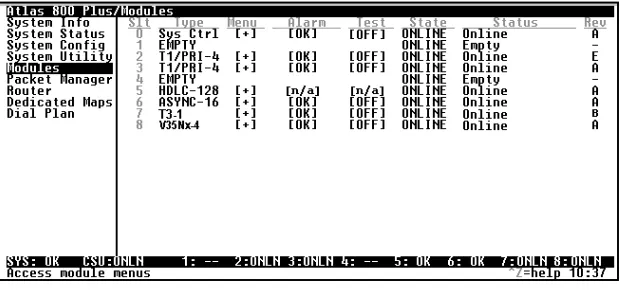
You can use the MODULES terminal menu to view the HDLC Module sta-tus and menus (see Figure 3-1). The MODULES menu option TYPE shows the HDLC Module as HDLC-128. The following sections describe the associated MODULES menu and submenus.
Table 3-1. Management Methods for the HDLC Module
Source Purpose
ATLAS Front Panel For minimal configuration and status support
Terminal Menu For detailed status and diagnostics
You must have the appropriate password level to edit items using the terminal menu. (See the section Access Passwordsin theATLAS User Manualfor detailed information on working with passwords.)
Chapter 3. Operation
Figure 3-1. Modules Menu Tree for HDLC Module
MENU ACCESS
The ATLAS System Controller automatically detects the presence of the HDLC Module when it is installed in the system. To access the MODULES
menu and submenus, use the keyboard arrow keys to scroll to the appro-priate row and column; then press Enter on the keyboard. For example, to view the MENUS submenu for HDLC-128, use the keyboard arrow keys to move to the row HDLC-128 and the column MENU; then press Enter on the keyboard.
MENU OPTIONS
The following sections describe the MODULES main menu options,
fol-lowed by the MODULES/MENU submenus (see Figure 3-2).
Slt
Type Part Number Menu Info Serial Number Alarms Board Revision Modules Test
State
Status Status DS0s Available Channel ID Rev Channels DS0s Used DS0 Rate
TX Frames Total Errors RX Frames CRC Errors Error Counters Aborted Frames Clear Counters Invalid Frames
Chapter 3. Operation
>
SLT
Write security: 3; Read security: 5(Slot) Displays the number of available slots in the ATLAS chassis. Slot 0 refers to the ATLAS Base Unit.
>
TYPE
Write security: 3; Read security: 5Displays the module type currently installed in the slot or the module type you plan to install in the slot. If an HDLC Module is installed, TYPE
automatically defaults to HDLC-128 (the HDLC Module). You can use this field to preconfigure the system before installing modules by specify-ing the module that you want to install into each slot.
>
MENU
Displays additional information and status submenus for the HDLC Module. To access the submenus for this item, use the arrow keys to scroll to the MENU column for the module you want to edit, and press Enter. (Submenus for this option are discussed beginning with Submenu Optionson page 3-4.)
>
ALARMS
Read security: 5Displays whether there is an alarm condition on the HDLC Module. To view the ALARM, press Enter in this field. If no alarm conditions are avail-able to report, this field reports [n/a].
>
TEST
Read security: 5Displays whether the HDLC Module is executing a test. To activate the TEST menu, press Enter in this field. If no tests are currently available to report, this field reports [n/a].
>
STATE
Write security: 3; Read security: 5Displays whether the module is ONLINE or OFFLINE. Even though a mod-ule is physically installed, it must be marked ONLINE for it to be consid-ered an available resource.
Marking an installed module OFFLINE may be useful in system mainte-nance or troubleshooting. If you choose OFFLINE, the module will not be in alarm condition, but will display Offline. The front panel STATUS indi-cator blinks green if the module has been placed OFFLINE and the ONLINE
indicator turns off.
Chapter 3. Operation
>
STATUS
Read security: 5Displays status information on the following:
>
REV
Read security: 5(Hardware Revision) Displays the hardware revision of the HDLC Mod-ule .
SUBMENU OPTIONS
The submenus discussed here are located under the MODULES/MENU
option (see Figure 3-3). You may also want to refer back to the menu tree in Figure 3-1.
Only if STATE reads ONLINE, can ATLAS use an installed module’s resources.
Online The module is enabled and is responding to the System Controller’s status polls. This is the normal response of the system.
No Response The module is enabled but is not responding to the Sys-tem Controller’s status polls. This response indicates either a problem in the system or the module is not installed.
Empty The System Controller has not detected the presence of a module in the option slot, nor has a module been manu-ally enabled for this option slot.
Offline The module is installed but has been taken OFFLINE by a user. The module is still responding to System Controller polls.
Offline / No Response
The module is installed but has been taken OFFLINE by a
Chapter 3. Operation
Figure 3-3. Menus Panel
>
INFO MENU
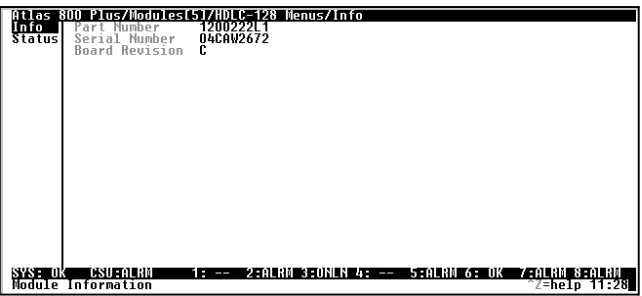
Read security: 5(Information) Displays information about the HDLC Module (see Figure 3-4).
Figure 3-4. Info Menu
» Part Number
Displays the part number of the HDLC Module.» Serial Number
Displays the serial number of the HDLC Module.» Board Revision
Displays the printed circuit board revision of the HDLC Module.>
STATUS
MENU
Read security: 5
Displays submenus for available resources on the HDLC Module.
Chapter 3. Operation
Figure 3-5. Status Submenu
» Channels
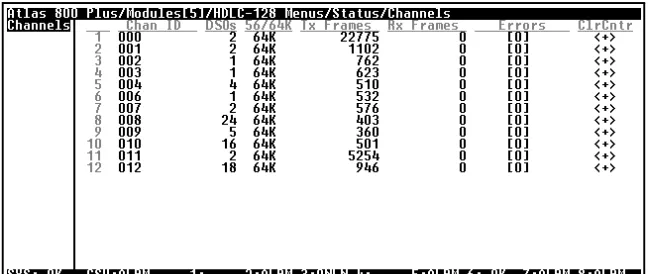
Read security: 5Displays status information about the resources that have been allocated on the HDLC Module (see Figure 3-6).
Figure 3-6. Channels Submenu
»» Channel ID Indicates the resource number of the allocated resource listed. If a
num-ber does not appear in the list, that resource is not currently allocated.
»» DS0s Used Displays the number of DS0s that are being used by the resource. This
value multiplied by the DS0 Rate yields the bandwidth that has been assigned to the resource.
»» DS0 Rate, 56 / 64 K Displays the per DS0 rate that is being used by the resource. This value
multiplied by the number of DS0s yields the bandwidth that has been assigned to the resource.
»» TX Frames (Transmit Frames) Displays the number of frames that have been
Chapter 3. Operation
»» Error Counters Displays the total number of errors received by the resource. Press Enter
on this field to view the number of TOTAL ERRORS, CRC ERRORS, ABORTED FRAMES, and INVALID FRAMES. CLR CNTR (Clear Counters) clears this menu item.
»» Clr Cntr Write security: 4; Read security: 5
(Clear Counters) Resets all counters for the channel.
ATLAS FEATURES USED WITH THE HDLC MODULE
In addition to the HDLC Module menu items, the SYSTEM SELF-TEST
ATLAS menu item may be operated in conjunction with the HDLC Mod-ule.
>
SYSTEM
SELF-TEST
SYSTEM SELF-TEST, a submenu of the ATLAS main menu item SYSTEM
UTILITY, executes both the HDLC Module and the ATLAS internal tests.
The results of the self-tests are displayed in the front panel LCD or the self-test log screen of the terminal menus. For additional information on self-tests, see the ATLAS User Manual.
When SYSTEM SELF-TEST displays, place the cursor on it and press Enter
Index
A
aborted frames3-7
aborted frames errors1-4
,
3-7 accessing the menus3-2 alarms menu3-3 ATLAS features3-7ATLAS system controller3-2
B
bandwidth selectable1-4 speed1-4
bidirectional HDLC channels1-4 bit destuffing1-4
bit stuffing1-4
board revision, locating3-5
C
CRC errors1-4
,
3-7D
DS0 rate used by resource3-6 DS0s
available3-5 total number of3-5 used by resource3-6
E
errorsaborted frames1-4
,
3-7 CRC1-4,
3-7F
FCC statementiv FCS generation1-4 validation1-4 flag sequence detection1-4 generation1-4
H
hardware revision, locating3-4 HDLC
menus3-1
See Modules menu module
features1-4
functional description1-4 installation procedure2-1
installation, general information1-4 management methods3-1
performance information1-4 physical description1-4 status, viewing1-4 receiver1-4
transmitter1-4 hierarchical menus3-1
I
info submenu3-5 board revision3-5 part number3-5 serial number3-5 initializing the module2-2
installing theHDLC module, procedure for2-1 invalid frames3-7
items included in shipment2-1
M
managing the HDLC module3-1 menu tree3-2
menus
accessing3-2 hierarchcal3-1 moving through3-2 structure3-1
module type, specifying3-3 Modules menu
alarms3-3 menu3-3
Index
See also status submenu rev (revision)3-4
slt (slot)3-3 state3-3 status3-4
See also status menu test3-3
type3-3
moving through the menus3-2
N
navigating the menus3-2
O
online state3-3
P
part number, locating3-5 password levels3-1
R
resource number3-6 resource status3-6
DS0 rate3-6 DS0s3-6 errors3-7
aborted frames3-7 CRC3-7
invalid frames3-7 total3-7
resource3-6 RX frames3-6 TX frames3-6
resource status submenu3-6 return information2-2 rev (revision) menu3-4 RMA requests2-2 RX frames3-6
S
serial number, locating3-5 service2-2
shipping contents2-1 damage2-1 slot 03-3
slt (slot) menu3-3
specifying module type3-3 state menu3-3
status menu empty3-4 no response3-4 offline3-4
offline/no response3-4 online3-4
status submenu3-5
See also DS0s available
See also resource status submenus
info3-5 system self-test3-7
T
terminal menu structure3-1 test menu3-3
tests
power up2-2 system self-test3-7 total errors3-7
TX frames3-6 type menu3-3
V
viewing module status1-4
W
warranty and customer service2-2
Y
Product Support Information
Pre-sales Inquiries and Applications Support
Please contact your local distributor, ADTRAN Applications Engineering, or ADTRAN Sales: Applications Engineering (800) 615-1176
Post-sales Support
Please contact your local distributor first. If your local distributor cannot help, please contact ADTRAN Technical Support and have the unit serial number available.
Technical Support (888) 4ADTRAN
Repair and Return
If ADTRAN Technical Support determines that a repair is needed, Technical Support will coordinate with the Customer and Product Service (CAPS) department to issue an RMA number. For information regarding equipment currently in house or possible fees associated with repair, contact CAPS directly at the following number:
CAPS Department (256) 963-8722
Identify the RMA number clearly on the package (below address), and return to the following address:
ADTRAN Customer and Product Service 6767 Old Madison Pike