AT&T
AT&T 555-620-111
Issue 1
October, 1992
MERLIN LEGEND
TM
Communications System
Release 2.0
7Copyright © 1992 AT&T
AT&T 555-620-111
All Rights Reserved
Issue 1
Printed in U.S.A.
October 1992
Notice
Every effort was made to ensure that the information in this book was complete and accurate at the time of printing. However, information is subject to change.
Federal Communications Commission (FCC)
Electromagnetic Interference Information
This equipment has been tested and found to comply with the limits for a Class A digital device, pursuant to Part 15 of the FCC Rules. These limits are designed to provide reasonable protection against harmful interference when the equipment is operated in a commercial environment. This equipment generates, uses, and can radiate radio frequency energy and, if not installed and used in accordance with the instruction manual, may cause harmful Interference to radio communications. Operation of this equipment in a residential area is likely to cause harmful interference, In which case the user will be required to correct the interference at his own expense.
Canadian Department of Communications (DOC)
Interference Information
This digital apparatus does not exceed the Class A Ilmlts for radio noise emlsslons set out In the radio interference regulations of the Canadian Department of Communlcatlons,
Le Présent Appareil Numérique n’emet pas de bruits radloélectrlques depassant Ies Iimltes applicables aux appareils numériques de la class A prescrltes clans Ie Règlement sur Ie broulllage radloélectrlque édicté par Ie ministére des Communications du Canada.
Trademarks
5ESS, ACCUNET, CONVERSANT, Magic On Hold, MEGACOM, MERLIN, and MultQuest are registered trademarks and AUDIX Voice Power, FAX Attendant System, MERLIN LEGEND, MERLIN MAIL, MLX- 10, MLX-10D, MLX-20L, and MLX-28D, are trademarks of AT&T In the U.S. and other countries
MS-DOS is a registered trademark of Microsoft Corporation UNIX is a registered trademark of UNIX System Laboratories, Inc.
Support Telephone Number
Contents
About This Book
1■ Intended Audience 1
■ Conventions 1
■ Product Safety Labels 2
■ Related Documents 3
■ How to Comment on This Document 4
1
Programming Overview
■ Introduction to System Programming
■ System Programming Console
■ Programming Procedures
■ Entering System Programming
■ Exiting System Programming
■ Idle States
■ Product Enhancements
1-1 1-2 1-4 1-9 1-15 1-18 1-19 1-22
2
Programming with SPM
■ Introduction to SPM
■ Connecting the PC
■ Starting SPM
■ Using SPM
■ Installing the SPM Software
■ Inter-Release Compatibility ■ Upgrade Procedure
2-1 2-2 2-7 2-10 2-13 2-32 2-37 2-38
3
Programming Procedures
3 - 1■ Basic System Operating Conditions 3 - 1
■ System Renumbering 3-22
■ System Operator Positions 3-43
■ Lines and Trunks 3-51
■ DS1 Facilities 3-97
Contents
Programming Procedures
(continued)
Tie–Trunks
-DID Trunks PRI Facilities Telephones
Auxiliary Equipment
Optional Telephone Features Optional Operator Features QCC Optional Features
Optional Group-Assigned Features Optional Group-Calling Features System Features
Remote Access Features Automatic Route Selection Night Service Labeling Print Reports Data Features Integrated Administration 3-125 3-148 3-173 3-245 3-278 3-297 3-324 3-329 3-363 3-384 3-416 3-472 3-496 3-538 3-555 3-572 3-580 3-584
4
Centralized Telephone Programming
4-1■ Centralized Programming 4-2
■ Feature Quick Reference 4-13
A
Menu Hierarchy
A-1B
LED Displays
B-1Contents
c
General Feature Use and Telephone
Programming
C-1D
Button Diagrams
D - 1E
Sample Reports
E-1F
General System Programming Sequence
F - 1G
Programming Special Characters
G - 1Contents
Figures
1
Programming Overview
Figure 1-1. Figure 1-2. Figure 1-3. Figure 1-4. Figure 1-5. Figure 1-6. Figure 1-7. Figure 1-8. Figure 1-9. Figure 1-10. Figure 1-11. Figure 1-12. Figure 1-13. MLX-20L Telephone Display Buttons Console Overlay Information Screen Menu Selection Screen Data Entry Screen Inspect Example
Inspect Example: Inspect Screen
Procedure Branching for Menu Selections Procedure Branching for Single and Block Selections
Entry Mode Screen Keys
System Busy Screen
1-4 1-6 1-7 1-10 1-10 1-11 1-11 1-12 1-12 1-13 1-13 1-14 1-19
2
Programming with SPM
Figure 2-1. The SPM Display 2-2
Figure 2-2. SPM Help Screen 2-7
Figure 2-3. Direct Local Connection 2-9
Figure 2-4. Local Modem Connection 2-9
Figure 2-5. Remote Modem Connection 2-10
Figure 2-6. Pass-Thru 2-26
3
Programming Procedures
Figure 3-1. 2-Digit Numbering 3-23
Figure 3-2. 3-Digit Numbering 3-23
Figure 3-3. Set Up Space Numbering 3-24
D
Button Diagrams
Figure D-1. MLX Telephone Button Diagram (Hybrid/PBX
Mode) D-2
Figure D-2. Analog Multiline Telephone Button Diagram
(Hybrid/PBX Mode) D-3
Figures
Button Diagrams
(continued)
Figure D-3. MLX Telephone Button Diagram (Key and
Behind Switch Mode) D-4
Figure D-4. Analog Multiline Telephone Button Diagram
(Key and Behind Switch Mode) D-5
Tables
1
Programming Overview
Table 1-1. Display Button Descriptions 1-6 Table 1-2. System Programming Menu Options 1-17
2
Programming with SPM
Table 2-1. Function of PC Keys in SPM 2-3
Table 2-2. Backup Header: Feature Module
Identification Number 2-14
Table 2-3. Programming Compatibility 2-38
Table 2-4. Programming Needed after Upgrade to
Release 1.1 2-40
Table 2-5. Programming Needed after Upgrade to
Release 2.0 2-40
3
Programming Procedures
Table 3-1. Maximum Number of Operator Positions 3-43
Table 3-2. Timers and Counters 3-202
Table 3-3. Special Services Table 3-226
Table 3-4. Programming Codes for Assigning SA/lCOM
Ring and Voice Buttons 3-266
Table 3-5. Data Features: Programming Procedures 3-580
Table 3-6. Programming through Integrated
Administration 3-585
Table 3-7. Database Reconciliation Rules 3-586
4
Centralized Telephone Programming
Table 4-1. Telephone Programming Codes: Quick Reference Table
Table 4-2. Copyable Features for All Telephones Table 4-3. Copyable Features for Operator Consoles
4-7 4-9 4-11
Tables
B
LED Displays
Table B-1. Line or Trunk Feature Status B-2 Table B-2. Telephone Feature Status for DSS Console
Only B-4
c
General Feature Use and Telephone
Programming
Table C-1. Telephone and Operators Features C-4
Table C-2. Programming Analog Multiline Telephones C-9
Table C-3. Programming MLX-10 Telephones C-10
Table C-4. Programming MLX Display Telephones Using
the Display C-11
E
Sample Reports
Table E-1. System Reports E-1
Table E-2. Report Contents E-3
G
Programming Special Characters
Table-G-1.
Table G-2.
Table G-3.
Table G-4.
Special Characters for Single-Line
Telephones G-2
Special Characters for Analog Multiline
Telephones G-3
Special Characters for MLX Non-Display
Telephone G-4
Special Characters for MLX Display
Telephones G-5
. . .
The exclamation point in an equilateral triangle is intended to alert the user to the presence of important operating and maintenance (servicing) instructions in the literature accompanying the product.
IMPORTANT SAFETY INSTRUCTIONS
When installing telephone equipment, always follow basic safety precautions to reduce the risk of fire, electrical shock, and injury to persons, including:
Read and understand all instructions.
Follow all warnings and instructions marked on or packed with the product.
Never install telephone wiring during a lightning storm.
Never install a telephone jack in a wet location unless the jack is specifically designed for wet locations.
Never touch uninsulated telephone wires or terminals unless the telephone wiring has been disconnected at the network interface.
Use caution when installing or modifying telephone lines.
Use only AT&T-manufactured MERLIN LEGEND™ Communications System circuit modules, carrier assemblies, and power units in the MERLIN LEGEND Communications System (511A) control unit.
Use only AT&T-recommended/approved MERLIN LEGEND Communications System accessories.
If equipment connected to the analog station modules (008, 408,
408 GS/LS) or to the MLX telephone modules (008 MLX, 408 GS/LS-MLX) is to be used for in-range out-of-building (IROB) applications, IROB protectors are required.
Do not install this product near water, for example, in a wet basement location.
Do not overload wall outlets, as this can result in the risk of fire or electrical shock.
The MERLIN LEGEND Communications System is equipped with a three-wire grounding-type plug with a third (grounding) pin. This plug will fit only into a grounding-type power outlet. This is a safety feature. If you are unable to insert the plug into the outlet, contact an electrician to replace the obsolete outlet. Do not defeat the safety purpose of the grounding plug.
The MERLIN LEGEND Communications System requires a supplementary ground.
Do not attach the power supply cord to building surfaces. Do not allow anything to rest on the power cord. Do not locate this product where the cord will be abused by persons walking on it.
Slots and openings in the module housings are provided for ventilation. To protect this equipment from overheating, do not block these
openings.
Never push objects of any kind into this product through module openings or expansion slots, as they may touch dangerous voltage points or short out parts, which could result in a risk of fire or electrical shock. Never spill liquid of any kind on this product.
Unplug the product from the wall outlet before cleaning. Use a damp cloth for cleaning. Do not use cleaners or aerosol cleaners.
Auxiliary equipment includes answering machines, alerts, modems, and fax machines. To connect one of these devices, you must first have a Multi-Function Module (MFM).
WARNING:
For your personal safety, DO NOT install an MFM yourself.
ONLY an authorized technician or dealer representative shall install, set options, or repair an MFM.
To eliminate the risk of personal injury due to electrical shock, DO NOT attempt to install or remove an MFM from your MLX telephone. Opening or removing the module cover of your telephone may expose you to dangerous voltages.
Customer Support Information
Support Telephone Number
In the U.S.A. only,
AT&T provides a toll-free customer Helpline(1-800-628-2888) 24 hours a day. Call the Helpline, or your authorized dealer,
if
you need assistance when installing, programming, or using your system.Outside the U. S. A.,
if you need assistance when installing, programming, or using your system, contact your authorized AT&T dealer.Federal Communications Commission (FCC) Electromagnetic Interference
Information
This equipment has been tested and found to comply with the limits for a Class A digital device, pursuant to Part 15 of the FCC Rules. These limits are designed to provide reasonable protection against harmful interference when the equipment is operated in a commercial environment. This equipment generates, uses, and can radiate radio frequency energy and, if not Installed and used in accordance with the instruction manual, may cause harmful interference to radio communications. Operation of this equipment in a residential area is likely to cause harmful interference, in which case the user will be required to correct the interference at his own expense.
Canadian Department of Communications (DOC) Interference Information
This digital apparatus does not exceed the Class A limits for radio noise emissions set out in the radio interference regulations of the Canadian Department of Communications.
Le Présent Appareil Numérique n’émet pas de bruits radioelectriques depassant Ies Iimites applicables aux appareils numériques de la class A prescribes clans Ie reglement sur Ie brouillage radioelectrique edicté par Ie ministère des Communications du Canada.
FCC Notification and Repair Information
This equipment is registered with the FCC in accordance with Part 68 of its rules. In compliance with those rules, you are advised of the following:
Customer Support Information
Means of Connection. Connection of this equipment to the telephone
network shall be through a standard network interface jack:
USOC RJ11C, RJ14C, RJ21X. Connection to E&M tie trunks requires a USOC RJ2GX. Connection to off-premises stations requires a
USOC RJ11C or RJ14C. Connection to 1.544-Mbps digital facilities must be through a USOC RJ48C or RJ48X. Connection to DID requires a USOC RJ11C, RJ14C, or RJ21X. These USOCs must be ordered from your telephone company.
This equipment may not be used with party lines or coin telephone lines.
Notification to the Telephone Companies. Before connecting this
equipment, you or your equipment supplier must notify your local
telephone company’s business office of the following:
— The telephone number(s) you will be using with this equipment. — The appropriate registration number and ringer equivalence
number (REN), which can be found on the back or bottom of the control unit, as follows:
If this equipment is to be used as Key System, report the number AS593M-72914-KF-E.
If the system provides both manual and automatic selection of incoming/outgoing access to the network, report the number AS593M-72682-MF-E.
If there are no directly terminated trunks, or if the only directly terminated facilities are personal lines, report the number AS5USA-65646-PF-E.
The REN for all three systems is 1.5A.
— For tie line connection, the facility interface code (FIC) is TL31M and the service order code (SOC) is 9.0F.
— For connection to off-premises stations, the FIC is OL13C and the SOC is 9.0F.
— For equipment to be connected to 1.544-Mbps digital service, the FIC is 04DU9-B for D4 framing format or 04DU9-C for extended framing format, and the SOC is 6.0P.
— For equipment to be connected to DID facilities, the FIC is 02RV2-T and the SOC is 9.0F.
— The quantities and USOC numbers of the jacks required. — For each jack, the sequence in which lines are to be connected:
the line types, the FIC, and the REN by position when applicable.
You must also notify your local telephone company if and when this equipment is permanently disconnected from the line(s).
The REN is used to determine the number of devices that may be connected to the telephone line. Excessive RENs on the line may result in the devices not ringing in response to an incoming call. In most, but not all, areas the sum of the RENs should not exceed five (5.0). To be certain of the number of devices that may be connected to the line, as determined by the total RENs, contact the telephone company to determine the maximum REN for the calling area.
Customer Support Information
Installation and Operational Procedures
The manuals for your system contain information about installation and operational procedures.
Repair Instructions. If you experience trouble because your equipment is malfunctioning, the FCC requires that the equipment not be used and that it be disconnected from the network until the problem has been corrected. Repairs to this equipment can be made only by the
manufacturers, their authorized agents, or others who may be authorized by the FCC. In the event repairs are needed on this equipment, contact your authorized AT&T dealer or, in the U.S.A. only, contact the National Service Assistance Center (NSAC) at 1-800-628-2888.
Rights of the Local Telephone Company. If this equipment causes harm to the telephone network, the local telephone company may discontinue your service temporarily. If possible, they will notify you in advance. But if advance notice is not practical, you will be notified as soon as possible. You will also be informed of your right to file a complaint with the FCC.
Your local telephone company may make changes in its facilities, equipment, operations, or procedures that affect the proper functioning of this equipment. If they do, you will be notified in advance to give you an opportunity to maintain uninterrupted telephone service.
Hearing Aid Compatibility. The custom telephone sets for this system are compatible with inductively coupled hearing aids as prescribed by the FCC.
Automatic Dialers. WHEN PROGRAMMING EMERGENCY NUMBERS AND/OR MAKING TEST CALLS TO EMERGENCY NUMBERS:
— Remain on the line and briefly explain to the dispatcher the reason for the call.
— Perform such activities in off-peak hours, such as early morning or late evening.
Direct Inward Dialing (DID).
a. This equipment returns answer supervision signals to the Public Switched Telephone Network when:
(1) answered by the called station (2) answered by the attendant
(3) routed to a recorded announcement that can be
administered by the customer premises equipment user (4) routed to a dial prompt
b. This equipment returns answer supervision on all DID calls forwarded back to the Public Switched Telephone Network. Permissible exceptions are when:
(1) a call is unanswered (2) a busy tone is received (3) a reorder tone is received
Customer Support Information
Allowing this equipment to be operated in such a manner as not to
provide proper answer supervision signaling
is in violation of
Part
68
rules.
DOC Notification and Repair Information
NOTICE:
The Canadian Department of Communications (DOC) label identifies certified equipment. This certification means that the equipment meets certain telecommunications network protective, operational, and safety requirements. The DOC does not guarantee the equipment will operate to the user’ssatisfaction.
Before installing this equipment, users should ensure that it is permissible to connect it to the facilities of the local telecommunications company. The equipment must also be installed using an acceptable method of connection. In some cases, the company’s inside wiring for single-line individual service may be extended by means of a certified connector assembly (telephone extension cord). The customer should be aware that compliance with the above conditions may not prevent degradation of service in some situations.
Repairs to certified equipment should be made by an authorized Canadian maintenance facility designated by the supplier. Any repairs or alterations made by the user to this equipment, or any equipment malfunctions, may give the telecommunications company cause to request the user to disconnect the equipment.
Users should ensure for their own protection that the electrical ground
connections of the power utility, telephone lines, and internal metallic water pipe system, if present, are connected. This precaution may be particularly
important in rural areas.
CAUTION: Users should not attempt to make
such connections themselves, but should contact the appropriate electrical inspection authority or electrician, as appropriate.To prevent overloading, the Load Number (LN) assigned to each terminal device denotes the percentage of the total load to be connected to a telephone loop used by the device. The termination on a loop may consist of any
combination of devices subject only to the requirement that the total of the Load Numbers of all the devices does not exceed 100.
DOC Certification No. 230 4095A CSA Certification No. LR 56260 Load No. 6
Renseignements sur la notification du ministière des Communications du
Canada et la reparation
AVIS:
L’étiquette du ministère des Communications du Canada identifie Ie matériel homologué. Cette étiquette certifie que Ie matériel est conforme à certaines normes de protection, d’exploitation et de sécurité des réseaux de télécommunications. Le Ministère n’assure toutefois pas que Ie matériel fonctionnera à la satisfaction de I’utilisateur.Avant d’installer ce matériel, I’utilisateur doit s’assurer qu’il est permis de Ie raccorder aux installations de I’entreprise locale de télécommunication Le
Customer Support Information
matériel doit également être installé en suivant une méthode acceptée de raccordement. Dans certains cas, Ies fils intérieurs de I’enterprise utilisés pour un service individual à Iigne unique peuvent être prolongés au moyen d’un dispositif homologué de raccordement (cordon prolongateur téléphonique interne). L’abonné ne doit pas oublier qu’il est possible que la conformité? aux conditions énoncées ci-dessus n’empêchent pas la degradation du service clans certaines situations. Actuellement, Ies entreprises de télécommunication ne permettent pas que I’on raccorde Ieur matériel à des jacks d’abonné, sauf clans Ies cas précis prévus pas Ies tarifs particuliers de ces entreprises.
Les réparations de matériel homologué doivent être effectuées par un centre d’entretien canadien autorisé désigné par Ie fournisseur. La compagnie de télécommunications peut demander à I’utilisateur de débrancher un appareil à la suite de reparations ou de modifications effectuées par I’utilisateur ou à cause de mauvais fonctionnement.
Pour sa propre protection, I’utilisateur doit s’assurer que tous Ies fils de mise à la terre de la source d’énergie électrique, des Iignes téléphoniques et des canalisations d’eau métalliques, s’il y en a, sent raccordés ensemble. Cette précaution est particulièrement importance clans Ies régions rurales.
AVERTISSEMENT: L’utilisateur ne doit pas tenter de faire ces raccordements lui-même; il doit avoir recours à un service d’inspection des installations électriques, ou à un electrician, selon Ie cas.
L’indite de charge (IC) assigné à chaque dispositif terminal indique, pour éviter toute surcharge, Ie pourcentage de la charge totale qui peut être raccordée à un circuit téléphonique bouclé utilisé par ce dispositif. La terminaison du circuit bouclé peut être constituée de n’importe quelle combinaison de dispositifs, pourvu que la somme des indices de charge de I’ensemble des dispositifs ne dépasse pas 100.
No d’homologation: 230 4095A Node certification: CSA LR 56260 L’indite de charge: 6
Customer Support Information
MERLIN LEGEND D.O.C.
Location Label Placement
Ministère des Communications
du Canada emplacement de
I’étiquette
Customer Support Information
Security of Your System—Preventing Toll Fraud
As a customer of a new telephone system, you should be aware that there exists an increasing problem of telephone toll fraud. Telephone toll fraud can occur in many forms, despite the numerous efforts of telephone companies and telephone equipment manufacturers to control it. Some individuals use
electronic devices to prevent or falsify records of these calls. Others charge calls to someone else’s number by illegally using lost or stolen calling cards, billing innocent parties, clipping on to someone else’s line, and breaking into someone else’s telephone equipment physically or electronically. In certain instances, unauthorized individuals make connections to the telephone network through the use of remote access features.
The Remote Access feature of your system, if you choose to use it, permits off-premises callers to access the system from a remote telephone by using an 800 number or a 7- or 10-digit telephone number. The system returns an
acknowledgement signaling the user to key in his or her authorization code, which is selected and administered by the system manager. After the
authorization code is accepted, the system returns dial tone to the user. If you do not program specific egress restrictions, the user will be able to place any call normally dialed from a telephone associated with the system. Such an off-premises network call is originated at, and will be billed from the system location.
The Remote Access feature, as designed, helps the customer, through proper administration, to minimize the ability of unauthorized persons to gain access to the network. Most commonly, phone numbers and codes are compromised when overheard in a public location, through theft of a wallet or purse containing access information, or through carelessness (writing codes on a piece of paper and improperly discarding it). Additionally, hackers may use a computer to dial an access code and then publish the information to other hackers. Enormous charges can be run up quickly. It is the customer’s responsibility to take the appropriate steps to properly implement the features, evaluate and administer the various restriction levels, protect access codes, and distribute access codes only to individuals who have been fully advised of the sensitive nature of the access information.
Common carriers are required by law to collect their tariffed charges. While these charges are fraudulent charges made by persons with criminal intent, applicable tariffs state that the customer of record is responsible for payment of all long-distance or other network charges. AT&T cannot be responsible for such charges and will not make any allowance or give any credit for charges that result from unauthorized access.
To minimize the risk of unauthorized access to your communications system:
■ Use a nonpublished Remote Access number.
■ Assign authorization codes randomly to users on a need-to-have basis, keeping a log of ALL authorized users and assigning one code to one person.
Customer Support Information
Use random sequence authorization codes, which are less likely to be easily broken.
Deactivate all unassigned codes promptly.
Ensure that Remote Access users are aware of their responsibility to keep the telephone number and any authorization codes secure. When possible, restrict the off-network capability of off-premises callers, via use of Call Restrictions and Disallowed List capabilities.
When possible, block out-of-hours calling.
Frequently monitor system call detail reports for quicker detection of any unauthorized or abnormal calling patterns.
Limit Remote Call Forward to persons on a need-to-have basis.
Limited Warranty and Limitation of Liability
AT&T warrants to you, the customer, that your MERLIN LEGEND
Communications System will be in good working order on the date AT&T or its authorized reseller delivers or installs the system, whichever is later (“Warranty Date”). If you notify AT&T or its authorized reseller within one year of the Warranty Date that your system is not in good working order, AT&T will without charge to you repair or replace, at its option, the system components that are not in good working order. Repair or replacement parts may be new or refurbished and will be provided on an exchange basis. If AT&T determines that your system cannot be repaired or replaced, AT&T will remove the system and, at your option, refund the purchase price of your system, or apply the purchase price towards the purchase of another AT&T system.
If you purchased your system directly from AT&T, AT&T will perform warranty repair in accordance with the terms and conditions of the specific type of AT&T maintenance coverage you selected. If you purchased your system from an AT&T-authorized reseller, contact your reseller for the details of the
maintenance plan applicable to your system.
This AT&T limited warranty covers damage to the system caused by power surges, including power surges due to lightning.
The following will not be deemed to impair the good working order of the system, and AT&T will not be responsible under the limited warranty for damages resulting from
failure to follow AT&T’s installation, operation, or maintenance instructions
unauthorized system modification, movement, or alteration
unauthorized use of common carrier communication services accessed through the system
abuse, misuse, or negligent acts or omissions of the customer and persons under the customer’s control
acts of third parties and acts of God
AT&T’S OBLIGATION TO REPAIR, REPLACE, OR REFUND AS SET FORTH ABOVE IS YOUR EXCLUSIVE REMEDY.
EXCEPT AS SPECIFICALLY SET FORTH ABOVE, AT&T, ITS AFFILIATES, SUPPLIERS, AND AUTHORIZED RESELLERS MAKE NO WARRANTIES,
EXPRESS OR IMPLIED, AND SPECIFICALLY DISCLAIM ANY WARRANTIES OF MERCHANTABILITY OR FITNESS FOR A PARTICULAR PURPOSE.
Customer Support Information
Limitation of Liability
EXCEPT FOR PERSONAL INJURY, DIRECT DAMAGES TO TANGIBLE PERSONAL PROPERTY PROXIMATELY CAUSED BY AT&T, AND LIABILITY OTHERWISE EXPRESSLY ASSUMED IN A WRITTEN AGREEMENT SIGNED BY AT&T, THE LIABILITY OF AT&T, ITS AFFILIATES, SUPPLIERS, AND
AUTHORIZED RESELLERS FOR ANY CLAIMS, LOSSES, DAMAGES, OR EXPENSES FROM ANY CAUSE WHATSOEVER (INCLUDING ACTS OR OMISSIONS OF THIRD PARTIES), REGARDLESS OF THE FORM OF ACTION, WHETHER IN CONTRACT, TORT OR OTHERWISE, SHALL NOT EXCEED AN AMOUNT EQUAL TO THE LESSER OF THE DIRECT DAMAGES PROVEN OR THE PURCHASE PRICE OF THE SYSTEM. IN NO EVENT SHALL AT&T OR ITS AFFILIATES, SUPPLIERS, OR AUTHORIZED RESELLERS BE LIABLE FOR INCIDENTAL, RELIANCE, CONSEQUENTLY, OR ANY OTHER INDIRECT LOSS OR DAMAGE (INCLUDING LOST PROFITS OR REVENUES) INCURRED IN CONNECTION WITH THE SYSTEM. THIS LIMITATION OF LIABILITY SHALL SURVIVE FAILURE OF THE EXCLUSIVE REMEDY SET FORTH IN THE LIMITED WARRANTY ABOVE.
Voice Mail Systems
Your Voice Mail system permits callers to leave verbal messages for system users or gain access to the back-up position in an emergency as well as create and distribute voice messages among system users.
The Voice Mail system, through proper administration, can help you reduce the risk of unauthorized persons gaining access to the network. However, phone numbers and authorization codes can be compromised when overheard in a public location, are lost through theft of a wallet or purse containing access information, or through carelessness (writing codes on a piece of paper and improperly discarding them). Additionally, hackers may use a computer to dial an access code and then publish the information to other hackers. Substantial charges can accumulate quickly. It is your responsibility to take appropriate steps to implement the features properly, evaluate and administer the various restriction levels, protect and carefully distribute access codes.
Under applicable tariffs, you will be responsible for payment of toll charges. AT&T cannot be responsible for such charges and will not make any allowance or give any credit resulting from unauthorized access.
To reduce the risk of unauthorized access through your Voice Mail system, please observe the following procedures:
Employees who have voice mailboxes should be required to use the passwords to protect their mailboxes.
— Have them use random sequence passwords.
— Impress upon them the importance of keeping their passwords a secret.
— Encourage them to change their passwords regularly.
The administrator should remove any unneeded voice mailboxes from the system immediately.
Customer Support Information
AUDIX Voice Power™ has the ability to limit transfers to subscribers only. You are strongly urged to limit transfers in this manner.
Use the PBX or Key system administration capability to do the following: — Block direct access to outgoing lines and force the use of
account codes/authorization codes.
— Disallow trunk-to-trunk transfer unless required.
— Assign toll restriction levels to all AUDIX Voice Power ports. — If you do not need to use the Outcalling feature, completely
restrict the outward calling capability of the AUDIX Voice Power ports.
Monitor SMDR reports or Call Accounting System reports for outgoing calls that might be originated by AUDIX Voice Power ports.
Remote Administration and Maintenance
The Remote Administration and Maintenance feature of your
telecommunications system, if you choose to use it, permits users to change the system features and capabilities from a remote location.
The Remote Administration and Maintenance feature, through proper
administration, can help you reduce the risk of unauthorized persons gaining access to the network. However, telephone numbers and authorization codes can be compromised when overheard in a public location, are lost through theft of a wallet or purse containing access information, or through carelessness (writing codes on a piece of paper and improperly discarding them). Additionally, hackers may use a computer to dial an access code and then publish the information to other hackers. Substantial charges can accumulate quickly. It is your responsibility to take appropriate steps to implement the features properly, evaluate and administer the various restriction levels, and protect and carefully distribute access codes.
Under applicable tariffs, you will be responsible for payment of toll charges. AT&T cannot be responsible for such charges and will not make any allowance or give any credit resulting from unauthorized access.
To reduce the risk of unauthorized access through Remote Administration and Maintenance, please observe the following procedures:
The System Administration and Maintenance capability of a PBX or Key system is protected by a password.
— Change the default password immediately. — Continue to change the password regularly.
— Only give the password to people who need it and impress upon them the need to keep it secret.
If anyone who knows the password leaves the company, change the password immediately.
Customer Support Information
If you have a special telephone line connected to your PBX or Key system for Remote Administration and Maintenance, you should do one of the following:
— Unplug the line when it is not being used
— Install a switch in the line to turn it off when it is not being used. — Keep the Remote Administration and Maintenance telephone
number secret. Only give it to people who need to know it, and impress upon them the need to keep it a secret. Do not write the telephone number on the PBX or Key system, the connecting equipment, or anywhere else in the system room.
If your Remote Administration and Maintenance feature requires that someone in your office transfer the caller to the Remote Administration and Maintenance extension, you should impress upon your employees the importance of only transferring authorized individuals to that extension.
About This Book
The power and versatility of the MERLIN LEGEND™ Communications System is due in part to its many options and features. These options and features have been recorded on system planning forms and initially programmed at the time of installation. Changes in use patterns, additional equipment, or a change in operating mode may necessitate additional system programming. This book is a reference, containing all the programming procedures you need to enable your system to function at peak efficiency.
Intended Audience
This book is intended for system manager—people who plan, program, maintain, and manage the communications system. It is also intended for qualified support personnel who are responsible for installation and initial system programming.
Conventions
The following typographical conventions are used in this book:
Bold type is used for telephone buttons. Press Drop to delete the current entry.
Italic type is used for emphasis and as a substitute for information for
which you must supply a specific value. Specify extension: dial/type nnnn. Specify slot and port: dial/type sspp.
About This Book
Contstant width type is used for information on telephone display screens or on a PC screen.
Select Sys Program.
Bold constant width type indicates information that you enter exactly as shown.
Type install; dial #55.
Keys on the PC are shown in boxes. Press
[ F7 ]
When two keys are to be pressed at the same time, the keys are connected by a plus sign.
Press
[ ALT ] + [ P ]
Product Safety Labels
Throughout this book, hazardous situations are indicated by an exclamation point inside a triangle, along with the word caution or warning.
WARNING:
Warning indicates the presence of a hazard that could cause death or severe personal injury if the hazard is not avoided.
CAUTION
Caution indicates the presence of a hazard that will or can cause minor personal injury or property damage if the hazard is not avoided.
About This Book
Related Documents
Document No.
Title
555-620-114 555-620-110 555-620-115 555-620-116 555-620-111 555-620-112 555-620-113 555-620-122 555-620-123 555-620-150 555-620-152 555-620-124 555-620-125 555-620-151 555-620-120 555-620-121 555-620-128 555-620-126 555-620-127 555-620-134 555-620-135 555-620-132 555-620-133 555-620-136 555-620-137 555-620-130 555-620-131 555-620-129
System Documents
System Overview Feature ReferenceEquipment and Operations Reference Pocket Reference
System Programming System Planning System Planning Forms
Telephone User Support
MLX- 10D™, MLX-28D™, and MLX-20L™ Display Telephones User’s Guide
MLX-10D™, MLX-28D™, and MLX-20L™ Display Telephones Quick Reference MLX-10D Telephone Tray Cards (6 cards)
MLX-28D and MLX-20L Telephone Tray Cards (5 cards) MLX-10™ Non-Display Telephone User's Guide
MLX-10™ Non-Display Telephone Quick Reference MLX-10 (non-display) Telephone Tray Cards (6 cards) Analog Multiline Telephones User’s Guide
Analog Multiline Telephones Quick Reference MLC-5 Cordless Telephone Quick Reference Single-Line Telephones User’s Guide
Single-Line Telephones Quick Reference
System Operator Support
MLX Direct-Line Consoles Operator’s Guide MLX Direct-Line Consoles Quick Reference Analog Direct-Line Consoles Operator’s Guide
Analog Direct-Line Consoles Quick Reference MLX Queued Call Console Operator’s Guide
MLX Queued Call Console Quick Reference Miscellaneous User Support
Calling Group Supervisor’s Guide
Calling Group Supervisor’s Quick Reference Data User’s Guide
About This Book
How to Comment on This Document
We welcome your comments, both good and bad. Please use the feedback form on the next page to let us know how we can continue to serve you. If the feedback form is missing, write directly to
A. Sherwood AT&T
99 Jefferson Road Room 2A25
Parsippany, NJ 07054
Programming Overview
This chapter covers the information you need to know before you begin using any of the programming procedures.
It includes:
system programming basics
how to use the system programming console
how the programming screens and keys work
how to interpret and use the programming procedures
how to enter and exit system programming
what system components require idle states for programming
new programming features introduced in Release 1.1 and 2.0.
Programming Overview
Introduction to System Programming
The Communications System offers easy-to-use, menu-driven software for system programming. After your system is installed, you use this software to reconfigure, update, or modify your system according your changing business needs, such as modifying or upgrading lines, telephones, and modules connected to your system.
Planning Forms
Before you begin to program or modify your communications system, you should familiarize yourself with the system planning forms. Initially, system planning forms are used to plan your communications system and program your system during installation. After installation, they remain a source for all
programming information on your communications system database. The information ranges from the system time and date to specific equipment configurations and feature programming.
Each planning form is either required or optional:
■ required — forms needed to program the system.
■ optional — forms needed only if the system included the features or options on the forms.
Before you begin to program or modify your system, review the control unit diagram on System Planning Form 1 to identify the module types installed in the system’s control unit. Use this information to program or modify lines and trunks and assign or reassign lines to telephones. Check the physical control unit to verify that the modules are placed in the slots identified on the diagram and correct the diagram on System Form 1 if there are any discrepancies” .
Before you make any changes to your system, be sure to do the following:
■ Keep your planning forms up-to-date by indicating any system modifications or changes on the appropriate form after the change is made.
■ Check the Feature Reference for possible feature interactions.
■
Program the system or the system component during the appropriate
idle state. See “Idle States” later in the chapter.Programming Overview
Types of Programming
There are three types of programming for the communications system:
System Programming — enables the System manager to program features that affect all or most system users. System programming requires one the following:
— an MLX-20L™ telephone connected to one of the first five ports of the first MLX module in the control unit
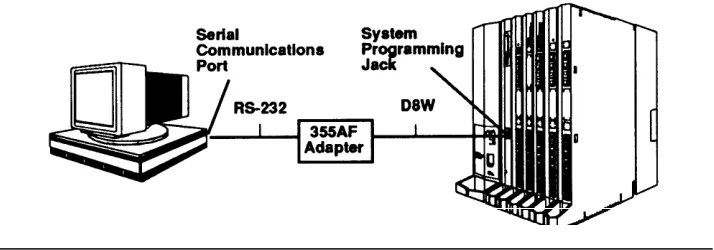
— a PC with System Programming and Maintenance (SPM) software connected to the lower RS-232 port on the processor, with a built-in modem in the processor. The modem permits remote programming and maintenance via the public network. SPM emulates a system programming console on your PC.
NOTE:
If your system has the AT&T Integrated Solution II (IS II) — UNlX® application, you have a Master Controller equipped with the UNIX version of SPM. See Chapter 2 for more information.
Extension Programming enables individual telephone users and system operators (except for QCC operators) to change their telephone features to meet individual needs. For details on extension programming, see the appropriate user and operator guides.
Centralized Telephone Programming enables the System manager to program any feature that can be programmed by individual telephone users or system operators. Centralized Telephone Programming can be done on the programming console or on a PC with the SPM software. For details on Centralized Telephone Programming, see Chapter 4.
Programming Overview
System Programming Console
The system programming console is an MLX-20L telephone connected to the system programming jack. When you enter system programming on a new system for the first time, the console must be connected to the first jack on the first 008 MLX module or 408 GS/LS-MLX module (Release 2.0 and later versions). This jack is factory set as the system programming jack and as an operator position. After you enter programming, you can change the system programming jack to anyone of the first five jacks on the first 008 MLX module or 408 GS/LS-MLX module (Release 2.0 and later versions). This allows you to program without interfering with the operator’s call handling.
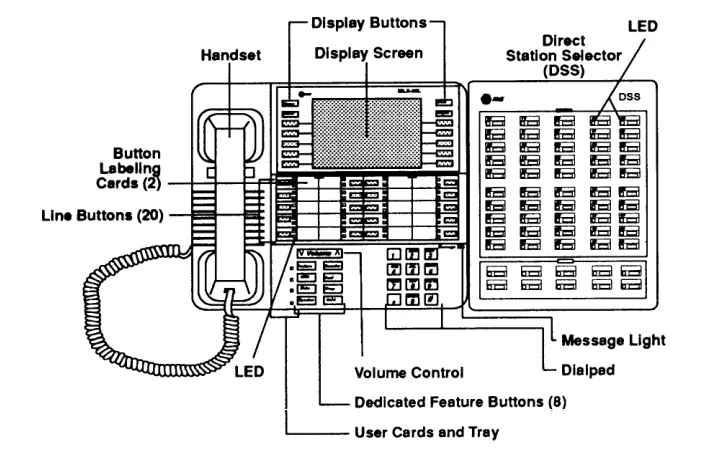
You can also have one or two Direct Station Selectors (DSSs) connected to the system programming console. Each DSS adds 50 extension buttons to the console, which facilitates assigning features to telephones.
The MLX-20L telephone with a DSS is shown in Figure 1-1.
Figure 1-1. MLX-20L Telephone
Programming Overview
Console Components
The MLX-20L console components are the following:
Desk Stand (not shown)
An adjustable stand on the console and the DSS that allows a 20- or 30-degree viewing angle.
Button Labeling Cards
Cards labeled with the number or feature assigned to each line button,
Contrast Control (not shown)
A sliding control at the top of the console used to brighten or dim the display screen.
Dedicated Feature Buttons
Eight imprinted buttons for most-used features.
Feature for viewing the Feature screen and
selecting features.
HFAI (Hands Free Answer on Intercom) for
answering voice-announced calls without the handset.
Mute for turning the speakerphone’s
micro-phone on and off.
Speaker for talking on a call through the
speaker-phone without lifting the handset.
Transfer for sending a call to another telephone. Conf for adding a line or extension to a
conference call.
Drop for disconnecting an extension or line from
a conference call.
Hold for putting a call on hold. Dialpad
Number pad for dialing telephone numbers.
Direct Station Selector (DSS)
A device that adds extension buttons and other inside and outside calling buttons to the console.
Display Buttons
Four imprinted buttons and ten non-imprinted buttons used to view the different screens and select names, features, and options from display screen.
Display Screen
7-line by 24 character screen that shows call information, features, prompts, date, and time.
Handset
The hand-held part of the console you pick up, talk into, and listen from.
LEDs
(Light-Emitting Diodes) The lights on the console that assist in checking feature status.
Line Buttons
20 buttons to make and receive calls; unlabeled buttons are programmable for one-step feature use.
Message Light
A red light that signals a waiting message.
User Cards and Tray
A slide-out drawer with erasable cards for noting telephone numbers and feature codes.
Volume Control
A button for adjusting the volume of the speaker, handset, headset, and ringer.
The DSS components are the following:
Covers:
Removable plastic covers to protect the designation cards. The top cover protects the 50 DSS button labels. The lower cover fits over the fixed feature buttons.
DSS Designation Cards
Cards for labeling the extension or feature assigned to each button.
DSS Buttons
50 buttons used for one-touch dialing of
co-workers’ extensions to make or transfer calls. DSS buttons are also used to page co-workers over speakerphones, to park calls, and to handle outside calls. The console can be configured with two DSSs to provide 3 “pages” of 100 extensions each.
Fixed Buttons
Ten additional buttons, including Message
Status and three Page buttons. The six
remaining buttons on the first DSS are not used. If a second DSS is connected to the console, the 10 buttons at the bottom of the second DSS are not used.
Fixed Message Status Button
A button used with the fixed Page buttons to see which telephones have message lights on.
Fixed Page Buttons Three buttons used to
select the “pages” of extensions the 50 DSS buttons represent.
LEDs
(Light-Emitting Diodes) The lights on the DSS that assist in checking feature status.
Programming Overview
Console Buttons
System programming can be done using the console’s 14 display-area buttons. These buttons are arranged in two columns of seven buttons, as shown in Figure 1-2.
Figure 1-2. Display Buttons
The top two buttons in each column have the same labels and functions regardless of the display. Table 1-1 describes these functions.
Table 1-1. Display Button Descriptions
Button Function
Home Return to normal call-handling mode after you finish programming. This button displays the Home screen.
Menu Display the Main Menu shown in Figure 1-2.
More Display more menu items when a menu is continued on more than one screen (indicated by a “>”).
Inspct (Inspect) View a list of lines or telephones on which a feature is programmed.
The five unlabeled buttons on each side of the screen are used to select screen commands or items on a menu screen. The functions of these buttons vary, based on the option you select.
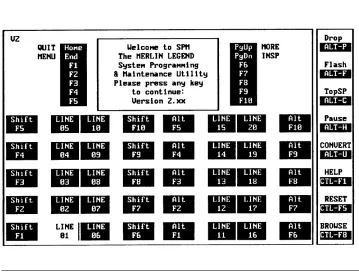
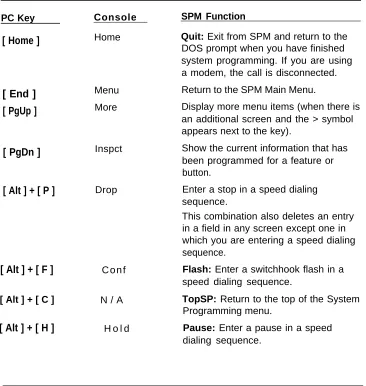
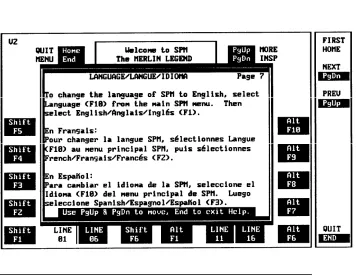
If you are using SPM for system programming, the simulated MLX-20L console screen on your PC screen shows the functions keys that correspond with the console screen selections. This manual indicates a function key in a box. For example, to save your entry, you select Enter or press
[ F10 ]
on your PC details on using function keys and other information on SPM, see Chapter 2.Programming Overview
Console Overlay
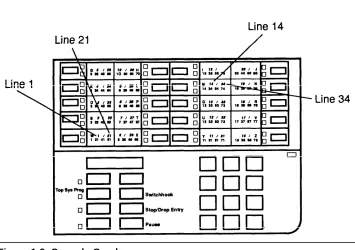
The programmable lines and buttons are on the main part of the console. There are 20 phvsical buttons on the console itself but you can use the overlay to program up to 34 lines. Some of the unlabeled buttons on the lower part of the console may also be used for programming features. You can also use the dialpad for entering feature and programming codes.
Figure 1-3 illustrates the system console overlay.
Figure 1-3. Console Overlay
Appendix D shows the button diagrams for the telephones used in the
communications system. Refer to this appendix when programming buttons for other telephones.
Programming Overview
Console and DSS Lights
Console
DSS
The red and green lights (LEDs) next to each of the 20 line and feature buttons show the status of line features.
The LEDs next to each button on the console are on or off, depending on whether the line is programmed with a feature. The feature being programmed determines whether the red or green LED is used to indicate feature status. The programming procedures specify which LED is used to verify feature status.
The lights on the DSS — if the console has one — show the status of features programmed onto the telephones that correspond to the lights. When you select a feature from a menu, the red LED next to the DSS button is on, off, or flashing depending on whether the feature is programmed on the
corresponding telephone. For example, when you select Toll Restrict from the Restrictions menu under Extensions, the red LED will be on next to the DSS button for each toll restricted telephone. Appendix B provides tables showing the default LED status for system features.
Programming Overview
Programming Procedures
The programming procedures provide step-by-step instructions for programming the communications system using system programming.
Procedure Organization
The procedures in Chapter 3 are arranged in logical groupings. This means that all the procedures for programming one aspect of the system are grouped under one heading. For example, if you want to assign network services for PRI, you would refer to the “PRI” section for that procedure. Chapter 3 provides both an alphabetical listing of all procedures and a listing by section. You can also use the Menu Hierarchy in Appendix A to find the menu path for a function.
General Programming Information
Each procedure begins with a general description of the feature, then provides a summary of programming information. This information includes the following:
Programmable by-indicates who has system permission to use the procedure
Mode — specifies which system mode supports the procedure
Idle condition—specifies the idle state required before the procedure can be performed
Planning form — indicates which planning forms provide information for the procedure
Factory setting-shows the default settings, if any, for equipment or features affected by the procedure
Valid entries — specifies the characters or numbers accepted during data entry
Inspect — specifies whether or not the feature status can be verified using the Inspect feature
Copy option — indicates whether or not the feature programmed with procedure can be copied to another system component
Console Procedure — provides a summary of the procedure steps if using the system console
PC Procedure — provides a summary of the procedure steps if using SPM
Programming Overview
Programming Screens
There are three types of system programming screens:
Information screens - to see what is currently programmed on the system
Menu selection screens - to select options from a menu
Data entry screens - to enter values or to identify a specific extension or line/trunk you want to program
Figure 1-4 shows an example of an information screen. When you select SYS
Progam from the main menu screen (Figure 1-2), the screen shown in Figure 1-4 displays system set up information. (Your system information displays in place of the x’s.)
System Set–up Review and Exit S i z e : xxxx Type: xxxx
O p e r a t o r : xxxx xxxx xxxx xxxx xxxx xxxx xxxx xxxx E x i t
Figure 1-4. Information Screen
You cannot make changes on an information screen. Select Exit (
[ F5 ]
on the PC) to continue to the next screen in the procedure.An example of a menu selection screen is shown in Figure 1-5.
Screen Title
System Programming: >Instruction
Make a selection System Extensions SysRenumber OptionsOperator Tables —
O p t i o n s
LinesTrunks AuxEquipE x i t NightSrvce
Figure 1-5. Menu Selection Screen
The first line of text on all screens is the screen title, followed on the second line by a system prompt or direction about how to proceed. The remaining lines of text vary according to the screen.
While a menu selection screen prompts you to select one of the available options, a data entry screen prompts you to enter specific data for the procedure, as shown in Figure 1-6.
Programming Overview
Option Selected Assign Lines/Trunks:
Prompt Enter extension
Data Entry Area
Backspace
Exit Enter
Figure 1-6. Data Entry Screen
If any data is currently programmed for the feature, it displays on the screen. Some screens also show data entered on a previous screen, such as an extension or trunk number.
A data entry screen may also offer menu selections—instead of entering data from the dialpad, you select options on the screen, such as Yes or No, to enable or disable a feature. These options are selected by pressing the button next to the option. Your selection is highlighted. To program or save that selection, you press the button next to Enter
[ F10 ]
on the PC.Verifying Data Entry
You can use the Inspect feature to verify or check the entries you save. For example, Figure 1-7 shows a data entry screen with the first of two required extension numbers needed to assign analog voice and data.
Data Voice/Data Enter voice/data pair
Extension Entered
—
7108Delete Backspace
Exit Enter
Figure 1-7. Inspect Example
After 7108 is entered and saved, the system automatically assigns the next
sequential station jack number. This station jack pair does not display on the
data entry screen; however, if you press Inspct, the pair displays as shown on
the Inspect screen in Figure 1-8.
Programming Overview
Voice/Data Pairs: >
Inspect Data Displayed
—
7108 7109Exit
Figure 1-8. Inspect Example: Inspect Screen
You can select Exit (
[ F5 ]
on the PC) to return to the previous screen. The Inspect feature also enables you to check a value currently programmed for a feature. This is helpful when you are changing or modifying features. You can also use Inspect when programming sequential extensions or lines to verify the last number programmed. See Feature Reference for details.Using Procedures
The procedures are numeric steps. Each step requires an action on the console or PC. Some steps offer menu selections that may not be part of a required step and some steps present two ways to perform the procedure. This is called
branching. To accommodate branching, a procedure offers a choice of steps to
follow at the branching point. For example, the menu screen shown in Figure 1-9 provides three selections for network services. The procedure instructions break the step that follows into three branches to accommodate the three menu selections:
Network Services: Make a selection AT&T Toll
Local Mist
Exit
For AT&T Toll, go to Step 6a. For Local, go to Step 6b. For Mist, go to Step 6c.
Figure 1-9. Procedure Branching for Menu Selections
Branching within procedures is also used when you can select between
programming a single item or a block of items, such as a single line or a block
of lines, as shown in Figure 1-10.
Programming Overview
Copy Lines Make a selection Single
Block
Exit
For a single line, go to Step 5a. For a block of lines, go to Step 5b.
Figure 1-10. Procedure Branching for Single ad Block Selections
When you complete the branch step, you can continue on to the next numerical step. In many cases, you can also select Exit (
[ F5 ]
on the PC) to return to the menu where the branch began.Programming a Single Item Using Entry Mode
A screen may offer a selection between a block of items (such as block of lines or trunks) and Entry Mode, as shown in Figure 1-11:
Extension xxxx Assign lines/trunks Lines 01-20
Lines 21-40 Entry Mode Lines 41-60
Lines 61-80 Exit
Figure 1-11. Entry Mode
To program one of the lines within any of the blocks, you select Entry Mode
(
[ F6 ]
on the PC). The procedure uses branching to provide the steps needed to accommodate your selection. Once you begin entry mode, you provide entries as in any other data entry screen.Programming Overview
Saving Entries and Moving Among Screens
At the bottom of each screen, there are one or more keys that enable you to change your entry, save your entry, or return to a previous screen.
Combinations of these keys display within each programming option. These keys are shown in Figure 1-12.
QCC Priority x:
E n t e r l i n e / t r u n k n u m b e r
xxx
D e l e t e
Backspace Next
E x i t Enter
Figure 1-12. Screen Keys
You use these keys in the folIowing ways:
Change your entry. You can correct your entry by selecting Backspace (
[ F4 ]
on the PC). Each time you press the key, the screen cursor moves backwards to erase one character at a time.Save your entry. Typically, you complete a procedure by selecting Enter (
[ F10 ]
on the PC) to save the information. Occasionally, you must select Exit ([ F5 ]
on the PC) and go back to the previous screen. Delete a current entry. You can delete (or remove) a current entry by selecting Delete ([ F8 ]
on the PC).Program sequentially numbered items. If you are programming a group of sequentially numbered extensions or lines/trunks, you may have the option of selecting Next (
[ F9 ]
on the PC). This saves your entryand automatically provides the number of the next extension or trunk in
the sequence. Typically, you remain at the same screen for as long as you select Next. In a few cases, you may return to an earlier screen in the procedure.
Return to the previous screen. When you have completed a
procedure, selecting Exit (
[ F5 ]
on the PC) takes you up one screen in the menu hierarchy. (Appendix A provides a reference to the entire system programming menu hierarchy.)Exit a screen without changes. In most cases, to exit from a screen without making any changes: select Exit (press
[ F5 ]
). Exceptions are noted as part of a procedure.When you complete a procedure, you can select select Exit or press
[ F5 ]
In a few cases, you return to the System Programming menu. In most cases, youreturn to an intermediate step within the procedure. You can then select one of the options shown on the screen and continue programming, or you can continue to press Exit until you return to the System programming menu.
Programming Overview
Entering System Programming
The instructions for entering system programming are given below in the same table format used for the programming instructions in Chapter 3:
the step in the procedure (Step)
the current screen display and the action you take (Display/Instructions)
the selection from the menu (On the console)
the function key to press on the PC (On the PC)
Typically, the results of each step are shown in the screen in the next step
Step Display/Instructions On the console On the PC
12/24 11:30
Anne Kim
Andre Jorge
Jose Sarah
Show Number Next Page
Display Main Menu Press Menu. Press
[ F2 ].
MENU MODE : Select Feature Press HOME to Exit
Directory Messages
Posted Msg Sys Program
Alarm Clock Maintenance
Timer Ext Program
Select System Programming. Note: Ext Program does not display if programming console is a QCC.
Select Sys Program. Press
[ F8 ].
Programming Overview
Step
Display/Instructions
On the console
On the PC
3
Display System Programming Select Exit. menu. (Your system set-up
information displays in place of the x’s shown in screen.)
P r e s s
[ F5 ]
Note: The System Set-up screen is an information screen. The information shows the system size (small or large), type (mode), and Operator (position extension numbers). The size and type are
programmed during installation. The operator positions that display will change as you add and remove operator
extensions from the system. 4
Make a selection. Press the button next to Press the function key
Note: A > on the screen means your selection. that the menu has more than
one screen. To see the
additional screens, press More.
for your selection.
Programming Overview
System Programming Menu Options
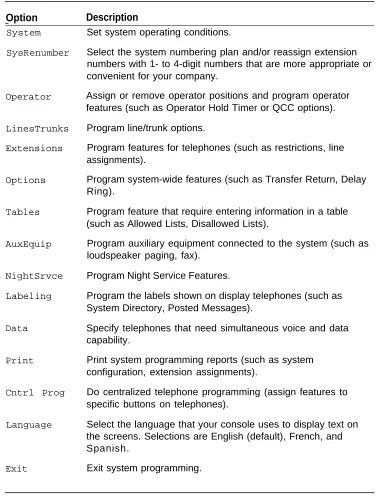
Table 1-2 lists the System Programming options that display on the System
Programming menu.
Table 1-2. System Programming Menu Options
Option
Description
— System SysRenumber Operator LinesTrunks Extensions Options Tables AuxEquip NightSrvce Labeling Data Print Cntrl Prog Language ExitSet system operating conditions.
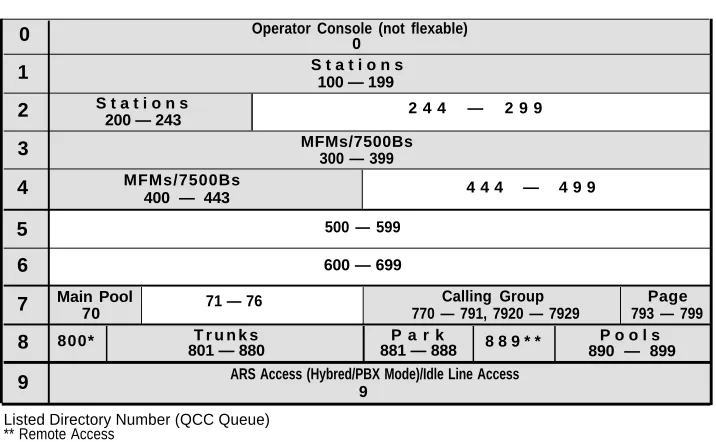
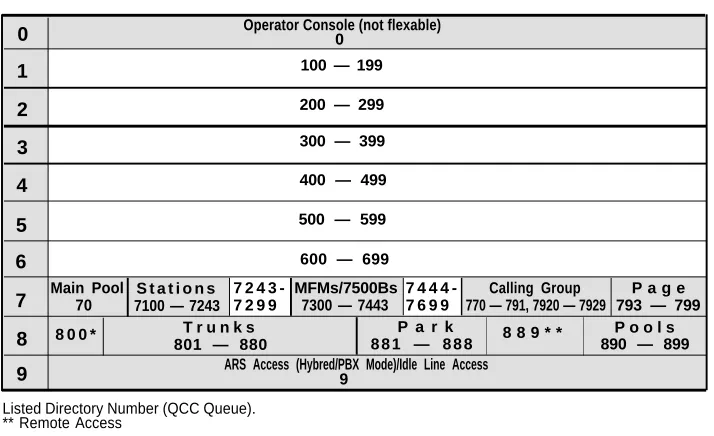
Select the system numbering plan and/or reassign extension numbers with 1- to 4-digit numbers that are more appropriate or convenient for your company.
Assign or remove operator positions and program operator features (such as Operator Hold Timer or QCC options).
Program line/trunk options.
Program features for telephones (such as restrictions, line assignments).
Program system-wide features (such as Transfer Return, Delay Ring).
Program feature that require entering information in a table (such as Allowed Lists, Disallowed Lists).
Program auxiliary equipment connected to the system (such as loudspeaker paging, fax).
Program Night Service Features.
Program the labels shown on display telephones (such as System Directory, Posted Messages).
Specify telephones that need simultaneous voice and data capability.
Print system programming reports (such as system configuration, extension assignments).
Do centralized telephone programming (assign features to specific buttons on telephones).
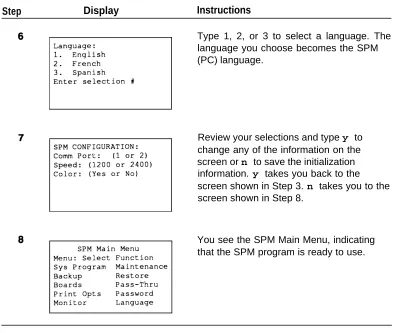
Select the language that your console uses to display text on the screens. Selections are English (default), French, and Spanish.
Exit system programming.
Programming Overview
Exiting System Programming
Use the following step to return to the System Programming menu, the main menu, or to the Home screen from within a programming screen.
Display/Instructions
On the console
On the PC
Any Screen
■ Return to previous menu Press Exit. Press
[ F5 ].
■ Return to main menu Press Menu. Press End.
■ Return to normal call handling Press Home. Press Home.
Programming Overview
Idle States
Some programming procedures can be started only when the entire system, or some part of the system (such as a trunk or an extension), is idle, that is, not in use. Some procedures require that a trunk or extension be idle only at the instant of programming. Lengthy procedures require the system, trunk, or extension be forced into remaining idle until programming is completed. These procedures wait for the system or trunk or extension to become idle and then prevent the initiation of any new calls—a condition called forced idle,
If a procedure requires an idle condition, do the programming outside of normal business hours.
If a procedure requires an idle system and the system is busy when you begin, you see the screen shown in Figure 1-13:
Figure 1-13. System Busy Screen
When the system is no longer busy, the screen changes to the appropriate programming screen.
System Forced Idle
When the entire system is forced idle, no calls can be made or received. The following procedures can be done only when the entire system (all lines and telephones) is idle:
■ select system mode
■ identify system operator positions
■ renumber system
■ renumber modules
■ identify telephones with voice signal pairs for Voice Announce to Busy
feature
■ identify telephones needing Simultaneous Voice and Data feature
Programming Overview
■
restore system programming information
■ identify Music-on-Hold jackWhen the system is forced idle, all multiline telephone users hear a signal, indicating that the telephone cannot be used. On a display telephone, the message
Wait : System Busy
appears. Single-line telephones do not get a dial tone.
Line or Trunk Idle
The following procedures can be done only when the line or trunk being programmed is idle. Since these procedure require the line or trunk to be idle only at the instant of programming, the line or trunk is not forced idle as described above.
■ identify loudspeaker paging line jack
■ assign trunks to pools
■ specify incoming or outgoing DID or tie-trunk type
■ specify tie-trunk direction
■ specify tie-trunk E&M signal
Extension Forced Idle
When a telephone or data terminal is forced idle, no calls can be made or received on that telephone or data terminal. The following procedures can be started only when the telephone or data terminal being programmed is idle.
■ assign call restrictions
■ assign pool dial-out restrictions
■ copy telephone assignments
■ assign lines, trunks, or pools to extensions
■ assign labels to a Personal Directory
■ use centralized telephone programming
When the telephone is forced idle, a multiline telephone user hears a signal, indicating that the telephone cannot be used. On a display telephone, the message
Wait : System Busy
appears. Single-line telephone user does not get a dial tone.
Programming Overview
100D Module Idle
The following can be done only when the 100D Module is idle:
■ specify board type
■ specify frame format
■ specify board signaling format
■ specify board suppression format
■ specify board facility compensation
Forced Idle Reminder Tones
Forced idle reminder tones are provided in the following situations:
■ At the telephone, to remind an extension that the system or the extension
is in the forced idle state.
■ At the programming console or SPM, to remind the system manager that
the system or at least one extension is in the forced idle state because of administrative activity.
This tone is a high-low “doorphone” tone (400 ms of 667 Hz tone followed by 400 ms of 571 Hz tone).
In a Release 1.1 or Release 2.0 system, all three tones occur every 20 seconds. You can adjust the volume of these tones with the volume control.
Programming Overview
Product Enhancements
Several enhancements were implemented for System Release 1.1 and 2.0. This section briefly describes these enhancements and new features. For details on each enhancement, see Feature Reference and Equipment and Operations
Reference.
Procedures covering these enhancements are included in this manual. System planning for the enhancements is covered in System Planning.
Release 1.1 Enhancements
Release 1.1 includes all Release 1.0 functionality plus the following enhancements:
■ Language selection — allows the system to be programmed for prompts, menus, and messages on MLX display telephones to appear in English, French, or Spanish. Each of the following can also be programmed for any of these languages, independent of the system language:
— Individual extensions with MLX telephones
— System programming reports
— SMDR report headers
■ 8102 and 8110 analog voice telephones
Release 2.0 Enhancements
Release 2.0 includes all