WICAT MUlti-user Control System
WMCS
User's Reference Manual
188-101-201 E
May 1985
WICATsystems
-@
I
Receipt of this manual must not be construed as any kind of commitment, on the part of WICAT Systens Incorporated, regarding delivery or ownership of itens manufactured by WICAT.
This manual is subject to change without notice.
first printing second printing third printing fourth printing fifth printing
July 1981 August 1981 July 1983
Infonnation about this Manual
Review the following items before you read this publication.
The subject of this manual
This manual describes the Command Interpreter Program (CIP) that is part 'of the WlCAT Multi-user Control System (WMCS).
The audience for wham this publication was written
This nanual. is written for users who have at least completed the tutorials in the ~ User's Introductory Manual. It is also written for system managers who have at least completed the tutor ials in the JiMCS. System Manager's Introductory Manual.
Related publications
Instructions: Determine the audience to which you belong and then read only the publications at an arrowhead.
Dotted arrowheads indicate optional reading.
System
manager
WMCS
user
Release Notices
Software Bulletins
Key to color code:
Typographical Conventions Used in this Publication
Bold facing indicates what you should type.
Table of Contents
Chapter 1 Communicating with the WICAT Multi-user Control System
Executing the CIP Itself •••••••••••••••••••••••••••••••••••••••••• The User-account Default Directory ••••••••••••••••••••••••••••••••
Chapter 2 The Geography of the System
Location of the Home Directory •••••••••••••••••••••••••••••••••••• The Contents of /~~ •••••••••••••••••••••••••••••••••••••••••
/SYSEXE/ •••••••••••••••••••••••••••••••••••••••••••••••••••••••
/sy~m/ ••••••••••••••••••••••••••••••••••••••••••••••••••••••• / SYSlIT..P / . . . . /sysosR/' ••••••••••••••••••••••••••••••••••••••••••••••••••••••• /SYSINcr..,I •••••••••••••••••••••••••••••••••••••••••••••••••••••• /SYS'IMP/ •••••••••••••••••••••••••••••••••••••••••••••••••••••••
Application Directories •••••••••••••••••••••••••••••••••••••••• System Files •••••••••••••••••••••••••••••••••••••••••••••••••••
~ Files •••••••••••••••••••••••••••••••••••••••••••••••••••••••• File Identification ••••••••••••••••••••••••••••••••••••••••••••••• Nodename ••••••••••••••••••••••••••••••••••••••••••••••••••••••• Devicenarne ••••••••••••••••••••••••••••••••••••••••••••••••••••• Directory Name ••••••••••••••••••••••••••••••••••••••••••••••••• Filename ••••••••••••••••••••••••••••••••••••••••••••••••••••••• File Extension ••••••••••••••••••••••••••••••••••••••••••••••••• File Version Number •••••••••••••••••••••••••••••••••••••••••••• Relative Addressing •••••••••••••••••••••••••••••••••••••••••••••••
Chapter 3 Using the CIP Command Line
Command-line Syntax ••••••••••••••••••••••••••••••••••••••••••••••• Importance of Syntax ••••••••••••••••••••••••••••••••••••••••••• Character Limit •••••••••••••••••••••••••••••••••••••••••••••••• The Semicolon •••••••••••••••••••••••••••••••••••••••••••••••••• Command Limit •••••••••••••••••••••••••••••••••••••••••••••••••• The Command Mnemonic ••••••••••••••••••••••••••••••••••••••••••• The Return Key •••••••••••••••••••••••••••••••••••••••••••••••••
Significant characters ••••••••••••••••••••••••••••••••••••••••• Process Creation Parameters ••••••••••••••••••••••••••••••••••••••• Oontrol-key FUnctions ••••••••••••••••••••••••••••••••••••••••••••• The Keyboard and the CIP •••••••••••••••••••••••••••••••••••••••••• Character Keys ••••••••••••••••••••••••••••••••••••••••••••••••• Function Keys •••••••••••••••••••••••••••••••••••••••••••••••••• Keyt;a.d ••••••••••••••••••••••••••••••••••••••••••••••••••••••••• Help Displays •••••••••••••••••••••••••••••••••••••••••••••••••••••
Chapter 4 Parameters and SWitches
R8;1uired Parameters ••••••••••••••••••••••••••••••••••••••••••••••• Optional Parameters ••••••••••••••••••••••••••••••••••••••••••••••• SWitches ••••••••••••••••••••••••••••••••••••••••••••••••••••••••••
S~cifying More Than One File Designation
in a Parameter ••••••••••••••• ~ ••••••••••••••••••••••••••••••• File Lists ••••••••••••••••••••••••••••••••••••••••••••••••••••• Wildcard, or Pattern Matching, ~ls •••••••••••••••••••••••••
Chapter 5 Directory of CIP Conmands
3-4 3-8 3-9 3-15 3-16 3-16 3-20 3-21 4-1 4-3 4-4 4-6 4-6 4-6
lni tial {l)[nrnands ••••••••••••••••••••••••••••••••••••••••••••••••••
crp {l)[nrnands ••••••••••••••••••••••••••••••••••••••••••••••••••••••
5-1 5-2
Cllapter 6 Dictionary of CIP Conmands
alloc ••••••••••••••••••••••••••••••••••••••••••••••••••• ardl •••••••••••••••••••••••••••••••••••••••••••••••••••• assigrl •••••••••••••••••••••••••••••••••••••••••••••••••• tla.ckup •••••••••••••••••••••••••••••••••••••••••••••••••• bltup •••••••••••••••••••••••••••••••••••••••••••••••••••• btllp •••••••••••••••••••••••••••••••••••••••••••••••••••• cd •••••••••••••••••••••••••••••••••••••••••••••••••••••• cl'leckstun ••••••••••••••••••••••••••••••••••••••••••••••••
chkri ••••••••••••••••••••••••••••••••••••••••••••••••••••
.
Clp •••••••••••••••••••••••••••••••••••••••••••••••••••••
andst ••••••••••••••••••••••••••••••••••••••••••••••••••• oonfig ••••••••••••••••••••••••••••••••••••••••••••••••••
oo~ •••••••••••••••••••••••••••••••••••••••••••.•••••••••
Table of Contents crypt ••••••••••••••••••••••••••••••••••••••••••••••••••• deallcx:: ••••••••••••••••••••••••••••••••••••••••••••••••• def ••••••••••••••••••••••••••••••••••••••••••••••••••••• del ••••••••••••••••••••••••••••••••••••••••••••••••••••• dev ••••••••••••••••••••••••••••••••••••••••••••••••••••• dinit ••••••••••••••••••••••••••••••••••••••••••••••••••• dir ••••••••••••••••••••••••••••••••••••••••••••••••••••• dispatch ••••••••••••••••••••••••••••••••••••••••••••••••
an ..•..•••.••.•...••...•...•....•...•••...•
annt •.•..•..•.•••••••..••••.•••••••••••.••••••••••••..••
dstat ••••••••••••••••••••••••••••••••••••••••••••••••••• dump ••••••••••••••••••••••••••••••••••••••••••••••••••••qprint •••••••••••••••••••••••••••••••••••••••••••••••••• recover ••••••••••••••••••••••••••••••••••••••••••••••••• rell ••••••••••••••••••••••••••••••••••••••••••••••••••••• restore •••••••••••••••••••••••••••••••••••••••••••••••••
[e\Ii • • • • • • • • • • • • • • • • • • • • • • • • • • • • • • • • • • • • • • • • • • • • • • • • • • • • •
rotor ••••••••••••••••••••••••••••••••••••••••••••••••••• scan •••••••••••••••••••••••••••••••••••••••••••••••••••• send ••••••••••••••••••••••••••••••••••• I) • • • • • • • • • • • • • • • •
serial ••••••••••••••••••••••••••••••••••••••••••••••••••
shlC>g' •••••••••••••••••••••••••••••••••••••••••••••••••••
shutdown •••••••••••••••••••••••••••••••••••••••••••••••• skip •••••••••••••••••••••••••••••••••••••••••••••••••••• sort ••••••••••••••••••••••••••••••••••••••••••••••••••••
sp ... .
ssc:o~ ••••••••••••••••••••••••••••••••••••••••••••••••••
submit •••••••••••••••••••••••••••••••••••••••••••••••••• swap •••••••••••••••••••••••••••••••••••••••••••••••••••• swaPJ?er ••••••••••••••••••••••••••••••••••••••••••••••••• sysprof ••••••••••••••••••••••••••••••••••••••••••••••••• talkt •••••••••••••••••••••••••••••••••••••••••••••••••••
tco~ ... . tine •••••••••••••••••••••••••••••••••••••••••••••••••••• translit ••••••••••••••••••••••••••••••••••••••••••••••••
tYJ?e ••• • • • • • • • • • • • • • • • • • • • • • • • • • • • • • • • • • • • • • • • • • • • • • • • • • tYJ?eb •••••••••••••••••••••••••••••••••••••••••••••••••••
Table of Contents
Chapter 7 Using CIP Commands in Files
How to Create a Command File •••••••••••••••••••••••••••••••••••••• Comments in Command Files ••••••••••••••••••••••••••••••••••••••••• Parameter Substitution in Command Files ••••••••••••••••••••••••••• Logical Names in Command Files •••••••••••••••••••••••••••••••••••• Nested Command Files •••••••••••••••••••••••••••••••••••••••••••••• Calling Parameter Files from Command Files •••••••••••••••••••••••• Search Paths •••••••••••••••••••••••••••••••••••••••••••••••••••••• USEHJP. a:>M •••••••••••••••••••••••••••••••••••••••••••••••••••••••• USER.OFF • a:>M •••••••••••••••••••••••••••••••••••••••••••••••••••••••
Chapter 8 Parameter Files
7-2 7-2 7-3 7-4 7-5 7-5 7-6 7-7 7-7
Parameter Substitution... 8-2
Comments in Parameter Files... 8-2
Chapter 9 Background Processing
Chapter 10 Input/output Redirection
Default Input/OUtput Files •••••••••••••••••••••••••••••••••••••••• Temporarily Redirecting Input •••••••••••••••••••••••••••••••••• Temporarily Redirecting Output ••••••••••••••••••••••••••••••••• Redirecting and Appending Output ••••••••••••••••••••••••••••••• Temporarily Redirecting Diagnostic Messages •••••••••••••••••••• Redirecting and Appending Diagnostic
Messages ••••••••••••••••••••••••••••••••••••••••••••••••••••• Multiple Temporary Redirection ••••••••••••••••••••••••••••••••• I/O Redirection and the ~ Port ••••••••••••••••••••••••••••••••
Pi~s •••••••••••••••••••••••••••••••••••••••••••••••••••••••••••••
Chapter 11 Logical Name Assignment
The utility of Logical Name Assignments ••••••••••••••••••••••••••• Customizing Your Working Environment •••••••••••••••••••••••••••••• Program Independence from Devices and
F il eIlaII\es. • • • • • • • • • • • • • • • • • • • • • • • • • • • • • • • • • • • • • • • • • • • • • • • • • • • • • • Logical Names Used as Flags •••••••••••••••••••••••••••••••••••••••
Chapter 12 Diagnostic Messages
The Format of the Messages •••••••••••••••••••••••••••••••••••••••• Stack Dumps •••••••••••••••••••••••••••••••••••••••••••••••••••••••
Appendix A Glossary of WMCS Diagnostic Messages
Kernel Diagnostic Messages •••••••••••••••••••••••••••••••••••••••• Class Handler Diagnostic Messages ••••••••••••••••••••••••••••••••• Device Driver Diagnostic Messages ••••••••••••••••••••••••••••••••• Utility Diagnostic Messages •••••••••••••••••••••••••••••••••••••••
Awendix B System Logical Name Assignments
SYS$BA'lCH ••••••••••••••••••••••••••••••••••••••••••••••••••••••••• SYS$CIP ••••••••••••••••••••••••••••••••••••••••••••••••••••••••••• SYS $CIJ<RA.TE ••••••••••••••••••••••••••••••••••••••••••••••••••••••• SYS$DISK •••••••••••••••••••••••••••••••••••••••••••••••••••••••••• SYS$ERroR ••••••••••••••••••••••••••••••••••••••••••••••••••••••••• SYS$IDME •••••••••••••••••••••••••••••••••••••••••••••••••••••••••• SYS$INRJT ••••••••••••••••••••••••••••••••••••••••••••••••••••••••• SYS$MAiiI •••••••••••••••••••••••••••••••••••••••••••••••••••••••••• SYS~D~ ••••••••••••••••••••••••••••••••••••••••••••••••••••••••• SYSSlDDmAME •••••••••••••••••••••••••••••••••••••••••••••••••••••• SYS $CXJTl?{JT •• • • • • • • • • • • • • • • • • • • • • • • • • • • • • • • • • • • • • • • • • • • • • • • • • • • • • • •
SYS$PIPE •••••••••••••••••••••••••••••••••••••••••••••••••••••••••• SYS $PR.INI' • • • • • • • • • • • • • • • • • • • • • • • • • • • • • • • • • • • • • • • • • • • • • • • • • • • • • • • • •
SYS $PR(IrtPl' • • • • • • • • • • • • • • • • • • • • • • • • • • • • • • • • • • • • • • • • • • • • • • • • • • • • • • • •
SYS$RESULT ••••••••••••••••••••••••••••••••••••••••••••••••••••••••
SYS$SY~ ••••••••••••••••••••••••••••••••••••••••••••••••••••••• sys$'IMP ••••••••••••••••••••••••••••••••••••••••••••••••••••••••••• SYS $tJSERNAME: ... .
WICAT$frDD~ •••••••••••••••••••••••••••••••••••••••••••••••••••••••
Table of Contents
Awendix C System Time
Chapter 1
Communicating with the WICAT Multi-user Control System
The WICAT Multi-user Control System (WMCS) is the program, or software, that superintends all aspects of your system, ultimately causing the hardware to do what you tell it to do.
However, commmicating directly with the WMCS each time you want to create a file or directory, switch to another disk, etc., would require the instructions for that operation to be in terms the WMCS understands. In other words, in order for the WMCS to communicate with your system's hardware, the WMCS must speak a language that the hardware can understand. Using this language every time you want to tell the WMCS to do something would be tedious and time consuming, and would require considerable expertise in dealing with computers.
Therefore, to expedite your interaction with the WMCS (particularly if you are unfamiliar with computers), a program has been developed that translates user commands into terms that the WMCS understands. It is called the Command Interpreter Program (CIP).
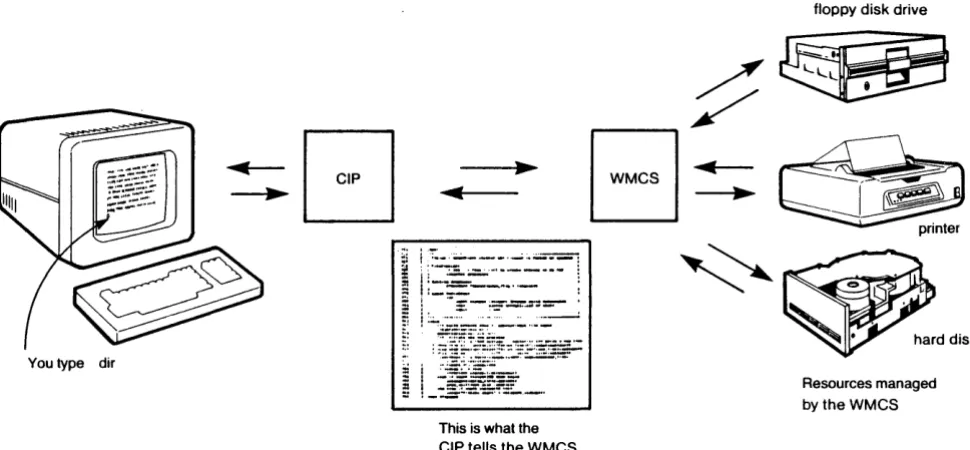
Figure 1.1 illustrates CIP's function as the interpreter that allows you to communicate with the WMCS.
Thus, when you type the mnemonic OIR onto the CIP command line and strike [RETRN], the CIP translates that mnemonic into the following instructions for the WMCS:
1. Find the OIR Program. It is stored in a file named OIR.EXE on one of the system's devices.
. .... . ....
_-..
_._--_._
.._--
.:.--:-::
._
...---
::--~--:---_ ...
-
: :::-;:;::"..:=.::=- .
... ..
_-.-..
_--_.
_._,,--You type dir
:
1~Et~l~:I~:¥:::~·-! _
::~~~~=t_.
This is what the CIP tells the WMCS
:/~
[WMCS[~
~
Resources managed bytheWMCS
Fig. 1.1 The CIP: Your means of communicating with the WMCS
All of the work in a computer is done by means of programs (files like DIR.EXE) that tell the system how to do what you want it to do. When you type a CIP command onto the command line and strike [RETRN], you are actually telling the WMCS to find and execute the program that in turn tells the system how to perform that p:lrticular function. In other words, the CIP is a program that tells the WMCS how to perform various functions.
Executing the CIP Itself
Communicating with the WICAT Multi-user Control System
Follow this procedure to log on to your system:
Step 1
Step 2
Step 3
Step 4
Turn the IX>wer switch on your terminal to the on IX>sition.
After the necessary files have been executed, this kind of report appears on the screen:
(boot$cip) WARLOCK is up and rtmning.
IDTE: WARLOO< represents the name the system manager has given your system.
Strike
rnSlJ
This prompt appears on the screen:
Welcome to Warlock Usernarne:
Type the username assigned to you by your system manager.
Strike
m5J
This prompt appears on the screen:
Password:
Step 5
Step 6
Type the password assigned to you by your system manager. Do not be concerned that your password does not appear on your terminal screen as you type. The password is transmitted, but not to the screen.
Strike
~
ogu
If you make a mistake in typing either the username or the password, this diagnostic message appears on your screen:
LOGON - User validation error.
Furthermore, if you wait more than several seconds to type ei ther the username or the password, this diagnostic message appears on your screen:
LOGON - Input time-out error.
If either of these messages appears, strike [RE'IRN], and repeat the logon procedure, i.e., go back to step 2.
The following kind of display appears on the screen when the username and the password are accepted:
---
---System Bulletins
---
---GRACE)When both the username and the password have been correctly typed, and you strike [RE'IRN] after having typed your password, three comnand files are executed:
USERIJP.CDM
Communicating with the WICAT Multi-user Control System
assignments, messages, etc., that pertain to all the users on the system.
A USERUP.COM file should appear in each user-account default directory because the system manager usually creates this file when he creates your user-account default directory. Use the VEW Command to place logical name assignments, etc., in the files that pertain to your working environment (read chapter 6 for detail).
When your logon is completed and the cursor appears next to your usernarne and a right angle bracket,
>,
at the bottcm of the screen, the commands and keyboard operation explained in this manual apply.The User-account Default Directory
When the system manager creates a user account for you, he also assigns you a user-account defaUlt directory, a directory in which you find yourself whenever you log on to the system with the usernarne and password assigned to that account.
In other words, just as your user account detennines the nature of your interface with the WMCS, your account also assigns you to a geographic location within the device and directory structure that together constitute the system. Chapter 2 explains the geography of the devices and the directory structure, and Chapter 3 tells you what a default is.
Chapter 2
The Geography Of The System
There are two aspects to the geography of your system:
1. Physical location.
2. Conceptual location.
Physical location refers to your system's hardware. This means that when you log on to the system, you log on to a particular terminal, or device, establishing a specific physical location for your use. For example, when you insert a tape into a tape drive, that tape is located in one of the mechanical devices that constitute your system's hardware, establishing a specific physical location for the tape.
Therefore, the first step in finding your way about the system is knowing the names of the devices that make up the system. If your system is part of a network, you should also know the names of the nodes (other computers) on your network. Beyond that, however, the WMCS, not the user, is primarily concerned with the physical location of data.
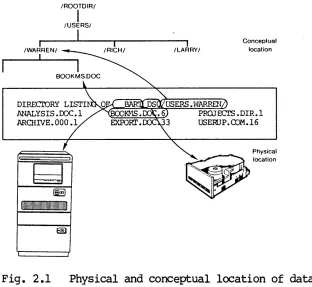
For example, suppose that you log on, type dir onto the CIP command line, and strike [RETRN] to find out what your user-account default directory contains. This kind of report appears on your terminal screen:
DlRECI'ORY LISTIN3 OF _BARTJ)SO/USERS.WARREN/
ANALYSIS.OOC.l BOOKMS.OOC.6 PRillEC!'S.DIR.l ARCHIVE.OOO.l EXPORT.OOC.33 USERUP.COM.16
Therefore, the nodename and devicename that appear as the first elements on the first line of this display are the only part of the report that pertains to the physical location of the data. The remainder of the display, and the files themselves, are conceptual associations of data.
I
/WARREN/
I
/ROOTDIR/
I
/USERS/
I
111111111111111111111111111111111111 1m
I
/LARRY/
Conceptual location
Fig. 2.1 Physical and conceptual location of data
How the WMCS determines the physical location of data, based uI;X)n what you type onto the elP command line, is explained in other documentation for those users and programmers concerned with it.
This chapter is concerned primarily with the conceptual geography of your system.
Location of the Home Directory
When the system manager creates a user account for you, he assigns you to a default node, a default device and a user-account default directory
(your berne directory) •
The node is the computer to which all the devices are connected, e.g.,
The Geography Of The System
The directory in which you find yourself when you log on is your user-account default directory, or home directory. The system rranager creates a /USERS/ directory in which your home directory is usually located. Figure 2.2 illustrates the typical relationship to the home directories of each user on a system.
/ROOl'DIR/
I
/USERS/
I I
/ELAN/
/ALI
I
I
/'IDM/
/RICH/
IFig. 2.2 Conceptual location of home directories
In other words, each user's home directory is a subdirectory of /USERS/.
/USERS/ is usually a subdirectory of /ROOl'DIR/, the rrain, or LQQt.,
directory on the system. Figure 2.3 illustrates the relationship between /USERS/ and the typical contents of /ROOl'DIR/.
Directory listing of __ BART-PSO/ROOTDIR/
BITMAP.SYS.l KERNEL.156.4 SYSHLP.DIR.l BOOTDISK.156.4 KERNELBUG.156.4 SYSLIB.DIR.l DISK.156.4 KSAM.156.2 SYSEXE.DIR.l FCB.SYS.l ~lOlO.156.2 TTY.156.4 FCBBITMAP.SYS.l OSINrr.156.2 USERS.DIR.l
Fig. 2.3 Standard files and directories in /ROOl'DIR/
The Contents of /ROOl'DIR/
The following sections describe the contents of each major subdirectory and kind of file in /ROOl'DIR/.
/SYSEXE/
/sysr.m/
This directory is reserved for data files used by the system.
This directory contains the help display for each CIP command. In other words, when you type DEL? onto the CIP command line, the contents of DEL.HLP (located in /SYSHLP/) ap~ar on the screen.
ISYSDSRI
This directory contains device drivers. A device driver is the program assigned to each mechanical device allowing the CPU to cormmmicate with it. These programs are part of the WMCS.
/sysrnC[.J
This directory contains record definitions for the development of programs that use system data structures.
ISYSl'MP1
This directory is accessible to all users and is for temporary files only. Standard operating files should not be stored in it because it is purged each time the system is booted.
~licatiQn pirectories
The number of applications on your system deteDmines the number of application directories you have.
System Files
Do not tamper with system files because they define the file
The Geography Of The System
WMCS Files
These files contain the WICAT Multi-user Control System itself, and are loaded into memory when the system is booted. The standard file extensions for WMCS files are .100 and .156, depending upon which system you are on. For detail on which file extension goes with which system, see the table of file extensions in this chapter.
File Identification
Files are identified by a file designation. This designation consists of six elements:
1. The name of the node to which the device is connected.
2. The name of the device on which the file is stored.
3. The name of the directory in which the file is listed. If a file is in a subdirectory, the directory-name field of the file designation includes all directories through which the system must search to find the file.
4. The f il enarne.
5. The file extension.
6. The version number of the file.
These six parts of the file designation constitute the
pathname
for a directory or file. In other words, the name itself is the path among the nodes in your network, the devices on your systern, and through the structure that leads to a directory or file.Nodename Devicename Directory name Filename File extension Version no.
-.bob _dcO /users.al/ report. doc. 10
Nodename
Nodenarne Devicename Directory name Filename File extension Version no.
/users.al/ retx'rt. doc. 10
A network is a group of two or more computer systems linked together. Devices and the files stored on them can be shared among the different computers, called nodes, on the network. Nodenames identify each computer in a network. Even though your computer may not currently be p:lrt of a
network, it will have a nodenarne assigned to it.
A nodenarne can contain up to sixteen alphanumeric characters, as well as the tilde, -, and the dollar sign, $. Nodenarnes are preceded by two
underscores~ e.g., ~.
Deyicename
Nodenarne Devicename Directory name Filename File extension Version no.
--.bob /users.al/ report. doc • 10
OIDDDDDOODIIlDOnDD
OIDDDDDDOODDDOnDOUO DlDDDDDlDDDUDDDOOUU
JlI.DqpqplJlllPo.uoJlWlIUl
c::lI'::::I c=i~-=c::lI
C=C:= ~
== ==c:::::a
~~c::a~~~
I BI
Your Computer
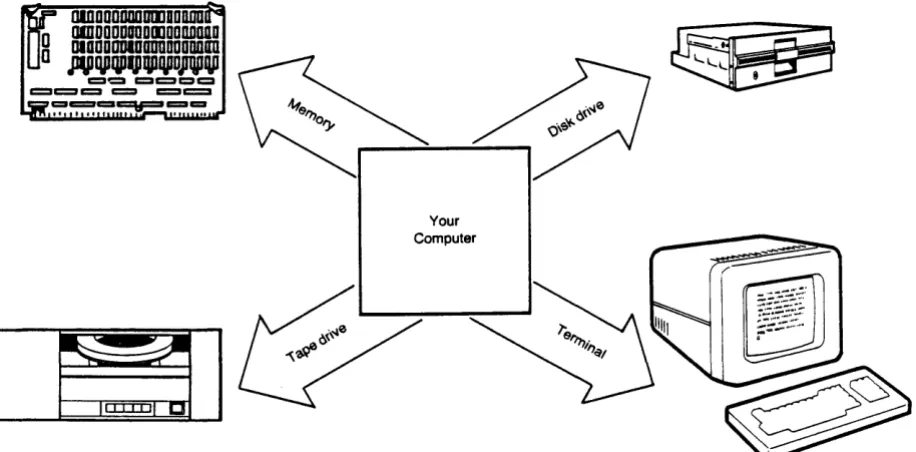
Fig. 2.5 The ftmdamental parts of a computer
The Geography Of The System
There are several kinds, or classes, of devices, but the two most corrunon are:
1. Character-oriented devices such as terminals, printers, etc. These are often referred to as TTY devices.
2. Directory-oriented devices such as disks and tapes.
Character-oriented devices do not contain files, but the WMCS treats them as though they were files. A terminal is not a device on which a file can be created or peonanently stored; it is character- rather than directory-oriented.
Directory-oriented devices, such as disks, tapes, etc., are the devices on which files are stored.
The name of a device generally indicates which of these two categories the device belongs to. For example,
-PeO
and-POCO
are common names for disks, while _TTl, _TT2, are corrunon names for terminals.Directory Name
Nodename Devicename Directory name Filename File extension Version no.
--..bob rePJrt. doc. 10
Directories are groups of files located on a particular device. For example, .-l3OBJX::O/SYSLm/ indicates that the directory, /SYSLm/, is located on the disk named JX::O and the node named .-l3OB. Note that slashes are used to enclose directory names.
Furthermore, even though /ROOTDIR/ is the first-level directory for all files on a device, it need not be given as part of the file designation unless you refer to a file in /ROOTDIR/ itself. In other words, even though /SYSLm/ is a subdirectory of /ROOTDIR/, it is not necessary to specify --13OBJX::O/ROOTDIR.SYSLm/ for /SYSLm/.
The file designation must contain the names of each directory on the
I
The Geography Of The System
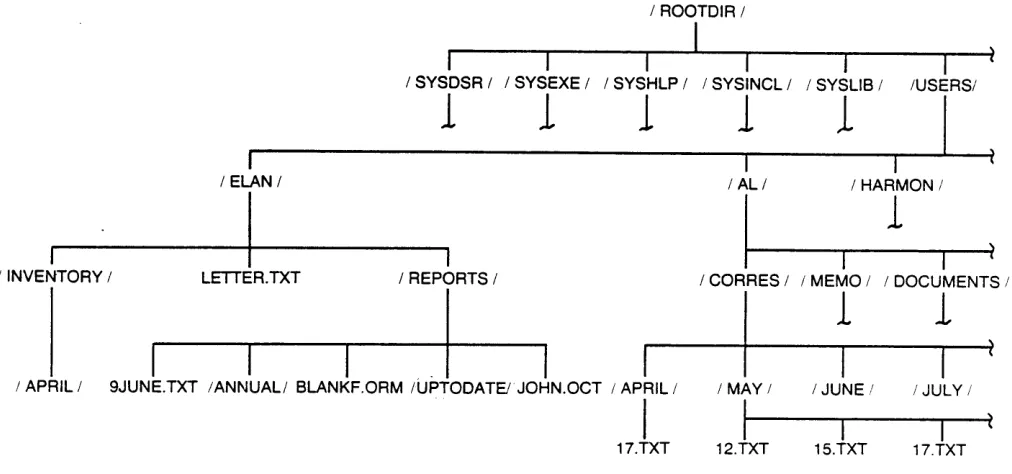
Figure 2.7 illustrates the nature of the conceptual directory structure for the data on a device.
I ROOTDIR I
I I I
I
II
I
I SYSDSR I I SYSEXE I I SYSHLP I I SYSINCL I ISYSLIBI IUSERSI
1
1
1
1
1
I
I I
I ELAN / IALI I HARMON I
I I
I
I1
I/ INVENTORY I LETTE R. TXT I REPORTS I ICORRESI IMEMOI I DOCUMENTS I
I I I
r - - - I-+---1
_1.---1~
9JUNE.TXT IANNUAlI BLANKF.ORM IUPTODATEJJOHN.OCT I APRIL I
/ APRIL I I MAY / IJUNE! / JULY I
I
I
I
I
17.TXT 12.TXT 1S.TXT 17.TXT
Fig. 2.7 Conceptual directory structure for a device
The DEF Command allows you to find out what device you are on and what directory you are in.
Filename
Nodename Devicename Directory name Filename File extension Version no.
--.bob /users.al/ doc. 10
Any lowercase characters in the filename appear as uppercase letters when the filename appears in directories and system-generated messages, i.e., lowercase characters are automatically converted to
uppercase.
File Extension
Nodenarne Devicename Directory name Filename File extensO Version no.
-pob fusers.al/ refX)rt. 10
Each file designation also contains a user-asSigned extension consisting of from zero to three alphanumeric characters, as well as the dollar sign, $, and the tilde,'" The file extension can be
The Geography Of The System
Although you can formulate your own scheme for file extensions, the following list may be helpful in systematizing the designations you use:
Standard File Extensions
.100 WMCS for the System 200,220,300
.156 WMCS for the System l50MU,150WS,155,160 .A Library file
.A68 C assembler source file • ARC Archive file
.ASM Assembly language source file • BAr< Backup file
• BAS BASIC source file
.BTF Batch terminal emulator file .C C-language source file
.CBL COBOL source file
.CK5 File containing checksums • COM ~rnremd file
.DAT Data file
.DEF Library definition file .DIR Directory file
.DSP Display screen file for WISE
.DSR Device Service Routine (device driver) • DOC File containing a document
.EXE Executable image file .F77 F0RTRAN77 source program .H Include-files for C • HLP Help display
.IDX CIS COBOL ISAM file
.INT Intermediate code file (Pascal and COBOL) • IT CIS COBOL data ISAM file
• KEY KSAM key file
.LST Program listing file
.MCR Linker cross reference file .MRL Relocatable obj ect module
.NAM Name association table for WISE frames .0 Object files for C and FORTRAN
• PAS Pascal source file .PRM Parameter file
.PRN Program listing file .STP Setup files for WISE
.SYS File maintained by the system (FCB.SYS, BI'IMAP • SYS, etc.)
• 'IMP Temtx>rary file
• TXT File containing text .UCP Ultracalc pointer file
.ues
Ultracalc string file.UCX Ultracalc script file
File Version Number
Nodename Devicename Directory name Filename File extension Version no ..
,.,
r
Job _dcO /users.al/ report. doc. 10
<r .
The original version or copy of a file appears as version number one in a directory. Subsequent copies or versions are automatically assigned a version number that is one integer greater than the highest existing version number for a copy of that file in the directory.
Furthe~ore, you can delete old versions of a file without affecting the version number of the file that is kept. For example, if you have four versions of a file, and you delete the first three versions, the fourth version retains four as its version number, and the numbering of subsequent versions of that file begins with 5.
Unless you specify a version nurrber, when naming a file as part of the CIP command line syntax for a particular command, the most recently created version (or the file with the highest version number) is used in the execution of that command.
The WMCS allows up to 65,535 versions of a file.
Relative Addressing
Typing the complete file designation each time you specify a directory or file can be tedious. Therefore, the CIP provides reJatiye addressing, i.e., the specification of a directory or file relative to "where you are" among the devices and directories that make up your system.
For example, when you log on, you are located in your home directory, e.g., ~J)CO/USERS.AI/. If you had to type the complete file designation when calling for a listing of the contents of that directory, the command line character string would look like this:
dir __ BOB_dcO/users.al/
Therefore, any CIP command -requiring a file designation for a parameter automatically assumes (unless you specify otherwise) your working-default node, device, and directory.
The Geography Of The Systan
command line) that you want a directory listing for the default directory.
Sup};X)se you want to rename one of the files in your horne directory. You might type this kind of command-line character string to do so:
ren report.doc april.rpt
Inasmuch as you specify only the filename and file extension of the file to be renamed (the first file listed), the CIP assumes that you mean the REPORT.DOC located in your default directory and on your working-default device and node. Furthermore, since the second file deSignation consists of only a filename and file extension, the CIP assumes that you want the default device and directory to be assigned to the second file designation.
Finally, supp:>se you want to rename REPORT.DOC and assign it to another directory on the default device. The following kind of character string performs that operation:
ren report.doc tom(april.rpt
In other words, the default device is assumed for both designations, but the default directory is assumed for the first file only.
The use of the CD Command further illustrates the significance of your default device and directory.
Were /ELAN/ your default directory, and you wanted to move to ~llJ)CO/
ELAN.REPORTS.UPl'ODATE/, you need type only CD .REPORTS.UPrODATE/in order to do so.
I
/ ELAN /
_ I
---+-1 '_'_/.-;.,
=,,===~_~~ORTS.UPTODATEI
/ INVENTORY / LETTE R. TXT " / REPORTS /"'-'" I
I
JOHN.OCT / APRIL / 9JUNE.TXT IANNUALI BLANKF.ORM /U~ODATE/
If you wish to specify a file that is farther down the directory structure from where you are, give that portion of the file designation, preceded by a period, ., that is not part of the default.
For example, suppose you want to edit a file whose pathnarne is --EQB-PCO/ ELAN.REPORI'S/9JUNE.TXT, and that you are in /ELAN/. You need type only
Vlli .REPORI'S/9JUNE.TXT to access that file.
I
I ELAN I
VEW oREPORTS/9:UNEoTXT
;1
I
I
/ INVENTORY! / LETTEA.TXT I REPORTS:
1// I
I
II
I APRILI 9JUNE.TXT IANNUAl! BLANKF.ORM IUPTODATE.' JOHN.OCT
Were you already in /ELAN.REPORI'S/, you would need to type only
Vlli 9JUNE.TXT to access the file.
To access a file that is farther up the directory structure from where you are, you can use the minus sign, -. For example, suppose you are in /ELAN.REPORI'S.UPIDDATE/, and want to access a file whose designation is --13OBJ)CO/ELAN. REPORI'S/BLANKF .ORM.
You need type only -/BLANKF .ORM as the pathnarne to the file. In other words, the minus sign indicates that you wish to move one directory up the directory structure, and then access BLANKF.ORM.
I
I ELAN I
VEW -/BLANKF.ORM
I INVENTORY I LETTE A. TXT
I
I
1)'/' / \
I
The Geography Of The System
If you wanted to specify a file in /ELAN/, and /ELAN.REPORl'S.UPl'ODATE/ were your defaul t directory, you could give -/LE'I'I'ER. TXT as the pathname. Note that you need not put a period between the two minus signs.
I
" I
/ INVENTORY / LETTER. TXT " " / REPORTS I
I
I
I "'"
I
I
/ APRIL/ 9JUNE.TXT IANNUALI BLANKF.OAM 'UPTODATE' JOHN.OCT
Finally, sUPJ;X)se you want to specify a file whose designation is
~.J)CO/ELAN .RE1?ORl'S/ JCHN.OCT, and that ~J)CO/ELAN. INVENTORY. APRIL/
is the default.
You could specify the file by typing -.REPORI'S/JOON.OCT as the pathname. This pathname indicates that you wish to move ~ the directory structure two directories, and then down one to the directory in which JOHN.OCT is located.
I
/'
> '...I
I INVENTORY I / / / LETTE R. TXT '-J~EP)RTS I
/ ... ,
/
,
/
'
/// I
I
I
'" I
/ APRIL/ 9JUNE.TXT IANNUALI BLANKF.ORM /UPTODATEi J~N.OCT
~
D --.REPfRTS/JOHN.OCTI~rl
/ ..../ ...
Chapter 3
Using the CIP Command Line
CIP commands are used on a CIP command line or in a file. This chapter tells you about the command line. Chapter 9 tells you about parameter files and Chapter 10 about command files.
The CIP assumes that anything typed onto the command line is to be executed. This chapter tells you how to type things onto the command line correctly, so the CIP can understand what you want done.
Comnand-line Syntax
The information in this section pertains to the CIP command line generally. Chapter 6 details each command.
1. The CIP executes a command-line character string precisely as the character string appears on your terminal screen. The command-line character string is the string of characters you type to execute a command, and is read and executed from left to right. For example:
print x25.doc
2. The character limit for the CIP command line is 1023.
3. You can have any nunber of commands on a command line as long as the line does not exceed 1023 characters.
4. The command mnemonic is always the first element of a cornmand-line character string, and consists of from 1 to 9 letters.
6. Put at least one space between parameter, each parameter value, redirection character.
the mnemonic and
each switch, and the first each I/O
7. [RETRN] is the command-line ter.minator, (i.e., the key you strike when you want the CIP to execute what you have typed onto the command line).
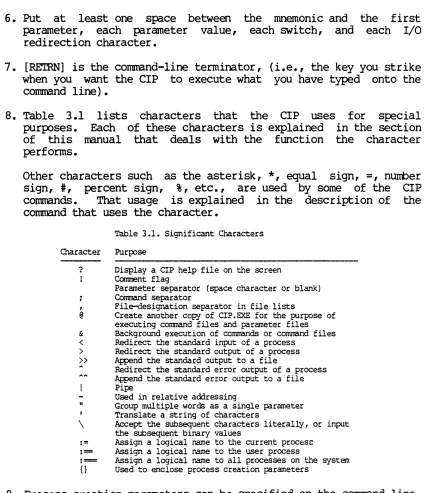
8. Table 3.1 purposes. of this perfor.ms.
lists characters that the CIP uses Each of these characters is explained manual that deals with the function
for special in the section the character
Other characters such as the asterisk,
*,
equal sign,=,
number sign, i, percent sign, %, etc., are used by some of the CIP commands. That usage is explained in the description of the command that uses the character.Olaracter ? , @ & < > » \ := := : = {}
Table 301. Significant Characters Purpose
Display a CIP help file on the screen Comment flag
Parameter separator (space character or blank) Command separator
File-designation separator in file lists
Create another copy of CIP.EXE for the purpose of executing command files and parameter files Background execution of commands or cornrrand files Redirect the standard input of a process
Redirect the standard output of a process Append the standar~ output to a file
Redirect the standard error output of a process Append the standard error output to a file Pit:e
Used in relative addressing
Group multiple words as a single parameter Translate a string of characters
Accept the subsequent characters literally, or input the subsequent binary values
Assign a logical name to the current procE:s~
Assign a logical name to the user process
Assign a logical name to all processes on the system Used to enclose process creation parameters
Using the CIP Command Line
Importance of Syntax
A command-line character string is executed exactly as it appears on your screen, reading from left to right. Consequently, the sequence, spelling, and punctuation of the character string are crucial to the execution of the command.
Character Limit
The character limit for the CIP command line is 1023. If you exceed that limit, the keyboard beeps each time you strike a key. The CIP executes only the 1023 characters that are allowed. Because the terminal screen is only 80 characters wide, the CIP moves the terminal window automatically across the command line.
The Semicolon
You can list several commands on a command line by separating each command with a semicolon.
Spaces are allowed on either side of a semicolon.
The command line is executed from left to right. Were the following command line executed, the CD command would be executed before OIR:
cd /users.a1/;dir
COlllID3.nd Limit
You can have any number of commands on a command line as long as the line does not exceed 1023 characters.
The Command Mnemonic
If you type a command for which the eIP cannot find a program, a diagnostic message ap~ars on the screen. For example, if you type DDIR onto the eIP command line, the following diagnostic message
ap~ars on the screen: eIP
Failed Message
Creating process DDIR.EXE Status = 133.
The s~cified file could not be found.
In other words, eIP read the first element of the character string (DDIR) as the command mnemonic. The eIP searched for a file named DDIR.EXE, failed to find it, and displayed a diagnostic message explaining:
a. What the utility was doing (creating process) when the error occurred.
b. A diagnostic number indicating that the eIP failed in executing the command (status=133).
c. A statement describing the error. In this case, the eIP was unable to execute the command because DDIR.EXE does not exist.
The Return Key
[RETRN] is the command-line terminator, (i.e., the key you strike to tell the eIP to execute what you typed onto the command line).
Significant Characters
Some of the significant characters in the eIP have precedence over others. The order of precedence is:
\
?
..
all others
Using the CIP Command Line
For example, suppose you want to use the SEND command to communicate wi th another terminal. To do so you type send on to the command line with the message you wish to send enclosed in double quotation marks. For example:
>
send "Are you ready"The following report ap~ars on the screen of the terminal receiving the message:
(CIP-LARRY) Are you ready
However, if you type the same message wi th a question mark at the end of the phrase, as soon as you type the question mark a help display for the SEND command appears on your screen.
Because the question mark has precedence over the double quotation marks, the CIP responds to it. In order to be allowed to send a message with a question mark in it, the question mark would need to be preceded immediately by an accept character. Because the accept character (\) has precedence, the CIP responds to it by accepting what follows.
On the other hand, if you send a message that is enclosed by double quotation marks, and which has an exclamation mark in it, the exclamation mark will be inCluded in the message because double quotation marks take precedence over it. For example:
send "Now is the time to go!"
The following message ap~ars on the screen of the terminal to which it was sent:
(CIP~) Now is the time to go!
The exclamation mark is included in the message because the double quotation marks take precedence over the exclamation mark.
? QUEm'ION MARK
Unless you type a backs lash ~diately before the question mark on the CIP command line, a help display ap~ars on your screen. Help displays are discussed later in this chapter.
on the cornnand line is inconsequential when you type a question mark.
EXCLAMATION POINr
The exclamation point is the comment character used in command files to set off explanations for the user. Characters following the exclamation point on the same line are ignored when the file is executed.
SPACE
A space separates all parameter values, I/O redirection assignments, and other command-line elements.
1 SEMICOI.CE
This character separates consecutive CIP cornnands.
For example, the following command-line character string deletes REPORI'.rx:x:, and displays a report on the amount of space on the volume in -DXO (the second command would not be executed without the semicolon) :
>
del report.doc;sp _dxO,
This character separates the file designations in a file list.
For example, the following command-line character string deletes each of the listed files:
del report.doc,summary.txt,inventory.doc
@ AT SIGN
This symbol indicates that you want to execute a copy of CIP.EXE and use that copy to execute a command file.
& AMPERSAND
Using the CIP Command Line
<
LEFT AmLE BRACKETThis is used to temPJrarily redirect input. This is explained in more detail in Chapter 10 of this manual.
>
RIGHT AmLE BRACKETThis is used to temPJrarily redirect output. This is also explained in more detail in Chapter 10 of this manual.
> >
IXXJBLE RIGHT AmLE BRACXE'lSThese are used to append the output of a process to a file. See Chapter 10 for more information.
A CIRClJMFLEX
This is used to temporarily redirect diagnostic messages. This is explained in more detail in Chapter 10 of this manual.
AA IXlJBLE CIRaJMFLEX
These are used to append the error output of a process to a file. See Chapter 10 for more information.
VERl'ICAL BAR
The vertical bar represents a pipe. It is used to redirect the output of one program to the input of another. This is explained in detail in Chapter 10.
- HYPHEN
The hyphen is used in relative addressing.
• IXXJBLE QtmATION MARK
This character is used to group multiple words as a single parameter.
Sm;LE QtmATION MARK
\~H
The backslash is used as an accept character. It tells the CIP to accept the next character as a character and not assign any meaning to it (e.g., \1 tells the CIP to treat the 1 as a question mark and not as an indication that you want to look at a help display) •
The accept character is also used to insert binary values. Binary values are specified by giving an accept character followed by 2 hexidecirnal digits. The binary value of the hexidecirnal sequence is inserted.
: =
CDLOO EXlUALSThis sequence is used to assign logical names to the current process. Read Chapter 11 of this manual for more detail.
: =
CDLOO IXXlBLE EXlUALSThis sequence is used to assign logical names to the user process. Read Chapter 11 of this manual for more detail.
: = CDLOO '!RIPLE EXlUALS
This sequence is used to assign logical names to all processes on the system. Read Chapter 11 of this manual for more detail ..
{} BRACES
These are used to enclose process creation parameters. These parameters are discussed later in this chapter.
Process Creation Parameters
When you strike [RETRN] to execute a CIP command, you create a process. The CIP assigns a nodenarne, process name, privilege, priority, timeslice, owner, and other attr ibutes to this process by default. You can change the default values of your process attributes on the command line with the following process creation parameters. These parameters must be enclosed in braces, {}, and can occur in any order on the CIP command line.
:processname=
:privilege=
:priority=
:tirneslice=
:owner=
:attribute=
Using the ClP Command Line
The process name (up to 16 characters) to be assigned to the process. The default is the command name followed by an underscore and your username.
A privilege list (setpriv, systan, readphys,
writephys, setprior, chngsuper, bypass, operator, altuic, world, group, network, setattr, all, none). The default is the user's own privileges, plus any privileges the process was installed with.
A priority (number from
a
to 15). The default is the user's current priority.A timeslice (in milliseconds). The default is
the user's current timeslice.
A UlC or usernarne. The default is that the process is owned by the user who created it.
An attribute list (swappable, prezeromem, postzerornern, fastencrypt, desencrypt, watchdog, userl, user2, user3, user4). The default is the user's current attributes.
For example, suppose you typed the following process creation parameters on the ClP command line:
{_nodeb :prio=2 :priv=group :owner=[22,2] :tirre=lOO :proc="joe"} dir
When you strike [RETRN], the ClP creates OlR.EXE on node ~OEB with priority 2, privilege GRClJP, owner [22,2], timeslice 100, and processname
JOE.
Control-key Functions
One important feature of the ClP is that you can edit command-line character strings before executing them. This saves you time when you make a mistake in typing a command-line character string, or when you execute an erroneous command-line character string and do not want to retype the whole character string.
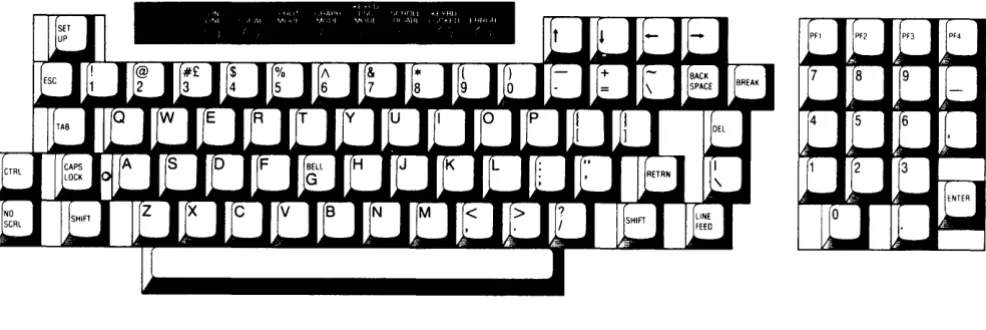
[CTRL] a Moves the cursor to the first position on the command line.
before
> mnt _tt2
t
cu";",
after
>
Int
_tt2cursor}
[CTRL] b Deletes the word to the left of the cursor.
before
~)tcursor
> mnt _tt2~
after
. cursor
> mnt
rt'
[CTRL] c Stops the execution of a program whose - input file is the terminal from which [CTRL] c is executed. When you execute [CTRL] c, a circumflex and an uppercase C, "'C, ap~ar on the command line, and the cursor reap~ars on a new CIP command line. However, the function that is stop~d is saved in the list of recently issued commands.
before
~cursor
> mnt _tt21
after
> mnt _tt2
>I~
Using the CIP Command Line
[CTRL] d Deletes all characters from the cursor to the end of the command line.
before
> mnt
-ttl
after
~cursor
> mnt
-~cursor
[CTRL] e Allows you to recall a previous command and have it automatically executed by typing only the first characters of a command, followed by [CTRL] e. CIP searches for the most recently issued command that begins with the characters specified. The first command that matches is executed.
If you type a mnemonic on to the command line that does not correspond to a previous command and then strike [CTRL] e, the terminal will beep, but will not execute a command.
[CTRL] f Moves the cursor to the front of the next word on the command line. [CTRL] f is ineffectual when.the cursor is at the end of the command line.
before
~t tt2
> ~Jrl
-~cursor
[CTRL] g Moves the cursor to the end of the command line. ineffectual when the cursor is already there.
before
>
Jint
_tt2~cursor
after
> mnt -tt2 ~"fJAJI :~
cursor
(CrRL] g is
[CTRL] h Moves the cursor one character position to the left. This is the same function that the left arrow key and the backspace key perform. If for some reason the left arrow does not function, use [CTRL] h instead. However, [CTRL] h is ineffectual when the cursor is in the left-most position on the command line.
before
. u-cursor
> mnt _tt2
J'r
after
cursor
>mnt
_~
[CTRL] i Functions as the [TAB] key.
[CTRL] j When searching the command list, [CTRL] j is pressed to recall the most recently issued command. If [CTRL] j is pressed again, the CIP searches for the the next command in the list. In other words, [CTRL] j performs as the down-arrow key. However,
[CTRL] j is ineffectual if you have not already used [CTRL] n.
Using the CIP Command Line
[Cl'RL] 1 Moves the cursor o~ character position to the right. The
right-arrow key performs the same function.
before
r
cursor>
fJtlt
_tt2after
>
118
_tt2Wl!lit
~cursor
[Cl'RL] m This is equivalent to striking [RE'IRN].
[Cl'RL] n Searches for the most recently issued comnand that begins with
the mnemonic specified, within a 2 Kbyte buffer. The first command matched is recalled to the command, line. If [CTRL] n is pressed again, the CIP searches for the command with the specified mnemonic prior to the one just recalled.
When no character is on the command line, [Cl'RL] n performs as [Cl'RL] k.
[CI'RL] 0 Stops output to the terminal screen, suppressing only the
display of output from the process. Strike [CTRL] 0 a second
time to cause the displaying of output to resume.
NOTE: If the process whose output was interrupted concludes before you strike [CI'RL] 0 again, the cursor may appear
to be frozen. If this happens, strike [Cl'RL] 0 and then
[CTRL] P When a mnemonic is on the command line, striking [CTRL] p shows the path of the image file or command file to be executed.
For example, if you type OIR on to the command line and strike [CTRL] p, the following display appears immediately below the command line:
sys$disk/sysexe/dir.exe
>
dirHowever, if you strike [CTRL] p when no mnemonic is on the line, a new command line appears.
[CTRL] q Resumes output to the screen after [CTRL] s. Unlike [crRL] 0,
this function allows you to see all the output even though it has already taken place.
[CTRL] r Moves the cursor to the end of the previous word on the command line. If the cursor is already at the front of the command line, this function is ignored.
before
>
mntrjt2
~---cursor
after
>
lint
'fill", _tt2~cursor
[CTRL] s Stops output to the screen. Output can be resumed by striking [CTRL] q. Unlike [CTRL] 0 the command-line character string you
Using the ClP Command Line
[Cl'RL] v Deletes the character or space occupied by the cursor. All characters to the right of the cursor on the command line are, upon the execution of this function, shifted one space toward the left margin of the command line.
before
> mnt
-ttl
after "-cursor
[Cl'RL] w When you type a command that is longer than the 80-character width of the terminal screen, the cornnand line shifts in order to type the entire command. When you strike [Cl'RL] w, the entire command is displayed (even if it is longer than 80 characters), by wrapping the line around to subsequent lines as needed.
[Cl'RL]