NexPath Telephony Server
System Administration Guide
For Software Release 5.
defects in material and workmanship for one (1) year from the date of initial purchase from an authorized dealer, but not withstanding this, no longer than 18 months after the date of original manufacture. This Warranty does not apply to a defect caused by negligence, misuse, accidents, acts of God, or to any use not in accordance with the instructions and specifications published by NexPath Corporation ("NexPath"). Use of the NTS Server in emergency or time-crit-ical or medtime-crit-ical applications is not appropriate.
During the period of this Warranty, NexPath will repair or replace at our service center located in Santa Clara, Cali-fornia, any part proving defective in material or workmanship. All expenses related to replacing or repairing a defec-tive part under this Warranty will be assumed by NexPath except for the cost of transporting the product to NexPath's service center, which shall be the responsibility of the buyer.
The buyer must notify NexPath of any defect, malfunction or nonconformity promptly upon discovery. Within 30 days after receiving the NTS Server from the buyer, NexPath will repair or replace the defective part, at its own option, provided that NexPath has found the NTS Server to be defective. CUSTOMER'S SOLE AND EXCLUSIVE REME-DY HEREUNDER SHALL BE LIMITED TO THE REPAIR OR REPLACEMENT SPECIFIED HEREIN.
The foregoing warranties are contingent upon (1) the proper use of the hardware in accordance with the instructions and specifications published by NexPath, (2) the purchase of the NTS Server from a dealer or distributor authorized by NexPath to sell the NTS Server, and (3) return of a properly completed Warranty Registration Card within 30 days of purchase; and may not apply to any NTS Server that has been repaired or modified by persons other than NexPath. The NTS Server Limited Warranty is non-transferable.
BUYER AGREES THAT ITS EXCLUSIVE REMEDIES, AND NEXPATH'S ENTIRE LIABILITY WITH RE-SPECT TO THE NTS SERVER, SHALL BE AS SET FORTH HEREIN. BUYER FURTHER AGREES THAT NEX-PATH SHALL NOT BE LIABLE TO BUYER OR ANY THIRD PARTY FOR ANY DAMAGES, INCLUDING ANY LOST PROFITS, LOST SAVINGS, OR OTHER INCIDENTAL OR CONSEQUENTIAL DAMAGES ARIS-ING OUT OF BUYER'S USE OR INABILITY TO USE THE NTS SERVER OR THE BREACH OF ANY EXPRESS OR IMPLIED WARRANTY, EVEN IF THE BUYER HAS BEEN ADVISED OF THE POSSIBILITY OF THOSE DAMAGES.
THE EXPRESS WARRANTIES SET FORTH IN THIS AGREEMENT ARE IN LIEU OF ALL OTHER WARRAN-TIES, EXPRESS OR IMPLIED, INCLUDING WITHOUT LIMITATION, ANY WARRANTIES OF MERCHANT-ABILITY OR FITNESS FOR A PARTICULAR PURPOSE.
CHAPTER 1
Introduction
1
Intended audience 2 Requirements 2
Software version number applicable to this manual 3 Technical support 3
Legal Warnings 3
CHAPTER 2
Installation
5
Definitions 5
Verify that you have been shipped the following components: 6 Add the “base shoe” (optional, mini-tower systems only) 7 Determine a location for your system 7
Plan your wiring 8
AC power-lost bypass relays 8
Determining which jacks are to be used for hold music and the PA system 8
Hook the system up 8
Using punch-down blocks 12 Using 25-pair mini patch panels 13
Connecting outside lines, inside lines, hold music and paging to the system 13
Apply AC power 14
Test the system and the wiring 15
Change the system administrator and operator passwords (recommended) 16 Re-record the auto-attendant greeting (optional) 17
Connect the system to a network (optional) 18 Testing your network connection 20
Using your System Name rather than the IP Address 20
CHAPTER 3
Software Configuration
23
Basic procedure for performing system administration 23 Starting AdminTool, the system administration program 25 Creating an editable configuration 28
Users, user names, and user permissions 31
Viewing, adding, editing, and removing user account information 33
Extension numbers 35
View, add, edit, or remove an extension number associated with an inside, outside, or public address (paging) line 37
Inside Line Extensions 37
Creating more than one extension per physical inside line 38
The parameters that can be defined for extensions assigned to inside lines 40
Outside Line Extensions 41
The parameters that can be defined for extensions assigned to outside lines 42
Voice mail 43
Speed Dial Extensions 47 Advanced Features 51 Line administration 52
Editing the parameters associated with each line 55 Centrex and CLASS Feature Integration 59 Music on Hold Input Line 60
System limits 63
Seize order (Seize Groups) 66
Defining or changing the seize order 67
Access Authorization groups 68
Setting the schedule for automatic switch-over between Day mode and Night mode 70
Associating an auto-attendant program with a configuration file 73 Activating a particular configuration file 75
Updating your software 76
Uploading and downloading files from the NTS server 76 Reviewing and/or changing the system time and date 77 Viewing Users Passwords 78
CHAPTER 4
Auto-Attendant Programs
79
Auto-attendants in the NexPath Telephony Server 79 Creating and modifying auto-attendant programs 80
Details of the actions that can be selected in the Action Menu page 84
Call Extension 86 Caller Enters Extension 87 Caller Makes Choice 89 Dial Tone 90
Disconnect Caller 90 Dial By Name 90 Jump to Previous Level 92 Call Distribution 94
CHAPTER 5
Installing New Software Releases
103
The Software License Agreement 104 The contents of the CD-ROM 104
Determining your NexPath Telephony Server's Ethernet (MAC) address 106 Making a backup of an existing system’s configuration 107
Installing the software 108
Finishing and verifying the configuration 111
CHAPTER 6
Using BackupTool
113
Creating a backup file 114
Copying the backup file to your local computer 119 Restoring from a backup file 119
CHAPTER 7
Troubleshooting
121
Initial start-up problems 121 Network-related problems 123
APPENDIX A
Specifications
127
System Hardware Features 127 Server Physical 127
Outside Lines (CO or Trunk Interface) 128 Inside Lines (Station Interface) 128 Network Interface 128
Server OS 129 Software Features 129
The NexPath Telephony Server combines all of the functions of a PBX, voice mail, attendant, auto-mated call distribution (ACD), and network-ready computer telephony server into a single, low cost, easily-maintained, completely integrated system.
The heart of the NexPath Telephony Server is a proprietary IBM-PC-compatible card which digitizes all incoming and outgoing calls. This card allows the system to take advantage of the power, reliability, and low cost of the ubiquitous IBM-PC platform, while allowing all of the advanced telephony features required in a modern phone system to be easily implemented. An additional bonus of using the PC platform and digitizing all telephone traffic is the simplicity and flexibility it allows when integrating the NexPath Telephony Server with other desktop computers within your organization.
Note This manual, along with all other system manuals, are available on the NexPath Telephony Server in Adobe Acrobat format, if you have a web browser and your PC is connected to the LAN. The URL for the list of manuals is http://<system name>/manuals/1. Other URLs that are useful are available on the NexPath Telephony Server at the URL http://<system name>/help/.
The use of standard PC hardware in the NexPath Telephony Server also simplifies maintenance, since many components such as the hard disk, the power supply, the floppy disk, etc. are standard items available from
any PC supplier. NexPath provides all of the software necessary to completely reload the hard disk in the event of a component failure.
This manual describes how to install, configure, and maintain your NexPath Telephony Server. It expands on the concepts introduced in the NexPath Telephony Server User’s Guide. Please read and familiarize your-self with that manual before proceeding.
Intended audience
This manual is written for computer-literate personnel. It assumes that you know how to:
• Connect computers to a network1 and test network connections using “ping” or equivalent commands. • Load and test Web browser software on the computers in your building.
Because of the wide variety of networks packages and hardware platforms available, we cannot give explicit detail within this manual on how to perform these operations for your particular system. Check the manuals which came with your networking hardware and software, as well as the Web browser documentation, if you have problems in any of these areas.
This manual only covers the commands and procedures necessary to set up and maintain the NexPath Tele-phony Server.
Requirements
To install and maintain your NexPath Telephony Server, you will need:
• A clean, dry location for the system with a source of 600 watts of 110V/60Hz AC power nearby. • Twisted-pair phone wire to run to each telephone, FAX machine, or modem you are going to connect to
the NexPath Telephony Server.
• A computer with a TCP/IP-compatible network connection and Netscape Navigator 3.0 or later, or Microsoft Internet Explorer 4.0 or later, installed and Javascript enabled in the browser. At least one sys-tem should be connected to the NexPath Telephony Server over this network connection for syssys-tem administration reasons.
Software version number applicable to this manual
This manual is intended for use with software release number v1999.216.15 or later, generically known as Release 5. A later version number is indicated by a larger number in the second number position. You can check which version of software you are currently running on your NexPath Telephony Server in following ways:
• By looking at the bottom of the AdminTool log-in page.
• By checking in the Activate or Update Software page of AdminTool.
• By connecting a monitor to the VGA port on the back of the unit. The software revision number should be displayed just above the log-in prompt. If no software revision number is displayed, you have a version of software older than v1999.216.15.
If necessary, please contact NexPath support or your dealer, if you purchased from a dealer, for details on how to upgrade your system.
Technical support
If you have any questions or suggestions related to this equipment, please contact your dealer or distributor.
Legal Warnings
both parties may violate laws in your location. Also, programming the NexPath Telephony Server as an Automatic Dial and Announce Device (ADAD), using the LAN API, and using it for commercial solicita-tion or without the consent of the called party, is a violasolicita-tion of many state laws, and may violate federal law.
Probably the most time-consuming task when getting your new NexPath Telephony Server up and running is installing the wiring between your system and all of the phone lines it must support. This chapter covers that installation, along with other hardware-related setup issues. Software configuration is covered in the next chapter.
Note In most cases, the NexPath Telephony Server can be installed by following the instructions provided in the Quick Start Guide provided with your system.The hardware installation information found in that document is repeated here and supplemented where appropriate.
Definitions
Note Line numbers are not the same as extension numbers! Extension numbers are the phone numbers a caller dials to ring a given individual or department. Line numbers identify the physical connection of the wires to the system. Thus, while you may configure your system to have as many different extension numbers as you want, you can never have more than 136 physical lines connected to the system (less if you have less than seventeen cards in your system). Inside and outside line numbers are used, among other things, to identify which line a call is coming in on or which phone to ring when a caller dials a specific extension number.
Verify that you have been shipped the following components:
• The NexPath Telephony Server computer itself with the appropriate number of telephone cards.
• The plastic base shoe for the NexPath Telephony Server computer with four 6-32 x 11/32” screws (mini-tower systems only).
• One RJ11-to-phone-plug hold music cable (PN3100). • An AC line cord.
• The NexPath Telephony Server User’s Guide.
• This book (the NexPath Telephony Server System Administration Guide). • A single-page NexPath Telephony Server Summary of Commands. • A warranty registration card.
• Release Notes detailing information released after this manual was printed.
• A software package with a CDROM and two boot floppies.
If purchased, the following optional components should be included in your package:
Add the “base shoe” (optional, mini-tower systems only)
If your system is a mini-tower system, included with your system is a rectangular piece of plastic, or “shoe,” which can be added to the base of the CPU chassis for additional stability, additional protection against dust, and additional protection against possible water damage.
To install this base shoe, perform the following:
1. Turn the unit upside-down on a piece of cardboard or some other soft surface so as to protect the finish on the top of the case.
2. Orient the base so that the arrows that are molded into the base are pointed towards the front of the unit and the word “Macase” that is molded into the base is visible. That is, the base should be attached so as to evenly widen the footprint of the unit.
3. Use the four screws supplied with the base to secure the base to the four pre-threaded holes on the bottom of the unit.
Determine a location for your system
While certainly not required, the NexPath Telephony Server is normally installed in a “phone room”, which is usually a small closet where the telephone company’s wires enter your building. This location must be dry and must have a source of either 110V/6A/60Hz or 230V/4A/60Hz AC power. The system should be installed off of the ground; either on a table or a shelf, and care should be taken so as not to block the vent holes on the system’s front and rear panels.
Plan your wiring
To plan your wiring, fill in the worksheet in the appendix to this manual that is appropriate to your system, taking into account the following constraints:
AC power-lost bypass relays
In the event AC power is lost, internal bypass relays on each card inside the system will automatically cause each outside line to be connected to a specific inside line so that basic telephone service is maintained during AC power failures. Before wiring up your system, decide which inside lines (i.e., telephones) you want to remain connected to the outside world in the event of a power outage. This information is in the wiring worksheet portion of the appendix of this manual that is appropriate to your system (NTS/8 through NTS/ 136).
Determining which jacks are to be used for hold music and the PA system
Another constraint when assigning physical lines is that one outside line is usually configured as the audio output for a PA amplifier and another line is configured as a hold music input. By default, these are outside lines 1 and 4 respectively, though other outside lines can be used for this purpose, and outside lines 1 and 4 can be reconfigured as general-purpose outside lines during the software configuration process.
Hook the system up
Once you’ve filled out your wiring worksheet and determined which lines you want to go where, run twisted-pair phone wire to all of the locations you want serviced by the NexPath Telephony Server by run-ning the wires through your ceiling, walls, or floors.
You will probably want to terminate each run of wire that ends at a desktop, FAX machine, or other terminal point with a standard RJ-11 jack (not supplied), connecting the two wires of the twisted pair at each location to the two innermost pins of the jack. It is unimportant which of the two wires goes to which of the two cen-ter pins of the RJ-11 jack at the user’s end.
At the NexPath Telephony Server end, you will need to connect the twisted pair wires of the physical lines to the RJ-11 jacks on the back of the system using one of the connection methods described below.
• Creating your own custom wiring and connecting directly into the back of the NexPath Telephony Server CPU.
• Using one or more RJ11-to-50-pin adapter cables with either new or existing punch-down blocks to bring each line of the NexPath Telephony Server CPU to its own pair of lugs, then cross-connecting from there to either existing punch-down blocks or wiring.
• Using one or more RJ11-to-50-pin adapter cables and 25-pair patch panels to bring each line of the Nex-Path Telephony Server CPU to its own RJ-11 jack.
Note Be careful not to get electrocuted when connecting outside lines to your system! The telephone company will be supplying from 24 to 50 volts DC on all outside lines, with the voltage rising to approximately 90 VAC when a line is ringing!
Building custom wiring to plug directly into the back of the CPU
All physical line connections to the NexPath Telephony Server CPU are made through the RJ-11 jacks on the back of the NexPath Telephony Server CPU chassis. While these jacks look like (and are physically com-patible with) the normal telephone jacks like those in a private home, with the NexPath Telephony Server, you cannot simply plug one telephone into each jack.
In the diagrams found there, the association of the line numbers listed with the pins inside the 6-contact RJ-11 jacks is as follows:
• The line number listed first is connected to the innermost pair (i.e, pins 3 and 4) of the jack. These pins correspond to the red and green wires of a pre-assembled cable.
• A second line number, if listed, is connected to middle pair (i.e., pins 2 and 5) of the jack. In a pre-assem-bled cable, these pins correspond to the yellow and black wires.
• A third line number, if listed, is connected to outermost pair (i.e., pins 1 and 6) of the jack. In a pre-assem-bled cable, these pins correspond to the blue and white wires.
So, for example, the jack for card 1 that lines up with the green dot on the lower edge of the case contains the pins for outside lines 2 and 3, with the innermost pair of pins in the jack corresponding to outside line #2, and the next pair of pins out from that inner pair corresponding to outside line #3.
Note The NexPath Telephony Server does not make a distinction as to which is the “tip” wire and which is the “ring” wire within a pair. That is, either of the twisted-pair wires of a given physical line can be connected to either pin of a pair.
Adding RJ11-to-50-pin adapter cables
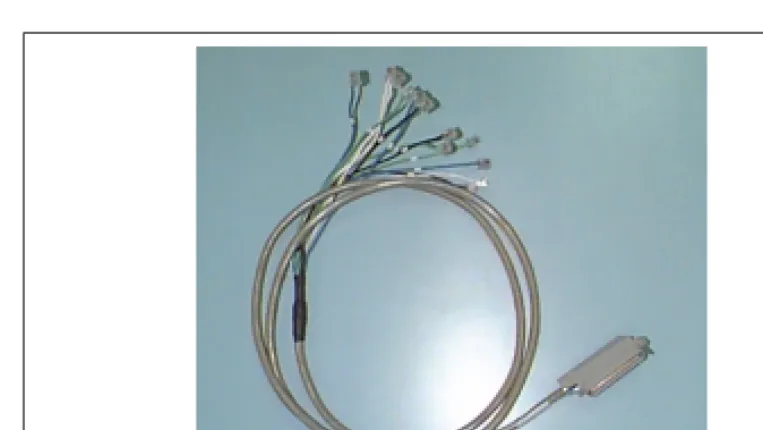
and patch panels. A typical example of this cable is pictured below (actual production may vary in appear-ance).
At one end of this cable are twelve RJ-11 plugs, each color-coded and numbered. At the other end is one male 50-pin connector.
To install the cable, plug each RJ-11 plug of the cable into its corresponding color-coded and numbered jack on the NexPath Telephony Server rear panel. For example, the green plug labelled “1” on the cable goes into the “green” jack of card 1, where the card numbers are listed below each card on the rear of the case and the color codes of the jacks are identified by dots at the bottom (or side) of the case. Each cable can bring out the RJ11 jacks of up to three cards. For cards numbered 4 and higher, connect cable #1 to card 4, #2 to card 5, and #3 to card 6, and similarly for groups of three cards until all cards are connected.
See the appendix to this manual that is appropriate to your system for details of the pin-outs of the 50-pin ends of these cables.
Using punch-down blocks
Many phone rooms use punch-down blocks to connect the lines of a company’s phone system to the com-pany’s PBX, voicemail server, and other components of their system. A picture of the punch-down block available from NexPath is given below (actual production may vary in appearance).
With punch-down blocks, single-strand 24 or 26 AWG phone wires are impaled (“punched down”) on lugs which in turn are connected to the components of the phone system either through more solid wire or by bringing groups of the lugs together to 50-pin (i.e., 25-pair) connectors and going from there either to other punch-down blocks or to the components of the phone system through one or more bundled cable(s). You “punch-down” the wire on the lugs of the punch-down blocks (hence the name) using a punch-down tool such as the AT&T Type AT-8762D.
Note You will have to either create custom wiring as described under Building custom wiring to plug directly into the back of the CPU on page 9 or use the pin cables described in Adding RJ11-to-50-pin adapter cables on page 10 to bring the lines from the rear of the NexPath Telephony Server to your punch-down blocks.
Using 25-pair mini patch panels
Another method for connecting to the NexPath Telephony Server is to use the RJ11-to-50-pin cable described in Adding RJ11-to-50-pin adapter cables on page 10 in conjunction with a 25-pair mini patch-panel. A picture of the 25-pair mini patch panel is shown below.
If you then add an RJ11 jack to each physical line coming into your phone room, you can plug these jacks into the patch panel(s) per the patch panel break-out diagrams in the appendix to this manual that is appro-priate to your system.
Connecting outside lines, inside lines, hold music and paging to the system
Connect your physical lines to the NexPath Telephony Server using one of the methods described above. Note that outside lines will be seized in reverse-line-number order (for example, for a system with six out-side lines, the CO line plugged into outout-side line 6 will be seized first. The next line seized will be outout-side line 5, etc.).
If your company has a paging system, connect the paging output of the system to the line-level input of the paging amplifier. Outside line 1 is used as the system’s paging output in the default system configuration.
If you have a two-card (NTS/16) or larger system, you can also connect a hold music source (such as a radio) to the system by using the hold music cable (PN3100) and connecting it to the system’s hold music input1. You may want to adapt the headphone jack of your radio or receiver to the phono-plug input of this cable so that you can control the volume of the hold music (line-level outputs receivers are not controlled by the vol-ume knob).
Note You can connect music on hold to the single card system, the NTS/8, but you must use AdminToolTM and the LAN interface to change the designation of CO line 1 from a PA output to music on hold input. See Editing the parameters associated with each line on page 55 for more details.
Note The hold music cable contains internal amplitude-limiting diodes, and must be used to insure that the system meets all FCC requirements.
Apply AC power
Use the AC line cord supplied with your system to connect your NexPath Telephony Server to an AC outlet capable of supplying either 6 Amps at 110V/60Hz (that is, 660 Watts) or 4 Amps at 230VAC/60Hz (i.e., 920 Watts) AC power. To minimize the risk of local lightening strikes or other electrical surges damaging your system, you may want to install an AC surge arrestor at the AC outlet.
Alternately, you may want to use an uninterruptible power supply (UPS) with the NexPath Telephony Server. Using a UPS gives you time to shut down the system gracefully in the event of power failure so that voice mail messages or other information recently recorded is properly saved to the system’s hard disk.
Furthermore, while any UPS capable of supplying at least 600 Watts can be used, NexPath recommends using an APC SmartUPS SU1000 or APC Back-UPS Pro EP1000, along with APC’s Interface for LAN/NT Server cable (APC part number 940-0020).
Note Do not connect the cable that came with the UPS unless it is APC Part Number 940-0020. Other cables may cause the NexPath Telephony Server to prematurely shutdown as soon as it boots.
By connecting the APC interface cable between the Computer Interface Port of the APC UPS and the DB9 connector labelled “COM2” on the back of the mini-tower NexPath Telephony Server (COM1 on rack mounted systems), the UPS will signal the NexPath Telephony Server when AC power is lost, and the Nex-Path Telephony Server will automatically perform a graceful shutdown whenever AC power is lost.
Note To meet UL requirements, a second ground connection must be connected to the case of the NexPath Telephony Server in case the earthing connection in the AC cord is miswired or fails. To make this connection, attach one end of a 16 AWG or heavier wire to a source of earth ground and the other end to the ground lug located on the rear of the case near the power supply fan.
After wiring the system to a source of AC power, boot up the system by turning on the UPS (if used) and pressing the AC power switch on the front panel of the NexPath Telephony Server. Allow about two minutes for the system to come up fully. You can tell when the system is finished initializing by listening for a dial tone on an inside line that is not otherwise bypassed to an outside line during the power-down state.
Note Always press the small, red RESET switch (the NTS Reset rocker switch on the rack mounted system) on the front panel before removing AC power! This insures that no voice mail files or other data is lost. The Reset Switch is monitored by software, so that pressing the RESET switch starts an orderly shut-down sequence, and the system will indicate when it is safe to remove AC power by turning the Status LED (NTS Status on rack mouned systems) from green to red. If you do not remove AC power during the time the Status LED is red, the system will automatically restart, and you will have press RESET and wait for the NTS Status to return to red again.
Test the system and the wiring
Test all inside lines by picking up each inside line telephone, checking for dial tone, then entering the Announce Line and Extension Numbers sequence and verifying that each phone is connected as planned in your wiring worksheet.
To test the outside lines, pick up telephones on as many inside lines as you have outside lines and press to seize outside lines on all of them.
Test your paging output (if connected) by picking up an inside line, dialing the default paging extension 111, and making an announcement.
To test your hold music input (if used):
• Have someone call in from outside your building.
• During the auto-attendant greeting, have them enter your extension number.
• While talking to them, put them on hold using the Put Call on Hold sequence . You should hear a dial tone while they are on hold.
• After a few seconds, take them off of hold by entering the Retrieve Call from Hold sequence and verify that they heard hold music.
If the system fails any of these tests, check CHAPTER 7: Troubleshooting for information. If that chapter either doesn’t address or doesn’t solve your problem, contact your distributor for assistance.
Note Hold music only works if (1) the line that is put on hold has been configured for hold music (SeeLine administration on page 52 in the chapterSoftware Configuration), and (2) the hold sequence above (or transfer to park orbit, or placed in queue in an ACD group) is properly entered. In particular, the HOLD button on a telephone will not work, since the NexPath system has no knowledge that this button was pressed. Only the Hold Sequence above can be used, or similar sequence from network programs such as NexDial, NexDirector, or TelOper.
Change the system administrator and operator passwords (recommended)
To protect your system from inadvertent changes or other meddling, we recommend you change the system administrator password and operator passwords as soon as possible. To change the system administrator password:
1. Pick up an inside line.
2. Enter the Change Password sequence .
9
Flash 1
* 1
3. At the prompt, enter the factory-default for the system administrator’s password (1000), then enter a new password that only you will know about.
Repeat the operation to change the operator’s password (the factory default for the operator’s password is 1099).
Note Do not forget the new system administrator password! The system administrator has the necessary privileges to reset other user’s passwords if they get lost, but if the system administrator password gets forgotten, you will have to contact your distributor for help in restoring the original password file!
Re-record the auto-attendant greeting (optional)
The factory default configurations for both the day-mode and night-mode auto-attendants are as follows:
An incoming
caller enters The call is connected to
0 Operator (extension 300)
1 Extension 301
2 Extension 302
3 No action (waits for rest of extension number). Incorrect or incomplete entries take the caller back to the beginning of the auto-attendant greeting.
4 Extension 304
5 No action (waits for rest of a voice mail extension number). Incorrect or incomplete entries take the caller back to the beginning of the auto-attendant greeting. 6 Extension 306 (dials the operator in NTS/8 systems)
7 Extension 307 (dials the operator in NTS/8 systems) 8 Extension 308 (dials the operator in NTS/8 systems)
9 Operator (extension 300)
* Operator (extension 300)
You may want to use this information to rerecord the auto-attendant greeting to be more meaningful for your company’s configuration (for example, add something like, “Press 1 for Dave”). To change the greeting heard by people calling in from outside while the system is in Day Ringing mode:
1. Press the Enter Password sequence .
2. When prompted, enter the system administrator’s password (the default is 1000).
3. When the system announces that your password is accepted, dial 130, which is the day auto-attendant’s voice mailbox extension number.
4. After the system announces the number of messages, press and record a new greeting when prompted.
Operation for the Night Ringing greeting is similar, except the Night Ringing voice mail extension is 131.
Connect the system to a network (optional)
Performing all but the most rudimentary system configuration, as well as using the built-in Web-browser-based telephony control software, must be done over a TCP/IP-compatible network connection. To connect your system to a network:
1. Connect the necessary physical wiring to the 10BaseT (RJ45) connector on NexPath Telephony Server’s built-in LAN card. If you are not already using 10BaseT connections in your network, you may need an AUI-to-10BaseT or a BNC-to-10BaseT adapter to complete the connection. Some models have 10/ 100BaseT auto-sensing LAN connections.
Note Do not use the BNC connector on the LAN card to connect the NexPath Telephony Server to your network. The NexPath Telephony Server software does not support this connector.
2. Check with your network administrator to determine what system name and which IP address to assign your NexPath Telephony Server.
3. If your system is not already up and running, turn it on and wait about three minutes (i.e., until the soft-ware finishes initializing).
4. Insert a blank but pre-formatted DOS-compatible floppy disk (must be a 2HD or 1.44MB floppy; other formats will not work) into the NexPath Telephony Server’s floppy drive.
# 3
5. Press the small, red RESET switch (or NTS Reset on rack mounted systems) on the NexPath Telephony Server front panel.
6. The system will indicate that it is done copying the template file to the floppy by beeping. Remove the disk when the system beeps.
7. Take the floppy to a DOS-compatible system and use a standard text editor such as DOS’s EDIT.COM to edit the file SETUP.TXT on the floppy.
8. When you have finished editing the file and saved the results to the floppy, take the floppy back to the NexPath Telephony Server and insert it in the floppy drive.
9. Press the RESET switch (or NTS Reset on rack mounted systems) on the front panel again.
10.When the Status LED on the front panel begins to flash, remove the floppy disk.
11.Press the RESET switch (or NTS Reset on rack mounted systems) one more time, and wait for the soft-ware to re-initialize (about three minutes again).
Testing your network connection
Check with your network administrator to see if the “ping” command is available on your computer. If so, issue the following command from your computer:
ping <NexPath Telephony Server system>
where <NexPath Telephony Server system name> is replaced above by the name you gave the NexPath Tele-phony Server in step 7 above. You should get a response of:
<NexPath Telephony Server system name> is alive Next, open the URL:
http://<NexPath Telephony Server system name>
For example, if you gave your NexPath Telephony Server a system name of “nts_sys”, you would open the URL:
http://nts_sys
The NexPath Telephone Control Page should appear. Check in CHAPTER 7: Troubleshooting if you have problems “pinging” the NexPath Telephony Server or opening the URL.
Note The system name can only be used if you have programmed the hosts file or setup DNS with the host-IP correspondence. Otherwise, use the IP address of your system for all URLs, and be sure to include a trailing slash “/” for all URLs. See below.
Using your System Name rather than the IP Address
system32/drivers/etc/hosts on WinNT4.0. You can create this file using Notepad or Wordpad, but these programs may insist on putting a.txt at the end of the filename. You must rename it to just plain
hosts (no extension) for it to work, using the Windows File Explorer. Also take care that you are not using the hosts.sam file, which is a sample file Microsoft puts on the system. The filename must be
hosts (upper or lower case does not matter) with no file extension. You can copy the hosts.sam file to a file namedhosts, and edit this to make things simpler. The contents of the file should be as follows:
127.0.0.1 localhost
111.222.33.44 nexpath_sys
The columns are separated by spaces or tabs. The second line should be your IP address and your system name for the NexPath Telephony Server. The hosts file must be copied or created on each client computer on the LAN where you are using NexPath software.
After you create thehosts file, it is not necessary to re-boot to get programs to use it, but you must exit and re-start any program that is already running. For example, if Netscape was running when you changed or created thehosts file, then you must exit Netscape and re-start it in order for it to use the new information in thehosts file
According to the Microsoft manual, Windows may not look at thehosts file unless DNS is enabled. You can enable DNS by putting in a Domain name and Host name in the Windows networking TCP/IP setup page under the Control Panel -> Networking folder. It is not necessary to put in a DNS Service Search Order IP address, unless you have a DNS Server.
Though the NexPath Telephony Server comes pre-configured for use right out of the box, you may find that you want to make changes to the configuration so that the system better meets your needs. Configuration changes are accomplished via a web browser from a LAN connected PC; there is no access to the NexPath Telephony Server from a console CRT and keyboard directly connected to the system.
Note Except for changing greetings and passwords, modifying the bulk of the system’s configuration requires that you connect the NexPath Telephony Server to a desktop computer using a TCP/IP network connection. You will also need a Netscape 3.01 or later, or Microsoft Internet Explorer 4.0 or later, web browser. SeeConnect the system to a network (optional) on page 18 in the chapterInstallation
for information on how to connect the NexPath Telephony Server to a network and test the connection.
Basic procedure for performing system administration
We recommend you perform the following steps when creating a custom configuration for your system: 1. PLAN YOUR SYSTEM! It is a lot easier to make changes on paper than it is to perform multiple
Note You will find it extremely helpful later if you create a complete list of all users and their extension numbers you plan on having in the system, along with what line and/or voice mail box each is associated with. Also, make sure that you are assigning inside lines such that, when AC power to the NexPath Telephony Server is turned off, the connections made between outside lines and inside lines will leave the desired group of phones connected to the outside world.
2. Create an editable configuration file (see Creating an editable configuration on page 28).
3. Make any changes or additions to the access authorization groups (see Access Authorization groups on page 68), then perform user administration (see Users, user names, and user permissions on page 31). Remember that at least one user should have system administration privileges, and that one user may own more than one extension and/or voice mailbox.
4. If you are going to use ring groups, create or modify the ring groups (see Ring groups (Pickup Groups) on page 60). This step is a bit tricky, because you have to know what lines will be going to which desk before you can create the ring groups, plus you have take into account the NexPath Telephony Server’s power-off bypass connections between outside lines and inside lines when deciding what inside line to assign to which extension.
5. Make any changes or additions to the Extensions as required (See Extension numbers on page 35). In particular, you will want to change the name of the extension so that the Dial By Name auto-attendants will function for your company. SeeDial By Name on page 90 in the chapterAuto-Attendant Pro-grams for more details.
6. Make any changes or additions to the voice mail boxes (see Voice mail on page 43). You may want to change the maximum message size or total mailbox size of various voice mail boxes.
7. Perform line administration (see Line administration on page 52). In particular, make sure the central office line type (CO line type) is correctly set for your system.
8. Create your auto-attendant(s) and associate them with extensions in your configuration (see Associating an auto-attendant program with a configuration file on page 73).
9. Enter any final details of your configuration (see System limits on page 63 and Seize order (Seize Groups) on page 66).
Starting AdminTool, the system administration program
Configuration and administration of the NexPath Telephony Server is done using a Web browser to access the AdminToolTM program.
To start AdminToolTM:
1. Start you web browser on a computer which is connected to the NexPath Telephony Server over the net-work.
2. Select “Open URL” in your Web browser.
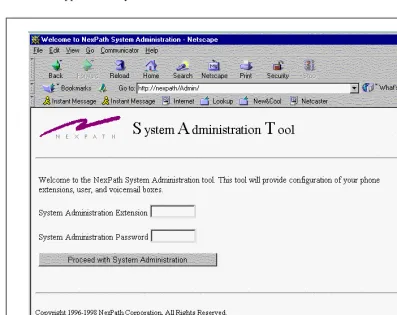
3. Specify the location to open as http://<system name>/Admin/. Note the captal “A” in Admin. The trailing “/” is required if you are using an IP address instead of a system name. The following screen should appear within your browser:
4. Enter an extension number and a password which has been assigned system administration permissions. Any valid system extension can be used, but we suggest you use the extension number of the telephone near your computer. The extension you login with will be the one that the software expects to be used for recording custom messages. (The factory default password is 1000, though we suggest you change the default password as soon as possible to avoid unauthorized access to your system).
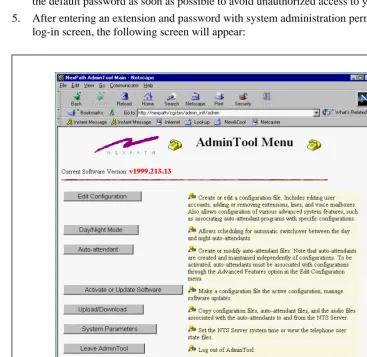
5. After entering an extension and password with system administration permissions in the AdminTool log-in screen, the following screen will appear:
Creating an editable configuration
The NexPath Telephony Server uses configuration files to specify such things as what extension numbers are valid in your system, which phone or phones will ring when a specific extension is dialed, who has a voice mailbox, who does not, and all other items (with the exception of the auto-attendant programs) that define your NexPath Telephony Server’s “personality1.”
You can create and maintain multiple configuration files, and then switch between them by selecting and activating any one of them. One important note: when you select and activate a specific configuration file, it is copied to a special file named “config” . This is intended to help avoid confusion as to which file is active. This special configuration file can be viewed using the same tools available for creating new configurations, but it will not be editable.
When you first begin system administration, the only file listed in Configuration File Administration page is the file “config”, which in turn holds the default configuration. You can create a new configuration from scratch using theCreate new configuration button, or you can use the default configuration as a starting point. NexPath recommends that you make copies of the default configuration, and use this as a starting point, until you become familiar with the system. The Create new configuration option makes a rather empty configuration file, with no extensions filled in, and is for situations where you intend to completely change the system number plan.
To use the default configuration as a starting point, though, you must first copy “config” to a new file for editing. To create an editable version of the “config” file:
1. From the AdminToolTM Menu, click theEdit Configuration button. 2. Click on the file “config”, then click onEdit selected file.
3. Click onSave in the Edit Configuration menu.
4. Add a new file name in theSave file as box (for example, “myconfig”), then click onSave, return to theAdminToolTM menu to return to the AdminTool menu, or onSave, return to the Edit Config-uration menu to edit your new file.
1. The association of auto-attendant programs with extensions is done in the configuration files. The auto-attendant pro-grams themselves are files that are defined independently of configuration files, as explained in Associating an
Note We recommend you copy the default “config” file to a file called “default” before creating any other editable files, and then create a second, working copy with a different name for your edits. This way, you can get back to the default configuration at some future time if necessary. Standard
configuration files are also on the CDROM that came with your system, under the directory Release 5/ Support, which can be uploaded to the server using the procedures described in Uploading and downloading files from the NTS server on page 76.
Changes can be made to your new, editable file and then the new file can be scheduled to become the run-ning configuration using the Activate or Update Software procedure. See Activating a particular configu-ration file on page 75 for details. Editing a configuconfigu-ration file has no effect on the running system until this file is activated using the Activate or Update Software procedure.
Note If no auto-attendants are defined, activating your first configuration as described above will cause the NexPath Telephony Server to perform all the necessary steps to copy the default day and night auto-attendant programs to the files Day_Program.aa and Night_Program.aa, respectively. These files will be associated with extensions 120 and 121, respectively, in the configuration you are activating. Also, the voice prompts recorded in the voice mailboxes at extensions 130 and 131 will be copied to the audio files GeneralGreeting.au and GeneralNightGreeting.au, and these audio files will be used as the greeting for the auto-attendant files created. These prompts can be re-recorded and customized using the Auto-Attendant -> Audio Processing page, as described onRecording Custom Greetings and Prompts on page 101 in the chapterAuto-Attendant Programs.
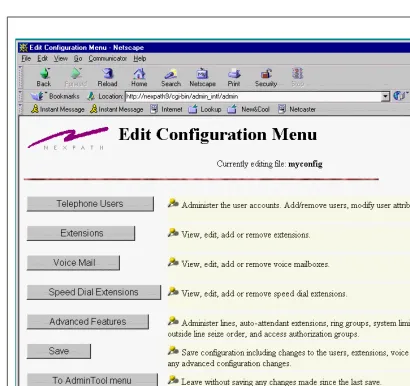
Upon selecting a configuration file to edit, the following screen appears:
Users, user names, and user permissions
The NexPath Telephony Server cannot tell, when someone picks up a telephone on a desk, whether that someone is the CEO of the company or the night janitor. To help determine who is using the system, the NexPath Telephony Server uses the concepts of individual users, where each user has a unique password and can be assigned an appropriate set of permissions.
Users are identified by their password. The password is used for logging into LAN based programs such as AdminToolTM, for accessing voice mail, and for providing permission to make changes to extensions such as forwarding calls, or permissions to make long distance calls.
An inside line in the system has a set of default privileges, and the system uses these default privileges when that phone goes off-hook and a call is attempted. A user can gain access to his or her own privileges by entering the password sequence and then the password, as described in the Users Manual, to go under “password protection”. From then on, until a hang-up, the line has the privileges of the user whose pass-word was entered.
Specifically, each user account within the NexPath Telephony Server is assigned the following parameters: • An initial password. The value of the initial password is set by the system, and cannot be changed from
AdminToolTM. Instead, users should be instructed to change their passwords as soon as possible so that no one else can, for example, access their voice mail.
• Access authorization, where users can be allowed to make any long distance call, no long distance calls, or only long distance calls to within the area codes defined in a specific access group. Access groups are defined using the operations described on Creating and modifying the access authorization groups on page 70.
Access authorization permissions for individual users are particularly useful in the following circum-stance: if you configure your system so that, say, the inside line connected to your lobby phone has all long-distance calls blocked (as described in Line administration on page 52), then a user with wide-rang-ing access authorization can override the phone’s block on long distance calls by pickwide-rang-ing up the phone, then identifying himself to the system by entering and his password, then dialing to seize an out-side line and then dialing his number.
• Enable day/night ringing. Users who have this permission can switch the system between the Day mode and Night mode. Both lines and extensions (covered later in this chapter) have parameters, such as which phone to ring when an extension is dialed, that can be take on different values depending on whether the system is in the Day mode or the Night mode.
# 3
• Admin privileges. Users with admin privileges can perform phone system administration. Only users with admin privileges can access AdminToolTM. Additionally, users with admin privileges can access all voice mailboxes, set and cancel call forwarding for any extension, and have access to all other user’s passwords.
• Barge-in/ Listen-in. Users with this permission can barge into, or listen into, other party’s calls by enter-ing the barge-in sequence and an extension number, or the listen in sequence ,. This does not affect the ability of a user to listen-in or barge-in to his or her own voice mail; it only applies to two party calls or mailboxes not owned by the user. WARNING: Listening-in to a conversation without the con-sent of one or both parties may be a violation of local, state, and federal privacy laws. It is the responsi-bility of the user of the NexPath Telephony Server, when using features of the system, to assure that he or she is in compliance with all applicable laws.
• External features. This permission field is not currently in use, but is reserved for future product enhance-ments.
Note While users must be defined in the system before they can be assigned an extension number or voice mailbox, they do not have to be assigned an extension number or voice mailbox. For example, many people configure their systems with only one user account (and therefore only one password) having admin privileges, but do not then assign this user account to any extension numbers.
The Telephone Users screen is accessed from Edit Configuration -> Telephone Users and appears as fol-lows:
Viewing, adding, editing, and removing user account information
To view, add, edit, or remove user accounts:
1. From the AdminTool menu, click onEdit Configuration.
2. If the only file listed is “config”, create an editable file per the instructions in Creating an editable con-figuration on page 28.
3. Click on the configuration file you want to edit, then click onEdit Selected File. This will bring up the Edit Configuration menu.
4. Click onTelephone Users. A list of all users defined for the configuration selected is shown. 5. ClickAdd new to add a new user, or select an existing user account from the pull-down list of users
and clickEdit to edit the user’s permissions or Removeto remove the user.
Note If you are using the default configuration and want to change the user names to be more descriptive, you can determine which user names are currently being used for the names you want to change by comparing the passwords for each user as shown in the wiring worksheet against theinitial password column of the Telephone Users page.
Note Before a user can be removed, all extensions associated with the user must be removed. When you click onRemove, a list of the extensions still associated with this user will be displayed. See Voice mail on page 43 for information on removing or re-assigning these extension numbers.
6. If creating or editing a user’s account, review/change the user’s permissions in the Modify Telephone Users and/or Attributes page that appears, then clickKeep changes and return.
7. Continue adding, editing, or removing user accounts until you are satisfied with the information dis-played in the Telephone Users page.
8. SAVE YOUR EDITS! If you are done editing the configuration, work your way back to the Edit Configu-ration menu and click onSave there, entering a file name in theSave file as box (the file name can be the same as the file you just edited). After entering a file name, click onSave, return to the Admin-Tool menu. You will also need to schedule your altered configuration file to be activated as outlined in Activating a particular configuration file on page 75.
Extension numbers
The NexPath Telephony Server allows you to assign extension numbers to:
• Inside lines, where dialing the extension number associated with a particular inside line will ring the phone (or FAX or modem) at that inside line.
• Outside lines, where dialing the extension number of an outside line will seize that specific outside line.
• Paging (public address) lines. One line per CBTI card can be configured to support public address pag-ing. By dialing the extension number of the paging line, you will connected to the PA system. An exter-nal amplifier is required.
• Voice mailboxes. Users can get into their voice mailboxes by dialing their voice mailbox extension num-ber, pressing during their greeting, then entering their password during their greeting.
• Auto-attendants. To enable an auto-attendant program file, the NexPath Telephony Server requires that you associate the attendant program with an extension number. The extension number of the auto-attendant can be dialed from any line to activate the auto-auto-attendant program. Many different auto-atten-dant extensions can be created and associated with various auto-attenauto-atten-dant programs. The default config-uration creates extensions 120 and 121 as the default Day and Night auto-attendants.
• Speed Dial Extensions. Speed dial extensions translate a three digit number to a seven or more digit number for off-site dialing. They can be used to simplify off-site calls, or as a means of dialing off-site numbers from an auto-attendant.
• Park orbits. Park orbits are a kind of public hold, where a call can be parked and picked up in another location.
• Ring groups. Extensions are associated with ring groups for either the Day mode, Night mode, or both, and will ring all of the phones in the ring group when this extension is dialed.
• ACD (Automated Call Distribution) Groups. ACD groups are accessed through auto-attendants. See the chapterAuto-Attendant Programs starting on page 79.
Note The AdminToolTM->Edit Configuration->Extensions page described in this section is used only to administer the extension numbers associated with inside lines, outside lines, and public address (paging) outputs. Administering the extension numbers associated with voice mail boxes is described in View, edit, add, or remove voice mailboxes on page 47, while the assignment of extension numbers to auto-attendant programs is described in Associating an auto-attendant program with a configuration file on page 73. Administering speed dial extensions is described in Speed Dial Extensions on page 47.
Park orbit extensions are defined as a range of extension numbers; the default is 100 - 110. The range can be changed in the section System limits on page 63.
The Extensions screen appears as follows:
View, add, edit, or remove an extension number associated with an inside, outside, or public address (paging) line
To view, add, edit, or remove an extension:
1. From the AdminTool menu, click onEdit Configuration.
2. If the only file listed is “config”, create an editable file per the instructions in Creating an editable con-figuration on page 28.
3. Click on the configuration file you want to edit, then click onEdit Selected File. This will bring up the Edit Configuration menu.
4. Click onExtensions. A list of all extensions currently defined for the configuration selected is shown. 5. Select the extension you want to edit, then clickEdit to edit the extension’s parameters, or Removeto remove it. Alternately, to add a new extension, select the line you want associated with a new extension, then clickAdd new.
6. If editing or creating an extension, review/change the parameters for the extension, then clickKeep changes and return.
7. Continue adding, editing, or removing extensions until you are satisfied with the information displayed in the Extensions page.
8. SAVE YOUR EDITS! If you are done editing the configuration, work your way back to the Edit Configu-ration menu and click onSave there, entering a file name in theSave file as box (the file name can be the same as the file you just edited). After entering a file name, click onSave, return to the Admin-Tool menu. You will also need to schedule your altered configuration file to be activated as outlined in Activating a particular configuration file on page 75.
Inside Line Extensions
Creating more than one extension per physical inside line
When configuring your system, an important feature of the NexPath Telephony Server to remember is that you can assign more than one extension to a given physical line. This allows you to have two people share one phone, or assign one person more than one extension. You can then control how the phone rings depend-ing on which extension is dialed by assigndepend-ing different rdepend-ing cadences to the different extensions.
For editing inside lines, the following page is displayed:
The parameters that can be defined for extensions assigned to inside lines
The following parameters are associated with extension assigned to inside lines: • The extension number.
• The extension’s owner. This information is used when someone tries to perform the following operations: • enable or disable call-forwarding for the extension
• enable or disable call-waiting for the extension
• put an extension in the “Accepting Calls” or “Do Not Disturb” mode • barge into a call in progress at the extension
In each of these instances, the system will ask for the user’s password. The user must then either enter the password of the extension’s owner or of an account with admin privileges.
• The (optional) extension number of the voice mailbox or other exit extension associated with the exten-sion. Although most commonly a voice mail box extension, the exit extension can also be an auto-atten-dant or any other system extension. The system will transfer to the exit extension in the condition of ring-no-answer or busy, after the forwarding extension has been attempted, if forwarding is enabled
• The name of the extension as it appears in the phonebook, used with other LAN based programs such as NexDial, NexDirector, and TelOper. This is also the name that is used in Dial by Name auto-attendants. If the check box is not checked, the extension will not appear in the system phonebook and will not be viewable from LAN based programs.
• Which inside line the extension is to associated with.
• The time delay before calls to the extension roll over to voice mail or are disconnected. • The time delay before calls to the extension are forwarded.
• Whether forwarding of this extension to off site (7 or more digit) numbers is allowed
• Optional ring groups to be dialed instead of the inside line associated with the extension when the exten-sion is dialed while the system is in either the Day mode or Night mode.
Outside Line Extensions
Outside lines are the lines coming in from the telephone company. These are at various times called central office or CO lines, trunk lines, or telco lines. All of these terms are interchangeable, and simply refer to the line that the telephone company brings to your office. With the NexPath Telephony Server, you can assign extension numbers to outside lines, much like you do for inside lines. In the standard configuration shipped with the system, outside line extension numbers are in the 200 range; 201, 202, etc.
Normally, to seize an outside line from any NexPath inside extension, a user picks up a phone and enters . This will get the user the next available outside line in the seize order assigned to that line (see Seize order (Seize Groups) on page 66). By assigning an extension number to each outside line, though, specific outside lines can be seized simply by dialing their extension numbers. Also, using LAN based applications such as NexDial or TelOper, one can type in the outside line extension number, a comma, and then the number to be dialed, to cause an outside call to be placed on a particular CO line.
Public Address Extensions
One outside line per card can be configured as a public address (PA) or paging output line. See Line admin-istration on page 52 for details on setting the outside line type. By assigning an extension number to the PA output, a user can dial this extension number and be connect to the PA amplifier to make an announcement. An external amplifier is required.
By putting the PA line in a ring group (the default configuration is ring group 1), and assigning an extension to this ring group, calls to this extension generate a “ringing” sound over the PA amplifier. See Ring groups (Pickup Groups) on page 60 for further details. The call can be answered by entering the pickup group sequence, , for example, to pickup ring group 1.
Also, a PA line can play hold music, interrupted only by PA announcements or the ringing sound of calls to the PA ring group. See Line administration on page 52 for details on enabling hold music on a line.
9
The following is the page displayed when you are editing an outside line extension number:
The parameters that can be defined for extensions assigned to outside lines
The parameters that can be edited for extensions associated with outside lines (including the paging output and hold music input lines) are:
• The extension number to be associated with the extension. • The owner
• Which outside line the extension is to associated with.
• The name of the extension as it appears in the phonebook associated with LAN based programs such as NexDial, NexDirector, and TelOper. This is also the name that is used for Dial by Name in the auto-attendant. SeeDial By Name on page 90 in the chapterAuto-Attendant Programs. If the check box is not checked, the extension will not appear in the system phonebook and will not be viewable from LAN based programs.
Voice mail
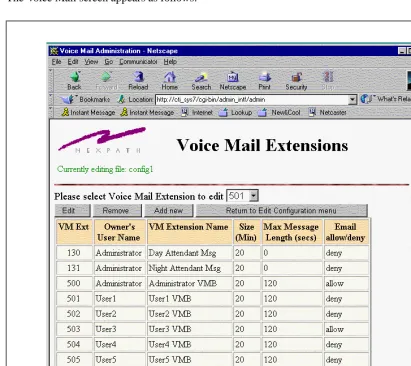
Each voice mailbox is associated with a specific user, and is assigned a unique extension number. This allows users to dial their mailboxes directly, and allows access to each mailbox to be password-controlled. Assigning each mailbox its own extension number also allows you to configure the auto-attendant to send calls directly to voice mail extensions without first ringing a phone.
The Voice Mail screen appears as follows:
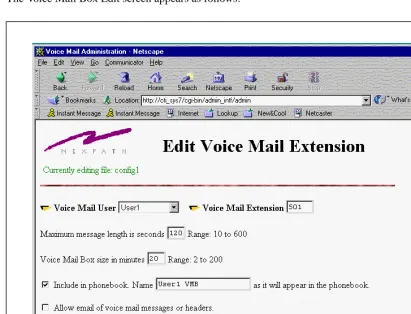
When editing the parameters for a voice mailbox, you can set: • The extension number to be used to access the voice mailbox.
• Which user owns the voice mailbox.
• The name of the mailbox as it appears in the phonebook in TelOper. This is the name that a user sees when he or she copies a voice mail message from their mailbox to someone else’s mailbox using the Voicemail button in TelOper.
• The maximum length (in seconds) of any one message that can be left in the mailbox. • The maximum size (in minutes) of the entire mailbox.
• If this mailbox permits email to be sent when a new message arrives. Email is configured for each user using the LAN programs NexDial or TelOper, but the setup is only permitted if the mailbox is set to “allow”.
Note NexPath recommends that the NexPath Telephony Server have 64MB of memory if users are
configuring the email feature, and attaching voice mail files to email notification messages. If you are intermittently receiving email messages from the NexPath system, you are probably running out of memory on the NTS server. This should have no effect on basic telephone operation, but it will interrupt email notification for all users, during the time the email daemon exits and restarts due to lack of memory.
Various types of voice mail box extensions may be programmed. Some examples are:
Personal- Associated with an extension (See Inside Line Extensions on page 37 where a voice mail box may be programmed as the exit extension for a ring no answer or busy condition on an extension.).
Announce Only- Announce only mail boxes are created by setting the Maximum Message Length to zero seconds, and the Voice Mail Box size to the length of the announcement (in minutes). To record the announce only greeting, dial the voice mail box from any telephone, and change the greeting as described inTo record a greeting on page 50 in the chapterVoice Mail of the Users Guide manual.
suggested that another user is created, such as "receptionist", who owns this voice mail extension. The password for this mailbox can be made available to all persons who need to access the messages.
The Voice Mail Box Edit screen appears as follows:
View, edit, add, or remove voice mailboxes
To add, edit, or remove voice mailboxes:
1. From the AdminTool menu, click onEdit Configuration.
2. If the only file listed is “config”, create an editable file per the instructions in Creating an editable con-figuration on page 28.
3. Click on the configuration file you want to edit, then click onEdit Selected File. This will bring up the Edit Configuration menu.
4. Click onVoice mail. A list of all voice mailboxes currently defined for the configuration is shown. 5. Select the voice mailbox extension you want to edit, then clickEdit to edit the mailbox, or Removeto
remove it. Alternately, you can clickAdd new to add a new voice mailbox.
6. If editing or creating a mailbox, review/change the parameters for the voice mailbox, then clickKeep changes and return.
7. SAVE YOUR EDITS! If you are done editing the configuration, work your way back to the Edit Configu-ration menu and click onSave there, entering a file name in theSave file as box (the file name can be the same as the file you just edited). After entering a file name, click onSave, return to the Admin-Tool menu. You will also need to schedule your altered configuration file to be activated as outlined in Activating a particular configuration file on page 75.
Note All voice mail stored in the system for a given voice mail box is removed when a voice mail box extension is removed from a configuration, and that configuration is activated.
Speed Dial Extensions
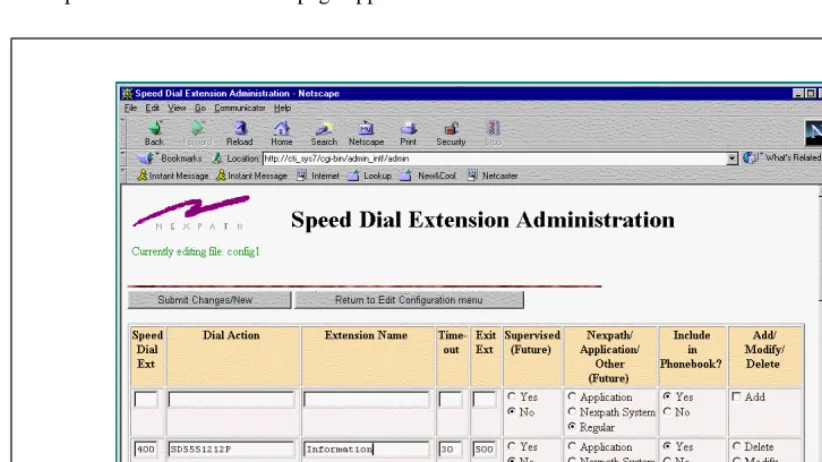
Another class of extensions in the NexPath Telephony Server are called Speed Dial Extensions (sometime referred to as Ghost Extensions). These extensions can be dialed from a telephone or from an auto-atten-dant, and cause the system to perform the actions specified by the speed dial string. Speed dial strings are only for seizing and dialing outside numbers.
The Speed Dial Extension Edit page appears as follows:
The following table lists the character and numeric codes that are valid in speed dial number strings: FIGURE 3-10: Speed Dial Extension Edit Screen
Character Action
0-9 * # Dial the digit specified