STOCK # 200779
Office Data Specification
OCTOBER, 2000
The information contained in this document is specific to D
termSeries E only.
Throughout this document, references to “Console” or “Attendant Console”
imply a Hotel Console. Most features described in this manual require a Hotel
Console. However, some features (including A-57, A-73, I-23, P-34, and V-16)
can also be performed using a Business Console.
Minimum firmware may be required. Contact NEC Engineering for additional
information.
NEC America, Inc. reserves the right to change the specifications, functions, or
features, at any time, without notice.
NEC America, Inc. has prepared this document for use by its employees and
customers. The information contained herein is the property of NEC America,
Inc. and shall not be reproduced without prior written approval from NEC
America, Inc.
NEAX
®and D
term®are registered trademarks of NEC Corporation.
Copyright 2000
ISSUE 1 ISSUE 2 ISSUE 3 ISSUE 4
DATE OCTOBER, 2000 DATE DATE DATE
ISSUE 5 ISSUE 6 ISSUE 7 ISSUE 8
DATE DATE DATE DATE
NEAX2400 IPX
Office Data Specification
Revision Sheet 1/14i 1
ii 1
iii 1
iv 1
v 1
vi 1
vii 1
viii 1
ix 1
x 1
xi 1
xii 1
xiii 1
xiv 1
xv 1
xvi 1
xvii 1
xviii 1
1 1
2 1
3 1
4 1
5 1
6 1
7 1
8 1
9 1
10 1
11 1
12 1
13 1
14 1
15 1
16 1
17 1
18 1
19 1
20 1
21 1
22 1
23 1
24 1
25 1
26 1
27 1
28 1
29 1
30 1
31 1
32 1
33 1
34 1
35 1
36 1
37 1
38 1
39 1
40 1
41 1
42 1
43 1
44 1
45 1
46 1
47 1
48 1
49 1
50 1
51 1
52 1
53 1
54 1
55 1
56 1
57 1
ISSUE 1 ISSUE 2 ISSUE 3 ISSUE 4
DATE OCTOBER, 2000 DATE DATE DATE
ISSUE 5 ISSUE 6 ISSUE 7 ISSUE 8
DATE DATE DATE DATE
59 1
60 1
61 1
62 1
63 1
64 1
65 1
66 1
67 1
68 1
69 1
70 1
71 1
72 1
73 1
74 1
75 1
76 1
77 1
78 1
79 1
80 1
81 1
82 1
83 1
84 1
85 1
86 1
87 1
88 1
89 1
90 1
91 1
92 1
93 1
94 1
95 1
96 1
97 1
98 1
99 1
100 1
101 1
102 1
103 1
104 1
105 1
106 1
107 1
108 1
109 1
110 1
111 1
112 1
113 1
114 1
115 1
116 1
117 1
118 1
119 1
120 1
121 1
122 1
123 1
124 1
125 1
126 1
127 1
128 1
129 1
130 1
131 1
132 1
133 1
ISSUE 1 ISSUE 2 ISSUE 3 ISSUE 4
DATE OCTOBER, 2000 DATE DATE DATE
ISSUE 5 ISSUE 6 ISSUE 7 ISSUE 8
DATE DATE DATE DATE
NEAX2400 IPX
Office Data Specification
Revision Sheet 3/14135 1
136 1
137 1
138 1
139 1
140 1
141 1
142 1
143 1
144 1
145 1
146 1
147 1
148 1
149 1
150 1
151 1
152 1
153 1
154 1
155 1
156 1
157 1
158 1
159 1
160 1
161 1
162 1
163 1
164 1
165 1
166 1
167 1
168 1
169 1
170 1
171 1
172 1
173 1
174 1
175 1
176 1
177 1
178 1
179 1
180 1
181 1
182 1
183 1
184 1
185 1
186 1
187 1
188 1
189 1
190 1
191 1
192 1
193 1
194 1
195 1
196 1
197 1
198 1
199 1
200 1
201 1
202 1
203 1
204 1
205 1
206 1
207 1
208 1
209 1
ISSUE 1 ISSUE 2 ISSUE 3 ISSUE 4
DATE OCTOBER, 2000 DATE DATE DATE
ISSUE 5 ISSUE 6 ISSUE 7 ISSUE 8
DATE DATE DATE DATE
211 1
212 1
213 1
214 1
215 1
216 1
217 1
218 1
219 1
220 1
221 1
222 1
223 1
224 1
225 1
226 1
227 1
228 1
229 1
230 1
231 1
232 1
233 1
234 1
235 1
236 1
237 1
238 1
239 1
240 1
241 1
242 1
243 1
244 1
245 1
246 1
247 1
248 1
249 1
250 1
251 1
252 1
253 1
254 1
255 1
256 1
257 1
258 1
259 1
260 1
261 1
262 1
263 1
264 1
265 1
266 1
267 1
268 1
269 1
270 1
271 1
272 1
273 1
274 1
275 1
276 1
277 1
278 1
279 1
280 1
281 1
282 1
283 1
284 1
285 1
ISSUE 1 ISSUE 2 ISSUE 3 ISSUE 4
DATE OCTOBER, 2000 DATE DATE DATE
ISSUE 5 ISSUE 6 ISSUE 7 ISSUE 8
DATE DATE DATE DATE
NEAX2400 IPX
Office Data Specification
Revision Sheet 5/14287 1
288 1
289 1
290 1
291 1
292 1
293 1
294 1
295 1
296 1
297 1
298 1
299 1
300 1
301 1
302 1
303 1
304 1
305 1
306 1
307 1
308 1
309 1
310 1
311 1
312 1
313 1
314 1
315 1
316 1
317 1
318 1
319 1
320 1
321 1
322 1
323 1
324 1
325 1
326 1
327 1
328 1
329 1
330 1
331 1
332 1
333 1
334 1
335 1
336 1
337 1
338 1
339 1
340 1
341 1
342 1
343 1
344 1
345 1
346 1
347 1
348 1
349 1
350 1
351 1
352 1
353 1
354 1
355 1
356 1
357 1
358 1
359 1
360 1
361 1
ISSUE 1 ISSUE 2 ISSUE 3 ISSUE 4
DATE OCTOBER, 2000 DATE DATE DATE
ISSUE 5 ISSUE 6 ISSUE 7 ISSUE 8
DATE DATE DATE DATE
363 1
364 1
365 1
366 1
367 1
368 1
369 1
370 1
371 1
372 1
373 1
374 1
375 1
376 1
377 1
378 1
379 1
380 1
381 1
382 1
383 1
384 1
385 1
386 1
387 1
388 1
389 1
390 1
391 1
392 1
393 1
394 1
395 1
396 1
397 1
398 1
399 1
400 1
401 1
402 1
403 1
404 1
405 1
406 1
407 1
408 1
409 1
410 1
411 1
412 1
413 1
414 1
415 1
416 1
417 1
418 1
419 1
420 1
421 1
422 1
423 1
424 1
425 1
426 1
427 1
428 1
429 1
430 1
431 1
432 1
433 1
434 1
435 1
436 1
437 1
ISSUE 1 ISSUE 2 ISSUE 3 ISSUE 4
DATE OCTOBER, 2000 DATE DATE DATE
ISSUE 5 ISSUE 6 ISSUE 7 ISSUE 8
DATE DATE DATE DATE
NEAX2400 IPX
Office Data Specification
Revision Sheet 7/14439 1
440 1
441 1
442 1
443 1
444 1
445 1
446 1
447 1
448 1
449 1
450 1
451 1
452 1
453 1
454 1
455 1
456 1
457 1
458 1
459 1
460 1
461 1
462 1
463 1
464 1
465 1
466 1
467 1
468 1
469 1
470 1
471 1
472 1
473 1
474 1
475 1
476 1
477 1
478 1
479 1
480 1
481 1
482 1
483 1
484 1
485 1
486 1
487 1
488 1
489 1
490 1
491 1
492 1
493 1
494 1
495 1
496 1
497 1
498 1
499 1
500 1
501 1
502 1
503 1
504 1
505 1
506 1
507 1
508 1
509 1
510 1
511 1
512 1
513 1
ISSUE 1 ISSUE 2 ISSUE 3 ISSUE 4
DATE OCTOBER, 2000 DATE DATE DATE
ISSUE 5 ISSUE 6 ISSUE 7 ISSUE 8
DATE DATE DATE DATE
515 1
516 1
517 1
518 1
519 1
520 1
521 1
522 1
523 1
524 1
525 1
526 1
527 1
528 1
529 1
530 1
531 1
532 1
533 1
534 1
535 1
536 1
537 1
538 1
539 1
540 1
541 1
542 1
543 1
544 1
545 1
546 1
547 1
548 1
549 1
550 1
551 1
552 1
553 1
554 1
555 1
556 1
557 1
558 1
559 1
560 1
561 1
562 1
563 1
564 1
565 1
566 1
567 1
568 1
569 1
570 1
571 1
572 1
573 1
574 1
575 1
576 1
577 1
578 1
579 1
580 1
581 1
582 1
583 1
584 1
585 1
586 1
587 1
588 1
589 1
ISSUE 1 ISSUE 2 ISSUE 3 ISSUE 4
DATE OCTOBER, 2000 DATE DATE DATE
ISSUE 5 ISSUE 6 ISSUE 7 ISSUE 8
DATE DATE DATE DATE
NEAX2400 IPX
Office Data Specification
Revision Sheet 9/14591 1
592 1
593 1
594 1
595 1
596 1
597 1
598 1
599 1
600 1
601 1
602 1
603 1
604 1
605 1
606 1
607 1
608 1
609 1
610 1
611 1
612 1
613 1
614 1
615 1
616 1
617 1
618 1
619 1
620 1
621 1
622 1
623 1
624 1
625 1
626 1
627 1
628 1
629 1
630 1
631 1
632 1
633 1
634 1
635 1
636 1
637 1
638 1
639 1
640 1
641 1
642 1
643 1
644 1
645 1
646 1
647 1
648 1
649 1
650 1
651 1
652 1
653 1
654 1
655 1
656 1
657 1
658 1
659 1
660 1
661 1
662 1
663 1
664 1
665 1
ISSUE 1 ISSUE 2 ISSUE 3 ISSUE 4
DATE OCTOBER, 2000 DATE DATE DATE
ISSUE 5 ISSUE 6 ISSUE 7 ISSUE 8
DATE DATE DATE DATE
667 1
668 1
669 1
670 1
671 1
672 1
673 1
674 1
675 1
676 1
677 1
678 1
679 1
680 1
681 1
682 1
683 1
684 1
685 1
686 1
687 1
688 1
689 1
690 1
691 1
692 1
693 1
694 1
695 1
696 1
697 1
698 1
699 1
700 1
701 1
702 1
703 1
704 1
705 1
706 1
707 1
708 1
709 1
710 1
711 1
712 1
713 1
714 1
715 1
716 1
717 1
718 1
719 1
720 1
721 1
722 1
723 1
724 1
725 1
726 1
727 1
728 1
729 1
730 1
731 1
732 1
733 1
734 1
735 1
736 1
737 1
738 1
739 1
740 1
741 1
ISSUE 1 ISSUE 2 ISSUE 3 ISSUE 4
DATE OCTOBER, 2000 DATE DATE DATE
ISSUE 5 ISSUE 6 ISSUE 7 ISSUE 8
DATE DATE DATE DATE
NEAX2400 IPX
Office Data Specification
Revision Sheet 11/14743 1
744 1
745 1
746 1
747 1
748 1
749 1
750 1
751 1
752 1
753 1
754 1
755 1
756 1
757 1
758 1
759 1
760 1
761 1
762 1
763 1
764 1
765 1
766 1
767 1
768 1
769 1
770 1
771 1
772 1
773 1
774 1
775 1
776 1
777 1
778 1
779 1
780 1
781 1
782 1
783 1
784 1
785 1
786 1
787 1
788 1
789 1
790 1
791 1
792 1
793 1
794 1
795 1
796 1
797 1
798 1
799 1
800 1
801 1
802 1
803 1
804 1
805 1
806 1
807 1
808 1
809 1
810 1
811 1
812 1
813 1
814 1
815 1
816 1
817 1
ISSUE 1 ISSUE 2 ISSUE 3 ISSUE 4
DATE OCTOBER, 2000 DATE DATE DATE
ISSUE 5 ISSUE 6 ISSUE 7 ISSUE 8
DATE DATE DATE DATE
819 1
820 1
821 1
822 1
823 1
824 1
825 1
826 1
827 1
828 1
829 1
830 1
831 1
832 1
833 1
834 1
835 1
836 1
837 1
838 1
839 1
840 1
841 1
842 1
843 1
844 1
845 1
846 1
847 1
848 1
849 1
850 1
851 1
852 1
853 1
854 1
855 1
856 1
857 1
858 1
859 1
860 1
861 1
862 1
863 1
864 1
865 1
866 1
867 1
868 1
869 1
870 1
871 1
872 1
873 1
874 1
875 1
876 1
877 1
878 1
879 1
880 1
881 1
882 1
883 1
884 1
885 1
886 1
887 1
888 1
889 1
890 1
891 1
892 1
893 1
ISSUE 1 ISSUE 2 ISSUE 3 ISSUE 4
DATE OCTOBER, 2000 DATE DATE DATE
ISSUE 5 ISSUE 6 ISSUE 7 ISSUE 8
DATE DATE DATE DATE
NEAX2400 IPX
Office Data Specification
Revision Sheet 13/14895 1
896 1
897 1
898 1
899 1
900 1
901 1
902 1
903 1
904 1
905 1
906 1
907 1
908 1
909 1
910 1
911 1
912 1
913 1
914 1
915 1
916 1
917 1
918 1
919 1
920 1
921 1
922 1
923 1
924 1
925 1
926 1
927 1
928 1
929 1
930 1
931 1
932 1
933 1
934 1
935 1
936 1
937 1
938 1
939 1
940 1
941 1
942 1
943 1
944 1
945 1
946 1
947 1
948 1
949 1
950 1
951 1
952 1
953 1
954 1
955 1
956 1
957 1
958 1
959 1
960 1
961 1
962 1
963 1
964 1
965 1
966 1
967 1
968 1
969 1
ISSUE 1 ISSUE 2 ISSUE 3 ISSUE 4
DATE OCTOBER, 2000 DATE DATE DATE
ISSUE 5 ISSUE 6 ISSUE 7 ISSUE 8
DATE DATE DATE DATE
971 1
972 1
973 1
974 1
975 1
976 1
977 1
978 1
979 1
980 1
981 1
982 1
983 1
984 1
985 1
OCTOBER, 2000
NEAX2400 IPX
Office Data Specification
TABLE OF CONTENTS
Page
List of Figures . . . vii
List of Tables . . . ix
Business Command List in Alphanumeric Order . . . xi
CHAPTER 1 INTRODUCTION . . . 1
1. General . . . 1
2. How to Follow This Manual . . . 1
3. Reference Manuals . . . 1
CHAPTER 2 ASSIGNMENT . . . 3
1. General . . . 3
2. Getting Started-Hardware . . . 3
2.1 PC Specifications . . . 3
2.2 IPX MAT and IPX Connection . . . 4
2.3 Serial/Dialup Connection to IPX . . . 5
3. TCP/IP Considerations . . . 7
4. Installing IPX MAT Software . . . 8
5. IPX MAT Commands . . . 17
6. Configuring IPX MAT . . . 17
6.1 Serial/Direct Connection . . . 18
6.2 TCP/IP Connection . . . 20
6.2.1 Modifying or Adding a PBX Alias . . . 21
6.2.2 Assigning Network Information in Windows . . . 21
6.2.3 Starting the PBX System . . . 22
6.2.4 Logging in to IPX . . . 22
6.2.5 Assigning System Data . . . . 23
6.2.6 IPX MAT File Operations . . . 25
7. Data Assignment Flow Chart . . . 28
7.1 Local Node/Stand Alone . . . 28
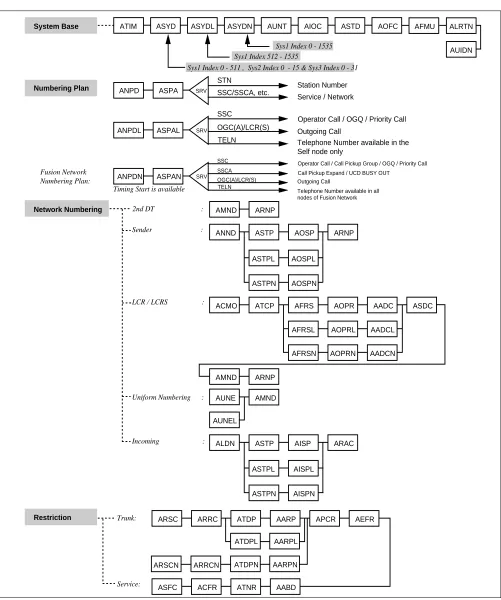
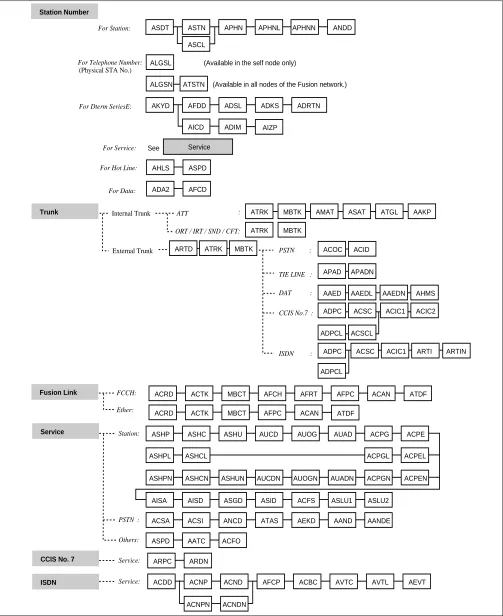
CHAPTER 3 OFFICE DATA DESIGN SHEET . . . 33
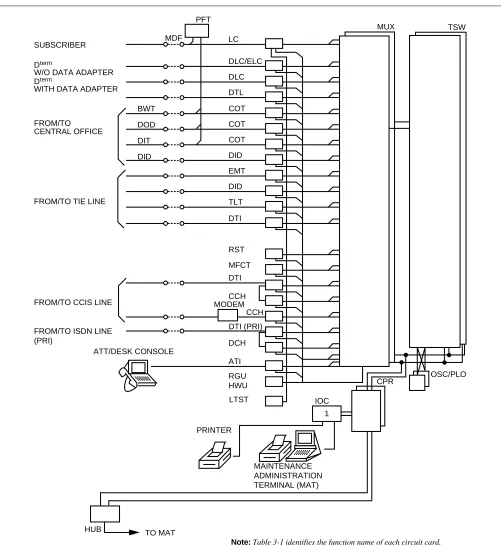
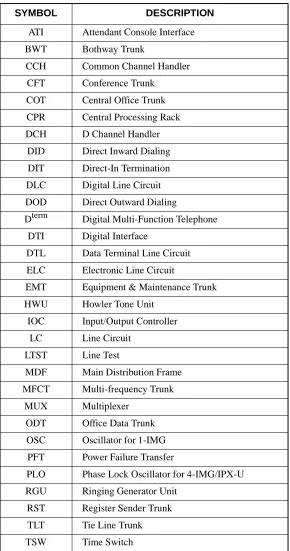
1. Trunking Diagram . . . 33
2. Bay Face Layout . . . 33
3. Port Location Table . . . 33
4. Numbering Plan Table . . . 33
5. Restriction Tables . . . 33
Page
CHAPTER 4 BUSINESS SYSTEM COMMAND DESCRIPTIONS AND DATA SHEETS . . . 55
ATIM . . . 57
ATIMN . . . 58
ASYD . . . 60
ASYDL . . . 173
AUNT . . . 191
AIOC . . . 194
ASTD . . . 203
AOFC . . . 206
AUIDL . . . 208
ANPD . . . 209
ANPDL . . . 211
ASPA . . . 214
ASPAL . . . 237
AMND . . . 264
ARNP . . . 267
ARNPL . . . 270
ANND . . . 273
ANNDL . . . . . . 276
ASTP . . . 278
ASTPL . . . 282
ASTPN . . . 285
AOSP . . . 289
AOSPL . . . 291
AOSPN . . . . . . 293
ACMO . . . 295
ATCP . . . 297
AFRS . . . 299
AFRSL . . . 302
AFRSN . . . . . . 305
AOPR . . . 308
AOPRL . . . . . . 311
AOPRN . . . . . . 314
APIPL . . . 317
APIPN . . . 319
AADC . . . 321
AADCL . . . 323
AADCN . . . . . . 325
ASDC . . . 327
ASDCL . . . 331
ASDCN . . . . . . 335
AUNE . . . 339
AUNEL . . . 342
Page
AISP . . . 352
AISPL . . . 354
AISPN . . . 356
ARAC . . . 358
ARSC . . . 361
ARSCN . . . . . . 364
ARRC . . . 367
ARRCN . . . . . . 369
ATDP . . . 371
ATDPL . . . 376
ATDPN . . . . . . 379
AARP . . . 384
AARPL . . . 386
AARPN . . . . . . 388
APCR . . . 390
AEFR . . . 392
ASFC . . . 395
ACFR . . . 402
ATNR . . . 405
AABD . . . 408
ASDT . . . 410
ASTN . . . 414
ASCL . . . 415
ASCL_T . . . . . . 417
APHN . . . 420
APHNL . . . 423
APHNN . . . . . . 425
ANDD . . . 427
ANDD_T . . . 429
ALGNL . . . 431
ALGSL . . . 433
AKYD . . . 437
AKYD_T . . . . . . 453
AFDD . . . 463
ADSL . . . 466
ADKS . . . 470
ADRTL . . . 476
ADRTN . . . . . . 478
AICD . . . 480
AICD_T . . . . . . 483
ADIM . . . 486
ADIM_T . . . . . . 489
AIZP . . . . . . 493
AIZPN . . . 495
Page
AHLSN . . . 501
ADA1_T . . . . . . 505
ADA2 . . . 507
ADA2_T . . . . . . 510
AFCD . . . 513
ARTD . . . 516
ARTDN . . . . . . 535
ALRNN . . . . . . 553
ATRK . . . 570
ARTKN . . . . . . 586
AMAT . . . 588
ASAT . . . 590
ASATN . . . 592
ATGL . . . 594
ATGLL . . . 596
AAKP . . . 598
ACOC . . . 602
ACOC_LR . . . 604
ACID . . . 606
APAD . . . 611
APADN . . . . . . 613
AAED . . . 615
AAEDL . . . 618
AAEDN . . . . . . 621
AHMS . . . 624
ADPC . . . 627
ADPCL . . . 629
ACSC . . . 631
ACSCL . . . 637
ACIC1 . . . 642
ACIC2 . . . 644
ARTI . . . 646
ARTIN . . . 652
ASHP . . . 659
ASHPL . . . 661
ASHPN . . . . . . 663
ASHC . . . 665
ASHCL . . . 668
ASHCN . . . . . . 670
ASHU . . . 672
ASHUL . . . 675
ASHUN . . . . . . 678
AUCD . . . 681
Page
AUOG . . . 690
AUOGL . . . . . . 692
AUOGN . . . . . . 694
AUAD . . . 696
AUADL . . . 699
AUADN . . . . . . 702
ACPG . . . 705
ACPGL . . . . . . 707
ACPGN . . . . . . 709
ACPE . . . 711
ACPEL . . . 713
ACPEN . . . . . . 715
AISA . . . 717
AISA_T . . . . . . 719
AISD . . . 722
AISD_T . . . . . . 724
ASGD . . . 727
ASGD_T . . . 729
ASID . . . 732
ASID_T . . . . . . 735
ATTD . . . 738
ACFS . . . 741
ACFS_T . . . . . . 743
ACFCL . . . 745
ASLU1 . . . 749
ASLU1_T . . . 751
ASLU2 . . . 753
ACSA . . . 756
ACSAL . . . 758
ACSI . . . 760
ACSIL . . . 763
ANCD . . . 766
ANCD_LR . . . 768
ATAS . . . 770
AEKD . . . 772
AAND . . . 774
AAND_LR . . . 778
AANDE . . . . . . 782
AANI . . . 784
ASPD . . . 786
AATC . . . 788
ACFO . . . 791
ACFO_T . . . 793
ACDN . . . 795
Page
Page
Figure Title Page
COMMAND
NAME FULL COMMAND NAME PAGE
AABD Assignment of Speed Calling Restriction Data 408 AADC Assignment of Additional Digit Translation Data 321
AADCL Assignment of Additional Digit Translation Data for LDM 323
AADCN Assignment of Additional Digit Translation Data for NDM 325
AAED Assignment of Announcement Equipment Data 615
AAEDL Assignment of Announcement Equipment Data for LDM 618
AAEDN Assignment of Announcement Equipment Data for NDM 621
AAKP Assignment of Attendant Console Key Pattern 598 AAND Assignment of Automatic Number Identification Data 774 AAND_LR Assignment of Automatic Number Identification Data – Logical Route Number 778 AANDE Assignment of Automatic Number Identification Expansion Data 782
AANI Assignment of ANI Data 784
AARP Assignment of Area Code Restriction Data 384
AARPL Assignment of Area Code Restriction Data for LDM 386
AARPN Assignment of Area Code Restriction Data for NDM 388
AARS Assignment of Alternative Route Service Restriction 797 AARSN Assignment of Alternative Route Service Restriction for NDM 799
AATC Assignment of Authorization Code Data 788
ACAN Assignment of CIC Number Between Adjacent Node for LDM 880
ACBC Assignment of Call by Call Service Data 831
ACDD Assignment of Change Digit Code for Dial In Service 807 ACDD_LR Assignment of Change Digit Code for Dial In Service – Logical Route Number 809 ACDN Assignment of Number of Digits for Consecutive Dialing 795
ACFCL Assignment of Call Forwarding by SFC for LDM 745
ACFO Assignment of Call Forwarding Data 791
ACFO_T Assignment of Call Forwarding Data – Telephone Number 793
ACFR Assignment of Call Forwarding Restriction 402 ACFS Assignment of Call Forwarding Station Data 741 ACFS_T Assignment of Call Forwarding Station Data – Telephone Number 743
ACIC1 Assignment of CIC Code Data 1 642
ACIC2 Assignment of CIC Code Data 2 644
ACID Assignment of Caller ID Data 606
ACMO Assignment of Clocked Manual Override 295
ACNDN Assignment of Calling Number Data for NDM 817
ACNP Assignment of Calling Number Pattern Data 811
ACNPN Assignment of Calling Number Pattern Data for NDM 813
ACOC Assignment of Central Office Code 602
ACOC_LR Assignment of Central Office Code – Logical Route Number 604 ACPE Assignment of Call Pickup Expand Group Data 711
ACPEL Assignment of Call Pickup Expand Group Data for LDM 713
ACPEN Assignment of Call Pickup Expand Group Data for NDM 715
ACPG Assignment of Call Pickup Group 705
ACPGL Assignment of Call Pickup Group for LDM 707
ACPGN Assignment of Call Pickup Group for NDM 709
ACPNCL Assignment of Calling Party Number Conversion for LDM 819
ACPNCN Assignment of Calling Party Number Conversion for NDM 821
ACRD Assignment of Connection Route Class Data for LDM 855
ACSA Assignment of Connection Service Index A 756
ACSAL Assignment of Connection Service Index A for LDM 758
ACSC Assignment of CSC Data 631
ACSCL Assignment of CSC Data for LDM 637
ACSI Assignment of Connection Service Index Data 760
ACSIL Assignment of Connection Service Index Data for LDM 763
ACTK Assignment of Connection Trunk Data for LDM 865
ACTKC Continuous Assignment of Connection Trunk Data for LCM 867
ADA1_T Assignment of DTE Attribute Data1 – Telephone Number 505
ADA2 Assignment of DTE Attribute Data2 510
ADA2_T Assignment of DTE Attribute Data2 – Telephone Number 510
ADIM Assignment of Dial Intercom Data 486
ADIM_T Assignment of Dial Intercom Data – Telephone Number 489
ADKS Assignment of Dterm Key Status Data 470
ADPC Assignment of Determinate Point Code Data 627
ADPCL Assignment of Determinate Point Code Data for LDM 629
ADRTL Assignment of Dterm Display Route Data for LDM 476
ADRTN Assignment of Dterm Display Route Data for NDM 478
ADSL Assignment of Dterm Soft Key on LCD Data 466
COMMAND
AEFR Assignment of EPN Facility Restriction 392
AEKD Assignment of External Key Data 772
AELGN Allocation of EX-FCCS Telephone Number Data for NDM 982
AETH Assignment of External Router Connection Routing Data for LDM 878 AEVT Assignment of Virtual Tie Line Data for Event Based CCIS 845
AEXFN Assignment of EX-FCCS CCH Selection Data for NDM 978
AFCD Assignment of Fixed Connection (Nailed-Down Connection) Data 513
AFCH Assignment of FCCH Number for LDM 873
AFCP Assignment of Forwarding Service by Calling Number 823 AFCP_T Assignment of Forwarding Service by Calling Number – Telephone Number 827
AFDD Assignment of Function Display Data 463
AFIP Assignment of Fusion over IP Data for LDM 895
AFMU Assignment of FPC, MG and UNIT for NDM 921
AFPC Assignment of FCCH Routing Data for LDM 875
AFPD Assignment of Fusion Tandem PAD Data for LDM 858
AFRFL Assignment of Flexible Route Data for Fusion for LDM 974
AFRS Assignment of Flexible Route Selection Data 299
AFRSL Assignment of Flexible Route Selection Data for LDM 302
AFRSN Assignment of Flexible Route Selection Data for NDM 305
AFRT Assignment of FCCH Controlled Connection Route Data for LDM 882
AFUGN Assignment of EX-FCCS Fusion Group Data for NDM 976
AGIP Assignment of Default Gateway IP Address Data for LDM 884
AHLS Assignment of Hot Line Station 497
AHLSN Assignment of Hot Line Station for NDM 501
AHMS Assignment of Music on Hold Data 624
AICD Assignment of Intercom Data 480
AICD_T Assignment of Intercom Data – Telephone Number 483
AIOC Assignment of IOC Port Data 194
AISA Assignment of Individual Speed Calling Entry Area 717 AISA_T Assignment of Individual Speed Calling Entry Area – Telephone Number 719 AISD Assignment of Individual Speed Calling Data 722 AISD_T Assignment of Individual Speed Calling Data – Telephone Number 724
AISP Assignment of Incoming Selection Pattern 352
AISPL Assignment of Incoming Selection Pattern for LDM 354
COMMAND
AISPN Assignment of Incoming Selection Pattern for NDM 356
AITD Assignment of ISDN Terminal Data 851
AITD_T Assignment of ISDN Terminal Data – Telephone Number 853
AIZP Assignment of Internal Zone Paging Data 493
AIZPN Assignment of Internal Zone Paging Data for NDM 495
AKYD Assignment of Key Data for Dterm 437
ALDN Assignment of Listed Directory Number 345
ALDNN Assignment of Listed Directory Number for NDM 347
ALGNL Assignment of Telephone Number Data for LDM 431
ALGNN Assignment of Telephone Number Data for NDM 954
ALGSL Allocation of Telephone Station Data for LDM 433
ALGSN Allocation of Telephone Station Data for NDM 956
ALPE: Assignment of Line Privacy Expansion Data 801
ALRNN Assignment of Logical Route and Route Class Data for NDM 553
ALRTN Assignment of Logical Route for NDM 923
AMAT Assignment of Master Attendant Data 588
AMND Assignment of Maximum Necessary Digits Data 264 AMWF Assignment of Message Waiting Remote FPC for LDM 972
ANCD Assignment of Night Connection Data 766
ANCD_LR Assignment of Night Connection Data - Logical Route Number 768
ANDD Assignment of Name Display Data 427
ANDD_T Assignment of Name Display Data – Telephone Number 429
ANND Assignment of Necessary Digits Data 273
ANNDL Assignment of Necessary Digits Data for LDM 276
ANPD Assignment of Numbering Plan Data 209
ANPDL Assignment of Numbering Plan Data for LDM 211
ANPDN Assignment of Numbering Plan Data for NDM 925
ANSDL Assignment of Number Sharing Data for LDM 897
ANSDN Assignment of Number Sharing Data for NDM 900
AOFC Assignment of Office Name 206
AOPR Assignment of Outgoing Pattern Routing Data 308
AOPRL Assignment of Outgoing Pattern Routing Data for LDM 311
AOPRN Assignment of Outgoing Pattern Routing Data for NDM 314
COMMAND
AOSPL Assignment of Outgoing Selection Pattern for LDM 291
AOSPN Assignment of Outgoing Selection Pattern for NDM 293
APAD Assignment of PAD Data 611
APADN Assignment of PAD Data for NDM 613
APCR Assignment of Primary Call Restriction Data 390
APHN Assignment of Phantom Station Number 420
APHNL Assignment of Phantom Station Number for LDM 423
APHNN Assignment of Phantom Station Number for NDM 425
APIPL Assignment of IP Address Data for LDM 317
APIPN Assignment of IP Address Data for NDM 319
APLNN Assignment of Physical LENS Number for NDM 964
ARAC Assignment of Remote Access Code 358
ARDN Assignment of Remote Control Day/Night 805
AREF Assignment of Reference Number Information Data 835 AREF_LR Assignment of Reference Number Information Data - Logical Route Number 837
ARNP Assignment of Reverse Numbering Plan Data 267
ARNPL Assignment of Reverse Numbering Plan Data for LDM 270
ARPC Assignment of Remote Point Code for Centralized Service 803 ARRC Assignment of Alternative Route Restriction 367
ARRCN Assignment of Alternative Route Restriction for NDM 369
ARSC Assignment of Route Restriction Class 361
ARSCN Assignment of Route Restriction Class for NDM 364
ARTD Assignment of Route Class Data 516
ARTDN Assignment of Route Class Data for NDM 535
ARTI Assignment of Trunk Application Data 646
ARTIN Assignment of Trunk Application Data for NDM 652
ARTKN Assignment of Route Trunk Data for NDM 586
ASAT Assignment of Specific Attendant Number Data 590
ASATN Assignment of Specific Attendant Number Data for NDM 592
ASCL Assignment of Station Class Data 415
ASCL_T Assignment of Station Class Data – Telephone Number 417
ASDC Assignment of Six-Digit Least Cost Routing Data 327
ASDCL Assignment of Six-Digit Least Cost Routing Data for LDM 331
ASDCN Assignment of Six-Digit Least Cost Routing Data for NDM 335
COMMAND
ASDT Assignment of Station Data 410 ASFC Assignment of Service Feature Restriction Class 395
ASGD Assignment of Special Group Data 727
ASGD_T Assignment of Special Group Data – Telephone Number 729
ASHC Assignment of Station Hunting – Circular 665
ASHCL Assignment of Station Hunting – Circular for LDM 668
ASHCN Assignment of Station Hunting – Circular for NDM 670
ASHP Assignment of Station Hunting – Pilot 659
ASHPL Assignment of Station Hunting – Pilot for LDM 661
ASHPN Assignment of Station Hunting – Pilot for NDM 663
ASHU Assignment of Station Hunting – UCD 672
ASHUL Assignment of Station Hunting – UCD for LDM 675
ASHUN Assignment of Station Hunting – UCD for NDM 678
ASID Assignment of Special Incoming 732
ASID_T Assignment of Special Incoming – Telephone Number 735
ASLU1 Assignment of Slumber Time Data 1 749
ASLU1_T Assignment of Slumber Time Data 1 – Telephone Number 751
ASLU2 Assignment of Slumber Time Data 2 753
ASPA Assignment of Special Access Code 214
ASPAL Assignment of Special Access Code for LDM 237
ASPAN Assignment of Special Access Code for NDM 927
ASPD Assignment of Speed Calling 786
ASTD Assignment of State Translation Data 203
ASTN Assignment of Station Number 414
ASTP Assignment of Selection Translation Pattern 278
ASTPL Assignment of Selection Translation Pattern for LDM 282
ASTPN Assignment of Selection Translation Pattern for NDM 285
ASYD Assignment of System Data 60
ASYDL Assignment of System Data for LDM 173
ASYDN Assignment of System Data for NDM 904
ATAS Assignment of TAS Service Data 770
ATCP Assignment of Time/Pattern Change Information 297
ATDF Assignment of Time Difference Data 970
COMMAND
ATDPL Assignment of Toll Code Restriction for LDM 376
ATDPN Assignment of Toll Code Restriction for NDM 379
ATGL Assignment of Trunk Group Busy Lamp 594
ATGLL Assignment of Trunk Group Busy Lamp for LDM 596
ATIM Assignment of Date and Time 57
ATIMN Assignment of Date and Time for NDM 58
ATNR Assignment of Tenant Restriction Class Data 405
ATRK Assignment of Trunk Data 570
ATSTN Assignment of Telephone Number and Station Number for NDM 960
ATTD Assignment of Trunk Test Data 738
AUAD Assignment of UCD Delay Announcement Data 696
AUADL Assignment of UCD Delay Announcement Data for LDM 699
AUADN Assignment of UCD Delay Announcement Data for NDM 702
AUCD Assignment of UCD Control Data 681
AUCDL Assignment of UCD Control Data for LDM 684
AUCDN Assignment of UCD Control Data for NDM 687
AUIDL Assignment of User ID data for LDM 208
AUIDN Assignment of User ID data for NDM 903
AUNE Assignment of Uniform Numbering 339
AUNEL Assignment of Uniform Numbering for LDM 342
AUNT Assignment of Unit Data 191
AUOG Assignment of UCD Overflow Group 690
AUOGL Assignment of UCD Overflow Group for LDM 692
AUOGN Assignment of UCD Overflow Group for NDM 694
AVTC Assignment of Virtual Tie Line Call Data 839
AVTL Assignment of Virtual Tie Line Data 841
AVTM Assignment of Virtual Tie Line Manual 844
COMMAND
1. General
This manual describes how to operate the Maintenance Administration Terminal (MAT) and plan the office
data. It also contains descriptions of the parameters for the NEAX2400 IPX.
2. How to Follow This Manual
The contents of this manual are:
•
CHAPTER 1
INTRODUCTION
This chapter explains how to use this manual.
•
CHAPTER 2
ASSIGNMENT
This chapter explains the system configuration and system specifications required to install and run the
MAT. It contains installation instructions and information about accelerator keys and navigation keys used
by MAT.
•
CHAPTER 3
OFFICE DATA DESIGN SHEET
This chapter contains the office design sheets used to design the configuration and specification of IPX.
•
CHAPTER 4
BUSINESS SYSTEM COMMAND DESCRIPTIONS AND DATA SHEETS
This chapter explains the Business system command parameters of the NEAX2400 IPX.
3. Reference Manuals
When installing MAT and assigning the relevant system data, refer to the following manuals in addition to this
manual:
•
Feature Programming Manual
•
Fusion Network System Manual
1. General
This chapter describes the information needed to install and operate the Maintenance Administration Terminal
(MAT) software.
The IPX MAT software has the following functions:
•
Allows user-friendly Graphical User Interface (GUI) with Microsoft Windows 95/NT.
•
Provides both an Ethernet interface and a RS232C interface.
•
Allows access to a node within the Fusion Link network using a simple Login operation,
•
Supports remote maintenance capabilities through a dialup connection.
•
Dumps the PBX data into a data file using of the LIST UP command.
Note:
The recorded log file is a simple text file that can be printed or edited using any Windows application that
supports text file editing.
Since the IPX MAT runs on Microsoft’s 32 bit Windows plug-and-play operating system, peripheral hardware
(network, remote access, modems, printers, etc.) is easy to configure. IPX MAT does not require a dedicated
printer. Any printer supported by the operating system, including shared LAN printers, can be used.
2. Getting Started-Hardware
The IPX MAT PC should conform to the specifications explained in this section. The cables, modems, and
HUBs required depend on the connection type.
The IPX MAT allows you to access IPX using the following connection types:
•
Serial/direct
•
Serial/dialup
•
TCP/IP
2.1 PC Specifications
The IPX MAT software requires a PC with the following minimum specifications:
Table 2-1 PC Requirements to Run IPX MAT
CPU TYPE Pentium 166 or higher
Memory 32 MB or more for WIN 95 and NT Hard Disk 500 MB of free space
2.2 IPX MAT and IPX Connection
Figure 2-1
shows a serial/direct connection to the IOC card of IPX. The serial/direct connection allows you
to access the IPX and the different nodes via the Fusion Link.
Figure 2-1 Serial/Direct Connection to IPX
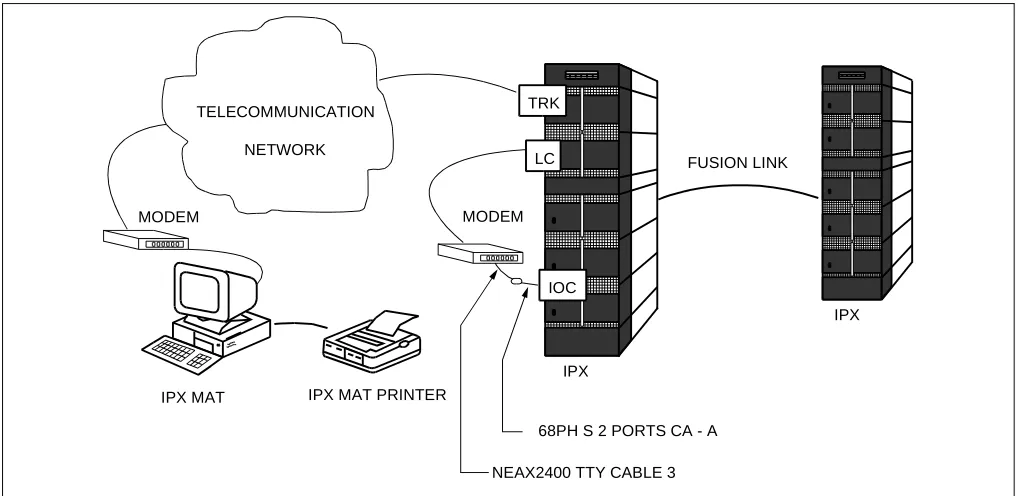
IPX MAT software supports serial/direct connection to the target IPX. As seen in
Figure 2-2
, a modem is
required at both the remote maintenance center and the IPX site. The LINE port of the modem located at
the IPX site should be connected to the dedicated Line Circuit (LC), and the DATA port should be directly
connected to the IOC card. The serial/dialup connection allows you to access both the first node (IPX) of
the Fusion Link network and all other nodes within the Fusion Link network.
Modem Any OS supported device; Required when IPX MAT is used for remote dialup access
CD-ROM Drive Any OS supported device
Network Any 10 BASE-T Network Interface Card when IPX MAT is connected across TCP/IP
Communication Port COM1-COM4 when IPX MAT is connected across se-rial RS-232C port.
Mouse Any Microsoft compatible mouse.
Operating System
Microsoft Windows 95 or Microsoft Windows NT Be sure to set “small fonts” in the property of the screen.
Table 2-1 PC Requirements to Run IPX MAT (Continued)
FUSION LINK
IPX
IPX NEAX 2400 TTY CABLE 1
IPX MAT IPX MAT PRINTER
2.3 Serial/Dialup Connection to IPX
Figure 2-2 Serial/Dialup Connection to IPX
The IPX MAT software provides an advanced communication software for IPX. IPX is maintained via the
LAN, WAN, or TCP/IP network on which it is running.
Figure 2-3
shows the simple configuration of the
TCP/IP connection. Using this connection, any node within the Fusion Link network can be accessed from
IPX MAT.
Figure 2-3 TCP/IP Connection to Dual CPR of IPX
FUSION LINK
IPX
IPX IPX MAT IPX MAT PRINTER
IOC
NEAX2400 TTY CABLE 3 68PH S 2 PORTS CA - A LC
TRK
MODEM MODEM
TELECOMMUNICATION NETWORK
FUSION LINK 10 BASE -T straight cable
HUB
IPX MAT IPX MAT PRINTER
LANI LANI
IPX
Figure 2-4
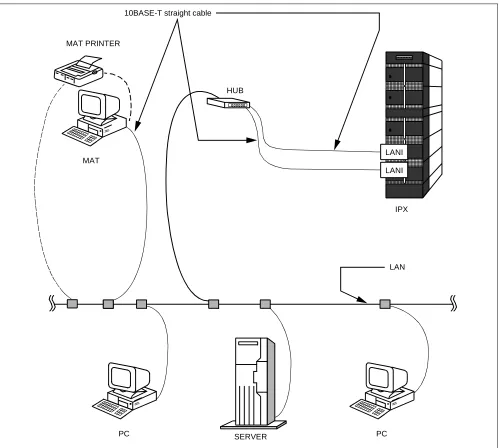
shows the configuration of the PBX and IPX MAT when connecting to an existing LAN. In most
cases you should use a network device such as a HUB or bridge to provide isolation from excessive network
traffic.
Figure 2-4 TCP/IP Connection (IP Address over the External LAN)
SERVER PC
LAN MAT
HUB MAT PRINTER
10BASE-T straight cable
3. TCP/IP Considerations
The IPX MAT can communicate with the IPX via an Ethernet TCP/IP connection. In order for the IPX MAT to
communicate via TCP/IP, the PC must have its network software, including the TCP/IP drivers, installed and in
operation prior to installing the IPX MAT software.
If the PC does not have the network software installed and configured, a message indicating that the WINSOCK
2 setup has failed displays during the IPX MAT installation. This message is an expected response since the IPX
MAT installation program attempts to upgrade the TCP/IP WINSOCK drivers to the latest version. If these
driv-ers are not already installed, the upgrade process fails. The failure does not affect the successful installation and
operation of the IPX MAT, but the TCP/IP interface cannot be used.
It is always best to install the IPX MAT software after all network software is installed. Although it is not
recommended, it is possible to install the PC’s standard network software after the IPX MAT software has been
installed. If the IPX MAT software is installed prior to installing the network software, it will be necessary to
run the WINSOCK setup program from the IPX MAT CD after installing the network software.
To run the WINSOCK setup program:
1.
Insert the IPX MAT CD into the CD-ROM drive.
2.
The IPX MAT setup program starts automatically.
3.
Terminate (Cancel) the IPX MAT setup program on the Welcome Screen.
Figure 2-5 IPX MAT Welcome Screen
4.
Select the appropriate CD-ROM drive in Windows Explorer.
5.
Double-click the file named WS2SETUP.EXE.
For more information about configuring TCP/IP connections, see
Section 6.2, TCP/IP Connection
.
NEAX2400IPX
NEAX2400IPX
4. Installing IPX MAT Software
The following provides step-by-step instructions for installing the IPX MAT software for Windows 95/NT onto
your hard disk.
1.
Terminate all applications, prior to starting the installation process.
2.
Insert the CD-ROM into the CD-ROM drive. (The IPX MAT installation program starts automatically.)
3.
Enter your name and your company name on the User Information dialog box. Then, click
Next
.
4.
Click
Next
on the Choose Destination Location dialog box to install the IPX MAT software in the default
directory.
Note:
If you wish to install the software in another directory, you can click Browse to display a dialog box that
allows you to select or create another directory.
Figure 2-7 Choose Location Destination Screen
5.
The dialog box, shown in
Figure 2-8
(information on WINSOCK setup), appears. Click
OK
.
Figure 2-8 Winsock 2 Setup Message Dialog Box
6.
File copy starts automatically, while the displayed dialog boxes (See
Figure 2-9
) show the on-going
situation.
Figure 2-9 IPX MAT Installation Screen
IPXMAT Installation
IPXMAT Setup
7.
If the Setup Complete dialog box appears on the screen, the file copies have finished successfully. Click
Finish
to complete the IPX MAT software installation and restart your computer.
Note:
You should always reboot your PC after installing the IPX MAT software. Any change made during the
in-stallation process does not take effect until the computer has been rebooted.
8.
Review the settings you have chosen, and then click
Next
. The Winsock2 Setup message box displays.
Note:
If you are installing IPX MAT on an NT 4.0 workstation, the Winsock2 Setup message box does not display.
NT 4.0 does not require Winsock2 in order to run.
Figure 2-11 IPX MAT Installing Winsock2 Message Box
9.
After Winsock2 is installed, the Winsock2 Setup dialog box displays. This is an informational message
only. Click
OK
to continue installing the Data Access Objects (DAO) required to run IPX MAT.
10. Click
OK
. The DAO Welcome Screen displays.
Figure 2-13 DAO Welcome Screen
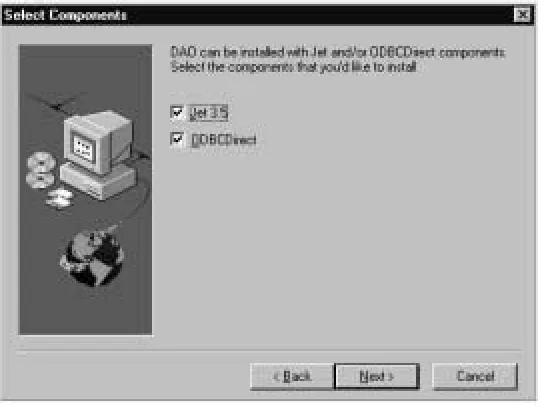
11. Click
Next
. The Select Components dialog box displays.
Figure 2-14 DAO Select Components Screen NEAX2400IPX
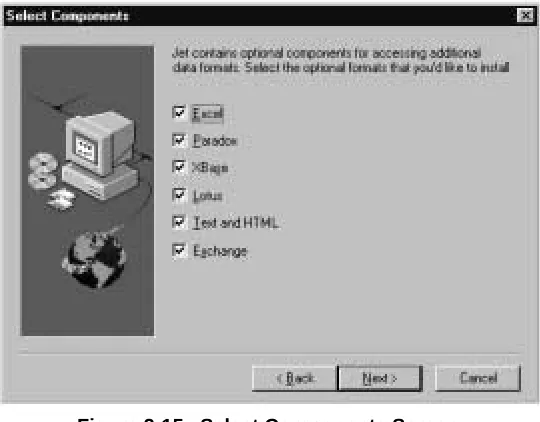
12. Uncheck the ODBCDirect box and click
Next
. The Select Components dialog box displays.
Note:
If you do not uncheck the ODBCDirect box, error messages display once the DAO Setup program
completes. IPX MAT will run properly even though these messages display.
Figure 2-15 Select Components Screen
13. Click
Next
. The DAO Setup Screen displays.
14. After the DAO files are installed, the DAO Information message box displays. Click
OK
. The IPX MAT
Installation screen displays.
Figure 2-17 DAO Information Message
15. To run the IPX MAT software, click the IPX MAT icon on the desktop or select it from the Start/Program
menu. The IPX MAT menu displays as shown in
Figure 2-18
.
Figure 2-18 IPX MAT Main Menu
Command Folders Tool Bar
Title Bar
16. To configure the PBX Alias, use the instructions in
Section 6.2, TCP/IP Connection
.
Note:
Once you have configured the IPX MAT, you can use the Run Command line to enter task commands, or
you can select the command from the Command Folders. You can also perform IPX MAT tasks using either
the menu items, or the icons equivalent to the menu items.
Figure 2-19 IPX MAT Tool Bar
Collect New Traffic
Scan New Alarms/Traffic
Collect New Alarms Abort Data Collection
View Scanning Log
Processes About
Log On
Configure
Log Out
5. IPX MAT Commands
The IPX MAT’s operation is very similar to that of the NEAX2400 MS-DOS MAT, so you will find that many
of the key stroke operations have been carried over into IPX MAT. In addition, some standard MS Windows
operations and key strokes are used. Use the following keys, or in some instances the mouse, to select or enter
data.
6. Configuring IPX MAT
This section explains the PBX Alias parameters you may configure using the PBX Administration dialog
window. It also lists the default values of NEAX-IPX, the default PBX Alias delivered with the IPX MAT
software. Prior to running the IPX MAT, you should either define a new PBX Alias, configure the default PBX
to work with your system, or plan to use the NEAX-IPX default Alias. NEAX-IPX is ready for use once the IPX
MAT software has been successfully installed.
Table 2-3
lists the default values displayed in the PBX
Administration dialog box when you select NEAX-IPX as your PBX Alias.
Table 2-2 IPX MAT Commands
Enter and Tab
This key has two functions:
Writes the data to the IPX MAT memory and moves the cursor to the next text control on the dialog window.
Y (y) Enter Y in the WRT? text control to write the data to the IPX.
N (n) Enter N in the WRT? text control if you do not want to write the data to the IPX. Delete Deletes the selected characters in a text control.
Backspace Deletes the character immediately to the left of the cursor in a text control. Right Arrow Moves the cursor to the right in the text control.
Left Arrow Moves the cursor to the left in the text control. Up Arrow Moves the cursor to the left in the text control. Down Arrow Moves the cursor to the right in the text control. Alt + F4 Closes the screen without saving the changes.
Shift + Enter and Shift + Tab Moves the cursor from a text control to the previous text control. Ctrl + C Copies selected text to Windows Clipboard.
Ctrl + V Pastes Windows Clipboard contents at the current cursor position. Ctrl + Home
(When viewing the log file). Moves the cursor to the top of the log data file. Ctrl + End
(When viewing the log file). Moves the cursor to the bottom of the log data file. Page Up
(When viewing the log file). Moves the log file up one page at a time. Page Down
6.1 Serial/Direct Connection
The following steps explain how to configure the PBX Alias for a serial/direct connection using the
recommended default data.
Note 1:
The PBX Alias cannot have spaces in the name.
Note 2:
You can use other data when configuring IPX MAT. However, it is recommended that you use the default
data as previously described when configuring a new PBX Alias.
Table 2-3 PBX Administration Default Values
PBX Alias NEAX-IPX Connection Type Serial/Direct
FPC 1
Connect 120000
Response Timeout 120000 Pacing Timer 10000 Link Data Log Path blank
COM Port COM 1
Baud Rate 4800 Ignore CTR blank Ignore DSR blank Modem Name blank Phone Number blank Host Name blank IP Address 172.16.253.0
TCP Port 60000
1. From the PBX menu, select Configuration to open the PBX Administration dialog box.
Figure 2-20 PBX Administration
2. Enter a name for the PBX Alias in the PBX Alias box.
Note:
You can also define a PBX Alias by selecting the default NEXT-IPX or by modifying any other previously
defined Alias from the list in the PBX Alias box. If you select a PBX Alias from the list, its related
information displays in the additional fields on this dialog box. You can enter information in the Connect
Timeout, Response Timeout, Pacing Timer, and Link Data Log Path fields if necessary. However, the IPX
MAT software will run without changing the default data.
3. Select Serial/Direct as the Connection Type.
4. Enter the appropriate FPC (Fusion Link Point Code). 1 is the default value and should be used initially
for all new IPX systems. In a Fusion Network, this setting must match the FPC value entered into
System Data SYS 1 INDEX 512.
5. Enter 120000 in the Connection Timeout text box.
6. Enter 120000 in the Response Timeout text box.
7. Enter 10000 in the Pacing Timer text box.
8. Clear (Remove) any text from the Link Data Log Path text control.
9. Set COM1 Baud rate to 4800. This is the default PBX value on the initial power up.
10. Leave the Host Name text box blank.
12. Leave the IP Port text box blank.
13. Leave the Inter-App Resource text box blank.
14. Click
Add
to write the data.
15. Click
Close
.
Note:
The PBX Administration dialog box changes adapting to EX-FCCS Network. Enter the Fusion Group
Number (FUG) which the PBX to be logged-in belongs. “Connection Timeout”, “Response Timeout”, and
“Pacing Timer” text box is not provided. Others are the same as previous one. The PBX dialog box is as
shown below.
6.2 TCP/IP Connection
This section explains how to add or modify a PBX Alias in IPX MAT when it is connected to a PBX using
a TCP/IP connection through a Local Area Network (LAN).
Procedure Overview
1. Modify or add a PBX Alias.
2. Assign the network information in Windows.
3. Start the PBX system.
4. Log in to IPX MAT.
5. Assign the system data.
6. Set up the IPX MAT file operations for logging purposes.
PBX Administration
Add Add
Modify Modify
Clear
Close
PBX Alias Connection Type
FUG
COM Port Baud Rate
Modem Name Phone Number
Host Name IP Address TCP Port
TCP/IP Settings Serial Settings
TCP/IP
bsc7200 10.41.207.207 60000
3
FPC
1 Delete
Note:
If your IPX is to reside on your existing LAN, you will need to obtain an available IP address from your
System Administrator before you configure the PBX Alias.
6.2.1 Modifying or Adding a PBX Alias
Note:
The PBX Alias cannot have spaces in its name.
The following steps explain how to create a PBX Alias in IPX MAT.
1. From the PBX menu, select Configuration to open the PBX Administration dialog box.
2. Enter a name for the PBX Alias in the PBX Alias box.
Note:
You can also define a PBX Alias by selecting the default NEXT-PBX or by modifying any other previously
defined Alias from the list in the PBX Alias box. If you select a PBX Alias from the list, its related
information displays in the additional fields on this dialog box. You can enter information in the Connect
Timeout, Response Timeout, Pacing Timer, and Link Data Log Path fields if necessary.
3. Select TCP/IP as the Connection Type.
4. Enter the appropriate FPC (Fusion Link Point Code). 1 is the default value and should be used
initially for all new IPX systems. In a Fusion Network, this setting must follow the FPC value
entered into System Data SYS 1 INDEX 512.
5. Enter 120000 in the Connection Timeout text box.
6. Enter 120000 in the Response Timeout text box.
7. Enter 10000 in the Pacing Timer text box.
8. Leave the Link Data Log Path text box blank.
9. Enter the name of the host your system is using in the Host Name text box.
10. Enter 172.16.253.0 in the IP Address text box, or enter the IP Address supplied by your network
administrator.
11. Enter 60000 in the IP Port text box.
12. Leave the Inter-App Resource text box blank.
13. Click
Add
to write the data.
14. Click
Close
.
15. Exit IPX MAT.
6.2.2 Assigning Network Information in Windows
6.2.3 Starting the PBX System
Before you can log in to the PBX with your IPX MAT, you must start the PBX system. To start the PBX
system, please see the NEAX2400 IPX Installation Manual.
If you start up the system when the PBX is in DM Clear Restart mode, (the SENSE Switch is set to the
default value “1”), you must verify that the IPX MAT baud rate is set to 4800 to ensure that the system
runs properly.
6.2.4 Logging in to IPX
After you have defined the PBX Alias in IPX MAT and the TCP/IP network connection in Windows,
you are ready to Log in to IPX. The Login operation allows you to select the target IPX (node) with
which you are attempting to communicate. Once you log in to IPX, you may assign or delete office data,
monitor the status of IPX, obtain System Messages through the IPX’s self-diagnosis function, and
monitor the IPX traffic and Peg count data. Once you have completed the tasks you intended to perform,
you should log out to prevent accidental changes to the data. The following steps explain how to log in
to IPX.
Note:
The maximum number of concurrent connections for the IPX is four.
1. From the IPX menu, select Log In.
2. Select the PBX you want to connect to by choosing the appropriate PBX Alias from the PBX Alias
box.
Note:
When the User ID data is programmed in AUIDN command after the required office data assignment, enter
the proper user name and password to login to the NCN (Network Control Node) or each LN (Local Node)
in Fusion Network system. For the stand-alone system, User ID information for logging in to the PBX is
programmed in AUIDL command. Only the User ID in LDM data is effective in stand-alone system. Refer
to the AUIDN or AUIDL command in Chapter 4 for more detail explanations.
3. Click
Login
.
4. A successful log in displays the successful Login message box.
Note:
If the Login message box does not display, the login process has failed. If the login process fails, you should
reopen the PBX Configuration dialog box and verify the PBX Alias configuration information. If the PBX
Alias has been correctly configured, you should then test the physical connections to the PBX.
6.2.5 Assigning System Data
This section explains how to assign the IP Address and the SubNet Mask using the default IP Address
172.16.253.0 and the default SubNet Mask 00.00.00.00. Both fields must be entered using their
hexadecimal equivalents.
Note:
You may find it convenient to use the Calculator in the Windows Accessories to find the hexadecimal
equivalent of the IP Address and the SubNet Mask. To convert from decimal to hexadecimal:
1. Select Calculator from the Accessories menu.
2. From the View menu, select Scientific.
3. Verify that Dec is selected.
4. Click the first three numbers of the IP Address on the Calculator key pad.
5. Select Hex.
6. The hexadecimal equivalent of the first three numbers of the IP Address display.
7. To perform additional decimal to hexadecimal conversions, make sure that Dec is selected
and repeat the previous steps.
1. Type ASYDL in the Run Command text box.
2. Press Enter.
3. Type 1 in the SYS text box and press Enter.
4. Type 513 in the INDEX text box and press Enter.
5. Type 01H in the DATA text box and press Enter.
6. Type Y in the WRT? text box and press Enter.
7. Type 1 in the SYS text box and press Enter.
8. Type 514 in the INDEX text box and press Enter.
9. Type 01H in the DATA text box and press Enter.
10. Type Y in the WRT? text box and press Enter.
Note:
The following steps explain how to assign the default IP Address.
11. Type 1 in the SYS text box and press Enter.
12. Type 515 in the INDEX text box and press Enter.
13. Type AC (hexadecimal equivalent of 172) in the DATA text box and press Enter.
14. Type Y in the WRT? text box and press Enter.
16. Type 516 in the INDEX text box and press Enter.
17. Type 10 (hexadecimal equivalent of 16) in the DATA text box and press Enter.
18. Type Y in the WRT? text box and press Enter.
19. Type 1 in the SYS text box and press Enter.
20. Type 517 in the INDEX text box and press Enter.
21. Type FD (hexadecimal equivalent of 253) in the DATA text box and press Enter.
22. Type Y in the WRT? text box and press Enter.
23. Type 1 in the SYS text box and press Enter.
24. Type 518 in the INDEX text box and press Enter.
25. Type 0 (hexadecimal equivalent of 0) in the DATA text box and press Enter.
26. Type Y in the WRT? text box and press Enter.
Note:
The following steps explain how to assign the default SubNet Mask.
6.2.6 IPX MAT File Operations
The IPX MAT creates three types of files; Command Log files, Office Data Backup files, and List-up
Command Report data tables. Command Log files and List-up Command Report data tables are the only
files a user needs to view. The Office Data Backup files are used strictly for saving and storing the PBX
Office Data.
6.2.6.1 Office Data Backup
It is always a good idea to routinely backup the data from the IPX memory to its internal hard disk. This
data should then be saved from the IPX internal hard disk to the IPX MAT hard disk to ensure that no
data is lost.
Once the data has been saved from the IPX internal hard disk to the IPX MAT’s hard disk, you can use
standard operating functions to copy the saved data to floppy disks, zip drive disks, writable CD-ROM
drives, or any other type of external storage devices supported by the operating system. Doing a three
phase backup (save) ensures the IPX Office data is safe and always available for restoration in case of
an IPX data memory loss, hard disk failure, or any other IPX-related catastrophic failure that requires
data memory to be reloaded.
MEM_HDD and HDD_MAT are the two commands used for this three-phase backup. Once the data is
saved to the IPX MAT, you can use Explorer to copy the appropriate files to the external mass storage
device. To use Explorer, you must first determine where the IPX MAT copy of the numerous IPX Office
Data backup files resides.
As an example, assume the default drive and directory C:\IMXMAT were used when IPX MAT was
installed. Also assume that a PBX Alias was configured using the PBX Configuration dialog and
assigned the PBX Alias name MY_PBX.
The IPX MAT always uses the same data directory structure when backing up data from the IPX. It
creates a sub-directory under the IPX MAT home directory called DATA. Under the DATA directory
another sub-directory using the PBX Alias name is created. In our example, this sub-directory is named
MY_PBX. Under the PBX Alias directory, another sub-directory is created. The name of this directory
is BACKUP. This directory structure always holds true. The only variables are the name of the IPX MAT
home directory (default C:\IMXMAT) and the PBX Alias directory (in our example, MY_PBX). The
complete directory structure for our example is as follows: C:\IMXMAT\DATA\MY_PBX\BACKUP.
The bottom sub-directory (BACKUP) contains all files that have been backed up from the IPX using the
HDD_MAT command.
6.2.6.2 MEM_HDD
The following steps explain how to perform the backup and restore of PBX data to the PBX hard drive.
1. Enter MEM_HDD in the Run Command field on the IPX MAT main menu.
2. Press Enter.
3. The Backup and Restore dialog box displays.
4. Select Memory to Hard Disk in the Direction Select list.
5. Select Data Memory in the Data Type Selection list.
6. Select Auto Verify if you want to verify the data. This is an optional step.
7. Click
Start
.
Once you have made the appropriate selections and clicked Start, you can scroll down and view the data
being saved in the Processing Status Log window. This section of the window is divided into the sections
Action/Information, Direction, Data Type, and Time Stamp. The Action/Information column shows the
Action being taken (saving or restoring), or the Information being saved. The Direction column shows
where the data is being saved or restored (in this case, memory to PBX Hard Disk). The Data Type
column shows the type of data you selected in the Data Type Selection list. The Time Stamp column
shows the day, month, year, hour, minute, and second the data was backed up or restored.
6.2.6.3 HDD_MAT
The following steps explain how to backup and restore PBX data to the IPX MAT hard disk.
1. Enter HDD_MAT in the Run Command field on the IPX MAT main menu.
2. Press Enter.
3. The Backup and Restore dialog box displays.
4. Select PBX Hard Disk to MAT in the Direction Select list.
5. Select Data Memory in the Data Type Selection list.
6. Select Auto Verify if you want to verify the data. This is an optional step.
7. Click
Start
.
6.2.6.4 List-up Command Report Data Tables
These data files are tables assembled into an MS-Access Database format. The List-up commands create
the database and tables, populating them based on the information specified by the user. After the
database and tables are created, the report that automatically finds the correct data table and presents the
stored data in a format suitable for viewing is launched. These data tables are cleared and repopulated
each time the corresponding List-up command is run. These data tables require no user intervention.
6.2.6.5 Command Log Files
These files are simple text files that capture the results of the operations performed by every IPX MAT
command. These log files are functionally equivalent to the printed output log created by the old
MS-DOS MAT. The only difference is that these text files can easily be viewed from within any IPX MAT
command at any time so it is not necessary to have a printer available. These log files are also easy to
print if a printer is available.
The log file maintains a history trail of operations and actions requested by the user. This log file
continues to grow as each command is run and interactions with the IPX PBX are transacted. It doesn’t
matter whether the operation is a query, a change, a create, or a delete, the operation, its data, and its
status will always be logged (added to this log file).
The log file can be viewed any time by selecting it from the command’s view menu selection. Once the
log file viewing window is opened, the log file can be printed by selecting the print option from its File
menu selection. Pressing the CTRL+END key combination will quickly take you to the end of the file
where the latest changes have been appended.
Since the log file continually grows, you should regularly delete this file to conserve disk space. It also
makes the file much more manageable and useful if it is not full of log entries that are no longer of
interest. To delete and otherwise manage this file, the IPX MAT main menu contains menu selections
that will present a log file maintenance dialog. From here, the log file can be easily deleted.
6.2.6.6 Viewing the Log Data File