Make sure you check for updates to this manual at the Oracle Technology Network (OTN) Web site
Agile PLM Database Installation
Guide
Release 9.2.1
Part No. E11124-01Copyrights and Trademarks
Copyright © 1995, 2007, Oracle. All rights reserved.
The Programs (which include both the software and documentation) contain proprietary information; they are provided under a license agreement containing restrictions on use and disclosure and are also protected by copyright, patent, and other intellectual and industrial property laws. Reverse engineering, disassembly, or decompilation of the Programs, except to the extent required to obtain interoperability with other independently created software or as specified by law, is prohibited.
The information contained in this document is subject to change without notice. If you find any problems in the documentation, please report them to us in writing. This document is not warranted to be error-free. Except as may be expressly permitted in your license agreement for these Programs, no part of these Programs may be reproduced or transmitted in any form or by any means, electronic or mechanical, for any purpose.
If the Programs are delivered to the United States Government or anyone licensing or using the Programs on behalf of the United States Government, the following notice is applicable:
U.S. GOVERNMENT RIGHTS Programs, software, databases, and related documentation and technical data delivered to U.S. Government customers are "commercial computer software" or "commercial technical data" pursuant to the applicable Federal Acquisition Regulation and agency-specific supplemental regulations. As such, use, duplication, disclosure, modification, and adaptation of the Programs, including documentation and technical data, shall be subject to the licensing restrictions set forth in the applicable Oracle license agreement, and, to the extent applicable, the additional rights set forth in FAR 52.227-19, Commercial Computer Software--Restricted Rights (June 1987). Oracle USA, Inc., 500 Oracle Parkway, Redwood City, CA 94065.
The Programs are not intended for use in any nuclear, aviation, mass transit, medical, or other inherently dangerous applications. It shall be the licensee's responsibility to take all appropriate fail-safe, backup, redundancy and other measures to ensure the safe use of such applications if the Programs are used for such purposes, and we disclaim liability for any damages caused by such use of the Programs.
Oracle and Agile are registered trademarks of Oracle Corporation and/or its affiliates. Other names may be trademarks of their respective owners.
The Programs may provide links to Web sites and access to content, products, and services from third parties. Oracle is not responsible for the availability of, or any content provided on, third-party Web sites. You bear all risks associated with the use of such content. If you choose to purchase any products or services from a third party, the relationship is directly between you and the third party. Oracle is not responsible for: (a) the quality of third-party products or services; or (b) fulfilling any of the terms of the agreement with the third party, including delivery of products or services and warranty obligations related to purchased products or services. Oracle is not responsible for any loss or damage of any sort that you may incur from dealing with any third party.
Revision Date Pages Affected Description
A 05/05/06 All Initial release of manual.
B 05/23/06 3-5, 4-3, 4-4 Made corrections to Solaris and Linux steps.
C 06/05/06 Chapters 5-7 Removed upgrade instructions from Chapter 5 to create a new chapter (Chapter 7), added new chapter on installing PI on Solaris (Chapter 6). D 06/08/06 3-7, 4-6 Updated the Oracle Net Manager steps.
E 07/19/06 1-2 Corrected Windows 2003 version.
A-2, B-2 Added note regarding computer name and DNS hostname. 3-5, 6-5 Added section on vxfs file system support.
Preface
Agile PLM Documentation . . . .ix
Readme . . . .ix
Agile Training Aids . . . .ix
Developer Documentation and Samples . . . .ix
Chapter 1
Overview of Agile Database Installation
Agile System Requirements . . . 1-1 Operating System Requirements. . . 1-2 Hardware Requirements . . . 1-2 Database Hardware Configuration. . . 1-3 RAID Configuration . . . 1-5 Disk I/O Configurations . . . 1-5 One-Disk . . . 1-6 Four-Disk Configuration . . . 1-6 Nine-Disk Configuration. . . 1-6 Twelve-Disk Configuration . . . 1-7
Chapter 2
Installing the Agile Database on Windows
Installation Notes . . . 2-2 Copying the Agile CDs . . . 2-2 Installing the Oracle Database . . . 2-2 Starting the Installer. . . 2-2 Installer Buttons . . . 2-2 Installer Online Help . . . 2-3 Using the Agile Database Configuration Utility . . . 2-3 Adding and Configuring the Listener. . . 2-4 Configuring Oracle Database Control (Optional) . . . 2-5
Chapter 3
Installing the Agile Database on Solaris
Overview . . . 3-2 Oracle Source Documentation . . . 3-2 System Requirements . . . 3-2 Preparing the Host Computer . . . 3-2 Making the Oracle Installer Available. . . 3-5 Installing the Oracle Database. . . 3-5 vxfs File System Support . . . 3-5 Creating the Agile Database . . . 3-5 Post-Installation Tasks . . . 3-7 Setting Up Oracle Net Manager . . . 3-7 Setting Up Automatic Shutdown and Startup for the Database . . . 3-8 Configuring the listener.ora File . . . 3-8 Configuring the tnsnames.ora File (Optional) . . . 3-8
Chapter 4
Installing the Agile Database on Linux
Overview . . . 4-2 Oracle Source Documentation . . . 4-2 System Requirements . . . 4-2 Preparing the Host Computer . . . 4-2 Making the Oracle Installer Available. . . 4-4 Installing the Oracle Database. . . 4-4 Creating the Agile Database . . . 4-4 Post-Installation Tasks . . . 4-6 Setting Up Oracle Net Manager . . . 4-6 Setting Up Automatic Shutdown and Startup for the Database . . . 4-7 Configuring the listener.ora File . . . 4-7 Configuring the tnsnames.ora File (Optional) . . . 4-8
Chapter 5
Installing the Product Interchange Database on Windows
Installation Notes . . . 5-2 Copying the Agile CDs . . . 5-2 Installing the Oracle Database . . . 5-2 Starting the Installer. . . 5-2 Installer Buttons . . . 5-2 Installer Online Help . . . 5-3 Agile PLM Components . . . 5-3 Using the Product Interchange Database Customization Utility. . . 5-3 Adding and Configuring the Listener. . . 5-4 Configuring Oracle Database Control (Optional) . . . 5-5
Chapter 6
Installing the Product Interchange Database on Solaris
Overview . . . 6-2 Oracle Source Documentation . . . 6-2 System Requirements . . . 6-2 Preparing the Host Computer . . . 6-2 Making the Oracle Installer Available. . . 6-5 Installing the Oracle Database. . . 6-5 vxfs File System Support . . . 6-5 Creating the Product Interchange Database . . . 6-5 Post-Installation Tasks . . . 6-7 Setting Up Oracle Net Manager . . . 6-7 Setting Up Automatic Shutdown and Startup for the Database . . . 6-8 Configuring the listener.ora File . . . 6-9 Configuring the tnsnames.ora File (Optional) . . . 6-10
Chapter 7
Upgrading the Product Interchange Database
Upgrading the Product Interchange Database . . . 7-1
Appendix A
Installing Oracle 9i
Before Installing Oracle 9i on Windows . . . A-1 Network Check . . . A-1 Confirming Computer Name and Hostname Identities . . . A-1 Confirming the Server Date . . . A-2 Checking the Windows File System. . . A-2
Contents
Installing Oracle 9i Release 2 on Windows . . . A-2 Editing the sqlnet.ora File . . . A-3 Making the Oracle Installer Available on Solaris. . . A-3 Installing Oracle 9i Release 2 on Solaris. . . A-4
Appendix B
Installing Oracle 10g
Before Installing Oracle 10g on Windows . . . B-1 Network Check . . . B-1 Confirming Computer Name and Hostname Identities . . . B-1 Confirming the Server Date . . . B-2 Checking the Windows File System. . . B-2 For Servers Configured with DHCP . . . B-2 Installing Oracle 10g Release 2 on Windows . . . B-3 Making the Oracle Installer Available on Solaris. . . B-5 Making the Oracle Installer Available on Linux . . . B-5 Installing Oracle 10g Release 2 on Solaris and Linux . . . B-6
Appendix C
Database Management
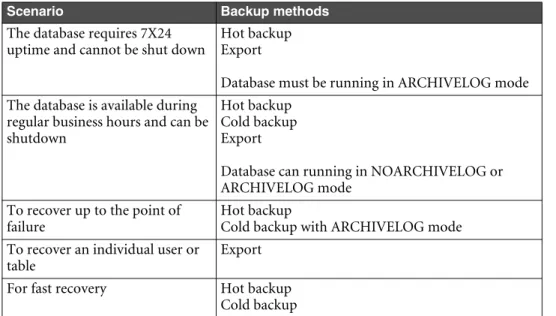
Database Maintenance. . . C-1 Fine-Tuning Index Settings . . . C-1 Monthly Maintenance . . . C-1 Checking Database Space Allocation . . . C-1 Dynamic Versus Static IP Addresses . . . C-2 Backing Up the Database. . . C-2 Backup and Recovery Strategy . . . C-3 Implementing Backup Procedures . . . C-4 Useful Information for Backup and Maintenance Tools. . . C-5 Types of Backups . . . C-5 Performing System Backups. . . C-5 Using Standby Databases . . . C-6 Performing Database Backups . . . C-6 Performing Cold Backups . . . C-6 Performing Hot Backups . . . C-7 Importing the Database. . . C-7 Exporting the Database . . . C-9 Exporting the Full Oracle Database . . . C-9 Exporting the Agile Schema from Oracle. . . C-9 Creating a Schema in Oracle . . . C-10 Deleting an Instance and the Database Files . . . C-11 Database Recovery . . . C-12 Using Oracle Recovery Manager . . . C-12 Running Scripts . . . C-12
Index
P
REFACE
The Agile documentation set includes Adobe® Acrobat™ PDF files. The Oracle Technology Network (OTN) Web site contains the latest versions of the Oracle|Agile PLM PDF files. You can view or download these manuals from the Web site, or you can ask your Agile administrator if there is an Oracle|Agile Documentation folder available on your network from which you can access the Oracle|Agile documentation (PDF) files.
To read the PDF files, you must use the free Adobe Acrobat Reader™ version 7.0 or later. This program can be downloaded from the www.adobe.com.
The Oracle Technology Network (OTN) Web site can be accessed through Help > Manuals in both the Agile Web Client and the Agile Java Client. If applicable, earlier versions of Oracle|Agile PLM documentation can be found on the www.agile.com/support.
If you need additional assistance or information, please contact [email protected] or phone (408) 284-3900 for assistance.
Before calling Agile Support about a problem with an Oracle|Agile PLM manual, please have ready the full part number, which is located on the title page.
Readme
Any last-minute information about Oracle|Agile PLM can be found in the Readme file on the Oracle Technology
Network (OTN) Web site.
Agile Training Aids
C
HAPTER
1
Overview of Agile Database
Installation
This chapter describes the Agile components you need to install, possible deployment choices, and system
requirements or recommendations. It includes these topics:
❑
Agile System Requirements
❑
Database Hardware Configuration
❑RAID Configuration
❑
Disk I/O Configurations
Agile System Requirements
Depending on the size and type of network system in each site, Agile PLM 9.2.1 may be deployed in different configurations. The amount of time required to complete an installation depends on the complexity of your Agile PLM implementation.
Note For installations using a certified localized language, all server components must be installed on computers running the same localized OS. Clients can be running on the same localized OS or English OS. For detailed information about using Agile with international operating systems, contact the Agile support Web site.
Agile can be distributed over a wide-area network with multiple servers or can be limited to one or two server computers with several client computers. In the latter case, Agile can usually be installed within a half day. However, network-based systems are inherently complex, and some installations require additional time.
Agile recommends installing the Oracle database on a separate computer than the other Agile components. It is acceptable to install multiple server components on the same computer if the additional resources are not available. However, the minimum hardware requirements must be increased based on the number of server components installed on a single computer.
Operating System Requirements
You should install only supported versions of Agile components that are within the same release. You should not attempt to install Agile components on unspecified operating systems. Contact your Agile Solutions Consultant or Agile Technical Support for special requirements.
Hardware Requirements
Before you can install Agile server components, you must have at least 1 GB of available disk space available where the OS is installed, in addition to the minimum disk space requirements specified in the Capacity Planning and Deployment Guide.
Important Agile computers and databases should be dedicated to Agile and should not have other software installed, unless otherwise specified. Do not attempt to include other database schemas or use the Agile host server as the primary domain controller (PDC) or dynamic host configuration protocol (DHCP) server.
Disk compression must be disabled on Agile computers.
When choosing a hardware configuration, consider the number of total users, the number of concurrent users, the size of your database, the number of ECOs processed per day, and overall activity level. If you have questions about your system, Agile Technical Support or your Agile Solutions Consultant can give guidance on whether you have small, medium, or large system requirements.
It is required that the computer on which you are installing Agile components and the Oracle database have at least two physical drives or two partitions. This allows you to place the operating system on the C drive and use the D drive for Agile or Oracle components.
Note If you have only one drive or one partition, you will not be able to use the Agile Database Configuration utility.
Tables 1-2 through 1-5 provide summary information for minimum hardware requirements based on database size.
Table 1-1: Operating System requirements
Operating System Version
Microsoft Windows 2003
Solaris Release 9 and 10
Linux RedHat Linux 4.0
Table 1-2: Minimum hardware requirements—small database system (100 MB to 1 GB)
Hardware Windows and Linux Solaris
CPU Dual, 1.8 GHz Intel Xeon Dual 900MHz Ultra Sparc III
RAM (GB) 1 1
Number and size of disks (partitions) Four 18 GB Four 18 GB
Table 1-3: Minimum hardware requirements—medium database system (1 GB to 5 GB)
Hardware Windows and Linux Solaris
CPU Dual, 1.8 GHz Intel Xeon Dual 900 MHz Ultra Sparc
RAM (GB) 2 2
Number and size of disks (partitions) Four 18 GB Four 18 GB
Table 1-4: Minimum hardware requirements—large database system (2 GB to 16 GB)
Hardware Windows and Linux Solaris
Chapter 1 Overview of Agile Database Installation
The Agile database uses Oracle 9.2.0.1.0 or 10.2.0.1. An email system based on SMTP or SMTP gateway is also required. Recommended database hardware depends on your Agile system configuration.
If you have only single processor computers and anticipate high network traffic, then the database and Agile Application Server should be installed on two different computers to avoid competition for resources on a single computer, which would outweigh any advantage gained from reduced network traffic.
Oracle recommends separate disks for the operating system and database.
Database Hardware Configuration
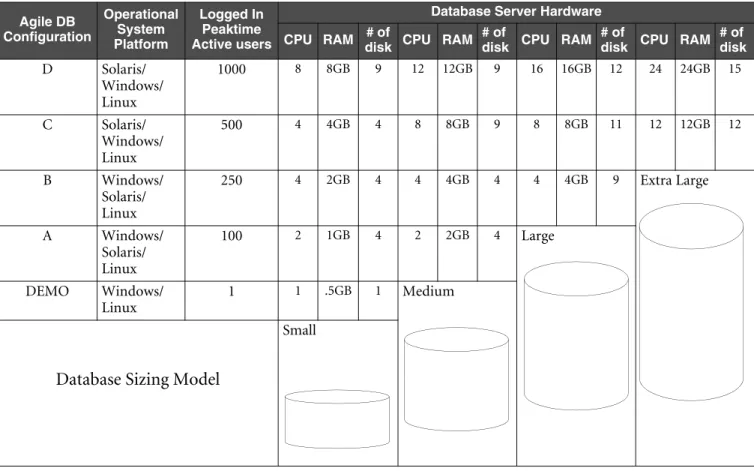
Agile uses four database configurations (A through D), as shown in Table 1-6. In addition, Tables 1-2 through 1-5 provide the minimum hardware configuration based on the database sizing model. Each database configuration provides necessary hardware resources to support the Agile database sizing model.
Taking into account the hardware requirements specified in Table 1-6, each configuration is intended for a specific database sizing model. The minimum hardware requirements should be followed to satisfy the Agile database installation. To increase the scalability and concurrency for any configuration, provide additional CPUs, RAM, and disk space.
❑ Configuration A provides the initial hardware resources for implementing the small database sizing model. ❑ Configuration B provides the minimum hardware resources for implementing the medium (regular) database
sizing model.
❑ Configuration C provides the minimum hardware resources for implementing the large database sizing model. ❑ Configuration D provides the minimum hardware resources for implementing the extra-large database sizing
model.
RAM (GB) 4 4
Number and size of disks (partitions) Nine 18 GB Nine 18 GB
Table 1-5: Minimum hardware requirements—extra-large database system (5 GB to 38 GB)
Hardware Windows and Linux Solaris
CPU Eight, 1.8 GHz Intel Xeon Eight 900 MHz Ultra Sparc III
RAM (GB) 8 8
Number and size of disks (partitions) Twelve 18 GB Twelve 18 GB
Table 1-4: Minimum hardware requirements—large database system (2 GB to 16 GB) (continued)
You should take the platform into consideration when you select the Agile database configuration. When you choose the Windows platform for database deployment, you should consider the potential that additional resources will be required for scaling the application within one or two years. Agile recommends using the Windows platform for a database with relatively moderate growth. For enterprise-level usage with a high-growth potential, it may be beneficial to adopt the Solaris platform, which is easily expanded in CPUs and RAM.
Depending on the database sizing and configuration model you follow, the database could potentially support the following:
❑ Small database model
• Configuration A supports up to 100 concurrent users • Configuration B supports up to 250 concurrent users • Configuration C supports up to 500 concurrent users • Configuration D supports up to 1,000 concurrent users ❑ Medium (regular) database model
• Configuration A supports up to 100 concurrent users • Configuration B supports up to 250 concurrent users • Configuration C supports up to 500 concurrent users • Configuration D supports up to 1,000 concurrent users ❑ Large database model
• Configuration B supports up to 250 concurrent users
Table 1-6: Agile PLM 9.2.1 Database Sizing Matrix
Agile DB Configuration Operational System Platform Logged In Peaktime Active users
Database Server Hardware CPU RAM # of
disk CPU RAM # of
disk CPU RAM # of
disk CPU RAM # of disk D Solaris/ Windows/ Linux 1000 8 8GB 9 12 12GB 9 16 16GB 12 24 24GB 15 C Solaris/ Windows/ Linux 500 4 4GB 4 8 8GB 9 8 8GB 11 12 12GB 12 B Windows/ Solaris/ Linux 250 4 2GB 4 4 4GB 4 4 4GB 9 Extra Large A Windows/ Solaris/ Linux 100 2 1GB 4 2 2GB 4 Large DEMO Windows/ Linux 1 1 .5GB 1 Medium
Database Sizing Model
Chapter 1 Overview of Agile Database Installation
• Configuration C supports up to 500 concurrent users • Configuration D supports up to 1,000 concurrent users ❑ Extra-large database model
• Configuration C supports up to 500 concurrent users • Configuration D supports up to 1,000 concurrent users
RAID Configuration
RAID 1 mirroring is highly recommended because of its high tolerance for hardware fault. Although the following section refers to one-disk, four-disk, nine-disk, and twelve-disk configurations, the RAID 1 configuration doubles the number of disks installed. It should also be noted that RAID 0+1 is the best configuration in a nine-disk or twelve-disk configuration. In fact, such a hardware configuration normally requires an external disk storage enclosure.
RAID 5 is highly discouraged for Agile PLM database deployment. At a minimum, redo logs should not be stored in disks configured with RAID 5.
Disk I/O Configurations
While the proper sizing of extents minimizes dynamic extensions in the same segments, disk I/O contention within the same logical tablespace or physical data file can also be harmful.
You can improve disk I/O performance for multiple disk configurations by spreading the I/O burden across multiple disk devices. The following sections describe the use of multiple disks for the Oracle database server. It is always advisable to use more disks.
There are eight tablespaces in the Agile PLM 9.2.1 database configuration: AGILE_DATA1, AGILE_DATA2, AGILE_DATA3, and AGILE_DATA4 for Agile table segments, and AGILE_INDX1, AGILE_INDX2,
AGILE_INDX3, and AGILE_INDX4 for Agile index segments.
Note There is an additional tablespace, SYSAUX, available with Oracle 10g. If you are using an Oracle 10g database, add the SYSAUX tablespace to the same drive as the SYSTEM tablespace.
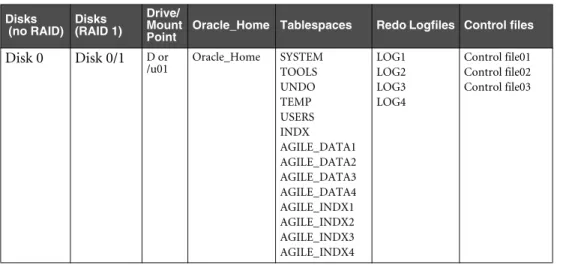
Table 1-7: One-disk configuration
Disks (no RAID) Disks (RAID 1) Drive/ Mount Point
Oracle_Home Tablespaces Redo Logfiles Control files
Disk 0 Disk 0/1 D or /u01 Oracle_Home SYSTEM TOOLS UNDO TEMP USERS INDX AGILE_DATA1 AGILE_DATA2 AGILE_DATA3 AGILE_DATA4 AGILE_INDX1 AGILE_INDX2 AGILE_INDX3 AGILE_INDX4 LOG1 LOG2 LOG3 LOG4 Control file01 Control file02 Control file03
One-Disk
A one-disk configuration is best for a demonstration, preproduction, and testing environment. This configuration results in disk I/O contention. In addition, as both usage and database size increase, performance significantly declines. The one-disk configuration is intended for demo database applications only, and the configuration can be implemented as shown in Table 1-7.
There is no beneficial gain from OFA for the one-disk configuration from the perspective of disk I/O contention. There should be no significant impact on a current production database if you implement the default Oracle settings with a one-disk configuration.
Four-Disk Configuration
A four-disk configuration is best for an enterprise-level implementation of Agile. A four-disk configuration spreads the various data files, control files, and redo log files across multiple disk devices.
First of all, the three control files can be mirrored onto three different disks for best recovery protection.
Second, all potential I/O demand-intensive data files can be distributed onto their own separate disk. Redo log files are partially isolated from the rest of the data files, as the log files can cause significant I/O contention during transactions if they are sharing disks with other data files. The UNDO data file is separated from the schema data files and log files as well, so I/O contention during import and upgrade can be minimized.
Third, the Agile schema tablespaces can be isolated from the rest of the SYSTEM, TEMP, TOOLS, and UNDO data files.
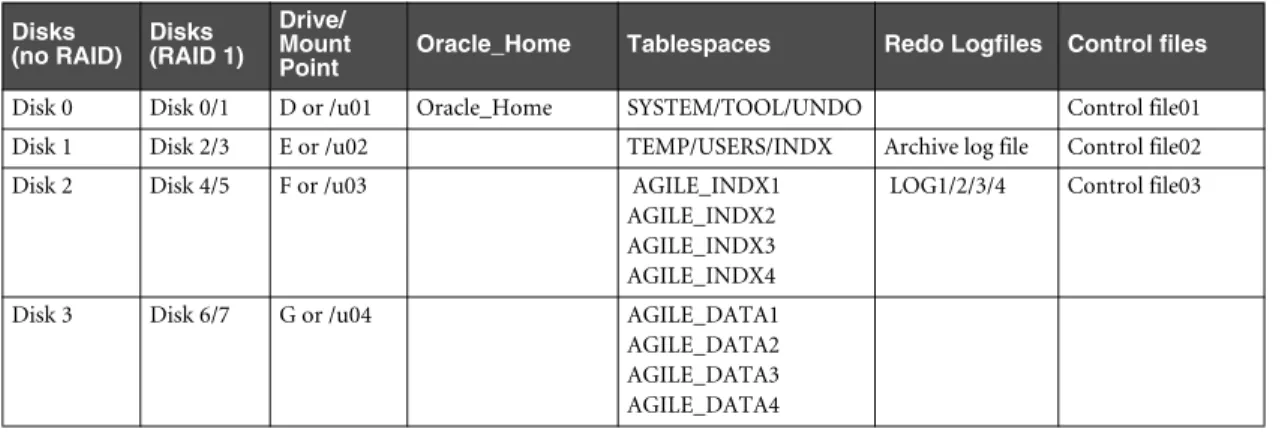
The four-disk configuration shown in Table 1-8 is recommended. For production database sites, the four-disk configuration represents the minimum requirements for an OFA implementation and provides the minimum hardware configuration for performance tuning.
Nine-Disk Configuration
In addition to the advantages associated with a four-disk configuration, a nine-disk configuration supports an enterprise-level implementation of Agile by further spreading various data files and redo log files across multiple disk devices.
Table 1-8: Four-disk configuration for OFA implementation
Disks (no RAID) Disks (RAID 1) Drive/ Mount Point
Oracle_Home Tablespaces Redo Logfiles Control files
Disk 0 Disk 0/1 D or /u01 Oracle_Home SYSTEM/TOOL/UNDO Control file01 Disk 1 Disk 2/3 E or /u02 TEMP/USERS/INDX Archive log file Control file02 Disk 2 Disk 4/5 F or /u03 AGILE_INDX1
AGILE_INDX2 AGILE_INDX3 AGILE_INDX4
LOG1/2/3/4 Control file03
Disk 3 Disk 6/7 G or /u04 AGILE_DATA1 AGILE_DATA2 AGILE_DATA3 AGILE_DATA4
Chapter 1 Overview of Agile Database Installation
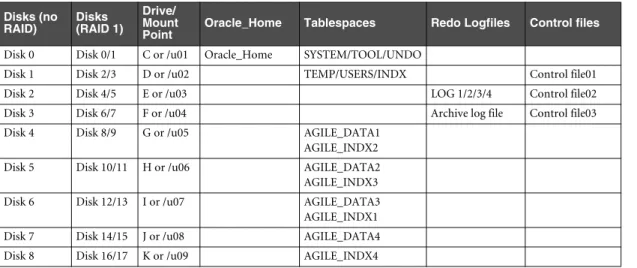
Application schema can obtain additional performance gains in terms of I/O load spread by further separating the AGILE_DATA1, AGILE_DATA2, AGILE_DATA3 and AGILE_INDX1, AGILE_INDX2, AGILE_INDX3 data files because of potential I/O contention between the AGILE_DATA data files and AGILE_INDX data files. For
supporting a full text search content index, a complete separation of potential large datafiles in its own disk spindle should help I/O contention as physical disk I/O is inevitable, due to the share size of data, as shown in Table 1-9.
Twelve-Disk Configuration
Further separating the AGILE_DATA and AGILE_INDX tablespaces, twelve-disk configurations can be implemented as shown in Table 1-10. This results in completely independent spindles for AGILE_DATA1, AGILE_DATA2, AGILE_DATA3, AGILE_DATA4 and AGILE_INDX1, AGILE_INDX2, AGILE_INDX3, AGILE_INDX4.
Table 1-10: Twelve-disk configuration for OFA Implementation with Mirroring Table 1-9: Nine-disk configuration for OFA implementation with mirroring
Disks (no RAID) Disks (RAID 1) Drive/ Mount Point
Oracle_Home Tablespaces Redo Logfiles Control files
Disk 0 Disk 0/1 C or /u01 Oracle_Home SYSTEM/TOOL/UNDO
Disk 1 Disk 2/3 D or /u02 TEMP/USERS/INDX Control file01 Disk 2 Disk 4/5 E or /u03 LOG 1/2/3/4 Control file02 Disk 3 Disk 6/7 F or /u04 Archive log file Control file03 Disk 4 Disk 8/9 G or /u05 AGILE_DATA1
AGILE_INDX2 Disk 5 Disk 10/11 H or /u06 AGILE_DATA2 AGILE_INDX3 Disk 6 Disk 12/13 I or /u07 AGILE_DATA3 AGILE_INDX1 Disk 7 Disk 14/15 J or /u08 AGILE_DATA4 Disk 8 Disk 16/17 K or /u09 AGILE_INDX4
Disks (no RAID) Disks (RAID 1) Drives/ Mount Points
Oracle_Home Tablespaces Redo Logfiles Control files
Disk 0 Disk 0/1 C or /u01 Oracle_Home
Disk 1 Disk 2/3 D or /u02 SYSTEM/TOOL/ UNDO/TEMP/INDX
Control file01
Disk 2 Disk 4/5 E or /u03 LOG 1/2/3/4 Control file02 Disk 3 Disk 6/7 F or /u04 USERS Archive logfile Control file03 Disk 4 Disk 8/9 G or /u05 AGILE_DATA1
Disk 5 Disk 10/11 H or /u06 AGILE_DATA2 Disk 6 Disk 12/13 I or /u07 AGILE_DATA3 Disk 7 Disk 14/15 J or /u08 AGILE_DATA4 Disk 8 Disk 16/17 K or /u09 AGILE_INDX1 Disk 9 Disk 18/19 L or /u10 AGILE_INDX2 Disk 10 Disk 20/21 M or /u11 AGILE_INDX3 Disk 11 Disk 22/23 N or /u12 AGILE_INDX4
C
HAPTER
2
Installing the Agile Database on
Windows
This chapter explains how to create the Agile database on Windows. It includes these topics:
❑
Installation Notes
❑
Copying the Agile CDs
❑
Installing the Oracle Database
❑
Starting the Installer
❑
Using the Agile Database Configuration Utility
❑
Adding and Configuring the Listener
❑
Configuring Oracle Database Control (Optional)
Note Unless specified otherwise, all references to Windows specifically require Windows 2003 with Service Pack 2. Service Packs are available on Microsoft’s Web site, www.microsoft.com.
Installation Notes
For best results, as you install:
❑ Follow directions in the order in which they are given. Do not attempt to install any components out of sequence. ❑ Oracle passwords are not case-sensitive. Agile passwords are case-sensitive. All other text entries, such as schema names and folder names, are not case-sensitive. To avoid confusion, all passwords and text entries in this guide appear in lowercase and should be typed as shown.
❑ When prompted for a hostname, type the short name for the host, not the fully qualified name. For example, if a host is named dbo, type dbo, not dbo.agile.com.
Copying the Agile CDs
Before installing Agile PLM 9.2.1, the contents of both CDs should be copied to a local directory with the same file structure as the original CDs. The Platform directory on CD #2 must be copied on the same directory level as the setup.exe file.
Installing the Oracle Database
Use the instructions in Appendix A, “Installing Oracle 9i” to install Oracle 9i Release 2 or Appendix B, “Installing Oracle 10g” to install Oracle 10g Release 2, if the database is not already installed.
Starting the Installer
The installation of all components follows the same initial process up through the panel where you select the components to install.
Important To run the Agile installation program, you must have at least 1200MB of available disk space on Windows on the drive where your default Temp directory is located.
Note Disable virus protection, if you are using it. Components used in the installer can be falsely identified as being infected and lock up the installation. You can turn the virus protection on after the installation is complete.
To start the Agile PLM installer on Windows:
1 Log in to the computer using a login with local Administrator permissions. 2 In the Agile installation directory for Windows, double-click the setup.exe file.
Note If there is insufficient disk space available to complete the installation, you will be prompted for another location. Click Choose, select another drive, click OK, and the installer will start.
After a few moments, the Welcome screen appears.
During Agile PLM installation, you must select components to install. The list of components you can install is based on your license key. Choose Database Server and Agile PLM when this list displays to install and create the Agile database with the Agile Database Configuration Utility.
Installer Buttons
Agile PLM installation panels have the following buttons: ❑ Cancel — Exits from the installation program.
❑ Help — Displays online help.
❑ Previous — Returns to the previous step. ❑ Next — Proceeds to the next step.
Chapter 2 Installing the Agile Database on Windows
❑ Install — Starts installing. The Install button appears only on the Pre-Installation Summary panel, after you have specified installation options.
❑ Done — Exits from the installation program. On Windows, after installing certain components you can choose whether to restart the computer when you click Done. The Done button appears only on the Install Complete panel, after you have finished installing.
Installer Online Help
Each installation panel has online help. At any time during installation, you can click Help for more information about the panel’s options.
If you leave the online help window open, it will be updated when you proceed through the installer panels. Otherwise, click Close at the bottom of the help window.
Using the Agile Database Configuration Utility
The Agile database configuration utility creates and configures the database used by Agile. The database configuration utility appears after you click Install in the Agile PLM installer.
Notes The installer creates and configures an Agile database using the default values.
All hard drive indicators show the available disk space. If the space is a negative value, you must select another hard drive.
Important If you change a default value, you must click in the field to ensure that the change is activated.
1 The Destination Location dialog box of the Database Configuration Utility appears. This is the location where files are placed during the database installation. You should accept the default location. Click Next.
The Database Size Estimate dialog box appears.
2 New Agile customers without an existing database to migrate should accept the default (Small). Click Next. Note Refer to the Capacity Planning and Deployment Guide for database sizing information.
The Oracle Home dialog box appears. This is the location where the Oracle database files were installed. If you have multiple Oracle Homes, make sure the correct Oracle Home is selected in the list before continuing with the Database Configuration Utility.
3 You should accept the default unless there is insufficient disk space available. Click Next. The Oracle SID dialog box appears.
If you want to change the SID, you must use an ID less than or equal to 8 characters to uniquely identify the Oracle SID. If you want to use an existing SID, you must remove it before you can re-use it.
4 You should accept the default agile9 SID. Click Next.
The Database Security and Agile User Information dialog box appears. 5 You should accept the default values as follows and then click Next.
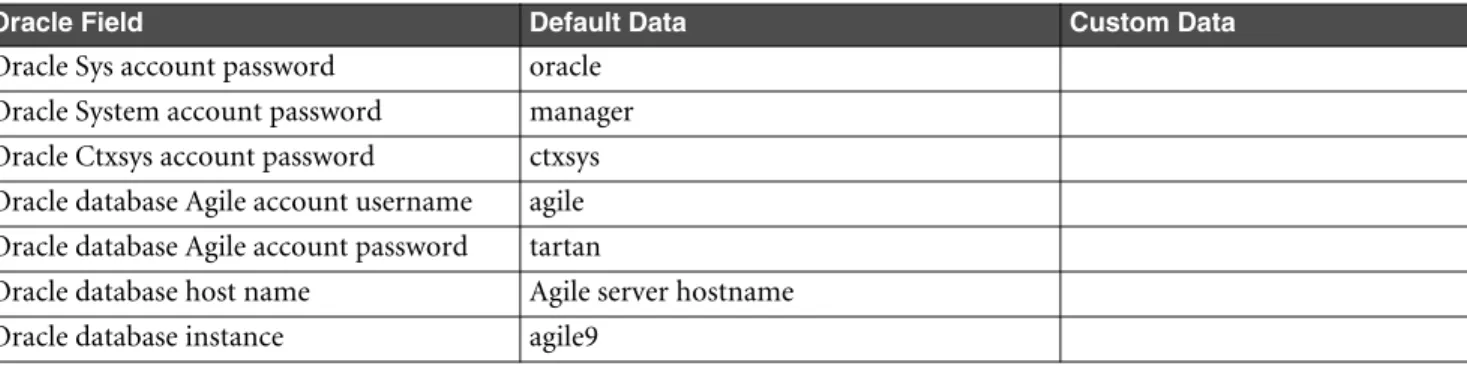
• Sys Password is oracle • System Password is manager • Agile Schema Name is agile • Agile Schema Password is tartan The Tablespaces dialog box appears.
6 You should accept the default, unless you have additional hard drives with sufficient space available that allow you to distribute the files across multiple hard drives. If you select a different drive location, click the letter of the drive to make sure it is selected. Click Next.
Note Use the tables in “Disk I/O Configurations” on page 1-5 to determine how to distribute the files. The Redo Log Files dialog box appears.
7 You should accept the default, unless you have additional hard drives with sufficient space available that allow you to distribute the files across multiple hard drives. Click Next.
The Control Files dialog box appears.
8 You should accept the default, unless you have additional hard drives with sufficient space available that allow you to distribute the files across multiple hard drives. Click Next.
9 If you accept the default location for the files on one drive, a message appears notifying you about distributing the files across multiple drives (mirroring protection). If this is not an option, click Next. Otherwise, click Back and reassign files to different hard drives.
The Archive Log File dialog box appears.
10 You should accept the default, unless you have additional hard drives with sufficient space available that allow you to store the file on a different hard drive. Click Next.
The Oracle Language Support dialog box appears.
Note For additional information about language support, refer to the Oracle Globalization Support Guide. 11 The default character set is UTF8. Click Next.
A Command Prompt window displays briefly.
12 You are prompted to install the Agile database. ClickNext.
The script runs in a Command Prompt window for awhile. The window automatically closes when the database is installed.
Important Change all Oracle database user passwords after you have created the Agile database. It is recommended to change these passwords periodically for security purposes.
Agile supports Full Text Search (FTS). FTS is a feature enabled through Oracle Text. Because of this feature, there is a fixed account, CTXSYS, and its schema used by the Agile schema. For security purposes, you can change the CTXSYS account password from its default, CTXSYS, to one of your choosing after Agile database creation and configuration.
Adding and Configuring the Listener
If this is the first time Oracle has been installed on the current computer, you need to add and configure a new address to the Listener settings.
If you are upgrading your Agile database on the same machine, you only need to add the new database to the existing listener.
To add a new Listener address on Oracle 9i:
1 Start the Oracle Net Configuration Assistant by choosing Start > Programs > Oracle -OraHome92 > Configuration and Migration Tools > Net Configuration Assistant.
2 In the Oracle Net Configuration Assistant window, select Listener Configuration. Click Next. 3 Select Add to add a listener to the database. Click Next.
4 Accept the default listener name, LISTENER, in the Listener Name dialog box. Click Next. 5 Accept TCP as the Selected Protocol. Click Next.
Chapter 2 Installing the Agile Database on Windows
6 Accept the standard port of 1521. Click Next.
7 Select No when asked to configure another listener. Click Next. 8 The Listener configuration is complete. Click Next.
9 Click Finish to close the Oracle Net Configuration Assistant window. To configure the new Listener address on Oracle 9i:
1 Start the Oracle Net Manager by choosing Start > All Programs > Oracle - OraHome92 > Configuration and Migration Tools > Net Manager.
2 In the Oracle Net Manager window, double-click the Local folder and select the Listeners folder. 3 Click the name of the newly created listener, LISTENER.
4 Select Database Services in the Listening Locations drop-down list. a Click Add Database.
b In the dialog box that appears, make the following changes: • Global Database Name: agile9
• Oracle Home Directory: <Oracle_Home> • SID: agile9
Note If you used a different global database name or different home directory during the database installation, change the information as appropriate.
5 Choose File > Save Network Configuration to save your changes. To add and configure a new Listener address on Oracle 10g:
1 Start the Oracle Net Manager by choosing Start > All Programs > Oracle - OraDb10g_home1 > Configuration and Migration Tools > Net Manager.
2 In the Oracle Net Manager window, double-click the Local folder and select the Listeners folder. 3 Click Create in the toolbar to add a listener.
The Choose Listener Name dialog box appears. 4 Click OK.
5 Select Database Services in the Listening Locations drop-down list. a Click Add Database.
b In the dialog box that appears, make the following changes: • Global Database Name: agile9
• Oracle Home Directory:<Oracle_Home> • SID: agile9
Note If you used a different global database name or different home directory during the database installation, change the information as appropriate.
6 Choose File > Save Network Configuration to save your changes.
7 Open a Command Prompt window and type lsnrctlreload to restart the database listener.
Configuring Oracle Database Control (Optional)
In Oracle 10g, you can use Database Control to perform many database administration and management tasks including SQL performance tuning.
To configure the Oracle network connection:
1 Choose Start > All Programs > Oracle - OraDb10g-home1 > Configuration and Migration Tools > Database Configuration Assistant. The Welcome screen appears.
2 Click Next.
3 Choose Configure Database Options on the Operations page. Click Next. The Database page appears
4 Select the agile9 database you just created. Click Next. The Management Options page appears.
5 Check Configure the Database with Enterprise Manager. Click Next. The Database Content page appears.
6 Accept the defaults. Click Next.
The Database Credentials page appears.
7 Enter a password for the DBSNMP and SYSMAN users. Click Next. The Connection Mode page appears.
8 Select Dedicated Server Mode. Click Finish.
9 Click OK for confirmation. Database configuration begins.
10 When configuration completes, the Database Control URL displays. Make a note of this URL because it is used to log in to the database.
11 Click OK to close the Database Configuration Assistant. 12 Open a web browser and enter the Database Control URL.
13 Type the User Name and Password of the Agile database. Click Login.
14 Click I agree to accept the license agreement and display the Database Control page. You have finished installing and configuring the Agile PLM 9.2.1 database.
C
HAPTER
3
Installing the Agile Database on
Solaris
This chapter explains how to create the Agile database on Solaris. It includes these topics:
❑
Overview
❑
Preparing the Host Computer
❑
Creating the Agile Database
❑
Post-Installation Tasks
Overview
This chapter provides information for installing Oracle and creating the Agile database on Solaris. Before you begin, make sure that you have reviewed all relevant Oracle documentation and ensured the computer meets the minimum system requirements.
Important For best results, start with a clean system (no previous versions of Oracle).
This chapter provides information for installing an Oracle database on Sun Solaris. The installation process consists of four major steps:
1 Preparing an installation environment.
2 Installing Oracle 9i Release 2 or Oracle 10g Release 2.
3 Running the Agile database scripts to create the Agile database.
4 Configuring Oracle network connectivity and setting additional Oracle functionality.
Oracle Source Documentation
Before you begin, it is important to be familiar with all the information about installing the Oracle database on Solaris, and with the Optimal Flexible Architecture (OFA) reference material for administrators. See the following Oracle documents:
❑ Oracle 9i Installation Guide Release 2 (9.2.0.1.0) for UNIX Systems: AIX-Based Systems, Compaq Tru64 UNIX, HP 9000 Series HP-UX, Linux Intel, and Sun Solaris.
❑ Oracle 9i Administrator's Reference Release 2 (9.2.0.1.0) for UNIX Systems: AIX-Based Systems, Compaq Tru64 UNIX, HP 9000 Series HP-UX, Linux Intel, and Sun Solaris inAppendix G: “Optimal Flexible Architecture.” These documents are available on the Oracle Technology Network at
http://otn.oracle.com/documentation/oracle9i.html.
❑ Oracle 10g Installation Guide Release 2 (10.2) for UNIX Systems: AIX-Based Systems, hp HP-UX PA-RISC (64-bit), hp Tru64 UNIX, Linux x86, and Solaris Operating System (SPARC)
❑ Oracle Database Administrator’s Guide 10g Release 2 (10.2)
These documents are available on the Oracle Technology Network at
http://www.oracle.com/technology/documentation/database10gR2.html.
Note Agile has made every attempt to be OFA-compliant. Any deviation from OFA guidelines are noted.
System Requirements
Before installing Oracle, ensure that your system configuration meets the minimum hardware requirements. If you are using a stand-alone system or hosting multiple instances, consider using the recommended hardware
requirements for the specific environment to ensure acceptable performance. For information on specific system requirements, see the Capacity Planning and Deployment Guide.
It is suggested that a Solaris system administrator and Oracle database administrator are available to monitor system activity and determine resource requirements.
Preparing the Host Computer
This section describes how to prepare the installation environment on Solaris, such as creating the necessary groups and user accounts.
Note To avoid changing CDs during the installation, you should create an area containing the Oracle installation files.
Chapter 3 Installing the Agile Database on Solaris
To create the Oracle user account: 1 Log in to the system as root.
2 Create a home directory for the Oracle user:
# mkdir -p /u01/oracle [Enter]
3 Create two groups called “oinstall” and “dba:”
# groupadd oinstall [Enter] # groupadd dba [Enter]
4 Create the Oracle user:
# useradd -d /u01/oracle -s /bin/sh -g oinstall -G dba oracle [Enter]
where:
/u01/oracle is the Oracle user home directory /bin/sh is the Oracle user login shell
oinstall is the primary group for the Oracle user dba is the secondary group for the Oracle user
5 Set the Oracle user password, and change the Oracle home file ownership:
# passwd oracle [Enter] Enter password:
# chown oracle:dba /u01/oracle [Enter]
6 Create the Oracle installation directory:
# mkdir -p /u01/app/oracle [Enter]
# chown oracle:oinstall /u01/app/oracle [Enter]
You must now copy the Agile database scripts. To copy the Agile database utilities:
1 Change to the Oracle user, and create a temporary directory named “agile9tmp:”
# su - oracle [Enter]
$ mkdir /u01/oracle/agile9tmp [Enter]
2 Insert the Agile installation CD, and copy the agile921db.tar.Z file from the installation CD to the agile9tmp directory:
$ cd /cdrom [Enter]
For Oracle 9i:$ cd /CD1_Agile/Solaris/DB/Oracle9i
For Oracle 10g:$ cd /CD1_Agile/Solaris/DB/Oracle10g
$ cp agile921db.tar.Z /u01/oracle/agile9tmp [Enter]
3 Change to the agile9tmp directory, and uncompress the files from the agile921db.tar.Z file:
$ cd /u01/oracle/agile9tmp [Enter] $ uncompress agile921db.tar.Z [Enter]
4 Extract the agile921db.tar file:
$ tar -xvf agile921db.tar [Enter]
The agile921db.tar file contains the following files:
• agile9.sh — Bourne shell script for creating the database and schema
• agile9db.sh — Bourne shell script for creating the database maintenance script • profile.txt — oracle user .profile template
• system.txt — system kernel parameters
• dbora — setup for the database automatic shutdown and startup • agile9schema.dmp — schema dump file
To modify the system kernel parameters:
1 Change to the root user, and back up the /etc/system file:
$ su - [Enter]
# cp /etc/system /etc/system_save [Enter]
2 Verify the following /etc/system kernel parameters. If the parameters do not exist, go to the next step.
set shmsys:shminfo_shmmax = 4294967295 set shmsys:shminfo_shmmin = 1 set shmsys:shminfo_shmmni = 100 set shmsys:shminfo_shmseg = 10 set semsys:seminfo_semmns = 1024 set semsys:seminfo_semmni = 100 set semsys:seminfo_semmsl = 500 set semsys:seminfo_semopm = 100 set semsys:seminfo_semvmx = 32767
set noexec_user_stack = 1 (Note:On Oracle 10g only)
ImportantIf you have been running the host computer as an Oracle database server, you have to check with your Solaris system administrator before changing these parameters. For these parameter settings, you can also refer to the Oracle documentation.
Note Restart the computer if you modify the /etc/system file.
3 The previous kernel parameters are set in the distributed system.txt file. Append system.txt to /etc/system if this is the first time you are configuring the host computer as the database server.
# cat /u01/oracle/agile9tmp/system.txt >> /etc/system
Note Use >> to append. If you have accidentally used >, you need to recover the original /etc/system file by using cp system_save system.
4 Restart the system to make the new kernel configuration take effect.
Note If you do not restart the system, the database creation will fail. You may need to check with your Solaris system administrator for support.
To set up Oracle environmental variables: 1 Log in to the system as the Oracle user.
2 Create the environmental parameter file .profile to include:
PATH=$PATH:/usr/local/bin:/usr/ccs/bin:/usr/openwin/bin:/usr/bin/X11 export PATH
(Oracle 9i)ORACLE_HOME=/u01/app/oracle/product/9.2.0SE; export ORACLE_HOME (Oracle 10g)ORACLE_HOME=/u01/app/oracle/product/10.2.0/db_1; export ORACLE_HOME ORACLE_BASE=/u01/app/oracle; export ORACLE_BASE
PATH=$PATH:$ORACLE_HOME/bin; export PATH ORACLE_SID=agile9; export ORACLE_SID
TNS_ADMIN=/var/opt/oracle; export TNS_ADMIN NLS_LANG=American_America.UTF8; export NLS_LANG
3 The environmental parameters in the previous step are set in the distributed profile.txt file. If this is the first time you are configuring the host computer as a database server, copy the profile.txt file to .profile:
$ cat agile9tmp/profile.txt > .profile [Enter]
4 Update the environmental setting:
Chapter 3 Installing the Agile Database on Solaris
Making the Oracle Installer Available
To simplify the Oracle installation, you can copy the data from the Oracle installation CDs onto the computer. Use the instructions in Appendix A, “Installing Oracle 9i” or Appendix B, “Installing Oracle 10g” to copy the data from the installation CDs.
Installing the Oracle Database
Use the instructions in Appendix A, “Installing Oracle 9i” or Appendix B, “Installing Oracle 10g” to install the Oracle database, if it is not already installed.
vxfs File System Support
On Solaris, Agile officially supports the native Solaris file system. To enable the vxfs file system for testing, remove the bold text as shown in the agile9.sh script:
space=‘df -kFufs $dir | nawk ‘{getline;print $4/1024}’‘
After modification, the line should appear as follows:
space=‘df -k $dir | nawk ‘{getline;print $4/1024}’‘
Creating the Agile Database
This section describes how to create the default database instance and schema used by Agile using the Agile database creation utility.
To start the installation:
1 Log in to the computer as the Oracle user.
a If necessary, edit the .profile file to change Oracle SID. By default, Agile uses agile9 as the Oracle SID:
$ vi .profile [Enter]
b Modify the value where ORACLE_SID=agile9 by replacing agile9 with the SID you want to use.
ImportantCheck the /var/opt/oracle/oratab file and make sure that the specified Oracle SID has not been used. Specifying an existing Oracle SID can corrupt that database instance.
Note Generally, the SID length is four alphanumeric characters. This avoids lengthy database filenames for associated database files.
c Run .profile to make the SID changes take effect:
$. ./chmod u+x .profile [Enter]
2 In a second terminal session, log in to the computer as the root user. 3 Create a directory named “oradata.”
Note The agile9.sh file uses a dummy mount point /mpt. You must change /mpt to match your mount points. For OFA compliance, it is highly recommended that you create at least four mount points (preferably on four different disks across multiple controllers) to optimize disk I/O.
For example, if you have mount points at /u01 and /u02, you can create an oradata folder on each mount point.
# mkdir -p /u01/oradata
# chown oracle:dba /u01/oradata
4 In the session where you are logged in as the Oracle user, create a $ORACLE_BASE/admin directory:
You must now run the agile9.sh script.
5 Change to the /u01/oracle/agile9tmp directory.
6 Modify the agile9.sh script to match the mount points on your computer, and then copy the script to the Oracle user home directory (/u01/oracle).
ImportantMake sure ORACLE_SID matches the one you set for .profile, which should have taken effect after you ran . ./.profile.
Note The agile9.sh file uses a dummy mount point /mpt. You must change /mpt to match your mount points. For OFA compliance, it is highly recommended that you create at least four mount points (preferably on four different disks across multiple controllers) to optimize disk I/O.
The values in the script that can be modified appear in bold. You should limit your editing only to these bold values.
For example, if you have a mount point created at /u01, you can modify agile9.sh and quickly recreate it in the Oracle user home directory by issuing one command.
$ cat /u01/oracle/agile9tmp/agile9.sh | sed -e "s/mpt\//u01\//g" > /u01/oracle/ agile9.sh
$ chmod u+x /u01/oracle/agile9.sh
Note: The following code list variable in bold that you may want to revise besides dummy mount point /mpt
#!/bin/sh #
# ========================================================= # Copyright (c) 1995-2005 Agile Software Corporation
# All Rights Reserved. #
# This is unpublished proprietary source code of Agile # Software Corporation. The copyright notice above
# does not evidence any actual or intended publication of # such source code.
# ========================================================= #
# Oracle_sid default as agile9 #
ORACLE_SID=agile9 # Oracle SID for the database AASYSPW=oracle # Oracle sys passwd for the database AASYSTEMPW=manager # Oracle system passwd for the database AGILE=agile # Oracle account for AGILE schema
AGILEPW=tartan # Oracle passwd for AGILE #
# Parameters determine location of datafiles, # controlfiles and logfiles
#
DATABASE_SYSTEM=/mpt/oradata/${ORACLE_SID} # SYSTEM tablespace DATABASE_TOOLS=/mpt/oradata/${ORACLE_SID} # TOOLS tablespace DATABASE_UNDO=/mpt/oradata/${ORACLE_SID} # RBS tablespace DATABASE_TEMP=/mpt/oradata/${ORACLE_SID} # TEMP tablespace DATABASE_USERS=/mpt/oradata/${ORACLE_SID} # USERS tablespace DATABASE_INDX=/mpt/oradata/${ORACLE_SID} # INDX tablespace DATABASE_AGILE_DATA1=/mpt/oradata/${ORACLE_SID} DATABASE_AGILE_INDX1=/mpt/oradata/${ORACLE_SID} DATABASE_AGILE_DATA2=/mpt/oradata/${ORACLE_SID} DATABASE_AGILE_INDX2=/mpt/oradata/${ORACLE_SID} DATABASE_AGILE_DATA3=/mpt/oradata/${ORACLE_SID} DATABASE_AGILE_INDX3=/mpt/oradata/${ORACLE_SID}
Chapter 3 Installing the Agile Database on Solaris
DATABASE_AGILE_DATA4=/mpt/oradata/${ORACLE_SID} DATABASE_AGILE_INDX4=/mpt/oradata/${ORACLE_SID}
DATABASE_LOGFILES1=/mpt/oradata/${ORACLE_SID} # REDOLOG file 1 DATABASE_LOGFILES2=/mpt/oradata/${ORACLE_SID} # REDOLOG file 2 DATABASE_LOGFILES3=/mpt/oradata/${ORACLE_SID} # REDOLOG file 3 DATABASE_LOGFILES4=/mpt/oradata/${ORACLE_SID} # REDOLOG file 4 DATABASE_CONTROL1=/mpt/oradata/${ORACLE_SID} # CONTROL file 1 DATABASE_CONTROL2=/mpt/oradata/${ORACLE_SID} # CONTROL file 2 DATABASE_CONTROL3=/mpt/oradata/${ORACLE_SID} # CONTROL file 3 DATABASE_ARCHIVE=/mpt/oradata/${ORACLE_SID}/arch #ARCHIVELOGS #
# Parameters determine character set used #
CHARACTER_SET=UTF8
NATIONAL_CHARACTER_SET=UTF8
7 Run the agile9.sh script from the Oracle user home directory:
$ cd [Enter]
$ cp agile9tmp/agile9schema.dmp . [Enter]
$ ./agile9.sh [Enter]
Note If you are unable to create files, you may have to give the system user full privileges to the u01 directory. 8 You are prompted about the database size that you want to install.
You should use the regular database size unless you have consulted with an Agile Solutions Consultant or database administrator to ensure that the computer meets the minimum requirements for the specified database size.
The script will run for awhile.
Important Change all Oracle database user passwords after you have created the Agile database. It is recommended to change these passwords periodically for security purposes.
Continue to the next section for post-installation tasks.
Post-Installation Tasks
This section describes how to configure Oracle Net Manager, and set the automatic startup and shutdown features for the database.
Setting Up Oracle Net Manager
To set up Oracle Net Manager:If you use the TNS_ADMIN environment variable to specify the location of Oracle Network Services configuration files (such as tnsnames.ora), move the files located in the $ORACLE_HOME/network/admin directory to the directory specified by TNS_ADMIN.
1 Log in as root and change the ownership of the /var/opt/oracle directory: # chown -R oracle:dba /var/opt/oracle [Enter]
2 Switch to the Oracle user, and change to the $ORACLE_HOME/network/admin network directory:
# su - oracle [Enter]
$ cd $ORACLE_HOME/network/admin [Enter]
3 Move all the files to the directory defined by environmental parameter TNS_ADMIN, which is /var/opt/oracle:
Setting Up Automatic Shutdown and Startup for the Database
To set up the Oracle database to automatically shut down and start up when the host computer starts up and shuts down: 1 Log in the system as root.
2 Create a file named “dbora” in the /etc/init.d directory:
# cat /u01/oracle/agile9tmp/dbora > /etc/init.d/dbora [Enter]
3 Link to the dbora file:
# ln -s /etc/init.d/dbora /etc/rc0.d/K10dbora [Enter] # ln -s /etc/init.d/dbora /etc/rc2.d/S99dbora [Enter]
Configuring the listener.ora File
If you are upgrading your Agile database on the same machine, you only need to add the new database to the existing listener.
To configure the listener.ora file: 1 Start Net Manager:
$ netmgr &
2 Within the Local folder, open the Listeners folder and select LISTENER. Check to see if the following settings appear in one of the Address tabs: • Protocol: TCP/IP
• Host: the host computer where the Oracle database is installed • Port: 1521
a If the information does not appear, click Add Address. A new Address tab appears.
b Type these settings: • Protocol: TCP/IP
• Host: the host computer where the Oracle database is installed • Port: 1521
c Select Database Service in the Listener Location drop-down list. d Click Add Database.
In the dialog box that appears, make the following changes: • Global Database Name: agile9
• Oracle Home Directory:Oracle_Home • SID: agile9
3 Choose File > Save Network Configuration to save your changes. 4 Close Net Manager.
Configuring the tnsnames.ora File (Optional)
1 In the Oracle Net Manager window, double-click the Local folder and select the Service Naming folder. 2 Click Create in the toolbar to add a service name.
The Net Service Name Wizard starts.
3 In the Net Service Name field, type the name of the computer where the Oracle database is located (usually the current computer). Click Next.
Chapter 3 Installing the Agile Database on Solaris
4 You are prompted to select a network protocol. Select TCP/IP (Internet Protocol) and click Next.
5 Type the name of the computer where Oracle is located in the Hostname field (the same name you typed in step 3). Accept 1521 as the default port number. ClickNext.
6 Select Oracle8i or later as the service name, and type agile9 in the field. Click Next. 7 Click Test to test the service.
The test initially fails because the default uses the incorrect login. 8 Click Change Login to reset the username and password.
9 Type agile in the Username field and tartan in the Password field. ClickOK.
10 Click Test.
You should now see a message indicating that the test was successful. 11 Click Close.
12 Click Finish to exit the Net Service Name Wizard.
13 From the Net Manager menu, choose File > Save Network Configuration to save the service name. This completes the installation and configuration for Oracle on Solaris.
C
HAPTER
4
Installing the Agile Database on Linux
This chapter explains how to create the Agile database on Linux. It includes these topics:
❑
Overview
❑
Preparing the Host Computer
❑
Creating the Agile Database
❑
Post-Installation Tasks
Overview
This chapter provides information for installing Oracle and creating the Agile database on Linux. Before you begin, make sure that you have reviewed all relevant Oracle documentation and ensured the computer meets the minimum system requirements.
Important For best results, start with a clean system (no previous versions of Oracle).
This chapter provides information for installing an Oracle database on RedHat Enterprise Linux 4. The installation process consists of four major steps:
1 Preparing an installation environment. 2 Installing Oracle 10g Release 2.
3 Running the Agile database scripts to create the Agile database.
4 Configuring Oracle network connectivity and setting additional Oracle functionality.
Oracle Source Documentation
Before you begin, it is important to be familiar with all the information about installing the Oracle database on Linux, and with the Optimal Flexible Architecture (OFA) reference material for administrators. See the following Oracle documents:
❑ Oracle 10g Installation Guide Release 2 (10.2) for UNIX Systems: AIX-Based Systems, hp HP-UX PA-RISC (64-bit), hp Tru64 UNIX, Linux x86, and Solaris Operating System (SPARC)
❑ Oracle Database Administrator’s Guide 10g Release 2 (10.2)
These documents are available on the Oracle Technology Network at
http://www.oracle.com/technology/documentation/database10gR2.html.
Note Agile has made every attempt to be OFA-compliant. Any deviation from OFA guidelines are noted.
System Requirements
Before installing Oracle, ensure that your system configuration meets the minimum hardware requirements. If you are using a stand-alone system or hosting multiple instances, consider using the recommended hardware
requirements for the specific environment to ensure acceptable performance. For information on specific system requirements, see the Capacity Planning and Deployment Guide.
It is suggested that a system administrator and Oracle database administrator are available to monitor system activity and determine resource requirements.
Preparing the Host Computer
This section describes how to prepare the installation environment on Linux, such as creating the necessary groups and user accounts.
Note To avoid changing CDs during the installation, you should create an area containing the Oracle installation files.
To create the Oracle user account: 1 Log in to the system as root.
2 Create a home directory for the Oracle user:
# mkdir -p /u01/oracle [Enter]
3 Create two groups called “oinstall” and “dba:”
Chapter 4 Installing the Agile Database on Linux
# groupadd dba [Enter]
4 Create the Oracle user:
# useradd -d /u01/oracle -s /bin/sh -g oinstall -G dba oracle [Enter]
where:
/u01/oracle is the Oracle user home directory /bin/sh is the Oracle user login shell
oinstall is the primary group for the Oracle user dba is the secondary group for the Oracle user
5 Set the Oracle user password, and change the Oracle home file ownership:
# passwd oracle [Enter] Enter password:
# chown oracle:dba /u01/oracle [Enter]
6 Create the Oracle installation directory:
# mkdir -p /u01/app/oracle [Enter]
# chown oracle:oinstall /u01/app/oracle [Enter]
You must now copy the Agile database scripts. To copy the Agile database utilities:
1 Change to the Oracle user, and create a temporary directory named “agile9tmp:”
# su - oracle [Enter]
$ mkdir /u01/oracle/agile9tmp [Enter]
2 Insert the Agile installation CD, and copy the agile921db.tar.Z file from the installation CD to the agile9tmp directory:
$ cd /cdrom [Enter]
$ cd /CD1_Agile/Linux/DB/Oracle10g
$ cp agile921db.tar.Z /u01/oracle/agile9tmp [Enter]
3 Change to the agile9tmp directory, and uncompress the files from the agile921db.tar.Z file:
$ cd /u01/oracle/agile9tmp [Enter] $ gunzip agile921db.tar.gz [Enter]
4 Extract the agile921db.tar file:
$ tar -xvf agile921db.tar [Enter]
The agile921db.tar file contains the following files:
• agile9.sh — Bourne shell script for creating the database and schema
• agile9db.sh — Bourne shell script for creating the database maintenance script • profile.txt — oracle user .profile template
• system.txt — system kernel parameters
• dbora — setup for the database automatic shutdown and startup • agile9schema.dmp — schema dump file
To set up Oracle environmental variables: 1 Log in to the system as the Oracle user.
2 Create the environmental parameter file .profile to include:
PATH=$PATH:/usr/local/bin:/usr/ccs/bin:/usr/openwin/bin:/usr/bin/X11 export PATH
ORACLE_HOME=/u01/app/oracle/product/10.2.0/db_1; export ORACLE_HOME ORACLE_BASE=/u01/app/oracle; export ORACLE_BASE
PATH=$PATH:$ORACLE_HOME/bin; export PATH ORACLE_SID=agile9; export ORACLE_SID
TNS_ADMIN=/var/opt/oracle; export TNS_ADMIN NLS_LANG=American_America.UTF8; export NLS_LANG
Note Make sure the ORACLE_HOME and ORACLE_BASE entries contain the correct directory paths.
3 The environmental parameters in the previous step are set in the distributed profile.txt file. If this is the first time you are configuring the host computer as a database server, copy the profile.txt file to .profile:
$ cat agile9tmp/profile.txt > .profile [Enter]
4 Update the environmental setting:
$ . ./chmod u+x .profile [Enter]
Making the Oracle Installer Available
To simplify the Oracle installation, you can copy the data from the Oracle installation CDs onto the computer. Use the instructions in Appendix B, “Installing Oracle 10g” to copy the data from the installation CDs.
Installing the Oracle Database
Use the instructions in Appendix B, “Installing Oracle 10g” to install the Oracle database, if it is not already installed.
Creating the Agile Database
This section describes how to create the default database instance and schema used by Agile using the Agile database creation utility.
To start the installation:
1 Log in to the computer as the Oracle user.
a If necessary, edit the .profile file to change Oracle SID. By default, Agile uses agile9 as the Oracle SID:
$ vi .profile [Enter]
b Modify the value where ORACLE_SID=agile9 by replacing agile9 with the SID you want to use.
ImportantCheck the /var/opt/oracle/oratab file and make sure that the specified Oracle SID has not been used. Specifying an existing Oracle SID can corrupt that database instance.
Note Generally, the SID length is four alphanumeric characters. This avoids lengthy database filenames for associated database files.
c Run .profile to make the SID changes take effect:
$ . ./chmod u+x .profile [Enter]
2 In a second terminal session, log in to the computer as the root user. 3 Create a directory named “oradata.”
Note The agile9.sh file uses a dummy mount point /mpt. You must change /mpt to match your mount points. For OFA compliance, it is highly recommended that you create at least four mount points (preferably on four different disks across multiple controllers) to optimize disk I/O.
For example, if you have mount points at /u01 and /u02, you can create an oradata folder on each mount point.
# mkdir -p /u01/oradata
# chown oracle:dba /u01/oradata