EAServer
Version 5.5
DOCUMENT ID: DC38014-01-0550-01
LAST REVISED: September 2006
Copyright © 1997-2006 by Sybase, Inc. All rights reserved.
This publication pertains to Sybase software and to any subsequent release until otherwise indicated in new editions or technical notes. Information in this document is subject to change without notice. The software described herein is furnished under a license agreement, and it may be used or copied only in accordance with the terms of that agreement.
To order additional documents, U.S. and Canadian customers should call Customer Fulfillment at (800) 685-8225, fax (617) 229-9845. Customers in other countries with a U.S. license agreement may contact Customer Fulfillment via the above fax number. All other international customers should contact their Sybase subsidiary or local distributor. Upgrades are provided only at regularly scheduled software release dates. No part of this publication may be reproduced, transmitted, or translated in any form or by any means, electronic, mechanical, manual, optical, or otherwise, without the prior written permission of Sybase, Inc.
Sybase, SYBASE (logo), ADA Workbench, Adaptable Windowing Environment, Adaptive Component Architecture, Adaptive Server, Adaptive Server Anywhere, Adaptive Server Enterprise, Adaptive Server Enterprise Monitor, Adaptive Server Enterprise Replication, Adaptive Server Everywhere, Advantage Database Server, Afaria, Answers Anywhere, Applied Meta, Applied Metacomputing, AppModeler, APT Workbench, APT-Build, APT-Edit, APT-Execute, APT-Translator, APT-Library, ASEP, Avaki, Avaki (Arrow Design), Avaki Data Grid, AvantGo, Backup Server, BayCam, Beyond Connected, Bit-Wise, BizTracker, Certified PowerBuilder Developer, Certified SYBASE Professional, Certified SYBASE Professional Logo, ClearConnect, Client-Library, Client Services, CodeBank, Column Design, ComponentPack, Connection Manager, Convoy/DM, Copernicus, CSP, Data Pipeline, Data Workbench, DataArchitect, Database Analyzer, DataExpress, DataServer, DataWindow, DataWindow .NET, DB-Library, dbQueue, Dejima, Dejima Direct, Developers Workbench, DirectConnect Anywhere, DirectConnect, Distribution Director, Dynamic Mobility Model, e-ADK, E-Anywhere, e-Biz Integrator, E-Whatever, EC Gateway, ECMAP, ECRTP, eFulfillment Accelerator, EII Plus, Electronic Case Management, Embedded SQL, EMS, Enterprise Application Studio, Enterprise Client/ Server, Enterprise Connect, Enterprise Data Studio, Enterprise Manager, Enterprise Portal (logo), Enterprise SQL Server Manager, Enterprise Work Architecture, Enterprise Work Designer, Enterprise Work Modeler, eProcurement Accelerator, eremote, Everything Works Better When Everything Works Together, EWA, ExtendedAssist, Extended Systems, ExtendedView, Financial Fusion, Financial Fusion (and design), Financial Fusion Server, Formula One, Fusion Powered e-Finance, Fusion Powered Financial Destinations, Fusion Powered STP, Gateway Manager, GeoPoint, GlobalFIX, iAnywhere, iAnywhere Solutions, ImpactNow, Industry Warehouse Studio, InfoMaker, Information Anywhere, Information Everywhere, InformationConnect, InstaHelp, Intelligent Self-Care, InternetBuilder, iremote, iScript, Jaguar CTS, jConnect for JDBC, KnowledgeBase, Legion, Logical Memory Manager, lrLite, M2M Anywhere, Mach Desktop, Mail Anywhere Studio, Mainframe Connect, Maintenance Express, Manage Anywhere Studio, MAP, M-Business Anywhere, M-Business Channel, M-Business Network, M-Business Suite, MDI Access Server, MDI Database Gateway, media.splash, Message Anywhere Server, MetaWorks, MethodSet, mFolio, Mirror Activator, ML Query, MobiCATS, MobileQ, MySupport, Net-Gateway, Net-Library, New Era of Networks, Next Generation Learning, Next Generation Learning Studio, O DEVICE, OASiS, OASiS logo, ObjectConnect, ObjectCycle, OmniConnect, OmniQ, OmniSQL Access Module, OmniSQL Toolkit, OneBridge, Open Biz, Open Business Interchange, Open Client, Open ClientConnect, Open Client/Server, Open Client/Server Interfaces, Open Gateway, Open Server, Open ServerConnect, Open Solutions, Optima++, Partnerships that Work, PB-Gen, PC APT Execute, PC DB-Net, PC Net Library, Pharma Anywhere, PhysicalArchitect, Pocket PowerBuilder, PocketBuilder, Power++, Power Through Knowledge, power.stop, PowerAMC, PowerBuilder, PowerBuilder Foundation Class Library, PowerDesigner, PowerDimensions, PowerDynamo, Powering the New Economy, PowerScript, PowerSite, PowerSocket, Powersoft, PowerStage, PowerStudio, PowerTips, Powersoft Portfolio, Powersoft Professional, PowerWare Desktop, PowerWare Enterprise, ProcessAnalyst, Pylon, Pylon Anywhere, Pylon Application Server, Pylon Conduit, Pylon PIM Server, Pylon Pro, QAnywhere, Rapport, Relational Beans, RemoteWare, RepConnector, Report Workbench, Report-Execute, Replication Agent, Replication Driver, Replication Server, Replication Server Manager, Replication Toolkit, Resource Manager, RFID Anywhere, RW-DisplayLib, RW-Library, SAFE, SAFE/PRO, Sales Anywhere, Search Anywhere, SDF, Search Anywhere, Secure SQL Server, Secure SQL Toolset, Security Guardian, ShareLink, ShareSpool, SKILS, smart.partners, smart.parts, smart.script, SOA Anywhere Trademark,SQL Advantage, SQL Anywhere, SQL Anywhere Studio, SQL Code Checker, SQL Debug, SQL Edit, SQL Edit/TPU, SQL Everywhere, SQL Modeler, SQL Remote, SQL Server, SQL Server Manager, SQL SMART, SQL Toolset, SQL Server/CFT, SQL Server/DBM, SQL Server SNMP SubAgent, SQL Station, SQLJ, Stage III Engineering, Startup.Com, STEP, SupportNow, S.W.I.F.T. Message Format Libraries, Sybase Central, Sybase Client/Server Interfaces, Sybase Development Framework, Sybase Financial Server, Sybase Gateways, Sybase Learning Connection, Sybase MPP, Sybase SQL Desktop, Sybase SQL Lifecycle, Sybase SQL Workgroup, Sybase Synergy Program, Sybase Virtual Server Architecture, Sybase User Workbench, SybaseWare, Syber Financial, SyberAssist, SybFlex, SybMD, SyBooks, System 10, System 11, System XI (logo), SystemTools, Tabular Data Stream, The Enterprise Client/Server Company, The Extensible Software Platform, The Future Is Wide Open, The Learning Connection, The Model For Client/Server Solutions, The Online Information Center, The Power of One, TotalFix, TradeForce, Transact-SQL, Translation Toolkit, Turning Imagination Into Reality, UltraLite, UltraLite.NET, UNIBOM, Unilib, Uninull, Unisep, Unistring, URK Runtime Kit for UniCode, Viafone, Viewer, VisualWriter, VQL, WarehouseArchitect, Warehouse Control Center, Warehouse Studio, Warehouse WORKS, Watcom, Watcom SQL, Watcom SQL Server, Web Deployment Kit, Web.PB, Web.SQL, WebSights, WebViewer, WorkGroup SQL Server, XA-Library, XA-Server, XcelleNet, XP Server, XTNDAccess and XTNDConnect are trademarks of Sybase, Inc. or its subsidiaries. 07/06
Unicode and the Unicode Logo are registered trademarks of Unicode, Inc.
All other company and product names used herein may be trademarks or registered trademarks of their respective companies. Use, duplication, or disclosure by the government is subject to the restrictions set forth in subparagraph (c)(1)(ii) of DFARS 52.227-7013 for the DOD and as set forth in FAR 52.227-19(a)-(d) for civilian agencies.
About This Book ... vii
CHAPTER 1 Before You Install EAServer ... 1
What EAServer contains ... 1
EAServer documentation ... 2
HTML documentation ... 2
Documentation on the Web ... 2
System requirements ... 2
Disk space requirements ... 3
JDK versions ... 3
What to install... 4
Multiple EAServer installations on a single machine... 7
CHAPTER 2 Installing EAServer ... 9
Pre-installation tasks ... 9
Installing EAServer... 10
Adding, reinstalling, or upgrading components ... 15
Upgrading the message service ... 16
Preserving JDK customizations... 17
Settings preserved during upgrade ... 17
Systems management options ... 17
Installing ASA ... 17
Starting EAServer, ASA, and EAServer Manager... 18
Connecting to EAServer through a Web browser ... 19
Uninstalling EAServer ... 20
Uninstalling EAServer using juninstall.bat ... 21
Installing the CocoBase Enterprise O/R evaluation software... 21
CHAPTER 3 Creating Embedded EAServer Installations ... 23
Configuring and running the silent installer ... 23
Configuration and run files ... 25
Silent uninstaller files... 34
Contents
Post-installation configuration ... 37
CHAPTER 4 Installing and Configuring a Web Server Redirector Plug-In .... 41
Overview ... 41
How the plug-in works ... 42
Load balancing ... 43
Failover and detecting unavailable application servers... 44
Binding to a specific application server ... 45
Debugging ... 46
Defining a custom error page ... 46
Configuring the data source for HTTPServletRequest methods 47 Installing and configuring an iPlanet, Netscape, or Sun Java System Web server plug-in ... 47
Edit the Web server configuration files... 48
Edit the redirector configuration file... 51
Copy libraries from EAServer to your Web server ... 53
Installing and configuring an Apache Web server plug-in ... 54
Edit the httpd.conf configuration file ... 54
Edit the redirector configuration file... 57
Copy libraries from EAServer to your Web server ... 59
Start the Apache Web server ... 60
Installing and configuring a Microsoft IIS Web server plug-in ... 61
Set the WSPLUGIN_CONFIG_FILE environment variable... 62
Install the IIS plug-in... 62
Edit the redirector configuration file... 63
Copy libraries from EAServer to your Web server ... 64
Tutorial: installing the IIS plug-in on Windows... 65
Configuring EAServer to accept Web server requests... 69
Set the EAServer HTTP listener properties... 69
Configuring HTTPS support for the Web server plug-ins ... 70
HTTPS installation instructions ... 70
Enabling HTTPS connections ... 73
Managing certificates for HTTPS connections ... 75
Troubleshooting HTTPS connections... 77
Adding FIPS and TLS support to the Web server redirector plug-ins . 77 Enabling FIPS and TLS on the IIS plug-in... 78
Enabling FIPS and TLS for the Apache 2.x plug-in... 81
Enabling FIPS and TLS for Netscape 6.1, or iPlanet 4.0 and 6.0 plug-ins ... 83
Managing FIPS for the redirector plug-ins... 85
Overview ... 87
Configuring Open Client and ODBC ... 88
ODBC drivers ... 89
This book describes how to install EAServer, which is an integrated set of application servers that you use to deploy Web applications that support high-volume traffic, dynamic content, and intensive online transaction processing (OLTP).
Audience This book is for anyone responsible for configuring the EAServer runtime environment, or for creating and deploying packages and components on EAServer.
How to use this book Chapter 1, “Before You Install EAServer,” contains system requirements and information about EAServer features and options.
Chapter 2, “Installing EAServer,” contains instructions for installing and starting EAServer and Adaptive Server® Anywhere, upgrading an existing installation, and installing other EAServer products and features. Chapter 3, “Creating Embedded EAServer Installations,” explains how to install EAServer silently and use EAServer’s automated configuration tools to further configure the installation within your own installation script or program.
Chapter 4, “Installing and Configuring a Web Server Redirector Plug-In,” describes how to set up a Web server redirector plug-in, which enables communication between the Web server and the EAServer HTTP and HTTPS protocol listeners.
Chapter 5, “Configuring Open Client and ODBC,” describes how to configure Open Client and ODBC drivers used with EAServer.
Related documents Core EAServer documentation The core EAServer documents are available in HTML format in your EAServer software installation, and in PDF and HTML format on the SyBooks™ CD.
What’s New in EAServer summarizes new functionality in this version.
The EAServer Cookbook contains tutorials and explains how to use the sample applications included with your EAServer software.
The EAServer Feature Guide explains application server concepts and architecture, such as supported component models, network protocols, server-managed transactions, and Web applications.
The EAServer System Administration Guide explains how to:
• Start the preconfigured Jaguar server and manage it with the EAServer Manager plug-in for Sybase Central™
• Create, configure, and start new application servers
• Define connection caches
• Create clusters of application servers to host load-balanced and highly available components and Web applications
• Monitor servers and application components
• Automate administration and monitoring tasks with command line tools or the Repository API
The EAServer Programmer’s Guide explains how to:
• Create, deploy, and configure components and component-based
applications
• Create, deploy, and configure Web applications, Java servlets, and JavaServer Pages
• Use the industry-standard CORBA and Java APIs supported by EAServer
The EAServer Web Services Toolkit User’s Guide describes Web services support in EAServer, including:
• Support for standard Web services protocols such as Simple Object Access Protocol (SOAP), Web Services Description Language (WSDL), and Uniform Description, Discovery, and Integration (UDDI)
• Administration tools for deployment and creation of new Web services, WSDL document creation, UDDI registration, and SOAP management The EAServer Security Administration and Programming Guide explains how to:
• Understand the EAServer security architecture
• Configure role-based security for components and Web applications • Configure SSL certificate-based security for client connections using the
Security Manager plug-in for Sybase Central
• Implement custom security services for authentication, authorization, and role membership evaluation
• Deploy client applications that connect through Internet proxies and firewalls
The EAServer Performance and Tuning Guide describes how to tune your server and application settings for best performance.
The EAServer API Reference Manual contains reference pages for proprietary EAServer Java classes, ActiveX interfaces, and C routines.
The EAServer Troubleshooting Guide describes procedures for
troubleshooting problems that EAServer users may encounter. This document is available only online; see the EAServer Troubleshooting Guide at
http://infocenter.sybase.com/help/index.jsp?topic=/com.sybase.help.eas_5.2.eas tg/html/eastg/title.htm.
Message Bridge for Java™ Message Bridge for Java simplifies the parsing and formatting of structured documents in Java applications. Message Bridge allows you to define structures in XML or other formats, and generates Java classes to parse and build documents and messages that follow the format. The Message Bridge for Java User's Guide describes how to use the Message
Bridge tools and runtime APIs. This document is included in PDF and HTML format on your SyBooks Library CD.
Adaptive Server Anywhere documents EAServer includes a limited-license version of Adaptive Server Anywhere for use in running the samples and tutorials included with EAServer. Adaptive Server Anywhere documents are available on the Sybase Web site at
http://sybooks.sybase.com/nav/detail.do?docset=766.
jConnect for JDBC documents EAServer includes the jConnect™ for JDBC™ driver to allow JDBC access to Sybase database servers and gateways. The Programmer’s Reference jConnect for JDBC is available on the Sybase Web site at http://sybooks.sybase.com/nav/base.do.
Conventions The formatting conventions used in this manual are:
Formatting example To indicate
commands and methods When used in descriptive text, this font indicates keywords such as: • Command names used in descriptive text
• C++ and Java method or class names used in descriptive text • Java package names used in descriptive text
• Property names in the raw format, as when using jagtool to configure applications rather than EAServer Manager
Other sources of
information Use the Sybase Getting Started CD, the SyBooks CD, and the Sybase Product Manuals Web site to learn more about your product:
• The Getting Started CD contains release bulletins and installation guides in PDF format, and may also contain other documents or updated information not included on the SyBooks CD. It is included with your software. To read or print documents on the Getting Started CD, you need Adobe Acrobat Reader, which you can download at no charge from the Adobe Web site using a link provided on the CD.
• The SyBooks CD contains product manuals and is included with your
software. The Eclipse-based SyBooks browser allows you to access the manuals in an easy-to-use, HTML-based format.
Some documentation may be provided in PDF format, which you can access through the PDF directory on the SyBooks CD. To read or print the PDF files, you need Adobe Acrobat Reader.
Refer to the SyBooks Installation Guide on the Getting Started CD, or the
README.txt file on the SyBooks CD for instructions on installing and
starting SyBooks.
• The Sybase Product Manuals Web site is an online version of the SyBooks CD that you can access using a standard Web browser. In addition to product manuals, you will find links to EBFs/Maintenance, Technical Documents, Case Management, Solved Cases, newsgroups, and the Sybase Developer Network.
variable, package, or component
Italic font indicates:
• Program variables, such as myCounter
• Parts of input text that must be substituted, for example:
Server.log • File names
• Names of components, EAServer packages, and other entities that are registered in the EAServer naming service
File | Save Menu names and menu items are displayed in plain text. The vertical bar shows you how to navigate menu selections. For example, File | Save indicates “select Save from the File menu.”
package 1 Monospace font indicates:
• Information that you enter in EAServer Manager, a command line, or as program text • Example program fragments
• Example output fragments
To access the Sybase Product Manuals Web site, go to Product Manuals at http://www.sybase.com/support/manuals/.
Sybase certifications
on the Web Technical documentation at the Sybase Web site is updated frequently.
❖ Finding the latest information on product certifications
1 Point your Web browser to Technical Documents at http://www.sybase.com/support/techdocs/.
2 Click Certification Report.
3 In the Certification Report filter select a product, platform, and timeframe and then click Go.
4 Click a Certification Report title to display the report. ❖ Finding the latest information on component certifications
1 Point your Web browser to Availability and Certification Reports at http://certification.sybase.com/.
2 Either select the product family and product under Search by Base Product; or select the platform and product under Search by Platform. 3 Select Search to display the availability and certification report for the
selection.
❖ Creating a personalized view of the Sybase Web site (including support pages)
Set up a MySybase profile. MySybase is a free service that allows you to create a personalized view of Sybase Web pages.
1 Point your Web browser to Technical Documents at http://www.sybase.com/support/techdocs/.
2 Click MySybase and create a MySybase profile.
Sybase EBFs and software
maintenance
❖ Finding the latest information on EBFs and software maintenance
1 Point your Web browser to the Sybase Support Page at http://www.sybase.com/support.
2 Select EBFs/Maintenance. If prompted, enter your MySybase user name
and password. 3 Select a product.
4 Specify a time frame and click Go. A list of EBF/Maintenance releases is displayed.
Padlock icons indicate that you do not have download authorization for certain EBF/Maintenance releases because you are not registered as a Technical Support Contact. If you have not registered, but have valid information provided by your Sybase representative or through your support contract, click Edit Roles to add the “Technical Support Contact” role to your MySybase profile.
5 Click the Info icon to display the EBF/Maintenance report, or click the product description to download the software.
Accessibility
features EAServer 5.5 has been tested for compliance with U.S. government Section 508 Accessibility requirements. The online help for this product is also
provided in HTML, JavaHelp, and Eclipse help formats, which you can navigate using a screen reader.
EAServer Manager supports working without a mouse. For more information, see “Keyboard navigation” in Chapter 2, “Sybase Central Overview,” in the
EAServer System Administration Guide.
The WST plug-in for Eclipse supports accessibility features for those that cannot use a mouse, are visually impaired or have other special needs. For information about these features refer to Eclipse help:
1 Start Eclipse
2 Select Help | Help Contents
3 Enter Accessibility in the Search dialog box
4 Select Accessible user interfaces or Accessibility features for Eclipse
Note You might need to configure your accessibility tool for optimal use. Some screen readers pronounce text based on its case; for example, they pronounce ALL UPPERCASE TEXT as initials, and Mixed Case Text as words. You might find it helpful to configure your tool to announce syntax conventions. Consult the documentation for your tool.
For additional information about how Sybase supports accessibility, see
Sybase Accessibility at http://www.sybase.com/accessibility. The Sybase Accessibility site includes links to information on Section 508 and W3C standards.
If you need help Each Sybase installation that has purchased a support contract has one or more designated people who are authorized to contact Sybase Technical Support. If you cannot resolve a problem using the manuals or online help, please have the designated person contact Sybase Technical Support or the Sybase subsidiary in your area.
This chapter contains information you need to know before you install or upgrade EAServer.
What EAServer contains
Besides the EAServer 5.5 software, the installation includes these products:
• Adaptive Server Anywhere database server runtime files
• jConnect™ for JDBC™ 5.5 and 6.0
• PowerBuilder 9.0 and 10.x virtual machines to host PowerBuilder components
• Web services toolkit, which provides support for industry standard Web services protocols and APIs such as SOAP, WSDL, and UDDI • Plug-ins for popular Web servers, which allow you to integrate
EAServer Web applications with Web sites hosted on popular Web servers
• Message Bridge for Java™, which simplifies parsing and
construction of XML documents used in your EAServer applications • Various tools, management utilities, Java extensions, third-party JAR files, and sample applications used to extend EAServer capabilities.
Topic Page
What EAServer contains 1
EAServer documentation 2
System requirements 2
What to install 4
EAServer documentation
EAServer documentation
See the release bulletin for late-breaking installation information.
HTML documentation
Online HTML documentation is installed with EAServer in the docs subdirectory within the html subdirectory. To view the documentation after installation, use your Web browser to load html\docs\index.html. You can also view the documentation by connecting to EAServer as described in “Starting EAServer, ASA, and EAServer Manager” on page 18.
Documentation on the Web
You can also access the documentation at the Sybase Technical Library Web site at http://www.sybase.com/support/manuals. To print these manuals, download the PDF version from the Web site.
System requirements
EAServer 5.5 can be installed either as a new installation or as an update of an existing EAServer 5.x installation.
EAServer 5.5 is compatible with the following Microsoft Windows versions:
• Windows 2000 with Service Pack 4 or later
• Windows XP Professional with Service Pack 2
• Windows Server 2003 Standard Edition or Enterprise Edition with Service Pack 1
See the EAServer Release Bulletin for updates to system compatibility information including recommended service pack or maintenance levels.
Note Before installing EAServer, verify that the psapi.dll file is located in the
%SYSTEM ROOT%\system32 directory (C:\WINDOWS\system32 for
Disk space requirements
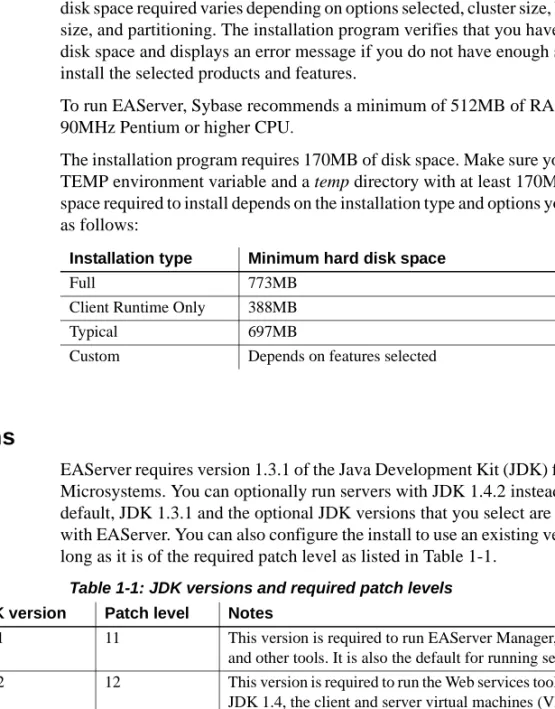
This section provides system requirements for each type of EAServer installation. The disk space requirements provided are approximate; the actual disk space required varies depending on options selected, cluster size, hard disk size, and partitioning. The installation program verifies that you have enough disk space and displays an error message if you do not have enough space to install the selected products and features.
To run EAServer, Sybase recommends a minimum of 512MB of RAM and a
90MHz Pentium or higher CPU.
The installation program requires 170MB of disk space. Make sure you have a TEMP environment variable and a temp directory with at least 170MB. The space required to install depends on the installation type and options you select, as follows:
JDK versions
EAServer requires version 1.3.1 of the Java Development Kit (JDK) from Sun Microsystems. You can optionally run servers with JDK 1.4.2 instead. By default, JDK 1.3.1 and the optional JDK versions that you select are installed with EAServer. You can also configure the install to use an existing version, as long as it is of the required patch level as listed in Table 1-1.
Table 1-1: JDK versions and required patch levels
To verify the version and patch level, open a DOS prompt in the bin directory of the JDK installation and run the following command:
Installation type Minimum hard disk space
Full 773MB
Client Runtime Only 388MB
Typical 697MB
Custom Depends on features selected
JDK version Patch level Notes
1.3.1 11 This version is required to run EAServer Manager, jagtool, and other tools. It is also the default for running servers. 1.4.2 12 This version is required to run the Web services toolkit. With
JDK 1.4, the client and server virtual machines (VMs) are supported; the classic VM is not.
What to install
java -version
To configure the installation to use an existing JDK installation, choose the Custom installation type when running the installer. After you select the desired JDK versions, the installer scans your machine for JDK installations that match the selected versions. The installer prompts you to specify whether to use an existing JDK and for the location of the JDK. If an existing JDK has been detected, the location is given as the default in this prompt. You can specify a different location.
What to install
When you install EAServer, features are installed by default depending on the type of installation you select. The types of installations include:
• Typical – installs the typical files required for developing EAServer applications. If you choose this option, the client runtime files are installed on your machine in the easclient.jar file.
• Client Runtime Only – installs only the client runtime files. Select this option to run Java or C++ client applications or to use SSL connectivity from PowerBuilder clients, but not install the entire product set. You are not required to install the client runtime if you are developing clients on a machine where the application server is installed. The server installation includes the core server files.
• Full – installs all features.
• Custom – you define which features to install. By default, features that are installed as part of a typical installation are installed as part of a custom installation, but you can add or remove features.
If you customize your installation, be aware of the following:
• JDK 1.3 – EAServer Manager, jagtool, jagant, JAAS, and the J2EE Application Client require JDK 1.3 which is installed automatically. If you select this option you have the choice of installing it, or using an existing JDK1.3 installation.
• C++ runtime files – SSL support requires C++ runtime libraries. • Client runtime files – to run Java and C++ client applications, or to
use SSL connectivity from PowerBuilder clients, you must install the EAServer client runtime files.
• When you select to install the server, you must also install the C++, Java, and SSL runtime files.
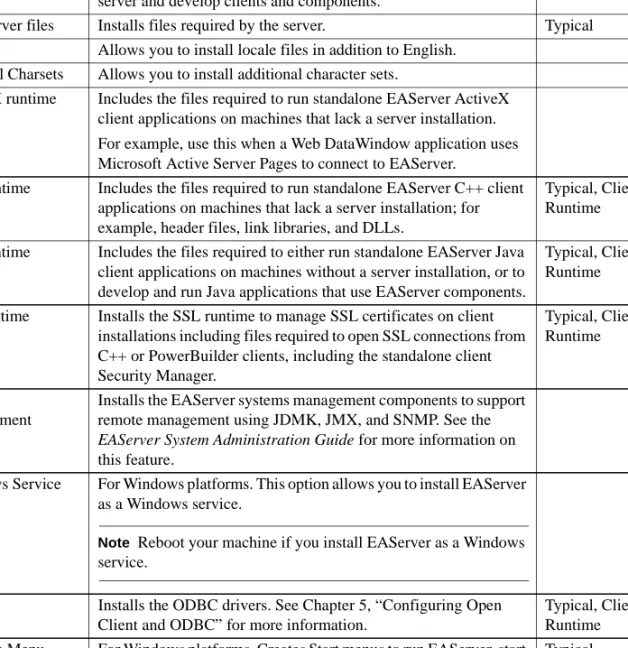
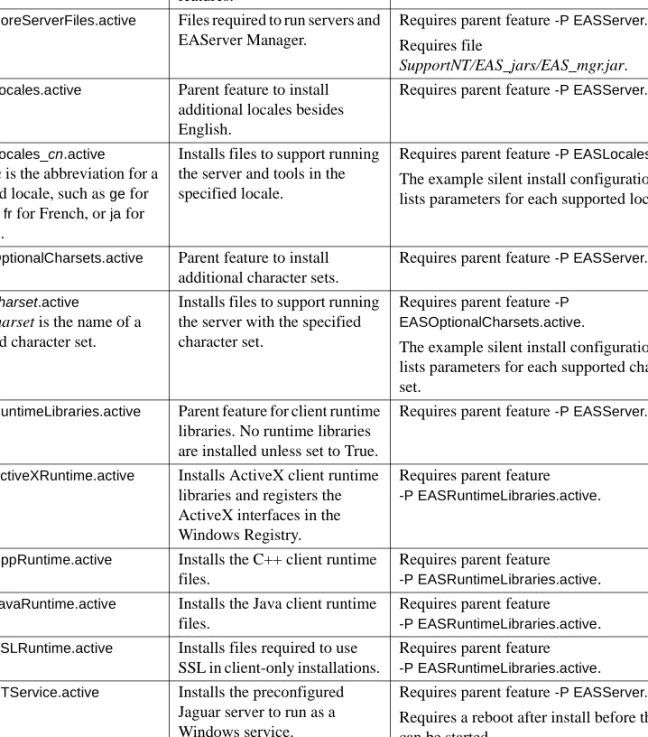
Table 1-2 describes EAServer features and lists the features that are installed for each type of installation. Any feature can be optionally installed if you select the Custom installation type, and a Full installation installs everything.
Table 1-2: EAServer features
Feature Description Installation type
Server Includes the application server and files required to manage the server and develop clients and components.
Typical Core server files Installs files required by the server. Typical Locales Allows you to install locale files in addition to English.
Optional Charsets Allows you to install additional character sets.
ActiveX runtime Includes the files required to run standalone EAServer ActiveX client applications on machines that lack a server installation. For example, use this when a Web DataWindow application uses Microsoft Active Server Pages to connect to EAServer.
C++ runtime Includes the files required to run standalone EAServer C++ client applications on machines that lack a server installation; for example, header files, link libraries, and DLLs.
Typical, Client Runtime Java runtime Includes the files required to either run standalone EAServer Java
client applications on machines without a server installation, or to develop and run Java applications that use EAServer components.
Typical, Client Runtime SSL runtime Installs the SSL runtime to manage SSL certificates on client
installations including files required to open SSL connections from C++ or PowerBuilder clients, including the standalone client Security Manager.
Typical, Client Runtime
System Management
Installs the EAServer systems management components to support remote management using JDMK, JMX, and SNMP. See the
EAServer System Administration Guide for more information on
this feature.
Windows Service For Windows platforms. This option allows you to install EAServer as a Windows service.
Note Reboot your machine if you install EAServer as a Windows service.
ODBC Installs the ODBC drivers. See Chapter 5, “Configuring Open Client and ODBC” for more information.
Typical, Client Runtime Program Menu
Items
For Windows platforms. Creates Start menus to run EAServer, start EAServer Manager, and so on. This option does not support multiple EAServer installations on a single machine. See “Multiple EAServer installations on a single machine” on page 7.
What to install
Registry Update For Windows platforms. Updates the Registry with required EAServer entries.
When you install or reinstall EAServer, the installer checks the Registry for an existing EAServer installation if this feature is selected, and uses that location as the default installation location. This option does not support multiple EAServer installations on a single machine. See “Multiple EAServer installations on a single machine” on page 7.
Typical
Apache, iPlanet, IIS, and Netscape plug-ins
Installs Web server plug-ins to integrate EAServer Web applications with Web sites hosted on popular Web servers. See Chapter 4, “Installing and Configuring a Web Server Redirector Plug-In,” for more information.
Debug server Includes the debug version of the application server and files required to manage the server and develop clients and components.
Typical Documentation Installs online HTML documentation and tutorial files in the
EAServer html\docs subdirectory.
Typical EAServer Manager Allows you to configure servers, packages, and components. Typical, Client
Runtime JDKs Options to install JDK 1.3, 1.4, and 1.5. Typical Message Bridge Sybase Message Bridge for Java generates Java classes that
simplify parsing and construction of XML documents used in your EAServer applications. Installs the runtime files required by Message Bridge and the GUI that aids in building Message Bridge applications.
Open Client Installs the Open Client™ software. See Chapter 5, “Configuring Open Client and ODBC” for more information.
Typical Samples Installs the EAServer samples and the Adaptive Server Anywhere
database server files required to run databases used by the samples and tutorials.
Typical
Tools Support Installs:
• PowerBuilder 9.0.3 – support for running PowerBuilder 9.0.3 components in EAServer.
• PowerBuilder 10.2.1 – support for running PowerBuilder 10.2.1 components in EAServer.
• PowerDynamo to JSP conversion utility – installs a tool to convert PowerDynamo Web sites to JSP-based J2EE Web applications.
• PowerBuilder 10.5 – support for running PowerBuilder 10.5 components in EAServer.
Multiple EAServer installations on a single machine
You can install EAServer to multiple locations on one machine, with the following restrictions:• Only one installation, referred to as the primary installation, may be configured with system environment variables, program menu items, and an ActiveX client or server runtime installation.
• In secondary installations, you can use all features except ActiveX clients and components. You must configure the environment manually (or via batch files) to run clients and components in a secondary install.
To create a secondary installation, specify a different location, use the Custom Install option and deselect the following features:
• ActiveX, under the Runtime Libraries option group
• Registry update
• Program menu items
In the secondary installation, use the command batch files to run EAServer Manager, start servers, run jagtool, and so forth. The EAServer System
Administration Guide documents the command syntax. Web services
support
Installs Web Services Toolkit (WST). You can choose which components are installed:
• WST runtime installs the files required to run Web services in EAServer.
• WST client runtime installs only the files that are required to run Web services clients. These files are also included with the WST runtime option.
• Administration console installs the Web-based Web services administration tool.
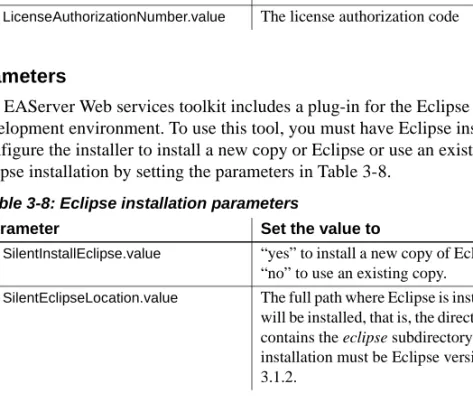
• Eclipse based development tool installs an Eclipse plug-in to create and administer Web services, and optionally installs Eclipse.
• Private UDDI server installs the files required to run a private Uniform Description, Discovery, and Integration (UDDI) server. Typical, Client Runtime – install includes the WST runtime, administration console, Eclipse plug-in, and private UDDI server.
Run a custom install to install only the client runtime files.
Multiple EAServer installations on a single machine
To run servers in different installations simultaneously, use EAServer Manager or the installer to change the listener port numbers so that servers in different installations do not use the same port numbers. At install time, you can select different ports for the preconfigured Jaguar server.
This chapter explains how to upgrade, install, and uninstall EAServer.
Pre-installation tasks
Before you install EAServer:
1 If this is an update of an existing EAServer installation, verify EAServer 5.x is installed. If you have an earlier version installed, upgrade to 5.0 before installing 5.5, or install EAServer 5.5 in a separate location.
2 Read the release bulletins for the latest information on the products that you are installing. Pay close attention to the “Special Installation Instructions” section.
Release bulletins are included on the Getting Started CD that is included with your software. The most recent version is available at
EAServer Product Manuals site at http://sybooks.sybase.com/. 3 If you are performing any of the following tasks, review the
instructions in “Adding, reinstalling, or upgrading components” on page 15:
• Upgrading from an earlier version
Topic Page
Pre-installation tasks 9
Installing EAServer 10
Adding, reinstalling, or upgrading components 15
Installing ASA 17
Starting EAServer, ASA, and EAServer Manager 18 Connecting to EAServer through a Web browser 19
Uninstalling EAServer 20
Installing EAServer
• Upgrading your license, for example, from the Developer to the Advanced edition
• Reinstalling EAServer 5.5 or adding components or features to your installation
4 Install operating system patches, if required. Required operating system patches are described in the release bulletin for the product.
5 Verify that you have enough space to install the software—see “System requirements” on page 2.
6 Make sure you have a TEMP environment variable and a temp directory
with at least 170MB. The installation program uses the extra space and directory to write files temporarily during the installation. The installation program frees this space after the installation is complete.
7 Close any EAServer applications, such as “Jaguar CTS” console server windows, EAServer Manager, and application servers that run as Windows services.
Installing EAServer
Installing EAServer takes 10 – 20 minutes, depending on the speed of your computer and features you are installing.
What the installer does The setup program installs software in default drives and directories unless you specify otherwise. If a directory you specify does not exist, the setup program creates it. The setup program:
• Sets the JAGUAR_CLIENT_ROOT environment variable to represent the
EAServer installation directory.
• If you install the PowerBuilder virtual machine (PBVM), adds required entries to the system CLASSPATH environment variable.
• Creates (or updates if it already exists) the vpd.properties configuration file in your %SystemRoot% directory. vpd.properties is used internally by InstallShield. Do not delete or modify this file as it may affect the ability to reinstall or uninstall any software that uses an InstallShield installer (including non-Sybase products).
• Registers the EAServer client ActiveX automation controllers for the JaguarORB, CtsSecurity, and SessionManager ActiveX client interfaces (if the ActiveX client runtime is installed).
• Adds the appropriate paths to the following Registry path:
HKEY_LOCAL_MACHINE\SOFTWARE\MICROSOFT\WINDOWS\CURRENTVERSION\APP PATHS
• Creates or updates Registry subkeys, including ODBC.INI and
ODBCINST.INI.
• Creates or updates the SYBASE key in
HKEY_CURRENT_USER\Software.
• Updates system and user paths in HKEY_CURRENT_USER\Environment.
❖ Installing EAServer
1 Exit any programs that are running. If you do not, the Sybase installer may not be able to copy some files to the appropriate directories.
2 If you have downloaded EAServer, expand the installation software to a temporary location. Otherwise, insert the software CD into your CD drive. 3 Select Start | Run, and enter:
path\setup.exe [-is:tempdir temp_directory]
where path is the location of the installation software. If you have less than 170MB in your temp directory, add the -is:tempdir temp_directory option, replacing temp_directory with the full path to a temporary directory that has at least 170MB of available disk space. For example:
f:\setup.exe -is:tempdir d:\temp
The installer starts, and the EAServer 5.5 Install window appears. 4 Click Next in the Install window.
Note Use Back and Next to step backward and forward through the installation process to modify specifications as necessary.
Select Cancel to halt the installation process.
5 Select your country or region from the dropdown list to display the license agreement. You must read and accept the terms of the license agreement for your country before you can install any Sybase products. Click Next. 6 The installer checks whether any EAServer processes are running on the
machine. If prompted, shut down any EAServer applications, including EAServer, and EAServer as an Windows service. Click Next.
Installing EAServer
7 Enter the full path to which EAServer is to be installed. If this is an upgrade, enter the full path to the directory in which EAServer 5.x is installed. Select Upgrade Install to upgrade your installation to 5.5. If you have already installed EAServer 5.5, you can select one of the other options to upgrade your license, add components, or reinstall. For details, see “Adding, reinstalling, or upgrading components” on page 15.
Note The installer searches for a directory identified by the %JAGUAR% environment variable. If located, this is the default directory for upgrading your installation or adding components.
8 Select the type of installation, then click Next:
• Typical – installs EAServer using the most common installation options.
• Client Runtime Only – installs the files required to run standalone EAServer clients.
• Full – installs everything.
• Custom – allows you to choose specific installation options for EAServer. After choosing this option, select the server options to install (for example, debug libraries and the files required to support SSL clients).
Select the EAServer features to install by placing a check mark next to the feature.
See “What to install” on page 4 for a list of features that are installed for each installation type.
9 If you are installing the Advanced Edition, provide the product license information:
• Order Number
• Feature Name
• Authorization Code
Note If you do not provide the product license information, the installer will display the message to indicate that the EAServer is installed as the Workgroup Edition.
The product license information is provided in your EAServer package on a printed Sybase certificate. Click Next.
10 If you select a custom installation and select to install any of the JDKs, you can either install the selected JDK, or use a JDK that may already be installed on your system. If the installer detects an existing JDK of the appropriate version, it is displayed as the default location. Existing JDKs must be of the correct version and patch level, as described in “JDK versions” on page 3.
Click Next to continue.
11 If you are installing the Web services toolkit Eclipse plug-in, you must have an Eclipse installation. Choose one of the following options: • Select Install New Eclipse and enter the path where to install it to. The
installer places Eclipse version 3.1.2 in an eclipse subdirectory in this location.
• Select Use Existing Eclipse to configure your EAServer installation to use an existing Eclipse installation. Enter the path to the existing installation, which is Eclipse version 3.1 or 3.1.2, installed in an
eclipse subdirectory in the specified location. Sybase recommends
that you use Eclipse 3.1.2. Click Next to continue.
12 If you creating a new installation and have chosen to install EAServer as a Windows service, specify the server and service names. For a new install, accept the default values unless you plan to create a different server after completing the install. For new installs, the installer creates one server named Jaguar. If you specify another server name, the service will not run unless you create the server after the install completes. Chapter 3, “Creating and Configuring Servers,” in the EAServer System
Administration Guide describes how to create servers.
If you are upgrading, you can specify the name of an existing server other than the default, Jaguar. In this case, specify a service name that does not conflict with other services running on your machine.
13 If you are creating a new installation, the installer displays port numbers for the preconfigured EAServer network listeners, as displayed in Table 2-1. You can edit the ports or accept the default settings. Choose port numbers that are not used by other servers running on your machine.
Installing EAServer
You can click “Suggest ports” to test whether any of the specified ports are in use. The installer tests each port to see if it is used by a running process or in known EAServer installations on the machine. If a port is in use, the number is incremented by 100 and tried again.
When you click Next, the installer also tests whether ports are in use. After the install completes, you can modify or remove preconfigured listeners as described in Chapter 3, “Creating and Configuring Servers,” in the
EAServer System Administration Guide. Table 2-1: Default listener settings
14 The installer displays a summary of the features to be installed and the installation directory. Review these entries and click Next to continue or Back to modify your entries.
15 The installer begins copying files and informs you when the installation is complete. Select Start Server to start EAServer, or View Readme to display the readme file. Click Next.
16 Click Finish to exit the installer.
For each of the following products you choose to install, see the corresponding section for additional installation and configuration instructions:
• ASA support – “Installing ASA” on page 17.
• Any of the Web server redirector plug-ins (Apache, Netscape, iPlanet, or Microsoft IIS) – Chapter 4, “Installing and Configuring a Web Server Redirector Plug-In.”
• ODBC and Open Client – Chapter 5, “Configuring Open Client and
ODBC.”
Listener name
Default
port Description
http 8080 For HTTP (Web client connections) https1 8081 HTTP with SSL security.
https2 8082 HTTP with SSL security requiring client certificates to connect.
iiop 9000 For IIOP connections. EAServer Manager, PowerBuilder, and other standalone client applications use this protocol.
iiops1 9001 IIOP with SSL security.
iiops2 9002 IIOP with SSL security requiring client certificates to connect.
tds 7878 Used by clients that use the Methods as Stored Procedures (MASP) interface. OpenServer 7979 Used by clients that connect to legacy Sybase Open Server™ applications that
Network install If you are a system administrator, you may want to allow users to install EAServer from a network drive rather than from the CD. To do this, copy the files from each CD to a separate directory on a network drive and note the location. During installation, the user is prompted to specify the directory location for each CD.
Adding, reinstalling, or upgrading components
This section describes how to upgrade your license and add or reinstall components to a current version installation. If you are installing or upgrading to the Advanced Edition of EAServer, make sure you have the EAServer 5.5 product license information available before you run the setup program. The license management certificate is enclosed in an envelope in the shipping box. To upgrade your license or add components to an existing installation, or to reinstall EAServer, run the setup.exe program as described in “Installing EAServer” on page 11, and select an installation directory that contains an EAServer installation. Depending on the version of the install that is detected, you are prompted with one or more of these options:
• Upgrade license – allows you to upgrade an existing EAServer 5.5 installation by providing different license information.
• Add components – allows you to add components or features to an existing EAServer 5.5 installation.
• Reinstall – allows you to reinstall EAServer 5.5 over an existing EAServer 5.5 installation.
Each of these procedures is described below. ❖ Adding components
1 Select Add Components to add components to an existing EAServer 5.5
installation. Click Next.
2 The installer prompts you for the type of installation to which you will add components: Client Runtime Only or Custom. Select Client Runtime Only if you are adding components to a client installation. Select Custom for all other types of installations. Click Next.
3 The installer indicates the components that are already installed by placing (installed) next to those components. Select the components you want to add.
Adding, reinstalling, or upgrading components
4 Verify that the EAServer directory is correct and that the components being added are correct. Click Next.
5 The installer starts adding components to the installation. You may be prompted to overwrite existing files. Click Yes to continue.
6 When the components have been added, the installer displays a message that EAServer has been successfully installed. Click Finish.
❖ Upgrading your license
1 Select the Upgrade License option to upgrade your license. Click Next. 2 Provide the order number, feature name, and authorization code, which are
located on the license management certificate enclosed in an envelope in the shipping box. Click Next.
3 The installer displays a message that the license has been successfully upgraded. Click Finish.
❖ Reinstalling EAServer
1 Select Reinstall to reinstall EAServer 5.5 over an existing EAServer 5.5 installation.
2 The installer prompts you for the type of reinstallation: Typical, Client Runtime Only, Full, or Custom. If you select Typical or Full installation type, a default set of features is reinstalled. Custom and Client Runtime Only allow you to modify your selections. Click Next.
3 For Custom and Client Runtime Only reinstallations, the installer indicates the components that are already installed by placing (installed) next to those components. If not already there, place a check next to the components you want to reinstall.
4 The installer displays a message when EAServer has been successfully reinstalled. Select Start Server to start EAServer or View Readme to display the readme file. Click Next.
5 Click Finish to exit the installer.
Upgrading the message service
See Chapter 8, “Setting Up the Message Service,” in the EAServer System
Preserving JDK customizations
When upgrading, if you have customized the JDK installation used by EAServer, you may need to apply the customizations again. Your options are: • If the existing JDK is at the correct patch level, choose the Custom option when installing. The installer prompts for the location of your existing JDK and configures EAServer to use it. See “JDK versions” on page 3 for more information.
• If the existing JDK is not at the correct patch level, install a new JDK version from the CD and reapply your customizations.
Settings preserved during upgrade
The following entity types are not modified by an upgrade install:
• Connection caches
• Listeners
• Instance pools
• Servers
• SSL certificates
To take advantage of new functionality, you may need to modify settings. For example, for Listeners you can use {$JAGUAR_HOST_NAME} to specify the host value. This is the default for new installs, but for upgrades the existing values are preserved.
Systems management options
Systems Management is described in Chapter 13, “Using Systems Management,” in the EAServer System Administration Guide.
Installing ASA
As part of the EAServer installation, ASA is automatically installed in the
Starting EAServer, ASA, and EAServer Manager
Starting EAServer, ASA, and EAServer Manager
The installer creates a preconfigured server named Jaguar. If you installed EAServer as a Windows service, the server starts automatically when you reboot your machine. Otherwise, you can start EAServer manually by choosing Start | Programs | Sybase | EAServer 5.5 | Jaguar Server.
There are many other options to start the server. For details, see “Starting the server” in Chapter 3, “Creating and Configuring Servers,” in the EAServer
System Administration Guide.
With EAServer running, you can start EAServer Manager to configure new servers, packages, and components.
❖ Starting EAServer Manager
EAServer Manager allows you to configure servers, packages, and
components. EAServer Manager runs as a plug-in to Sybase Central. To start Sybase Central and EAServer Manager:
1 Select Start | Programs | Sybase | EAServer 5.5 | EAServer Manager, or launch the %JAGUAR%\bin\jagmgr.bat batch file.
2 In the Sybase Central window, select Tools | Connect.
3 In the New Connection dialog, select EAServer Manager and click Ok. 4 On the connection screen, enter:
• User Name: jagadmin
• Password: leave blank
You do not need to provide a password for jagadmin unless one has been established. Refer to “Administration password and OS authentication” in the EAServer Security Administration and
Programming Guide for information on establishing a jagadmin
password.
• Host Name: your machine name or the name of the proxy host if you have selected the Use Proxy check box.
• Port Number: your IIOP port number; the default is 9000. Or the proxy port number if you have selected the Use Proxy check box.
• Use Proxy: Select this check box if you are connecting to an EAServer that is located behind a firewall, and your EAServer Manager host is on the other side of the firewall, by using a proxy or Network Address Translation (NAT) router to connect. If selected supply router or NAT information in the Host Name and Port Number fields.
5 Click Connect.
6 Double-click the EAServer Manager icon to view the property folders.
Note When you install EAServer, the default host name for all listeners is set to the name of the host machine and the default IIOP port number to 9000. After connecting to EAServer, you can use EAServer Manager to edit the listener properties and change the default host name and port numbers. Some of the sample programs use “localhost” as the host name when connecting to EAServer. See “Configuring listeners” in Chapter 3, “Creating and
Configuring Servers,” in the EAServer System Administration Guide for more information.
❖ Starting the Adaptive Server Anywhere database
• Select Start | Programs | Sybase | EAServer 5.5 | Jagdemo.
For more information on the sample applications, see the EAServer
Cookbook.
Connecting to EAServer through a Web browser
EAServer provides built-in HTTP (Web) server support, preconfigured to run on port 8080.
❖ Connecting to EAServer through a Web browser
• From your Web browser, open this URL:
http://host:http-port
where:
• host – is the name of your machine.
• http-port – is the port number at which EAServer accepts HTTP
Uninstalling EAServer
After you connect to EAServer, you can view user documentation and run the EAServer samples.
Uninstalling EAServer
You can use one of the following methods to uninstall EAServer:
• Use Add/Remove Programs in Windows Control Panel
• Run EASuninstall.exe in the %JAGUAR%/_uninstall directory
This section describes how to uninstall EAServer from the Windows Control Panel:
1 Verify that EAServer is shut down before you uninstall EAServer. 2 If you plan to reinstall EAServer, make backup copies of files you may
want to reuse, such as the DB, INI, and PBL files.
3 Select Add/Remove Programs from the Control Panel.
4 Highlight the Sybase EAServer 5.5 entry and click the Add/Remove button. This launches the Sybase Uninstaller. Click Next from the Sybase Uninstaller wizard.
5 To view the features you are uninstalling, select the View the Uninstall Summary Panel check box.
6 If the install created a new installation of Sybase Central 4.3, you have the option of removing it. Do not remove Sybase Central if it is used by other EAServer 5.x installations or by other Sybase products. To remove Sybase Central, select this option. Click next.
7 If you selected the View the Uninstall Summary Panel check box, the features to be uninstalled are displayed. Review the list and click Next. 8 The uninstaller displays a message when it has uninstalled EAServer.
Click Finish.
Note The uninstaller does not remove any server or user created files from an installation upgrade, such as log files, repository files, stubs, skeletons, and temporary work files, or backup files created during the install process. You can manually remove these files after running the uninstaller.
Uninstalling EAServer using juninstall.bat
The uninstaller may not run correctly on some machines with older versions of the display control interface software and drivers. If the uninstaller does not run, draws the screen incorrectly, or hangs, run juninstall.bat, which launches the uninstaller with Java display control interface support disabled. The uninstaller may run more slowly with display control interface disabled. To uninstall, copy the juninstall.bat from the SupportNT directory of the CD to the EAServer _uninstall directory in your installation. Run juninstall.bat from this location to uninstall EAServer.
Installing the CocoBase Enterprise O/R evaluation
software
EAServer 5.5 includes an evaluation version of CocoBase® Enterprise Object/Relational mapping software from Thought Inc. To install CocoBase, insert or mount the CD, then change to the CocoBaseEval directory on the CD. Run the CocoBase Java installer with the Java interpreter, for example, at a DOS prompt run these commands:
set CLASSPATH=.
java install_cocobase4_0207
This directory also includes CocoBase tutorials for EAServer, provided by Thought Inc. For additional CocoBase documentation and tutorials, see the
Installations
You can silently run the EAServer installer. If you are packaging EAServer with your own software, you may want to create a scripted EAServer installer that runs as a subinstall of your own installation procedure, so your end users install EAServer with no interaction with the EAServer installer.
Additionally, EAServer provides tools for scripted configuration of the installation, including customization of server properties, and installation of your own components and application files to EAServer.
Configuring and running the silent installer
The silent installer is a Java program. The installation CD contains a sample batch file to run the install with the correct JRE and CLASSPATH settings. An additional text file specifies the installation type and options. These instructions assume that you will include the EAServer install files and customized installer scripts with the install media for your own software.
❖ Configuring the silent installer
1 Create a directory for your install image.
2 Copy the following files from the EAServer installation CD to your install image:
• EAS550.jar
• readme.htm (Optional. If you are installing the HTML
documentation, this file contains additional documentation).
Topic Page
Configuring and running the silent installer 23
Configuring and running the silent installer
• libjinstaller.dll and msvcrt.dll
• The JRE_1_4 subdirectory and its contents. Sybase recommends that you use this JRE to run the install. Other JRE versions may not work as well.
• If you have the Developer or Workgroup Edition, copy
SYBASE_EAS.lic from the root directory of the EAServer CD to the
root directory of your install image.
• If your silent install will upgrade an earlier EAServer installation, copy the following files and directories, preserving the relative path structure:
• The SupportGeneric/Upgrade directory and contents
• The SupportNT/Upgrade directory and contents
3 Create configuration and run files as described in “Configuration and run files” on page 25. Copy any required additional files from the EAServer CD to your install image, as described in that section.
4 To support the silent uninstallation process, create the files described in “Silent uninstaller files” on page 34.
Preserving the vpd.properties file
You may make a few errors when creating and testing your silent install. Cleanup of failed installations requires that you delete the InstallShield
vpd.properties file. This file may be required by the installers for other
applications. Before testing your install, back up the following file and restore it before installing or upgrading other software:
%SYSTEMROOT%\vpd.properties
❖ Testing and running the silent installer
1 Before running a silent installation, make sure you:
a Have enough space in your temporary and product directories. See “System requirements” on page 2.
b If your %SYSTEMROOT% directory contains an InstallShield
vpd.properties file, make a backup copy.
c For all upgrades, stop EAServer applications such as “Jaguar CTS” console server windows, EAServer Manager, and application servers that run as Windows services.
2 Test the silent installer using the run script that you created at the command line or in your own product’s installation script. Running a silent installation takes 10 – 20 minutes, depending on the speed of your computer.
3 After each trial run, check for errors, and clean up your machine as described in “Troubleshooting and cleanup of the silent installer” on page 36.
Configuration and run files
In a silent installation, users cannot input information or choices. You must supply all required information in a configuration file or on the command line that runs the silent install. The EAServer installation script contains a sample configuration file, SilentInstall_Win.txt. The batch file SilentInstall_Win.bat runs the install with this configuration. Start with copies of these files and modify them to suit your installation.
Place your configuration file and run script in the root directory of your install image. Edit the run script to refer to the file name you are using for your configuration file.
Edit the configuration file to customize the install as described below.
Install logging parameters
For troubleshooting purposes, you can enable logging for the installer by setting the parameters in Table 3-1.
Table 3-1: Parameters to enable logging of install activity
Parameter Specifies
-W EASInstallLog.active Whether logging is enabled. Set to True to enable logging and False to disable.
-W EASInstallLog.logOutput The directory and file name for the log file. The default is: $D(temp)\eas550install.log
This specifies eas550install.log in the directory specified by the TEMP environment variable.
-W EASInstallLog.isLogAllEvents Whether to log all messages or only errors and warnings. Specify True to log all messages, and False to log only warnings and errors.
Configuring and running the silent installer
Install types
Set the -W SilentInstallType.value parameter to specify the installation scenario; that is, whether you are upgrading from EAServer 5.x to 5.5, adding additional features to an existing 5.5 installation, or installing a new version of 5.5. Table 3-2 lists allowable values.
Table 3-2: Install types
Install location
Set the -W SilentInstallLocation.value to specify the install location. For upgrade installs (install type is InstallUpgrade), specify the location of the previous install, as specified by the JAGUAR environment variable for the install.
For installs that add features to an existing EAServer 5.5 install (install type is InstallFull) and installs that upgrade the license (install type is
InstallLicense), specify the location where EAServer is installed. In other words, the value of the JAGUAR environment variable for that installation. The default value is $D(install)\Sybase, which specifies the directory
C:\Program Files\Sybase.
License agreement
For the silent install to run, you must change the value of
-W SybaseLicense.agreeToLicense from False to True, indicating that you have read and agreed to the software license agreement. The license text can be viewed by running the interactive install or on the Sybase Web site at http://www.sybase.com/softwarelicenses.
Value Scenario
InstallFull To install a full EAServer 5.5 installation or add additional features to an existing EAServer 5.5 installation. The features you select will be installed or reinstalled.
InstallUpgrade Upgrade from an earlier version of EAServer. The features you select will be installed or reinstalled. You should select the features that match the existing installation. For example, if the debug server files are installed, you must select this option to upgrade those files.
InstallLicense Update the EAServer 5.5 license with new license keys. Use this option to upgrade from one edition of EAServer to another, for example, from the Developer Edition to the Advanced Edition.
When running with this option, the installer creates or modifies the license file only. No other files are installed.
Server and service names
If you are installing EAServer to run as a Windows service, configure the server and service names shown by setting the parameters in Table 3-3.
Table 3-3: Parameters to configure servers run as Windows services
You must also enable the -P EASNTService.active option, described in “Feature selection parameters” on page 30.
Listener ports
EAServer includes several preconfigured network listeners for the supported protocols. For new installs, configure the listener ports by setting the
parameters listed in Table 3-4. These settings are ignored if you are upgrading an existing installation. You can also configure these settings after the install completes using EAServer Manager or jagtool as described in the EAServer
System Administration Guide.
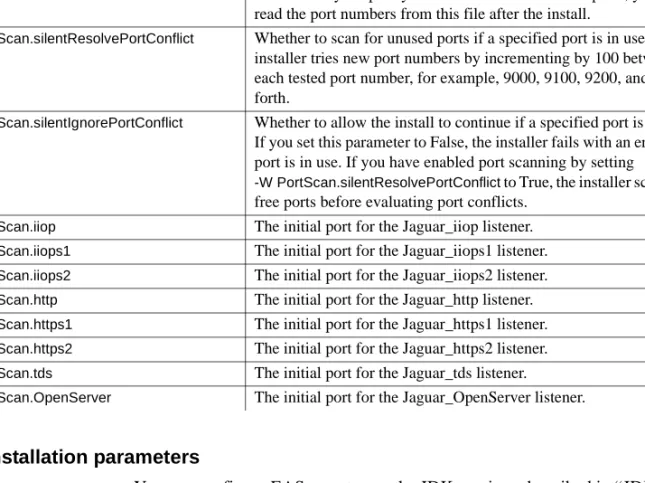
The installer checks to see if the specified ports are already in use. You can configure the installer to either ignore port conflicts or to scan for free ports. For example, these settings configure the install to not scan for free ports and to ignore conflicts:
-W PortScan.silentResolvePortConflict=False -W PortScan.silentIgnorePortConflict=True
To scan for free ports and write the port numbers to the log file
eas_install.props, use these settings:
-W InstallLogFilename.value="$W(SilentInstallLocation.value)\EAServer\eas_ins tall.props"
-W PortScan.silentResolvePortConflict=True -W PortScan.silentIgnorePortConflict=False
Parameter Specifies
-W NameWinService.ServerName The name of the server to run as a service. For a new install, use the default value of Jaguar unless you plan to create a different server after completing the install. For new installs, the installer creates one server named Jaguar. If you specify another server name, the service will not run unless you create the server after the install completes. Chapter 3, “Creating and Configuring Servers,” in the EAServer
System Administration Guide describes how to create servers.