CSCU9T4 (Managing Informa3on):
Strings and Files in Java
Carron Shankland
Content
• String manipula3on in Java
• The use of files in Java
• The use of the command line arguments
• References:
– Java For Everyone, 2nd Edi3on (2013), by Cay Horstmann
• Chapter 02: sec3on 2.3 and 2.5 (strings)
• Chapter 07: sec3ons 7.1, 7.2, 7.3 (files)
– The lecture material comes from this book
– M. T. Goodrich and R. Tamassia, Data Structures and Algorithms in Java, 5th edi3on
• Character strings (such as those displayed in the board) are
important data types in any Java program. We will learn how to work with text, and how to perform useful tasks with them.
• We will also learn how to write programs that manipulate text files,
a very useful skill for processing real world data.
String Processing facili3es in Java
• A common method to manipulate strings in Java is to use the the String class (you can also use StringBuffer)
• The String class provides a lot of useful methods, including those for
– crea3ng and manipula3ng strings
– inspec3ng the characters in a string
– spliXng up a string into tokens
• We will take a quick tour of some of the most useful of these (aZer a quick recap of the features you know already)
– substring, trim, split
– toUpperCase, toLowerCase
– equals, endsWith, startsWith
– charAt, indexOf, lastindexOf
• We will also look at the StringTokenizer class
TIP: Refer to Java docs! h\p://www.cs.s3r.ac.uk/doc/java/jdk1.6/
©University of S3rling
Strings
•
Many programs process text, not numbers
•
Text consists of characters: le\ers, numbers,
punctua3ons, spaces, etc.
•
What is a string?
–
An ordered collec3on of characters of arbitrary
length
–
Consider S3rling, You rock!, “67.435”, 3.8x10⁴, or
5.2e6?
–
In our ‘world’ strings delineated by quota3ons: “ “
4 ©University of S3rling
Common uses of strings
• Input– from a user, or from a (data) file
– the program must understand what the string represents
– making sense of a string (determining its syntax) is called
parsing e.g. a Url • Output
– maybe on the screen, or to a file
• Strings are oZen converted to/from other formats, e.g.
– string/number conversions are very common, including
integers, floa3ng point numbers
– can also have general string/object conversions
• As programmers, we need to be able to process strings
©University of S3rling
Examples of string processing
•
A compiler takes the text of a program as input,
and its first task is to parse the input
•
A word processor looks to see which are the
individual words of a line of text so that it can
spell check them.
•
A browser must parse a URL into pieces:
– which protocol to use
– which web server to contact
– which file to ask for from that web server
2.5
Strings
q
The
String
Type:
§ Type Variable Literal
§ String name = Harry
q
Once you have a
String
variable, you can use
methods such as:
int n = name.length(); // n will be assigned 5
q
A
String
s length is the number of characters
inside:
§ An empty String (length 0) is shown as
§ The maximum length is quite large (an int)
Page 7 Copyright © 2013 by John Wiley & Sons.
String concatena3on
• Java: + operator is used to concatenate strings. Put them together to
produce a longer string. Example:
– String fName = “Harry”, String lName = “Morgan”
– String name = fName + lName
– Results in the string: “HarryNorman”
• If you’d like the first and last name separated by a space:
– String name = fName + “ “ + lName – Results in the string: “Harry Norman”
• When the expression to the leZ or right of a ‘+’ operator is a string,
the other one is automa3cally forced to be a string, and both strings are concatenated. Example:
– String jobTitle = “Agent”, int empID = 7
– String bond = jobTitle + empID
– Results in the string: “Agent7”
8 ©University of S3rling
2.3 Input and Output
Reading Input
•
You might need to ask for input (aka prompt for input)
and then save what was entered.
– We will be reading input from the keyboard
– For now, don t worry about the details
•
This is a three step process in Java
1) Import the Scanner class from its package java.util
import java.util.Scanner;
2) Setup an object of the Scanner class
Scanner in = new Scanner(System.in);
3) Use methods of the new Scanner object to get input
int bottles = in.nextInt(); double price = in.nextDouble();
Page 9
Syntax 2.3: Input Statement
• The Scannerclass allows you to read keyboard input from the user
– It is part of the Java API util package
Java classes are grouped into packages. Use the import statement to use
classes from packages.
String
Input
q
You can read a
String
from the console with:
System.out.print("Please enter your name: "); String name = in.next();
§ The next method reads one word at a time
§ It looks for white space delimiters
q
You can read an entire line from the console with:
System.out.print("Please enter your address: "); String address = in.nextLine();
§ The nextLine method reads until the user hits Enter
q
Converting a
String
variable to a number
System.out.print("Please enter your age: "); String input = in.nextLine();
int age = Integer.parseInt(input); // only digits!
Page 11 Copyright © 2013 by John Wiley & Sons.
String
Escape Sequences
q
How would you print a double quote?
§ Preface the " with a \ inside the double quoted String
System.out.print("He said \"Hello\"");
q
OK, then how do you print a backslash?
§ Preface the \ with another \!
System.out.print(" C:\\Temp\\Secret.txt );
q
Special characters inside
String
s
§ Output a newline with a \n
System.out.print("*\n**\n***\n");
* ** ***
Page 12 Copyright © 2013 by John Wiley & Sons.
String
s and Characters
q
String
s are sequences of characters
§ Unicode characters to be exact
§ Characters have their own type: char
§ Characters have numeric values
• See the ASCII code chart in Appendix B
• For example, the letter H has a value of 72 if it were a number
q
Use single quotes around a
char
char initial = B ;
q
Use double quotes around a
String
String initials = BRL ;
Page 13 Copyright © 2013 by John Wiley & Sons.
Copying a
char
from a
String
q
Each
char
inside a
String
has an index number:
q
The first
char
is index zero
(0)
q
The
charAt
method returns a
char
at a given
index inside a
String
:
String greeting = "Harry";
char start = greeting.charAt(0); char last = greeting.charAt(4);
0 1 2 3 4 5 6 7 8 9
c h a r s h e r e
0 1 2 3 4
H a r r y
Page 14 Copyright © 2013 by John Wiley & Sons.
Copying portion of a
String
q
A substring is a portion of a
String
q
The
substring
method returns a portion of a
String
at a given index for a number of
char
s,
starting at an index:
String greeting = "Hello!";
String sub = greeting.substring(0, 2);
String sub2 = greeting.substring(3, 5);
0 1 2 3 4 5 H e l l o ! 0 1 H e Page 15
Example: initials.java
1 import java.util.Scanner; 2 3 /**4 This program prints a pair of initials.
5 */
6 public class Initials
7 {
8 public static void main(String[] args)
9 {
10 Scanner in = new Scanner(System.in);
11
12 // Get the names of the couple
13
14 System.out.print("Enter your first name: ");
15 String first = in.next();
16 System.out.print("Enter your significant other's first name: ");
17 String second = in.next();
18
19 // Compute and display the inscription
20
21 String initials = first.substring(0, 1)
22 + "&" + second.substring(0, 1);
23 System.out.println(initials);
24 }
25 }
Page 16 Copyright © 2013 by John Wiley & Sons.
The StringTokenizer Class
• The StringTokenizer class allows a string to be split into pieces know as ‘tokens’
• A delimiter character is specified, and this is used to break down the original string into tokens. We start a new token every 3me a delimiter character is detected.
• For example, with the string
"http://www.cs.stir.ac.uk/courses/CSC9V4/"
• and the delimiter '/', the individual tokens in that string would be
"http:", "www.cs.stir.ac.uk", "courses", and "CSC9V4".
• More usually, with the default space character delimiter, a line of text can be broken up into individual words. This is how a word processor works out where words begin and end.
©University of S3rling
StringTokenizer Example 1
StringTokenizer st; // Declare a reference st = new StringTokenizer("this is a test");
while (st.hasMoreTokens()) {
System.out.println(st.nextToken()); }
The above program produces: this
is a test
StringTokenizer Example 2
String input="http://www.cs.stir.ac.uk/index.htm";!
String delims= "/";!
!
StringTokenizer st; !// Declare a reference!
st = new StringTokenizer(input,delims); !
!
while (st.hasMoreTokens()) !
System.out.println(st.nextToken());
The above program produces:
http:
www.cs.stir.ac.uk index.htm
©University of S3rling
The String.split method
• In Java 1.5, a new method of tokenizing strings was introduced. An addi3onalmethod called split was added to the String class.
• The API guide for split is:
public String[] split(String regex)
where regex is a ‘regular expression’ or pa\ern used to determine how to break up the String.
• For example we could just use the forward slash delimiter as before “/”,
alterna3vely we can use “\\s+” which means one or more white spaces, or “two\\s +” which looks for the word ‘two’ followed by one or more white spaces. (What are \\d , \\D , \\w , \\W ?)
• Regular expressions are very powerful selectors
• split returns an array of tokens; each token is just a String
©University of S3rling
Example: String.split
String input="http://www.cs.stir.ac.uk/index.htm";!
String delims="/";!
!
String [] tokens = input.split(delims);! !
for (int t=0; t<tokens.length; t++)!
System.out.println(tokens[t]);
The above code produces:
http:
www.cs.stir.ac.uk index.htm
©University of S3rling
Table 9: String Operations (1)
Page 22
2.5 Strings 63
12 // Get the names of the couple 13
14 System.out.print("Enter your first name: ");
15 String first = in.next();
16 System.out.print("Enter your significant other's first name: ");
17 String second = in.next();
18
19 // Compute and display the inscription 20
21 String initials = first.substring(0, 1)
22 + "&" + second.substring(0, 1);
23 System.out.println(initials);
24 }
25 }
Program Run
Enter your first name: Rodolfo
Enter your significant other's first name: Sally
R&S
Table 9 String Operations
Statement Result Comment
string str = "Ja"; str = str + "va";
str is set to "Java" When applied to strings,
+ denotes concatenation.
System.out.println("Please" + " enter your name: ");
Prints
Please enter your name:
Use concatenation to break up strings that don’t fit into one line.
team = 49 + "ers" team is set to "49ers" Because "ers" is a string, 49 is converted
to a string.
String first = in.next(); String last = in.next(); (User input: Harry Morgan)
first contains "Harry"
last contains "Morgan"
The next method places the next word
into the string variable.
String greeting = "H & S"; int n = greeting.length();
n is set to 5 Each space counts as one character.
String str = "Sally"; char ch = str.charAt(1);
ch is set to 'a' This is a char value, not a String. Note
that the initial position is 0.
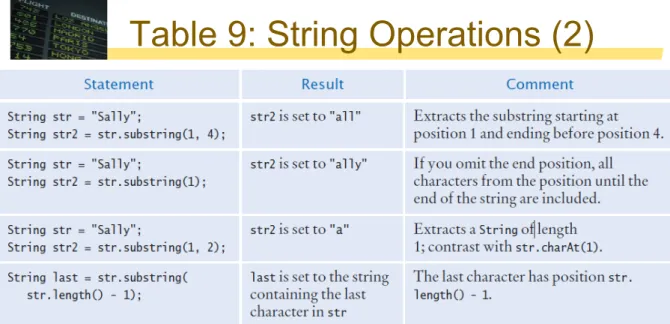
String str = "Sally";
String str2 = str.substring(1, 4);
str2 is set to "all" Extracts the substring starting at
position 1 and ending before position 4.
String str = "Sally";
String str2 = str.substring(1);
str2 is set to "ally" If you omit the end position, all
characters from the position until the end of the string are included.
String str = "Sally";
String str2 = str.substring(1, 2);
str2 is set to "a" Extracts a String of length
1; contrast with str.charAt(1).
String last = str.substring( str.length() - 1);
last is set to the string
containing the last
character in str
The last character has position
str.length() - 1. Copyright © 2013 by John Wiley & Sons.
Table 9: String Operations (2)
Page 23 Copyright © 2013 by John Wiley & Sons.
Formatted Output
q
Outputting floating point values can look strange:
Price per liter: 1.21997q
To control the output appearance of numeric
variables, use formatted output tools such as:
System.out.printf( %.2f , price);Price per liter: 1.22
System.out.printf( %10.2f , price); Price per liter: 1.22
§ The %10.2f is called a format specifier
10 spaces 2 spaces
Format Types
q
Formatting is handy to align columns of output
q
You can also include text inside the quotes:
System.out.printf( Price per liter: %10.2f , price);
Page 25
Summary:
Strings
q Strings are sequences of characters.
q The length method yields the number of characters in a
String.
q Use the + operator to concatenate Strings; that is, to put
them together to yield a longer String.
q Use the next (one word) or nextLine (entire line)
methods of the Scanner class to read a String.
q Whenever one of the arguments of the + operator is a
String, the other argument is converted to a String.
q If a String contains the digits of a number, you use the
Integer.parseInt or Double.parseDouble method to obtain the number value.
q String index numbers are counted starting with 0.
q Use the substring method to extract a part of a String
Page 26 Copyright © 2013 by John Wiley & Sons.
Files
7.1 Reading and Writing Text Files
q
Text Files are very commonly used to store
information
§ Both numbers and words can be stored as text
§ They are the most portable types of data files
q
The
Scanner
class can be used to read text files
§ We have used it to read from the keyboard
§ Reading from a file requires using the File class
q
The
PrintWriter
class will be used to write text
files
§ Using familiar print, println and printf tools
Text File Input
q
Create an object of the
File
class
§ Pass it the name of the file to read in quotes
q
Then create an object of the
Scanner
class
§ Pass the constructor the new File object
q
Then use
Scanner
methods such as:
§ next() § nextLine() § hasNextLine() § hasNext() § nextDouble() § nextInt()...File inputFile = new File("input.txt");
while (in.hasNextLine()) {
String line = in.nextLine(); // Process line;
}
Scanner in = new Scanner(inputFile);
Copyright © 2013 by John Wiley & Sons. All rights reserved. Page 29
Text File Output
q
Create an object of the
PrintWriter
class
§ Pass it the name of the file to write in quotes
• If output.txt exists, it will be emptied
• If output.txt does not exist, it will create an empty file PrintWriter is an enhanced version of PrintStream • System.out is a PrintStream object!
PrintWriter out = new PrintWriter("output.txt");
out.println("Hello, World!");
out.printf("Total: %8.2f\n", totalPrice);
System.out.println( Hello World! );
q
Then use
PrintWriter
methods such as:
§ print()§ println()
§ printf()
Closing Files
q
You must use the
close
method before file
reading and writing is complete
q Closing a Scanner
while (in.hasNextLine()) {
String line = in.nextLine(); // Process line;
}
in.close();
out.println("Hello, World!");
out.printf("Total: %8.2f\n", totalPrice);
out.close();
q Closing a PrintWriter
Your text may not be saved to the file until you use the
close method!
Copyright © 2013 by John Wiley & Sons. All rights reserved. Page 31
Exceptions Preview
q
One additional issue that we need to tackle:
§
If the input file for a Scanner doesn’t exist, a
FileNotFoundException
occurs when the
Scanner object is constructed.
§
The PrintWriter constructor can generate this
exception if it cannot open the file for writing.
• If the name is illegal or the user does not have the
authority to create a file in the given location
Exceptions Preview
§
Add two words to any method that uses File I/O
• Until you learn how to handle exceptions yourself
Copyright © 2011 by John Wiley & Sons. All rights reserved. Page 33
public static void main(String[] args) throws FileNotFoundException
import java.io.File;
import java.io.FileNotFoundException; import java.io.PrintWriter;
import java.util.Scanner; public class LineNumberer {
public void openFile() throws FileNotFoundException {
. . . }
}
And an important
import
or two..
q
Exception classes are part of the
java.io
package
§ Place the import directives at the beginning of the source
file that will be using File I/O and exceptions
Example: Total.java (1)
Copyright © 2013 by John Wiley & Sons. All rights reserved. Page 35 More import statements
required! Some examples may use import java.io.*;
Note the throws clause
Example: Total.java (2)
Copyright © 2013 by John Wiley & Sons. All rights reserved. Page 36 Don’t forget to close the files
Common Error 7.1
q
Backslashes in File Names
§ When using a String literal for a file name with path
information, you need to supply each backslash twice:
§ A single backslash inside a quoted string is the escape
character, which means the next character is interpreted
differently (for example, \n for a newline character)
§ When a user supplies a filename into a program, the
user should not type the backslash twice
File inputFile = new File("c:\\homework\\input.dat");
Copyright © 2013 by John Wiley & Sons. All rights reserved. Page 37
Common Error 7.2
q
Constructing a
Scanner
with a
String
§ When you construct a PrintWriter with a String, it writes
to a file:
§ This does not work for a Scanner object
§ It does not open a file. Instead, it simply reads through
the String that you passed ( input.txt )
§ To read from a file, pass Scanner a File object:
§ or
PrintWriter out = new PrintWriter("output.txt");
Scanner in = new Scanner("input.txt"); // Error?
File myFile = new File("input.txt"); Scanner in = new Scanner(myFile);
Scanner in = new Scanner(new File ( input.txt ) );
7.2 Text Input and Output
qIn the following sections, you will learn how to
process text with complex contents, and you will
learn how to cope with challenges that often occur
with real data.
q
Reading Words Example:
Copyright © 2013 by John Wiley & Sons. All rights reserved. Page 39
while (in.hasNext()) {
String input = in.next(); System.out.println(input); }
Mary had a little lamb
Mary had a little lamb input output
Processing Text Input
q
There are times when you want to read input by:
§ Each Word
§ Each Line
§ One Number
§ One Character
q
Java provides methods of the
Scanner
and
String
classes to handle each situation
§ It does take some practice to mix them though!
Processing input is required for almost all types of programs that interact with the user.
Reading Words
q In the examples so far, we have read text one line at a time
q To read each word one at a time in a loop, use:
§ The Scanner object s hasNext()method to test if there
is another word
§ The Scanner object s next() method to read one word
§ Input: Output:
while (in.hasNext()) {
String input = in.next(); System.out.println(input); }
Mary had a little lamb
Mary had a little lamb
Copyright © 2013 by John Wiley & Sons. All rights reserved. Page 41
White Space
q
The
Scanner
’s
next()
method has to decide
where a word starts and ends.
q
It uses simple rules:
§ It consumes all white space before the first character
§ It then reads characters until the first white space
character is found or the end of the input is reached
White Space
qWhat is whitespace?
§ Characters used to separate:
• Words
• Lines
Copyright © 2013 by John Wiley & Sons. All rights reserved. Page 43 Mary had a little lamb,\n
her fleece was white as\tsnow
Common White Space
Space
\n NewLine
\r Carriage Return
\t Tab
\f Form Feed
The
useDelimiter
Method
q
The
Scanner
class has a method to change the
default set of delimiters used to separate words.
§ The useDelimiter method takes a String that lists all
of the characters you want to use as delimiters:
Scanner in = new Scanner(. . .); in.useDelimiter("[^A-Za-z]+");
The
useDelimiter
Method
§ You can also pass a String in regular expression format
inside the String parameter as in the example above.
§ [^A-Za-z]+ says that all characters that ^not either
A-Z uppercase letters A through Z or a-z lowercase a
through z are delimiters.
§ Search the Internet to learn more about regular
expressions.
Copyright © 2013 by John Wiley & Sons. All rights reserved. Page 45
Scanner in = new Scanner(. . .); in.useDelimiter("[^A-Za-z]+");
Summary: Input/Output
qUse the
Scanner
class for reading text files.
q
When writing text files, use the
PrintWriter
class
and the
print/println/printf
methods.
q
Close all files when you are done processing them.
Summary: Processing Text Files
q
The
next
method reads a string that is delimited
by white space.
q
nextDouble
(and
nextInt
…
) read double,
Integer, respectively.
§ Should be used with hasNextDouble and hasNextInt
respectively to avoid exceptions
§ They do not consume white space following a number
q
Next lecture
§ How to read complete lines with mixed input (data record)
§ How to read one character at a time
§ Command line arguments
Copyright © 2013 by John Wiley & Sons. All rights reserved. Page 47
Reading Characters
q
There are no
hasNextChar()
or
nextChar()
methods of the
Scanner
class
§ Instead, you can set the Scanner to use an empty
delimiter ("")
§ next returns a one character String
§ Use charAt(0) to extract the character from the String
at index 0 to
a
char
variableScanner in = new Scanner(. . .); in.useDelimiter("");
while (in.hasNext()) {
char ch = in.next().charAt(0); // Process each character
}
Classifying Characters
q
The Character class provides several useful
methods to classify a character:
§ Pass them a char and they return a boolean
Copyright © 2013 by John Wiley & Sons. All rights reserved. Page 49
if ( Character.isDigit(ch) ) …
Reading Lines
q Some text files are used as simple databases
§ Each line has a set of related pieces of information
§ This example is complicated by:
• Some countries use two words
– United States
§ It would be better to read the entire line and process it
using powerful String class methods
q nextLine() reads one line and consumes the ending \n China 1330044605
India 1147995898
United States 303824646
while (in.hasNextLine()) {
String line = in.nextLine(); // Process each line
}
Breaking Up Each Line
q
Now we need to break up the line into two parts
§ Everything before the first digit is part of the country
§ Get the index of the first digit with Character.isdigit
int i = 0;
while (!Character.isDigit(line.charAt(i))) { i++; }
Copyright © 2013 by John Wiley & Sons. All rights reserved. Page 51
Breaking Up Each Line
§ Use String methods to extract the two parts
Copyright © 2013 by John Wiley & Sons. All rights reserved. Page 52
String countryName = line.substring(0, i); String population = line.substring(i);
// remove the trailing space in countryName
countryName = countryName.trim();
trim removes white space at the beginning and the end.
303824646 United States
Or Use
Scanner
Methods
q
Instead of
String
methods, you can sometimes use
Scanner
methods to do the same tasks
§ Read the line into a String variable
• Pass the String variable to a new Scanner object
§ Use Scanner hasNextInt to find the numbers
• If not numbers, use next and concatenate words
United States 303824646
Scanner lineScanner = new Scanner(line); String countryName = lineScanner.next(); while (!lineScanner.hasNextInt())
{
countryName = countryName + " " + lineScanner.next(); }
Remember the
next method
consumes white space.
Copyright © 2013 by John Wiley & Sons. All rights reserved. Page 53
Converting Strings to Numbers
q
Strings can contain
digits
, not
numbers
§ They must be converted to numeric types
§ Wrapper classes provide a parseInt method
String pop = 303824646 ;
int populationValue = Integer.parseInt(pop);
Copyright © 2013 by John Wiley & Sons. All rights reserved. Page 54 3 0 3 8 2 4 6 4 6
String priceString = 3.95 ;
int price = Double.parseInt(priceString);
Converting Strings to Numbers
q
Caution:
§ The argument must be a string containing only digits
without any additional characters. Not even spaces are
allowed! So… Use the trim method before parsing!
Copyright © 2013 by John Wiley & Sons. All rights reserved. Page 55
int populationValue = Integer.parseInt(pop.trim());
Safely Reading Numbers
q
Scanner
nextInt
and
nextDouble
can get
confused
§ If the number is not properly formatted, an Input
Mismatch Exception occurs
§ Use the hasNextInt and hasNextDouble methods to test
your input first
q They will return true if digits are present
§ If true, nextInt and nextDouble will return a value
§ If not true, they would throw an input mismatch exception if (in.hasNextInt())
{
int value = in.nextInt(); // safe }
Reading Other Number Types
q
The
Scanner
class has methods to test and read
almost all of the primitive types
q
What is missing?
§ Right, no char methods!
Data Type Test Method Read Method
byte hasNextByte nextByte short hasNextShort nextShort
int hasNextInt nextInt
long hasNextLong nextLong float hasNextFloat nextFloat double hasNextDouble nextDouble boolean hasNextBoolean nextBoolean
Copyright © 2013 by John Wiley & Sons. All rights reserved. Page 57
Mixing Number, Word and Line Input
q
nextDouble
(and
nextInt
…
) do not consume
white space following a number
§ This can be an issue when calling nextLine after
reading a number
§ There is a newline at the end of each line
§ After reading 1330044605 with nextInt
• nextLine will read until the \n (an empty String) China
1330044605 India
while (in.hasNextInt()) {
String countryName = in.nextLine(); int population = in.nextInt();
in.nextLine(); // Consume the newline }
Formatting Output
qAdvanced
System.out.printf
§ Can align strings and numbers
§ Can set the field width for each
§ Can left align (default is right)
q
Two format specifiers example:
§ %-10s : Left justified String, width 10
§ %10.2f : Right justified, 2 decimal places, width 10
Copyright © 2013 by John Wiley & Sons. All rights reserved. Page 59
System.out.printf("%-10s%10.2f", items[i] + ":", prices[i]);
printf
Format Specifier
q
A format specifier has the following structure:
§ The first character is a %
§ Next, there are optional flags that modify the format,
such as - to indicate left alignment. See Table 2 for the most common format flags
§ Next is the field width, the total number of characters in
the field (including the spaces used for padding), followed by an optional precision for floating-point numbers
q
The format specifier ends with the format type,
such as f for floating-point values or s for strings.
See Table 3 for the most important formats
printf
Format Flags
Copyright © 2013 by John Wiley & Sons. All rights reserved. Page 61
printf
Format Types
7.3 Command Line Arguments
qText based programs can be parameterized by
using command line arguments
§ Filename and options are often typed after the program
name at a command prompt:
§ Java provides access to them as an array of Strings
parameter to the main method named args
§ The args.length variable holds the number of args
§ Options (switches) traditionally begin with a dash
-public static void main(String[] args) >java ProgramClass -v input.dat
args[0]: "-v"
args[1]: "input.dat"
Copyright © 2013 by John Wiley & Sons. All rights reserved. Page 63
Caesar Cipher Example
q
Write a program that encrypts a file – scrambles it
so it is unreadable except to those who know the
encryption method
q
Use a method familiar to the emperor
Julius
Caesar
(ignoring 2,000 years of progress in
encryption)
q
Replacing A
→
D, B
→
E, C
→
F
… (shift of a fixedlength)
Caesar Cipher Example
q
Write a command line program that uses character
replacement (Caesar cipher) to:
1) Encrypt a file provided input and output file names
2) Decrypt a file as an option
>java CaesarCipher input.txt encrypt.txt
>java CaesarCipher –d encrypt.txt output.txt
Copyright © 2013 by John Wiley & Sons. All rights reserved. Page 65
7.3 Command Line Arguments 331
Regular Expressions
Regular expressions describe character patterns. For example, numbers have a simple form. They contain one or more digits. The regular expression describing numbers is [0-9]+. The set
[0-9] denotes any digit between 0 and 9, and the + means “one or more”.
The search commands of professional programming editors understand regular expres-sions. Moreover, several utility programs use regular expressions to locate matching text. A commonly used program that uses regular expres sions is grep (which stands for “global regu-lar expression print”). You can run grep from a command line or from inside some compila-tion environments. Grep is part of the UNIX operating system, and versions are available for Windows. It needs a regular expression and one or more files to search. When grep runs, it displays a set of lines that match the regular expression.
Suppose you want to find all magic numbers (see Programming Tip 2.2) in a file.
grep [0-9]+ Homework.java
lists all lines in the file Homework.java that contain sequences of digits. That isn’t terribly useful;
lines with variable names x1 will be listed. OK, you want sequences of digits that do not
imme-diately follow letters:
grep [^A-Za-z][0-9]+ Homework.java
The set [^A-Za-z] denotes any characters that are not in the ranges A to Z and a to z. This works
much better, and it shows only lines that contain actual numbers.
The useDelimiter method of the Scanner class accepts a regular expression to describe
delim-iters—the blocks of text that separate words. As already mentioned, if you set the delimiter pattern to [^A-Za-z]+, a delimiter is a sequence of one or more characters that are not letters.
For more information on regular expressions, consult one of the many tutorials on the Internet by pointing your search engine to “regular expression tutorial”.
7.3
Command Line Arguments
Depending on the operating system and Java development environment used, there are different methods of starting a program—for example, by selecting “Run” in the compilation environment, by clicking on an icon, or by typing the name of the pro-gram at the prompt in a command shell window. The latter method is called “invok-ing the program from the command line”. When you use this method, you must of course type the name of the program, but you can also type in additional information
that the program can use. These additional strings are called command line
argu-ments. For example, if you start a pro gram with the command line
java ProgramClass -v input.dat
then the program receives two command line arguments: the strings "-v" and "input.
dat". It is entirely up to the program what to do with these strings. It is customary to
interpret strings starting with a hyphen (-) as program options.
Special Topic 7.4
VIDEO EXAMPLE 7.1 Computing a Document's Readability
In this Video Example, we develop a program that computes the Flesch Readability Index for a document.
Should you support command line arguments for your programs, or should you prompt users, per haps with a graphical user interface? For a casual and infrequent user, an interactive user interface is much better. The user interface guides the user along and makes it possible to navigate the application without much knowledge. But for a frequent user, a command line interface has a major advantage: it is easy to auto-mate. If you need to process hundreds of files every day, you could spend all your time typing file names into file chooser dialog boxes. However, by using batch files or shell scripts (a feature of your computer’s operating system), you can automatically call a program many times with different command line arguments.
Your program receives its command line arguments in the args parameter of the
main method:
public static void main(String[] args)
In our example, args is an array of length 2, containing the strings
args[0]: "-v"
args[1]: "input.dat"
Let us write a program that encrypts a file—that is,
scrambles it so that it is unreadable except to those who know the decryption method. Ignoring 2,000 years of progress in the field of encryption, we will use a method familiar to Julius Caesar, replacing A with a D, B with an E, and so on (see Figure 1).
The program takes the following command line arguments:
• An optional -d flag to indicate decryption instead of
encryption
• The input file name
• The output file name
For example,
java CaesarCipher input.txt encrypt.txt
encrypts the file input.txt and places the result into
encrypt.txt.
java CaesarCipher -d encrypt.txt output.txt
decrypts the file encrypt.txt and places the result into output.txt.
section_3/CaesarCipher.java
1 import java.io.File;
2 import java.io.FileNotFoundException;
3 import java.io.PrintWriter;
4 import java.util.Scanner;
Programs that start from the command line receive the command line arguments in the main method.
The emperor Julius Caesar used a simple scheme to encrypt messages.
Figure 1 Caesar Cipher
M e e t m e a t t h e
P h h w p h d w w k h
Plain text Encrypted text
CaesarCipher.java (1)
Copyright © 2013 by John Wiley & Sons. All rights reserved. Page 66 This method uses file I/O and can throw this exception.
CaesarCipher.java (2)
If the switch is present, it is the first argument
Call the usage method to print helpful instructions Copyright © 2013 by John Wiley & Sons. All rights reserved. Page 67
CaesarCipher.java (3)
Process the input file one character at a time
Don’t forget the close the files!
Copyright © 2013 by John Wiley & Sons. All rights reserved. Page 68 Example of a usage method
Steps to Processing Te
xt Files
Copyright © 2013 by John Wiley & Sons. All rights reserved. Page 69
1) Understand the Processing Task
-- Process on the go or store data and then process? 2) Determine input and output files
3) Choose how you will get file names
4) Choose line, word or character based input processing -- If all data is on one line, normally use line input
5) With line-oriented input, extract required data
-- Examine the line and plan for whitespace, delimiters…
6) Use methods to factor out common tasks
Summary: Input/Output
qUse the
Scanner
class for reading text files.
q
When writing text files, use the
PrintWriter
class
and the
print/println/printf
methods.
q
Close all files when you are done processing them.
q
Programs that start from the command line receive
command line arguments in the main method.
Summary: Processing Text Files
q
The
next
method reads a string that is delimited
by white space.
q
The
Character
class has methods for classifying
characters.
q
The
nextLine
method reads an entire line.
q
If a string contains the digits of a number, you use
the
Integer.parseInt
or
Double.parseDouble
method to obtain the number value.
q
Programs that start from the command line
receive the command line arguments in the
main
method.