Windows Server 2008
Backup Tool – A
Review of Its Features
Expert Reference Series of White Papers
Introduction
Microsoft seems to be intent on undoing its longstanding practice of licensing other people’s software for use in its operating systems. Take the Longhorn code project, for example. The evergreen disk defragmenter, a lim-ited version of Executive Software’s Diskeeper, has been replaced by new code written by Microsoft. More significantly, the NTBACKUP program from (originally) Seagate Software has also been replaced by new Microsoft code.
One could argue that licensing code written by specialists was a good thing for operating system users. Diskeeper worked well and provided a graphical interface (and progress indicator) that the new defrag tool conspicuously lacks, although Microsoft claims other virtues for its new utility. The old NTBACKUP program was robust, reasonably flexible, somewhat scriptable, and based on an industry-leading tool (Backup Exec). Is the new backup software a step into the future, or a quickie solution so that prospective users can tick off the “integrated backup utility” checkbox on their shopping list?
This white paper presents some of the more significant pros and cons of the Server 2008 version of the backup tool that debuted in Windows Vista, so that you can decide whether the supplied software is a step forward or a step backward – and, more importantly, whether your organization will need to turn to a third-party solution for the features it needs. The paper divides out into the following subtopics:
• Installation and use • Backup scenarios • Flexibility • Performance • Robustness • Manageability
Installation and Use
Windows Server Backup is available on all versions of Server 2008, including 64-bit versions. Install it as a fea-ture via Server Manager, either interactively or with the following command:
servermanagercmd.exe –install Backup-Features
The utility is available on Server Core systems, as well. Use the command
start /w ocsetup WindowsServerBackup
Glenn Weadock, MCSE, MCT, A+, Global Knowledge Instructor
Windows Server 2008 Backup Tool –
A Review of Its Features
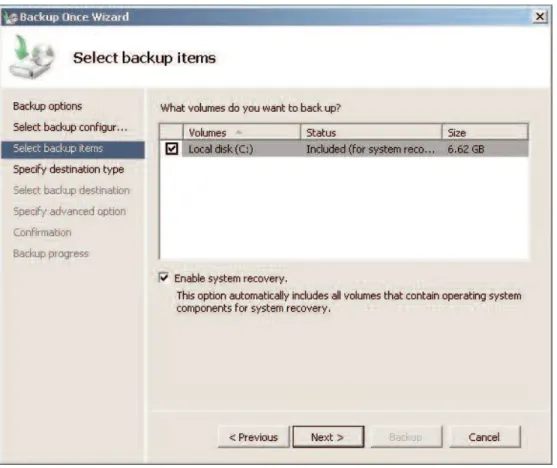
You need to be an administrator or a member of Backup Operators to use this tool, which appears in the Administrative Tools folder after installation. When you run it, the tool presents you with a wizard interface (see Figure 1) having the following steps:
Backup options - do the same operations as in a previously-defined scheduled backup, or do something else via “different options”
Select backup configuration- full versus custom, where “full” means all data, applications, and the System State
Select backup items- designate volumes to include or exclude
Specify destination type - local drive, e.g., DVD, or remote shared folder
Select backup destination- you can only select a volume, and it normally cannot be the same one you’re backing up; the program creates a folder named “Windows Image Backup” on the destination Specify advanced option- “VSS copy backup” retains application log files and does not clear the archive bit; “VSS full backup” clears application log files and updates the archive bit
Confirmation
Figure 1. Windows Server Backup wizard.
Backup Scenarios
A few common backup scenarios serve to illustrate some of the strengths and weaknesses of the new Windows Server Backup tool. Let’s look at them one at a time.
Image backup.In this scenario, you’re backing up an entire volume and perhaps multiple volumes, with the intention of having a backup that you can use to restore a machine that suffers a catastrophic failure affecting an entire physical disk or disk array.
In this scenario, Windows Server Backup fares well. It is a volume- and block-oriented program, based (at least when doing disk-to-disk backups) on the Volume Shadowcopy Service that has been around since Windows Server 2003, so it loves backing up a complete volume. The speed of this tool for full-volume backups is remarkable. The tool doesn’t offer a verification pass option, so you have no easy way of determining if your full-volume backup is accurate, but it sure is fast! And the program can back up files that are in use.
System State backup.Frequently, server admins make system state backups before certain operations that could conceivably scar the vital organs of the operating system: system files, the Registry, the boot environ-ment. A simple affair in the old NTBACKUP tool, a System State backup is no longer easy.
If you are selecting a full volume backup of the system volume, then Windows Server Backup will give you a checkbox calling for the inclusion of “recoverability information.” That’s code for the System State. (Come on Microsoft, call things by their common names and make our lives a little easier.) But there’s no option in the GUI to back up the System State only. If you want to do that, you’re going to have to install the command-line tools and get familiar with WBADMIN.EXE, as in the following example:
wbadmin.exe start systemstatebackup –backuptarget:d:
File backup.You can’t back up individual files or folders with Windows Server Backup. You can’t even do this from the WBADMIN command-line tool. Heck, even Vista has a file backup utility, such as it is. We know disk space is cheap these days, but surely Microsoft doesn’t think we want to back up everything on a volume every time we create a backup? This omission clearly falls into the “what were they thinking?” category. To be fair, I should mention that you can restore a single file or folder from a full-volume backup. But that doesn’t help you if you just need to back up a particular folder, and you’re in a hurry. You’re going to have to back up the entire volume that contains that folder in order to be able to recover it later.
If the lack of any file- or folder-based backup capability is a dealbreaker for you, you’ll need to start shopping for third-party software. Of course, even if you purchase a file-oriented backup tool, you can still use the Windows Server Backup program for image backups – if you don’t mind learning, using, and supporting two backup utilities.
Exchange.Windows Server Backup can’t make streaming backups of Exchange. Microsoft System Center Data Protection Manager can, but despite the fact that Windows Server Backup is also a Volume Shadowcopy Service-based tool, it doesn’t include an Exchange requester.
Flexibility
Target media and locations. This tool is really oriented towards disk-to-disk backups. Tape drives are not sup-ported by Windows Server Backup (another potential dealbreaker for some shops), and neither are writeable CD drives, although writeable DVD drives are (and span sets are fine). I suppose the lack of support for write-able CD drives makes sense in the context of a full-volume backup; nobody’s going to want to swap that many CDs. But how about the situation where you need a quickie backup of the System State, and you want to
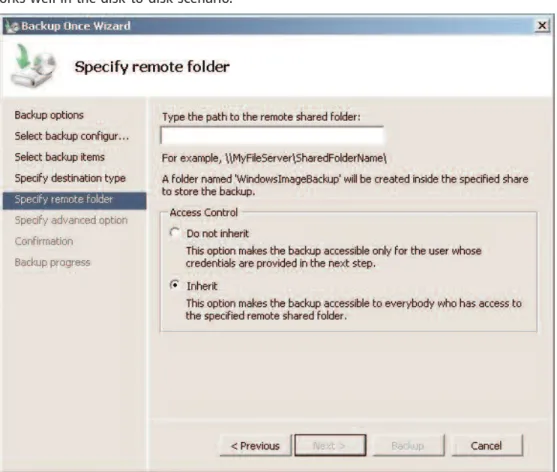
On the plus side, USB external hard drives are supported targets, and so are network drives. Windows Server Backup works well in the disk-to-disk scenario.
Figure 2. Backing up to a network location.
On the minus side is the fact that (at least by default) you can’t back up to the system volume, which the pro-gram calls a “critical” volume. So say that you have a C: drive and only a C: drive, and you need to back up the System State. This was no problem in NTBACKUP, but it is disallowed in Windows Server Backup, unless you hack the Registry (see Microsoft Knowledge Base article 944530 for details). Furthermore, you have to make such a backup at the command line using WBADMIN (or a PowerShell script). Why make a fairly com-mon task into such a pain? Only the Shadow (copy) knows.
(If you’re too young for that reference, look up Lamont Cranston on the Web.)
One more demerit for the fact that you can’t back up the System State directly to a network share.
Schedulability.No complaints here. The new backup tool lets you set your own schedule for repeating back-ups. In fact, the utility nudges you to create a backup schedule the first time you use it.
Scriptability.When you opt to include the command-line software as well as the graphical tool when adding the Windows Server Backup feature via Server Manager, you get the WBADMIN.EXE program as well as some PowerShell commandlets (although remember that Server Core does not support PowerShell).
For more details on WBADMIN, see HYPERLINK "http://go.microsoft.com/fwlink/?LinkId=93131"
http://go.microsoft.com/fwlink/?LinkId=93131. Meanwhile, here’s an example of how you might use WBADMIN to perform a full backup to a remote share:
wbadmin.exe start backup -backuptarget:\\servername\sharename -allCritical -VSSfull
File formats.Any backups you made with the older NTBACKUP tool can’t be read by Windows Server Backup. No problem, just install the old tool on Windows Server 2008, right? Wrong. The best you can do is get a special, restore-only version of NTBACKUP from Microsoft. Find it at
http://go.microsoft.com/fwlink/?LinkID=82917.
Remoteability.You can use the tool to connect to remote computers and perform backups (choose “Connect to another computer” in the Actions pane), as long as the remote computer also has the Windows Server Backup bits installed. For example, you can connect to a Server Core box and perform a backup using the GUI.
Performance
I’ve already mentioned that Windows Server Backup is fast when performing a full volume backup. In my expe-rience, you can expect at least a gigabyte per minute even on older hardware, when backing up disk-to-disk. Network backups (see Figure 3) are slower, but still respectably snappy.
But there’s another aspect to this tool’s speed. When backing up a full volume to a target that contains previ-ous backups, Windows Server Backup creates what is essentially an incremental backup, although it looks like a full backup in the GUI.
As long as you’re aware of this behavior and have no problem with it – that is, you realize that if there was a problem with the previous backup, there will also be a problem with subsequent backups that are stored as “deltas” (that is, differences) – then this feature adds to the speed. So, Windows Server Backup gets high marks for performance. (You can tweak performance even further with external USB drives by flagging their properties as “optimize for performance” instead of “optimize for quick removal” as long as you remember to safely remove the device via the Windows GUI before actually disconnecting it.)
Robustness
Recoverability.This tool shows some good design features on the recovery side. You can boot to a Server 2008 DVD and restore (either the entire computer or its System State) from a full backup, saving you the step of installing the operating system in order to be able to access the backup program. You can also select indi-vidual files and folders when restoring data in a non-WinRE scenario.
Verifiability.If you are backing up to removable media, backups are verified for errors by default, unless you invoke WBADMIN with the –noverify qualifier. I have not been able to find any reference specifying whether the program uses any sort of verification for backups to nonremovable media. Furthermore, no provision seems to have been made for performing a verification pass after the backup is complete – something that the old NTBACKUP program did provide, helping sysadmins who used it to sleep at night.
Manageability
You do have a few Group Policy settings that can help manage Windows Server Backup. These include: • Allow only system backup (that is, no backups of “noncritical” volumes)
• Disallow locally attached storage as backup target (that is, only permit backing up to remote shares) • Disallow network as backup target (the opposite of the preceding setting)
• Disallow optical media as backup target (for example, if you’re worried about DVDs walking out the door)
• Disallow run-once backups (that is, only scheduled backups can run)
Conclusion
One can understand Microsoft’s desire to leverage technologies like Volume Shadowcopy Service and the Virtual Hard Drive format, and there is certainly far too much reinventing of wheels in the software industry. The new backup tool has some solid virtues: for example, it is quick when performing a full-volume backup in a disk-to-disk scenario. And many of us can appreciate being able to restore from a full backup by simply boot-ing to the Windows Recovery Environment without havboot-ing to install the operatboot-ing system in order to get to the restore software.
However, we seem to be giving up a lot to get those benefits. The hoops you have to jump through in order to perform such a simple task as backing up the System State to the C: drive seem a little silly; the removal of file-and-folder backup capability is a big step backwards; and the threadbare GUI has the feel of a program that was rushed out the door. Finally, many system administrators are not going to trust their backups without the reassurance of a verification pass. Not everyone loved NTBACKUP, to be sure; but it was a more flexible, full-featured tool than its homegrown replacement.
While many aspects of Server 2008 reflect thoughtful design and engineering, it’s hard to see even a small organization being satisfied with Windows Server Backup. Use this tool to make quick disk-to-disk system backups – while you shop for a more serious solution from independent software vendors.
Learn More
Learn more about how you can improve productivity, enhance efficiency, and sharpen your competitive edge. Check out the following Global Knowledge courses:
Configuring and Troubleshooting a Windows Server 2008 Network Infrastructure Configuring Windows Server 2008 Active Directory Domain Services
Defending Windows Networks
Designing a Windows Server 2008 Network Infrastructure Managing and Maintaining Server 2008
For more information or to register, visit www.globalknowledge.comor call 1-800-COURSESto speak with a sales representative.
Our courses and enhanced, hands-on labs offer practical skills and tips that you can immediately put to use. Our expert instructors draw upon their experiences to help you understand key concepts and how to apply them to your specific work situation. Choose from our more than 700 courses, delivered through Classrooms, e-Learning, and On-site sessions, to meet your IT and management training needs.
About the Author
Glenn Weadock is a longtime instructor for Global Knowledge and teaches Vista, Server 2008, and Active Directory. He has most recently co-developed with Mark Wilkins two advanced Server 2008 classes in the Microsoft Official Curriculum. Glenn also consults through his Colorado-based company Independent Software, Inc. and is the author of 18 computer books.