IBM Endpoint Manager for Software Use Analysis
Version 9.next
Troubleshooting Guide
Beta documentation
IBM Endpoint Manager for Software Use Analysis
Version 9.next
Troubleshooting Guide
Beta documentation
Troubleshooting Guide
This edition applies to version 9.next of IBM Endpoint Manager for Software Use Analysis (product number 5725-F57) and to all subsequent releases and modifications until otherwise indicated in new editions.
© Copyright IBM Corporation 2002, 2014.
Contents
Troubleshooting and support
. . . 1
Troubleshooting a problem . . . 1
Troubleshooting software inventory problems . . . 3
Changing and analyzing scanner trace settings . . 5
Changing scanner trace settings . . . 5
Analyzing scanner trace settings . . . 5
Initiating and uploading diagnostic data . . . . 5
Initiating diagnostic data collection . . . 5
Uploading scanner diagnostic data . . . 6
Common problems . . . 7
Installation and upgrade problems . . . 7
Server operation problems . . . 8
Agent problems . . . 11
User interface problems . . . 13
Security problems . . . 15
VM managers problems . . . 15
Backing up and restoring the database . . . 18
Backing up the database . . . 18
Restoring the database. . . 18
Removing the server manually . . . 18
Updating scanner catalogs . . . 19
Logs and return codes . . . 20
Server installation logs . . . 20
Server log file . . . 21
Import logs . . . 22
Enabling debug logging for the import process 22 Database creation logs and return codes . . . . 22
Server installation and uninstallation return codes . . . 23
Contacting IBM Software Support . . . 24
Notices
. . . 27
Trademarks . . . 28
Troubleshooting and support
This section explains how to find logs, messages, and trace files that you might need to troubleshoot issues that could arise while using the product.
Troubleshooting a problem
Troubleshooting is a systematic approach to solving a problem. The goal of troubleshooting is to determine why something does not work as expected and explain how to resolve the problem.
The first step in the troubleshooting process is to describe the problem completely. Problem descriptions help you and the IBM Support person know where to start to find the cause of the problem. This step includes asking yourself basic questions: v What are the symptoms of the problem?
v Where does the problem occur? v When does the problem occur?
v Under which conditions does the problem occur? v Can the problem be reproduced?
The answers to these questions typically lead to a good description of the problem, and that is the best way to start down the path of problem resolution.
What are the symptoms of the problem?
When starting to describe a problem, the most obvious question is "What is the problem?" This might seem like a straightforward question; however, you can break it down into several more-focused questions that create a more descriptive picture of the problem. These questions can include:
v Who, or what, is reporting the problem? v What are the error codes and messages?
v How does the system fail? For example, is it a loop, hang, crash, performance degradation, or incorrect result?
v What is the business impact of the problem?
Where does the problem occur?
Determining where the problem originates is not always easy, but it is one of the most important steps in resolving a problem. Many layers of technology can exist between the reporting and failing components. Networks, disks, and drivers are only a few of the components to consider when you are investigating problems. The following questions help you to focus on where the problem occurs to isolate the problem layer:
v Is the problem specific to one platform or operating system, or is it common across multiple platforms or operating systems?
v Is the current environment and configuration supported?
Remember that if one layer reports the problem, the problem does not necessarily originate in that layer. Part of identifying where a problem originates is
understanding the environment in which it exists. Take some time to completely describe the problem environment, including the operating system and version, all corresponding software and versions, and hardware information. Confirm that you are running within an environment that is a supported configuration; many problems can be traced back to incompatible levels of software that are not intended to run together or have not been fully tested together.
When does the problem occur?
Develop a detailed timeline of events leading up to a failure, especially for those cases that are one-time occurrences. You can most easily do this by working backward: Start at the time an error was reported (as precisely as possible, even down to the millisecond), and work backward through the available logs and information. Typically, you need to look only as far as the first suspicious event that you find in a diagnostic log; however, this is not always easy to do and takes practice. Knowing when to stop looking is especially difficult when multiple layers of technology are involved, and when each has its own diagnostic information. To develop a detailed timeline of events, answer these questions:
v Does the problem happen only at a certain time of day or night? v How often does the problem happen?
v What sequence of events leads up to the time that the problem is reported? v Does the problem happen after an environment change, such as upgrading or
installing software or hardware?
Responding to questions like this helps to provide you with a frame of reference in which to investigate the problem.
Under which conditions does the problem occur?
Knowing which systems and applications are running at the time that a problem occurs is an important part of troubleshooting. These questions about your environment can help you to identify the root cause of the problem: v Does the problem always occur when the same task is being performed? v Does a certain sequence of events need to occur for the problem to surface? v Do any other applications fail at the same time?
Answering these types of questions can help you explain the environment in which the problem occurs and correlate any dependencies. Remember that just because multiple problems might have occurred around the same time, the problems are not necessarily related.
Can the problem be reproduced?
From a troubleshooting standpoint, the idealproblem is one that can be
reproduced. Typically, problems that can be reproduced have a larger set of tools or procedures at your disposal to help you investigate. Consequently, problems that you can reproduce are often easier to debug and solve. However, problems
that you can reproduce can have a disadvantage: If the problem is of significant business impact, you do not want it to recur. If possible, re-create the problem in a test or development environment, which typically offers you more flexibility and control during your investigation.
v Can the problem be re-created on a test system?
v Are multiple users or applications encountering the same type of problem? v Can the problem be re-created by running a single command, a set of
commands, a particular application, or a stand-alone application?
Troubleshooting software inventory problems
Problems with software inventory might be caused by, among others, incomplete imports, connectivity problems, or insufficient disk space.
Before you begin
The Software Use Analysis log files are in <installation_path>/wlp/usr/servers/ server1/logs/.
About this task
Start
View the imports page
Have the imports completed succesfully?
View the Home page View raw file scan data
for a computer
View the package data report for a computer
YES
NO
YES
View the Software Use Analysis logs
Was there a connectivity problem?
Verify that all analyses are active
Verify that the scanner tasks are running regularly Run the import again
NO
Was there insufficient disk space on the
database server? NO YES Inventory data is working. You might want to contact IBM software support (optional) View a computer details
page Ensure there is uninterrupted connectivity to the database Free additional hard disk space
Verify that the upload tasks are running regularly
Contact IBM software support
1. In the Software Use Analysis web user interface, view the details page for a computer that is missing inventory: clickReports>Computers> Computer_name.
v If only specific titles are missing, seeManaging the content of a software catalog.
v If all data is missing, go to the next step.
v If the computer has inventory, go to another computer that is missing
inventory.
2. Access the raw scan data page to verify whether inventory data is missing: clickReports>Scanned File Data.
If there is no data, go to the Endpoint Manager console and perform steps 10, 11, 12 and 13. Otherwise, go to the next step.
3. Verify whether package data is available: ClickReports>Package Data. If the data is still not complete, you might want to perform step 10. Otherwise, go to the next step.
4. View the Software Catalog widget on the Home page to verify whether there are titles and signatures in the catalog. In the top navigation bar, clickHome.
v If there are no publishers in the catalog, load a catalog. v If there is no inventory for any computers, go to the next step.
For information about how to update and maintain your software catalog, seeWorking with software catalogs.
5. Verify whether imports are completing successfully: clickManagement>
Data Imports.
v If they completed successfully, your inventory data is probably
working. You might want to contact IBM®support, so be prepared to
provide the logs.
v If the imports cannot be completed, go to the next step.
6. Access the log file data that is displayed in the Software Use Analysis user interface: clickManagement>Data Imports.
If IBM support has requested the log files, you can find them in the following location:<installation_path>/wlp/usr/servers/server1/logs/.
7. Ensure that you have uninterrupted connectivity to the database. Restore the connection between the Software Use Analysis server and the Endpoint Manager database, if it was not established during the data import.
8. Ensure that there is sufficient amount of disk space for the Software Use Analysis database, if this problem was revealed in the logs.
9. Import the data from IBM Endpoint Managerto see whether the previous steps remedied the situation.
10. In the Endpoint Manager console, verify that all analyses are active:
a. ClickSites>External>IBM Endpoint Manager for Software Use Analysis>Analyses.
b. Verify whether the analyses display in the upper right pane.
11. In the console, verify that all the scanners are running regularly:
a. ClickSites>External Sites>IBM Endpoint Manager for Software Use Analysis>Fixlets and Tasks.
b. In the upper right pane, clickInitiate Software Scan.
c. In the lower pane, click theAction Historytab to check when the scans were run.
12. Verify that upload tasks are running regularly:
a. ClickSites>External Sites>IBM Endpoint Manager for Software Use Analysis>Fixlets and Tasks.
b. In the upper right pane, clickUpload Software Scan Results.
c. In the lower pane, click theAction Historytab to check when the results were last uploaded.
13. If your imports are still failing, contact IBM software support. IBM support might request that you collect and provide diagnostic data, and change scanner settings on selected endpoints. See Changing and analyzing scanner trace settings and Initiating and uploading diagnostic data.
Changing and analyzing scanner trace settings
You can change the scanner trace settings to collect diagnostic data to help in investigating problems.
Changing scanner trace settings
If requested by IBM support or to limit the amount of traces generated by the scanner tool, you can change the scanner trace settings.
Before you begin
You must be a Master Operator to perform this task.
Procedure
1. Log on to the Endpoint Manager console.
2. In the navigation tree, clickSites >External Sites>IBM Endpoint Manager for Software Use Analysis v9>Fixlets and Tasks.
3. SelectEdit Scanner Trace Settings, specify the following values: v Trace level
v Number of trace files v Trace file size
In the lower pane, clickTake Action.
4. To select a subset of computers on which you want to create the capacity configuration, open theTarget tab, and then click the computers.
Analyzing scanner trace settings
You can check scanner trace settings for computers, and see the number of trace files and trace file size.
Procedure
1. Log on to the Endpoint Manager console.
2. In the navigation tree, clickSites >External Sites>IBM Endpoint Manager for Software Use Analysis v9>Analyses.
3. In the upper-right pane, select anScanner Trace Settings analysis, and in the lower-right pane, click theResulttab.
For each endpoint, you can view the following information: v Computer host name
v Computer ID v Trace level
v Number of trace files v Trace file size
Initiating and uploading diagnostic data
You can collect and upload diagnostic data that is needed for software inventory problem investigation.
Initiating diagnostic data collection
If requested by IBM support, you can collect the diagnostic data that is needed for software inventory problem investigation. To collect diagnostic data collection, you must initiate diagnostic data collection.
Before you begin
Important: If you see any discrepancies between the fixlets in your site and the fixlets described in the documentation, check the version of your fixlet site and update it if necessary.
You must be a Master Operator to perform this task.
Procedure
1. Log on to the Endpoint Manager console.
2. In the navigation tree, clickSites >External Sites> IBM Endpoint Manager for Software Use Analysis v9>Fixlets and Tasks.
3. SelectInitiate Scanner Diagnostic Tooland in the lower pane, clickTake Action.
4. Select a subset of computers on which you want to initiate diagnostic data collection, and clickOK.
Important: When you initiate collection, the collection process runs in the background. Depending on the number of endpoints and the data to be collected, collection can take a number of hours to complete. When the Upload Scanner Diagnostic Data task is relevant on your endpoints, data collection is finished successfully and collection data is uploaded to the Endpoint Manager server.
What to do next
Upload Scanner Diagnostic Data. You must wait until data collection is finished successfully before you upload the data.
Uploading scanner diagnostic data
If requested by IBM support, you can collect the diagnostic data that is needed for software inventory problem investigation. When diagnostic data collection is completed successfully, you must upload the data.
Before you begin
Important: If you see any discrepancies between the fixlets in your site and the fixlets described in the documentation, check the version of your fixlet site and update it if necessary.
You must be a Master Operator to perform this task.
About this task
When the Upload Scanner Diagnostic Data task is relevant on your endpoints, data collection is finished successfully and collection data can be uploaded. You can upload data manually from each endpoint or you can use the Upload Scanner Diagnostic Data task to upload data for all endpoints.
Procedure
Use one of the following methods to upload diagnostic data.
1. Log on to the Endpoint Manager console.
2. In the navigation tree, click Sites>External Sites>IBM Endpoint Manager for Software Use Analysis v9>Fixlets and Tasks
3. SelectUpload Scanner Diagnostic Dataand in the lower pane, clickTake Action.
4. Select a subset of computers you want to upload collected diagnostic data from, and click OK
When the task is completed, aScannerDebugDatadiagnostic data compressed file is uploaded to theBES_Server\UploadManagerData\BufferDir\sha1\
LAST_COMPUTER_ID_NUMBER\COMPUTER_ID directory. You can find the ID of a computer in the results of the Scanner trace analysis.
v Upload diagnostic data manually.
1. Log in to an endpoint on which the diagnostic data collection ended successfully.
2. Copy the compressedScannerDebugDatafile to the server. The ScannerDebugDatafile is in theBESClient\LMT\CITdirectory.
Results
Data is uploaded to the IBM Endpoint Manager server.
Common problems
Learn how to solve some common problems with the server installation, configuration and administration.
The following list contains descriptions of common installation problems:
Installation and upgrade problems
Solve common problems that are related to the installation, configuration, and upgrade of Software Use Analysis.
During the installation of Software Use Analysis for non-English-language locales, some Java exceptions are displayed in English.
Even for non-English-language locales, some Java exceptions that might occur during the installation are displayed in English. However, the Details view that contains the exceptions also includes more information that can help you to understand and solve the issue. If you want to see the translated description of a problem, you can switch to the Problems view where all the available details are provided.
The installation of the server cannot continue and an error is displayed.
The installation of the Software Use Analysis server cannot continue and the following message is displayed:
./tools/getArch: line 108: print: command not found ./tools/getArch: line 109: print: command not found ./tools/getArch: line 116: print: command not found
setup-server-9.0-linux-x86_64.sh: line 52: print: command not found
The error might be caused by the fact the operating system is not fully configured. You might also need to reboot the operating system.
The list of non-English languages in the installation wizard is reduced.
To see your language as an option in the installation wizard, change your system locale to a chosen language:
1. On Linux, open the Terminal and run the following command:
export LC_ALL=language_code.UTF8
For example, export LC_ALL=en_US.UTF8.
2. Run the localecommand to verify changes.
3. Restart the installation and choose the language.
Server operation problems
Server operation problems in Software Use Analysis might include general issues that you might encounter while using the application and its functions. However, you can easily recover from these problems.
The RPM scanner fixlet fails on AIX®6.1
The scanner fails and the RPM installation package returnsundefined during the software scan. To remedy this problem, upgrade your IBM Endpoint Manager server, console, and clients to version 8.2.1175.
Version 8.0 and 8.1 BigFix®Enterprise Server Clients cannot subscribe to the
Software Use Analysis server.
The solution is to unsubscribe all computers from the current site or remove the site, and then subscribe the clients back.
Import of the software scan data fails. After rerunning the import, the software inventory is empty.
One of the scenarios in which the problem occurs is when you run an import and the Endpoint Manager server is not running. After you restart the server and rerun the import, the software inventory is empty.
To solve the problem, manually initiate the scanner. Gather fresh scan data, and run the import.
When migrating signatures with a specified platform from Software Knowledge Base Toolkit to Software Use Analysis, the platform is changed to any.
After creating a signature from registry data with a specified platform in Software Knowledge Base Toolkit and migrating it to Software Use Analysis, the platform is changed toany There is no solution for this problem.
The software catalog cannot be downloaded because the Software Catalog Update task is not applicable.
When you install Software Use Analysis, the target computer sends information about the new software to the IBM Endpoint Manager server. Then, the IBM Endpoint Manager server checks the computers that are linked to it to verify that this particular endpoint is linked to this server. If it does, the server marks it with the custom setting
SUA_Server_Path_[user_ID]. If the setting is set to the Software Use Analysis installation path, the task is applicable.
The problem might occur because the setting was not specified for a particular endpoint. If you are sure that Software Use Analysis is installed on this endpoint, you can specify the setting manually. To do that,
complete the following steps:
1. Log in to the IBM Endpoint Manager console that is linked to your IBM Endpoint Manager server.
2. In the navigation bar, clickComputers.
3. In the right-upper pane, locate the endpoint on which you installed Software Use Analysis.
4. Right-click on the endpoint and selectEdit Computer Settings.
5. ClickAdd.
6. In the Setting Name, typeSUA_Server_Path_[user_ID].
Note: For [user_ID], provide the ID of a Linux user who installed Software Use Analysis.
7. In the Setting Value, specify the Software Use Analysis installation path.
8. ClickOK.
The software scans cannot be initiated because the Initiate Software Scans task is not applicable.
The software scans depend on the scanner catalogs that are used by the scanner to discover software. The scanner catalogs are created when you upload the software catalog to Software Use Analysis. If you cannot run the software scans, it might mean that the catalogs were not created. Before you update the scanner catalogs manually, complete the following steps to check the cause of this problem:
1. Go to the<BES_Client>\LMT\CITdirectory.
2. Check if thecatalog.bz2file exists. The file contains the scanner catalogs.
3. Log in to the IBM Endpoint Manager console that is linked to your IBM Endpoint Manager server.
4. In the navigation bar, clickActions.
5. In the upper-right pane, locate theCatalog Downloadaction and select it.
6. Check the details of the action. You can check on which endpoints the actions failed and investigate the failed steps. Try to determine the cause of the problem and fix it.
If you cannot determine the cause, you can update the catalogs manually. To do that, see “Updating scanner catalogs” on page 19.
The import fails because the transaction log is full.
After a failed import, the import log contains the following error:
Batch failure. The batch was submitted, but at least one exception occurred on an individual member of the batch.
Use getNextException() to retrieve the exceptions for specific batched elements. ERRORCODE=-4229,
Also, the following can be found in thetema.logfile:
Batch execution error: Error for batch element #903: The transaction log for the database is full.
To solve the problem, complete the following steps:
1. Increase the size of the transaction log for the database. For more information, see theTuningsection.
2. Restart the DB2 and Software Use Analysis servers.
The import fails because the Java heap size is too low.
After a failed import, the import log contains the following error:
E SRVE0777E: Exception thrown by application class ’java.lang.StringBuilder.ensureCapacityImpl:342’ java.lang.OutOfMemoryError: Java heap space
To solve the problem, increase the Java heap size. For more information, see the Tuningsection.
The import fails and the following message is written in the logs: Overflow occurred during numeric data type conversion.
The problem occurs when you create a contract custom field that requires an integer value, and then enter a value that is greater than 32767. To solve the problem, enter a smaller value.
During the initial import, the following error is written in the logs:Error was getaddrinfo: name or service not known (SocketError).
During the initial import, the following error is written in the logs:
ERROR: Datasource file citsearch_0_4580013_cit.xml.bz2 raised an exception while reading from {:port=>"52311", :path=>"/UploadReplication",
:query=>{:BaseDirectory=>1,
:Name=>"\\13\\4580013\\citsearch_0_4580013_cit.xml.bz2",
:sha1=>"5B0FE15F7E097171566F0AC3B9BE93826FDC0D41", :offset=>0}}. Error was getaddrinfo: name or service not known (SocketError)
The problem might be caused by an incorrect DNS name settings. To solve the problem, ensure that Software Use Analysis can ping the IBM Endpoint Manager server by using the DNS name that is specified in the action site. To find the DNS name, on the computer where the IBM Endpoint Manager server is installed, go to the C:\Program Files (x86)\BigFix
Enterprise\BES Installers\Server, and find theActionSite.afxm file. If Software Use Analysis cannot ping the IBM Endpoint Manager server by using this DNS name, add the name to theetc\hosts file on the Software Use Analysis server.
A report was created correctly but it could not be sent as a PDF attachment to an email. The PDF report could not be sent because the mail server in your company
does not accept large email attachments. To fix the problem:
1. Determine the size of large reports that are generated by Software Use Analysis: generate a sample PDF by clicking thePDFicon in the Software Use Analysis web user interface.
2. Contact your mail server administrator and request a higher size limit for email attachments in both the outgoing and incoming mail server configuration.
Data that is gathered by an analysis property is incorrect.
The same analysis property can exist in multiple external sites. In such a situation, the data that is gathered by the analysis might come from any of the sites, not necessarily the intended one. If some unexpected data is gathered by an analysis property, ensure that the analysis that you defined comes from the correct site. In the top navigation bar of Software Use Analysis, clickManagement, and then one of the properties:Usage Properties,Package Properties,UNIX Package Properites. Click the name of the property, and in the Data Source Property list, check whether the site is correct. The name of the site is displayed below the name of the
property. If the site is incorrect, change it.
After a failed import of scan data, the data displayed in reports is inconsistent
If there are inconsistencies in the data, and the last data import failed, the data inconsistencies might be the result of the import failure.
After restarting the computer, the Software Use Analysis user interface cannot be launched.
When you restart the computer on which you have Software Use Analysis installed, you must start the DB2 database before starting the application. Otherwise, you will not be able to log in to Software Use Analysis. If you restart your computer, complete the following steps before starting the application:
1. Switch to the DB2 instance owner:
su - db2inst1
2. Start the database:
db2start
3. Restart Software Use Analysis:
/etc/init.d/SUAserver restart
When you upload a software catalog file, the following error is displayed:
Upload failed. The uploaded file does not appear to be a valid catalog. On inspection, file appears truncated.
If there is a delay when initially downloading the catalog file from the server, then the downloaded file might be truncated. For example, if more than 30 seconds is taken to rename and save the file. This problem is dependent on how your browser handles the downloading of large files. To solve this problem, accept and save the file within a short time period or use a different browser.
The import fails and the following message is written in the logs: INFO: ETL from Data Source data_source_name - RawDatasourceFixletResult: Failed
The problem occurs because there is not enough disk space on the computer where the Software Use Analysis database is installed. To solve the problem, free some disk space.
Software Use Analysis cannot connect to its database and the following error is written in the logs: Connection refused. ERRORCODE=-4499, SQLSTATE=08001.
The problem occurs because the DB2 database is not yet activated after a restart and is thus not accessible to Software Use Analysis. To solve the problem, run the following command after you restart the database:
db2 activate db database_name
The import fails after changing the host name of the Software Use Analysis server.
Changing the host name of the Software Use Analysis server is not supported. When the application cannot recognize the original host name, the ETL step of a data import is failing and you cannot gather and process data from your endpoints. A new host name requires a new installation of Software Use Analysis.
The host name also cannot be changed for the IBM Endpoint Manager server. In this case, the host name of the server is recorded into your license certificate during the installation. To change it, you must create a new license certificate which requires a new installation.
Agent problems
TheDeployment Health widget provides the status of computers that do not meet one or more of the deployment health conditions. To resolve deployment health issues, perform the steps relevant for your particular problem. The IBM Endpoint
Manager console provides fixlets that can be run to resolve some deployment health issues. Those issues that cannot be resolved using fixlets must be resolved manually.
Computers did not connect to the server for the last 72 hours.
These computers did not connect to the server for the last three days. You must check whether each computer listed in the report is up and running or why it is not connected to your network.
Agent version that is installed on the computer is not up to date.
Update the computers with outdated agent versions to a more recent version. The IBM Endpoint Manager console provides fixlets that can be executed to update the affected computers. To update an agent:
1. Log in to the Endpoint Manager console.
2. ClickSites >External sites>BES Support>Fixlets and Tasks. The update fixlets displayed in the upper right pane are specific to the operating system on the client computers.
3. In the upper right pane, select the agent version to which you want to update an agent and clickTake Action.
4. In the lower right pane of the window that opens, select the computers whose agent you want to update and clickOK.
The drive of the computer where the agent is installed has less than 100 MB of free disk space.
Computers with low disk space have less than 100 MB of free space available. To identify the affected computers:
1. Log in to the Endpoint Manager console.
2. ClickSites >External sites>BES Support>Fixlets and Tasks.
3. In the upper right pane, clickBES Client Computer is Low on Free Disk Space. The list of computers is displayed.
4. Free up disk space on each affected computer.
The time set on the computer differs by an hour or more than the server time.
Out of sync computers have incorrect system clock times. To update the clocks on affected computers:
1. Log in to the Endpoint Manager console.
2. ClickSites >External sites>BES Support>Fixlets and Tasks.
3. In the upper right pane, selectBES Clients Have Incorrect Clock Time
and clickTake Action.
4. In the lower right pane of the window that opens, select the computers whose clocks you want to synchronize and clickOK.
Required scanner prerequisites are not installed on the computer.
There are two possible causes of this problem:
v Linux computers with missing prerequisites do not have the correct C++ runtime library versions installed.
v Computers with missing prerequisites do not have the correct version of the bzip2 archiver.
To identify the cause of the error and to identify which computers are affected:
v Linux computers with missing prerequisites do not have the correct C++ runtime library versions installed.
1. Log in to the Endpoint Manager console.
2. ClickSites >External sites>IBM Endpoint Manager for Software Use Analysis>Analyses.
3. In the upper right pane, select theScanner Informationanalysis and then clickResultsto see which computers are missing the correct C++ runtime library.
4. Install the C++ runtime libraries manually on each computer that is returned by this analysis. The required versions of the
/usr/lib/libstdc++.*or/usr/lib64/libstdc++.*libraries are 5 or 6. v Computers with missing prerequisites do not have the correct version of
the bzip2 archiver.
1. Log in to the Endpoint Manager console.
2. ClickSites >External sites>IBM Endpoint Manager for Software Use Analysis>Analyses.
3. In the upper right pane, select theSoftware Scan Status analysis and then clickResultsto see which computers return the Invalid archiver status.
4. Copy the correct version of the bzip2 archiver manually to each computer that is returned by this analysis, to the/LMT/CIT/custom folder. Name the file:
– bzip2.exe
– UNIX bzip2
The correct version of the bzip2 archiver for your operating system can be obtained from your operating system vendor. It can also be compiled on the endpoint with resources from bzip.
User interface problems
User interface problems in Software Use Analysis are mostly related to information that is incorrectly displayed in the application or to errors that arise in the
non-English-language versions of the software. However, you can easily recover from these problems.
On a low-resolution monitor, the user interface is not displayed correctly.
The minimal supported screen resolution is 1024x768 pixels.
On the Catalog Audit report, the values are displayed in an incorrect time zone.
Values that are related to dates and time are based on the time zone that is set in your operating system. However, the daylight saving time is not taken into consideration. Thus, values are set to an incorrect time zone.
When you leave a page while modifying data, there is no warning that the data will be lost.
When you modify data, for example, in one of the panels from the Catalog Customization menu, the data will be lost if you change the view or close the page. No warning is displayed. Ensure that you save all data before navigating to another view.
Text in reports cannot be selected when using Internet Explorer.
When trying to copy the content of the tables in reports, the text cannot be selected and copied when using the Internet Explorer browser. To solve this issue, use a different browser.
The user interface of Software Use Analysis is not displayed correctly in Internet Explorer
The problem occurs on Internet Explorer version 8. To solve the problem, use Internet Explorer version 9 or higher.
The Import is now running message is not refreshed even after the import is complete.
The page with the Import is now running message is not refreshed and the message is still displayed even when the import is complete. To solve this issue, you can hover over the Reports menu and check the percentage status of the import on the bottom of the drop-down list. You can also refresh the page manually.
The PDF reports open in the same browser tab as Software Use Analysis.
The generated PDF reports open in the same tab as Software Use Analysis. Because of this issue, you might be forced to stop any activity in the application until the PDF opens. To solve the issue, change the settings in your browser.
The PDF reports that are downloaded by using Firefox are corrupted.
Although the PDF reports are correctly displayed in the browser, the downloaded file is corrupted. The problem occurs in Firefox. To solve the issue, use a different browser.
Autocomplete suggests irrelevant results.
In some cases, autocomplete might suggest irrelevant results. For example, when you type IBM as a publisher and then start typing the software product, autocomplete will list all possible software products instead of only those that belong to IBM.
Paths for Korean and Japanese locales contain incorrect delimiter.
Paths for Korean and Japanese locales use a backslash (\) as a delimiter, instead of won (₩) or yen (¥).
There is a missing space before the colon (:) for French locale.
When a colon is used in text, there is a missing space before it although it is required in French language.
The string on the Browse button on the Catalog Upload panel is not displayed in languages other than English.
This error is caused by the web browser internal configuration and does not depend on Software Use Analysis.
Some Chinese characters are not displayed correctly.
To solve the problem, install the TrueType font for Simplified Chinese:
1. Obtain thettfonts-zh_CN package in version 2.12-6 or higher.
2. Install the package by running the following command:
rpm -ivh ttfonts-zh_CN-2.12-6.noarch.rpm --nodeps
The new font was installed in the/usr/share/fonts/zh_CN/TrueType directory. The characters should now be displayed correctly.
After exporting the catalog in Internet Explorer, the Catalog Upload page remains busy.
When you go toManagement>Catalog Uploadand click theExport
button, the catalog is successfully exported but the cursor remains busy and the button itself inactive.
To solve this problem and make the button active again, refresh the page or go to a different section of Software Use Analysis and then return to Catalog Upload.
Security problems
Security problems in Software Use Analysis might include issues with logging in to the application or those related to the security of your credentials. However, you can easily recover from these problems.
Login credentials and the authenticity token are stored as plain text in the HTTP packet.
After logging in, the login form that contains the credentials is sent as plain text in the HTTP packet. You can solve this issue by configuring SSL.
When creating a new user, autocomplete is enabled for the password field.
When creating a new user, the password field might be filled by autocomplete based on the password that is stored in the browser.
The server is not working properly after certificates are modified.
If the server is not working properly after certificates are modified and the server is restarted, then delete the keystore filekey_server.jceksand restart the server. The keystore file is regenerated with a self-signed certificate. You can investigate the problem in thetema.logfile.
Difficulty establishing a connection with HTTPS.
If you have difficulty when establishing a connection with HTTPS and you are using SSL, check that your browser supports TLS 1.2 and that it is enabled.
VM managers problems
Find the solution to the issues that you have encountered while working with virtual machine managers.
Error message CODVM0005E is displayed when attempting to connect to the VM manager over SSL.
When trying to connect to the VM manager over SSL, an error message is displayed: CODVM0005E An error occurred when attempting to connect to the VM manager at the following address: hostName. To solve the
problem, complete the following steps:
1. Go to https://www14.software.ibm.com/webapp/iwm/web/ preLogin.do?source=jcesdk.
2. Provide your IBM ID and password and clickSign in. You might need to register with IBM to download the files.
3. SelectUnrestricted SDK JCE Policy files for Java 5.0 SR16, Java 6 SR13, Java 7 SR4 and later versionsand then click Continue.
4. View the license agreement, selectI Agree, and then clickI confirm.
5. ClickDownload Now.
6. Extract the files and copy them to the following directory:
<BES_Client>/LMT/VMMAN/java/jre/security
7. Restart the server.
Server is running, but an exception in traces appears. The exception is related to the connection with the specified ESX with the following message:
javax.net.ssl.SSLException: Unrecognized SSL message, plaintext connection? 1. Add the following lines to file/etc/vmware/hostd/config.xml:
.. <ssl>
<doVersionCheck> false </doVersionCheck> <handshakeTimeoutMs>30000</handshakeTimeoutMs> </ssl>
<http> <readTimeoutMs>45000</readTimeoutMs> <writeTimeoutMs>45000</writeTimeoutMs> <blacklistPeriodMs>3000</blacklistPeriodMs> </http> <vmdb> ...
2. Restart the hostd service using service mgmt-vmare restart.
3. Verify that the exception does not occur.
Server is running, but anorg.xml.sax.SAXParseExceptionexception in traces appears. The exception is related to the connection with the specified ESX.
Make sure you have the latest patches to your problematic ESX server installed.
Upgrade of vCenter server from v5.0 to v5.1 causing server connection failure.
The following message is displayed CODVM0003E The VM manager denied access because of invalid credentials. To solve this issue, perform the following steps:
1. In vCenter, stop all sessions under a user name that is defined as a user credential in VM manager for specific vCenter.
2. Remove this user name.
3. From vCenter, add the user name back with read-only or propagation authorities.
4. Redefine the VM manager entry for this specific vCenter using the same user name credential.
Specification of the domain for the User Name for VM Managers is inconsistent.
Different definitions of users are used for Microsoft Hyper-V and VMware: v For Microsoft Hyper-V, the user is defined asuser_name\domain, for
example:test\cluster.com
v For VMware, the user is defined asdomain\user_name, for example: cluster.com\test
Changes to the VM managers are not updated on the IBM Endpoint Manager server. Changes to the VM managers are not updated on the IBM Endpoint
Manager server and the following error message is displayed in the VM Managers panel: The last modification of VM managers was not
processed correctly on the IBM Endpoint Manager server. The data is not synchronized with the VM Manager Tool.
To solve the problem, make sure that the VM Manager Tool is installed. You can also check the history of the Configure VM Manager Tool action in the IBM Endpoint Manager console to investigate the failed step.
Additional information can also be found in the IBM Endpoint Manager console log files that are in one of the following directories:
v C:\Program Files (x86)\BigFix Enterprise\BES Client\__BESData\__Global\Logs
v Linux /var/opt/BES Client/__BESData/__Global/Logs
The connection test does not finish.
Data from VM managers is not updated on the IBM Endpoint Manager server.
If you run a connection test for a VM manager and it does not finish, it might indicate a problem with the IBM Endpoint Manager client that is installed on the IBM Endpoint Manager server. If the client is stopped, actions that you perform in Software Use Analysis are sent to the IBM
Endpoint Manager server but the status is marked as Not reported. To determine further actions, investigate the IBM Endpoint Manager client that is installed on the IBM Endpoint Manager server.
For the same reason, data from VM managers might not be uploaded to the IBM Endpoint Manager server. Check the value in the Last Successful Operation column to verify if the data was recently sent to the server.
Actions that are performed in the VM Managers panel, such as testing the connection or adding a new VM manager, fail.
If actions that you perform in the VM Managers panel fail, you can log in to the IBM Endpoint Manager console that is linked to your primary data source and check the history of recent actions, such as Configure VM Manager Tool or VM Manager Tool - connection test. By doing so, you can investigate details of the failed step and determine the solution. If you are not sure which data source to connect to, log in to Software Use Analysis and clickManagement>Data Sources.
To check the history of recent actions, complete the following steps:
1. Log in to the IBM Endpoint Manager console that is linked to your primary data source.
2. In the navigation tree, clickComputers.
3. In the upper-right pane, select the computer that is defined as your primary data source.
4. In the lower-right pane, click the Action History tab.
5. Double-click on one of the recent actions that failed:
v If the connection test was unsuccessful, check the VM Manager Tool -connection test action.
v If modification of VM managers failed, check the Configure VM Manager Tool action.
6. In the new window, click the Computers tab.
7. Double-click on the action.
8. Locate the failed step and check the details.
The VM Managers panel is blocked or contains error messages.
The VM Managers panel is either blocked completely, with no possibility of performing any actions, or it contains one of the error messages that instruct you to install the VM Manager Tool or the IBM Endpoint Manager services.
To solve the problem, complete the following steps:
v Ensure that the IBM Endpoint Manager server and client are installed on the target endpoint.
v Install and start Web Reports on the IBM Endpoint Manager server. v Subscribe the IBM Endpoint Manager server to the IBM Endpoint
Manager for Software Use Analysis site.
v Make sure that the content of the IBM Endpoint Manager for Software Use Analysis site is up-to-date. If your computer does not have access to the Internet, see Downloading files in an air-gapped environment. v Subscribe the target endpoint to the IBM Endpoint Manager for Software
Use Analysis site.
v Make sure that the VM Manager Tool is installed. For more information, see Installing VM Manager Tool.
Backing up and restoring the database
Perform regular backups of the data that is stored in the database. It is advisable to back up the database before updating the software catalog or upgrading the server to facilitate recovery in case of failure.
Backing up the database
You can save your database to a backup file.
Procedure
1. Stop the Software Use Analysis server.
2. Check which applications connect to the database and then close all active connections:
a. List all applications that connect to the database:
db2 list applications for database SUADB
b. Each connection has a handle number. Copy it and use in the following command to close the connection:
db2 force application "( <handle_number> )"
3. Optional: If you activated the database before, deactivate it:
db2 deactivate db SUADB
4. Back up the database to a specified directory:
db2 backup database SUADB to <PATH>
Restoring the database
You can restore a damaged or corrupted database from a backup file.
Procedure
1. Stop the Software Use Analysis server.
2. Check which applications connect to the database and then close all active connections:
a. List all applications that connect to the database:
db2 list applications for database SUADB
b. Each connection has a handle number. Copy it and use in the following command to close the connection:
db2 force application "( <handle_number> )"
3. Optional: If you activated the database before, deactivate it:
db2 deactivate db SUADB
4. Restore the database from a backup file:
db2 restore db SUADB from <PATH> taken at <TIMESTAMP> REPLACE EXISTING
Example:
db2 restore db SUADB from /home/db2inst1/ taken at 20131105055846 REPLACE EXISTING
Removing the server manually
If you encounter any problems with uninstalling the Software Use Analysis server, you can remove it manually.
Procedure
1. Run the following command to verify that the process associated with the server is running:
ps -ef | grep <installation dir>/cli | grep server1
Tip: The ID of the process is the number next to the user name.
2. End the process by running the following command:
kill -9 <process ID>
3. Remove the directory in which you installed Software Use Analysis:
rm -rf <installation dir>
For example:
rm -rf /opt/IBM/SUA
4. Edit the.com.zerog.registry.xmlfile that is in the /vardirectory. If you installed the server as a non-root user, the registry file is in$HOME/.
5. In the registry file, locate the entries that are related to Software Use Analysis. Remove the entries that represent the product and all the related components. You can recognize them by the product name and a common file path. If the registry file contains entries only for Software Use Analysis, you can delete the whole file.
Updating scanner catalogs
The scanner catalogs are used by the scanner to discover software on the endpoints. The catalogs are automatically updated after each import of the IBM software catalog. Use this procedure only if the automatic update of the scanner catalogs fails.
Before you begin
v Before you update the scanner catalogs manually, try to determine why the automatic update failed. For more information, see .
v Ensure that the Software Use Analysis server is visible to your Endpoint Manager server.
v If Secure Socket Layer (SSL) is enabled in Software Use Analysis, all updates are also downloaded through SSL. The Endpoint Manager server must recognize SSL certificates of Software Use Analysis as valid.
Procedure
1. Log in to Software Use Analysis.
2. Import the software catalog.
3. In the top navigation bar, clickManagement>Catalog Upload.
4. To download the fixlet file to your computer, clickCatalog Download Fixlet. Choose the location where you want to save the catalog_download.besfile, and clickSave.
5. Copy the file to the computer where the Endpoint Manager console is installed.
6. Log on to the Endpoint Manager console.
7. To import the fixlet, clickFile>Import.
8. Open the directory where you store the catalog_download.besfile, select the file, and click Open. The file is imported.
9. In the left pane, click Sites>Master Action Site>Fixlets and Tasks. A list of available fixlets opens in the upper right pane.
10. To run the fixlet on the endpoints, select Catalog Download (SUA), and click
Take Action.
11. Select the computers on which you want to run the fixlet, and clickOK.
What to do next
You imported the scanner catalogs to the endpoints in your infrastructure. To gather inventory data from the endpoint, you must nowinitiate software scans.
Logs and return codes
Find logs and interpret return codes to troubleshoot issues.
Server installation logs
The installer generates log files with information that can help you check why an installation failed, or if a server installed successfully.
Log files created during installation
If you encounter problems while the installer is running, analyze the log file in the $HOME/SUA_9.0.0.1 directory, and the$HOME/ia.logfile.
Log files created after an incomplete installation
If you encounter problems after the installer ran and the installation is not completed, analyze the log files that are contained in the$HOME/
SUA_9.0.0.1_timestamp_logs.tar.gzarchive file.
Log files created after a successful installation
Log files that are generated after a successful installation are contained in install_path/SUA_9.0.0.1_timestamp_logs.tar.gzarchive file.
Log file contents
To understand the root cause of installation problems, review logs for messages with a severity level of WARN or ERROR. The following example shows a warning messages.
<Message Id="CODIN0215W" Severity="WARN">
<Time Millis="1381929782997"> 2013-10-16 15:23:02.997+02:00</Time> <Server Format="IP">NC040226.kraklab.pl.ibm.com</Server>
<ProductI>dCOD</ProductI>d <Component>Install</Component> <ProductInstance></ProductInstance>
<LogText><![CDATA[CODIN0215W The following ports are in use: 9081, . The installation process can be continued but the server will not be started.
The server has to be started manually after resolving the ports conflict.]]></LogText> <Source FileName="com.ibm.license.mgmt.install.ia.common.CommunicationCommon"
Method="okToContinue"/>
<TranslationInfo Type="JAVA" Catalog="userLocales.InstallMessageEWI" MsgKey="checkPorts"> <Param><![CDATA[9081, ]]></Param></TranslationInfo>
<Principal></Principal> </Message>
Server log file
The server log filetema.logis in theinstall_dir/wlp/usr/servers/server1/logs/ directory.
Settings that you can modify
Logging properties are set in the server.xmlfile. Theserver.xmlfile is in the
install_dir/wlp/usr/servers/server1directory. You can change the following settings:
messageFileName
The server log file name. The default name is tema.log.
logDirectory
The server log file location. The default location isinstall_dir/wlp/usr/ servers/server1/logs/.
maxFileSize
The maximum size (in MB) that a log file can reach before it is rolled over. To disable this attribute, set the value to 0. By default, the value is 10.
maxFiles
If an enforced maximum file size exists, this setting is used to determine the maximum number of iterations of the server log file. If the log file reaches the maximum size that is defined in themaxFileSizeparameter, the remaining messages roll over to another iteration of the file.
Log level
The log level controls which events are recorded in the server log file. The log level is set in thelog4j.propertiesfile. Thelog4j.propertiesfile is in the
install_dir/wlp/usr/servers/server1/configdirectory. You can use the log4j.rootCategoryproperty to change the logging level. The default level is INFO. The following is a list of the possible log levels:
FATAL
Task cannot continue and component, application, and server cannot function.
ERROR
Error events that might still allow the application to continue running.
WARN
Potential error or impending error. This level can also indicate a progressive failure.
DEBUG
Fine-grained informational events that are most useful to debug an application.
Import logs
You can access data import log files in theinstall_dir/wlp/usr/servers/servers/ server1/logs/importsdirectory.
The latest import log can also be accessed from the navigation bar. Click
Management>Data Imports.
Enabling debug logging for the import process
Change the import log settings to collect debug information. Debug information includes information about broken relationships, for example deleted component relationships.
Procedure
1. Go to the <INSTALL_DIR>/wlp/usr/servers/server1/directory and edit the jvm.optionsfile.
2. Append the following line to the file:
-DTEMA_LOG_DEBUG=1
3. Restart the Software Use Analysis server by running the following scripts:
<INSTALL_DIR>/cli/srvstop.sh <INSTALL_DIR>/cli/srvstart.sh
Database creation logs and return codes
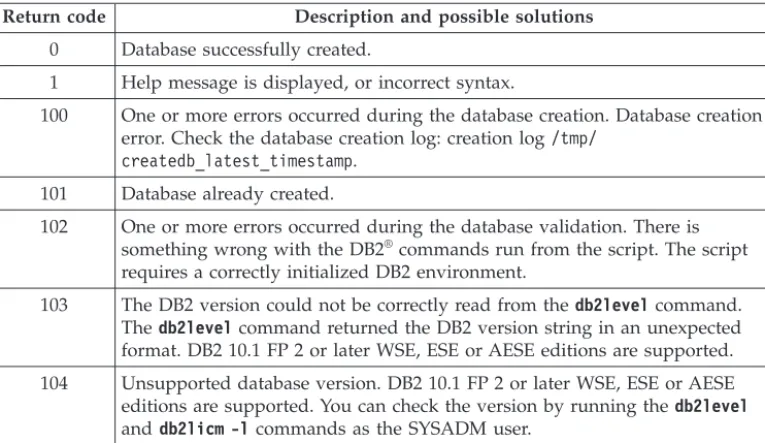
The create database script createdb.shgenerates a log file with information that can help you check why database creation or validation failed. Thecreatedb.sh log is in the /tmpdirectory. The file has a time stamp suffix, for example: /tmp/createdb_20131018-131841.
Return codes
Check the return code to find the reasons for database creation problems. Table 1. Return codes for the create database script
Return code Description and possible solutions
0 Database successfully created.
1 Help message is displayed, or incorrect syntax.
100 One or more errors occurred during the database creation. Database creation error. Check the database creation log: creation log/tmp/
createdb_latest_timestamp.
101 Database already created.
102 One or more errors occurred during the database validation. There is something wrong with the DB2®
commands run from the script. The script requires a correctly initialized DB2 environment.
103 The DB2 version could not be correctly read from thedb2levelcommand. Thedb2levelcommand returned the DB2 version string in an unexpected format. DB2 10.1 FP 2 or later WSE, ESE or AESE editions are supported. 104 Unsupported database version. DB2 10.1 FP 2 or later WSE, ESE or AESE editions are supported. You can check the version by running thedb2level
Table 1. Return codes for the create database script (continued)
Return code Description and possible solutions
105 An unsupported edition of the database was found in the system. DB2 10.1 FP 2 or later WSE, ESE or AESE editions are supported. You can check the version by running thedb2levelanddb2licm -lcommands as the SYSADM user.
127 Cannot run thedb2command. Incorrectly configured DB2 instance. The user
that runs the script must have SYSADM authority. Try to run the script as the DB2 instance owner.
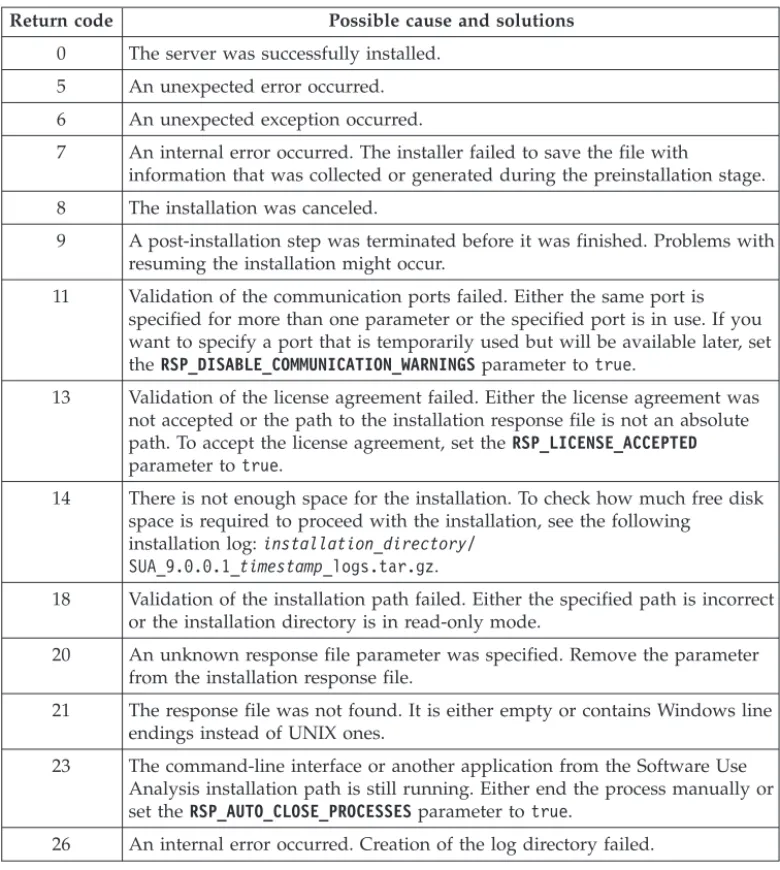
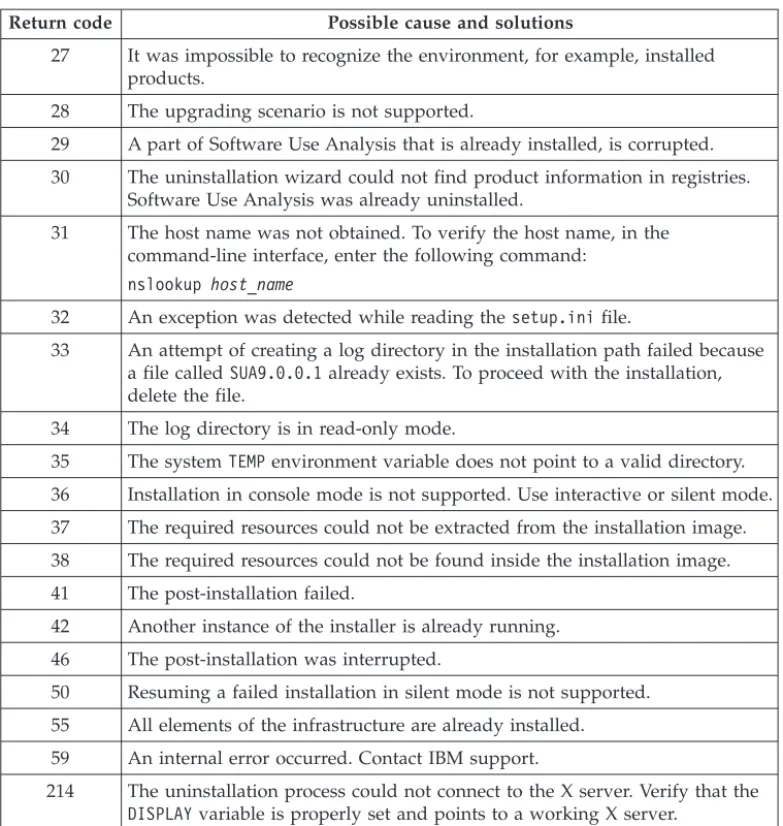
Server installation and uninstallation return codes
If the server installation or uninstallation fails, check the return code to find the reason of the problem and possible solutions.
The table lists return codes that are logged during the installation or uninstallation of the Software Use Analysis server.
Table 2. Server installation and uninstallation return codes
Return code Possible cause and solutions
0 The server was successfully installed. 5 An unexpected error occurred. 6 An unexpected exception occurred.
7 An internal error occurred. The installer failed to save the file with
information that was collected or generated during the preinstallation stage. 8 The installation was canceled.
9 A post-installation step was terminated before it was finished. Problems with resuming the installation might occur.
11 Validation of the communication ports failed. Either the same port is specified for more than one parameter or the specified port is in use. If you want to specify a port that is temporarily used but will be available later, set theRSP_DISABLE_COMMUNICATION_WARNINGSparameter totrue.
13 Validation of the license agreement failed. Either the license agreement was not accepted or the path to the installation response file is not an absolute path. To accept the license agreement, set theRSP_LICENSE_ACCEPTED
parameter totrue.
14 There is not enough space for the installation. To check how much free disk space is required to proceed with the installation, see the following
installation log:installation_directory/ SUA_9.0.0.1_timestamp_logs.tar.gz.
18 Validation of the installation path failed. Either the specified path is incorrect or the installation directory is in read-only mode.
20 An unknown response file parameter was specified. Remove the parameter from the installation response file.
21 The response file was not found. It is either empty or contains Windows line endings instead of UNIX ones.
23 The command-line interface or another application from the Software Use Analysis installation path is still running. Either end the process manually or set theRSP_AUTO_CLOSE_PROCESSESparameter totrue.
Table 2. Server installation and uninstallation return codes (continued)
Return code Possible cause and solutions
27 It was impossible to recognize the environment, for example, installed products.
28 The upgrading scenario is not supported.
29 A part of Software Use Analysis that is already installed, is corrupted. 30 The uninstallation wizard could not find product information in registries.
Software Use Analysis was already uninstalled.
31 The host name was not obtained. To verify the host name, in the command-line interface, enter the following command:
nslookup host_name
32 An exception was detected while reading thesetup.inifile.
33 An attempt of creating a log directory in the installation path failed because a file calledSUA9.0.0.1already exists. To proceed with the installation, delete the file.
34 The log directory is in read-only mode.
35 The systemTEMPenvironment variable does not point to a valid directory. 36 Installation in console mode is not supported. Use interactive or silent mode. 37 The required resources could not be extracted from the installation image. 38 The required resources could not be found inside the installation image. 41 The post-installation failed.
42 Another instance of the installer is already running. 46 The post-installation was interrupted.
50 Resuming a failed installation in silent mode is not supported. 55 All elements of the infrastructure are already installed. 59 An internal error occurred. Contact IBM support.
214 The uninstallation process could not connect to the X server. Verify that the
DISPLAYvariable is properly set and points to a working X server.
Contacting IBM Software Support
IBM Software Support provides assistance with product defects.
Before you begin
Before contacting IBM Software Support, your company must have an active IBM software maintenance contract, and you must be authorized to submit problems to IBM. For information about the types of maintenance contracts available, see “Enhanced Technical Support” in the Software Support Handbookat:
http://www14.software.ibm.com/webapp/set2/sas/f/handbook/home.html
About this task
Procedure
1. Define the problem, gather background information, and determine the severity of the problem. For help, see “Contacting Software Support” in the Software Support Handbook.
2. Gather diagnostic information.
3. Submit your problem to IBM Support in one of the following ways: v Online: Visit the IBM Software Support site: www.ibm.com/software/
support/probsub.html
v By phone: For the phone number to call in your country, go to the “Contact Information” section of the Software Support Handbook.
What to do next
If the problem you submit is for a software defect or for missing or inaccurate documentation, IBM Software Support creates an Authorized Program Analysis Report (APAR). The APAR describes the problem in detail. Whenever possible, IBM Software Support provides a workaround that you can implement until the APAR is resolved and a fix is delivered. IBM publishes resolved APARs on the IBM Support website daily, so that other users who experience the same problem can benefit from the same resolution.
Notices
IBM’s statements regarding its plans, directions, and intent are subject to change or withdrawal without notice at IBM’s sole discretion. Information regarding potential future products is intended to outline our general product direction and it should not be relied on in making a purchasing decision. The information mentioned regarding potential future products is not a commitment, promise, or legal obligation to deliver any material, code or functionality. Information about potential future products may not be incorporated into any contract. The
development, release, and timing of any future features or functionality described for our products remains at our sole discretion.
This information was developed for products and services offered in the U.S.A. IBM may not offer the products, services, or features discussed in this document in other countries. Consult your local IBM representative for information on the products and services currently available in your area. Any reference to an IBM product, program, or service is not intended to state or imply that only that IBM product, program, or service may be used. Any functionally equivalent product, program, or service that does not infringe any IBM intellectual property right may be used instead. However, it is the user's responsibility to evaluate and verify the operation of any non-IBM product, program, or service.
IBM may have patents or pending patent applications covering subject matter described in this document. The furnishing of this document does not grant you any license to these patents. You can send license inquiries, in writing, to: IBM Director of Licensing
IBM Corporation North Castle Drive
Armonk, NY 10504-1785 U.S.A.
For license inquiries regarding double-byte character set (DBCS) information, contact the IBM Intellectual Property Department in your country or send inquiries, in writing, to:
Intellectual Property Licensing Legal and Intellectual Property Law IBM Japan, Ltd.
1623-14, Shimotsuruma, Yamato-shi Kanagawa 242-8502 Japan
The following paragraph does not apply to the United Kingdom or any other country where such provisions are inconsistent with local law:
INTERNATIONAL BUSINESS MACHINES CORPORATION PROVIDES THIS PUBLICATION “AS IS” WITHOUT WARRANTY OF ANY KIND, EITHER EXPRESS OR IMPLIED, INCLUDING, BUT NOT LIMITED TO, THE IMPLIED WARRANTIES OF NON-INFRINGEMENT, MERCHANTABILITY OR FITNESS FOR A PARTICULAR PURPOSE. Some states do not allow disclaimer of express or implied warranties in certain transactions, therefore, this statement may not apply to you.
This information could include technical inaccuracies or typographical errors. Changes are periodically made to the information herein; these changes will be incorporated in new editions of the publication. IBM may make improvements and/or changes in the product(s) and/or the program(s) described in this publication at any time without notice.
Any references in this information to non-IBM Web sites are provided for
convenience only and do not in any manner serve as an endorsement of those Web sites. The materials at those Web sites are not part of the materials for this IBM product and use of those Web sites is at your own risk.
IBM may use or distribute any of the information you supply in any way it believes appropriate without incurring any obligation to you.
Licensees of this program who wish to have information about it for the purpose of enabling: (i) the exchange of information between independently created programs and other programs (including this one) and (ii) the mutual use of the information which has been exchanged, should contact:
IBM Corporation 2Z4A/101
11400 Burnet Road Austin, TX 79758 U.S.A
Such information may be available, subject to appropriate terms and conditions, including in some cases, payment of a fee.
The licensed program described in this information and all licensed material available for it are provided by IBM under terms of the IBM Customer Agreement, IBM International Program License Agreement, or any equivalent agreement between us.
Information concerning non-IBM products was obtained from the suppliers of those products, their published announcements or other publicly available sources. IBM has not tested those products and cannot confirm the accuracy of
performance, compatibility or any other claims related to non-IBM products. Questions on the capabilities of non-IBM products should be addressed to the suppliers of those products.
This information contains examples of data and reports used in daily business operations. To illustrate them as completely as possible, the examples include the names of individuals, companies, brands, and products. All of these names are fictitious and any similarity to the names and addresses used by an actual business enterprise is entirely coincidental.
Trademarks
IBM, the IBM logo, and ibm.com are trademarks or registered trademarks of International Business Machines Corp., registered in many jurisdictions worldwide. Other product and service names might be trademarks of IBM or other companies. A current list of IBM trademarks is available on the Web at “Copyright and trademark information” at www.ibm.com/legal/copytrade.shtml.
Adobe, Acrobat, PostScript and all Adobe-based trademarks are either registered trademarks or trademarks of Adobe Systems Incorporated in the United States, other countries, or both.