c
REFACTORING MEETS SPREADSHEET FORMULAS
BY
SANDRO BADAME
THESIS
Submitted in partial fulfillment of the requirements for the degree of Master of Science in Computer Science
in the Graduate College of the
University of Illinois at Urbana-Champaign, 2012
Urbana, Illinois Adviser:
ABSTRACT
The number of end-users who write spreadsheet programs is at least an order of magnitude larger than the number of trained programmers who write professional software. We studied a corpus of 3691 spreadsheets and we found that their formulas are riddled with the same smells that plague professional software: hardcoded constants, duplicated expressions, unnecessary complex-ity, and unsanitized input. These make spreadsheets difficult to read and expensive to maintain. Like refactoring of object-oriented code, refactoring of spreadsheet formulas can be transformative.
In this paper we present seven refactorings for spreadsheet formulas imple-mented in RefBook, a plugin for Microsoft Excel. To evaluate the usefulness
of RefBook, we employed three kinds of empirical methods. First, we
per-formed a Retrospective Case Study on the EUSES Spreadsheet Corpus with 3691 spreadsheets to determine how often we could apply the refactorings supported by RefBook. Second, we conducted a User Survey with 28 Excel
users to find out whether they preferred the refactored formulas. Third, we conducted a Controlled Experiment with the same 28 participants to measure their productivity when doing manual refactorings. The results show: (i) the refactorings are widely applicable, (ii) users prefer the refactored formulas, and (iii) RefBook is faster and safer than manual refactoring. On average RefBook is able to apply the refactorings in less than half the time that users
performed the refactorings manually. 92.54% of users introduced errors or new smells into the spreadsheet or where unable to complete the task.
To my father for his constant support. And to my mother who would be proud to see me here today.
ACKNOWLEDGMENTS
We thank Cosmin Radoi and Semih Okur for providing comments on an earlier draft of this paper, Jeff Overbey for providing assistance with Ludwig, Patrick O’Beirne for his advice on selecting useful refactorings, and Microsoft for partially funding this research through a SEIF award.
TABLE OF CONTENTS
CHAPTER 1 INTRODUCTION . . . 1
CHAPTER 2 MOTIVATING EXAMPLE . . . 5
CHAPTER 3 HIGH LEVEL OVERVIEW OF REFBOOK . . . 9
3.1 Typical use of RefBook . . . 9
3.2 Life-cycle of a Refactoring . . . 9
CHAPTER 4 SPREADSHEET GRAMMAR . . . 11
4.1 Anatomy of a Spreadsheet . . . 11
CHAPTER 5 REFACTORINGS . . . 14
5.1 Extract Row or Column . . . 14
5.2 Make Cell Constant . . . 15
5.3 Guard Call . . . 17
5.4 Replace Awkward Formulas . . . 17
5.5 String To Dropdown . . . 18
5.6 Introduce Cell Name . . . 19
5.7 Extract Literal. . . 20
CHAPTER 6 EVALUATION . . . 21
6.1 Methodology . . . 22
6.2 Results . . . 25
CHAPTER 7 RELATED WORK . . . 29
CHAPTER 8 CONCLUSIONS . . . 31
CHAPTER 1
INTRODUCTION
The number of end-users who write spreadsheet programs is at least an order of magnitude larger than the number of trained programmers who write professional software [5, 20, 28]. Therefore the majority of programming is actually performed by users who do not consider themselves programmers. These spreadsheet users are referred to as end-users [6]. While these end-users are responsible for the maintenance and correctness of their spreadsheets, they have not been trained to develop software and often are not trained in the best practices for spreadsheet maintenance.
We have analyzed 3691 spreadsheets from the EUSES Spreadsheet Corpus [14] to determine the internal quality of the spreadsheets. We found that many formulas havesmells, similar to those commonly found in professionally developed software. Some of these degrade the performance, others decrease readability, and others make it harder to change the table in the future. For example: 61% of formulas contain numerical constants that can be extracted. By consolidating all of the constant references in a formula to a single place, the formula’s readability and maintainability is increased. 13.66% of text columns are good candidates for conversion to a dropdown menu which reduces the possibility of typos occurring in a column and convey to a maintainer the acceptable values for a text column. 61% of formulas can be given descriptive names instead of using anonymous cell references, thus making it easier to understand the purpose of a formula.
Although smelly formulas may correctly perform their tasks, they are difficult to maintain and can mask errors. Such errors have cost millions of dollars [6]. Researchers [1, 3, 8, 10, 16, 17, 19, 22, 25–27] have made continuous strides into finding and displaying errors and smells in spreadsheets. However, there is no work on the removal of smells from spreadsheet formulas.
In professional programing the removal of smells while preserving pro-gram behavior is called refactoring [15]. Refactoring is an important part
of professional software development. Refactoring has revolutionized how programmers design software: it has enabled programmers to continuously explore the design space of large codebases, while preserving the existing behavior. Modern IDEs such as Eclipse [9], NetBeans [21], IntelliJ IDEA [18], or Visual Studio [30] incorporate refactoring in their top-level menu and often compete on the basis of refactoring support.
While professional programmers have the support of refactoring tools, end-users – who are not even trained for maintaining software – do not have any refactoring support. We propose to remove spreadsheet smells through the use of automated refactoring, analogous to the refactoring process used for object-oriented code.
There is a large number of refactorings for spreadsheet formulas that we could have implemented. However, we want to automate those that are frequently performed but cause frustration, and those that are infrequent but are difficult. We asked these questions to different end users.
We contacted the 750 members of the European Spreadsheet Risks Interest Group [12] that subscribe to the mailing list of professional spreadsheet users, and we exchanged several emails with their Chair, Patrick O’Beirne, the author of an influential paper [22] about best practices for spreadsheets. We also posted on two large forums that have been used by hundreds of thousands of users: the OpenOffice Calc forum 1 that has more than 200 active users online at any time, and the Excel forum 2 that has on average 4,000 active members online at any time. We also asked on the staff mailing list at the CS department at UIUC.
Based on their input, we have implementedRefBook: a plugin for Microsoft
Excel that implements seven refactorings that safely remove spreadsheet smells.
RefBook implements the following refactorings: Extract Row or Column, Make Cell Constant, Guard Call, Replace Awkward Formulas,String To Dropdown, Introduce Cell Name, and Extract Literal. Each refactoring is
specialized to remove a particular smell from a spreadsheet. These refactorings increase programmer productivity by performing the refactorings quickly and correctly. Extract Row or Columnbreaks formulas into smaller components
and can reduce the amount of code duplication that exists in spreadsheets. 1http://www.oooforum.org/
Make Cell Constant makes formulas less error prone and more readable
by rewriting the formula to contain $’s that signify that a particular cell or column is constant throughout a set of formulas. Guard Call rewrites
a cell formula to have user defined behavior when an when error condition occur. Replace Awkward Formulas re-writes formulas using Excel’s built-in
functions (e.g., SUM) so that spreadsheets become more uniform and easier to understand. String To Dropdown limits the number of allowed values for a
cell to reduce the chance of a typo. Introduce Cell Nameremoves anonymous
cells and replaces them with named cells. Extract Literal removes “magic
numbers” from formulas.
To evaluate the usefulness ofRefBook, we employed three kinds of empirical
evaluation methods. First, we performed a Retrospective Case Study on the EUSES Spreadsheet Corpus with 3691 spreadsheets. Our goal is to determine how often we could apply the refactorings supported byRefBook. Second, we
conducted a User Survey with 28 Excel users to find out whether they preferred the refactored formulas. Third, we conducted a Controlled Experiment with the same 28 participants to measure their productivity when doing manual refactorings.
This paper makes the following contributions:
1. To the best of our knowledge, we are the first to present the concept of refactoring into the domain of spreadsheet formulas.
2. We present the first refactoring tool for spreadsheet formulas, RefBook,
implemented as a plugin for Excel. RefBookcurrently supports seven
refactorings. A demo can be seen at:
http://www.youtube.com/watch?v=wGIu6Muvd8I
3. Our three-way evaluation reveals:
(i) The refactorings can be applied to many of the formulas contained in spreadsheets. Thus RefBook isapplicable. (ii) On average RefBook is
able to apply the refactorings in less than half the time that users per-formed the refactorings manually. Thus RefBookimproves programmer productivity. (iii) 92.54% of users asked to perform the same refactorings introduced errors into the spreadsheet or where unable to complete the task. RefBook makes it easier to apply the refactorings correctly, thus
it issafer. (iv) For four out of the seven refactorings users preferred the refactored output. Thus the refactorings improve spreadsheet quality.
CHAPTER 2
MOTIVATING EXAMPLE
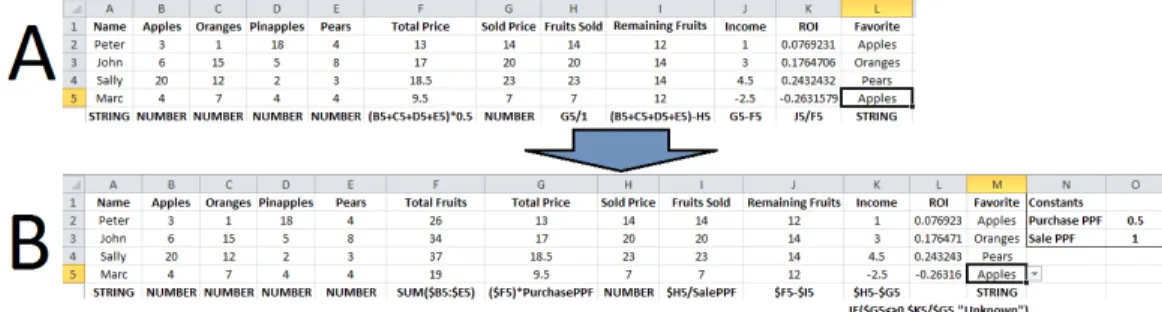
To illustrate the kinds of refactorings applicable to spreadsheets, we will use the table shown in Figure 2.1(a). This table tabulates data from an orchard warehouse where four salespersons purchased fruits and resold them for a profit. Each row tabulates the data for one salesperson. Underneath the table we show the kind of each column and the formulas they compute. Notice that we only show the formulas as they would appear in row 5 (thus referring to cells from row 5), but the formulas for the other rows refer to their respective cells.
The table contains twelve columns: six columns contain literals, and six columns contain formulas that compute on the other columns. Now we briefly explain each column.
• Column A is a text column containing the names of the participants.
• Columns B-E are numerical columns that hold the number of each type of fruit that each salesperson had purchased.
• Column F Total Price is a formula column that computes the total price that each salesperson paid for their fruits. This column performs two calculations: sum the total number of fruits purchased by each person, then multiply it by $0.50, the purchase price per fruit.
• Column G Sold Price is a numerical column that holds the amount of money that each salesperson collected from selling their fruits.
• Column HFruits Sold is a formula column that computes the number of fruits sold: it divides the Sold Price by $1, the resale price per fruit.
• Column Iis a formula column that computes the remaining fruits that each salesperson still has. This column performs two calculations: sum
Figure 2.1: Table before refactoring (A), and after refactoring (B). Underneath the table we show the formulas in row 5. The other formulas differ only in their row index.
the total number of fruits purchased by that person, then subtract the number of fruits sold by that person.
• Column J is a formula column that computes Income as the difference between Sold Price and Total Price .
• Column Kis a formula column that computes the return on investment, ROI, as the division between Income and Total Price.
• Column L is a text column containing the favorite fruit types as reported by the salesperson. This column should only contain the names of real fruits, not arbitrary text.
There are several things that point to “smells” in this table. Some of these degrade the performance, others decrease readability, and others make it harder to change the table in the future. The refactored table contains the same data as the smelly table but with modifications to make the table easier to read and more resistant to errors during changes. The following changes were applied to transform the smelly table into the refactored table.
Take for example the expression B5+C5+D5+E5 which computes the total number of sold fruits. First, this can become more readable if it was replaced with the built-in SUM function (i.e., SUM(B5:E5) ). Second, this expression is calculated twice, once in the Total Price column and then again in the Remaining Fruits column. Given that Excel does not cache expression results, but instead does cache cell results, this wastes CPU cycles. Third, since this expression is duplicated between the Total Price column and theRemaining Fruits column, a future change request like introducing a new kind of fruit and its afferent column, requires changing the expression in the two columns. Like
in the case of professional programming, duplication increases the maintenance effort.
Also notice that the table contains two constants,0.5 and1. First, constants make the formulas unreadable: another co-worker who inspects the table will have to guess what is the meaning of these constants (purchase price and resale price). Second, constants make it tedious to perform maintenance tasks: if we wanted to change the purchase and resale price, we will have to manually find and update 8 cells. Performing a find-and-replace for 1 will erroneously update the cell C2, which just happens to have value 1.
Also notice that theFavorite column can contain any arbitrary text, even the ones that do not represent fruit names, for example by a typo that just misplaced one character. This affects the readability of the column for humans, whereas macros or other programs that read such erroneous values won’t work.
Also notice that all formulas that refer to static cells use the “fixed column” format. For example, the formula in H5 refers to the static cell G5. Adding the $ can make cell references more resistant to errors when the spreadsheet is modified for maintenance. The dollar signs serve as a form of documentation about the formula, the dollar signs make highlight which cell references are constant throughout the entire column of formulas.
The summation value should be displayed in its own column. The Total Fruits column was added to hold the calculation. The Total Price and Remaining Fruits formulas were modified to reference the newly introduced Total Fruits column.
The 0.5 and 1 constants that were respectively contained inTotal Price and Fruits Sold columns were moved into their own cell and respectively named PurchasePPF and SoldPPF. Naming the two cells increase formula readability and make modifying these constants in the future easier. The name of the cell also serves as documentation about what the value represents.
TheROI column was changed to guard against a division by 0. If no fruits were sold then the ROI would contain an error. Instead the ”Unknown” text is displayed. The advantage of have an explicit error check in the formula is that it notifies the reader that the formula was written with the error case in mind, and that the error case is handled.
The Favorite column was changed to use a dropdown menu for values instead of arbitrary text. Since not all text would be considered valid in this
column. (eg ”Foo” is not a valid fruit). Using a dropdown menu limits the possibility of typing errors and makes the user aware that there are a fixed number of values that are allowed in the column.
Across all of the formula cells the cell references were updated to use the $ on their column identifier. Adding the $ can make cell references more resistant to errors. Another use of the dollar signs are that they serve as a form of documentation about the formula. The dollar signs make it much more obvious which identifiers are constant throughout the column’s formulas.
CHAPTER 3
HIGH LEVEL OVERVIEW OF
REFBOOK
3.1
Typical use of
RefBook
Users interact with RefBook from within Excel. We describe a typical use of RefBook using our motivating example from Figure 2.1: replace the formulas
in the Total Price column with formulas that contain constant cell references. To perform this refactoring the user selects cellsF2-F5 from the Total Price column, right-clicks on the selection to bring up the context menu (which shows RefBook on the top), then selects theMake Cell Constant option in
the menu. RefBook then replaces the highlighted formulas with formulas
that contain the $ sign. For refactorings that require additional user input (e.g., supplying the sub-formula to be extracted in Extract Row or Column),
RefBook displays an input-dialog box with the native Excel look and feel.
3.2
Life-cycle of a Refactoring
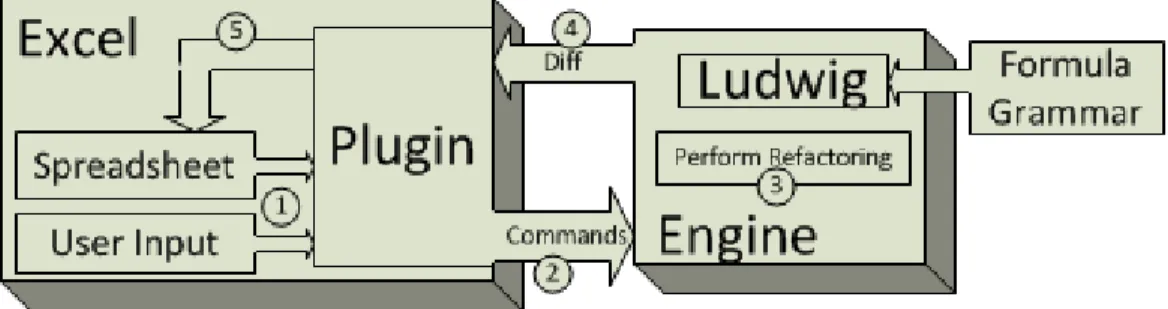
RefBook’s architecture consists of three major components: Excel plugin,
Ludwig [24], and the refactoring engine. The Excel plugin is the front-end. Users only interact with the Excel plugin component of RefBook. The
Excel plugin creates a separate process for the back-end, Ludwig and the refactoring engine. The back-end calculates the corresponding changes for each refactoring, and sends them to the Excel plugin that applies them on the spreadsheet.
Ludwig [24] is an off-the-shelf component that given a grammar for a language (e.g., the grammar for Excel formulas – see Fig 4.1) generates a Java library for parsing that grammar. The Abstract Syntax Tree (AST) generated by Ludwig supports manipulation of the AST while preserving the
Figure 3.1: Typical sequence of events to perform a refactoring. formatting for the remainder of the formula. This crucial feature simplifies the implementation of actual refactorings while making it very practical for users who care about the formatting.
The refactoring engine is a Java application that takes as input the name of the refactoring to perform, the table that is the target of the refactoring, and the user input. It performs the AST transformations, e.g., adding, removing, updating cells. Then it outputs commands for the Excel plugin to perform on the Excel spreadsheet. The output of the refactoring engine is an ordered list comprised of commands of this kind:
• INSERTCOLUMN columnIndex
• INSERTROW rowIndex
• SETCELL columnIndex, rowIndex, content
• NAMECELL columnIndex, rowIndex, name
Although this may appear to be a very computationally expensive process in practice the refactoring occurs quickly. Most of the time is spent in starting the Java virtual machine for the first time, subsequent executions of the refactorings happen much more quickly. The major advantage of this 3-tier architecture is that RefBook is extensible to other spreadsheet tools, beyond
Microsoft Excel. If we were to implement refactoring support for OpenOffice Calc [7] then we would have to reimplement only the Excel plugin portion of RefBook. Using this design refactorings can also be performed without
the need to use any spreadsheet application. For example, in order to test our program against the EUSES Spreadsheet Corpus of spreadsheets, no spreadsheet application was used, instead the refactoring engine was used directly.
CHAPTER 4
SPREADSHEET GRAMMAR
4.1
Anatomy of a Spreadsheet
The terminology we will use is derived from Excel’s terminology. A Workbook is a single file that contains multiple Sheets . The Workbook ’s name is its filename. A sheet can only belong to one Workbook. A Sheet is a named two dimensional array of Cells.
Cellsare indexed in a Sheet either by row and column, or by a user-defined name. A Cell ’s column is represented as series of letters that range between A and ZZ. A Cell’s row is represented as an integer greater than 0. Cells can be named or anonymous. The condition for a valid user-defined name is that the given name cannot be interpreted as a valid index (e.g. A1 is not a valid cell name) or as an Excel builtin. We will refer to a cell that has not been given a user-defined name as an anonymous cell.
Cells can contain a value that is one of three types: Number, Text, or Formula. Other types such as Dates and Currency are represented internally by both RefBook and Excel as numerical Cells. Cells that are Numerical or Textual have values defined by the user. Formula Cellscontain a formula that is executed by Excel, which produces a Number or Text.
Most formulas refer to other cells. Figure 4.1 defines the grammar for formulas. Excel does not publicly release a grammar for their formula language. Therefore we developed our own grammar that is a subset of the official Excel formula language. The grammar was based heavily on a grammar developed by Daniel Ballinger [4].
We pass our grammar from Figure 4.1 to Ludwig to generate an Excel formula parser. The grammar assumes that all formulas are syntax error-free.
The grammar does not have a special node for named cells. This is done to simplify the grammar. A named cell is a Cell with the name stored in the
( s k i p ) : : = [ \t\r\n]+ # D e f i n e w h i t e s p a c e
<Formula> : : = <E x p r e s s i o n> | ”{” <E x p r e s s i o n> ”}” <E x p r e s s i o n> : : = O p e r a t o r∗ <E x p r e s s i o n P r i m i t i v e> < A n o t h e r E x p r e s s i o n>? <E x p r e s s i o n P r i m i t i v e> : : = <P r i m i t i v e> | <Function> | < C e l l R e f e r e n c e> | <R a n g e R e f e r e n c e> | <E r r o r> | ” ( ” <E x p r e s s i o n > ” ) ” <A n o t h e r E x p r e s s i o n> : : = O p e r a t o r <E x p r e s s i o n> #P r i m i t i v e Data t y p e s <P r i m i t i v e> : : = t o k e n : Number | t o k e n : B o o l e a n | t o k e n : S t r i n g Number : : = [0−9]+ ( ” . ” [0−9]+) ? ”%”? B o o l e a n : : = ” t r u e ” | ” f a l s e ” | ”TRUE” | ”FALSE” S t r i n g : : = ”\”” ( [ ˆ\” ]|”\”\” ” )∗ ”\”” O p e r a t o r : : = ”<” | ”>” | ”>=” | ”<=” | ”>=” | ”<=” | ”<>” | ”=” | ”+” | ”−” | ”/” | ”∗” | ”ˆ” | ”&” <E r r o r> : : = ”#REF! ” #R e f e r e n c i n g c e l l s <C e l l R e f e r e n c e> : : = <R e f e r e n c e P r e f i x> <C e l l>
<R e f e r e n c e P r e f i x> : : = <E r r o r>? workbook : Workbook ? s h e e t : S h e e t ? <R a n g e R e f e r e n c e> : : = s t a r t :<C e l l R e f e r e n c e> ” : ” end :<
C e l l R e f e r e n c e>
Workbook : : = ” ’ ” ? ” [ ” ˜ ” ] ” ” ’ ” ?
S h e e t : : = ” ’ ” [ ˆ ’ ! ]∗ ” ’ ” ” ! ” | [ A−Za−z ] [ . A−Za−z0−9]+ ” ! ”
<C e l l> : : = isColumnFixed ( b o o l ) : D o l l a r ? Column isRowFixed ( b o o l ) : D o l l a r ? row : Number? D o l l a r : : = ” $ ” Column : : = [0−9A−Za−z #! ]∗ [ A−Za−z # ! ] #F u n c t i o n s <Function> : : = F u n c t i o n S t a r t a r g s :<E x p r e s s i o n>∗ ( s e p a r a t e d−by ) Comma ” ) ” F u n c t i o n S t a r t : : = [ A−Za−z ] [ A−Za−z0−9 ]∗ [ \t ]∗ ” ( ” Rparen : : = ” ) ” Comma : : = ” , ”
Column.
For the sake of simplicity of the grammar, the grammar does not differentiate between binary and unary operators.
CHAPTER 5
REFACTORINGS
Now we describe each of the seven refactorings supported by RefBook. For
each refactoring we first present an example of the transformation, then we describe in plain text what the refactoring does, then we provide pseudo-code for the algorithm. Here we show the input, the preconditions, and the transformation. We use the same style of behavior-presentation introduced by Opdyke [23], namely we guarantee that the refactored spreadsheet computes the same values as the original spreadsheet when the precondition predicate is true.
There are many formulas in a spreadsheet that are dragged down a column or across a row. However, the user only created one single formula, the rest only differ by the cell references. Many of our refactorings check whether the user selected cells that belong to consistent formulas (defined below).
Definition 1. Consistent formulas are formulas that have the same AST shapes.
Definition 2. Distinct formulas are formulas that have different AST shapes.
Two formulas have the same shape if their ASTs are isomorphic, i.e., the ASTs contain the same number of AST nodes, the nodes have the same type, and the nodes form the same structure.
5.1
Extract Row or Column
Example: In the motivating example in Fig. 2.1, we apply the refactoring to the Total Price column. It extracts the expression: (B5+C5+D5+E5) from Total Price and Remaining Fruits into a new column, F5. This new column will contain B5+C5+D5+E5. The Total Price column will then contain: F5*.5 and the Remaining Fruits column will contain: F5-H5
In professional programming the analogous refactoring is ”Extract Tempo-rary Variable”.
Description: The user selects a row or column to extract from and a subexpression from the row or column to be extracted into a new row or column. RefBook moves the selected row or column one position down or to
the right. Then it updates the cell references in the table to refer to the new cell positions after the movement. It places the extracted subexpression into every cell of the newly created row or column. Then, it finds all instances of the subexpression in the table and replaces them with a reference to the corresponding cell in the new column or row.
Our prototype implementation does not check whether the user selects a subexpression that transcends the boundary of operator precedence. For example, a user could select 2+3 from the 6*2+3 formula. An industrial-strength implementation should raise a warning that the new formula will compute value 30 instead of 15. We leave this for future work.
Procedure 1 Extract an expression into a column
Input: sheet, expr, colIndex
Preconditions: f1, f2∈sheet[colIndex], f1isConsistent(f2)
functionExtractColumn for allcell∈sheetdo
original=expr.updateRowsT o(cell.row) new= ” = ” +colIndex+cell.Row cell.F ormula.replaceAll(original, new)
end for
newColumn=sheet.insertColumn(colIndex)
for allcell∈newColumn do
cell.F ormula=expr.updateRowsT o(cell.row)
end for end function
5.2
Make Cell Constant
Example: In the motivating example in Fig 2.1, we apply the refactoring to all of the formula columns: Total Price ,Fruits Sold , andRemaining Fruits.
RefBook converts the column formulas from (B5+C5+D5+E5)*0.5), G5/1 and (B5+C5+D5+E5)-H5) to($B5+$C5+$D5+$E5)*0.5),$G5/1, and($B5+$C5+$D5+$E5)-$H5) respectively.
Procedure 2 Make all possible cell references fixed.
Input: sheet, colIndex
Preconditions: f1, f2∈sheet[colIndex], f1isConsistent(f2)
∃cellRef∈sheet[colIndex][1].F ormula)
functionMakeCellConstant
column=sheet[colIndex] f irst=column[1].F ormula
constColRef s=f irst.cellRef s.cols discardedColRef s={}
constRowRef s=f irst.cellRef s.rows discardedRowRef s={}
for allcell∈columndo
if cell.F ormula.isDistinctF rom(f irst)then
continue
end if
cellColRef s=cell.F ormula.cellRef s cellRowRef s=cell.F ormula.cellRef s
fori= 1→ |cellRef s|do
if i /∈discardedColRef sthen
if cellColRef s6=constColRef s[i]then
discardedColRef s.add(i)
end if end if
if i /∈discardedRowRef sthen
if cellRowRef s6=constRowRef s[i]then
discardedRowRef s.add(i)
end if end if end for end for
for allcell∈columndo
cellRef s=cell.F ormula.cellRef s
fori= 1→ |cellRef s|do if i /∈discardedColRef sthen cellRef s.f ixColumn end if if i /∈discardedRowRef sthen cellRef s.f ixRow end if end for end for end function
Description: The user selects formula cells. RefBookfirst determines
whether any of the cell references can be made constant. It uses the shape of the first formula as the model for all the other formulas in the selection. Then it compares corresponding cell references between pairs of selected formulas and it determines which cell references do not change. These are the cell references that it prefixes with the $ sign.
5.3
Guard Call
Example: In the motivating example we apply the refactoring to the ROI column. The user supplied the error expression "Unknown" . Guard Call converted J5/F5 toIF(G5<>9,K5/G5,"Unknown").
Description: The user selects a formula cells and also provides an expression to be supplied as the error message. RefBook searches for a
division operator, and replaces it with a conditional IF, where the condition checks whether the denominator is different than zero, the then branch performs the division, and the else branch displays the error message.
Procedure 3 Guard Call
Input: formula, errMsg
Preconditions: ∃”/”∈f ormula errMsg.isValidFormula
functionGuardCall
binaryOps=f ormula.collectAll(AnotherExpression)
for alln∈binaryOps|n.Operator= ”/” do
guard= “IF(” +n.Expression+ “<>0,” +n.P arent+ “,” +errM sg+ “)” n.parent.ExpressionP rimitive=guard
end for end function
5.4
Replace Awkward Formulas
Example: In the motivating example, we apply the refactoring to theTotal Price andRemaining Fruits fruits column converting them from(B5+C5+D5+E5)*0.5) and (B5+C5+D5+E5)-H5) toSUM(B5:E5)*0.5 and SUM(B5:E5)-H5 respectively.
Description: The user selects a formula and RefBookfirst searches for
con-secutive cells. RefBook replaces such long chains with a singleSUM(<<range>>) or PRODUCT(<<range>>) function.
Procedure 4 Replace Awkward
Input: formula
Preconditions: ∃” + ”or”∗”∈f ormula)
∃{cellRef} ∈f ormula|{cellRef}.cardinality >3
functionReplaceAwkward
original=f ormula
ref actored=attempt(f ormula)
whileoriginal6=ref actoreddo
original=ref actored
ref actored=attempt(original)
end while end function
functionattempt(expr)
awkwardAST =getAwkwardAST N ode(expr)
if awkwardAST 6=N ON E then
expr.replace(awkwardAST, f ixedAST)
end if returnexpr
end function
5.5
String To Dropdown
Example: In our motivating example, we apply this refactoring to the Favorite column. The set of valid entries consists of: Apples, Oranges, and Pears.
Description: The user selects a textual column. RefBook searches for
all the unique text entries in the column. RefBookattaches dropdown menus
to each cell in the column. It fills in each dropdown selection the value that was previously in the cell.
Procedure 5 String To Dropdown
Input: column
Preconditions: f orEachcell∈column, cell.isT extual
functionString to Dropdown
choices={x∈column|x /∈choices}
for allcell∈columndo
cell.DropdownOptions=choices
end for end function
String To Dropdown assumes that the user-selected column of textual
entries does not contain any errors. Specifically if typos exist, the typos are an acceptable value in the dropdown menu.
5.6
Introduce Cell Name
Example: In our second table from the motivating example, we appled this refactoring to the cell O2, and we named it PurchasePPF. The formula in G5, F5*PurchasePPF, uses the new name.
Excel’s “Search and Replace” is not a sound method to use to replace all anonymous cell references in formulas with the named reference. For example, if the text A1 was in a text literal then it would be replaced. If A1 was referenced as $A$1 “Search and Replace” misses this reference. Without
RefBook the end-user programmer would be forced to inspect each cell in
the table for correctness. RefBook safely and correctly finds all references to
the cell.
Description: The user selects a cell, and provides a name. RefBook
checks whether the new name is not in use, and defines the name. RefBook
searches in the entire table for references to the anonymous selected cell, and updates them to the named cell.
Procedure 6 Introduce Cell Name
Input: anonCell, name, sheet
Preconditions: name.isV alid
functionIntroduce Name
anonLoc=cellLocation(anonCell) sheet.def ineN ame(anonCell, name)
for allcell∈sheetdo
for allcellRef∈cell.F ormula
|cellLocation(cellRef) =anonLocdo
cell.F ormula.replace(cellRef, name)
end for end for end function
functioncellLocation(cell)
return(cell.W orkbook, cell.Sheet, cell.Column, cell.Row)
5.7
Extract Literal
Example: In the motivating example, we applied the refactoring to the Total Price and Fruits Sold columns. Each of these columns have a “magic number” (0.5 and 1 respectively).
Description: User selects a formula. She also selects the actual literal value to be extracted and provide a name for the cell. RefBook first checks
whether the new name is not in use. Then RefBook finds an empty cell
where it moves the literal, names the cell, then replaces all references to to the literal in the table with a reference to the named cell.
Procedure 7 Extract Literal
Input: literal, cellName, sheet
Preconditions: cellN ame.isV alid
functionExtractLiteral
sheet.def ineN ame(sheet.getU nU sedCell(), cellN ame) sheet[cellN ame] =literal
for allcell∈sheetdo
for allliteral∈cell.F ormula.collectAll(Number)do if literal.P arent6=Cell then
cell.F ormula.replace(literal, cellN ame)
end if end for end for end function
CHAPTER 6
EVALUATION
We evaluate the usefulness of the proposed refactorings by answering four research questions:
• Q1: Can RefBook make the refactoring process safer?
• Q2: Do the refactorings improve programmer productivity? • Q3: Do the refactorings improve the spreadsheets quality? • Q4: Are the refactorings applicable?
All these questions address the higher level question “Is RefBook useful?”
from different angles. Safety ensures that the runtime behavior is not modified and the transformation does not introduce more smells. Productivity measures whether automation saves human time. Quality measures whether the users find the refactored formulas more readable. Applicability measures how many formulas in real-world spreadsheets can be directly transformed.
To answer these questions, we employed three different empirical techniques. To measure refactoring safety and user productivity when performing manual refactorings, we conducted a Controlled Experiment with 28 Excel users. To asses whether users preferred the refactored formulas, we conducted an online User Survey with the same 28 participants. In order to ensure discretion, each participant responded to the survey and performed the change tasks in their own environment. To determine how often we could apply the refactorings supported by RefBook, we performed a Retrospective Case
Figure 6.1: Demographics of our 28 participants.
6.1
Methodology
6.1.1
Controlled Experiment
To recruit participants, we advertised to students in the University of Illinois CS105 course. This course is attended by students enrolled in the Business department. In this course students learn how to use Excel for business-related purpose. The participation in the survey was voluntary, and it did not have any relationship with the course evaluation. The successful completion of the survey was rewarded with a $5 Amazon giftcard.
Out of the 500 enrolled students, 28 responded to our call. We asked three questions about their experience with Excel. Figure 6.1 shows the demograph-ics of our participants. Notice that two-thirds of the participants claimed to have more than two years experience with Excel. All our participants responded within 24 hours from our post.
Each participant used an Excel document. The tables contained data about the orchard warehouse, similar with the example shown in our motivating example from Fig. 2.1. The document contained 7 tasks. Each task has a smelly table, a set of instructions on what to change in the table, a “Start” button, and a “Task Complete” button. Before the “Start” button is pressed, the spreadsheet is read-only. During this time the participant is free to inspect and become familiar with the table, the task that she will perform, and a short, optional tutorial that we designed to present the Excel features she might use.
Once the participant has familiarized with the task and the table, she can press the “Start” button. When a participant presses the “Start” button, the table becomes editable, and the participant can perform the changes. A timer records the time taken to perform the changes. When a participant completes the task, she presses the “Task Complete” button which stops the
timer and moves her onto the next task.
After we received their online submissions, we processed each document to record the time it took participants, and whether they performed the tasks correctly. We also applied ourselves RefBook to complete the same tasks,
and then we compared our results with the participants’ results.
6.1.2
User Survey
To find out whether end-users prefer smelly or refactored formulas, we designed and deployed a survey to the same 28 participants. Each participant performed the User Survey by using an Excel document, consisting of 7 sections. Each section focuses on a single particular smell. Each section has two tables: one table that contains the smell and one table were the smell has been removed through applying one of our refactorings.
For each section, we asked two questions about the tables. The first question was a “filter”: we asked a technical question that revealed whether the participant studied the two tables and understood the differences between them. The second question asked which table they would prefer to work with. To eliminate the confounding effect, we randomized the order of appearance between smelly and non-smelly tables.
6.1.3
Retrospective Case Study
To determine the applicability of our refactorings we analyzed the EUSES Spreadsheet Corpus’s 3691 spreadsheets to find out how many formulas have smells that can be fixed by our refactorings. We chose the EUSES Spreadsheet Corpus because it is regarded as the most mature, representative corpus of spreadsheets. At least 13 published papers [14] have used it to draw conclusions about spreadsheet programming. This corpus contains 206355 tables and 495578 distinct formulas, thus we think it is representative.
First, we had written a tool to find the tables in all the spreadsheets. In real-world spreadsheets, tables are (i) often surrounded by documentation, (ii) do not begin at the top and left-most cell, and (iii) multiple tables are scattered throughout the spreadsheet. Our tool parses the corpus spreadsheets using the Apache POI [2] Java library. Due to limitations in the Apache
POI [2] library, our tool could not parse 234 spreadsheets of the 3925, so we retained 3691. Apache POI [2] can not find tables within a workbook’s sheet, so we implemented a search algorithm. To find the individual tables that exist within a sheet, we used the algorithm described in [16].
In the evaluation tables are found by choosing a cell (the starter cell) starting from the topmost row and left most column. The table is first expanded downward until the first non-empty cell is found. Then the table is expanded across columns until an empty column is found. An empty column is defined for our purposes as any column that is completely filled. The starter cell is the topmost and leftmost cell in the table. The table is added to collection for tables for the sheet. The starter cell moves to the next column, if there is no column, then the starter cell is moved to the first column of the next row, until row all rows are exhausted. If the starter cell is in a cell that is already contained in a table or the starter cell is empty, then nothing is done and the starter cell moves again. Otherwise, the search for a new table begins again from the starter cell.
If the topmost row contains only string cells then it is likely that the row is a header row for the data and not pertinent to the results. For the evaluation header rows are removed from the tables.
Once all tables are parsed from the spreadsheets, the tables broken into their individual columns and then parsed column by column. In the case for formula columns there is the desire to not over represent one formula over another simply because one of the formulas was used in a column that contained many more entries. The statistics on the formulas are collected on formulas that are distinct from one another. Within a column each formula is parsed and their ASTs (Abstract Syntax Trees) are compared. If the two formulas have the same AST saving for differences in their cell references then they are considered to be the same and only one of them two formulas will be reported.
Then we implemented a collector tool, customized for each refactoring kind. The collector calculates how many cells in each table manifest a particular smell that can be fixed a particular kind of refactoring.
6.2
Results
Safety: The second column in Table 6.1 shows how many of our participants submitted a solution that contained at least one fault. A fault is a semantical error (i.e., the changed formula computes the wrong value) or a smell (i.e., the original smell was not corrected).
The overall majority of the 28 participants submitted solutions with at least one fault. For one refactoring, Extract Row or Column, all submitted
solutions had faults. Many participants copied the subformula into a new column, but did not remove the duplication between the newly introduced column and the old column. That is, the new column is never referenced from the old column. For the example in Fig. 2.1, from column F containing the formula (B5+C5+D5+E5)*0.5 they copied the expression(B5+C5+D5+E5) into a new column G, but did not replace the original formula with G5*0.5.
For Extract Literal, the literal appeared in multiple formulas, e.g., G5*0.5 and (B5+C5+D5+E5)*0.5 . Many users extracted the literal from one of the formula columns, but not both. Thus the “magic number” smell still remains in the table.
In contrast, RefBook performs all refactorings correctly.
Productivity: The third and fourth columns in Table 6.1 show the aver-age time that it took our 28 participants to perform the manual refactorings. The fifth column shows the time we took to perform the same refactorings with RefBook.
Notice that the time that our Excel macro records for the participants includes both the selection of cells and the actual change. To make the comparison fair, in the RefBook’s time we also report the time to select cells
and to apply RefBook (though RefBook applies the refactoring in less than
3 seconds).
The table shows that performing the refactoring with RefBook is faster
than performing it manually, the improvements ranging from 2.2x to 24x. Notice that this is a conservative lower bound; we expect the productivity difference to be even more dramatic in practice. First, real-world tables contain more rows than the 15 rows in our controlled experiment. Second, the faults committed by the participants were typically errors of omission: many participants had applied the refactoring incompletely. Had they applied the
Refactoring % Faulty Manual Std. RefBook
Kind Submissions Time[sec] Dev. Time[sec] ExtractColumn 100% 36 18 16 MakeCellConstant 30% 37 17 09 StringToDropdown 82% 217 169 09 ReplaceAwkward 47% 68 42 22 GuardCall 82% 67 28 31 IntroduceName 82% 79 50 30 ExtractLiteral 91% 42 23 18
Table 6.1: Safety and Productivity of manual vs. Automated Refactorings.
Refactoring Prefer Prefer No No Pass Kind Smelly Refactor Pref. Resp. Filter ExtractColumn 17.39% 47.83% 21.74% 13.04% 73.91% MakeCellConstant 21.74% 52.17% 13.04% 13.04% 60.87% StringToDropdown 8.70% 21.74% 56.52% 13.04% 34.78% ReplaceAwkward 4.35% 52.17% 26.09% 17.39% 78.26% GuardCall 47.83% 13.04% 26.09% 13.04% 78.26% IntroduceName 52.17% 4.35% 26.09% 17.39% 82.61% ExtractLiteral 17.39% 60.87% 8.70% 13.04% 69.57%
Table 6.2: Preferences of users toward formulas. complete refactoring, this would have taken them more time.
Quality: Table 6.2 shows for each refactoring kind, how many of the 28 participants preferred the smelly or the refactored formulas.
For 4 out of the 7 refactorings, the majority of participants preferred the refactored formulas. For one refactoring, String To Dropdown, the majority
did not have any preference. For 2 refactorings, the majority preferred the smelly formulas. For example, for the Introduce Cell Name, the participants
preferred the table that contained the anonymous cells. Since 82.61% of the participants were able to correctly answer the filter question about the table, we are confident that they understood the table. This corroborates another study [29] where end-users working with Yahoo pipes preferred seeing all the pipes at once instead of abstracting functionality to another pipe.
When judging whether the refactorings improve the readability and main-tainability for end users, we assume that that their opinion reflects the quality of the formulas. Others [29] have used the same technique when judging the quality of end-user code.
Spread-sheet Corpus, we present the applicability of individual refactorings.
There are many formulas in a spreadsheet that are dragged down a column or across a row. However, the user only created one single formula, the rest only differ by the cell references. If we took these dragged cells into account, our results will be skewed by the amount of dragged cells that exist in each table. To prevent this, we define and compute metrics only over distinct formulas (defined in Section 5).
Extract Row or Column. First, we measured the formula complexity. We define a formula’s complexity as the sum of the number of binary operators and function calls that a formula contains. For example:
IF(G5 <> 0, K5/G5, "Unknown"))
has a complexity of 3 (one function call, i.e., IF, plus two binary operators, i.e., not equals and division). A formula that contains only a single reference to another cell, number, or text, has a complexity of 0.
We found that 10.1% of distinct formulas have a complexity of 0, 57.71% have a complexity of 1, 18.49% have a complexity of 2, 11.97% have a complexity of 3, 1.73% have a complexity greater than 3. Formulas that have complexity larger than 1, that is, 32.19% of all distinct formulas, are candidates for the Extract Row or Column, which reduces the complexity of
a formula by breaking it into smaller sub-formulas.
We also compute the amount of duplication that exists between distinct formulas in a table. We calculate the amount of duplication by counting the number of times an AST node is repeated in a table. 72.89% of the formulas contain no duplication. The remaining 27.11% of formulas contain some amount of duplication, thus are candidates for Extract Row or Column.
Make Cell Constant We apply the Make Cell Constant refactoring on
every distinct formula and recorded the number of cell references that were successfully made constant. We found that 23.28% of the formulas did not change when we applied the Make Cell Constant refactoring, 9.03% of the
formulas had a single$ prefix added to a cell reference, 19.35% of the formulas had two places where $ was added to cell references (e.g., $A$5 ), 3.24% of the formulas had three $ added to cell references, 32.64% of the formulas had four $ added to cell references (e.g., $A$5 + $B$5). The reason for the higher percentages for two and four $ is because often when one cell is made constant both the row and column are made constant.
the top 10% most widely use Excel functions. This shows that explicit error handling code is a popular technique.
Replace Awkward Formulas We found that 15.73% of all distinct formulas use the SUM function. This shows that end-users understand it and like to use it.
String To Dropdown We computed the number of duplicated entries that exist in a column of text values. We found that 86.34% of the text columns had no duplication of text values, 6.99% of the text columns repeated up to 50% of the text entries, and 6.67% of the text columns repeated between 51% and 99% of their text entries. This shows that for 13.66% of text columns the
String To Dropdown refactoring can reduce a drastic amount of duplicated
entries.
Introduce Cell Name Among formula columns, we found that 61% of the columns refer to at least one common anonymous cell that is a good candidate for being named. For example, columnC contains formulas of the type: A1+B0 , A2+B0, A3+B0; cell B0 is a good candidate forIntroduce Cell Name. We also found that in such columns, on average 2.21 cells could be named.
Extract Literal Among formula columns, we found that 61% of them re-ferred to the same numerical constants. For example, column D contains formulas of the type: C1+12,C2+12,C3+12; constant 12 can be extracted into a separate cell. Of the columns where Extract Literalcan be applied, on
average 2.09 numerical constants can be extracted. We also found that 0.06% of formula columns referred to the same string literal. From these columns, on average 1.84 string literals can be extracted.
CHAPTER 7
RELATED WORK
Erwig [10] proposes using techniques and tools from professional programming and and apply them to end-users. Erwig specifically advocates for better error reporting, debuggers and static type checking [11]. He does not mention applying the refactoring techniques from professional programming.
Guidelines for creating clean, consistent and non-smelly spreadsheets have been proposed by others [22, 26]. These guidelines focus on the formatting of cells and offer best practices when creating cell formulas.
PUP [19] and ASAP Utilities [1] are tools that add many features to Excel including some basic formula manipulation. The “Error Condition Wizard” in PUP and “Custom Error Message” in ASAP Utilities is similar in spirit to our Guard Call refactoring. The major difference is that these tools do not
let users type in arbitrary expressions to be executed in the erroneous else branch, but they limit the type to Strings, unlike RefBook that allows any
arbitrary expression. Also, our Guard Call infers the check for erroneous
behavior, it does not react to an already existing error. This gives users more flexibility to define the action that should be taken for bad input.
ASAP Utilities includes a “Change formula reference style” operation and Excel has a feature that adds $ sign to cell references that is similar in spirit to our Make Cell Constant. However, they cycle through the selected cells
and blindly add $ to every single cell reference. Our Make Cell Constantis different from the above alternatives because it intelligently determines which cells should be made constant based on their usage in similar formulas from the user selection.
”What You See is What You Test” (WYSIWYT) [27] is a testing tool that helps end users find bugs in their spreadsheets. WYSIWYT estimates a cell’s correctness based on user input. WYSIWYT does not offer any automation to correct cells that are found to be incorrect.
typical entries. These outliers are referred to be being “smelly”. Their work does not apply to finding spreadsheet formula smells. RefBookremoves smells
from formula cells not from data cells.
Hermans et al. [13, 17] implemented a tool to generate diagrams that visualize the dataflow between spreadsheet formulas. The tool is designed to make spreadsheet smells apparent through visualizations but does not support removing the smells. Also their work focuses on inter-table smells, whereas we focus on intra-table smells and their correction.
Harris et al. [16] implemented a tool that infers spreadsheet transformations by parsing a small example of the transformation and then extrapolating that example to an entire table. Their work focuses on transforming the layout of data cells and does not take cell formulas into account. RefBook has a
predefined set of refactorings while their tool infers a new transformation for every example.
The inspiration for our project comes from research on refactoring for end-user programming in the context of Yahoo Pipes [29]. While both Yahoo Pipes refactoring andRefBooktarget end-users the environments of these two
users are different. Spreadsheets have different smells and require a different set of tools to remove these smells.
CHAPTER 8
CONCLUSIONS
End users working with spreadsheets make the same poor choices that pro-fessional developers make and have to pay the same “technical debt” that professional programmers pay during maintenance.
We designed, implemented, and evaluatedRefBook, the first refactoring tool
for spreadsheet formulas. It currently supports 7 refactorings that eliminate smells in spreadsheets.
Our three-pronged evaluation (case study of the EUSES Spreadsheet Cor-pus, user survey and controlled experiment with 28 participants) concludes that the refactorings supported by RefBook are widely applicable, increase
programmer productivity, increase safety of transformations, and increase the quality of spreadsheets. More research is needed to find why end users do not feel comfortable with abstraction and how to create tools that they can embrace.
REFERENCES
[1] Asap utilities - the essential add-in for excel users. http://www.asap-utilities.com/index.php, December 2011.
[2] Apache POI. http://poi.apache.org/.
[3] Fairway Associates. Formuladatasleuth excel spreadsheet checking software — excel experts — fairway associates. http://www.fairwayassociates.co.uk/formuladatasleuth.
[4] Daniel Ballinger. Fishbrains. http://spreadsheetpage.com/index.php/pupv7/utilities, December 2011.
[5] C. Brown A. Chulani S. Clark B. Horowitz E. Madachy R. Reifer J. Boehm, B. Abts and Steece. Software Cost Estimation with COCOMO II. Prentice Hall PTR.
[6] Margaret Burnett, Curtis Cook, and Gregg Rothermel. End-user software engineering. Commun. ACM, 2004.
[7] OpenOffice Calc. http://www.openoffice.org/product/calc.html.
[8] J´acome Cunha, Jo˜ao Paulo Fernandes, Jorge Mendes, and Jo˜ao Saraiva Hugo Pacheco. Towards a Catalog of Spreadsheet Smells. ICCSA, 2012. [9] Eclipse IDE. http://www.eclipse.org/.
[10] Martin Erwig. Software engineering for spreadsheets. 2009.
[11] Martin Erwig and Margaret M. Burnett. Adding apples and oranges. 2002.
[12] EuSpRiG: European Spreadsheet Risk Interest Group. http://www.eusprig.org/dt.
[13] M. Pinzger F. Hermans and A. van Deursen. Detecting and visualizing inter-worksheet smells in spreadsheets. to appear in ICSE, 2012.
[14] Marc Fisher and Gregg Rothermel. The euses spreadsheet corpus: a shared resource for supporting experimentation with spreadsheet depend-ability mechanisms. 2005.
[15] Martin Fowler. Refactoring: Improving the Design of Existing Code. Addison-Wesley Longman Publishing Co., Inc., 1999.
[16] William R. Harris and Sumit Gulwani. Spreadsheet table transformations from examples. PLDI, 2011.
[17] Felienne Hermans, Martin Pinzger, and Arie van Deursen. Supporting professional spreadsheet users by generating leveled dataflow diagrams. ICSE, 2011.
[18] IntelliJ IDEA. http://www.jetbrains.com/idea/.
[19] Inc. J-Walk & Associates. The spreadsheet page - pup v7 utilities, June 2011.
[20] Andrew J. Ko, Robin Abraham, Laura Beckwith, Alan Blackwell, Mar-garet Burnett, Martin Erwig, Chris Scaffidi, Joseph Lawrance, Henry Lieberman, Brad Myers, Mary Beth Rosson, Gregg Rothermel, Mary Shaw, and Susan Wiedenbeck. The state of the art in end-user software engineering. ACM Comput. Surv., 2011.
[21] NetBeans IDE. http://www.netbeans.org/.
[22] Patrick O’Beirne. Spreadsheet refactoring. CoRR, 2010.
[23] Bill Opdyke. Refactoring Object-Oriented Frameworks. PhD thesis, University of Illinois at Urbana-Champaign, 1992.
[24] Jeffrey L. Overbey and Ralph E. Johnson. Generating rewritable abstract syntax trees. In SLE. 2009.
[25] Raymond R. Panko. What we know about spreadsheet errors. J. End User Comput., 1998.
[26] John F. Raffensperger. New guidelines for spreadsheets. CoRR, 2008. [27] Karen J. Rothermel, Curtis R. Cook, Margaret M. Burnett, Justin
Schonfeld, T. R. G. Green, and Gregg Rothermel. Wysiwyt testing in the spreadsheet paradigm: an empirical evaluation. In ICSE, 2000. [28] Christopher Scaffidi, Mary Shaw, and Brad Myers. Estimating the
numbers of end users and end user programmers. In VLHCC, 2005. [29] Kathryn T. Stolee and Sebastian Elbaum. Refactoring pipe-like mashups
for end-user programmers. In ICSE, 2011.