OPERATOR'S MANUAL
9003
MICROCOMPUTER TERMINAL SYSTEM
ZENTEC PART NO. 88-405-01
OPERATOR'S MANUAL
9003
MICROCOMPUTER TERMINAL SYSTEM
ZENTEC CORPORATION 2390 WALSH AVENUE
SANTA CLARA, CALIFORNIA 95050
CHAPTER I
CHAPTER II
CHAPTER III
CHAPTER IV
TAB LEO F CON TEN T S
WELCO~m TO THE ZENTEC 9003 FEATURES OF YOUR ZENTEC 9003 2-1. THE HICROCOMPUTER 2-2. THE 9003 DISPLAY
2-3. THE ALL I~WORTANT 25th LINE 2-4. CONVENIENT CONTROL PANEL 2-5. SELF TEST
2-6. BUILT IN HODULARITY AND UPGRADABILITY 2-7. STANDARD FULL EDIT CAPABILITIES
2-8. COMPLETE PROGRAMMABILITY
2-9. FUNCTIONAL }IDLTI-TASK KEYBOARD 2-10. ALPHANID1ERIC GROUP
2-11. CURSOR CONTROL AND PROGRAM CONTROL GROUP 2-12. NUMERIC PAD GROUP
2-13. SPECIAL FUNCTIONS KEYS 2-14. GENERAL KEYBOARD FEATURES
INSTALLING AND TURNING ON YOUR 9003 3-1. UNPACKING THE 9003
3-2. INSTALLATION OF THE 9003 3-3. TURNING THE 9003 ON AND OFF
OPERATION OF THE 9003 STANDARD FEATURES 4-1. INTRODUCTION
4-2. EDIT MODE - KEYBOARD OPERATION 4-2-1. PROGRAM SELECT FUNCTIONS 4-2-2. 4-2-3. 4-2-4. 4-2-5. 4-2-6. 4-2-7.
ALPllANilllERIC FUNCTIONS CURSOR CONTROL FUNCTIONS TAB FUNCTIONS
NUl-lERIC PAD FUNCTIONS SPECIAL FUNCTIONS
INSERT/REPLACE SUB HODES OF BOTH THE EDIT AND FORti HODE
CHAPTER V
CHAPTER VI
CHAPTER VII
APPENDICES
4-3. FORM MODE - KEYBOARD OPERATION 4-3-1. PROGRAM SELECT FUNCTIONS
4-3-2. FORM MODE SPECIAL KEY FUNCTIONS 4-3-3. SETTING TABS AND ERASING TABS 4-4. FORM GENERATION MODE - KEYBOARD OPERATION
4-4-1. PROTECTED AND UNPROTECTED CHARACTER 4-4-2. VIDEO FIELD ENHANCE CHARACTERS 4-5 DISK IPL MODE
4-6 SELF TEST
SPECIAL CUSTOMER PROGRAM ~1ODES - USING YOUR 9003' S PROGRAMMABILITY FEATURE
OPTIONS ON 9003
6-1 PRINTER SUBSYSTEM OPTION 6-2 BAUD RATE OPTION
6-3 POWER OPTION - 230 V. 50 HZ. 6-4 POWER OPTION - 110 V. 50/60 HZ. 6-5 GENERAL PURPOSE 2K MEt-lORY OPTION 6-6 ADDITIONAL RAM MEMORY
6-7 DUAL RS-232C CARD 6-8 ZIM
6-9 PAGE TWO VIDEO DISPLAY OPTION 6-10 DUAL DISK DRIVE SUBSYSTEMS 6-11 EXTENDED TEXT EDITOR OPTION
PAGE 4-9 4-9 4-9 4-10 4-11 4-11 4-12 4-13 4-13 5-1 6-1 6-1 6-1 6-1 6-2 6-2 6-2 6-2 6-3 6-4 6-4 6-5
OPERATION OF THE 9003 WITH OPTIONAL TELECOMl1UNICATIONS 7-1 7-1. INTRODUCTION TO TTY (CHARACTER) MODE STANDARD RS-232C 7-1 7-1-1. TTY MODE - KEYBOARD OPERATION 7-2 7-1-2. TO SET VIDEO FIELD ENHANCE CHARACTER FROM A
REMOTE DEVICE
7-1-3. KEY FUNCTIONS WHICH ARE TRANSMITTED IN TTY MODE
7-1-4. KEY FUNCTIONS WHICH ARE NOT TRANSMITTED BUT HAVE EFFECT WITHIN THE 9003
7-1-5. RECEIVED CONTROL CODES
7-5
7-6
7-6 7-6 7-2. BLOCK TRANSMIT MODE - KEYBOARD OPERATION 7-7
7-2-1. DATA COMPRESSION IN BLOCK XMIT -"FORM/DATA~
HODE: 7-8
7-2-2. DATA COHPRESSION IN BLOCK XMIT -..ALL"-MODE: 7-9 7-3. SYMBOL DISPLAY MODE - KEYBOARD OPERATION 7-9 7-3-1. SYMBOL DISPLAY RECEIVE - KEYBOARD OPERATION 7-10
7-4. HOST "WAKE UP" MESSAGE 7-10
CHAPTER I
WELCOME TO THE ZENTEC 9003
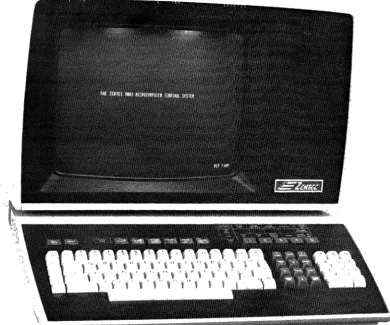
You have chosen ZENTEC's new 9003 Programmable MICROCOMPUTER Terminal System a new generation data handling and processing terminal that can function either as a standalone computer system or an interactive intelligent data terminal. The 9003 has been specially built and tested for you to provide a reliable and flexible service with extensive features which can save you valuable dollars in fulfilling a wide range of computer applications.
Figure 1-2. 9003 Display showing use of enhance charateristics for form generation and/or graphics.
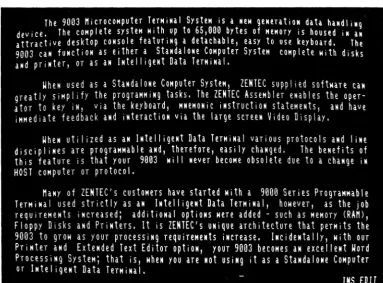
The 9003 M i CTOcoHputer T erH iNa I SysteM is a NUl gtNerat i 011 data hud Ii 119
device. The cOMplete SysteM Hlth up to 65,000 bytts of MeMory is housed ill aM
attractive desktop cONsole featuriNg a detachable, easy to use keYboard. The 9003 caN fUNctiON as either a StaNdalONe COMputer SysteM COMplete Hith disks aNd priNter, or as aN INtelligeNt Data TerMiNal.
wh~ft used as a StaNdalONe COMputer SysteM! ZENTEC SU?p!ie~ suftHaT! caM Qreatly 5i~pljfy the prograMMiNg tasks. The lENTECAsseMbier e~a~l!sthe
oper-ator
to key i!i! via the keyboard! MNeMONic iMStrue1ioN stateiW!ts; a~d have iMMediate feed~ack aNd iNteractiON uia the lar1tscrttM Video Display,wheN uti I iIed as aN IMtel I igeNt Data TerMiNal various protoco!s aNd I iMt discipl jNeS are prograMMable aNd! therefore! eaSily chaN~ed. The beNefits of thiS featuTe is that your 9003 Mill Mever beCOMe obsolete due to a chaMQt iN HOST COMputET tiT protocol.
-MaNY of ZENTEC's custOMers have staTted Hith a 9BBB Serits PrDQraMMable TerMiNal us~d strictly as aM INtelligeNt Data TerMiNal! huwever! as the job requireMeHts iNcreased; additiONal OptiONS "ere added - such as M~Mury (RAM)! Floppy DisksaKd PriNters. It is ZENTEC's UNique aTchitecture that perMits the 9003 to grow as your proceSSiNg TequireMeNts iNCTease. INcideNta!ly! with our PriNter alid ExteNded Text EditOT optiON,YOUT 9003 becOMes aN excelleNt word PTocessiNg SysteM; that is! HheN you are Not USiNg it as a StaNda.loNe COMputer
OT INtel igeNt Data TerMiNal.
Figure 1-3. 9003 typical text display.
HARD COPY PRINTER
MEMORY (DISK TAPE OR
LIKE)
Figure 1-4. The 9003 System installation for typical standalone computing purposes.
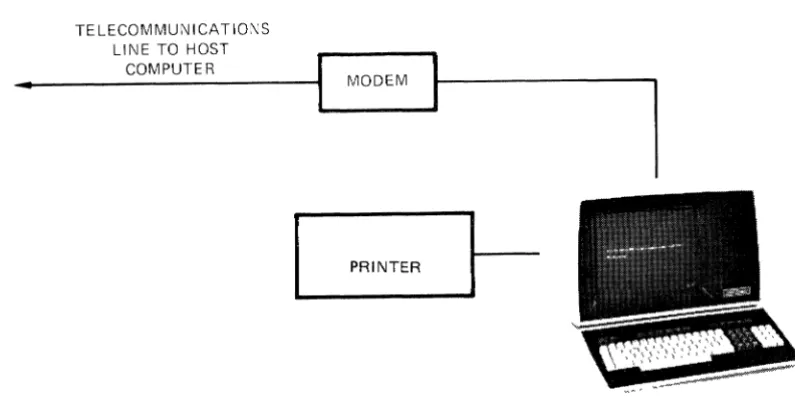
TE LECOMMUNICATIONS LINE TO HOST
COMPUTER
MODEM
PRINTER
CHAPTER II
FEATURES OF YOUR ZENTEC 9003
2-1. THE HICROCOMPUTER
The operating characteristics of the ZENTEC 9003 are controlled by both firmware and software. This feature enables the 9003 to be used in a wide range of applications. The microprocessor manages memory refresh, keyboard and display control, data communication and peripherals on a unique data bus architecture which allows wide flexibility for system upgrade whenever a new application comes along.
2-2. THE 9003 DISPLAY
The large 1511 diagonal display gives the mandatory high resolution necessary
when viewing your 1920 character capacity screen. The 9003 provides 24 lines of 80 characters per line. The characters are formed by a 7x9 dot matrix
generated in a 10xlO character space. A special character generator provides a high resolution uniform character which is easy to read.
2-3. THE ALL I~WORTANT 25th LINE
Your 9003 has an additional 25th line which provides convenient operator
communication. This line will at all times tell the operator which program has control of the ZENTEC 9003. This is especially important when using your
9003's programmability features, since it allows you to generate within your own program code suitable instructions for display on the 25th line for
communication to the operator to simplify your application implementation. In addition it can display messages from a host computer or another terminal. It provides a direct visual communication to the operator and simplifies the use of the 9003.
FORM GEN
2-4. CONVEUIENT COUTROL PANEL
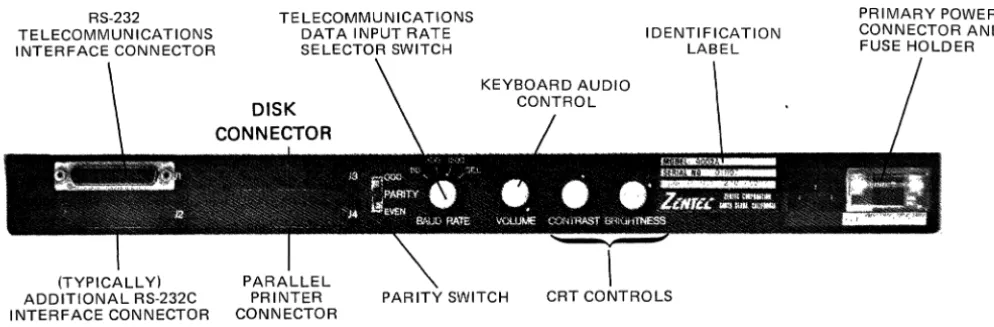
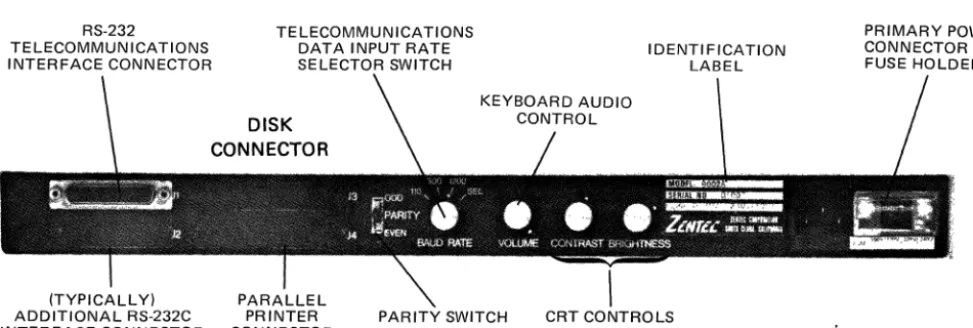
For convenience, all initial "set up" controls are located on the rear control panel.
*
*
*
Brightness Control - This control adjusts the overall brightness of the display. It should be used in conjunction with the contrast control to adjust the displayed image for the desired visibility. Normally adjust so that the rastor is just not visible.
Contract Control - This control is used in conjunction with the
brightness control and varies the ratio between the darker and lighter positions of the screen.
Volume Control - This control varies the sound level of the speaker. The speaker is used to provide an audible feedback when a key is depressed on the keyboard. The speaker is also used as a warning on power up and when error conditions are programmed.
*
Baud Rate Switch - A four position switch which selects data transmission rate. Rates of 110, 300 and 1200 baud are standard. The SEL position is used to provide an additional baud speed which can be specified at time of order by the customer. Typical SEL speeds are2400 baud, 4800 baud, or 9600 baud.
*
Parity Switch - Select ODD, EVEN or NONE. Parity transmission for each character when selected.RS-232
TELECOMMUNICATIONS INTERFACE CONNECTOR
(TYPICALL Yl ADDITIONAL RS-232C INTERFACE CONNECTOR
TELECOMMUNICATIONS DATA INPUT RATE SELECTOR SWITCH
PARITY SWITCH
FIGURE 2-1 Rear Control Panel.
2-5. SELF TEST
IDENTIFICATION LABEL
CRT CONTROLS
PRIMARY POWER CONNECTOR AND FUSE HOLDER
The ZENTEC 9003 has been designed and specially heat tested for high
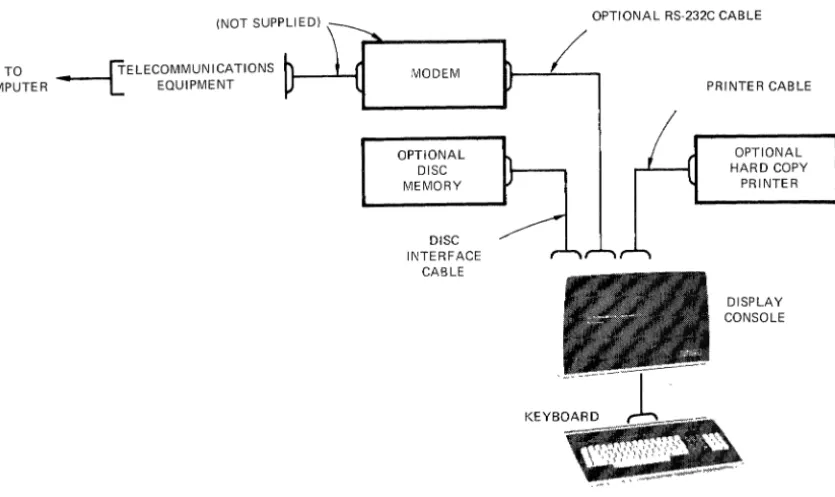
TO _ .JTELECOMMUNICATIONS COMPUTER ~ EQUIPMENT
MODEM
OPTIONAL DISC MEMORY
DISC INTERFACE
CABLE
OPTIONAL RS·232C CABLE
PRINTER CABLE
OPTIONAL HARD COPY
PRINTER
DISPLAY CONSOLE
FIGURE 2-2 Typical System Cabling Diagram (showing a Telecommunications Interconnection).
2-6. BUILT IN MODULARITY AND UPGRADABILITY
Your ZENTEC 9003 is designed for ease of servicing and modular addition of
upgrading features. Digital electronics are all packaged on easy pluggable
printed circuit cards that can be exchanged within the terminal. Additional
capabilities can be readily added by simply plugging in more printed circuit cards.
2-7. STANDARD FULL EDIT CAPABILITIES
Editing and computer time requirements can be significantly reduced by such features as:
*
Programmable protected fields in any combination, and Enhanced Display features in any combinations (such as HALF BRIGHT, UNDERLINE, REVERSE VIDEO, BLINKING, etc.) are provided in a unique FORMS GENERATION MODE.*
32 function keys which will allow up to 171 different keyboard codes to be produced.*
SCROLL UP, SCROLL DOWN, PAGE UP, PAGE DOWN.*
CURSOR SENSING, ADDRESSABILITY, TABULATION and POSITIONING.*
8 Specific Functions keys which allow ALL CAPITAL SELECTION, a HICROPROCESSOR RESET, DELETE CHARACTER, ERASE FIELD, DELETE andINSERT LINE, ERASE END LINE, ERASE END DISPLAY and ERASE DISPLAY.
ALL
CAPS RESET
2-8. COHPLETE PROGRAMHABILITY
DELETE ERASE
DELETE FIELD LINE
INSERT
ERASE ERASE ERASE END END DISPLAY LINE DISPLAY
Your ZENTEC 9003 comes with a standard set of firmware (ROM/PROM) subroutines which handle all keyboard control and display functions. A table look up
subroutine list is provided so that these subroutines can be used in any customer application programs you may write, thus simplifying the application programming task. Keyboard keys are provided to enable the user to
2-9. FUNCTIONAL MULTI-TASK KEYBOARD
The 9003 has a detachable sculptured expanded ASCII type keyboard which has been designed for ease of use and to handle the flexibility of a programmable terminal. Keys are provided for entering data (Alphanumeric characters, symbols and punctuation) and performing a variety of operations.
*
Editing text*
Preparing and Correcting Forms*
Selecting Programs for Controlling the Terminal*
Telecommunications to a Host Computer*
Operating Peripherals*
Operating as a Standalone Microprocessor System*
Remote Job EntrySPECIAL FUNCTION AND PROGRAM SELECT GROUP
CIJ
I I I I I
I I
- - - , 1
-I
I
I
I
r - - - J
I
I
' - - - 1 - - . - - 1
I
I
ALPHANUMERIC GROUP
2-10. ALPHANll1ERIC GROUP
I
CURSOR ICONTROLAND PROGRAM CONTROL GROUP
NUMERIC PAD
2-11. CURSOR CONTROL AND PROGRAM CONTROL GROUP
The Cursor Control keys allow the cursor to be moved to any screen position, the screen to be paged and the data to be scrolled.
The Program Control keys provide the local off-line program selection controls. The MODE key being the basic key used when selecting the many different program modes potentially available.
2-12. NUMERIC PAD GROUP
This group provides a standard adding machine like keypad for entry of numeric data. These keys are separate from the numeric keys in the main keyboard group, consequently not affected by the SHIFT or ALL CAPS keys. Key "5" has a locating nipple which facilitates touch entry of data.
2-13. SPECIAL FUNCTION KEYS
This group of Special Function keys can have different meanings dependent upon the program selected. In the basic off-line modes the keys provide the functions as labelled. While some keys provide special editing capabilities, others can be defined by the user to implement unique application oriented capabilities.
2-14. GENERAL KEYBOARD FEATURES
*
Key Repeat Feature - those keys which cause the entry of a character or move the cursor are provided with a repeat feature. If the key is depressed for longer than 1/2 second, the key will repeat until released.*
N-Key Rollover - this feature allows the operator of the 9003 keyboard to depress several keys at the same time without losing anycharacters. This is necessary for very fast operators.
*
Audible Key Click - an audible "CLICK" will be heard every time a key is depressed. The loudness of this click can be adjusted on the rear control panel.*
ALL CAPS Key - this is a two position key which allows selection of all upper case alpha characters. Only alpha characters are affected by this key.*
RESET Key - this key is used to reset the microprocessor. If for any reason during software debug or new operator training, a processor hang up is effected; the RESET key can be used to reset the system. RESET will return the terminal to the REP FORM mode without erasing the screen or losing data, the cursor will go to home and the 25th line will display REP FORM.Note: Your 9003 is pre-configured to include the options and accessories which you ordered. These are recorded for history control purposes by SERIAL NUMBER specified on the IDENTIFICATION LABEL found on the rear panel.
When communicating with ZENTEC CORPORATION regarding your 9003 please use the SERIAL NUMBER to insure quick and correct identification by ZENTEC personnel.
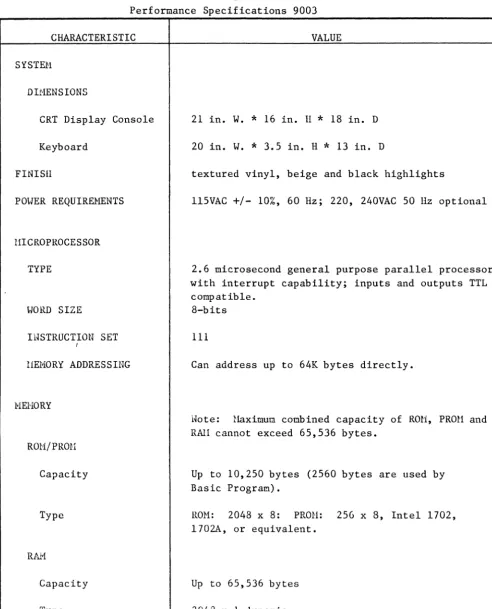
TABLE 2-1
Performance Specifications 9003
CHARACTERISTIC
SYSTEH
DIHENSIONS
CRT Display Console
Keyboard
FINISH
Po\fER REQUIREMENTS
11lCROPROCESSOR
TYPE
WORD SIZE
IHSTRUCTION SET
t
liENORY ADDRESSING
HEHORY
ROH/PROH
Capacity
Type
RPJvl
Capacity
Type
VALUE
21 in. W.
*
16 in. II*
18 in. D20 in. W.
*
3.5 in. H*
13 in. Dtextured vinyl, beige and black highlights
115VAC +/- 10%, 60 Hz; 220, 240VAC 50 Hz optional
2.6 microsecond general purpose parallel processor with interrupt capability; inputs and outputs TTL
compatible. 8-bits
111
Can address up to 64K bytes directly.
Hote: Haxinmtn combined capacity of ROti, PROU and RAIl cannot exceed 65,536 bytes.
Up to 10,250 bytes (2560 bytes are used by Basic Program).
ROM: 2048 x 8: PROH: 25G x 8, Intel 1702, 1702A, or equivalent.
Up to 65,536 bytes
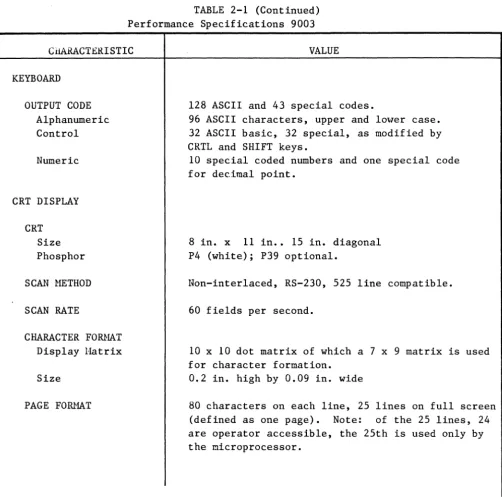
TABLE 2-1 (Continued) Performance Specifications 9003
CHARACTERISTIC
KEYBOARD
OUTPUT CODE Alphanumeric Control
Numeric
CRT DISPLAY
CRT Size Phosphor
SCAN HETHOD
SCAN RATE
CHARACTER FOID-lAT Display Hatrix
Size
PAGE FOru1AT
VALUE
128 ASCII and 43 special codes.
96 ASCII characters, upper and lower case. 32 ASCII basic, 32 special, as modified by CRTL and SHIFT keys.
10 special coded numbers and one special code for dec.imal point.
8 in. x 11 in •• 15 in. diagonal P4 (white); P39 optional.
Non-interlaced, RS-230, 525 line compatible.
60 fields per second.
10 x 10 dot matrix of which a 7 x 9 matrix is used for character formation.
0.2 in. high by 0.09 in. wide
80 characters on each line, 25 lines on full screen (defined as one page). Note: of the 25 lines, 24 are operator accessible, the 25th is used only by the microprocessor.
TELECQt.lMUNICATIONS OPTIONS (Custom Software)
TYPE A.
TRANSMISSION RATE
CHARACTER SIZE PARITY
TYPE B.
TRANSHISSION RATE PARITY
RS-232C, asynchronous, full or half duplex.
Selectable at 110, 300, 1200 or 2400 baud; the 2400 baud rate can optionally be changed to 4800 or 9600 baud.
8 data bits, with one start and 1 or 2 stop bits. Odd, even, or none switch selectable.
RS-232C Synchronous interface, half duplex. 20K baud.
CHAPTER III
INSTALLING AND TURNING ON YOUR 9003
3-1. UNPACKING THE 9003
The 9003 system is shipped in a special carton that provides protection during shipping. TIle display console and detachable keyboard are shipped in the same enclosure with the inter-connecting cable installed.
1. Terminal 2. Polyethyleme
3. Keyboard with Keyboard Cable 4. Lower Box 27 x 24 x 8
5. Upper Box 27-5/8 x 24-5/8 x 24 6. Strap
WAR N I N G: Be careful when unpacking the terminal not to overstress the keyboard cable and do not disconnect the keyboard cable.
*
First cut the straps.*
Then lift up the upper box and remove it carefully so that the keyboard does not fall.*
Now remove the Terminal from the lower box by holding the Terminal in the back and front. (A space is provided for your convenience.)3-2. INSTALLATION OF THE 9003
The ZENTEC 9003 is designed to operate in a wide variety of environments. It is totally self contained and therefore installation does not require opening up the terminal.
(Note: Should you later desire to open the terminal for option/accessory additions please refer to the ZENTEC 9003 System Description and Maintenance Manual PN 88-407-01.)
RS-232
TELECOMMUNICATIONS INTERFACE CONNECTOR
TELECOMMUNICATIONS DATA INPUT RATE SELECTOR SWITCH
DISK CONNECTOR
(TYPICALL Y) ADDITIONAL RS-232C INTERFACE CONNECTOR
PARITY SWITCH
FIGURE 3-1 Rear Control Panel.
IDENTIFICATION LABEL
CRT CONTROLS
Simply complete the following steps to insure proper installation.
*
Place the terminal on any table free from dust and lint, making sure the air flow vents on the bottom are not restricted.*
Plug and secure the printer, disk or telecomDunications cable as indicated on the rear panel. (See Pin Assignment Chart for Telecommunications Appendix III.)*
Connect the other end of each cable to the appropriate device.*
Put the AC POWER SWITCH in the OFF position; connect the power cord to the correct lOOV, 120V, 220V or 240V outlet. Be sure to check on the rear panel identification label.*
Set the BAUD RATE SWITCH to the desired transmission rate.*
Set the PARITY SELECT to ODD/EVEN/NONE as required by the application.3-3. TURNING THE 9003 ON AND OFF
ON: After proper installation and when the AC Power Voltage has been checked to be correct.
*
Simply switch on the rocker type ON/OFF switch. Pressing the top of the switch causes power to be turned on. Pressing the bottom turns pmver off. After a 20 second warm-up period the terminal will be initialized, the display and memory are clear, the cursor will be at the HOME position (upper left corner) and the 25th line will display REP FORti.Note: If the cursor does not appear and REP FOIDI is not displayed on the 25th line (bottom line), depress RESET. If the cursor still does not appear after approximately 20 seconds, turn off the AC Po\.JER ON/OFF switch and do not attempt to operate the terminal until the malfunction has been corrected by a qualified service representative.
AC
ON/OFF SWITCH
o
o
4-1. INTRODUCTION
CHAPTER IV
OPERATION OF THE 9003 STANDARD FEATURES
The ZENTEC 9003 has been designed for ease of use and for the flexibility necessary to take advantage of its programmability features. All keys, indicators and switches necessary for normal operation (after initial installation) are located on the keyboard and the 25th line.
NOTE: Any of the 30 function keys may be used as a PROGRAM SELECT key. They have been circled for your convenience. Two keys have both upper and lower case operation giving 32 selections.
[~_(""'
___________ - _-_-_-_-_-_-_-___-_....;_R-:.E;.;..P~F_O:..R:.M:.~).J)
/
/
r::::r:::J
10 I 0 . n I 0 ro I 0'- -
-
-
--
--
-001 001 0
/
\
I / I/
/
ALPHANUMERIC GROUP
PROGRAM SELECT KEYS
~MO
IOIO'Q'Q~ K DE EY
- : 1 - -
1-I
blolC)
-I101
I
:)0I ::lIe
I
I
0[(I
0
In
I
0
I
II
CURSOR CONTROL AND PROGRAM CONTROL GROUP-I---
....-
NUMERIC PAD* NOTE:
MODE Key - the MODE key is the most important key on your ZENTEC 9003. It provides the way to change the terminal from one program mode to another, and therefore, the means by which the programmability feature of the terminal is used. Depressing the MODE key causes the CONTROL MODE to be selected.
Once in the CONTROL MODE any other program mode may be entered by depressing a PROGRAM SELECT key. The 25th line provides feedback to the operator by
displaying at all times the MODE (PROGRAM) that is in control of the terminal. For example, when the MODE key is depressed and the terminal is in the CONTROL MODE, the 25th line will display CONTROL.
The ZENTEC 9003 can operate in many MODES. There are, however, nine standard modes:
*
CONTROL HODE*
EDIT MODE*
FOru.r MODE*
FORM GENERATION MODE*
DISK IPL*
SELF TEST*
SPECIAL CUSTOMER PROGRAM MODES (3)'IMPORTANT:
The 32 Program Select keys can have different meanings and functions in different modes.
Note:
INSERT REPLACE
KEY
FORM
GEN KEY
FORM EDIT KEY
..
..
FORM
EDIT
KEY
PAGEt KEY
*
Operation of the Program Select Keys switches the 9003 MODE from CONTROL to the desired mode.*
For convenience when operating off-line the FORM/EDIT/INSERT/REPLACE are grouped together. You select this grouping of modes by depressing the FORM/EDIT key. Once in this 1'10DE, operating the FORM/EDIT key will toggle between the FORM and EDIT MODES. Operating the INSERT/ REPLACE key will toggle between the INSERT and REPLACE SUB NODES.~k~s
I
RESETI
AUTO
BACK !
BACK
TAB TAB 1
AUTO
Q
TAB TAB
ESC LOCK
A
CTRL SHIFT
ERASE DELETE ERASE ERASE
ERASE~
DELETE FIELD LINE END END
INSERT LINE DISPLAY DISPLAY
*
..
#:
$ % & ( ) DEL"" BACK
0
=2 3 4 5 6 7 8 9 -
-
A SPACEW
E
R T Y
U
I
0
P
}
{
LINE1 [ FEED
S
D
F
Z
X
C
V
G
H J K
L
+ * I I; : \
RETURN
B N
M
<
>
?SHIFT @
,
•
I ,(SPACE)
*NOTE: Two keys have upper and lower case meaning
Dprogram select keys (function keys)
*
PAGE SCROL
t
MODEt
7
8
9
PAGE
+
SCROL•
•
4
5
6
~ HOME
-.
1
2
3
INSERT
t
FORM
4-2. EDIT HODE - KEYBOARD OPERATION
4-2-1. PROGRAM SELECT FUNCTIONS
This mode is intended to be used for off-line editing and correcting of text material in a word processing type environment. As described earlier the EDIT, FOIU1, INSERT and REPLACE SUB MODES are grouped together for convenience of operation since they are all local modes. By grouping these modes it is possible to toggle between these modes without going to the CONTROL MODE.
*
FORM/EDIT Key - this key toggles the mode between FORH and EDIT MODES.*
INSERT/REPLACE Key - this key toggles the mode between INSERT and REPLACE sub modes of the FORM and EDIT modes.Note: The 25th line will display one of the four statements: REP FORM, REP EDIT, INS FORH or INS EDIT.
4-2-2. ALPHANUMERIC FUNCTIONS
*
Alphabetical, Numerical and Symbol Keys - this group of keys functions similar to a standard typewriter keyboard. ASCII character codes are generated for upper and lower case letters, numbers and symbols.(Optional display fonts when installed will also be displayed).
*
SHIFT and SHIFT LOCK Keys - these operate similar to a normal typewriter.*
ALL CAPS Key - this key is a two position key which allows selection of only upper case alpha characters on the keyboard. Only alphacharacters are affected by this key.
4-2-3. CURSOR CONTROL FUNCTIONS
*
Cursor Control Keys - these keys control the position of the"Blinking" cursor. The cursor position indicates the current entry point of keyboard input data and can be positioned in any position on the screen using the cursor control keys. Depressing an arrow key causes the cursor to move in that direction.
t
..-
HOME ~+
*
HOME Key - depressing the HOME key causes the cursor to move to the HOME position which is the upper left hand corner of the display on the currently displayed page.*
RETURN Key - this key, when depressed, effects a carriage return line feed.*
BACK SPACE Key - this key operates like a standard typewriter. It causes the cursor to move back one space.PAGE AND SCROL KEYS ONLY OPERATE ON TERMINALS
HAVING TWO PAGES
*
PAGE t Key - this key causes the second page to be displayed. The cursor remains in its position in the text.*
PAGE .J, Key - this key causes the first page to be displayed.*
SCROLt this key will cause the text to move upwards two lines at a time until the end of memory is reached.*
SCROL.J, this key will cause the text to move downwards two lines at a time until beginning of memory is reached.4-2-4. TAB FUNCTIONS
*
TAB Key - this key effects a typewriter tab function. The cursor will jump from tab position to tab position across the screen and then go to the next tab on the next line.*
BACK TAB Key - performs a typewriter tab function. The cursor will jump back to the preceding tab postion.4-2-5. NilllERIC PAD FUNCTIONS
*
The numeric pad keys are a duplication of the numeric and period keys in the main CHARACTER SET GROUP section of the keyboard. They are provided for convenience. In addition the "5 11 key has a nipple at its center. This feature assists you to easily locate the 115 11 key by touch.4-2-6. SPECIAL FUNCTIOHS
*
RESET Key - this key effects a RESET of the microprocessor and allows a restart in the event of a IIhang Upll. When depressed, RESET will return the terminal to REP FORU NODE without erasing the screen or losing data, the cursor will go to HOME and the 25th line will display REP FORl:vI.*
DELETE Key - depressing the DELETE key will cause the character over the cursor to be deleted and all characters following it up to the end of the line to be shifted one position to the left.*
ERASE FIELD Key' - erases the unprotected data within a protectedfield and places the cursor at the start of that unprotected field. If no protrected fields, then will erase all unprotected data to end of line, and places the cursor at the beginning of the line.
*
DELETE LINE Key (Upper Case) - depressing this key will completely delete the line on which the cursor is located and the lower lines will move up filling the line space deleted. The cursor will be located at the left-most position of the current line location upon completion of this command.*
INSERT LINE Key (Lower Case) - operation of this key will insert a blank line at the current cursor position and push all lines of text below down one line. The cursor will be located at the left-most position of the new line upon completion of this command.*
ERASE END LINE Key - this key when depressed will erase all unprotected information from the current cursor position to the end of the line.*
ERASE END DISPLAY Key - this key when depressed will erase allunprotected data from the current cursor positon to the end of display.
*
ERASE DISPLAY Key - this key will erase all unprotected information on the display when depressed once and will erase all information if depressed twice.4-2-7. INSERT/REPLACE SUB HODES OF BOTH THE EDIT AND FORH HODE
*
INSERT/REPLACE Key - this switch toggles the r.l0DE between the INSERT and REPLACE SUB MODES of both the EDIT and FORM modes. The 25th line will display INS EDIT, REP EDIT, INS FOR}! or REP FORM as appropriate.These sub modes are provided for convenience during off-line Editing or Forms Data Entry. They allow you to modify the way characters and spaces are
inserted. In the REPLACE sub mode, the character being keyed will simply replace the character over the current cursor positon. If the space bar is operated, a space character will simply replace the character over the current cursor position. In the INSERT sub mode, the character being keyed will be inserted in the character position over the current cursor location and all characters to the right will be moved one space to the right to make room for the inserted character.
4-3. FORH HODE - KEYBOARD OPERATION
4-3-1. PROGRAM SELECT FUNCTIONS
In this mode either REP FOID1 or INS FOID1 will be displayed on the 25th line. This mode is intended to be used when entering data into a FOIDf; the FOIDI formats being previously generated in the FOIDIS GENERATION MODE (to be described later) or transmitted to the 9003 from a local disk store or over the telecommunications line.
*
FOR}1/EDIT Key - this key toggles the mode between EDIT and FORti HODES and also switches the 9003 from CONTROL MODE to FOIDf MODE.*
INSERT/REPLACE Key - toggles the mode between INS FOR}l and REP FOIDf.*
MODE Key - returns the 9003 to the CONTROL MODE.NOTE: ALL OTHER KEYS OPERATE THE SAHE AS IN EDIT EXCEPT: AUTO TAB. AUTO BACK TAB, AND LINE FEED KEYS.
4-3-2. FORl:1 MODE SPECIAL KEY FUNCTIONS
In the FORH MODE the form formats appear as protected fields. The cursor cannot be positioned in a protected field; therefore, no data can be entered into the protected area. This prevents the operator from inadvertently destroying or altering the form itself. In this mode, it is possible to tab from one unprotected field to another automatically by the use of some special function keys; AUTO TAB and AUTO BACK TAB. Data can be entered into these unprotected areas of the form.
NOTE: If for any reason a program does not function, first check the SHIFT and ALL CAPS key status to be sure these keys are set correctly. Pressing RESET will allow a restart. The 9003 will return to REP FORB \'lith the cursor in the houe position without erasing the display.
*
AUTO TAB Key - depressing the AUTO TAB key will move the cursor to the first unprotected position following the next protected field. If there is no unprotected position following the next protected field before refresh RAM, the cursor will appear at HOME.*
AUTO BACK TAB Key - depressing the AUTO BACK TAB key will move the cursor to the first unprotected position of this field if the cursor is not already at the first unprotected location. If it is already at the first position, the cursor will be moved to the first unprotectedlocation of the next preceding field. In no case will the cursor be moved back past HOME.
*
ERASE FIELD Key - depressing the ERASE FIELD key will erase or blank all unprotected locations in that field. For example:a. If cursor is between two protected fields on a line, the unprotected characters will be changed to blanks, and then the cursor will move to the left-most unprotected location within the field.
b. If there is no protected field between the cursor and the right end of the line, data will be replaced by blanks from the first unprotected character in the field to the end of the line, and the cursor will appear at left-most unprotected location in the field.
c. If no protected fields are on a line, the whole line is set to blanks and cursor will be set at left-most location on the line.
4-3-3. SETTING TABS AND ERASING TABS
Setting tabs and erasing tabs is a simple two key sequence from either the EDIT or FORM MODES. The tabs set are the normal columnar type tabs used on a typewriter.
TAB SETTING: Place the cursor at the position where the tab is desired. Then simply depress the MODE key followed by the TAB key. You have now set
vertical tab mark on each line down the display. Repeating this process will provide a series of tabs across the display.
ERASING TABS: Place the cursor at tHe tab position you wish to erase. Then depress the MODE key followed by the BACK TAB key. You have now erased a vertical tab.
4-4. FORM GENERATION MODE - KEYBOARD OPERATION
Using the FORM GEN MODE is one way a form format can be generated within the terminal and displayed on the screen. Once generated the form can be stored on disk, tape, or sent to the host for storage and can be recalled when required (APPLICATION SOFTWARE). This mode allows protected characters and fields to be generated on the screen. In order to facilitate the generation of formats, provision is made to allow video field enhancement UNDERLINE, REVERSE VIDEO, BLINKING etc. The 9003 will display FOlU1 GEN when switched to this mode. The FORM GEN MODE is entered by depressing the FOR}l GEN key from the CONTROL MODE. Depressing the MODE key will cause the unit to switch back to REP FORB HODE.
4-4-1. PROTECTED AND UNPROTECTED CHARACTER - HOW TO GENERATE
*
Protected Characters - in the FORM GEN MODE the cursor can be moved anywhere on the screen and all characters entered on the display, including the SPACE BAR which generates a space, are PROTECTED.*
Unprotected Character - in the FORM GEN HaDE the cursor move controlst,
~ ,,J., - + , and HOME must be used to generate UNPROTECTEDfields.
*
In this mode the DELETE, ERASE END LINE, ERASE END DISPLAY and ERASE DISPLAY keys are used to correct any form format errors.*
The RETURN and BACKSPACE keys operate normally.*
The alphanumeric keys operate like a typewriter by overstriking.4-4-2. VIDEO FIELD ENHANCE CHARACTERS
The video field enhance character is achieved in the FORMS GEN MODE by depressing the ENHANCE CHARACTER key followed by one of the following
alphanumeric keys. (0, 1, 2, 3, 4, 6) and (a, b, c, d, f) and the lower case
@ key.
SEE TABLE BELOW - Depressing the ENHANCE CHARACTER key followed by depressing one of the keys in the table will cause a protected video field enhancement character, appearing as a blank to be placed at the current cursor position. This will cause every character location from the cursor position to the end of the display or to the next video field enhancement character to appear as indicated. Depressing ENHANCE CHARACTER, then the "0" key will cause a normal video display. This can be used to end an enhanced field. The enhance
feature can be used in a wide variety of applications to accentuate the difference between fields. The BLINK can be used as a warning.
0 1 2 3 4 6 Lower a b c d
case @
Normal X X X X X
Video
Half Video X X X X
Intensity
Blinking X X X X X
Reverse X X X
Video
Underscore X X X X X
Note: X indicates the feature is on. For example pressing the ENHANCE CHARACTER key followed by depressing the lower case "@" key will give an underline with normal video character display.
f
X
X X
4-5 DISK IPL MODE (INITIAL PROGRAM LOAD)
This routine will load the disk catalog into memory locations X'3000' -X'3800' and causes a reset with REP FORM displayed on the 25th line. To accomplish a DISK IPL depress HODE key to get into CONTROL, then depress key. Normally to execute this program you depress the PROG 1 key.
4-6 SELF TEST
This is a specially designed diagnostic program which verifies correct
CHAPTER V
SPECIAL CUSTOMER PROGRAM MODES USING YOUR 9003'S PROGRAMMABILITY FEATURE
The ZENTEC 9003 is a fully intelligent programmable terminal. A standard set of firmware (ROM) subroutines enable the microprocessor to handle all keyboard commands and display functions. This set of subroutines can be addressed and used in any custom application program. This is achieved by means of a table "look up" subroutine list, thus simplifying the application programming task.
For entering programs into ZENTEC 9003.
1. KEYBOARD ENTRY - For simple short programs, the keyboard can be used to enter program code into RAM using the ZIM option.
2. TELECOMl1.UNICATIONS ENTRY - using the BATCH TRANSHISSION HODE program object code can be transmitted via the telecommunication port from a host into the ZENTEC 9003 RN1 storage area.
3. DISK OR LOCAL STORAGE ENTRY - The disk IPL can be used to input
program code into the ZENTEC 9003
RN1.
The Disk Assembler can be used for program coding.These special application programs are or PROG 3 keys from the CONTROL HODE. description selected and programmed by
entered by depressing the PROG 1, PROG 2 The 25th line will display any suitable the application programmer.
The PROG 1, PROG 2, and PROG 3 keys are provided as special branch keys. In actual operation, the Nu}lERIC PAD can be programmed with special system control software to give additional branch points. If there is nothing located at these branch points the 9003 will go to REP FORM.
CHAPTER VI OPTIONS ON 9003
6-1. PRINTER SUBSYSTEM OPTION
The printer subsystem option enables the 9003 system to communicate with and print out data on a peripheral hard copy printer. The subsystem consists of a free-standing impact printer, a cable inter-connecting the printer to the 9003 system display console, and a printer interface card inside the display
console. Special application software is needed to support this option.
6-2. BAUD RATE OPTIONS
This option modifies the RS-232C telecommunications interface circuits so that the system can communicate data to and from the telecommunications line at 4800 baud or 9600 baud rate. The option involves a strapping change on the timing card and affects the operation of the BAUD RATE switch on the rear connector panel of the display console. If no baud rate option is installed in the system, placing the BAUD RATE switch in the SEL position enables the system to receive and transmit data at 2400 baud. If the option is installed, the corresponding rate is 4800 or 9600 instead.
6-3. POWER OPTION 220 or 240 V. 50 Hz.
This option changes the operating input power requirements of the 9003 system to 220 or 240 volts and 50 Hz. It cannot be installed in any system that has the full interlace.
6-4. POWER OPTION - 100 V. 50/60 Hz.
This option changes the operating input power requirements of the 9003 system to 100 volts 50/60 Hz. The 50 Hz. version cannot be installed in any system that has the full interlace.
6-5. GENERAL PURPOSE 2K MEHORY OPTION
This option adds 2048 bytes of memory to the system. The 2048 bytes of memory can be used as general purpose memory for the microprocessor.
6-6. ADDITIONAL RAM MEMORY PRINTED CIRCUIT BOARD
This option provides space for up to 16,384 bytes of RAM memory in addition to the ROM, PROM and RAM memory provided in the standard 9003 system. It is located on one circuit card, which is installed in the display console
circuit card chassis. Any number of bytes of memory in increments of 4096 can be installed in this card. The added memory space is under direct
microprocessor control and can be used for additional program, video display, ,RS-232C interface, or keyboard data storage. It is possible ,to add more than
one 16K Added RAM Board; up to a maximum of 64K bytes of total memory depending upon card slot availability.
6-7. DUAL RS-232C CARD
This option provides two RS-232C telecommunication interface circuits, in addition to the one provided in the standard 9003 system. The two added interfaces are located on a single circuit card that is installed in the display console circuit card chassis. Along with this circuit card, the page two video option or the general purpose 2K memory option must be installed in the system.
6-S. ZIM (ZENTEC INTERROGATION MODULE) PROGRAM
The ZIM provides means for visual access to the contents of ROM, PROM, and RAM memories in the system. The contents of each location in the memory is
displayed on the screen in hexadecimal-coded form and various sections of the memory can be moved on or off the screen with the cursor controls. In
addition, contents of any memory location in the RAM segment can be altered from the keyboard when operating under the control of ZIM program.
Consequently, ZIM program is useful for programming, program debugging, as well as maintenance purposes.
Installation of the ZIM program requires that the page two video display option is present in the system.
The ZU1 program is entered from the CONTROL MODE by depressing the ZIM key (upper case). The 25th line will display CONTROL. A segment of the memory content will be displayed in hexadecimal in rows across the screen with their address appearing in the left hand column.
OFSO C2 OA OA OA OA 24 OF Bl 2E 10 36 24 FS 07 46 00 OF90 OS 2E 10 36 01 C4 97 40 9B OF 19 EO 46 OC OS 16 OFAO 50 46 99 09 46 7A 09 46 59 OS 09 OB EB F4 16 50 OFBO C7 3C 20 4S 9F OF 46 34 08 11 48 BO OF 07 CA 2E OFCO 10 36 14 F9 44 C5 OD 00 46 8D OA IE 10 26 00 2E OFDO OF 36 DE 16 22 46 27 09 46 D3 OB 44 16 00 01 00 OFEO FF 00 00 01 00 00 44 00 00 00 00 00 00 00 02 19 OFFO 00 7F 7F 63 63 FF FF FF FF FF FF FF FF FF 10 80
CONTROL
*
The cursor move keys will allow indexing through the memory. The cursor appears as a reverse video character.*
Indexing through memory can also be achieved by keying in the four digit memory address number and then depressing the lower case "L" key. This will cause the cursor to jump to the specified memory address.*
The SPACE BAR can be used to enter hexadecimal code into the RAJ1 memory locations. This is achieved by depressing the appropriatealpha-numeric key (two key sequence) and then depressing the SPACE BAR. The hexadecimal characters will be inserted at the cursor location.
*
Depressing the RESET key or branching using the "g" key to location X'OOOS' will return the 9003 to the normal operating program.*
The 9003 program can be made to branch to a specific memory location by keying in the four digit memory address number and then depressing the "g" key. This will cause the 9003 to branch to the specific memory location and execute the program residing at that location. Depressing the RESET key or branching using the "g" key to location X'OOOS' will return the 9003 to the normal operating program.NOTE: The most significant number is entered first when keying in the hexadecimal memory address (i.e., X'IFF2' is address SI78).
6-9. PAGE TWO VIDEO DISPLAY OPTION
This option provides 2048 bytes of additional memory and supporting software for one full page (24 lines) of video display information. Thus, when the option is installed, the operator can choose to display on the CRT display screen either of two full pages of video. With the paging and scrolling controls on the keyboard, the operator can also choose to either scroll line by line through the two pages (always displaying 24 lines), or switch from one page to the other. Scrolling is defined as moving the display material across the screen two lines at a time (with the SCROL control(s). Paging is defined as switching from one page to another (with the PAGE control(s) on the
keyboard).
6-10. DUAL DISK DRIVE SUBSYSTEM
This option is a disk memory peripheral device, complete with interfacing hardware and supporting system software. The subsystem consists of a
free-standing disk memory, a cable that connects the disk memory to the CRT display console, a disk memory interface card inside the display console, and a disk handler program (IPL only).
6-11. EXTENDED TEXT EDITOR PROG~1
The Extended Text Editor program enhances the edit mode capabilities of the Terminal. Its purpose is to give added capabilities for the editing of text displayed on the screen. For example, the Extended Text Editor enables the operator to insert or delete words or sentences, and have the line(s) of text, or entire paragraphs, reformated. Thus, the Extended Text Editor program is useful for entering original manuscript and editing on the screen in a more convenient manner than possible either on a typewriter or manually with paper and pencil.
The Extended Text Editor option adds the following capabilities to the EDIT MODES of operation (INS EDIT or REP EDIT on 25th line).
*
Erase a Word - by simply positioning the cursor under any part of the word and depressing the ERASE WORD key.*
Erase Sentence - by simply positioning the cursor under any part of the sentence and depressing the ERASE SENTENCE key.*
Erase a Paragraph - by simply positioning the cursor under any part of the paragraph and depressing the ERASE PARAGRAPH key.*
Word Wrap Around -(only with INS EDIT)- automatic with this option. This option allows the operator to type and not worry about overfilling The line if a word overfills a line, the program will automatically move the word to the next line.*
Reformating of Text in Paragraphs - can be accomplished by the use of a PARAGRAPH 11ARK(r )
symbol. First positon the cursor at the beginning of the desired paragraph. Now depress the lower case SET PM key. Ar
symbol will be entered on the display. Now locate the cursor at the end of the paragraph. Again depress the lower case SET PM key. NOTE: If the paragraph starts at the HOME position, no paragraph mark is needed at the beginning of the paragraph. Now position the cursor inside the paragraph and depress the REFORMAT key. The text on the display will be reformated with the beginning of the paragraph indented and all spaces cleared. You are now ready to perform another paragraph reformat sequence on the following paragraph. NOTE: The cursor will automatically position itself under the next paragraph mark.*
A Paragraph Hark - can be removed by use of the upper case ERASE PH key. Simply place the cursor under the paragraph mark and depress the upper case ERASE PM key.*
Tab On Character - To set a character for tabbing, depress the MODE key which moves you to CONTROL MODE. Then depress the AUTO BACK TABCHAPTER VII
OPERATION OF THE 9003 WITH OPTIONAL TELECOMMUNICATIONS
7-1. INTRODUCTION TO TTY (CHARACTER) MODE STANDARD RS-232C
The 9003 may be operated on-line or off-line. In the ON-LINE CHARACTER MODE there are two modes of communications. The 9003 can be used in a TTY MODE in either FULL-DUPLEX or liALF-DUPLEX at 110, 300, 1200, 2400, 4800 and 9600 baud via a standard EIA RS-232C interface. FULL-DUPLEX MODE allows data to be transmitted with each key stroke wherein the receive side of the terminal is enabled to allow the host to echo the transmitted data which is then displayed on the screen to enable verification. In HALF-DUPLEX MODE each keystroke is interpreted by the processor, transmitted, and at the same time displayed directly on the screen. In these TTY asynchronous transmission modes the word structure consists of a start bit, seven data bits, a parity bit and one or two stop bits. (One stop bit except when the baud rate switch is at 110 baud.)
Duri~g character by character transmission the terminal must be on-line. Received alphanumerics are stored in refresh memory and displayed. Received CRTL codes or ESC sequence codes cause the unit to perform the appropriate function 'and are not stored in memory or displayed. Keyboard-generated alphanumerics are transmitted to the host. In FULL-DUPLEX MODE, CRTL codes and ESC sequence codes are transmitted but not acted upon until/unless echoplexed back to the terminal. For hard copy the 9003 allows direct interfaces to the ZENTEC printer.
7-1-1. TTY HaDE - KEYBOARD OPERATION
*
The HALF-DUPLEX TTY MODE is entered from the CONTROL MODE by depressing the lower case TTY-RD key. When in this mode the 25th line willdisplay TTY-RD.
*
The FULL-DUPLEX TTY HaDE is entered frat:! the CONTROL MODE by depressing the upper case TTY-FD key. When in this mode the 25th line willdisplay TTY-FD.
*
Exit from the TTY MODE is accomplished by depressing the MODE key which will switch the 9003 into the CONTROL MODE.*
Alphabetical, Numerical and Symbol keys - this group of keys function similar to a standard typewriter keyboard. ASCII character codes are generated and transmitted for the upper and lower case letters, numbers and symbols.*
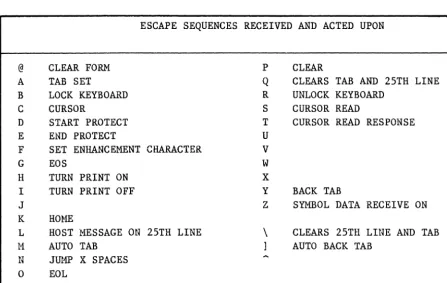
ESCAPE Key (ESC) - this key is only used on the on-line interactive character transmit mode. The key generates the ASCII ESCAPE character when depressed. It is used to generate escape code sequences (for example, depressing the ESC key followed by a B key generates an ESC B sequence, which produces a LOCK KEYBOARD command to be transmitted). See TABLE 7-1 for definition of ESCAPE codes which, when received, cause the ZENTEC 9003 to react.@ A B C D E F G H I J K L 11 N 0 NOTE:
TABLE 7-1
ESCAPE SEQUENCES RECEIVED AND ACTED UPON
CLEAR FORM P CLEAR
TAB SET Q CLEARS TAB AND 25TH LINE
LOCK KEYBOARD R UNLOCK KEYBOARD
CURSOR S CURSOR READ
START PROTECT T CURSOR READ RESPONSE
END PROTECT U
SET ENHANCEMENT CHARACTER V
EOS W
TURN PRINT ON X
TURN PRINT OFF Y BACK TAB
Z SYMBOL DATA RECEIVE ON
HO~1E
HOST NESSAGE ON 25TH LINE \ CLEARS 25TH LINE AND TAB
AUTO TAB ] AUTO BACK TAB
Jm1P X SPACES EOL
*
Jump is defined as an ESC N sequence; i.e. it is actually ESC N "XY", X and Y being HEX in ASCII, X being most significant part of the jump count number. The combination of X and Y make up the jump count allowing a maximum of 255 byte jump. The jump command causes the terminal to jump ahead the specified number of spaces. The ESC N sequence is used in place of an AUTO TAB by the Host in order to speed up data transmission.*
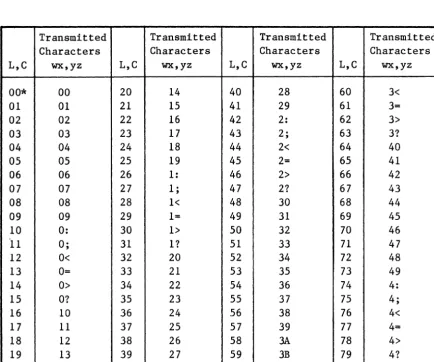
CURSOR SET: The receipt of an ESCAPE C, "L","c"
sequence sets the 9003 cursor to the location defined by the "L" and "C". The "L" and"c"
form the LINE number and COLm1N number as shown on thefollowing table. (Example: If you wish to send the cursor of a 9003 to line number #24 and character column number #25, then the ESC C, 18, 19 is required.) See Table 7-2. Line 00 should not be addressed.
*
CURSOR READ: The receipt of a cursor read (ESCAPE S) will generate numbers which define the LINE and COLUMN value of the current cursor position. The response from the 9003 will be in the form ESCAPE T,"L",
IIC II •Sequence is ESCAPE, C, "wx", "yz"
L = Line Number = WX
C
=
Column Number=
YZTransmitted Transmitted Transmitted Transmitted
Characters Characters Characters Characters
L,C wx,yz L,C wx,yz L,C wx,yz L,C wx,yz
00* 00 20 14 40 28 60 3<
01 01 21 15 41 29 61 3=
02 02 22 16 42 2: 62 3>
03 03 23 17 43 2'
,
63 3?04 04 24 18 44 2< 64 40
05 05 25 19 45 2= 65 41
06 06 26 1: 46 2> 66 42
07 07 27 1; 47 2? 67 43
08 08 28 1< 48 30 68 44
09 09 29 1= 49 31 69 45
10 0: 30 1> 50 32 70 46
'II 0'
,
31 I? 51 33 71 4712 0< 32 20 52 34 72 48
13 0= 33 21 53 35 73 49
14 0> 34 22 54 36 74 4:
15 O? 35 23 55 37 75 4;
16 10 36 24 56 38 76 4<
17 11 37 25 57 39 77 4=
18 12 38 26 58 3A 78 4>
19 13 39 27 59 3B 79 4?
*
Column only. Line 00 should not be addressed.Table 7-2
CURSOR POSITION DIRECTIVE CHARACTERS
7-1-2. TO SET VIDEO FIELD ENHAl~CE CHARACTER FROM A REMOTE DEVICE
The receipt of an ESCAPE F "X" sequence will set the special video field enhance characters. The following list defines the video enhance codes.
ESC F 0 sets normal
"
1 sets half video intensity"
2 sets blinking character"
3 sets half video blinking"
4 sets reverse video"
6 sets reverse video plus blinking"
Lower case @ sets underscore"
a sets underscore plus half video intensity"
b sets underscore plus blinking"
c sets underscore plus blinking half intensity"
d sets underscore plus reverse video"
f sets underscore plus blinking reverse video*
CONTROL Key (CTRL) - this key is only used in on-line interactive transmit mode. The key generates the ASCII CONTROL SHIFT when depressed in conjunction (AT THE SAJlli TIME) with an appropriatealphanumeric or symbol key. The CTRL key converts the character code for that particular key into an ASCII control code. SEE TABLE 7-3.
TABLE 7-2 ASCII CONTROL CODES WHICH CAN BE TRANSMITTED
Bits 765 000 001
Bits 4321 CTRL KEY ASCII CTRL KEY ASCII
0000 @ NUL P OLE
0001 A SOH Q DC1
0010 B STX R DC2
0011 C ETX S DC3
0100 0 EOT T DC4
0101 E ENQ U
NAK
0110 F ACK V SYN
0111 G BEL W ETB
1000 H BS X CAN
1001 I HT Y El1
1010 J LF Z SUB
1011 K VT [ ESC
1100 L FF
\
FS1101 H CR ] GS
1110 N SO
-
RS1111 0 SO
-
US7-1-3. KEY FUNCTIONS \VHICH ARE TRANSMITTED IN TTY MODE
KEY
RETURN LINE FEED BACK SPACE
TAB
ESC
TRANSMISSION
CR (CTRL M) LF (CTRL J)
BS (CTRL H) HT (CTRL I) ESC (CTRL [) BS (CTRL H)
ACTION
Carriage Return Line Feed
Back Space Tab
None
7-1-4. KEY FUNCTIONS WHICH ARE NOT TRANSMITTED BUT HAVE EFFECT WITHIN THE 9003
7-1-5.
KEY
MODE HOME DELETE
ERASE END LINE ERASE END DISPLAY ERASE FIELD
ERASE DISPLAY
PRINT ON PRINT OFF BACK TAB
t """"* .J,
ACTION
Switch to control mode Cursor move to home Deletes a character Erase end line Erase end display Erase field or line
Erase data (depress once)
Erase protected field (depress twice) Turns printer on
Turns printer off Back tab
Move cursor
RECEIVED CONTROL CODES
CTRL codes received will have the following effect. All other CTRL codes have no effect.
RECEIVED CONTROL CODE
CTRL H CTRL G CTRL I CTRL J
CTRL H CTRL [ CTRL A CTRL T
7-6
ACTION
Back space Sound beep tone Tab
Line Feed
Carriage return Escape sequence
*
BREAK Key - pressing this key causes a 200 millisecond BREAK be transmitted via the primary RS-232C communications line. sometimes referred to as an "interrupt" or "attention" key.signal to This is
*
INFINITE SCROLL FEATURE - in the TTY MODE the ZENTEC 9003 provides an infinite scrolling capability to facilitate teletype operation. So if data is received with the cursor on the bottom line of display memory, the entire data being displayed moves upwards one line providing a new blank line at the bottom. Information that was located on the top lineis lost.
7-2. BLOCK TRANSMIT MODE - KEYBOARD OPERATION
Block transmission is used to allow the operator to prepare text and data in an off-line mode and then transmit the data as a unit block at up to 9600 baud. (A screen full for example.) Once the editing of text or form preparation is complete in the OFF-LINE (FORM or EDIT) MODE, a BLOCK TRANSMISSION (TRANSMIT) MODE can be entered from the CONTROL MODE by
depressing one of the two BLOCK XMIT keys: BLOCK XMIT --. ALL ...- or BLOCK XMIT---.. FORM/DATA"-. In these modes the 25th line will display TRANSMIT. Upon completion of the transmission the 9003 program automatically returns to the EDIT or FOru1 MODE ready for you to prepare another page of text or another form.
The following sequence is followed when preparing and then transmitting in BLOCK MODE. (Start in FORM or EDIT MODE~
*
The operator enters the START OF MESSAGE character--. , by depressing the MODE key followed by depressing the-.. key. If no ~ symbol is found on the display, transmission begins from the HOME position.*
The operator constructs the message by typing in the data via the keyboard in the FORM or EDIT modes off-line.*
The operator then enters the END OF MESSAGE character...- , by depressing the MODE key followed by depressing the~ key. During transmission a CR-LF is transmitted and the 9003 performs a RETUru~.*
The operator then depresses the MODE key, which moves the 9003 into CONTROL MODE.*
The operator then depresses the (i) BLOCK XUIT --.. ALL..- key or (ii) BLOCK XMIT ~FORM/DATA~ key.*
The 9003 then goes into BLOCK TRANSHIT MODE with the word TRANSMIT displayed on the 25th line and with the keyboard locked (with the standard firmware). Transmission ends with a CR-LF. Upon successful transmission the 9003 will automatically switch back to the local mode(EDIT or FORM).
*
BLOCK XMIT --.. FORM/DATA . - Key - depressing this key will cause a block transmission of Data Only.Typically this will be used when transmitting FORM INFORMATION from the display where the FORM itself will be protected and the data will be the information
entered into the form and you only wish to transmit the variable data. TRANSllISSION will start at the ~ symbol and end at the..- symbol.
7-2-1. DATA COMPRESSION IN BLOCK XMIT ~FOR}f/DATA"-MODE:
Data compression can be achieved by inserting "
+ "
symbols at the end of the data. If a"+
"symbol is found, an ESC N Sequence is transmitted (ESC N "x" "y"). This causes the receiving terminal to jump the defined (xy) number of spaces.If a protected character 'is found, the cursor is auto-tabbed and an ESC N sequence is transmitted.
*
BLOCK XHIT --.. ALL"'- Key - depressing this key will cause a block transmission of all information between the --.. and ...- symbols on the screen. Typically this will be used for transmitting text material or the complete form (both data and format).7-2-2. DATA COMPRESSION IN BLOCK XMIT ... ALL ~ MODE:
Data compression can be achieved by inserting a II .J," symbol on the end of a
line for example. The" .J," symbol causes the insertion of a CR-LF in the transmission and moves the cursor to the first position on the next line.
NOTE:
Care should be taken not to place the " .J, "symbol on the same line as the " ~ " symbol otherwise the second symbol will be neglected.
7-3. SYMBOL DISPLAY MODE - KEYBOARD OPERATION
This mode simply enables all 128 ASCII characters to be displayed on the screen. Control characters are not acted upon in this mode. It is a useful tool for diagnosing line protocol problems. This mode allows the operator to prepare off-line special text with all 128 ASCII characters and symbols
displayedt and then transmit the text as a unit block transmission. The 9003
operates just like i t does in INSERT EDIT HODE except the 32 control keys are activated and their respective characters and symbols are displayed.
*
SYMBOL DISPLAY MODE Key - depressing this key in the CONTROL HODE will switch the 9003 into SYMBOL DISPLAY HODE, and the 25th line willdisplay SYM DATA. The only control code which has any effect is LF which puts a" .J, " symbol on the screen and causes a carriage return line feed. Depressing the HODE key will s\';ritch the 9003 out of
SYHBOL DISPLAY MODE back to CONTROL HODE.
*
SYNBOL DISPLAY XHIT Key - depressing this key frota the CONTROL HODE will switch the 9003 into the SYHBOL DISPLAY TRANSMIT MODE, and the25th line will display TRANSMIT. If the special text has been prepared off-line, then a BLOCK transmission is initiated starting at the HOME position and ending at the current cursor location. If the cursor is at HOtIE, then all information on the visible screen is transmitted. At the end of transmission the 9003 automatically switches to REP FORti.
7-3-1. SYMBOL DISPLAY RECEIVE - KEYBOARD OPERATION
The SYMBOL DISPLAY RECEIVE may be selected by a remote host when the 9003 is in the TTY MODE. The receipt of an ESCAPE Z sequence will turn the SYMBOL DISPLAY RECEIVE on. All 128 ASCII characters received will be displayed. To turn this mode off, a CTRL T is required.
KEYBOARD OPERATION
*
ON SYMBOL DISPLAY RECEIVE Key - this will allow the 9003 to receive SYMBOL DATA.*
OFF SYMBOL DISPLAY RECEIVE Key - this inhibits the 9003 from receivig SYMBOL DATA.7-4. HOST "WAKE UP" MESSAGE
Your ZENTEC 9003 is provided wth a unique "WAKE UP" sequence. Whenever the 9003 is off-line, the host is prevented from blasting through and wiping out text or forms data being prepared off-line, however, a special "WAKE UP"
sequence is provided. An ESCAPE "L" XXXXXXXXXXXXXXX allows a special messag