IBM Tivoli Workload Automation
Developer's Guide: Driving Tivoli
Workload Automation
Version 9 Release 1
IBM Tivoli Workload Automation
Developer's Guide: Driving Tivoli
Workload Automation
Version 9 Release 1
Note
Before using this information and the product it supports, read the information in “Notices” on page 79.
This edition applies to version 9, release 1, modification level 0 of Tivoli Workload Scheduler (program number 5698-WSH) and to all subsequent releases and modifications until otherwise indicated in new editions.
© Copyright IBM Corporation 1991, 2013.
Contents
Figures . . . v
Tables . . . vii
About this guide . . . ix
What is new in this release . . . ix
Who should read this publication . . . ix
Publications . . . x
Accessibility . . . x
Tivoli technical training. . . x
Support information . . . x
Chapter 1. Introduction to driving Tivoli
Workload Automation . . . 1
Chapter 2. Integration Workbench
. . . 3
Installing the Integration Workbench . . . 3
Using the Integration Workbench help . . . 3
Chapter 3. Driving Tivoli Workload
Automation with the Java API . . . 5
Naming conventions. . . 5
API detailed specification . . . 5
Tivoli Workload Scheduler API projects . . . 5
Java source tree (src). . . 6
Java libraries . . . 7
Other project folders. . . 7
build.xml . . . 7
Creating a project from scratch . . . 7
Creating a project from an API example . . . . 8
Example Tivoli Workload Scheduler API project . 8 Connecting to the products . . . 10
Examples for Tivoli Workload Scheduler. . . 11
Working with objects in the database . . . 11
Working with objects in the plan . . . 12
Working with event rules in the database . . . 13
Examples for Tivoli Workload Scheduler for z/OS 16 Example 5: Adding a job stream to the plan after modifying its contents . . . 19
Using the API to work with z/OS JCL . . . . 27
Reference material . . . 28
Further information . . . 29
Chapter 4. Driving Tivoli Workload
Automation with the Web services
interface . . . 31
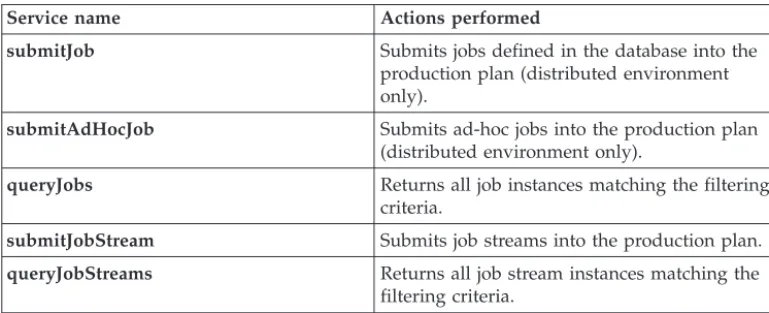
Web services for Tivoli Workload Scheduler . . . 32
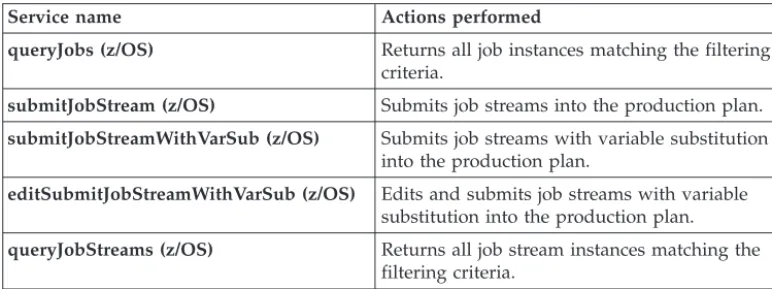
Web services for Tivoli Workload Scheduler for z/OS . . . 33
Web services management . . . 33
Accessing the services . . . 34
Identifying the correct master domain manager 35 Managing errors . . . 35
SchedulingFactory Web services . . . 36
SchedulingFactory web services for Tivoli Workload Scheduler . . . 36
SchedulingFactory web services for Tivoli Workload Scheduler for z/OS . . . 44
JobService details . . . 60
JobService web services for Tivoli Workload Scheduler . . . 61
JobService web services for Tivoli Workload Scheduler for z/OS . . . 65
JobStreamService details . . . 68
JobStreamService web services for Tivoli Workload Scheduler . . . 68
JobStreamService web services for Tivoli Workload Scheduler for z/OS . . . 75
Further information . . . 78
Notices
. . . 79
Trademarks . . . 80Index . . . 81
| ||Tables
1. Available services in the SchedulingFactory Web services interface for Tivoli Workload
Scheduler . . . 32 2. Available services in the JobService Web
services interface for Tivoli Workload
Scheduler . . . 32 3. Available services in the JobStreamService Web
services interface for Tivoli Workload
Scheduler . . . 32 4. Available services in the SchedulingFactory
Web services interface for Tivoli Workload
Scheduler for z/OS . . . 33
5. Available services in the JobService Web services interface for Tivoli Workload
Scheduler for z/OS . . . 33 6. Available services in the JobStreamService Web
services interface for Tivoli Workload
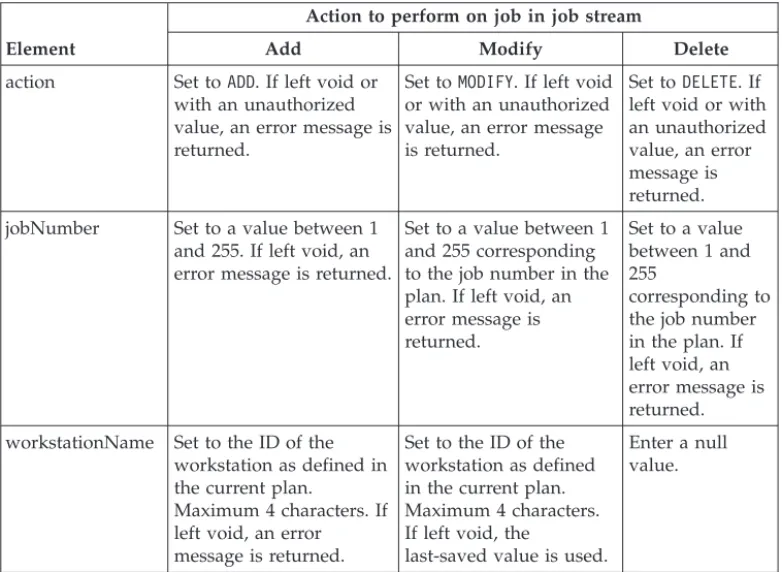
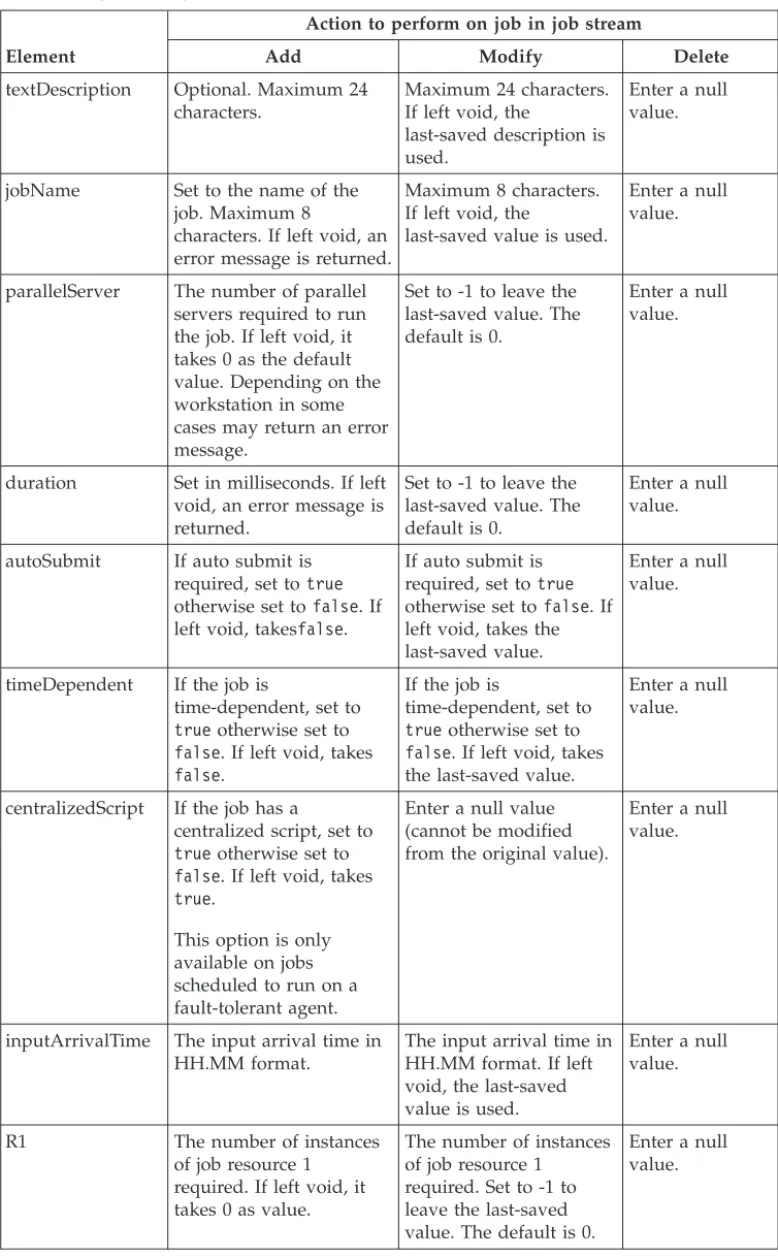
Scheduler for z/OS . . . 33 7. Properties to set for added, modified, and
About this guide
Provides an overview of the guide, with information about changes made to it since the last release, and who should read it. It also supplies information about obtaining resources and support from IBM®.
IBM Tivoli®Workload Automation: Developer's Guide: Driving Tivoli Workload
Automation introduces you to the application programming interfaces available to drive Tivoli Workload Automation products from your own applications. It also describes how to use the Integration Workbench provided with the product to develop and implement these application programming interfaces.
For example, with the information in this publication, and the associated help in the Integration Workbench, you can have your application generate one or more jobs and a job stream, submit the job stream to the plan, monitor its progress, and delete the created objects on successful completion; all without manually running
composer,conmanor the Dynamic Workload Console.
What is new in this release
For information about the new or changed functions in this release, see Tivoli Workload Automation: Overview, sectionSummary of enhancements.
For information about the APARs that this release addresses, see the Tivoli Workload Scheduler Release Notes at http://www-01.ibm.com/support/ docview.wss?rs=672&uid=swg27038323 and the Dynamic Workload Console Release Notes at http://www-01.ibm.com/support/docview.wss?rs=672 &uid=swg27038328.
Who should read this publication
Describes the type of user who should read the documentation.
This publication provides information about how to create alternative interfaces to Tivoli Workload Scheduler and Tivoli Workload Scheduler for z/OS than those provided with the product.
The reader of this book should be an application programmerexpert in Java™or web
services (as appropriate), who has a reasonable understanding of the Tivoli Workload Automation infrastructure and its inter-component interactions, or the manager of such a person, who wants to better understand what you can achieve using the application programming interfaces.
The publication assumes that the application programmer is experienced at creating these types of interface. It also assumes that any product knowledge required to program the API or the web services interface is obtained from the product documentation. This publication does not attempt to explain any of the Tivoli Workload Automation concepts, procedures, and practices to which it refers. This book also contains information useful to theIT administratorand theTivoli Workload Automation IT administrator, for planning purposes.
Publications
Full details of Tivoli Workload Scheduler publications can be found inTivoli Workload Automation: Publications. This document also contains information about the conventions used in the publications.
A glossary of terms used in the product can be found inTivoli Workload Automation: Glossary.
Both of these are in the Information Center as separate publications.
Accessibility
Accessibility features help users with a physical disability, such as restricted mobility or limited vision, to use software products successfully. With this product, you can use assistive technologies to hear and navigate the interface. You can also use the keyboard instead of the mouse to operate all features of the graphical user interface.
For full information with respect to the Dynamic Workload Console, see the Accessibility Appendix in theIBM Tivoli Workload Scheduler User’s Guide and Reference.
Tivoli technical training
For Tivoli technical training information, refer to the following IBM Tivoli Education website:
http://www.ibm.com/software/tivoli/education
Support information
If you have a problem with your IBM software, you want to resolve it quickly. IBM provides the following ways for you to obtain the support you need:
v Searching knowledge bases: You can search across a large collection of known
problems and workarounds, Technotes, and other information.
v Obtaining fixes: You can locate the latest fixes that are already available for your
product.
v Contacting IBM Software Support: If you still cannot solve your problem, and
you need to work with someone from IBM, you can use a variety of ways to contact IBM Software Support.
For more information about these three ways of resolving problems, see the appendix on support information inTivoli Workload Scheduler: Troubleshooting Guide.
Chapter 1. Introduction to driving Tivoli Workload Automation
Provides an overview of the entire publication.IBM Tivoli Workload Automation: Developer's Guide: Driving Tivoli Workload
Automation describes two application programming interfaces which you can use to drive Tivoli Workload Automation products from your own applications:
v Use the Java application programming interface to create your own GUI or
command-line interface to perform all the functions of the command-line programscomposer,conman, andplanman and the Dynamic Workload Console. This includes performing the following tasks in Tivoli Workload Scheduler and Tivoli Workload Scheduler for z/OS:
– Modifying objects in the database – Submitting workload
– Monitoring the plan
– Performing actions on the plan, such as remedial actions in the event that a job fails
v Use the web services interface to create your own web client application to
perform a subset of Tivoli Workload Scheduler and Tivoli Workload Scheduler for z/OS functions to manage jobs and job streams in the plan. Neither database actions nor other plan actions can be implemented and invoked using this interface.
You can use the Tivoli Workload Automation Software Development Kit's
Integration Workbench provided with the product to develop and implement these application programming interfaces.
The information about the application programming interfaces is organized as follows:
v Chapter 2, “Integration Workbench,” on page 3
v Chapter 3, “Driving Tivoli Workload Automation with the Java API,” on page 5 v Chapter 4, “Driving Tivoli Workload Automation with the Web services
Chapter 2. Integration Workbench
Describes the Integration Workbench of the Software Development Kit. IBM Tivoli Workload Automation: Software Development Kit comes with an Integration Workbench which you can use to work with the Java application programming interface and the web services interface to develop your own applications.
This section tells you how to install and use the Integration Workbench help. The help contains detailed information on the tasks you can perform with the
Integration Workbench, and the detailed reference information on the methods and classes available:
Installing the Integration Workbench
Gives an overview of the Integration Workbench installation.
The Integration Workbench (part of the Software Development Kit - SDK) runs under Eclipse. The installation, which is fully described in the Tivoli Workload Scheduler: Planning and Installation Guide,SC32-1273, gives you the opportunity to install the Integration Workbench and a bundled, supported version of Eclipse in one action, or to install the Integration Workbench as an Eclipse siteusing an existing supported version of Eclipse available in your network.
In both cases, at the end of the installation, on the panel where you clickFinish, there is an option to display the file readmefirst.html, which contains information about the workbench, and how to run it. This information is also given here, in “Using the Integration Workbench help.”
For more information about Eclipse, go to http://www.eclipse.org/.
Using the Integration Workbench help
Describes how to access the Integration Workbench help facility for the Tivoli Workload Scheduler API and plug-in projects.
To use the Integration Workbench help, do the following:
1. Launch the workbench, as follows:
Integration Workbench installed with Eclipse
UNIX Launch the following file:<TWS_home>/TWS/ IntegrationWorkbench/eclipse/eclipse Windows
Go toStart →Tivoli Workload Scheduler→ Integration Workbench
Integration Workbench installed as Eclipse site
Open your version of Eclipse, as you normally do.
2. Select the location to save your Eclipse workspace. Eclipse requests this every time you run it or the workbench within it, unless you check the option to save a particular location as the default.
3. When the Eclipse window opens, selectHelp →Help Contents
4. ExpandIBM Tivoli Workload Scheduler Integration Workbench
5. The options displayed provide a variety of information about the Tivoli Workload Scheduler Integration Workbench. For example, to see details of all the classes and methods employed in the API, expandReferenceand select
API reference.
Note: The above information can also be read by opening the following document in a Web browser: <TWS_home>/TWS/IntegrationWorkbench/readmefirst.html
Chapter 3. Driving Tivoli Workload Automation with the Java
API
This chapter describes the J2EE Application Programming Interface (API), which uses Enterprise Java Beans to drive Tivoli Workload Scheduler and Tivoli Workload Scheduler for z/OS.
You can use the Java API to run all the tasks available in:
v the Dynamic Workload Console v composer
v conman v planman
Naming conventions
The naming conventions for the Java objects are quite straightforward. For example, to determine if a specific job definition in the database uses a command or a script, you use a method called isCommandin a class calledJobDefinition. The most important convention to remember is that an object in the database is differentiated from an object in the plan by the suffix "InPlan" to the object class name.
API detailed specification
Gives information on how the Javadoc API reference help can be accessed.
The full specification for the Java beans can be found in the Javadoc API reference online help. This is where all classes and methods are specified in detail. The full specification for the Java beans can be consulted in one of these ways:
v From the help of theTivoli Workload Scheduler Integration Workbench,
expandReferenceand selectAPI reference
v Open the following HTML file:<TWA_home>/TWS/APIs/doc/Javadoc/index.html
To obtain a description of the use of the different panes of the Javadoc API panel, click Help.
Classes in the Deprecatedcategory should not be used.
Tivoli Workload Scheduler API projects
Describes API projects.
API projects
The projects here described are intended to connect to an instance of the corresponding version of Tivoli Workload Scheduler and interact with it using methods provided by Java API.
Structure of an API project
API project Wizards provide a structure containing everything you must need to connect to the required Tivoli Workload Scheduler instance:
“Java source tree (src)”
Separate directories for the source and class files.
“Java libraries” on page 7
A JRE System library and separate libraries are available for the Tivoli Workload Scheduler object and runtime jars.
A keys directory
A directory containing *.jks file needed to access through the Tivoli Workload Scheduler secure login.
A config directory
A directory containing all the configuration files you need to specify to connect to Tivoli Workload Scheduler.
One or more Java compilation units
A compilation unit includes a class that implements the Java interface for the connection to Tivoli Workload Scheduler. Another is an empty compilation unit with the classpath already configured and ready to be completed with the program logics you need.
“build.xml” on page 7
A standard ANT build file that you modify to suit your requirements.
Creating API projects
You create API projects in one of two ways:
“Creating a project from scratch” on page 7
You run a wizard, supplying information about what sort of project you want to create.
“Creating a project from an API example” on page 8
From a list of examples you select an API project similar to the project you want to create.
You then edit the new project so that it carries out the required task.
Java source tree (src)
Describes the Java source tree.
When you create an API project, it is set up as a Java project with separate folders for source and class files. The source folder is namedsrc. It contains the Java code of the application.
A few Java classes are also created together with the new project.
Follow the Tivoli Workload Scheduler Java API reference to figure out which method you need to implement. For logging and tracing in your code, use standard JSR-047 Java Logging APIs.
Java libraries
Describes the Java libraries.
Tivoli Workload Scheduler API projects are created with the following libraries:
Default JRE System library
Even if the default JRE is set by default, remember that the IBM Tivoli Workload Scheduler event processor runs using IBM JDK version 1.5. Use of IBM JDK version 1.5 is recommended for Tivoli Workload Scheduler API projects.
IBM Tivoli Workload Scheduler library
This library contains all the Tivoli Workload Scheduler jars needed to implement Tivoli Workload Scheduler plug-ins or to use Tivoli Workload Scheduler APIs.
The library also defines the access rules for the classes in the jars: public APIs are defined as Accessible, while internal classes are defined as Discouraged.
IBM Tivoli Workload Scheduler Runtime library
This library contains all the Tivoli Workload Scheduler jars needed at runtime by API based applications
Use of discouraged classes will be marked with compiler warnings by default. In any case the use of these classes is not supported.
Additional libraries needed for the plug-in Java code can be copied into the lib
folder and added to the Java build path.
More details of these libraries are given in the Integration Workbench help.
Related links
Other project folders
Other project folders
Describes the other project folders.
config Use this folder to store additional configuration files (such as property files) that the Tivoli Workload Scheduler administrator will need to edit for operation.
keys This folder is used to store the *.jks key files needed to connect using the Tivoli Workload Scheduler secure login.
Java build path
build.xml
Describes thebuild.xmlfile created for an API project.
This is a standard ANT build file. You can modify it according to your needs.
Collected links
“Other project folders”
Describes the other project folders.
Creating a project from scratch
With the Integration Workbench follow these steps to create API projects from scratch:
1. From the Integration Workbench selectHelp→Help Contents
2. ExpandTivoli Workload Scheduler Integration Workbenchand thenTasks
3. ExpandTivoli Workload Scheduler API projects
4. The steps required to create the project are listed. Read them to understand what to do.
5. Follow the instructions to create the project. Integration Workbench creates a library containing all the product jars. Use your knowledge of Java products to create all the necessary coding and infrastructure to run the API.
Creating a project from an API example
Describes how to create an API project from an example.
Using the Integration Workbench you can create projects based on provided examples. Using this method you avoid the need to create the full API project structure from scratch. You choose an example which most approximates your requirements and then modify it accordingly.
To read how to use this facility, follow these steps:
1. From the Integration Workbench selectHelp→Help Contents
2. ExpandTivoli Workload Scheduler Integration Workbenchand thenTasks
3. ExpandTivoli Workload Scheduler API projects
4. SelectCreating a TWS API project by example
5. Create the project, following the instructions. Integration Workbench creates a project containing the full infrastructure and code for the chosen API.
6. To understand more about the API, open the project, selectDoc and double-click index.htm
The examples you can choose from
Details the API example projects you can use as a template. The examples you can select from are as follows:
AddEventRule
Work with event rules in the database.
MakeQueryJobsOnPlan
Work with dynamic scheduling job instances in the plan.
MakeQueryOnPlan
Work with objects in the plan.
MakeZOSQueryOnPlan
Work with objects in the plan for z/OS®.
RerunJobInPlan
Submit a job stream instance into the current plan rerun.
SubmitJobInPlan
Submit a job stream instance into the current plan.
Example Tivoli Workload Scheduler API project
The following figure shows the typical structure of a new Tivoli Workload Scheduler java API project:
The structure shown is for a java API project namedAddEventRule.
The Java classes contained in the srcfolder are described in Java source tree (src). The Java Build Path of the plug-in project is described in Java build path.
The role and contents of other project folders are described in Other project folders.
The ANTbuild.xmlfile is described in build.xml.
v Java source tree (src) v Java build path v Other project folders v build.xml
Connecting to the products
Describes how to implement a connection to the Tivoli Workload Automation products using the API.
To connect to the products, you need to set the Connection Parameters to connect either to the Tivoli Workload Scheduler master domain manager (where there is a Connector installed) or to the Tivoli Workload Scheduler for z/OS connector. If you have created your project from an example, take the following steps, depending on which engine you are connecting to:
Connecting to the Tivoli Workload Scheduler master domain manager
1. From the Integration Workbench select your project
2. ExpandConfig
3. Edit the TWSConfig.properties file to obtain the correct parameters for your environment. The parameters are as follows:
TWSConfig.serverName= TWSConfig.serverPort= TWSConfig.userID= TWSConfig.password= TWSConfig.useSecureConnection= TWSConfig.serverSecurePort=
where the parameters are as follows:
TWSConfig.serverName
The network name of IP address of the system where the Tivoli Workload Scheduler master domain manager is running (where there is a Connector installed). The default is "localhost".
TWSConfig.serverPort
The port used by the Connector on the master domain manager. The default is 31115.
TWSConfig.userID
The user ID with which the plugin must authenticate. The default is "twsuser".
TWSConfig.password
The password of that user ID.
TWSConfig.useSecureConnection
Enter "true" to use a secure connection.
TWSConfig.serverSecurePort
IfTWSConfig.useSecureConnectionis set to "true", the secure port used by the Connector on the master domain manager.
Connecting to the Tivoli Workload Scheduler for z/OS connector
1. From the Integration Workbench select your project
2. ExpandConfig
3. Edit the TWSConn.properties file to obtain the correct parameters for your environment. The parameters are as follows:
TWSConn.serverName= TWSConn.serverPort= TWSConn.userID= TWSConn.password=
where the parameters are as follows:
TWSConn.serverName
The network name of IP address of the system where the z/OS connector is installed. The default is "localhost".
TWSConn.serverPort
The port used by the z/OS connector. The default is 31115.
TWSConn.userID
The user ID with which the plugin must authenticate. The default is "twsuser".
TWSConn.password
The password of that user ID.
TWSConn.remoteServerName
The name of the z/OS engine that you want to connect to. If you have created a project from scratch, create an analogous structure of connection parameters.
Examples for Tivoli Workload Scheduler
Provides an overview of the examples available of using the Java API for Tivoli Workload Scheduler.
The following examples help you to understand how the beans are used. The examples are annotated with explanatory comments. In the javadoc reference (see “API detailed specification” on page 5), look up the objects used in the examples to see full details.
The examples are available in these groupings:
Working with objects in the database
Provides examples of using the Java API to work with objects in the database. The following examples indicate how you use the classes to work with objects in the database:
Example 1: Adding a workstation to the database
//Object definitionString wksName = "MYWS";
Workstation wks = new Workstation(); wks.setName(wksName); wks.setType(WorkstationType.FTA); wks.setOs(OperatingSystem.UNIX); wks.setAutoLink(true); wks.setNodeName("node.ibm.com"); wks.setSecurityLevel(SecurityLevel.NONE); ConnModel myModel;
//Get an instance of ConnModel interface... ...
//Add the object try
{
myModel.addTWSObject(wks, null); }
catch (ConnException e) {
//Do something to recover... }
Example 2: Retrieving a workstation from the database
Workstation wksRead = new Workstation();//Get the same workstation from the DB try
{
wksRead = (Workstation) myModel.getTWSObject(Workstation.class, new FlowTargetKey(wksName), false, null);
}
catch (ConnException e) {
//Do something to recover... }
Example 3: Removing a workstation from the database
//Remove a workstation from the DBtry {
myModel.removeTWSObject(Workstation.class, wksRead.getId(), null); }
catch (ConnException exc) {
//Do something to recover... }
Working with objects in the plan
Provides examples of using the Java API to work with objects in the plan. The following examples indicate how you use the classes to work with objects in the plan:
Example 4: Submitting a job stream instance into the current
plan
This procedure requires the following main steps:
1. Obtain the required job stream definition from the database ConnPlan myPlan;
//Get an instance of ConnPlan interface... ...
String alias = "SBJBF1_1"; JobStream js = null;
JobStreamInPlan jsip = null;
//If you already have a JobStream in the DB with Identifier jsDbID... try
{
//get it from the DB
js = (JobStream)(myPlan.getTWSObject(JobStream.class,jsDbID,false,null));
2. Transform it into a JobStreamInPlan: //Transform it in a JobStreamInPlan.
//TODAY is a variable representing the scheduled time
jsip = myPlan.makeJobStreamInPlan(jsDbID, TODAY, alias, null); }
catch (ConnException e) {
//Something went wrong... }
catch (ConnEngineNotMasterException e) {
//Since the makeJobStreamInPlan is available also on FTAs //(it’s on the Plan interface), an exception must be thrown //if it is called on an engine that is not the master }
3. Add the JobStreamInPlan to the plan: List idList = new ArrayList();
try {
//Add the job stream to the plan.
//This method returns a list of Identifiers because the job stream can be //defined on a Workstation class, so you have an ID for each workstation //of the class
idList = (ArrayList)myPlan.addJobStreamInstance(jsip, null); } catch (ConnException e) { //... } catch (ConnEngineNotMasterException e) { //... }
Example 5: Making a query on the plan
The following example lists the first five jobs that begin with the letter "A": String nameFilter = "A*";
int howMany = 5;
QueryFilter qf = new QueryFilter();
qf.setFilter(JobInPlanFilters.JOB_NAME, nameFilter); QueryResult qr = null;
try {
qr = myPlan.queryPlanObject(JobInPlan.class, qf, howMany, null); }
catch (ConnException e) {
//... }
Working with event rules in the database
Provides examples of using the Java API to work with event rules in the database. The following examples indicate how you use the classes to work with event rules in the database:
Example 6: Adding an event rule to the database
Follow these steps:1. Define the event rule:
String eventRuleName = "SampleEventRule"; String eventRuleDescription =
"Define Event Rule; test MessageLoggerPlugIn and TWSObjectsMonitorPlugIn"; Date today = new Date(System.currentTimeMillis());
Date tomorrow = new Date(System.currentTimeMillis() + 86400000L); //EventRule definition
EventRule er = new EventRule(); er.setName(eventRuleName); er.setDescription(eventRuleDescription); er.setRuleType(EventRuleType.FILTER); er.setDraft(false); er.setValidFrom(today); er.setValidTo(tomorrow);
2. Define the event condition. In this case the condition is a job submission: EventCondition evCond = new EventCondition();
evCond.setPluginName(TWSObjectsMonitorPlugIn.PLUGIN_NAME); evCond.setEventType(JobUtil.EVENT_JOB_SUBMIT);
3. Define the conditions that the event condition has to satisfy to trigger the rule action (the filtering predicate):
String filterPred = "<attributeFilter name=\"JobStreamWorkstation\"
operator=\"eq\">" + "<value>MYWS</value>"
+ "</attributeFilter>"
+ "<attributeFilter name=\"JobStreamName\" operator=\"eq\">" + "<value>JS1</value>"
+ "</attributeFilter>"
+ "<attributeFilter name=\"JobName\" operator=\"eq\">" + "<value>JOB1</value>"
+ "</attributeFilter>"
+ "<attributeFilter name=\"Workstation\" operator=\"eq\">" + "<value>MYHOST</value>"
+ "</attributeFilter>"
+ "<attributeFilter name=\"Priority\" operator=\"range\">" + "<value>10</value>"
+ "<value>30</value>" + "</attributeFilter>"
+ "<attributeFilter name=\"Monitored\" operator=\"eq\">" + "<value>TRUE</value>"
+ "</attributeFilter>"
+ "<attributeFilter name=\"EstimatedDuration\" operator=\"ge\">" + "<value>400</value>"
+ "</attributeFilter>"
+ "<attributeFilter name=\"Login\" operator=\"eq\">" + "<value>TWSUser</value>"
+ "</attributeFilter>"
+ "<attributeFilter name=\"EveryFrequency\" operator=\"ge\">" + "<value>400</value>"
+ "</attributeFilter>";
4. Complete the event condition:
evCond.setFilteringPredicate(filterPred);
5. Add the event condition to the event rule: er.getTriggerEvents().add(evCond);
6. Define the rule action. In this example, the rule action logs a message in the database:
RuleAction action = new RuleAction();
action.setPluginName(MessageLoggerPlugIn.PLUGIN_NAME);
action.setActionType(MessageLoggerPlugInConstants.ACTION_TYPE_MESSAGE_LOG); action.setDescription("Adding the Message logger Plugin");
action.setResponseType(RuleResponseType.ON_DETECTION);
Map parameterMap = new HashMap();
parameterMap.put(MessageLoggerPlugInConstants.MESSAGE, "message"); parameterMap.put(MessageLoggerPlugInConstants.OBJECT_KEY, "object key");
8. Complete the rule action:
action.getParameterMap().putAll(parameterMap);
9. Add the rule action to the event rule: er.getActions().add(action);
10. Add the event rule to the ConnModel interface: ConnModel myModel = null;
//Get an instance of ConnModel interface... //...
//Add the object Identifier erId = null; try
{
erId = myModel.addTWSObject(er, null); }
catch (ConnException e) {
//Do something to recover... }
Example 7: Retrieve an event rule from the database by ID
Follow these steps:1. Obtain the event rule ID to be retrieved by any means appropriate to your interface
2. Retrieve the event rule:
EventRule eRuleRead = new EventRule(); try
{
eRuleRead =
(EventRule) myModel.getTWSObject(EventRule.class, erId, false, null); }
catch (ConnException e) {
//Do something to recover... }
Example 8: Retrieve an event rule from the database by key
(name)
Follow these steps:
1. Obtain the event rule key (name) to be retrieved by any means appropriate to your interface
2. Retrieve the event rule:
EventRule eRuleRead = new EventRule(); try
{
eRuleRead =
(EventRule) myModel.getTWSObject(EventRule.class,
new EventRuleKey(eventRuleName), false, null); }
catch (ConnException e) {
//Do something to recover... }
Example 9: Delete an event rule from the database by ID
Follow these steps:1. Retrieve by ID the event rule to be deleted, as shown in example 7.1
2. If the event rule has been successfully retrieved, delete it: {
myModel.removeTWSObject(EventRule.class, eRuleRead.getId(), null); }
catch (ConnException exc) {
//Do something to recover... }
Example 10: Delete an event rule from the database by key
(name)
Follow these steps:
1. Retrieve by key, the event rule to be deleted, as shown in example 7.2
2. If the event rule has been successfully retrieved, delete it: {
myModel.removeTWSObject(EventRule.class,
new EventRuleKey(eventRuleName), null); }
catch (ConnException exc) {
//Do something to recover... }
Examples for Tivoli Workload Scheduler for z/OS
Provides an overview of the examples available of using the Java API for Tivoli Workload Scheduler for z/OS.
The following examples help you to understand how the beans are used in the Tivoli Workload Scheduler for z/OS environment:
Example 1: Adding a workstation to the database
// Create the connection to the serverTWSZConn connection = new TWSZConn();
// Get an instance of the interface ZConnModel final ZConnModel model = connection.getModelBean(); // Define the workstation properties
String wksName = "CPU1";
String wksDescription = "Added by API"; String wksPrintoutRouting = "SYSOUT"; Workstation wks = new Workstation(); wks.setName(wksName);
wks.setDescription(wksDescription); wks.setType(WorkstationType.COMPUTER);
wks.setReportingAttribute(WorkstationReportingAttribute.AUTOMATIC); WorkstationZOSAttributes wksAttr = new WorkstationZOSAttributes(); wksAttr.setDefaultTransportTime(3600); wksAttr.setDefaultJobDuration(60); wksAttr.setPrintoutRouting(wksPrintoutRouting); wksAttr.setStartedTaskSupported(true); wks.setZosAttributes(wksAttr); try {
// Add the workstation to the database model.addTWSObject(wks, context); } catch (ConnException e) { // Do something to recover }
Example 2: Adding a job stream (application) to the database
// Create the connection to the serverTWSZConn connection = new TWSZConn();
// Get an instance of the interface ZConnModel final ZConnModel model = connection.getModelBean(); final static Date TODAY =
new Date((System.currentTimeMillis()/86400000L) * 86400000L); // Define the job stream properties
String jsName = "APPL"; String jsOwnerName = "API"; JobStream js = new JobStream(); js.setName(jsName);
js.setOwnerName(jsOwnerName); js.setValidFrom(TODAY); js.setPriority(5);
// Define a JCL job to add to the job stream String jobName = "1";
String wksName = "CPU1"; String jclName = "MYJCL"; Job jclJob = new Job(); jclJob.setName(jobName);
jclJob.setEstimatedDuration(1000); jclJob.setPriority(-1);
ZOSJobDefinition jobDef = new ZOSJobDefinition(); jobDef.setFlowTargetKey(new FlowTargetKey(wksName)); jobDef.setTaskType(TaskTypes.ZOS_JOB_TASK);
jobDef.setJclName(jclName); jclJob.setJobDefinition(jobDef); // Add the JCL job to the job stream js.getJobs().add(jclJob);
// Define a Printer job to add to the job stream jobName = "2";
wksName = "PRNT";
Job printerJob = new Job(); printerJob.setName(jobName);
printerJob.setEstimatedDuration(1000); printerJob.setPriority(-1);
jobDef = new ZOSJobDefinition();
jobDef.setFlowTargetKey(new FlowTargetKey(wksName)); jobDef.setTaskType(TaskTypes.ZOS_ PRINTER_TASK); jobDef.setJclName(jclName);
jobDef.setLimitForFeedback(102); printerJob.setJobDefinition(jobDef);
// Add to the Printer job the dependency from the JCL job List printerJobDeps = printerJob.getInternalDependencies(); InternalDependency depFromJclJob =
new InternalDependency(null, (JobKey)jclJob.getKey()); printerJobDeps.add(depFromJclJob);
// Add the Printer job to the job stream js.getJobs().add(printerJob);
try {
Context context = new Context(); // Add the job stream to the database
Example 3: Modifying a job stream (application) in the database
// Create the connection to the serverTWSZConn connection = new TWSZConn();
// Get an instance of the interface ZConnModel final ZConnModel model = connection.getModelBean(); final static Date TODAY =
new Date((System.currentTimeMillis()/86400000L) * 86400000L); final static Date TOMORROW =
new Date(((System.currentTimeMillis()/86400000L) * 86400000L) + 86400000L); final static long HOUR = 3600000;
// Make the job stream key String jsName = "APPL";
JobStreamKey jsKey = new JobStreamKey(jsName, TODAY, false, false); try {
Context context = new Context(); // Get the job stream by its key JobStream js =
(JobStream)model.getTWSObject(JobStream.class, jsKey, false, context); // Define a run cycle to add to the job stream
String rcName = "RCRULE";
String rcDescription = "Added by API"; RunCycle rcRule = new RunCycle(); rcRule.setName(rcName); rcRule.setDescription(rcDescription); rcRule.setType(RunCycleType.RULE); rcRule.setValidFrom(TODAY); rcRule.setValidTo(TOMORROW); rcRule.getTimeRestrictions().setStartOffset(10*HOUR); rcRule.getTimeRestrictions().setDeadlineOffset(12*HOUR + 24* HOUR); rcRule.setFreeDaysRule(FreeDaysRule.DO_NOT_SELECT);
rcRule.setICalendar("ADRULE ONLY(001 003) LAST(001 002) DAY(DAY
MONDAY THURSDAY) MONTH(FEBRUARY APRIL JUNE SEPTEMBER NOVEMBER) YEAR ");
// Add the run cycle to the job stream js.getRunCycles().add(rcRule);
// Modify the job stream in the database
Identifier jsId = model.setTWSObject(js, true, true, context); }
catch (ConnException e) { // Do something to recover }
Example 4: Adding a special resource in the database
// Create the connection to the serverTWSZConn connection = new TWSZConn();
// Get an instance of the interface ZConnModel final ZConnModel model = connection.getModelBean(); final static long HOUR = 3600000;
// Define the resource properties String resName = "RES";
String resDescription = "Added by API"; String wksName1 = "CPU1";
String wksName2 = "CPU2"; Resource res = new Resource(); res.setName(resName);
res.setDescription(resDescription);
FlowTargetKey wksKey1 = new FlowTargetKey(wksName1); FlowTargetKey wksKey2 = new FlowTargetKey(wksName2);
res.getConnectedWorkstationLinks().add(new WorkstationLink(wksKey1)); res.getConnectedWorkstationLinks().add(new WorkstationLink(wksKey2)); ResourceBaseConstraints resCon = new ResourceBaseConstraints(); resCon.setQuantity(30); resCon.setUsedFor(ResourceUsage.CONTROL); resCon.setActionOnError(ResourceActionOnError.KEEP); resCon.setAvailable(YesNoDefaultOption.NO); res.setDefaultConstraints(resCon); ResourceAvailabilityInterval resInt = new ResourceAvailabilityInterval(); resInt.setIntervalValidityDayOfWeek(Calendar.MONDAY); resInt.setIntervalStartTime(10*HOUR); resInt.setIntervalEndTime(21*HOUR); resInt.setQuantity(20); resInt.setAvailable(YesNoDefaultOption.YES); res.getResourceAvailabilityIntervals().add(resInt); try {
Context context = new Context(); // Add the resource to the database model.addTWSObject(res, context); }
catch (ConnException e) { // Do something to recover }
Example 5: Adding a job stream to the plan after modifying its
contents
The program uses Java APIs to modify an existing job stream and to apply variable substitution before submitting it to the plan.
The following program adds job stream STREAM1to the plan. Before doing this, the program also:
1. Adds two jobs toSTREAM1 after getting their attributes from two jobs extracted from job streamsSTREAM2 andSTREAM3.
2. Sets up a number of JCL promptable variables before submitting job stream
STREAM1.
3. Further adds/modifies specific job attributes before releasing the jobs in the plan.
After importing all the necessary classes and objects, connecting to the scheduler, and declaring the required variables, the program:
v Fetches a job from job stream STREAM2 in the data base, gets its properties and
stores them in aZosJobInfocontainer called jZos1, and sets other information such as the input arrival time and the associated workstation and resources.
v Repeats these actions for job with job number 10 of job stream STREAM3,
storing the job properties in aZosJobInfocontainer calledjZos2.
v Adds the two jobs to job stream STREAM1, and modifies their properties to
define their numbers (which constitute their IDs within the job stream) and names.
v Defines first general JCL variables for all four jobs in job stream STREAM1
(using thevariablesToBeSubstitutedAPI) and then particular variables for each job (using thejobVariablesToBeSubstitutedAPI).
v Adds job stream STREAM1 to the plan.
v Makes final changes in the job stream to add more properties, such as the
extended job name and a special resource, to one of the jobs and then releases the job. | | | | | | | | | | | | | | | | | | | | | | | | | | | | |
package com.ibm; import java.rmi.RemoteException; import java.util.ArrayList; import java.util.Calendar; import java.util.Date; import java.util.HashMap; import java.util.List; import com.ibm.tws.conn.exception.ConnEngineNotMasterException; import com.ibm.tws.conn.exception.ConnException; import com.ibm.tws.conn.exception.ConnLockingException; import com.ibm.tws.conn.exception.ConnNotFoundException; import com.ibm.tws.conn.exception.ConnSecurityException; import com.ibm.tws.conn.exception.ConnTransportException; import com.ibm.tws.conn.exception.ConnValidationException; import com.ibm.tws.conn.util.Context; import com.ibm.tws.conn.util.QueryResult; import com.ibm.tws.objects.filter.JobStreamFilters; import com.ibm.tws.objects.filter.QueryFilter; import com.ibm.tws.objects.filter.WorkstationFilters; import com.ibm.tws.objects.model.Job; import com.ibm.tws.objects.model.JobStream; import com.ibm.tws.objects.model.JobStreamHeader; import com.ibm.tws.objects.model.ResourceDependency; import com.ibm.tws.objects.model.Workstation; import com.ibm.tws.objects.model.WorkstationHeader; import com.ibm.tws.objects.model.ZOSJobDefinition; import com.ibm.tws.objects.plan.JobInPlan; import com.ibm.tws.objects.plan.JobStreamInPlan; import com.ibm.tws.objects.plan.ResourceDependencyInPlan; import com.ibm.tws.objects.plan.ResourceInPlanKey; import com.ibm.tws.objects.plan.WorkstationInPlanKey; import com.ibm.tws.objects.plan.ZOSJobDefinitionInPlan; import com.ibm.tws.objects.plan.types.DependenciesResolutionOption; import com.ibm.tws.objects.plan.types.JobInPlanZOSAttributes; import com.ibm.tws.objects.plan.utils.ZosJobInfo; import com.ibm.tws.objects.types.Identifier; import com.ibm.tws.zconn.model.ZConnModel; import com.ibm.tws.zconn.plan.ZConnPlan; import com.ibm.tws.zconn.plan.dao.impl.util.ResourceInPlanHelper; import com.ibm.tws.zconn.plan.dao.impl.util.WorkstationInPlanHelper; @SuppressWarnings("restriction")
public class MainWitRes {
public static void main(String[] args) {
//Create a connection to the server
TWSZConn connection=new TWSZConn();
//Get Model or Plan Bean
final ZConnModel model=connection.getModelBean(); final ZConnPlan plan=connection.getPlanBean(); final Context context=new Context();
com.ibm.websphere.security.auth.WSSubject.doAs
(connection.getSubject(), new java.security.PrivilegedAction<Object>() {
/* (non-Javadoc)
* @see java.security.PrivilegedAction#run() */
@SuppressWarnings("unchecked") public Object run() {
//Variable Declaration
HashMap<String, List<Integer>> dependencyToDelete=new HashMap<String, List<Integer>>(); HashMap<String, List<Integer>> dependencyToAdd=new HashMap<String, List<Integer>>(); HashMap<Integer, String[][]> jobVariablesToBeSubstituted=new HashMap<Integer, String[][]>(); List<ZosJobInfo> jobsToDelete=new ArrayList<ZosJobInfo>();
List<ZosJobInfo> jobsToAdd=new ArrayList<ZosJobInfo>(); List<Identifier> identifierList=null;
List<Integer> successorList=new ArrayList<>(); List<JobStreamHeader> jobStreamHeaderList; List<WorkstationHeader> workstationHeaderList;
List<ZosJobInfo> jobsToModify=new ArrayList<ZosJobInfo>(); List<ResourceDependencyInPlan> resourceDependencyInPlanList; Date startTime=new Date();
Date deadlineTime=new Date(); Long time1,time2; int seconds,minutes,hours; | | | | | | | | | | | | | | | | | | | | | | | | | | | | | | | | | | | | | | | | | | | | | | | | | | | | | | | | | | | | | | | | | | | | | | | | | | | | | | |
int priority=5; int jobNum=0; Integer succ;
String [][] variablesMap1=new String [3][2];
String[][] variablesToBeSubstituted=new String [1][2]; String [][] variablesMap2=new String [2][2];
String resourceName; String authorityGroup=null; String JSName="STREAM1"; String description=""; String group=null; String owner=null; String ownerDescription=null; String variableTable="STREAM1"; String jobStreamName1="STREAM2"; String jobStreamName2="STREAM3"; boolean holdAll=true; JobStream jobStream1=null; JobStream jobStream2=null; Job jobFM1=null; Job jobFM2=null; JobStreamInPlan jobStreamInPlan=null; ZOSJobDefinition zosJobDefinition1=null; ZOSJobDefinition zosJobDefinition2=null; ZosJobInfo zosJobInfo1=new ZosJobInfo(); ZosJobInfo zosJobInfo2=new ZosJobInfo(); ZosJobInfo zosJobInfo3=new ZosJobInfo(); ZosJobInfo zosJobInfo4=new ZosJobInfo(); QueryFilter queryFilter;
QueryResult queryResult; Calendar calendar1,calendar2; Workstation workstation = null;
ZOSJobDefinitionInPlan jobDefinitionInPlan; ResourceDependencyInPlan resourceDependencyInPlan; ResourceInPlanKey resourceInPlanKey;
WorkstationInPlanKey workstationInPlanKey; JobInPlanZOSAttributes jobInPlanZosAtt;
//Getting jobStream="Stream2" from the DB, first the header then the full jobStream
queryFilter=new QueryFilter();
queryFilter.setFilter(JobStreamFilters.JOB_STREAM_NAME, jobStreamName1); try {
queryResult=model.queryTWSObject(JobStream.class, queryFilter, 1, context); jobStreamHeaderList=(List<JobStreamHeader>) queryResult.getList();
if(jobStreamHeaderList.size()>0){
jobStream1=(JobStream) model.getTWSObject(JobStream.class,jobStreamHeaderList.get(0).getKey() , false, context); }
} catch (ConnTransportException e) {
//TODO Auto-generated catch block
e.printStackTrace();
} catch (ConnValidationException e) {
//TODO Auto-generated catch block
e.printStackTrace();
} catch (ConnSecurityException e) {
//TODO Auto-generated catch block
e.printStackTrace(); } catch (ConnException e) {
//TODO Auto-generated catch block
e.printStackTrace(); } catch (RemoteException e) {
//TODO Auto-generated catch block
e.printStackTrace(); }
//Getting the first job from Stream2 to add to STREAM1
if(jobStream1.getJobs().size()>0){ jobFM1=(Job) jobStream1.getJobs().get(0);
zosJobDefinition1=(ZOSJobDefinition) jobFM1.getJobDefinition(); }
//Creation of ZosJobInfo for the first job
ZosJobInfo jZos1=new ZosJobInfo();
//Setting the inputArrivalTime
calendar1=Calendar.getInstance();
time1=jobFM1.getTimeRestrictions().getStartOffset(); if(time1!=null && time1>0){
seconds=(int) (time1 / 1000) % 60 ; minutes=(int) ((time1 / (1000*60)) % 60); hours=(int) ((time1 / (1000*60*60)) % 24); calendar1.set(Calendar.HOUR,hours); | | | | | | | | | | | | | | | | | | | | | | | | | | | | | | | | | | | | | | | | | | | | | | | | | | | | | | | | | | | | | | | | | | | | | | | | | | | | | | |
calendar1.set(Calendar.MINUTE, minutes); calendar1.set(Calendar.SECOND, seconds); jZos1.setInputArrivalTime(calendar1); }
//Setting the zosJobInfo with data in zosJobDefinition and job (&timeRestriction)
String workstationN=zosJobDefinition1.getFlowTargetKey().getName(); jZos1.setJobName(zosJobDefinition1.getJclName()); jZos1.setTextDescription(jobFM1.getDescription()); jZos1.setWorkstationName(workstationN); jZos1.setDuration(jobFM1.getEstimatedDuration()); jZos1.setJobNumber(44); jZos1.setAutoSubmit(zosJobDefinition1.getAutoSubmit()); jZos1.setTaskType(zosJobDefinition1.getTaskType()); jZos1.setTimeDependent(jobFM1.getTimeRestrictions().isTimeDependent()); jZos1.setCentralizedScript(zosJobDefinition1.getHasCentralizedScript());
//Getting the workstation from the DB -> to get the type associated, first get the header and then the full workstation. queryFilter.setFilter(WorkstationFilters.WORKSTATION_NAME, workstationN);
try {
queryResult=model.queryTWSObject(Workstation.class, queryFilter, 1, context); workstationHeaderList=(List<WorkstationHeader>) queryResult.getList(); if(workstationHeaderList.size()>0){
workstation=(Workstation) model.getTWSObject(Workstation.class,workstationHeaderList.get(0).getKey() , false, context); }
} catch (ConnTransportException e) {
//TODO Auto-generated catch block
e.printStackTrace();
} catch (ConnValidationException e) {
//TODO Auto-generated catch block
e.printStackTrace();
} catch (ConnSecurityException e) {
//TODO Auto-generated catch block
e.printStackTrace();
} catch (ConnException e) {
//TODO Auto-generated catch block
e.printStackTrace();
} catch (RemoteException e) {
//TODO Auto-generated catch block
e.printStackTrace(); }
jZos1.setWorkstationType(workstation.getType());
//Setting the Resource value
for(ResourceDependency resourceD:(List<ResourceDependency>) jobFM1.getResourceDependencies()){ String rName=resourceD.getResourceKey().getName();
if(rName!=null && rName.compareToIgnoreCase("Resource1")==0){ jZos1.setR1(resourceD.getQuantity());
}
if(rName!=null && rName.compareToIgnoreCase("Resource2")==0){ jZos1.setR2(resourceD.getQuantity());
}
if(rName!=null && rName.compareToIgnoreCase("ParallelServers")==0){ jZos1.setParallelServer(resourceD.getQuantity());
} }
//Getting jobStream="STREAM3" from the Db, first the header then the full jobStream
queryFilter.setFilter(JobStreamFilters.JOB_STREAM_NAME, jobStreamName2); try {
queryResult=model.queryTWSObject(JobStream.class, queryFilter, 1, context); jobStreamHeaderList=(List<JobStreamHeader>) queryResult.getList();
if(jobStreamHeaderList.size()>0){
jobStream2=(JobStream) model.getTWSObject(JobStream.class,jobStreamHeaderList.get(0).getKey() , false, context); }
} catch (ConnTransportException e) {
//TODO Auto-generated catch block
e.printStackTrace();
} catch (ConnValidationException e) {
//TODO Auto-generated catch block
e.printStackTrace();
} catch (ConnSecurityException e) {
//TODO Auto-generated catch block
e.printStackTrace(); } catch (ConnException e) {
//TODO Auto-generated catch block
e.printStackTrace(); } catch (RemoteException e) {
//TODO Auto-generated catch block | | | | | | | | | | | | | | | | | | | | | | | | | | | | | | | | | | | | | | | | | | | | | | | | | | | | | | | | | | | | | | | | | | | | | | | | | | | | | | |
e.printStackTrace(); }
//Starting with second job to add to STREAM1 //Getting the job with number=10 from STREAM3
for(Job job:(List<Job>)jobStream2.getJobs()){ if(job.getName().compareTo("10")==0){ jobFM2=job; zosJobDefinition2=(ZOSJobDefinition) jobFM2.getJobDefinition(); } }
//Creation of ZosJobInfo for the second job
ZosJobInfo jZos2=new ZosJobInfo();
//Setting the inputArrivalTime
calendar2=Calendar.getInstance();
time2=jobFM2.getTimeRestrictions().getStartOffset(); if(time2!=null && time2>0){
seconds=(int) (time2 / 1000) % 60 ; minutes=(int) ((time2 / (1000*60)) % 60); hours=(int) ((time2 / (1000*60*60)) % 24); calendar2.set(Calendar.HOUR,hours); calendar2.set(Calendar.MINUTE, minutes); calendar2.set(Calendar.SECOND, seconds); jZos2.setInputArrivalTime(calendar2); }
//Setting the zosJobInfo for the second job
//with data in zosJobDefinition and job (@timeRestriction)
workstationN=zosJobDefinition2.getFlowTargetKey().getName(); jZos2.setJobName(zosJobDefinition2.getJclName()); jZos2.setTextDescription(jobFM2.getDescription()); jZos2.setWorkstationName(workstationN); jZos2.setDuration(jobFM2.getEstimatedDuration()); jZos2.setJobNumber(45); jZos2.setAutoSubmit(zosJobDefinition2.getAutoSubmit()); jZos2.setTaskType(zosJobDefinition2.getTaskType()); jZos2.setTimeDependent(jobFM2.getTimeRestrictions().isTimeDependent()); jZos2.setCentralizedScript(zosJobDefinition2.getHasCentralizedScript());
//Getting the workstation -> for get the type associated. Header then full workstation.
queryFilter.setFilter(WorkstationFilters.WORKSTATION_NAME, workstationN); try {
queryResult=model.queryTWSObject(Workstation.class, queryFilter, 1, context); workstationHeaderList=(List<WorkstationHeader>) queryResult.getList(); if(workstationHeaderList.size()>0){
workstation=(Workstation) model.getTWSObject(Workstation.class,workstationHeaderList.get(0).getKey() , false, context); }
} catch (ConnTransportException e) {
//TODO Auto-generated catch block
e.printStackTrace();
} catch (ConnValidationException e) {
//TODO Auto-generated catch block
e.printStackTrace();
} catch (ConnSecurityException e) {
//TODO Auto-generated catch block
e.printStackTrace(); } catch (ConnException e) {
//TODO Auto-generated catch block
e.printStackTrace(); } catch (RemoteException e) {
//TODO Auto-generated catch block
e.printStackTrace(); }
jZos2.setWorkstationType(workstation.getType());
//Setting the Resource value
for(ResourceDependency resourceD:(List<ResourceDependency>) jobFM2.getResourceDependencies()){ String rName=resourceD.getResourceKey().getName();
if(rName!=null && rName.compareToIgnoreCase("Resource1")==0){ jZos2.setR1(resourceD.getQuantity());
}
if(rName!=null && rName.compareToIgnoreCase("Resource2")==0){ jZos2.setR2(resourceD.getQuantity());
}
if(rName!=null && rName.compareToIgnoreCase("ParallelServers")==0){ jZos2.setParallelServer(resourceD.getQuantity()); } | | | | | | | | | | | | | | | | | | | | | | | | | | | | | | | | | | | | | | | | | | | | | | | | | | | | | | | | | | | | | | | | | | | | | | | | | | | | | | |
}
//Setting predecessor and successor for the jobs. //Otherwise we cannot add them to STREAM1
succ= new Integer(jZos1.getJobNumber()); successorList.add(succ);
succ=new Integer(jZos2.getJobNumber()); successorList.add(succ);
dependencyToAdd.put(String.valueOf(1),successorList);
//Adding the zosJobInfo to STREAM1
jobsToAdd.add(jZos1); jobsToAdd.add(jZos2);
//Example of how to modify a job in STREAM1
zosJobInfo1.setJobNumber(5); zosJobInfo1.setJobName("EXEC1"); jobsToModify.add(zosJobInfo1); zosJobInfo2.setJobNumber(10); zosJobInfo2.setJobName("EXEC2"); jobsToModify.add(zosJobInfo2); zosJobInfo4.setJobNumber(15); zosJobInfo4.setJobName("EXEC3"); jobsToModify.add(zosJobInfo4); zosJobInfo3.setJobNumber(20); zosJobInfo3.setJobName("EXEC4"); jobsToModify.add(zosJobInfo3);
//Default JCL variables values (for all jobs)
variablesToBeSubstituted [0][0] = "VAR1";
variablesToBeSubstituted [0][1] = "ValVar1ForExec2And3";
DependenciesResolutionOption resolutionOption = DependenciesResolutionOption.RESOLUTION_ALL;
//Job level JCL variables values
variablesMap1 [0][0] = "VAR1"; variablesMap1 [0][1] = "ValVar1ForExec1"; variablesMap1 [1][0] = "VAR2"; variablesMap1 [1][1] = "ValVar2ForExec1"; variablesMap1 [2][0] = "VAR3"; variablesMap1 [2][1] = "ValVar3ForExec1"; jobNum = 5; jobVariablesToBeSubstituted.put(jobNum, variablesMap1); variablesMap2 [0][0] = "VAR2"; variablesMap2 [0][1] = "ValVar2ForExec2"; variablesMap2 [1][0] = "VAR4"; variablesMap2 [1][1] = "ValVar4ForExec2"; jobNum = 10; jobVariablesToBeSubstituted.put(jobNum, variablesMap2); String [][] variablesMap3 = new String [2][2];
variablesMap3 [0][0] = "VAR2"; variablesMap3 [0][1] = "ValVar2ForExec3"; variablesMap3 [1][0] = "VAR4"; variablesMap3 [1][1] = "ValVar4ForExec3"; jobNum = 15; jobVariablesToBeSubstituted.put(jobNum, variablesMap3); String [][] variablesMap4 = new String [4][2];
variablesMap4 [0][0] = "VAR3"; variablesMap4 [0][1] = "ValVar3ForExec4"; variablesMap4 [1][0] = "VAR4"; variablesMap4 [1][1] = "ValVar4ForExec4"; variablesMap4 [2][0] = "VAR5"; variablesMap4 [2][1] = "ValVar5ForExec4"; | | | | | | | | | | | | | | | | | | | | | | | | | | | | | | | | | | | | | | | | | | | | | | | | | | | | | | | | | | | | | | | | | | | | | | | | | | | | | | |
variablesMap4 [3][0] = "VAR6";
variablesMap4 [3][1] = "ValVar6ForExec4"; jobNum = 20;
jobVariablesToBeSubstituted.put(jobNum, variablesMap4);
//Add STREAM1 in the plan with all the modified and new jobs (zosJobInfo)
try {
identifierList = plan.editAddJobStreamInstanceWithVariableSubstitution( JSName, startTime, deadlineTime, priority, description, group, owner, ownerDescription, variableTable, jobsToDelete, jobsToAdd, jobsToModify, dependencyToDelete, dependencyToAdd, variablesToBeSubstituted, authorityGroup, holdAll, resolutionOption, jobVariablesToBeSubstituted, context);
Identifier jsid = identifierList.get(0);
// get the jobStream (STREAM1) from the plan
jobStreamInPlan = (JobStreamInPlan) plan.getPlanObject(JobStreamInPlan.class, jsid, context); } catch (ConnLockingException e) {
//TODO Auto-generated catch block
e.printStackTrace();
} catch (ConnNotFoundException e) {
//TODO Auto-generated catch block
e.printStackTrace();
} catch (ConnSecurityException e) {
//TODO Auto-generated catch block
e.printStackTrace();
} catch (ConnTransportException e) {
//TODO Auto-generated catch block
e.printStackTrace();
} catch (ConnValidationException e) {
//TODO Auto-generated catch block
e.printStackTrace();
} catch (ConnEngineNotMasterException e) {
//TODO Auto-generated catch block
e.printStackTrace(); } catch (ConnException e) {
//TODO Auto-generated catch block
e.printStackTrace(); } catch (RemoteException e) {
//TODO Auto-generated catch block
e.printStackTrace(); }
//Modify the job in JobStreamInPlan to add data missing in ZosJobInfo //Like extendedName(job 44) and specialResource(job=45)
for(JobInPlan jobInPlan:(List<JobInPlan>) jobStreamInPlan.getJobs()){ jobDefinitionInPlan=(ZOSJobDefinitionInPlan) jobInPlan.getJobDefinition(); if(jobInPlan.getName().compareTo("44")==0){
//Setting of some extended name and HORC
jobDefinitionInPlan.setHighestOkReturnCode(0);
jobDefinitionInPlan.setExtendedName(zosJobDefinition1.getExtendedName()); try {
plan.setJobInstance(jobInPlan, context); } catch (ConnLockingException e) {
//TODO Auto-generated catch block
e.printStackTrace();
} catch (ConnNotFoundException e) {
//TODO Auto-generated catch block
e.printStackTrace();
} catch (ConnSecurityException e) {
//TODO Auto-generated catch block
e.printStackTrace();
} catch (ConnTransportException e) {
//TODO Auto-generated catch block
e.printStackTrace();
} catch (ConnValidationException e) {
//TODO Auto-generated catch block
e.printStackTrace(); } catch (ConnException e) {
//TODO Auto-generated catch block
e.printStackTrace(); } catch (RemoteException e) {
//TODO Auto-generated catch block
e.printStackTrace(); } } | | | | | | | | | | | | | | | | | | | | | | | | | | | | | | | | | | | | | | | | | | | | | | | | | | | | | | | | | | | | | | | | | | | | | | | | | | | | | | |
if(jobInPlan.getName().compareTo("45")==0){ jobDefinitionInPlan.setHighestOkReturnCode(0); jobInPlanZosAtt=jobInPlan.getZosSpecificAttributes();
resourceDependencyInPlanList=jobInPlan.getResourceDependencies();
//Adding a special Resource to the job in a jobStreamInPlan
for(ResourceDependency rD:(List<ResourceDependency>)jobFM2.getResourceDependencies()){ resourceName=rD.getResourceKey().getName();
if(resourceName!=null && !resourceName.isEmpty() && resourceName.compareToIgnoreCase("Resource1")!=0 && resourceName.compareToIgnoreCase("Resource2")!=0 && resourceName.compareToIgnoreCase("ParallelServers")!=0){
//Creation and setting of a ResourceDepInPlan
resourceDependencyInPlan=new ResourceDependencyInPlan(); resourceDependencyInPlan.setActionOnComplete(rD.getActionOnComplete()); resourceDependencyInPlan.setAllocationType(rD.getAllocationType()); resourceDependencyInPlan.setQuantity(rD.getQuantity()); workstationInPlanKey=new WorkstationInPlanKey(); workstationInPlanKey.setName(zosJobDefinition2.getFlowTargetKey().getName()); resourceInPlanKey=new ResourceInPlanKey(resourceName,workstationInPlanKey); resourceDependencyInPlan.setId(ResourceInPlanHelper.keyToId(resourceInPlanKey)); resourceDependencyInPlan.setWorkstationId(WorkstationInPlanHelper.keyToId(workstationInPlanKey)); resourceDependencyInPlan.setKey(resourceInPlanKey); resourceDependencyInPlanList.add(resourceDependencyInPlan); jobInPlanZosAtt.setNumberOfSpecialResources(1); break; } } try {
plan.setWholeJobInstance(jobInPlan, false, null, null, null, null, null, jobInPlan.getResourceDependencies(), null, null, null, null, context);
} catch (ConnLockingException e) {
//TODO Auto-generated catch block
e.printStackTrace();
} catch (ConnNotFoundException e) {
//TODO Auto-generated catch block
e.printStackTrace();
} catch (ConnSecurityException e) {
//TODO Auto-generated catch block
e.printStackTrace();
} catch (ConnTransportException e) {
//TODO Auto-generated catch block
e.printStackTrace();
} catch (ConnValidationException e) {
//TODO Auto-generated catch block
e.printStackTrace(); } catch (ConnException e) {
//TODO Auto-generated catch block
e.printStackTrace(); } catch (RemoteException e) {
//TODO Auto-generated catch block
e.printStackTrace(); }
} }
try {
plan.holdJobStreamInstanceJobs((Identifier)identifierList.get(0), false, context); } catch (ConnLockingException e) {
//TODO Auto-generated catch block
e.printStackTrace();
} catch (ConnNotFoundException e) {
//TODO Auto-generated catch block
e.printStackTrace();
} catch (ConnSecurityException e) {
//TODO Auto-generated catch block
e.printStackTrace();
} catch (ConnTransportException e) {
//TODO Auto-generated catch block
e.printStackTrace();
} catch (ConnValidationException e) {
//TODO Auto-generated catch block
e.printStackTrace(); } catch (ConnException e) {
//TODO Auto-generated catch block
e.printStackTrace(); } catch (RemoteException e) { | | | | | | | | | | | | | | | | | | | | | | | | | | | | | | | | | | | | | | | | | | | | | | | | | | | | | | | | | | | | | | | | | | | | | | | | | | | | | | |
//TODO Auto-generated catch block e.printStackTrace(); } return null; } }); // end doAs ; } }
Using the API to work with z/OS JCL
Describes how to use the API to work with z/OS JCL.
You normally define JCL jobs in Tivoli Workload Scheduler for z/OS using the z/OS Program Interface panels. This section tells you how to create a Java interface to maintain the JCL in the appropriate library. You can add, read, modify, and remove a JCL job, and for each such activity you need to be able to connect to the Tivoli Workload Scheduler for z/OS connector which implements the API.
Defining the connection with the Tivoli Workload Scheduler for
z/OS connector
Describes how to define a connection with the Tivoli Workload Scheduler for z/OS connector to work with z/OS JCL.
To define the connection with the Tivoli Workload Scheduler for z/OS connector use a syntax similar to the following:
final ZConnModel model = connection.getModelBean();
Add JCL Job
Describes how to add a JCL job with the API. The parameters to add a JCL job are:
v The job itself
v The job key, which consists of the library name and the JCL job name
The command returns the id of the created job.
The following example code creates a JCL job and adds it to a specific job library: JCL jcl = new JCL();
JCLKey jobk1 = new JCLKey("TWSSD.CWSD64.JOBLIB","MYJCL"); jcl.setKey(jobk1);
jcl.getTextLines().add("//"+name+" JOB (876903,D07),’AAAAAAA’,MSGLEVEL=(1,1), 00010000");
jcl.getTextLines().add("// MSGCLASS=A,CLASS=A,NOTIFY=CARDELL 00020000");
jcl.getTextLines().add("//STEP1 EXEC PGM=IEFBR14 00030001");
jcl.getTextLines().add("//SYSPRINT DD SYSOUT=* 00060000");
id = model.addTWSObject(jcl,null);
Read JCL Job
Describes how to read a JCL job with the API. The parameters to read a JCL job are:
v The job key, which consists of the library name and the JCL job name v A boolean value to determine whether to lock the job after reading it
| | | | | | | | | | | | | |
The command returns the JCL job identified by the job key
The following example code reads a specific JCL job in a specific job library: JCLKey jobk1 = new JCLKey("TWSSD.CWSD64.JOBLIB","MYJCL1");
JCL jobJCL = (JCL)model.getTWSObject(JCL.class, jobk1, false, null);
Modify JCL Job
Describes how to modify a JCL job with the API. First read the JCL job and lock it:
JCLKey jobk1 = new JCLKey("TWSSD.CWSD64.JOBLIB","MYJCL1");
JCL jobJCL = (JCL)model.getTWSObject(JCL.class, jobk1, true, null); The parameters to modify a JCL job are:
v The job key, which consists of the library name and the JCL job name v The modified JCL
The command returns the id of the modified job.
The following example code modifies a JCL job that has already been read and locked:
jcl.getTextLines().add("//"+name+" JOB (876903,D07),’AAAAAAA’,MSGLEVEL=(1,1), 00010000");
jcl.getTextLines().add("// MSGCLASS=A,CLASS=A,NOTIFY=PIPPO 00020000");
id = model.setTWSObject(jcl, true, true, null);
Remove JCL Job
Describes how to remove a JCL job with the API. First read the JCL job and lock it:
JCLKey jobk1 = new JCLKey("TWSSD.CWSD64.JOBLIB","MYJCL1");
JCL jobJCL = (JCL)model.getTWSObject(JCL.class, jobk1, true, null); The parameters to remove a JCL job are:
v The job key, which consists of the library name and the JCL job name
The following example code removes a JCL job that has already been read and locked:
model.removeTWSObject(JCL.class, jobk1, null);
Reference material
Describes how to access the reference material on the API.
The Integration Workbench help contains all the reference material you require. To access this material, take the following steps:
1. From the Integration Workbench selectHelp>Help Contents
2. ExpandTivoli Workload Scheduler Integration Workbenchand then
Reference