Reporting and Data Access
Methods
Get the most flexibility in creating reports, lists, or other
documents
Table of Contents
Introduction ... 1
Data Access Overview ... 1
OLE DB Reporting Provider ... 2
Background and Specification ... 2
Act! Reader ... 9
Act! Software Developers Kit... 12
Conclusion ... 13
Appendix ... 14
Data Access Method Comparison ... 14
Terms and Concepts ... 15
Introduction
The Act! application provides its own report writer that offers a number of stock reports, envelopes, and labels which allow users to produce a variety of reports and correspondence. These items are based on templates which can be further modified or copied to create a customized and specific solution as needed. Template customization1 is performed by the user right from within the application
using the Act! Report Designer.
In addition to report templates, the Act! architecture provides four additional Data Access Methods. These methods can be used for querying, reporting, and data extraction:
Act! OLE DB Reporting Provider
Act! Reader Utility and account (Act! Premium only) Act! SDK (Software Developers Kit)
The objective of providing these additional methods outside of the Act! application is to offer the user the most flexibility in creating reports, lists, or other documents to suit most any need. This includes data extraction to consolidated databases for rollup, as well as highly-customized reports using third-party software such as Crystal Reports®.
Data Access Overview
While the Act! Report Designer offers the ability to create custom reports and other correspondence, it can be limited in some aspects. Depending on the task, data security may or may not be of concern. Such a case might include the need to perform unconstrained data rollups to a company or corporate level for consolidated reporting or other analytics.
The four Data Access Methods each offer a very different approach and data exposure. The following sections detail each method.
The objective of
providing four
additional Data
Access methods is to
offer the user the
most flexibility in
creating reports, lists,
or other documents.
OLE DB Reporting Provider
The Act! OLE DB Reporting Provider is a data source provider included with Act! Pro and Act! Premium (includes access via Windows® and web). The Provider is designed to leverage the underlying client-server platform and the power of the Microsoft® SQL Server® relational database engine which services the Act! database. The Provider is the desired method for querying the Act! database both from within the application, as well as externally. There are two OLE DB Providers offered by Act!, referred to as version 1.0 and 2.0.
Background and Specification
The version 1.0 Provider was created with the original development of ACT! by Sage 2005 (7.0). The primary objective and use-case is for external reporting of Act! data via third-party software such as Crystal Reports® and Excel®. The data returned is provided in a read-only manner and within the same security context as the Act! application, respecting both Record-Level Security (RLS) of the data and Field-Level Security (FLS) of the schema.
The Provider is a communication library written in C++ that is essentially a “pass-thru” layer to communicate with the underlying SQL Server OLE DB data provider. The User provides an Act! .PAD file and user/password credentials for its
connection/data source, then creates a physical connection to the database using a specific standard SQL Server login account.
The fundamental design approach of the OLE DB Provider is to expose tables as database Views. These essentially look similar to database tables, however, these views contain relevant Act! implementation details such as security and other rules. These views are modeled in a “building-blocks” approach, which actually differs somewhat between version 1.0 and version 2.0. With both versions, the Act! virtual columns (Address, Email and Phone) are “flattened” as the joins required to obtain those columns are already included in the base table view clause. These views reside atop of underlying table functions which contain the RLS and FLS security enforcements.
The following highlights an example of the difference using the Contact and Note “building-block” records (Entities):
Version 1.0
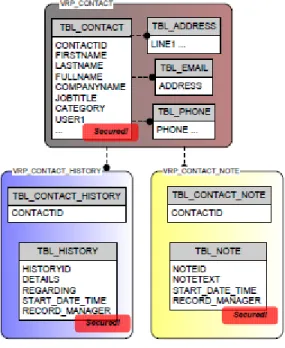
The “Contact Notes” view, named VRP_CONTACT_NOTE, contains all of the Note columns and just the Primary Key column for the Contact record (CONTACTID), not the Contact columns themselves. The user would need to join the two views appropriately to compose the query required to produce a report of Notes by Contact, for example.
Figure 1: How the user needs to join two views in Version 1.0
Version 2.0
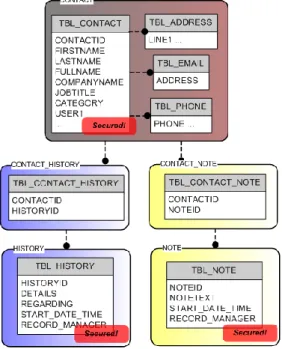
The “Contact Notes” view, named CONTACT_NOTE, contains only the Primary Key columns of each Entity/Sub-Entity that you need to join together. So this view will contain only two columns, the Note Primary Key column (NOTEID) and the Contact Primary Key column (CONTACTID). The user would need to join this view to the three Entity Views (CONTACT,
NOTE, CONTACT_NOTE) appropriately to compose the query required to produce a report of Notes by Contact, for example.
Figure 2: How the user needs to join the two views in Version 2.0
Figure 3: A more complete picture of the Act! Entity model, as implemented thru the OLE DB Provider version 2.0
The version 2.0
Provider that shipped
with ACT! by Sage
2010 and Sage ACT!
2011 offers some
additional capabilities
and exposes
metadata in a
different manner than
the original version
1.0 Provider.
Highlights of both OLE DB Provider versions include:
• Provides a read-only Act! logon to the database (using Act! credentials) • Returns the same secured data, respecting both Record-Level and
Field-Level Security, as the Act! application
• Provides a flattened data model presentation with relatively few view tables • Dynamic by design – updates automatically via Define Fields changes • Connection is available with the Act! Framework SDK for third-party
developer Add-Ons
• Includes the ability to query custom table data (note: the custom tables feature is currently an SDK feature and not a core feature of the Act! application)
The version 2.0 Provider offers some additional capabilities and exposes metadata in a different manner than the original Provider version 1.0. We recommend that any new development or use of the Act! OLE DB Reporting Provider is done with the version 2.0 Provider, as support for the version 1.0 Provider may be
discontinued in a subsequent release.
The following are some highlighted differences of each version of the Provider: Version 1.0:
• Views are constructed by a combination of using a static prefix (“VRP” for View Reporting Provider) and the logical table name.
• Any spillover tables, if applicable, generate their own reporting view; it is the user’s responsibility to correctly join to these views as necessary. • Column names are fully-qualified for discoverability to include their table
name and column name: “<Tablename> <Columnname>”.
• Column names are updated dynamically if they are renamed via the Define Fields feature in Act!.
• There is no ability to query Activity data, nor Group or Company Contact members.
• Extended data, such as Notes and History, is only accessible thru its parent Act! record of Contact, Group, Company or Opportunity (i.e. you cannot directly query Histories independent of its parent/associated record).
Version 2.0:
• Separates Entity (i.e. Contact, Group, Company and Opportunity) and Sub-Entity (Note, History and Activity) records for better autonomy and easier, more flexible reporting. This allows more direct-reporting of “Histories by User”, for example, without regard to the type of Entity record the History is associated with.
• Views include all fields created as a result of record field customization (via Define Fields and/or any add-on products) – one logical view per Entity or Sub-Entity. This provides a much simpler and centralized view of each record.
• Act! data type adherence for Uppercase, Lowercase, and Initial Caps character fields. This means character data will appear just as it does in Act!.
• Date, Time, and Datetime values default to local client time (configurable per connection). This means date/time values will appear as they do in Act!.
• A fully-expanded “My Record” view which includes all Contact fields. • Optional descriptive text for views and columns (currently can only be set
via the Act! SDK). This description can be seen in some third-party report tools, such as Crystal Reports, to assist the user in understanding what the view or column contains.
With OLE DB v2.0, View column names are based on the field Alias Name which was introduced in ACT! by Sage 10.02. This value can be set programmatically via the Act! SDK by an add-on product. Fields added via Define Fields are set with the name provided when created:
• Alias Names do not change; Queries will not break if a field name is changed
• Use the “Database Structure>Fields Detail Report” in ActDiag to see field name information (“OLE/DB Column” is for the OLEDB v1.0 Provider, the “OLEDB(2) Column” shows the field for the version 2.0 Provider)
In addition to reporting software outside of the Act! application, versions of Act! later than ACT! by Sage 2010 include a Dashboard Component which uses the OLE DB Reporting Provider 2.0. This component, named “Data Chart”, can be customized to provide virtually any custom list or chart desired in a Dashboard. The source definition for this component is contained in the file
Act.Dashboard.DataChart.XMLwhich resides in the \Tools folder beneath where the Act! program is installed. When installed, this file contains a number of stock queries which can be selected while in Design Layout mode. You can edit the XML file using any text editor, such as Notepad, to add, modify, or delete a query. You may find it easiest to write the query first using a query or reporting tool, then copy and paste that SQL Server query into the XML file.
The following depicts the properties of creating a database connection via third-party reporting and query tools. As noted, there are two versions of the Act! Provider.
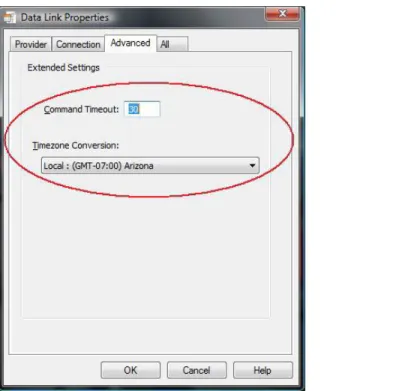
For the version 2.0 Provider, additional connection options can be set on the “Advanced” tab of the connection properties dialog:
• Command Timeout – Value (in seconds) in which the SQL Server query is allowed to complete before timing-out. Initialized to 30 seconds by default; if you experience “Timeout expired” messages, you can increase this value. A value of zero (0) specifies no timeout.
• Timezone Conversion – Datetime values are stored in the Act! database as Universal Time (UTC). By default, the Provider will display these values using your Windows® time zone setting. This can be changed to view datetime values in another time zone.
Figure 5: The Provider displays datetime values using your Windows time zone setting, but this can be changed
The Provider offers a good amount of abstraction and flattening of the relational tables which comprise a logical record in Act!. These records are referred to as Entities and Sub-entities which include:
• Contacts, Groups, Companies, and Opportunities (Entities) • Notes, Histories, and Activities (Sub-entities)
• Custom sub-entity tables created via the Act! Software Developers Kit (SDK)
• Schema metadata
• Characteristic, Security, and other supporting tables Typical Uses:
• Creating and running third-party reports such as Crystal Reports to return secured data (both record and field level)
• Reporting and querying data in custom tables (Sub-Entities) as this is currently not possible in the Act! Report Designer
• Custom Data Chart Dashboard Component queries within the Act! application
See the Conclusion section of this document for a comparison of features/abilities between OLE DB version 1.0 and 2.0.
Act! Reader
The Act! Reader is a utility included with Act! Premium. This utility is used to set a password for the ACTREADER SQL Server account. This account has read-only access to all Premium databases on the machine for which the password has been set.
The Act! Reader utility allows you to:
• Establish a connection to the local Microsoft SQL Server (ACT7) instance to manage the instance ACTREADER password.
• Set (and reset) a password for the Act! Reader account. Once you set the password, you can use this account from any third-party software (for example, Crystal Reports or Microsoft Access®), from virtually any
machine, to connect to a Premium database on the machine and generate
Act! Reader utility
only works with Act!
Premium and Act!
Premium (access via
web).
Highlights include:
• Allows direct read-only SQL Server access to native tables and data • Allows un-secured data access (i.e. no data is Private!)
• Does not require an Act! logon
• Supported in Act! Premium and Act! Premium (access via web) databases only
• Can be used for ODBC, OLE DB, or SQL Server Native Client connections • Requires fundamental SQL Server language and relational database
knowledge to construct queries properly Typical Uses:
• Data extraction and rollup reporting, as no data is secured or filtered by security (no FLS nor RLS).
• To connect using ODBC connection when some reporting or query software does not support OLE DB, such as Microsoft Access. While the Act! Reader Utility itself only operates in a local context (on the local machine SQL Server instance in Act!), once the password has been set, access and logon to the SQL Server instance in Act! can be made from any machine which is able to communicate with the host database machine. The password can be changed at any time – to change the password, however, the user must know the current password. If the current password has been forgotten, you must contact Act! Technical Support to guide you thru the process of resetting the Act! Reader password.
Figure 6: The Act! Reader Utility
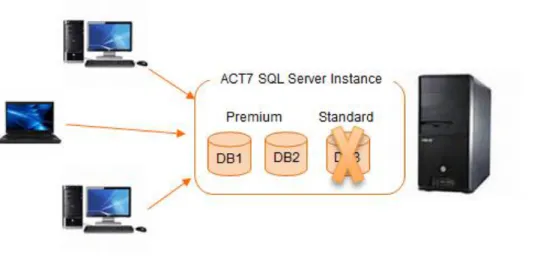
The following diagram depicts a machine running a SQL Server instance in Act!, hosting multiple Premium and Pro Act! databases. As noted, the ActReader account will have access to any and all Premium tier databases on the SQL Server instance, but no access to any Pro tier databases.
Figure 7: This illustrates how the user needs to join the two views in Version 1.0
To use the ActReader account with a third-party reporting or query tool, you simply specify “ACTREADER” as the login name, then the password as it was set with the Act! Reader Utility. For the server, remember that Act! runs against a named instance of SQL Server, “ACT7”. You’ll need to include this after your machine name, like: “My_Machine\ACT7”.
The “sa” account
(System
Administrator) is a
built-in account that is
the most powerful
account in the
Microsoft SQL Server
security model.
Act! Software Developers Kit
The Act! SDK, or Software Developers Kit, is the preferred and supported method of interacting with the product and database for the purposes of writing data, as well as extending the Act! product itself. The SDK is built on the Microsoft .Net platform offering a highly-customizable and feature-rich programmatic environment for the developer. In fact, the Act! application itself is written on this platform, that is to say it uses this same Act! SDK.
The Act! SDK consists of feature‐rich components that are highly extensible. Where Act! seeks to empower the end users to customize the product to their business, the Act! SDK helps third parties and other developers extend that vision through independent development.
Highlights include:
• Developer-oriented approach requiring familiarity with programming concepts
• Requires an Act! logon
• Not “Report Writer-friendly” (i.e. Crystal Reports)
• Exposes built-in functionality for creating custom solutions • Provides the Act! data experience
• Typically used to further extend and customize the Act! application to meet a specific requirement by the user
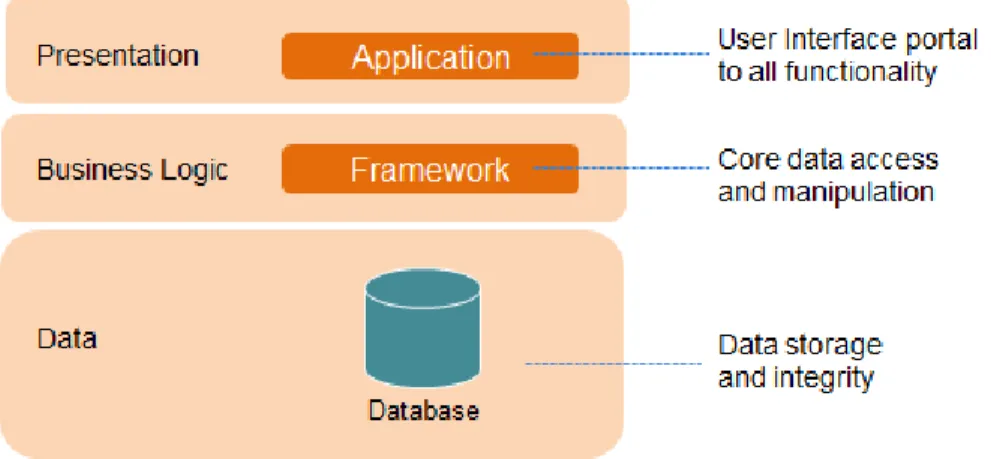
The Act! platform has three logical tiers: • Application
• Framework • Database
Figure 7: The SDK development platform
Conclusion
The Act! product, supplemented by the four Data Access Methods described here, provides a robust, flexible and rich set of abilities to meet most all user reporting and data extraction needs. Act! offers users read-only access through two versions of the OLE DB Provider. Administrators can choose to set a password through Act! Reader to grant direct read-only access to all Premium databases. A higher level of security can be gained by using Act! Password—which offers the most powerful account in the SQL Security model and provides full access to all databases. If an organization is seeking to customize Act! to its business, the SDK provides feature‐rich components that are highly extensible. The SDK is the preferred and supported method of writing data to Act!.
Appendix
This document has provided a description of four different Reporting and Data Access Methods, capturing some highlights and abilities of each. The following table provides some features and scenarios which may provide guidance on selecting the most appropriate method to query the Act! data.
Data Access Method Comparison
Characteristic / Requirement OLE DB v1.0 OLE DB v2.0 Act! Reader
Act! Pro Yes Yes
Act! Premium (including Act! Premium (access via web))
Yes Yes Yes
Respects Act! Security (FLS/RLS)
Yes Yes
Objects Accessed Views Views Tables
Column naming convention Friendly name
as input by the user; changes when renamed
System Alias Name; does not
change when renamed in Define Fields
Native physical name in SQL
Server
Activities available No Yes Yes
Group and Company members available
No Yes Yes
Custom tables (sub-entities) available
Yes Yes Yes
Spillover table exposure View for each
spillover table Spillover tables included in entity view Each physical table
Date/Time values UTC/GMT Local UTC/GMT
Act! character data type conformance
No Yes No
OLE DB Connection Yes Yes Yes
Terms and Concepts
For the purposes of these Data Access Methods, the following series of terms will help you understand some of the challenges, and terminologies, often required when working with relational databases. Some terms are more specific to Act!, however.
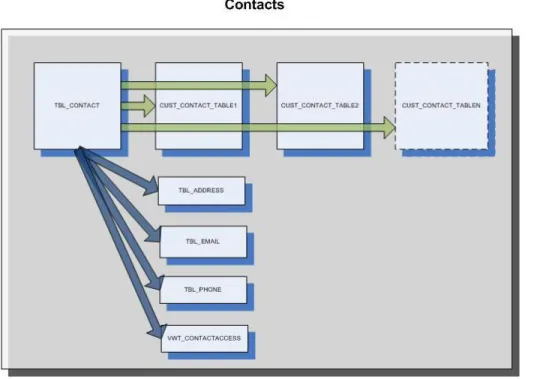
• Base Table – the core/primary table containing the stock and some custom (user-added) fields. There is one per Act! entity (i.e. Record Type). • Spillover Table – table which extends an Act! Entity (such as Contact)
beyond a physical table storage limitation by the underlying RDBMS. In SQL Server, as well as most other RDBMS vendor products, there are limitations in table size definition and the number of fields.
Figure 8: A conceptual view of the spillover table design
Spillover tables are implemented as a one-to-zero-or-one cardinality (aka Z-cardinality), so there is not a one-for-one record in each spillover table for each
spillover table will contain a record. Spillover tables inherit the Primary Key column (such as CONTACTID) of the entity base table which they are extending.
• Access Control List (ACL) – a list on each Act! Entity identifying the users and/or teams which have access to the record. Having access to a record does not imply nor infer action(s) that can be taken against that record – that resides in the Act! Permissions module.
• Row-Level Security (RLS) – only allow the requestor to see records to which they have access. For entity records, this access is either direct (user themselves) or indirect (via team membership) via ACL. For sub-entities (Notes, Histories, Activities, and custom sub-sub-entities) this means Private to the requesting user, or Public.
• Field-Level Security (FLS) – only allow the requestor to see the contents/data of a field to which they have access. This applies for all records in the table, it is not on a record-by-record basis.
• Globally Unique Identifier (GUID) – a 36-character alpha-numeric value used on most every table in the Act! database. Used as the Primary Key (identifier) for a record.
• Primary Key (PK) – one, or more, field(s) on a table which is used to uniquely identify a record. No two records in the table can have the same Primary Key column value(s).
• Foreign Key (FK) – a field on a dependent table (aka “child” table) that references a record in another table (aka “parent” table). A join is generally performed between two tables using this Primary Key and Foreign Key relationship.
• Cardinality – a mathematic phrase to express the number of records between two tables in a set (relation). For example, one record in the Contact table having three related records in the Address table has a 1:3, also referred to as a one-to-many, cardinality.
OLE DB v1.0 vs. v2.0 Comparison
Feature / Behavior OLE DB v1.0 OLE DB v2.0
View name • “VRP_” prefixed
• Entity or table name based • No prefix • Entity and sub-entity name based View structure • Each spillover table has its
own view
• User has to determine which view a desired field resides on
• Complexity in
INNER/OUTER join logic for query writing
• Entity view contains all fields including those on spillover tables
• Mitigates requirement to know where field resides
• Join complexity is eliminated Building block design • Views are entity-based
• Must query thru entity to get to sub-entity records (i.e.
VRP_CONTACT_HISTORY) • Must UNION all three
History views (Contact, Group, Company) to obtain all possible records
• Views are more autonomous
• Sub-entities have their own views (i.e. HISTORY) • Can query History
independent of related entity(ies) (no UNION required)
• Relationship views are now just Join Keys Three major subject
areas
• Content (Contacts, Histories, etc.)
• Limited configuration (pick list, team, user, etc.) • Tables and columns
• Content (Contacts, Histories, etc.)
• Configuration (pick list, Team, User, History Types, Activity Types, etc.)
• Tables, columns, database configuration, Primary and Foreign Keys
“My Record” • Shows limited fields
• Have to join to
VRP_CONTACT to get the “My Record” (Contact) fields
• Mirrors the CONTACT view – no need to join to CONTACT
• Also includes USERID Act! character
data types (Uppercase, Lowercase, Initial Caps)
• Character data types are not rendered accordingly
• Character data types are properly rendered
Act! Date/Time fields
• Displayed in UTC value • Supports timezone conversion
• Configuration per-connection on the Advanced tab Expanded stock
“Yes/No” fields • Only the 0 or 1 values are available
• The 0 or 1 value is available
• A complementary character field is also available (localized to “Yes” “No”)
• 0/1 recommended for WHERE clause • “Yes”/”No”
recommended for SELECT clause Query Command
Timeout
• Non-configurable at 30 seconds
• Defaults to 30 seconds • Configurable (Advanced
tab)
Descriptions • No Descriptions at any
level
• Description available for:
o Entity (View) o Column • Note: Descriptions
currently only settable via SDK
About Swiftpage
Swiftpage is committed to empowering individuals, small business and mobile sales teams to better manage their business interactions, more intelligently engage their customers, and convert more interactions into transactions. The company’s growing network of partners, customers, end-users and employees collectively represent the Swiftpage Nation, united across the globe as one team, on one journey. Learn more at www.swiftpage.com and join the conversation at social.swiftpage.com. © 2014 Swiftpage ACT! LLC. All Rights Reserved. Swiftpage, Act!, Saleslogix, and the Swiftpage product and service names mentioned herein are registered trademarks or trademarks of Swiftpage ACT! LLC, or its affiliated entities. All other trademarks are propertyof their respective owners.