~AT.T
730X
Comcode 501013023 Catalogue Number 999-300-646 Issue 1, November 1989
To Order Copies of This Guide
Contact: Your AT& T Information Systems Account Team Or
Call: AT& T Technologies, Inc. on 800-432-6600 Or
Write: AT& T Customer Information Center P.O. Box 19901
Indianapolis, Indiana 46219
Order: Document No. 999-300-646, Issue 1 Comcode 501013023
Copyright © 1989 AT&T All Rights Reserved
WARNING
This equipment generates, uses and can radiate radio frequency energy and if not installed and used in accordance with the
instructions manual, may cause interference to radio communications. It has been tested and found to comply with the limits for a Class A computing device pursuant to Subpart J of Part 15 of the FCC Rules, which are designed to provide reasonable protection against such interference when operated in a commercial environment. Operation of this equipment in a residential area is likely to cause interference in which case the user at his own expense will be required to take whatever measures may be required to correct the interference.
CANADIAN DOC COMPLIANCE INFORMATION
This digital apparatus does not exceed the Class A limits for radio noise emissions set out in the Radio Interference Regulations of the Canadian Department of Communications.
Le present appareil numerique n'emet pas de bruits radioelectriques depassant les limites applicables aux appareils numeriques de la classe A prescrites dans Ie Reglement sur Ie brouillage radioelectrique edicte par Ie ministere des Communications du Canada.
NOTICE
Contents
Overview
About This Guide 1-1 Introducing the 730X 1-2 Contacting AT&T 1-4
For Help with 730X Problems 1-4 For Product Information 1-4
For Design and Installation Services 1-4 Ordering Products 1-5
Document Conventions 1-6
Environment
Introduction 2-1730X System Environment Requirements 2-2 730X System Packages 2-5
730X Cartridge Package 2-5 Host Utilities Packages 2-6
730X Source Host Package Installation 3-11 730X Cartridge Installation 3-13
Unpacking 3-13
Inserting the Cartridge 3-13 Powering Up the Terminal 3-14 Removing the Cartridge 3-14
Operation
Introduction 4-1 730X Options 4-2730 MTG Terminal and Network Interface Options 4-2 Xadmin 4-3
Environment Swapping 4-12 Starting the 730X Server 4-13 Using the System 4-15
Font Information 4-16 730X System Fonts 4-16 Memory Usage 4-22
Memory Conservation 4-24
Minimum Memory Configuration 4-24
Troubleshooting
Introduction 5-1Trouble Conditions and Solutions 5-2
Appendix M: Manual Pages
Index
Figure 2-1 Figure 3-1 Figure 4-1 Figure 4-2 Figure 4-3 Figure 4-4 Figure 4-5 Figure 4-6 Figure 4-7 Figure 4-8
List of Figures
Typical 730X System Environment Cartridge Installation
Selecting Xadmin Xadmin Menu
730X Server Reboot Confirmation Message X Server Options (Page 1 of 2)
X Server Options (Page 2 of 2) Environment Swapping
Low Memory Warning Message Fatal X Server Error Message
2-2 3-13
Chapter 1: Overview
Contents
About This Guide 1-1
Introducing the 730X 1-2
Contacting AT&T 1-4
For Help with 730X Problems 1-4 For Product Information 1-4
For Design and Installation Services 1-4
Ordering Products 1-5
About This Guide
This 730X User's Guide describes how to install a 730X System and operate a 730X Terminal. Included is a description of the
requirements of the 730X System environment.
• Chapter 1: Overview
This chapter briefly defines the 730X System (server and host support utilities) and describes the organization of this manual.
• Chapter 2: Environment
This chapter provides a description of the 730X packages and requirements of the 730X System environment.
• Chapter 3: Installation
This chapter provides instructions to the user for installing the 730X Cartridge in a 730 MTG Terminal. In addition, the system administrator Is given instructions for Installing the 730X host software packages.
• Chapter 4: Operation
This chapter describes 730X System operation. This includes 730X Server administration, environment swapping, font management and running an X application.
• Chapter 5: Error Messages
This chapter describes how to recover from errors and failures.
• Manual pages
Introducing the 730X
The 730X System consists of an X Window System 1 server (730X Server) and host utilities.
The 730X Server is an implementation of an X Window System server for the AT&T 730 Multi-Tasking with Graphics·terminal (730 MTG). The X Window System is a network transparent graphical windowing system that enables multiple applications to be simultaneously rendered on a single display. An X Window System server is a
program running in a terminal or workstation that controls the display and interacts with X Window System applications (X clients). The 730X server interacts with host-based X clients over a StarLAN 10 local area network. The 730X Server is compatible with X11 R3 protocol.
The 730X host utilities provide font and color database files for the 730X Server and a 730X file server, which is needed when using the ISO protocol over a StarLAN 10 network to allow remote access to fonts and the color database. Host utilities also include font and color database compilers and additional font utilities.
When TCP/IP protocol is used over the StarLAN 10 network, the Trivial File Transfer Protocol (TFTP) is used to allow remote access to fonts and the color database in place of the 730X file server. TFTP is
assumed to be present on the remote host and is not included with the 730X host utilities.
1 X Window System is a registered trademark of Massachusetts Institute of Technology
Introducing the 730X
The 730X System is packaged as follows:
730X Cartridge Package This package consists of the 730X Server (residing in a 730 MTG cartridge), 730X User's Guide and 730X Release Notes.
730X Binary Host Package This package supplies the host utilities on floppy diskettes in binary format (supported hosts are
6386WGS and 382/1000).
Contacting AT&T
For Help with 730X Problems
If you have a problem using the 730X, contact your system or network administrator. If the problem persists, you or your administrator can call a representative at the original place of purchase. If you
purchased the 730X from AT&T, call the AT&T National System Support Center hotline:
• In the United States and Puerto Rico, dial 1-800-922-0354. • In Canada, dial 1-800-245-2480.
• In all other countries, call your authorized AT&T dealer.
For Product Information
For information about AT&T products, call your AT&T Account Executive or the AT&T Advertising Response Center:
• In the United States and Puerto Rico, dial 1-800-247 .. 1212. • In Canada, dial 1-800-361-7951.
• In all other countries, call your authorized AT&T dealer.
For Design and Installation Services
The AT&T Customer Programming Services Center provides a full range of services, including the following:
• Detailed review of your system needs • Network design
• Installation of the AT&T 730X in non-standard and non-AT&T wiring environments
For more information about the AT&T Customer Programming Services Center, contact your AT&T Account Executive or the AT&T Advertising Response Center.
Ordering Products
You can order additional 730X packages from your AT&T Account Executive or your authorized AT&T dealer. Provide the following information when you order:
• 730X Cartridge Package Price Element (P.E) Code: 33503 • 730X Binary Host Package Price Element (P.E) Code: 1331-731 • 730X Source Host Package Comcode: 846481950
• 730 StarLAN 10 ISO NAU Price Element (P. E) Code: 33540 • 730 StarLAN 10 TCP/IP NAU Price Element (P. E) Code: 33541 • Ram expansion kits for the 730 StarLAN 10 ISO NAU and 730
StarLAN 10 TCP/IP NAU.
The number of kits ordered depends on the memory size you want to expand your 730 MTG terminal to:
RAM Configuration Number P. E. Code 0.5M bytes
1M bytes 2M bytes 2.5M bytes 4M bytes
of Kits 1 2 1 1 1 2
Document Conventions
Certain typographical conventions, such as boldface and italics, are used to reinforce and clarify the difference between types of
information. The following are the conventions used in this document: • When used in text, file names and program names appear in
italics.
• When used in text, computer output, such as prompts and messages, appear in computer style type.
• When used in illustrations, computer output appears in normal type.
• When used in Illustrations, commands that you issue to the computer appear in boldface.
• Keyboard references appear in all boldface letters and are <BRACKETED>.
Chapter 2: Environment
Contents
Introduction 2-1
730X System Environment Requirements 2-2
Introduction
This chapter describes the requirements of the 730X System
environment and gives a description of the 730X packages required in this environment.
The 730X System enables a user to interact with any X client on a remote host. Examples include:
• applications in the AT&T Xwin complete package
• X applications conforming to the AT&T OPEN LOOK graphical user interface
• MS-DOS 1 applications running under Simul-Task2•
• any application that conforms to the X protocol specification, X11R3
730X System Environment Requirements
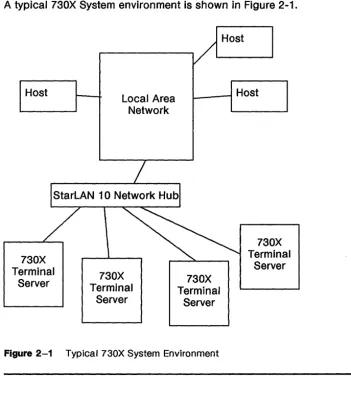
A typical 730X System environment is shown in Figure 2-1.
Host
730X Terminal
Server
Local Area Network
730X Terminal
Server
Host
' - _ - , Host
730X Terminal
Server
730X Terminal
[image:19.461.36.388.110.530.2]Server
Figure 2-1 Typical 730X System Environment
730X System Environment Requirements
This environment has the following requirements: • A 730X Terminal Server consisting of:
• A 730 MTG terminal. If you have an AT&T 630 MTG Terminal, you can convert this to a 730 MTG by ordering a 730 MTG Upgrade Kit (Comcode 523484293) using the P.E. Code 33544.
• A network access interface card installed in the 730 MTG terminal. Choose an interface card to match your network.
• A 730 StarLAN 10 ISO NAU (Network Access Unit) with a minimum of 512K RAM
• A 730 StarLAN 10 TCP/IP NAU with a minimum of 512K RAM.
• 730X Server cartridge.
730X System Environment Requirements
• Host(s) having access to the same Local Area Network (LAN) as the 730X terminal server and supporting X clients. At least one of the hosts on the LAN will need to be equipped with the
730X host utilities to allow the 730X server to gain access to font and color database files. Each host on the network equipped with the 730X host utilities can be designated as a
730X font host. The 730X server allows the specification of a primary and secondary font host. Additional information on fonts is in Chapter 4.
If the host is using StarLAN 10 and the 73,OX terminal server needs to get fonts from that host, the host must support the
730X file server. The 730X file server is provided in the 730X
host utilities.
If the host is using TCP/IP and the 730X terminal server needs to get fonts from that host, the host must support the tftp (trivial file transfer protocol) feature.
NOTE: It is not necessary for a host to be equipped with the
730X host utilities in order for X clients on that host to interact with a 730X server.
• A Local Area Network supporting StarLAN 10 ISO or TCP/IP protocol.
All physical LAN connections to the 730 MTG are to a StarLAN
10 Network Hub. The StarLAN 10 Network Hub allows connection to both StarLAN 10 and Ethernet networks. Thus the 730 MTG may be used with Ethernet networks by first passing thru a StarLAN 10 Network Hub.
730X System Packages
A 730X System environment requires at least one of the 730X host utilities packages and one or more 730X terminal servers. You should order the 730X Binary Host Package if you intend to use a 6386WGS or a 382/1000 as a host to provide font and color database file access for 730X terminal servers on the network3• You should order
the 730X Source Host Package if you intend to use a host other than these as a font host for the 730X server. You should order a 730X Cartridge Package for each 730 MTG you wish to configure as a 730X terminal server.
NOTE: At least one host on the network must provide the 730X host utilities.
730X Cartridge Package
The 730X Cartridge Package (Comcode 523488088, PE Code 33503) consists of the following:
Description 730X Cartridge
730X User's Guide 730X Release Notes
730X System Packages
Host Utilities Packages
The 730X host utilities are supplied in binary format on diskette (for the 6386WGS or 382/1000) or in source format on a 9-track source tape. The 730X host utilities (binary and source) consist of the file server for color database and font file access over the StarLAN 10 network (tftp is used when the LAN protocol is TCP/IP), font and color database compilers, color database, a compiled subset of X11 R2 fonts, and font utilities. In addition, the source tape contains a complete set of compiled X11 R3 fonts.
730X Binary Host Package
The 730X Binary Host Package (Comcode 523488096, PE Code 1331-731) consists of the following:
Description
730X 382 5.25" Diskette (1.2Mg Format) 730X 6386WGS 5.25" Diskette (1.2Mg Format) 730X 6386WGS 3.5" Diskette (1.44Mg Format)
730X Source Host Package
Comcode 523488054 523488062 523488070
The 730X Source Host Package (Comcode 846481950) consists of the following:
Description Comcode
730X Host Source Tape 523488039
Chapter 3: Installation
Contents
Introduction 3-1
Host Software Installation 3-2
Installing the 730X Binary Host Package on a 6386WGS 3-2 Removing the 730X Binary Host Package from a 6386WGS 3-4 Installing the 730X Binary Host Package on a 3B2/1000 3-6
Removing the 730X Binary Host Package from a 3B2/1000 3-8
730X Source Host Package Installation 3-11
730X Cartridge Installation 3-13 Unpacking 3-13
Introduction
This chapter contains procedures for installing the 730X Server Cartridge and the host software utilities. Your 730 MTG terminal should be assembled according to the instructions found in your 730 MTG terminal user's guide.
Not included in this chapter are the instructions for installing the 730 StarLAN 10 ISO NAU or the 730 StarLAN 10 TCP/IP NAU along with its added memory. For this information refer to the user's guide
Host Software Installation
Installation and removal of the 730X Binary Host Package is handled by the installpkg and removepkg commands on the 6386WGS. If you have a 3B2/1000 computer, use the sysadm installpkg and sysadm removepkg commands to install and remove the host software. The 730X Binary Host Package requires there to be at least 500 blocks 1 (.25M byte) of free space in each of the I and lusr filesystems to install this software.
When you are installing or removing the 730X Binary Host Package, you must be logged in as root.
The 730X Source Host Package is supplied on a 9-track tape. It can be installed on any machine that has access to a 9-track tape drive. The 730X Source Host Package requires there to be at least 8200 blocks (4.1 M bytes) of free space in the filesystem that is to contain the source files. When you compile the source code, an additional 1000 blocks (.5M bytes) will be needed.
Installing the 730X Binary Host Package on a 6386WGS
The 730X Binary Host Package is installed on the 6386WGS by executing installpkg. Select either the 5.25 or 3.5 inch floppy
(depending on the type of floppy drive on your host), and insert it into the floppy drive.
1 Execute installpkg. # installpkg
1 One block is 512 bytes ..
Host Software Installa tion
2 installpkg first reads in the contents of the floppy disks. If you have more than one floppy disk drive, installpkg. will ask you which drive you will be using. If you haven't put the floppy diskette in the drive, installpkg will prompt you to do so. Insert the appropriate floppy into the floppy disk drive and press <ENTER>.
3 A message notifying the user of the package being installed is given:
Installing the AT&T 730X Binary Host Package Release 1.0
4 If any of the files being installed already exist on the system, the following prompt is given:
<File> already exists.
OK to overwrite (yes/no) [n] ?
Answering "yes" overwrites the existing file. Striking <ENTER> or entering "no" leaves the existing file as is.
5 The file server, Xmtg, must be registered with the network listener if the server is to access the host over StarLAN.
The Xmtg file server must be registered with the network listener if STARLAN is to be used.
Register Xmtg with network listener (yes/no) [y] ?
The Network Support Utilities (NSU) must be installed to do this. If the NSU is installed and you will be accessing hosts over StarLAN, answer "yes". If you answer "no", Xmtg can be registered with the network listener later by executing
Host Software Installation
If there is a problem registering Xmtg with the network listener, an error message is given followed by this warning message:
Warning: Unable to register Xmtg with network listener!
Possible Problems:
1. STARLAN is not supported on this machine.
2. Xmtg is already registered with network listener. 3. Network Support Utilities are not installed.
If you wish to use Xmtg correct the problem and execute /usr/Xmtg/lib/startXmtg after installation.
A checklist of likely causes of the problem is displayed and installation will continue to completion. However, you should correct the problem and execute lusrlXmtglliblstartXmtg as indicated after the installation has completed. See the manual page for more information on startXmtg.
6 Once all questions have been answered, the package files are copied into their respective directories.
No kernel tuning is performed during the installation of the 730X Binary Host Package on the 6386WGS.
Removing the 730X Binary Host Package from a
6386WGS
Follow these procedures to remove the 730X Binary Host Package from a 6386WGS. After removing this package from your host, new client connections to the 730X Server may stili be made from your host, but the 730X Server must obtain font file and color database information from another host on the network.
1 Before you remove the 730X Binary Host Package, check to ensure that no 730X terminals are currently using this machine as a Primary Font Host or Secondary Font Host.
For a StarLAN 10 network this is done by first executing the
command,lusrIXmtglliblstopXmtg. See the manual page for more information on stopXmtg.
# /usr/Xmtg/lib/stopXmtg
Removing Xmtg from network listener's set of services
Host Software Installation
stopXmtg removes Xmtg from the network listener's set of services. 730X terminals which are currently connected to this host are not affected by this command. They remain
connected until they are shut off, rebooted, or their host fileserver process is killed.
If font and rgb host access is done using TCP/IP network protocol, notify users that this package is being removed and that font and rgb requests to this host will not be serviced and skip the next step (Step 2).
2 Determine if any 730X terminals are still connected to this host.
# ps -fe
I
grep XmtgI
grep -v grepThis command lists any instances of the fileserver, Xmtg,
which are still running. An instance of lusrlXmtglliblXmtg is displayed for each 730X terminal that is connected to this host. The users of these terminals should be notified and the
Xmtg processes killed.
3 Once all instances of Xmtg have been terminated, you can remove the 730X Binary Host Package. Execute removepkg.
# removepkg
4 Removepkg initially displays a menu of installed packages. You should select the AT&T 730X Binary Host Package Release 1.0 from the menu.
5 A message notifying the user of the package being removed is given:
Host Software Installation
7 All binary files are then deleted.
Deleting Files ...
8 If any file that should be deleted cannot be found, no error is reported.
Installing the 730X Binary Host Package on a 3B2/1000
The 730X Binary Host Package is installed on the 382/1000 by executing sysadm installpkg.
1 Execute sysadm installpkg.
# sysadm installpkg
2 The user is prompted to insert the first installable floppy:
Insert the removable medium for the package you want to install into the diskette! drive.
Press <RETURN> when ready. Type q to quit.
Insert the floppy disk containing the 730X Binary Host Package (3B2 format) into drive 1 and press <ENTER>. Sysadm
installpkg mounts the diskette and reads in its contents.
3 First, a check is made to make sure there Is enough room in the
I
andlusr
file systems to install the package. If there is not enough room, a message of the following form will bedisplayed:
**ERROR** <package> cannot be installed
Not enough space on the hard disk
Installation Aborted!
The installation is then aborted. You will need to provide at least 500 blocks (.25M byte) of disk space in each of the I and
lusr
filesystems and restart the installation.Host Software Installation
4 A message notifying the user .of the package being installed is given:
Installing the AT&T 730X Binary Host Package Release 1.0
5 If any of the files being installed already exist on the system, the following prompt is given:
<File> already exists.
OK to overwrite (yes/no) [n] ?
Answering "yes" overwrites the existing file. Striking <ENTER> or entering "no" leaves the existing file as it.
6 The file server, Xmtg, must be registered with the network listener if the server is to access the host over StarLAN.
The Xmtg file server must be registered with the network listener if STARLAN is to be used.
Register Xmtg with network listener (yes/no) [y]?
The Network Support Utilities (NSU) must be installed to do this. If the NSU is installed and you will be accessing hosts over StarLAN, answer "yes". If you answer "no", Xmtg can be registered with the network listener later by executing
lusrlXmtglliblstartXmtg.
If there is a problem registering Xmtg with the network listener, an error message is given followed by this warning message:
Warning: Unable to register Xmtg with network listener!
Possible Problems:
1. STARLAN is not supported on this machine.
Host Software Installa tion
A checklist of likely causes of the problem is displayed and installation will continue to completion. However, you should correct the problem and execute lusrlXmtglliblstartXmtg as indicated after the installation has completed. See the manual page for more information on startXmtg.
7 Once all questions have been answered, the package files are copied into their respective directories.
No kernel tuning is performed during the installation of the 730X Binary Host Package on the 382/1000.
Removing the 730X Binary Host Package from a
3B2/1000
Follow these procedures to remove the 730X Binary Host Package from a 382/1000. After removing this package from your host, new client connections to the 730X Server may still be made from your host, but the 730X Server must obtain font file and color database information from another host on the network.
1 Before you remove the 730X Binary Host Package, check to ensure that no 730X terminals are currently using this machine as a Primary Font Host or Secondary Font Host.
For StarLAN 10 networks, this is done by first executing the
command,lusrIXmtglliblstopXmtg. See the manual page for
more information on stopXmtg.
# /usr/Xmtg/lib/stopXmtg
Removing Xmtg from network listener's set of services
stopXmtg removes Xmtg from the network listener's set of
services. 730X terminals which are currently connected to this host are riot affected by this command. They remain
connected until they are shut off, rebooted, or their host fileserver process is killed.
If font and rgb host access is done using TCP/IP network protocol, notify users that this package is being removed and that font and rgb requests to this host will not be serviced and skip the next step (Step 2).
Host Software Installation
2 Determine if any 730X terminals are still connected to this host.
t ps -fe
I
grep XmtgI
grep -v grepThis command lists any instances of the fileserver, Xmtg, which are stili running. An Instance of lusrlXmtglliblXmtg is displayed for each 730X terminal that is connected to this host. The users of these terminals should be notified and the Xmtg processes killed.
3 Once all Instances of Xmtg have been terminated, you can remove the 730X Binary Host Package. Execute sysadm removepkg.
t sysadm removepkg
4 Sysadm removepkg initially displays a menu of installed packages. Then, It prompts:
Insert the removable medium for the package you wish to remove into the diskette1 drive.
Press <RETURN> when ready. Type q to quit.
To remove the package from a 382/1000, the floppy containing the 730X Binary Host Package Release 1.0 (3B2 format) must be Inserted in the main floppy disk drive. Insert the floppy and press return.
S A message notifying the user of the package being removed is given:
Removing the AT&T 730X Binary Host Package Release 1.0
Host Software Installation
7 All binary files are then deleted.
Deleting Files ...
8 If any file that should be deleted cannot be found, no error is reported.
The AT&T 730X Binary Host Package Release 1.0 has been removed.
You may now remove the medium from the diskette 1 drive.
Insert the removable medium for the package you wish to remove into the diskette1 drive.
Press <RETURN> when ready. Type q to quit.
9 Enter 'q' and press <ENTER> to exit sysadm removepkg. You may now remove the floppy disk from the disk drive.
Host Software Installation
730X Source Host Package Installation
The 730X Source Host Package resides on a 9-track tape. It contains the source code for the 730X host software executables, and fonts and rgb database that have been compiled for the 730X Server. See the Release Notes for more information about the contents of the 730X Source Host Package.
The source tape may be loaded (using cpio -iBdcum) anywhere. It is recommended that the source files be loaded into the lusrlXmtg directory. This will create and fill the three subdirectories misc,
100dpi, and 75dpi in lusrlXmtglliblfonts. The source files for
executables will be in lusrlXmtglsrclmtg.
You will need 8200 blocks (4.1 megabytes) of disk space to load the tape and an additional 1000 blocks (.5M Qytes) to compile the source code.
Installation of the 730X Source Host Package into the lusrlXmtg directory is shown below. To load the software into a different directory, replace occurences of lusrlXmtg with the pathname of the directory In which you wish to install the software.
1 Create the directory (if necessary) where you want to Install the software and then change your current working directory to the newly created directory.
$ mkdir /usr/Xmtg $ cd /usr/Xmtg
2 Mount the tape on the 9-track tape drive and use cpio to load in the files.
$ epio -ideBumv < /dev/rmt/Om
Host Software Installation
The source code has been tested to compile correctly on a 6386WGS or a 382/1000. If the 730X Source Host Package has been installed on a machine other than a 6386WGS or 382/1000, some modifications may need to be made to the source code to correctly compile the source code.
To compile the source, follow these steps: In this example, the 730X Source Host Package is assumed to have been previously loaded into
lusrlXmtg.
1 Go to the root of the source tree.
$ cd /usr/Xmtg/src/mtg
2 Make boot.sh executable.
$ chmod +x boot.sh
3 Execute boot.sh.
$ ./boot.sh
This command builds Makefiles, compiles the source code, and installs the binaries in lusrlXmtglbin and lusrlXmtgllib. Manual pages
are installed in lusrlXmtglmanlmann.
While compiling the source code, several warning message may be displayed. These are normal and should be ignored unless compiling aborts.
730X Cartridge Installation
Unpacking
Remove the 730X cartridge from its carton. Before installing it, confirm ordering information against the carton markings, check for damage to contents, and confirm that the 730X Cartridge Package contains those Items listed in Chapter 2. Contact your AT&T Account Executive if any items are damaged or missing.
Caution: To avoid condensation on the electronic components, the 730X cartridge should be allowed to assume room temperature before installing. This is especially important when the carton is brought into
a warm humid room from outside subzero
temperatures.Inserting the Cartridge
With terminal power "off", insert the cartridge into the slot on the right side of the base of your terminal with the guide tab side up (refer to figure 3-1). The bottom of the cartridge has raised letters OTHER SIDE UP to eliminate the possibility of inserting the cartridge incorrectly.
730X Cartridge Installation
Powering Up the Tenninal
Turn the terminal on.The terminal will perform a selftest, followed by a selftest for the network interface card. If either selftest fails, take corrective action as described in the user's guide for the terminal or network interface card.
After both selftests are finished, the terminal will be in the 730 MTG environment. The display will show a 730 MTG window and the Xadmin local window. The X Server Diagnostics area will show the status of the server startup procedures. Since the 730X options have not been entered, it is normal for various error messages to appear in the X Server Diagnostics area of the Xadmin local window.
Enter the options as described in Chapter 4 and reboot the 730X server.
Note: After the terminal boots, the user may switch between 730 mode and X mode by typing <CTRL-SPACE>. Refer to "Environment Swapping" in Chapter 4.
Removing the Cartridge
To remove the cartridge, turn off power, press down on the cartridge so that the guide tab clears the top edge of the opening in the side of the base, and slide the cartridge out of the base.
Chapter 4: Operation
Contents
Introduction 4-1
730X Options 4-2
730 MTG Terminal and Network Interface Options 4-2 Xadmin 4-3
Environment Swapping 4-12
Starting the 730X Server 4-13
Using the System 4-15
Introduction
730X Options
730 MTG Terminal and Network Interface Options
The 730X Server does not require any 730 MTG Setup options to be modified to use the 730X Server. Setup information for the 730 MTG can be found in the 730 MTG User's Guide, 999-300-652, that came with your terminal.
Setup information for the 730 StarLAN 10 ISO NAU can be found in the 730 StarLAN 10 ISONAU User's Guide, 999-300-624, that came with your network access unit. Setup information for the 730 StarLAN 10 TCP/IP NAU can be found in the 730 StarLAN 10 TCP/IP NAU User's Guide, 999-300-659, that came with your network access unit. The 730X Server may require changes to the 730 StarLAN 10 ISO or 730 StarLAN 10 TCP/IP network access unit 'options depending on the amount of memory on your network card. If your 730X Server has a network access unit with 512K of memory, refer to the section in this chapter, Memory Usage, for recommended option settings in the network access unit.
If you are using a 730 StarLAN 10 ISO network access unit in your 730X Server, the 730 StarLAN 10 ISO NAU option for Expected NAU Load should be set to heavy, regardless of the amount of memory in the network access unit.
If you have the 730 StarLAN 10 ISO network interface card installed in the 730 MTG, you should register the file server with the network listener during installation. This should be done during installation of the 730X Binary Host Package or after the 730X Source Host Package has been compiled. Refer to the installation instructions in Chapter 3.
730X Options
Xadmin
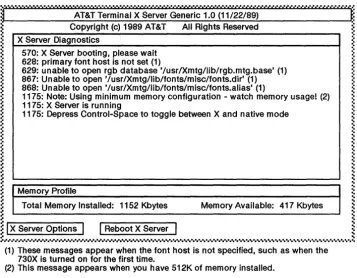
Xadmin is the 730X Server's administration utility that provides access to user selectable options, a diagnostics window, a memory usage indicator, and the ability to reset the 730X Server without resetting the entire terminal. User selectable options for the 730X Server are provided to set the default font, control the mouse speed, specify the screen saver operation, and select the network address for the host that contains the font and color database.
When the 730 MTG is turned on, the Xadmin window is automatically created as a 730 MTG local window. Xadmin runs in the 730 MTG environment, not the X environment, within the 730 MTG's window manager.
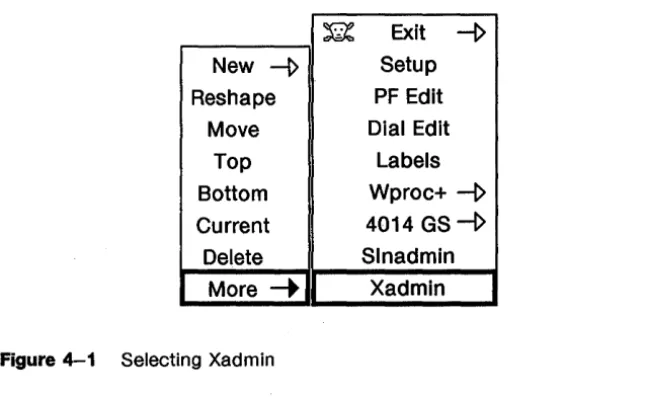
If the Xadmin window has been deleted, via the "Delete" item from the 730 MTG button 3 menu, it can be created by selecting the "Xadmln" entry from the More submenu of the 730 MTG button 3 menu as shown in Figure 4-1. Refer to Chapter 3 in the 730 MTG User's Guide for information about mouse button naming conventions and mouse usage.
~ Exit ~ New ~ Setup
Reshape PF Edit Move Dial Edit
Top Labels
Bottom Wproc+ ~
Current 4014 GS~ Delete Sinadmin
[image:44.456.85.409.304.503.2]730X Options ~ .' .' .' .' .' .' .'
.'
.' .' .' .' .' .'AT&T Terminal X Server Generic 1.0 (11/22/89) Copyright (c) 1989 AT&T All Rights Reserved X Server Diagnostics
570: X Server booting, please wait 628: primary font host is not set (1)
629: unable to open rgb database '/usr/Xmtg/lib/rgb.mtg.base' (1) 867: Unable to open '/usr/Xmtg/lib/fonts/misc/fonts.dir' (1) 868: Unable to open '/usr/Xmtg/lib/fonts/misc/fonts.alias' (1)
1175: Note: Using minimum memory configuration - watch memory usagel (2) 1175: X Server is running
1175: Depress Control-Space to toggle between X and native mode
~ ~
~ ~
~
,
~ ~
~ Memory Profile ~
~ ~
~ ~
~ Total Memory Installed: 1152 Kbytes Memory Available: 417 Kbytes ~
~
,
~
,
~
,
~
I
X Server OptionsI I
Reboot X Server ~~ ~
•• J'~ •• " •••••••••••••••••••••••••••••••••••••••••••••••... (1) These messages appear when the font host is not specified, such as when the
730X is turned on for the first time.
[image:45.455.17.375.62.340.2](2) This message appears when you have 512K of memory installed.
Figure 4-2 Xadmin Menu
The features of Xadmin are:
Diagnostics Displays X diagnostic messages in real time. Memory Profile Indicates how much memory is available.
X Server Options Position the mouse over this area and click button 1 to view or change options.
Reboot X Server Position the mouse over this area and click button 1 to reboot the 730X Server without rebooting the terminal.
730X Options
X Server Diagnostics
This portion of the window provides 730X Server diagnostics. Each message is preceded by a number that is a time stamp.
Memory Profile
This portion of the window indicates memory usage for the entire terminal. When a window is created or deleted or when a client is started or killed, the Memory Available indicator will change. Reboot X Server
This feature allows you to reboot the 730X Server without rebooting the terminal. 730 MTG applications are not affected by rebooting the 730X Server.
To cause the 730X Server to reboot, position the mouse cursor over the "Reboot X Server" box and click mouse button 1. A confirmation message is displayed as shown below.
X Server Reboot Confirmation
I
ConfirmI I
CancelI
Figure 4-3 730X Server Reboot Confirmation Message
Clicking mouse button 1 on the "Confirm" box, will cause the Xadmin window to be deleted and the 730X Server to be restarted. A new Xadmin window will be displayed with the reboot status shown in the X Server Diagnostics window.
730X Options
X Server Options Screen 1
[image:47.456.20.372.114.356.2]Move the mouse to the "X Server Options" box of the main Xadmin menu and click button 1 to display the first page of the 730X Server options .
...
AT&T Terminal X Server Generic 1.0 (11/22/89) X Server Options
Primary Font Host Secondary Font Host
Default Font Path
Cursor Font
Text Font
I/usrIXmtg/lib/fontstmlscl
Iromllx16
Page 1 of 2
..
~ ..
~ Color Database Path
I
lusrIXmtg/lib/rgb.mtg ~~ . ~ ~ .. ~ .. ~
..
~..
~ .. ~ ~ ~ .. ~ ~~
I
Main MenuII
Next Page ~~ ~
....
,,"''''... ..
Figure 4-4 X Server Options (Page 1 of 2)
To move on to the next page of options, move the mouse to the "Next Page" box and click button 1. To return to the Xadmin main menu, move the mouse to the "Main Menu" box and click button 1.
730X Options
To modify the options on screen 1, click mouse button 1 on the box associated with the option that you want to change. While editing an option:
• Typing is inserted before the A cursor symbol.
• Backspace erases and moves the A cursor symbol.
• The A cursor symbol may be moved by pressing mouse button
1 and dragging to the desired position.
• The" cursor symbol may be moved by
t,
l,
+- and -+ keys.• The Delete key restores the string option to the value it had before you started editing.
• Return ends the edit session.
• Home puts A cursor symbol at the beginning of the string.
The 730XServer must be rebooted for any changes to take effect. Primary Font Host
This option defines the host from which the 730X Server will request font information. If you are using StarLAN, enter the "hostname". If you are using TCP/IP, enter the network address (eg. 123.45.67.89). This information can be supplied by your System or Network Administrator.
Initial value: none
Secondary Font Host
If the Primary Font Host is unavailable, the Secondary Font Host will be requested for the font information. If there is no Secondary Font Host, leave this region blank. Enter the Secondary Font Host information in the same manner as the Primary Font Host information.
730X Options
Default Font Path
Enter the names of the directories where the font information is located on both the Primary and Secondary Font Hosts.
Multiple directory names are separated using a comma or space and will be searched in order. An example of a multiple directory font path is given.
/usr/Xmtg/lib/fonts/misc/,/usr/Xmtg/lib/fonts/lOOdpi/
No directory path information is needed to specify the fonts that are stored In the 730X cartridge.
Initial value: lusr/Xmtg/lib/fonts/miscl
Cursor Font
Enter the name of the cursor font you wish to use. The font must be in one of the directories specified in the Default Font Path. The "cursor" font is located in the 730X Server firmware. Initial value: cursor
Text Font
Enter the name of the text font you wish to use. The font must be in one of the directories specified in the Default Font Path. The "rom11x16" font is located In the 730X Server firmware. Initial value: rom11x16
Color Database Path
Enter the complete path name of the color database file on the Primary and Secondary Font Host. Omit the ".base" extension of the filename.
Initial value: lusr/Xmtg/lib/rgb.mtg
730X Options
X Server Options Screen 2
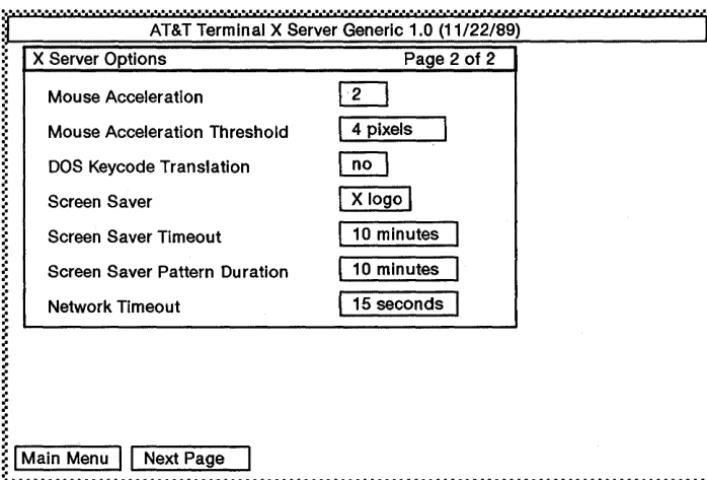
Move the mouse to the "Next Page" box of the first X Server Options menu and click button 1 to display the next page of the 730X Server options .
• • • • • e • • • • • • • • • • • • • • • • • • • • • • • • • we we • • • • • • • • • • • we • • • • we we • • • • • • • • ~ ... J4 ... ... , ... .
..
.
'.'
AT&T Terminal X Server Generic 1.0 (11/22/89) X Server Options
Mouse Acceleration
Mouse Acceleration Threshold
DOS Keycode Translation
Screen Saver
Screen Saver Timeout
Screen Saver Pattern Duration
Page 2 of 2
I
4 pixelsI
~
X logo
I
10 minutes
10 minutes ~ Network Timeout 15 seconds
~ ~ .. ~ .. ~ ~ ~ ..
..
~ ~ ~ ~ .. ~ .. ~ .. ~ ~ ~ .. ~ .. ~ .. ~~
I
Main MenuII
Next Page~
[image:50.456.69.423.114.354.2].. ~
...
Figure 4-5 X Server Options (Page 2 of 2)
730X Options
to select from. To change the range of values, position the mouse cursor inside the reverse video bar and move the mouse up or down. To select a specific value, position the mouse cursor over the value and then click and release mouse button 1. The scroll menu will disappear and the new option value will be shown in the value box for that option.
The 730X Server must be rebooted for any changes to take effect.
Mouse Acceleration
The value of this option determines the amount of movement of the mouse cursor on the screen with respect to the movement of the mouse. A small value will cause the mouse cursor to move very little for large movements of the mouse.
Range: 1-128, Initial value: 2 pixels
Mouse ·Acceleration Threshold
The value of this option specifies the amount of movement of the mouse before the mouse cursor actually starts accelerating.
The mouse cursor will go "acceleration" times as fast when it travels more than "threshold" pixels in a short time. This way, the mouse can be used for precise alignment when it is moved slowly, but can also travel large distances across the screen with a "flick-of-the-wrist".
Range: 1-128, Initial value: 4 pixels
DOS Keycode Translation
When set to "yes", causes the 730X Server to be compatible with early versions of the DOS emulator in Simul-Task 386. Initial value: no
730X Options
Screen Saver
This option has three values to control the action of the display if not used for the amount of time specified in the Screen Saver Timeout option.
Off The screen saver feature is turned off.
X logo The X logo is used for the screen saver pattern. blank A blank screen is used for the screen saver pattern.
Initial value: X logo
Screen Saver Timeout
The value of this option specifies the number of minutes before the screen saver pattern is displayed.
Range: 1-128, Initial value: 10 minutes
Screen Saver Pattern Duration
The value of this option specifies the number of minutes before the "X logo" screen saver pattern shifts position.
Range: 1-128, Initial value: 10 minutes
Network Timeout
Specifies the number of seconds the 730X Server will try unsuccessfully to write to a client before closing down the client connection.
Environment Swapping
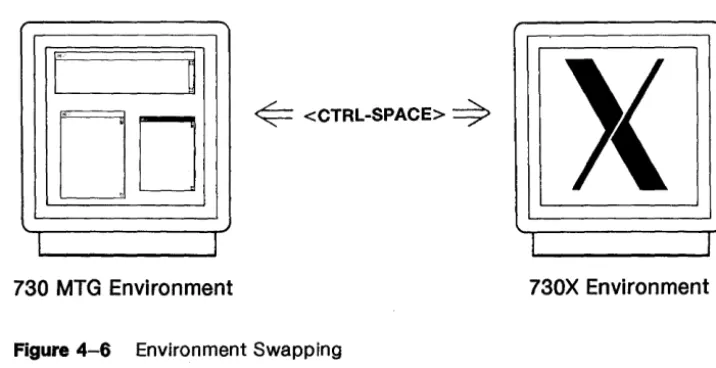
The 730 MTG offers various capabilities to the user. All of these capabilities can be accessed when your terminal is in the 730 MTG environment. When you install the 730X Server cartridge in a 730 MTG, you are adding another environment, the X environment. In this environment, you have available all of the features of the 730X System. You can have both environments active in the terminal at the same time. Although only one environment is displayed on the screen at any one time, the other will continue to receive data.
Note: When the terminal is displaying the 730 MTG environment, the 730X Server will not process any received commands until you switch the terminal to the 730X environment. When the
terminal is displaying the 730X environment, the 730 MTG environment
will
continue to process received commands. To switch between environments, a 2-key keyboard sequence is used, <CTRL-SPACE>. When both of these keys are pressed at the same time, your display will toggle between the 730 MTG environment and the X environment.r
~
DD
~
<CTRL-SPACE>-9
730 MTG Environment 730X Environment
Figure 4-6 Environment Swapping
[image:53.460.33.391.329.513.2]Starting the 730X Server
1 When the terminal is turned on and after self-test has finished, the terminal will be in the 730 MTG environment. The display will show a 730 MTG window and the Xadmin local window. The X Server Diagnostics area of the Xadmin window will show the status of the 730X Server startup procedures. The "Reboot X Server" feature is disabled until the X Server has finished its boot process.
While the 730X Server is booting, the following message will appear in the X Server Diagnostics area:
X Server booting, please wait
2 When the 730X Server has successfully booted, the following messages will appear in the X Server Diagnostics area: X Server is running
Depress Control-Space to toggle be-tween X and native mode
Both the 730 MTG and 730X environments are now active and <CTRL-SPACE> can be used to toggle between the two environments.
Starting the 730X Server
4 Before you start X clients on the 730X Server, you must tell the X clients the address of your terminal. To do this, you must define and export the UNIX System shell environment variable, DISPLAY, to the logical name of your terminal on the network followed by ":0". The logical name (address) of your terminal depends on the network protocol you are using.
StarLAN The address of the terminal is the same as the Local Node Name specified in the Local NAU
Configuration menu of the Sinadmin window. Refer to the 730 StarLAN 10 ISO NAU User's Guide, 999-300-624, Chapter 7.
TCP/IP Each terminal is assigned an Internet Address and a logical name by the network administrator. The address of the terminal is the same as the Internet Address or the TCP/IP logical name.
If your terminal's StarLAN network node name is "mynode", you can define and export the DISPLAY variable as follows.
DISPLAY=mynode:O export DISPLAY
If your terminal's TCP/IP network Internet Address is "123.45.67.89", you can define and export the DISPLAY variable as follows.
DISPLAY=123.45.67.89:0 export DISPLAY
Note: If you are using Xwin or OPEN LOOK clients, some special remote display configuration must be done. Refer to the appropriate user's manual to configure outgoing remote display connections.
5 At this point you can start X applications from the 730 MTG· environment. You can switch to the X environment by typing <CTRL-SPACE>.
Using the System
Now that your 730X Server has been configured and your DISPLAY variable defined and exported, you can start X clients.
Initially, you will start your X clients from the window in the 730 MTG environment that you logged into and where you set the DISPLAY variable.
To· run an X Client, enter the command (from your keyboard) that starts the X client at the UNIX System prompt (usually $), and then press the <ENTER> key. If you want to start an xterm, you would enter:
$ xterm &
The client will not begin to execute on the 730X Server until you swap to the X environment.
Additional clients may be started in the same manner from the 730 MTG environment. Clients can also be started from xterms or from a window manager running in the X environment.
Font Information
730X System Fonts
The 730X Server uses the X11 R3 font naming convention. In the following discussion, fonts will be referred to using three different types of names:
Font file name
This is the name of the file on the host in which the font definition resides.
Actual font name
This is the name given to the font in the font definition.
Aliased font name
This is an alternate name, associated with the actual font name using the X11 R3 font naming convention.
The X11 R3 font naming convention has two benefits: 1) it separates the actual font name from the font file name on the host, which eliminates host operating system dependencies, and 2) it allows font names to be long enough to convey detailed information about the font.
Font Naming Convention Implementation
The X11 R3 font naming convention uses two files, fonts.dir and
fonts.alias, to implement actual font name and font file name separation. There must be a fonts.dir file in every directory having compiled fonts to be used by the 730X Server. The fonts.alias file is optional and can be located In any (one or more) directory that contains compiled fonts.
The fonts.dir file associates font file names with actual font names. For example, a line in the fonts.dir file might look like the following:
6xlO.snf 6xlO
Font Information
where 6x10.snf is the font file name and 6x10 is the actual font name used in the font definition. The 730X Server reads the fonts.dir file from each directory specified in the Default Font Path during initialization and creates an internal database from the information contained in these files. When a font is requested by an X client, the 730X Server checks the internal database to determine the file name associated with the actual font name requested. X clients request fonts using the actual or aliased font names.
The fonts.alias file associates aliased font names with actual font names. For example, a few lines from a fonts.alias file might look like the following:
small font 6xlO
littlefont 6xlO
where smallfont and littlefont are aliases for the actual font name, 6x10. This allows an actual font name to be referenced by more than one name. The 730X Server also reads the fonts.alias file at
initialization and adds this information to its internal database.
Creating Fonts.dir
The mkfontdir font utility creates the file fonts.dir, containing font file name to actual font name association, for directories containing compiled fonts. The first line of the file contains the number of fonts in the directory. The following lines contain font file name to actual font name association sorted in alpha-numerically ascending order by actual font name.
Font Information
An additional aliasing feature allows font file names (without their extensions) to be used as aliases for their actual font names for each compiled font in the directory. This occurs when one of the lines in the fonts.alias file contains the string FIL~NAMES~L1ASES. A
fonts.alias file containing the line FILE_NAMES~LlASES must exist in each font directory where font file name to actual font name aliasing is desired.
For example, suppose there are two fonts in a directory with the file names font1.snf and font2.snf with actual font names reaLname1 and reaLname2, respectively. If the fonts.alias file in that directory
contains the line FILE_NAMES~LlASES, the actual font names would be aliased as shown in the following table:
File Name Aliased Font Name Actual Font Name font1.snf font1 reaLname1 font2.snf font2 reaLname2
A fonts. alias file containing the line
FILE_NAMES_ALIASES
is just a short hand way for specifying a fonts.alias file with the following contents:
fontl font2
real_namel real_name2
For additional details about the files fonts.dir and font. alias , refer to the
mkfontdir(1) manual page at the end of this user's guide.
The bdftosnf Font Compiler
A bdftosnf font compiler is provided to convert source font files from their bitmap distribution format (bdf) to compiled font files in the 730X Server natural format (snf). The snf font files contain the displayable font definition in a 730X Server dependent format. The 730X Server requires the fonts and. RGB color database to be in the same format as that used by Xwin 3.0 running on a 6386WGS. Any font in that format can be read and used by the 730X Server. For additional details on the bdftosnf font compiler, refer to the bdftosnf(1) manual page found at the end of this user's guide.
Font Information
Font Directory Hierarchy
There are three default directories for fonts under the lib/fonts directory. They Include the directory "misc" which contains X11 R2 fonts (the 730X Binary Host Package provides selected X11 R2 fonts). They also include the directory "100dpi" which contains fonts designed for displays with 100 dots-per-inch (dpl), such as the 730 MTG
terminal, and the directory "75dpi", which contains fonts designed for 75 dpi displays. The fonts provided in the 730X host packages reside in the following directory structure if they were installed into lusrlXmtg.
These directories and the font files contained in them are provided in the 730X Source Host Package only.
This directory and the font files contained in it are provided in both the 730X Source Host Package and the 730X Binary Host Package.
The 100dpi and 75dpi fonts are also included with Xwln 3.0 and can be used by the 730X Server by modifying the default font path in Xadmin to specify the Xwin directories containing these fonts. 730X Font Paths
Font Information
In addition to fonts accessible on the primary or secondary font hosts, the 730X Server keeps the two fonts, "cursor" and "rom11x16", in ROM. These two fonts enable the 730X Server to achieve basic functionality even when fonts cannot be read from the primary or secondary font hosts specified in Xadmin.
When an X client requests a font, the 730X Server first checks to see if the ROM fonts satisfy the request and then, failing that, it searches the directories specified in the current font path. The font path can be changed by using Xadmin or the xset command.
If the font path was changed by the xset command and the 730X Server is later rebooted, the font path will be reset to the font path specified in Xadmin.
The 730X Font Search Mechanism
The 730X fonts are distributed in the 730X Binary Host Package and the 730X Source Host Package. To access any fonts other than the ROM fonts, these files must be installed on a host that is configured to support TFTP or StarLAN. In the case of StarLAN, a special file server, called Xmtg, Is used to enable the 730X Server to access fonts.
When the 730X Server is booted, it attempts to build a font database from the fonts.dir and fonts.alias files found in the font path directories on the font host. The ROM fonts are included in the font database. The following scheme is used at reboot time to establish the font database.
1 The 730X Server attempts to connect to the primary font host. If this connection falls, the 730X Server will try to connect to the secondary font host. If this attempt also fails, the font database is created using only the ROM fonts in the 730X Server. The 730X Server will not attempt to build the font database again until the 730X Server is rebooted or the xset program Is used to force the font database to be rebuilt. 2 When the 730X Server is successful in making a connection
with either the primary or secondary font host, it will establish its font database using the fonts.dir and fonts. alias files found on that host in the directories specified in the default font path. Once the 730X Server is booted, all X client font requests will be directed to this host.
Font Information
3 If at any time the 730X Server is unable to communicate with its font host, it will try to connect to the other font host specified in Xadmin (if one is specified). If the connection to the other host succeeds, the 730X Server will use that host to retrieve font files. However, the font database will not be rebuilt unless the xset command is used or the 730X Server is rebooted.
4 If the 730X Server cannot connect to a host or if the files on that host are not found, an error message will be printed in the diagnostics window of Xadmin.
Th.e RGB color database is read only on initialization. If the 730X Server is not able to read the color database at that time, the only way to cause another attempt at reading it is by rebooting the 730X Server.
When an X client requests a particular font, the following scheme is used to satisfy that request.
1 The 730X Server checks if the font is in the internal font database that was built from the fonts.dir and fonts. alias files that were read previously.
2 If the requested font is not in the database, the 730X Server returns an error to the client.
3 If the requested font is in the database, the 730X Server then checks if the font is one of the ROM fonts or has already been read by the 730X Server.
4 If the font has already been read, the 730X Server uses the current data.
Memory Usage
The 730 MTG contains memory which is used by the terminal to perform its functions. The 730 MTG contains .5M byte of memory. Additional memory resides on the network access unit. The total amount of memory that is available is .5M byte plus the amount installed on the network access unit. The total amount of memory will be one of: 1 M, 1.5M, 2.5M, 3M or 4.5M bytes. Refer to your network access unit user's guide for memory configuration information. The 730X Server will work with .5M bytes of RAM on the network access card, but 1 M byte or more (on the network access card) is recommended.
The 730X allows many X client applications to run simultaneously. Although the amount of memory in the terminal that is used by X applications varies, the amount of free memory in the terminal always decreases as the number of X clients increases. The total amount of free memory, indicated by the Xadmin window, is typically the sum of several smaller contiguous sections of memory. The tendency of the 730 MTG to divide memory into smaller contiguous sections Is often referred to as fragmentation.
The first time an X client requests more than the amount of memory available in the largest of these fragments, you will see the message shown in Figure 4-7. After you press a key as indicated, the 730X Server will attempt to recover from the failure and resume operation by terminating the client(s) whose memory requests were not satisfied. After this message is first shown, future memory failures mayor may not be accompanied by the message shown on Figure 4-7.
X SERVER WARNING
YOU ARE RUNNING LOW ON TERMINAL MEMORY X CLlENT(S) BEING TERMINATED
PRESS ANY KEY TO CONTINUE
[image:64.456.86.401.63.228.2] [image:64.456.77.412.308.466.2](SEE DIAGNOSTICS WINDOW FOR EXPLANATION)
Figure 4-7 Low Memory Warn ing Message
Memory Usage
In cases where an X client memory request exceeds the available memory in the terminal and the 730X Server is unable to recover from the failure, you will see the message shown in Figure 4-8. In this case, the 730X Server will terminate all clients and prompt the user to reboot the 730X Server.
FATAL X SERVER ERROR
A FATAL ERROR OCCURED
PRESS ANY KEY TO CONTINUE
Memory Usage
Memory Conservation
There are a number of guidelines you can observe to conserve memory in the terminal and thus increase the number of X clients the 730X Server can support.
• Avoid unnecessary usage of windows in the native 730 MTG environment.
• Avoid overlapping windows since hidden 730 MTG windows are saved in memory.
• Whenever the message shown in Figure 4-7 is displayed, you should reduce the number of X clients being used.
• If low memory warnings continue, it may be due to excessive memory fragmentation. To reduce memory fragmentation, exit all X clients, reboot the terminal, and start only those X clients needed for the work at hand.
• Use the fonts provided In the 730X Server firmware.
If you have observed all of the above guidelines and X clients continue to exceed the available memory in the terminal, you should consider upgrading the amount of memory installed in your 730X.
Minimum Memory Configuration
If your 730 StarLAN 10 (ISO or TCP/lP) NAU is configured with the minimum .5M bytes of memory (equivalent to 1 M byte for the entire 730 MTG), you should observe the following memory conservation
guidelines.
• If you are using the 730 StarLAN 10 ISO NAU, set the Maximum Sessions to no more than 16.
• If you are· using the 730 StarLAN 10 TCP/IP NAU, set the Maximum TCP Endpoints to no more than 16 and the Expected STREAMS Load to low.
Chapter 5: Troubleshooting
Contents
Introduction 5-1
Introduction
Trouble Conditions and Solutions
Refer to the section on Xadmin in Chapter 4, for a description of the X Server Diagnostic capability.
The following is a list of trouble conditions, their cause and a suggested course of action to remedy the problem.
Trouble Conditions and Solutions
Condition:
Xadmin displays the following message in the X Server Diagnostics window:
Network Protocol Not Installed
Explanation: TCP/IP has not been configured properly and therefore, the 730X Server will not Initialize properly.
Action: Use the Network Configuration of Netadmin to set the terminal's Internet address and reboot the terminal to have the change take effect. For more information, refer to the 730 StarLAN 10 TCP/IP Network Access Unit User's Guide.
Condition:
Xadmln displays one of the following messages in the X Server Diagnostics window: .
primary font host not responding secondary font host not responding
Explanation: When the TCP/IP protocol is installed this message may occur for the following reasons:
Action:
1 The font host address is In an incorrect format for the TCP/IP protocol.·
2 tftp daemon Is not Installed on the font host.
3 The font host is down or the host networking is down.
1 The font host address must be the internet address of the host.
Trouble Conditions and Solutions
Condition:
Xadmin displays the following message in the X Server Diagnostics window:
file server service not available on host
Explanation: When using StarLAN this message may occur for the following reasons:
Action:
Condition:
1 The 730X host software is not installed. 2 The Xmtg file server is not registered with the
network listener.
1 Install the host software as described in Chapter 3. 2 Execute the startXmtg script to register the Xmtg file
server with the network listener.
Xadmin displays the following message in the X Server Diagnostics window:
unable to establish file server connection with ~ostname'
Explanation When using StarLAN this message may occur for the following reasons:
Action
1 The font host address is in an incorrect format for the StarLAN protocol.
2 The font host is down or the host networking is down.
1 The font host address must be the hostname of the host.
2 Check if the font host and network are running properly.
Trouble Conditions and Solutions
Condition:
Xadmin displays the following message in the X Server Diagnostics window:
primary font host is not set properly
Explanation: The Xadmin option, Primary Font Host, is not set or it is in an incorrect format. If It is not set the 730X Server will not be able to retrieve fonts or the color database from a host computer.
X client