Table of Contents
Advanced Bash-Scripting Guide...1
An in-depth exploration of the art of shell scripting...1
Mendel Cooper...1
Dedication...3
Part 1. Introduction...15
Chapter 1. Shell Programming!...17
Notes...18
Chapter 2. Starting Off With a Sha-Bang...21
2.1. Invoking the script...25
Notes...25
2.2. Preliminary Exercises...27
Part 2. Basics...29
Chapter 3. Special Characters...31
Notes...51
Chapter 4. Introduction to Variables and Parameters...53
4.1. Variable Substitution...55
Notes...57
4.2. Variable Assignment...59
4.3. Bash Variables Are Untyped...61
4.4. Special Variable Types...63
Notes...67
Chapter 5. Quoting...69
5.1. Quoting Variables...71
Notes...73
5.2. Escaping...75
Chapter 6. Exit and Exit Status...83
Notes...85
Chapter 7. Tests...87
Advanced Bash-Scripting Guide
Table of Contents
7.1. Test Constructs...89
Notes...96
7.2. File test operators...97
Notes...100
7.3. Other Comparison Operators...101
Notes...106
7.4. Nested if/then Condition Tests...107
7.5. Testing Your Knowledge of Tests...109
Chapter 8. Operations and Related Topics...111
8.1. Operators...113
Notes...119
8.2. Numerical Constants...121
8.3. The Double-Parentheses Construct...123
8.4. Operator Precedence...125
Notes...127
Part 3. Beyond the Basics...129
Chapter 9. Another Look at Variables...131
9.1. Internal Variables...133
Notes...151
9.2. Typing variables: declare or typeset...153
9.2.1. Another use for declare...155
Notes...155
9.3. $RANDOM: generate random integer...157
Notes...167
Chapter 10. Manipulating Variables...169
10.1. Manipulating Strings...171
10.1.1. Manipulating strings using awk...178
10.1.2. Further Reference...179
Notes...179
Advanced Bash-Scripting Guide
Table of Contents
10.2. Parameter Substitution...181
Notes...190
Chapter 11. Loops and Branches...191
11.1. Loops...193
Notes...206
11.2. Nested Loops...207
11.3. Loop Control...209
Notes...212
11.4. Testing and Branching...213
Notes...220
Chapter 12. Command Substitution...221
Notes...226
Chapter 13. Arithmetic Expansion...227
Chapter 14. Recess Time...229
Part 4. Commands...231
Chapter 15. Internal Commands and Builtins...239
15.1. Job Control Commands...269
Notes...272
Chapter 16. External Filters, Programs and Commands...275
16.1. Basic Commands...277
Notes...282
16.2. Complex Commands...283
Notes...293
16.3. Time / Date Commands...295
16.4. Text Processing Commands...299
Notes...320
16.5. File and Archiving Commands...321
Notes...338
Advanced Bash-Scripting Guide
Table of Contents
16.6. Communications Commands...339
Notes...352
16.7. Terminal Control Commands...353
16.8. Math Commands...355
16.9. Miscellaneous Commands...367
Notes...380
Chapter 17. System and Administrative Commands...381
17.1. Analyzing a System Script...411
Notes...412
Part 5. Advanced Topics...413
Chapter 18. Regular Expressions...415
18.1. A Brief Introduction to Regular Expressions...417
Notes...420
18.2. Globbing...423
Notes...424
Chapter 19. Here Documents...425
19.1. Here Strings...437
Notes...439
Chapter 20. I/O Redirection...441
20.1. Using exec...445
Notes...448
20.2. Redirecting Code Blocks...449
20.3. Applications...455
Chapter 21. Subshells...457
Notes...461
Chapter 22. Restricted Shells...463
Chapter 23. Process Substitution...465
Notes...469
Advanced Bash-Scripting Guide
Table of Contents
Chapter 24. Functions...471
24.1. Complex Functions and Function Complexities...477
Notes...487
24.2. Local Variables...489
24.2.1. Local variables and recursion...490
Notes...492
24.3. Recursion Without Local Variables...495
Chapter 25. Aliases...499
Notes...501
Chapter 26. List Constructs...503
Chapter 27. Arrays...507
Chapter 28. Indirect References...535
Chapter 29. /dev and /proc...539
29.1. /dev...541
Notes...543
29.2. /proc...545
Notes...550
Chapter 30. Network Programming...551
Chapter 31. Of Zeros and Nulls...555
Chapter 32. Debugging...559
Notes...569
Chapter 33. Options...571
Chapter 34. Gotchas...575
Notes...583
Chapter 35. Scripting With Style...585
35.1. Unofficial Shell Scripting Stylesheet...587
Notes...589
Chapter 36. Miscellany...591
Advanced Bash-Scripting Guide
Table of Contents
36.1. Interactive and non-interactive shells and scripts...593
36.2. Shell Wrappers...595
Notes...599
36.3. Tests and Comparisons: Alternatives...601
36.4. Recursion: a script calling itself...603
36.5. "Colorizing" Scripts...607
Notes...619
36.6. Optimizations...621
Notes...621
36.7. Assorted Tips...623
36.7.1. Ideas for more powerful scripts...623
36.7.2. Widgets...633
36.8. Security Issues...637
36.8.1. Infected Shell Scripts...637
36.8.2. Hiding Shell Script Source...637
36.8.3. Writing Secure Shell Scripts...637
Notes...637
36.9. Portability Issues...639
36.9.1. A Test Suite...639
Notes...640
36.10. Shell Scripting Under Windows...641
Chapter 37. Bash, versions 2, 3, and 4...643
37.1. Bash, version 2...645
37.2. Bash, version 3...651
37.2.1. Bash, version 3.1...653
37.2.2. Bash, version 3.2...654
37.3. Bash, version 4...655
37.3.1. Bash, version 4.1...661
37.3.2. Bash, version 4.2...663
Notes...665
Chapter 38. Endnotes...667
Advanced Bash-Scripting Guide
Table of Contents
38.1. Author's Note...669
Notes...669
38.2. About the Author...671
Notes...671
38.3. Where to Go For Help...673
Notes...673
38.4. Tools Used to Produce This Book...675
38.4.1. Hardware...675
38.4.2. Software and Printware...675
38.5. Credits...677
38.6. Disclaimer...679
Bibliography...681
Notes...687
Appendix A. Contributed Scripts...689
Appendix B. Reference Cards...885
Appendix C. A Sed and Awk Micro-Primer...891
C.1. Sed...893
Notes...895
C.2. Awk...897
Notes...899
Appendix D. Parsing and Managing Pathnames...901
Appendix E. Exit Codes With Special Meanings...905
Notes...905
Appendix F. A Detailed Introduction to I/O and I/O Redirection...907
Appendix G. Command-Line Options...909
G.1. Standard Command-Line Options...911
G.2. Bash Command-Line Options...913
Appendix H. Important Files...915
Notes...915
Advanced Bash-Scripting Guide
Table of Contents
Appendix I. Important System Directories...917
Notes...918
Appendix J. An Introduction to Programmable Completion...919
Notes...921
Appendix K. Localization...923
Appendix L. History Commands...927
Appendix M. Sample .bashrc and .bash_profile Files...929
Appendix N. Converting DOS Batch Files to Shell Scripts...945
Notes...948
Appendix O. Exercises...949
O.1. Analyzing Scripts...951
O.2. Writing Scripts...953
Notes...961
Appendix P. Revision History...963
Appendix Q. Download and Mirror Sites...967
Appendix R. To Do List...969
Appendix S. Copyright...971
Notes...973
Appendix T. ASCII Table...975
Index...979
Advanced Bash-Scripting Guide
Advanced Bash-Scripting Guide
An in-depth exploration of the art of shell scripting
Version 6.5.21
24 Aug 2012
Mendel Cooper
Dedication
For Anita, the source of all the magic
Table of Contents
Part 1. Introduction
1. Shell Programming!
2. Starting Off With a Sha-Bang
2.1. Invoking the script
2.2. Preliminary Exercises
Part 2. Basics
3. Special Characters
4. Introduction to Variables and Parameters
4.1. Variable Substitution
4.2. Variable Assignment
4.3. Bash Variables Are Untyped
4.4. Special Variable Types
5. Quoting
5.1. Quoting Variables
5.2. Escaping
6. Exit and Exit Status
7. Tests
7.1. Test Constructs
7.2. File test operators
7.3. Other Comparison Operators
7.4. Nested
if/then
Condition Tests
7.5. Testing Your Knowledge of Tests
8. Operations and Related Topics
8.1. Operators
8.2. Numerical Constants
8.3. The Double-Parentheses Construct
8.4. Operator Precedence
Part 3. Beyond the Basics
9. Another Look at Variables
9.1. Internal Variables
9.2. Typing variables: declare or typeset
9.3. $RANDOM: generate random integer
10. Manipulating Variables
10.1. Manipulating Strings
10.2. Parameter Substitution
11. Loops and Branches
11.1. Loops
11.2. Nested Loops
11.3. Loop Control
11.4. Testing and Branching
12. Command Substitution
13. Arithmetic Expansion
14. Recess Time
Part 4. Commands
15. Internal Commands and Builtins
15.1. Job Control Commands
16.2. Complex Commands
16.3. Time / Date Commands
16.4. Text Processing Commands
16.5. File and Archiving Commands
16.6. Communications Commands
16.7. Terminal Control Commands
16.8. Math Commands
16.9. Miscellaneous Commands
17. System and Administrative Commands
17.1. Analyzing a System Script
Part 5. Advanced Topics
18. Regular Expressions
18.1. A Brief Introduction to Regular Expressions
18.2. Globbing
19. Here Documents
19.1. Here Strings
20. I/O Redirection
20.1. Using exec
20.2. Redirecting Code Blocks
20.3. Applications
21. Subshells
22. Restricted Shells
23. Process Substitution
24. Functions
24.1. Complex Functions and Function Complexities
24.2. Local Variables
24.3. Recursion Without Local Variables
25. Aliases
26. List Constructs
27. Arrays
28. Indirect References
29. /dev and
/proc
29.1. /dev
29.2. /proc
30. Network Programming
31. Of Zeros and Nulls
32. Debugging
33. Options
34. Gotchas
35. Scripting With Style
35.1. Unofficial Shell Scripting Stylesheet
36. Miscellany
36.1. Interactive and non-interactive shells and scripts
36.2. Shell Wrappers
36.3. Tests and Comparisons: Alternatives
36.4. Recursion: a script calling itself
36.5. "Colorizing" Scripts
36.6. Optimizations
36.7. Assorted Tips
36.8. Security Issues
36.9. Portability Issues
36.10. Shell Scripting Under Windows
37. Bash, versions 2, 3, and 4
37.2. Bash, version 3
37.3. Bash, version 4
38. Endnotes
38.1. Author's Note
38.2. About the Author
38.3. Where to Go For Help
38.4. Tools Used to Produce This Book
38.4.1. Hardware
38.4.2. Software and Printware
38.5. Credits
38.6. Disclaimer
Bibliography
A. Contributed Scripts
B. Reference Cards
C. A Sed and Awk Micro-Primer
C.1. Sed
C.2. Awk
D. Parsing and Managing Pathnames
E. Exit Codes With Special Meanings
F. A Detailed Introduction to I/O and I/O Redirection
G. Command-Line Options
G.1. Standard Command-Line Options
G.2. Bash Command-Line Options
H. Important Files
I. Important System Directories
J. An Introduction to Programmable Completion
K. Localization
L. History Commands
M. Sample
.bashrc and
.bash_profile Files
N. Converting DOS Batch Files to Shell Scripts
O. Exercises
O.1. Analyzing Scripts
O.2. Writing Scripts
P. Revision History
Q. Download and Mirror Sites
R. To Do List
S. Copyright
T. ASCII Table
Index
List of Tables
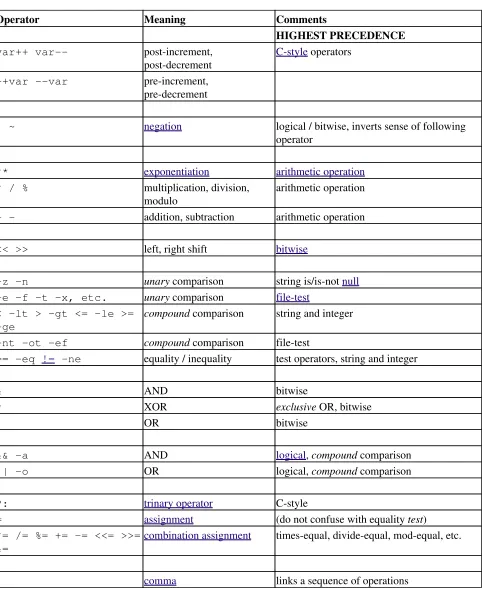
8-1. Operator Precedence
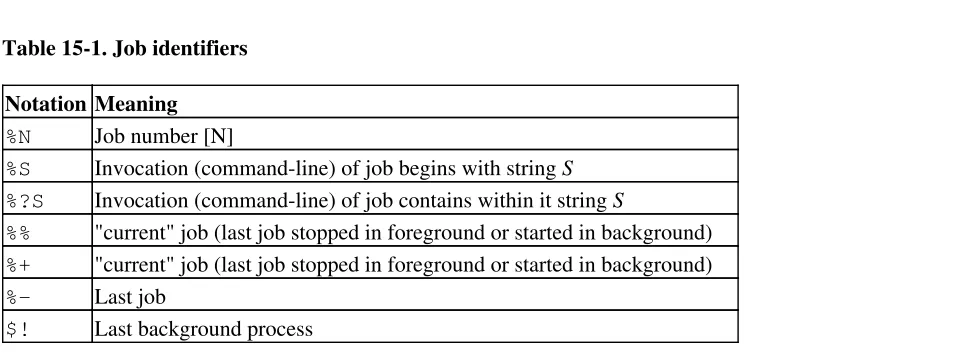
15-1. Job identifiers
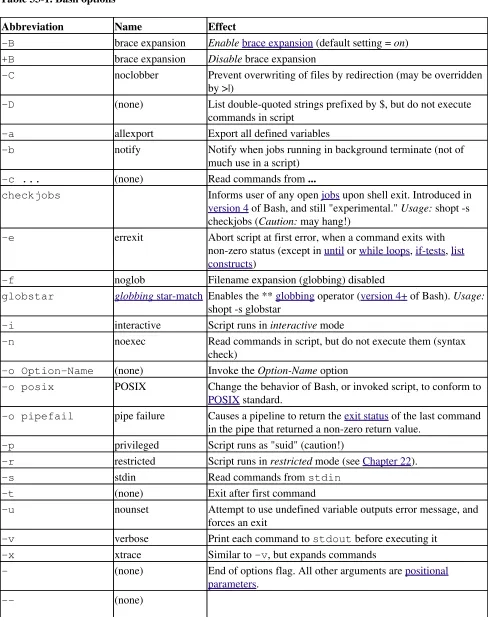
33-1. Bash options
36-1. Numbers representing colors in Escape Sequences
B-1. Special Shell Variables
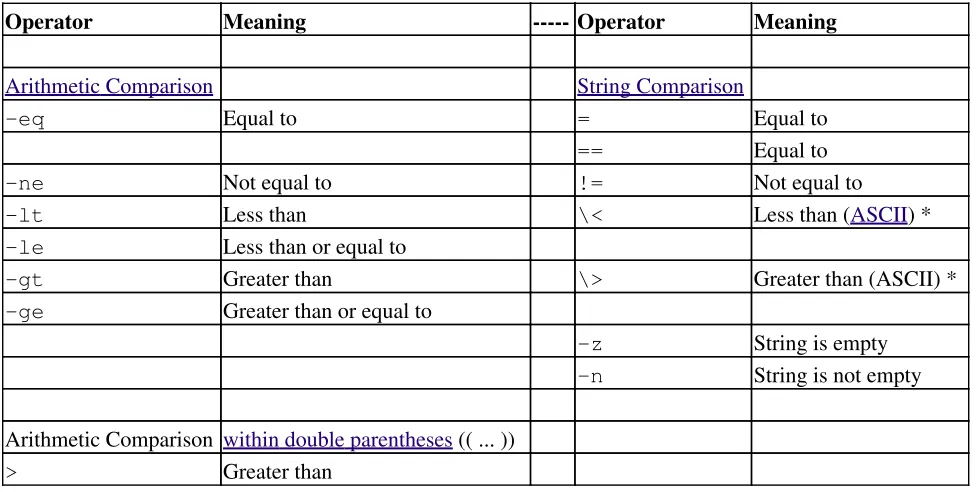
B-2. TEST Operators: Binary Comparison
B-3. TEST Operators: Files
B-4. Parameter Substitution and Expansion
B-5. String Operations
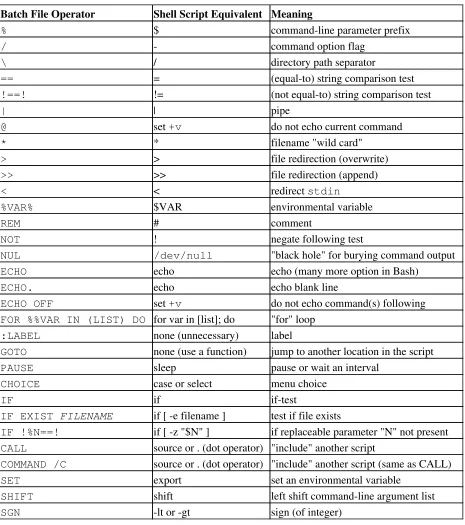
N-1. Batch file keywords / variables / operators, and their shell equivalents
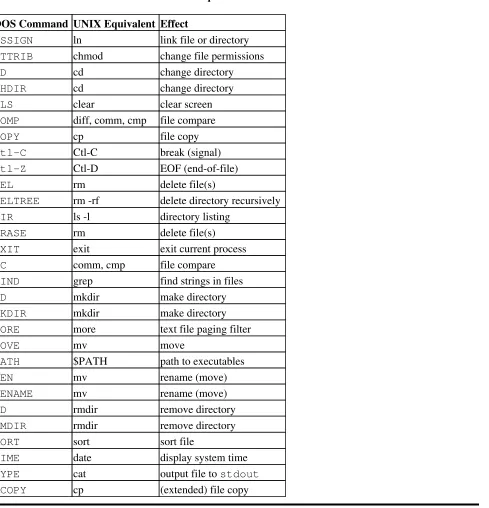
N-2. DOS commands and their UNIX equivalents
P-1. Revision History
List of Examples
2-1. cleanup: A script to clean up log files in /var/log
2-2. cleanup: An improved clean-up script
2-3. cleanup: An enhanced and generalized version of above scripts.
3-1. Code blocks and I/O redirection
3-2. Saving the output of a code block to a file
3-3. Running a loop in the background
3-4. Backup of all files changed in last day
4-1. Variable assignment and substitution
4-2. Plain Variable Assignment
4-3. Variable Assignment, plain and fancy
4-4. Integer or string?
4-5. Positional Parameters
4-6. wh, whois domain name lookup
4-7. Using shift
5-1. Echoing Weird Variables
5-2. Escaped Characters
5-3. Detecting key-presses
6-1. exit / exit status
6-2. Negating a condition using !
7-1. What is truth?
7-2. Equivalence of test,
/usr/bin/test, [ ], and
/usr/bin/[
7-3. Arithmetic Tests using (( ))
7-4. Testing for broken links
7-5. Arithmetic and string comparisons
7-6. Testing whether a string is null
7-7. zmore
8-1. Greatest common divisor
8-2. Using Arithmetic Operations
8-3. Compound Condition Tests Using && and ||
8-4. Representation of numerical constants
8-5. C-style manipulation of variables
9-1. $IFS and whitespace
9-2. Timed Input
9-3. Once more, timed input
9-4. Timed read
9-5. Am I root?
9-6. arglist: Listing arguments with $* and $@
9-7. Inconsistent
$* and
$@ behavior
9-8. $* and
$@ when
$IFS is empty
9-9. Underscore variable
9-10. Using declare to type variables
9-11. Generating random numbers
9-12. Picking a random card from a deck
9-13. Brownian Motion Simulation
9-14. Random between values
9-15. Rolling a single die with RANDOM
9-16. Reseeding RANDOM
9-17. Pseudorandom numbers, using awk
10-2. Generating an 8-character "random" string
10-3. Converting graphic file formats, with filename change
10-4. Converting streaming audio files to ogg
10-5. Emulating getopt
10-6. Alternate ways of extracting and locating substrings
10-7. Using parameter substitution and error messages
10-8. Parameter substitution and "usage" messages
10-9. Length of a variable
10-10. Pattern matching in parameter substitution
10-11. Renaming file extensions:
10-12. Using pattern matching to parse arbitrary strings
10-13. Matching patterns at prefix or suffix of string
11-1. Simple for loops
11-2. for loop with two parameters in each [list] element
11-3. Fileinfo: operating on a file list contained in a variable
11-4. Operating on files with a for loop
11-5. Missing
in [list] in a for loop
11-6. Generating the
[list] in a for loop with command substitution
11-7. A grep replacement for binary files
11-8. Listing all users on the system
11-9. Checking all the binaries in a directory for authorship
11-10. Listing the symbolic links in a directory
11-11. Symbolic links in a directory, saved to a file
11-12. A C-style for loop
11-13. Using efax in batch mode
11-14. Simple while loop
11-15. Another while loop
11-16. while loop with multiple conditions
11-17. C-style syntax in a while loop
11-18. until loop
11-19. Nested Loop
11-20. Effects of break and continue in a loop
11-21. Breaking out of multiple loop levels
11-22. Continuing at a higher loop level
11-23. Using continue N in an actual task
11-24. Using case
11-25. Creating menus using case
11-26. Using command substitution to generate the case variable
11-27. Simple string matching
11-28. Checking for alphabetic input
11-29. Creating menus using select
11-30. Creating menus using select in a function
12-1. Stupid script tricks
12-2. Generating a variable from a loop
12-3. Finding anagrams
15-1. A script that spawns multiple instances of itself
15-2. printf in action
15-3. Variable assignment, using read
15-4. What happens when read has no variable
15-5. Multi-line input to read
15-6. Detecting the arrow keys
15-7. Using read with file redirection
15-8. Problems reading from a pipe
15-10. Letting let do arithmetic.
15-11. Showing the effect of eval
15-12. Using eval to select among variables
15-13. Echoing the command-line parameters
15-14. Forcing a log-off
15-15. A version of rot13
15-16. Using set with positional parameters
15-17. Reversing the positional parameters
15-18. Reassigning the positional parameters
15-19. "Unsetting" a variable
15-20. Using export to pass a variable to an embedded awk script
15-21. Using getopts to read the options/arguments passed to a script
15-22. "Including" a data file
15-23. A (useless) script that sources itself
15-24. Effects of exec
15-25. A script that exec's itself
15-26. Waiting for a process to finish before proceeding
15-27. A script that kills itself
16-1. Using ls to create a table of contents for burning a CDR disk
16-2. Hello or Good-bye
16-3. Badname, eliminate file names in current directory containing bad characters and whitespace.
16-4. Deleting a file by its inode number
16-5. Logfile: Using xargs to monitor system log
16-6. Copying files in current directory to another
16-7. Killing processes by name
16-8. Word frequency analysis using xargs
16-9. Using expr
16-10. Using date
16-11. Date calculations
16-12. Word Frequency Analysis
16-13. Which files are scripts?
16-14. Generating 10-digit random numbers
16-15. Using tail to monitor the system log
16-16. Printing out the From lines in stored e-mail messages
16-17. Emulating grep in a script
16-18. Crossword puzzle solver
16-19. Looking up definitions in Webster's 1913 Dictionary
16-20. Checking words in a list for validity
16-21. toupper: Transforms a file to all uppercase.
16-22. lowercase: Changes all filenames in working directory to lowercase.
16-23. du: DOS to UNIX text file conversion.
16-24. rot13: ultra-weak encryption.
16-25. Generating "Crypto-Quote" Puzzles
16-26. Formatted file listing.
16-27. Using column to format a directory listing
16-28. nl: A self-numbering script.
16-29. manview: Viewing formatted manpages
16-30. Using cpio to move a directory tree
16-31. Unpacking an rpm archive
16-32. Stripping comments from C program files
16-33. Exploring
/usr/X11R6/bin
16-34. An "improved" strings command
16-37. A script that copies itself in sections
16-38. Checking file integrity
16-39. Uudecoding encoded files
16-40. Finding out where to report a spammer
16-41. Analyzing a spam domain
16-42. Getting a stock quote
16-43. Updating FC4
16-44. Using ssh
16-45. A script that mails itself
16-46. Generating prime numbers
16-47. Monthly Payment on a Mortgage
16-48. Base Conversion
16-49. Invoking bc using a here document
16-50. Calculating PI
16-51. Converting a decimal number to hexadecimal
16-52. Factoring
16-53. Calculating the hypotenuse of a triangle
16-54. Using seq to generate loop arguments
16-55. Letter Count"
16-56. Using getopt to parse command-line options
16-57. A script that copies itself
16-58. Exercising dd
16-59. Capturing Keystrokes
16-60. Securely deleting a file
16-61. Filename generator
16-62. Converting meters to miles
16-63. Using m4
17-1. Setting a new password
17-2. Setting an erase character
17-3. secret password: Turning off terminal echoing
17-4. Keypress detection
17-5. Checking a remote server for identd
17-6. pidof helps kill a process
17-7. Checking a CD image
17-8. Creating a filesystem in a file
17-9. Adding a new hard drive
17-10. Using umask to hide an output file from prying eyes
17-11. Backlight: changes the brightness of the (laptop) screen backlight
17-12. killall, from
/etc/rc.d/init.d
19-1. broadcast: Sends message to everyone logged in
19-2. dummyfile: Creates a 2-line dummy file
19-3. Multi-line message using cat
19-4. Multi-line message, with tabs suppressed
19-5. Here document with replaceable parameters
19-6. Upload a file pair to Sunsite incoming directory
19-7. Parameter substitution turned off
19-8. A script that generates another script
19-9. Here documents and functions
19-10. "Anonymous" Here Document
19-11. Commenting out a block of code
19-12. A self-documenting script
19-13. Prepending a line to a file
19-14. Parsing a mailbox
20-2. Redirecting
stdout using exec
20-3. Redirecting both
stdin and
stdout in the same script with exec
20-4. Avoiding a subshell
20-5. Redirected while loop
20-6. Alternate form of redirected while loop
20-7. Redirected until loop
20-8. Redirected for loop
20-9. Redirected for loop (both
stdin and
stdout redirected)
20-10. Redirected if/then test
20-11. Data file names.data for above examples
20-12. Logging events
21-1. Variable scope in a subshell
21-2. List User Profiles
21-3. Running parallel processes in subshells
22-1. Running a script in restricted mode
23-1. Code block redirection without forking
23-2. Redirecting the output of process substitution into a loop.
24-1. Simple functions
24-2. Function Taking Parameters
24-3. Functions and command-line args passed to the script
24-4. Passing an indirect reference to a function
24-5. Dereferencing a parameter passed to a function
24-6. Again, dereferencing a parameter passed to a function
24-7. Maximum of two numbers
24-8. Converting numbers to Roman numerals
24-9. Testing large return values in a function
24-10. Comparing two large integers
24-11. Real name from username
24-12. Local variable visibility
24-13. Demonstration of a simple recursive function
24-14. Another simple demonstration
24-15. Recursion, using a local variable
24-16. The Fibonacci Sequence
24-17. The Towers of Hanoi
25-1. Aliases within a script
25-2. unalias: Setting and unsetting an alias
26-1. Using an and list to test for command-line arguments
26-2. Another command-line arg test using an and list
26-3. Using or lists in combination with an and list
27-1. Simple array usage
27-2. Formatting a poem
27-3. Various array operations
27-4. String operations on arrays
27-5. Loading the contents of a script into an array
27-6. Some special properties of arrays
27-7. Of empty arrays and empty elements
27-8. Initializing arrays
27-9. Copying and concatenating arrays
27-10. More on concatenating arrays
27-11. The Bubble Sort
27-12. Embedded arrays and indirect references
27-13. The Sieve of Eratosthenes
27-16. Complex array application: Exploring a weird mathematical series
27-17. Simulating a two-dimensional array, then tilting it
28-1. Indirect Variable References
28-2. Passing an indirect reference to awk
29-1. Using
/dev/tcp for troubleshooting
29-2. Playing music
29-3. Finding the process associated with a PID
29-4. On-line connect status
30-1. Print the server environment
30-2. IP addresses
31-1. Hiding the cookie jar
31-2. Setting up a swapfile using
/dev/zero
31-3. Creating a ramdisk
32-1. A buggy script
32-2. Missing keyword
32-3. test24: another buggy script
32-4. Testing a condition with an assert
32-5. Trapping at exit
32-6. Cleaning up after Control-C
32-7. A Simple Implementation of a Progress Bar
32-8. Tracing a variable
32-9. Running multiple processes (on an SMP box)
34-1. Numerical and string comparison are not equivalent
34-2. Subshell Pitfalls
34-3. Piping the output of echo to a read
36-1. shell wrapper
36-2. A slightly more complex shell wrapper
36-3. A generic shell wrapper that writes to a logfile
36-4. A shell wrapper around an awk script
36-5. A shell wrapper around another awk script
36-6. Perl embedded in a Bash script
36-7. Bash and Perl scripts combined
36-8. A (useless) script that recursively calls itself
36-9. A (useful) script that recursively calls itself
36-10. Another (useful) script that recursively calls itself
36-11. A "colorized" address database
36-12. Drawing a box
36-13. Echoing colored text
36-14. A "horserace" game
36-15. A Progress Bar
36-16. Return value trickery
36-17. Even more return value trickery
36-18. Passing and returning arrays
36-19. Fun with anagrams
36-20. Widgets invoked from a shell script
36-21. Test Suite
37-1. String expansion
37-2. Indirect variable references - the new way
37-3. Simple database application, using indirect variable referencing
37-4. Using arrays and other miscellaneous trickery to deal four random hands from a deck of cards
37-5. A simple address database
37-6. A somewhat more elaborate address database
37-7. Testing characters
37-9. Using a here document to set a variable
37-10. Piping input to a read
37-11. Negative array indices
37-12. Negative parameter in string-extraction construct
A-1. mailformat: Formatting an e-mail message
A-2. rn: A simple-minded file renaming utility
A-3. blank-rename: Renames filenames containing blanks
A-4. encryptedpw: Uploading to an ftp site, using a locally encrypted password
A-5. copy-cd: Copying a data CD
A-6. Collatz series
A-7. days-between: Days between two dates
A-8. Making a dictionary
A-9. Soundex conversion
A-10. Game of Life
A-11. Data file for Game of Life
A-12. behead: Removing mail and news message headers
A-13. password: Generating random 8-character passwords
A-14. fifo: Making daily backups, using named pipes
A-15. Generating prime numbers using the modulo operator
A-16. tree: Displaying a directory tree
A-17. tree2: Alternate directory tree script
A-18. string functions: C-style string functions
A-19. Directory information
A-20. Library of hash functions
A-21. Colorizing text using hash functions
A-22. More on hash functions
A-23. Mounting USB keychain storage devices
A-24. Converting to HTML
A-25. Preserving weblogs
A-26. Protecting literal strings
A-27. Unprotecting literal strings
A-28. Spammer Identification
A-29. Spammer Hunt
A-30. Making wget easier to use
A-31. A podcasting script
A-32. Nightly backup to a firewire HD
A-33. An expanded cd command
A-34. A soundcard setup script
A-35. Locating split paragraphs in a text file
A-36. Insertion sort
A-37. Standard Deviation
A-38. A pad file generator for shareware authors
A-39. A man page editor
A-40. Petals Around the Rose
A-41. Quacky: a Perquackey-type word game
A-42. Nim
A-43. A command-line stopwatch
A-44. An all-purpose shell scripting homework assignment solution
A-45. The Knight's Tour
A-46. Magic Squares
A-47. Fifteen Puzzle
A-48. The Towers of Hanoi, graphic version
A-51. The version of the UseGetOpt.sh example used in the Tab Expansion appendix
A-52. Cycling through all the possible color backgrounds
A-53. Morse Code Practice
A-54. Base64 encoding/decoding
A-55. The Gronsfeld Cipher
A-56. Bingo Number Generator
A-57. Basics Reviewed
C-1. Counting Letter Occurrences
J-1. Completion script for UseGetOpt.sh
M-1. Sample
.bashrc file
M-2. .bash_profile file
N-1. VIEWDATA.BAT: DOS Batch File
N-2. viewdata.sh: Shell Script Conversion of VIEWDATA.BAT
T-1. A script that generates an ASCII table
T-2. Another ASCII table script
T-3. A third ASCII table script, using awk
Next
Introduction
Advanced Bash-Scripting Guide: An in-depth exploration of the art of shell scripting
Part 1. Introduction
Script: A writing; a written document. [Obs.]
--Webster's Dictionary, 1913 ed.
The shell is a command interpreter. More than just the insulating layer between the operating system kernel
and the user, it's also a fairly powerful programming language. A shell program, called a script, is an
easy-to-use tool for building applications by "gluing together" system calls, tools, utilities, and compiled
binaries. Virtually the entire repertoire of UNIX commands, utilities, and tools is available for invocation by a
shell script. If that were not enough, internal shell commands, such as testing and loop constructs, lend
additional power and flexibility to scripts. Shell scripts are especially well suited for administrative system
tasks and other routine repetitive tasks not requiring the bells and whistles of a full-blown tightly structured
programming language.
Table of Contents
1. Shell Programming!
2. Starting Off With a Sha-Bang
Prev
Home
Next
Advanced Bash-Scripting Guide
Shell Programming!
Advanced Bash-Scripting Guide: An in-depth exploration of the art of shell scripting
Chapter 1. Shell Programming!
No programming language is perfect. There is
not even a single best language; there are only
languages well suited or perhaps poorly suited
for particular purposes.
--Herbert Mayer
A working knowledge of shell scripting is essential to anyone wishing to become reasonably proficient at
system administration, even if they do not anticipate ever having to actually write a script. Consider that as a
Linux machine boots up, it executes the shell scripts in
/etc/rc.d
to restore the system configuration and
set up services. A detailed understanding of these startup scripts is important for analyzing the behavior of a
system, and possibly modifying it.
The craft of scripting is not hard to master, since scripts can be built in bite-sized sections and there is only a
fairly small set of shell-specific operators and options [1] to learn. The syntax is simple even austere
--similar to that of invoking and chaining together utilities at the command line, and there are only a few "rules"
governing their use. Most short scripts work right the first time, and debugging even the longer ones is
straightforward.
In the early days of personal computing, the BASIC language enabled
anyone reasonably computer proficient to write programs on an early
generation of microcomputers. Decades later, the Bash scripting
language enables anyone with a rudimentary knowledge of Linux or
UNIX to do the same on much more powerful machines.
A shell script is a quick-and-dirty method of prototyping a complex application. Getting even a limited subset
of the functionality to work in a script is often a useful first stage in project development. In this way, the
structure of the application can be tested and tinkered with, and the major pitfalls found before proceeding to
the final coding in C, C++, Java, Perl, or Python.
Shell scripting hearkens back to the classic UNIX philosophy of breaking complex projects into simpler
subtasks, of chaining together components and utilities. Many consider this a better, or at least more
esthetically pleasing approach to problem solving than using one of the new generation of high-powered
all-in-one languages, such as Perl, which attempt to be all things to all people, but at the cost of forcing you to
alter your thinking processes to fit the tool.
According to Herbert Mayer, "a useful language needs arrays, pointers, and a generic mechanism for building
data structures." By these criteria, shell scripting falls somewhat short of being "useful." Or, perhaps not. . . .
When not to use shell scripts
Resource-intensive tasks, especially where speed is a factor (sorting, hashing, recursion [2] ...)
•
Procedures involving heavy-duty math operations, especially floating point arithmetic, arbitrary
precision calculations, or complex numbers (use C++ or FORTRAN instead)
•
Cross-platform portability required (use C or Java instead)
•
Complex applications, where structured programming is a necessity (type-checking of variables,
function prototypes, etc.)
•
Situations where security is important, where you need to guarantee the integrity of your system and
protect against intrusion, cracking, and vandalism
•
Project consists of subcomponents with interlocking dependencies
•
Extensive file operations required (Bash is limited to serial file access, and that only in a
particularly clumsy and inefficient line-by-line fashion.)
•
Need native support for multi-dimensional arrays
•
Need data structures, such as linked lists or trees
•
Need to generate / manipulate graphics or GUIs
•
Need direct access to system hardware or external peripherals
•
Need port or socket I/O
•
Need to use libraries or interface with legacy code
•
Proprietary, closed-source applications (Shell scripts put the source code right out in the open for all
the world to see.)
•
If any of the above applies, consider a more powerful scripting language -- perhaps Perl, Tcl, Python, Ruby
-- or possibly a compiled language such as C, C++, or Java. Even then, prototyping the application as a
shell script might still be a useful development step.
We will be using Bash, an acronym [3] for "Bourne-Again shell" and a pun on Stephen Bourne's now classic
Bourne shell. Bash has become a de facto standard for shell scripting on most flavors of UNIX. Most of the
principles this book covers apply equally well to scripting with other shells, such as the Korn Shell, from
which Bash derives some of its features, [4] and the C Shell and its variants. (Note that C Shell programming
is not recommended due to certain inherent problems, as pointed out in an October, 1993 Usenet post by Tom
Christiansen.)
What follows is a tutorial on shell scripting. It relies heavily on examples to illustrate various features of the
shell. The example scripts work -- they've been tested, insofar as possible -- and some of them are even useful
in real life. The reader can play with the actual working code of the examples in the source archive
(
scriptname.sh
or
scriptname.bash
), [5] give them execute permission (chmod u+rx
scriptname), then run them to see what happens. Should the source archive not be available, then
cut-and-paste from the HTML or pdf rendered versions. Be aware that some of the scripts presented here
introduce features before they are explained, and this may require the reader to temporarily skip ahead for
enlightenment.
Unless otherwise noted, the author of this book wrote the example scripts that follow.
His countenance was bold and bashed not.
--Edmund Spenser
Notes
[1]
These are referred to as builtins, features internal to the shell.
[2]
Although recursion is possible in a shell script, it tends to be slow and its implementation is often an
ugly kludge.
[3]
An acronym is an ersatz word formed by pasting together the initial letters of the words into a
tongue-tripping phrase. This morally corrupt and pernicious practice deserves appropriately severe
punishment. Public flogging suggests itself.
[4]
Many of the features of ksh88, and even a few from the updated ksh93 have been merged into Bash.
[5]
By convention, user-written shell scripts that are Bourne shell compliant generally take a name with a
Prev
Home
Next
Introduction
Up
Starting Off With a Sha-Bang
Advanced Bash-Scripting Guide: An in-depth exploration of the art of shell scripting
Chapter 2. Starting Off With a Sha-Bang
Shell programming is a 1950s juke box . . .
--Larry Wall
In the simplest case, a script is nothing more than a list of system commands stored in a file. At the very least,
this saves the effort of retyping that particular sequence of commands each time it is invoked.
Example 2-1. cleanup: A script to clean up log files in /var/log
1 # Cleanup
2 # Run as root, of course. 3
4 cd /var/log
5 cat /dev/null > messages 6 cat /dev/null > wtmp
7 echo "Log files cleaned up."
There is nothing unusual here, only a set of commands that could just as easily have been invoked one by one
from the command-line on the console or in a terminal window. The advantages of placing the commands in a
script go far beyond not having to retype them time and again. The script becomes a program -- a tool -- and it
can easily be modified or customized for a particular application.
Example 2-2. cleanup: An improved clean-up script
1 #!/bin/bash
2 # Proper header for a Bash script. 3
4 # Cleanup, version 2 5
6 # Run as root, of course.
7 # Insert code here to print error message and exit if not root. 8
9 LOG_DIR=/var/log
10 # Variables are better than hard-coded values. 11 cd $LOG_DIR
12
13 cat /dev/null > messages 14 cat /dev/null > wtmp 15
16
17 echo "Logs cleaned up." 18
19 exit # The right and proper method of "exiting" from a script. 20 # A bare "exit" (no parameter) returns the exit status 21 #+ of the preceding command.
Now that's beginning to look like a real script. But we can go even farther . . .
Example 2-3. cleanup: An enhanced and generalized version of above scripts.
1 #!/bin/bash
2 # Cleanup, version 3 3
5 #
6 # This script uses quite a number of features that will be explained 7 #+ later on.
8 # By the time you've finished the first half of the book, 9 #+ there should be nothing mysterious about it.
10 11 12
13 LOG_DIR=/var/log
14 ROOT_UID=0 # Only users with $UID 0 have root privileges. 15 LINES=50 # Default number of lines saved.
16 E_XCD=86 # Can't change directory? 17 E_NOTROOT=87 # Non-root exit error. 18
19
20 # Run as root, of course. 21 if [ "$UID" -ne "$ROOT_UID" ] 22 then
23 echo "Must be root to run this script." 24 exit $E_NOTROOT
25 fi 26
27 if [ -n "$1" ]
28 # Test whether command-line argument is present (non-empty). 29 then
30 lines=$1 31 else
32 lines=$LINES # Default, if not specified on command-line. 33 fi
34 35
36 # Stephane Chazelas suggests the following,
37 #+ as a better way of checking command-line arguments,
38 #+ but this is still a bit advanced for this stage of the tutorial. 39 #
40 # E_WRONGARGS=85 # Non-numerical argument (bad argument format). 41 #
42 # case "$1" in
43 # "" ) lines=50;;
44 # *[!0-9]*) echo "Usage: `basename $0` file-to-cleanup"; exit $E_WRONGARGS;; 45 # * ) lines=$1;;
46 # esac 47 #
48 #* Skip ahead to "Loops" chapter to decipher all this. 49
50
51 cd $LOG_DIR 52
53 if [ `pwd` != "$LOG_DIR" ] # or if [ "$PWD" != "$LOG_DIR" ] 54 # Not in /var/log?
55 then
56 echo "Can't change to $LOG_DIR." 57 exit $E_XCD
58 fi # Doublecheck if in right directory before messing with log file. 59
60 # Far more efficient is: 61 #
62 # cd /var/log || {
63 # echo "Cannot change to necessary directory." >&2 64 # exit $E_XCD;
65 # } 66 67 68 69
71 mv mesg.temp messages # Rename it as system log file. 72
73
74 # cat /dev/null > messages
75 #* No longer needed, as the above method is safer. 76
77 cat /dev/null > wtmp # ': > wtmp' and '> wtmp' have the same effect. 78 echo "Log files cleaned up."
79 # Note that there are other log files in /var/log not affected 80 #+ by this script.
81 82 exit 0
83 # A zero return value from the script upon exit indicates success 84 #+ to the shell.
Since you may not wish to wipe out the entire system log, this version of the script keeps the last section of
the message log intact. You will constantly discover ways of fine-tuning previously written scripts for
increased effectiveness.
* * *
The sha-bang ( #!) [1] at the head of a script tells your system that this file is a set of commands to be fed to
the command interpreter indicated. The #! is actually a two-byte [2] magic number, a special marker that
designates a file type, or in this case an executable shell script (type man magic for more details on this
fascinating topic). Immediately following the sha-bang is a path name. This is the path to the program that
interprets the commands in the script, whether it be a shell, a programming language, or a utility. This
command interpreter then executes the commands in the script, starting at the top (the line following the
sha-bang line), and ignoring comments. [3]
1 #!/bin/sh 2 #!/bin/bash 3 #!/usr/bin/perl 4 #!/usr/bin/tcl 5 #!/bin/sed -f 6 #!/bin/awk -f
Each of the above script header lines calls a different command interpreter, be it
/bin/sh
, the default shell
(bash in a Linux system) or otherwise. [4] Using #!/bin/sh, the default Bourne shell in most commercial
variants of UNIX, makes the script portable to non-Linux machines, though you sacrifice Bash-specific
features. The script will, however, conform to the POSIX [5]
sh
standard.
Note that the path given at the "sha-bang" must be correct, otherwise an error message -- usually "Command
not found." -- will be the only result of running the script. [6]
#! can be omitted if the script consists only of a set of generic system commands, using no internal shell
directives. The second example, above, requires the initial #!, since the variable assignment line, lines=50,
uses a shell-specific construct. [7] Note again that #!/bin/sh invokes the default shell interpreter, which
defaults to
/bin/bash
on a Linux machine.
This tutorial encourages a modular approach to constructing a script. Make note of and collect
"boilerplate" code snippets that might be useful in future scripts. Eventually you will build quite an
extensive library of nifty routines. As an example, the following script prolog tests whether the script has
been invoked with the correct number of parameters.
1 E_WRONG_ARGS=85
2 script_parameters="-a -h -m -z"
3 # -a = all, -h = help, etc. 4
6 then
7 echo "Usage: `basename $0` $script_parameters" 8 # `basename $0` is the script's filename. 9 exit $E_WRONG_ARGS
10 fi
2.1. Invoking the script
Having written the script, you can invoke it by sh scriptname, [8] or alternatively bash scriptname.
(Not recommended is using sh <scriptname, since this effectively disables reading from stdin within
the script.) Much more convenient is to make the script itself directly executable with a chmod.
Either:
chmod 555 scriptname (gives everyone read/execute permission) [9]
or
chmod +rx scriptname (gives everyone read/execute permission)
chmod u+rx scriptname (gives only the script owner read/execute permission)
Having made the script executable, you may now test it by ./scriptname. [10] If it begins with a
"sha-bang" line, invoking the script calls the correct command interpreter to run it.
As a final step, after testing and debugging, you would likely want to move it to
/usr/local/bin
(as root,
of course), to make the script available to yourself and all other users as a systemwide executable. The script
could then be invoked by simply typing scriptname [ENTER] from the command-line.
Notes
[1]
More commonly seen in the literature as she-bang or sh-bang. This derives from the concatenation of the
tokens sharp (#) and bang (!).
[2]
Some flavors of UNIX (those based on 4.2 BSD) allegedly take a four-byte magic number, requiring a blank
after the ! -- #! /bin/sh. According to Sven Mascheck this is probably a myth.
[3]
The #! line in a shell script will be the first thing the command interpreter (sh or bash) sees. Since this line
begins with a #, it will be correctly interpreted as a comment when the command interpreter finally executes
the script. The line has already served its purpose - calling the command interpreter.
If, in fact, the script includes an extra #! line, then bash will interpret it as a comment.
1 #!/bin/bash 2
3 echo "Part 1 of script." 4 a=1
5
6 #!/bin/bash
7 # This does *not* launch a new script. 8
9 echo "Part 2 of script."
10 echo $a # Value of $a stays at 1.
[4]
This allows some cute tricks.
1 #!/bin/rm2 # Self-deleting script. 3
4 # Nothing much seems to happen when you run this... except that the file disappears. 5
6 WHATEVER=85 7
8 echo "This line will never print (betcha!)." 9
Also, try starting a
README
file with a #!/bin/more, and making it executable. The result is a self-listing
documentation file. (A here document using cat is possibly a better alternative -- see Example 19-3).
[5]
P
ortable Operating System Interface, an attempt to standardize UNIX-like OSes. The POSIX specifications
are listed on the Open Group site.
[6]
To avoid this possibility, a script may begin with a #!/bin/env bash sha-bang line. This may be useful on
UNIX machines where bash is not located in
/bin
[7]
If Bash is your default shell, then the #! isn't necessary at the beginning of a script. However, if launching a
script from a different shell, such as tcsh, then you will need the #!.
[8]
Caution: invoking a Bash script by sh scriptname turns off Bash-specific extensions, and the script may
therefore fail to execute.
[9]
A script needs read, as well as execute permission for it to run, since the shell needs to be able to read it.
[10]
Why not simply invoke the script with scriptname? If the directory you are in ($PWD) is where
scriptname
is located, why doesn't this work? This fails because, for security reasons, the current
directory (
./
) is not by default included in a user's $PATH. It is therefore necessary to explicitly invoke the
script in the current directory with a ./scriptname.
Prev
Home
Next
Shell Programming!
Up
Preliminary Exercises
Advanced Bash-Scripting Guide: An in-depth exploration of the art of shell scripting
2.2. Preliminary Exercises
System administrators often write scripts to automate common tasks. Give several instances where
such scripts would be useful.
1.
Write a script that upon invocation shows the time and date, lists all logged-in users, and gives the
system uptime. The script then saves this information to a logfile.
2.
Prev
Home
Next
Starting Off With a Sha-Bang
Up
Basics
Advanced Bash-Scripting Guide: An in-depth exploration of the art of shell scripting
Part 2. Basics
Table of Contents
3. Special Characters
4. Introduction to Variables and Parameters
5. Quoting
6. Exit and Exit Status
7. Tests
8. Operations and Related Topics
Prev
Home
Next
Preliminary Exercises
Special Characters
Advanced Bash-Scripting Guide: An in-depth exploration of the art of shell scripting
Chapter 3. Special Characters
What makes a character special? If it has a meaning beyond its literal meaning, a meta-meaning, then we refer
to it as a special character.
Special Characters Found In Scripts and Elsewhere
#
Comments.
Lines beginning with a # (with the exception of #!) are comments and will not be
executed.
1 # This line is a comment.
Comments may also occur following the end of a command.
1 echo "A comment will follow." # Comment here.
2 # ^ Note whitespace before #
Comments may also follow whitespace at the beginning of a line.
1 # A tab precedes this comment.
Comments may even be embedded within a pipe.
1 initial=( `cat "$startfile" | sed -e '/#/d' | tr -d '\n' |\ 2 # Delete lines containing '#' comment character.
3 sed -e 's/\./\. /g' -e 's/_/_ /g'` ) 4 # Excerpted from life.sh script
A command may not follow a comment on the same line. There is no method of
terminating the comment, in order for "live code" to begin on the same line. Use
a new line for the next command.
Of course, a quoted or an escaped # in an echo statement does not begin a comment.
Likewise, a # appears in certain parameter-substitution constructs and in numerical
constant expressions.
1 echo "The # here does not begin a comment." 2 echo 'The # here does not begin a comment.' 3 echo The \# here does not begin a comment. 4 echo The # here begins a comment.
5
6 echo ${PATH#*:} # Parameter substitution, not a comment. 7 echo $(( 2#101011 )) # Base conversion, not a comment.
8
9 # Thanks, S.C.
The standard quoting and escape characters (" ' \) escape the #.
Certain pattern matching operations also use the #.
;
Command separator [semicolon].
Permits putting two or more commands on the same line.
1 echo hello; echo there 2
3
4 if [ -x "$filename" ]; then # Note the space after the semicolon. 5 #+ ^^
6 echo "File $filename exists."; cp $filename $filename.bak 7 else # ^^
8 echo "File $filename not found."; touch $filename 9 fi; echo "File test complete."
;;
Terminator in a
case
option [double semicolon].
1 case "$variable" in
2 abc) echo "\$variable = abc" ;; 3 xyz) echo "\$variable = xyz" ;; 4 esac
;;&, ;&
Terminators
in a case option (
version 4+
of Bash).
.
"dot" command [period].
Equivalent to source (see Example 15-22). This is a bash builtin.
.
"dot", as a component of a filename.
When working with filenames, a leading dot is the prefix of a
"hidden" file, a file that an ls will not normally show.
bash$ touch .hidden-file bash$ ls -l
total 10
-rw-r--r-- 1 bozo 4034 Jul 18 22:04 data1.addressbook -rw-r--r-- 1 bozo 4602 May 25 13:58 data1.addressbook.bak -rw-r--r-- 1 bozo 877 Dec 17 2000 employment.addressbook
bash$ ls -al total 14
drwxrwxr-x 2 bozo bozo 1024 Aug 29 20:54 ./ drwx--- 52 bozo bozo 3072 Aug 29 20:51 ../
-rw-r--r-- 1 bozo bozo 4034 Jul 18 22:04 data1.addressbook -rw-r--r-- 1 bozo bozo 4602 May 25 13:58 data1.addressbook.bak -rw-r--r-- 1 bozo bozo 877 Dec 17 2000 employment.addressbook -rw-rw-r-- 1 bozo bozo 0 Aug 29 20:54 .hidden-file
When considering directory names, a single dot represents the current working directory, and two dots
denote the parent directory.
bash$ pwd
/home/bozo/projects
bash$ cd . bash$ pwd
/home/bozo/projects
bash$ cd .. bash$ pwd /home/bozo/
The dot often appears as the destination (directory) of a file movement command, in this context
meaning current directory.
bash$ cp /home/bozo/current_work/junk/* .
Copy all the "junk" files to $PWD.
.
"dot" character match.
When matching characters, as part of a regular expression, a "dot" matches a
single character.
"
characters within STRING. See Chapter 5.
'
full quoting
[single quote]. 'STRING'
preserves all special characters within STRING. This is a
stronger form of quoting than "STRING". See Chapter 5.
,
comma operator
.
The comma operator
[1] links together a series of arithmetic operations. All are
evaluated, but only the last one is returned.
1 let "t2 = ((a = 9, 15 / 3))" 2 # Set "a = 9" and "t2 = 15 / 3"
The comma operator can also concatenate strings.
1 for file in /{,usr/}bin/*calc
2 # ^ Find all executable files ending in "calc" 3 #+ in /bin and /usr/bin directories.
4 do
5 if [ -x "$file" ] 6 then
7 echo $file 8 fi
9 done 10
11 # /bin/ipcalc 12 # /usr/bin/kcalc 13 # /usr/bin/oidcalc 14 # /usr/bin/oocalc 15
16
17 # Thank you, Rory Winston, for pointing this out.
,, ,
Lowercase conversion
in parameter substitution (added in
version 4
of Bash).
\
escape
[backslash].
A quoting mechanism for single characters.
\X escapes the character X. This has the effect of "quoting" X, equivalent to 'X'. The \ may be used to
quote " and ', so they are expressed literally.
See Chapter 5 for an in-depth explanation of escaped characters.
/
Filename path separator [forward slash].
Separates the components of a filename (as in
/home/bozo/projects/Makefile
).
This is also the division arithmetic operator.
`
command substitution
.
The `command` construct makes available the output of command for
assignment to a variable. This is also known as backquotes or backticks.
:
null command [colon].
This is the shell equivalent of a "NOP" (
no op
, a do-nothing operation). It
may be considered a synonym for the shell builtin true. The ":" command is itself a Bash
builtin, and
its exit status is true (0).
1 :
2 echo $? # 0
Endless loop:
2 do
3 operation-1 4 operation-2 5 ...
6 operation-n 7 done
8
9 # Same as: 10 # while true 11 # do
12 # ... 13 # done
Placeholder in if/then test:
1 if condition
2 then : # Do nothing and branch ahead 3 else # Or else ...
4 take-some-action 5 fi
Provide a placeholder where a binary operation is expected, see Example 8-2 and default parameters.
1 : ${username=`whoami`}
2 # ${username=`whoami`} Gives an error without the leading :
3 # unless "username" is a command or builtin... 4
5 : ${1?"Usage: $0 ARGUMENT"} # From "usage-message.sh example script.
Provide a placeholder where a command is expected in a here document. See Example 19-10.
Evaluate string of variables using parameter substitution (as in Example 10-7).
1 : ${HOSTNAME?} ${USER?} ${MAIL?} 2 # Prints error message
3 #+ if one or more of essential environmental variables not set.
Variable expansion / substring replacement.
In combination with the > redirection operator, truncates a file to zero length, without changing its
permissions. If the file did not previously exist, creates it.
1 : > data.xxx # File "data.xxx" now empty. 2
3 # Same effect as cat /dev/null >data.xxx
4 # However, this does not fork a new process, since ":" is a builtin.
See also Example 16-15.
In combination with the >> redirection operator, has no effect on a pre-existing target file (: >>
target_file). If the file did not previously exist, creates it.
This applies to regular files, not pipes, symlinks, and certain special files.
May be used to begin a comment line, although this is not recommended. Using # for a comment
turns off error checking for the remainder of that line, so almost anything may appear in a comment.
However, this is not the case with :.
1 : This is a comment that generates an error, ( if [ $x -eq 3] ).
The ":" serves as a field separator, in /etc/passwd, and in the $PATH variable.
bash$ echo $PATH
A colon is acceptable as a function name.
1 :() 2 {
3 echo "The name of this function is "$FUNCNAME" 4 # Why use a colon as a function name?
5 # It's a way of obfuscating your code. 6 }
7 8 : 9
10 # The name of this function is :
This is not portable behavior, and therefore not a recommended practice.
A colon can serve as a placeholder in an otherwise empty function.
1 not_empty () 2 {
3 :
4 } # Contains a : (null command), and so is not empty.
!
reverse (or negate) the sense of a test or exit status [bang].
The ! operator inverts the exit status of
the command to which it is applied (see Example 6-2). It also inverts the meaning of a test operator.
This can, for example, change the sense of equal ( = ) to not-equal ( != ). The ! operator is a Bash
keyword.
In a different context, the ! also appears in indirect variable references.
In yet another context, from the command line, the ! invokes the Bash history mechanism (see
Appendix L). Note that within a script, the history mechanism is disabled.
*
wild card [asterisk].
The * character serves as a "wild card" for filename expansion in globbing. By
itself, it matches every filename in a given directory.
bash$ echo *
abs-book.sgml add-drive.sh agram.sh alias.sh
The * also represents any number (or zero) characters in a regular expression.
*
arithmetic operator
.
In the context of arithmetic operations, the * denotes multiplication.
** A double asterisk can represent the exponentiation operator or extended file-match globbing.
?
test operator.
Within certain expressions, the ? indicates a test for a condition.
In a double-parentheses construct, the ? can serve as an element of a C-style trinary operator. [2]
condition
?
result-if-true
:
result-if-false
1 (( var0 = var1<98?9:21 )) 2 # ^ ^ 3
6 # var0=9 7 # else 8 # var0=21 9 # fi
In a parameter substitution expression, the ? tests whether a variable has been set.
?
wild card.
The ? character serves as a single-character "wild card" for filename expansion in
globbing, as well as representing one character in an extended regular expression.
$
Variable substitution
(contents of a variable).
1 var1=5
2 var2=23skidoo 3
4 echo $var1 # 5
5 echo $var2 # 23skidoo
A $ prefixing a variable name indicates the value the variable holds.
$
end-of-line.
In a regular expression, a "$" addresses the end of a line of text.
${}
Parameter substitution
.
$' ... '
Quoted string expansion
.
This construct expands single or multiple escaped octal or hex values into
ASCII [3] or Unicode characters.
$*, $@
positional parameters
.
$?
exit status variable.
The $? variable holds the exit status of a command, a function, or of the script
itself.
$$
process ID variable.
The $$ variable holds the process ID
[4] of the script in which it appears.
()
command group.
1 (a=hello; echo $a)
A listing of commands within
parentheses
starts a subshell.
Variables inside parentheses, within the subshell, are not visible to the rest of the
script. The parent process, the script, cannot read variables created in the child
process, the subshell.
1 a=123
2 ( a=321; ) 3
4 echo "a = $a" # a = 123
5 # "a" within parentheses acts like a local variable.
array initialization.
1 Array=(element1 element2 element3)
{xxx,yyy,zzz,...}
Brace expansion.
1 echo \"{These,words,are,quoted}\" # " prefix and suffix 2 # "These" "words" "are" "quoted"
4
5 cat {file1,file2,file3} > combined_file
6 # Concatenates the files file1, file2, and file3 into combined_file. 7
8 cp file22.{txt,backup}
9 # Copies "file22.txt" to "file22.backup"
A command may act upon a comma-separated list of file specs within
braces
. [5] Filename
expansion (globbing) applies to the file specs between the braces.
No spaces allowed within the braces unless the spaces are quoted or
escaped.
echo {file1,file2}\ :{\ A," B",' C'}
file1 : A file1 : B file1 : C file2 : A file2 : B
file2 : C
{a..z}
Extended Brace expansion.
1 echo {a..z} # a b c d e f g h i j k l m n o p q r s t u v w x y z 2 # Echoes characters between a and z.
3
4 echo {0..3} # 0 1 2 3
5 # Echoes characters between 0 and 3. 6
7
8 base64_charset=( {A..Z} {a..z} {0..9} + / = )
9 # Initializing an array, using extended brace expansion. 10 # From vladz's "base64.sh" example script.
The {a..z}
extended brace expansion construction is a feature introduced in version 3 of Bash.
{}
Block of code [curly brackets].
Also referred to as an inline group, this construct, in effect, creates
an anonymous function (a function without a name). However, unlike in a "standard" function, the
variables inside a code block remain visible to the remainder of the script.
bash$ { local a; a=123; }
bash: local: can only be used in a function
1 a=123 2 { a=321; }
3 echo "a = $a" # a = 321 (value inside code block) 4
5 # Thanks, S.C.
The code block enclosed in braces may have I/O redirected to and from it.
Example 3-1. Code blocks and I/O redirection
1 #!/bin/bash
2 # Reading lines in /etc/fstab. 3
4 File=/etc/fstab 5
6 {
8 read line2 9 } < $File 10
11 echo "First line in $File is:" 12 echo "$line1"
13 echo
14 echo "Second line in $File is:" 15 echo "$line2"
16 17 exit 0 18
19 # Now, how do you parse the separate fields of each line? 20 # Hint: use awk, or . . .
21 # . . . Hans-Joerg Diers suggests using the "set" Bash builtin.
Example 3-2. Saving the output of a code block to a file
1 #!/bin/bash 2 # rpm-check.sh 3
4 # Queries an rpm file for description, listing, 5 #+ and whether it can be installed.
6 # Saves output to a file. 7 #
8 # This script illustrates using a code block. 9
10 SUCCESS=0 11 E_NOARGS=65 12
13 if [ -z "$1" ] 14 then
15 echo "Usage: `basename $0` rpm-file" 16 exit $E_NOARGS
17 fi 18
19 { # Begin code block. 20 echo
21 echo "Archive Description:"
22 rpm -qpi $1 # Query description. 23 echo
24 echo "Archive Listing:"
25 rpm -qpl $1 # Query listing. 26 echo
27 rpm -i --test $1 # Query whether rpm file can be installed. 28 if [ "$?" -eq $SUCCESS ]
29 then
30 echo "$1 can be installed." 31 else
32 echo "$1 cannot be installed." 33 fi
34 echo # End code block.
35 } > "$1.test" # Redirects output of everything in block to file. 36
37 echo "Results of rpm test in file $1.test" 38
39 # See rpm man page for explanation of options. 40
41 exit 0
{}
placeholder for text.
Used after xargs
-i (replace strings option). The {} double curly brackets are a
placeholder for output text.
1 ls . | xargs -i -t cp ./{} $1 2 # ^^ ^^ 3
4 # From "ex42.sh" (copydir.sh) example.
{} \;
pathname.
Mostly used in find constructs. This is not a shell builtin.
Definition: A pathname is a filename that includes the complete path. As an example,
/home/bozo/Notes/Thursday/schedule.txt
. This is sometimes referred to as the
absolute path.
The ";" ends the
-exec
option of a find command sequence. It needs to be
escap