The information contained in this document is proprietary and is subject to all relevant copyright, patent and other laws protecting intellectual property, as well as any specific
agreement protecting TADIRAN TELECOM, INC. (herein referred to as the
“Manufacturer”) rights in the aforesaid information. Neither this document nor the information contained herein may be published, reproduced or disclosed to third
parties, in whole or in part, without the express, prior, written permission of the Manufacturer. In addition, any use of this document or the information contained herein for any purposes other than those for which it was disclosed is strictly forbidden.
The Manufacturer reserves the right, without prior notice or liability, to make changes in equipment design or specifications.
Information supplied by the Manufacturer is believed to be accurate and reliable.
However, no responsibility is assumed by the Manufacturer for the use there of nor for the rights of third parties which may be affected in any way by the use thereof.
Any representation(s) in this document concerning performance of the Manufacturerʹs product(s) are for informational purposes only and are not warranties of future performance either express or implied. The Manufacturerʹs standard limited warranty,
stated in its sales contract or order confirmation form, is the only warranty offered by the Manufacturer in relation thereto.
This document may contain flaws, omissions or typesetting errors; no warranty is granted nor liability assumed in relation thereto unless specifically undertaken in the
Manufacturerʹs sales contract or order confirmation. Information contained herein is periodically updated and changes will be incorporated into subsequent editions. If you have encountered an error, please notify the Manufacturer. All specifications are subject
to change without prior notice.
© Copyright by TADIRAN TELECOM, INC., 2004.
All rights reserved worldwide.
All trademarks contained herein are the property of their respective holders.
Record of Revisions
Revision Date of Issue Supercedes Major Changes - Brief Description Initial Release September 30, 2003 N/A
Revision A March 16, 2004 Initial Release Revised Messaging (Call Me-Voice) instructions.
1 Introduction ...1-1
1.1 About Emerald ICE. . . 1-1 1.2 Emerald ICE Standard Model Telephone . . . 1-2 1.3 Document Overview . . . 1-3 1.4 Applicable Documents . . . 1-32 Telephone Setup ...2-1
2.1 Reminder-Extension . . . 2-1 2.2 Auto Hold . . . 2-2 2.3 Preference. . . 2-3 2.4 Background Music (BGM) . . . 2-4 2.5 Call Forward . . . 2-5 2.6 Default Extension . . . 2-9 2.7 Touch Tone (On/Off). . . 2-10 2.8 Extension Ring Adjustment. . . 2-10 2.9 Do Not Disturb . . . 2-11 2.10 Extension Password . . . 2-12 2.11 Feature/DSS Button Reset . . . 2-13 2.12 Feature/DSS Button Programming. . . 2-14 2.13 Access Codes . . . 2-15 2.14 Hot Key Enable/Disable . . . 2-16 2.15 Hot Line . . . 2-17 2.16 Voice Announce. . . 2-18 2.17 Night Mode/Activate . . . 2-20 2.18 Pause Insertion . . . 2-21 2.19 Speakerphone . . . 2-22 2.20 Status Lamp . . . 2-23 2.21 Volume Control . . . 2-243 Making Calls...3-1
3.1 Making an Outgoing Call . . . 3-1 3.2 Making an Intercom Call . . . 3-2 3.3 Making a Call Using Account Code. . . 3-3 3.4 Auto Redial . . . 3-4 3.5 Calling the Operator/Attendant . . . 3-5 3.6 Meet-Me Conference . . . 3-5 3.7 Supervised/Unsupervised Conference . . . 3-7CONTENTS
4 Calling Features... 4-1
4.1 Answering Machine Emulation . . . 4-1 4.2 Call Back (CO Line) . . . 4-2 4.3 Call Back (Extension). . . 4-3 4.4 Call Park/Call Park Answer . . . 4-4 4.5 Call Pick Up (Group). . . 4-5 4.6 Camp On (Extension) . . . 4-6 4.6 Do Not Disturb (One Time) . . . 4-7 4.7 Do Not Disturb (Override) . . . 4-8 4.8 Flash (CO Line) . . . 4-9 4.9 Forced Intercom Tone Ring . . . 4-10 4.10 Hold . . . 4-11 4.11 Exclusive Hold . . . 4-12 4.12 Hold Reminder. . . 4-13 4.13 Holding Call Answer . . . 4-14 4.14 Intrusion . . . 4-15 4.15 Meet Me Page . . . 4-16 4.16 Messaging (Call Me -Voice) . . . 4-17 4.17 Monitor (Internal Party) . . . 4-18 4.18 Mute . . . 4-19 4.19 Pulse to DTMF Conversion . . . 4-20 4.20 Release Key . . . 4-21 4.21 Transfer . . . 4-21 4.22 Transfer and Answer . . . 4-23 4.23 Silent Record. . . 4-24 4.24 Audible Help . . . 4-251 Introduction
The Emerald Integrated Communication Exchange, or ICE, is a versatile, Digital Hybrid Key Telephone System that includes many advanced features. The System Configuration is comprised of a Main Service Unit and optional expansion boards per specific configuration requirement. The components of a basic system include a KSU Main Service Unit with Deluxe Model Telephones or a Standard Model Telephones. An Analog Telephone is optionally available.
An illustration of the KSU Main Service Unit, the Deluxe Model Telephone and the Standard Model Telephone are shown below in Figure 1-1.
Figure 1-1 KSU Main Service Unit, Deluxe Model Station Terminal and Standard Model Station Terminal
1.1
About Emerald ICE
Deluxe Model Telephone KSU Main Service Unit
tion
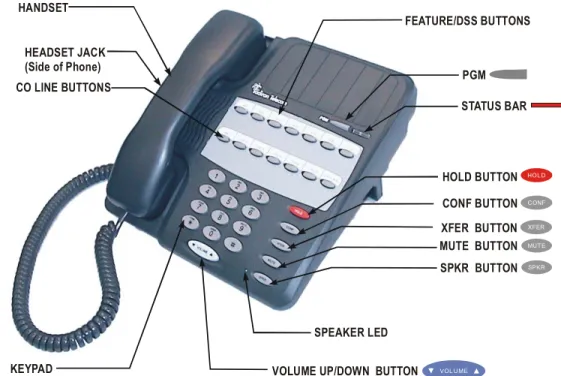
The Emerald ICE Standard Model Telephone features 14 programmable Feature/DSS buttons (dual color LED), Headset Jack, 8 fixed feature keys (Mute, Speaker, Hold, Transfer, Conference, Feature, Volume Up, Volume Down), and one Status Bar type message waiting lamp.
Figure 1-2 below shows the keys necessary for use with this manual.
Figure 1-2 Emerald ICE Standard Model
Telephone
1.2
Emerald ICE Standard Model Telephone
PGM HANDSET
HEADSET JACK (Side of Phone) CO LINE BUTTONS
HOLD BUTTON FEATURE/DSS BUTTONS
CONF BUTTON XFER BUTTON MUTE BUTTON SPKR BUTTON
SPEAKER LED
VOLUME UP/DOWN BUTTON KEYPAD
STATUS BAR
H C X M S
V
This document is a User Guide who’s target audience is a skilled or unskilled user.
The purpose of this manual is to provide operational instructions on the use of the main features of the Emerald ICE Standard Telephone keyset. It is divided in to several sections, designed to clearly and quickly provide information to the user.
The sections are:
Section 1 - Introduction - this section describes the basic Emerald ICE system components, the Standard Model Telephone, an overview of this manual and the applicable documentation.
Section 2 - Telephone Setup - this section provides descriptions of the Standard Telephone Setups including; Setting Defaults, Do Not Disturb, Call
Forwarding, Passwords, Feature/DSS Button Programming, Phone
Locking/Unlocking and Night Mode operation as well as basic telephone use.
Section 3 - Making Calls- this section provides operational descriptions of the basic call features such as Intercom Calls, Speed Dial, Conference, Paging and Last Number Redial, among other features.
Section 4 - Calling Features- this section provides operational descriptions of some of the in-progress call features such as Hold, Intrusion, Monitor, and Saved Number Redial among other topics.
Emerald ICE Installation and Maintenance Manual 1.3
Document Overview
1.4
Applicable Documents
tion
NOTES
up
2 Telephone Setup
Feature Code:PGM
p92
Description
The Emerald ICE allows you to activate your own private alarm on your telephone to remind you of special appointments, events, etc. When the alarm activates, you will hear tone ringing. After the alarm rings, it is automatically canceled. You can program the alarm to operate one time or repeatedly. When programmed for repeated calls, the alarm will sound at the same time everyday.
Activate Reminder-Extension
1. Press PGM
p92
+ the new time in HHMM (24-hour format) + 1 (one time only). If you would like a continuous alarm press PGMp92
+ thenew time in HHMM (24-hour format) + 2 (continuos).
Deactivate Alarm Clock-Extension
1. Press PGM
p*92
.Operational Notes
• The Alarm Clock feature code PGM
p92
can be programmed on any pro- grammable Feature/DSS Button.• Alarm Clock will be automatically canceled after the programmed Alarm Play Time is reached for a one-time alarm.
2.1
Reminder-Extension
e Setup
Feature Code: PGM
p94
Description
The Auto Hold feature will automatically place the current call on hold if you are on a call and you press an outside line button. For example, if you are currently on a call on the first line and you press a second line, the call on the first line will be placed on Exclusive Hold automatically. Similarly, if you are currently on an intercom call with another Emerald ICE extension and you press an outside line button, the intercom call will be placed on Exclusive Hold. You do not need to press Hold unless you want to place a call on System Hold.
Setup Auto Hold
1. Press PGM
p94
. You hear confirmation tone.2. The extension returns to an idle state.
Enable Automatic Hold
1. While connected to an intercom or outside line call, press another outside line button, if programmed.
2. The current connection is placed on hold and the next connection is established.
Cancel
1. Press PGM
p*94
. You hear confirmation tone.2. The extension returns to an idle state.
Operational Notes
• The Feature Code PGM
p94
can be programmed under a flexible but- ton on a Standard Telephone. To enable/disable the feature, toggle the Fea- ture/DSS Button.• If you access an idle line and skip to another line before dialing, the first line will not be automatically placed on Hold. (A line must be connected with an active call; either you dialed a number or answered a ringing line.)
• Auto Hold places a call on Exclusive Hold.
2.2
Auto Hold
up Feature Code: PGM
p95
Description
The Preference feature allows you to access specific outside lines or intercom automatically when you lift the handset or press the
S
button.Setup
1. Press PGM
p95
.2. Enter the outside line Directory Number (
700
–756
).3. Enter the valid outside line Group Directory Number
9
for outside line Group 1.4. Lift the handset to access the line you selected.
Cancel
1. Press PGM
p*95
.2. The extension returns to an idle state.
Operational Notes
• The system will not allow invalid directory numbers to be programmed dur- ing setup.
• When a CO Line or CO Line Group is programmed as your Preference that CO line or group must be programmed as available for access by the exten- sion in the system programming.
• The feature code PGM
p95
can be programmed on a Feature/DSS but- ton on a Standard Telephone.2.3
Preference
e Setup
Feature Code:
800 / 801
Description
Background Music can be activated on either of the two music channels to monitor music at the extension. An External music source is required.
While the extension is idle, enter the music channel that you want to monitor:
800
for Music Channel 1 (Enter the same number again to cancel.)801
for Music Channel 2 (Enter the same number again to cancel.)Operational Notes
• One Feature/DSS Button is already setup for Background Music operation at the factory.
• The Feature/DSS Button LED will not light when Background Music is acti- vated.
• Background Music automatically turns off when you receive or make a call.
• Background Music turns on again when the telephone return to idle status.
2.4
Background Music (BGM)
up Feature Code:PGM
p2
Description
There are several choices for forwarding your calls:
• Direct – Forward all of your calls,
• Busy – Forward your calls when your telephone is busy.
• Follow Me – Forward calls at your extension to the extension where you are currently working (conference room, associate’s office, etc.)
• Follow Preset – Invoke call forward at your extension so that it can be changed from another extension.
• No Answer – Forward your calls for no answer conditions.
• External – Forward calls transferred to your extension to a different tele- phone number. This feature must be enabled for your extension in database administration.
Forward conditions can be set as follows for each call forward type:
• Intercom calls only.
• Intercom and outside line (including transferred outside lines) calls.
• Outside line (CO Line) calls only.
Setup
Direct Call Forward
1. PressPGM
p22
or the Feature/DSS Button designated as CALL FWD (if programmed).2. Enter the extension number to which calls are to be forwarded.
3. Select the type of calls to forward.
a. 1 = outside line incoming or transferred calls b. 2 = both intercom and outside line calls 2.5
Call Forward
e Setup
Busy Call Forward
1. Press PGM
p21
or the Feature/DSS Button designated as CALL FWD (if programmed).2. Enter the extension number to which calls are to be forwarded.
3. Select the type of calls to forward.
a. 1 = outside line incoming or transferred calls b. 2 = both intercom and outside line calls c. 3 = intercom calls only.
4. You hear a confirmation tone and the extension returns to idle. The Status Bar is lit green.
No Answer Call Forward
1. Press PGM
p24
or the Feature/DSS Button designated as CALL FWD (if programmed).2. Enter the extension number to which calls are to be forwarded.
3. Select the type of calls to forward.
a. 1 = outside line incoming or transferred calls b. 2 = both intercom and outside line calls c. 3 = intercom calls only.
4. Enter a No Answer Time #1 between 10 and 50 (seconds). This is the time period setting that will alert the system that if there is no answer, the call is to be forwarded.
5. Enter a No Answer Time #2 between 10 and 50 (seconds). This is the second time period setting that will alert the system that if there is no answer, the call is to be forwarded.
6. You hear a confirmation tone and the extension returns to idle. The Status Bar is lit green.
up External Call Forward
1. Press PGM
p26
or the Feature/DSS Button designated as CALL FWD (if programmed).2. Enter the telephone number (cell phone, other office, etc.) where calls are to be forwarded.
3. You hear a confirmation tone.
Follow Call Forward
1. Press PGM
p25
or the Feature/DSS Button designated as CALL FWD (if programmed).2. Enter the extension number to which calls are to be forwarded.
3. Select the type of calls to forward.
a. 1 = outside line incoming or transferred calls b. 2 = both intercom and outside line calls c. 3 = intercom calls only.
4. You hear a confirmation tone and the extension returns to idle. The Status Bar is lit green.
Follow Me (From Another Extension to This Extension)
1. Press PGM
p23
or the Feature/DSS Button designated as CALL FWD (if programmed).2. Enter the extension number where calls are to be forwarded from (originator).
3. Select the type of calls to forward.
a. 1 = outside line incoming or transferred calls b. 2 = both intercom and outside line calls c. 3 = intercom calls only.
4. Enter the password of the extension from which the calls will be forwarded.
e Setup
Follow Me (From This Extension to Another Extension)
1. Press PGM
p25
or the Feature/DSS Button designated as CALL FWD (if programmed).2. Enter the extension number from which calls will be forwarded.
3. Select the type of calls to forward.
a. 1 = outside line incoming or transferred calls b. 2 = both intercom and outside line calls c. 3 = intercom calls only.
4. You hear a confirmation tone and the extension returns to idle.
Delete Forward (Own Extension)
1. Press PGM
p*2
+(Number of Forwarding Type) at own extension.Delete Forward (Other Extension)
1. Press PGM
p*23
+(Extension Number of Originator) a+ Password of originating Extension.Delete All Forwarding
1. Press PGM
p20
Operational Notes
• Regardless of whether the extension where calls are being forwarded is a Standard Telephone or single line telephone, the user at the forwarded extension will hear special Intercom Reminder tone signifying that Call For- ward is activated.
• The Status Bar light will not light green in call forward mode if that function has been disabled via the attendant in Attendant Administration.
• If a Feature/DSS Button has been programmed for Call Forward mode. The LED associated tot hat button will light red indicating the telephone is in call forward mode.
up Feature Code:PGM
p69
Description
The Default Set feature can be used to clear all active settings at your extension (Call Forward, DND, etc.)
1. Press PGM
p69
.2. A confirmation tone will be played.
Operational Notes
The following extension parameters are reset to the value shown:
LNR = empty
SNR = No Saved Number Memo = No Saved Number Telephone Lock = No Auto Hold = No Page Receive = Yes Busy Ring = Yes Hotline = NULL (none) 2.6
Default Extension
e Setup
Feature Code: PGM
p#1
Description
Dial Pad Confirmation or Touch Tone is the tone you hear to confirm that you have pressed a button on the Dial Pad. Touch Tone can be disabled.
While the telephone is idle, press PGM
p#1
. You hear a confirmation tone.Operational Notes
N/A
Feature Code:PGM
p#7
Description
You can choose one of eight Extension Ring Adjustment for your extension to differentiate your ringing tone from others.
1. Press the ringing code PGM
p#7
+(1
-8
)2. You hear the selected tone.
Operational Notes
• The Extension Ring Adjustment code can be programmed on any available Feature/DSS Button.
• A CO Line – ringing type overrides an extension’s ringing type.
2.7
Touch Tone (On/Off)
2.8
Extension Ring Adjustment
up Feature Code: PGM
p4
Description
The Do Not Disturb (DND) feature blocks all outside line and intercom call ringing.
You can activate Do Not Disturb while your telephone is idle or busy. Some extensions with a higher Class Of Service can override the active Do Not Disturb condition.
When you have activated Do Not Disturb, you will hear special intercom (short stutter tone followed by continuos dial tone) reminder tone when you lift the handset or use the speakerphone. If you have assigned a button on your Standard Telephone specifically for Do Not Disturb, that button will light whenever you activate the feature.
Set Do Not Disturb
1. While your extension is idle (no other call activity), press PGM
p4
.Cancel Do Not Disturb
1. While your extension is idle (no other call activity), press PGM
p4
.Operational Notes
• Do Not Disturb is not enabled if you have activated Call Forward.
• At any time while your Standard Telephone is idle, you can immediately divert an incoming tone ringing intercom call to the attendant by using the Do Not Disturb feature – Forced Intercom Call Forward.
• Any Feature/DSS button of your extension will flash when you activate Do Not Disturb.
• The Do Not Disturb feature code can be programmed on a programmable Feature/DSS Button.
• A Feature/DSS Button programmed for the Do Not Disturb code will light steady whenever Do Not Disturb is active.
2.9
Do Not Disturb
e Setup
Feature Code:PGM
p97
Description
All extensions of the Emerald ICE system have an associated User Password.
Passwords are used to activate Phone Lock, Call Forward Remote and Attendant features. Password length is from four to eight characters, depending on system programming.
Change Your Password
1. Press PGM
p97
+ Current Password + New PasswordOperational Notes
N/A
2.10
Extension Password
up Feature Code:PGM
p58
Description
This feature is used to reset all Feature/DSS Buttons to factory settings.
1. While the extension is idle, press PGM
p58
+ (Extension Password)+*
.Operational Notes
N/A
2.11
Feature/DSS Button Reset
e Setup
Feature Code:PGM
p#3
Description
Emerald ICE Standard Telephones have 14 dual-colored programmable Feature/DSS Buttons. You can program any system feature code on any
Feature/DSS Button for one-button operation. Certain programmed Feature/DSS Buttons will light when activated (Do Not Disturb, Call Forward, DSS/BLF, etc.), while others such as Call Pick-Up, Background Music, Last Number Redial, do not.
Features are separated into two distinct categories for programming onto Flexible Buttons: Directory Numbers or Feature Codes.
1. While the phone is idle, press PGM
p#3
.2. Press the Feature/DSS Button that you want to program. When
programming, the red LED of the feature key being programmed will flash slowly until programming is completed.
To program the button you must know the code number of the feature.
3. For a Directory Number press
1
+ Directory Number+h
. 4. For a Feature press2
+ PGMp
+ Feature Code +h
.Operational Notes
• In some cases a user can program a Feature/DSS Button for a specific CO line although access is restricted to that line via database programming. In this situation, the telephone is still governed by database programming and would still be unable to access the CO line if restricted.
• Any Feature/DSS Button programmed with a code previously assigned to a different Feature/DSS Button will cause the previously programmed Fea- ture/DSS Button to become unassigned.
2.12
Feature/DSS Button Programming
up Feature Code: PGM
p61
Description
The Access Code feature allows you to store a four-digit code so you can dial it by pressing only one button. To operate, the Access Code must be stored on a
Feature/DSS Button. This feature is typically used to store a password for the voice mail mailbox.
Storing a Code
1. While the telephone is idle, access Feature/DSS Button Programming (Refer to Feature/DSS Button Programming in Section 2.12) and program a
Feature/DSS Button to be stored with your Access Code.
2. Press PGM
p61
+ {the four-digit code to store}.Using the Access Code
1. Access the voice mail system (either the Emerald ICE Voice or an external voice mail system) by pressing the Feature/DSS Button designated as VOICE MAIL (if programmed).
2. When you hear the prompt to enter your password, press the Access Code button.
Operational Notes
• The Access Code feature can only be used when stored on a Feature/DSS But- ton.
2.13
Access Codes
e Setup
Feature Code: PGM
p#6
Description
Hot Key enables you to dial directly using the keypad without pressing the
s
button first.
Disable
While the telephone is idle, press PGM
p#6
.Enable
While the telephone is idle, press PGM
p#6
.Operational Notes
N/A
2.14
Hot Key Enable/Disable
up Feature Code: PGM
p9*
Description
The Hot Line feature allows the user to access an extension or Speed Dial Directory number simply by going off hook. This feature is useful for elevator phones and some other applications.
Setup
1. While the telephone is idle, press PGM
p9*
.3. Enter the speed dial directory number or extension number to which this extension is to be connected when the phone goes off hook.
4. Enter 0-9 for the delay (seconds) immediate or delayed. You hear a confirmation tone and the function is invoked.
Invoke Hotline
1. While the telephone is idle, lift the handset or press the
s
button. A call is placed to the selected destination either immediately or after the delay time.2. Hang up to finish the call.
Cancel
1. While the telephone is idle, press PGM
p*9*
. You hear a confirmation tone and the function is cancelled.Operational Notes
• If delay mode is selected other calls can be placed during the delay period.
• The Hotline feature code PGM
p9*
can be programmed on an available Feature/DSS Button.2.15
Hot Line
e Setup
Feature Code:PGM
p98
Description
In order to use the Voice Announce features described below, a Feature/DSS button must be programmed First.
A Standard Telephone has the benefit of receiving intercom calls in three ways:
• Voice Announce Hands-free reply mode.
• Voice Announce Privacy Mode.
Tone Ringing Mode.
The Status Bar Lamp and Feature/DSS Button LED will illuminate as shown in Table 2-1 below.
Table 2-1 Voice Announce Mode LED Indications
2.16
Voice Announce
Mode Button
Lamp
Momentary Confirmation
Confirmati on Tone Heard
Status Bar (when intercom call rec’d)
Voice Announce – Handsfree
Green LED VA-HF MODE single burst tone
Solid Red LED
Voice Announce – Private
Red LED VA-PRIVACYMODE single burst tone
Slow Flashing Red LED
Tone Ring Mode
No LED lit TONE RING MODE single burst tone
Fast Flashing Green LED
up
Setup
1. Program a Feature/DSS button for Voice Announce as described in Section 2.12 if you have not programmed it already. Use PGM
p98
as the applicable Feature Code.2. While your extension is idle, press PGM
p98
. You hear a confirmation tone.3. Press PGM
p98
again to advance through each of the available modes.The LED for the Voice Announce Feature/DSS button will illuminate as described in Table 2-1.
Receiving a Call in VA-HF Mode
When your extension is idle, you will be alerted of intercom calls by one tone burst. The voice connection is then established immediately and you can respond to the calling extension via the speakerphone.
Receiving a Call in VA-Privacy Mode
1. When your extension is idle, you will be alerted of an intercom call by one tone burst. The voice connection is then established immediately with the Mute function activated at your extension. You hear the calling extension voice announcement over the speaker, but the microphone in your telephone is disabled.
2. You can:
a. Lift the handset for privacy.
b. Press the
m
button to deactivate the Mute feature and speak with the caller using the speakerphone.Receiving a Call in Tone Mode
1. When your extension is idle, you will be alerted of an intercom call by a double-burst tone which is repeated until you respond or until the call follows a Call Forward route.
2. You can:
a. Lift the handset for privacy.
b. Press the
S
button to activate the speakerphone and speak with the caller using the speakerphone.e Setup
Feature Code: PGM
p63
Description
After-hours operation can require different ringing patterns than those during normal business operations. The system can be placed into Night Mode as one of the available Service Modes.
Any extension can manually switch the system service from day to night mode, or vice-versa, using the Attendant Administration (password is required). The attendant extension can set the system mode of operation using the Night Mode code or a Feature/DSS Button programmed with the code for simple one-button operation.
Change Service Mode
1. At the attendant extension press the Feature/DSS button programmed with the Service Mode feature code or enter the feature code PGM
p63
.2. Enter the attendant extension password.The Service Mode is advanced to the next mode.
Operational Notes
N/A
2.17
Night Mode/Activate
up Feature Code: PGM
p70
DescriptionPause Insertion is used to add a delay in dialing on outgoing outside line calls. You can store a pause or a combination of pauses in the Speed Dial bins to allow timed access to special services while allowing you to monitor the progress of the call.
When storing numbers in speed dial, use the feature code PGM
p70
to insert a pause.Operational Notes
• A pause occupies one digit position when stored in speed dial.
2.18
Pause Insertion
e Setup
Feature Code:
S
Description
The Emerald ICE Standard Telephones are all equipped with a high-quality,
half-duplex speakerphone. This feature makes it possible to place hands-free calls.
Placing a Call
1. Press an idle outside line button or dial an intercom number.
2. The
S
button LED lights immediately and the speakerphone is active.3. Press
S
to hang up the call.Answering a Call
1. While your phone is ringing, press the
S
button.2. The
S
button LED lights immediately and the speakerphone is active.3. Press
S
to hang up the call.Operational Notes
• The speakerphone function is impacted by environmental conditions.
• To dial intercom numbers directly from an idle condition, the Hot Key set- ting must be Enabled. Otherwise, the extension user must press a pro- grammed Intercom Button or press the
S
button prior to dialing the extension number.• For privacy, you can lift the handset at any time to exit from Speakerphone mode.
2.19
Speakerphone
up
Description
The Standard Telephone uses a dual colored LED Status Bar Lamp to assist the user in recognizing the extension status. The Status Bar Lamp will give these visual indications:
Operational Notes
N/A
2.20
Status Lamp
Flash
Rate Priority Red Lamp Green Lamp
Fast 1 Incoming outside line
Ringing
Incoming Intercom Ringing
Slow 2 Mute Message Waiting
Steady 3 Speakerphone/Headset in
use
Call Forward active
e Setup
Description
The Emerald ICE Standard Telephone is equipped with a volume control that you can use to adjust the various volume settings of the telephone. The following function volumes can be adjusted:
• Background Music
• Ringing
• Handset
• Speaker
• Headset
You can adjust the volume for each function while that function is in use.
You can adjust ringer volume while the telephone is idle.
While the function is active, press the
v
as necessary. The volume for this function is now set and will be retained for any future use of this mode.Operational Notes
N/A
2.21
Volume Control
3 Making Calls
Feature Code:
9
Description
Access to Outside Lines, is available using several ways. They can be accessed by:
• Dialing the specific outside line (lines
700
-757
) or outside line group (9
,800
-806
,• Pressing a programmed outside line button. Refer to Section 2.12 for DSS key programming instructions.
All extensions are programmed with CO Line buttons for CO Lines 1~6.
To dial an outside line;
1. Press one of the outside line buttonsof an idle outside line where the LED is not illuminated. If the handset is still on-hook, the Speakerphone LED will be illuminated.
2. When you hear dial tone, dial the telephone number.
3. Hang up to end the call or press
s
, if you are using the speakerphone, to hang up.3.1
Making an Outgoing Call
lls
Feature Code:
401 - 464
Description
To make an intercom call, dial the extension number.
Or…
Press one of the pre-programmed Feature/DSS Buttons of the extension that you want to call. Refer to Section 2.12 for instructions on programming the Feature/DSS Buttons.
Operational Notes
• Some applications may require a button to indicate use of the intercom fea- ture at extensions. To meet this requirement, the feature code
65
can beprogrammed on an available Feature/DSS Button for use.
• Auto Line Selection is set to Intercom by default, therefore, intercom dial tone is heard automatically when lifting the handset or when pressing the
s
button.• When calling an extension that is in Voice Announce mode you can Force Tone Ring by
*
after the extension number.3.2
Making an Intercom Call
Feature Code:
89
Description
If you would like to call to be associated with a specific account number in the Emerald ICE Station Message Detail Reporting (SMDR), you must enter an account code before making the call. The account code length is predetermined and programmed to be between 2 and 8 digits.
1. Dial the Account Code access number
89
.2. Enter a valid account code. The Emerald ICE system automatically accesses an idle outside line.
3. Dial the telephone number.
Operational Notes
• If you dial an invalid account code, you will hear an error tone.
• When you dial a valid account code, the call is monitored for toll restriction against the Class of Service associated with the entered Account Code.
3.3
Making a Call Using Account Code
lls
Feature Code: PGM
P78
Description
You can use Auto Redial (AR) to dial the last number that you dialed. The system waits for a predetermined time for the call to be answered. If the call is not answered during this time, the system hangs up and tires the call again. The number of attempts the phone will make is designated in the system
programming.
Default is 2 attempts
1. Hang up when you place a call and receive a busy signal.
2. PressPGM
P78
.Operational Notes
• The Feature Code PGM
P78
can be programmed under a Feature/DSS Button on the Standard Telephone to be used with the Auto Redial feature.• The system will continue redial attempts until:
- The Call rings through and the caller picks up.
- The maximum number of attempts is reached. (2-15) - Any other feature is used on the telephone.
• The number of redial attempts and the timed interval between attempts are set in system programming and are not changeable at the individual exten- sions.
3.4
Auto Redial
Feature Code:
0
Description
The extension that is programmed as the Attendant may receive internal calls via a programmed Operator Code.
To call the attendant/operator, press
0
.Operational Notes
• The Operator Code is in addition to the default assigned three-digit intercom number for the extension.
• The attendant three-digit extension number can be programmed in any Fea- ture/DSS Button.
Feature Code:
860 - 867
Description
The Meet-Me Conference feature is used to join multiple parties in one conversation.
The system provides eight separate conference bridges. (4 parties maximum each.) Callers can be easily transferred to these bridges. Users may simply dial the location number. Outside parties can join the conference using the automated attendant by dialing the bridge number at the Auto Attendant greeting.
3.5
Calling the Operator/Attendant
3.6
Meet-Me Conference
lls
Transfer a Caller to a Meet Me Conference
1. Press
x
while connected with another extension or outside line.2. Dial the Meet-Me Conference destination for this call.
(
860
-867
).3. Hang up to complete the transfer.
Join a Meet-Me Conference
1. Dial the Meet-Me Conference destination to join (
860
-867
).2. Hang up when finished.
Join a Meet-Me Conference from the Auto Attendant
1. Dial the Meet-Me Conference destination to join
(
860
-867
)when the automated attendant answers.2. Hang up when finished.
Operational Notes
• Up to 4 simultaneous connections may join any one conference.
• Up to 8 simultaneous conferences may be established at any one time.
Feature Code: PGM
P77
Description
The Emerald ICE system can accommodate eight, 4-party conferences
simultaneously. Conferences can include a maximum of 3 outside lines and up to 4 extensions. One telephone station acts as the conference manager and counts as one conference member.
Supervised/Unsupervised
A Supervised Conference is a conference whereby at least one member is an
extension of the Emerald ICE system. The Emerald ICE extension that establishes a conference becomes the conference manager and can add and/or delete members of the conference at any time. The conference manager also is authorized to establish an Unsupervised Conference. An Unsupervised Conference is a conference where all members are on outside lines.
Establish a Three-party Conference
1. Answer or place the first call (internal or external).
2. Press
h
.3. Place the second internal or external call.
4. Press the
c
button to join the connections together.5. Hang up to end the Conference.
Establish a Four-party Conference
1. First establish a three-party conference as described above.
2. Press
H
.3. Place the third call internal or external call.
3.7
Supervised/Unsupervised Conference
lls
Establish an Unsupervised Conference
1. Establish a conference with two or three outside lines as described above.
2. Press PGM
p77
. The Unsupervised Conference is established and your extension is returned to idle.Rejoin an Unsupervised Conference
1. PressPGM
p77
.2. Your extension is rejoined to the conference connection.
Operational Notes
• The conference manager is the extension that establishes a conference.
• Only the manager can add new parties.
• Only the conference manager is allowed to release any attending party.
• When adding new parties to a conference and while speaking privately to a particular conference member other members of the conference will be con- nected to Music On Hold.
• When the conference manager exits a conference, the most recently invited internal party will be designated as the new conference manager.
• When a conference is established, each party will hear a conference tone when the Conference Tone is enabled.
Description
The Direct Inward System Access or DISA feature allows you to remotely access system resources such as System Speed Dial, outside line Access, and Intercom dialing. DISA can be accessed via the Auto Attendant as well as by dedicated DISA lines.
1. Call into the Emerald ICE.
2. Press
9
or dial the DISA line number directly.Or…
3. The DISA stutter dial tone is heard.
4. Dial an internal number.
Accessing an Emerald ICE Outside Line
1. Dial
#
+ Extension Password + Extension Number +#
to access a system outside line to dial out.2. Dial an outside line Group number or speed dial location number to place an outgoing call.
3. Hang up when finished.
Operational Notes
• Up to 4 DISA CO lines may be used simultaneously.
• The activation time for a DISA CO line is programmable for “Never,” Day,”
“Night” or “Always.”
• If you dial an invalid number your call will be directly transferred to the attendant.
• The DISA Talk Time is programmable for 1, 2, 3, 5, 10, and 15 minutes 3.8
Direct Inward System Access (DISA)
lls
Feature Code: PGM
p8
Description
The Last Number Redial feature, or LNR, automatically dials the last number dialed from your telephone. The LNR retains up to sixteen (16) digits. You may either choose a specific outside line by first pressing that outside line button or you can allow the line to be selected automatically by the LNR feature.
Choose an Outside Line First
1. Press an outside line button.
2. PressPGM
p8
.Automatically Select an Outside Line
1. PressPGM
p8
.Operational Notes
• Last Number Redial doesn’t operate with intercom calls.
• The LNR feature code can be programmed on a Feature/DSS Button.
• LNR will dial the speed dial number and any subsequent manually dialed digits.
• In the event that all CO lines are busy you will hear busy tone.
• If the Last Number Redial memory is empty you will hear error tone.
3.9
Last Number Redial
Description
You can make outgoing calls from your Standard Telephone using the speakerphone. The
s
button LED is lit when you are making a call.1. dial any extension number directly from the keypad without lifting the handset. The Hotkey feature must be active.
Or…
2. Press any outside line button and dial without lifting the handset.
3. When Hot Key is disabled, press the
S
button or press an idle outside line button then dial without lifting the handset.Operational Notes
N/A
3.10
On-Hook Dialing
lls
Feature Code:
200
-208
,820
Description
You can make a public announcement to all extensions or to a group of extensions.
The Emerald ICE system provides both all-call (heard by all users) and page zone (heard by a specific group of users). Page announcements are heard over the extension speakers.
1. While in the idle condition – lift the handset.
2. Dial the Zone Page access code (extensions)
201
–208
for extensions or820
for external page. Press the Feature/DSS Button designated as All Call Page or dial the All Call Page access code200
.You hear the Page Alert Tone.
4. Make a paging announcement.
5. Hang up when finished.
Operational Notes
• The Page Allow/Deny feature code may be programmed on a Feature/DSS Button.
3.11
Paging
Feature Code: PGM
p51
Description
The Saved Number Redial, or SNR feature is normally used whenever you want to store a telephone number that you would like to dial later. The same feature code is used to Save a Dialed Number (SDN) and to dial the saved number – Saved Number Redial (SNR).
SDN
After you’ve placed an outside line call to a number that you would like to store, press PGM
p51
. The dialed number is stored in the Saved Number memory.SNR
When the telephone is idle, press the Feature/DSS Button designated as SNR or press PGM
p51
. The stored number is dialed.Operational Notes
• SDN can store up to sixteen (16) digits.
• The Save Dialed Number/Saved Number Redial feature code can be pro- grammed on any Feature/DSS Button.
3.12
Saved Number Redial
lls
Extension
500
-519
,System
600
-699
Description
The Speed Dial feature allows you to store frequently dialed numbers. There are 20 speed bins per extension and 100 system speed bins that can be shared by all extensions.
Setup
1. Press PGM
p1
.2. Dial the Speed Dial location number (
500
–519
).3. Enter the number that you want to store, including Pauses
(PGM
p70
), Flash (PGMp3
) and Pulse-To-Tone Conversion (#
) codes.4. Repeat from step 2 to continue programming Speed Dial locations from step 2 above or hang-up (press
S
twice) to exit.System Selects the Outside Line Automatically
Dial the Speed Dial location number (
500
–519
,600
–
699
).You Select the Outside Line to Use
1. Press the desired outside line button or dial the outside line directory number.
2. Press PGM
p1
.3. Dial the Speed Dial location number (
500
–519
,600
–
699
).3.13
Speed Dial
es
4 Calling Features
Feature Code: PGM
p64
Description
The Answering Machine Emulation feature requires the optional Emerald ICE Voice Mail System. Whenever your voice mailbox answers a call, the Emerald ICE allows you to screen the caller leaving the message. This option is available for only a few seconds after your voice mailbox has answered the call.
1. When an extension user voice mailbox answers a caller, you’ll hear an alert tone. The Feature/DSS Button programmed for Voice Mail (PGM
p64
) will flash green at a fast rate.2. Press the flashing Voice Mail button. The button LED will now flash green at a slower rate.
Operational Notes
• To Monitor or Answer a call, action must be taken before the “Monitor Time” expires. Monitor Time starts at the time the caller is connected to the user’s voice mail box.
4.1
Answering Machine Emulation
Features
Description
The Call Back feature allows you to queue a busy outside line for use when it becomes available.
1. Press a busy, programmed outside line button (steady red LED) or outside line group button, or dial an outside line access group number (
9
,700
–756
). You will hear busy tone.2. Dial
#
on the dial pad.You will hear a confirmation tone.3. A few moments later, the display will return to an idle state.
5. When the selected outside line, or an outside line in the selected outside line group, becomes available, you will hear fast ringing at the extension.
Operational Notes
• During call back alert tones, lifting the handset will directly connect the extension user to the selected CO Line calling back.
• Every extension may Call Back only one busy CO line at the same time.
• The Call Back Alerting Ring Time is 10 seconds. If the call back goes unan- swered during the 10 seconds ring time the call back is canceled.
• CO lines that have Call Back requests will recall the Call Back initiator. The Call Back CO line will become available to other extensions if the call back extension doesn’t answer within 10 seconds.
• During the time that the Call Back is recalling the initiator, a new incoming call will take precedence over Call Back and will be answered when the extension goes off hook.
4.2
Call Back (CO Line)
es
Description
When you call an extension that is busy, in Do Not Disturb, or idle, you can use the Call Back-Extension feature to queue your call so that it will be placed as soon as the extension is available.
1. Dial the intercom extension number of the busy extension or the busy trunk to be seize + #.
To cancel all active call backs prior to receiving Call Back Alert ringing:
1. Press PGM
p*#*
to delete all call backs.2. Press PGM
p*#
+ Extension number or Trunk number to delete individual call backs.Operational Notes
• The call back process begins when both your extension and the called party’s extension are in idle.
• “#” is the default Callback suffix code.
4.3
Call Back (Extension)
Features
Feature Code: PGM
p73
Description
The Call Park/Call Park Answer feature allows you to “park” a call at any extension.
It is also used to retrieve a parked call from any extension. You can park and retrieve calls by dialing the Call Park code (PGM
p73
) followed by the extension number where the call is to be/has been parked.1. While connected to an outside line call, press PGM
p73
or press pre-programmed Feature/DSS Button designated as CALL PARK (if programmed).2. Dial the extension number where this call is to be parked, or press the Feature/DSS Button of the extension where this call is to be parked.
3. The outside line call is parked at that extension.
4. Hang up the phone.
Call Park Answer
1. While the phone is idle, press PGM
p73
or press the pre-programmed Feature/DSS Button designated as CALL PARK.2. Dial the extension number where this call is to be parked, or press the Feature/DSS Button of the extension where this call is parked.
3. You are connected to the call.
Operational Notes
• Each telephone/extension has one personal extension number used to park one CO line call.
• From your telephone you can park a call at any active extension number.
• The Call Park feature code may be programmed on any programmable Fea- 4.4
Call Park/Call Park Answer
es Feature Code:
*
Description
The Call Pick Up (Group) feature is used to answer calls ringing at another extension.
When you hear another extension in your pickup group ringing, press
*
. Or…When you hear an extension in a different pickup group ringing, dial that Call Pick Up Group number (
260
-267
).Operational Notes
• If the call at the dialed extension has stopped ringing, you will hear an error tone.
• The Call Pick Up Group feature code can be programmed on any Feature/DSS Button.
• If several calls of the same priority are ringing at the extension, the calls are answered in the order they are received.
4.5
Call Pick Up (Group)
Features
Description
The Camp On feature alerts the user of a busy extension that another extension is attempting a call.
When you initiate a Camp On by entering [4] or the suffix code, the user at the busy extension hears a Camp On alert tone.
Operational Notes
• “4” is the default Camp On suffix code.
• Each extension can have only one Camp On at the same time.
• While waiting for a busy extension the caller hears music.
4.6
Camp On (Extension)
es Feature Code: PGM
p4
Description
The One-Time Do Not Disturb feature allows you to block outside line ringing while engaged in a call. The feature will automatically be disabled at the end of the current call.
1. While you are connected with a call and a new call rings at your extension.
To cancel ringing for this call, press a pre-programmed Feature/DSS Button designated as DO NOT DISTURB or press PGM
p4
.2. Do Not Disturb (One Time) is activated.
3. Do Not Disturb (One Time) will deactivate when the current call is disconnected.
Operational Notes
• The Do Not Disturb (One Time) feature code may be programmed on a Fea- ture/DSS Button.
• A Feature/DSS Button programmed for the Do Not Disturb code will flash at a fast rate while Do Not Disturb (One Time) is active.
4.6
Do Not Disturb (One Time)
Features
Description
The Do Not Disturb – Override feature allows you to override the Do Not Disturb condition at another extension.
Do Not Disturb-Override is available only if Intrusion (Section 4.14) is active on the calling extension.
Operation – Calling an Extension in Do Not Disturb
1. Place intercom call to the extension in Do Not Disturb. You will hear the Do Not Disturb tone.
2. Press the suffix code [3].
3. The called extension begins to ring.
Operational Notes
• The default Do Not Disturb-Override suffix code is 3.
• The Do Not Disturb feature code may be programmed on a programmable Feature/DSS Button.
4.7
Do Not Disturb (Override)
es Feature Code: PGM
p3
Description
The Flash – CO Line feature is used with a call waiting feature from your telephone company. Flash – CO Line is used to generate a hook switch signal to the telephone company to answer the waiting call.
While connected to an outside line with a waiting call, press PGM
p3.
.Operational Notes
N/A
4.8
Flash (CO Line)
Features
Feature Code:
*
Description
You can use the Forced Intercom Tone Ring feature to cause the called telephone to ring when you initiate an intercom call. After a Voice Announce connection has been established to an extension, you may change the alert signal at that extension from Voice Announce to Tone Ring.
1. Establish an intercom call to an extension in Voice Announce mode.
2. Press
*
to change the alert signal at the called extension from Voice Announce to Tone Ring.3. A Tone Ring alert signal is sent and continues at the called extension until it is answered. If your call remains unanswered, you can dial
*
again to return to Voice Call Announce mode.Operational Notes
•
*
is the default Forced Intercom Tone Ring suffix code.• It is not possible to force an extension from Tone Ring mode to Voice Announce mode if Tone Ring was selected in the destination.
• To leave a Callback request at a called extension that doesn’t answer, the alert signal must be set for Tone Ring.
4.9
Forced Intercom Tone Ring
es Feature Code:
H
Description
You can place any outside line on Hold by pressing the
H
button. When a line is place on Hold, the green LED indicates that this is your holding line and flashes at double wink rate. The same system hold line will flash the red LED at all other extensions.1. While on a line, the line green LED is flashing at a double wink rate.
2. Press
H
. The line green LED now flashes at a slow rate and the call is placed on System Hold.Operational Notes
• Any party who is placed on Hold will hear music if available.
4.10
Hold
Features
Feature Code:
H
Description
When using the PGM
p
button andH
together, you can place an outside call on Exclusive Hold.While connected on an outside line, press PGM
p
and then pressH
.Operational Codes
• When you place a CO line call on Exclusive Hold, the green LED for that line at your telephone will flash fast and the red LED will light steady at other extensions for that CO line.
• A CO line call will be placed on System Hold (Refer to Section 4.10) after the Exclusive Hold time expires. You will hear a tone alerting you that the timer has expired and the hold condition for that CO line changes to System Hold.
The green LED at your telephone will flash slowly and the red LED at other extensions will begin to flash slowly.
• Exclusive Hold is used only for CO line calls.
4.11
Exclusive Hold
es
Description
The Emerald ICE system provides a programmable timer to remind you that a call has been left on System Hold or Exclusive Hold. When Hold Reminder is enabled, you will hear one ring tone repeated each time the selected time expires.
Operational Notes
• Hold Reminder applies to both intercom and CO line calls.
• Hold Reminder applies to CO line calls that are on System Hold (Refer to Section 4.10) or Exclusive Hold (Refer to Section 4.11).
4.12
Hold Reminder
Features
Feature Code:
H
Description
The Holding Call Answer feature allows you to place a call on hold and retrieve calls from hold by pressing the
H
button. When multiple calls are holding at an extension, Holding Call Answer will access the outside line that has been holding the longest while placing the current call on hold.Holding Call Answer works for all outside lines. It is possible to handle calls that do not appear (no button) at an extension via Holding Call Answer.
1. When one or multiple calls are holding at your extension, press
H
. The oldest holding call is connected.2. Press
H
again to place this call on hold.3. Press
H
again to answer the next oldest holding call.4. Repeat as required for any calls on hold. (From your extension)
Operational Notes
• Holding Call Answer will also operate for intercom calls placed on hold.
• If the person on hold hangs up, the system will automatically release the held CO line.
4.13
Holding Call Answer
es
Description
The Intrusion feature allows the initiator to enter into an existing conversation when the initiator has been given the privilege to do so via Extension
programming (“Intrusion Active” = Y). Intrusion can be invoked both on a busy outside line and to a busy extension.
1. Press the busy outside line button or dial a busy extension number.
2. Press
8
.3. Hang up to disconnect.
Operational Notes
•
8
is the default Intrusion code suffix.• An Intrusion Tone will be presented to all parties when Intrusion is invoked (extensions and CO Lines).
4.14
Intrusion
Features
Feature Code: PGM
p59 , #
Description
Any internal or external page announcement can be answered using a Meet Me Page code. After hearing a page announcement, you can dial the Meet Me Page code from any telephone and be connected to the person paging you.
1. While a page is currently in progress press
#
or PGMp59
.Operational Notes
• A page may be answered at any telephone using the Meet Me Page code, even if the page announcement is not heard over the telephone speaker.
• The page may be any zone page or all page.
• The Meet Me Page code may be programmed on any Feature/DSS Button.
4.15