vFabric Web Server Installation and
Configuration
VMware vFabric Web Server 5.2
VMware vFabric Suite 5.2
This document supports the version of each product listed and
supports all subsequent versions until the document is replaced by
a new edition. To check for more recent editions of this document,
see
http://www.vmware.com/support/pubs
.
The VMware Web site also provides the latest product updates.
If you have comments about this documentation, submit your feedback to: [email protected]
Copyright © 2013 VMware, Inc. All rights reserved. This product is protected by copyright and intellectual property
laws in the United States and other countries as well as by international treaties. VMware products are covered by
one or more patents listed at http://www.vmware.com/go/patents.
VMware is a registered trademark or trademark of VMware, Inc. in the United States and other jurisdictions. All
other marks and names mentioned herein may be trademarks of their respective companies.
VMware, Inc., 3401 Hillview Avenue, Palo Alto, CA 94304
www.vmware.com
Table of Contents
1. About vFabric Web Server Installation and Configuration ... 1
Intended Audience ... 1
2. Overview of vFabric Web Server ... 3
Information for International Customers ... 3
Complete Packages and Modules in vFabric Web Server 5.2 ... 3
Differences Between vFabric Web Server and vFabric ERS ... 4
3. Installing vFabric Web Server ... 7
Installation Note for vFabric Suite Customers ... 7
Available Distribution Packages ... 7
RHEL: Install vFabric Web Server from an RPM ... 7
Unix: Install vFabric Web Server from a Self-Extracting ZIP ... 9
Windows: Install vFabric Web Server from a ZIP File ... 11
Activate a vFabric Web Server Local License ... 12
Description of the vFabric Web Server Installation ... 13
4. Upgrading vFabric Web Server ... 15
RHEL: Upgrade Using the VMware RPM Repository ... 15
Unix: Upgrade Using a Self-Extracting ZIP ... 15
Windows: Upgrade Using a Self-Extracting ZIP ... 16
5. Migrating Enterprise Ready Server to vFabric Web Server ... 19
Preparing to Migrate ... 19
Migration Procedure ... 23
6. Creating and Using vFabric Web Server Instances ... 25
Description of vFabric Web Server Instances ... 25
Create vFabric Web Server Instances ... 25
newserver Prompts and Command Reference ... 26
Unix: Start and Stop vFabric Web Server Instances ... 30
Windows: Start and Stop vFabric Web Server Instances ... 31
httpdctl Reference ... 32
Serve a Sample HTML File from Your vFabric Web Server Instance ... 33
7. Configuring vFabric Web Server Instances ... 35
Using Sample Configuration Files to Enable Features and Modify Configuration ... 35
Configure Load Balancing Between Two or More tc Runtime Instances ... 35
Configure SSL Between vFabric Web Server and vFabric tc Server ... 39
Configure BMX for Monitoring vFabric Web Server Instances ... 43
8. Security Information ... 45
External Interfaces, Ports, and Services ... 45
Resources That Must Be Protected ... 45
Log File Locations ... 45
User Accounts Created at Installation ... 46
Obtaining and Installing Security Updates ... 46
9. Managing Planned and Unplanned Outages ... 47
Managing Planned Outages ... 47
Managing Unplanned Outages ... 47
Backing Up vFabric Web Server ... 48
About vFabric Web Server Installation and Configuration
1
1. About vFabric Web Server Installation and Configuration
Revised January 10, 2013.
VMware vFabric Web Server Installation and Configuration describes product concepts and product-specific configuration
tasks for VMware® vFabric™ Web Server. Fully compatible with Apache Web Server, vFabric Web Server is a dynamic load-balancing service that is available as a standalone product and as a part of VMware® vFabric Suite™ Standard and vFabric Suite Advanced editions. Read this documentation for an overview of vFabric Web Server features, installation instructions, and information on how to configure functionality that is specific to vFabric Web Server.
Intended Audience
vFabric Web Server Installation and Configuration is intended for experienced Windows and Unix developers and system
administrators who want to install a Web Server to serve static Web content, act as a proxy, or load balance between application servers such as VMware® vFabric™ tc Server.
Overview of vFabric Web Server 3
2. Overview of vFabric Web Server
vFabric Web Server is the Web server and load-balancing component of VMware vFabric Suite. vFabric Web Server 5.2 is based on Apache HTTP Server version 2.2.
In addition to the standard features of Apache HTTP Server, vFabric Web Server provides the following mission-critical benefits: • Ability to easily install multiple instances of vFabric Web Server running on a single computer.
• Scalable management of multiple Web sites and servers; you can run and manage hundreds of instances of vFabric Web Server.
• Support for heterogeneous environments (32- and 64-bit architectures): Red Hat Enterprise Linux (RHEL), Solaris, Ubuntu, and Microsoft Windows. vFabric Web Server can be updated and patched across all servers at once. See Supported Configurations and System Requirements for details.
Subtopics
Information for International Users
Complete Packages and Modules in vFabric Web Server 5.2 Differences Between vFabric Web Server and vFabric ERS
Information for International Customers
If you require multi-byte character-set support, VMware recommends that you follow these guidelines for using multi-byte filenames and multi-byte characters in configuration files. These guidelines provide the most flexibility and most consistent results:
• Use the UTF-8 encoding when running a Unix terminal or Windows PowerShell. For example, to set this encoding on Unix, you can use the following environment variable:
LANG=en_US.UTF-8
On Windows, you can run the following command in your PowerShell window:
PS prompt> chcp 65001
Important: The preceding Windows command does not always work as expected on pre-R2 versions of Windows 2008. For
this reason, VMware strongly recommends that you install vFabric Web Server on Windows 2008 R2.
Setting your encoding to UTF-8 results in better display of httpctl output, easier examination of the log files, and so on. • Edit and save all vFabric Web Server configuration files, such as conf/httpd.conf, in UTF-8 format. This improves the
legibility of the Web Server access and error log files.
Complete Packages and Modules in vFabric Web Server 5.2
This section lists the complete contents of vFabric Web Server 5.2.This document describes features and functionality for vFabric Web Sever 5.2. For general information about new features in Apache HTTP Server 2.2, see the Apache Web site.
• Core Apache HTTP 2.2.23 Binaries • Apache mod_ftp 0.9.6
• Apache mod_fcgid 2.3.7 • OpenSSL 1.0.1c • OpenSSL/FIPS 2.0 • OpenLDAP 2.3.43 • mod_jk 1.2.37
• mod_bmx 0.9.4 (Hyperic plug-in for monitoring support) • libexpat 2.1.0 • libpcre 8.30 • libapr 1.4.5 • libaprutil 1.3.12 • libiconv 1.11 • zlib 1.2.3
You typically install vFabric Web Server from the vfabric-web-server-version-platform package, which contains all the preceding compiled modules. For your convenience, VMware also makes a vfabric-web-server-devel-version-platform package available which you can use to build HTTPD modules. Typically, you install the -devel package only on development computers, and not on production computers.
mod_fcgid Implementation of Connector to FastCGI
The mod_fcgid distributed with vFabric Web Server 5.2 is an implementation of the connector to FastCGI applications. This module allows the user to provision FastCGI providers such as PHP or Ruby on Rails from third parties, running out-of-process from the server itself.
Many applications can be built to support FastCGI; consult your language or application documentation for details. The
application providing FastCGI services is launched by mod_fcgid on the initial request, and reused for subsequent requests to that application or language environment.
For details on configuring an application, including the number of persistent processes created, see Apache Module mod_fcgid.
Differences Between vFabric Web Server and vFabric ERS
The vFabric Cloud Application Platform includes two HTTP server and load-balancing products: vFabric Web Server and vFabric Enterprise Ready Server (ERS). vFabric ERS is nearing its end-of-life and VMware highly recommends that ERS customers migrate to vFabric Web Server. The following table describes the major differences between the two products and provides high-level actions that existing ERS customers can take as they prepare for the migration.
Table 2.1. Differences Between vFabric Web Server and vFabric ERS
vFabric Web Server vFabric ERS Customer Action
Available as part of vFabric Suite (Standard and Advanced) or as a standalone product.
Not included in vFabric Suite. Originally designed for only physical computers.
Select licensing based on vFabric integration or dedicated hardware.
Strictly an Apache HTTPD Server-based product. vFabric tc Server, a separate product, is strictly an Apache Tomcat-based product.
Includes both Apache HTTPD and Apache Tomcat packages.
Migrate ERS Apache HTTPD instances to vFabric Web Server. Separately migrate ERS Tomcat instances to vFabric tc Server.
Runs on current, vendor-supported 32-and 64-bit releases of RHEL, Microsoft
Runs on now-unsupported, or "twilighted", versions of RHEL, Windows, Solaris, AIX, and
Upgrade to a vendor-supported operating system version for all vFabric Web Server
Overview of vFabric Web Server 5
vFabric Web Server vFabric ERS Customer Action
Windows, Solaris, and AIX. See Supported Configurations and System Requirements for the exact versions.
HPUX. See ERS Supported Platforms for the exact versions.
instances, and apply all patch releases (such as service packs) issued by that vendor no later than 12 months from their vendor release.
Includes the current enterprise-ready release of Apache HTTPD Server 2.2.
Includes the current release of Apache HTTPD Server 2.2, as well as the now-deprecated 2.0 and 1.3 versions.
Migrate all Apache HTTPD 2.0 and 1.3 instances to vFabric Web Server 2.2 instances. The migration requires updates to the *.conf file.
During installation or upgrade, the Apache HTTPD binaries are written to a path in the format vfabric-web-server/ httpd-2.2.xx.x-32. This preserves any existing Apache HTTPD binaries without overwriting them.
During installation or upgrade, the Apache HTTPD binaries are always written to the same directory (ers-install-path/
apache2.2-64), which means on upgrade any existing binaries are overwritten.
Point all server instances to the common symlink vfabric-web-server/ httpd-2.2, modify it to revert/roll back/ change 32-64 bit modes.
Includes the most commonly-used modules. See Complete Packages and Modules in vFabric Web Server 5.2.
Included additional modules, such as mod_perl, mod_php, and mod_snmp.
Migrate PHP and Perl applications to the supported, and more optimal, mod_fcgid environment.
Closely tracks Apache Software Foundation (ASF) naming and directory layout conventions. In particular:
• install-dir/httpd-2.2/modules/
directory contains the loadable modules • Binaries and configuration file names use
httpd prefix
• install-dir/newserver creates new instances
• instance-dir/bin/httpdctl controls each deployed instance
• instance-dir/conf/extras/ offers feature-based small config templates
Has a number of now-stale, legacy file and path conventions. In particular:
• install-dir/apache2.2/modules/
standard directory contains the loadable modules
• Binaries and configuration file names use
httpsd prefix
• install-dir/ers-server.pl creates new instances
• install-dir/servers/instance-dir/bin/apache_startup.sh|bat
controls each deployed instance •
install-dir/servers/instance-dir/conf/httpsd.conf is one large, monolithic configuration template.
Create a new vFabric Web Server instance, then migrate customizations from your existing vFabric ERS instance. Alternatively, modify a copy of the deployed vFabric ERS instance tree to use vFabric Web Server path and file name conventions. Use smaller functional .conf snippets to make the configuration more organized and maintainable.
Installing vFabric Web Server 7
3. Installing vFabric Web Server
vFabric Web Server has several options for installation and setup. Installation options vary according to whether you install Web Server standalone or as part of vFabric Suite installation and whether your operating system is Unix, Windows, or another supported platform.
Subtopics
Installation Note for vFabric Suite Customers Available Distribution Packages
RHEL: Install vFabric Web Server from an RPM
Unix: Install vFabric Web Server from a Self-Extracting ZIP Windows: Install vFabric Web Server from a Self-Extracting ZIP File Activate a vFabric Web Server Local License
Description of the vFabric Web Server Installation
Installation Note for vFabric Suite Customers
If you will be installing vFabric Web Server as part of a vFabric Suite Standard package, complete the procedures for installing vFabric License Server and activating vFabric Suite licenses in Getting Started with vFabric Suite. You may also want to read the other vFabric licensing sections in that guide, to understand how licensing works with vFabric Suite.
Available Distribution Packages
vFabric Web Server is split into the following two distribution packages to simplify the installation and deployment to your datacenter:
• vfabric-web-server: Base package entirely sufficient for all production environments.
• vfabric-web-server-devel: Supplemental package that developers can use to compile and link http modules with the same headers and libraries as httpd itself using the httpd-2.2/bin/apxs tool. This package requires that you also install the base package.
RHEL: Install vFabric Web Server from an RPM
VMware recommends that you install vFabric Web Server on a Red Hat Linux Enterprise (RHEL) computer by first installing the VMware RPM repository and then using yum to perform the actual installation. See Install vFabric Web Server from the VMware RPM Repository.
You can also download the RPM from the VMware Download page and install it on your RHEL computer using the rpm
command, as described in Install vFabric Web Server from a Downloaded RPM. This installation option is necessary if you are installing a version of Web Server that is not yet certified for vFabric Suite, which means that it has not yet been added to the VMware RPM repository.
Install vFabric Web Server from the VMware RPM Repository
VMware recommends that you install Web Server on RHEL computers using the VMware RPM repository. Prerequisites
• Verify that your system meets the supported configurations and installation requirements. See Supported Configurations and System Requirements.
• Install the vFabric repository RPM, which makes it easier for you to browse the vFabric RPMs, including the vFabric Web Server RPM. The vFabric repository contains all RPMs that are certified with this release of vFabric Suite. You install the vFabric repository RPM on each RHEL computer on which you want to install one or more vFabric components, such as vFabric Web Server.
1. On the RHEL computer, start a terminal as the root user.
2. Install the vFabric repository RPM using the following wget command, passing it the appropriate URL. The URL differs depending on the version of RHEL you are using.
Important: You must run the entire wget command on a single line. Be sure you include the | sh at the end, or the RPM installation will not work.
For RHEL 5:
prompt# wget -q -O - http://repo.vmware.com/pub/rhel5/vfabric/5.2/vfabric-5.2-suite-installer | sh
For RHEL 6:
prompt# wget -q -O - http://repo.vmware.com/pub/rhel6/vfabric/5.2/vfabric-5.2-suite-installer | sh
The command performs the following tasks:
• Imports the vFabric GNU Privacy Guard (GPG) key. • Installs the vFabric 5.2 repository RPM.
• Launches the VMware End User License Agreement (EULA) acceptance and repository configuration script. • Outputs the EULA for you to read; you must answer yes to accept the terms and continue.
3. Use the yum search vfabric or yum search vmware command to view the list of vFabric components that you can install from the VMware repository. For example (output truncated for clarity):
prompt# yum search vfabric ...
======================================== Matched: vfabric ======================================== vfabric-rabbitmq-java-client-bin.noarch : The RabbitMQ Java Client Library
vfabric-rabbitmq-server.x86_64 : The RabbitMQ server
vfabric-tc-server-standard.noarch : VMware vFabric tc Server Standard vfabric-web-server.x86_64 : VMware vFabric Web Server
...
The vFabric Web Server RPM is called vfabric-web-server. Procedure
1. From the RHEL computer on which you will install vFabric Web Server, log in as the root user and start a terminal. 2. Execute the following yum command:
prompt# yum install vfabric-web-server
The yum command begins the install process, resolves dependencies, and displays the packages it will install. The yum command automatically chooses the appropriate RPM package based on your architecture (32- or 64-bit). To install the developer's package:
Installing vFabric Web Server 9
3. Enter y at the prompt to begin the actual installation.
If the installation is successful, you see a Complete! message at the end. What the yum install command does
The yum install command:
• Installs vFabric Web Server into the /opt/vmware/vfabric-web-server directory. • Sets the owner of installation directory, along with all child directories and files, to root:root. What to do next
• If you installed Web Server standalone, activate a local Web Server license as described in Activate a vFabric Web Server Local License.
If you installed vFabric Web Server as part of vFabric Suite, you should have already activated licensing as described in the procedures for installing vFabric License Server and activating vFabric Suite licenses in Getting Started with vFabric Suite. (You may also want to read the other vFabric licensing sections in that guide, to understand how licensing works with vFabric Suite.)
• Read Description of the vFabric Web Server Installation for a brief tour of what was installed.
• Create and start using a vFabric Web Server as described in Creating and Using vFabric Web Server Instances.
Install vFabric Web Server From a Downloaded RPM
You can install vFabric Web Server on RHEL by downloading the RPM from the VMware download center and executing the
rpm command. This procedure is necessary if you want to install a version of Web Server that has not yet been certified for vFabric Suite.
Prerequisites
• Verify that your system meets the supported configurations and installation requirements. See Supported Configurations and System Requirements.
Procedure
1. Log in to the RHEL computer on which you will install vFabric Web Server as the root user.
2. Browse to the VMware Download page and download the Web Server RPM file to a directory on your computer. The RPM file is called vfabric-web-server-version.architecture.rpm.
3. Start a terminal and change to the directory in which you downloaded the RPM. 4. Execute the following rpm command to install Web Server:
prompt# rpm -ivhf vfabric-web-server-version.architecture.rpm
5. In the previous section, see What the yum install command does for post-installation information, such as the installation directory. (The yum install command corresponds to the rpm command in this procedure.)
See What to do next for the suggested next steps.
Unix: Install vFabric Web Server from a Self-Extracting ZIP
You can install vFabric Web Server on Unix computers with a self-extracting ZIP file that you download from the VMware Web site. Self-extracting zip files expand themselves, or you can use unzip if your platform supports it. Using unzip explicitly enables you to specify options in addition to what is executed by default when the ZIP self-extracts.
Prerequisites
• Verify that your system meets the supported configurations and installation requirements. See Supported Configurations and System Requirements.
• If you want to use unzip so you can specify additional options, but your platform does not support unzip, obtain an unzip command.
• If your operating system is configured to support only 64-bit operation, an external unzip utility is required. Do not use the
jar utility to unpack these zip files, because the file system permissions will not be unpacked correctly.
• Be sure you have installed Perl on your computer, and that it is at least version 5.8. VMware recommends that you run the Perl script (described in the procedure) in multibyte character encoding such as UTF-8, especially if you are an international customer.
Procedure
1. Log in as the root user on to the Unix computer on which you want to install vFabric Web Server. 2. Create the directory in which you will install vFabric Web Server. For example:
prompt# mkdir /opt/vmware
3. Download the appropriate vFabric Web Server self-extracting ZIP from the VMware Download Web site and place it in the directory you created.
Be sure to choose the correct Unix operating system and chip architecture. For example, the file to install vFabric Web Server on a 64-bit Linux platform is vfabric-web-server-version-x86_64-linux-glibc2.zip.sfx. 4. From your terminal window, change to the directory in which you downloaded the ZIP file:
prompt# cd /opt/vmware
5. If necessary, change the permissions of the downloaded ZIP file to make it executable:
prompt# chmod 755 vfabric-web-server-version-x86_64-linux-glibc2.zip.sfx
6. Self-extract the files from the downloaded ZIP by using the file name as a command. For example:
prompt# ./vfabric-web-server-version-x86_64-linux-glibc2.zip.sfx
When it completes, the vFabric Web Server files are located in the vfabric-web-server subdirectory.
7. Change to the vfabric-web-server directory and run the fixrootpath.pl Perl script to correct the root paths. For example:
prompt# cd vfabric-web-server prompt# perl fixrootpath.pl
What to do next
• If you installed Web Server standalone, activate a local Web Server license as described in Activate a vFabric Web Server Local License.
If you installed vFabric Web Server as part of vFabric Suite, you should have already activated licensing as described in the procedures for installing vFabric License Server and activating vFabric Suite licenses in Getting Started with vFabric Suite. (You may also want to read the other vFabric licensing sections in that guide, to understand how licensing works with vFabric Suite.)
Installing vFabric Web Server 11
• Read Description of the vFabric Web Server Installation for a brief tour of what was installed.
• Create and start using a vFabric Web Server as described in Creating and Using vFabric Web Server Instances.
Windows: Install vFabric Web Server from a ZIP File
You install vFabric Web Server on Windows computers using a self-extracting ZIP file (*.zip.exe) that you download from the VMware Web site.
Prerequisites
• Verify that your system meets the supported configurations and installation requirements. See Supported Configurations and System Requirements.
• As of version 5.2 of vFabric Web Server, you must use Windows PowerShell 2.0 to execute the vFabric Web Server scripts on Windows computers. Most recent Windows versions, such as Windows 7, have PowerShell installed by default, but some older versions of Windows do not. To check whether your version of Windows has PowerShell installed, go to Start > All Programs > Accessories and check for Windows PowerShell in the list.
If Windows PowerShell 2.0 is not installed on your Windows computer, download and install it from the Windows Management Framework (Windows PowerShell 2.0, WinRM 2.0, and BITS 4.0) Web page on the Microsoft Support. • If necessary, enable Windows PowerShell for script processing; by default, script processing is disabled.
1. Start PowerShell from the Start Menu as an Administrator by opening Start > All Programs > Accessories > Windows PowerShell, then right-clicking on Windows PowerShell and selecting Run as Administrator. A PowerShell window starts.
2. Check the current PowerShell setting by executing the following command:
PS prompt> Get-ExecutionPolicy
If the command returns Restricted, it means that PowerShell is not yet enabled. Enable it to allow local script processing at a minimum by executing the following command:
PS prompt> Set-ExecutionPolicy RemoteSigned
You can choose a different execution policy for your organization if you want, as well as enable PowerShell using Group and User policies. Typically, only the Administrator will be using the vFabric Web Server scripts, so the
RemoteSigned execution policy should be adequate in most cases.
Procedure
1. From the Windows computer on which you want to install vFabric Web Server, log in as the Administrator user. 2. Start PowerShell from the Start Menu as an Administrator by opening Start > All Programs > Accessories > Windows
PowerShell, then right-clicking on Windows PowerShell and selecting Run as Administrator. A PowerShell window starts. 3. Create the directory into which you will install vFabric Web Server. Do not create a directory name that contains spaces. For
example:
PS prompt> mkdir c:\opt\vmware
4. Download the appropriate vFabric Web Server self-extracting ZIP from the VMware Download Web site and place it in the directory you created.
Be sure to choose the correct architecture (32- or 64-bit). For example, the file to install vFabric Web Server on a 64-bit Windows platform is vfabric-web-server-version-x64-windows.zip.exe.
5. Execute the downloaded *.zip.exe file to self-extract the files into the directory you created. You can do this, for example, by opening Window Explorer, navigating to the directory, and double-clicking on the *.zip.exe file. When the extraction completes, the vFabric Web Server files are located in the vfabric-web-server subdirectory. 6. From your command window, change to the main vFabric Web Server directory:
PS prompt> cd c:\opt\vmware\vfabric-web-server
7. Run the fixrootpath.ps1 PowerShell script to correct the root paths:
PS prompt> .\fixrootpath.ps1
8. Create a symbolic link from the existing httpd-2.2.version directory to one called httpd-2.2, where version refers to the minor version and architecture of vFabric Web Server.
PowerShell does not include mklink intrinsically, so you must use the command cmd /c mklink. For example, to use the 64-bit edition of vFabric Web Server, run the following command:
PS prompt> cmd /c mklink /d httpd-2.2 httpd-2.2.23.0-64
What to do next
• If you installed Web Server standalone, activate a local Web Server license as described in Activate a vFabric Web Server Local License.
If you installed Web Server as part of vFabric Suite, you should have already activated licensing as described in the procedures for installing vFabric License Server and activating vFabric Suite licenses in Getting Started with vFabric Suite. (You may also want to read the other vFabric licensing sections in that guide, to understand how licensing works with vFabric Suite.) • Read Description of the vFabric Web Server Installation for a brief tour of what was installed.
• Create and start using a vFabric Web Server as described in Creating and Using vFabric Web Server Instances.
Activate a vFabric Web Server Local License
When you purchase a local production vFabric Web Server license, your account manager provides you with one or more serial numbers. This section describes how to activate this local license.
Important: This section does not apply if you purchased vFabric Web Server as part of vFabric Suite. To activate licensing
for vFabric Suite (including vFabric Web Server), complete the procedures for installing vFabric License Server and activating vFabric Suite licenses in Getting Started with vFabric Suite. You may also want to read the other vFabric licensing sections in that guide, to understand how licensing works with vFabric Suite.
Procedure
1. On the computer on which you installed Web Server, paste the serial number into a file named vf.ws-serial-numbers.txt.
2. Save this file to the directory appropriate to your operating system: • Windows: %ALLUSERSPROFILE%\VMware\vFabric\
• Unix: /etc/opt/vmware/vfabric/
3. Ensure that the file is readable by the user who runs the Web Server instance. Because this user is typically root, no additional steps are typically required on Unix. Windows users who adjust the vFabric Web Server service to run as an account other than LocalSystem will need to verify these permissions.
Installing vFabric Web Server 13
Description of the vFabric Web Server Installation
The main vFabric Web Server directory structure, although similar in many ways to the standard Apache HTTP directory layout, differs from it in a very fundamental way: vFabric Web Server separates the runtime binaries from the configuration data. To implement this separation, you use the newserver command to create a vFabric Web Server instance that lives in a subdirectory of the main vFabric Web Server home directory. The name of the instance is the name of the new subdirectory. You then configure this instance as you want, using the standard Apache httpd files in the server-name/conf directory, such as
httpd.conf.
Perform all configuration work inside the server instance (server-name/conf) directory. Never modify any files under the binary directory (such as httpd-2.2).
Keeping the runtime binary files apart from the files that are configured by administrators or end users makes it easier to upgrade or apply patches to the code without the risk of overwriting or corrupting user data. It also enables administrators to run multiple server instances independently.
Directly after installing vFabric Web Server, you see the following files and directories:
• httpd-2.2/ : Symbolic link to a sibling directory that actually contains the Apache 2.2 binary runtime files.
• httpd-2.2.version/ : Directory that contains the actual Apache 2.2 binary runtime files. The 2.2.version string specifies the Apache HTTP version, such as 2.2.23.0 or 2.2.23.0-64.
• licenses/ : EULA and open source license files.
• newserver : (Unix) Perl script for creating vFabric Web Server instances.
• newserver.ps1 : (Windows) PowerShell script for creating vFabric Web Server instances. • fixrootpath.pl : (Unix) Perl script for fixing root paths; run only once.
• fixrootpath.ps1 : (Windows) PowerShell script for fixing root paths; run only once.
After you use newserver to create a new vFabric Web Server instance, the command creates a new directory that contain a separately configurable instance of vFabric Web Server. An instance is a complete, discrete server configuration. You can create multiple instances. You can run multiple instances at the same time if you are careful not to use the same ports in two different instances. For example, the default HTTP listening port is 80, and only one instance on any computer is allowed to communicate on port 80 at any one time. So if you wanted to have two vFabric Web Server instances running at the same time on the same computer, you would configure one instance to use a port other than 80.
Each instance directory contains subdirectories that contain all the data required to run a given vFabric Web Server instance. This includes configuration data as well as all other data that is associated with that instance's configuration. For example, assume you installed vFabric Web Server in /opt/vmware/vfabric-web-server and create an instance called myserver:
prompt$ cd /opt/vmware/vfabric-web-server/myserver prompt$ ls
bin cgi-bin conf ftpdocs htdocs logs proxy ssl var
The conf directory contains the vFabric Web Server configuration files, such as httpd.conf. The bin directory contains the startup script used to start and stop the myserver instance (httpdctl. Each of these directories is specific to the myserver
Upgrading vFabric Web Server 15
4. Upgrading vFabric Web Server
The instructions for upgrading vFabric Web Server differ slightly depending on your operating system and how you installed the original version. See:
• RHEL: Upgrade Using the VMware RPM Repository
• Unix: Upgrade Using a Self-Extracting ZIP
• Windows: Upgrade Using a Self-Extracting ZIP
RHEL: Upgrade Using the VMware RPM Repository
You use yum upgrade to upgrade an existing RHEL installation of vFabric Web Server to the latest version. It is assumed that you used yum install to originally install the older version.
The yum upgrade process:
• Installs the latest version of the Apache HTTPD Web Server binaries in a new directory (such as httpd-2.2.23.0) and removes the older versions.
• Adjusts the httpd-2.2 symbolic link to point to the new binaries.
• Automatically updates all existing Web Server instances to start using the new binaries.
Prerequisites
• Stop all running Web Server instances in the installation that you are upgrading. See Unix: Start and Stop vFabric Web Server Instances
• If necessary, install the vFabric repository RPM that contains the version of vFabric Web Server to which you are upgrading. For example, vFabric Web Server 5.2 is certified for vFabric Suite 5.2, so install the 5.2 vFabric repository RPM.
Procedure
1. From the RHEL VM on which you will upgrade vFabric Web Server, log in as the root user. 2. Execute the following yum command:
prompt# yum upgrade vfabric-web-server
The yum command begins the upgrade process, resolves dependencies, and displays the packages it plans to upgrade. 3. Enter y at the prompt to begin the actual upgrade.
When the upgrade process finishes, you will see a Complete! message at the end. Check the output of the command to ensure that the upgrade was successful.
Unix: Upgrade Using a Self-Extracting ZIP
Upgrading vFabric Web Server on Unix is very similar to installing, except you unzip the self-extracting ZIP file into the existing vFabric Web Server installation directory.
Prerequisites
• Stop all running Web Server instances in the installation that you are upgrading. See Unix: Start and Stop vFabric Web Server Instances
• Read the Unix installation prerequisites which also apply to upgrading. See Unix: Install vFabric Web Server from a Self-Extracting ZIP .
Procedure
1. Download the appropriate vFabric Web Server self-extracting ZIP from the VMware Download Web site and place it in the
parent directory of the main Web Server installation directory (vfabric-web-server.)
For example, if you originally installed Web Server in /opt/vmware/vfabric-web-server, which in turn means that the HTTPD binaries are located in /opt/vmware/vfabric-web-server/httpd-2.2.version, then place the downloaded ZIP file in /opt/vmware.
Be sure to choose the correct Unix operating system and chip architecture. For example, the file to install vFabric Web Server on a 64-bit Linux platform is vfabric-web-server-version-x86_64-linux-glibc2.zip.sfx. 2. Log in as the root user on to the Unix computer on which you want to upgrade vFabric Web Server and start a terminal. 3. Change to the parent directory of the main Web Server installation directory, which is also the directory in which you
downloaded the ZIP file of the new Web Server version. For example:
prompt# cd /opt/vmware
4. If necessary, change the permissions of the downloaded ZIP file to make it executable:
prompt# chmod 755 vfabric-web-server-version-x86_64-linux-glibc2.zip.sfx
5. Self-extract the files from the downloaded ZIP by using the file name as a command. For example:
prompt# ./vfabric-web-server-version-x86_64-linux-glibc2.zip.sfx
At the prompt to replace vfabric-web-server/fixrootpath.pl, answer All.
When it completes, the new vFabric Web Server files are located in the vfabric-web-server subdirectory. If the new version of Web Server includes a more recent version of the Apache HTTPD binaries, you will see a new corresponding directory, such as vfabric-web-server/httpd-2.2.23.0-64.
6. Change to the vfabric-web-server directory and run the fixrootpath.pl Perl script to correct the root paths and adjust the httpd-2.2 symbolic link:
prompt# cd vfabric-web-server prompt# perl fixrootpath.pl
When you next start your existing Web Server instances, they will automatically use the new Apache HTTPD binaries you just installed.
Windows: Upgrade Using a Self-Extracting ZIP
Upgrading vFabric Web Server on Windows is very similar to installing, except you unzip the self-extracting ZIP file into the existing vFabric Web Server installation directory.
Prerequisites
• Stop all running Web Server instances in the installation that you are upgrading and uninstall them as Windows services. See
Windows: Start and Stop vFabric Web Server Instances
• Read the Windows installation prerequisites which also apply to upgrading. See Windows: Install vFabric Web Server from a Self-Extracting ZIP .
Procedure
Upgrading vFabric Web Server 17
2. Start PowerShell from the Start Menu as an Administrator by opening Start > All Programs > Accessories > Windows PowerShell, then right-clicking on Windows PowerShell and selecting Run as Administrator. A PowerShell window starts. 3. Download the appropriate vFabric Web Server self-extracting ZIP from the VMware Download Web site and place it in the
parent directory of the main Web Server installation directory (vfabric-web-server.)
For example, if you originally installed Web Server in c:\opt\vmware\vfabric-web-server, which in turn means that the HTTPD binaries are located in c:\opt\vmware\vfabric-web-server\httpd-2.2.version, then place the downloaded ZIP file in c:\opt\vmware.
Be sure to choose the correct architecture (32- or 64-bit). For example, the file to install vFabric Web Server on a 64-bit Windows platform is vfabric-web-server-version-x64-windows.zip.exe.
4. Execute the downloaded *.zip.exe file to self-extract the files into the installation directory. You can do this, for example, by opening Window Explorer, navigating to the directory, and double-clicking on the *.zip.exe file. At the prompt to replace any files, answer All.
When the extraction completes, the new vFabric Web Server files are located in the vfabric-web-server subdirectory. If the new version of Web Server includes a more recent version of the Apache HTTPD binaries, you will see a new corresponding directory, such as vfabric-web-server\httpd-2.2.23.0-64.
5. From your PowerShell window, change to the main Web Server installation directory. Following our example:
PS prompt> cd c:\opt\vmware\vfabric-web-server
6. Run the fixrootpath.ps1 PowerShell script to correct the root paths using the cscript command:
PS prompt> .\fixrootpath.ps1
7. Remove the existing httpd-2.2 symbolic link and recreate it so that it points to the new Apache HTTP binary directory. PowerShell does not include mklink intrinsically, so you must use the command cmd /c mklink. For example:
PS prompt> rmdir -Force httpd-2.2
PS prompt> cmd /c mklink /d httpd-2.2 httpd-2.2.23.0-64
When you next start your existing Web Server instances, they will automatically use the new Apache HTTPD binaries you just installed.
What to do next
• Re-install your existing Web Server instances as Windows services; see Windows: Start and Stop vFabric Web Server Instances .
Important: As of version 5.2 of vFabric Web Server, the name of the script to control 5.2 and later Web Server instances has
changed from httpdctl.bat to httpdctl.ps1, the PowerShell script is now UTF-8 compatible, and it requires that you use Windows PowerShell. However, if you upgraded a pre-5.2 Web Server installation to 5.2 or later, you continue to use httpdctl.bat to control your pre-5.2 Web Server instances; refer to the appropriate 5.0 or 5.1 vFabric Web Server documentation.
Migrating Enterprise Ready Server to vFabric Web Server
19
5. Migrating Enterprise Ready Server to vFabric Web Server
VMware currently provides two supported distributions of the open-source Apache HTTPD Server: vFabric Enterprise Ready Server (ERS) and vFabric Web Server, which is part of vFabric Suite. vFabric Web Server is fully supported by VMware on common platforms such as Red Hat Enterprise Linux and Microsoft Windows, and support is available for additional, less-common platforms. See Supported Configurations and System Requirements. Please contact VMware support if your platform is not listed on the vFabric Web Server product download page.
vFabric Enterprise Ready Server is deprecated. VMware will no longer provide support for HTTPD version 2.0 as of November 30, 2013 and HTTPD version 2.2 as of November 30, 2014. For more information, see VMware Support Policies. Please contact your account manager to learn about converting your existing active ERS licenses to vFabric Web Server licenses.
This document describes how to migrate Enterprise Ready Server instances to use vFabric Web Server. Although each product is based on the standard, open-source Apache HTTP Server, there are differences in VMware's implementations. See Differences Between vFabric Web Server and vFabric ERS.
This document describes the migration procedure for Enterprise Ready Server based on Apache version 2.2. You can use the same procedures to migrate from Apache version 2.0, but be aware of additional changes. See
Upgrading to 2.2 from 2.0.
Subtopics
Preparing to Migrate Migration Procedure
Preparing to Migrate
Before you migrate, read the information in this section. You may also want to review Differences Between vFabric Web Server and vFabric ERS.
Audit your Configurations
Migration from ERS to vFabric Web Server is an opportune time for you to examine your vFabric Web Server configurations for best practices and to update them where necessary. Note the following recommendations:
• VMware recommends that your deployment use the latest security modules and procedures. • VMware recommends that you use the latest version of plug-in modules.
VMware does not guarantee compatibility of third-party plug-in modules between ERS and vFabric Web Server. VMware recommends that you recompile third-party modules using the Developer build of vFabric Web Server. You may need to contact your vendor to obtain the latest versions of the modules.
• VMware recommends that you use up-to-date SSL libraries and that you review your SSL cipher configurations and protocol directives. .
• VMware recommends that you use modular configuration files.
VMware recommends that you use the Include directive to add external configurations to your httpd.conf file. When you use the Include directive to reference external configuration files, the httpd.conf file is more readable and your configurations are easier to manage. For example, the following directive references an external configuration file:
Include conf/extra/httpd-languages.conf
The default httpd.conf file that is created when you create a new vFabric Web Server instance contains examples of including external configuration files. The external files are located in the <instance>/conf/extra directory) and are referenced with Include directives in the main httpd.conf file.
For more information, see the Apache HTTPD documentation.
To view a summary of Web server instance configurations, sorted by module, use the following procedure to enable the mod_info module to display configuration information for your Enterprise Ready Server or vFabric Web Server instances:
1. Make sure the mod_info module is enabled in your configuration file (httpsd.conf for ERS and
httpd.conf for vFabric Web Server) with a configuration similar to the following. (You may need to change the path to include the correct path for 32-bit or 64-bit installations.)
LoadModule info_module "<installation_directory>/apache2.2-64/modules/ standard/mod_info.so"
2. Add the following code block to the configuration file:
<Location /hidden-info> SetHandler server-info </Location>
3. Restart the server instance.
4. Use a Web browser to open the following URL:
http://<server_hostname:port>/hidden-info
Directory Structure Changes
The directory structure of a vFabric Web Server installation closely matches a standard Apache 2.2 installation, whereas vFabric ERS uses a more proprietary file-naming and directory convention. Migrating to vFabric Web Server requires that you change configuration files and other scripts in your environment to reflect the new naming conventions. These changes make it easier to integrate third-party extensions with vFabric Web Server.
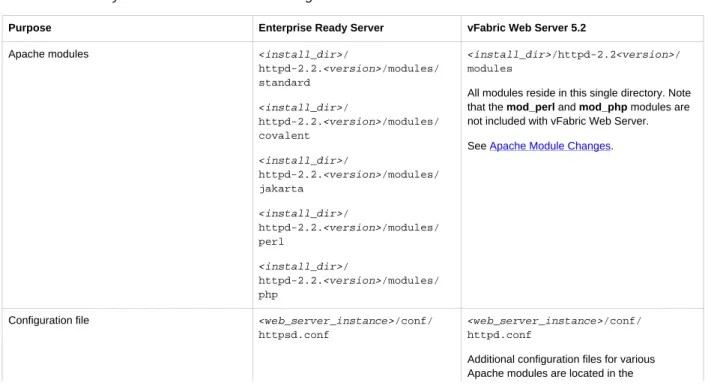
Table 5.1, “Directory Structure and File Name Changes” describes the changes in directory structure, configuration file names, and script file names.
Table 5.1. Directory Structure and File Name Changes
Purpose Enterprise Ready Server vFabric Web Server 5.2
Apache modules <install_dir>/
httpd-2.2.<version>/modules/ standard <install_dir>/ httpd-2.2.<version>/modules/ covalent <install_dir>/ httpd-2.2.<version>/modules/ jakarta <install_dir>/ httpd-2.2.<version>/modules/ perl <install_dir>/ httpd-2.2.<version>/modules/ php <install_dir>/httpd-2.2<version>/ modules
All modules reside in this single directory. Note that the mod_perl and mod_php modules are not included with vFabric Web Server. See Apache Module Changes.
Configuration file <web_server_instance>/conf/
httpsd.conf
<web_server_instance>/conf/
httpd.conf
Additional configuration files for various Apache modules are located in the
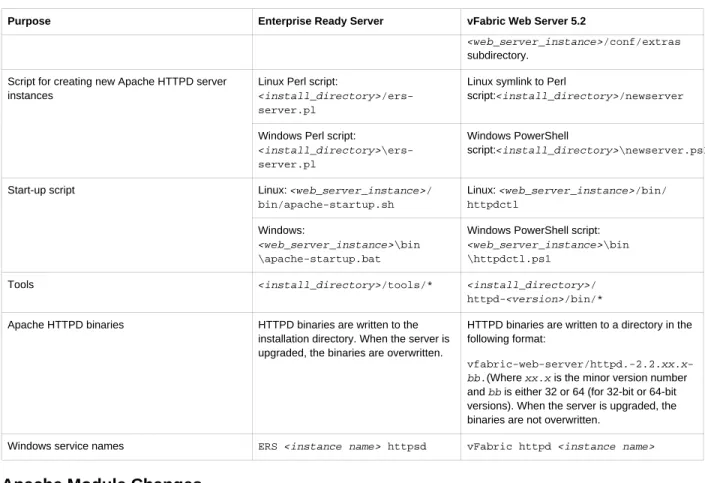
Migrating Enterprise Ready Server to vFabric Web Server
21
Purpose Enterprise Ready Server vFabric Web Server 5.2
<web_server_instance>/conf/extras
subdirectory. Linux Perl script:
<install_directory>/ers-server.pl
Linux symlink to Perl
script:<install_directory>/newserver
Script for creating new Apache HTTPD server instances
Windows Perl script:
<install_directory>\ers-server.pl Windows PowerShell script:<install_directory>\newserver.ps1 Linux: <web_server_instance>/ bin/apache-startup.sh Linux: <web_server_instance>/bin/ httpdctl Start-up script Windows: <web_server_instance>\bin \apache-startup.bat
Windows PowerShell script:
<web_server_instance>\bin
\httpdctl.ps1
Tools <install_directory>/tools/* <install_directory>/
httpd-<version>/bin/*
Apache HTTPD binaries HTTPD binaries are written to the installation directory. When the server is upgraded, the binaries are overwritten.
HTTPD binaries are written to a directory in the following format:
vfabric-web-server/httpd.-2.2.xx.x-bb.(Where xx.x is the minor version number and bb is either 32 or 64 (for 32-bit or 64-bit versions). When the server is upgraded, the binaries are not overwritten.
Windows service names ERS <instance name> httpsd vFabric httpd <instance name>
Apache Module Changes
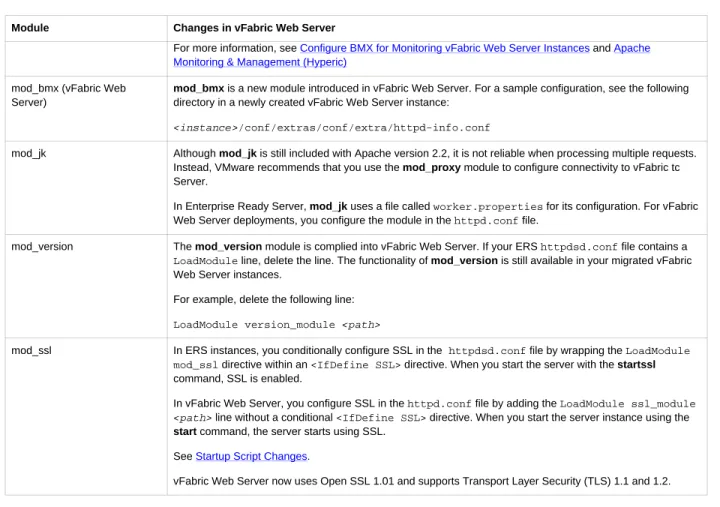
The compiled Apache modules for vFabric Web Server differ from those that are compiled and provided with Enterprise Ready Server. VMware recommends you substitute the modules described in Table 5.2, “Apache Modules”. If necessary, you can compile and implement the modules yourself using the Developer build of vFabric Web Server. To ensure compatibility, VMware recommends that you recompile all third-party modules. See Complete Packages and Modules in vFabric Web Server 5.2.
Table 5.2. Apache Modules
Module Changes in vFabric Web Server
mod_perl VMware recommends that you use the mod_fcgid module to serve Perl-based applications. For more information, see the following article: FastCGI rocks mod_perl and FCGID.
mod_php (ERS) The mod_php module is not included with vFabric Web Server. VMware recommends that you use the mod_fcgid module to serve PHP-based applications.
For more information on the benefits of using mod_fcgid, see Apache with fcgid: acceptable performance and better resource utilization.
mod_snmp (ERS) VMware recommends that you use the Apache BMX framework to provide internal runtime information about your vFabric Web Server instances to monitoring systems such as vFabric Hyperic. The following modules are included and are enabled by default:
• mod_bmx
• mod_bmx_status
• mod_bmx_vhost
You can disable this functionality by commenting out the LoadModule directives for the BMX modules in the
Module Changes in vFabric Web Server
For more information, see Configure BMX for Monitoring vFabric Web Server Instances and Apache Monitoring & Management (Hyperic)
mod_bmx (vFabric Web Server)
mod_bmx is a new module introduced in vFabric Web Server. For a sample configuration, see the following directory in a newly created vFabric Web Server instance:
<instance>/conf/extras/conf/extra/httpd-info.conf
mod_jk Although mod_jk is still included with Apache version 2.2, it is not reliable when processing multiple requests. Instead, VMware recommends that you use the mod_proxy module to configure connectivity to vFabric tc Server.
In Enterprise Ready Server, mod_jk uses a file called worker.properties for its configuration. For vFabric Web Server deployments, you configure the module in the httpd.conf file.
mod_version The mod_version module is complied into vFabric Web Server. If your ERS httpdsd.conf file contains a
LoadModule line, delete the line. The functionality of mod_version is still available in your migrated vFabric Web Server instances.
For example, delete the following line:
LoadModule version_module <path>
mod_ssl In ERS instances, you conditionally configure SSL in the httpdsd.conf file by wrapping the LoadModule mod_ssl directive within an <IfDefine SSL> directive. When you start the server with the startssl command, SSL is enabled.
In vFabric Web Server, you configure SSL in the httpd.conf file by adding the LoadModule ssl_module
<path> line without a conditional <IfDefine SSL> directive. When you start the server instance using the start command, the server starts using SSL.
See Startup Script Changes.
vFabric Web Server now uses Open SSL 1.01 and supports Transport Layer Security (TLS) 1.1 and 1.2.
Startup Script Changes
The name of the script that you use to start vFabric Web Server instances has changed, and has some new options. In addition, configuration of the multi-process module (MPM) has changed. The startup scripts are located in the bin subdirectory of a server instance.
Table 5.3. Startup Script Changes
Item Enterprise Ready Server vFabric Web Server 5.2
Linux: <web_server_instance>/bin/
apache_startup.sh
Linux: <web_server_instance>/bin/
httpdctl
Startup (control) script name
Windows: <web_server_instance>\bin
\apache_startup.bat
Windows: <web_server_instance> \bin\httpdctl.ps1
Startup (control) script parameters The following commands are available with the apache_startup script:
• start • startssl • stop • restart • graceful • configtest • configtestssl
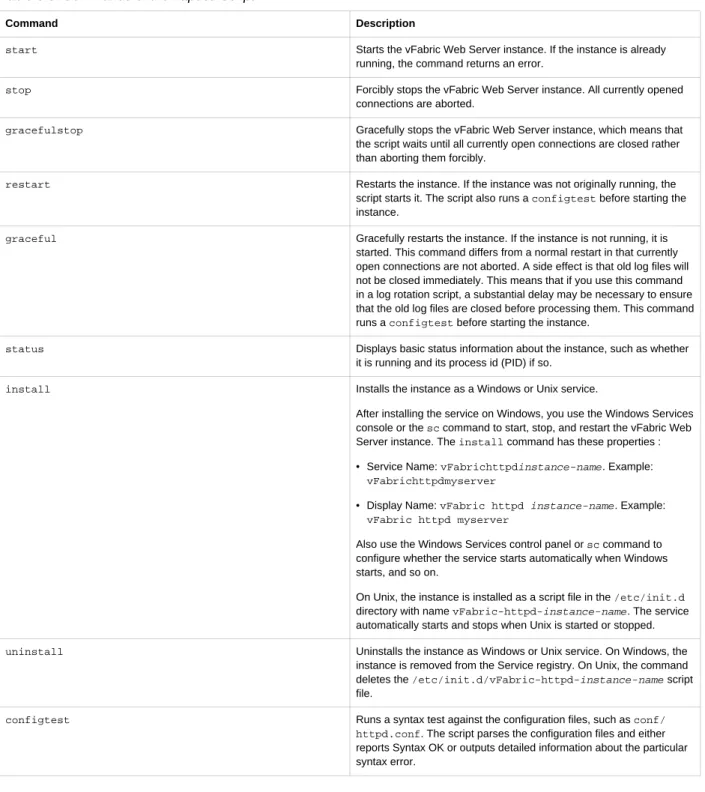
The following commands are available with the httpdctl script: • start • stop • restart • gracefulstop • graceful • status • install • uninstall • configtest
Migrating Enterprise Ready Server to vFabric Web Server
23
Item Enterprise Ready Server vFabric Web Server 5.2
See httpdctl Reference.
Startup script command with SSL enabled To use SSL in an ERS instance you configure and load an SSL module in the httpsd.conf file, and you use the startssl option when you run the
apache_startup script.
To use SSL in a vFabric Web Server instance, you configure a SSL module in the
httpd.conf file and use the regular start option when you run the httpdctl script.
Multi-process module (MPM) configuration You configure MPM in the
startup.properties file.
You configure MPM when you create a vFabric Web Server instance. Use the following option of the newserver command:
--mpm=worker|prefork|event (The default value is worker.)
See newserver Prompts and Command Reference.
If you need to modify MPM after creating a server, change the value of the
default_mpm variable to worker, prefork, or event by changing the following line in the
httpdctl script:
default_mpm="worker"
Migration Procedure
To migrate an Enterprise Ready Server installation to a vFabric Web Server installation:
1. Install vFabric Web Server on each host where you will run a vFabric Web Server instance. See Installing vFabric Web Server.
2. Create a new vFabric Web server instance. See Creating and Using vFabric Web Server Instances.
If you specified mpm options in the Enterprise Ready Server startup.properties file, you must specify the --mpm=worker|prefork|event option when creating the new Web server instance. See
Startup Scripts and newserver Prompts and Command Reference.
3. Make a backup copy of the default configuration file from the new vFabric Web Server instance. The file is in the following location:
<Web Server instance>/conf/httpd.conf .
4. Copy the following file from the Enterprise Ready Server instance directory:
servers/<Web server instance>/conf/httpsd.conf
into the conf directory of your new vFabric Web Server instance and rename the file to httpd.conf.
5. Open the newly-copied httpd.conf configuration file in a text editor and modify all of the paths to point to the new Web server instance. Make sure to change the following paths:
• ServerRoot property.
• Apache modules—modify the appropriate LoadModule directives. • DocumentRoot property.
• <Directory> statements. • Include directives.
• Paths to any scripts referenced in the configuration. • Paths to any log files referenced in the configuration.
6. If your vFabric Web server instance uses any of the Apache modules that have changed, change the LoadModule
directives to point to the new modules. Review the changes listed in Apache Modules Changes for any changes that apply to your deployment.
7. Move static content from the previous Document Root directory to the new Document Root (or change DocumentRoot to point to the correct location. )
8. Make sure that the user and group name used to run vFabric Web Server instances exist on the host system. Use the host operating system commands to create the required user and group as indicated in the following table.
The default user and group names used to run the httpd server have changed.
Table 5.4. User and group name changes
Default Name Enterprise Ready Server vFabric Web Server
Default group name nobody vfhttpd
Default user name nobody vfhttpd
9. Review the configuration file for any modules that you are not using in your deployment, and remove any LoadModule
directives for these modules.
10. If you are using SSL, move the certificates and key file to your new vFabric Web Server instance directory. Make sure the permissions allow access to these files. (The root user should have read-only access.)
11. If a previous instance of Enterprise Ready Server was running on the host computer, make sure you uninstall the obsolete service and install the new vFabric Web Server instance as a service. See Windows: Start and Stop vFabric Web Server Instances or Installing vFabric Web Server Instances as Unix Services.
12. Start the vFabric Web Server instance, using the httpdctl script. See Startup Script Changes. 13. Test the server using a Web browser.
Creating and Using vFabric Web Server Instances
25
6. Creating and Using vFabric Web Server Instances
To start using vFabric Web Server, you explicitly create a new instance after you install it. An instance is not created for you by default.
Subtopics
Description of vFabric Web Server Instances Create vFabric Web Server Instances newserver Prompts and Command Reference Unix: Start and Stop vFabric Web Server Instances Windows: Start and Stop vFabric Web Server Instances httpdctl Reference
Serve a Sample HTML File from Your vFabric Web Server Instance
Description of vFabric Web Server Instances
A vFabric Web Server instance is a complete, discrete HTTP server configuration.You can create multiple instances that you can run simultaneously on the same computer if you do not use the same ports in two different instances. For example, the default HTTP listening port on Unix is 80, and only one instance on any computer is allowed to communicate on port 80 at any one time. So if you wanted to have two vFabric Web Server instances running at the same time on the same Unix computer, you configure one instance to use a port other than 80.
After you create an instance, its corresponding directory contains subdirectories that in turn contain all the data required to run a given vFabric Web Server instance. This data includes configuration information and all other data that is associated with that instance's configuration. For example, assume you installed vFabric Web Server in /opt/vmware/vfabric-web-server
and create an instance called myserver:
prompt$ cd /opt/vmware/vfabric-web-server/myserver prompt$ ls
bin cgi-bin conf ftpdocs htdocs logs proxy ssl var
The conf directory contains the vFabric Web Server configuration files, such as httpd.conf. The bin directory contains the startup script used to start and stop the myserver instance (httpdctl. Each of these directories is specific to the myserver
instance. Each instance you create will have a similar set of directories.
Create vFabric Web Server Instances
You create a new vFabric Web Server instance with the newserver command. The command creates a new directory that contains the instance-specific configuration files.
The newserver command format depends on your operating system: • newserver : Perl script for Unix operating systems.
• newserver.ps1: Powershell script for Windows operating systems.
The command-line options for the two flavors are exactly the same. Where appropriate, the following procedure calls out the different usage depending on whether you are on Unix or Windows.
Prerequisites
• Complete the appropriate procedure in Installing vFabric Web Server.
• As of version 5.2 of vFabric Web Server, you must use Windows PowerShell to execute vFabric Web Server scripts on Windows computers. See the prerequisites section of Windows: Install vFabric Web Server from a ZIP File for information on installing PowerShell (if it is not already installed on your Windows computer) and enabling it for script processing.
Procedure
1. Log on to your computer as root (Unix) or the Administrator user (Windows) and start a terminal (Unix) or PowerShell window (Windows).
To start a PowerShell window, go to Start > All Programs > Accessories > Windows PowerShell, then right-click on Windows PowerShell and select Run as Administrator.
2. Change to the directory in which you installed vFabric Web Server. For example, on Unix:
prompt# cd /opt/vmware/vfabric-web-server
3. Run the newserver command to create the new instance; the command prompts you for information about the new server. The only required command option is --server, with which you specify the name of your vFabric Web Server instance. On Unix, use the Perl flavor; for example:
prompt# ./newserver --server=myserver
On Windows, use the PowerShell script:
PS prompt> .\newserver.ps1 --server=myserver
In both preceding examples, the way you specify the options is exactly the same. In the examples, the new instance is called
myserver and its server directory is /opt/vmware/vfabric-web-server/myserver. For additional options, see newserver Prompts and Command Reference.
4. Enter values for the newserver prompts as the command requests information about your new instance. You can use the default values for many of the prompts, or even leave them blank.
newserver Prompts and Command Reference provides additional information about the prompts.
What to do next
• Start the vFabric Web Server instance and verify that it is working correctly. See Unix: Start and Stop vFabric Web Server Instances and Windows: Start and Stop vFabric Web Server Instances.
• Complete the procedure in Serve a Sample HTML File from your vFabric Web Server Instance.
• Configure your instance as described in Configuring vFabric Web Server.
newserver Prompts and Command Reference
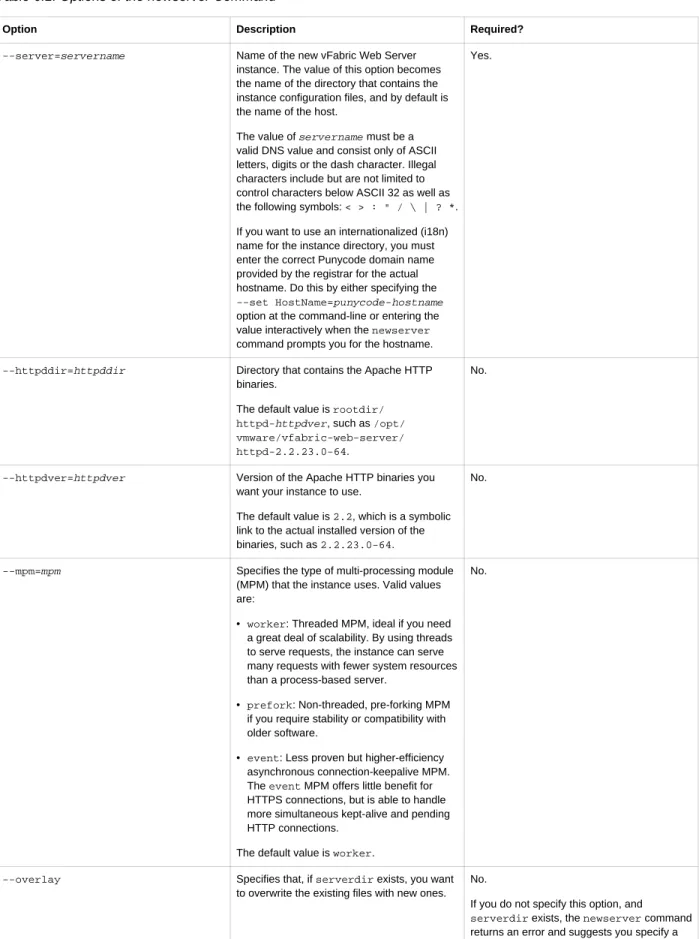
The newserver command has a number of options and prompts, as described in the two tables that follow. The newserver command format depends on your operating system:
• newserver : Perl script for Unix.
• newserver.ps1: PowerShell script for Windows.
Creating and Using vFabric Web Server Instances
27
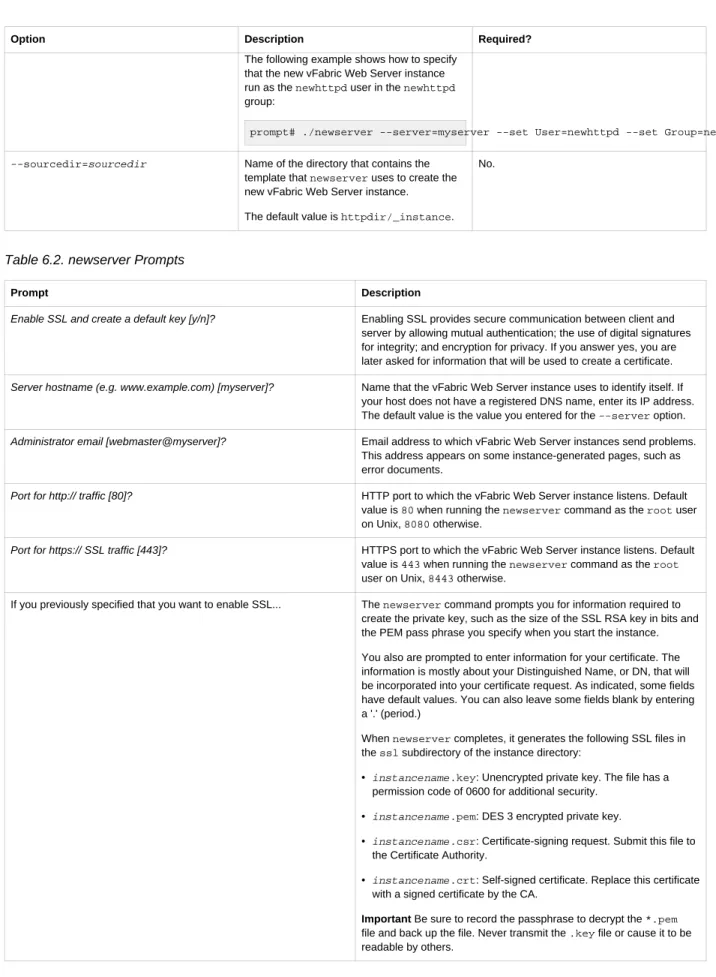
Table 6.1. Options of the newserver Command
Option Description Required?
--server=servername Name of the new vFabric Web Server instance. The value of this option becomes the name of the directory that contains the instance configuration files, and by default is the name of the host.
The value of servername must be a valid DNS value and consist only of ASCII letters, digits or the dash character. Illegal characters include but are not limited to control characters below ASCII 32 as well as the following symbols: < > : " / \ | ? *. If you want to use an internationalized (i18n) name for the instance directory, you must enter the correct Punycode domain name provided by the registrar for the actual hostname. Do this by either specifying the
--set HostName=punycode-hostname
option at the command-line or entering the value interactively when the newserver
command prompts you for the hostname.
Yes.
--httpddir=httpddir Directory that contains the Apache HTTP binaries.
The default value is rootdir/ httpd-httpdver, such as /opt/ vmware/vfabric-web-server/ httpd-2.2.23.0-64.
No.
--httpdver=httpdver Version of the Apache HTTP binaries you want your instance to use.
The default value is 2.2, which is a symbolic link to the actual installed version of the binaries, such as 2.2.23.0-64.
No.
--mpm=mpm Specifies the type of multi-processing module (MPM) that the instance uses. Valid values are:
• worker: Threaded MPM, ideal if you need a great deal of scalability. By using threads to serve requests, the instance can serve many requests with fewer system resources than a process-based server.
• prefork: Non-threaded, pre-forking MPM if you require stability or compatibility with older software.
• event: Less proven but higher-efficiency asynchronous connection-keepalive MPM. The event MPM offers little benefit for HTTPS connections, but is able to handle more simultaneous kept-alive and pending HTTP connections.
The default value is worker.
No.
--overlay Specifies that, if serverdir exists, you want to overwrite the existing files with new ones.
No.
If you do not specify this option, and
serverdir exists, the newserver command returns an error and suggests you specify a
Option Description Required?
unique name and directory location for the new instance.
--quiet Specifies that the newserver command should use default values for all prompts.
No.
If you do not specify this option, newserver
interactively prompts for all answers.
--rootdir=rootdir Directory that contains the
httpd-2.2.version directory, which in turn contains the Apache HTTP binaries. The default value is the current directory.
No.
--serverdir=serverdir Directory in which you want the new instance directory to be created.
The default value is rootdir.
No.
--set token=value Specifies one or more tokens for which you would like to specify a custom value. The tokens are variables in the templates used to create new vFabric Web Server instances and correspond to a directive, or part of a directive, in the new instance's configuration. Each available token has a default value (listed below) that is automatically configured if you do not override it using the --set
option.
You can specify the following tokens; note that the token names are case-sensitive: • User: User that the vFabric Web Server
processes run as. Corresponds to the User
directive in conf/httpd.conf. Default value is vfhttpd.
• Group: Group to which the user who runs the vFabric Web Server processes belongs. Corresponds to the Group directive in
conf/httpd.conf. Default value is
vfhttpd.
• Port: HTTP port that the vFabric Web Server instance listens to. Corresponds to the port number in the Listen directive in
conf/httpd.conf. Default value is 80. • SSLPort: HTTPS port that the vFabric
Web Server instance listens to for secure communications. Corresponds to the port number in the Listen https directive in
conf/extras/httpd-ssl.conf. Default value is 443.
• HostName: Name of the host that the instance uses to identify itself. Corresponds to the hostname part of the ServerName
directive in the conf/httpd.conf file. Default value is the value you specified for the required --server option.
• ServerAdmin: Email address of the administration user who should get emails when there are problems with the instance. Corresponds to the ServerAdmin directive in the conf/httpd.conf file. Default value is webmaster@HostName..
Creating and Using vFabric Web Server Instances
29
Option Description Required?
The following example shows how to specify that the new vFabric Web Server instance run as the newhttpd user in the newhttpd
group:
prompt# ./newserver --server=myserver --set User=newhttpd --set Group=newhttpd --sourcedir=sourcedir Name of the directory that contains the
template that newserver uses to create the new vFabric Web Server instance. The default value is httpdir/_instance.
No.
Table 6.2. newserver Prompts
Prompt Description
Enable SSL and create a default key [y/n]? Enabling SSL provides secure communication between client and server by allowing mutual authentication; the use of digital signatures for integrity; and encryption for privacy. If you answer yes, you are later asked for information that will be used to create a certificate.
Server hostname (e.g. www.example.com) [myserver]? Name that the vFabric Web Server instance uses to identify itself. If your host does not have a registered DNS name, enter its IP address. The default value is the value you entered for the --server option.
Administrator email [webmaster@myserver]? Email address to which vFabric Web Server instances send problems. This address appears on some instance-generated pages, such as error documents.
Port for http:// traffic [80]? HTTP port to which the vFabric Web Server instance listens. Default value is 80 when running the newserver command as the root user on Unix, 8080 otherwise.
Port for https:// SSL traffic [443]? HTTPS port to which the vFabric Web Server instance listens. Default value is 443 when running the newserver command as the root
user on Unix, 8443 otherwise.
If you previously specified that you want to enable SSL... The newserver command prompts you for information required to create the private key, such as the size of the SSL RSA key in bits and the PEM pass phrase you specify when you start the instance. You also are prompted to enter information for your certificate. The information is mostly about your Distinguished Name, or DN, that will be incorporated into your certificate request. As indicated, some fields have default values. You can also leave some fields blank by entering a '.' (period.)
When newserver completes, it generates the following SSL files in the ssl subdirectory of the instance directory:
• instancename.key: Unencrypted private key. The file has a permission code of 0600 for additional security.
• instancename.pem: DES 3 encrypted private key.
• instancename.csr: Certificate-signing request. Submit this file to the Certificate Authority.
• instancename.crt: Self-signed certificate. Replace this certificate with a signed certificate by the CA.
Important Be sure to record the passphrase to decrypt the *.pem
file and back up the file. Never transmit the .key file or cause it to be readable by others.