Scanner Appliance
U
ser
G
uide
Copyright 2005-2015 by Qualys, Inc. All Rights Reserved.
Qualys, the Qualys logo and QualysGuard are registered trademarks of Qualys, Inc. All other trademarks are the
property of their respective owners.
Qualys, Inc.
1600 Bridge Parkway
Redwood Shores, CA 94065
1 (650) 801 6100
Preface
Chapter 1 Get Started
Before you begin ... 8
Check package accessories ... 8
Network requirements / configuration ... 8
Best Practices for internal scanning ... 10
Quick Start ... 11
Step 1 - Connect the Scanner Appliance to the Network... 11
Step 2 - Power On the Scanner Appliance ... 13
Step 3 - Activate the Scanner Appliance ... 15
We recommend one more thing ... 17
Chapter 2 Scanner Appliance Tour
A Quick Look at the Appliance ... 20
Navigating the Appliance UI... 22
System Reboot and Shutdown... 28
Configure VLANs and Static Routes ... 30
Configure Static IP Address... 32
Configure IPv6 Address for Scanning... 36
Proxy Configuration... 37
Split Network Configuration ... 42
Ethernet Port Configuration ... 46
Reset the Network Configuration ... 48
Changing the Network Configuration ... 49
Chapter 3 Troubleshooting
Troubleshooting guidelines ... 52
How can I test network connectivity? ... 53
Tell me about Network Errors... 54
Communication Failure message... 57
Appendix A Product Specifications
Appendix B Credits
Preface
This user guide introduces the Qualys
Scanner Appliance. The Scanner Appliance
offers Qualys users the ability to extend their use of the service to assess the security
of internal network systems, devices and web applications.
Note: Your use of the Qualys Scanner Appliance is subject to the terms and
conditions of the Qualys Service User Agreement.
About Qualys
Qualys, Inc. (NASDAQ: QLYS) is a pioneer and leading provider of cloud security
and compliance solutions with over 7,700 customers in more than 100 countries,
including a majority of each of the Forbes Global 100 and Fortune 100.The Qualys
Cloud Platform and integrated suite of solutions help organizations simplify security
operations and lower the cost of compliance by delivering critical security
intelligence on demand and automating the full spectrum of auditing, compliance
and protection for IT systems and web applications. Founded in 1999, Qualys has
established strategic partnerships with leading managed service providers and
consulting organizations including Accenture, Accuvant, BT, Cognizant Technology
Solutions, Dell SecureWorks, Fujitsu, HCL Comnet, InfoSys, NTT, Tata
Communications, Verizon and Wipro. The company is also a founding member of the
Cloud Security Alliance (CSA)
.
For more information, please visit
www.qualys.com
.
Contact Qualys Support
Qualys is committed to providing you with the most thorough support. Through
online documentation, telephone help, and direct email support, Qualys ensures that
your questions will be answered in the fastest time possible. We support you 7 days a
week, 24 hours a day. Access support information at
www.qualys.com/support/
.
Get Started
Welcome to the Qualys Scanner Appliance, an option with the Qualys Cloud
Platform from Qualys, Inc. With the Qualys Scanner Appliance, you can assess
internal network devices, systems and web applications. The Scanner Appliance is a
robust, scalable solution for scanning networks of all sizes including large distributed
networks.
It’s easy to set up a Scanner Appliance within your network. Let’s get started!
Before you begin
Best Practices for internal scanning
Quick Start
Interested in Virtual Appliances?
The Qualys Virtual Scanner Appliance is packaged and qualified for deployment
on a variety of virtualization and cloud platforms. Please contact your TAM or
Qualys Support if you’re interested in adding Virtual Appliances to your license.
Desktop/Laptop - VMware Workstation, Player, Fusion, Oracle VirtualBox
Client/Server - VMware vCenter/vSphere, Citrix XenServer, Microsoft Hyper-V
Cloud - Amazon EC2 - Classic, Amazon EC2 - VPC.
Chapter 1 — Get Started
Before you begin
Before you begin
Check package accessories
Your starter kit package should contain these components. If any components are
missing or damaged, please contact Qualys Support.
Network requirements / configuration
Qualys Scanner Appliance User Guide
AC power cord
CAT6 cable
Rack screws (quantity 4) - 10-32 x 3/4", Phillips, black matte, with washer
USB-to-RS232 converter cable
Bandwidth
Minimum recommended bandwidth connection of
1.5 megabits per second (Mbps) to the Qualys Cloud Platform.
Outbound HTTPS Access
The local network must be configured to allow outbound
HTTPS (port 443) access to the Internet, so that the Scanner
Appliance can communicate with the Qualys Cloud Platform.
Appliance Access to Qualys
Cloud Platform
The Scanner Appliance must be able to reach certain
infrastructure located at the Qualys Cloud Platform where
your Qualys account is located.
Tip - Log into your account and go to Help> Account Info to
see the Qualys Cloud Platform URLs.
Appliance Access to
Target Host IPs
The IP addresses for the hosts to be scanned must be accessible
to the Scanner Appliance. The Appliance must be able to
resolve external DNS for the hostnames to be scanned.
LAN Interface is Default
The LAN interface services both scanning traffic and
management traffic to the Qualys Cloud Platform, unless split
network configuration is defined for the Appliance. See
Split
Network Configuration
.
VLAN Support
VLAN configuration options: 1) If you have connected the
LAN interface to a 802.1q trunked port and need your Scanner
Appliance to use VLAN tags on the LAN default network,
enter the VLAN tag number using the Appliance console. 2)
For any Appliance, you can choose option 1) and also
configure more VLANs (to be used for scanning) using the
Qualys user interface.
Chapter 1 — Get Started
Before you begin
Qualys Scanner Appliance User Guide
9
DHCP or Static IP
By default the Scanner Appliance is pre-configured with
DHCP. If configured with a static IP address, be sure you have
the IP address, netmask, default gateway, primary DNS and
WINS server (if appropriate).
Proxy Support
The Scanner Appliance includes Proxy support with or wihout
authentication — Basic or NTLM. The Proxy server must be
assigned a static IP address and must allow transparent SSL
tunneling. Proxy-level termination (as implemented in SSL
bridging, for example) is not supported.
WINS Support
If your network is running Windows Internet Naming Service
(WINS), the Scanner Appliance needs to use it for host name
resolution during scanning. For an Appliance configured with
DHCP, please be sure your WINS server IPs (primary and
secondary) are added to your DHCP subnet configuration
using “option netbios-name-servers WINS1, WINS2;”. For an
Appliance with a static IP address, the WINS servers are
defined with the static IP settings using the Appliance console.
Chapter 1 — Get Started
Best Practices for internal scanning
Best Practices for internal scanning
Here are our best practices related to internal scanning.
Avoid scanning through a firewall from the inside out
Problems can arise when scan traffic is routed through the firewall from the inside out,
i.e. when the scanner Appliance is sitting in the protected network area and scans a target
which is located on the other side of the firewall. We recommend placing scanner
Appliances in your network topology in a way that scanning and mapping through a
firewall from the inside out is avoided if possible.
Check network access to scanners
Go to Help > About in the application. The Scanner Appliances section lists URLs at the
SOC (Security Operations Center) for your account/location. Your Scanner Appliances
must be able to contact these URLs on port 443. For Private Cloud Platform, the URLs
displayed are appropriate to your local on-site SOC.
Consult your network group for scanner placement
It's highly recommended that you work with your network group to determine where to
place Scanner Appliances in an enterprise network environment. Some things to
consider: place Scanner Appliances as close to target machines as possible, and make sure
to monitor and identify any bandwidth restricted segments or weak points in the
network infrastructure. Scanning through layer 3 devices (such as routers, firewalls and
load balancers) could result in degraded performance so you may consider using our
VLAN tagging feature (VLAN trunking) to circumvent layer 3 devices to avoid potential
performance issues.
From the Qualys Community
Scanning through a firewall
From the Qualys Community
Chapter 1 — Get Started
Quick Start
Qualys Scanner Appliance User Guide
11
Quick Start
Once you complete the Quick Start you’re ready to start scanning! It takes just a couple of
minutes. It’s important that you complete the steps in the order shown.
Step 1 - Connect the Scanner Appliance to the Network
Qualys strongly recommends the Scanner Appliance be plugged into a Managed Power
Supply. On the rare occasion where the Scanner Appliance may need to be rebooted,
utilizing the MPS will allow for remote rebooting in unmanned or high security areas.
Set Up Network Connection
The Scanner Appliance connects like any other computer to a switch on your network.
To set up the network connection, follow these steps:
•
Connect one end of an Ethernet cable to the Ethernet LAN port on the Scanner
Appliance (back panel).
•
Connect the other end of the Ethernet cable to a 10BASE-T or 100BASE-TX or
1 Gigabit switch on your network.
Remote Console Interface Set Up (optional)
The Remote Console interface supports remote configuration and management of the
Scanner Appliance using a VT100 terminal, such as Windows HyperTerminal.
Figure 1-1. Set up for Remote Console Interface
A USB-to-RS232 converter cable allows you to connect to their terminal server via
network cable. Qualys recommends the following USB-to-RS232 converter cable:
IOGEAR USB-Serial Model GUC232A
Full specifications:
http://www.iogear.com/product/GUC232A/
Keystroke File Not Supported: The Remote Console interface is not intended for
uploading the whole scanner configuration by means of a pre-defined “keystroke file.”
Uploading such a file will result in lost characters and incorrect configuration.
Chapter 1 — Get Started
Quick Start
To set up the Remote Console interface, follow these steps:
1
Be sure the terminal server is up and running. Also check the terminal server
settings. The following settings are required. Note - Stop Bits must be set to 2.
2
Connect one end of the USB-to-RS232 converter cable to a USB port on the Scanner
Appliance (back panel).
3
Connect the other end of the USB-to-RS232 converter cable to your terminal server
via network cable.
4
Connect the Scanner Appliance (see
Step 2 - Power On the Scanner Appliance
)
Note: In the case where the Scanner Appliance is already powered on, you must
reboot the Scanner Appliance before taking the next step and making any
configurations. To reboot, press the Down arrow on the LCD interface until the
SYSTEM REBOOT
message appears and then press ENTER. Please make sure that
the Scanner Appliance has fully rebooted (this takes up to 3 minutes).
5
Press the ENTER key on the VT100 terminal’s keyboard to display the Remote
Console interface. You will notice the MAC address for the Scanner Appliance
appears.
Port Setting
Value
Bits per second (Baud rate)
9600
Data Bits
8
Parity
None
Stop Bits
2
Flow Control
None
Terminal Emulation
VT100
Chapter 1 — Get Started
Quick Start
Qualys Scanner Appliance User Guide
13
Step 2 - Power On the Scanner Appliance
To power on the Scanner Appliance, follow these steps:
1
Connect the AC power cord into the Power Supply Socket.
Note: Qualys strongly recommends the Scanner Appliance be plugged into a
Managed Power Supply. On the rare occasion where the Scanner Appliance may
need to be rebooted, utilizing the MPS will allow for remote rebooting in
unmanned or high security areas.
2
Press the power button on the back panel. Be sure that the power button has a green
backlight.
3
Welcome
to
Qualys
appears in the Scanner Appliance interface followed by other
informational messages during the boot process which takes approximately two
minutes. These messages appear in the order shown:
Welcome to Qualys
Qualys Scanner is starting up...
Filesystem check in progress...
Qualys Scanner is coming up...
4
Once the Scanner Appliance makes a successful connection to the Qualys Cloud
Platform you’ll see the activation code message.
ACTIVATION CODE
— The activation code for the Scanner Appliance is displayed.
A unique code is assigned to each Appliance. Make a note of the activation code
and then go to enter the activation code.
You might see a network error message instead. This will be reported if the Scanner
Appliance did not make a successful connection to the Qualys Cloud Platform
using its current network settings. The network error must be resolved before you
go to Step 3. Need help? See
Troubleshooting
.
Tip - If you’ve set up the Remote Console, it may be necessary to press the ENTER
key on the VT100 terminal’s keyboard to display the Remote Console interface.
Chapter 1 — Get Started
Quick Start
Complete the Network Configuration
Enable the network configurations for the Scanner Appliance, as appropriate, in the
order listed. One or more configurations may be required. Any network error must be
resolved before going to Step 3. Refer to
Troubleshooting
for help with resolving any
errors.
Use the options chart below to determine the configurations needed.
The Scanner Appliance supports VLAN interface configuration (802.1Q). For
information, see
Configure VLANs and Static Routes
.
You may see a network error message one or two more times, depending on how many
configurations are needed. For example, if the Scanner Appliance is installed on a
network with DHCP and a Proxy server, and you want split network configuration with
DHCP, you enable options B and C. After you enable option B, you’ll see another
network error prompting you to make another configuration.
Configuration Options
For information ...
A
Static IP Address
See “Configure Static IP Address” on page 32
B
Proxy Support
See “Proxy Configuration” on page 37
C
Split Network Configuration
using DHCP
See “Enable DHCP on the WAN Interface” on page 43
and ”Enable DHCP on the WAN Interface” on page 43
D
Split Network Configuration
using a Static IP Address
See “Enable DHCP on the WAN Interface” on page 43
and ”Enable Static IP on the WAN Interface” on page 43
DHCP
w/o Proxy
Static IP
w/o Proxy
DHCP
with Proxy
Static IP
with Proxy
Standard Config
no action
A
B
A & B
Split Netw. Config:
DHCP on WAN
C
A & C
B & C
A, B, & C
Split Netw. Config:
Static IP on WAN
Chapter 1 — Get Started
Quick Start
Qualys Scanner Appliance User Guide
15
Step 3 - Activate the Scanner Appliance
You will need a Qualys user account with the role of Manager or Unit Manger. Check to
be sure that you have your account information.
1
Open a browser and go to the platform URL where your account is located. Please
refer to your registration email containing your platform URL and login
credentials. A Manager or Unit Manager account is required.
2
On the Qualys
LOGIN
page, enter your user name (login) and password, and then
click
LOGIN
. You are prompted to review and accept the licensing agreement when
you log into your account for the first time. Your Qualys Home page appears upon
successful login.
3
Select VM from the application picker.
4
Go to Scans > Appliances.
5
Select New > Scanner Appliance and enter the activation code for the activation
code appears in the
ACTIVATION CODE
screen in your Appliance’s user interface
(LCD and Remote Console). Note: The activation code is displayed only when the
Appliance has not been activated yet.
6
Unit Manager only) From the Add To menu, select an asset group that you want to
add the Scanner Appliance to. This will make the Appliance available to users in
your business unit.
7
Click Activate. Then the Scanner Appliance attempts to log in to the Qualys Cloud
Platform.
Note: It may take a few minutes for the Scanner Appliance activation to occur. If
you prefer not to wait, complete the activation manually by restarting the Scanner
Appliance. Just press the Down arrow until the
SYSTEM REBOOT
screen appears
and then press ENTER. When
REALLY REBOOT SYSTEM?
appears press ENTER.
8
The
SCANNER APPLIANCE NAME–IP ADDRESS
message appears after the Scanner
Appliance makes a successful login to the Qualys Cloud Platform. Do you see
another message instead? See
Troubleshooting
and we’ll help you with this.
Chapter 1 — Get Started
Quick Start
That’s all there is to it!
You are ready to start scanning with your Qualys Scanner Appliance! You’ll see the
Scanner Appliance name and IP address in the interface (LCD or Remote Console), this
indicates you have completed the Quick Start, the Scanner Appliance has been added to
your subscription.
Tip - Before you launch scans using the Scanner Appliance, we recommend you log into
the Qualys user interface and check the Appliance status on the appliances list.
Scanner Appliance Name and IP Address
The Scanner Appliance name and IP address appear as shown below.
The Scanner Appliance name displayed is “is_
username
”, where
username
is your Qualys user
name. The name can be changed using the Qualys user interface.
The IP address is available for information purposes only. The Scanner Appliance is remote
controlled by the Qualys Cloud Platform, and the Appliance does not allow incoming logins
or connections from the network. If split network configuration is enabled, the IP address for
the LAN interface is displayed.
The Qualys Cloud Platform indicator for your account appears in the lower right corner.
Proper Shutdown
Just go to the LCD display on the front panel. Press the down arrow until
SYSTEM
SHUTDOWN
appears, and then press
ENTER
. When you see
REALLY SHUTDOWN SYSTEM?
press
ENTER
. You'll notice the Scanner Appliance lights and LEDs are turned off. Then
you can safely disconnect the power supply.
Don't want to use the LCD interface? No problem, you can press the power button on the
back panel instead.
Chapter 1 — Get Started
Quick Start
Qualys Scanner Appliance User Guide
17
We recommend one more thing
Check your Scanner Appliance status in Qualys. Go to Scans > Appliances and select
your Appliance. You’ll see details in the preview pane.
1)
tells you your Scanner Appliance is ready. Now you can start internal scans! Next
to the status you’ll see the busy icon is greyed out until you launch a scan, then it looks
like this
.
You might also check out:
2)
tells you that your Scanner Appliance is a Physical Appliance (
means it’s a
Virtual Appliance).
3) Latest software versions - these are installed automatically as part of the activation.
4) The available capacity will be 100% until you launch a scan. You can come back and
check on this at any time.
Chapter 1 — Get Started
Scanner Appliance Tour
This section gives you a tour of the Qualys Scanner Appliance, its features, basic
operation and configuration options.
A Quick Look at the Appliance
Navigating the Appliance UI
System Reboot and Shutdown
Configure VLANs and Static Routes
Configure Static IP Address
Configure IPv6 Address for Scanning
Proxy Configuration
Split Network Configuration
Reset the Network Configuration
Changing the Network Configuration
Chapter 2 — Scanner Appliance Tour
A Quick Look at the Appliance
A Quick Look at the Appliance
Front Panel
You’ll see
Welcome to Qualys
in the LCD display when you connect the Appliance to
the network for the first time. After you’ve successfully completed the Quick Start steps
for your Scanner Appliance, you’ll see the Scanner Appliance name and IP address.
Use the keypad to enter information and respond to prompts.
•
Left and Right arrow buttons move the cursor to left/right in an entry field.
•
Up and Down arrow buttons scroll through menu options, and scroll through
characters in an entry field.
•
ENTER button, in the center, is used to confirm entries and move to the next screen.
Tell me about the LEDs.
•
S1 tells you a Qualys scan is in progress on the Scanner Appliance.
•
S2 tells you a software update to the Scanner Appliance is in progress.
•
S3 is not used.
Back Panel
The Appliance’s back panel includes: the power socket, the Ethernet LAN port, the
Ethernet WAN port, and two USB ports.
Chapter 2 — Scanner Appliance Tour
A Quick Look at the Appliance
Qualys Scanner Appliance Use Guide
21
Power socket - Use to connect the power connector to the Appliance.
Power button - Use to power on the Appliance. A green light indicates the Appliance is
turned on.
LAN/WAN ports - Use to connect the Appliance to a hub or switch on your network
using a straight through CAT6 twisted pair Ethernet cable. The LAN port is required. The
WAN port is only required if you choose the split network configuration option.
USB ports - Connect a USB-to-RS232 converter cable to a USB port if you want to use the
optional Remote Console interface (any port may be used).
Appliance UI
The Scanner Appliance has a user interface for configuration and management. You can
choose to use the LCD display and keypad on the front panel, or the optional Remote
Console interface. Both the LCD display and Remote Console offer the same functionality
and share the same menus and navigation (ENTER key and arrows) for a consistent user
experience.
The Remote Console interface supports remote configuration and management of the
Scanner Appliance using a VT100 terminal, such as Windows HyperTerminal. See
Chapter 2 — Scanner Appliance Tour
Navigating the Appliance UI
Navigating the Appliance UI
Main Menu
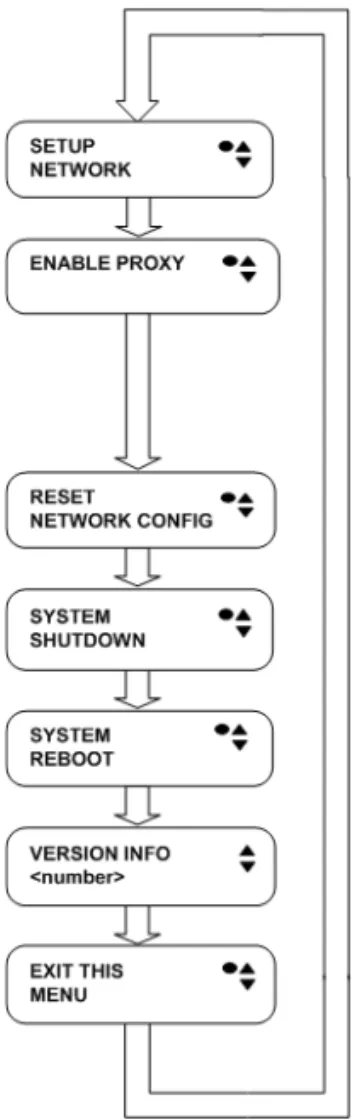
To access the Scanner Appliance main menu, press ENTER when the Scanner Appliance
name and IP address are displayed. The first menu option displayed is
SETUP NETWORK
.
Figure 2-1. Scanner Appliance Main Menu
To move up through the menu options, press the Up arrow. To move down through the
menu options, press the Down arrow. To select an option, press ENTER. To exit the main
menu, press the down arrow button until the
EXIT THIS MENU
option appears, and
then press ENTER.
Chapter 2 — Scanner Appliance Tour
Navigating the Appliance UI
Qualys Scanner Appliance Use Guide
23
Navigation Indicators
Each Scanner Appliance screen displays one or more indicators in the top right corner,
indicating the navigation options available from the current screen.
Note these important guidelines for using buttons: 1) Press one button at a time, 2) Do
not hold down an arrow button (except as noted in guideline 3), instead press the arrow
multiple times, and 3) When entering a user name or password, you can hold down the
Up and Down arrow buttons to scroll through characters quickly.
Entering Information
The Scanner Appliance user interface (LCD and Remote Console) allow users to enter
information in the fields provided using arrow keys. The Left and Right arrows move the
cursor to the left and right and the Up and Down arrows are used to scroll through
characters. Some fields allow certain characters to be entered. The character restrictions
are described below.
Up and Down Arrows
Using the LCD user interface use the Up and Down arrows to enter characters in a field.
Using the Remote Console interface you have the option to use the Up and Down arrows
or to use your keyboard to enter characters.
In numeric entry fields, you press the Up and Down arrows to select a value between
0 and 9. When a numeric entry field is first displayed, a default value appears.
LCD
Button
Remote
Console
Key
Description
ENTER
Confirm a selection. After you press ENTER, another screen
appears.
RIGHT
Move the cursor to the right in an entry field.
LEFT
Move the cursor to the left in an entry field.
UP
Used to:
— Increase the value in an entry field
— Move up through menu options
— Cancel a confirmation message
DOWN
Used to:
— Decrease the value in an entry field
— Move down through menu options
Chapter 2 — Scanner Appliance Tour
Navigating the Appliance UI
In text entry fields where you enter a user name and password, you press the Up and
Down arrows to select a character (numeric, alphabetic, space, underscore or special
character). In these fields, you can hold the Up arrow or the Down arrow to scroll
through the available characters. When a text entry field is first displayed, the text entry
field is blank (filled with spaces).
Scrolling through Characters
The Qualys user fields,
SA LOGIN
and
SA PASSWD
, and the Proxy user fields,
PROXY
USER
and
PROXY PASSW
, allow you to select lower case letters, uppercase letters,
numbers, space, and underscore. Some fields allow special characters.
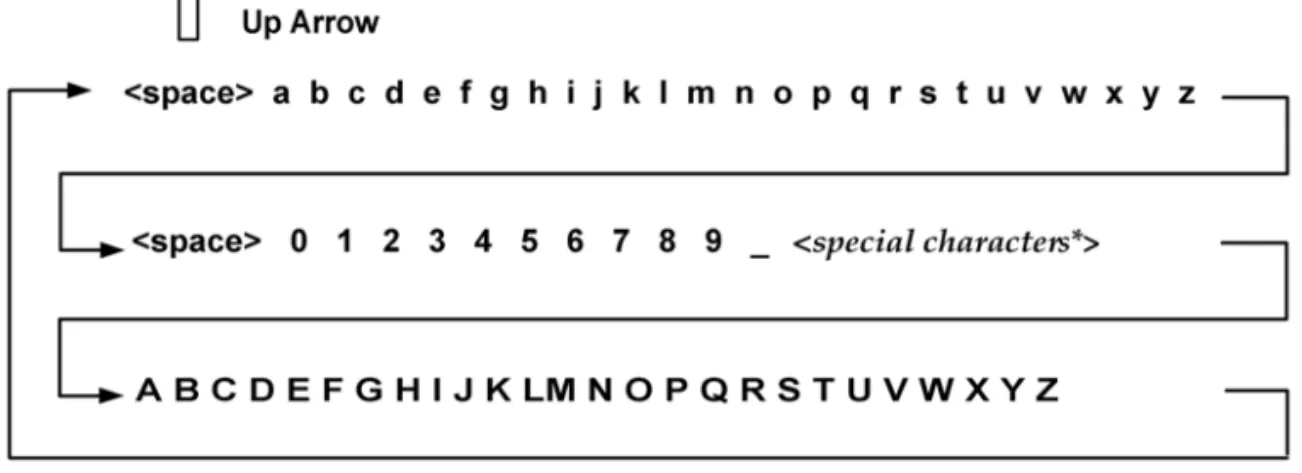
Press the Up arrow to scroll through characters in ascending order. Starting from the
space character, the characters appear in this order: lowercase letters (a to z), space,
numbers (0 to 9), underscore, special characters (for Proxy user name and password
only), uppercase letters (A to Z).
Figure 2-2. Scrolling characters in ascending order
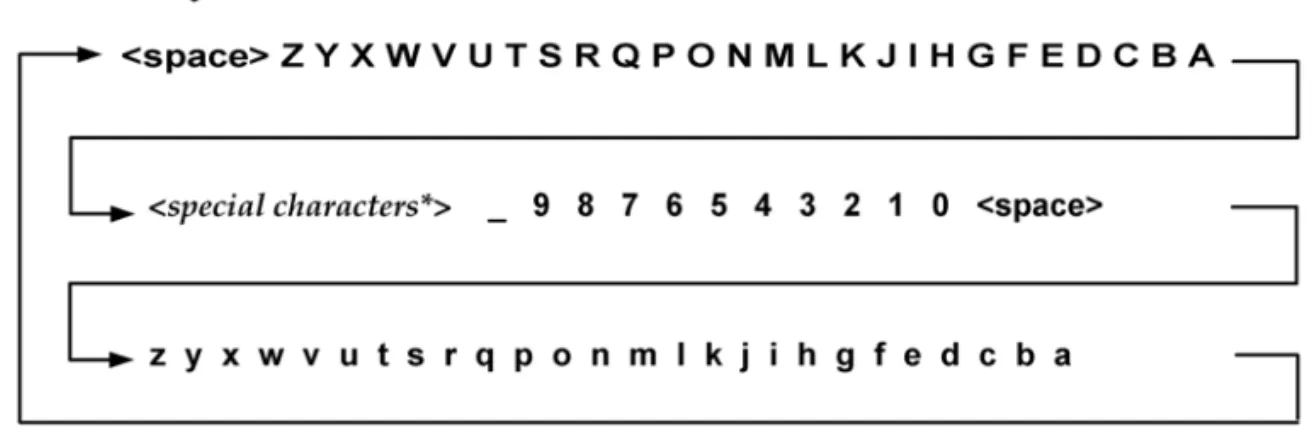
Press the Down arrow to scroll through characters in descending order. Starting from the
space character, the characters appear in this order: uppercase letters (Z to A), special
characters (for Proxy user name and password only), underscore, numbers (9 to 0), space,
lowercase letters (z to a).
Chapter 2 — Scanner Appliance Tour
Navigating the Appliance UI
Qualys Scanner Appliance Use Guide
25
Figure 2-3. Scrolling characters in descending order
Space Character
When a text field entry contains fewer characters than the character positions on the
interface screen, you must select the space character for the unused positions, before or
after the field entry. Only the characters associated with the field entry and space
characters may be included in a text field entry.
Embedded spaces are not permitted in text field entries, except in the Proxy password
field.
The space character may be used to remove characters when editing text fields, except
the Proxy password. To remove a character in an entry field using the LCD user interface,
move the cursor on the character (using the Left and Right arrows), select the space
character (using the Up and Down arrows) and then press ENTER. Any space characters
entered appear in the interface screen until the next time you revisit the screen.
IP Addresses
Entry fields for IP addresses are pre-filled with values in this format: nnn.nnn.nnn.nnn
The IP address format displays values for each character position in all octets. When
entering an IP address, you replace the three “n” digits for each octet as appropriate. If an
octet has less than three digits, then the octet must include leading zeros. For example, to
specify the IP address “194.55.176.2”, you input the IP address as “194.055.176.002”.
Chapter 2 — Scanner Appliance Tour
Navigating the Appliance UI
Domain Name
The
DOMAIN NAME
field in the static IP address configuration allows you to enter the
domain name for the DNS server (for example, mydomain.com). The domain name entry
can have a maximum length of 32 characters. These characters are allowed: uppercase
letters, numbers, underscore(_), and period (.).
Figure 2-4. Special characters in the Domain Name field
The screen displays 16 characters of the
DOMAIN NAME
field entry and it scrolls left. For
example, the first character of the domain name is hidden when the 17th character is
entered. As each additional character is entered, the domain name scrolls left.
Tips - The space character may be used to remove characters when editing the domain
name entry. There’s a shortcut for clearing a domain name entry. Just press the Left arrow
and Right arrow at the same time.
Proxy User Name
For the Proxy user name in the
PROXY USER
field you may enter a maximum of 32
characters including lower case letters, upper case letters, numbers, space, and
underscore. These special characters can be used: underscore (_), dash (-), backslash (\) ,
period (.), at sign (@).
Figure 2-5. Special characters in the Proxy user field
The screen displays 16 characters of the
PROXY USER
field entry, and it scrolls left. For
example, the first character of the Proxy user name is hidden when the 17th character is
entered. As each additional character is entered, the Proxy user name scrolls left. The
space character may be used to remove charaters.
The format of a Proxy user entry is: “domain\user”. If there is a backslash in the middle
of the entry, the Appliance interprets the string before the backslash as the domain name.
Chapter 2 — Scanner Appliance Tour
Navigating the Appliance UI
Qualys Scanner Appliance Use Guide
27
Proxy Password
The
PROXY PASSW
allows you to enter a maximum of 16 characters including lower case
letters, upper case letters, numbers, space, and underscore. Many special characters are
allowed. These characters are shown in ascending order in the table below. Using the
LCD interface, to scroll through characters 1 to 30, press the Up arrow. To scroll through
characters in descending order, press the Down arrow.
Special Characters in the PROXY PASSW field
Order
(ascending)
Character
Name
Order
(ascending)
Character
Name
1
_
underscore
16
+
plus
2
-
hyphen
17
=
equal
3
\
backslash
18
(
parenthesis
left
4
/
slash
19
)
parenthesis
right
5
|
bar
20
{
brace left
6
~
tilda
21
}
brace right
7
!
exclamation
22
[
bracket left
8
?
question
23
]
bracket right
9
@
at sign
24
<
less
10
#
number sign
25
>
greater
11
$
dollar
26
;
semicolon
12
%
percent
27
“
double
quote
13
^
asciicircum
28
`
grave
14
&
ampersand
29
,
comma
Chapter 2 — Scanner Appliance Tour
System Reboot and Shutdown
System Reboot and Shutdown
It is important to follow the proper system shutdown instructions described below. If you
do not follow these instructions, file system corruption may occur.
How to reboot the system
1
With the Scanner Appliance name and IP address displayed, press ENTER.
2
When the
SETUP NETWORK
menu option appears, press the Down arrow to
navigate through the menu options.
3
When the
SYSTEM REBOOT
menu option appears, press ENTER to select the
option.
4
When the
REALLY REBOOT SYSTEM?
prompt appears, press ENTER to confirm.
Review the confirmation messages starting with
REBOOTING SYSTEM
message. The
SCANNER APPLIANCE NAME–IP ADDRESS
is displayed after the Scanner Appliance
makes a successful connection to the Qualys Cloud Platform. This message indicates the
Scanner Appliance is ready for scanning. If another message appears you need to activate
the Scanner Appliance or troubleshoot the issue before scanning. See
Troubleshooting
for
help with resolving any errors.
How to shutdown the system
You can power off the system using the shutdown button or using the Appliance UI.
Using the Appliance UI:
1
With the Scanner Appliance name and IP address displayed, press ENTER.
2
When the
SETUP NETWORK
menu option appears, press the Down arrow to
navigate through the menu options.
3
When the
SYSTEM SHUTDOWN
menu option appears, press ENTER.
4
When the
REALLY SHUTDOWN SYSTEM?
prompt appears, press ENTER to
confirm.
5
Important!
The Scanner Appliance should now power down within 60 seconds.
When this message appears: “It’s now safe to unplug the box”, then you can safely
unplug the Scanner Appliance.
Chapter 2 — Scanner Appliance Tour
System Reboot and Shutdown
Qualys Scanner Appliance Use Guide
29
What happens a restart?
When you restart the Scanner Appliance, several messages appear during the startup
process, as described below:
1
When the system is restarted, informational messages appear in the screen during
the boot process. These messages appear in the order shown below:
Welcome to Qualys
Qualys Scanner is starting up...
Filesystem check in progress...
Qualys Scanner is coming up...
2
The Appliance attempts to connect to the Qualys Cloud Platform using its
configuration. During this phase, these messages appear in the order shown below:
CONTACTING QUALYS
Filesystem check in progress...
CONTACTING QUALYS
3
The
SCANNER APPLIANCE NAME–IP ADDRESS
is displayed after the Scanner
Appliance makes a successful connection to the Qualys Cloud Platform. This
means your the Scanner Appliance is ready to start scanning. If another message
appears you need to take some action before you can start scanning:
•
ACTIVATION CODE
— The Scanner Appliance needs to be activated. Refer to
the
Quick Start
for instructions.
•
Network error — A network error prevented the Scanner Appliance from
making a connection to the Qualys Cloud Platform. This issue must be resolved
before scanning. See
Troubleshooting
for help with resolving the issue.
Chapter 2 — Scanner Appliance Tour
Configure VLANs and Static Routes
Configure VLANs and Static Routes
The Scanner Appliance supports VLAN trunking on the LAN interface for scanning
traffic. VLAN trunking on the WAN interface is not supported. One VLAN interface
(802.1Q) may be configured using the Scanner Appliance user interface (LCD and
Remote Console). Up to 4094 VLANs and static routes can be defined using the Qualys
web application.
How it works - The Scanner Appliance adds VLAN tag(s) to all scanning packets
following the 802.1Q tagging protocol.
Configure VLAN using the Appliance UI
A VLAN that is defined using the Scanner Appliance UI is saved on the Appliance and
can’t be edited using the Qualys UI.
Important! After making configuration changes, be sure to complete the entire network
configuration so that your Scanner Appliance makes a successful connection to the
Qualys Cloud Platform.
Configure VLAN
To configure the Scanner Appliance with a default VLAN interface on the LAN interface,
follow these steps:
1
Go to the
SETUP NETWORK
menu option and press ENTER
to continue.
2
Press the Down arrow one time. When the
ENABLE VLAN ON LAN
menu option
appears, press ENTER
to continue.
3
When the prompt
VLAN 0-4094
appears, specify the VLAN ID. The value “0000”
appears in the screen by default. Specify the VLAN ID, and then press ENTER to
continue.
Change VLAN
A default VLAN that you’ve added using the Scanner Appliance user interface (LCD and
Remote Console) can be changed at any time. To do this, select the
CHANGE VLAN ON
LAN
menu option from the
SETUP NETWORK
menu. Then enter another VLAN ID and
press ENTER.
Disable VLAN
To disable a default VLAN, select the
CHANGE VLAN ON LAN
menu option from the
SETUP NETWORK
menu. Then enter the VLAN ID “0000” and press ENTER. After the
configuration is disabled the
ENABLE DHCP ON LAN
menu option appears on the
Chapter 2 — Scanner Appliance Tour
Configure VLANs and Static Routes
Qualys Scanner Appliance Use Guide
31
Configure VLANs / Static Routes using the Qualys UI
Configuring VLANs and static routes is supported using the Qualys UI. Just go to the
appliances list (Scans > Appliances) and edit the Appliance settings. The VLANs and
static routes you add are saved with your account information on the Qualys Cloud
Platform.
Up to 4094 VLANs and static routes can be added to each Scanner Appliance, as long as
you are using the latest appliance software distribution.
Don’t see these settings? The VLAN trunking feature must be turned on for your account.
Please contact Support or your Technical Account Representative if you’d like us to turn
it on for you.
Chapter 2 — Scanner Appliance Tour
Configure Static IP Address
Configure Static IP Address
If DHCP is not on your network, you must enable the Scanner Appliance with a static
IP address using the
ENABLE STATIC IP ON LAN
menu option. One of these
configurations is required.
Entry fields for IP addresses used in the static IP address configuration are pre-filled with
three digits for all octets, and you must enter a value for each digit. For example, to
specify the IP address “176.34.20.5”, you input the IP address as “176.034.020.005”. See
IP
Addresses
for details.
Tell me the steps
When enabling a static IP address on the LAN interface, you must enter network
configuration settings for the Scanner Appliance so that the Appliance can communicate
with the Qualys Cloud Platform. Also, you have the option to enter some network
settings for informational purposes.
To enable a static IP address on the LAN interface for the Scanner Appliance, follow
these steps:
1
Go to the
SETUP NETWORK
menu option and press ENTER
to continue.
2
Press the Down arrow until the
ENABLE STATIC IP ON LAN
menu option
appears. Then press ENTER
to continue.
3
When the
CFG LAN STATIC NETWORK PARAMS?
prompt appears, press ENTER
to continue. Or press the Up arrow to quit this procedure and return to the
SETUP NETWORK
menu option.
Entering parameters
The Scanner Appliance user interface (LCD and Remote Console) allows users to enter
information in the fields provided using the arrow keys. Use the Left and Right arrows to
move the cursor to the left and right, and use the Up and Down arrows to scroll through
characters. With the Remote Console interface, you have the option to enter characters
using the VT100 terminal’s keyboard.
1
When the
LAN IP ADDR
prompt appears, enter the static IP address, and then press
ENTER to continue.
2
When the
LAN NETMASK
prompt appears, use the Up and Down arrows to scroll
to the desired netmask value. For information about netmask values, see
Tell me
about LAN Netmask
. After selecting a netmask value, press ENTER to continue.
3
When the
LAN GATEWAY
prompt appears, enter the gateway IP address, and then
Chapter 2 — Scanner Appliance Tour
Configure Static IP Address
Qualys Scanner Appliance Use Guide
33
4
When the
LAN DNS1
prompt appears, enter the IP address for the primary DNS
server, and then press ENTER
to continue.
5
When the
LAN DNS2
prompt appears, enter the IP address for the secondary DNS
server. This entry is optional. Press ENTER
to continue.
6
Next are three optional network settings, used for informational purposes only.
These Appliance settings are not used to access the internal network for scanning
or the Qualys Cloud Platform for software updates. To skip these settings, press
ENTER three times.
–
When the
LAN WINS1
prompt appears, enter the IP address for the primary
WINS server, if any. Press ENTER to continue.
–
When the
LAN WINS2
prompt appears, enter the IP address for the secondary
WINS server, if any. Press ENTER to continue.
–
When the
DOMAIN NAME
prompt appears, enter the domain name for the
DNS server (for example, mydomain.com). Press ENTER to continue.
7
When the
REALLY SET LAN STATIC NETWORK?
prompt appears, press ENTER
to continue. Or press the Up arrow to quit this procedure and return to the
SETUP NETWORK
menu option.
8
Review the confirmation messages. The Scanner Appliance attempts to make a
connection to the Qualys Cloud Platform using the new configuration. Upon
success the
SCANNER APPLIANCE NAME–IP ADDRESS
message appears and the
static IP address is enabled.
Confirm the configuration
When you see
SCANNER APPLIANCE NAME–IP ADDRESS
this means you are ready to
start scanning. This message appears if the Scanner Appliance made a successful
connection to the Qualys Cloud Platform using the new configuration.
A network error screen appears if the Scanner Appliance failed to make a connection to
the Qualys Cloud Platform. A network error may occur because the static IP parameters
you entered are incorrect, or they do not match the static IP configuration on your
network. See
Troubleshooting
for help with resolving the issue.
Chapter 2 — Scanner Appliance Tour
Configure Static IP Address
Tell me about LAN Netmask
When entering static network parameters, you will notice that the cursor does not appear
after the
LAN NETMASK
prompt and you cannot enter characters in the entry field. At
first, the netmask “255.255.255.000” appears. Use the Up and Down arrows to scroll
through valid netmasks. When the appropriate netmask value appears, press ENTER to
confirm.
Possible netmask values are listed below. If you press the Down arrow, the values appear
in this order: “255.255.255.000”, “255.255.254.000”, “255.255.252.000... If you press the
Up arrow, the values appear in this order: “255.255.255.000”, “255.255.255.128”,
“255.255.255.192”...
Scrolling netmask values in the Netmask field
Order
(ascending)
Netmask value
Order
(ascending)
Netmask value
1
255.255.255.000
16
255.128.000.000
2
255.255.254.000
17
255.000.000.000
3
255.255.252.000
18
254.000.000.000
4
255.255.248.000
19
252.000.000.000
5
255.255.240.000
20
248.000.000.000
6
255.255.224.000
21
255.000.000.000
7
255.255.192.000
22
224.000.000.000
3
255.255.128.000
23
192.000.000.000
9
255.255.000.000
24
128.000.000.000
10
255.254.000.000
25
255.255.255.252
11
255.252.000.000
26
255.255.255.248
12
255.248.000.000
27
255.255.255.240
13
255.240.000.000
28
255.255.255.224
14
255.224.000.000
29
255.255.255.192
15
255.192.000.000
30
255.255.255.128
Chapter 2 — Scanner Appliance Tour
Configure Static IP Address
Qualys Scanner Appliance Use Guide
35
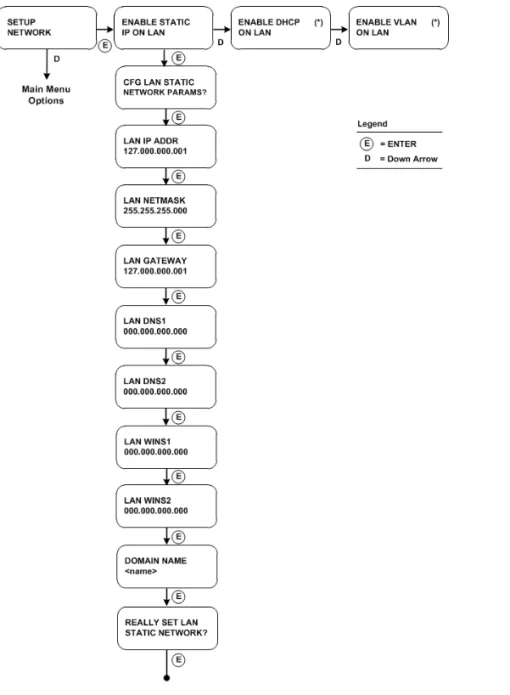
Interface - Enable Static IP on LAN
(*) One option may be enabled:
ENABLE VLAN ON LAN
or
ENABLE DHCP ON LAN
. After
one option is enabled, the other option disappears from the
SETUP NETWORK
menu.
Figure 2-6. User Interface for Enable Static IP on LAN
We’ll update menu options once you configure settings. Once you configure
ENABLE
STATIC IP ON LAN
the option will change to
CHANGE STATIC IP ON LAN
. Once you
configure
ENABLE DHCP ON LAN
the option will appear as
RENEW DHCP ON LAN
.
Chapter 2 — Scanner Appliance Tour
Configure IPv6 Address for Scanning
Configure IPv6 Address for Scanning
You have the option to configure the Scanner Appliance with an IPv6 address on the
LAN interface - this will be used for scanning IPv6 hosts.
How it works - Once configured scanning traffic will be routed through the LAN
interface - LAN IPv4 for scanning IPv4 hosts, and LAN IPv6 for scanning IPv6 hosts. All
management traffic (software updates, health checks, etc) will be routed through the
LAN IPv4 interface.
A few things to consider
•
First go to the Appliance UI and complete the Quick Start. You must configure an
IPv4 address on the LAN interface (using DHCP or a static IP).
•
Be sure your Scanner Appliance has successfully connected to the Qualys Cloud
Platform.
•
The IPv6 Scanning feature must be enabled for your subscription.
Tell me the steps
1
Log in to the Qualys UI.
2
Go to Scans > Appliances and edit your Scanner Appliance. You’ll see the
Appliance wizard.
3
Under LAN settings select “Enable IPv6 for this scanner”. You can choose
“Automatically” and we’ll do IP assignment through router advertisement, or
choose “Static” and assign a static IP address.
Don’t see these settings? This means IPv6 Scanning is not turned on for your
account. Please contact Support or your Technical Account Manager if you’d like
us to turn it on for you.
Chapter 2 — Scanner Appliance Tour
Proxy Configuration
Qualys Scanner Appliance Use Guide
37
Proxy Configuration
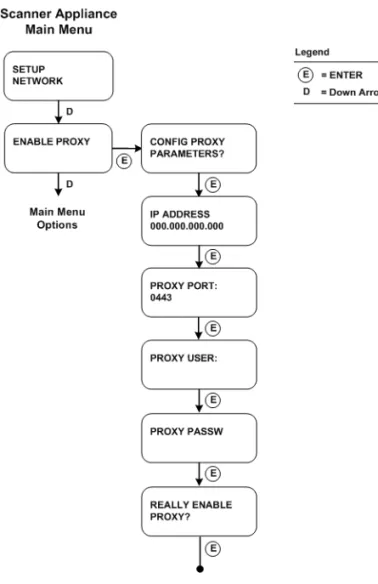
If the Scanner Appliance is behind a Proxy server, you need to enable a Proxy
configuration using the
ENABLE PROXY
menu option. Authentication (Basic or NTLM)
of the Scanner Appliance connection to your Proxy server can be enabled by configuring
the Proxy user and password fields.
The Scanner Appliance uses Secure Sockets Layer (SSL) protocol (HTTPS) to secure its
connection to the Qualys web application, in a similar way that a web browser does to a
secure web server. If the Qualys connection must pass through a Proxy server, then you
must enable the Proxy option on the Scanner Appliance. This configuration re-directs
Qualys outbound connections through the Proxy server.
Your Proxy server must be configured to tunnel or pass through the SSL session to the
Qualys web application. This ensures a secured end-to-end connection. SSL bridging or
tunnel termination must not be configured in your Proxy server when supporting the
Scanner Appliance.
Tell me the steps
To configure the Scanner Appliance with Proxy support, follow these steps:
1
Go to the
SETUP NETWORK
menu option.
2
Press the Down arrow until the
ENABLE PROXY
menu option appears. Then press
ENTER
to continue.
3
When the
CONFIG PROXY PARAMETERS
prompt appears, press ENTER
to
continue. Or press the Up arrow two times to quit this procedure and return to the
SETUP NETWORK
menu option.
Entering parameters
Enter Proxy parameters using the Up and Down arrows to scroll through characters.
1
When the
IP ADDRESS
prompt appears, enter the Proxy server’s IP address. The
gateway IP address appears in the screen by default. Use the Scanner Appliance
interface to enter the Proxy server’s IP address, and then press ENTER to continue.
Octets: The IP address entry is pre-filled with three digits for all octets, and you
must enter a value for each digit. For example, to specify the IP address
“176.34.20.5”, you input the IP address as “176.034.020.005”.
2
When the
PROXY PORT:
prompt appears, enter the port number assigned to the
Proxy server. Port “0443” appears in the screen by default. Confirm that the port
number shown is correct or enter a different one, if necessary. When the correct
port number appears, press ENTER
to continue.
Chapter 2 — Scanner Appliance Tour
Proxy Configuration
3
When the
PROXY USER:
prompt appears, enter the user name for Proxy
authentication. If authentication is not enabled at the Proxy level, leave the entry
field blank. Press ENTER
to continue.
Supported Characters: Lower case letters, upper case letters, numbers, and space.
These special characters may be entered: underscore (_), hyphen (-), backslash (\),
and period (.).
4
When the
PROXY PASSW
prompt appears, enter the password for Proxy
authentication. If authentication is not enabled at the Proxy level, leave the entry
field blank. Press ENTER
to continue.
Supported Characters: Lower case letters, upper case letters, numbers, and space.
Many special characters may be entered for the Proxy password.
5
When the
REALLY ENABLE PROXY?
prompt appears, press ENTER
to continue.
Or press the Up arrow two times to quit this procedure and return to the
SETUP NETWORK
menu option.
6
Review the confirmation messages. The
ENABLING PROXY SUPPORT
message
appears followed by other messages while the Scanner Appliance attempts to make
a connection to the Qualys Cloud Platform using the new configuration.
Upon success the
SCANNER APPLIANCE NAME–IP ADDRESS
message appears and the
configured proxy is now confirmed working and being used.
Chapter 2 — Scanner Appliance Tour
Proxy Configuration
Qualys Scanner Appliance Use Guide
39
Interface - Enable Proxy
The Scanner Appliance user interface to enable Proxy support is shown below.
Figure 2-7. User Interface for Enable Proxy
Want to update proxy setting?
Once a Proxy configuration is enabled, the Proxy settings are stored on the Scanner
Appliance. You can change or disable these settings at any time.
To change Proxy parameters, follow these steps:
1
Go to the
SETUP NETWORK
menu option.
2
Press the Down arrow until the
CHANGE PROXY PARAMS
menu option appears.
Then press ENTER
to continue.
Chapter 2 — Scanner Appliance Tour
Proxy Configuration
3
Follow the prompts and messages in the Scanner Appliance interface to change the
existing Proxy parameters. Existing parameters are displayed in each screen.
Change and confirm each parameter. If a parameter has not changed, press ENTER
to view the next parameter.
4
When the
REALLY ENABLE PROXY?
prompt appears, press ENTER
to continue.
Or press the Up arrow two times to quit this procedure and return to the
SETUP NETWORK
menu option.
5
Review the confirmation messages. The
ENABLING PROXY SUPPORT
message
appears followed by others.
To disable Proxy parameters, follow these steps:
1
Go to the
SETUP NETWORK
menu option.
2
Press the Down arrow until the
DISABLE PROXY
menu option appears. Then press
ENTER
to continue.
3
When the
REALLY DISABLE PROXY?
prompt appears, press ENTER
to continue.
Or press the Up arrow two times to quit this procedure and return to the
SETUP NETWORK
menu option.
4
Review the confirmation messages.
Chapter 2 — Scanner Appliance Tour
Proxy Configuration
Qualys Scanner Appliance Use Guide
41
Interface - Change Proxy Parameters
Figure 2-8. User Interface for Change Proxy Parameters
Confirm the configuration
When you see
SCANNER APPLIANCE NAME–IP ADDRESS
this means you are ready to
start scanning. This message appears if the Scanner Appliance made a successful
connection to the Qualys Cloud Platform using the new configuration.
The
USER LOGIN
prompt appears if the Scanner Appliance made a successful connection
to the Qualys Cloud Platform, however the Appliance has not been activated. See Step 3
in the
Quick Start
and follow the instructions to activate the Scanner Appliance.
A network error screen appears if the Scanner Appliance failed to make a connection to
the Qualys Cloud Platform. A network error may occur because the Proxy parameters
you entered are incorrect, or they do not match the Proxy configuration on your network.
See
Troubleshooting
for help with resolving this issue
Chapter 2 — Scanner Appliance Tour
Split Network Configuration
Split Network Configuration
The Qualys Scanner Appliance provides two network traffic configurations:
Standard and Split. The Standard configuration is enabled by default. You may enable
the Split network configuration using menu options on the
SETUP NETWORK
menu.
In the Standard network configuration, the LAN RJ45 Ethernet connector services both
scanning traffic and management traffic to the Qualys Cloud Platform over the Internet.
Figure 2-9. Standard network traffic configuration (default)
In the Split network configuration all Scanner Appliance management traffic, which
includes scan/map job pickup, scan/map data upload, software updates and health
checks are routed through the WAN port, whereas scan traffic uses the LAN port. This
configuration enables the use of Scanner Appliances in networks that do not have direct
Internet access.
Figure 2-10. Split network traffic configuration
No internal traffic is routed or bridged to the WAN port and no management traffic is
routed or bridged to the LAN port.
The Scanner Appliance implements logical separation of scanning traffic and
Chapter 2 — Scanner Appliance Tour
Split Network Configuration
Qualys Scanner Appliance Use Guide
43
A few things to consider
Please review these tips and best practices before you configure split network
configuration.
•
Check to be sure that network connection to both the LAN and WAN ports on the
Scanner Appliance have been set up properly.
•
The Scanner Appliance must be configured with DHCP or a static IP address on the
LAN interface first.
•
Using the LAN interface now? If your Scanner Appliance is powered on and
connected to the LAN port only, power down the Scanner Appliance before you
connect the second Ethernet cable to the WAN port.
•
Do not configure the LAN and WAN interfaces on the same subnet. This type of
configuration is not supported.
Enable DHCP on the WAN Interface
To configure the WAN interface with DHCP, follow these steps:
1
Select
SETUP
NETWORK
, press the Down arrow until the
ENABLE WAN INTERFACE
menu option appears. Then press ENTER
to continue.
2
Go to the
ENABLE DHCP ON WAN
menu option and press ENTER to continue.
3
When the
REALLY ENABLE DHCP ON WAN?
prompt appears, press ENTER
to
continue. Or press the Up arrow two times to quit this procedure and return to the
SETUP NETWORK
menu option.
4
Review the confirmation message. When the
SCANNER APPLIANCE NAME–IP
ADDRESS
appears you are ready to start scanning. If another message appears you
need to complete the
Quick Start
or resolve the network error indicated.
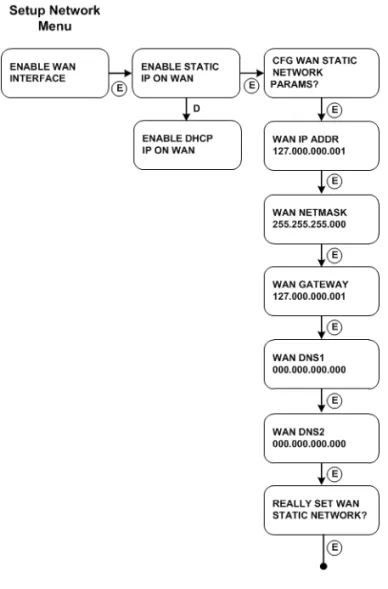
Enable Static IP on the WAN Interface
To configure the WAN interface with a static IP address, follow these steps:
1
Select
SETUP
NETWORK
, press the Down arrow until the
ENABLE WAN INTERFACE
menu option appears. Then press ENTER
to continue.
2
Go to the
ENABLE STATIC IP ON WAN
menu option and press ENTER to
continue.
3
When the
CFG WAN STATIC NETWORK PARAMS?
prompt appears, press ENTER
to continue. Or press the Up arrow to quit this procedure and return to the
SETUP NETWORK
menu option.
Chapter 2 — Scanner Appliance Tour
Split Network Configuration
4
When the
WAN IP ADDR
prompt appears, enter the static IP address, and then press
ENTER to continue.
5
When the
WAN NETMASK
prompt appears, use the Up and Down arrows to scroll
to the desired netmask value. After selecting a netmask value, press ENTER to
continue.
6
When the
WAN GATEWAY
prompt appears, enter the gateway IP address. Then press
ENTER
to continue.
7
When the
WAN DNS1
prompt appears, enter the IP address for the primary DNS.
Then press ENTER
to continue.
8
When the
WAN DNS2
prompt appears, enter the IP address for the secondary DNS.
This entry is optional. Press ENTER
to continue.
9
When the
REALLY SET WAN STATIC NETWORK?
prompt appears, press ENTER
to continue. Or press the Up arrow to quit this procedure and return to the
SETUP NETWORK
menu option.
10
Review the confirmation message. When the
SCANNER APPLIANCE NAME–IP
ADDRESS
message appears, you are ready to start scanning. If another message
appears you need to complete the
Quick Start
or resolve the network error
indicated.
Chapter 2 — Scanner Appliance Tour
Split Network Configuration