The Word 2007/2010 Equation Editor
Contents
The Word 2007/2010 Equation Editor ... 1
When the Equation Editor Should Be Used ... 1
Why the Equation Editor Should Be Used ... 1
How to Enter the Equation Editor Quickly ... 2
Equation display modes ... 2
Insertion of Single Symbols ... 3
Insertion of Spaces ... 3
Grouping and Brackets ... 4
Superscripts and Subscripts ... 4
Division and Stacking ... 4
Parentheses size control with \phantom and \smash ... 6
Square Roots and Higher Order Roots ... 7
Integrals, Products and Sums ... 7
Function Names ... 7
Other Font Changes ... 8
Accent Marks, Overbars, Underbars, Above and Below ... 8
Greek Alphabet ... 9
Hebrew Characters ... 9
Equation Numbers ... 9
Symbol that Lack Keywords ... 10
References ... 11
When the Equation Editor Should Be Used
The equation editor should be used to format your equations. In some cases you can use simple Word commands, such as superscript (<control>+) and subscript (<control>=) to format simple variables, as when you wish to say, “L1 is the length of the beam,” but in doing so, you should pay attention to the font in which the variable is displayed. For example, variables should be formatted in italic font, while function names and units of measure should be in regular font. (It is often easiest to use a shortcut key, as described below, to jump into the equation editor, even if you are simply typing a variable name).
Why the Equation Editor Should Be Used
Some equations will be nearly impossible to represent without this editor. Others will simply look unprofessional. Compare the following:
dy ax2 + bx + c --- = --- sin(θ) dx (x – α)2 𝜕𝜕𝜕𝜕 𝜕𝜕𝜕𝜕= 𝑎𝑎𝜕𝜕2+ 𝑏𝑏𝜕𝜕+𝑐𝑐 (𝜕𝜕 − 𝛼𝛼)2 sin𝜃𝜃
The second form looks better, requires about a third of the time to create with the equation editor, and is far easier to modify. You can save substantial time if you become familiar with the shortcut commands within the equation editor. This document describes the use of the editor available in Word 2007. This environment differs from the keystroke-based editor that was available in previous versions of Word or in Mathtype. Its syntax is similar to that of TeΧ a typesetting program that pre-dates Microsoft Word. 1
How to Enter the Equation Editor Quickly
The quickest way to enter the equation editor is the shortcut key <alt>= (hold down the <alt> key while you type “=”). You can also click on “Equation” under the “Insert” tab, but this sequence can become cumbersome when you are setting a large number of equations or defining multiple variables within text. The need to move your hands from the keyboard to the mouse (or mouse pad) slows your typing.
You now have no excuse not to use the equation editor on a casual basis. It is only one keystroke away. While in the equation editor, you can use various symbols and keywords instead of the more cumbersome menu bar. A more complete description of the codes used by the equation editor and the syntax and philosophy behind it is given by Sargent [1].
Single characters, such as _, ^ and / that have special meanings.
Keywords such as \alpha that will be translated to symbols (in this case,
α
).Keywords such as \sqrt and \overbrace will modify expressions that are correctly grouped.
Note: Spaces that you type are important to the equation editor because they tell the editor when it is time to translate a part of the equation you are typing. Where it is necessary for clarity in this document, a space will be represented by the sequence <sp>.
Equation display modes
If you click on an equation, it will become highlighted, as shown in Figure 1. When you then click on the blue downarrow at the lower right, five options appear. “Save as new equation…” allows you to keep the equation as a building block, which makes it available from the “Insert” ribbon. “Professional” means that the equation should be displayed as a formatted equation. “Linear” means to show the equation in its raw form, similar to the way that the equation was typed, but with some of the typed codes translated into special characters. “Display” means that the equation will be formatted in a way that is appropriate for an equation between paragraphs. “Inline” means that the equation will be formatted in a way that is
appropriate for an equation within a paragraph. Inline equations tend to be more compressed than displayed equations.
Figure 1: The appearance of an equation.
Insertion of Single Symbols
Keywords can be used to quickly insert a limited number of frequently used symbols. Keywords are case-sensitive (e.g., \rightarrow is different from \Rightarrow). If you need a single symbol that does not appear on this list, see the section Symbol that Lack Keywords.
To Insert Type Or To Insert Type Or
∞ \infty ℏ \hbar → \rightarrow \-> ← \leftarrow ↑ \uparrow ↓ \downarrow ↗ \nearrow ↖ \nwarrow ↘ \searrow ↙ \swarrow ↔ \leftrightarrow ↕ \updownarrow ⇒ \Rightarrow ⇐ \Leftarrow ⇑ \Uparrow ⇓ \Downarrow 𝜕𝜕 \partial ∇ \nabla ≤ \le <= ≥ \ge >= ≪ \ll << ≫ \gg 𝑎𝑎×𝑏𝑏 a\times b 𝑓𝑓(𝑡𝑡)⊗ 𝑔𝑔(𝑡𝑡) f(t)\otimes g(t) 𝑎𝑎 ⋅ 𝑏𝑏 a\cdot b 𝑎𝑎 ⊙ 𝑏𝑏 a\odot b 𝜕𝜕 ⊕ 𝜕𝜕 x\oplus y 𝜕𝜕 ⊖ 𝜕𝜕 a\ominus y 𝑎𝑎 ↦ 𝑏𝑏 a\mapsto b ↪ \hookrightarrow 𝑎𝑎…𝑏𝑏 a\dots b 𝑎𝑎 ⋯ 𝑏𝑏 a\cdots b 𝑎𝑎 ⊥ 𝑏𝑏 a\bot b 𝑎𝑎⊤𝑏𝑏 a\top b 𝐴𝐴⋂𝐵𝐵 A\bigcap B 𝐴𝐴⋃𝐵𝐵 A\bigcup B 𝐴𝐴⨆𝐵𝐵 A\bigsqcup B 𝐴𝐴⨄𝐵𝐵 A\biguplus B 𝑎𝑎 ⋆ 𝑏𝑏 a\star b ∀ \forall ∈ \in ∃ \exists ⋀ \bigwedge ⋁ \bigvee ≠ \ne ≈ \approx ≡ \equiv ≅ \cong ∼ \sim ≃ \simeq ⋈ \bowtie □ \box ⊂ \subset ∅ \emptyset ~= ∴ \therefore ∵ \because ± \pm +- ∓ \mp -+ ∠ \angle ∝ \propto 22 °C 22 \degree ”C”
Insertion of Spaces
Because spaces have special meaning in the equation editor, and because the equation editor usually handles spacing appropriately, the spacebar cannot usually be used to add spaces within equations. However, spaces can be inserted with the following keywords: (Keywords \medsp, \thicksp and vthicksp also exist, but \medsp is a not-so-useful synonym for no space at all, and \thicksp and \vthicksp are synonyms for \thinsp).
\hairsp a small space e.g. x x \thinsp a wider space e.g. x x
Grouping and Brackets
The equation editor causes brackets (such as [], {} and ( )) to grow to the size of the expression within them. However, parentheses are the grouping character and will not display when used as such. To force parentheses to display, you must double them. To prevent brackets from being reformatted, precede them by the “\” character. Some examples follow.
To Display Type Comments
�𝑎𝑎𝑏𝑏� [a/b] The “/” command for fractions is described in a later section. �𝑎𝑎𝑏𝑏� {a/b}
�𝑎𝑎𝑏𝑏� (a/b) Parentheses display.
𝑎𝑎
𝑏𝑏+ 1 a/(b+1)
Parentheses used for grouping do not display.
𝑎𝑎
(𝑏𝑏+ 1) a/((b+1)) Double parentheses display.
�𝑎𝑎𝑏𝑏 𝜕𝜕 { a\atop b \close y
The \close keyword completes the opened brace.
The \atop command is described in a later section.
�𝑎𝑎|𝑏𝑏|𝑓𝑓
𝑐𝑐+𝑑𝑑� |(a|b|f)/(c+d)|
The parentheses are, again, used for grouping.
|𝑎𝑎|𝑏𝑏 �𝑐𝑐+𝑓𝑓𝑑𝑑� |a|b|f/(c+d)|
𝜕𝜕 = [𝑎𝑎𝑏𝑏] y=\[<sp>a/b<sp>\] Backslashes prevent [ and ] from growing.
‖𝑎𝑎‖ \norm a\norm
Superscripts and Subscripts
The _ and ^ keys are used to insert superscripts and subscripts. Grouping is important because it distinguishes between Fn2 and
2 n
F . Terms can be grouped by enclosing them in parentheses, where the parentheses themselves do not print. Some simple examples follow:
To Display Type Notes
𝜕𝜕𝑖𝑖×𝜕𝜕𝑛𝑛 x_i\times<sp>y^n The spacebar <sp> is needed.
𝜕𝜕𝑖𝑖+1 x^(i+1) The parentheses do not show. See “grouping.” 𝜕𝜕𝑖𝑖𝑛𝑛 x_i^n
𝐹𝐹𝑛𝑛𝑘𝑘+1 F_n^(k+1)
𝐹𝐹𝑛𝑛𝑘𝑘+1 F_(n^(k+1)) All of the parentheses are needed.
𝐻𝐻 0
9 (_0^9)H
Division and Stacking
Use the “/” character for division. The equation editor will reformat the expression to place the numerator above the denominator. To prevent vertical buildup of the fraction, use “\/” instead of “/” alone. As with superscripts and subscripts, you can use parentheses to group expressions into a numerator and
denominator. Examples follow:
To Display Type Comments a b a/b a b c d +
+ (a+b)/(c+d) Parentheses do not print.
(
a b
)
c
d
+
+
((a+b))/(c+d)The double parentheses force the single parentheses to print in the numerator.
( )
1/ 2 a b n c d f x e + + + + ((a+b)/(c+d) + n)/(f(x)+e^(1\/2))<sp>The “/” is preceded by “\” in the exponential to provide a horizontal fraction (1 / 2 instead of 1
2). If you need to stack expressions without the horizontal division line, use \atop or \matrix. The vertical bar “|” can also be used in place of \atop.
To Display Type Comments
a
b a\atop b or a|b
Do not add spaces between the expression and the vertical bar. a b
c d
+
+ (a+b)\atop(c+d) Parentheses do not print.
( )
0
0
0
x
f x
x
∞ =
=
≠
f(x)={\matrix (\infty x=0@0 x\ne 0) \close
The @ character ends a row of the matrix. 11 12 13 21 22 23 31 32 33
x
x
x
A
x
x
x
x
x
x
=
A=[\matrix(x_11&x_12&x_13@ x_21&x_22&x23@ x_31&x_32&x_33)]The matrix must be enclosed in ()’s. The & character separates columns of the matrix. The @ separates rows.
The syntax for matrices tends to lead to expressions that are difficult to read. An easier approach is to enter the equation editor with <alt>+ and then use the Matrix dropdown menu in the structures group to insert the closest approximation to the matrix that you need. To add extra columns and rows, click on the equation and then click on the small blue down-arrow and scroll down to “Linear” to change the display to linear, then insert “&” and “@” symbols as appropriate, and return to “Professional.”
Parentheses size control with \phantom and \smash
The keywords \phantom and \smash can be used to force brackets and parentheses to have a specific size.
To Display Type Comments
� � [\phantom (a\atop b)]<sp>
The \phantom command creates an object as large as the expression in parentheses, but does not print it, so you can create, for example, large empty brackets. [𝑎𝑎
𝑏𝑏 [\smash(a\atop b)\close<sp><sp>
\smash creates the object, but makes its size zero so that the enclosing bracket does not grow.
[ ] [\hphantom((a+b)/c)]
The \hphantom command creates an object with the width of the expression in
parentheses, but zero height.
�� [\vphantom((a+b)/c)]
The \vphantom command creates an object with the height of the expression in
parentheses, but zero width. This example shows a Routh matrix that was constructed with the aid of “\vphantom.”
𝑠𝑠3 𝑠𝑠2 𝑠𝑠1 𝑠𝑠0 � � 1 8 4 48 −14(48−32) 0 𝑏𝑏1 0
Without the \vphantom, the vertical spacing of the stack of 𝑠𝑠𝑛𝑛 symbols on the left would not match with that of the two columns on the right.
𝑠𝑠3 𝑠𝑠2 𝑠𝑠1 𝑠𝑠0 � 1 8 4 48 −14(48−32) 0 𝑏𝑏1 0 The syntax is
\open\matrix(s^3@s^2@⇳(1/4) s^1@s^0 )| \matrix(1&8\vphantom(s^3 )@4&48\vphantom(s^2 )@-1/4 (48-32)&0@b_1&0\vphantom(s^0 ))
Yes. I do realize that this example is far more than you want to worry about.
Square Roots and Higher Order Roots
The square root keyword \sqrt operates on the argument that follows it. The equation editor also has keywords for higher order roots. Examples are:
To Display Type Comments
√𝜕𝜕 \sqrt x √𝜕𝜕+ 1 \sqrt(x+1) √𝜕𝜕+ 1 3 \cbrt(x+1) √𝜕𝜕+ 1 4 \qdrt(x+1) −𝑏𝑏±√𝑏𝑏2−4𝑎𝑎𝑐𝑐 2𝑎𝑎 (-b\pm\sqrt(b^2-4ac))/2a<sp> √𝜕𝜕
𝑛𝑛 \sqrt(n&x)<sp> The & separates the root order from the
argument
Integrals, Products and Sums
Integrals, products and sums are inserted with the keywords \sum, \int and \prod. Use subscripts and superscripts to insert the limits. Examples are:
To Display Type � 𝜕𝜕𝑛𝑛 𝑁𝑁 𝑛𝑛=0 \sum_(n=0)^N x^n<sp> � 𝜕𝜕𝑛𝑛 𝑁𝑁 𝑛𝑛=0 \prod_(n=0)^N x^n<sp> � 𝑓𝑓(𝑡𝑡)𝑒𝑒∞ −𝑖𝑖𝑖𝑖𝑖𝑖𝑑𝑑𝑡𝑡 −∞ \int_-\infty^\infty <sp> <sp> f(t) e^-i\omega t<sp>dt ∬ 𝑓𝑓(𝜕𝜕)𝑑𝑑𝜕𝜕 \iint f(x) dx ∭ 𝑓𝑓(𝜕𝜕)𝑑𝑑𝜕𝜕 \iiint f(x) dx ∮ 𝑓𝑓(𝜕𝜕,𝜕𝜕)𝑑𝑑𝑑𝑑 \oint f(x,y) dl
Function Names
The equation editor switches between “variable style” or “function style,” depending on whether it interprets part of an equation as a variable or a function (compare the two styles in the equation
( )
x
y
=
sin
, which would not look right if it were displayed asy
=
sin
( )
x
). You must type a space after the function name to allow the editor to interpret it as a function. Some of the functions that arerecognized are:
sin𝜃𝜃 sec𝜃𝜃 arcsin(𝜕𝜕) cosh𝜃𝜃 exp(𝑖𝑖𝑖𝑖𝑡𝑡) cos𝜃𝜃 csc𝜃𝜃 arctan(𝜕𝜕/𝜕𝜕) tanh𝜃𝜃
tan𝜃𝜃 arccos(𝜕𝜕) sinh𝜃𝜃 log(𝜕𝜕)
If a function keyword is not recognized, you can force the editor to treat it as a function if you follow it with the \funcapply keyword. For example, sinc is not recognized as a function, but the sequence sinc\funcapply<sp><sp> will produce sinc𝜕𝜕 (as opposed to the less attractive 𝑠𝑠𝑖𝑖𝑠𝑠𝑐𝑐 𝜕𝜕).
Other Font Changes
Many of the utilities on the Font group of the Home ribbon can be used to modify text within an equation. The \scriptX command (where X is any single letter) can also be used to quickly create a script letter. The variable style can be overridden with several commands. See Gardner [2] for more information.
To Insert Use
a script character (e.g.
F
) \scriptF (Notice that there is no space between \script and F)regular text Enclose in quotes. E.g. “a”= ”b” produces
a=b
instead ofa
=
b
. italic text toggle italic on and off with <control>ibold text toggle bold on and off with <control>b
hello there <control>i hello <control>I there
hello there <control>i hello <control>b there
( )
{
f x}
L
\scriptL {f(x)}𝜕𝜕=ℜ(𝜕𝜕+𝑖𝑖𝜕𝜕) x=\Re(x+iy) 𝜕𝜕=ℑ(𝜕𝜕+𝑖𝑖𝜕𝜕) y=\Im(x+iy)
a large character x= +a
b
Select the character. Then, on the Design ribbon, under the “Tools” group, click on “Normal Text.” Now go to the “Home” ribbon and change the font size. Go back to the Design ribbon and click on “Normal Text” again to get back to the correct font design (e.g. italic if it is a variable).** Sorry about this level of complication. There should just be a command like \size24 to change the point size, but there is not. Also, if you try to change font size without first clicking on “Normal Text,” the font size of the entire equation changes, rather than just the characters you selected.
Accent Marks, Overbars, Underbars, Above and Below
Certain keywords can be used to place accents, overbars, overbraces and other modifiers on characters and expressions. Examples are:
To Display Type Comments
Force Mass times Acceleration
F
=
ma
\overbrace F^”force” = \overbrace(ma)^”Mass times Acceleration”
Overbar text is introduced with ^, as if it were a superscript.
a b
+
\overbar(a+b)
a b
+
\overparen(a+b)a b
+
\underbar(a+b) 0 lim x→lim \below(x\rightarrow 0) Because “lim” is a keyword it is not displayed in italics.
0
lim
x→ lim\above(x\rightarrow 0)
Some accents are designed to fit over a single character. The keyword must be typed after the modified character and followed by two spaces.
For Type For Type For Type
𝜕𝜕̅ x\bar<sp><sp> 𝜕𝜕̈ x\ddot<sp><sp> 𝜕𝜕⃑ x\hvec<sp><sp> 𝜕𝜕̿ x\Bar<sp><sp> 𝜕𝜕� x\hat<sp><sp> 𝜕𝜕⃡ x\tvec<sp><sp> 𝜕𝜕� x\check<sp><sp> 𝜕𝜕� x\tilde<sp><sp>
𝜕𝜕̇ x\dot<sp><sp> 𝜕𝜕⃗ x\vec<sp><sp>
Prime marks also follow the expression that they modify, but are followed by only a single space:
To Display Type
𝜕𝜕′ x\prime<sp> 𝜕𝜕″ x\pprime<sp> 𝜕𝜕‴ x\ppprime<sp>
Greek Alphabet
To include a Greek letter in an equation, spell the name of the letter, preceded by the backslash character (\). If the name begins with a lower case letter, a lower case Greek letter is inserted. If the name begins with an upper case letter, an upper case Greek letter is inserted. The table below provides the names for each of the lower case Greek letters (with some variations).
For Type For Type For Type For Type
𝛼𝛼 \alpha 𝜂𝜂 \eta ο \omicron* 𝜐𝜐 \upsilon
𝛽𝛽 \beta 𝜄𝜄 \iota 𝜋𝜋 \pi 𝜛𝜛 \varpi
𝜒𝜒 \chi 𝜑𝜑 \varphi 𝜃𝜃 \theta 𝑖𝑖 \omega
𝛿𝛿 \delta 𝜅𝜅 \kappa 𝜗𝜗 \vartheta 𝜉𝜉 \xi
𝜖𝜖 \epsilon 𝜆𝜆 \lambda 𝜌𝜌 \rho 𝜓𝜓 \psi
𝜙𝜙 \phi 𝜇𝜇 \mu 𝜎𝜎 \sigma 𝜁𝜁 \zeta
𝛾𝛾 \gamma 𝜈𝜈 \nu 𝜏𝜏 \tau
*\omicron should work, but did not when I tried it in the Word 2007 editor. If you have trouble with this letter, you can use the Symbols group of the Insert ribbon.
Hebrew Characters
The equation editor’s collection of Hebrew characters is limited to the first four. ℵ \aleph
ℶ \beth
ℸ \daleth
ℷ \gimel
Equation Numbers
The easiest way to number equations is to put the equation in a table. If you wish to have the equation centered, use a table with three columns so that the left column balances the right column. Here is an example. The table borders are included for clarity, but in most cases, it is best to remove them.
𝑒𝑒𝑖𝑖𝑖𝑖 = cos𝜕𝜕+𝑖𝑖sin𝜕𝜕 Eq. 1
You can make the equations automatically numbered if you click inside the table, go to the “References” ribbon, and click on “Insert Caption.” Choose “Equation,” and use the label that fits your taste (in this case, I have used “Eq.”). Finally, change the “borders and shading” for the table to “None.”
To generate additional numbered equations, you can copy and paste the table that you just generated into different locations and simply change the equation. Highlight the equation number, right click, and select “Update Field” to have Word automatically change the number. To simplify matters further, you can just copy and paste the above table into your document and use it as a template.
ℜ{𝑒𝑒𝑖𝑖𝑖𝑖} = cos𝜕𝜕 Eq. 2
Symbol that Lack Keywords
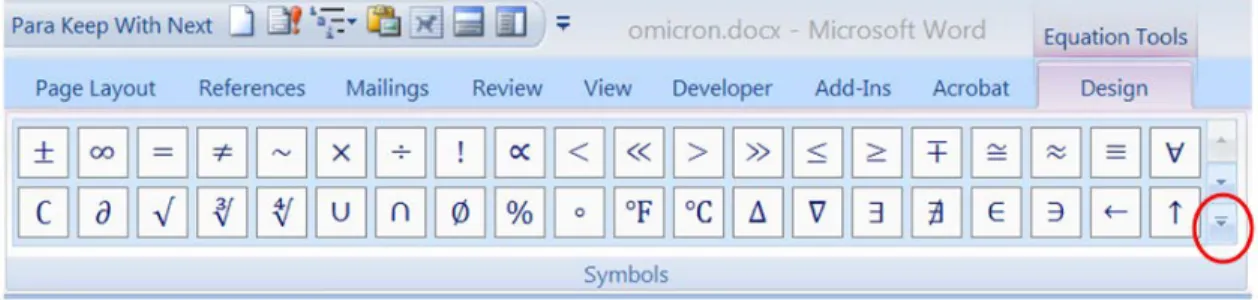
The equation editor lacks keywords for some symbols. Some missing keywords are surprising, such as one for Å, which one would expect to be simply \Angstrom.1 If the keyword cannot be found, the symbol is probably still available. First, check the Symbols group on the Design ribbon under Equation Tools (Figure 2), which should appear when you type <control>+ to enter the equation editor.
Figure 2: The Symbols group under the Design tab of “Equation Tools.”
Most of the default symbols in this group have already been described. However, if you click on the downarrow (circled in Figure 2) and then click on the downarrow at the top of the resulting menu, the following options will appear:Basic Math Greek Letters Letter-Like Symbols Operators Arrows Negated Relationships Scripts Geometry
1 An insane method that approximates the Angstrom symbol uses \vphantom and \smash. Type:
(\vphantom(a)<sp>\smash(A)<sp>)\above\circ)<sp><sp> and then convert to non-italic with <control>I. The result is A∘. The \vphantom and \smash are used to place the circle at the right height. If you type simply A\above\circ<sp><sp>, you get A∘, which places the circle too high.
10
For example, the “Letter-Like Symbols” group contains the following symbols that do not have keywords.
Symbol Name ASCII Hexadecimal Code
ℂ Double-Struck Capital C 2102
ð Latin Small Letter Eth 00F0
Ⅎ Turned Capital F 2132
ℌ Hilbert Space 210C
ℕ The Set of Natural Numbers 2115
ℚ Rational Numbers 211A
ℝ Real Numbers 211D
ℤ The Set of Integers 2124
Å Angstrom 212B
℧ Inverted Ohm Sign 2127
∄ There Does Not Exist 2204
The ASCII hexadecimal code may be useful for a small subset of people. If you type that code into an equation, then select the code and type <alt>x (think of the “x” as standing for hexadecimal), it will convert the number to the corresponding character. You can convert only one character at a time. So if your thesis uses the Å symbol frequently, you may find it worthwhile to memorize the code 212B for that symbol so that you do not need to keep extracting it from the Symbols group.
Conversely, if you are in the linear mode of the equation editor, you can highlight a single character and then type <alt>x to print that character’s hexadecimal code.
As a last resort, you can resort to using Symbol under the Symbols group of the standard Insert ribbon, which is completely independent of the equation editor.
References
1. Sargent, M III, “Unicode nearly plain-tex encoding of mathematics,” Office Authoring Services, Microsoft Corporation, 2006 (
http://unicode.org/notes/tn28/UTN28-PlainTextMath-v2.pdf
). 2. Gardner J, “Shortcuts for the Word 2007 equation editor,”(