murach
’
s
ASP.NET 3.5
web programming with
VB 2008
VB 2008
VB 2008
VB 2008
VB 2008
M
IKEM
URACH& A
SSOCIATES, I
NC.
1-800-221-5528 • (559) 440-9071 • Fax: (559) 440-0963[email protected] • www.murach.com
Copyright © 2008 Mike Murach & Associates. All rights reserved.
(Chapter 1)
Thanks for downloading this chapter from Murach’s ASP.NET 3.5 Web Programming with VB 2008. We hope it will show you how easy it is to learn from any Murach book, with its paired-pages presentation, its “how-to” headings, its practical coding examples, and its clear, concise style.
To view the full table of contents for this book, you can go to our web site. From there, you can read more about this book, you can find out about any additional downloads that are available, and you can review our other books on .NET development. Thanks for your interest in our books!
Section 1
The essence of ASP.NET web
programming
This section presents the essential skills for designing, coding, and testing ASP.NET web applications. After chapter 1 introduces you to the concepts and terms that you need to know for web programming, chapters 2 and 3 teach you the essential skills for designing web forms and writing the Visual Basic code that makes them work. Then, chapter 4 shows you how to use the many features for testing and debugging ASP.NET applications.
When you finish all four chapters, you’ll be able to develop real-world applications of your own. You’ll have a solid understanding of how ASP.NET works. And you’ll be ready to learn all of the other ASP.NET features and techniques that are presented in the rest of this book.
1
An introduction to ASP.NET
web programming
This chapter introduces you to the basic concepts of web programming and ASP.NET. Here, you’ll learn how web applications work and what software you need for developing ASP.NET web applications. You’ll also see how the HTML code for a web form is coordinated with the Visual Basic code that makes the web form work the way you want it to. When you finish this chapter, you’ll have the background you need for developing web applications of your own.
An introduction to web applications ... 4
Two pages of a Shopping Cart application ... 4
The hardware and software components for web applications ... 6
How static web pages work ... 8
How dynamic web pages work ... 10
How state is handled in ASP.NET applications ... 12
An introduction to ASP.NET application development ... 14
The software you need ... 14
The components of the .NET Framework ... 16
Three environments for developing ASP.NET applications ... 18
A quick preview of how an ASP.NET application works ... 20
The files used by the Shopping Cart application ... 20
The aspx code for the Order form ... 22
The Visual Basic code for the Order form ... 24
How an ASP.NET application is compiled and run ... 26
An introduction to web applications
A web application consists of a set of web pages that are generated in response to user requests. The Internet has many different types of web applica-tions, such as search engines, online stores, aucapplica-tions, news sites, discussion groups, games, and so on.Two pages of a Shopping Cart application
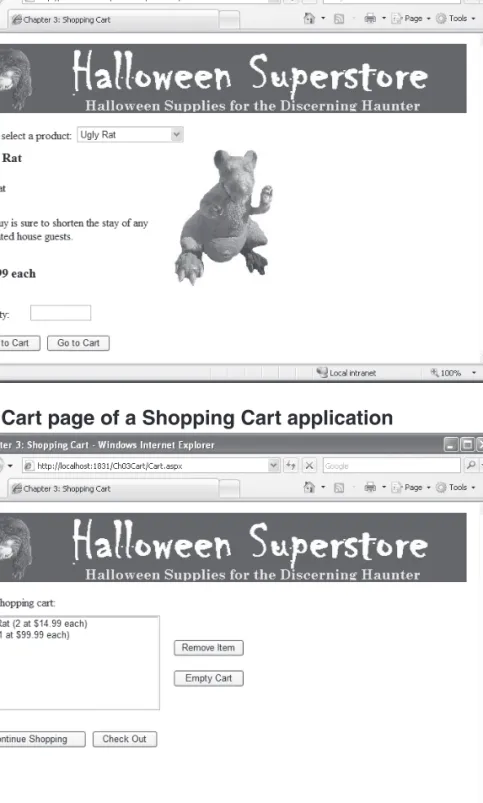
Figure 1-1 shows two pages of a simple web application. In this case, the application is for an online store that lets users purchase a variety of Halloween products, including costumes, masks, and decorations. You’ll see parts of this application throughout the book, so it’s worth taking the time to become famil-iar with it in this chapter.
The first web page in this figure is used to display information about the various products that are available from the Halloween store. To select a prod-uct, you use the drop-down list that’s below the banner at the top of the page. Then, the page displays information about the product including a picture, short and long descriptions, and the product’s price.
If you enter a quantity in the text box near the bottom of the page and click the Add to Cart button, the second page in this figure is displayed. This page lists the contents of your shopping cart and provides several buttons that let you remove items from the cart, clear the cart entirely, return to the previous page to continue shopping, or proceed to a checkout page.
Of course, the complete Halloween Superstore application also contains other pages. For example, if you click the Check Out button in the second page, you’re taken to a page that lets you enter the information necessary to complete a purchase.
An important point to notice about these pages is that they both contain controls that let the user interact with the page, like the drop-down list and buttons on the Order page. A page that contains controls like these is called a
web form, and an ASP.NET application consists of one web form for each page in the application.
The Order page of a Shopping Cart application
The Cart page of a Shopping Cart application
The hardware and software components for web
applications
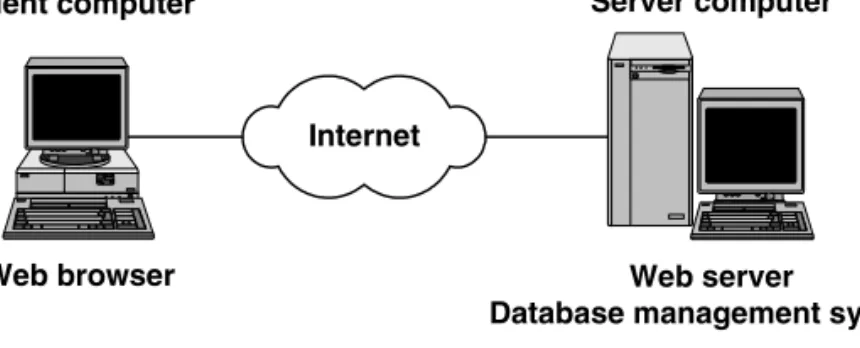
Figure 1-2 shows the basic hardware and software components that are required for a web application. To start, a web application is a type of client/ server application, which means that the functions of the application are split between a client computerand a server computer. The client and server comput-ers are connected to one another via the Internet, and they communicate with each other using HTTP, or Hypertext Transfer Protocol.
To access a web application, you use a web browser that runs on a client computer. By far the most popular web browser is Microsoft’s Internet Explorer, but two alternatives are Mozilla Firefox and Opera.
The web application itself is stored on the server computer. This computer runs web server software that enables it to send web pages to web browsers. Although many web servers are available, the two most popular are Microsoft’s
Internet Information Services (or IIS) and The Apache Software Foundation’s
Apache HTTP Server, which is usually just called Apache. For ASP.NET applications, though, the server must run IIS.
Because most web applications work with data that’s stored in a database, most server computers also run a database management system (or DBMS). Two popular database management systems for ASP.NET development are Microsoft SQL Server and Oracle. Note, however, that the database server software doesn’t have to run on the same server computer as the web server software. In fact, a separate database server is often used to improve an application’s overall performance.
Although this figure shows the client and server computers connected via the Internet, this isn’t the only way a client can connect to a server in a web application. If the client and the server are on the same local area network (or
LAN), they can connect via an intranet. Since an intranet uses the same proto-cols as the Internet, a web application works the same on an intranet as it does on the Internet.
Components of a web application
Figure 1-2 The hardware and software components for web applications
Internet
Web browser Web server
Database management system
Client computer Server computer
Description
• Web applications are a type of client/server application. In that type of application, a user at a client computer accesses an application at a server computer. In a web applica-tion, the client and server computers are connected via the Internet or via an intranet (a local area network).
• In a web application, the user works with a web browser at the client computer. The web browser provides the user interface for the application. The most popular web browser is Microsoft’s Internet Explorer, but other web browsers like Mozilla Firefox and Opera may also be used.
• The application runs on the server computer under the control of web server software. For ASP.NET web applications, the server must run Microsoft’s web server, called
Internet Information Services,or IIS.
• For most web applications, the server computer also runs a database management system, or DBMS, such as Microsoft’s SQL Server. The DBMS provides access to information stored in a database. To improve performance on larger applications, the DBMS can be run on a separate server computer.
• The user interface for a web application is implemented as a series of web pages that are displayed in the web browser. Each web page is defined by a web form using HTML, or
Hypertext Markup Language, which is a standardized set of markup tags.
• The web browser and web server exchange information using HTTP, or Hypertext Transfer Protocol.
How static web pages work
Many of the web pages on the Internet are static web pages that don’t change in response to user input. These pages are HTML documents that are defined by HTML, or Hypertext Markup Language.
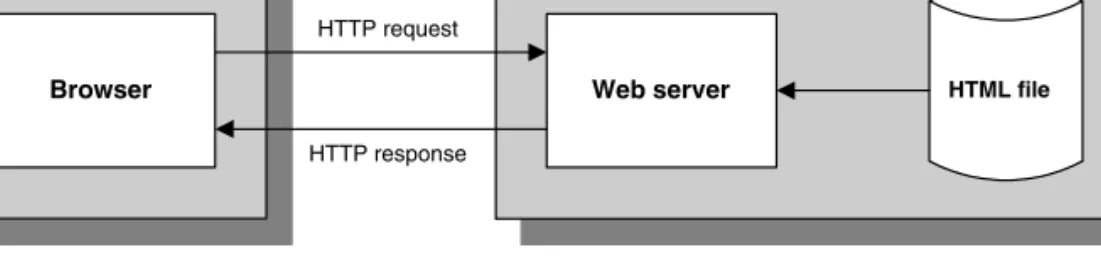
Figure 1-3 shows how a web server handles static web pages. The process begins when a user at a web browser requests a web page. This can occur when the user enters a web address, called a URL (Uniform Resource Locator), into the browser’s address box or when the user clicks a link that leads to another page.
In either case, the web browser uses HTTP to send an HTTP request to the web server. The HTTP request includes information such as the name and address of the web page being requested, the address of the browser making the request, and the address of the web server that will process the request.
When the web server receives an HTTP request from a browser, the server retrieves the requested HTML file from disk and sends the file back to the browser in the form of an HTTP response. The HTTP response includes the HTML document that the user requested along with the addresses of the browser and the web server.
When the browser receives the HTTP response, it formats and displays the HTML document. Then, the user can view the content. If the user requests another page, either by clicking a link or typing another web address in the browser’s address box, the process begins again.
Figure 1-3 also shows the components of a URL. The first component is the protocol, in this case, HTTP. In most cases, you can omit the protocol and HTTP is assumed.
The second component is the domain name, which identifies your web site. The URL in this figure, for example, includes the domain name for our web site, www.murach.com. The browser uses the domain name to identify the server that’s hosting the web site.
After the domain name, you specify the path where the file resides on the server. Notice that front slashes are used to separate the components of a path in a URL. After the path, you specify the name of the file you want to display in the browser. In this case, the file is a static web page named index.htm.
How a web server processes static web pages
Figure 1-3 How static web pages work
The components of an HTTP URL
http://www.murach.com/books/vb08/index.htm
Description
• A static web page is an HTML document that is the same each time it’s viewed. In other words, a static web page doesn’t change in response to user input. Everyone who views a static web page sees exactly the same content.
• Static web pages are usually simple HTML files that are stored on the web server. When a browser requests a static web page, the web server retrieves the file from disk and sends it back to the browser. Static web pages usually have a file extension of .htm or .html.
• A web browser requests a page from a web server by sending the server an HTTP message known as an HTTP request. The HTTP request includes, among other things, the name of the HTML file being requested and the Internet addresses of both the browser and the web server.
• A user working with a browser can initiate an HTTP request in several ways. One way is to type the address of a web page, called a URL, or Uniform Resource Locator, into the browser’s address area and then press the Enter key. Another way is to click a link that refers to a web page.
• A web server replies to an HTTP request by sending a message known as an HTTP response back to the browser. The HTTP response contains the addresses of the browser and the server as well as the HTML document that’s being returned.
protocol domain name path file name
Client Server
Browser Web server HTML file
HTTP request
How dynamic web pages work
A web applicationconsists of one or more web pages that are not static, but that can change in some way each time the page is displayed. Instead of being stored on disk in the form of HTML files, these pages are generated dynami-cally by the application. As a result, the generated pages are often referred to as
dynamic web pages.
One of the key differences between static web pages and dynamic web pages is that dynamic web pages are web forms that contain one or more server controls, such as labels, text boxes, and buttons. Users work with these controls to interact with the application.
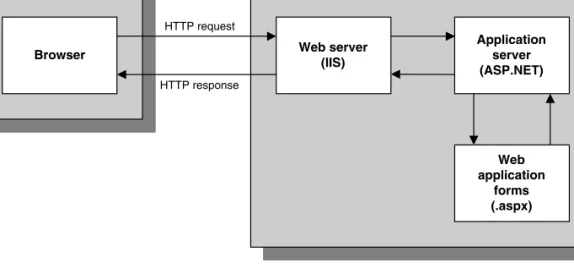
Figure 1-4 shows the basic processing for a dynamic web page. To start, the browser sends an HTTP request to the web server (IIS) that contains the address of the web page being requested, along with the information that the user entered into the form. When IIS receives this request, it determines that it’s a request for a web form rather than for a static web page. As a result, the web server passes the request on to the application server (ASP.NET) for processing. ASP.NET, in turn, manages the execution of the web form that’s requested.
To determine if the request is for a static page or a dynamic page, the web server looks up the extension of the requested page in a list of application mappings. These mappings indicate what program a file extension is associated with. For example, a static web page typically has an extension of htm or html, while a dynamic ASP.NET page has an extension of aspx. As a result, when the web server receives an HTTP request for an aspx file, it passes this request to ASP.NET, which processes the web form for that page.
When the web form is executed, it processes the information the user entered and generates an HTML document. If, for example, the web form displays data from a database, it queries the database to get the requested information. Then, it generates a page with that information, which is returned by ASP.NET to the web server. The web server, in turn, sends the page back to the browser in the form of an HTTP response, and the browser displays the page. This entire process that begins with the browser requesting a web page and ends with the page being sent back to the client is called a round trip.
When a user clicks on a control to start an HTTP request, it is called “post-ing back to the server,” which is referred to as a postback. In the Order form in figure 1-1, for example, the user starts a postback by selecting an item in the drop-down list or by clicking on the Add to Cart button. Then, the web form for the Order page is processed using the new values that the user has entered into the page.
Incidentally, the application server for ASP.NET 3.5 can handle requests for web forms that were developed by ASP.NET 2.0 as well as requests for forms that were developed by ASP.NET 3.5. That means that your old 2.0 web forms can run right along with your new forms, which means that you don’t have to convert your old applications to ASP.NET 3.5. Then, you can maintain your old web forms with ASP.NET 2.0 and develop your new web forms with 3.5.
How a web server processes dynamic pages
Figure 1-4 How dynamic web pages work
The URL for an ASP.NET web page
http://www.microsoft.com/express/product/default.aspx
Description
• A dynamic web page is an HTML document that’s generated by a web form. Often, the web page changes according to information that’s sent to the web form by the browser.
• When a web server receives a request for a dynamic web page, it looks up the extension of the requested file in a list of application mappings to find out which application server should process the request. If the file extension is aspx, the request is passed on to ASP.NET for processing.
• When the application server receives a request, it runs the specified web form. Then, the web form generates an HTML document and returns it to the application server, which passes it back to the web server and from there to the browser.
• The browser doesn’t know or care whether the HTML was retrieved from a static HTML file or generated dynamically by a web form. Either way, the browser simply displays the HTML that was returned as a result of the request.
• After the page is displayed, the user can interact with it using its controls. Some of those controls let the user post the page back to the server, which is called a postback. Then, the page is processed again using the data the user entered.
• The process that begins with the user requesting a web page and ends with the server sending a response back to the client is called a round trip.
• If you omit the file name from the URL when you use your browser to request a page, IIS will look for a file with one of four names by default: Default.htm, Default.asp, index.htm, and iisstart.asp. (If you’re using IIS 7.0, it will also look for a file with the name index.html or default.aspx.) If you want another page to be displayed by default, you can add the name of that page to this list. See appendixes A and B for more information.
Client Server
Browser Web server
(IIS) Application server (ASP.NET) HTTP request HTTP response Web application forms (.aspx)
How state is handled in ASP.NET applications
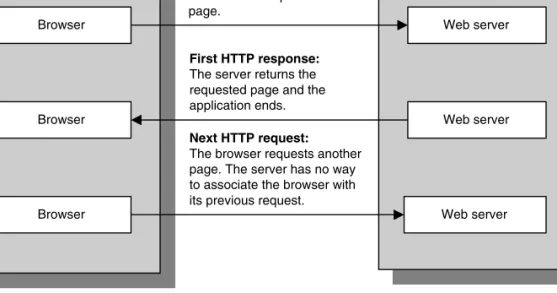
Although it isn’t apparent in the previous figure, an application ends after it generates a web page. That means that the current status of any data maintained by the application, such as variables or control properties, is lost. In other words, HTTP doesn’t maintain the state of the application. This is illustrated in figure 1-5.
Here, you can see that a browser on a client requests a page from a web server. After the server processes the request and returns the page to the
browser, it drops the connection. Then, if the browser makes additional requests, the server has no way to associate the browser with its previous requests.
Because of that, HTTP is known as a stateless protocol.
Although HTTP doesn’t maintain state, ASP.NET provides several ways to do that, as summarized in this figure. First, you can use view state to maintain the values of server control properties. For example, you can use view state to preserve the Text properties of label controls that are changed as a web form is processed or to maintain a list of items in a drop-down list. Because ASP.NET implements view state by default, you don’t need to write any special code to use it.
Second, you can use session state to maintain data between executions of an application. To make this work, ASP.NET creates a session state object that is kept on the server whenever a user starts a new session. This session object contains a unique session ID, and this ID is sent back and forth between the server and the browser each time the user requests a page. Then, when the server receives a new request from a user, it can retrieve the right session object for that user. In the code for your web forms, you can add data items to the session object so their previous values are available each time a web form is executed.
Third, you can use an application state object to save application state data, which applies to all of the users of an application. For example, you can use application state to maintain global counters or to maintain a list of the users who are currently logged on to an application.
Fourth, you can use the profile feature to keep track of user data. Although a profile is similar to a session state object, it persists between user sessions because it is stored in a database. When you use profiles, for example, you can keep track of the last three products that a user looked at in his last session. Then, when the user starts a new session, you can display those products in a “Recently viewed items” list.
Why state is difficult to track in web applications
Figure 1-5 How state is handled in ASP.NET applications
Concepts
• State refers to the current status of the properties, variables, and other data maintained by an application for a single user. The application must maintain a separate state for each user currently accessing the application.
• HTTP is a stateless protocol. That means that it doesn’t keep track of state between round trips. Once a browser makes a request and receives a response, the application terminates and its state is lost.
Four ASP.NET features for maintaining state
• ASP.NET uses view state to maintain the value of form control properties that the application changes between executions of the application. Since view state is imple-mented by default, no special coding is required.
• When a user starts a new session, ASP.NET creates a session state object that contains a
session ID. This ID is passed from the server to the browser and back to the server so the server can associate the browser with an existing session. To maintain session state, you can add program values to the session state object.
• When an application begins, ASP.NET creates an application state object. To maintain
application state, you can add program values to the application state object. These values are available to all users of the application until the application ends.
• ASP.NET can also maintain a profile for each user of an application. Because profiles are stored in a database, the profile data is maintained from one user session to another. This makes it easier to personalize an application.
Server
First HTTP request:
The browser requests a page.
Client
Web server
First HTTP response:
The server returns the requested page and the application ends.
Next HTTP request:
The browser requests another page. The server has no way to associate the browser with its previous request.
Web server Web server Browser
Browser
An introduction to ASP.NET application
development
In the three topics that follow, you’ll find out what software you need for developing ASP.NET web applications, what the components of the .NET Framework are, and what development environments you can work in.
The software you need
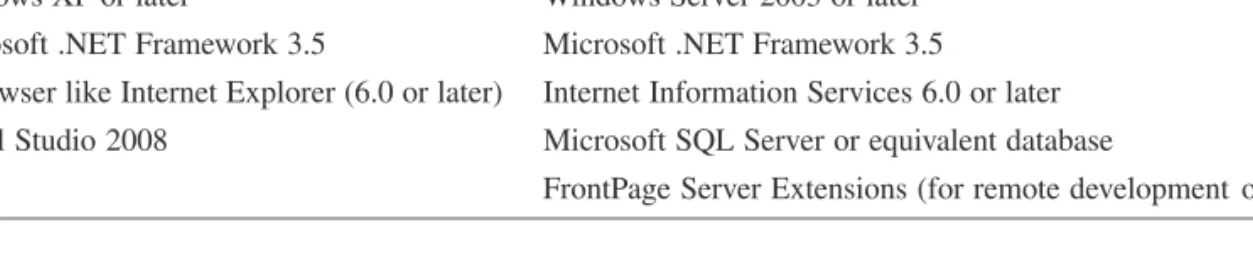
The first table in figure 1-6 summarizes both the client and the server software that you need for developing ASP.NET applications. On your own PC, you need an operating system like Windows XP or Windows Vista, the
Microsoft .NET Framework 3.5, and a browser like Microsoft Internet Explorer. You also need Visual Studio 2008 if you want to get the benefits from using that Integrated Development Environment (IDE).
If you’re using a server for your development, it will need a server operating system like Windows Server 2003 or later, Microsoft .NET Framework 3.5, and Internet Information Services. If you’re going to develop applications from a remote computer, it will also need FrontPage Server Extensions. And if you’re going to develop applications for the Internet, it will need an FTP server. In appendix A, you can get information about installing the software for both client and server.
Because most ASP.NET applications require database access, you also need a database server such as Microsoft SQL Server. For development work on your own PC, you can use SQL Server 2005 Express Edition, which is a scaled-back version of SQL Server that comes with Visual Studio 2008. But you’ll probably need SQL Server itself on the server for a production application.
If you’re developing production applications, you should also download and install other web browsers on your PC including Mozilla Firefox and Opera. That way, you can test your applications with a variety of popular browsers.
The second table in this figure shows that Visual Studio 2008 is available in several editions. Most professional developers will work with either the Stan-dard Edition or the Professional Edition. But large development teams may use the Team System edition, which includes features designed for specialized development roles such as architects, developers, and testers.
A free alternative is Visual Web Developer 2008 Express Edition. This product is designed for individual developers, students, and hobbyists, and most of the features in this book will work with this edition.
The third table in this figure lists some of the most important new features of ASP.NET 3.5. Because each of these features is presented in detail later in this book, I won’t describe them here. But this table should show you that ASP.NET 3.5 provides some new features that you may want to use in your new applications.
Software requirements for ASP.NET 3.5 application development
Client Server
Windows XP or later Windows Server 2003 or later Microsoft .NET Framework 3.5 Microsoft .NET Framework 3.5
A browser like Internet Explorer (6.0 or later) Internet Information Services 6.0 or later Visual Studio 2008 Microsoft SQL Server or equivalent database
FrontPage Server Extensions (for remote development only)
Visual Studio 2008 Editions
Edition Description
Visual Studio 2008 Standard Edition Supports Windows and Web development using Visual Basic, C#, and C++.
Visual Studio 2008 Professional Edition Same as Standard Edition with several additional features such as additional deployment options and integration with SQL Server 2005.
Visual Studio 2008 Team System The top-of-the-line version of Visual Studio, with special features added to support large development teams. Visual Web Developer 2008 Express Edition Free downloadable edition for web development in Visual
Basic, C#, or J#.
New programming features for ASP.NET 3.5
Feature Chapter Description
Nested master pages 9 Lets you define the overall look of a web site with one master page and then define the look of individual portions of the web site with other master pages that refer to the main master page.
ListView control 16 Lets you display, sort, insert, update, and delete the data in a bound data source. Provides a highly-customizable interface.
DataPager control 16 Adds paging capabilities to the ListView control. The DataPager control is displayed separately from the control it’s used to page.
LINQ data source control 18 Provides for using LINQ (Language-Integrated Query) to query and update a variety of data sources.
AJAX 25 Provides for developing web pages that are more responsive to the user and reduce the load on the web server.
The components of the .NET Framework
Because you should have a basic understanding of what the .NET Frame-work does as you develop applications, figure 1-7 summarizes its major compo-nents. As you can see, this framework is divided into two main components, the .NET Framework Class Library and the Common Language Runtime, and these components provide a common set of services for applications written in .NET languages like Visual Basic or C#.
The .NET Framework Class Library consists of classes that provide many of the functions that you need for developing .NET applications. For instance, the ASP.NET classesare used for developing ASP.NET web applications, and the Windows Forms classes are used for developing standard Windows applica-tions. The other .NET classes let you work with databases, manage security, access files, and perform many other functions.
Although it’s not apparent in this figure, the classes in the .NET Framework Class Library are organized in a hierarchical structure. Within this structure, related classes are organized into groups called namespaces. Each namespace contains the classes used to support a particular function. For example, the System.Web namespace contains the classes used to create ASP.NET web applications, and the System.Data namespace contains the classes used to access data.
The Common Language Runtime, or CLR, provides the services that are needed for executing any application that’s developed with one of the .NET languages. This is possible because all of the .NET languages compile to a common Intermediate Language (or IL). The CLR also provides the Common Type System that defines the data types that are used by all the .NET languages. That way, you can use the same data types regardless of what .NET language you’re using to develop your application.
To run an ASP.NET application, the web server must have the .NET Frame-work installed. However, the client computers that access the web server don’t need the .NET Framework. Instead, the client computers can run any client operating system with a modern web browser.
The .NET Framework
Figure 1-7 The components of the .NET Framework
Description
• .NET applications work by using services of the .NET Framework. The .NET Frame-work, in turn, accesses the operating system and computer hardware.
• The .NET Framework consists of two main components: the .NET Framework Class Library and the Common Language Runtime.
• The .NET Framework Class Library provides pre-written code in the form of classes that are available to all of the .NET programming languages. These classes are organized into groups called namespaces. The classes that support ASP.NET web programs are stored in the System.Web namespace.
• The Common Language Runtime, or CLR, manages the execution of .NET programs by coordinating essential functions such as memory management, code execution, security, and other services.
• The Common Type System is a component of the CLR that ensures that all .NET applica-tions use the same data types regardless of what programming languages are used to develop the applications.
• All .NET programs are compiled into Microsoft Intermediate Language (MSIL) or just
Intermediate Language (IL), which is stored on disk in an assembly. This assembly is then run by the CLR.
.NET Framework
.NET Applications
Visual Basic Visual C# Visual C++ Other languages
.NET Framework Class Library
Windows Forms classes ASP.NET classes Other classes
Common Language Runtime
Managed applications Common Type System Intermediate Language
Operating System and Hardware
Three environments for developing ASP.NET
applications
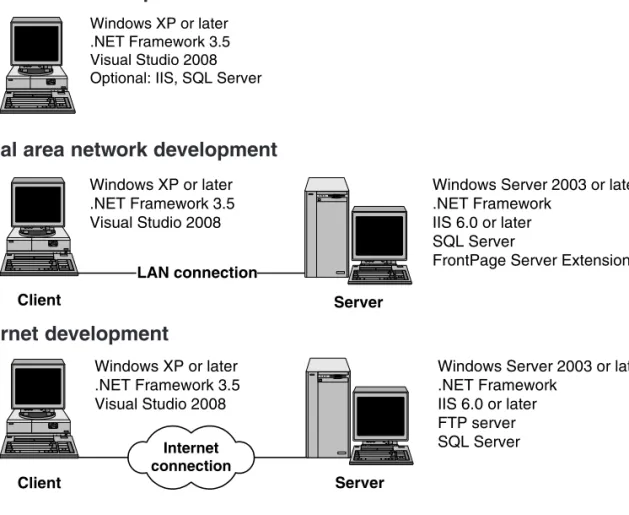
Figure 1-8 shows three common ways to set up a development environment for coding and testing ASP.NET applications. As you’ll see, each setup has its advantages and disadvantages. The environment you choose will depend on your development needs and on the resources that are available to you.
The simplest development environment is a standalone environment. In this case, a single computer serves as both the client and the server. Because of that, it must run an operating system that supports ASP.NET development, and it must have the .NET Framework and Visual Studio 2008 installed. Because Visual Studio 2008 comes with its own development server for local testing, you don’t have to install IIS when you use a standalone environment. Also, since Visual Studio comes with SQL Server 2005 Express Edition (or just SQL Server Express), you don’t have to install a separate database product.
The second development environment works with separate client and server computers that are connected via a local area network. Here, the client computer has Windows, the .NET Framework, and Visual Studio 2008 installed, while the server runs Windows Server with the .NET Framework, IIS, and FrontPage Server Extensions (FPSE). FPSE provides the services that Visual Studio 2008 uses to communicate with a web site on a remote computer. In addition, the server uses SQL Server to handle database access. With this environment, more than one programmer can work on the same application, but all of the program-mers are located at the same site.
With the third development environment, the client computers are con-nected to the server via the Internet rather than a LAN. This makes it possible to work with a web site that’s hosted on another server. This environment requires an FTP server, which is used to copy the files in a web site between the client computer and the server. The FTP server uses File Transfer Protocol (FTP) to perform the copy operations, and IIS can be configured to act as an FTP server as well as a web server. So if a web site is hosted on a server that you have access to, you can configure the server so remote users can access it using FTP.
Windows XP or later .NET Framework 3.5 Visual Studio 2008 Optional: IIS, SQL Server
Standalone development
Figure 1-8 Three environments for developing ASP.NET applications
Local area network development
Internet development
Description
• When you use standalone development, a single computer serves as both the client and the server. Because Visual Studio comes with a scaled-back web server called the ASP.NET Development Server (or just development server), you don’t need to use IIS for testing web applications on your own PC. However, you do need to use IIS to test certain features of web applications.
• When you use a local area network (LAN), a client computer communicates with a server computer over the LAN. With this setup, two or more programmers at the same site can work on the same application. This setup requires that FrontPage Server Exten-sions (FPSE) be installed on the server.
• When you use Internet development, a client computer communicates with a server computer over the Internet. With this setup, programmers at different locations can work on the same application. This setup requires an FTP server on the server. The FTP server uses File Transfer Protocol (FTP) to transfer files between the client computer and the server.
LAN connection
Windows XP or later .NET Framework 3.5 Visual Studio 2008
Windows Server 2003 or later .NET Framework
IIS 6.0 or later SQL Server
FrontPage Server Extensions
Client Server
Windows XP or later .NET Framework 3.5 Visual Studio 2008
Windows Server 2003 or later .NET Framework IIS 6.0 or later FTP server SQL Server Internet connection Client Server
A quick preview of how an ASP.NET
application works
With that as background, you’re ready to learn more about how an
ASP.NET application works. That’s why this topic presents a quick preview of how the Order form in the Shopping Cart application works.
The files used by the Shopping Cart application
Figure 1-9 presents the Order form of the Shopping Cart application as it appears in the Web Forms Designer that you use when you develop web forms with Visual Studio 2008. In chapter 2, you’ll learn how to use this Designer, but for now just try to get the big picture of how this form works.If you look at the Designer window in the middle of the IDE, you can see the table that’s used for this form as well as the label controls that are used to display the data for each product. You can also see that the smart tag menu for the drop-down list has been used to enable the AutoPostBack property. This means that the Order form will be posted back to the web server when the user selects an item from the drop-down list.
If you look at the Solution Explorer to the right of the Designer window, you can see the folders and files that this application requires. For now, though, just focus on the six code files that are summarized in the table in this figure. The first two files in this table, which are in the App_Code folder, are two files that represent business classes named CartItem and Product. Both of these files have vb as the extension, which means that they’re Visual Basic files.
The next four files in the table are for the two web forms, Cart and Order, with two files for each form. The files with aspx as the extension (Cart.aspx and Order.aspx) contain the code that represents the design of the form. This code consists of standard HTML code plus asp tags that define the server controls used on the forms. We refer to this as aspx code, because the files that contain the code have the aspx extension.
The other two files, which have aspx.vb as the extension, contain the Visual Basic code that controls the operation of the forms. These are called code-behind files because they provide the code behind the web forms. For instance, the Order.aspx.vb file is the code-behind file for the Order form.
Before I go on, you should realize that it isn’t necessary to store the aspx and Visual Basic code for a web form in separate files. Instead, ASP.NET lets you combine this code into a single aspx file. However, storing the aspx and Visual Basic code in separate files can simplify application development because it lets you separate the presentation elements for a page from its Visual Basic coding. This also makes it possible for HTML designers to work on the aspx files for an application, and then have Visual Basic programmers develop the code for the code-behind files.
The Order form in Design view
The aspx and Visual Basic files in the Shopping Cart application
Folder File Description
App_Code CartItem.vb A class that represents an item in the shopping cart. App_Code Product.vb A class that represents a product.
(root) Cart.aspx The aspx file for the Cart page. (root) Cart.aspx.vb The code-behind file for the Cart page. (root) Order.aspx The aspx file for the Order page. (root) Order.aspx.vb The code-behind file for the Order page.
Description
• For each web form in an application, ASP.NET 3.5 keeps two files. The file with the aspx extension holds the HTML code and the asp tags for the server controls. The file with the aspx.vb extension is the code-behind file that contains the Visual Basic code for the form.
• If an ASP.NET 3.5 application requires other classes like business classes, they are kept in the App_Code folder.
The aspx code for the Order form
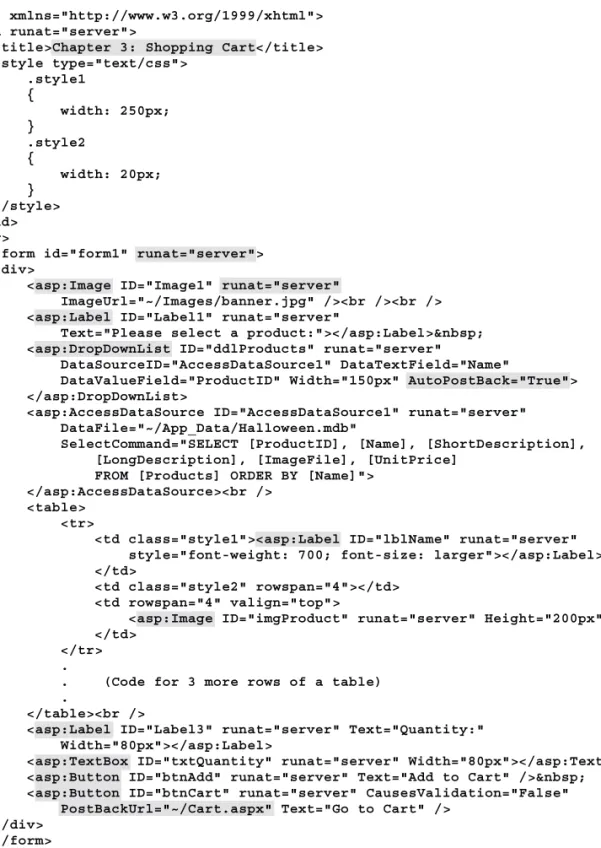
To give you some idea of how aspx code works, figure 1-10 shows some of the aspx code for the Order form. All of this code is generated by Visual Studio as you use the Web Forms Designer to design a form, so you don’t have to code it. But you still should have a general understanding of how this code works.
The first set of tags for each web form defines a page directive that provides four attributes. Here, the Language attribute says that the language is Visual Basic, the CodeFile attribute says that the code-behind file is named
Order.aspx.vb, and the Inherits attribute specifies the class named Order. In figure 1-12, you’ll see how the Order.aspx class inherits the Order class.
The second set of tags defines a DOCTYPE declaration, which tells the browser what version of HTML the HTML document uses. You can ignore this declaration for now, because you’ll learn more about it in chapter 5.
The Html tags mark the beginning and end of the HTML document, and the Head tags define the heading for the document. Here, the Title tags define the title that is displayed in the title bar of the browser when the page is run. In addition, the Style tags define the styles used by the page. As you’ll learn in chapter 5, this is just one way to define styles.
The content of the web page itself is defined within the Div tags, which are within the Body and Form tags. Notice that the first Form tag includes a Runat attribute that’s assigned a value of “server.” That indicates that the form will be processed on the server by ASP.NET. This attribute is required for all ASP.NET web forms and all ASP.NET server controls.
The asp tags within the Div tags define the server controls that appear on the page. For example, the asp:Image tags define an Image control, the
asp:Label tags define a label control, the asp:DropDownList tags define a drop-down list, and the asp:Button tags define a button. Since these controls include the Runat attribute with a value of “server,” they will be processed on the server by ASP.NET. The last phase of this processing is rendering the controls, which means that the asp code is converted to standard HTML so the page can be displayed by a browser.
If you look at the asp code for the drop-down list, you can see that the AutoPostBack attribute has been set to True. That means that a postback will occur whenever the user selects an item from that list. Note that a postback will also occur whenever the user clicks the Add to Cart button. However, the AutoPostBack attribute isn’t required for this control because performing a postback is the default operation of a button.
Another attribute that you should notice is the PostBackUrl attribute for the last button in the aspx code. This attribute provides the path for the Cart.aspx file, which means that the Cart form will be requested when this button is clicked. That’s one way to switch from one form to another as an application is run, and you’ll see another in the next figure.
Although this has been a quick introduction to the aspx code for a web form, you should begin to see how this code defines a web page. In the next two chapters, though, you’ll learn more about this code. And just in case you need it, chapter 5 presents a complete crash course in HTML.
The aspx file for the Order form (Order.aspx)
<%@ Page Language="VB" AutoEventWireup="false" CodeFile="Order.aspx.vb" Inherits="Order" %>
<!DOCTYPE html PUBLIC "-//W3C//DTD XHTML 1.0 Transitional//EN" "http://www.w3.org/TR/xhtml1/DTD/xhtml1-transitional.dtd"> <html xmlns="http://www.w3.org/1999/xhtml">
<head runat="server">
<title>Chapter 3: Shopping Cart</title> <style type="text/css"> .style1 { width: 250px; } .style2 { width: 20px; } </style> </head> <body>
<form id="form1" runat="server"> <div>
<asp:Image ID="Image1" runat="server"
ImageUrl="~/Images/banner.jpg" /><br /><br /> <asp:Label ID="Label1" runat="server"
Text="Please select a product:"></asp:Label> <asp:DropDownList ID="ddlProducts" runat="server"
DataSourceID="AccessDataSource1" DataTextField="Name"
DataValueField="ProductID" Width="150px" AutoPostBack="True"> </asp:DropDownList>
<asp:AccessDataSource ID="AccessDataSource1" runat="server" DataFile="~/App_Data/Halloween.mdb"
SelectCommand="SELECT [ProductID], [Name], [ShortDescription], [LongDescription], [ImageFile], [UnitPrice]
FROM [Products] ORDER BY [Name]"> </asp:AccessDataSource><br />
<table> <tr>
<td class="style1"><asp:Label ID="lblName" runat="server" style="font-weight: 700; font-size: larger"></asp:Label> </td>
<td class="style2" rowspan="4"></td> <td rowspan="4" valign="top">
<asp:Image ID="imgProduct" runat="server" Height="200px" /> </td>
</tr> .
. (Code for 3 more rows of a table) .
</table><br />
<asp:Label ID="Label3" runat="server" Text="Quantity:" Width="80px"></asp:Label>
<asp:TextBox ID="txtQuantity" runat="server" Width="80px"></asp:TextBox> <asp:Button ID="btnAdd" runat="server" Text="Add to Cart" /> <asp:Button ID="btnCart" runat="server" CausesValidation="False" PostBackUrl="~/Cart.aspx" Text="Go to Cart" />
</div> </form> </body> </html>
The Visual Basic code for the Order form
To give you some idea of how the Visual Basic code for a form works, figure 1-11 presents the code-behind file for the Order form. Here, I’ve high-lighted the code that’s specific to ASP.NET, and all of the other code is standard Visual Basic code.
The first highlighted line is a Class statement that names the class, which has the same name as the form. Because this statement uses the Partial keyword, this is a partial class that must be combined with another partial class when it’s compiled. The second line of code in this class indicates that it inherits the System.Web.UI.Page class, which is the .NET class that provides all of the basic functionality of ASP.NET pages.
Each time the page is requested, ASP.NET initializes it and raises the Load event, which is handled by the Page_Load procedure. This procedure uses the IsPostBack property of the page to determine whether the page is being posted back to the server from the same page. If this property isn’t True, the DataBind method of the drop-down list is used to bind the products that are retrieved from a database to the list. You will often see the IsPostBack property used like this in a Page_Load procedure to determine whether or not a page is being posted back by the user.
The btnAdd_Click procedure is executed when the user clicks on the Add to Cart button on the Order page, which starts a postback. After this procedure adds the selected item to the cart, it uses the Redirect method of the Response property of the page to transfer to the Cart page. This is a second way to switch from one page to another.
To refer to the session state object, you use the Session property of the page. This is done in the GetCart procedure, which is the last procedure for the page. Here, if the session state object doesn’t already contain a cart, a new sorted list is added to the object. Otherwise, the current cart is retrieved from the session object as a sorted list. Either way, control returns to the calling procedure, which is the AddToCart procedure, and that procedure can add a cart item to the cart. In addition, the Cart page will have access to the cart when the Order page is redirected to the Cart page.
One coding point worth noting is that IsPostBack, Response, and Session are all properties of the page. As a result, you could code them with Page as a qualifier as in
Page.IsPostBack
However, since Page is the default object within a code-behind file, you can omit this reference.
Although this is just a quick introduction to a code-behind file, I hope it gives you some insight into the way code-behind files are coded. Keep in mind, though, that all of this code will be explained in detail in the next two chapters. For now, you just need a general idea of how the events are processed, how the IsPostBack property is used, how one web page can switch to another page, and how the session state object is used.
The code-behind file for the Order form (Order.aspx.vb)
Imports System.Data Partial Class Order
Inherits System.Web.UI.Page
Private selectedProduct As Product
Protected Sub Page_Load(ByVal sender As Object, _ ByVal e As System.EventArgs) Handles Me.Load If Not IsPostBack Then
ddlProducts.DataBind() End If selectedProduct = Me.GetSelectedProduct lblName.Text = selectedProduct.Name lblShortDescription.Text = selectedProduct.ShortDescription lblLongDescription.Text = selectedProduct.LongDescription lblUnitPrice.Text = FormatCurrency(selectedProduct.UnitPrice)
imgProduct.ImageUrl = "Images\Products\" & selectedProduct.ImageFile End Sub
Private Function GetSelectedProduct() As Product
Dim productTable As DataView = CType(AccessDataSource1.Select( _ DataSourceSelectArguments.Empty), DataView)
productTable.RowFilter = "ProductID = '" & ddlProducts.SelectedValue & "'" Dim productRow As DataRowView = productTable(0)
Dim product As New Product
product.ProductID = productRow("ProductID").ToString product.Name = productRow("Name").ToString product.ShortDescription = productRow("ShortDescription").ToString product.LongDescription = productRow("LongDescription").ToString product.UnitPrice = CDec(productRow("UnitPrice")) product.ImageFile = productRow("ImageFile").ToString Return product End Function
Protected Sub btnAdd_Click(ByVal sender As Object, _ ByVal e As System.EventArgs) Handles btnAdd.Click Dim cartItem As New CartItem
cartItem.Product = selectedProduct
cartItem.Quantity = CInt(txtQuantity.Text) Me.AddToCart(cartItem)
Response.Redirect("Cart.aspx") End Sub
Private Sub AddToCart(ByVal cartItem As CartItem) Dim cart As SortedList = Me.GetCart
Dim productID As String = selectedProduct.ProductID If cart.ContainsKey(productID) Then
cartItem = CType(cart(productID), CartItem) cartItem.Quantity += CInt(txtQuantity.Text) Else
cart.Add(productID, cartItem) End If
End Sub
Private Function GetCart() As SortedList If Session("Cart") Is Nothing Then Session.Add("Cart", New SortedList) End If
Return CType(Session("Cart"), SortedList) End Function
End Class
How an ASP.NET application is compiled and run
The diagram in figure 1-12 shows what actually happens behind the scenes when a user requests a page of an ASP.NET 3.5 application. In step 1, the ASP.NET runtime reads the aspx file for the requested web page and generates a class and a partial class. The partial class contains the declarations for the form and the controls it contains and is given the same name as the partial class that’s defined by the code-behind file for the page (Order in this example). In step 2, these partial classes are compiled to create a single class that provides all of the event-handling code for the page. The result is stored in a single assembly(dll file).
The class that’s generated by the ASP.NET runtime contains the code that actually creates the ASP.NET page. This class gets its name from the aspx file for the web page plus _aspx, so its name is Order_aspx in this example. In step 3, this class is compiled and stored in another assembly. Because this class inherits the Order class, an object that is instantiated from the Order_aspx class will contain the code that creates the page, as well as the event-handling code provided by the Order class.
In step 4, after the page classes are compiled, the ASP.NET runtime calls the Visual Basic compiler to compile any class files that are in the application’s App_Code folder. For the Shopping Cart application, this means that the CartItem and Product classes are compiled and the result is saved in a single assembly.
After all the files are compiled into assemblies, ASP.NET creates an in-stance of the page and raises the appropriate events. Then, the events are processed by the event handlers for the page and the HTML for the page is rendered. To complete the round trip, the HTML document for the page is passed back to the web server and on to the user’s browser.
Please note that the first four steps are done only the first time an aspx page is accessed. That’s because ASP.NET caches the assemblies that are created by these steps. Then, when the page is accessed again, the saved assemblies are reused, so the application doesn’t have to be recompiled. However, ASP.NET does compare the time stamps on the source files with the time stamps on the dll files. If any of the source files have been modified since they were last com-piled, ASP.NET automatically recompiles them.
How an ASP.NET application is compiled
Figure 1-12 How an ASP.NET 3.5 application is compiled and run
What happens when an ASP.NET page is requested
1. The ASP.NET runtime processes the .aspx file and generates a partial class (Order) that contains the declarations for the form and its controls, and a class (Order_aspx) that contains the code that will initialize the form, instantiate the controls, and generate the HTML for the web page.
2. The Visual Basic compiler compiles the partial class that contains the control declara-tions with the partial class defined by the code-behind file for the form into an assembly
(.dll) that provides the event-handling code for the requested page.
3. The Visual Basic compiler compiles the Order_aspx class, which inherits the first compiled class (Order), and saves the result as an assembly that’s executed when the page is requested.
4. If necessary, the Visual Basic compiler compiles any other class files that are stored in the application’s App_Code folder. These classes are saved in a single assembly. 5. ASP.NET creates an instance of the page from the page’s final assembly. Then,
ASP.NET raises the appropriate events, which are processed by the event handlers for the page, and the page generates the HTML that’s passed back to IIS for the response.
Description
• The first four steps of this process are done only the first time the aspx page is requested. After that, the page is processed directly from the compiled assemblies.
• For the Default page, the name of the code-behind class is _Default.
Order.aspx Order.aspx.vb Web form Code-behind file Order (partial class) ASP.NET runtime Order
(partial class) Compiler
Order class (dll) Order_aspx Compiler Order.aspx class (dll) Class files in App_Code folder Compiler Other classes (dll) Other classes 1 2 3 4
Perspective
Now that you’ve read this chapter, you should have a general understanding of how ASP.NET applications work and what software you need for developing these applications. With that as background, you’re ready to learn how to develop ASP.NET applications of your own. And that’s what you’ll learn to do in the next two chapters.
Terms
web application web page web form client/server application client serverHTTP (Hypertext Transfer Protocol) web browser
web server
IIS (Internet Information Services) DBMS (database management system) LAN (local area network)
intranet
static web page HTML document
HTML (Hypertext Markup Language) URL (Uniform Resource Locator) HTTP request
HTTP response domain name dynamic web page server control application server application mapping round trip postback state stateless protocol view state session state session state object session ID
application state application state object profile
.NET Framework
.NET Framework Class Library class
namespace
CLR (Common Language Runtime) IL (Intermediate Language)
MSIL (Microsoft Intermediate Language)
Common Type System standalone environment development server SQL Server Express
FPSE (FrontPage Server Extensions) FTP (File Transfer Protocol)
FTP server business class aspx code code-behind file page directive attribute render assembly
About the book’s applications
You can download all of the applications that are presented in this book from our web site (www.murach.com). Then, you can run the applications, review all of their code, and experiment with them on your own system. For more
information about downloading and running these applications, please read appendix A.
About the exercises
If you’re new to ASP.NET web programming, we recommend that you practice what you’ve learned after you finish each chapter in the first section of this book. To help you do that, we provide exercises for each of these chapters. Most of these exercises use directories and files that you can download from our web site. Before you start the exercises, then, you’ll need to install these directories and files. When you do, they’ll be placed in a directory named ASP.NET 3.5 VB on your C drive.
By the time you complete section 1, you should be ready to start building applications of your own. Because of that, we don’t include exercises for the remaining chapters. Instead, as you go through each chapter, you can use the techniques that are illustrated on your own application. When you’re done, you can compare your application with the one you’ve downloaded.
Exercise 1-1
Use your web browser to run
Internet applications
1. Open your web browser and type in this URL:
http://www.microsoft.com
Then, search for information about Visual Web Developer 2008 Express Edition. This of course is the site that you can use to download Visual Web Developer 2008 Express and SQL Server 2005 Express for free. As you move from page to page, note that some are static html pages and others are dynamic aspx pages. 2. Type this URL into your web browser:
http://www.discountasp.net
Then, click on some of the links on the home page, and note which pages are static and which are dynamic.
Exercise 1-2
Use your web browser to run
the Shopping Cart application on
your PC
In this exercise, you’ll use your web browser to run the Shopping Cart application that’s illustrated in this chapter. This assumes that you’ve already installed IIS, Visual Studio 2008, and the files for these exercises. When you get this application running, you’ll know that you’ve got IIS and the
application set up correctly on your PC.
Create a virtual directory for the Shopping Cart application
1. Use the procedure in figure B-1 of appendix B (Windows XP) or figure C-1 of appendix C (Windows Vista) to create a virtual directory named Ch01Cart for the application in C:\ASP.NET 3.5 VB\Ch01Cart.
Run the Shopping Cart application
2. Open your web browser, and type in the following URL, which uses the virtual directory as the path:
http://localhost/Ch01Cart/Order.aspx
This should start the Shopping Cart application that’s shown in figure 1-1. If it doesn’t, you need to make sure that IIS is installed, that the exercise files are installed, and that you did step 1 correctly.
3. Select a product from the drop-down list on the Order page that’s displayed. Note that this starts a postback that returns the Order page with the data and image for the product that was selected.
4. Enter a quantity and click the Add to Cart button to display the Cart page. Then, click the Continue Shopping button to return to the Order page. 5. Continue to experiment with this application until you understand how it
works. Then, click the Close button in the upper right corner of the browser window to end the application.