Software Developer’s Kit and
Open Server™
15.7
DOCUMENT ID: DC36841-01-1570-02 LAST REVISED: April 2012
Copyright © 2012 by Sybase, Inc. All rights reserved.
This publication pertains to Sybase software and to any subsequent release until otherwise indicated in new editions or technical notes. Information in this document is subject to change without notice. The software described herein is furnished under a license agreement, and it may be used or copied only in accordance with the terms of that agreement.
Upgrades are provided only at regularly scheduled software release dates. No part of this publication may be reproduced, transmitted, or translated in any form or by any means, electronic, mechanical, manual, optical, or otherwise, without the prior written permission of Sybase, Inc.
Sybase trademarks can be viewed at the Sybase trademarks page at http://www.sybase.com/detail?id=1011207. Sybase and the marks listed are trademarks of Sybase, Inc. ® indicates registration in the United States of America.
SAP and other SAP products and services mentioned herein as well as their respective logos are trademarks or registered trademarks of SAP AG in Germany and in several other countries all over the world.
Java and all Java-based marks are trademarks or registered trademarks of Oracle and/or its affiliates in the U.S. and other countries.
Unicode and the Unicode Logo are registered trademarks of Unicode, Inc.
All other company and product names mentioned may be trademarks of the respective companies with which they are associated.
Use, duplication, or disclosure by the government is subject to the restrictions set forth in subparagraph (c)(1)(ii) of DFARS 52.227-7013 for the DOD and as set forth in FAR 52.227-19(a)-(d) for civilian agencies.
About This Book ... v
CHAPTER 1 Before You Begin ... 1
SDK and Open Server components ... 1
SDK components ... 1
Open Server components ... 4
System requirements for SDK and Open Server ... 7
Hardware and software requirements ... 7
Disk space requirements ... 11
Compiler requirements ... 13
Preinstallation tasks for SDK and Open Server ... 14
CHAPTER 2 Installing SDK and Open Server ... 17
Using SDK or Open Server installer... 17
Installing SDK or Open Server ... 18
Installing SDK or Open Server 15.7 on the same machine as a pre-15.7 Adaptive Server ... 19
Installing SDK or Open Server 15.7 into a version 15.5 directory 20 Installing in GUI mode ... 20
Installing in console mode ... 23
Installing using a response file ... 23
Uninstalling SDK or Open Server... 25
Uninstallation procedures ... 26
Downgrading SDK or Open Server ... 27
Command line options ... 27
CHAPTER 3 Postinstallation Tasks ... 29
Setting environment variables ... 29
Running sample script for Python ... 29
Configuring the components ... 30
Contents
Setting the CLASSPATH... 31
Installing stored procedures ... 32
Reviewing the installation contents ... 33
Testing the jConnect installation ... 35
Upgrading jConnect... 37
Audience This book is for system administrators or the persons responsible for installing the Software Developer’s Kit (SDK) or Open Server™.
How to use this book This book contains these chapters:
• Chapter 1, “Before You Begin,” contains pre-installation information and tasks.
• Chapter 2, “Installing SDK and Open Server,” describes how to install SDK and Open Server.
• Chapter 3, “Postinstallation Tasks,” provides information about the tasks you must perform after installing the component software for SDK and Open Server.
Related documents You can see these books for more information:
• The Open Server and SDK New Features for Windows, Linux, and
UNIX, which describes new features available for Open Server and
the Software Developer’s Kit. This document is revised to include new features as they become available.
• The Open Server Release Bulletin for your platform contains important last-minute information about Open Server.
• The Software Developer’s Kit Release Bulletin for your platform contains important last-minute information about Open Client™ and SDK.
• The jConnect™ for JDBC™ Release Bulletin contains important last-minute information about jConnect.
• The Open Client™ and Open Server Configuration Guide for your platform contains information about configuring your system to run Open Client and Open Server.
• The Open Client Client-Library/C Programmers Guide contains information on how to design and implement Client-Library applications.
• The Open Server Server-Library/C Reference Manual contains reference information for Open Server Server-Library.
• The Open Client and Open Server Common Libraries Reference Manual contains reference information for CS-Library, which is a collection of utility routines that are useful in both Client-Library and Server-Library applications.
• The Open Server DB-Library/C Reference Manual contains reference information for the C version of Open Client DB-Library™.
• The Open Client and Open Server Programmers Supplement for your platform contains platform-specific information for programmers using Open Client and Open Server. This document includes information about: • Compiling and linking an application
• The sample programs that are included with Open Client and Open Server
• Routines that have platform-specific behaviors
• The Installation and Release Bulletin Sybase® SDK DB-Library Kerberos
Authentication Option contains information about installing and enabling
the MIT Kerberos security mechanism to be used on Library. DB-Library only supports network authentication and mutual authentication in the Kerberos security mechanism.
• The Open Client Client-Library Migration Guide contains information on how to migrate Open Client™ DB-Library™ applications to Open Client Client-Library
• The Open Client and Open Server International Developers Guide provides information about creating internationalized and localized applications.
• The Open Client Embedded SQL™/C Programmers Guide explains how to use Embedded SQL and the Embedded SQL precompiler with C applications.
• The Open Client Embedded SQL™/COBOL Programmers Guide explains how to use Embedded SQL and the Embedded SQL precompiler with COBOL applications.
• The jConnect for JDBC Programmers Reference describes the jConnect for JDBC product and explains how to access data stored in relational database management systems.
• The Adaptive Server® Enterprise ADO.NET Data Provider Users Guide provides information on how to access data in Adaptive Server using any language supported by .NET, such as C#, Visual Basic .NET, C++ with managed extension, and J#.
• The Adaptive Server Enterprise ODBC Driver by Sybase® Users Guide for Microsoft Windows and UNIX, provides information on how to access data from Adaptive Server on Microsoft Windows and UNIX platforms, using the Open Database Connectivity (ODBC) Driver.
• The Adaptive Server Enterprise OLE DB Provider by Sybase Users Guide
for Microsoft Windows provides information on how to access data from
Adaptive Server on Microsoft Windows platforms, using the Adaptive Server OLE DB Provider.
• The Adaptive Server Enterprise Database Driver for Perl Programmers
Guide provides information for Perl developers to connect to an Adaptive
Server database and query or change information using a Perl script. • The Adaptive Server Enterprise extension module for PHP Programmers
Guide provides information for PHP developers to execute queries against
an Adaptive Server database.
• The Adaptive Server Enterprise extension module for Python
Programmers Guide provides information about Sybase-specific Python
interface that can be used to execute queries against an Adaptive Server database.
Other sources of
information Use the Sybase Getting Started CD and the Sybase Product Documentation Web site to learn more about your product:
• The Getting Started CD contains release bulletins and installation guides in PDF format. It is included with your software. To read or print documents on the Getting Started CD, you need Adobe Acrobat Reader, which you can download at no charge from the Adobe Web site using a link provided on the CD.
• The Sybase Product Documentation Web site is accessible using a standard Web browser. In addition to product documentation, you will find links to EBFs/Maintenance, Technical Documents, Case Management, Solved Cases, newsgroups, and the Sybase Developer Network. To access the Sybase Product Documentation Web site, go to Product Documentation at http://www.sybase.com/support/manuals/.
Sybase certifications
❖ Finding the latest information on product certifications
1 Point your Web browser to Technical Documents at http://www.sybase.com/support/techdocs/.
2 Click Partner Certification Report.
3 In the Partner Certification Report filter select a product, platform, and timeframe and then click Go.
4 Click a Partner Certification Report title to display the report.
❖ Finding the latest information on component certifications
1 Point your Web browser to Availability and Certification Reports at http://certification.sybase.com/.
2 Either select the product family and product under Search by Base Product; or select the platform and product under Search by Platform. 3 Select Search to display the availability and certification report for the
selection.
❖ Creating a personalized view of the Sybase Web site (including support pages)
Set up a MySybase profile. MySybase is a free service that allows you to create a personalized view of Sybase Web pages.
1 Point your Web browser to Technical Documents at http://www.sybase.com/support/techdocs/.
2 Click MySybase and create a MySybase profile.
Sybase EBFs and software
maintenance
❖ Finding the latest information on EBFs and software maintenance
1 Point your Web browser to the Sybase Support Page at http://www.sybase.com/support.
2 Select EBFs/Maintenance. If prompted, enter your MySybase user name and password.
3 Select a product.
4 Specify a time frame and click Go. A list of EBF/Maintenance releases is displayed.
Padlock icons indicate that you do not have download authorization for certain EBF/Maintenance releases because you are not registered as a Technical Support Contact. If you have not registered, but have valid information provided by your Sybase representative or through your support contract, click Edit Roles to add the “Technical Support Contact” role to your MySybase profile.
5 Click the Info icon to display the EBF/Maintenance report, or click the product description to download the software.
Conventions Table 1: Syntax conventions
Accessibility
features This document is available in an HTML version that is specialized for accessibility. You can navigate the HTML with an adaptive technology such as
a screen reader, or view it with a screen enlarger.
Open Client and Open Server documentation has been tested for compliance with U.S. government Section 508 Accessibility requirements. Documents that comply with Section 508 generally also meet non-U.S. accessibility guidelines, such as the World Wide Web Consortium (W3C) guidelines for Web sites.
Note You might need to configure your accessibility tool for optimal use. Some screen readers pronounce text based on its case; for example, they pronounce ALL UPPERCASE TEXT as initials, and MixedCase Text as words. You might find it helpful to configure your tool to announce syntax conventions. Consult the documentation for your tool.
Key Definition
command Command names, command option names, utility names, utility flags, and other keywords are in sans serif font. variable Variables, or words that stand for values that you fill in, are
in italics.
{ } Curly braces indicate that you choose at least one of the enclosed options. Do not include the braces in the command. [ ] Brackets mean choosing one or more of the enclosed items is
optional. Do not include the braces in the command. ( ) Parentheses are to be typed as part of the command. | The vertical bar means you can select only one of the options
shown.
, The comma means you can choose as many of the options shown as you like, separating your choices with commas to be typed as part of the command.
For information about how Sybase supports accessibility, see Sybase Accessibility at http://www.sybase.com/accessibility. The Sybase Accessibility site includes links to information on Section 508 and W3C standards.
If you need help Each Sybase installation that has purchased a support contract has one or more designated people who are authorized to contact Sybase Technical Support. If you cannot resolve a problem using the documentation or online help, please have the designated person contact Sybase Technical Support or the Sybase subsidiary in your area.
This chapter provides information about system requirements and the tasks you must perform before you install SDK and Open Server.
SDK and Open Server components
This section summarizes the components included in the SDK and Open Server products.
SDK components
SDK is a set of libraries and utilities for developing client applications. It includes these components:
• Open Client – a set of APIs used to develop and deploy C-language applications that access Adaptive Server data. Included on the installation medium are:
• Drivers for integrating Client-Library and Open Server applications with directory and security services • Sample programs for Client-Library and DB-Library™
• Open Client Embedded SQL™/C – the precompiler that allows you to embed Transact-SQL® statements into C-language applications. The installation medium also includes sample programs for Embedded SQL/C.
Topic Page
SDK and Open Server components 1 System requirements for SDK and Open Server 7 Preinstallation tasks for SDK and Open Server 14
SDK and Open Server components
• Open Client Embedded SQL/COBOL – the precompiler that allows you to embed Transact-SQL statements into COBOL-language applications. The installation medium also includes sample programs for Embedded SQL/COBOL.
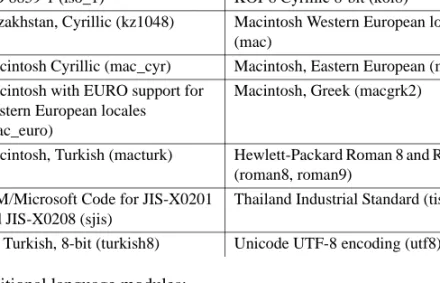
• Language modules – provide system messages and datetime formats to help you localize your applications. Default installation includes these character sets:
ASCII, for use with unspecified 8-bit data (ascii_8)
BIG 5, Traditional Chinese with Hong Kong Supplementary Character Set (big5hk)
BIG 5, Traditional Chinese (big5) Microsoft Windows Code Page 1250, 1251, 1252, 1253, 1254, 1255, 1256, 1257, 1258, 866 (cp1250, cp1251, cp1252, cp1253, cp1254, cp1255, cp1256, cp1257, cp1258, cp866) IBM Code Page 852, 855, 857, 860,
864, 869, 874, 950 (cp437, cp850, cp852, cp855, cp857, cp860, cp864, cp869, cp874, cp950)
Variant of Code Page 850 (cp858), IBM Code Page 932 for X0201 and JIS-X0208 (cp932)
Code Page 437, 850 (cp437, cp850)
CP936, Simplified Chinese (cp936) PC (MS) Korean (cp949) DEC Kanji Code for JIS-X0208
(deckanji)
Extended UNIX Code for CNS-11643 (euccns)
Extended UNIX Code for GB2312-80 (eucgb)
Extended UNIX Code for JIS-X0201 and JIS-X0208 (eucjis)
Extended UNIX Code for KSC-5601 (eucksc)
P.R.C standard GB 18030-2000 (gb18030)
HP Greek (greek8) ISO_8859-15 Latin9, Western Europe (iso15)
ISO_8859-2 Latin2, Eastern Europe (iso88592)
ISO_8859-5 Cyrillic (iso88595) ISO_8859-6 Arabic, ASMO-708
(iso88596)
ISO_8859-7 Greek, ELOT_928 (iso88597)
ISO_8859-8 Hebrew (iso88598) ISO_8859-9 Latin5, Turkish (iso88599) ISO 8859-1 (iso_1) KOI-8 Cyrillic 8-bit (koi8)
Kazakhstan, Cyrillic (kz1048) Macintosh Western European locales (mac)
Macintosh Cyrillic (mac_cyr) Macintosh, Eastern European (mac_ee) Macintosh with EURO support for
Western European locales (mac_euro)
Additional language modules: • Chinese • French • German • Japanese • Korean • Polish • Portuguese • Spanish • Thai
Note SDK and Open Server support the same character sets as Adaptive Server.
• Adaptive Server® Enterprise ODBC Driver, version 15.7. • Adaptive Server Enterprise OLE DB Provider, version 15.7
• Adaptive Server Enterprise ADO.NET Data Provider versions 2.157 and 4.157 – allow you to access data in Adaptive Server using any language supported by .NET, such as C#, Visual Basic.NET, C++ with managed extensions, and J#.
• jConnect for JDBC 7.07 – the JAVA implementation of the Java JDBC standard, which provides Java developers with native database access in multitier and heterogeneous environments. For jConnect hardware and software requirements as well as installation instructions, see the jConnect
for JDBC Installation Guide version 7.07.
• Extended Architecture (XA) Interface Library for Adaptive Server Distributed Transaction Manager. Also included are sample programs for XA.
Macintosh, Turkish (macturk) Hewlett-Packard Roman 8 and Roman 9 (roman8, roman9)
IBM/Microsoft Code for JIS-X0201 and JIS-X0208 (sjis)
Thailand Industrial Standard (tis620) HP Turkish, 8-bit (turkish8) Unicode UTF-8 encoding (utf8)
SDK and Open Server components
• Adaptive Server Enterprise extension module for Python scripting language allows Python developers to execute T-SQL queries against Adaptive Server. See the Adaptive Server Enterprise extension module for
Python Programmers Guide for more details. The installation media
includes samples.
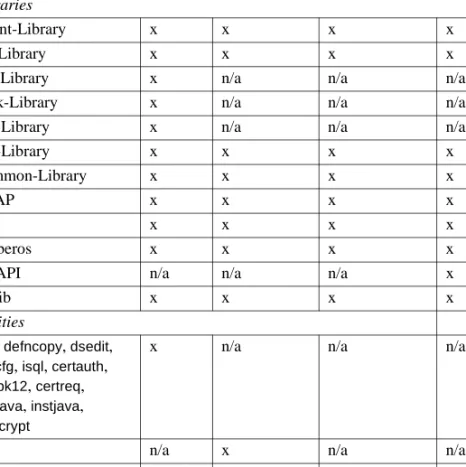
Table 1-1 lists libraries and utilities included with SDK.
Table 1-1: SDK component libraries and utilities for Windows platforms
Open Server components
Open Server is a set of APIs and supporting tools you can use to create custom servers that will respond to client requests submitted through Open Client or jConnect routines. Open Server includes these components:
SDK Open Client Embedded SQL/C Embedded SQL/COBOL Python Libraries Client-Library x x x x CS-Library x x x x
DB-Library x n/a n/a n/a
Bulk-Library x n/a n/a n/a
XA-Library x n/a n/a n/a
Net-Library x x x x
Common-Library x x x x
LDAP x x x x
SSL x x x x
Kerberos x x x x
DBAPI n/a n/a n/a x
intllib x x x x
Utilities
bcp, defncopy, dsedit,
ocscfg, isql, certauth,
certpk12, certreq,
extrjava, instjava,
pwdcrypt
x n/a n/a n/a
cpre n/a x n/a n/a
cobpre n/a n/a x n/a LEGEND: x = available; n/a = not available on this component.
• Open Server – a set of APIs and supporting tools. Included on the installation medium are:
• Drivers for integrating Client-Library and Open Server applications with directory and security services
• Sample programs for Server-Library and Client-Library • Open Client – a set of APIs used to develop and deploy C-language
applications that access Adaptive Server data. Included on the installation medium are:
• Drivers for integrating Client-Library and Open Server applications with directory and security services
• Sample programs for Client-Library and DB-Library
• Language modules – provide system messages and datetime formats to help you localize your applications. Default installation includes these character sets:
ASCII, for use with unspecified 8-bit data (ascii_8)
BIG 5, Traditional Chinese with Hong Kong Supplementary Character Set (big5hk)
BIG 5, Traditional Chinese (big5) Microsoft Windows Code Page 1250, 1251, 1252, 1253, 1254, 1255, 1256, 1257, 1258, 866 (cp1250, cp1251, cp1252, cp1253, cp1254, cp1255, cp1256, cp1257, cp1258, cp866) IBM Code Page 852, 855, 857, 860,
864, 869, 874, 950 (cp437, cp850, cp852, cp855, cp857, cp860, cp864, cp869, cp874, cp950)
Variant of Code Page 850 (cp858), IBM Code Page 932 for X0201 and JIS-X0208 (cp932)
Code Page 437, 850 (cp437, cp850)
CP936, Simplified Chinese (cp936) PC (MS) Korean (cp949) DEC Kanji Code for JIS-X0208
(deckanji)
Extended UNIX Code for CNS-11643 (euccns)
Extended UNIX Code for GB2312-80 (eucgb)
Extended UNIX Code for JIS-X0201 and JIS-X0208 (eucjis)
Extended UNIX Code for KSC-5601 (eucksc)
P.R.C standard GB 18030-2000 (gb18030)
HP Greek (greek8) ISO_8859-15 Latin9, Western Europe (iso15)
ISO_8859-2 Latin2, Eastern Europe (iso88592)
SDK and Open Server components
Additional language modules: • Chinese • French • German • Japanese • Korean • Polish • Portuguese • Spanish • Thai
Table 1-2 lists libraries and utilities included with Open Server.
ISO_8859-6 Arabic, ASMO-708 (iso88596)
ISO_8859-7 Greek, ELOT_928 (iso88597)
ISO_8859-8 Hebrew (iso88598) ISO_8859-9 Latin5, Turkish (iso88599) ISO 8859-1 (iso_1) KOI-8 Cyrillic 8-bit (koi8)
Kazakhstan, Cyrillic (kz1048) Macintosh Western European locales (mac)
Macintosh Cyrillic (mac_cyr) Macintosh, Eastern European (mac_ee) Macintosh with EURO support for
Western European locales (mac_euro)
Macintosh, Greek (macgrk2)
Macintosh, Turkish (macturk) Hewlett-Packard Roman 8 and Roman 9 (roman8, roman9)
IBM/Microsoft Code for JIS-X0201 and JIS-X0208 (sjis)
Thailand Industrial Standard (tis620) HP Turkish, 8-bit (turkish8) Unicode UTF-8 encoding (utf8)
Table 1-2: Open Server libraries and utilities for Windows platforms
System requirements for SDK and Open Server
This section contains:
• Hardware and software requirements • Disk space requirements
• Compiler requirements
Hardware and software requirements
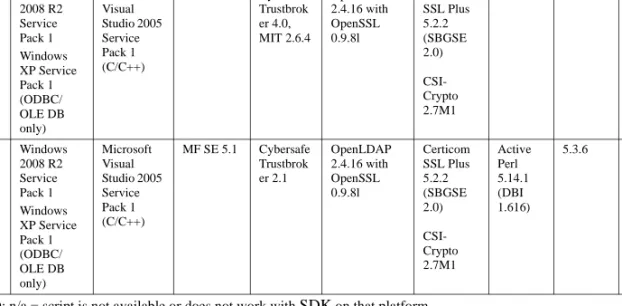
Table 1-3 lists the platforms, compilers, and third-party products Open Server and SDK products are built and tested on.
Libraries • Server-Library • Client-Library • CS-Library • Bulk-Library • Net-Library • Common-Library • LDAP • SSL • Kerberos Utilities • bcp • defncopy • dsedit • ocscfg • isql • certauth • certpk12 • certreq • pwdcrypt
System requirements for SDK and Open Server
Table 1-3: Open Server and Open Client platform compatibility matrix
Table 1-4: System requirements for Open Server and Open Client supported protocols
Note Only Open Server, E/SQL, Client-Library, and DB-Library support Microsoft Named Pipes.
For the most current information about certified platforms, see “Sybase certifications on the Web” on page vii.
Table 1-5 shows the system requirements for ODBC and OLE DB.
Platform Operating system level C and C++ compilers COBOL compiler Kerbero s version Lightweight Directory Access (LDAP) Secure Sockets Layer (SSL) Perl version PHP version Python version Microsoft Windows x86 32-bit Windows 2008 R2 Service Pack 1 Windows XP Service Pack 1 (ODBC/ OLE DB only) Microsoft Visual Studio 2005 Service Pack 1 (C/C++) MF SE 5.1 Cybersafe Trustbrok er 4.0, MIT 2.6.4 OpenLDAP 2.4.16 with OpenSSL 0.9.8l Certicom SSL Plus 5.2.2 (SBGSE 2.0) CSI-Crypto 2.7M1
n/a n/a n/a
Microsoft Windows x86-64 64-bit Windows 2008 R2 Service Pack 1 Windows XP Service Pack 1 (ODBC/ OLE DB only) Microsoft Visual Studio 2005 Service Pack 1 (C/C++) MF SE 5.1 Cybersafe Trustbrok er 2.1 OpenLDAP 2.4.16 with OpenSSL 0.9.8l Certicom SSL Plus 5.2.2 (SBGSE 2.0) CSI-Crypto 2.7M1 Active Perl 5.14.1 (DBI 1.616) 5.3.6 2.6, 2.7, and 3.1 (DBAPI 2.0)
LEGEND: n/a = script is not available or does not work with SDK on that platform.
Hardware Operating system Supported protocols • Microsoft Windows x86 32-bit Microsoft Windows 2008 R2 Service Pack 1 All: • TCP/IP • IPX/SPX • Microsoft Named Pipes • Microsoft Windows x86-64 64-bit Microsoft Windows 2008 R2 Service Pack 1 All: • TCP/IP • IPX/SPX • Microsoft Named Pipes
Table 1-5: System requirements for ODBC and OLE DB
*MDAC is part of the Microsoft Windows operating system that Microsoft frequently updates. Download the most recent version from the Microsoft web site at http://www.microsoft.com.
Table 1-6 identifies the requirements for the Adaptive Server ADO.NET Data Provider.
Hardware • For Microsoft Windows x86 32-bit: PC with 486 or greater Intel processor
• For Microsoft Windows X86-64 64-bit: PC with x64 architecture
Operating system • Microsoft Windows XP x86 Service Pack 1.0 or later • Microsoft Windows 2008 R2 x86, Service Pack 1 or later • Microsoft Windows XP x86-64 Service Pack 1.0 or later • Microsoft Windows 2008 R2 x86-64, Service Pack 1.0 or
later
• Microsoft Windows 7 x86-64
Additional patch Microsoft .NET Framework 2.0 Service Pack 1 or later Web browser Internet Explorer 4.0 or later
System requirements for SDK and Open Server
Table 1-6: System requirements for Adaptive Server ADO.NET Data Provider
Installing data access components from Microsoft
Before you can install the Adaptive Server ODBC Driver or the Adaptive Server OLE DB Provider, you must meet the system requirements for Windows as shown in Table 1-5. Install the Microsoft components and Sybase products in this order:
1 MDAC
Hardware • For Microsoft Windows x86 32-bit: PC
with 90MHz Intel Pentium processor • For Microsoft Windows x86-64 64-bit: PC
with x64 architecture
Operating system • Microsoft Windows XP x86 Service Pack 1.0 or later
• Microsoft Windows 2008 R2 x86, Service Pack 1 or later
• Microsoft Windows XP x86-64 Service Pack 1.0 or later
• Microsoft Windows 2008 R2 x86-64, Service Pack 1.0 or later
Additional patch Microsoft .NET Framework 2.0 Service Pack 1 or later
Other components • Microsoft Windows .NET 2.0, 3.0, or 3.5 is required for 2.157 version of ADO.NET • Microsoft .NET Framework v4.0 is
required for the 4.157 version of ADO.NET
Install this before installing the Adaptive Server ADO.NET Data Provider included with the SDK.
Development • Microsoft .NET Framework SDK 2.0, 3.0
and 3.5 are supported for ADO.NET 2.157 • Microsoft .NET Framework SDK 4.0 is
supported for ADO.NET 4.157
• Microsoft Visual Studio .NET 2005, 2008, and 2010 are supported for ADO.NET 2.157
• Microsoft Visual Studio .NET 2010 is supported for ADO.NET 4.157
2 Adaptive Server ODBC Driver or Adaptive Server OLE DB Provider
Note Versions of Microsoft platforms that include Internet Explorer version 5.0 or certain service packs automatically install MDAC.
Disk space requirements
The required installation disk space varies from approximately 155MB to 665MB, and depends on:
• Product being installed – SDK or Open Server • Type of installation – typical, full, or custom
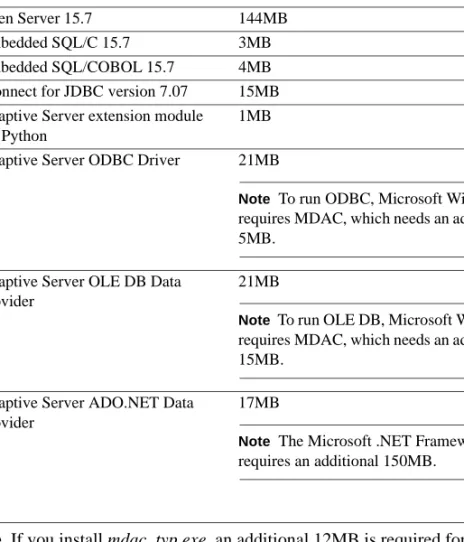
Table 1-7 shows the approximate disk space required for the components of SDK and Open Server.
System requirements for SDK and Open Server
Table 1-7: Disk space requirements for Microsoft Windows 2003, and Microsoft Windows XP
Note If you install mdac_typ.exe, an additional 12MB is required for client systems, and 32MB is recommended for server systems.
For a full installation, the total space required is approximately: • For SDK – 247MB
• For Open Server – 149MB
Component and version Disk space required Additional Connectivity Language
Modules 6MB Open Client 15.7 140MB Open Server 15.7 144MB Embedded SQL/C 15.7 3MB Embedded SQL/COBOL 15.7 4MB jConnect for JDBC version 7.07 15MB Adaptive Server extension module
for Python
1MB Adaptive Server ODBC Driver 21MB
Note To run ODBC, Microsoft Windows requires MDAC, which needs an additional 5MB.
Adaptive Server OLE DB Data Provider
21MB
Note To run OLE DB, Microsoft Windows requires MDAC, which needs an additional 15MB.
Adaptive Server ADO.NET Data Provider
17MB
Note The Microsoft .NET Framework requires an additional 150MB.
Disk space required for the installation
To ensure that there is sufficient disk space for the installation, a
Pre-Installation Summary window displays every component that is to be installed and the total disk space required for all the selected components. If you continue without sufficient disk space, a warning appears, displaying the space-required, and the space-available information in the target directory. The warning also displays the minimum space that you need to free up to proceed with the installation, otherwise, you can cancel the installation.
Note When you run the installer without sufficient disk space, you may encounter an error message, instructing you to select an alternate location for the installation.
Compiler requirements
SDK and Open Server Sybase has tested and certified these compilers and linkers for use with SDK and Open Server products:
• Microsoft Visual Studio 2005 64-bit C/C++ Compiler, version 14.00.50727.762
• Microsoft Visual Studio 2005 32-bit C/C++ Compiler, version 14.00.50727.762
• Microsoft Visual Studio 2005 64-bit Executable Linker, version 8.00.50727.762
• Microsoft Visual Studio 2005 32-bit Executable Linker, version 8.00.50727.762
• Micro Focus Net Express COBOL Compiler version 5.1
Adaptive Server
ADO.NET The Adaptive Server ADO.NET Provider version 2.157 is certified with the .NET language compilers included in the Microsoft .NET Framework version
2.0.50727 or later, which are:
• Microsoft Visual C/C++ .NET Compiler version 13.10.3077 • Microsoft Visual C# .NET Compiler version 7.10.6001.4 • Microsoft Visual Basic .NET Compiler version 7.10.6001.4 • Microsoft Visual J# .NET Compiler version 7.10.3077.0 • Microsoft Script .NET Compiler version 7.10.3052
Preinstallation tasks for SDK and Open Server
The ADO.NET Provider 4.157 is certified with the .NET language compilers included in the .NET Framework version 4.0.030319.
Adaptive Server
ODBC and OLE DB If you plan to use the ODBC Driver or the OLE DB Provider, then the C++ compiler required is Microsoft 32-bit C/C++ Optimizing Compiler version
13.10.3077.
Installing compiler runtime libraries
SDK and Open Server require components of Microsoft Visual C++ libraries. To use SDK and Open Server on Microsoft Windows, download and install the Microsoft Visual C++ 2005 Service Pack 1 Redistributable Package:
• Download the package for Microsoft Windows x86 32-bit at
http://www.microsoft.com/downloads/en/details.aspx?FamilyID=200B2FD9-AE1A-4A14-984D-389C36F85647.
• Download the package for Microsoft Windows x86-64 64-bit at
http://www.microsoft.com/downloads/en/details.aspx?FamilyID=EB4EBE2D-33C0-4A47-9DD4-B9A6D7BD44DA.
Preinstallation tasks for SDK and Open Server
These instructions do not apply to the SDK product that was provided with the Adaptive Server Suite CD.
Note Each purchase of the Adaptive Server Suite includes the SDK product, the installation instructions for which can be found in the Adaptive Server
Enterprise Installation Guide.
Warning! Installing SDK 15.7 or Open Server 15.7 on the same machine that contains an Adaptive Server version earlier than 15.7 prevents the earlier version of the server from starting, and Sybase recommends that you do not do so. However, if you require these products on the same machine, see the instructions in “Installing SDK or Open Server 15.7 on the same machine as a pre-15.7 Adaptive Server” on page 19.
❖ Preparing for installation
1 Read the SDK Release Bulletin for Microsoft Windows or the Open Server
Release Bulletin for Microsoft Windows for the latest information on the
products you are installing.
The latest release bulletins are available on the Sybase Product Documentation Web site at http://www.sybase.com/support/techdocs. 2 Create a “sybase” account on your system to perform all installation tasks.
The system administrator usually sets up this account, as doing so requires “administrator” privileges.
3 Log in to the machine as the “sybase” user.
You should maintain consistent ownership and privileges for all files and directories. A single user—the Sybase system administrator with read,
write, and execute permissions—should perform all unload, installation, upgrade, and setup tasks.
Warning! Be sure your permissions have been set before starting the installation. The installer does not check for permissions. If you do not have permission, the installer continues to log exceptions in the log file.
The “sybase” user must have read, write, and execute privileges to update the Windows registry from the top (or root) of the disk partition or operating system directory down to the specific physical device or operating system files.
4 Identify or create a directory location for the Sybase installation directory, where you unload the SDK and Open Server products.
5 Verify that the location for the Sybase installation has sufficient space to unload the software. See “Disk space requirements” on page 11.
When you have reviewed and verified the installation requirements and have completed the preinstallation tasks, you are ready to install SDK and Open Server.
Note During installation, if a window does not present a complete view, you can correct the problem by minimizing, then maximizing the window.
This chapter describes how to install, uninstall, and downgrade SDK and Open Server software.
Using SDK or Open Server installer
This section describes how to install SDK or Open Server components. These procedures assume that:
• The target computer meets the requirements outlined in “System requirements for SDK and Open Server” on page 7.
• You have completed the list of tasks for SDK and Open Server in “Preinstallation tasks for SDK and Open Server” on page 14. The installation program creates the target directory (if necessary) and unloads all the selected components into that directory.
The options for installing Sybase components from the distribution media using the installation program include:
1 GUI (graphical user interface) mode – install the components using the SDK or Open Server installer interface.
2 Console mode – install components in a command line environment.
Topic Page
Using SDK or Open Server installer 17 Installing SDK or Open Server 18 Uninstalling SDK or Open Server 25 Downgrading SDK or Open Server 27
Installing SDK or Open Server
3 Response file – record or create a response file. Using a response file, you can install SDK or Open Server in silent mode. Silent installation lets you install the product without interaction required on your part. This is convenient if you are performing identical installations on multiple machines.
Each of these options is described in the following sections.
Note If you encounter problems during installation, check the installation log file to see a record of the installation process. The file is located in
%SYBASE%\log\<product_name>.log, where %SYBASE% is the SDK or
Open Server installation directory.
Installing SDK or Open Server
Although you can verify product installation at the end of this process, you must also perform additional configuration procedures before you can use the products. See “Configuring the components” on page 30.
Warning! The installation program exits without warning if any Sybase executables or DLLs are loaded into memory and the installation program tries to overwrite any of the files that are in use. If this occurs, close any Sybase products that are running and restart the installation.
The installation program automatically sets all of the environments variables it needs, such as PATH, as part of the installation. It also unloads the .bat files that contain the environment variables that you can change manually.
Note Back up your system in case you need to revert to your current installation.
Installing SDK or Open Server 15.7 on the same machine
as a pre-15.7 Adaptive Server
Run Adaptive Server as a server or service to install SDK or Open Server 15.7 in a different directory but on the same machine as a pre-15.7 Adaptive Server installation, and to prevent the previous version from being affected.
Starting Adaptive Servers
You can start Adaptive Server and associated servers manually or automatically after each restart.
❖ Manually starting Adaptive Server and associated servers
1 Disable automatic start-up of Adaptive Server and associated servers. To do this, select Services from the Control Panel (see the Microsoft Windows documentation on how to access this), and change the Startup property for the servers from Automatic to Disabled.
2 Save the current values of SYBASE, SYBASE_OCS, INCLUDE, and PATH in a text file.
3 Complete the SDK or Open Server installation as documented in the following installation sections.
4 In the Control Panel, select System. Open the Advanced tab and click Environment Variables. Edit the value for the environment variables SYBASE, SYBASE_OCS, INCLUDE, and PATH with the values saved in the text file (step 2).
5 Manually start the servers:
• Open a command prompt and change to the pre-15.7 ASE SYBASE directory.
• Execute the SYBASE.BAT file. • Start each server by using:
startserver -f RUNfile
where RUNfile is the batch file associated with each server.
❖ Starting Adaptive Server and associated servers automatically as services
1 Disable automatic start-up of Adaptive Server and associated servers. To do this, select Services from the Control Panel, and change the Startup property of the servers from Automatic to Disabled.
Installing SDK or Open Server
2 Save the current values of SYBASE, SYBASE_OCS, INCLUDE, and PATH in a text file.
3 Complete the SDK or Open Server installation as documented in the following installation sections.
4 In the Control Panel, select System. Open the Advanced tab and click Environment Variables. Change the values of the environment variables SYBASE, SYBASE_OCS, INCLUDE, and PATH to the values saved in the text file (see Step 2).
5 Start the servers automatically as services. Click Services in the Control Panel and change the Startup property of the servers from Disabled to Automatic.
Installing SDK or Open Server 15.7 into a version 15.5 directory
SDK or Open Server 15.7 is a shelf replacement for the 15.5 version so when you install SDK or Open Server 15.7 in to an existing SDK or Open Server 15.5 directory, the 15.7 files overwrite the 15.5 files. No other migration procedures are required.
Installing in GUI mode
Sybase recommends that you use the GUI mode for installing SDK or Open Server.
❖ Installing in GUI mode
1 Insert the SDK or Open Server CD in the CD drive. To install both products, repeat this procedure using the appropriate CD, after you install the first product.
The installer should start automatically. If it does not, select Start | Run, and enter the following, where x: is your CD drive:
If the installer does not have sufficient temporary space to run, set the environment variable TMP to directory_name before running it again, where directory_name is the name of the temporary directory to which the installation program writes the temporary installation files.
Note When specifying the directory_name, include its full path.
2 In the Introduction window, click Next to proceed with the installation. 3 Read the License and Copyright Agreement. Select the geographic
location from where you are installing to display the agreement appropriate to your region. Select “I agree to the terms of the Sybase license for the install location specified.” and click Next.
You must agree to the license and copyright agreement before you can continue.
4 In the Choose Install Folder window, click Next to accept the default directory for the installation, or click Choose to browse through the directory and select a location for the installation. One of these occurs: • If the installation directory you chose does not exist, the installer
prompts:
The directory <directory_name> does not exist. Do you want to create it?
Click Yes.
• If the installation directory exists, the installer prompts:
Warning: You have chosen to install into an existing directory. If you proceed with this installation, any older versions of the products you choose to install that are detected in this directory will be replaced.
If you continue and the older products were not installed with SDK or Open Server installer (for example, if you installed a version of Adaptive Server earlier than 15.7), the installer overwrites the common files.
If you are prompted to overwrite any DLLs, which you can encounter only when DLLs being installed are older than existing DLLs, select Yes to all to avoid having mix DLL versions. The installer checks only for the date of files, and not the actual version.
Installing SDK or Open Server
• Typical (default) – installs the SDK or Open Server components considered to be useful for most customers. In this type of installation, only the U.S. English language module and its supported character sets are installed.
The components to be installed and the total disk space required are displayed prior to installation. See “SDK and Open Server
components” on page 1.
• Full – installs every SDK or Open Server component, including all the supported language modules from the CD.
The components to be installed and the total disk space required are displayed prior to installation. For a list of language modules you can install, see “SDK and Open Server components” on page 1.
• Custom – allows you to select the components or product features for SDK or Open Server to install. The next window that appears allows you to select the components to install.
Note Some components are automatically installed if they are required to run other selected components.
After you have selected the installation type, click Next.
The Pre-Installation Summary window displays the product features or components to be installed and the total disk space required for all the selected features.
6 Verify that you have selected the correct installation type, and that you have enough disk space to complete the process. Click Install.
If you do not have sufficient available hard disk space for the components you are installing, you see an error that stops the installation.
The installation program unloads all the components from the CD and displays a progress indicator.
Note Starting with version 15.7 ESD#3, you can choose to skip installation of sample files, documentation files, and debug files. By default, these files are installed when you install Open Server and SDK. To skip installation of these files, use the -DPRODUCTION_INSTALL=TRUE installer command-line argument when installing in GUI mode.
Installing in console mode
To run the installer without the graphical user interface (GUI), launch it in console mode. If the installer launches automatically, click Cancel to cancel the GUI installation, then launch the setup program from a terminal or console.
❖ Installing in console mode
The steps for installing components in console mode are the same as those described in “Installing in GUI mode” on page 20, except that you run the installation program from the command line using the command, and you enter text to select the installation options:
1 At the command line, enter:
setupConsole.exe -i console
The installation program starts.
2 The flow of the installation is identical to a GUI installation, except that the display is written to a terminal window and responses are entered using the keyboard. Follow the remaining prompts to install either Software Developer’s Kit or Open Server software.
For a complete list of command line options, see Table 2-1 on page 28.
Note Starting with version 15.7 ESD#3, you can choose to skip installation of sample files, documentation files, and debug files. By default, these files are installed when you install Open Server and SDK. To skip installation of these files, use the -DPRODUCTION_INSTALL=TRUE installer command-line argument when installing in console mode.
Installing using a response file
To perform a silent, or "unattended" installation, run the installer and provide a response file that contains your preferred installation configuration.
Creating a response file
To create a response file when installing in GUI or console mode, specify the
-r command line argument. The -r argument records your responses to the installation wizard’s prompts and creates a response file when the installation wizard exits. The response file is a text file that you can edit to change any
Installing SDK or Open Server
To generate the response file during GUI installation, run:
setupConsole.exe -r responseFileName
where responseFileName is the absolute path of the file name you choose for the response file, for example:
C:\SDK\ResponseFile.txt
Note The directory path you specified must already exist.
Installing in silent mode
A silent or unattended installation does not involve user interaction; all installation configuration information is taken from the response file. This is useful when you want multiple identical installations or a fully automated installation process.
To install in silent mode, run:
setupConsole.exe –f responseFileName -i silent -DAGREE_TO_SYBASE_LICENSE=true
where responseFileName is the absolute path of the file name containing the installation options you chose.
Note You must agree to the Sybase License Agreement when installing in silent mode. You can either:
• Include the option -DAGREE_TO_SYBASE_LICENSE=true in the command line argument.
• Edit the response file to include the property
AGREE_TO_SYBASE_LICENSE=true
Note Starting with version 15.7 ESD#3, you can choose to skip installation of sample files, documentation files, and debug files. By default, these files are installed when you install Open Server and SDK. To skip installation of these files, use the -DPRODUCTION_INSTALL=TRUE installer command-line argument or use the PRODUCTION_INSTALL=TRUE property in the response file when installing in silent mode.
Except for the absence of the GUI screens, all actions of the installer are the same, and the result of an installation in silent mode is exactly the same as one done in GUI mode with the same responses.
Warning! Sybase recommends that you use the setupConsole.exe executable, which runs in the foreground when you are running a silent installation. The normal setup.exe executable runs in the background, giving you the impression that the installation has terminated, and results in additional installation attempts using the silent installation. Multiple installations at the same time may corrupt the Windows Registry and lead to a failure to restart the operating system.
Uninstalling SDK or Open Server
The installer includes an uninstall feature that removes the Sybase components you have installed.
Before uninstalling consider:
• If two or more Sybase products install the shared components in the same directory, the uninstaller does not remove the shared components until all the Sybase products are uninstalled.
Warning! Do not uninstall Open Server and SDK products from a directory that contains other Sybase products that have been installed using an installation program other than the SDK or Open Server installer. By doing so, you may remove the components shared by Sybase products and affect their operation.
• The uninstall feature removes only those files that were loaded from the installation CD. Some Sybase files, such as log and configuration files, are left intact for administrative purposes. If all products are uninstalled from the directory and you do not need the remaining configuration files, you can manually delete the directory.
Uninstalling SDK or Open Server
Uninstallation procedures
You can invoke the uninstall procedure using either the GUI or the console method.
Before uninstalling Sybase software, shut down all Sybase applications and processes. Log in to your machine using an account with “administrator” privileges, then shut down all other processes for the components you are uninstalling.
❖ Uninstalling in GUI mode
1 Select Start | Control Panel | Add/Remove Programs. 2 Select the product you want to remove.
3 Click Change/Remove to remove the software.
Or, to uninstall from the command line, enter this command for SDK:
%SYBASE%\sybuninstall\SDKSuite\uninstall.exe
Or this one for Open Server:
%SYBASE%\sybuninstall\OpenServerSuite\uninstall.exe
The Uninstall wizard window appears. 4 Click Next.
The Uninstall Options window appears. 5 Select any of these options:
• Complete Uninstall – completely remove all features and components of SDK or Open Server. The files and folders created after the installation are not affected.
• Uninstall Specific Features – uninstall specific features of SDK or Open Server.
If you select this option, the Choose Product Features window appears and you can select the features to uninstall.
6 Click Next. The Uninstall Complete window appears, listing the items that cannot be removed.
Note If there are no other products installed in the directory and it contains files that were not installed by the installer, a window appears asking if you want to delete these files.
7 Click Done.
❖ Uninstalling in console mode
1 Go to the %SYBASE% directory, and at the DOS window prompt, enter one of the following commands.
For SDK:
%SYBASE%\sybuninstall\SDKSuite\uninstall.exe -i console
For Open Server:
%SYBASE%\sybuninstall\OpenServerSuite\uninstall.exe -i console
The uninstall program starts.
2 The flow of the uninstall program is identical to a regular GUI uninstall, except that the display is written to a terminal window and responses are entered using the keyboard. Follow the remaining prompts to uninstall either the Software Developer’s Kit or Open Server software.
For a complete list of command line options, see Table 2-1 on page 28.
Downgrading SDK or Open Server
To downgrade SDK or Open Server 15.7 to an earlier software version: 1 Uninstall version 15.7. You cannot install the earlier software version into
the existing version 15.7 directory.
2 Install the earlier software version. The earlier software installation does not contain ESDs, so you must install them separately.
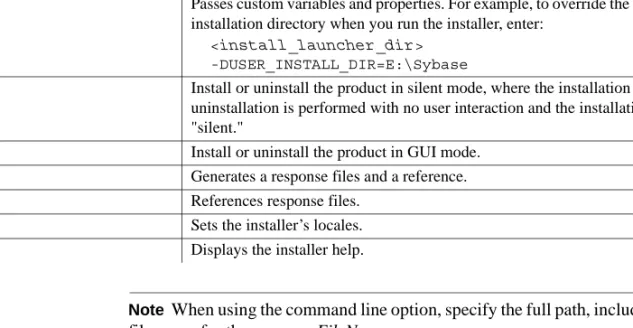
Command line options
Table 2-1 lists the command line options you can use when running an installer or uninstaller.
Command line options
Table 2-1: Command line options
Note When using the command line option, specify the full path, including the file name for the responseFileName.
Option Purpose
-i console Use the console interface mode, where messages during installation are displayed on the Java console and the wizard is run in console mode.
-D Passes custom variables and properties. For example, to override the default installation directory when you run the installer, enter:
<install_launcher_dir> -DUSER_INSTALL_DIR=E:\Sybase
-i silent Install or uninstall the product in silent mode, where the installation or uninstallation is performed with no user interaction and the installation is "silent."
-i swing Install or uninstall the product in GUI mode.
-r Generates a response files and a reference.
-f References response files.
-l Sets the installer’s locales.
This chapter describes the tasks you perform after installation is complete, including configuration of Open Client, Open Server, and jConnect for JDBC.
Setting environment variables
During installation, the installer automatically unloads the
%SYBASE%\SYBASE.bat file that contains the environment variables.
Modify the component’s RUN environment using the variables in the
SYBASE.bat file.
Running sample script for Python
After installation, run the sample script for Adaptive Server extension module for Python.
❖ Adaptive Server Enterprise extension module for Python
1 Locate Python samples in
%SYBASE%\%SYBASE_OCS%\samples\python directory.
2 Verify that Adaptive Server is up and running.
Topic Page
Setting environment variables 29 Running sample script for Python 29
Configuring the components 30
Configuring the components
3 Make sure that the PYTHONPATH environment variable or the Python variable sys.path is set to one of the following directories ((these are the default directories where the different versions of the Adaptive Server Python extension module are installed):
Table 3-1: PYTHONPATH Settings
4 Run the sample:
python test.py
See the Adaptive Server Enterprise extension module for Python Programmers
Guide for more details.
Configuring the components
Information about how to connect and configure the Open Client and Open Server components:
• Configure each Open Client or Open Server component following the instructions in the Open Client and Open Server Configuration Guide for
Microsoft Windows.
• To configure and use the Adaptive Server ADO.NET Data Provider, see Chapter 1, “Understanding and Deploying the Adaptive Server Enterprise ADO.NET Data Provider,” in the Adaptive Server Enterprise ADO.NET
Data Provider Users Guide.
• To connect, configure, and use the Adaptive Server ODBC driver on Windows and Linux platforms, see Chapter 2, “Connecting to a Database,” in the Adaptive Server Enterprise ODBC Driver by Sybase
Users Guide for your platform.
• To connect and use the OLE DB Provider to access data from Adaptive Server on Microsoft Windows platforms, see Chapter 2, “Connecting to a Database,” in the Adaptive Server Enterprise OLE DB Provider by Sybase
Users Guide for Microsoft Windows. Python Version Default Installation Path
2.6 $SYBASE\$SYBASE_OCS\python\python26_64\dll
2.7 $SYBASE\$SYBASE_OCS\python\python27_64\dll
• To configure and use the Adaptive Server extension module for Python, see the Adaptive Server Enterprise Extension Module for Python
Programmers Guide.
• For jConnect for JDBC 7.07, see “jConnect for JDBC postinstallation tasks” section.
jConnect for JDBC postinstallation tasks
jConnect for JDBC 7.07 has these postinstallation tasks.
Setting JDBC_HOME
JDBC_HOME represents the directory in which you install jConnect. For example:
If your installation directory is C:\Sybase, set the JDBC_HOME to:
C:\Sybase\jConnect-7_0
Setting the CLASSPATH
CLASSPATH is the location of the jConnect runtime classes and the jar files for Java 6 or later. This section describes what you need in your CLASSPATH depending on which versions of JDK and jConnect you are using.
Using jConnect 7.07
with Java 6 or later To use jConnect 7.07 with Java 6 or later, add the following path to the CLASSPATH environment variable:
%JDBC_HOME%\classes\jconn4.jar Running samples or
TDS-tunnelling servlet To run the samples or the TDS-tunnelling servlet, add the following to the CLASSPATH environment variable:
%JDBC_HOME%\classes\jconn4.jar;%JDBC_HOME%\classes
Note Sybase requires that you run Java 6 or later with jConnect 7.07.
jConnect for JDBC postinstallation tasks
CLASSPATH restriction using Firefox
If you use Firefox, some restrictions may apply to the way you set your CLASSPATH environment variable.
The Java VM security manager will not allow a version of jConnect installed in your local file system to create a connection to a server, even if the server is your local system. This can create a problem if you use Firefox to run an applet that uses jConnect.
When Firefox needs to load jConnect to create a connection to a server, it looks for a CLASSPATH defined in its environment to find the jConnect classes. If it finds a CLASSPATH that you have defined to point to your local jConnect installation, it loads jConnect directly from the local file system—rather than from the server—and tries to create a connection. This generates a security error and the connection fails.
Do not set the CLASSPATH to the local jConnect directory if you are using Firefox to run jConnect applets.
Installing stored procedures
For jConnect to function properly, you must install stored procedures and tables on the Adaptive Server Enterprise or Adaptive Server® Anywhere database to which your application will be connecting. jConnect provides the these scripts to install the required stored procedures and tables:
• sql_server.sql – installs stored procedures on Adaptive Server earlier than
version 12.0.
• sql_server12.sql – installs stored procedures on Adaptive Server 12.0.x.
• sql_server12.5.sql – installs stored procedures on Adaptive Server 12.5.x.
• sql_server15.0.sql – installs stored procedures on Adaptive Server 15.0.x
through 15.5.x.
• sql_server15.7.sql – installs stored procedures on Adaptive Server 15.7 or
later.
• sql_asa.sql – installs stored procedures on SQL Anywhere® 9.x.
• sql_asa11.sql – installs stored procedures on SQL Anywhere 11.x.
Note If you use Adaptive Server 12.5.3 or later, or Adaptive Server Anywhere 9.0.2 or later, the scripts come pre-installed on the server. You need to install these scripts only if you have a later version of the driver than the one that shipped with Adaptive Server. In addition, for backward compatibility,
sql_server.sql and sql_server12.sql are included on Adaptive Server 11.9.2 and
12.0 respectively, although these versions are no longer supported.
❖ Running stored-procedure installation scripts
1 Verify that your JAVA_HOME, JDBC_HOME, and CLASSPATH environment variables are set.
2 Use the IsqlApp sample application. For more information on IsqlApp, see “Installing stored procedures on Adaptive Server database”.
❖ Installing stored procedures on Adaptive Server database
• Go to the %JDBC_HOME%\classes directory from the DOS prompt window and enter:
• For Adaptive Server Enterprise version 15.x:
java IsqlApp -U sa -P password -S jdbc:sybase:
Tds:[hostname]:[port] -I %JDBC_HOME%\sp\sql_server15.0.sql -c go
• For Adaptive Server Enterprise version 12.5.x:
java IsqlApp -U sa -P password -S jdbc:sybase:
Tds:[hostname]:[port] -I %JDBC_HOME%\sp\sql_server12.5.sql -c go
❖ Installing stored procedures on a SQL Anywhere or Adaptive Server Anywhere database
• Go to the %JDBC_HOME%\classes directory from the DOS prompt window and enter:
java IsqlApp -U dba -P password -S jdbc:sybase:
Tds:[hostname]:[port] -I %JDBC_HOME%\sp\sql_asa.sql -c go
Reviewing the installation contents
After completing the jConnect installation, review the contents listed in this section.
jConnect for JDBC postinstallation tasks
Packages
For jConnect version 7.07, the following packages are found inside
jconn4.jar file for the release build, and jconn4d.jar file for the debug build:
• com.sybase.jdbc4.jdbc
• com.sybase.jdbc4.tds
• com.sybase.jdbc4.timedio
• com.sybase.jdbc4.utils
• com.sybase.jdbcx
The jConnect driver, com.sybase.jdbc4.jdbc.SybDriver, is located in the
com.sybase.jdbc4.jdbc package.
Directories and files
Table 3-2 lists the contents of the jconnect7_0 directory.
Table 3-2: Directories and files in the jconnect7_0 directory
Name Type Description
classes Subdirectory Contains the following jConnect 7.0 components: • jconn4.jar file that contains jConnect 7.0 classes
• sample2 subdirectory with jConnect 7.0 class files for sample applets and applications
• gateway2 subdirectory for compiled TDS-tunnelling servlet devclasses Subdirectory Contains the jconn4d.jar file that contains the same jConnect 7.0
components as jconn4.jar, but debug mode is turned on. docs Subdirectory Contains the:
• en subdirectory, which contains the English javadoc documentation
• en/progref subdirectory, which contains the jConnect for JDBC Programmers Reference in HTML and PDF format
• en/installdocs subdirectory, which contains the jConnect for JDBC Installation Guide in HTML and PDF format gateway2 Subdirectory Contains source code for the TDS-tunnelling servlet. sample2 Subdirectory Contains source code for sample Java applications.
sp Subdirectory Contains isql scripts that install stored procedures for function escapes and DatabaseMetaData methods on a database server. See “Installing stored procedures” on page 32 for a list of scripts available.
JDBC samples and specifications
You can find JDBC samples and specifications in the jConnect for JDBC
Programmers Reference.
Testing the jConnect installation
After jConnect is installed, run the Version program to test the installation.
Note The Version program connects to a demonstration database that Sybase has made available on the Internet. You must have Internet access to run the
Version program successfully, or explicitly run it with [-U username] [-P
password] [-S servername] commands to point it to your database.
❖ Testing the installation
1 From the DOS prompt for Windows, change to the JDBC_HOME directory.
2 Verify that your CLASSPATH variable is set for running the sample programs (see “Setting the CLASSPATH” on page 31 for details) and enter the following text:
java sample2.SybSample Version
A SybSample window appears. At the top of the window, the Running Sybase Sample text box displays the source code for Version as the program runs. The middle text box (Sample Output) should display version information. For example:
Using JDBC driver version 7.0 jConnect (TM) for JDBC(TM)/7.0...
3 The output could be one of the following:
• If the previous message appears in the Sample Output text box, you have successfully installed jConnect.
tools Subdirectory Contains a perl script (decode-tli) that Microsoft Windows users can apply to parse a sql.ini file into a readable format.
netimpct.gif Graphic file Contains a jConnect graphic.
index.html HTML file Contains links to jConnect documentation and jConnect samples.
jConnect for JDBC postinstallation tasks
• If you get the previous message but the source code for Version does not appear in the Running Sybase Sample text box, and the Status text box at the bottom of the window shows the following message, it means that you have successfully installed jConnect but probably did not enter the command to run the Version program from the sample2 directory under JDBC_HOME:
java.io.FileNotFoundException: Version.java
• If the SybSample window does not appear and you get the following error message, check your CLASSPATH to verify that it is set correctly:
Can’t find class sample2.SybSample
• If the SybSample window does not come up, and you get one of the following error messages, make sure that your path includes the bin subdirectory of your JDK home directory:
“Name specified is not recognized as an internal or external command”
“Bad command or file name”
4 When you have verified that your installation was successful, click Close to exit the SybSample window.
Verifying the jConnect version
Go to the %JDBC_HOME%\classes directory using the DOS prompt window and enter:
java -jar jconn4.jar
This command prints a version string like the following:
jConnect (TM) for JDBC(TM)/7.07 GA(Build
26666)/P/EBF19485/JDK 1.6.0/jdbcmain/Wed Aug 31 03:14:04 PDT 2011
Here, the version number is 7.07. The 5-digit number following the letters "EBF" indicates the exact version of jConnect. This number increases as subsequent EBFs are released.
Sybase recommends that you check the Sybase download Web site periodically for updated versions of jConnect and download the latest version.
Upgrading jConnect
See “Migrating jConnect Applications” in the jConnect for JDBC
A
Adaptive Server ADO.NET Data Provider SDK component 3
system requirements 10 Adaptive Server servers
starting 19 starting automatically 19 starting manually 19 audience v
B
browserFirefox restrictions on CLASSPATH 32
C
CLASSPATH environment variable 31 Firefox restrictions on 32
command
setupConsole.exe -i console 23 command line options
installing 27 uninstalling 27 compilers
certified for SDK and Open Server 13 components
configuring 30 Open Server 4
configuring the components 30 console installation mode 17, 23
setupConsole.exe -i console command 23 creating
sybase account 15
D
DatabaseMetaData methods stored procedures for 32 disk space requirements 11 downgrading SDK or Open Server 27 drivers SDK component 1, 5
E
environment variables PATH 18 PYTHONPATH 30 RUN 29 setting 29environment variables, setting 19 CLASSPATH 31 JDBC_HOME 31
F
Firefox restrictions on CLASSPATH 32G
GUI installation mode 17, 20
H
hardware and software requirements SDK and Open Server 7
Index
I
installation contents 33 installation modes console 17 GUI 17 response file 18 installer log.txt 18 installingcommand line options 27 console mode 23 GUI mode 20 response file 23 stored procedures 32 using a response file 23 installing jConnect
testing the installation 35
J
jConnect installation contents 33 jConnect for JDBC SDK component 3 JDBC 2.0 samples 35JDBC_HOME environment variable 31
L
language modules
Open Server component 5 SDK component 2 linkers
certified for SDK and Open Server 13 log.txt for installer 18
M
MDAC
system requirement for ODBC and OLEDB 9 metadata, stored procedures for 32
O
ODBC system requirements 9 OLEDB system requirements 9 Open Client component of SDK 1, 5 Open Client Embedded SQL/C 1 Open Client Embedded SQL/COBOL 2 Open Servercomponents 5
disk space requirements 11 drivers component 5
language modules component 5 product summary 4
sample programs component 5 supported protocols 8 uninstalling 25 overwriting
duplicate components warning 21
P
PATH environment variable 18 postinstallation tasks 29 precompilers
Open Client Embedded SQL/C 1 Open Client Embedded SQL/COBOL 2 preinstallation tasks 14
product summaries Open Server 4 SDK 1
PYTHONPATH environment variable 30
R
related documents v requirements
disk space for SDK and Open Server 11 hardware and software 7
response file installation mode 18, 23 RUN environment variable 29