Heart Rhythm
Scanner
Heart Rate Variability
Analysis System
User’s Manual
Version 2.0
Copyright© 1998-2005 Biocom Technologies All rights reserved.
Biocom Technologies makes no claim that its products treat or heal. Biocom’s products are designed to measure and monitor physiological change. Professional should work within the scope of their licenses and/or certifications when interpreting or applying
Table of Contents 3
TABLE OF CONTENTS
Credits...6
Software concept: ...6
Software design and user interface:...6
Programming: ...6
Quality Assurance:...6
Authoring online help and User’s manual: ...6
Special note...6
1. Getting Started ...7
1.1. General Information...7
1.2. Check Package Contents ...8
1.3. Minimum System Requirements ...9
1.4. Connect Sensor Device ...9
1.5. Installation of the Heart Rhythm Scanner Software...9
1.6. Uninstallation of the Heart Rhythm Scanner Software ...10
2. Background Information ...11
2.1. Measurement of Internal Change ...11
2.2. Photoplethysmograph...11
2.3. Electrocardiograph...12
2.4. Heart Rate Monitoring and Health...12
2.5. Heart Rate Variability ...13
2.5.1. Time Domain Parameters: Heart Rate (HR)...14
2.5.2. Time Domain Parameters: Mean NN ...14
2.5.3. Time Domain Parameters: SDNN ...14
2.5.4. Time Domain Parameters: RMS-SD ...15
2.5.5. Frequency Domain Parameters: Total Power (TP)...15
2.5.6. Frequency Domain Parameters: Very Low Frequency (VLF) ...15
2.5.7. Frequency Domain Parameters: Low Frequency (LF) ...15
2.5.8. Frequency Domain Parameters: High Frequency (HF) ...16
2.5.9. Frequency Domain Parameters: LF/HF Ratio ...16
2.5.10. Frequency Domain Parameters: Normalized Low Frequency...16
(LF Norm)...16
2.5.11. Frequency Domain Parameters: Normalized High Frequency (HF Norm) ....16
3. Start Heart Rhythm Scanner Session...17
3.1. Proper Pulse Wave Sensor Placement And Use...17
3.2. Proper ECG Sensor Placement And Use...17
3.2.1. Biocom 3000 Interface Unit ...17
3.2.2. ActiveECG Interface Unit ...19
3.3. Start the Heart Rhythm Scanner software ...21
4. Basic Menu Operations ...22
4.1. Client Menu Mode ...22
4.1.1. Create new client record ...22
4.1.2. Open existing client record ...23
Table of Contents 4
4.2.1. Create new protocol...23
4.2.2. Open existing protocol...24
5. Online Data Recording ...25
5.1. Start online data recording ...26
5.2. Run next trial...27
5.4. Finish trial or session recording ...28
5.5. View trial summary...30
5.6. Zoom display window...30
5.7. Adjust graph scales...31
6. View Session Summary...33
6.1. Autonomic Balance Report ...34
6.2. Parameter bar charts...35
6.3. Autonomic balance diagram...36
6.4. Heart rate trend ...37
6.5. Numerical HRV data sheet...37
6.6. Zoom display windows ...38
6.7. Adjust graph scales...38
6.8. Display legend ...38
6.9. Review and edit trial note...38
7. View Progress Summary...40
7.1. HRV Progress Report...40
7.2. Selected HRV parameter bar chart ...41
7.3. Numerical HRV data sheet...42
7.4. Adjust graph scales...42
7.5. Display legend ...42
8. Edit Heart Rate Data...43
9. Client Data Management ...46
9.1. Create new client record...46
9.2. Select client record ...46
9.3. Edit client record ...47
9.4. Delete Client Record ...47
9.5. Delete Session...47
10. Protocol Management...48
10.1. Create new protocol ...48
10.2. Select protocol...49
10.3. Edit protocol...49
10.4. Delete protocol...49
11. Session Management ...51
11.1. Move session from one client record to another ...51
11.2. Delete session...52
11.3. Put session data into external file ...52
11.4. Get session data from external file ...53
11.5. Put session data into other database ...54
11.6. Get session data from other database ...55
11.7. Export session data into Excel worksheet...56
Table of Contents 5 12.1. Compact database...57 12.2. Backup database ...57 12.3. Restore database ...58 13. Printing ...59 13.1. Standard Printing...59
13.2. Extra Printing Features...59
13.2.1. Print Setup ...59
13.2.2. Print Preview ...60
13.2.3. Printing ...61
14. Program Settings ...62
14.1. Setting up an ECG device port ...62
14.2. Program options ...63 14.2. Color selection...64 15. Custom questionnaire ...65 15.1. Initial questioning...65 15.2. Final questioning ...68 15.3. View questionnaire...68 16. Using Help ...70 16.1. Help Contents ...70 16.2. Context Help ...70 17. Technical Support...72
Credits 6
Credits
Software concept:
§ Vadim Pougatchev, M.D., Biocom Technologies
§ Yevgeniy Zhirnov, M.D. Ph.D., Biocom Technologies ‘
§ Yevgeniy Gribkov, M.D., Biocom Technologies
Software design and user interface:
§ Vadim Pougatchev, M.D., Biocom Technologies
Programming:
§ Yevgeniy Gribkov, M.D., Biocom Technologies
§ Yevgeniy Zhirnov, M.D. Ph.D., Biocom Technologies
§ Vadim Pougatchev, M.D., Biocom Technologies
Quality Assurance:
§ Vadim Pougatchev, M.D., Biocom Technologies
§ Mark Ferris, BS, Biocom Technologies
Authoring online help and User’s manual:
§ Vadim Pougatchev, M.D., Biocom Technologies
§ Carmen V. Russoniello, Ph.D., TRS/CTRS, LPC, BCIA-EEG Associate Fellow East Carolina University, School of Health and Human Performance
§ Mark Ferris, BS, Biocom Technologies
Special note
ActiveECG is a registered trademark of Active Corporation. All rights reserved. This manual uses materials from ActiveECG User’s Manual with permission of Active Corporation.
Getting Started 7
1. Getting Started
1.1. General Information
Overall functioning of a living organism is controlled by the autonomic nervous system. It has two antagonistic branches – the sympathetic and parasympathetic nervous systems. Every organ is activated by one branch and inhibited by the other. Generally, when the organism is in a calm state (relaxation, sleep, etc.), organs such as the heart, lungs, and blood vessels are under parasympathetic control. When active (during physical activity, psycho-emotional arousal or stress) these organs are dominated by the
sympathetic nervous system. A healthy organism is capable of adjusting to any external influence by means of quick and adequate sympathetic response. Once that factor disappears, parasympathetic activity increases, which balances overall autonomic activity.
It is important to have a tool to evaluate the level of balance between the branches of the autonomic nervous system, their reaction to specific provocative test factors, and the overall condition of both branches. Such a tool can help people learn how to cope with stress by achieving autonomic balance.
One of the most informative methods of evaluating the autonomic nervous system, including both branches, is heart rate variability analysis. It measures the time intervals between each two consecutive heartbeats, which vary under control of the autonomic nervous system. When the parasympathetic system is dominant, the heart interbeat intervals (IBI) are oscillating with higher frequencies (0.15 – 0.40 Hz). When sympathetic arousal occurs, the lower frequency oscillations take place.
There are two other physiological modalities that reflect the state of autonomic regulation: skin conductance and peripheral skin temperature. Skin conductance reflects changes in sweat gland activity driven by involuntary arousal of the sympathetic nervous system. These changes include both rapid changes, the organism reacting to external events, and slow changes, reflecting variation in the overall tone of the sympathetic system. The skin temperature shows the degree of vasoconstriction or dilation of the peripheral blood vessels, an indication of the long-term process of interaction between both branches of the autonomic nervous system. There is a great deal of ambiguity in using these two modalities for evaluation of autonomic balance, so we use them for reference purposes only.
There is a standard mathematical procedure for short-term HRV evaluation, suggested by the Task Force of the European Society of Cardiology and the North American Society of Pacing and Electrophysiology (1996). It provides both time and frequency domain analysis of the IBI time series. There are three important parameters of frequency domain analysis within HRV that reflect the levels of sympathetic and
parasympathetic activity and their balance. The high frequency range (0.15 Hz – 0.40 Hz) of the IBI power spectrum (HF) reflects parasympathetic influence on heart rate. The low frequency range (0.04 Hz – 0.15 Hz) of the IBI power spectrum (LF) displays
Getting Started 8
sympathetic influence. The LF/HF ratio is used to show the balance between both branches of the autonomic nervous system.
To perform the HRV analysis, an electrocardiograph (ECG) signal is usually measured. The IBI are derived from the ECG as the intervals between consecutive R-peaks. This method is very accurate and reliable but has a serious disadvantage – it requires using complex ECG equipment and performing inconvenient multiple electrode placement. The alternative way is to use a photoplethysmograph (PPG) measurement by means of a portable and convenient finger sensor. It emits an IR light on the skin. The emitted light is partially consumed by the blood flow. The degree of light consumption / reflection is proportional to the changes in blood flow. The PPG signal has periodic peaks that represent blood vessel pulsation. It can be also used to derive the IBI as the time between two PPG peaks.
The Heart Rhythm Scanner is a versatile instrument for measuring and evaluating heart rate variability (HRV). It does live recording of PPG signals, computing the
instantaneous changes in heart rate, and provides full analysis of heart rate variability after the session is complete. Heart Rhythm Scanner allows the creation of any specific protocol of HRV evaluation as a sequence of trials – periods of data recordings in simple data units. For instance, let’s suppose we need to evaluate the effect of some drug on the autonomic nervous system. Heart Rhythm Scanner allows building a protocol consisting of two trials, each five minutes long. The first trial is to evaluate HRV condition before drug intake. The second one is taken a certain amount of time after drug intake. Heart Rhythm Scanner does full HRV analysis on both trials and brings up detailed reports, which can be easily compared.
1.2. Check Package Contents
When you receive Heart Rhythm Scanner package, it must include the following items:
Pulse Wave Sensor Version:
1. HRM-02 pulse wave sensor device with an ear-clip probe 2. “Heart Rhythm Scanner” software CD
3. User’s manual
Biocom 3000 ECG Version:
1. Biocom 3000 ECG interface unit 2. Y-type ECG electrode cable
3. “Heart Rhythm Scanner” software CD 4. User’s manual
Getting Started 9 ActiveECG Version:
1. ActiveECG interface unit
2. Set of disposable pre-gelled ECG electrodes 3. Serial cable to connect ECG unit to PC 4. Test Cable
5. “Heart Rhythm Scanner” software CD 6. User’s manual
Contact Biocom Technologies or your local dealer if you have any concern regarding content of the product received.
1.3. Minimum System Requirements
The Heart Rhythm Scanner has the following hardware requirements to ensure its reliable functioning:
• CPU Pentium III 800 MHz
• 256 MB of RAM
• SVGA video card with at least 800x600, Hi-Color resolution
• At least 100 MB of free hard disk space
• CD ROM drive or Floppy Disk Drive
• One available USB port (COM port for Active ECG)
• Windows XP Operating system
If you are not sure about your computer, contact your local computer specialist to verify whether your computer complies to the above requirements.
1.4. Connect Sensor Device
Simply attach the USB cable connector of the sensor to any USB port available in the computer.
Sensor device can be connected with computer on or off. The device will be detected automatically when software starts.
1.5. Installation of the Heart Rhythm Scanner Software
The Heart Rhythm Scanner software is Windows Me/2000/XP compatible (XP is preferred). It is delivered on a CD-ROM.
To install it:
1) Insert the CD-ROM into the drive.
2) Click the “Start” button on the taskbar and select the “Run” menu option. 3) In the “Run” dialog box, type the following command line:
Getting Started 10
D:\SETUP.EXE
4) Click the “OK” button to start installation.
5) Follow the program instructions to complete installation.
Fig.1.1. Installation dialog box
1.6. Uninstallation of the Heart Rhythm Scanner Software
To uninstall the Heart Rhythm Scanner software: 1) Click “Start” button on the taskbar.
2) Select “Settings” item from the system menu.
3) Select “Control Panel” option from the “Settings” menu. 4) Double-click “Add/Remove Programs ” icon.
5) Select “Heart Rhythm Scanner” from the list and click “Add/Remove” button. 6) When InstallShield wizard window appears, select “Remove” option, click “Next”
Background Information 11
2. Background Information
2.1. Measurement of Internal Change
Biocom research indicates that a highly accurate way to monitor internal physiological changes related to the regulatory activity of the human autonomic nervous system (ANS) is through the evaluation of variation in heart rate - Heart Rate Variability Analysis (HRVA). “Heart Rhythm Scanner” includes sophisticated, technologically sound, but user friendly software that measures and monitors HRV by means of using either Photoplethysmograph PPG (simple less expensive product for the client use) or Electrocardiograph ECG (professional product) monitoring devices. “Heart Rhythm Scanner” also works dynamically with respiration and has a variety of phys ical,
psychological and sports medicine applications. Heart Rate Variability is a physiological measurement that directly reflects a balance of the autonomic nervous system regulation, which has control over all human body. HRV reflects the state of sympathetic (stress, anxiety) or parasympathetic (relaxation, calmness) activation in the body.
2.2. Photoplethysmograph
Photoplethysmograph (PPG) was developed in the 1960's and 1970's by
psychophysiology researchers. The instrument is used for assessment of peripheral blood flow to the extremities. When the client is stressed their blood vessels constrict (less blood flow in fingers). Photoplethysmograph is based upon the premise that all living tissue and blood have different light-absorbing properties. PPG works by placing an individual finger between two parts of a transducer consisting of a light source and a photocell (which converts light to electrical energy). A beam of infrared light is projected toward the photocell. The blood in the finger scatters light in the infrared range, and the amount of light reaching the cell is inversely related to the amount of blood in the finger. Hence, when blood vessels in the finger dilate, the increased blood flow allows less light to reach the photocell, when blood vessels constrict, blood flow is decreased and
increased light reaches the photocell.
Pulse volume measurements are related beat-to-beat variations in the force of blood flow. Phasic changes made on a beat-to-beat basis, are called pulse volume measurements and are related to beat variations in the force of blood flow. These beat-to-beat changes in peripheral blood flow reflect ANS regulatory activity and can be used for the purpose of evaluation of sympathetic activity or stress. (“Measuring Stress” by S. Cohen, R. Kessler & L. U. Gordon, 1995).
Heart Rhythm Scanner employs a different method of analysis and is based upon beat-to-beat changes in inter-beat-to-beat time intervals to reflect ANS regulatory activity.
Background Information 12
2.3. Electrocardiograph
Electrocardiograph (ECG) is a tracing, which represents the heart electrical activity derived by amplifying minutely small electrical impulses generated by the heart. The electrical impulses generated in the heart muscle are recorded and transmitted to the electrocardiograph by electrodes or leads attached to the body by small disposable metal plates. The moistened plates are attached to the arms, legs, and cardiac areas.
ECG is a widely accepted and important diagnostic tool. ECG is used in some routine medical examinations when a heart disorder is present or suspected. ECG helps diagnose the damage that may have been inflicted on the heart muscle as a result of coronary occlusion, rheumatic fever, the presence of abnormal rhythms, and the effect of drugs. Moreover, ECG recordings provide information on the current fitness status of the heart as well as reflect HRV as a result of ANS regulatory balance.
2.4. Heart Rate Monitoring and Health
It is well known from many scientific studies, that Heart Rate (HR) is one of the most important parameters used for the evaluation of human psycho-physiological stability and optimum performance. HR in fact, is an integral parameter obtained as a result of the input of three factors:
• Sympathetic Neural Regulation
• Parasympathetic Neural Regulation
• Hormonal Regulation
HR is highly dynamic, significantly informative, and easy to use for continuous monitoring purposes. The rhythmograph is a sequence of heart inter-beat intervals calculated in milliseconds. The analysis of rhythmograph provides information to
determine heart rate variability (HRV). Heart rate variability is determined by a statistical algorithm and is a very robust measurement of the status of the heart as well as ANS regulatory balance.
There are many internal and external factors that cause changes in heart rate. For example, fear, be it real or perceived, is experienced by an increase in heart rate. Left unchecked the individual will eventually adapt to this dysfunctional pattern and fatigue (both mental and physical) and emotional distress will eventually occur. Consequently, hormonal and neurological overwork occurs and causes a decrease in life satisfaction and individual performance. Long-term exposure to these same processes will cause illness and disease such as cardiovascular disease, adult onset diabetes, anxiety, depression panic disorders, and so forth. Thus, the measurement and monitoring of HRV becomes a
critical window in the evaluation and amelioration of negative conditions. Given HRV is one of the most informative methods of evaluating mental stress and fatigue it is easy to see why.
Background Information 13 Upon evaluation of the HRV parameters, a professional can interpret the individuals actual physiological stress status as:
• Normal
• Functional Stress
• Distress
• Exhaustion
Thus, HRV analysis gives the evaluator the ability to assess the level of
psycho-emotional stress (be it their own or a clients), and provides information to forecast a level of mental distress, fatigue, and possible exhaustion. Stress levels can be identified, even when the user is not aware of his or her physiological reaction to stress or their
consequential decrease in performance. Information derived from HRV can be used in conjunction with coping tools such as physical and mental breaks, physical exercise, breathing (relaxation) exercises, and \ or games to assist the individual in becoming “physiologically relaxed”. HRV is, therefore, an important tool in assisting individuals increase their productivity and elevate their mood while helping them predict, prevent, and treat their stress related medical conditions.
2.5. Heart Rate Variability
There are different methods of evaluation of the variations in heart rate. Two of them are most common and are recommended by the Task Force of the European Society of
Cardiology and the North American Society of Pacing and Electrophysiology:
• Time Domain Methods
• Frequency Domain Methods
Time domain methods are commonly used for 24-hour data recordings. However, according to the Task force short-term recordings (e.g. 5- min length) can also be analyzed.
Frequency domain methods can be easily used for short-term recordings as well.
The following heart rate variability parameters are calculated by Heart Rhythm Scanner based on short-term data record (at least 2 minutes long):
Time Domain Parameters:
• Heart Rate
• Mean NN
• SDNN
Background Information 14
Frequency Domain Parameters:
• Total Power • VLF • LF • HF • LF/HF Ratio • LF Norm • HF Norm
All HRV parameters are calculated on ‘normal-to- normal’ (NN) interbeat intervals (or NN intervals) caused by normal heart contractions paced by sinus node depolarization. All time domain parameters are derived directly from NN intervals recorded during the trial.
The frequency domain parameters are derived from the power spectral density (PSD) calculated by means of Fast Fourier Transform (FFT).
2.5.1. Time Domain Parameters: Heart Rate (HR)
This is a mean heart rate value averaged on entire recording (trial). HR is measured in beats per minute (BPM).
2.5.2. Time Domain Parameters: Mean NN
This is a mean interbeat interval value averaged on entire recording (trial). Mean NN is measured in milliseconds.
2.5.3. Time Domain Parameters: SDNN
SDNN is a standard deviation of the NN intervals, which is the square root of their variance.
A variance is mathematically equivalent to the total power of spectral analysis, so it reflects all cyclic components of the variability in recorded series of NN intervals. The actual values of SDNN depend on the length of recording - the longer recording is, the higher SDNN values are. Thus, in practice it is inappropriate to compare SDNN values derived from the NN recording of different length.
Background Information 15
2.5.4. Time Domain Parameters: RMS-SD
RMS-SD is the square root of the mean squared differences of successive NN intervals. This measure estimate high- frequency variations in heart rate in short-term NN
recordings that reflects an estimate of parasympathetic regulation of the heart. RMS-SD is measured in milliseconds.
2.5.5. Frequency Domain Parameters: Total Power (TP)
In fact, Total Power is a short-term estimate of the total power of power spectral density in the range of frequencies between 0 and 0.4 Hz.
This measure reflects overall autonomic activity where sympathetic activity is a primary contributor.
Total Power is calculated in milliseconds squared (ms^2).
2.5.6. Frequency Domain Parameters: Very Low Frequency (VLF)
Very Low Frequency is a band of power spectrum range between 0.0033 and 0.04 Hz. This measure is not well defined in terms of physiological mechanisms causing VLF component of the power spectrum. Generally it is known this parameter indicates overall activity of various slow mechanisms of sympathetic function.
Very Low Frequency band is calculated in milliseconds squared (ms^2).
2.5.7. Frequency Domain Parameters: Low Frequency (LF)
Low Frequency is a band of power spectrum range between 0.04 and 0.15 Hz. This measure reflects both sympathetic and parasympathetic activity.
Generally it is a strong indicator of sympathetic activity in long-term recordings. Parasympathetic influence is represented by LF when respiration rate is lower than 7 breaths per minute or during taking a deep breath. Thus, when subject is in the state of relaxation with a slow and even breathing, the LF values can be very high indicating increased parasympathetic activity rather than increase of sympathetic regulation. Low Frequency band is calculated in milliseconds squared (ms^2).
Background Information 16
2.5.8. Frequency Domain Parameters: High Frequency (HF)
High Frequency is a band of power spectrum range between 0.15 and 0.4 Hz. This measure reflects parasympathetic (vagal) activity. HF is also known as a
‘respiratory’ band because it corresponds to the NN variations caused by respiration (this phenomena is known as respiratory sinus arrhythmia (RSA)). Heart rate is increased during inhalation and dropped during exhalation. Slower and even breathing causes an increase in the amplitude of HF peak on power spectrum.
High Frequency band is calculated in milliseconds squared (ms^2).
2.5.9. Frequency Domain Parameters: LF/HF Ratio
This is the ratio between the power of Low Frequency and High Frequency bands. This measure indicates overall balance between sympathetic and parasympathetic systems. Higher values reflect domination of the sympathetic system, while lower ones - domination of the parasympathetic system. However, when deep and even breathing occurs, the elevation of this parameter reflects increase of parasympathetic regulation due to effect of RSA.
LF/HF Ratio is calculated in normalized units.
2.5.10. Frequency Domain Parameters: Normalized Low Frequency
(LF Norm)
Normalized Low Frequency is the ratio between absolute value of the Low Frequency and difference between Total Power and Very Low Frequency.
This measure minimizes an effect of changes in Very Low Frequency power and emphasizes changes in sympathetic regulation.
Normalized LF is calculated in percentile units.
2.5.11. Frequency Domain Parameters: Normalized High Frequency
(HF Norm)
Normalized High Frequency is the ratio between absolute value of the High Frequency and difference between Total Power and Very Low Frequency.
This measure minimizes an effect of changes in Very Low Frequency power and emphasizes changes in parasympathetic regulation.
Starting Heart Rhythm Scanner Session 17
3. Start Heart Rhythm Scanner Session
3.1. Proper Pulse Wave Sensor Placement And Use
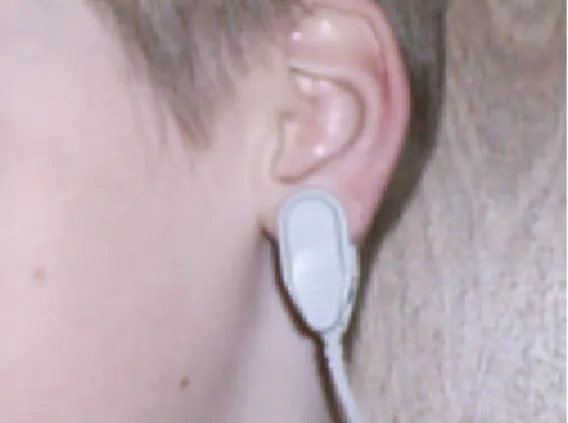
Heart Rhythm Scanner measures HRV data by means of a pulse wave sensor with an ear-clip probe. It is a small plastic box. A separate ear-ear-clip sensor probe is connected to the device box. The device box has a long USB cable.
Connect the device USB cable to any USB port socket on the computer. The Heart Rhythm Scanner software will detect it automatically.
Place an ear-clip on the left or right ear lobe. Make sure it is placed so that small glass windows on the inside surfaces of the clip are in good contact with soft tissue of the ear lobe. Be aware that proper placement will affect the quality of pulse wave signal. Small ear lobes or earrings may make placement more difficult.
Fig. 3.1. Pulse wave sensor placement
3.2. Proper ECG Sensor Placement And Use
The Heart Rhythm Scanner supports two types of ECG interface units:
• Biocom 3000 unit
• ActiveECG unit
3.2.1. Biocom 3000 Interface Unit
Biocom 3000 is a portable unit connected to your PC with a USB cable and a standard set of ECG sensors:
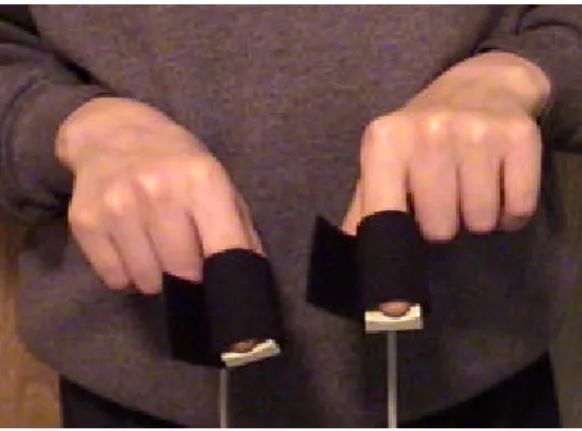
Option 1: Y-type cable terminated with two small finger pads (that embed small silver / silver chloride dry ECG electrodes) with elastic Velcro straps (See. Fig. 3.2.).
Starting Heart Rhythm Scanner Session 18
Option 2: Y-type cable terminated with two small flat plastic pads (that embed large silver / silver chloride dry ECG electrodes) with two elastic wristbands (See. Fig. 3.3.). Connect the device USB cable to any USB port socket on the computer. The Heart Rhythm Scanner software will detect it automatically. Connect a flat RJ-45 connector of the Y-cable to input “B” on the front panel of Biocom 3000 unit (opposite side to LED indicator).
Option 1: Place two fingers of both hands on top of the rounded surface of the finger pads. Use the Velcro straps to secure pads on the fingers. The fingers should be fixed on pads to avoid movement artifacts. However they should not be too tight since that can reduce blood flow. Loosen it slightly if pulsation can be felt in the fingers.
Fig. 3.2. ECG finger pad electrode placement
Option 2: Put elastic wristbands on both wrists. Place both sensor pads marked as “Left” and “Right” on respective wrists with electrode disks face down so that wristbands secure those pads firmly.
Background Information 19
3.2.2. ActiveECG Interface Unit
The ActiveECG hardware has features, which make it exceptional as a portable ECG device. The unit is designed for quick assessment. There are no buttons, switches, or controls - everything is controlled from the PC. The enclosure itself is designed to hold the ECG leadwires in a compact, easy-to-use platform. Additionally, no latex is used anywhere within the ActiveECG hardware to help avoid allergic reactions from personnel and clients.
The front of the ActiveECG hardware houses a “raceway” which the leadwires are wrapped around. This provides a simple way to manage the leadwires and guarantee that they are always with you. An integrated elastomeric cover surrounds the raceway holding in the leadwire snap connectors. The cover can be replaced by slightly flexing the bottom of the cover and popping out one of the two ends of the cover hinges.
After the leadwires have been unwound from the raceway and attached to electrodes, the elastomeric cover can be closed if you would like to secure it. Leaving the cover open allows you to see that the leadwires stay connected to the raceway connectors.
When you have completed session, disconnect the electrodes, clean the leadwires if necessary, and wrap them around the opened raceway. When there is an inch or so of the leadwires that has not been wound onto the raceway, tuck the remainder of the leadwires into one of the raceway openings and close the cover to secure them. Alternatively, the snap connectors at the end of the leadwires can drape outside the raceway, held in place by the elastomeric cover.
Note that when you connect the leadwires, the colors of the leadwires should match the colors of the connectors.
The components of ActiveECG should be inspected on a regular basis and prior to each use. These inspections are important in order to guarantee the proper working condition of your system.
Perform the following steps to inspect ActiveECG:
1. Inspect the physical condition. Check to ensure that cases and controls are clean and in good condition.
2. Inspect cables, connectors, and electrodes. Make sure that the ECG leadwires are attached inside the raceway. Inspect cables for cracks, breaks, or frayed wires. If any damage is found, replace the cables immediately. Check for adequate supply of ECG electrodes. Make sure the electrodes have not exceeded their expiration date (if available) or that the packages have not been opened or damaged. 3. Make sure that a new spare battery is always available. Check that all batteries
Starting Heart Rhythm Scanner Session 20
Leadwire and electrode connection
The ActiveECG hardware has three ECG monitoring leadwires that provide the
monitoring of lead II only. The leadwires and connectors are all color-coded according to the American Heart Association (AHA) standards. The following table provides a list of AHA color codes for lead II connections:
Lead Bipolar Lead and reference Color
II RA - right arm Negative electrode White
LA - left arm Reference Black
LL - left leg Positive electrode Red
The connection from ActiveECG to each leadwire is an industry standard single .060 pin connector. This allows you to easily replace the leadwires with other compatible leadwire cables. Make sure that the leadwire cables are inserted fully into the ActiveECG
hardware. Loose or poor connections can cause intermittent results.
The leadwires provided with ActiveECG utilize standard snap connectors allowing you to use a wide variety of commercially available electrodes. For best ECG monitoring
results, silver/silver chloride (Ag/AgCl) electrodes should be used with this equipment. Electrodes of dissimilar metals should not be used.
Take care when attaching or removing the leadwires and electrodes to not damage the wires or connectors.
Connection to PC
The ActiveECG hardware connects to a PC with a null- modem serial cable. After
connecting the cable to the ActiveECG hardware, make sure to screw in the thumbscrews securely attaching the ActiveECG hardware to the cable.
To ensure accurate ECG recording, it is important that the electrodes be properly attached to the client. Follow the instructions below to prepare the client.
Attaching electrodes to a client:
1. Prepare the client’s skin for effective electrode adhesion. Clean and dry the skin. Briskly wipe skin dry with a towel or gauze to mildly abrade the skin and remove oils, dirt, etc. Note that for proper electrode adhesion, never use alcohol, tincture of bezoin or antiperspirant to prepare the skin.
2. Remove the disposable electrodes from their package. Attach the leadwires to the electrodes and then peel off the protective backing on the electrodes. Inspect the electrodes for any obvious signs of damage. Ensure that the gel on the electrodes has not dried out. If you note damage or dry electrodes, use a new set of
Background Information 21 3. Place two electrodes on the client’s left wrist and one electrode on right wrist.
Apply the electrode flat to the skin and smooth the tape outward in all directions. Do not press the center of the electrode.
4. Connect black and red leadwires (LA and LL) to the electrodes on left wrist and white (RA) leadwire to the electrode on right wrist.
5. Attach the ActiveECG enclosure to the client’s clothing, belt, or something in close proximity using the spring- loaded clip on the back. Position the device so as to limit any potential strain put on the leadwires and electrodes.
After each client use:
1. Discard used electrodes including electrode sets that were opened and not used. Electrodes dry out in less than 24 hours.
2. Replace the battery in the ActiveECG device if a low battery is indicated in the test program. Make sure you have a spare battery.
3. Clean the device.
4. Inspect the device and cables for damage. Repair or replace damaged items immediately.
5. Check that the leadwires are well connected to the connectors on the ActiveECG device. Wrap the leadwires around the raceway and tuck the snap connector ends inside before closing the elastomeric cover.
6. Recheck disposable supplies and replace whatever is needed.
3.3. Start the Heart Rhythm Scanner software
Double-click this shortcut icon on the desktop screen to start the Heart Rhythm Scanner.
Once the program is loaded, the following screen comes up:
Basic Menu Operations 22
4. Basic Menu Operations
Heart Rhythm Scanner provides two menu modes:• Client Mode
• Protocol Mode
You can switch between these modes clicking respective buttons on the toolbar.
4.1. Client Menu Mode
Click this button to switch to client menu mode. It brings a list of client
records represented by separate “client folders”. Click on any of them to select client record you need. Then you can proceed with any of the following
operations:
• Create a new client record
• Edit selected client record
• Delete selected client record
• Enter pre-test questionnaire
• Enter post-test questionnaire
• View questionnaire data
4.1.1. Create new client record
Click this button to create a new client record. It brings up the following dialog box:
Fig.4.1. Client personal information dialog box
Basic Menu Operations 23 A new “client folder” icon appears in the main application window once a new client record ha been created.
4.1.2. Open existing client record
Click a client folder in the list to highlight it. Then you can accomplish any of the remaining operations with client record by clicking respective button on the toolbar that are available while you are in client menu mode.
4.2. Protocol Menu Mode
Click this button to switch to protocol menu mode. It brings a list of HRV evaluation protocols available in the system that are represented by separate “protocol folders”. Click on any of them to select a protocol you need. Then you can proceed with any of the following operations:
• Create a new protocol
• Edit selected protocol
• Delete selected protocol
• Run selected protocol session
• View selected protocol sessions
• View selected protocol progress
4.2.1. Create new protocol
What is a protocol? It is a specific procedure of using HRV data recording and analysis. It has a predetermined timing structure – a set of single trials of specified duration. A trial is a single unit of a protocol. It defines a contiguous data recording that can be processed to get a standard HRV evaluation. The time length describes it.
Click this button on the client toolbar to create a new protocol. It brings up the following dialog box:
Basic Menu Operations 24
Enter a new protocol name.
Use the “Add” and “Insert” commands to add trials to this protocol. The “Add” command adds a trial to the end of a trial list. The “Insert” command adds a new trial to a specific position highlighted in the list of trials.
Use the “Delete” command to eliminate a trial from the list.
Use the “Properties” command to modify the settings of an existing trial.
Check “Automatically run questionnaire before and after each session” check-box to enable automatic run of questionnaire.
Use “Trial Duration” radio-buttons to select trial duration in this protocol. All trials will have the same duration. It is required to be able to compare HRV data across trials. Important Note! If you are using Biocom 3000 ECG interface unit, it is recommended to set trial duration either 5- or 10- minutes long. The HRV population norms can only be used with records 5- or 10-minutes long.
Click the “OK” command to complete construction of the protocol.
When adding a new trial or editing an existing one, the following dialog box is displayed:
Fig.4.3. Trial properties dialog box
Enter at least a new trial name, then click the “OK” button.
4.2.2. Open existing protocol
Click a protocol folder in the list to highlight it. Then you can accomplish any of the operations with selected protocol by clicking respective button on the toolbar that are available while you are in the protocol menu mode.
Online Data Recording 25
5. Online Data Recording
To start an online data recording session, do as follows: 1) Open the client record you need.
2) Select an appropriate protocol.
3) Click this button to open the online monitoring screen.
The Heart Rhythm Scanner allows suspending current session and leaving it incomplete with assumption that it will be resumed later (e.g. next day). If you previously ran this protocol for selected client and left at least one session not complete, the following dialog box appears requesting to specify whether one of suspended sessions should be resumed or new one started:
Fig.5.1. Select session to be resumed
Select session to be resumed from the list and click “OK”. If you wish to start new session, click “New Session” button.
If you resume session selected from the list, the following dialog box is displayed:
Fig.5.2. Select trial to run
Online Data Recording 26
When online monitoring starts, the following screen comes up:
Fig.5.3. HRV monitoring screen
This is a standard online screen. It includes the following windows: 1) Heart rate graph (upper left).
2) Heart rate value indicator (upper right). 3) Heart rate scatter chart (middle right). 4) Pulse wave or ECG graph (bottom).
The heart rate graph displays instantaneous changes in heart rate, updated every 0.5 seconds.
The heart rate value indicator displays the last HR value, updated every 0.5 seconds. The heart rate scatter graph is also updated every 0.5 seconds. It reflects the variability of the heart rate, graphically displaying current HR value versus the previous one. The more variation in HR, the wider the “cloud” that is displayed. If the heart rate were constant, the “cloud” would be convoluted into a single dot.
The pulse wave graph is updated 64 times per second. It displays live pulse wave signals acquired by the finger sensor. It is helpful to observe this signal to be sure the sensor is placed appropriately.
5.1. Start online data recording
Click this button to initiate data recording.
Observe pulse wave signals scrolling in the bottom window to make sure that the sensor is placed correctly. When placement is correct, you will see a smooth signal with periodic peaks:
Online Data Recording 27
Fig.5.4. Normal pulse wave
Here is an example of artifacts caused by poor sensor placement:
Fig.5.5. Abnormal pulse wave
If this happens, reposition the finger on the sensor and secure it with the Velcro strip until you see clear pulse waves. Then restart the current trial to get rid of the data containing artifacts.
If you are using Biocom 3000 ECG interface unit, make sure that ECG signal is clean and free of movement artifacts. When ECG electrode placement is correct, you should see an ECG trace looking like that:
Fig.5.6. Normal ECG signal
Click this button to restart the trial.
The status bar displays information about progress for the current session:
Fig.5.7. Session progress indicator
It displays the current trial number, time elapsed, time remaining, and a progress indicator.
5.2. Run next trial
Once the current trial is complete or manually terminated, the program prompts you to advance to the next trial or chose other options. The following dialog box appears:
Online Data Recording 28
Fig.5.8. Run trial dialog box
The next trial is automatically highlighted. Click “Start Trial” button to initiate it. Use the “Add”, “Insert”, “Delete” and “Properties” buttons to modify the protocol of the ongoing session. Refer to the protocol creation section for information on how to use these functions. This feature allows you to create protocols on the fly.
Enter a text note for selected trial into trial note entry field.
If any modification occurs, the program will prompt you to save it when quitting online mode.
5.4. Finish trial or session recording
Normally Heart Rhythm Scanner automatically finishes current trial once its time expires, and terminates the session once all trials are completed.
However, you have an option to terminate current trial prematurely or even terminate an entire session at any time.
Click this button to stop the current trial.
If the trial was prematurely stopped, its data set is considered incomplete and cannot be used for HRV evaluation.
When trial stops (automatically or by command) the program displays a dialog box illustrated on Fig.5.8.
Click “Stop sessio n” button to finish this session. This will bring a session preview screen. It allows for reviewing the results of session just completed and decide whether data should be saved in client record.
Online Data Recording 29
Fig.5.9. Session preview screen
Click this button to save session.
Click this button to switch to main mode menu.
If there is data recorded, the program prompts you to save this session to the current client record:
Fig.5.10. Save session data
If you forgot to select right client before session started, select one from the combo-box in this dialog box.
If this is a new client, click “New Client” button to create new client record. Click “Yes” to save current session data to selected client record.
Click “No” to leave online mode without saving session data. Click “Cancel” to go back to online mode.
When leaving run session mode, you can specify whether you wish to do final close of this session or want to run it again. This feature is particularly helpful if the protocol you are running requires considerable time between trials (e.g. next day) and it is not possible to proceed with next trial without quitting program. The following dialog box appears allowing for this selection:
Online Data Recording 30
Fig.5.11. Select session termination option
5.5. View trial summary
Sometimes it is important to see HRV data immediately following the end of current trial. If the protocol assumes stops between trials, you can view current trial summary. When protocol dialog box (See Fig.5.8.) appears between trials, click “Summary button” and view last trial summary:
Fig.5.12. Trial summary screen
Click this button to get back to online screen.
5.6. Zoom display window
The online screen contains several display windows. You can enlarge any of them (except the heart rate value indicator window) to better see details.
To enlarge a window:
1) Select the window you need to enlarge. You can make your selection either by clicking the area of the window you need or by repeatedly pressing the “Tab” key
Online Data Recording 31 until the window is selected. The selected window has a title name in italics, shaded in white.
Fig.5.13. Selected window title
2) Click this button to zoom the selected window. Click it again to return the enlarged window to its normal size.
5.7. Adjust graph scales
Each graph or chart has two scales: a vertical Y-Scale (representing amplitude) and a horizontal X-Scale (usually a time scale except on the scatter chart).
The Y-Scale is determined by the scale range – the difference between maximum and minimum signals. It is adjusted to different values to make the range wider or narrower, depending on the variation within the signal. If the range were large and the signals had a small amount of variation, it would be hard to see the signal details. On the other hand, if the variation in signals were too big, the signal might be bounced out of this range. The Y-Scale is also determined by the scale offset (origin) which positions the current range within the full range of possible signal values.
For instance, the full range of heart rate is between 30 and 150 beats per minute. The current range might be 40 with an offset at 50. It could give a scale between 50 and 90 beats per minute.
To adjust the scales:
1) Select the window you need to adjust. You can make your selection either by clicking the area of the window you need or by repeatedly pressing the “Tab” key until the window is selected.
2) Click this button to open the scale adjustment dialog box:
If you wish the Y-Scale to be self-adjusting during the online signal display, set the “Autoscale” check-box to an “ON” state. Clear it if you wish to have the scale range fixed.
Online Data Recording 32
Fig.5.14. Scale adjustment dialog box
When the “Autoscale” setting is OFF, you can use the scale range slider bar to set an appropriate scale range. The selected range is displayed above the slider bar.
If you want to have amplitude scale with the scale origin fixed at certain level, check “Anchor” check-box. If it is cleared, the scale origin will be automatically updating if “Autoscale” function is active.
If “Anchor” is checked, you can manually adjust scale origin using an amplitude scale offset slider bar. The selected offset is displayed above the slider bar.
To adjust the time scale, use the “X-Scale settings” control in the same way as to adjust the Y-Scale. The setting is displayed to the left of the slider bar. Check “Trial” check-box to set time scale equal to the trial length.
Check “Save settings as default to current client” check-box if you want to have current settings automatically invoked when the same client is selected for the session.
Click “Set default settings” button to alter any customized settings to the factory preset settings”.
You can also see the result of a scale adjustment in a preview window within this dialog box
Click “OK” button to apply the new scale settings to the selected window. Click “Cancel” button to discard all setting changes made.
View Session Summary 33
6. View Session Summary
The session summary allows you to view the details of the HRV data collected during a specific session of a selected protocol for the current client.
To view the summary of a specific HRV evaluation session: 1) Open the client record you need.
2) Select an appropriate protocol. 3) Select an appropriate session:
Fig.6.1. Session selection dialog box
4) Click this button to open the session summary screen. Once this is done, the following screen is displayed:
Fig.6.2. Session summary screen
The session summary consists of six pages of data reports. Click the appropriate page tabs at the bottom of the screen to switch between pages.
View Session Summary 34
6.1. Autonomic Balance Report
The First (default) page displays a printable “Autonomic Balance Report” form that consists of a number of letter-size pages, one page per trial accomplished. Each page includes:
Fig.6.3. Client personal information section
Fig.6.4. Numerical HRV data section
Fig.6.5. Heart rate tachogram
View Session Summary 35
Fig.6.7. Autonomic balance diagram
Fig.6.8. Power spectrum section
Fig.6.9. Trial note
6.2. Parameter bar charts
Pages 2 to 4 display a set of HRV parameter bar charts:
View Session Summary 36
A parameter bar chart displays a set of enumerated bars representing the parameter values for each enumerated trial.
6.3. Autonomic balance diagram
Page 4 displays the autonomic balance diagram, combined for all trials:
This diagram is the most important for HRV interpretation. It indicates the conditions of both parasympathetic (vertical scale) and sympathetic (horizontal scale) activity of the autonomic nervous system.
The diagram has a gradient fill background color scheme: green area in the middle gradually transforming to yellow and finally to red color in all directions. This gradient color scheme intuitively reflects zones of autonomic balance: the more green color is the stronger autonomic balance and both branches are closer to normal levels.
If you are using Biocom 3000 ECG interface unit and recorded 5- or 10-minute long trials, this diagram will be displayed with both scales divided into three parts, indicating three conditions: Lower (or left) – below normal range; Middle – within normal range; Upper (or right) – above normal range. It also indicates whether one branch of the autonomic nervous system is in dominance over the other or they are balanced.
View Session Summary 37 There are 9 possible combinations:
LF HF Sympathetic Parasympathetic Autonomic Balance
Low Low Inhibited Inhibited Maintaining balance between sympathetic and parasympathetic branches at their low levels of regulatory activity
Low Norm Inhibited Optimal Moderate dominance of the parasympathetic nervous system with low levels of sympathetic and normal levels of parasympathetic regulation
Low High Inhibited Activated Significant dominance of the parasympathetic nervous system with low levels of sympathetic and high levels of parasympathetic regulation
Norm Low Optimal Inhibited Moderate dominance of the sympathetic nervous system with normal levels of sympathetic and low levels of parasympathetic regulation
Norm Norm Optimal Optimal Maintaining balance between sympathetic and parasympathetic branches at their normal levels of regulatory activity
Norm High Optimal Activated Moderate dominance of the parasympathetic nervous system with normal levels of sympathetic and high levels of parasympathetic regulation
High Low Activated Inhibited Significant dominance of the sympathetic nervous system with high levels of sympathetic and low levels of parasympathetic regulation
High Norm Activated Optimal Moderate dominance of the sympathetic nervous system with high levels of sympathetic and normal levels of parasympathetic regulation
High High Activated Activated Maintaining balance between sympathetic and parasympathetic branches at their high levels of regulatory activity
6.4. Heart rate trend
Page 5 displays a line graph of the heart rate recorded for all trials. Each trial segment of the entire session trend is separated by a vertical dotted line.
Fig.6.12. Heart rate trend line graph
6.5. Numerical HRV data sheet
View Session Summary 38
Fig.6.13. HRV data sheet
6.6. Zoom display windows
You can enlarge any window of a report page if there is more than one window on that page.
Refer to the online screen functions section to get information on how to use this function.
6.7. Adjust graph scales
You can adjust the scales of any graph or chart on the report.
Refer to the online screen functions section to get information on how to use this function.
6.8. Display legend
When you see a parameter bar chart or heart rate graph it is nice to know which trials are displayed. The names of the trials can be displayed in a legend dialog box along with color codes corresponding to the colors of the respective bars or lines.
Click this button to display a legend box:
Fig.6.14. Session trial legend window
Another click of this button will close the legend box.
6.9. Review and edit trial note
Any trial may have text notes entered during the session. In session review mode you can view and edit any trial note of selected session. If there were no notes created during the session, you can enter them here.
View Session Summary 39 Click this button to display note edit dialog box:
Fig.6.15. Session trial legend window
View Progress Summary 40
7. View Progress Summary
The progress summary allows you to view the details of the HRV data collected during all sessions of a selected protocol for the current client.
To view the progress summary of a specific HRV evaluation protocol: 1) Open the client record you need.
2) Select an appropriate protocol.
3) Click this button to open the session summary screen. The progress report screen is displayed as the default.
Fig.7.1. Progress summary report screen
The progress summary consists of three pages of data reports. Click the appropriate page tab at the bottom of the screen to switch between pages.
7.1. HRV Progress Report
The first (default) page displays a printable “HRV Progress Report” form that has one letter-size page. It includes: client personal information and session dates, set of line graphs displaying the major HRV parameters across all sessions.
View Progress Summary 41
Fig.7.3. Progress report line graphs
Each session is represented by one node on the graph of a specific HRV parameter. The progress report page displays data from the selected trial.
Use this trial selection combo-box to display the progress report for different trials.
7.2. Selected HRV parameter bar chart
Page 2 displays a bar chart of a selected HRV parameter and selected trials across all sessions of the protocol.
It includes a series of enumerated bars representing all sessions available. Use the legend box to view which particular date/time corresponds to a specific bar on this chart.
Fig.7.4. HRV parameter bar chart
Use this parameter selection combo-box to display a bar chart of other HRV parameters.
View Progress Summary 42
Use this trial selection combo-box to display a bar chart of the current HRV parameter for other trials.
7.3. Numerical HRV data sheet
Page 3 displays numerical data for a selected HRV parameter for all trials across all sessions available.
Fig.7.5. HRV progress data sheet
Use the parameter selection combo-box to display the data in numerical sheet format.
7.4. Adjust graph scales
You can adjust the scales for any graph or chart on the report.
Refer to the online screen functions section to get information on how to use this function.
7.5. Display legend
When you see a parameter bar chart, it is helpful to know the dates and times of the sessions that are displayed there. This information can be displayed in a legend dialog box along with color codes corresponding to the colors of the respective bars.
Click this button to displa y a legend box.
Fig.7.6. Progress session legend window
Edit Heart Rate Data 43
8. Edit Heart Rate Data
It is very important to have heart rate recordings free of any abnormal readings to perform correct heart rate variability analysis! Unfortunately there might be various reasons for having unstable heart rate calculation like:
1) Improper sensor placement that produces weak or unstable signal; 2) Body movements producing movement artifacts on raw signal; 3) Ectopic heartbeats that cannot be involved into HRV evaluation.
In ECG version of the Heart Rhythm Scanner, the program stores both raw ECG signal and heart rate data during the session. The PPG version stores heart rate data only. After session you may visually review HR data and tag abnormal HR readings. If you have ECG version, the program displays raw ECG trace as a line graph and HR readings as big blue dots along the ECG trace. Thus you can see whether HR reading was
calculated properly.
The normal heartbeat should be detected in the near proximity to the R-peak (very sharp and narrow peak) on ECG trace and its value should not deviate from previous normal HR reading more than 30%. The software is capable of an automatic search of various types of abnormal heartbeats irrelevant to their cause. It is based on standard statistical procedure of exclusion of rough artifacts from data series. This procedure involves the following steps:
1. Linear trend is removed from HR data record.
2. Mean HR and standard deviation of HR (SD) are calculated).
3. Each HR reading is tested as belonging to the normal HR data pool based on Student t-test.
However this method only works if the number of artifacts found is a small part of entire data series, otherwise the results are not reliable and such HR data should not be
evaluated for HRV at all.
Once abnormal HR reading are detected automatically and toggled into "bad" state marked with big red dot, you can toggle any HR reading back into “normal” state and do it back and forth many times.
In PPG version only HR readings are displayed. So the only way to make sure HR reading is normal is to watch if rapid changes (over 30% difference in any two
consecutive HR readings) in HR are observed. Toggle those blue dots to mark them as “abnormal” ones.
View Progress Summary 44
1. Click this button to start edit HR data mode. This will display a dialog box to select trial to be edited.
Fig.8.1. Select trial to edit HR data
2. Select client name from “Client” combo-box.
3. Select protocol name from “Protocol” combo-box. This will bring a list of trials of all sessions available in selected client record for selected protocol.
4. Select trial to be edit ed. 5. Click “Edit” button.
The following edit HR data screen will appear:
Fig.8.2. Edit HR data screen
Click on any blue or red dot representing HR reading to toggle it into opposite state (normal or abnormal).
Edit Heart Rate Data 45 Use scroll bar at the bottom of screen to scroll data back and forth to review full HR record.
Click this button to save results once editing is accomplished.
Click this button to quit HR edit mode. Click this button to compress time scale.
Click this button to expand time scale.
Click this button to engage one-time automatic “abnormal” heartbeat search function.
Click this button to remove all “abnormal” heartbeat tags.
The following information is specific for ECG version only!
Raw ECG signals are initially stored along with HR data to help you in editing HR readings, removing movement artifacts and abnormal heartbeats. However saving ECG signals takes a lot of disk space comparatively to HR data itself. Because of that it is wise to delete ECG signal record from the session once you finished HR editing and are quite sure it was done correctly and no more editing will be necessary.
Remember! Once you delete raw ECG signal, no more HR editing of this session will be possible!
To delete raw ECG record, open “Select trial to edit HR data” dialog box, then select trial and click “Remove raw data” button.
Client Data Management 46
9. Client Data Management
The Heart Rhythm Scanner manages multiple client records in a built- in database. This allows for doing many HRV assessment sessions with many clients. The system keeps all sessions in respective client records for selective access.
Click this button on the toolbar to switch to client menu mode before executing any operation with client records.
9.1. Create new client record
Click this button to create a new client record. It brings up the following dialog box:
Fig.9.1. Client personal information dialog box
Enter data in the fields and click the “OK” button.
A new “client folder” icon appears in the main application window once new client record is created.
9.2. Select client record
Certain operations with client records require selection of the client record. Such selection makes this record to be opened automatically.
To select client record click on any of the existing “client folder” icon to select it. Selected icon is highlighted.
Client Data Management 47
9.3. Edit client record
Click this button to edit personal client information in the selected client record. The client personal information dialog box comes up on the screen (See. Fig.8.1.). Edit any field, then click OK.
9.4. Delete Client Record
Click this button to delete selected client record. You will be prompted to confirm deletion of the client record.
Fig.9.2. Prompt to confirm client record deletion
Click “Yes” button to confirm record deletion.
Note! Since a client record holds all session data associated with this client, all such session data will be permanently lost along with client record.
9.5. Delete Session
If you need to delete any particular session of the selected client, do as follows: - Click this button to switch to the protocol mode, unless it is already done. This mode displays a list of protocols represented by “protocol folder” icons in the main application window.
- Click this button to open a session selection dialog box (See Fig.6.1.). - Select session to be deleted from the list of existing sessions.
- Click “Remove” button in the session selection dialog box.
Fig.9.3. Prompt to confirm session deletion
Click “Yes” button to confirm record deletion.
Protocol Management 48
10. Protocol Management
The Heart Rhythm Scanner manages multiple HRV test protocols in a built- in database. This allows for doing many different types of HRV assessment sessions with any client.
Click this button on the toolbar to switch to protocol menu mode before executing any operation with protocols.
10.1. Create new protocol
What is a protocol? It is a specific procedure of using HRV data recording and analysis. It has a predetermined timing structure – a set of single trials of specified duration. A trial is a single unit of a protocol. It defines a contiguous data recording that can be processed to get a standard HRV evaluation. The time length describes it.
Note! Even though the program allows the creation of protocols with trials of the different duration, keep in mind that it is not correct to compare HRV parameters obtained from trials with different lengths!
Click this button on the toolbar to create a new protocol. It brings up the following dialog box:
Fig.10.1. Protocol properties dialog box
Enter a new protocol name.
Set trial duration using the following radio-buttons: “5 minutes”, “10 minutes”, “Other”. If “Other” option is selected, specify custom length of trials in minutes, which cannot be shorter than 2 minutes.
Use the “Add” and “Insert” commands to add trials to this protocol. The “Add” command adds a trial to the end of a trial list. The “Insert” command adds a new trial to a specific position highlighted in the list of trials.
Protocol Management 49 Use the “Delete” command to eliminate a trial from the list.
Use the “Properties” command to modify the settings of an existing trial.
Check “Automatically run questionnaire before and after each session” check-box to enable automatic run of questionnaire.
Click the “OK” command to complete construction of the protocol.
When adding a new trial or editing an existing one, the following dialog box is displayed:
Fig.10.2. Trial properties dialog box
Enter at least a new trial name and the trial length in minutes, then click the “OK” button. The program warns you if you enter a trial length other than five minutes. According to the standards of HRV analysis, a five- minute recording is required to do short-term HRV evaluation. Without at least five minutes of data, the recording cannot be used for
reference purposes.
10.2. Select protocol
Certain operations with protocols require selection one of the existing protocols. Such selection makes it to be opened automatically.
Click any of the existing “protocol folder” icons to highlight selected protocol.
10.3. Edit protocol
Click this button to edit selected protocol. The protocol properties dialog box comes up to edit protocol. See section 10.1. for details on editing protocol properties.
10.4. Delete protocol
Click this button to delete selected protocol. You will be prompted to confirm deletion of the protocol.
Protocol Management 50
Fig.10.3. Prompt to confirm protocol deletion
Session Management 51
11. Session Management
The Heart Rhythm Scanner manages numbers of sessions recorded for any HRV test protocol in a built- in database. Upon collecting many sessions several useful operations with sessions will give you a great deal of help.
11.1. Move session from one client record to another
Sometimes session data might be mistakenly saved in association with wrong client record. The Heart Rhythm Scanner allows you to move any particular session data between client records back and forth.
To move session:
1. Select “Move Session” option from the “Client” menu.
2. When “Move Session” dialog box appears on the screen, select client name on the left panel where you are going to move session from.
Fig.11.1. Move sessions dialog box
3. Select a protocol name on the left panel associated with the session you are going to move. This will bring a list of sessions of specified protocol saved in the selected client record.
4. Select a session in the list on left panel you are going to move.
5. Select client name on the right panel you are going to move session to. 6. Click “Move Session” button to commit moving session.
7. Repeat steps 2 - 6 to move any other sessions. 8. Click “Close” button to close this dialog box.