Waters 2695
Separations Module
Quick Start Guide
34 Maple Street Milford, MA 01757 71500269503, Revision A
NOTICE
The information in this document is subject to change without notice and should not be construed as a commitment by Waters Corporation. Waters Corporation assumes no responsibility for any errors that may appear in this document. This document is believed to be complete and accurate at the time of publication. In no event shall Waters
Corporation be liable for incidental or consequential damages in connection with, or arising from, the use of this document.
© 2001 WATERS CORPORATION. PRINTED IN THE UNITED STATES OF AMERICA. ALL RIGHTS RESERVED. THIS DOCUMENT OR PARTS THEREOF MAY NOT BE REPRODUCED IN ANY FORM WITHOUT THE WRITTEN PERMISSION OF THE PUBLISHER.
Alliance, Millennium, and Waters are registered trademarks, and PerformancePlus is a trademark of Waters Corporation.
Micromass is a registered trademark, and MassLynx is a trademark of Micromass Ltd. All other trademarks or registered trademarks are the sole property of their respective owners.
Quick Summary
This flowchart summarizes the information contained in this Quick Start Guide. Use it as a reference after you have read the entire document.
iii
Start
Power on the Separations
Module
Prime the Solvent Management
System
Prime the Plunger Seal Wash Pump
(If Installed) The Function Begins to Run Configure the Separations Module Degas or Sparge Eluents
Purge the Sample Management
System
Adjust the Seal Pack
Prime the Needle Wash Pump Load the Carousels Yes No Perform an Automatic Run? Set Control Switches Set Flow Rate and
Composition
Set Sparge Rate (if Applicable) Press Direct Function Screen Key Select Direct Function to Perform Enter Function Parameters Press the Run
Samples Screen Key on the Main Screen
Enter Data Required by the Separation Method,
Sample Set, or Sample Template
The Run Ends as Programmed Select the Separation Method, Sample Set, or
Template to Run, then Press Run Screen Key
Press the Routine Screen Key to Start
Conventions Used in This Guide
This Quick Start Guide uses the following conventions:
• Bold text indicates user input or action. For example, press Enter.
• When you are instructed to “press the X key”, press the indicated keypad key.
• When you are instructed to “press the X screen key,” press the keypad key directly
below the key name displayed on the screen.
Notes, Attentions, and Cautions
This guide uses the following Note, Attention, and Caution conventions:
• Notes call out information that is important to the operator. For example:
Note:Record your result before you proceed to the next step.
• Attentions provide information about preventing possible damage to the system or
equipment. For example:
• Cautions provide information essential to the safety of the operator. For example:
STOP
Attention: To avoid damaging the detector flow cell, do not touch the flow cell window.
Caution: To avoid chemical or electrical hazards, always observe safe laboratory practices when you operate your system.
Caution: To avoid electrical shock and possible injury, remove the power cord from the rear panel of the instrument before you perform the
5
Chapter 1
Introduction
The Waters 2695 Separations Module Quick Start Guide introduces you to the basic features of the Waters® 2695 Separations Module and describes how to make a run.
Who Should Use This Guide?
This guide is intended for both novice and experienced chromatographers who need to operate the Waters 2695 Separations Module.
What Is in This Guide?
The Waters 2695 Separations Module Quick Start Guide contains basic procedural information to help you set up the Waters 2695 Separations Module and make a run. In addition, this guide contains detailed flowcharts that provide Waters-recommended steps to prime, equilibrate, and purge both degasser and sparge-based 2695 Separations Modules. Refer to Chapter 6, Recommended Preparation Procedures.
Note: This guide is not designed to teach you chemistry and does not contain background or reference information.
Refer to the Waters 2695 Separations Module Operator’s Guide for additional information, or if you want to learn how to modify any of the procedures in this guide.
Note: Additional information concerning regulatory matters may also be found in the front section of the Waters 2695 Separations Module Operator’s Guide.
Note: With the purchase of the 2695 Separations Module, Waters supplies both this guide and the Waters 2695 Separations Module Operator’s Guide in electronic format on a CD-ROM. To install and view these guides on your computer, refer to the Readme file on the CD-ROM.
Before You Begin
This guide assumes that:• Your system is properly installed (refer to the Waters 2695 Separations Module Operator’s Guide, Chapter 2, Installing the 2695 Separations Module).
• Your separation methods, sample sets, and/or sample templates are already created and stored (refer to the Waters 2695 Separations Module Operator’s Guide, Chapter 6, Creating Methods, Sample Sets, and Sample Templates).
System Description
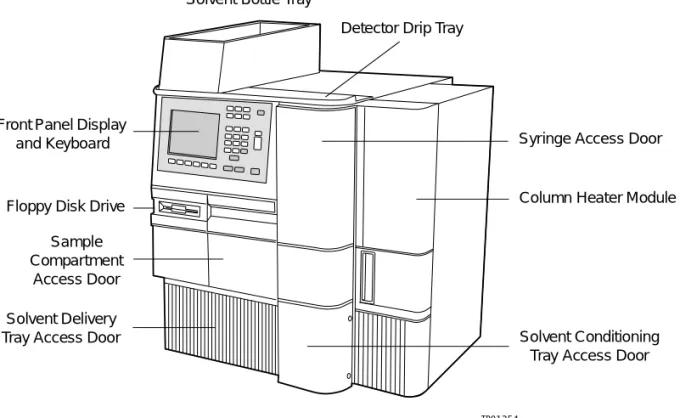
The Waters 2695 Separations Module (Figure 1-1) is an integrated solvent and sample management platform. This integration of two traditional high-performance liquid chromatography (HPLC) components streamlines all critical separation functions.
Figure 1-1 Waters 2695 XE Separations Module (Front View)
The sample management system in the Waters 2695 Separations Module uses five carousels with a total capacity of 120 vials. A carrier rotates the carousels to the injection station in the sample compartment.
The Waters 2695 Separations Module is available from Waters in a number of configurations, differing from each other by the options that are included. The two primary configurations are designated:
• 2695 – Provides quaternary solvent, high-performance solvent delivery, integral
helium sparge for solvent conditioning, integral plunger seal-wash system, 120-vial TP01354
Column Heater Module Syringe Access Door Front Panel Display
and Keyboard
Floppy Disk Drive
Solvent Delivery
Tray Access Door Solvent Conditioning
Tray Access Door Sample
Compartment Access Door
Solvent Bottle Tray
7 capacity sample management system, liquid-crystal display and keyboard user interface, and floppy disk drive.
• 2695 XE – Provides the capabilities of the 2695 base product, replaces the helium
sparge system with a four-channel inline vacuum degasser, and adds a column heater and a sample heater/cooler.
Chapter 2
Preparing the Separations
Module for Operation
Before you can prepare the Separations Module for operation, you need to power on the 2695 Separations Module by moving the power switch (located at the top of the left side panel) to the I (On) position. The startup diagnostics routine begins.
2.1 Powering On
Startup Diagnostics
The startup diagnostics routine performs the following functions and tests: • CPU board
• Memory (RAM and ROM) • Keypad
• Display
• External communication • Digital signal processor (DSP) • Floppy disk drive
Once the electronic part of the diagnostics test is complete, the front-panel screen displays the results of the tests, as shown in Figure 2-1.
Figure 2-1 Diagnostic Test Results Screen
CPU ROM RAM KEYPAD DISPLAY DMA GPIB FLASH DSP FLOPPY CLOCK OK OK OK OK OK OK OK OK OK OK OK STARTUP DIAGNOSTICS
Configuring the Separations Module 9
The Main Screen
When the initial part of the startup diagnostics routine is successful, the Main screen appears in the front panel display (Figure 2-2). The startup diagnostics routine continues by initializing the:
• Needle, syringe, and valves • Carousel carrier
• Solvent management system
The statuses of these mechanical diagnostics tests appear in the banner area of the Main screen (Figure 2-2) while the diagnostics are running. If the startup diagnostics routine is not successful, refer to the Waters 2695 Separations Module Operator’s Guide, Section 8.5, Troubleshooting. When the startup diagnostics routine is complete, the Separations Module enters the Idle mode.
Figure 2-2 Main Screen
2.2 Configuring the Separations Module
Before you can operate the Separations Module, you need to configure the Separations Module for stand-alone or remote control and for a variety of other operating parameters.
No Interaction Mode
In this stand-alone mode, the Separations Module is not connected to the IEEE-488 interface bus. The Separations Module controls other non-IEEE devices in the HPLC system using the I/O connections on the rear panel. Refer to the Waters 2695 Separations
Banner Area
Data Area
Module Operator’s Guide, Section 2.7.1, I/O Signal Connections, for the procedure to make I/O connections. Use this mode if you want to suspend communication with a connected Millennium®32 Chromatography Manager workstation and operate the Separations Module and the other HPLC system components from their front panels. To set the Separations Module to the No Interaction mode:
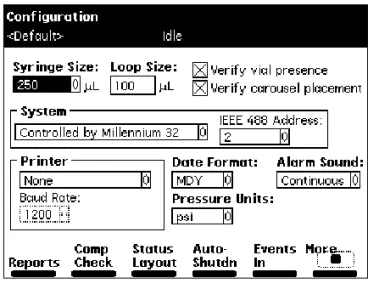
1. Press the Config screen key in the Main screen. The Configuration screen appears (Figure 2-3).
2. Select the System field, then press Enter to display a list of choices. 3. Select No interaction, then press Enter.
4. Press Exit.
System Controller Mode
In this stand-alone mode, the Separations Module controls up to three detector channels on the IEEE-488 bus. This can include two UV detector channels (Waters 2487 and/or 486 Tunable Absorbance Detectors) and one RI detector channel (Waters 2410 or 410 Differential Refractometer). You can also control other HPLC modules using the I/O connections.
To set the Separations Module to the System Controller mode:
1. Press the Config screen key in the Main screen. The Configuration screen appears (Figure 2-3).
Figure 2-3 Configuration Screen
2. Select the System field, then press Enter to display a list of choices. 3. Select System Controller, then press Enter.
Configuring the Separations Module 11 4. Press the Detectors screen key. A list of active devices (with their IEEE-488
interface bus addresses) appears.
a. Press the Scan screen key to update the list.
b. Press the OK screen key to return to the Configuration screen.
5. Press Exit. The Separations Module is ready to control Waters detectors using separation methods, sample sets, or sample templates.
Controlled by Millennium
32Mode
In this remote-control mode, a Millennium32 Chromatography Manager workstation running Millennium32 software controls the operation of your HPLC system using the IEEE-488 interface bus.
To set the Separations Module to the Controlled by Millennium32 mode:
1. Select the System field in the Configuration screen, then press Enter to display a list of choices.
2. Select Controlled by Millennium32, then press Enter. The IEEE 488 Address field is highlighted.
3. Press Enter to display a list of addresses.
4. Select an address that is unused by other chromatographic components connected to the Millennium32 Chromatography Manager workstation, then press Enter. 5. Press Exit. The Separations Module is ready to be controlled from the Millennium32
Chromatography Manager workstation.
Note: Millennium workstations with firmware version 3.20 or earlier recognize a 2695 Separations Module with firmware version 2.00 as a 2690 Separations Module. Future software versions may distinguish between the 2690 and 2695 Separations Modules.
Controlled by MassLynx Mode
In this remote-control mode, Micromass® MassLynx™ software (version 3.5 or higher) controls the 2695 Separations Module. MassLynx software is used with Micromass mass spectrometry (MS) detectors, using the IEEE-488 interface between the Micromass computer and the Waters 2695 Separations Module.
Note: MassLynx software version 3.5 or earlier recognizes a 2695 Separation Module with firmware version 2.00 as a 2690 Separations Module. Future software versions may distinguish between the 2690 and 2695 Separations Modules.
To set the Separations Module to the Controlled by MassLynx mode:
1. Select the System field in the Configuration screen, then press Enter to display a list of choices.
2. Select Controlled by MassLynx, then press Enter. The IEEE 488 Address field is highlighted.
3. Press Enter to display a list of addresses.
4. Select an address that is unused by other chromatographic components connected to the Micromass computer, then press Enter.
5. Press Exit. The Separations Module is ready to be controlled from the MassLynx computer.
Controlled by Millennium 2.xx Mode
In this remote-control mode, a Millennium Chromatography Manager workstation running Millennium 2.xx software controls the operation of your HPLC system using the IEEE-488 interface bus.
To set the Separations Module to the Controlled by Millennium 2.xx mode:
1. Select the System field in the Configuration screen, then press Enter to display a list of choices.
2. Select Controlled by Millennium 2.xx, then press Enter. The IEEE 488 Address field is highlighted.
3. Press Enter to display a list of address pairs.
4. Select an address pair that is unused by other chromatographic components connected to the Millennium Chromatography Manager, then press Enter.
5. Press Exit. The Separations Module is ready to be controlled from the Millennium Chromatography Manager workstation.
The Separations Module appears as two devices in the Millennium System view: • Solvent and sample management systems – With an even address
• Optional sample heater/cooler – With an odd address
Refer to the Waters 2695 Separations Module Operator’s Guide, Section 5.2, Making Automatic Runs Under Millennium Control, for details on making runs under Millennium control.
Controlled by Operate Gradient by Event In Mode
In the Operate Gradient by Event In mode, an external autosampler (a Waters 2700 Sample Manager, for example) signals the Solvent Management System of the Separations Module to begin a gradient. In this mode, the Separations Module has no control of IEEE-488 devices, however, the Separations Module can control non-IEEE devices using the I/O connections on the rear panel.
Configuring the Separations Module 13 To set the Separations Module to the Operate Gradient by Event In mode:
1. Select the System field in the Configuration screen, then press Enter to display a list of choices.
2. Select Operate Gradient by Event In, then press Enter.
3. Press the Events In screen key to display the Events In dialog box. If you need more detailed steps on defining Events In conditions, refer to the Waters 2695 Separations Module Operator’s Guide, “Events In” discussion, Section 3.2.1, Setting Configuration Parameters.
4. Set the Stop Flow field to the appropriate condition (Ignore, High, or Low), then press Enter.
• Choose Ignore if the Stop Flow I/O terminals of the Separations Module are not used.
• Choose High if the output connection from the external autosampler to the Stop Flow I/O terminals of the Separations Module changes to a high (more positive) TTL-level.
• Choose Low if the output connection from the external autosampler to the Stop Flow I/O terminals of the Separations Module changes to a low (more negative) TTL-level.
5. Set the Hold 1 field to the appropriate condition (High or Low), then press Enter. • Choose High if the output connection from the external autosampler to the Hold
1 Inject terminals of the Separations Module changes to a high (more positive) TTL-level to initiate a chromatographic run (and prevent an injection by the Separations Module).
• Choose Low if the output connection from the external autosampler to the Hold 1 Inject terminals of the Separations Module changes to a low (more negative) TTL-level to initiate a chromatographic run (and prevent an injection by the Separations Module).
Note: If you are configuring the Separations Module with a Waters 2700 Sample Manager, choose Low.
6. Set the Logic field to Or, then press Enter. 7. Set the Hold 2 field to Ignore, then press Enter.
8. Press the OK screen key to save your selections and exit the Events In dialog box.
Controlled via RS-232 (ASCII) or (Binary) Mode
In these remote-control modes, a non-Waters data system (a mass spectrometry system, for example) controls the Separations Module using RS-232 ASCII or binary
when either of these modes is selected. The Separations Module can control other non-IEEE devices in the HPLC system using the I/O connections on the rear panel. To set the Separations Module to the Controlled via RS-232 (ASCII) or (Binary) mode:
1. Select the System field in the Configuration screen, then press Enter to display a list of choices.
2. Select Controlled via RS232 (ASCII) or Controlled via RS232 (Binary), then press Enter.
3. Press Exit. The Separations Module is ready to be controlled by a remote data system using RS-232 communications.
Setting Report Options
Use the Report Options dialog box to define the information that is sent to the printer, integrator, and/or floppy disk. (Before you print a report, select the printer in the Printer section of the Configuration screen. You select the destination of the report in the print dialog box that appears when you press the Print screen key.)
To define the information sent to a printer, integrator, and/or floppy disk:
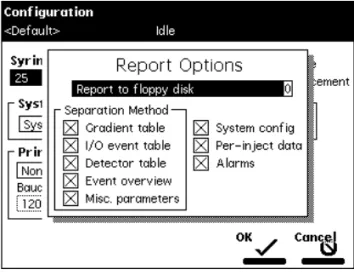
1. Press the Reports screen key on the Configuration screen to display the Report Options dialog box (Figure 2-4).
Figure 2-4 Report Options Dialog Box 2. Select the destination for the report in the drop-down list.
3. Select any option and press any numeric key to enable or disable the option, then press Enter. An “X” in the box means the option is enabled. The options include: • Gradient table – Generates the gradient table
Configuring the Separations Module 15 • I/O event table – Generates the I/O events table
• Detector table – Generates the detector table
• Event overview – Generates an overview of all merged tables
• Misc. parameters – Generates a list of all parameters not included in tables
• System config – Generates a list of the instrument configuration parameters
• Per-inject data – Generates a list of the minimum, maximum, and average
values for temperature, pressure, the time and date of each injection, and so on • Alarms – Generates a list of the error conditions that occurred during the run
4. Press the OK screen key to exit the Report Options dialog box. 5. Press Exit to return to the Main screen.
Programming for Auto Shutdown
You can set up the Separations Module to shut down automatically after a specified period of inactivity. Inactivity is defined as:
• No keyboard use • No injections performed
• No changes sent to the Separations Module from a remotely connected Millennium32 Chromatography Manager workstation, MassLynx computer, or external autosampler • An error condition that suspends the operation of the Separations Module
You can leave the Separations Module in the shutdown state indefinitely. The separation method you specify in the Auto Shutdown dialog box defines the initial conditions that are applied after the specified period of inactivity. Use the auto shutdown function:
• When there is a long delay between injections
• To minimize solvent flow after an unattended or long run • To minimize sparge gas consumption
• To disable the vacuum degasser • To disable temperature controls • To turn off detector lamps To enable the auto shutdown function:
1. Press the Config screen key in the Main screen, then press the More screen key once.
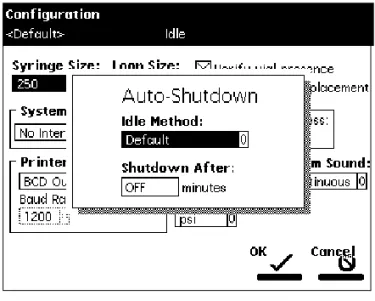
2. Press the Auto Shutdown screen key. The Auto-Shutdown dialog box appears (Figure 2-5).
Figure 2-5 Auto-Shutdown Dialog Box
3. Select the separation method to be used while the Separations Module is shut down. Only the initial conditions in the method you select are used.
4. Enter a time period (in minutes) after which you want the Separations Module to shut down (or press Clear to disable the Auto Shutdown function).
5. Press OK. The Separations Module shuts down when there has been no activity for the specified period.
6. Press Exit to return to the Main screen.
Note: If you want to use Auto Shutdown to turn off the lamp of a 2487 or 486 Detector, program a Lamp Off event and specify a time of INIT in the I/O Events Timed Table screen (see Section 6.2.5, Setting I/O Parameter Values, in the Waters 2695 Separations Module Operator’s Guide).
2.3 Preparing the Solvent Management System
For optimal performance of your Separations Module, perform the steps identified in Figure 2-6.Note: For details on how to prepare both degasser and sparge-based 2695 Separations Modules for operation, refer to Chapter 6, Recommended Preparation Procedures.
Preparing the Solvent Management System 17 Figure 2-6 Preparing the Solvent Management System for Operation
2.3.1 AutoStartPLUS Startup Routine
AutoStartPLUS is a new startup procedure introduced with version 2.00 firmware for 2695 Separations Modules.
To standardize your daily system startup routine, Waters developed a unique sample set and methods (protocols) to prepare your 2695 Separations Modules for chromatography. A sample set with unique separation methods called AutoStartPLUS was created to purge and equilibrate the system automatically. The 2695 Separations Module has been factory-programmed with the AutoStartPLUS protocols. You can copy and save AutoStartPLUS under a different sample file name, and then edit it to suit your specific needs.
For more information about AutoStartPLUS, refer to Section 3.5.1, AutoStartPLUS Startup Procedure, in the Waters 2695 Separations Module Operator’s Guide.
Caution: Observe safe laboratory practices when you handle solvents. Refer to the Material Safety Data Sheet for each solvent you use.
Start
Degas or Sparge Solvents
Prime the Plunger Seal Wash Pump
Solvent Management System is Ready to Operate Prepare Solvent Reservoirs
Prime the Solvent Management
2.3.2 Degassing Solvents
Inline Vacuum Degassing
Inline vacuum degassing reduces the total dissolved gas in the mobile phase. The system uses the PerformancePLUSTM
Inline Degasser, comprising a variable-speed, continuously operating vacuum pump and low volume degasser chambers that enable rapid instrument priming and equilibration. This allows you to become operational quickly from an idle state or following a solvent change.
For more information on vacuum degassing, refer to Section 1.5, the “Degasser Considerations” discussion in the Waters 2695 Separations Module Operator’s Guide.
Note: For proper operation of the inline vacuum degasser, you must fill each vacuum chamber with solvent. Use the dry prime direct function to prime all solvent lines. See
Section 2.3.3, Priming the Solvent Management System, for the procedure to dry prime the solvent lines.
To control the operation of the inline vacuum degasser from the Status screen:
1. Press the Menu/Status key. The Status screen appears, as shown in Figure 2-7. The content and layout of the Status screen varies with the options installed in the Separations Module and with the mode of operation.
Figure 2-7 Status Screen
2. Press the Next Page screen key (if necessary) to display the Degasser fields. 3. Select the Degasser mode field, then press Enter to display a list of degasser
Preparing the Solvent Management System 19 • On – The degasser is always on.
• Off – The degasser is always off.
4. Select the desired operating mode, then press Enter.
The Vac pump field displays the current status of the vacuum degasser pump. The Pressure field displays the current vacuum level in psia, bar, or kPa.
Sparging
In systems outfitted with the Sparge option, you can set the initial and maintenance sparge cycles from the Sparge screen. Also, you can set different sparge cycles for each of the four solvent reservoirs.
To program the sparge cycles from the Direct Function menu:
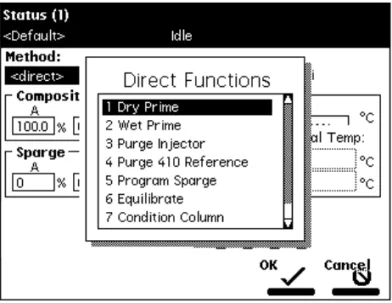
1. Press the Direct Function screen key in the Status screen. The Direct Functions menu appears (Figure 2-8).
Figure 2-8 Direct Functions Menu for the Program Sparge Option
2. Select the Program Sparge option, then press Enter. The Programmed Sparge dialog box appears (Figure 2-9).
Figure 2-9 Programmed Sparge Dialog Box
3. In the Time field, enter the time to run the initial sparge cycle, then enter values for each solvent reservoir for the following parameters:
• Initial sparge cycle rates • Idle sparge cycle rates
At a sparge cycle rate of 100%, the sparge valve is on at all times; at a sparge cycle rate of less than 100%, the sparge valve turns on and off periodically.
Press the Disable Sparge screen key if you do not want to sparge the reservoirs. Press the OK screen key. The timer starts counting down, and the sparge gas flows at the initial sparge cycle rates. The idle sparge cycle rate begins when the timer expires.
2.3.3 Priming the Solvent Management System
Dry Prime
Use the dry prime option to prime the system when the fluidic path in the solvent management system is dry.
To perform a dry prime:
1. Set up the reservoirs as described in the Waters 2695 Separations Module Operator’s Guide, Section 2.6, Making Fluidic Connections.
2. Insert the solvent tubing into the appropriate reservoir(s). Be sure the detector waste line and the sample loop waste line drain into an appropriate container. 3. Gently shake the filters in the reservoirs to remove any bubbles that may be trapped.
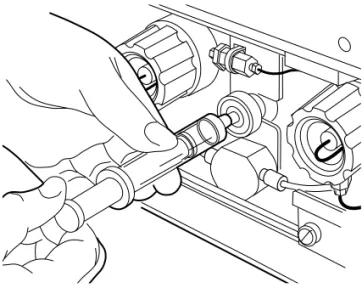
Preparing the Solvent Management System 21 4. Attach an empty syringe to the prime/vent valve, as shown in Figure 2-10, then open
the valve by turning it counterclockwise 1/2-turn.
Note: The syringe does not lock onto the prime/vent valve; hold it in place while you pull on the plunger.
Figure 2-10 Prime/Vent Valve with Syringe
5. Press the Direct Function screen key in the Status screen. The Direct Functions menu appears (Figure 3-4).
6. Select Dry Prime, then press Enter. The Dry Prime dialog box appears (Figure 2-11).
Figure 2-11 Dry Prime Dialog Box
7. Press the screen key corresponding to the solvent line you want to prime.
8. Withdraw the syringe plunger to pull solvent through the tubing. You may need to exert force to pull the air and solvent through the system. Continue until you pull all the air through the solvent line into the syringe.
9. Repeat steps 7 and 8 for each solvent line you want to prime, then close the prime/vent valve.
10. Press a screen key corresponding to the solvent line with which you want to prime the system. Waters recommends that you prime using the solvent with the lowest viscosity to help purge air from the lines, especially if the inline vacuum degasser is installed.
11. In the Enter a Duration field, enter the length of time (in minutes) to prime the solvent management system. Start with a value of 5 minutes. Press Continue.
The solvent management system begins to operate. At the end of the priming period, the solvent management system turns off and the Separations Module enters the Idle mode.
12. Perform a wet prime (described next).
Wet Prime
Perform a wet prime when you want to change reservoirs or solvents, or if the Separations Module has been idle for some time. The wet prime replaces solvent in the path from the
STOP
Attention: To avoid damage to the face seals, perform a wet prime only when there is solvent in the solvent management system fluidic path.
Preparing the Solvent Management System 23 reservoirs to V3 (waste). If the solvent lines are dry, perform the dry prime procedure before continuing.
To perform a wet prime:
1. In the Status screen Composition field, enter 100% for the first solvent you want to use for wet priming. Waters recommends that you start the wet prime using the solvent with the lowest viscosity to help purge air from the lines, especially if the inline vacuum degasser is installed.
2. Press the Direct Function screen key in the Status screen. The Direct Functions menu appears (Figure 3-4).
3. Select the Wet Prime option, then press Enter. The Wet Prime dialog box appears (Figure 2-12).
Figure 2-12 Wet Prime Dialog Box
4. Gently shake the filters in the reservoirs to remove any bubbles that may have formed.
5. Enter the flow rate and the duration of the prime (using the composition entered in the Status screen), then press OK. The solvent management system begins to operate.
At the end of the time period you specify, the solvent management system returns to previous conditions and the Separations Module enters the Idle mode.
STOP
Attention: To avoid precipitating salts in the Separations Module, use an intermediate solvent such as water when you change from buffers to high-organic-content solvents. Refer to the Waters 2695 Separations Module Operator’s Guide, Section C.3, Solvent Miscibility, for information on solvent miscibility.
6. Repeat steps 1–5 for each solvent, as appropriate.
Equilibrating Solvents in the Vacuum Degasser
Solvents are equilibrated in their respective degasser chamber by setting a zero flow rate for a short time period. The steps that follow describe this process.
To equilibrate solvents in the inline vacuum degasser after you have wet primed the system:
1. Enter the initial solvent composition for the run in the Status screen. 2. Set the Degasser Mode parameter to On.
3. Press the Direct Function screen key. The Direct Functions menu appears (Figure 3-4).
4. Select Wet Prime, then press Enter. The Wet Prime dialog box appears (Figure 2-12).
5. Enter a flow rate of 0.000 mL/min and a time of 5 min. At the end of the time period,
the solvents are degassed and the Separations Module enters the Idle mode. The solvents in the inline vacuum degasser are now equilibrated. Prime the plunger seal-wash pump as described below.
Priming the Plunger Seal-Wash Pump
For reversed-phase HPLC applications, use an aqueous plunger seal-wash solution with enough organic content to inhibit bacterial growth. For example, use an 80% water:20% methanol solution or an 80% water:20% acetonitrile solution, depending on your
application. For GPC separations, use a 50% methanol:50% water seal-wash solution. If required, use an intermediate solution to prevent immiscibility or precipitate problems when you switch between GPC and reversed-phase analytical solvents.
To prime the plunger seal-wash pump:
1. Press the Diag screen key in the Main screen. The Diagnostics screen appears (Figure 2-13). Refer to the Waters 2695 Separations Module Operator’s Guide, Section 8.3, Performing Main Diagnostics, for more information on the Diagnostics screen.
Preparing the Solvent Management System 25 Figure 2-13 Diagnostics Screen
2. Attach the syringe adapter to the syringe (both are found in the Startup Kit). 3. Remove the inlet filter from the seal-wash inlet tube.
4. Fill the syringe with the seal-wash solution, then attach the syringe adapter to the end of the seal-wash inlet tube.
5. Press the Prime SealWsh screen key, then press the Start screen key. The seal-wash procedure begins. Push on the syringe plunger to force seal-wash solvent through the system.
6. When seal-wash solvent flows out of the seal-wash waste tube, press the Halt
screen key.
7. Reinstall the inlet filter and place the seal-wash inlet tube in the seal-wash reservoir. 8. Press Close to return to the Diagnostics screen.
Before you make a run, perform a Condition Column or Equilibrate direct function as necessary.
2.4 Preparing the Sample Management System
Figure 2-14 shows the steps in preparing the sample management system for operation.
Figure 2-14 Preparing the Sample Management System for Operation
2.4.1 Purging the Sample Management System
Purge the sample management system whenever you: • Prime the solvent management system
• Change solvents
• See bubbles in the syringe
• Start using the Separations Module at the beginning of each day
To purge the sample management system:
1. In the Main screen, press the Menu/Status key to display the Status screen (Figure 2-7).
2. Enter the appropriate solvent composition in the Composition fields.
3. Press Direct Functions to display the Direct Functions menu (Figure 3-4).
STOP
Attention: To avoid precipitating salts in the Separations Module, use an intermediate solvent such as water when you change from buffers to high-organic-content solvents.
Start
Adjust the Seal Pack
Prime the Needle- Wash Pump Separations Module is Ready to Operate Load the Carousels Purge the Sample
Management System
Preparing the Sample Management System 27 4. Select Purge Injector, then press Enter. The Purge Injector dialog box appears
(Figure 2-15).
Figure 2-15 Purge Injector Dialog Box
5. Enter the number of sample loop volumes in the Sample Loop Volumes field (use the default value of 6.0 volumes), then press Enter. The solvent management system ramps up to a predetermined flow rate to flush the sample loop with the selected volume.
6. Leave the Compression Check check box blank the first time you start up the system to prevent a compression test from occurring. The Separations Module does not allow a compression test before the seal pack is adjusted.
7. Press OK. The purge cycle begins.
2.4.2 Priming the Needle-Wash Pump
The needle-wash pump flushes the needle in the sample management system, preventing carryover of sample between injections. The needle wash also extends the life of the injector seals by removing buffered mobile phase and sample from the needle.
Selecting a Needle-Wash Solvent
Use a needle-wash solvent based on the sample and mobile phase chemistries, making sure all solutions/buffers are miscible and soluble. Table 2-1 lists some needle-wash solvents recommended for use with certain mobile phase conditions. High sample concentrations may require other needle-wash solvents.
To prime the needle-wash pump:
1. Be sure the needle-wash fluidic lines are properly installed, as described in the Waters 2695 Separations Module Operator’s Guide, Section 2.6.6, Installing Needle Wash and Plunger Seal Wash Reservoirs.
2. Press the Diag screen key in the Main screen. The Diagnostics screen appears (Figure 2-13).
3. Press the Prime NdlWsh screen key. The 30-second needle-wash procedure begins. If solvent does not flow out of the waste tube within 30 seconds, press the
Start Again screen key.
2.4.3 Adjusting the Seal Pack
Adjust the seal pack whenever:• You start up the Separations Module for the first time. The Separations Module does not perform injections and compression checks until the seal pack has been
adjusted.
• A “Compression Check Failed” error appears on the screen.
• A “Missing Restrictor” alarm appears during a diagnostic procedure. • You change the seal pack.
• You rebuild the seal pack.
Before you adjust the seal pack, purge the sample management system (Section 2.4.1, Purging the Sample Management System) to ensure that there is no air in the syringe. Air Table 2-1 Suggested Needle-Wash Solvents
Chromatographic Condition Needle-Wash Solvent
Buffered aqueous, reversed-phase 80% organic, 20% aqueousa
a. If the aqueous portion of the analytical solution is pH-adjusted to ensure sample solubility, match the pH of the aqueous portion of the needle-wash solution to it.
If acids are used, avoid long-term exposure of the needle-wash system to halide- containing acids.
Nonaqueous, reversed-phase 100% MeOH
Normal phase Mobile phase
GPC Mobile phase
Preparing the Sample Management System 29 in the system may cause Alarm Seal Geometry or Alarm Missing Restrictor dialog boxes to erroneously appear.
To adjust the seal pack:
1. Press the Diag screen key in the Main screen to display the Diagnostics screen. 2. Press the Adjust Seals screen key. The adjustment procedure begins. When the
test is complete, the results are shown in the dialog box that appears.
2.4.4 Loading Carousels
Loading carousels involves:
• Loading the vials into the carousel
• Loading the carousel into the sample compartment
Loading Vials
Use only 12 × 32 mm, 2-mL vials with snap-on, crimp-on, or screw-on caps.
Insert the prepared vials into the appropriate positions in the carousel(s). Be sure to place vials in the numbered slots that correspond to the sample set (if any) you are using. If you are not using a sample set, enter the sample vial positions in the Inject Samples dialog box. If you are using the bar code option, make sure you have correctly attached labels to the vials.
Loading the Carousel
Table 2-1 lists the carousels and their color codes.
To load the carousels:
1. Open the carousel door. The Door is Open dialog box appears in the screen (Figure 2-16).
Table 2-1 Carousels and Color Codes
Code Color Vial Numbers
A Blue 1 to 24
B Yellow 25 to 48
C Red 49 to 72
D Green 73 to 96
Figure 2-16 Door is Open Dialog Box
2. Press the Next screen key (or select the desired carousel screen key) to position the carousel turntable for loading the appropriate carousel.
3. Load the carousel into the sample compartment.
4. Repeat steps 2 and 3 until all appropriate carousels are loaded.
5. Close the carousel door. If you enable the “Verify carousel placement” check box (the default setting) in the Configuration screen, an error message appears if you attempt to make an injection from a carousel that is in the wrong position.
31
Chapter 3
Direct Control Runs
This chapter describes the procedures for performing a direct control (manual) run. Figure 3-1 provides an overview of the procedures. To make an automatic run, refer to Chapter 4, Automatic Runs.
Figure 3-1 Setting Up a Direct Control Run
You perform direct control runs from the Status screen (Figure 3-2 and Figure 3-3). The fields in the Status screen indicate the status or values of the current operating
parameters, as described in Table 3-1. The Status screen also allows you to enter new values for certain parameters.
Press Menu/ Status Key The Function Begins to Run Select Separation Method, or Enter Parameter Values in
the Status Screen
Press the Direct Function
Screen Key
Select the Direct Function to Perform
Enter the Function Parameters
Figure 3-2 First Page of Status Screen (Default)
Press the Next Page screen key to display the second page of the Status screen (Figure 3-3).
33 Table 3-1 Current Status Screen Parameters
Parameter Description
Method Indicates the current separation method. When you change any parameter in the Status screen, this field changes to <direct>. Flow Indicates the current flow rate of the solvent management
system.
System Indicates the current system pressure in psi, bar, or kPa. Sample: Set Indicates the user-specified sample compartment temperature. Sample: Current Indicates the current actual sample compartment temperature. Composition Indicates the current solvent composition.
S1 – S4 Indicates the status of the event switches on the I/O connector. Degasser
• Mode • Vac pump • Pressure
Indicates the status of the inline vacuum degasser (if installed). Selects the mode of operation: On (enabled) or Off (disabled). Indicates whether the vacuum pump motor is active or idle. Current vacuum level in psi, bar, or kPa.
Sparge Indicates the sparge rate cycle for each solvent (if sparge is installed)
V1 – V4 Indicates the position (open or closed) of each of the valves in the sample management system. See the Waters 2695 Separations Module Operator’s Guide, Section 1.3, Sample Management System Overview, for a description of the valves.
Pressure Ripple • Max psi • Min psi • Delta psi
Indicates pressure readings in the solvent management system for the last minute.
Maximum pressure Minimum pressure
Peak-to-peak pressure difference
Syr Indicates the current position of the syringe. Valid positions are: • Home – Default position
• Empty – Highest position (to purge the syringe) • Full – Lowest position (to draw in sample)
Vial Indicates the number of the vial that is currently under the injector.
Ndl Wash Indicates whether the needle-wash pump is on. Sample Indicates the current pressure in the sample loop.
To access the direct control functions:
1. Press the Menu/Status key (if necessary) to display the Status screen (Figure 3-2). 2. Press the Direct Function screen key. The Direct Functions menu appears
(Figure 3-4). Table 3-2 describes each of the direct functions.
3. Select the function you want to specify (press the number beside the function, or use the arrow keys), then press Enter. Follow the instructions for each function. Column Temp Indicates the desired and current temperature of the column (if
the column heater is installed).
Injector Indicates the current position of the injector. Valid positions are: • Stream – In the high pressure stream
• Seal – In the lower seal position • Wet – In the needle wash position • Vial – In the sample vial
486 (1) and (2) • λ
• Lamp • AUFS
Indicates the current status of the following parameters for the 486 Detector(s) (if installed).
• Wavelength • Lamp On or Off
• Absorbance Units Full-Scale 2487 (1) and (2)
• λ • Lamp • AUFS
Indicates the current status of the following parameters for the 2487 Detector(s) (if installed):
• Wavelength • Lamp On or Off
• Absorbance Units Full-Scale 2410 and 410
• Cell • Col 1 • Col 2
Indicates the current status of the following parameters for the 2410 or 410 Detector (if installed):
• Cell Temperature • External Temp 1a • External Temp 2a
a. Enabled if the optional column heater module is configured with the Waters 2410 or 410 Detector.
Table 3-1 Current Status Screen Parameters (Continued)
35 Figure 3-4 Direct Functions Menu
Table 3-2 Direct Control Functions
Direct Control Function Description
Dry Prime Opens the fluidic path (from the selected solvent reser-voir to the prime/vent valve) to replace air with solvent, then performs a prime.
Wet Prime Replaces solvent in the path from the reservoirs to V1 and then to waste. Use to change the solvent(s) in the system.
Purge Injector Removes mobile phase from the sample loop and from the syringe and fills it with fresh mobile phase. As an option, performs a compression test.
Purge 2410/410 Reference (if applicable)
Purges the Waters 2410 or 410 RI Detector reference cell.
Program Sparge (if applicable) Sets the sparge rate for each reservoir.
Equilibrate Delivers mobile phase at the current conditions for the specified period of time. Equilibrates the temperature in the sample compartment and column heater at preset values.
Condition Column Delivers mobile phase using the gradient table speci-fied in the current separation method without injecting a sample or running the Events table.
Inject Samples Injects a sample one or more times from the specified vial(s) using the selected method.
Chapter 4
Automatic Runs
This chapter describes how to set up the Separations Module to make automatic runs in: • System Controller or No Interaction mode
• Controlled by Millennium32 Chromatography Manager modes (2.xx or Millennium32) • Controlled by MassLynx mode
System Controller or No Interaction Mode
If your HPLC system uses the 2695 Separations Module in a System Controller or No Interaction mode, you make an automatic run using a sample set or sample template stored in the Separations Module. Refer to Section 4.1, Making Automatic Runs in Stand-Alone Mode, for details. Refer to the Waters 2695 Separations Module Operator’s Guide, Chapter 6, Creating Separation Methods, Sample Sets, and Templates, for information on creating and editing separation methods, sample sets, and sample templates.
Controlled by Millennium
32Chromatography Manager Modes
If your HPLC system is controlled by the Millennium32 Chromatography Manager, you make an automatic run using a project, instrument method, and sample set stored in the Millennium32 Chromatography Manager. Refer to the procedures in Section 4.2, Making Automatic Runs Under Millennium Control, for details on making a run using Millennium32 software.
Controlled by MassLynx Mode
If your HPLC system is controlled by Micromass MassLynx software, you make an automatic run using the sample processing list containing the LC method(s) that define the Separations Module and detector (other than the MS Detector) operating parameters. Refer to Section 4.3, Making Automatic Runs Under MassLynx Control, for details on making a run using MassLynx software.
37
4.1 Making Automatic Runs in Stand-Alone Mode
Figure 4-1 shows the steps for setting up and making an automatic run with a Separations Module in a stand-alone configuration (System Controller or No Interaction mode).
Figure 4-1 Making an Automatic Run in a Stand-Alone Configuration
Running a Sample Set
Note: If you plan on importing sample sets stored on a diskette, refer to the “Importing Methods” discussion later in this section.
To run a sample set in a stand-alone mode:
1. Press the Run Samples screen key in the Main screen (Figure 2-2). The Run Samples screen appears (Figure 4-2). Table 4-1 describes the icons used in the Run Samples screen.
Press the Run Samples Screen Key
on the Main Screen Enter Information Required by the Separation Method, Sample Set, or Sample
Template
Press the Run Screen Key to Select Conditions, or Press the Initial Conditions Screen Key to Start the Solvent
Management System
The Run Ends as Programmed Select the Separation
Method, Sample Set, or Sample Template to Run
Press the Routine
Screen Key to Begin the Run
Figure 4-2 Run Samples Screen
2. Select the sample set you want to run.
3. Press one of the following screen keys to perform the indicated tasks:
• Initial Conds – Starts the solvent management system at the initial conditions
(specified in the first line of the sample set) and begins equilibrating the
temperature in the sample heater/cooler and/or column heater. When the system is equilibrated, press the Run screen key.
• Run – Displays the selected sample set table (to view or edit), as shown in
Figure 4-3. Use the screen keys to modify the table as necessary. Table 4-1 Run Sample Screen Icons
Icon Description
Separation Method Sample Set Sample Template
Making Automatic Runs in Stand-Alone Mode 39 Figure 4-3 Sample Set Screen – Functional View
4. Load the sample vials into the carousel(s) according to the locations specified in the sample set (see Section 2.4.4, Loading Carousels).
5. Press the Start screen key. The Run Samples screen appears with a list of the solvents required for the run (Figure 4-4). Check that you have prepared the Separations Module with the indicated solvent(s).
Figure 4-4 Run Samples Screen with Solvents Required Dialog Box
6. Press the Routine screen key to start a normal run. To modify a run in progress, refer to the “Editing a Separation Method” discussion that follows. To make a stat run, refer to the “Performing a Stat Run” discussion that follows.
Making a Run from a Sample Template
Note: If you plan on importing sample templates stored on a diskette, refer to the “Importing Methods” discussion later in this section.
You can perform an automated run in a stand-alone mode using a sample template stored in the Separations Module. Screen prompts give you step-by-step directions to prepare for the run. Refer to the Waters 2695 Separations Module Operator’s Guide, Chapter 6, Creating Methods, Sample Sets, and Sample Templates, for a description of sample templates.
To run a sample template in a stand-alone mode:
1. Press the Run Samples screen key in the Main screen. The Run Samples screen appears (Figure 4-2).
2. Select the sample template you want to run (see Table 4-1), then press Enter. The Setup dialog box appears, as shown in Figure 4-5.
Figure 4-5 Setup Dialog Box
3. Enter the number of samples to run, then press the Continue screen key.
4. Enter the location of the first sample vial, then press the Continue screen key. You must use consecutive sample vials on one or more carousels.
5. Repeat steps 3 and 4 if the sample template includes multiple separation methods. 6. Enter the number of standards in the run, then press the Continue screen key. 7. Enter the location of the first standard vial, then press the Continue screen key. You
Making Automatic Runs in Stand-Alone Mode 41 8. Make sure that the solvents listed in the dialog box are primed and in the
appropriate inlet tubes, then press the Start screen key.
Modifying a Sample Set During a Run
You can modify operating conditions during a run in a stand-alone mode by: • Using the stat run function
• Editing the separation method
Performing a Stat Run
You can use the stat run function to interrupt a run in progress and perform one or more injections after the current injection is done, then continue with the scheduled run. Performing a stat run is most useful when running separation methods that use identical solvents and temperatures.
To perform a stat run while a sample set is running:
1. Load the sample(s) into the carousel, then place the carousel in the sample compartment.
2. Press the Run Samples screen key in the Main screen. The Run Samples screen
appears (Figure 4-2).
3. Select the separation method or sample set you want to use for the stat run, then press the Run screen key.
4. Enter the carousel position of the vial(s) and other parameters in the appropriate fields in the screen.
5. Press the Start screen key. A screen appears with a list of the solvents required for the run, as shown in Figure 4-4. Check that you have prepared the Separations Module with the indicated solvent(s).
6. Press the Stat screen key. The stat run starts immediately after the current injection is complete. The original sample set resumes after the stat run is complete.
Editing a Separation Method
You can modify a separation method while a sample set is running. If the separation method is being used for the current injection, the current injection is not affected by the changes. You must save the changes to the modified separation method before you can apply the method to all subsequent injections that use that separation method. Use the procedures in the Waters 2695 Separations Module Operator’s Guide, Section 6.1, Creating and Editing Separation Methods, to modify and save the separation method.
Importing and Exporting Methods
You can use the floppy disk drive in the Separations Module to import and export separation methods, sample sets, and sample templates to 1.44-MB, standard
PC-formatted floppy disks. Also, by saving reports and tables to a floppy disk, you can use the disk drive as an alternative to a hard-copy printer.
Importing Methods
To import one or more methods from a floppy disk:
1. Insert the disk that contains the method(s) into the floppy disk drive.
2. Press the Methods screen key in the Main screen, then press the More screen key twice to access the Methods screen (Figure 4-7).
3. Press the Import Methods screen key. The Import Methods screen appears, displaying a list of methods stored on the disk (Figure 4-6). To update the list, press the Refresh screen key.
Figure 4-6 Import Methods Screen
4. Select the method you want to import into the Separations Module, then press the
Select Method screen key. To select additional methods, select each method and
press Select Method again.
5. After you select all the methods you want to import, press the Import Now screen key. The file transfer begins.
An error message appears if you attempt to import a method that already exists in the Separations Module. You can choose to overwrite the existing method.
STOP
Attention: Do not remove the floppy disk from the drive before the import is complete; the Separations Module cannot detect a partially imported method. Waters recommends that you carefully review any impor ted method before you run the method.
Making Automatic Runs in Stand-Alone Mode 43 An error message appears if you attempt to transfer more than 60 methods into the Separations Module.
Exporting Methods
To export one or more separation methods, sample sets, or sample templates to a floppy disk:
1. Insert a preformatted 3.5-inch disk into the floppy disk drive in the Separations Module.
2. Press the Methods screen key in the Main screen, then press the More screen key twice to access the Methods screen (Figure 4-7).
Figure 4-7 Methods Screen
3. Press the Export Methods screen key. The Export Methods screen appears, displaying a list of currently stored methods (Figure 4-8).
Figure 4-8 Export Methods Screen
4. Select the method you want to export to the disk, then press Select Method. To select an additional method, select the method desired, then press Select Method
again.
To select all methods except the Default method:
a. Select the Default method, then press the Select Method screen key.
b. Press the Invert Choices screen key. All methods except the Default method are selected.
5. When you have selected all the methods you want to transfer, press the Export Now screen key. The file transfer begins.
4.2 Making Automatic Runs Under Millennium Control
If your Separations Module is configured for Millennium Chromatography Manager control (Millennium version 2.xx or Millennium32), you make an automatic run from Run Samples (QuickSet in Millennium versions earlier than 3.20) in the Millennium software. When the Separations Module is running under Millennium control, the word “Remote” appears in the banner area.
Making Automatic Runs Under Millennium Control 45
Making a Run Using Millennium Software
To make an automatic run, perform the following steps at the Millennium workstation: 1. Create a chromatographic system that includes the Waters 2695 Separations
Module:
• For Millennium software version 2.1x, create a system that includes the Waters 2695 Solvent Management System and the Sample Management System. Refer to the Millennium documentation for information on creating a chromatographic system.
• For Millennium32
software, create a system that includes the Waters 2695 Separations Module. Refer to the Millennium32
Help for information on creating a chromatographic system.
2. Create a Millennium instrument method that uses the system you created in step 1. Refer to the Millennium documentation for information on creating and/or modifying an instrument method.
Note: Any parameter values not explicitly set in the Millennium instrument method automatically take on the values in the Default separation method in the Separations Module.
You can edit the Default separation method in the Separations Module to set parameter values appropriate for your applications.
3. Create a method set that uses the instrument method you created in step 2. Refer to the Millennium documentation for information on creating and/or modifying a method set.
4. From Millennium³² software, run the samples in Run Samples (QuickSet in Millennium versions earlier than 3.20) using the method set you created in step 3. When you enter Run Samples, use the HPLC system you created in step 1. Refer to the Millennium documentation for information on using Run Samples.
5. Process and print out the data acquired from the chromatographic run. Refer to the Millennium documentation for information on developing a processing method.
Note: You can operate the Separations Module from its front panel whenever Run Samples is not running on the Millennium Chromatography Manager workstation.
4.3 Making Automatic Runs Under MassLynx Control
If your Separations Module is configured for MassLynx software control (version 3.5), you make an automatic run from the MassLynx software. When the Separations Module is running under MassLynx control, the word “Remote” appears in the banner area.Making an Automatic Run Using MassLynx Software
To make an automatic run, perform the following steps at the Micromass MassLynx computer:
1. Configure an LC-MS system that includes the Separations Module. Refer to MassLynx Help for information on configuring an inlet system.
2. From the Inlet Editor, create an LC method for the Separations Module and detector (other than the mass spectrometer). Refer to MassLynx Help for information on using the Inlet Editor.
3. Acquire a single sample from the Inlet Editor. To acquire multiple samples, create a sample processing list from the MassLynx Top Level screen. Refer to MassLynx Help for information on sample processing lists and acquisition.
4. Process and print out the data acquired from the chromatographic run. Refer to MassLynx Help for information on processing data.
You can operate the Separations Module from its front panel whenever MassLynx is not running.
4.4 Stopping a Run
To stop a run in progress, press one of the following keys from the Status screen: • Stop Inject (screen key) – Stops the current injection and displays a dialog box
requesting you to abort or resume the injection
• Hold Inject (screen key) – Completes the current function, suspends operation of
subsequent functions, and displays screen keys that allow you to abort or resume the sample set
• Hold Gradient (screen key) – Holds the current gradient conditions. A screen key
allows you to resume the gradient
• Stop Flow (on the keypad) – Stops the flow of solvent, suspends operation of the
current function, and displays screen keys that allow you to abort or resume the function
Stopping a Run 47 If any alarm condition specified in the separation method, sample set, or sample template is set to “Stop Function” or “Stop Flow” and the alarm condition occurs, a dialog box appears notifying you of the alarm condition. The following screen keys are in this dialog box:
• Abort – Cancels the current function
Chapter 5
Powering Off the Separations
Module
Before Powering Off
Before you power off the Separations Module, remove any buffered mobile phase present in the fluidic path.
To remove buffered mobile phase from the fluidic path of the Separations Module: 1. Replace the buffered mobile phase with HPLC-quality water and prime the system
for 10 minutes at 3 mL/min (see Section 2.3.3, Priming the Solvent Management System, the “Wet Prime” discussion).
2. Perform three injector purge cycles to ensure that the sample loop is clean (see Section 2.4.1, Purging the Sample Management System).
3. Replace the plunger seal-wash solvent with a fresh solution of 80% water: 20% methanol or a miscible solvent, and prime the plunger seal-wash pump (see Section 2.3.3, Priming the Solvent Management System, the “Priming the Plunger Seal-Wash Pump” discussion).
4. Replace the water mobile phase with a solution of 90% methanol: 10% water, and flush the system for 10 minutes at 3 mL/min.
5. Replace the needle-wash solvent with a solution of 90% methanol: 10% water or a miscible solvent, and perform a needle-wash prime (see Section 2.4.2, Priming the Needle-Wash Pump).
Powering Off
To power off the Separations Module:
1. Ensure that the system has been flushed properly (see the “Before Powering Off” discussion above).
2. Press the power switch to the 0 (Off) position. The time and date of power-off cycles are entered in the log file.
STOP
Attention: To avoid damaging your column, remove the column before you perform the following procedure.
49
Chapter 6
Recommended Preparation
Procedures
This chapter outlines the steps to prepare both degasser- and sparge-based 2695 Separations Modules for operation using Waters-recommended procedures. Flowcharts provide the sequence of steps to prime, equilibrate, and purge a Separations Module that is in one of the following states:
• A new or dry Separations Module
• A Separations Module that has been turned off or left idle with no flow
• A Separations Module that requires a solvent change, such as from a buffered solvent to an organic solvent
For step-by-step instructions on how to use Direct Functions to prime, equilibrate, and purge your Separations Module, refer to the Waters 2695 Separations Module Operator’s Guide, Chapter 4, Section 4.4, Performing Direct Functions.
Note: All flowchart references in this sections refer to chapters or figures in the Waters 2695 Separations Module Operator’s Guide.
Figure 6-1 outlines how to prime, equilibrate, and purge a sparge-based Separations Module that is new or dry.
Note: All flowchart references refer to sections or figures in the Waters 2695 Separations Module Operator’s Guide.
Figure 6-1 Preparing a New or Dry Separations Module for Operation (Sparge-Based Unit)
Fill the Solvent Reservoirs with Fresh Solvent Filtered and Degassed by Vacuum Filtration (See Section 2.6.3) Sparge all Reservoirs at an Initial Sparge Rate
of 100% for at Least 15 min., Then Set an Idle Sparge Rate of 30 to 50% Equilibrate for a Minimum of 10 Column Volumes (See Section 4.4.5)
Purge the Injector for a Minimum of 6
Loop Volumes (See “Purging the
Injector” in Section 4.4.2) Perform a Dry
Prime (to Fill Each Solvent Line) See Section 4.4.1
Perform a Wet Prime (for One of the Solvents) for 5
min at 5.00 mL/min (See Section 4.4.2)
Repeat the Wet Prime (at the Same
Rate and Time) for Each Solvent
To Make a Gradient Run (for Example, A:B), Set the A and B Composition Fields in the Status Screen to
50%, Then Wet Prime for 2 min at
5.00 mL/min (See Section 4.4.2) Start
Prime the Plunger Seal Wash Pump (See Section 3.3.3)
Prime the Needle Wash Pump (See Section 3.4.2)
51 Figure 6-2 outlines how to prime, equilibrate, and purge a vacuum degasser-based Separations Module that is new or dry.
Note: All flowchart references refer to sections or figures in the Waters 2695 Separations Module Operator’s Guide.
Figure 6-2 Preparing a New or Dry Separations Module for Operation (PerformancePLUS Degasser-Based Unit)
Fill all Foura Solvent Reservoirs with Fresh Solvent Filtered and Degassed by Vacuum Filtration (See Section 3.3.1)
Set the Degasser to
On (See “Equilibrating Solvents in the Vacuum Degasser” in Section 4.4.2) Equilibrate for a Minimum of 10 Column Volumes (See Section 4.4.5)
Purge the Injector for a Minimum of 6 Loop Volumes (See “Purging the
Injector” in Section 4.4.2) Perform a Dry Prime
(to Fill Each Solvent Line and Degasser Chamber)
(See Section 4.4.1)
Perform a Wet Prime (for One of the Solvents) for 0.5
min at 5.00 mL/min (See Section 4.4.2)
Repeat the Wet Prime (at the Same
Rate and Time) for Each Solvent
To Make a Gradient Run (for Example, A:B), Set the A and B Composition Fields in the Status
Screen to 50%, Then Wet Prime for
2 min. at 5.00 mL/min (See Section 4.4.2) Start Equilibratethe Solvent in the Degasser Chamber by Setting a Flow Rate of 0.000
mL/min for 5 min. (See “Equilibrating
Solvents in the Vacuum Degasser”
in Section 4.4.2)
a
To maximize degasser efficiency (and fill all four degasser chambers with solvent), Waters rec-ommends that all four solvent reservoirs be filled (even if four solvents are not used). If you choose water as one of the “unused” solvents, change the water weekly to prevent bacterial
Prime the Plunger Seal Wash Pump (See Section 3.3.3)
Prime the Needle Wash Pump (See Section 3.4.2)
Figure 6-3 outlines how to prime, equilibrate, and purge a sparge-based Separations Module that is idle or has been powered off with no solvent flow.
Note: All flowchart references refer to sections or figures in the Waters 2695 Separations Module Operator’s Guide.
Figure 6-3 Preparing an Idle or Powered-Off Separations Module for Operation (Sparge-Based Unit)
Fill the Solvent Reservoirs with Solvent Filtered and
Degassed by Vacuum Filtration (See Section 3.3.1)
Sparge all Reservoirs at an Initial Sparge Rate
of 100% for at Least 15 min., Then Set an Idle Sparge Rate of 30 to 50% Equilibrate for a Minimum of 10 Column Volumes (See Section 4.4.5)
Purge the Injector for a Minimum of 6
Loop Volumes (See “Purging the
Injector” in Section 4.4.2) Perform a Wet
Prime (for One of the Solvents) for 2
min. at 5.00
mL/min. (See
Repeat the Wet Prime (at the Same
Rate and Time) for Each Solvent
To Make a Gradient Run (for Example, A:B), Set the A and B Composition Fields in the Status
Screen to 50%, Then Wet Prime for
1 min at 5.00
mL/min (See Section 4.4.2) Check Plunger Seal
Wash Fluid levels. Refill and Prime, if
Necessary (aSee Sections 2.6.6. and 3.3.3)
Check Needle Wash Fluid Levels. Refill
and Prime, if Necessary (aSee Sections 2.6.6
and 3.4.2)
a
If you have just performed the steps from the flowchart “Changing from a Buffered Solvent to an Organic Solvent”, ensure that the Plunger Seal Wash and Needle Wash solvents are com-patible with the new solvents.