Sander van Vugt
Beginning Ubuntu
Server Administration
From Novice to Professional
Beginning Ubuntu Server Administration: From Novice to Professional Copyright © 2008 by Sander van Vugt
All rights reserved. No part of this work may be reproduced or transmitted in any form or by any means, electronic or mechanical, including photocopying, recording, or by any information storage or retrieval system, without the prior written permission of the copyright owner and the publisher.
ISBN-13 (pbk): 978-1-59059-923-5 ISBN-10 (pbk): 1-59059-923-3
ISBN-13 (electronic): 978-1-4302-0509-8 ISBN-10 (electronic): 1-4302-0509-1
Printed and bound in the United States of America 9 8 7 6 5 4 3 2 1
Trademarked names may appear in this book. Rather than use a trademark symbol with every occurrence of a trademarked name, we use the names only in an editorial fashion and to the benefit of the trademark owner, with no intention of infringement of the trademark.
Lead Editors: Jason Gilmore, Tom Welsh Technical Reviewer: Curtis Smith
Editorial Board: Steve Anglin, Ewan Buckingham, Tony Campbell, Gary Cornell, Jonathan Gennick, Jason Gilmore, Kevin Goff, Jonathan Hassell, Matthew Moodie, Joseph Ottinger, Jeffrey Pepper, Ben Renow-Clarke, Dominic Shakeshaft, Matt Wade, Tom Welsh
Senior Project Manager: Kylie Johnston Copy Editor: Tom Gillen
Associate Production Director: Kari Brooks-Copony Senior Production Editor: Laura Cheu
Compositor: Molly Sharp, ContentWorks Proofreader: April Eddy
Indexer: Brenda Miller Artist: April Milne
Cover Designer: Kurt Krames
Manufacturing Director: Tom Debolski
Distributed to the book trade worldwide by Springer-Verlag New York, Inc., 233 Spring Street, 6th Floor, New York, NY 10013. Phone 1-800-SPRINGER, fax 201-348-4505, e-mail [email protected], or visit http://www.springeronline.com.
For information on translations, please contact Apress directly at 2855 Telegraph Avenue, Suite 600, Berkeley, CA 94705. Phone 510-549-5930, fax 510-549-5939, e-mail [email protected], or visit
http://www.apress.com.
The information in this book is distributed on an “as is” basis, without warranty. Although every precaution has been taken in the preparation of this work, neither the author(s) nor Apress shall have any liability to any person or entity with respect to any loss or damage caused or alleged to be caused directly or indirectly by the information contained in this work.
The source code for this book is available to readers at http://www.apress.com.
Contents at a Glance
About the Author
. . . xvAbout the Technical Reviewer
. . . xviiIntroduction
. . . xix■
CHAPTER 1
Installing Ubuntu Server
. . . 1■
CHAPTER 2
Getting the Most Out of the Command Line
. . . 25■
CHAPTER 3
Performing Essential System Administration Tasks
. . . 47■
CHAPTER 4
Performing File System Management Tasks
. . . 73■
CHAPTER 5
Configuring Your Server for Security
. . . 107■
CHAPTER 6
Setting the System to Your Hand
. . . 151■
CHAPTER 7
Running It Anyway You Like
. . . 185■
CHAPTER 8
Making Connection
. . . 217■
CHAPTER 9
Configuring Network Infrastructure Services
. . . 255■
CHAPTER 10
Using Ubuntu Server As a File and Print Server
. . . 287■
CHAPTER 11
Setting Up Web Services
. . . 313■
CHAPTER 12
Multiplying Your Server
. . . 329■
INDEX
. . . 343Contents
About the Author
. . . xvAbout the Technical Reviewer
. . . xviiIntroduction
. . . xix■
CHAPTER 1
Installing Ubuntu Server
. . . 1Preparing for the Installation
. . . 1Starting the Ubuntu Server Installation Process
. . . 2Configuring the Server’s Hard Drive
. . . 8Completing the Installation
. . . 22Summary
. . . 24■
CHAPTER 2
Getting the Most Out of the Command Line
. . . 25Working As root?
. . . 25Working with the Shell
. . . 26Using Bash to Best Effect
. . . 26Managing Bash with Key Sequences
. . . 29Performing Basic File System Management Tasks
. . . 30Working with Directories
. . . 30Working with Files
. . . 31Viewing the Content of Text Files
. . . 33Finding Files That Contain Specific Text
. . . 35Creating Empty Files
. . . 36Piping and Redirection
. . . 37Piping
. . . 37Redirection
. . . 37Finding Files
. . . 40Working with an Editor
. . . 40Vi Modes
. . . 41Saving and Quitting
. . . 42Cut, Copy, and Paste
. . . 42Deleting Text
. . . 42Getting Help
. . . 43Using man to Get Help
. . . 43Using the --help Option
. . . 45Getting Information on Installed Packages
. . . 46Summary
. . . 46■
CHAPTER 3
Performing Essential System Administration Tasks
. . . 47Software Management
. . . 47Software Repositories and Package Databases
. . . 48Package Management Utilities
. . . 49Installing Software from Tarballs
. . . 57Configuring a Graphical User Interface
. . . 58Creating Backups
. . . 60Making File Backups with tar
. . . 60Making Device Backups Using dd
. . . 63Configuring Logging
. . . 64Configuring syslog
. . . 64Logging in Other Ways
. . . 69Rotating Log Files
. . . 69Summary
. . . 72■
CHAPTER 4
Performing File System Management Tasks
. . . 73Mounting Disks
. . . 73Using the mount Command
. . . 73Unmounting Devices
. . . 77Automating Mounts with /etc/fstab
. . . 78Checking File System Integrity
. . . 81Working with Links
. . . 82Why Use Links?
. . . 82Working with Symbolic Links
. . . 82Working with Hard Links
. . . 84Configuring Storage
. . . 85Comparing File Systems
. . . 85Creating File Systems
. . . 94Working with Logical Volumes
. . . 97Doing Magic on Your File Systems with dd
. . . 102■
CHAPTER 5
Configuring Your Server for Security
. . . 107Setting Up User Accounts
. . . 107Commands for User Management
. . . 108Managing Passwords
. . . 110Modifying and Deleting User Accounts
. . . 112Behind the Commands: Configuration Files
. . . 112Creating Groups
. . . 117Commands for Group Management
. . . 117Behind the Commands: /etc/group
. . . 117Managing the User’s Shell Environment
. . . 118Configuring Permissions
. . . 119Read, Write, and Execute: The Three Basic Linux Permissions
. . . 119Permissions and the Concept of Ownership
. . . 119Working with Advanced Linux Permissions
. . . 122Setting Permissions
. . . 124Using umask to Set Default Permissions
. . . 125Working with Access Control Lists
. . . 126Preparing the File System for ACLs
. . . 127ACL Limitations
. . . 129Applying File Attributes
. . . 130Apply Quota to Allow a Maximum Amount of Files
. . . 131Installing the Quota Software
. . . 132Preparing the File System for Quota
. . . 132Initializing Quota
. . . 132Setting Quota for Users and Groups
. . . 133Understanding Pluggable Authentication Modules
. . . 134Creating a Default Policy for Security
. . . 136Discovering PAM Modules
. . . 136Configuring Administrator Tasks with sudo
. . . 140An Introduction to Setting Up the Netfilter Firewall with iptables
. . . 141Netfilter Building Blocks
. . . 142Using iptables to Create a Firewall
. . . 144Summary
. . . 149■
CHAPTER 6
Setting the System to Your Hand
. . . 151Process Monitoring and Management
. . . 151Different Kinds of Processes
. . . 151Foreground and Background
. . . 152Managing Processes
. . . 154Other Tools to Monitor System Activity
. . . 157Executing Processes Automatically
. . . 161Configuring cron
. . . 161Executing Once with at
. . . 163Tuning the Boot Procedure
. . . 164Managing the GRUB Boot Loader
. . . 164The GRUB Configuration File
. . . 165Installing GRUB
. . . 167Working with the GRUB Boot Menu
. . . 168Upstart
. . . 169Runlevels
. . . 171Making Service Management Easier
. . . 173Managing Hardware
. . . 174Kernel Management
. . . 174Installing Your Own Custom Kernel
. . . 178Hardware Management with udev
. . . 180Summary
. . . 183■
CHAPTER 7
Running It Anyway You Like
. . . 185Before You Even Start
. . . 185To Script or Not to Script?
. . . 185What Shell?
. . . 186Basic Elements of a Shell Script
. . . 187Making It Executable
. . . 188Making a Script Interactive
. . . 190Working with Arguments
. . . 191Working with Variables
. . . 194Command Substitution
. . . 194Changing Variables
. . . 195Substitution Operators
. . . 195Pattern-Matching Operators
. . . 197Performing Calculations in Scripts
. . . 199Using Flow Control
. . . 203Using if then else
. . . 204Case
. . . 207Using while
. . . 209Using until
. . . 209Using for
. . . 210Using a Stream Editor
. . . 211Working with Functions
. . . 212A Complex Scripting Example
. . . 213■
CHAPTER 8
Making Connection
. . . 217Configuring the Network Card
. . . 217Using ifup, ifdown, and Related Tools
. . . 219Using ifconfig
. . . 219Using the ip Tool
. . . 221Managing IPv6
. . . 224Managing Routes
. . . 227Configuring the DNS Resolver
. . . 228Configuring Network Card Properties with the ethtool
Command
. . . 230Troubleshooting Network Connections
. . . 230Testing Connectivity
. . . 231Testing Routability
. . . 232Testing Availability of Services
. . . 234Monitoring the Network Interface
. . . 238Monitoring Network Traffic
. . . 240Connecting Remotely with SSH
. . . 243Working with Public/Private Key Pairs
. . . 244Working with Secure Shell
. . . 244Configuring SSH
. . . 245Using Key-Based Authentication
. . . 247A Short Introduction to Cryptography
. . . 248Using Public/Private Key–Based Authentication in an SSH
Environment
. . . 248Setting Up SSH for Key-Based Authentication
. . . 249Caching Keys with ssh-agent
. . . 250Tunneling Traffic with SSH
. . . 251X Forwarding
. . . 251Generic TCP Port Forwarding
. . . 252Summary
. . . 253■
CHAPTER 9
Configuring Network Infrastructure Services
. . . 255Configuring DNS
. . . 255Methods of Name Resolution
. . . 255Structure of the DNS Hierarchy
. . . 257Introducing Forward and Reverse DNS
. . . 260Configuring DNS
. . . 261Configuring Reversed Lookup
. . . 267Configuring DHCP
. . . 269Understanding the DHCP Protocol
. . . 269Creating the DHCP Server Configuration
. . . 269The DHCP Process
. . . 270The /etc/dhcpd.conf Configuration File
. . . 270Advanced DHCP Configuration Options
. . . 273The DHCP Relay Agent
. . . 275Configuring NTP
. . . 276How NTP Works
. . . 276Configuring a Stand-Alone NTP Time Server
. . . 277Pulling or Pushing the Time
. . . 278Configuring an NTP Client
. . . 279Checking NTP Synchronization Status
. . . 279Customizing Your NTP Server
. . . 280Applying NTP Security
. . . 281Starting Services with xinetd
. . . 282Setting up xinetd by Hand
. . . 282Tuning Access to Services with TCP Wrapper
. . . 284Summary
. . . 286■
CHAPTER 10
Using Ubuntu Server As a File and Print Server
. . . 287Setting Up a CUPS Print Server
. . . 287Adding Printers
. . . 288Sharing Printers
. . . 290Managing Printers
. . . 291Accessing CUPS Printers
. . . 292Sharing Files with NFS
. . . 293Using the NFS Server
. . . 294Understanding How the NFS Works
. . . 294Configuring an NFS Server
. . . 296Configuring an NFS Client
. . . 298Monitoring the NFS Server
. . . 299Sharing Files with Samba
. . . 299Samba Server Possibilities and Impossibilities
. . . 300Configuring the Samba Server
. . . 300Integrating CUPS with Samba
. . . 305Setting Up Samba As a Domain Controller
. . . 307Client Access to the Samba Server
. . . 309■
CHAPTER 11
Setting Up Web Services
. . . 313Setting Up Apache
. . . 313Apache Components
. . . 314Starting, Stopping, and Testing the Apache Web Server
. . . 314Exploring the Configuration Files
. . . 316The Structure of the Apache Configuration Files
. . . 317Checking the Configuration
. . . 318Working with Virtual Hosts
. . . 318Configuring Virtual Hosts
. . . 319Managing Access to the Web Server
. . . 320Configuring Host-Based Access Restrictions
. . . 320Configuring User-Based Access Restrictions
. . . 322Some Words on Apache Performance Tuning
. . . 323Using PHP
. . . 324Setting Up MySQL
. . . 325Setting the MySQL Root Password
. . . 325Creating a MySQL Database
. . . 326Setting Up FTP
. . . 326Configuring the pure-ftpd Server
. . . 326Summary
. . . 328■
CHAPTER 12
Multiplying Your Server
. . . 329Understanding Virtualization
. . . 329Virtualization Solutions
. . . 329Approaches to Virtualization
. . . 330Installing Virtual Machines with KVM
. . . 332Setting Up KVM on Ubuntu Server
. . . 332Installing Windows As a Guest Operating System on KVM
. . . 333Installing Ubuntu Server As a Guest Operating System on KVM
. . 334Setting Up Networking in KVM Virtual Machines
. . . 334Installing Virtual Machines Using Xen
. . . 335Setting Up Xen on Ubuntu Server
. . . 336Installing Windows As a Guest Operating System on Xen
. . . 338Installing Ubuntu Server As a Guest Operating System on Xen
. . . 340Using Xen Management Commands
. . . 341Ubuntu Server in a VMware Environment
. . . 342Summary
. . . 342About the Author
■SANDER VAN VUGTis an independent trainer and consultant, living in the Netherlands and working in the extended EMEA (Europe, Middle East, and Africa) area. He specializes in Linux High Availability and Storage solutions and has successfully implemented Linux clusters across the globe. Sander has written several books about Linux-related subjects, including The Definitive Guide to SUSE Linux Enterprise Server (Apress, 2006).
His articles can also be found on several international web sites and in magazines such as Linux Journal and Linux Magazine. Sander works as a volunteer for the Linux Professional Institute (LPI), contributing topics for the different certification levels. Most importantly, Sander is the father of Alex and Franck and the loving husband of Florence. For more information, consult his web site at www.sandervanvugt.com. The author can be reached by email at [email protected].
About the Technical Reviewer
■CURTIS SMITH is a professional systems and network administrator living in Westerville, Ohio. His experience includes designing, building, and maintaining open source e-mail and web solutions for an Internet service provider and the Max M. Fisher College of Business at The Ohio State University. He earned his BA from Ohio State, majoring in philosophy. Curtis is the author of Pro Open Source Mail: Building an Enterprise Mail
Solution (Apress, 2006).
Curtis is active in local community user and volunteer groups, both technical and nontechnical. He also enjoys photography, camping, canoeing, and hiking when not stuck indoors behind the keyboard.
Introduction
T
his book provides a complete introduction to Ubuntu Server. I’ve written this book for people who are new to Ubuntu Server administration. The target readers are Windows administrators as well as people who are used to managing other flavors of Linux (or UNIX). It was the goal of this book to give a no-nonsense introduction to working with Ubuntu Server, and so this book should provide all the basics that are needed to get you going. It also includes many useful tips that help you in doing your work in a more efficient manner.Many books about Ubuntu are presently available, but you can’t do Ubuntu Server justice by covering both the desktop and the server version in one book. The needs of a server admin-istrator are incredibly different from the needs of a desktop adminadmin-istrator. So I’ve chosen an approach that makes sense for the server administrator, and all topics are selected and organ-ized to make sense for your day-to-day work as a server administrator.
The book starts by describing Ubuntu Server with a special focus on storage configura-tion, which is an especially important concern when dealing with server environments. After that, you’ll find a quick introduction to driving Ubuntu Server from the command line, in case you haven’t done this before. The third chapter tackles some of the common generic tasks of a server administrator, including managing software packages and configuring a graphical user interface. Next are chapters about file system management, Ubuntu Server security, managing processes, and the boot procedure. The last chapter dealing with stand-alone server function-ality explains Bash shell scripting: in fewer than 30 pages, you’ll learn everything you ever needed to know about this complex topic.
The second part of the book teaches you all about network services. First, you’ll learn how to configure and troubleshoot a network interface. Next, you’ll read how to set up infra-structure services such as time services, name services, and DHCP. Following that, you’ll find chapters about managing file services, the Apache web server (including performance tuning hints and a section on virtual hosts), and related packages such as MySQL. Finally, the last chapter provides an overview of the approaches to running virtualization on Ubuntu Server.
Who This Book Is For
This book is written for Linux administrators, whether novice or experienced, who are looking for a quick, thorough, and authoritative introduction to daily Ubuntu Server management.
Prerequisites
To get the most out of this book, you should have a computer that you can use to install Ubuntu Server. Any Pentium-based system with 128 MB of RAM and a hard disk with at least 2 GB of free space will do fine. You of course also need the Ubuntu Server software, which you
can download from www.ubuntu.com. Apart from these simple elements, there are no further prerequisites. This book assumes no preliminary knowledge of Linux or Ubuntu.
Downloading the Code
The source code for this book is available to readers at www.apress.comin the Downloads sec-tion of this book’s home page. Please feel free to visit the Apress web site and download all the code there. You can also check for errata and find related Apress titles.
Contacting the Author
The author can be reached via his web site www.sandervanvugt.comand by mail at
Installing Ubuntu Server
Y
ou probably chose Ubuntu as a server solution because of either your gratifying experience using it on the desktop or the raves you’ve heard from others about its user-friendly approach. Accordingly, you might expect the general Ubuntu Server installation process to be fairly easy, and indeed it is. Nevertheless, because your ultimate goal is to deploy the server in a produc-tion environment, it’s a good idea to follow some key aspects of the installaproduc-tion process with rigor, and this chapter is intended to help you do exactly that.To keep things as simple as possible, you’ll read how to complete the installation on a real server, with no virtualization involved. You’ll explore the different options presented to you while installing Ubuntu, as well as the best choice to make to ensure that your installation is successful.
Preparing for the Installation
Before starting the installation, you have to do a bit of preparation. First, you must make sure that the required hardware is available. At the most basic, any PC will do, but, if you are inter-ested in putting a real server to work, I recommend using server-grade hardware because that kind of hardware is optimized for the tasks that servers typically perform. On such hardware, you can install Ubuntu directly or virtualized. If you don’t have server-grade hardware avail-able, a standard PC is fine.
In this chapter you won’t learn how to install Ubuntu Server on a computer that already has some Windows installation. The reason for this is simple: on a real server you want only your server operating system and nothing else. Creating a dual-boot machine is cool for a desktop operating system, but you just don’t want that for a real server. So at this point, make sure that you have the hardware available to start the installation of a dedicated server.
Also make sure that you have the installation CD, which can be downloaded from
www.ubuntu.com. (Make sure that you select the server version of Ubuntu.) In this book, I’m working with Ubuntu Server 7.04, simply because it’s the most recent version of Ubuntu Server that is currently available. I’m sure that, by the time this book is in your hands, a more recent version will be available, but most of the information presented here will still apply. However, if you want to be sure that everything works in exactly the same way as it is described here, I recommend that you download the 7.04 version of Ubuntu Server.
1
Starting the Ubuntu Server Installation Process
Have everything ready? Time to go! Insert the installation CD in your server’s optical drive and boot your server. Make sure the server boots from the CD-ROM and follow these steps to com-plete the installation.
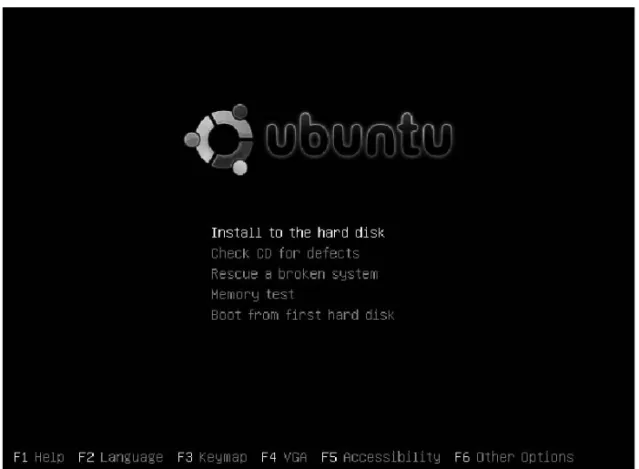
1. In the installation menu that appears once the CD spins up, specify what you want to do. Often, it will be enough to select Install to the hard disk, but in certain cases other options are required as well. This is especially the case if you want to install in a language other than English and you’re using a keyboard different from a US key-board. If this is the case, use the F2 and the F3 keys to specify your language settings. The other options are rarely used. Make sure that you have selected everything you need, select Install to the hard disk as in Figure 1-1 and then press the Enter key to start the installation.
Figure 1-1.In many situations, you just have to press the Enter key to start the installation.
■
Note
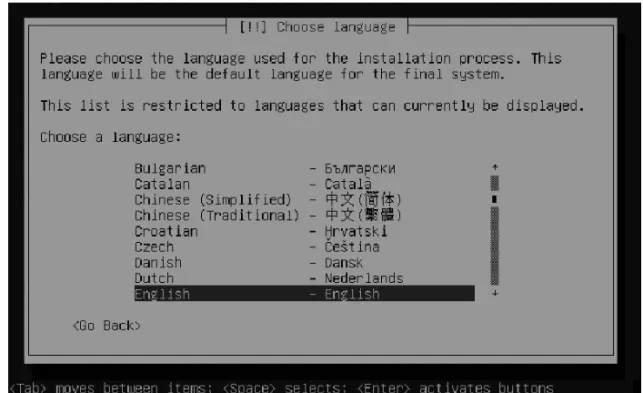
If your graphical hardware doesn’t support displaying the full graphical menu, you might get an installation screen that looks a little different. In that case, press F1 to see the options that are mentioned before.2. In case you did not choose your installation language in the first step of this procedure, you get another chance in the next screen. In this book we’ll use English; if you want to install in another language, select it from the menu that you see in Figure 1-2.
Figure 1-2.If you did not specify the installation language in the boot screen, you have another chance of selecting the language here.
3. Based on the language that you selected, you’ll see a list of countries (see Figure 1-3). Select your country to make sure that other settings are applied automatically. If your country is not in the default list, browse to the bottom of the list and select Other, which supplies a larger list.
■
Tip
Ubuntu Server makes some choices for you automatically. If you want to make these choices your-self, use the Go Back button that appears in almost every screen of the installer. This will display a more detailed list of options that are relevant to that particular stage of the installation, and you can choose what you want to do yourself.Figure 1-3.If your country doesn’t appear in the default list of countries, select Other to choose from a larger list of countries.
4. Next, you can have the installer automatically detect the keyboard that you are using. If you don’t want to use this feature, click No from the screen that you see in Figure 1-4, and select your keyboard type.
Figure 1-4.The installation program can automatically detect the keyboard layout that you are using.
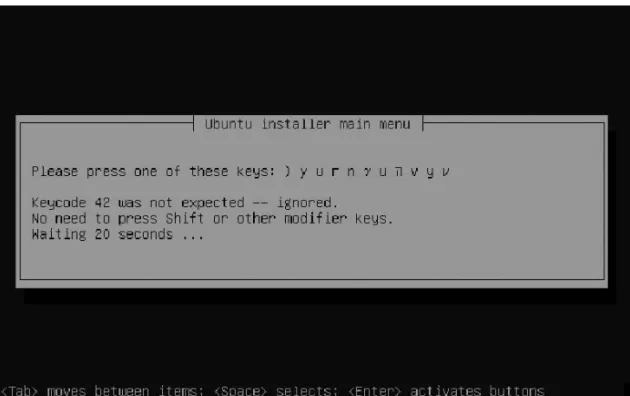
5. If you want the program to detect the keyboard automatically, select Yes. Next, the installer will ask you to hit a specified key (see Figure 1-5), by which it can detect the right keyboard layout in a matter of seconds.
Figure 1-5.Based on the keys that you pressed, the installation program will quickly detect the proper keyboard layout.
6. After the keyboard is configured, most hardware is detected and configured automati-cally. Some hardware—such as WiFi network cards or graphical adapters—may require later configuration. Among the most important settings is the network configuration. If a DHCP server is available in the network to automatically assign IP addresses, your server will be provided with an IP address and ask you only for a name for the server. If you don’t have a DHCP server, the network configuration program will start automati-cally. For a server, it is always a good idea to work with a fixed IP address, because you wouldn’t want your services to suddenly switch to a different IP address suddenly. So it’s a good idea to click the Go Back button now and manually configure the network card. You’ll see a list of the available options. In the next step, you manually configure the IP address of your server.
7. After selecting the Go back option, move your cursor to Configure network manually (see Figure 1-6) and press Enter.
Figure 1-6.In almost every step of the installation procedure, you can click the Go Back button to see a more detailed list of options.
8. Enter the IP address that you want to use for your server, select Continue and press Enter. Not sure what information you need here? Then either return to step 6 and have DHCP automatically assign an IP address, or ask your service provider or network administrator for the proper address configuration.
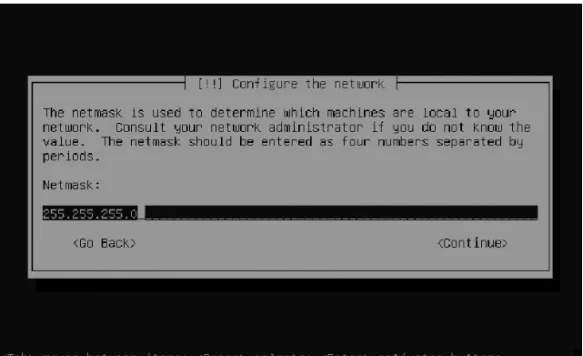
9. Every IP address needs a netmask, and most IP addresses can use the netmask that is assigned to them by default. If this doesn’t work in your situation, enter the proper net-mask in the screen shown in Figure 1-7 and then select Continue and press Enter.
10. In this step you’re asked to enter the IP address of the default gateway. This is the IP address of the router that is connected to the rest of the Internet. Ask your network administrator what to use here and then proceed to the next step.
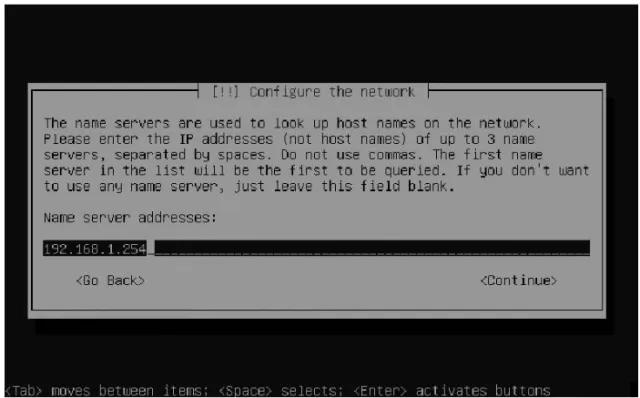
11. Enter the IP address of the DNS server that you want to use (see Figure 1-8). This server allows you to reach other computers on the Internet by their names instead of their IP addresses. If you are on a small network, this is probably the address of a server at your Internet service provider. If you are on a larger network, the network administrator may have configured a separate DNS server. Ask what IP address you should use and then proceed to the next step. You would normally enter two IP addresses for DNS name servers to ensure that names will still be resolved if the first DNS server is down. To enter a second IP address for a DNS server, just enter the address with a space as the separator between the two addresses. Use the actual IP addresses here and not names (because using names requires a means for them to be resolved, and setting up that mechanism is just what you’re doing here).
Figure 1-8.The IP address of the DNS server is necessary to contact other computers on the Internet by their names instead of their IP addresses.
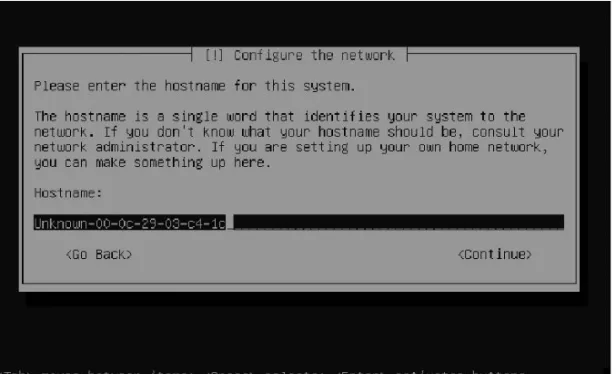
12. Now you are asked for the name you want to use for your computer. By default, the installer assigns a host name automatically. In Figure 1-9, you can see that this host name is assigned on your server’s MAC address, which is the unique address of your server’s network card. There’s nothing wrong with this, but you may want to use a name that provides a little more information or individuality. Also, the name typically has to conform to the naming scheme of your network.
Figure 1-9.The default host name is assigned on the MAC address of your server. You may want to change that to something that provides more information.
Configuring the Server’s Hard Drive
You’ve now completed the first part of the installation, but basically nothing has changed on your computer yet. So, if you want to stop the installation of Ubuntu Server and install Windows NT anyway, you can. If you want to continue, it’s time to do some thinking. The installer is going to ask you how you want to lay out your server’s hard drive. You have a couple of choices here, and you better make them now because they’ll be very difficult to change later.
The first choice you have to make is between traditional partitions or more flexible Logical Volume Manager (LVM)–based volumes. Using logical volumes can make your server more flexible and more secure. If, for example, you put all data on one large storage unit (like one root partition), a user or a process can fill that partition completely by accident, thus making your server completely unusable. It’s useful to use more than one partition for the following reasons, as well:
• Working with more than one partition makes it possible to mount partitions with differ-ent properties while mounting. For example, a partition where things normally wouldn’t change can be mounted as read-only, thus increasing the security of your server. • Using more than one partition makes it easier to work with external storage like a
storage area network (SAN). For example, you could put all the system data on the server’s local hard drive, and all the user data could reside on the SAN.
• Working with more than one partition is necessary in some situations. For example, to make sure that your server will always be able to start up, you could create a separate partition to boot from.
Working with Traditional Partitions
Partitions have been used since the very first days of the personal computer. To create parti-tions, you use the partition table in the master boot record of your server’s hard disk. Because this partition table is only 64 bytes, you can create only four partitions here. In some cases, four is not enough, and so you can define partitions as either primary or extended. A primary partition can contain a file system directly. This is not the case for extended partitions. An extended partition functions like an empty box that allows you to create logical partitions inside of it. The number of logical partitions that can be created depends on the hardware and software that you are using, but it is never more than 16. So, using the traditional partitioning scheme, a maximum of 20 partitions can be created. This may seem enough, but in some situ-ations it isn’t.
The next characteristic of a traditional partition is that it is not very flexible. If, after some time, you learn that one of the partitions is almost full, it is very difficult in a traditional partitioning scheme to increase the size of one partition while decreasing the size of another partition. It can be done, but the work is really best left to the experts, because you could lose all data on all partitions involved.
Advantages of Logical Volumes
The LVM system can be used to avoid the disadvantages of traditional partitions. If you use an LVM layout, you format the logical volumes instead of the partitions. The logical volume has more or less the same functionality as the partition, but LVMs have some important benefits:
• You can create an unlimited number of logical volumes. • Logical volumes are very easy to resize.
• A logical volume does not have a one-to-one relationship with the storage device that it’s created on. Thus, it’s possible to create a logical volume that uses three hard disks at the same time. (This is certainly not recommended however, because, if you lost one hard disk, you would loose your complete volume.)
• Logical volumes support working with snapshots. A snapshot allows you to freeze the state of a volume at a given point in time, which makes backing up data on a logical vol-ume very convenient. This is done in a very clever way, so that the snapshot uses only a fraction of the disk space of the original volume.
■
Note
Really want to understand how LVM is working? The LVM-HOWTO at http://tldp.org/HOWTO/ LVM-HOWTOhas some good in-depth information.Apart from all the good news, LVMs have one drawback: you can’t boot from a logical vol-ume. Therefore, even if you’re using LVMs, you’ll always need at least one traditional partition to boot your server.
Creating an Efficient Hard Disk Layout on the Server
When installing a Linux server, it’s common not to put all files on one huge partition or logi-cal volume for the reasons just discussed. Because Linux servers normally contain many different files, some different partitions or volumes are created to store these files. Each of these partitions or volumes is assigned to (mounted on) a specific directory. Of course, you can put everything on one partition only, but you may run into troubles later, such as if, for example, a user completely fills this partition. Before starting the actual installation of your server, you should decide on the most appropriate way to use your hard drive. The following list of directories normally have their own partition or logical volume on the file system.
• /boot: Because the information in the /bootdirectory is needed to start a server, it’s a rather important directory. For that reason and especially to protect it from everything else that is used on your server, /bootoften has its own partition. This directory cannot be on a logical volume because booting from logical volumes is currently not supported out of the box. Because this directory is the first thing that is needed when booting a server, it’s a very good idea to put it at the beginning of your server’s hard drive. Doing so will prevent time-out issues while booting the server. Also, if working on a server with an older BIOS, it is a good idea to have a separated /bootpartition, as it should be at the beginning of your hard disk. Typically, it is more than enough to allocate the
/bootdirectory to 100 MB partition.
• /: The root directory of the file system always has its own file system, which is also referred to as the root file system. The root file system is rather simple: it contains everything that hasn’t been split off to another partition. If no data files are stored here, 8 GB is typically large enough.
• /var: The /vardirectory is used by lots of processes that need to create files on your server dynamically (such as printer spool files). However, because the /vardirectory is so very dynamic, it has an increased chance of problems. So it’s always a good idea to put it on its own partition. In a normal environment, 4 GB is a reasonable amount of disk space to assign to this partition.
• /home: The /homedirectory belongs to the user and is where he or she will store files if the server is a file server. Because it also is very dynamic and users are accessing it all the time, make sure that it also has its own partition. The amount of disk space you reserve for this partition depends on how much space you want to grant to your users. • /srv: The /srvdirectory is used by servers such as the Apache web server and the FTP
server to store data. Because files in this directory can be accessed by users that make a connection from the Internet, it should have some extra security. A simple way to do this is to place it in its own partition. The amount of disk space on this partition depends on how you are going to use your server. If it is a public FTP server, assign it the maximum space; if your servers serve web or FTP files only occasionally, you can keep the disk space in this directory quite moderate.
File Systems
Because it’s a Linux server, Ubuntu offers a choice from many file systems. When creating disk partitions or volumes, you have to tell the partitioning utility what type of file system you want to use on that volume. The following file systems are available for Ubuntu Server.
• Ext3: This is the default file system on almost all Linux distributions. Although it is a very stable file system with many debug tools available, there is a major drawback: Ext3 isn’t the best file system to handle many files on one volume. It also isn’t the fastest if you have to write many small files to your volume.
• Ext2: Ext2 and Ext3 are largely the same, except that Ext3 uses a journal to make it easier to recover a corrupted file system. This isn’t the case for Ext2. Despite the absence of a journal, Ext2 is still a good choice for small volumes where the services of a journal aren’t necessarily needed (because, for example, the files are not supposed to be opened for writing anyway). For instance, if you create a 100 MB /bootpartition, the Ext2 file system is an excellent choice for it.
• ReiserFS: ReiserFS is a very advanced file system with great features. These features include journaling, advanced indexing, and many others. ReiserFS is particularly strong if many small files have to be written. However, it has two drawbacks: its main developer is currently facing myriad legal issues, and the file system is not particularly known for its stability and active community support. Use it if you want to write intensively or if you want to store many files in one directory, but make sure that you make a good backup at the same time.
• XFS: XFS was developed by SGI as a special-purpose open source file system. It is espe-cially meant to be used when the server will see lots of usage or when the files are very large. So use it if you want to stream lots of media files, or if you have an FTP server with multiple terabytes of data. XFS is not the best file system for an average server because it is quite the heavyweight (its driver alone is four times as big as the driver needed for Ext3 support). Therefore, XFS is relatively slow when compared to other file systems. • Ext4: As you can probably guess from its name, Ext4 is the next generation of the Ext file
systems. At the time of this writing, the first code was just available and it was far from being a usable file system. By the time you are reading this, Ext4 is probably already offered as a choice when installing your server. Ext4 is supposed to address all the shortcomings in Ext2 and Ext3, and it probably will be presented as an installation option, so there is no harm in using it for all your needs.
• FAT: FAT, vfat, and NTFS file systems allow you to create a multiboot environment for a computer on which both Windows and Linux are installed. The purpose of these file systems is to access files stored in Windows partitions. You don’t need them on a Linux-only server.
Continuing the Installation of Ubuntu Server
Now that you know some more about the choices that are offered when installing Ubuntu Server, let’s continue. You now have to specify how you want to partition your server’s hard disk. Because the partitioning of a hard disk is one of the most important parts of the server installation process, we will cover all three choices.
• Guided - use entire disk: This is the easiest option. It offers a guided installation of your hard disk, based on traditional partitions.
• Guided - use entire disk and set up LVM: This configuration option is a bit more com-plex. It offers you a wizard that allows you to create an LVM-based disk configuration. • Manual: Use this procedure if you’re sure you know what you are doing and you don’t
need the help of any wizard.
Using the Guided Partitioning Procedure
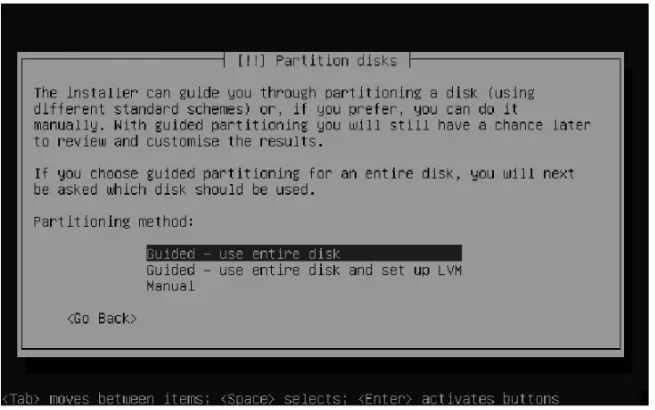
Let’s first talk about the guided procedure to set up a server hard disk. Your starting point is the screen shown in Figure 1-10.
Figure 1-10.You have three choices for configuring your server’s hard disk.
1. From the screen shown in Figure 1-10, select Guided - use entire disk.
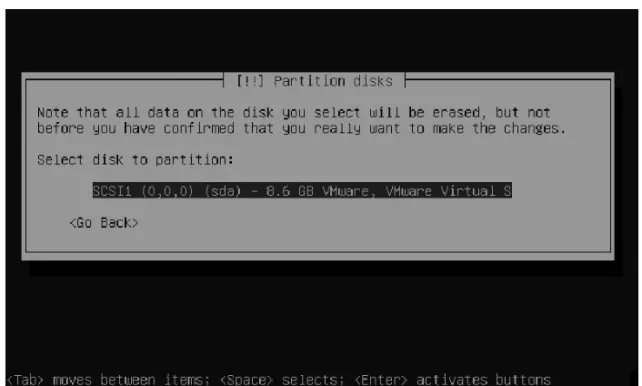
2. The installation shows an overview of all the available hard disks (see Figure 1-11). Choose the disk that you want to use and press the Enter key.
Figure 1-11.Choose the hard disk that you want to partition.
3. Now the installation program shows you what it wants to do with your server’s hard disk (see Figure 1-12). The program isn’t very verbose about this, as it just shows that it wants to create a swap partition and an Ext3 partition. But you probably don’t care because this option is meant to offer a simple partitioning for your server. So select Yes and then press Enter to continue.
Using the Guided LVM-Based Setup
The procedure for an LVM-based disk layout is a lot like the simple guided disk setup. Choosing the guided LVM-based setup also brings you to a screen from which you can select the disk or disks that you want to use. Press Enter to select your disk. The partitioning program next tells you that it wants to write a basic partitioning scheme to disk before it can continue (see Figure 1-13). This is needed because an LVM environment is created on top of a traditional partition.
Figure 1-13.Before the logical volumes can be created, some traditional partition setup has to be written to disk.
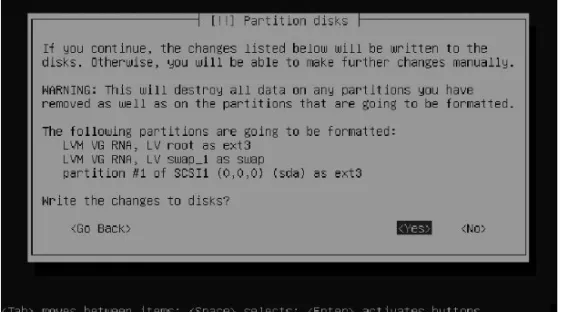
Once the default partitioning has been set up, the installation program makes a proposi-tion for two logical partiproposi-tions that are set up on top of that (see Figure 1-14.) By default, this is a root partition, formatted as Ext3 and a swap partition. Select Yes and press Enter to continue with the installation.
Manually Setting Up Your Hard Drive
If you want to set up your server’s hard drive manually, that’s perfectly fine, but you need to do some thinking before you start. First, you need to decide if you want to use LVM or traditional partitions only. Once you have made this decision, you need to choose between the different file systems that are available for Linux. I recommend making a small overview like the one in Table 1-1. While making such an overview, don’t forget to assign some swap space as well. In Linux, swapping happens to a partition or volume, so you must consider it while setting up your server. In general, there is no need to make your swap space larger than 1 GB, with the exception of servers with special applications such as Oracle. If that is the case for your envi-ronment, consult your application documentation to find out what amount of swap space is reasonable for your situation.
Table 1-1.Hard Disk Configuration Overview
Directory Type File System Size
/boot Primary partition Ext2 100 MB
/var LVM ReiserFS 4 GB
/home LVM ReiserFS 200 GB
/ LVM Ext3 50 GB
swap LVM Swap 1 GB
Once you have made up your mind about the hard disk usage, follow these steps to apply your decision.
1. From the Partition disks interface, select Manual.
2. You now see a screen like the one in Figure 1-15. In this screen, select the hard disk that you want to configure.
3. Because you have just selected an entire hard disk to configure, the installation pro-gram warns you, stating that continuing will remove all existing partitions on the hard drive. If you are sure you want to do this, select Yes and press the Enter key.
4. You now see an overview of all available unconfigured disk space on the selected hard drive (see Figure 1-16). Select this free space and press Enter.
Figure 1-16.Select the available disk space and press Enter.
5. Now the installer asks how to use the available disk space. To create the setup detailed in Table 1-1, you first have to set up two partitions. One of them will be used by the
/bootpartition, and the other will contain all available disk space on the hard drive. This second partition is used to create a partition of the type 0x8e (LVM), which will be used to set up logical volumes later. To set up the /bootpartition first, select Create a new partition (see Figure 1-17) and press Enter.
6. Next, enter the size that you want to assign to the partition, select Continue and press the Enter key.
7. Now you have to enter the type of partition you need, and the installation program offers a choice between a primary and a logical partition. If you choose a logical parti-tion, the program will automatically create the necessary extended partition. Because you need only two partitions in this scenario, you can choose the primary partition type for both of the partitions.
Figure 1-17.You first have to create two traditional partitions, even if you want to create an LVM-based setup.
8. Now specify where the new partition should start. Choose Beginning to create the par-tition at the beginning of the available disk space, or choose End to create it at the end of the available disk space. It makes sense to create the first partition at the beginning, so select Beginning and then press the Enter key.
9. Next, you see a screen that contains all the default properties for the new partition (see Figure 1-18). Make sure you enter the following values, select Done setting up the par-tition, and press the Enter key to continue.
• Use as: Ext2 file system. You are going to create a very small file system with files that will rarely change, so it doesn’t make sense to use a journaling file system here. • Mount point: /boot
• Mount options: defaults • Label: none
• Reserved blocks: 5% • Typical usage: standard • Bootable flag: off
Figure 1-18.Make sure your boot partition uses these settings.
10. In the screen shown in Figure 1-19, select the available free space to create the LVM partition.
11. Select Create a new partition and accept the default in which all available disk space is assigned to the new partition. Then specify that the new partition should be a primary partition. Next, in the screen with the partition settings, make sure you set the follow-ing options as shown.
• Use as: physical volume for LVM • Bootable flag: off
■
Tip
Did something not work out the way it should have? Take a look at the syslog screen. You’ll be able to see exactly what the installation program is trying to do and if it succeeds. You can access the syslog screen by using Alt+F4. To return to the main installation screen, use Alt+F1.12. Now select Done setting up the partition, and press the Enter.
13. Once back in the main screen (see Figure 1-20), select Configure the Logical Volume Manager and press Enter.
14. You’ll now get a message (see Figure 1-21) that the current partitioning scheme has to be written to disk before setting up LVM. Select Yes and press Enter.
Figure 1-21.You must write the changes in the partitioning to hard disk before you can create logical volumes.
15. As the first step in the setup of an LVM environment, you must now assign all usable disk space to a volume group. From the screen shown in Figure 1-22, select Create volume group.
16. Next, enter a name for the volume group. In this example setup, I’ll use “system”. After specifying the name, select Continue and press Enter. You next see a list of all devices that are available for the LVM environment, which, in this case, is just one device. Select the device and select Continue once more to return to the main screen of the LVM setup program.
17. From the LVM main screen, select Create a logical volume. Next, select the volume group that you have just created and enter a name for the first logical volume that you want to use (see Figure 1-23). I recommend using the name of the file system you are going to mount on the logical volume, so root is a decent name for the root file system,
var is good if you are going to mount the /vardirectory on it, and so on.
Figure 1-23.Every logical volume needs a unique name.
18. Now enter the size that you want to assign to the logical volume. Even if logical vol-umes are quite flexible, you should try to specify a realistic size here. Next, specify the file system sizes that you want to use on your logical volumes and finalize the LVM setup procedure.
■
Tip
If you run into problems while writing the new partitioning scheme to disk, this is probably due to a conflict with some already existing setup. In this case, it may be a good idea to wipe your server’s master boot record (MBR). From the installation program, use Alt+F2 to display a console window. Press Enter to activate the console and enter the following command:dd if=/dev/zero of=/dev/sda bs=512 count=1. This will wipe your server’s MBR so that you can start all over again. You’ll have to restart the installation as well.Completing the Installation
Now that you have created the partitioning scheme for your server’s hard drive, it’s time to finalize the installation of your server. In this part of the installation, you enter some generic properties (like your server’s time zone and some user information), and you specify what software packages to install.
1. Based on the country information you entered before, you now have to enter the time zone of your server. If your time zone isn’t listed here, you probably specified the wrong country. You can’t change that here, so forget about it for the moment and change it later.
2. After setting up the time zone, the installer asks how your computer’s clock is config-ured (see Figure 1-24). Servers commonly use Coordinated Universal Time (UTC), which is a generic time format that is the same worldwide, with the local time being calculated as an offset from UTC. However, many PC-based systems use plain local time instead of UTC. Select the appropriate setting here and then press Enter.
Figure 1-24.Make sure that you select the right clock setting for your server.
3. Next, the installer asks you to create a user account. This is the user account that you will normally be working with, instead of using the root user account by default. Enter the name of the user account and then enter (twice) the password for this user. The installation of the base system now begins. In this phase, some basic packages that are needed at all times are copied to your server. Hang on because this can take a couple of minutes.
4. After the core system is installed, the installer asks if you want to use an HTTP proxy. If this is the case, enter its details now.
5. Next, you can choose additional software to install. The default choices allow you to install a DNS server and a LAMP server (see Figure 1-25). A DNS server allows your server to participate in the DNS hierarchy and translate computer names into IP addresses. Selecting the LAMP (Linux, Apache, MySQL, and PHP server) option will set up a versatile web server for you. However, because I’ll be addressing these kinds of services later in the book, you might as well wait to install them. And that’s it for installation choices! If you need additional software to be started on your server, you need to install that software later. See Chapter 4 for more details on that.
Figure 1-25.The installation program lets you choose between a DNS and a LAMP server.
5. Once all software packages have been copied to your server, the system is ready for use. You just have to press the Enter key once more to restart the server, and it will be usable.
Once the server has been restarted, you will see the text-based login prompt of your server. Text-based? Yes, this is a server, and a server is generally locked behind doors in an air-conditioned room. Therefore, there is no need to set up a graphical user environment in most cases. But, because many people consider a GUI quite useful anyway, you’ll learn how to set it up in Chapter 3. For now, though, you’ll learn in Chapter 2 how to manage Ubuntu Server from the command line.
Summary
You learned in this chapter how to set up Ubuntu Server. Because the file system layout is a very important part of a server configuration, special attention was paid to configuring your server’s file system with LVM or traditional partitions. At the end of this chapter, you ended up with a text-based console that’s not so user friendly. In Chapter 2, you will learn to work with the most important commands needed for Linux server administration.
Getting the Most Out of the
Command Line
Y
ou may know the workstation versions of Ubuntu as very accessible graphical desktops. This is not the case, however, for Ubuntu Server! You can’t manage a server properly without using the command line, so it’s absolutely necessary that you can find your way around the Bash interface. Once you have mastered the command line, you will find it so much more powerful and flexible that you may not miss the graphical interface at all. For command-line newbies, this chapter offers an introduction.Working As root?
By default, every Linux system installation creates a user with the name root. Many Linux distributions ask you to enter a password for this user during the installation. Ubuntu Server doesn’t, and it instead takes a radically different approach to performing privileged tasks.
Ubuntu Server takes a different approach for several good reasons. The powers of the user root are limitless within the confines of that operating system. As root, you can bypass all sys-tem security and do anything at all. And you will not be given a warning screen if, for instance, you log in as root and then mistakenly type in a command that destroys all the files.
This is why Ubuntu Server handles privileged access in a different way. By default, the user root does not have a password, so you cannot log in and work as root in the conventional way, but you still need to perform many tasks that require root privileges. For this purpose, Ubuntu offers the sudomechanism, which is explained in detail in Chapter 5. With sudo, normal users can perform tasks that require root privileges. And it’s very simple: for every command that needs root permissions, you type sudo first. For example, whereas user root could just type passwd linda to change the password of user linda, a normal user enters sudo
passwd linda.
■
Note
Want to work as root? Use the command sudo su, and you’ll be root. Alternatively, you can change the password of user root as well, which allows you to log in as user root directly. Don’t want the possibility to log in as root ever? In that case, you should change the default shell for this user to /bin/false. In Chapter 5, you’ll read how to do that.25
In a default installation, any user can use sudoto perform tasks as root. As you can guess, this doesn’t make for a very secure situation. So one of the first things that you should do is limit this privilege. In Chapter 5, you can read how to do that.
■
Tip
You don't like sudoand want to work as root anyway? You can do that, but you need to first set a password for user root. To give root a password, as a normal user, use the command sudo passwd root. Next, you can enter the new password that you want to set for the user root.Working with the Shell
Ubuntu Server uses the kernel to address and control the machine’s hardware. The kernel can be considered the heart of the operating system. Ubuntu Server gives users the shell interface to tell this kernel and the services running on top of it what they should do. This interface interprets the commands that users type and translates them to machine code.
Several shells are available. The very first shell that was ever created for UNIX, back in the 1970s, was the Bourne shell. It is still available in Linux as the program file /bin/sh. Another popular shell available with Ubuntu is Bash (short for the Bourne Again Shell). The Bash shell is completely compatible with the original Bourne shell, but it has many enhancements. Bash is used as the default shell for the user root, but not for normal users. You can, however, make sure that all users get it by default as well, which I would highly recommend because it offers such great features. You’ll read how to do that in Chapter 5, but you should be aware that other shells are available as well. Some people prefer using other shells, three of which I’ll merely mention here:
• tcsh: A shell with a scripting language that works like the C programming language (and thus fairly popular with C programmers).
• zsh: A shell that is compatible with Bash, but offers even more features.
• sash: The stand-alone shell. This is a very minimal shell that runs in almost all environ-ments. It is thus very well suited for troubleshooting systems.
Using Bash to Best Effect
Basically, in the Bash environment, an administrator is working with text commands. An example of such a command is ls, which can be used to display a list of files in a directory. Bash has some useful features to make working with these line commands as easy as possible.
Some shells offer the option to complete a command automatically. Bash has this feature, but it does more than just complete commands. Bash can complete almost everything: not just commands, but also file names and shell variables.
Using Automatic Command Completion
Using this feature is as simple as pressing the Tab key. For example, the catline command is used to display the contents of an ASCII text file. The name of this file, which is in the cur-rent directory, is this_is_a_file. So, to open this file, the user can type cat thi and then press the Tab key. If the directory has only one file that starts with the letters t-h-i, Bash automati-cally completes the name of the file. If the directory has other files that start with the same letters, Bash will complete the name of the file as far as possible. For example, let’s say that there is a file in the current directory with the name this_is_a_text_fileand another named thisAlsoIsAFile. Because both files start with the text this, Bash will complete only up to thisand no further. To display a list of possibilities, you then press the Tab key again. This allows you to manually enter more information. Of course, you can then use the Tab key again to use the completion feature once more.
■
Tip
Working with the Tab key really makes the command line interface much easier. Imagine that you need to manage logical volumes on your server and you remember only that the command for that starts with lv. In this case, you can type lvand press the Tab key twice. The result will be a nice list of all com-mands that start with lv, from which you’ll probably recognize the command that you need.Working with Variables
A variable is simply a common value that is used often enough by the shell that it is stored with a name. An example of such a variable is PATH, which stores a list of directories that should be searched when a user enters a command. To refer to the contents of a variable, pre-fix a $ sign before the name of the variable. For example, the command echo $PATHdisplays the content of the current search path that Bash is using.
On any Linux system, you’ll get quite a few variables automatically. For an overview of all of them, you can use the env(short for environment) command. Listing 2-1 shows the result of this command.
Listing 2-1.The envCommand Shows All Variables That Are Defined in Your Shell Environment.
root@RNA:~# env TERM=xterm SHELL=/bin/bash SSH_CLIENT=192.168.1.71 1625 22 SSH_TTY=/dev/pts/1 USER=root LS_COLORS=no=00:fi=00:di=01;34:ln=01;36:pi=40;33:so=01;35:do=01;35:bd=40;33;01:cd ➥ =40;33;01: or=40;31;01:su=37;41:sg=30;43:tw=30;42:ow=34;42:st=37;44:ex=01;32:*.tar=01;31:*.tgz ➥ =01;31:*.arj=0 1;31:*.taz=01;31:*.lzh=01;31:*.zip=01;31:*.z=01;31:*.Z=01;31:*.gz=01;31:*.bz2=01; ➥ 31:*.deb=01;31:*.
rpm=01;31:*.jar=01;31:*.jpg=01;35:*.jpeg=01;35:*.gif=01;35:*.bmp=01;35:*.pbm=01; ➥ 35:*.pgm=01;35: *.ppm=01;35:*.tga=01;35:*.xbm=01;35:*.xpm=01;35:*.tif=01;35:*.tiff=01;35:*.png=01; ➥ 35:*.mov=01;3 5:*.mpg=01;35:*.mpeg=01;35:*.avi=01;35:*.fli=01;35:*.gl=01;35:*.dl=01;35:*.xcf=01; ➥ 35:*.xwd=01;35: *.flac=01;35:*.mp3=01;35:*.mpc=01;35:*.ogg=01;35:*.wav=01;35: MAIL=/var/mail/root PATH=/usr/local/sbin:/usr/local/bin:/usr/sbin:/usr/bin:/sbin:/bin:/usr/games PWD=/root LANG=en_US.UTF-8 SHLVL=1 HOME=/root LOGNAME=root VISUAL=vi SSH_CONNECTION=192.168.1.71 1625 192.168.1.70 22 LESSOPEN=| /usr/bin/lesspipe %s LESSCLOSE=/usr/bin/lesspipe %s %s _=/usr/bin/env
Normally, as a user, you’ll get your variables automatically when logging in to the system. The most important source of new variables is the /etc/profilefile, a script that is processed for every user who logs in to the system. Want to add a new variable? Add it to the bottom of the /etc/profilefile to make sure it is available for all users.
Working with Bash History
Another useful feature of the Bash shell is the history feature, which remembers and lets you reuse commands you have recently used. By default, the last 1,000 commands are remembered. This feature is useful for sessions beyond even the current one. A file, named
.bash_history, is created in the home directory of every user, and this file records the last 1,000 commands that that user has entered. You can see an overview of these commands by typing historyat the Bash prompt. Listing 2-2 is an example of this list.
■
Note
In addition to the historycommand, you can also use the up/down arrow keys, page up/down keys, and Ctrl+p/Ctrl+n to browse the history.Listing 2-2.The historyCommand Shows a List of All Commands That You Recently Used.
sander@RNA:~$ history 1 clear
2 dpkg -l "*" | grep ^un 3 aptitude search xen 4 aptitude show xen-source
5 aptitude show xen-source-2.6.16 6 exit
7 apt-get install xen 8 sudo apt-get install xen
This is where the history feature becomes especially useful because you can reissue any command from this list without typing it all over again. If you want to run any of the listed (and numbered) commands again, simply type its number preceded by an exclamation mark. In this example, typing !5 would run aptitude show xen-source-2.6.16again.
A user can also erase his or her history by using the historycommand. The most impor-tant option offered by this Bash internal command is the option -c, which clears the history list for that user. This is especially useful because everything that a user types at the command line—such as passwords—is recorded. So use history -cto make sure your history is cleared if you’d rather not have others knowing what you’ve been up to. Once using this option, however, you can’t use the arrow up key to access previous commands, because those are all erased.
Because everything you enter from the command line is saved, I recommend never typing a plain-text password in the first place, even if you regularly erase the history. The commands that do require you to enter a password will prompt you anyway if you don't enter one right away.
Managing Bash with Key Sequences
Sometimes, you’ll enter a command from the Bash command line and either nothing happens at all or else something totally unexpected happens. In such an event, it’s good to know that some key sequences are available to perform basic Bash management tasks. Here are some of the most useful key sequences.
• Ctrl+C: Use this key sequence to quit a command that is not responding (or simply takes too long to complete). This key sequence works in most scenarios where the com-mand is operational and producing output to the screen. In general, Ctrl+C is also a good choice if you absolutely don’t have a clue as to what’s happening and you just want to terminate the command that’s running in your shell. If used in the shell itself, it will close the shell as well.
• Ctrl+D: This key sequence is used to send the “end of file” (EOF) signal to a command. Use this when the command is waiting for more input, which is indicated by the sec-ondary prompt (>). You can also use this key sequence to close a shell session. • Ctrl+R: This is the reversed search feature. It will open the “reversed I-search” prompt,
which helps you locate commands that you used previously. The Ctrl+R key sequence searches the Bash history, and the feature is especially useful when working with longer commands. As before, type the first characters of the command and you will see the last command you’ve used that started with the same characters.
• Ctrl+Z: Some people use Ctrl+Z to stop a command that is running interactively on the console (in the foreground). Although it does stop the command, it does not terminate it. A command that is stopped with Ctrl+Z is merely paused, so that you can easily start it in the background using the bgcommand or in the foreground again with the fg
command. To start the command again, you need to refer to the job number that the program is using. You can see a list of these job numbers using thejobscommand.
Performing Basic File System Management Tasks
On a Linux system such as Ubuntu, everything is treated as a file. Even a device like your hard disk is addressed by pointing to a file. Therefore, working with files is the most important task when administering Linux. In this section, you’ll learn the basics of managing a file system. The following subjects are covered:
• Working with directories • Working with files • Viewing text files • Creating empty files
Working with Directories
Because files are normally organized in directories, it is important that you know how to han-dle these directories. This involves a few commands:
• cd: This command changes the current working directory. When using cd, make sure to use the proper syntax. First, names of commands and directories are case sensitive; therefore, /binis not the same as /BIN. Next, you should be aware that Linux uses a for-ward slash instead of a backslash for directory paths. So use cd /binand not cd \binto change the current directory to /bin.
■
Tip
Switching between directories? Use cd -to return to the last directory you were in.• pwd: The pwdcommand stands for print working directory. Although you can usually see the directory you are currently in from the command-line prompt, sometimes you can’t. If this is the case, pwdoffers help.
• mkdir: If you need to create a new directory, use mkdir. With mkdiryou can create a complete directory structure in one command as well, which is something you can’t do on other operating systems. For example, the command mkdir /some/directorywill fail if /somedoes not already exist. In that case, you can force mkdirto create /someas well: do this by using the mkdir -p /some/directorycommand.
• rmdir: The rmdircommand is used to remove directories. However, this isn’t the most useful command, because it works only on directories that are already empty. If the directory still has files and/or subdirectories in it, use rm -r.