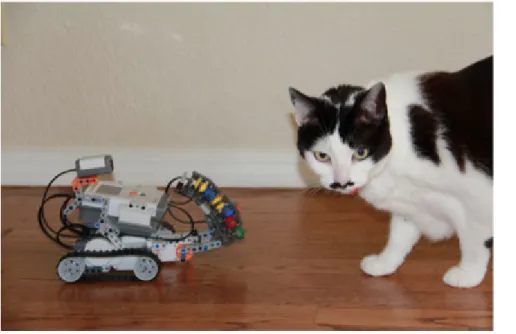
Figure 12-1.
CHAPTER 12
Robot Remote
In this chapter, you’ll create an app that turns your Android phone into a remote control for a LEGO MINDSTORMS NXT robot. The app will have buttons for driving the robot forward and backward, turning left and right, and stopping. You’ll program it so that the robot automatically stops if it detects an obstacle. The app will use the Bluetooth capabilities of the phone to
communicate with the robot.
LEGO MINDSTORMS robots are fun to play with, but they are also educational. Afterschool
programs use robots to teach elementary- and middle-school children problem-solving skills and introduce them to engineering and computer
programming. NXT robots are also used by kids aged 9–14 in FIRST Lego League robotics competitions.
The NXT programmable robotics kit includes a main unit called the NXT Intelligent Brick. It can control three motors and four input sensors. You can assemble a robot from LEGO building elements, gears, wheels, motors, and sensors. The kit comes with its own software to program the robot, but now you can use App Inventor to create Android applications to control an NXT via Bluetooth connectivity.
The application in this chapter is designed to work with a robot that has wheels and an ultrasonic sensor, such as the Shooterbot robot pictured here. The Shooterbot is often the first robot that people build with the LEGO MINDSTORMS NXT 2.0 set. It has left wheels connected to output port C, right wheels connected to output port B, a color sensor connected to input port 3, and an ultrasonic sensor connected to input port 4.
What You’ll Learn
This chapter uses the following components and concepts:
• The ListPicker component to provide a user interface for connecting to the
NXT
• The NxtDrive component for driving the robot’s wheels
• The NxtUltrasonicSensor component for using the robot’s ultrasonic sensor to
detect obstacles
• The Notifier component for displaying error messages
Getting Started
You’ll need Android version 2.0 or higher to use the application in this chapter. Also, for security reasons, Bluetooth devices must be paired before they can connect to each other. Before you get started building the app, you’ll need to pair your Android with your NXT by following these steps:
1. On the NXT, click the right arrow until it says Bluetooth and then press the orange square.
2. Click the right arrow until the word Visibility appears and then press the orange square.
3. If the Visibility value is already Visible, continue to step 4. If not, click the left or right arrow to set the value to Visible.
4. On the Android, go to Settings.
Steps 5–7 might vary slightly depending on your Android device.
5. Ensure that Bluetooth is ON.
6. Click “Bluetooth” and then “Search for devices.”
7. Under “Available devices,” look for a device named “NXT.” If you’ve ever changed your robot’s name, look for a device name that matches your robot’s name instead of “NXT.”
8. Click “NXT” or your robot’s name.
9. On the NXT, you should see a prompt for a passkey. Press the orange square to accept 1234.
10. On the Android, you should see a prompt for the PIN. Type 1234 and then press OK.
11. Your robot and your Android are now paired.
Connect to the App Inventor website at ai2.appinventor.mit.edu. Start a new project and name it “NXTRemoteControl”, and set the screen’s title to “NXT Remote
Control”. Click Connect and set up your device (or emulator) for live testing (see http:// appinventor.mit.edu/explore/ai2/setup for help setting this up).
Designing the Components
For this app, we’ll need to create and define behaviors for both non-visible and visible components.
NON-VISIBLE COMPONENTS
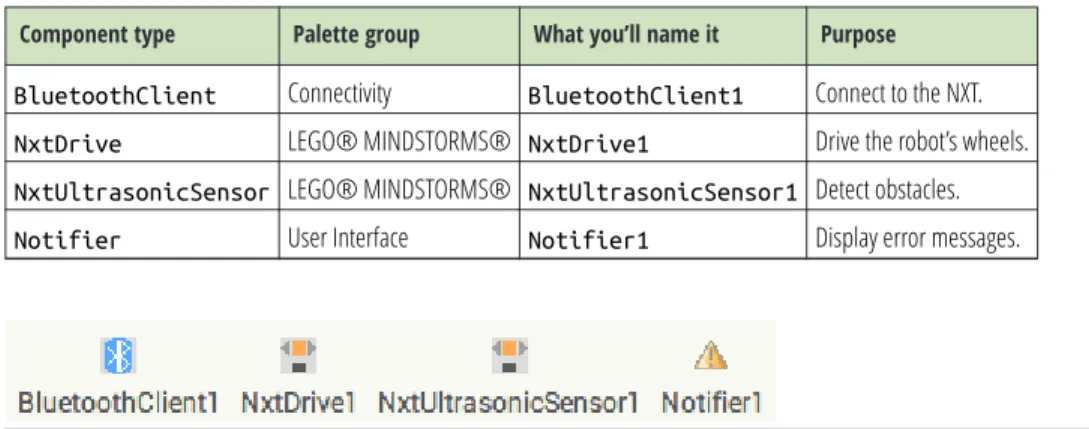
Before creating the user interface components, you’ll create some non-visible components, listed in Table 12-1 and illustrated in Figure 12-1, to control the NXT. Table 12-1. Non-visible components for the Robot NXT controller app
Component type Palette group What you’ll name it Purpose BluetoothClient Connectivity BluetoothClient1 Connect to the NXT. NxtDrive LEGO® MINDSTORMS® NxtDrive1 Drive the robot’s wheels. NxtUltrasonicSensor LEGO® MINDSTORMS® NxtUltrasonicSensor1 Detect obstacles. Notifier User Interface Notifier1 Display error messages.
Figure 12-2. The non-visible components displayed at the bottom of the Component Designer
Set the properties of the components in the following way:
1. Set the BluetoothClient property of NxtDrive1 and NxtUltrasonicSensor1 to
“BluetoothClient1”.
2. Check BelowRangeEventEnabled on NxtUltrasonicSensor1. 3. Set the DriveMotors property of NxtDrive1:
◦ If your robot has the left wheel’s motor connected to output port C and the right wheel’s motor connected to output port B, the default setting of “CB” doesn’t need to be changed.
◦ If your robot is configured differently, set the DriveMotors property to a
two-letter text value, where the first letter is the output port connected to 205 Designing the Components
the left wheel’s motor and the second letter is the output port connected to the right wheel’s motor.
4. Set the SensorPort property of NxtUltrasonicSensor1.
◦ If your robot’s ultrasonic sensor is connected to input port 4, the default setting of “4” doesn’t need to be changed.
◦ If your robot is configured differently, set the SensorPort property to the
input port connected to the ultrasonic sensor. VISIBLE COMPONENTS
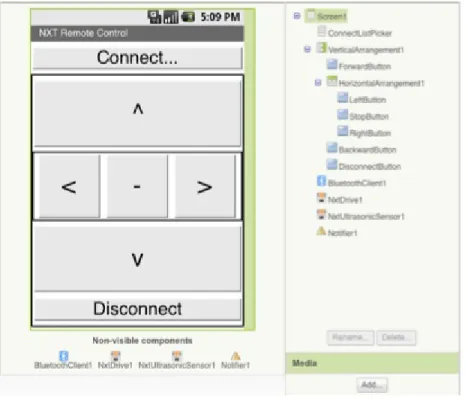
Next, let’s create the user interface components shown in Figure 12-2.
Figure 12-3. The app in the Component Designer
To make the Bluetooth connection, you’ll need the unique Bluetooth address of the NXT. Unfortunately, Bluetooth addresses consist of eight two-digit hexadecimal numbers (a way of representing binary values) separated by colons, making them very cumbersome to type. You won’t want to type in the address on your phone every time you run the app. So, to avoid that, you’ll use a ListPicker that displays a list of the robots that have been paired with your phone and lets you choose one. You’ll use buttons for driving forward and backward, turning left and right, stopping, and
disconnecting. You can use a VerticalArrangement to lay out everything except for the ListPicker, and a HorizontalArrangement to contain the buttons for turning left, stopping, and turning right.
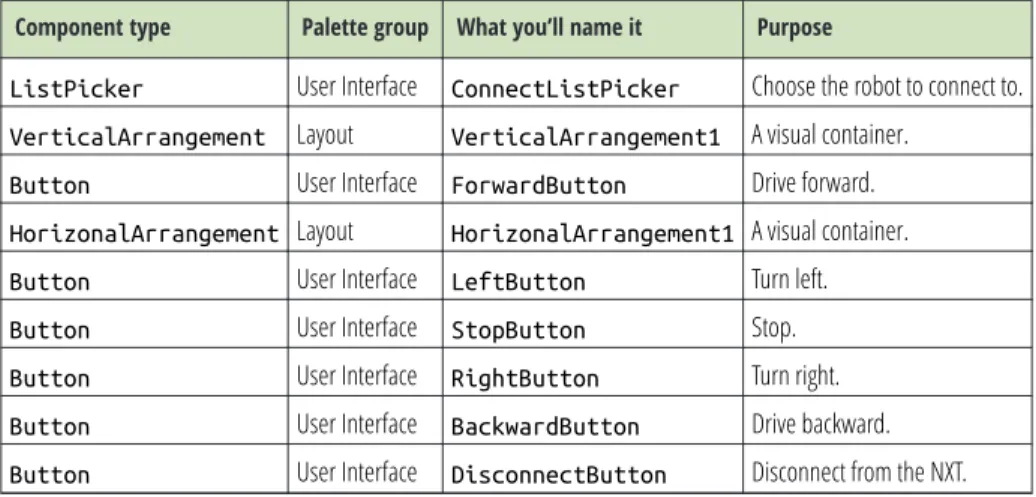
You can build the interface shown in Figure 12-2 by dragging out the components listed in Table 12-2.
Table 12-2. Visible components for the Robot NXT controller app
Component type Palette group What you’ll name it Purpose
ListPicker User Interface ConnectListPicker Choose the robot to connect to. VerticalArrangement Layout VerticalArrangement1 A visual container.
Button User Interface ForwardButton Drive forward. HorizonalArrangement Layout HorizonalArrangement1 A visual container. Button User Interface LeftButton Turn left. Button User Interface StopButton Stop. Button User Interface RightButton Turn right. Button User Interface BackwardButton Drive backward. Button User Interface DisconnectButton Disconnect from the NXT.
To arrange the visual layout as shown in Figure 12-2, place LeftButton, StopButton, and RightButton inside HorizontalArrangement1, and place ForwardButton,
HorizontalArrangement1, BackwardButton, and DisconnectButton inside VerticalArrangement1.
Set the properties of the components as follows:
1. Uncheck Scrollable on Screen1.
2. Set the Width of ConnectListPicker and DisconnectButton to “Fill parent.”
3. Set the Width and Height of VerticalArrangement1, ForwardButton, HorizontalArrangement1, LeftButton, StopButton, RightButton, and BackwardButton to “Fill parent.”
4. Set the Text of ConnectListPicker to “Connect...”.
5. Set the Text of ForwardButton to “^”.
6. Set the Text of LeftButton to “<”.
7. Set the Text of StopButton to “-”.
8. Set the Text of RightButton to “>”.
207 Designing the Components
9. Set the Text of BackwardButton to “v”.
10. Set the Text of DisconnectButton to “Disconnect”.
11. Set the FontSize of ConnectListPicker and DisconnectButton to 30.
12. Set the FontSize of ForwardButton, LeftButton, StopButton, RightButton, and BackwardButton to 40.
In this application, it makes sense to hide most of the user interface until the Bluetooth is connected to the NXT. To accomplish this, set the Visible property of VerticalArrangement1 to hidden. Don’t worry—in a moment, we’ll make the application reveal the user interface after it connects to the NXT.
Adding Behaviors to the Components
In this section, you’ll program the behavior of the app, including:• Letting the user connect the app to a robot by choosing it from a list. • Letting the user disconnect the app from a robot.
• Letting the user drive the robot by using the control buttons. • Forcing the robot to stop when it senses an obstacle.
CONNECTING TO THE NXT
The first behavior you’ll add is connecting to the NXT. When you click
ConnectListPicker, it will show a list of the paired robots. When you choose a robot, the app will make a Bluetooth connection to that robot.
DISPLAYING THE LIST OF ROBOTS
To display the list of robots, you’ll use ConnectListPicker. A ListPicker looks like a button, but when it’s clicked, it displays a list of items from which you can choose one. You’ll use the BluetoothClient1.AddressesAndNames block to provide a list of the addresses and names of Bluetooth devices that have been paired with the Android. Because BluetoothClient1 is used with NXT components, it automatically limits the devices included in the AddressesAndNames property to those that are robots, so you won’t see other kinds of Bluetooth devices (such as headsets) in the list. Table 12-3 lists the blocks you’ll need for this step.
Table 12-3. Blocks to add a ListPicker to the app
Block type Drawer Purpose
ConnectListPicker.BeforePicking ConnectListPicker Triggered when clicked. ConnectListPicker is set ConnectListPicker.Elements to ConnectListPicker Set the choices that will appear.
BluetoothClient1.AddressesAndNames BluetoothClient1 The addresses and names of robots that havebeen paired with the Android.
How the blocks work
When ConnectListPicker is clicked, the ConnectListPicker.BeforePicking event is triggered before the list of choices is displayed, as shown in Figure 12-3. To specify the items that will be listed, set the ConnectListPicker.Elements property to the
BluetoothClient1.AddressesAndNames block. ConnectListPicker will list the robots that have been paired with the Android.
Figure 12-4. Displaying the list of robots
Test your appOn your phone, click “Connect...” and see what
happens. You should see a list of all the robots your phone has been paired with.If you just see a black screen, your phone hasn’t been paired with any robots. If you see addresses and names of other Bluetooth devices, such as a Bluetooth headset, theBluetoothClientproperty ofNxtDrive1and
NxtUltrasonicSensor1has not been set properly.
MAKING THE BLUETOOTH CONNECTION
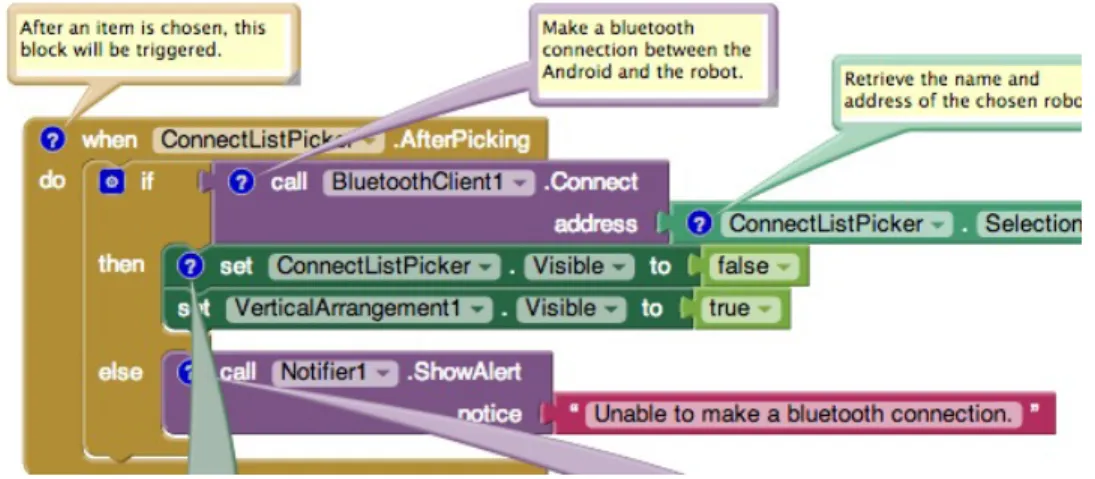
After you choose a robot from the list, the app will connect to that robot via Bluetooth. If the connection is successful, the user interface will change.
ConnectListPicker will be hidden, and the rest of the user interface components will appear. If the robot is not turned on, the connection will fail and an error message will pop up. You’ll use the BluetoothClient1.Connect block to make the connection. The
209 Adding Behaviors to the Components
ConnectListPicker.Selection property provides the address and name of the chosen robot. You’ll use an if then block to test whether the connection was successful. We’ll add else to the if then block, so it will have three different areas where blocks are connected: if, then, and else. The if area will contain the BluetoothClient1.Connect block. The then area will contain the blocks to be executed if the connection is successful. The else area will contain the blocks to be executed if the connection fails.
If the connection is successful, you will use the Visible property to hide
ConnectListPicker and show VerticalArrangement1, which contains the rest of the user interface components. If the connection fails, you will use the
Notifier1.ShowAlert block to display an error message. Table 12-4 lists the blocks you’ll need for this behavior.
Table 12-4. Blocks for using Bluetooth to connect with the robot
Block type Drawer Purpose
ConnectListPicker.AfterPicking ConnectListPicker Triggered when a robot is chosen fromConnectListPicker. if then Control Test whether the Bluetooth connection issuccessful. BluetoothClient1.Connect BluetoothClient1 Connect to the robot.
ConnectListPicker.Selection ConnectListPicker The address and name of the chosen robot. set ConnectListPicker.Visible
to ConnectListPicker Hide ConnectListPicker.
false Logic Plug into set ConnectListPicker.Visible to. set
VerticalArrangement1.Visible to VerticalArrangement1 Show the rest of the user interface.
true Logic Plug into set VerticalArrangement1.Visible to.
Notifier1.ShowAlert Notifier1 Show an error message. text “Unable to make a Bluetooth
connection.” Text The error message.
How the blocks work
After a robot is picked, the ConnectListPicker.AfterPicking event is triggered, as shown in Figure 12-4. The BluetoothClient1.Connect block makes the Bluetooth connection to the selected robot. If the connection is successful, the then blocks are executed: the ConnectListPicker.Visible property is set to false to hide
show VerticalArrangement1, which contains the remote control buttons. If the connection fails, the else blocks are executed: the Notifier1.ShowAlert block displays an error message.
Figure 12-5. Making the Bluetooth connection
DISCONNECTING FROM THE NXT
You’re probably excited about connecting your Android to your NXT, but before you do that, let’s do one more thing: add the behavior for disconnecting. That way, you’ll be able to test both connecting and disconnecting. When DisconnectButton is clicked, the app will close the Bluetooth connection and the user interface will change. ConnectListPicker will reappear and the rest of the user interface components will be hidden. Use the blocks listed in Table 12-5 to build the
BluetoothClient1.Disconnect block that closes the Bluetooth connection. You will use the Visible property to show ConnectListPicker and hide
VerticalArrangement1, which contains the rest of the user interface components. Table 12-5. Blocks for disconnecting from the robot
Block type Drawer Purpose
DisconnectButton.Click DisconnectButton Triggered when DisconnectButton is clicked. BluetoothClient1.Disconnect BluetoothClient1 Disconnect from the robot.
set ConnectListPicker.Visible
to ConnectListPicker Show ConnectListPicker.
true Logic Plug into set ConnectListPicker.Visible to.
211 Adding Behaviors to the Components
Block type Drawer Purpose set
VerticalArrangement1.Visible to
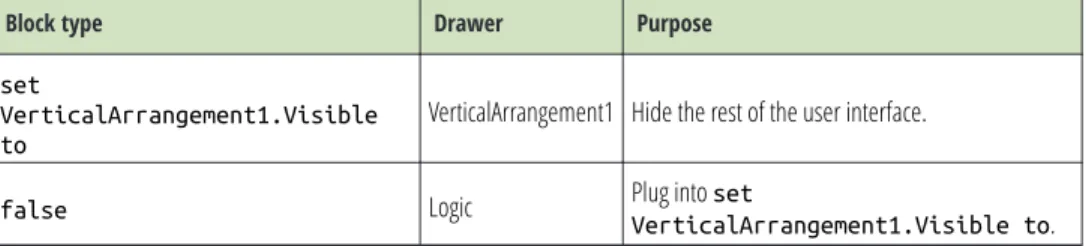
VerticalArrangement1 Hide the rest of the user interface.
false Logic Plug into set VerticalArrangement1.Visible to.
When DisconnectButton is clicked, the DisconnectButton.Clicked event is
triggered, as shown in Figure 12-5. The BluetoothClient1.Disconnect block closes the Bluetooth connection. The ConnectListPicker.Visible property is set to true to show ConnectListPicker, and the VerticalArrangement1.Visible property is set to false to hide VerticalArrangement1, which contains the remote control buttons.
Figure 12-6. Disconnecting from the robot
Test your appMake sure that your robot is turned on and then,
on your phone, click “Connect...” and choose the robot you want to connect to. It will take a moment to make the
Bluetooth connection. After the robot connects, you should see the buttons for controlling the robot, as well as the Disconnect button. Click the Disconnect button. The buttons for
controlling the robot should disappear, and the Connect button should reappear.
Driving the NXT
Let’s get to the really fun part: adding behavior for driving forward and backward, turning left and right, and stopping. Don’t forget about stopping—if you do, you’ll
have an out-of-control robot on your hands! The NxtDrive component provides five blocks for driving the robot’s motors:
• MoveForwardIndefinitely drives both motors forward.
• MoveBackwardIndefinitely drives both motors backward.
• TurnCounterClockwiseIndefinitely turns the robot to the left by driving the
right motor forward and the left motor backward.
• TurnClockwiseIndefinitely turns the robot to the right by driving the left
motor forward and the right motor backward. • Stop stops both motors.
The Move... and Turn... blocks each have a parameter called Power. You’ll use a number block, along with all the other items listed in Table 12-6, to specify the
amount of power the robot should use to turn the motors. The value can range from 0 to 100. However, if you specify too little power, the motors will make a whining sound but not turn. In this application, you’ll use 90 (percent).
Table 12-6. Blocks for controlling the robot
Block type Drawer Purpose
ForwardButton.Click ForwardButton Triggered when clicked. ForwardButton is NxtDrive1.MoveForwardIndefinitely NxtDrive1 Drive the robot forward.
number (90) Math The amount of power.
BackwardButton.Click BackwardButton Triggered when clicked. BackwardButton is NxtDrive1.MoveBackwardIndefinitely NxtDrive1 Drive the robot backward.
number (90) Math The amount of power.
LeftButton.Click LeftButton Triggered when LeftButton isclicked. NxtDrive1.TurnCounterClockwise
Indefinitely NxtDrive1 Turn the robot counterclockwise.
number (90) Math The amount of power.
RightButton.Click RightButton Triggered when RightButton isclicked. NxtDrive1.TurnClockwiseIndefinitely NxtDrive1 Turn the robot clockwise.
number (90) Math The amount of power.
213 Driving the NXT
Block type Drawer Purpose
StopButton.Click StopButton Triggered when clicked. StopButton is NxtDrive1.Stop NxtDrive1 Stop the robot.
How the blocks work
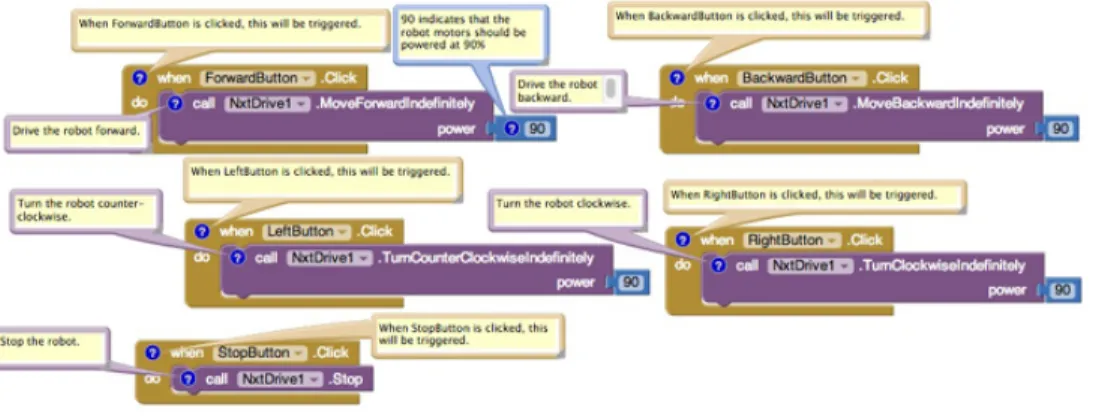
When ForwardButton is clicked, the ForwardButton.Clicked event is triggered. The NxtDrive1.MoveForwardIndefinitely block shown in Figure 12-6 is used to move the robot forward at 90% power. The remaining events function similarly for the other buttons, each powering the robot backward, left, and right.
Figure 12-7. Driving the robot
When StopButton is clicked, the StopButton.Clicked event is triggered. The NxtDrive1.Stop block is used to stop the robot. Test your app. Follow the instructions in the previous “Test your app” section to connect to the NXT. Make sure the robot is not on a table where it could fall, and then test its behavior as follows:
1. Click the forward button. The robot should move forward. 2. Click the backward button. The robot should move backward. 3. Click the left button. The robot should turn counterclockwise. 4. Click the right button. The robot should turn clockwise. 5. Click the stop button. The robot should stop.
If your robot doesn’t move, but you can hear a whining sound, you might need to increase the power. You can use 100 for maximum power.
Using the Ultrasonic Sensor to Detect Obstacles
Using the ultrasonic sensor, the robot will stop if it encounters an obstacle within 30 centimeters, such as the obstruction shown in Figure 12-7.You can use the NxtUltrasonicSensor component to detect obstacles. It has two properties named BottomOfRange and TopOfRange that define the detection range in centimeters. By default, the BottomOfRange property is set to 30 centimeters and TopOfRange is set to 90 centimeters.
Figure 12-8. A common household obstacle for your NXT robot
The NxtUltrasonicSensor component also has three events called BelowRange, WithinRange, and AboveRange. The BelowRange event will be triggered when an
obstacle is detected at a distance below BottomOfRange. The WithinRange event will be triggered when an obstacle is detected at a distance between BottomOfRange and TopOfRange. The AboveRange event will be triggered when an obstacle is detected at a distance above TopOfRange.
You’ll use the NxtUltrasonicSensor1.BelowRange event block, shown in Table 12-7, to detect an obstacle within 30 centimeters. If you want to detect an obstacle within a different distance, you can adjust the BottomOfRange property. You’ll use the
NxtDrive1.Stop block to stop the robot.
215 Using the Ultrasonic Sensor to Detect Obstacles
Table 12-7. Blocks for using the NxtUltrasonicSensor
Block type Drawer Purpose
NxtUltrasonicSensor1.BelowRange NxtUltrasonicSensor1 Triggered when the ultrasonic sensor detects anobstacle at a distance below 30 centimeters. NxtDrive1.Stop NxtDrive1 Stop the robot.
How the blocks work
When the robot’s ultrasonic sensor detects an obstacle at a distance below 30 centimeters, the NxtUltrasonicSensor1.BelowRange event is triggered, as shown in Figure 12-8. The NxtDrive1.Stop block stops the robot.
Figure 12-9. Detecting an obstacle and stopping the robot
Test your appFollow the instructions in the previous “Test your app” section to connect to the NXT. Using the navigation buttons, drive your robot toward an obstacle, such as a cat. The robot should stop when it approaches within 30 centimeters of the cat.
If the robot doesn’t stop, the cat might have moved away from the robot before it drew within 30 centimeters. You might need to test your app with an inanimate obstacle.
Variations
After you get this application working—and you’ve spent enough time actually playing with your NXT robot—you might want to try the following:
◦ You can do this by changing the numeric value that you plug into the
MoveForwardIndefinitely, MoveBackwardIndefinitely,
TurnCounterclockwiseIndefinitely, and TurnClockwiseIndefinitely
blocks.
• Use the NxtColorSensor to shine a red light when an obstacle is detected.
◦ You can use an NxtColorSensor component and its GenerateColor
property.
◦ You’ll need to set the DetectColor property to false (or uncheck it in the
Component Designer) because the color sensor cannot detect and generate color at the same time.
• Use an OrientationSensor to control the robot.
• Use LEGO building elements to physically attach your phone to the robot. Create applications that make the robot autonomous.
217 Variations
Summary
Here are some of the concepts we covered in this tutorial:
• You can use the ListPicker component to choose from a list of paired robots.
• The BluetoothClient component makes the connection to the robot.
• The Notifier component displays an error message.
• You can use the Visible property to hide or show user interface components.
• The NxtDrive component can drive, turn, and stop the robot.