BugFlipper: A freeware plug-in for human assisted image processing in the GIMP Permalink https://escholarship.org/uc/item/88h4488r Authors Tinker, Ted Seltmann, Katja Publication Date 2019-05-18 License CC BY 4.0
eScholarship.org Powered by the California Digital Library
BugFlipper: A freeware plug-in for human assisted image processing in the GIMP
Ted Tinker1 and Katja C. Seltmann2
1Cheadle Center for Biodiversity and Ecological Restoration, University of California Santa
Barbara, CA 93106, USA
2Cheadle Center for Biodiversity and Ecological Restoration, University of California Santa
Barbara, CA 93106, USA; [email protected];805-893-2401, ORCID: 0000-0001- 5354-6048
Abstract:
Bugflipper is an open source plugin for the GNU Image Manipulation Program (GIMP) that performs a series of standard image correction tasks that are common when digitizing natural history collection specimens. These tasks include rotating images, color and contrast correction, reduction in overall file size, cropping, and renaming the image with a barcode number as the filename.
BugFlipper automates many of the processes based on preset values, but the program also includes a human assisted step that allows custom processing of non-standard images, quality control, and image renaming during the process. A comprehensive instruction manual for BugFlipper is included here, with troubleshooting tips and advice for modifying the plugin code to simplify a variety of human-assisted image-processing problems.
natural history collections, GIMP plugin, human-assisted image-processing, specimen image processing, digitization
Introduction:
The GNU Image Manipulation Program, or GIMP, (The GIMP Team 2018) is a freeware image editor that allows users to write plugins to extend its functionality using the Python programming language. We developed a GIMP plug-in called "BugFlipper" to aid image processing of
specimen and label images from the University of California, Santa Barbara Invertebrate Zoology Collection (UCSB-IZC) at the Cheadle Center for Biodiversity and Ecological Restoration.
The imaging of specimens with their labels is the first step in the process of digitizing specimens in the collection. The images will then be associated with specimen records of the data transcribed into Darwin Core standard (Wieczorek et al. 2012) fields for sharing with online data aggregators, such as Global Biodiversity Information Faculty (GBIF: The Global
Biodiversity Information Facility 2018) and Integrated Digitized Biocollections (Integrated Digitized Biocollections 2018, Baker 2011).
Although keyboard-macros could simplify some of these tasks in a program like Photoshop (Adobe 1990) or Adobe Lightroom (Adobe 2012), the problem of renaming files based on images of QR barcodes is more difficult to implement in this manner, and both of the aforementioned programs are not freeware programs. A batch-image manipulator for the GNU Image Manipulation Program called BIMP (Francesconi 2017) can crop many images at once
but only in a uniform manner, which is unhelpful in this use case because the images vary in the width and height of the unused space.
Therefore, the plug-in BugFlipper was developed for the GIMP. BugFlipper allows users to automatically perform certain procedures on a series of images one at a time, crop each image by hand, and save each image with a filename based on the QR code within each image using a physical, handheld QR scanner gun. Users may even flag images which must be retaken for quality concerns.
Image Processing Requirements:
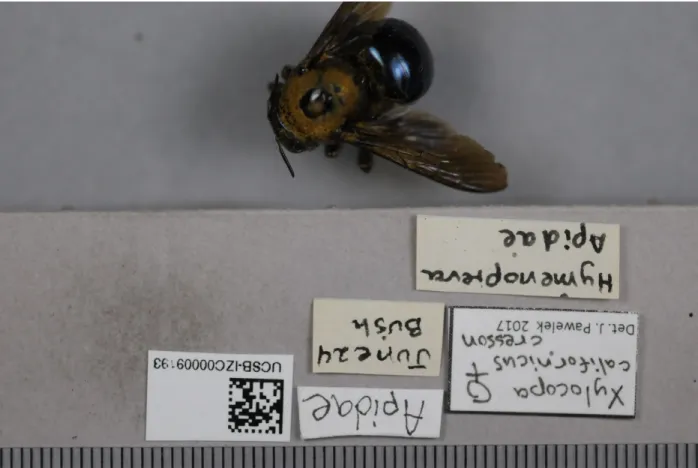
BugFlipper was created to process photographs of insect specimens, labels and QR barcode. An example of an unprocessed photo is in Fig. 1. The photos are taken in a uniform manner with a Nikon digital XLR camera on a grey background. They are placed in bright, even light
underneath a ruler for scale.
Because of the orientation of the imaging apparatus the images come out of the camera upside down, but the major challenge in automating specimen image processing is the lack of
standardization in the size and shape of the specimen labels. Specimen labels are created by many different specimen collectors and they can vary greatly.
Figure 1: A specimen photo directly from the camera. It has a default camera filename of _TAN9798.
After photographing, the images are transferred to a desktop computer for photo processing. The goals of the image processing are to be efficient, with an emphasis on the readability of the label text. The labels in the image will be used as a reference for the information included in a
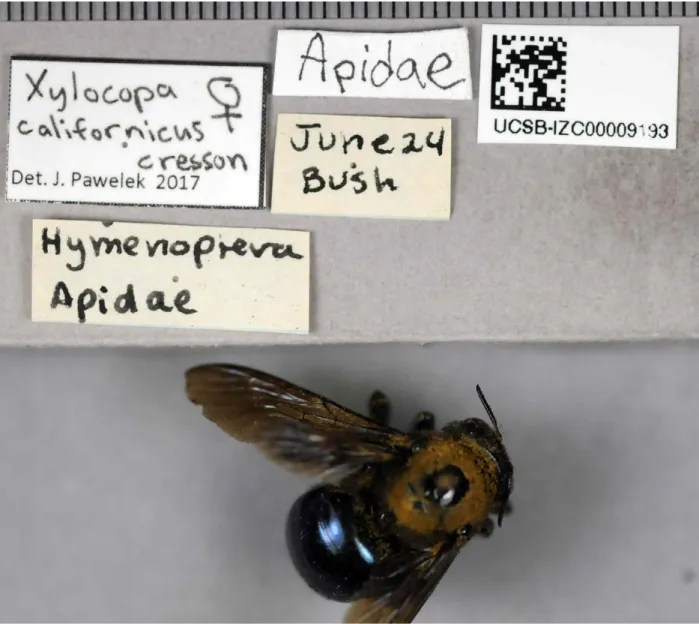
Symbiota (Gries et al. 2014) specimen database for transcription into data fields. To improve the photographs, the photos are rotated 180 degrees to account for the camera’s orientation. The photos are color-corrected to remove color casts, compressed, and cropped to contain just the specimen and labels. The image files are then renamed to reflect the QR code contained within
each image and saved as a .JPG. Finally, photos that are blurry or otherwise illegible are flagged so the photo may be retaken. Fig. 2 is the photo in Figure 1 after processing with BugFlipper.
Figure 2: The image from Figure 1 rotated, color-corrected, and cropped in BugFlipper. Its filename is changed to UCSB-IZC0009193 to reflect the QR code in the top right.
The audience for BugFlipper could be anyone who needs to process large numbers of images in a uniform manner, however, the workflow is unique in that it includes a human assisted
component of editing the image with the GIMP, and renaming the image by scanning the barcode. Being able to personally edit each image with the GIMP supplements automatic image processing with human interaction.
How to use BugFlipper:
Details on how to use, customize and install BugFlipper are found on the associated GitHub repository. A "how to" video is also available in Fig. 3.
Technical Specifications: Platform:
GIMP
Programming language: Python
Operational system: The instructions are for Windows, but the software should also work with other operating systems although it was not tested for this manuscript.
Interface language: English
Repository: Type: Git
Browse URI: https://tedtinker.github.io/BugFlipper/ Implementation specifications:
● Full installation instructions are hosted at https://tedtinker.github.io/BugFlipper (Suppl. material and this plugin builds off of other open source freeware plugins as listed below. ● While the plug-in may be installed on Windows and Mac, we provide only the installation
instructions for Windows.
● Download and install Python version 2.6.6 (32 bit).
● Download PyGtk’s all-in-one installer (32 bit). Use it to install PyCairo, PyGtk, and PyGObject.
● Download and install the latest stable version of the GIMP (32 bit).
● Download BugFlipper.py into the folder "Users > Username> .gimp-2.8 > plug-ins". ● Also download the freeware White Balance/Color Correction Plug-In from Diego Nassetti
into the plug-ins folder. ● Restart the computer
● Open the GIMP (this may take a while as the GIMP loads fonts). If the installation was performed successfully, the function Bug-Flipper will appear under the Filters tab.
Funding:
BugFlipper was developed as part of the Institute of Museum Library Services Grant (award #MA-30-16-0387-16) to curate and digitize the Adrian Wenner Historic Insect Collection at Universtiy of California, Santa Barbara. Originally used as a teaching collection for a general entomology course taught from 1961 to 1993, this collection's diversity (9,000 insects in 21 orders and 246 families) makes it a valuable historical record of insects in endangered coastal California habitats.
Usage license for BugFlipper: Creative Commons Public Domain Waiver (CC-Zero)
Author Contributions:
Ted Tinker wrote the GIMP plugin and wrote the manuscript. Katja Seltmann advised Mr. Tinker, wrote the manuscript and conceived of the application.
References:
1. Photoshop. Adobe. URL: https://www.adobe.com/products/photoshopfamily.html 2. Lightroom. Adobe. URL: https://www.adobe.com/products/photoshopfamily.html 3. New Push to Bring US Biological Collections to the World's Online Community.
BioScience 61 (9): 657-662. https://doi.org/10.1525/bio.2011.61.9.4 4. BIMP. Apply GIMP manipulations to groups of images.
https://alessandrofrancesconi.it/projects/bimp/. Accessed on: 2018-5-06. 5. What is GBIF? https://www.gbif.org/what-is-gbif. Accessed on: 2018-4-28. 6. Symbiota – A virtual platform for creating voucher-based biodiversity information
communities. Biodiversity Data Journal 2: e1114. https://doi.org/10.3897/bdj.2.e1114 7. iDigBio Portal. https://www.idigbio.org/portal. Accessed on: 2018-4-20.
8. The Free & Open Source Image Editor. GIMP GNU Image Manipulation Program. URL: https://www.gimp.org
9. Darwin Core: An Evolving Community-Developed Biodiversity Data Standard. PLoS ONE 7 (1): e29715. https://doi.org/10.1371/journal.pone.0029715
This attached document is a copy of the BugFlipper Github repository created on June 16, 2018. The repository can be found at https://tedtinker.github.io/BugFlipper/
https://tedtinker.github.io/BugFlipper/index.html 1/1
A GIMP plug-in for human-assisted image-processing
About and Downloads Installation User Guide Troubleshooting Customizing BugFlipper
About
Researchers at UC Santa Barbara's Cheadle Center for Biodiversity and Ecological Restoration (CCBER) take photos of insect specimens for upload to UCSB Natural History databases. These photos require processing before they are ready to upload. Some of these processing tasks would be difficult to automate using traditional keyboard macros and batch-editing software.
BugFlipper.py was written as a plug-in for the GNU Image Manipulation Program (GIMP) to streamline this photo-editing process. The plug-in allows users to select a folder of images, automatically perform image-processing tasks on each image, and display the images one at a time for editing by hand. One feature which has proven particularly helpful at Cheadle Center is the option to rename photos based on a QR code contained within each photo, expedited by a hand-held 2D scanner.
BugFlipper is Free-Ware, which means anyone may download it, use it, edit it, and even distribute it. Click Customizing BugFlipper for instructions on changing the default settings.
Tinker, Ted and Katja C. Seltmann. 2018. BugFlipper: A GIMP plug-in for human-assisted image-processing. https://tedtinker.github.io/index.html (May 01 2018).
Downloads
BugFlipper.pyhttps://tedtinker.github.io/BugFlipper/using.html 1/3
A GIMP plug-in for human-assisted image-processing
About and Downloads Installation User Guide Troubleshooting Customizing BugFlipper
Using BugFlipper
First, collect the photos which must be processed in one folder. Also decide on a folder into which you would like to save the processed images.
Then open the GIMP. If all the components have been installed correctly, Bug-Flipper will appear in the GIMP’s drop-down menu labeled Filter, as shown below.
With no images open in the GIMP, select Bug-Flipper from the Filter drop-down. This should open the following dialog box prompting the user for several options. Move this dialog box to the left side of the screen; after
https://tedtinker.github.io/BugFlipper/using.html 2/3
The options are as follows; click Customizing BugFlipper for instructions on changing the defaults:
“Folder with photos”: Choose the folder containing the photos to process. The default is the C drive. To choose another folder, select “other” from the drop-down.
“Folder to save photos”: Choose the folder into which the photos should be saved. The default is the C drive. To choose another folder, select “other” from the drop-down.
“Filenames begin with…”: Type a string. Photos in the the first folder will be processed only if their filename begins with that string. This is empty by default. Case-sensative.
“Filenames end with…”: Type a string. Photos in the the first folder will be processed only if their filename ends with that string. The default is “.jpg”. Case-sensative.
“Rename/Edit photos?”: Select “yes” or “no.” The default is “yes”.
If run using “yes,” each image will be processed and then displayed in the GIMP one at a time. The user may then edit the photo (for example, cropping it by hand). As the image is displayed a dialog box appears asking for a filename. When the user clicks the button labeled “Enter” in the dialog box, or types the enter key while typing in the filename entry-box, the display is removed and the image is saved with the
filename given. Leave the entry-box empty to save using the old filename instead of a new one. Below the entry-box the user may mark a checkbox to flag the photograph as of poor quality; then the string
“bad_pic_” will be appended to the filename returned. (In the case of Cheadle Hall entomology, each photograph contains a QR code. After cropping, the user may click in the filename-entry-box and scan the QR code to automatically save the photo with the proper name and move to the next image. This may not work if the monitor is low-resolution or low-contrast. See Troubleshooting for details.)
https://tedtinker.github.io/BugFlipper/using.html 3/3
color-correction plug-in was written by Diego Nassetti.
“Delete old photos after processing?”: Select “yes” or “no.” The default is “no.” If the plug-in is run using “yes,” each old image is deleted when its processed image is saved. (Never use "yes" when pulling photos from and saving to the same folder without renaming; each saved file will replace the original, and then it will be deleted.)
“Saved Image Quality”: Use the slider-bar to choose a number between .01 and 1. The default is .5. Using 1 saves the image without compressing it. Using .01 saves the image with maximum compression (most detail is lost, but large, high-contrast writing may be legible). Using .5 saves the image with some compression.
When these options have been set, click the Enter button to run the plug-in. It may take a moment for each image to be displayed, especially if the photographs are high-resolution.
Because each image is processed and saved one at a time, the program may be terminated at any moment by closing the GIMP; ignore error messages which may result.
https://tedtinker.github.io/BugFlipper/installation.html 1/2
A GIMP plug-in for human-assisted image-processing
About and Downloads Installation User Guide Troubleshooting
Customizing BugFlipper
Installation
The plug-in Bug-Flipper should function on any operating system which can run its required components, but has been written and tested specifically in Windows 7 and 10. Therefore, only the Windows Installation is included.
Windows Installation
Download and install Python version 2.6.6 (32 bit). Restart the computer.
Download PyGtk’s all-in-one installer (32 bit). Use it to install PyCairo, PyGtk, and PyGObject. Restart the computer.
Download and install the latest stable version of the GIMP (32 bit). Restart the computer. Download BugFlipper.py into the folder "Users > Username> .gimp-2.8 > plug-ins".
Also download the freeware White Balance/Color Correction Plug-In from Diego Nassetti into the plug-ins folder.
Open the GIMP (this may take a while as the GIMP loads fonts). If the installation was performed successfully, the function Bug-Flipper will appear under the Filters tab, as shown below.
https://tedtinker.github.io/BugFlipper/troubleshooting 1/2
A GIMP plug-in for human-assisted image-processing
About and Downloads Installation User Guide Troubleshooting
Customizing BugFlipper
Troubleshooting
Here are some common issues using BugFlipper and their likely causes:
Problem: The plug-ins are not appearing in the GIMP’s Filter
drop-down menu.
Check to see if Python-fu is featured in the GIMP’s Filter drop-down menu.
If it isn’t, Python isn’t installed in a manner compatible with the GIMP. Try re-installing PyCairo, PyGtk, and PyGObject through PyGtk’s all-in-one installer (32 bit), or installing a different version of Python.
If it is, make sure the plug-in's file is a .py file, not a text file. Also make sure it is executable.
Otherwise, there may be a syntax error in the code (if it’s been modified since its download from GitHub). Launch the GIMP from the Terminal with the --verbose environment to check for errors.
Problem: When settings are entered for the plug-in and the user selects
“OK”, nothing happens.
Did the plug-in’s setting dialog box disappear?
If not, the program may be trying to open an image. Large, high-resolution images may take several seconds to open.
If the settings dialog box did disappear, make sure there are actually photos in the first specified folder which the chosen settings will select. If the suffix string option is set to its default of “.jpg” but all the photos are of the type “.JPG,” for instance, the settings dialog box closes because the plug-in has no photos to process.
Problem: The settings window blocks the image window and the
settings window cannot be moved.
https://tedtinker.github.io/BugFlipper/troubleshooting 2/2
Problem: Our handheld scanner refuses to scan a QR code in the
displayed image.
Try increasing the brightness and contrast of the monitor, or try using the plug-in on another monitor. BugFlipper was made and tested on monitors with a 1920 by 1080 resolution.
https://tedtinker.github.io/BugFlipper/editing 1/1 A GIMP plug-in for human-assisted image-processing
About and Downloads Installation User Guide Troubleshooting Customizing BugFlipper
Customizing BugFlipper
Choosing folders each time the GIMP is opened can be a tedious process. Save time by changing the default settings.
BugFlipper.py may be opened in most text editors including Notepad and TextWrangler. For changes to the code to take effect, the changes must be saved before the GIMP is opened.
The default settings are specified in the register() function at the bottom of the plug-in, pictured below. The first seven items are standardized and outline some general information about the code. The following empty "" tells the GIMP that the plug-in does not require an image to be open; the plug-in will open images on its own.
The square brackets contain the more useful options and their defaults. Each of the nine options has the following form: (PF_SOMETHING, "variable name", "display text", default, optional list)
Changing the value of the item in the position labeled default will change the initial value of the option specified. For example, changing (PF_DIRNAME, "OldDir", "Folder with photos (click other to browse):","C:\\") to (PF_DIRNAME, "OldDir", "Folder with photos (click other to browse):","C:\\Users\\Username\\Pictures\\inputfolder")
would save time if the plug-in was consistantly used to process images from that folder. Notice that each backslash has to be repeated, because backslashes are special characters.