Devices
Vom Fachbereich Informatik der
Technischen Universität Kaiserslautern
zur Verleihung des akademischen Grades
Doktor der Ingenieurwissenschaften (Dr.-Ing.)
genehmigte Dissertation
von
Jens Bauer
Datum der wissenschaftlichen Aussprache: 24.7.2015 Dekan: Prof. Dr. Klaus Schneider
Prüfungskommission/Berichterstatter: apl. Prof. Dr. Achim Ebert
Prof. Dr. Hans Hagen Prof. Dr. Bernd Hamann
Prof. Dr. Klaus Schneider (Vorsitz)
The completion of this thesis would not have been possible without the support from my supervisors, Prof. Dr. Hans Hagen, Prof. Dr. Bernd Hamann and apl. Prof. Dr. Achim Ebert. Their constant guidance helped me throughout the work for this thesis.
Furthermore I want to thank all my colleagues in the workgroups I worked with, in both TU Kaiserslautern and UC Davis, for providing a great work-place, to give motivation and new ideas. I hope I was as helpful to you as you were to me. A special mention goes to Ragaad Al Tarawneh, who was working with me on the ViERforES project for over two years. And another special mention goes to Mady Gruys and Roger Daneker for their kind support.
I want to thank my collaboration partners, in the ViERforES project from the Software Engineering Research Group: Processes and Measurement, the Software Engineering Group: Dependability and the Robotics Group in the TU Kaiserslautern, and the nice people of the Volkswagen company I have the opportunity of working with.
And without the help of my family and friends, this thesis would have been a lot harder to complete. Thank you to my parents for their never-ending support, my children Ari and Matti for cheering me up and being the best children in the world. I want to thank Anja Walter for the support on the idea and the realization of my doctoral studies, Marika Dienes and Daniel Walter for the nice weekend workgroups, Manuel Seibel for always having a word and an open ear.
Large displays become more and more popular, due to dropping prices. Their size and high resolution leverages collaboration and they are capable of dis-playing even large datasets in one view. This becomes even more interesting as the number of big data applications increases. The increased screen size and other properties of large displays pose new challenges to the Human-Computer-Interaction with these screens. This includes issues such as limited scalability to the number of users, diversity of input devices in general, leading to increased learning efforts for users, and more.
Using smart phones and tablets as interaction devices for large displays can solve many of these issues. Since they are almost ubiquitous today, users can bring their own device. This approach scales well with the number of users. These mobile devices are easy and intuitive to use and allow for new interaction metaphors, as they feature a wide array of input and output capabilities, such as touch screens, cameras, accelerometers, microphones, speakers, Near-Field Communication, WiFi, etc.
This thesis will present a concept to solve the issues posed by large displays. We will show proofs-of-concept, with specialized approaches showing the via-bility of the concept. A generalized, eyes-free technique using smart phones or tablets to interact with any kind of large display, regardless of hardware or software then overcomes the limitations of the specialized approaches. This is implemented in a large display application that is designed to run under a multitude of environments, including both 2D and 3D display setups. A special visualization method is used to combine 2D and 3D data in a single visualization.
Additionally the thesis will present several approaches to solve common is-sues with large display interaction, such as target sizes on large display getting too small, expensive tracking hardware, and eyes-free interaction through vir-tual buttons. These methods provide alternatives and context for the main contribution.
Große Bildschirme werden wegen fallender Preise immer beliebter. Ihre Größe und hohe Auflösung helfen bei Kollaboration und sind in der Lage sogar sehr große Datensätze auf einem Blick anzuzeigen. Durch die wachsende Anzahl von Big Data Applikationen wird dies zusätzlich interessant. Allerdings stellen die Größe und andere Eigenschaften großer Bildschirme neue Anforderungen an die Interaktion mit diesen Geräten. Das sind, unter anderem, Probleme, wie Skalierbarkeit mit der Anzahl der Benutzer, der Vielfalt der Geräte, was für den Benutzer einen erhöhten Lernaufwand bedeutet, und andere.
Durch Benutzung von Smartphones und Tablets als Eingabegeräte für große Bildschirme, können viele dieser Probleme gelöst werden. Da sie allgemein ver-fügbar sind, können Benutzer ihre eigenen Eingabegeräte mitbringen. Dieser Ansatz skaliert sehr gut mit der Anzahl der Benutzer. Solche Mobilgeräte sind einfach und intuitiv zu bedienen und erlauben den Einsatz neuer Interaktions-metaphern, da sie eine große Bandbreite an Ein- und Ausgabemöglichkeiten besitzen. Z.B. Touchscreens, Kameras, Lagesensoren, Mikrofone, Lautsprecher, Near-Field Communication, WLAN, usw.
Diese Arbeit wird Konzepte zur Lösung der Probleme, die von großen Bild-schirmen gestellt werden, präsentieren. Wir werden die Gültigkeit des Kon-zepts zeigen, dann eine universell einsetzbare, eyes-free Technik zeigen, mit deren Hilfe Interaktion mit jeder Art großer Bildschirme, ohne den Einsatz spezieller Hard- oder Software möglich ist, und damit die Einschränkungen der speziellen Ansätze aufheben. Diese Technik wird in einer Anwendung be-nutzt, die auf großen Bildschirmen aller Art lauffähig ist, in 2D und 3D. Durch spezielle Visualisierungstechniken wird es möglich 2D und 3D Daten in einer gemeinsamen Visualisierung darzustellen.
Zusätzlich wird in dieser Arbeit mehrere Ansätze präsentiert, mit denen allgemeine Probleme der Interaktion mit großen Bildschirmen, wie z.B. zu kleine Elemente auf dem Bildschirm, oder teure Tracking-Hardware, gelöst werden. Diese Methoden zeigen Alternativen und Kontext für die Hauptbeitrag dieser Arbeit.
Schlagwörter: Große Bildschirme, Mensch-Maschine-Interaktion, Mobile Geräte
1 Introduction 1
1.1 Issues and Research Questions . . . 2
1.2 Goals of This Thesis . . . 4
1.3 Contents and Contribution . . . 5
2 Related Work 11 2.1 Large Display Setups . . . 11
2.1.1 Hardware Configuration . . . 11
2.1.2 Rendering and Streaming . . . 14
2.1.3 Common Issues . . . 16
2.2 Survey of Existing Techniques . . . 17
2.2.1 Taxonomy and Classification . . . 17
2.2.2 Trackpad-Based Techniques . . . 20 2.2.3 Camera-based Techniques . . . 21 2.2.4 Menus . . . 24 2.2.5 Gestures . . . 27 2.2.6 Application-Tailored Techniques . . . 29 2.2.7 Conclusion . . . 32
3 Mobile Interaction: Specialized Approaches - Proof of Con-cept 35 3.1 Evaluation of Special Use Cases . . . 35
3.1.1 Motivation . . . 35
3.1.2 Formal Evaluation . . . 41
3.1.3 Conclusion . . . 45
3.2 Transparent Touch Surface . . . 47 i
3.2.3 Implementation . . . 49
3.2.4 Limitations . . . 49
3.2.5 Future Work . . . 49
4 Mobile Interaction: Solving Common Issues 51 4.1 Self-Localization . . . 51
4.1.1 Idea . . . 52
4.1.2 Related Work . . . 53
4.1.3 Implementation . . . 54
4.1.4 Result . . . 54
4.2 High Resolution Pointer Control . . . 54
4.2.1 Target Aquisition Theory . . . 55
4.2.2 Scalable Pointer Speed . . . 56
4.2.3 Pointer Zoom . . . 57
4.2.4 Implementation . . . 57
4.2.5 Evaluation . . . 58
4.2.6 Results . . . 59
4.3 Conclusion . . . 60
5 Mobile Interaction: Marking Menus 61 5.1 Motivation . . . 61 5.2 Related Work . . . 63 5.3 Design . . . 64 5.3.1 Menu Design . . . 65 5.3.2 Value Control . . . 66 5.3.3 Multi-touch Capabilitiy . . . 68 5.3.4 Rejected Designs . . . 70 5.3.5 Hardware Requirements . . . 71
5.4 Menu Design and Prototyping . . . 71
5.5 Implementation . . . 72
5.5.1 The Virtual Reality User Interface (Vrui) . . . 73
5.5.2 Mobile Device . . . 74
5.6.2 Earth Model . . . 76
5.7 Conclusions . . . 78
6 Mobile Interaction And Virtual Reality Visualization: Appli-cation In Embedded Systems Development 81 6.1 Motivation . . . 81
6.2 Safety/Reliability Analyis . . . 83
6.3 Application Design and Implementation . . . 86
6.4 Mobile Devices . . . 91
6.4.1 List View . . . 92
6.4.2 Menu Layout . . . 92
6.5 Stereoscopic Highlighting and the Reflection Layer Extension . . 94
6.5.1 3D Graphs . . . 94
6.5.2 Highlighting in Node-Link Diagrams . . . 95
6.5.3 The Reflection Layer Extension . . . 96
6.6 Conclusion . . . 97
7 Evaluation 99 7.1 Stereoscopic Highlighting . . . 99
7.1.1 Experiment Setup . . . 101
7.1.2 Results and Discussion . . . 102
7.2 Reflection Layer Extension . . . 106
7.2.1 Study Design . . . 106
7.2.2 Graphs Used in the Experiment . . . 107
7.2.3 Results . . . 108
7.3 Case Study - 3D Model Interaction . . . 109
7.3.1 CAD Modelviewer . . . 110
7.3.2 User Study . . . 114
7.3.3 Discussion and Conclusion . . . 114
7.4 Virtual Buttons . . . 116
7.4.1 Related Work . . . 117
7.4.2 Evaluation . . . 118
7.6 Conclusion . . . 128
8 Conclusions and Future Directions 131
8.1 Discussion of Results . . . 131 8.2 Conclusion . . . 137 8.3 Outlook . . . 137
A Curriculum Vitae 161
2.1 Selection on the world map with spot codes . . . 22
2.2 A marker being selected on the 3D Human Brain Atlas . . . 22
2.3 Two-handed Marking Menus . . . 25
2.4 The design of Flower Menus . . . 26
2.5 Wavelet Menus . . . 26
2.6 HTML5 menu . . . 27
2.7 The principle of Motion Marking Menus . . . 27
2.8 Jerk-Tilt . . . 29
2.9 Tilt and Throw . . . 29
2.10 ModControl . . . 30
3.1 Use-Case: Stacking Cubes . . . 36
3.2 Use-Case: Maze . . . 37
3.3 Use-Case: City Map Annotation . . . 38
3.4 City Map on the Phone . . . 39
3.5 Jigsaw Puzzle on the Phone . . . 39
3.6 Use-Case: Jigsaw Puzzle . . . 40
3.7 Field of View of the Transparent Touch Surface . . . 48
5.1 General Design of the Menu . . . 65
5.2 Menu With Open Submenu . . . 66
5.3 Slider Example . . . 67
5.4 Detached Submenu . . . 68
5.5 Detached Submenu as Shortcut . . . 69
5.6 Menu Layout Used for the Earth Model Application . . . 77
6.1 Concept of Fault Trees . . . 84
6.2 Concept of Component Fault Trees . . . 85 v
6.5 EssaVis Pipelines . . . 90
6.6 User interacting with the safety element list. . . 93
6.7 Reflection Layer Extension . . . 96
7.1 2D Sample configuration for uniform configuration . . . 100
7.2 2D Sample configuration with different shapes . . . 100
7.3 2D Sample configuration with same shape and different colors . 100 7.4 2D Sample configuration with different shapes and different colors100 7.5 Average accuracy for all configurations of run 1. . . 103
7.6 Average time in seconds for all configurations of run 1. . . 103
7.7 Average accuracy for configurations 3 and 7 in run 2. . . 104
7.8 Average time in seconds for configurations 3 and 7 in run 2. . . 104
7.9 Average accuracy for configurations 4, 6, and 8 in run 3 with combined visual cues . . . 105
7.10 Average time in seconds for configurations 4, 6, and 8 in run 3 with combined visual cues. . . 105
7.11 An experiment’s sample for the three layers configuration . . . . 107
7.12 Average results of the reflection layer evaluation. . . 108
7.13 Model View showing the whole robot . . . 110
7.14 Model View showing the AAL-Lab . . . 112
7.15 Model View showing the AAL-Lab, using transparency to high-light a small sensor . . . 114
2.1 Overview of all presented methods . . . 33
3.1 Descriptive Statistics of Normalized Times . . . 42
3.2 Descriptive Statistics of Grades . . . 42
3.3 Tukey-HSD Results for scenario 1 . . . 43
3.4 Tukey-HSD Results for scenario 2 . . . 43
3.5 Tukey-HSD Results for scenario 4 . . . 43
7.1 The experiment tasks’ configurations. . . 108
7.2 Mean Values of Accuracy and Duration . . . 121
7.3 Results for Min. Size . . . 123
7.4 Results for Button Size . . . 123
7.5 ANOVA Results for Accuracy . . . 124
7.6 ANOVA Results for Duration . . . 124
Introduction
Large displays are a common sight nowadays, due to the price drops for hard-ware in the last years, the increased capabilities of displays in general and large displays especially. Immersive systems featuring large displays became more common and stereoscopic displays are available on the consumer market. Especially in collaborative environments they are very useful as their content is clearly visible to all users. In engineering domains, such as the automotive area, they are integral part of the design process.
The screen estate provided by large displays can be used in various ways. Visualizations can provide several views of the same data at once. This can be done in different levels of detail to provide Overview and Detail, where details of a subset of the data is seen in one view and a less detailed overview of the full dataset in another one. Focus-and-Context views can be used where details are directly presented in a part of the view (e.g., fish-eye-techniques). On large screens it is no problem to have a large details area and simultaneously a lot of non-detailed context screen estate. Instead of changing detail levels, different aspects of the data can be shown in different, linked views to allow easy comparison. Even if only presenting data in a single view without making special use of the large display, the amount of data that can be seen at a time is larger than on a normal screen. As the user is usually able to freely move around in front of the display, a simple but very intuitive interaction method is already provided.
Large displays come in different technological setups. Probably the simplest large display is a projector as it can scale its picture to almost any size, only
limited by its luminance and available space. Unfortunately the resolution does not scale, limiting its usability. Large TV screens of up to 98 inches diagonal size and more (at the time of writing) are marketed as large displays in the mainstream consumer market. With resolutions of 4K (e.g., 4096 x 2160 pixels) they can provide a lot of data.
A combination of multiple of these devices in a matrix creates a tiled display wall. It can provide an even larger display area with a very high resolution. Theoretically, there is no limit to what size these display can scale, but practi-cally setups larger than 4x4 are rare, due to the increasing maintenance effort needed.
By using 3D monitors or two projectors together with an overlaying mecha-nism (such as polarization, or fast switching), it is possible to provide a stereo-scopic view and thus enter the domain of Virtual Reality. The 3D impression from stereoscopic displays can give a better understanding of three-dimensional data. Changing the physical layout of such a system to form a small room with display walls, a so-called CAVE is created. It is a fully immersive environment, where users stand right inside the presented scene while viewing and interact-ing with it.
1.1
Issues and Research Questions
Despite all the benefits of large displays, they also have their issues. More than 10 years ago Swaminathan and Sato [98] already came to the conclu-sion, that large displays need different interaction techniques than traditional workstations.
Due to the diversity of large display systems, there is no standard when it comes to input devices or metaphors. Depending on planned use cases, target audiences and also available budget different devices are used. Examples include traditional desktop input devices, such as computer mice, trackpads, and keyboards. Specialized devices comprise tracked flysticks (6-degrees-of-freedom (DOF) pointing devices), gesture detection, VR gloves, etc. This requires users of multiple systems to familiarize with multiple input devices [26].
users. Since large displays are often used in collaborative environments, grant-ing interaction possibilities to each user (simultaneously) is important. Tradi-tional devices, such as keyboard/mouse or specialized devices, such as flysticks, are no practical solution to this problem. Specialized devices tend to cost a lot of money and often come with their own restrictions (e.g., maximum number of flysticks a system can track). Keyboard and mouse combinations need a solid base to be used, and thus are limited by the amount of space in front of the display. In environments with focus on the user being able to physically move around, such as CAVEs or wall-sized displays, the solid base effectively denies the user of this ability. Additionally, support for multiple keyboard, mice, etc. is limited on major operating systems.
Scalability issues of large displays include task/space management problems, when organizing available space on the screen becomes troublesome. With increasing pixel-count, distances on the screen also increase. This means the user has to decide to either take longer to move a pointer from one side of the screen to the other, or to increase pointer speed. However increasing pointer speed makes targets (such as icons) on the screen harder to hit, according to Fitts’ Law [49]. This is called distal-access-problem [91]. Furthermore, the pointer on the screen might get smaller (relatively to total screen size) as well, leading problems detecting its position [85, 91].
There is also an issue for visualizations in general when to be presented on different display setups, especially on stereoscopic and non-stereoscopic dis-plays. Depending on the nature of the data’s representation, which is usually 2D or 3D, one device type is usually better suited. 2D representations can be shown on stereoscopic 3D displays by just ignoring the third dimension. However, this does not make use of the capabilities of these displays. 3D visu-alizations presented on standard 2D displays on the other hand lose all depth cues, severely impacting the usability. When dealing with combined 2D/3D representations, it might not even be possible to select a better target display. In this thesis, we propose to solve these issues using mobile devices, espe-cially smart phones and tablets. The sales figures for these devices increased dramatically in the last few years. They are becoming ubiquitous in our so-ciety. It can be assumed, almost every user will have at least one of these devices. Thus, the problem of limited amount of input devices can be solved
by a Bring-Your-Own-Device (BYOD) policy. Apps on the handheld devices can be employed to interact with a large display, through WiFi, Bluetooth, NFC or other means. Since the devices have several different input and out-put capabilities, such as cameras, accelerometers, compasses, touchscreens, microphones, speakers and more, they can be a more versatile device, than most other, standardized, input devices in use today.
As an added bonus, mobile devices can be used as mobile data storage, means of identification (and authentication token) and provide a personal-ized interaction experience for each user. Even between different applications, smart devices can provide an uniform way of interaction. This is not limited to applications on different setups of large display.
From these issues the following research questions are derived:
• Are smart phones and tablets valid choices as input devices for large display interaction?
• How can smart phones and tablets be used in a generalized manner, to be applicable as input devices, for usage with different applications and use-cases?
• How can common issues with large display usage be avoided, either through interaction or application design?
• Can applications use both stereoscopic and monoscopic displays to their full capabilities?
1.2
Goals of This Thesis
The main goal of this thesis is to validate the usage of smart phones and tablets as input devices for large displays and find ways of interaction depending on the application and usage scenario in question. More detailed this should be achieved in the following ways:
• Find and validate use-cases as proof-of-concept
• Devise a generalized approach that does not rely on a special usage envi-ronment, hardware or software, and that does scale well with the number of users
• Develop an example application, making use of that approach, being independent of special hardware and software and that runs under many
different usage environments. That also means it needs to be scalable, based on display size.
There are also additional goals, that are not the main focus of work, but help solving issues similar to the main goals, provide alternatives, and/or help to provide context for the main goals. These minor goals include:
• Finding solutions to common issues of large displays, such as the distal-access-problem, that occurs on 2D GUIs when the target size decreases in relation to the distance a mouse cursor has to travel to reach it as the total display size increases.
• Evaluating/Rating of existing techniques for large display interaction, especially in regard to using mobile devices
1.3
Contents and Contribution
In chapter 2, examples of large display setups are given. Application areas, issues and software for large displays in general are stated. For context, re-search already done in this field is shown and rated. Contents of that chapter was partly published in [21]. It contains an assessment of techniques and approaches proposed by other researchers for employment in Virtual Reality settings. This is also the chapter’s main scientific contribution.
An expanded evaluation of specialized test scenarios where a smart phone is used for interaction with a large display already given from our previous work is presented in chapter 3. In two test scenarios we developed novel eyes-free 3D interaction techniques. One employs the touchscreen and accelerometers for 3-degrees-of-freedom (DOF) positioning of objects. The other method uses a joystick metaphor to enable camera movement along a 2D plane in a 3D scene.
By displaying 2D content as seen on the large display on the smart phone, we allow independent examination and editing by multiple users. In contrast to previous work, we do not only present new interaction techniques, but also present an evaluation where the performance these techniques in terms of speed and user acceptance are compared to the performance of the traditional input devices keyboard and computer mouse. The evaluation will show, that most users like the interaction through smart phones and learn quickly how to use
it [20, 24].
The second part of that chapter contains a method specialized for CAVEs, where the user can use the touchscreen of a tablet in order to interact with the VR world presented to them. This allows direct touch interaction with-out expensive VR gloves, while the usually employed flystick does only allow indirect interaction. On top of that we can even use well-known multitouch gestures for interaction.
The main scientific contributions of this chapter include:
1. A proof-of-concept for the viability of using smart phones and tablets as interaction devices for large display systems
2. Novel specialized interaction methods for 3D object manipulation and navigation, for tagging on 2D objects and for manipulating 2D objects 3. A Specialized interaction method allowing low-cost multi-touch
interac-tion in immersive environments
Chapter 4 contains solutions to common issues in large display interaction. A way of using only the built-in functionality of today’s smart phones and tablets to track the position and orientation of the phone is presented. While GPS and similar technologies can track positions on the large scale, the micro-scale position estimation of centimeters needed for this use-case cannot be provided even when GPS data is extended by WPS or similar approaches. Our sensor-fusion approach mixes computer vision and and accelerometer/compass data to avoid the need for expensive tracking equipment and allows usage of tracked interaction methods in low-cost enviroments. Implementation of this work is also described in the master’s thesis of Michael Ebel [46].
A second solution addresses pointer handling on large screens. To avoid the distal-access-problem, screen distortion approaches are ususally suggested, such as icons stretching towards the pointer [91]. This has the obvious down-side of distorting the view on the screen. Using multi-touch on a tablet pro-grammed to work as a trackpad, users can scale the speed of the pointer as they move it. This avoids the distal-access-problem without causing distortions, as the pointer can be sped up while crossing larger distances and sped down when exact positioning is needed. Through an additional gesture the cursor can be highlighted on the screen, in case the user loses track of it. Nicolas Engel wrote about the implementation in his master’s thesis [47].
The main contributions of this chapter are:
1. A solution to the distal-access-problem using scalable pointer speed 2. A way for the user to find the cursor on a large display, should they lose
track of it
3. Microscale tracking of smart phones and tablets fusioning built-in sensor data
4. A low-cost tracking solution for large displays
A general method of interaction is then presented in chapter 5. The concept of Marking Menus [69] is used on smart phones and tablets to provide a uniform means of interaction with a variaty of different applications and large display setups. By expanding the original idea of Marking Menus to the capabilities of modern smart devices, it is possible to include not only menu options, but even full 3D interaction into this metaphor. Expert users can employ this method eyes-free, while novice users will have all menu structure visible on the screen of the smart device, eventually becoming experts themselves.
This method does not need special hardware, neither at the large display nor at the mobile device. It can be employed with any touchscreen, and might be applied to wearable devices as well. It can be employed to any application, even on non-large display systems. Therefore it solves the problem of diversity of input devices in the domain of large display interaction. This chapter contains results published in [25] and [26].
The main contributions of this chapter are:
1. A generalized eyes-free interaction method usable in any usage environ-ment with any consumer level smart phone or tablet. It is also possible to employ this approach for any application. The method scales well with the number of users. This solves the problem of diversity of input devices across the different large display setups.
2. An expansion of the Marking Menu approach from [69] for multitouch-capable devices with support for clutching, menu shortcuts and in general a flatter menu structure
Chapter 6 contains an in-depth description of a practical application of this method. The result is a Virtual Reality application running in a multitude of settings. It leverages the collaboration of safety- and hardware-engineers when creating and improving embedded systems, by including and linking both
domain-specific views of the embedded system in one application, instead of each party of engineers having their own view, data, and/or application.
The two linked views feature a novel stereoscopic highlighting technique applied to a node-link diagram. Stereoscopic highlighting uses the depth cues provided by 3D displays to encode ordinal properties of the nodes displayed. This allows to use established 2D layout techniques for the graphs and avoid the occlusion problem that occurs when using 3D graph layout techniques.
To further improve the visual depth cue provided by this technique, a reflec-tion at the bottom of the graph is provided. This applicareflec-tion can be controlled by an improved version of the Marking Menu interaction shown in the chapter before. This information and more was published in [7–10].
The main contributions of that chapter are:
1. An approach to combine 2D and 3D content in a single visualization system, scalable to virtually any display size. The application avoids space-management problems, the distal-access-problem and other com-mon issues hindering scalability
2. A visualization method for 2D node-link-diagrams on stereoscopic dis-plays that makes use of the visible depth to display additional informa-tion instead of using it for layout purposes
3. An extension to the above visualization method, allowing for better per-ception of depth, even on non-stereoscopic displays.
Evaluations of these ideas are presented in the correspondent chapter 7. Besides showing the validity of the stereoscopic highlighting and reflection layer approaches (as published in [8, 9]), as well as of the whole system designed. A small case study shows that 3D models should have metadata about their preferred interaction method. This goes further than the meta-data provided by established formats, such as VRML.
In another evaluation we show the influences of various device sizes, button sizes, device orientations and user properties on the interaction with so-called virtual buttons. Virtual buttons are created by applying a regular grid of arbitrary size to the touch area of a device. Since the regular grid can be estimated by users, this creates another eyes-free interaction approach. While this is of interest in current HCI research, the influences of device factors had not been evaluated before. The user group contained small children, to gain
a broader user base for the evaluation. This is interesting as mobile devices are used by more and more children in general, yet sources for the difference of their usage behaviour compared to adults is scarce. This will be published in [22].
The main contributions of chapter 7 are (besides the evaluation for the visualization methods stated above):
1. A case-study reasoning for annotation 3D models for improved interac-tion
2. An evaluation of a intuitive eyes-free interaction technique, showing the influence of device and user parameters on its usability
3. Evaluating the special properties of children when using smart phones and tablets
We will conclude in the final chapter, give an overview of possible improve-ments of the presented results, their applicability to other areas and finally summarize the important points of this dissertation.
Related Work
Before focusing on interaction techniques developed for large displays in section 2.2, we will present an overview of existing technology and architectures for large displays. To give a broad overview to the reader, we will further show typical application areas and common issues with large displays.
2.1
Large Display Setups
A great overview about large displays, their setup, applications, and issues was given in a survey paper by Ni et. al. [85]. Therefore this paper will be the main source of information in this section.
2.1.1
Hardware Configuration
As mentioned in the introduction, there are several types of large displays. Ni et. al. [85] identified six categories of large display technology setups.
CAVE and Derivatives
CAVE is a recursive acronym for CAVE Automatic Virtual Environment. It is a fully immersive environment, built of multiple screens arranged in a room-like fashion. CAVEs consist at least of three walls, i.e. displays, front, left and right. Additionally some installations include screens at the back-side, at the ceiling and/or the floor. Immersion is achieved through synchronized stereo-scopic projections onto the screens, typically using shutter glasses. Tracking
is employed for interaction purposes and to provide a perspective-correct view to the user. It is not possible to achieve perspecive-correct views for multi-ple users. Interaction is usually performed through specialized 6DOF devices, such as tracked flysticks or gloves.
Multi-Monitor Desktop
Called “multimon” in some literature, these setups with a few monitors con-nected to a normal PC allow more screen estate for consumer level systems. Operating systems support for multiple monitors is available for several years now, and technology for combining several GPUs, such as SLITMis widely avail-able. Also many if not most modern graphics chips have more than one output port, that can be active all at one time. Combined with the price drops for PC hardware in general and displays especially, the popularity increase for multi-monitor desktops is easily explained. As all screens are driven by a sin-gle computer, normal applications can be used on those systems. A downside is the limited scalability, as the number of usable monitors is limited by the number of GPUs in a system and the number of ports available on them.
Tiled LCD Panels
Arranging multiple LCD Panels in a 2D array, possibly using multiple com-puters driving the panels, solves the scalability issue. The size of these tiled displays is only limited by increasing communication and synchronization over-head when using multple computers. But a more pressing limitation is usually the cost involved and the physical space available for such a setup. Usually the displays are arranged to form a wall, a table or a curved shape. Due to their shape these setups can be used as a single large display with a very high resolution. While the bezels of the individual panels hinder sight, they can also be used to segment the screen into smaller areas.
Projector Arrays
The bezel problem can be avoided entirely by using projector arrays instead of LCD panels. However projectors come with their own drawbacks. Depending on the actual technology used, drawbacks include high maintenance cost, low
brightness or limited geometry control. Projectors also need more space, since there needs to be a distance between the projector and the screen. However projections can be scaled in physical size by simply changing the projection distance. However this requires a recalibration of the projector array, since overlapping areas change.
Stereoscopic Displays
The basic technique for rendering stereoscopic views is to provide the same picture or pixel set from two slightly different viewpoints, Those pixels need to be presented to the users’ left and right eye respectively. Usually this is done by having the user(s) wear special glasses, either polarized (passive stereo) or shutter glasses (active stereo). There are also autostereoscopic displays not needing special glasses at all. Generally stereoscopic displays can be set up as described in the categories above. In all cases an important performance issue is the double amount of pixel in the stereoscopic display. Additionally user tracking is needed to provide a perspective-correct view of the stereoscopic data. Tiled Display Walls with stereoscopic capabilities are ususally called Powerwalls, regardless of available tracking.
Volumetric Displays
Volumetric Displays do not create the illusion of three dimensions to the users, but instead create a real 3D image by stacking voxels (3D version of pixels) in all three dimensions. This can be done by creating an array of transparent LCD displays. Only one LCD panel may be active at a time to avoid occlusion issues and each panel needs to be active exactly once during one display frame. To show content at a rate of 60 Hz on an array of 20 displays for example, a total refresh rate of 1200 Hz is needed. This is together with the high voxel count the major limitation in scalability for this technology.
Another way is to use a fast rotating surface on which the image is projected (usually through lasers). By correctly timing the projection with the current orientation of the surface a 3D image can be created.
2.1.2
Rendering and Streaming
For the second regarded point, rendering and streaming, Ni et. al. [85] propose three categories of interest:
Architectures
Molnar et al. [77] propose a taxonomy for parallel rendering algorithms base on when primitives are sorted in the transition from object to screen space.
Sort-first systems partition the display space into disjoint areas. Each area is assigned to one rendering node, which is then responsible for rendering all primitives in that area.
Algorithms falling into the Sort-middle category assign each primitive to exactly one rendering node to transform the primitive into screen space. The result is then reassigned to one or more nodes, depending on the screen posi-tion.
When each primitive is assigned to exaclty one node and that node renders the primitive completely, the algorithm is classified as Sort-last. In this case, it is necessary to combine the pixel-output of all rendering nodes to a complete output.
Data Distribution
Data distribution is classified into two models by Chen et. al. [34, 35].
Client-Server systems consist of a single client on which user interaction and logic is computed. The client communicates with the rendering servers to provide the output. Rendering server can either store local copies of the rendering data, thus only needing data updates every frame. Less complicated systems will send the whole rendering data to the server for each frame.
Master-Slave systems have the same application running on all nodes. The master node is responsible to handle synchronization and state consistency on all nodes.
Software and Application Areas
• Command and Control:
Large displays are often used in command and control centers, especially in military, aerospace and telecommunication.
• Vehicle Design:
Especially stereoscopic large displays are interesting for vehicle design. Having the possibility of seeing a planned vehicle in (near) real-life size is very valuable. To achieve similar results expensive prototypes were necessary.
• Geospatial Imagery and Video:
Geospatial data makes good use of the screen estate and high resolu-tion provided by large displays in general. Immersive Environments can present the data as if the user was directly at the size of interest. • Scientific Visualization:
Visualizations can make use of the space provided by large display in dif-ferent ways. It is possible to display the same data set multiple times in different linked views, e.g. for focus-and-context applications. Alterna-tively huge datasets can presented at once, without needing interaction. This can be very useful for multi-user applications.
• Collaboration and Tele-immersion:
Another multi-user application with large displays are the so-called vir-tual whiteboards. They can be used like a regular whiteboard by several users either at the same time or at different times, as they would use a regular whiteboard. It has the added benefit of change tracking and the availability of multimedia content. Also large display visualizations can be enhanced by allowing remote users to participate. Video streams or even 3D streams can be included in the visualization creating virtual collaboration environments.
• Education and Training:
Large displays also serve as a presentation space for education and train-ing. This is a special case of collaboration, where only one user (i.e., the instructor) will interact with the display in order to provide content to several other, passive, users.
• Immersive Applications:
3D data, or for training applications. • Public Information Displays:
Billboards are getting replaced by electronic versions. While more ex-pensive, it is easier to replace the contents, and they are even able to show animations or cycle through several advertisements. It is possible to realize interactive billboards, where users interested in an advertisement can interact with the billboard, e.g., though a smart phone.
2.1.3
Common Issues
Six common issues with large displays have been found by Robertson et. al. [91]:
1. Losing the cursor:
As screen size increases, users accelerate mouse movement to compensate and it becomes harder to keep track of the cursor.
2. Bezel problems:
Bezels introduce visual distortion when windows cross them and inter-action distortion when the cursor crosses them.
3. Distal information access problems:
As screen size increases, accessing icons, windows, and the start menu across large distances is increasingly difficult and time consuming. 4. Window management problems:
Large displays lead to notification and window-creation problems be-cause windows and dialog boxes pop up in unexpected places. Window management is made more complex on multimon displays, because many users try to avoid having windows that cross bezels.
5. Task management problems:
As screen size increases, so too does the number of open windows. As a result, users engage in more complex multitasking behaviors and require better task management mechanisms.
6. Configuration problems:
The user interface for configuring multimon displays is overly complex and difficult to use. When users remove a monitor from the display configuration, they can lose windows as well. Also, different monitors might have different pixel densities; currently support is poor for dealing
with such heterogeneity.
Problems 1–5 have also been identified before by Ni et. al. [85].
2.2
Survey of Existing Techniques
Interaction with large displays is not a new field of research. There are very useful examples of previous work done to use mobile devices, especially smart phones, to interact with large displays. This section contains an overview of the most important approaches and also categorizes them. We also present a rating for these methods in VR environments. The methods shown below are not targeted at VR, since research in Virtual Reality interaction is generally aiming more at specialized input devices, but still methods not tailored to-wards it, might be usable. In order to classify the results, we will first present taxonomies of input devices and metaphors in section 2.2.1. In the later sec-tions notable research results in this regard will be presented: techniques that base on trackpad-like interaction (section 2.2.2), methods using the camera of the mobile device (section 2.2.3), menu-based approaches (section 2.2.4), gestures (section 2.2.5) and application-tailored methods (section 2.2.6) before concluding in the last section.
2.2.1
Taxonomy and Classification
There are some possibilities to classify the research results presented in the later sections. Quality dimensions of different input device approaches include the actual capability to effectively execute tasks in applications, the volume of control or number of different input vectors (e.g., degrees-of-freedom) and other small factors. In this section we introduce the taxonomy of tasks by Foley, Buxton’s input device taxonomy and a few additional criteria. With Foley’s taxonomy we can show the capabilities of input devices (and techniques) to execute different tasks. Buxton’s taxonomy can be used to measure the amount of control vectors. A few special properties of input methods in the area of virtual reality interaction are not covered by these two taxonomies, which is why we added four additional factors.
Foley’s taxonomy of tasks
An old, but still useful taxonomy is from Foley et. al. [50] (as for example confirmed by [16] and [17]). It identifies six different tasks, that cover all uses of input devices. Complex interactions can be decomposed into these six basic tasks.
1. Position:
Set the absolute or relative position of an object in 2D or 3D space. 2. Orient:
Set the absolute or relative orientation of an object in 2D or 3D space. 3. Select:
Select an item out of a list of several items. 4. Ink:
Define a path consisting of one or more positions and orientations. The name Ink refers to the visual line represented by a path.
5. Quantify:
Select a number from a continuous or discrete set. 6. Text:
Enter arbitrary sequences of characters.
Buxton’s Taxonomy of Input Devices
Another taxonomy of devices by Buxton [33] might seem appropriate at first. It classifies input devices by their physical properties, like the control agent (e.g., the hand), what is sensed by the input device and in how many dimensions (i.e., this is related to the number of Degrees-of-Freedom (DOF) provided by the device). This is also affected by the number of buttons or similar triggers and modifiers on a device.
This approach does not work well to classify different metaphors and tech-niques on similar input devices. But it still can be used in some circumstances, when a technique is deviating from the default multi-touch-screen interaction schema. Additionally, as smart phones and tablets are not only input devices,
but also feature output facilities (i.e., the screen, speakers, vibration, etc.), this taxonomy can be extended to the kind of output used (if any) by a certain method.
Other Traits
The taxonomies explained above do not cover all important characteristics. More interesting traits are:
• Eyes-free interaction:
This is a characteristic not very important for traditional input devices. Most of them are eyes-free by design. For example, a simple computer mouse can be operated without any trouble while looking at the screen instead of the mouse. This goes for almost all input devices in common use, with the notable exception of keyboard, at least for inexperienced users. But with the screen on smart phones and tablets and the resulting possibility of displaying content to the user via the input device, the dis-crimination between eyes-free techniques and those requiring the screen of the hand-held device is important.
• Tracking:
While technically part of Buxton’s taxonomy (as the number of dimen-sions provided), it is especially interesting for collaborative setups to know, if a certain method needs some form of tracking. This is due to the fact, that tracking does not scale really well to the number of users, as most tracking systems have a fixed maximum number of markers to track.
• Secondary Device/Method:
Some methods and techniques might be usable only for a subset of fea-tures provided for the main input device. This can either help to provide at least a minimum number of interactivity to users who would otherwise be only spectators, or to have a specialised device, that is only used for a certain interaction and will do this in a better way than a standard input device.
• Scalability:
It is important to measure for each technique, if it is actually applicable to more than one user and if there is a point, where it will perform worse when additional users are employing this technique concurrently. For example, all methods needing a mouse pointer will suffer from this, since it is becoming more and more difficult for the users to distinguish their mouse cursor from the others.
2.2.2
Trackpad-Based Techniques
The most straight-forward method of using a (small) touchscreen is probably to have it emulate a trackpad. This has the advantage of most users already knowing the trackpad metaphor and being able to easily handle it. Of course with this technique none of the advanced capabilities of smart phones and tablets are actually used. Several commercial apps doing this are already available, like Remote Mouse1. Such apps usually allow to send text to the connected computer. Extending from this, the ArcPad[76] can be used as a trackpad, but additionally tapping on any point of the pad will move the mouse cursor to the position on the screen according to the point tapped on the pad. E.g., a tap on the lower left corner will put the mouse cursor to the lower left corner of the screen. Respectively tapping the center of the pad will put the mouse cursor to the center of the screen. This method was created for large display environments, where movement of a mouse cursor might be cumbersome. Unfortunately, users can run into trouble with losing track of the cursor when tapping on the pad. This is especially an issue for users of computers with trackpads, where a tap normally is interpreted as a click instead of a cursor-relocation.
Since these methods are used to control a mouse cursor, they are basically able to complete all 6 of Foley’s taxonomy (including text since text can be en-tered through the keyboard on the mobile device) through a level of indirection. Directly only position, select and text can be supported. Trackpads (including the ArcPad) provide 2DOF and one or two buttons. Output facilities of the smart phone or tablet are not used in this approach. It works eyes-free, as
there is nothing to be displayed at the screen at all and does not need any tracker to be used. But it will not scale well to many users, as multiple mouse cursors will puzzle the users. Depending on the setup and the experience of the users this might work for a small group of users, with coloured mouse cursors or a similar technique to help differentiating the cursors.
For VR environments the use is actually limited due to the fact that it is only 2D-cursor-based. This creates a big problem when interacting in a 3D space, when requiring multiple DOF. Still this might be a viable solution for special setups, where 2D interaction is sufficient (e.g., selection of objects in a 2.5D scene on a powerwall).
2.2.3
Camera-based Techniques
Some interaction methods rely on the camera of the mobile device. While all of the papers in this section use phones as devices, they also apply to tablets with cameras. They rely of markers that are available for the device to scan as a base.
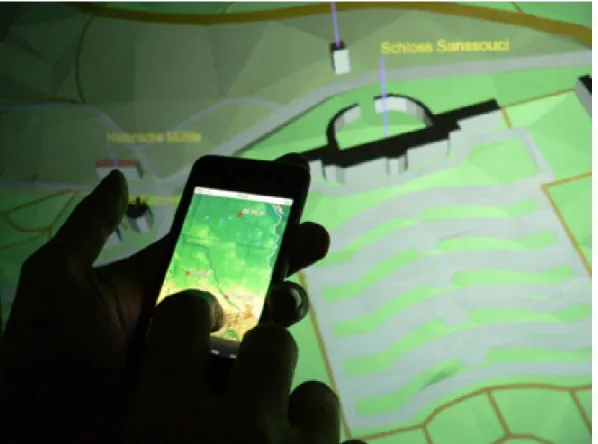
Prior to the smart phone era, Madhavapeddy et al. [75] created a system where users can use a phone with a camera and bluetooth to interact with a world map application (Fig. 2.1). The application displayed a map of the world, augmented with Spot Codes, a circular bar code. The user(s) can take pictures of the application, containing a Spot Code. The phone will then query the application via the bluetooth connection using the Spot Code’s content as an id, to get further information about the special spot on the map.
Thelen et. al. [100] took this idea further by customizing the information transferred to the user’s phone. This leverages on the idea of having a separate device for each user. The3D Human Brain Atlas (Fig. 2.2) [100] is basically a quiz about the human brain, featuring different levels of difficulty. By scanning a barcode prior to the beginning of the quiz, users select their own difficulty level. The phone remembers this throughout the game and the combination of a code scanned on the main screen together with the difficulty is sent to a server, which in turn sends the quiz question. Also the phone is used as a identification mechanism, where certain phones can be registered as instructor phones and will get the answers together with the question.
Figure 2.1: Selection on the world
map with spot codes. Courtesy of Madhavapeddy et al. [75]
Figure 2.2: A marker being selected
on the 3D Human Brain Atlas. Cour-tesy of Thelen et al. [100]
but displays them only for short periods of time. The phone will send a notification to the main application to display the markers, then the picture is taken including the markers, after which the markers disappear. The position where the phone was pointed to is then calculated based on the markers.
In the same paper another technique, called Sweep [15], was introduced. By optical flow calculations done directly on the phone, it is possible to detect the phones movement and use it similar to an optical mouse, even in mid-air. Unfortunately, due to technical limitations, this method incurred a high latency (about 200ms) making its usage cumbersome. To our knowledge, there is no current study if the technical advances till today could lift this restriction, but it is very likely.
Rhos [93] proposed to use markers on physical objects to create Augmented Reality (AR) games. While this is not directly related, this can still be used with the approaches above, to create additional content and seamlessly add it into the basic content provided by the application to all users.
The following classification will exclude Sweep, since it is different from the other methods. It will be classified separately. The methods are basically only used to perform selection tasks (according to the Foley taxonomy). It can be noted that some of the techniques follow up with text input after the selection by using the phone’s native keyboard. Combining several selections allows for the other tasks to be completed, too, but this might be cumbersome for the users.
camera). It is notable, too, that the input device is also used as an output device for most of the methods, making collaboration easier on a larger scale, since interaction is possible without interrupting the workflow of other users.
None of the methods are actually eyes-free, as it is necessary to point with the device at some position on the screen, which is of course only possible by looking at it. This might interrupt the user’s workflow, but assuming this is used to present further information on the screen of the mobile device, this is not a problem. Tracking systems are also not needed for any of those methods, all of them are actually designed to do their own kind of tracking their position. Depending on the application, external tracking might be used to improve the accuracy of the chosen method. Transferring content to the smart phone or tablet also makes it a valuable secondary device. A program might provide the standard means of interaction (depending on the program and setup) and additionally can allow for mobile devices to be used for further information, or for additional users to get information. Regarding scalability, all the methods work well with many users, actual restrictions are posed by available screen space where the users can interact. Point and Shoot might also have some scalability issues because of the bar codes flashing up on the screen, whenever a user interacts. This might distract other users looking at the screen. The problem increases with more people using the system at the same time.
Depending on the actual setup of a VR environment, these method might work very well (e.g., a powerwall) or might not be a good choice at all (e.g., fully immersive environment).
Sweep can only be used for position tasks, adding a button functionality will also allow for selection and, through composition, all other tasks as defined by Foley. It tracks input in 2D, but it could be augmentable to actually support 3D. It is eyes-free, as it does not use any of the output facilities of smart phones and tablets and is used similar to a mouse. It is also not dependant on external tracking, since doing its own tracking is the core of Sweep. The technique in itself is highly scalable. The real problem is similar to trackpads: the number of mouse cursors that need to be displayed on the screen. The cursor is also the problem why this might not be a good choice of input method for VR applications. Similar to the trackpad solutions already described, this is only useful if a 2D pointer can be effectively used with the application.
2.2.4
Menus
Another approach of using smart phones and tablets as input devices is an external menu structure on the mobile device. This can be as simple as pre-senting all required functionality in the device’s native UI and transferring all user input to the actual application. But this most likely causes a break in user interface design between main application and mobile device and is addi-tionally not eyes-free in most cases, interrupting the workflow when used. For this reason several advanced menu versions have been proposed, most of them featuring an eyes-free interaction mode.
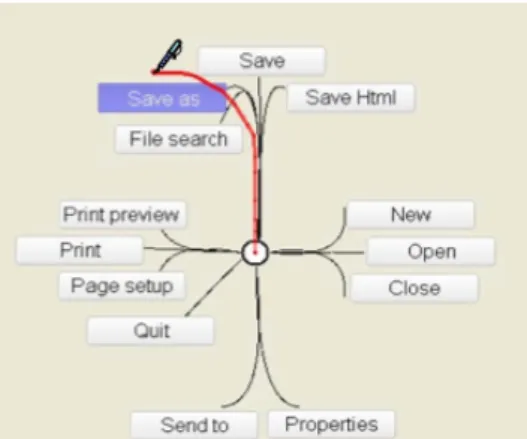
Many of those menus base on the idea of Marking Menus [69]. Marking Menus are basically a structure of radial menus. The user can use them eyes-free after learning the menu structure, by just remembering the path to draw (with finger or pen) to a certain menu item. When applied to mobile devices, the device can present the menu to the user who can then either progress to move to the desired menu item blindly, or look at the structure to find the menu item and thus help to remember the path next time. The strokes of the path can be drawn continuously or stroke-after-stroke, depending on the actual implementation.
As current smart phones and tablets allow for multi-touch interaction, stan-dard Marking Menu interaction can be improved by utilizing this. Kin et. al. [63] used multi-touch to enable faster input of the strokes, using two fin-gers at the same time (Fig. 2.3). They use the stroke-after-stroke version of Marking Menus, allowing to either draw the strokes simultaneously one with each finger, or one after another, alternating between fingers, a bit slower, but offering double the number of menu items, by changing the menu depending on the starting finger.
Flower Menusby Bailly et.al. [13] improve the number of items in a Marking Menu structure by not only allowing straight strokes, but instead take the curvature of a stroke into account. Using the stroke-after-stroke variant of Marking Menus, they have 12 items on each level. Each basic direction (i.e., Up, Down, Left, Right) can be combined with either a straight stroke, or a curved stroke to either the left or right side to get up to 12 items per level. Of course multiple levels of menu structure can be chained one after another.
Figure 2.3: Two-handed Marking Menus employ multi-touch to draw parts of the
Marking Menu strokes using alternating fingers. Courtesy of Kin and Hartmann [63]
Menus, Francone et.al. [52][51] proposed the Wavelet Menu (Fig. 2.5). It is derived from the Wave Menu by Bailly et.al. [14], but better suited to the small screen estate on mobile devices. The first time the user touches the screen, the root level of the menu is revealed around the touch point. Then when the user starts moving the finger towards one menu item, the submenu is appearing from below the current menu, with the current menu expanding outwards. When the user releases the finger at the menu, the next level of menu (or actual functionality) gets selected. If the touch is released prior to this, the last menu stays on top instead. Like with Marking Menus, the user can remember the sequence of strokes needed to access a certain item and can then do the strokes without actually looking at the device.
Gebhardt et. al. [54] use a HTML-based menu displayed on a mobile device to interact with VR spaces. It is targeted for use with configuration tasks of the system, but can also be used for other tasks. They created a custom set of widgets to be presented on the mobile device. An example of this can be seen in 2.6. The strong point of this method is the device-independence, since the
Figure 2.4: The design of Flower Menus. Each basic stroke direc-tion (Up, Down, Left, Right) has 3 variations (straight, curved left/right). Courtesy of Bailly and Lecolinet [13]
Figure 2.5: Wavelet Menusare a
se-quence of radial menus, that are con-ceptually hidden under each other and revealed as the user strokes from the center towards an menu item. Cour-tesy of Francone et al. [51, 52]
only requirement for the mobile device used is HTML5-support. Also there are basically no requirements for the server-VR-system; it does not even need to be a VR system.
Menu selection only offers support for selection tasks. By including the Control Menu mechanic, quantify tasks can also be accomplished, and by com-position everything else, even text (if paired by a technique like QuikWrite [88]. The input dimension of menus is defined by the number of items it contains, which can be a large number. With the Control Menu mechanic and common multi-touch gestures, like rotation and pinch-to-zoom, four dimensions of in-put can be achieved, enough to allow for 3D interaction, important for VR applications.
All of the presented menus, with the exception of the HTML-based menu, can be used eyes-free after a training period. They do not need external track-ing, but it could be used to provide a means of positioning and/or rotational input to the presented method. This will, of course, negatively affect the scala-bility of that method. Still any of the menu methods can be used as a secondary input method, especially to avoid menu structures in immersive environments, where navigating menus can be very cumbersome. Without tracking, menu interaction scales very well to the number of users, due to the minor commu-nication overhead per device, the fact that users can practically interact from
Figure 2.6: A HMTL5 Menu
com-posed of several standard and custom widgets. Courtesy of Gebhardt et al. [54]
Figure 2.7: The principle of Mo-tion Marking Menus is to divide the possible angle range into different parts, each corresponding to a menu item. By alternating the movement or adding small stops in between, a menu structure can be traversed. Courtesy of Oakley and Park [86].
any position they can see the application screen/area and individual mobile devices do not interfere with each other during interaction.
For these reasons, all presented menu approaches are very well suited to be used in a VR environment, with the actual implementation being dependent on the parameters of the VR application.
2.2.5
Gestures
Using the built-in sensors of smart phones and tablets, especially accelerome-ters, gestures with the device itself can be recognized. Since these gestures do not use the touchscreen or only for activation of the gesture sensing, it is easy to implement the same gesture recognition for other devices as well, as long as they feature the necessary sensors.
Device gestures can also be added to other input methods, such as the menus presented in the previous section. One has to keep in mind, that the gestures are more difficult to execute with larger and heavier devices, so large
tablets are not a good input device to use the following methods with.
Motion Marking Menus (Fig. 2.7) as presented by Oakley and Park [86], base on the concept of Marking Menus, as shown in the last section. But instead of using swipes for the selection of menu items, selection is done via the angle it is held in. They use a button or a touch on the screen as an activation mechanic. The angle the device can be held is divided into a number of menu items. Two menu items, for example, each get a 45◦ angle, meaning that holding the device horizontally or up to a 45◦ deviation from the horizontal plane will invoke the first menu item, any other posture will activate the second item. By tilting the device up and down from the current posture while still holding the activation button, a menu sequence can be invoked, similar to touch menus.
Building from this general idea,Jerk-Tilts (Fig. 2.8) is a method by Baglioni et. al. [12] for selection by gesture. Instead of having the user remembering a special posture or sequence of postures, they use a single tilt-and-back gesture in different directions to invoke functionality. For example, holding the device and executing a quick tilt to the right and then back to the original posture will invoke a selection of a certain kind. The same can be done in all four basic direction and combining two directions allows for a total of eight different possibilities. A big advantage of this method is, that it works without any activation button, allowing to use this together with other input methods using the touchscreen.
Dachselt and Buchholz [39] suggest to use a throw gesture alongside tilt gestures (forming Throw and Tilt (Fig. 2.9). Tilt can be used for selections, similar to the methods presented above in this section or to move a mouse cursor, while the throw gesture can be used to transfer data to the main application. Care has to be taken when the throw gesture is executed to have a firm grip on the input device, but it is intuitive to throw content towards the application.
All the techniques above provide means to accomplish selections tasks. Us-ing tilt, Throw and Tilt can additionally provide means for position and/or rotation tasks. This can again be composed into all other possible tasks. The number of input dimensions is different for all methods. Motion Mark-ing Menus have a dimensionality dependent on the number of menu items.
Figure 2.8: Jerk-Tilt are a
tilt-and-back kind of gesture, that can be done in eight different directions, allowing for eight different functions to be in-voked. Courtesy of Baglioni et al. [12]
Figure 2.9: The characteristic throw
gesture from Tilt and Throw. Cour-tesy of Dachselt and Buchholz [39]
Jerk-Tilts have a fixed dimensionality of eight, the number of possible ges-tures. With only three dimensions (two tilt dimensions and throw) Tilt and Throw has the least number of dimensions. All methods work eyes-free and need no external tracking and are also scalable to the number of users. Due to the greater motion of the throw gesture,Tilt and Throw might scale a little bit less than the other approaches, but this can be somewhat mitigated by providing an alternative to the throw gesture.
All these methods can well be used as a secondary input method to provide a subset of the application’s main functionality to additional users. The methods can also be used with tracked input devices, that might already be present in a given VR setup, such as flysticks. This allows for a common input metaphor over multiple input devices.
2.2.6
Application-Tailored Techniques
This section contains several techniques, that are specifically tailored towards a certain application. While this limits their general applicability, it is still possible to use them in similar usage scenarios. Because these techniques do
Figure 2.10: ModControl can be used to present an overview of the content to a
mobile device and allows independent interaction. Courtesy of Deller and Ebert [40]
not have much in common, their classification will be written individually instead of grouping them together as in the previous sections.
The Mod Control (Fig. 2.10) system by Deller and Ebert [40] was designed for interaction with a map application. The system itself is modular and not directly tailored towards the application. But the reference implementation features several interaction modules to improve control of the map applica-tion through a smart phone. Among them is a combined touch/accelerometer interface for 3D navigation. The user can modify the current view as flying, controlling the forward and sideward speed using the touchpad while the de-vices rotation control yaw and heading of the view. This is a common problem, especially in VR environments. This module can be classified to accomplish position and orientation tasks, in 5 DOF, it can be used eyes-free and does not need external tracking, it is usable as a secondary device to other input devices which do have less DOF. Also it scales well to the number of users.
of the map shown by the main application. This allows users to explore the map independently from other users and send their current view back to the application if needed. It fulfils a position and select task, in two dimensions. Though it cannot be operated eyes-free, it scales very well since every user can interact totally independent of the others. For the same reason it also makes for a good secondary device for additional users. The applicability in the VR domain is dependent on the VR application. For terrain simulations, for example, it will work very well, while it is not useful for architectural applications.
Seewonauth et.al. [95] propose two techniques,Touch & Connect andTouch & Select to initiate data transfer between a phone and a computer. Since today’s smart phones and tablets have quite large memory capacity, they can be used as a mobile data storage. To avoid complicated file management, one of those two method can be used to easily copy a data set. Touch & Connect bases on NFC. The users select a file on the source device and simply touch a NFC tag on the target computer to copy the file. Note that the same approach can be used to get the current data set from the display or to initiate a connection (as input device) to the currently running application, avoiding the need to enter IP-Adresses or Host names.
Touch & Select uses several NFC tags to track the position of the mobile device. The user again selects a file on the smart phone or tablets and touches a point directly on the screen. This initiates the file transfer. The same principle can be used to interact with the screen directly for other effects.
Both methods allow to accomplish selection tasks, with Touch & Select having additional two dimensions of input. Since the user has to point with the device, it cannot be used eyes-free, but especially if used for data transfer, both methods are valid secondary input means. It does not scale as well as other methods to the number of users, since it is also dependent on the number of NFC tags provided and also it requires the users to stand near the tagged spots, limiting the concurrent use. External Tracking is only needed by the means of providing the NFC tags.
For VR applications,Touch & Connect is probably more useful thanTouch & Select, since the latter selects a 2D screen position, which is only situational useful. But to initiate connections between a mobile device and a stationary
computer system,Touch & Connect is very convenient. Please also note, that a similar behaviour is achievable by providing a visual tag, that can be scanned by a smart phone or tablet camera if NFC is unavailable.
Semantic Snarfing describes a technique by Myers et.al. [82] using a laser pointer to mark a spot on a large display. The semantic area (e.g., a dialog) this spot belongs to is then transferred to a mobile device’s screen. Due to technical progress since the time the paper was published, the method can be used today without a laser pointer by utilizing the camera of a smart phone or tablet. This makesSemantic Snarfing a method similar to the camera methods described in their own section. What makes Semantic Snarfing special from the camera techniques is the semantics that needs to be provided in order to make the system work. The method has in general the same properties as the camera methods, as it allows selection (and then more tasks on the mobile device’s screen), scales generally well to the amount of users, but does not support eyes-free interaction. Tracking is not required. Its usability in VR environments is dependent on the application and setup, quite similar to the camera methods. But as a secondary device, Semantic Snarfing is applicable to even more VR environments, as the primary device can be used to select the “snarfing point” for the mobile device.
2.2.7
Conclusion
Several interaction techniques are possible with smart phones and tablets. For applications where collaboration is expected, supporting interaction via mobile devices will add benefit to users and their collaboration. Even if not the full set of functionality can be accessed by smart phone or tablet interaction, it will still help users to be active users of an application instead of being only passive spectators.
However, it is important to choose the right form of interaction for the application in question in order to reach a high usability of the resulting system. The overview given by this paper should help in considering which methods are feasible for certain settings. Table 2.1 contains an overview of the properties reviewed in the previous chapter for easier comparison.Moreover, it can form a starting point for implementation of an own interaction metaphor. If possible, a metaphor for the mobile device should not deviate from the metaphor of
Table 2.1: Overview of all presented methods. (M: methods using output
capabili-ties.; c: achievable through composition; parenthesis depict simple improvements to the method.)
Method Position Orien
t
Select Ink Quan
tify T ext Dimensions Ey es-free T rac king Secondary