Readiris 14
WindowsUser Guide
10/29/2012I.R.I.S. Products & Technologies dgi
ReadirisTM
14 – User Guide
Table of Contents
Introducing Readiris ... 9
What's new in Readiris 14 ... 10
Legal Notices ... 15
Section 1: Installation and Activation ... 17
System Requirements ... 17
Installing Readiris ... 17
Activating Readiris ... 19
Software Registration ... 20
Check for updates ... 21
Uninstalling Readiris ... 22
Technical Support ... 23
Section 2: Getting Started ... 25
Using Readiris for the first time ... 25
Exploring the interface ... 26
Customizing the interface ... 30
Changing the user interface language ... 33
Configuring your scanner ... 34
Saving the processing settings ... 41
Loading settings: ... 41
Restoring factory settings: ... 41
Using the Wizard ... 42
Using the SmartTasks ... 45
Section 4: Selecting the Configuration Options ... 49
Configuration Options ... 49
Rotation options ... 49
Page Deskewing ... 50
Page Analysis ... 50
Modifying the page configuration options ... 52
Section 5: Selecting the Recognition Options ... 53
Recognition Options ... 53
The Main language ... 53
Other Recognition Options (Readiris Pro + Corporate) ... 54
Other Recognition Options (Readiris Corporate only) ... 56
Advanced Recognition Options ... 58
Section 6: Scanning and Opening Documents... 61
Scanning Documents ... 61
Selecting the Scanner Settings ... 61
ReadirisTM
14 – User Guide
Opening options ... 74
Other ways of opening image files ... 76
Processing Batches of Image Files ... 76
Section 7: Adjusting the Image Quality ... 79
Section 8: Editing the Recognition Zones ... 85
Introduction ... 85
Modifying the automatic Page Analysis ... 86
The Editing and Layout options ... 87
Using Zoning templates ... 96
Section 9: Saving Documents ... 99
Saving Documents ... 99
Adding Properties to Documents ... 107
Saving Scanned Documents as Image Files ... 109
Selecting the Formatting Options ... 111
Layout Options ... 113
General Options ... 116
SpreadsheetML Options ... 118
Paper Size ... 120
Pictures ... 120
Compressing PDF documents ... 126
Password-protecting PDF Documents ... 128
Digitally Signing PDF Documents ... 130
Selecting the XPS Options ... 131
The XPS Options ... 133
Compressing XPS Documents ... 134
Section 10: Sending Documents to the Cloud ... 137
Sending Indexed Documents to the Cloud ... 141
How to ... 143
How to configure your scanner ... 143
How to improve the recognition results ... 146
How to scan multiple documents ... 146
How to process digital camera images ... 148
Tips for taking pictures with your digital camera : ... 149
How to recognize barcodes ... 150
Recognizing a particular barcode ... 152
How to separate document batches ... 152
How to separate paper documents ... 153
The Recognition options ... 155
The Indexing options ... 156
ReadirisTM
14 – User Guide
How to recognize forms ... 158 How to process low-resolution images ... 159
RI_14_dgi_29102012-07
Welcome to the Readiris documentation. The aim of this
documentation is to help you get up to speed with using Readiris. It covers Readiris' installation and setup, the basic processing steps and the application's commands and working areas. At the end of the documentation you find an How to section in which particular questions are addressed.
The procedures described in this documentation are based on the Windows 7 operating system.
This documentation is written with the assumption that you know how to work in a Microsoft Windows environment. Consult your Windows documentation if necessary, in case you are not familiar with menu commands, dialog boxes, drop-down lists, docking windows and so on.
The information in this documentation is subject to change without prior notice.
I
NTRODUCING
R
EADIRIS
Readiris is I.R.I.S.' flagship document recognition software. With Readiris you can scan paper documents, open image files and digital camera images and turn them into fully editable text
documents and text-searchable PDF documents you can save, share and send to the Cloud. Readiris supports a wide range of output formats, the most important ones being Microsoft Word, Microsoft Excel and PDF.
The documents Readiris generates can either be saved on your computer, directly sent via e-mail or exported to Cloud applications such as Evernote, Dropbox, GoogleDocs and box. With Readiris
Introducing Readiris
Corporate you can also send documents to Microsoft SharePoint, Therefore, IRISNext and FTP web sites.
Readiris recognizes documents in 137 languages. All American and European languages, including the Central-European, Baltic and Cyrillic languages as well as Greek and Turkish are supported. Readiris also recognizes Arabic, Farsi and Hebrew, as well as four Asian languages: Japanese, Simplified and Traditional Chinese and Korean.
Besides text recognition, Readiris offers powerful compression features for PDF and XPS files, thanks to I.R.I.S.' compression technology iHQC.
W
HAT
'
S NEW IN
R
EADIRIS
14
Brand-new Interface
New OCR engine
New iHQC engine
Multi-thread Processing
Output Formats .DOCX and .XLSX
Export to the Cloud
Easy Web viewing PDF files
Brand-new Interface
If you ever used a previous version of Readiris you'll notice immediately that the interface of Readiris 14 looks completely different. The menus and toolbars have been replaced by a Ribbon. The Ribbon contains all the commands you need to process
documents and to complete your OCR tasks. Commands are
classified per group. Groups, in turn, are collected under tabs. Each tab is dedicated to one type of activity, such as scanning documents or exporting documents.
Tip: to learn more about the new interface, see the topic Exploring the interface.
New OCR Engine
In Readiris 14, I.R.I.S.' new OCR engine DRS 15 is used, which leads to improved accuracy.
Introducing Readiris
New iHQC Engine
The new iHQC engine used in Readiris 14 is now compatible with the Preview application on Apple iOS and Mac OS 10.7.
Multi-thread Processing
Readiris uses Multi-thread Processing if your computer is equipped with a multi-core processor.
Thanks to Readiris' multi-threading architecture, the processing speed has been drastically improved.
How does Multi-thread Processing work in Readiris?
When you open or scan a document, Readiris carries out several conversion tasks - or threads - in order to recognize the document. The number of threads Readiris is able to execute at the same time, depends on the number of cores in your computer. Suppose your computer is equipped with a quad-core processor. In that case, Readiris is able to execute 4 threads on 4 different pages. As soon as one thread is finished on a page, Readiris immediately starts the next one.
Output Formats .DOCX and .XLSX
The new standard Microsoft Word format .docx and the new
standard Microsoft Excel format .xlsx are now supported as output format by Readiris.
Export to the Cloud
The documents you process with Readiris can be sent to several Cloud applications. Readiris Pro sends documents to the Cloud applications Evernote, Dropbox GoogleDocs and box.
Readiris Corporate also sends documents to Microsoft SharePoint 2011, SharePoint Online, Therefore 2011, Therefore Online, IRISNext and FTP web sites.
Easy Web viewing PDF files
Readiris now also generates linearized PDF files, which allow faster web viewing. This feature is especially convenient when you are accessing documents stored on a web server.
Multiple Watched Folders
Readiris 14 supports the use of up to 32 Watched Folders and is no longer limited to 1.
ReadirisTM
14 – User Guide
L
EGAL
N
OTICES
Copyrights
Copyrights © 1987-2012 I.R.I.S. All Rights Reserved.
I.R.I.S. owns the copyrights to the Readiris software, to the online help system and to this publication.
The information contained in this document is the property of I.R.I.S. Its content is subject to change without notice and does not represent a commitment on the part of I.R.I.S. The software
described in this document is furnished under a license agreement which states the terms of use of this product. The software may be used or copied only in accordance with the terms of that agreement. No part of this publication may be reproduced, transmitted, stored in a retrieval system, or translated into another language without the prior written consent of I.R.I.S.
This documentation uses fictitious names as examples; references to actual persons, companies or organizations are strictly coincidental.
Trademarks
The Readiris logo and Readiris are trademarks of Image Recognition Integrated Systems S.A.
OCR and barcode technology by I.R.I.S.
AutoFormat and Linguistic technology by I.R.I.S. BCR and field analysis technology by I.R.I.S. iHQC compression technology by I.R.I.S.
All other products mentioned in this documentation are trademarks or registered trademarks of their respective owners.
Patents
ReadirisTM
14 – User Guide
S
ECTION
1:
I
NSTALLATION AND
A
CTIVATION
S
YSTEM
R
EQUIREMENTS
The minimum system requirements to install and run Readiris are:
A 1GHz CPU or higher. A Multi-Core processor is recommended.
Note: when your computer is equipped with a multi-core processor, Readiris uses the multiple cores to achieve faster processing.
1 GB RAM. 2 GB RAM is recommended.
200 MB free hard disk space. 1 GB free hard disk space is recommended.
Microsoft Windows XP (as of Service Pack 2), Windows Vista (32 and 64 bit), Windows 7 (32 and 64 bit) Operating System.
Microsoft .NET Framework 2 is required.
To install Readiris:
Insert the Readiris CD-ROM in the CD-ROM drive of your computer.
When the AutoRun window appears, click Readiris to start the Installation Wizard.
In case the AutoRun window does not appear (this depends on your Windows settings):
o Go to Computer > CD-ROM Drive.
o Double-click the CD-ROM Drive icon, and then double-click setup.exe to start the Installation Wizard.
Select the installation language and click OK.
Accept the terms of the license agreement.
A complete installation is offered. If you are an experienced user you can also select Custom and only install the components you need.
Click Next and follow the on-screen instructions.
Click Finish to complete the installation.
The submenu IRIS > Readiris in the Windows Programs list is created automatically by the installation program.
The installation program also creates a shortcut to the Readiris application on the Windows desktop.
ReadirisTM
14 – User Guide
A
CTIVATING
R
EADIRIS
Once you have installed Readiris you need to activate it.
Unactivated copies of Readiris are only available for use for 10 days.
To activate Readiris:
Double-click the Readiris shortcut on the Desktop to start.
You are prompted to activate Readiris. Click Yes to do so.
Note that an internet connection is required to activate Readiris.
Enter the activation code you find on the label inside the DVD box.
Note: if you downloaded an ESD version, your activation code was sent to you by e-mail.
Then click OK to finish the activation.
Tip: if an error occurs during the activation process, note that you can also do a manual activation.
If errors keep occurring, you might need to deactivate your firewall and try again. Consult the Windows help file if necessary. To do so, press f1 on your keyboard while you're on the Desktop.
S
OFTWARE
R
EGISTRATION
Once you've activated your software you can also register it. Registering is required to get Technical Support. It also offers other benefits, such as free updates, free trial downloads, video tutorials, discount on new products, and so on.
To register Readiris:
Click the Readiris button in the top left corner of the interface, then click Readiris Registration.
Fill in the Registration form and click Register now. Note that an internet connection is required to register.
ReadirisTM
14 – User Guide
C
HECK FOR UPDATES
When you register your copy of Readiris you are entitled to free software updates.
To check if updates are available:
Click the Readiris button in the top left corner of the interface.
Then click Check for updates.
U
NINSTALLING
R
EADIRIS
Should you want to remove Readiris from your computer, follow the procedure below.
To uninstall the application:
Close Readiris.
From the Windows Start menu, go to the Control Panel.
Click Programs and Features.
ReadirisTM
14 – User Guide
T
ECHNICAL
S
UPPORT
If you register your copy of Readiris you are entitled to free
technical support. In the Technical Support section of our website
www.irislink.com/support. you can find F.A.Q.'s (frequently asked questions), Video Tutorials, and much more information to solve common issues.
If you still can't find an answer to your question, click Technical Support Contact and fill in the Web Contact Form.
S
ECTION
2:
G
ETTING
S
TARTED
U
SING
R
EADIRIS FOR THE FIRST TIME
To run Readiris:
Double-click the Readiris icon on the Desktop.
Or start Readiris from the Windows Programs list:
Section 2: Getting Started
E
XPLORING THE INTERFACE
The new Readiris interface looks as follows:
The interface consists of the following components and panels: 1. Ribbon
The Ribbon is by far the most important tool in Readiris. It contains all the commands you need to process your
documents. The commands are classified per group. Groups, in turn, are collected under tabs.
The numbers on the ribbon indicate the order of the steps you should take.
1. Scan a document, or open an image From File. 2. Select the Output format and Destination.
Tip: point the cursor to the different commands to display their tooltip. The tooltips describe what each command does.
2. Pages panel
Each page you scan or open in Readiris has its thumbnail displayed in the Pages panel. The pages are processed top-down.
To change the order of the pages, you drag a page from one location to another. You can also move pages up and down, or delete them by right-clicking them and selecting the corresponding action.
3. Activity panel
The Activity panel displays the tasks that Readiris is carrying out. In each field you see a description of the task, and on which page it is being carried out.
Section 2: Getting Started
Note: the more cores you computer is equipped with, the greater the processing speed will be.
4. Properties panel
The Properties panel displays the properties information of each page, such as the scan time, OCR time, the scan resolution, etc.
5. SmartTasks / Scanned image
When no images have been scanned or opened in Readiris, the SmartTask dashboard is displayed. The SmartTasks allow you to do the most common scanning and
conversion tasks in Readiris.
See the topic Using the SmartTasks to learn how to change their default configuration.
When a document is scanned or opened into Readiris, its image is displayed. The different recognition zones are displayed. To learn how to modify the recognition zones, see the topic Editing the Recognition Zones.
Section 2: Getting Started
Note that the appearance of the components and panels described above can be customized to your liking.
C
USTOMIZING THE INTERFACE
The interface can be customized in several ways:
Note that the Pages panel cannot me hidden or moved around.
Autohiding the panels
The panels can be auto-hidden to save space in the Readiris interface.
Click the Auto-hide icon on a panel to hide it.
When a panel is hidden, its name appears vertically in the left or right sidebar.
Point the cursor to the name to make the panel appear.
To disable the Autohide function, click the Autohide icon again.
Click the View menu.
Clear the check boxes of the panels you want to hide.
Moving the panels around
The panels do not have fixed positions. They can be placed anywhere inside the Readiris interface.
To move a panel:
Double-click its title bar.
The panel appears in a reduced version in the middle of the interface.
Now you can drag it to a different position, and expand it.
Section 2: Getting Started
To restore a panel to its initial position, double-click its title bar again.
Minimizing the Ribbon
The ribbon can be minimized to save space in the Readiris interface.
To minimize the ribbon, right-click inside the ribbon, then click Minimize.
The ribbon will then look as follows:
Click a tab to display its options.
C
HANGING THE USER INTERFACE LANGUAGE
Readiris opens in English by default. If you want to change the interface language:
Click the Readiris button in the top left corner, then click
Interface Language.
In the Language window that opens, select the language of your choice, then click OK.
Section 2: Getting Started
Note: If you selected an incorrect language by mistake, click
Ctrl+U inside Readiris. The Language dialog box opens and you can select another language from the list.
C
ONFIGURING YOUR SCANNER
In order to scan documents in Readiris, your scanner must be configured correctly.
Before you configure the scanner in Readiris:
1. Make sure your scanner is connected to your computer, and switched on.
Note: the scanner should be physically connected to your
computer with a USB cable. An ethernet or wireless connection may also be used if the Twain driver supplied by the
manufacturer has been engineered with that capability.
2. Make sure you have the latest available Twain driver installed for your scanner.
In general, drivers can be found on the website of your scanner manufacturer. They are not provided by I.R.I.S. Note that some
find out which platforms are supported. If necessary, contact your scanner manufacturer.
Configuration
Click the down arrow beneath Scan in the ribbon.
Then click Settings.
When you do this for the first time, the Scanner Model list appears automatically.
In this list you select your scanner profile. The scanner profiles allow you to access features specific to your scanner. For
example, duplex scanning.
Do not worry if you don't see your scanner in the list; not all scanners have specific scanner profiles.
Important note: in case you don't find the exact same profile, do not select a profile that resembles it. Instead, select a universal Twain profile. Different Twain profiles are available:
Select <Twain><OTHER MODELS> when you are using a regular, flatbed scanner.
Select <Twain><OTHER MODELS>(User interface) if you want to use your scanner user interface to scan
Section 2: Getting Started
Select <Twain><OTHER MODELS with duplex
feeder> when you are using a duplex scanner, which scans both the front and backside of a page.
Once you've selected a scanner model, you must configure you scanner driver.
Click Configure to select your scanner driver.
If you do not see your scanner listed in the Select Source
window, then your scanner driver has not been installed properly. Re-install your scanner driver before trying to
configure it in Readiris. The scanner driver can usually be found on the website of your scanner manufacturer.
Once the scanner has been configured you can start scanning, using the default scanner settings.
S
ECTION
3:
B
ASIC
D
OCUMENT
P
ROCESSING
B
ASIC
D
OCUMENT
P
ROCESSING
Processing documents with Readiris is fairly straightforward when using a basic configuration. In this topic we discuss which steps to take when doing such a basic configuration. For detailed
information about the all the configuration steps, see sections 4 to 10.
Before you begin:
1. Select the Main document language on the Languages tab. Selecting the right document language is essential to obtain good recognition results with Readiris. The default language is set to the language you selected during installation.
Note: you can always change the document language after
opening a document, but know that Readiris then has to redo the recognition on the entire document. This of course slows down your process.
Section 3: Basic Document Processing
Page Analysis is selected by default. This option divides your documents into recognition zones. Without recognition zones, Readiris cannot process your documents. If you choose to disable this function, you will need to draw recognition zones manually on your documents.
Readiris can deskew (straighten) and rotate the documents you open.
Processing documents
Step 1: Scan or Open your documents
Click Scan to scan paper documents with your scanner. In order to scan documents your scanner must be correctly configured. See the section Configuring your scanner if necessary.
or
Click From File to open existing image files.
Step 2: Select the Output Format and Destination
Click the Output Format list.
Then select the required Output Format from the list.
You can, for instance, save your documents as Word documents to do text editing, or save them as PDF documents for storage purposes. For detailed information about the different output formats and the different formatting options, see the sections
Section 3: Basic Document Processing
In the second list, you select the Destination of your documents:
o Select Save as File to save the documents locally to your computer or portable storage device.
o Select E-mail to send the documents by e-mail.
o Or select a Cloud application to send your documents to the Cloud.
Note that the connection to the Cloud applications must be configured correctly to be able to export. See the section
Sending Documents to the Cloud to learn how to do so.
When you've gone through these steps, click Send to start processing documents.
Another way to get quick results with Readiris, is using the SmartTasks. They contain pre-configured commands and allow you to process documents in just a few clicks. See the section Using the SmartTasks for more
information.
Saving the processing settings
Note that Readiris saves the processing settings automatically when closing the application. Next time you start Readiris it applies the same settings.
In case you want to save a specific settings profile:
Click the Readiris button.
Then click Save Settings and name the settings file.
Loading settings:
Click the Readiris button.
Then click Load Settings and select the settings file you saved.
Restoring factory settings:
Click the Readiris button.Section 3: Basic Document Processing
U
SING THE
W
IZARD
The Wizard guides you step by step through the configuration process. Once you've gone through the steps, click Go to start the automatic Readiris process.
To start the Wizard:
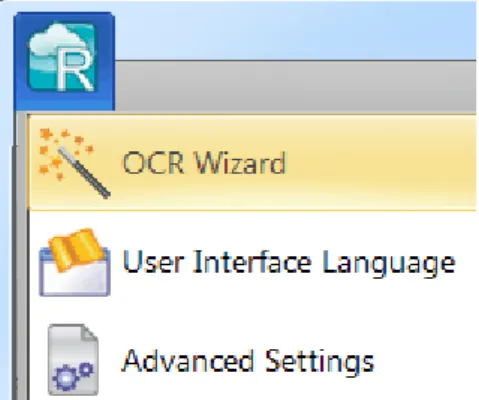
Click the Readiris button, then click Wizard.
Steps of the Wizard
Step 1: Select the image source
You can use your scanner to scan documents, or open image files
you already have on your computer.
During this first step you can also apply rotation options.
Select Page Deskewing if your documents are scanned crooked and you want to straighten them.
Step 2: Select your scanner (Note: if you selected image files in the previous step, proceed to Step 3)
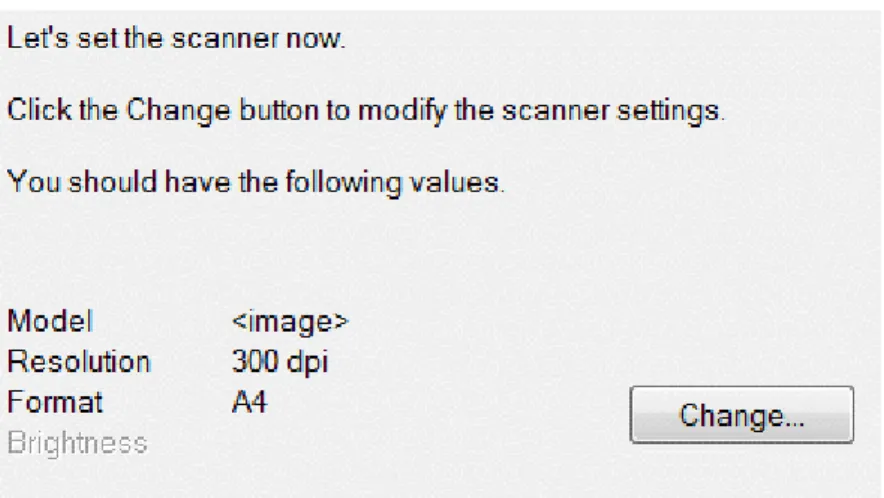
If you already configured your scanner, your scanner model is displayed here. If it is not, the Scanner Model list is displayed. Select your exact same Scanner Model, then click Configure to configure the driver.
For more information on how to configure the scanner, see
Configuring your scanner. For more information about the scanner settings, see the topic Selecting the Scanner Settings.
Section 3: Basic Document Processing
Step 3: Select the Document Language of your documents.
The default document language is set to the language you selected during installation. Click Change to select a different language.
Note: selecting the correct language is extremely important in order to obtain good recognition results.
Figure Step 3
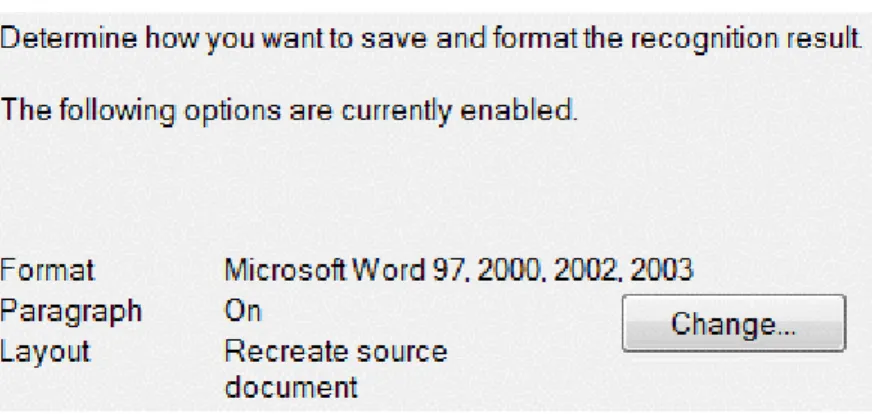
Step 4: Select the Output Format and (Cloud) Destination. Your documents are saved as Microsoft Word files by default. Click Change to select a different output format or destination application.
For more information about the different output formats and their options, see the section Saving Documents and Selecting the Formatting Options.
When you are done selecting the settings, click Next and then click
Go to start processing documents.
U
SING THE
S
MART
T
ASKS
The SmartTask dashboard is one of the fastest ways to use Readiris. It contains pre-configured commands that allow you to scan,
process and send your documents in just a few mouse clicks. If your scanner is configured correctly in Readiris, you can just click one of the SmartTasks to start processing documents, using the default settings. In case you still need to configure the scanner, see the topic Configuring your scanner first.
To change the default settings of the SmartTasks:
Right-click, or double-click on the SmartTask icon of your choice.
Select Scanner if you want to scan paper documents, or select
Image files to load existing images files on your computer.
Then click Configure to determine the Output Format, its
Formatting Options and any Cloud destinations.
The formats and options that are available here depend on the SmartTask you are using.
Detailed information about the different output formats and their formatting options can be found in the sections Saving
Documents, Selecting the Formatting Options and Sending Documents to the Cloud.
Section 3: Basic Document Processing
Once you are done configuring your SmartTask, click it to start processing your documents.
If you selected Scanner, Readiris starts scanning your documents.
If you selected Image files, a window opens in which you can select your images files.
When Readiris has finished processing your documents, the
Output File window opens. Name your output file and select where you want to store it.
When you are using the Send to e-mail SmartTask, your default e-mail software will open.
When you are using the Send to Cloud SmartTask, your documents are sent to the configured Cloud application.
For information on how to use the SmartTask Document
ReadirisTM
14 – User Guide
S
ECTION
4:
S
ELECTING THE
C
ONFIGURATION
O
PTIONS
C
ONFIGURATION
O
PTIONS
Before you scan or open any documents in Readiris you can set a number of Configuration options. These options help to improve the recognition results and are carried out during the
scanning/opening of documents.
The Configuration options are located in the Configuration
group.
Rotation options
Readiris can rotate your documents 90° to the right, 180° and 90° to the left.
When you are processing a bunch of documents that do not have the same orientation, select Automatic. In that case Readiris rotates the documents automatically in the right direction.
Note: make sure your documents are facing the right direction - meaning the text is facing the scanning surface. Otherwise Readiris will not be able to rotate them.
Page Deskewing
Select this option when you need to straighten documents that were scanned crookedly.
Page Analysis
This option is activated by default. It splits up each page in
recognition zones. Readiris analyzes the entire page and indicates which zones contain text, images and tables.
These recognition zones are required in order to process your documents. If your documents do not contain any recognition zones, Readiris will not be able to process them.
See the section Editing the Recognition Zones for detailed
information on the recognition zones, and on how to change them if necessary.
ReadirisTM
14 – User Guide
Next steps
When you are done selecting the options, click Scan to scan your documents, or click From File to open existing files.
Click the thumbnails in the Pages panel and check if the options have been correctly applied. Should not be the case, know that you can modify them manually via the Page tab on the ribbon.
Modifying the page configuration options
If the page configuration options you selected do not generate the results you were hoping for, you can change them manually after scanning/opening your documents.
To modify the options:
In the Pages panel, select the page that needs to be changed.
Then click the Page tab. Here you can re-apply the deskewing
and rotation options.
Use the arrows in the Organize group to switch to other pages.
Tip:
If you want to modify the recognition zones, click the Zones tab. See the topic Editing the Recognition Zones for more information.
ReadirisTM
14 – User Guide
S
ECTION
5:
S
ELECTING THE
R
ECOGNITION
O
PTIONS
R
ECOGNITION
O
PTIONS
Readiris converts scanned images, image files and PDF files into editable text documents and text-searchable PDF documents. In order for Readiris to recognize the text in your images, you need to activate the correct recognition options.
Tip: it is recommended to set the document recognition options before you
scan or open any documents in Readiris. The reason for this is that Readiris carries out the document recognition simultaneously while opening or scanning multiple pages.
The recognition options are located in the Languages group.
Advanced recognition options are available via the expansion arrow in the Configuration group.
Below you find an overview of the different options.
selecting the correct recognition language. The recognition language is set to the language you selected during installation.
To select a different language:
Click the down arrow right of the Main list and select the language of your choice.
Other Recognition Options
(Readiris Pro + Corporate)
Recognizing numeric documents
When you are processing documents that only contain numbers and almost or no text, then it is recommended to select the Numeric
option.
When this option is selected Readiris only recognizes the numerals 0-9 and the following series of symbols:
+ Plus sign * Asterisk / Slash % Percentage , Comma . Period ( Opening parenthesis ) Closing parenthisis - Hyphen = Equation sign $ £ € ¥
ReadirisTM
14 – User Guide
Recognizing Western words in Cyrillic and Slavic languages and in Greek
When you are processing Cyrillic, Slavic or Greek documents that also contain "Western" words written in the Latin alphabet - such as proper nouns, then it is recommended to select one of the available
Language pairs.
Language pairs are always combined with the English language and are available for Russian, Byelorussian, Ukrainian, Serbian,
Macedonian, Bulgarian and Greek.
To select a Language pair:
Click the down arrow right of the Main list.
Then select the required language pair.
Example
Speed vs. Accuracy
In Readiris Corporate you can choose whether to favor recognition
speed over accuracy and the other way around.
Tip: when you are processing low-quality images, it is
recommended to set this feature to accuracy. This yields markedly better results.
To access the Speed vs. Accuracy option:
Click the expansion arrow in the Languages group.
Move the slider to Speed for faster processing.
Or move the slider to Accuracy for better recognition results.
Other Recognition Options (
Readiris Corporate only
)
Recognizing Secondary Languages inside a single documentWhen your documents contain text in multiple languages, it is
recommended to select a main recognition language, combined with several Secondary languages. You may select up to 4 secondary languages:
Click the down arrow right of the Secondary list and check the boxes of the required languages.
Secondary languages that are unavailable for the selected main language are greyed out.
ReadirisTM
14 – User Guide
Recognizing Arabic Documents
When recognizing Arabic documents in Readiris Corporate, you can choose which recognition engine to use: omnifont or multifont. By default, Readiris uses the omnifont engine, which recognizes all fonts. To obtain the best recognition results it is recommended to use the multifont engine. This way, you can select the fonts used in your documents.
Click the expansion arrow on the Languages group.
Then select Arabic from the Main language list. The Fonts
button now becomes available.
Tip: should the recognition results be unsatisfactory, even though you selected the correct recognition options, then the image quality of your documents is probably insufficient. See the section Adjusting the Image Quality to solve this problem.
A
DVANCED
R
ECOGNITION
O
PTIONS
Next to the document language, other document characteristics such as the Font type and Character pitch play an important role in the processing of documents.
You can access them by clicking the expansion arrow in the
Configuration group, or via the Readiris button > Advanced Settings.
ReadirisTM
14 – User Guide
Font type
Readiris distinguishes between "regular" and dot matrix printed documents. Dot matrix printers are printers that create documents with text made up of isolated, separate dots.
Special segmentation and recognition techniques are required to recognize dot matrix documents and need to be activated.
To select the font type:
Click the Readiris button, and then click Advanced Settings.
Click the tab Font type.
The font type is set to Automatic by default.
That way, Readiris recognizes "24 pin" or "NLQ" (Near Letter Quality) dot matrix, or other "normal" printing.
To recognize only dot matrix printed documents, click Dot matrix.
Readiris will recognize so-called "draft" or "9 pin" dot matrix printed documents.
Character pitch
The character pitch is the number of characters per inch in a particular font. The character pitch can either be fixed, in which case all characters have the same width, or proportional, in which case the characters have a different width.
Click the tab Font type.
The character pitch is set to Automatic by default.
Click Fixed if all characters of the font have the same width. This is often the case in old typewriter documents.
Click Proportional if the characters of the font have a different width. Virtually all fonts in newspapers, magazines and books are proportional.
Important: these document characteristics do not apply to Asian, Hebrew or Arabic documents.
ReadirisTM
14 – User Guide
S
ECTION
6:
S
CANNING AND
O
PENING
D
OCUMENTS
S
CANNING
D
OCUMENTS
Before you begin: make sure your scanner is connected to your computer and configured correctly. If necessary, see the topic Configuring your scanner.
Readiris is Twain compliant. It supports almost any flatbed and sheet-fed scanner, all-in-one device, digital camera and scanner currently available.
See the topic Selecting the Scanner Settings for detailed information on the available scanner settings in Readiris.
Important note: Readiris Pro can scan 50 pages at a time. It is not possible to scan or open more than 50 pages inside a single Readiris project. Readiris Corporate can open an unlimited number of pages inside a single project.
Selecting the Scanner Settings
This section gives an overview of all the available scanner settings in Readiris.
To access the scanner settings:
The Scanner window is displayed.
Below you find an overview of all available scanner settings.
Scanner model
Click Scanner Model to select your scanner profile from the list. The scanner profile allows you to access features specific to your scanner. For example, duplex scanning (ADF). Settings that are unavailable for your scanner are not displayed or greyed out. Do not worry if you don't see your scanner in the list; not all scanners have specific scanner profiles.
ReadirisTM
14 – User Guide
If you do not find your exact scanner in the list, do not select a similar profile. Instead, select a universal Twain profile. Different Twain profiles are available:
Select <Twain><OTHER MODELS> when you are using a regular, flatbed scanner.
Select <Twain><OTHER MODELS>(User interface) if you want to use your scanner user interface to scan documents instead of Readiris.
Select <Twain><OTHER MODELS with duplex feeder>
when you are using a duplex scanner, which scans both the front and backside of a page.
Configure
Click Configure to select your scanner driver. Selecting the correct scanner driver is required for Readiris to be able to communicate with the scanner.
If you do not see your scanner listed in the Select Source window, then your scanner driver has not been installed properly. Re-install your scanner driver before trying to configure it in Readiris. The scanner driver can usually be found on the website of your scanner manufacturer.
Contrast
When scanning low-quality documents, adjusting the Contrast
level is sometimes required to obtain an optimal scan result. Move the Contrast slider to the right to increase the contrast between the background and the text. Move it to the left to reduce the contrast.
Note: when the option Auto-exposure is selected, the Contrast
slider is unavailable. The contrast settings are then adjusted automatically.
Brightness
When you are scanning dark, blurry images, or extremely light images, it may be necessary to adjust the Brightness settings.
Move the Brightness slider to the right to increase the brightness of your scans. Move the slider to the left to reduce the brightness.
Note: when the option Auto-exposure is selected, the Brightness
slider is unavailable. The brightness settings are then adjusted automatically.
ReadirisTM
14 – User Guide
Optimize resolution for OCR
This option adjusts the resolution of images that were scanned with too much detail (over 600 dpi). When this option is activated
Readiris reduces the resolution to a suitable level.
Note that this option doesn't increase the resolution of images scanned with too little detail.
Scan another page after
This option is useful when you are scanning multiple pages on a flatbed scanner. It allows you to determine after how many seconds Readiris scans another page. This way, you have the time to change the pages on the scanner while Readiris scans them automatically. You no longer need to go back to your Readiris application and click the Scan button every time you want to scan a new page. Use the up and down arrows to determine after how many seconds you want Readiris to scan a new page.
Format
Click the Format list to define the size of the documents you are scanning.
Tip: in the US Letter and Legal are the two most common formats. Internationally, A4 is the standard.
Resolution
Select in which resolution you want to scan images. A resolution of
300 dpi (dots per inch) is recommended. When you are scanning very small print or Asian languages, 400 dpi is recommended.
Color mode
Readiris can scan documents in color, black-and-white and
grayscale.
Note that grayscale and color images return the best OCR results.
Landscape
Select the Landscape option when scanning landscape-oriented documents instead of portrait-oriented documents.
When this option is selected, Readiris displays your documents as landscape-oriented documents in the interface.
Auto-exposure
With some scanners the Auto-exposure option is selected by default. This option adjusts the contrast and brightness settings automatically. A good contrast is required to obtain optimal recognition results.
Note: when this option is selected, the Contrast and Brightness
ReadirisTM
14 – User Guide
ADF
ADF stands for Automatic Document Feeder. This option is available when your scanner is equipped with an automatic
document feeder. Select this option when you want to scan stacks of documents all at once.
Invert
Sometimes Twain scanners display white text on a black background when scanning documents in black-and-white. To reverse the color of text/background on your documents, select the
Invert option.
Digital camera
When you are using a Twain compatible digital camera, you can use your camera directly as scan source. To do so, select the Digital camera option. Readiris will then use special recognition routines to process the digital camera images.
See the section How to process digital camera images for tips on using a camera as scan source.
Process as 300 dpi
Select the option Process as 300 dpi when you are processing images of an incorrect or unknown resolution. The images will be processed as if they had a 300 dpi resolution.
Smoothen color images
This option is selected by default. It improves the appearance of color and grayscale images in your documents.
Duplex
When using a duplex scanner - a scanner that can scan both the front and the back side of documents - the Duplex scanning option is available. Select this option to have Readiris scan the front and back side of documents.
Fast Binarization (Readiris Corporate only)
When you are using a high-speed scanner it is recommended to activate Fast Binarization. This option increases the processing speed considerably.
Tip: avoid selecting this option when scanning very low-quality documents.
S
CANNING BATCHES OF DOCUMENTS
(This section applies to Readiris Corporate only)
If you need to scan entire batches of documents you can use Readiris' Watched Folder feature.
This way, you can scan all your documents to specific folders that are being monitored by Readiris. Whenever Readiris spots a new document inside one of the Watched Folders, it processes it and exports it to a destination of your choice: in an output folder, in the Cloud or on an FTP web site.
Readiris supports up to 32 Watched Folders. Each watched folder can have a specific configuration. One watched folder configuration can for instance generate Compressed PDF documents and export them to Therefore. Another can generate RTF documents and export them to Google Docs, where they can be edited. While yet
ReadirisTM
14 – User Guide
Google Docs, using different credentials (user name and password) and settings (output folder, etc.).
Important notes:
When using a Readiris Watched Folder, it is not possible to use Readiris as scanning application at the same time.
Watched Folders can either use the Default settings - being the settings you configured in Readiris - or Specific settings. In the latter case, the settings you configure for a watched folder have nothing to do with the settings you configured inside Readiris itself.
To set up a Watched Folder configuration:
Click the down arrow beneath the From File button.
Then click Watched Folder.
Note that the Watched Folder option is only available when no documents are opened in Readiris.
In case you want to apply the current Readiris configuration to the Watched Folder, keep the option Default settings selected. Note that the option Select Output text folder is only available when the output is set to Save as File in the current Readiris configuration.
The option Select output format is only available when using Specific settings.
In case you want to apply specific settings to a Watched Folder configuration, select the option Specific settings.
Now the Output settings screen appears.
Select the output format, destination and lay-outing options. For more information see Section 9: Saving Documents and Section 10: Sending Documents to the Cloud.
Click OK to confirm.
Tips:
o If you want Readiris to process the subfolders of a Watched Folder, then select Process subfolders.
ReadirisTM
14 – User Guide
Note: when the Process subfolders feature is activated, it is not possible to use a subfolder of an existing watched folder as watched folder in a new watched folder configuration.
Example: in Configuration 1 you select Process subfolders and you use C:\Input as Watched Folder. C:\Input has a subfolder called Batch1. In that case C:\Input\Batch1 cannot be used as Watched Folder in Configuration 2.
o When using multiple Watched Folders, it is very useful to use the feature Add time stamp to filename.
This way, you avoid generating output files that have the same file name, which would be overwritten when using the same output destination. A time stamp looks as follows
<filename>_YYYYMMDDHHMMSS and contains the year, month, date, hour, minutes and seconds of the creation time.
When you are done, click OK to start monitoring the Watched Folder. Or click New watched configuration to configure another Watched Folder.
During monitoring, Readiris processes any images it spots inside the folder.
Tip: click Minimize to have Readiris run in the background.
To add documents to the Watched Folder while it is being monitored by Readiris:
Scan documents using your scanner's interface, or
Move existing image files to the Watched Folder.
O
PENING
I
MAGE
F
ILES
Besides scanning documents, you can also open image files and PDF files with Readiris.
Important note: Readiris Pro can open multipage image files of up to 50 pages. It is not possible to open more than 50 pages inside a single Readiris project. If you need to process more pages inside a single project, switch to Readiris Corporate.
ReadirisTM
14 – User Guide
Readiris supports the following image file formats.
Image File Format File Extension
Adobe PDF *.pdf
DCX fax *.dcx
DjVu images *.djv, *.djvu
JPEG images *.jpg, *.jpeg
JPEG 2000 images *.j2c, *.j2k, *.jp2
Portable Network Graphics *.png
(Compressed and multipage) TIFF images uncompressed and LZW, PackBits, Group 3, Group 4 and JPEG compressed
*.tif, *.tiff
Windows bitmap *.bmp
ZSoft Paintbrush images *.pcx
To open existing image files:
Click the From File button.
Then select the images files you want to process, and click
Note:
If your image file has been scanned in a low or unknown resolution, Readiris displays the following warning:
Click Open anyway to continue with your image. Tip: click the
Help button for pointers on how to obtain the best possible results with low-resolution images.
Opening options
ReadirisTM
14 – User Guide
Load PDF documents in color
This option does exactly what it says: it opens PDF documents in color.
Deactivate his option if you want to open PDF documents in black-and-white, to speed up the opening process.
Smoothen color images
This option is selected by default. It improves the appearance of color and grayscale images in your documents.
Note: with some scanners, image smoothening is required to recognize color and grayscale images successfully.
Process as 300 dpi
Select Process as 300 dpi when you are processing images of an incorrect or unknown resolution. The images will be processed as if they had a 300 dpi resolution.
Fast Binarization (Readiris Corporate)
When you are opening many image files at the same time, it is recommended to activate Fast Binarization. This option increases the processing speed considerably.
Tip: avoid selecting this option when scanning very low-quality documents.
Page range
Select All pages to open the entire document (up to 50 pages in Readiris Pro).
Or select Pages and indicate the page range.
Other ways of opening image files
Besides the From File button you can also open image files by dragging them to the Readiris interface.
P
ROCESSING
B
ATCHES OF
I
MAGE
F
ILES
(This section applies to Readiris Corporate only)
When you are processing entire batches of image files, you can use Readiris' Batch OCR folder.
Click the down arrow beneath the From File button.
Then click Batch OCR.
Note that the Batch OCR option is only available when no documents are opened in Readiris.
ReadirisTM
14 – User Guide
Then browse for the output folder, where your processed documents will be stored.
Then select the processing options:
o Process subfolders processes any underlying folders of the input folder.
o Overwrite output files overwrites any existing output files with the same name in the output folder.
o Delete scans after recognition deletes your original input images once they have been processed.
Click the Select Output Format button to select the required output format and the formatting options.
Tip: see the topics Saving Documents and Selecting the Formatting Options for more information.
When you are done selecting the options, click OK to start processing documents.
S
ECTION
7:
A
DJUSTING THE
I
MAGE
Q
UALITY
The recognition results depend a great deal on the image quality of your documents. If you're scanning very low-quality documents, Readiris will not be able to recognize them properly.
The reason for this is that Readiris works by converting pictures of text characters into actual text characters. If your documents are too dark, the characters fade into one another and create black spots. If your documents are too light, the text characters might be broken. Consequently, Readiris will not be able to recognize them.
Example 1: text is too dark
Here, the letter shapes begin to fill in and become fuzzy. Letters like a, e, and o are almost completely blurred.
Example 2: text is too bright
Section 7: Adjusting the Image Quality
To improve the recognition results:
Check the Scanner Settings and make sure your documents have been scanned in a resolution of 300 dpi and in grayscale.
See the section Selecting the Scanner Settings if necessary.
If that's not the case, re-scan your documents using these settings.
Then access the Image Adjustment options:
Click the View tab.
Clear the option Display Document in Color.
Then click Size > 100 %.
This enlarges the image, allowing you to inspect the text characters. The characters should not be touching each other, filled in, faded, or broken.
Now click the Page tab, and click Adjust to start adjusting the image.
Smoothen color image
This option is selected by default. It smoothens out differences in intensity, creating a greater contrast between the text and the background. Sometimes smoothening is the only way to separate text from a colored background.
Section 7: Adjusting the Image Quality
Brightness
Move the slider to increase or decrease the brightness of your documents.
Example 1: image is too dark
The image below is too dark and results in a plain black image. There is no text to be recognized.
In this case you need to brighten the image in order for the text to be displayed.
Example 2: image is too bright
The image below is too light and results in broken text characters. The text is hardy legible.
In this case you need to darken the image to obtain satisfactory results.
Contrast
Move the slider to increase or decrease the contrast between the text and the background.
Example
The image below results in broken text characters.
In this case you need to increase the contrast to obtain satisfactory results.
Despeckle
Sometimes documents contain a lot of "noise" - little black spots that occur when scanning low-quality documents or using bad scanner settings.
Section 7: Adjusting the Image Quality
To remove these little black spots, use the Despeckle slider. The more you move it to the right, the larger the spots that will be removed.
When you are done adjusting the image quality:
Click Apply to preview the results.
If the results are satisfactory, click OK. If not, change the settings again.
S
ECTION
8:
E
DITING THE
R
ECOGNITION
Z
ONES
Introduction
When you scan a document or open an image file in Readiris, each page is divided automatically into recognition zones. Readiris uses these zones to determine how each part of your documents must be converted. If your document does not contain any zones, it cannot be recognized.
In Readiris Pro there are 3 kinds of recognition zones. You have
text zones, image zones and table zones. In Readiris Corporate
you can also have a fourth zone type, being barcode zones. Notice that each zone type has its own color.
Text zones Orange Image zones Purple Table zones Pink *Barcode zones Green
*Readiris Corporate only.
The zones are also numbered; notice the number in the top left corner of each zone. The numbers run top-down and from left to right*. They indicate the order in which the zones are recognized.
Section 8: Editing the Recognition Zones
*Note: when processing Arabic documents, the numbers run from right to left, if you select Arabic as main language.
Example of recognition zones
Modifying the automatic Page Analysis
The zones we discussed above are created automatically by an option called Page Analysis. This automatic page analysis is far from fixed. It can be modified in several ways. For instance, you can manually create new zones, change the zone of existing zones, expand and reduce zones in size, change the sort order, and so on. Note, however, that is not possible to do any text editing inside Readiris. That sort of editing is to be done in your target
application, e.g. Microsoft Word, Excel, etc.
To access the Editing and Layout options:
The Editing and Layout options
Below you find an overview of the editing and layout options in Readiris.
Note: when you make any modifications to the layout, Readiris redoes the recognition on the entire page.
Manually drawing zones
In case Readiris missed any recognition zones you can draw them manually.
Note that barcode zones must always be drawn manually. They are not created automatically by the Page Analysis feature.
To draw zones:
In the Editing group, click the zone type you want to create.
Then click and hold the left mouse button and draw a frame around the section to want to recognize.
In the image below, we manually drew a new table zone
Section 8: Editing the Recognition Zones
Changing the zone type
When scanning bad quality documents, it may occur that Readiris does not determine the zone types correctly. If that happens, know that you can change the zone types manually:
Right-click the zone you want to change.
Point to Zone > Type, and then click the zone type of your choice.
Important note: if you are processing bad quality images, Readiris will likely have problems recognizing them
correctly. Refer to the section Adjusting the Image Quality to learn how you can avoid such issues.
Changing the zone type of multiple zones simultaneously
Click Select zone on the Editing group.
Press and hold the Shift key while clicking the zones you want to modify.
Then, while still pressing the Shift key, right-click inside a selected zone, point to Zone > Type and click the zone type of your choice.
Important note: if you are processing bad quality images, Readiris will likely have problems recognizing them
correctly. Refer to the section Adjusting the Image Quality to learn how you can avoid such issues.
Expanding or reducing zones
Click Select zone in the Editing group.
Section 8: Editing the Recognition Zones
Click and hold one of the bullets on the frame, then drag the frame in the desired direction to expand or reduce the zone.
Changing the sort order of zones
The order in which the zones are numbered determines in which order they will be included in the output documents. To change the order:
Click Select zone in the Editing group.
Then click the Sort button.
The numbers now disappear from the zones.
Now click the recognition zones one by one, in the order you want to sort them in.
Moving zones
Then click inside the zone you want to move, hold the left mouse button, and drag the frame to the position of your choice.
Connecting zones
Suppose you have two text zones that belong together, and you want to turn them into one single text zone. In that case:
Select Text in the Editing group.
Then draw a text zone between the two zones to connect them.
Section 8: Editing the Recognition Zones
The two zones are merged into one.
Note that only zones of the same zone type can be connected.
Deleting zones
In case you want to exclude zones from the recognition:
Click Select zone in the Editing group.
Then press and hold the shift key and select the zones you want to delete.
Right-click one of the selected zones, point to Zone and click
Deleting small zones
Sometimes documents contain a lot of "noise" - little black spots that occur when scanning low-quality documents or using bad
scanner settings. When that is the case, Readiris tends to mark them as recognition zones, even though they do not contain any useful content.
To exclude these zones from recognition:
Click the option Delete small zones.
This option erases all windows smaller than 0.5" and re-sorts the remaining zones.
Ignoring zones on borders
When your scanner generates black borders around your
documents, Readiris tends to mark them as recognition zones, even though they do not contain any useful content.
In such cases it is recommended to use the option Ignore zones on borders. That way, the border zones will be excluded from the recognition.
Section 8: Editing the Recognition Zones
Ignoring a certain zone
In case your document only contains content in a certain area of the page, you can use the Ignore option to exclude the remainder of the page from the recognition.
Click Ignore in the Layout group.
Then draw a frame around the section that contains the information. Everything outside the frame will be ignored.
Note: you can also use this option to create Zoning templates, in case all your documents have a similar layout. See the section Using Zoning Templates.
Recognizing the content of a particular zone
In case you only want to recognize the content of a particular text zone, and you don't need a fully converted output document, then you can use the Copy as Text option.
Right-click the text zone you want to recognize.