S
TONE
G
ATE
5.3
SMC I
NSTALLATION
G
UIDE
Legal Information
End-User License Agreement
The use of the products described in these materials is subject to the then current end-user license agreement, which can be found at the Stonesoft website:
www.stonesoft.com/en/support/eula.html Third Party Licenses
The StoneGate software includes several open source or third-party software packages. The appropriate software licensing information for those products at the Stonesoft website:
www.stonesoft.com/en/support/third_party_licenses.html U.S. Government Acquisitions
If Licensee is acquiring the Software, including accompanying documentation on behalf of the U.S. Government, the following provisions apply. If the Software is supplied to the Department of Defense (“DoD”), the Software is subject to “Restricted Rights”, as that term is defined in the DOD Supplement to the Federal Acquisition Regulations (“DFAR”) in paragraph 252.227-7013(c) (1). If the Software is supplied to any unit or agency of the United States Government other than DOD, the Government’s rights in the Software will be as defined in paragraph 52.227-19(c) (2) of the Federal Acquisition Regulations (“FAR”). Use, duplication, reproduction or disclosure by the Government is subject to such restrictions or successor provisions.
Product Export Restrictions
The products described in this document are subject to export control under the laws of Finland and the European Council Regulation (EC) N:o 1334/2000 of 22 June 2000 setting up a Community regime for the control of exports of dual-use items and technology (as amended). Thus, the export of this Stonesoft software in any manner is restricted and requires a license by the relevant authorities. General Terms and Conditions of Support and Maintenance Services
The support and maintenance services for the products described in these materials are provided pursuant to the general terms for support and maintenance services and the related service description, which can be found at the Stonesoft website:
www.stonesoft.com/en/support/view_support_offering/terms/ Replacement Service
The instructions for replacement service can be found at the Stonesoft website: www.stonesoft.com/en/support/view_support_offering/return_material_authorization/ Hardware Warranty
The appliances described in these materials have a limited hardware warranty. The terms of the hardware warranty can be found at the Stonesoft website:
www.stonesoft.com/en/support/view_support_offering/warranty_service/ Trademarks and Patents
The products described in these materials are protected by one or more of the following European and US patents: European Patent Nos. 1065844, 1189410, 1231538, 1259028, 1271283, 1289183, 1289202, 1304849, 1313290, 1326393, 1379046, 1330095, 131711, 1317937 and 1443729 and US Patent Nos. 6,650,621; 6 856 621; 6,885,633; 6,912,200; 6,996,573; 7,099,284; 7,127,739; 7,130,266; 7,130,305; 7,146,421; 7,162,737; 7,234,166; 7,260,843; 7,280,540; 7,302,480; 7,386,525; 7,406,534; 7,461,401; 7,721,084; and 7,739,727 and may be protected by other EU, US, or other patents, or pending applications. Stonesoft, the Stonesoft logo and StoneGate, are all trademarks or registered trademarks of Stonesoft Corporation. All other trademarks or registered trademarks are property of their respective owners.
Disclaimer
Although every precaution has been taken to prepare these materials, THESE MATERIALS ARE PROVIDED "AS-IS" and Stonesoft makes no warranty to the correctness of information and assumes no responsibility for errors, omissions, or resulting damages from the use of the information contained herein. All IP addresses in these materials were chosen at random and are used for illustrative purposes only. Copyright © 2011 Stonesoft Corporation. All rights reserved. All specifications are subject to change.
3 Table of Contents
T
ABLE
OF
C
ONTENTS
I
NTRODUCTION CHAPTER 3Using StoneGate Documentation . . . 7
How to Use This Guide . . . 8
Typographical Conventions . . . 8
Documentation Available . . . 9
Product Documentation. . . 9
Support Documentation . . . 9
System Requirements. . . 10
Supported Features . . . 10
Contact Information . . . 10
Licensing Issues . . . 10
Technical Support. . . 10
Your Comments . . . 10
Other Queries. . . 10
CHAPTER 4 Planning the Management Center Installation. . 11
StoneGate System Architecture . . . 12
Overview to the Installation Procedure . . . 13
Important to Know Before Installation . . . 13
Supported Platforms. . . 13
Date and Time Settings . . . 13
Hosts File . . . 13
Obtaining Installation Files . . . 14
Downloading the Installation Files . . . 14
Checking File Integrity . . . 14
Creating the Installation CD-ROM . . . 14
Obtaining License Files . . . 15
I
NSTALLING THEM
ANAGEMENTC
ENTER CHAPTER 5 Installing the Management Center . . . 19Getting Started with Management Center Installation. . . 20
Installing on Linux . . . 20
Configuration Overview . . . 20
Installing Management Center Components . . . 21
Installing a Management Server . . . 23
Installing a Log Server . . . 24
Installing a Web Portal Server . . . 25
Installing an Authentication Server. . . 26
Installing in Demo Mode. . . 27
Finishing the Installation. . . 28
Starting the Management Center After Installation 29 Starting the Management Server. . . 29
Starting the Management Client . . . 29
Logging in to the Management Center . . . 30
Accepting the Management Server Certificate 30 Installing Licenses . . . 31
Binding POL-Based Licenses to Servers. . . 32
Starting the Log Server and Web Portal Server. . . 33
Starting Servers Manually. . . 33
If the Log Server or Web Portal Server Fails to Start . . . 34
Generating Server Certificates . . . 34
After the Management Center is Installed . . . . 36
Configuring Secondary Management Servers . . 37
Overview . . . 37
Installing a License for a Secondary Management Server. . . 37
Installing a Secondary Management Server . . 37
Configuring Log Servers for Backup Management Servers . . . 40
Applying the Authentication Server Configuration . . . 40
Non-Graphical Installation . . . 41
CHAPTER 6 Distributing Management Clients through Web Start . . . 43
Getting Started with Web Start Distribution . . . 44
Distributing Clients from the SMC Servers . . . . 44
Distributing Clients from a Separate Server . . . 45
Accessing the Web Start Clients . . . 46
CHAPTER 7 Configuring NAT Addresses for StoneGate Components . . . 47
Configuration Overview . . . 48
Configuration Overview . . . 49
Defining Locations . . . 49
Adding SMC Server Contact Addresses . . . 51
M
AINTENANCE CHAPTER 8Upgrading. . . 57
Getting Started with Upgrading the Management Center . . . 58
Configuration Overview . . . 58
Upgrading Licenses . . . 59
Upgrading Licenses Under One Proof Code . . . 59
Upgrading Licenses Under Multiple Proof Codes . . . 60
Installing Licenses . . . 61
Upgrading the Management Center . . . 62
CHAPTER 9 Uninstalling the Management Center . . . 67
Overview to Uninstalling the Management Center 68 Uninstalling in Windows . . . 68
Uninstalling in Linux . . . 69
A
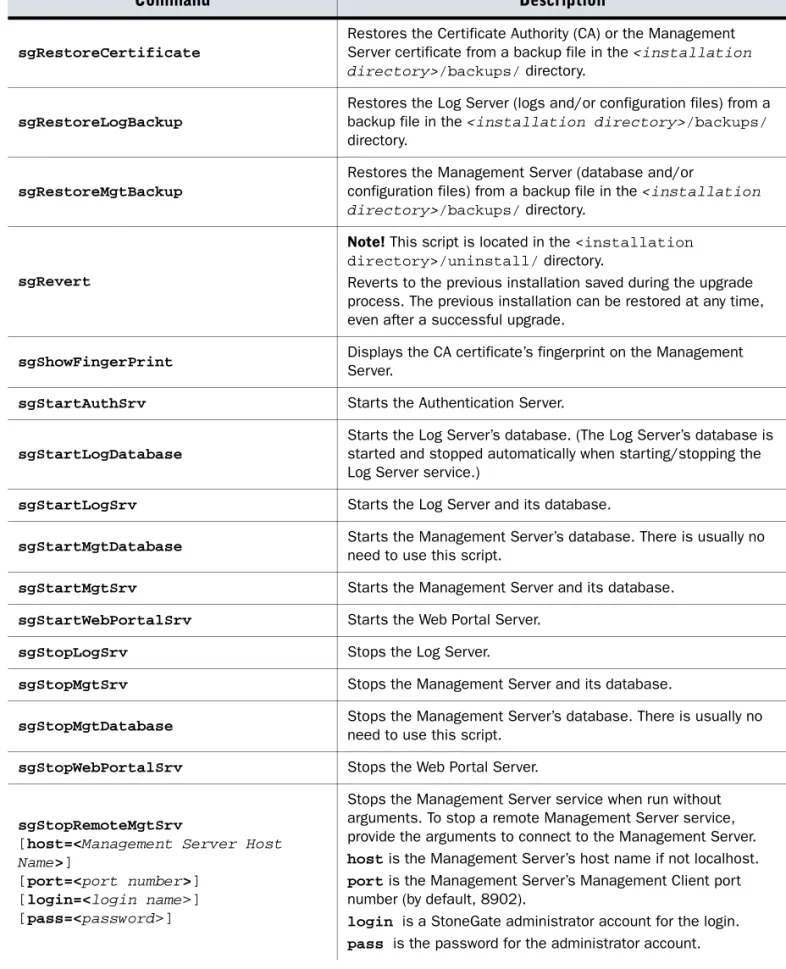
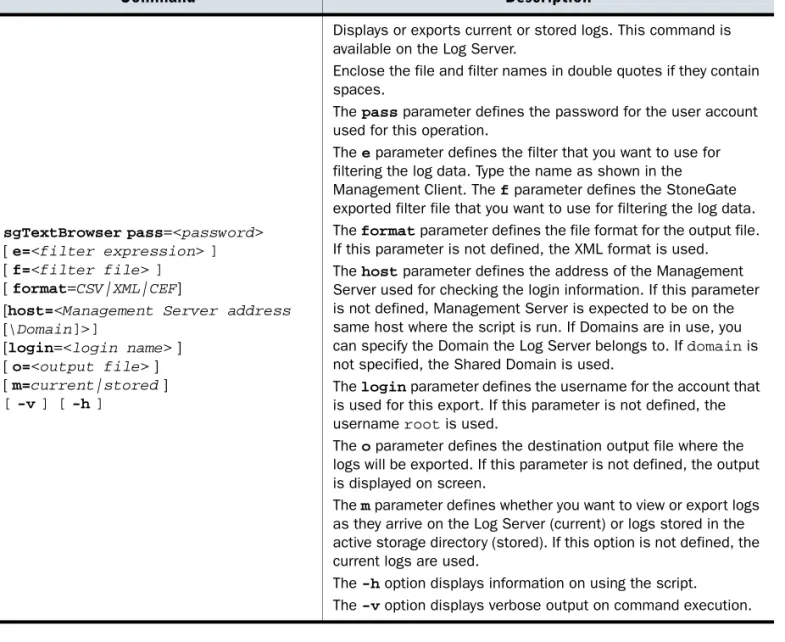
PPENDICES APPENDIX A Command Line Tools . . . 73Management Center Commands . . . 74
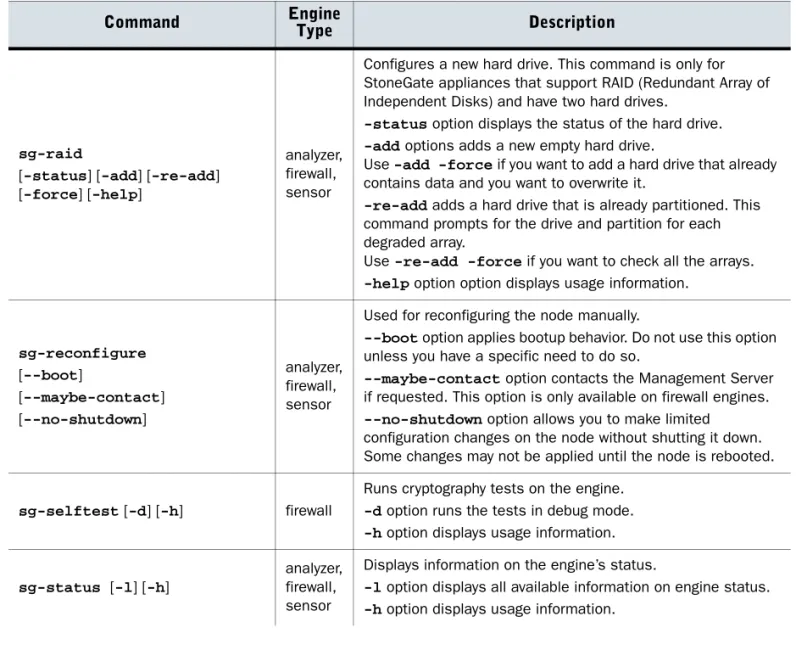
Engine Commands . . . 83
Server Pool Monitoring Agent Commands . . . 89
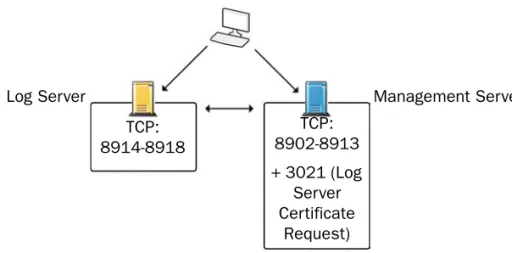
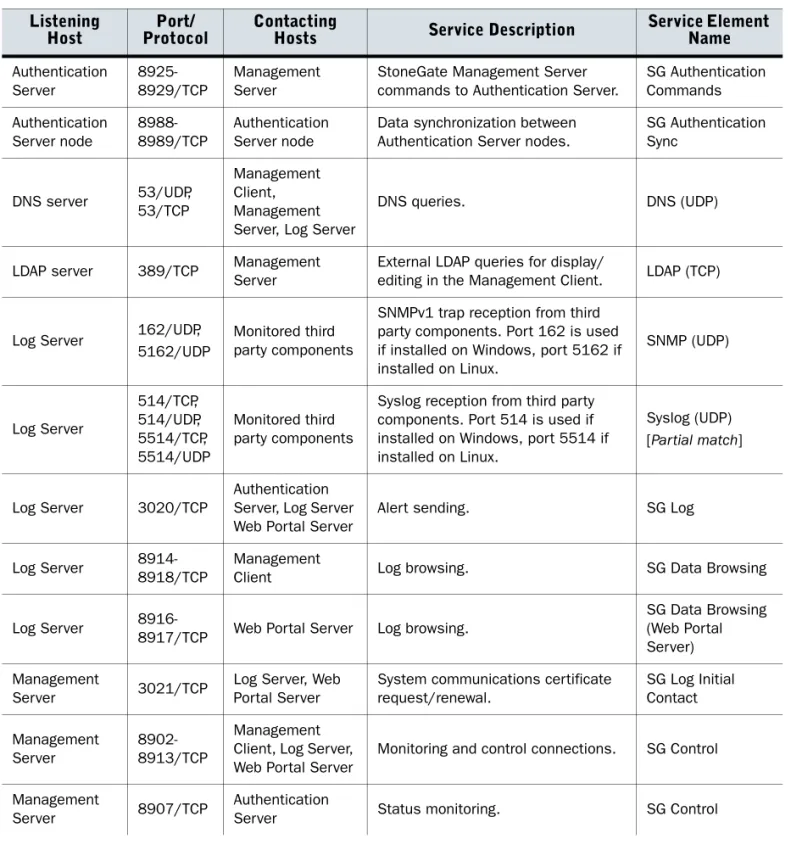
APPENDIX B Default Communication Ports. . . 91
Management Center Ports. . . 92
Firewall/VPN Engine Ports . . . 94
IPS Engine Ports. . . 98
5
I
NTRODUCTION
In this section:
Using StoneGate Documentation - 7
7
C
HAPTER
3
U
SING
S
TONE
G
ATE
D
OCUMENTATION
Welcome to Stonesoft’s StoneGate™ Management Center. This chapter describes how to use the StoneGate Management Center Installation Guide and lists other available documentation. It also provides directions for obtaining technical support and giving feedback.
The following sections are included: How to Use This Guide (page 8) Documentation Available (page 9) Contact Information (page 10)
How to Use This Guide
The Management Center Installation Guide is intended for the administrators who install the StoneGate Management Center. It describes the installation step by step. The chapters in this guide are organized in the general order you should follow when installing the system.
Most tasks are explained using illustrations that include explanations on the steps you need to complete in each corresponding view in your own environment. The explanations that
accompany the illustrations are numbered when the illustration contains more than one step for you to perform.
Typographical Conventions
The following conventions are used throughout the documentation:
We use the following ways to indicate important or additional information:
Tip – Tips provide additional helpful information, such as alternative ways to complete steps. Example Examples present a concrete scenario that clarifies the points made in the adjacent text.
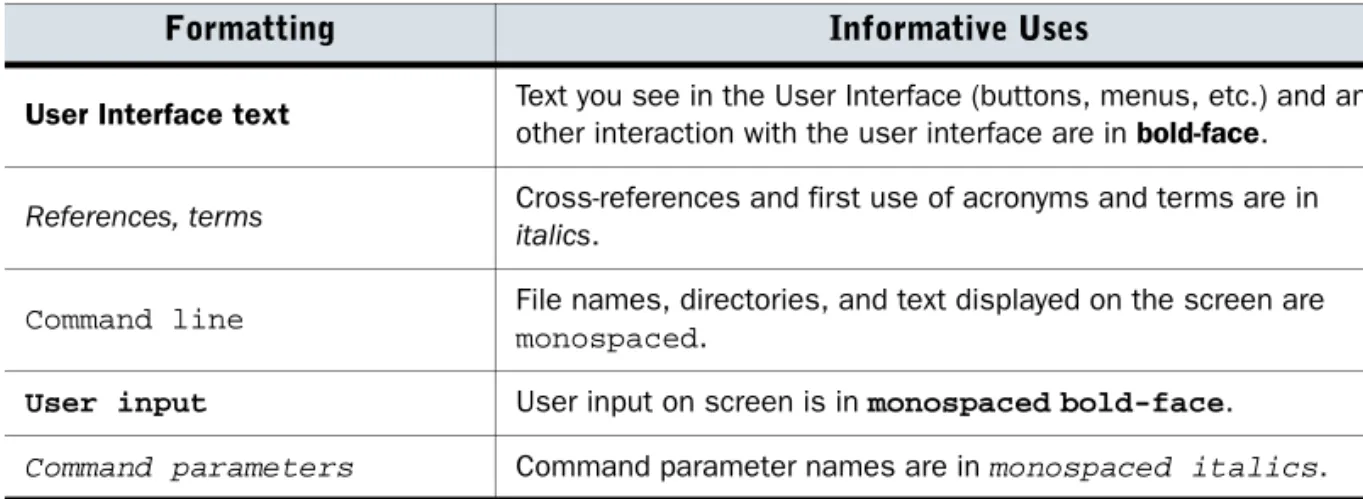
Table 3.1 Typographical Conventions
Formatting Informative Uses
User Interface text Text you see in the User Interface (buttons, menus, etc.) and any other interaction with the user interface are in bold-face.
References, terms Cross-references and first use of acronyms and terms are in italics.
Command line File names, directories, and text displayed on the screen are monospaced.
User input User input on screen is in monospacedbold-face. Command parameters Command parameter names are in monospaced italics.
Note – Notes prevent commonly-made mistakes by pointing out important points. Caution – Cautions prevent breaches of security, information loss, or system downtime. Cautions always contain critical information that you must observe.
9 Documentation Available
Documentation Available
StoneGate documentation is divided into two main categories: Product Documentation and Support Documentation. Each StoneGate product has a separate set of manuals.
Product Documentation
The table below lists the available product documentation. PDF guides are available on the Management Center CD-ROM and at http://www.stonesoft.com/support/.
Support Documentation
The StoneGate support documentation provides additional and late-breaking technical information. These technical documents support the StoneGate guide books, for example, by giving further examples on specific configuration scenarios.
The latest StoneGate technical documentation is available at the Stonesoft website at http://www.stonesoft.com/support/.
Table 3.2 Product Documentation
Guide Description
Reference Guide
Explains the operation and features of StoneGate comprehensively. Demonstrates the general workflow and provides example scenarios for each feature area. Available for StoneGate Management Center, Firewall/VPN, and StoneGate IPS.
Installation Guide
Instructions for planning, installing, and upgrading a StoneGate system. Available for StoneGate Management Center, Firewall/VPN, and IPS.
Online Help
Describes how to configure and manage the system step-by-step. Accessible through the Help menu and by using the Help button or the F1 key in any window or dialog. Available in the StoneGate Management Client and the StoneGate Web Portal. An HTML-based system is available in the StoneGate SSL VPN Administrator through help links and icons.
Administrator’s Guide
Describes how to configure and manage the system step-by-step. Available as a combined guide for both StoneGate Firewall/VPN and StoneGate IPS, and as separate guides for StoneGate SSL VPN and StoneGate IPsec VPN Client.
User’s Guide Instructions for end-users. Available for the StoneGate IPsec VPN Client and the StoneGate Web Portal.
Appliance Installation Guide Instructions for physically installing and maintaining StoneGate appliances (rack mounting, cabling, etc.). Available for all StoneGate hardware appliances.
System Requirements
The system requirements for running the StoneGate Management Center can be found in the Management Center Release Notes available at the Stonesoft Support Documentation pages.
Supported Features
Not all StoneGate features are supported on all platforms. See the Appliance Software Support Table at the Stonesoft Support Documentation pages for more information.
Contact Information
For street addresses, phone numbers, and general information about StoneGate and Stonesoft Corporation, visit our website at http://www.stonesoft.com/.
Licensing Issues
You can view your current licenses at the License Center section of the Stonesoft website at https://my.stonesoft.com/managelicense.do.
For license-related queries, e-mail [email protected].
Technical Support
Stonesoft offers global technical support services for Stonesoft’s product families. For more information on technical support, visit the Support section at the Stonesoft website at http://www.stonesoft.com/support/.
Your Comments
We want to make our products fulfill your needs as well as possible. We are always pleased to receive any suggestions you may have for improvements.
•To comment on software and hardware products, e-mail [email protected]. •To comment on the documentation, e-mail [email protected].
Other Queries
11
C
HAPTER
4
P
LANNING
THE
M
ANAGEMENT
C
ENTER
I
NSTALLATION
This chapter provides important information to take into account before the StoneGate Management Center installation can begin. It also includes an overview to the installation process.
The following sections are included:
StoneGate System Architecture (page 12) Overview to the Installation Procedure (page 13) Important to Know Before Installation (page 13) Obtaining Installation Files (page 14)
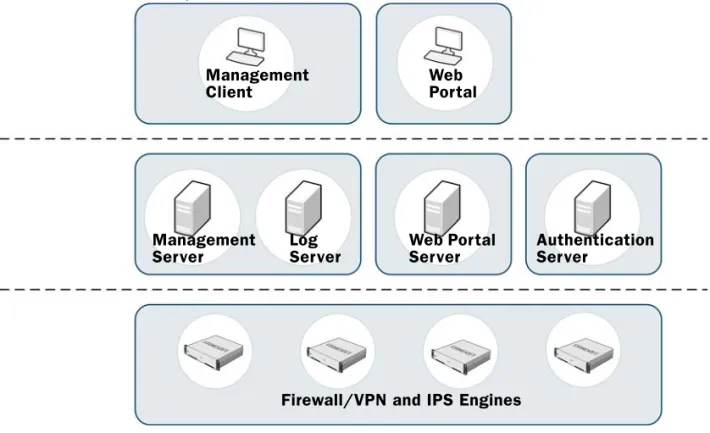
StoneGate System Architecture
A StoneGate system consists of one or more firewall/VPN or IPS engines, the Management Center, and Management Client(s). The Management Sever, Log Server, and one or more Management Clients are always included in the installation. The type and number of optional components and engines varies according to environment and depends on your licenses.
Illustration 4.1 StoneGate System Architecture
The Management Center consists of the following standard components: •The Management Server.
•One or more Log Servers.
The Management Client is a single unified tool that is used for all configuration and monitoring tasks related to the whole StoneGate system. You can install an unlimited number of
Management Clients.
Optionally, and for a separate license fee, you can also have: •One or more backup Management Servers.
•One or more Web Portal Servers for Web Portal users.
•One Authentication Server with up to two nodes for end-user authentication.
The Management Center components can be installed separately on different machines or on the same machine, depending on your requirements.
The Management Center can manage several StoneGate firewalls and IPS Sensors and Analyzers. See the Management Center Reference Guide, Firewall/VPN Reference Guide, and the IPS Reference Guide for general information on the Management Center, firewalls, and IPS engines.
Firewall/VPN and IPS Engines Management
Server Log Server Web Portal Server Authentication Server Management
13 Overview to the Installation Procedure
Overview to the Installation Procedure
1. Install and configure the Management Center and a Management Client. This is explained in Installing the Management Center (page 19).
2. (Optional) Set up Management Client distribution through Java Web Start for automatic installation and upgrade. This is explained in Distributing Management Clients through Web Start (page 43).
3. If network address translation (NAT) is applied to communications between system components, define Contact Addresses. This is explained in Configuring NAT Addresses for StoneGate Components (page 47).
The chapters and sections of this guide proceed in the order outlined above.
Once you have installed the Management Center components and the Management Client, and configured the communications between the system components, you can proceed to
configuring and installing the firewall/VPN and IPS engines. See the Firewall/VPN Installation Guide, and the IPS Installation Guide for information on installing the engines.
Important to Know Before Installation
Consult the Management Center Reference Guide, the Firewall/VPN Reference Guide, or the IPS Reference Guide if you need more detailed background information on the operation of
StoneGate than what is offered in this chapter.
Supported Platforms
The Release Notes list the basic requirements for installation. For information on supported and certified hardware, search for the version-specific Hardware Requirements in the technical documentation search at http://www.stonesoft.com/en/support/.
Date and Time Settings
Make sure that the Date, Time, and Time zone settings are correct on any computer you will use as a platform for any Management Center component, including the workstations used for the Management Client. The time settings of the engines do not need to be adjusted, as they are automatically synchronized to the Management Server’s time setting. For this operation, the time is converted to UTC time according to the Management Server’s time zone setting. StoneGate always uses UTC internally.
Hosts File
Due to a restriction of the Java platform, the Management Server and Log Server hostnames must be resolvable on the computer running the Management Client (even if running on the same computer as the servers) to ensure good performance.
To ensure that the hostnames can be resolved, you can add the IP address-hostname pairs into the local hosts file on the client computer:
•In Linux: /etc/hosts
Obtaining Installation Files
Depending on your order, you may have received ready-made installation CD-ROMs for the Management Center. Otherwise, download the installation files from the Stonesoft website.
Downloading the Installation Files
To download the installation files
1. Go to the Stonesoft Downloads page at https://my.stonesoft.com/download. 2. Enter your license code or log in using an existing user account.
3. Download the .iso image files or the installation .zip file.
Checking File Integrity
Before installing StoneGate from downloaded files, check that the installation files have not become corrupt or been modified. Using corrupt files may cause problems at any stage of the installation and use of the system. File integrity is checked by generating an MD5 or SHA-1 file checksum of the downloaded files and by comparing the checksum with the checksum on the download page at the Stonesoft website.
Windows does not have MD5 or SHA-1 checksum tools by default, but there are several third party programs available.
To check MD5 or SHA-1 file checksum
1. Look up the correct checksum at https://my.stonesoft.com/download/. 2. Change to the directory that contains the file(s) to be checked.
3. Generate a checksum of the file using the command md5sum filename or sha1sum filename, where filename is the name of the installation file.
4. Compare the displayed output to the checksum on the website. They must match.
Creating the Installation CD-ROM
Once you have checked the integrity of the installation files, create the installation CD-ROM from the files. Use a CD-burning application that can correctly read and burn the CD-structure stored in the .iso images. If the end result is a CD-ROM file with the original .iso file on it, the
CD-ROM cannot be used for installation.
Caution – Do not use files that have invalid checksums. If downloading the files again does not help, contact Stonesoft technical support to resolve the issue.
What’s Next?
If you downloaded the installation files as a .zip file, unzip the contents to the
installation location and proceed to creating Obtaining License Files (page 15).
15 Obtaining License Files
Obtaining License Files
You must generate license files and install them after the installation to bring your system fully operational. Each Management Server, Log Server, Web Portal Server, and Authentication Server must have its own license. However, a Management Server license that includes the high availability features is a combined license for all Management Servers and must list the IP addresses of all the Management Servers. The Authentication Server license allows a maximum of 5 RADIUS clients (excluding other StoneGate components) to use the authentication methods provided by the Authentication Server, and a maximum of 50 named users for user linking in the Authentication Server’s user database.
You must also generate and install licenses for any firewall, IPS and SSL VPN engines to be able to make them operational.
For more information on licenses, see the Administrator’s Guide.
To generate a new license
1. Go to the License Center at www.stonesoft.com/license/.
2. Enter the required code (proof-of-license or proof-of-serial number) in the correct field and click Submit. The license page opens.
3. Click Register. The license generation page opens.
4. Enter the IP addresses of the Management Center components you want to use.
5. Enter the Management Server’s proof-of-license code for the engines you want to license. •The Management Server’s proof-of-license can be found in the e-mail you received
detailing your licenses. Later, this information is shown in the Management Client for all licenses imported into the system.
6. Click Submit Request. The license file is sent to you in a moment. It will also become available for download at the license page.
All licenses include a maximum version on which they are valid. Automatic upgrade and installation of licenses is enabled by default. If you have disabled automatic license upgrades, you need to upgrade the licenses when you upgrade to a new major release of the software.
17
I
NSTALLING
THE
M
ANAGEMENT
C
ENTER
In this section:
Installing the Management Center - 19
Distributing Management Clients through Web Start - 43
19
C
HAPTER
5
I
NSTALLING
THE
M
ANAGEMENT
C
ENTER
This chapter instructs how to install the StoneGate Management Center on Windows and Linux platforms.
The following sections are included:
Getting Started with Management Center Installation (page 20) Installing Management Center Components (page 21)
Starting the Management Center After Installation (page 29) After the Management Center is Installed (page 36)
Configuring Secondary Management Servers (page 37) Non-Graphical Installation (page 41)
Getting Started with Management Center Installation
You are ready to start the Management Center installation when you have obtained and verified the installation files. See Obtaining Installation Files (page 14) for more information on these tasks.
Log in to the system where you are installing the Management Center with the correct administrative rights. In Windows, you must log in with administrator rights. In Linux you must log in as root.
During the installation, certificates can be generated for the server components. The
certificates are needed for authentication in establishing the secure encrypted communication channel between system components.
We recommend installing a Management Client on the system on which you install the
Management Server. After this, further Management Clients can be installed locally by running the Management Center installer or be made available through Java Web Start (see Distributing Management Clients through Web Start (page 43)), which eliminates the need to update all Management Clients individually at each version upgrade. The Management Client has no configurable parameters.
Installing on Linux
The installation creates sgadmin user and group accounts. If there is a pre-existing sgadmin account, the installation fails. All the shell scripts are owned by sgadmin and can be executed either by root or the sgadmin user. The shell scripts are executed with sgadmin privileges. After the installation, the sgadmin account is disabled. The sgadmin account is deleted at
uninstallation.
Configuration Overview
1. Install the Management Center. See Installing Management Center Components
(page 21). If you are installing on separate servers, install the Management Server as the first component.
2. Start the Management Center. See Starting the Management Center After Installation (page 29).
3. (Optional) Install the secondary Management Server(s). See Configuring Secondary Management Servers (page 37).
Caution – Make sure that the operating system version you plan to install on is supported. The supported platforms for running the Management Center are listed in the Release Notes of the Management Center.
21 Installing Management Center Components
Installing Management Center Components
For obtaining, verifying, and preparing the installation files, see Obtaining Installation Files (page 14).
This section guides you through a Management Center installation in a graphical user interface. For command line installation in Linux, see Non-Graphical Installation (page 41).
To start the Installation
1. If you are installing from a .zip file, unzip the file.
2. Start the installation:
•On Windows, run the file \StoneGate_SW_Installer\Windows\setup.exe •On Linux, run the file /StoneGate_SW_Installer/Linux/setup.sh
3. When the Installation Wizard shows the Introduction screen, click Next to start the installation. The License Agreement appears.
•You can click Cancel at any time to exit the installer. •You can click Previous at any time to go back.
4. Indicate that you agree to the license agreement. 5. Click Next.
6. (Optional) Click Choose to browse for a different installation folder. This folder is for the application, and a Log Server can have a separate data storage location.
Note – If you are installing from CD-ROM in Linux, and the CD-ROM is not automatically mounted, mount the CD-ROM with “mount /dev/cdrom /mnt/cdrom”.
4
7. Click Next.
8. Select the settings for creating shortcuts. These shortcuts can be used to manually start components and to run some maintenance tasks.
9. Click Next.
10.Click one of the icons to select the installation type:
•Typical installs all Management Center components except the Web Portal Server. •Management Client Only installation is meant for administrators’ workstations. •Demo Mode installation is meant for evaluating StoneGate in a simulated environment. •Custom installation allows you to select components one by one.
11.Click Next.
To select components for the Custom installation
1. Select the components that you want to install. 1
23 Installing Management Center Components
2. Click Next.
Installing a Management Server
To configure the Management Server installation
1. Enter or select the Management Server’s IP address. The Management Server’s license must be generated with this IP address as the binding.
2. Enter the IP address of the Log Server to which this Management Server sends its alerts. 3. (Optional) To install a backup server, select Install as a Secondary Management Server
for High Availability and see Installing a Secondary Management Server (page 37). 4. Leave Install as a Service selected to make the Management Server start automatically. 5. Click Next. You are prompted to create a superuser account.
Note – Make sure you have a license for any separately licensed components before installing them. The Web Portal Server and Authentication Server are not included in standard Management Center licenses.
What’s Next?
For Demo Mode installations, proceed to Installing in Demo Mode (page 27).
Otherwise, proceed to the next applicable section according to the components you are installing:
•Installing a Management Server. •Installing a Log Server (page 24). •Installing a Web Portal Server (page 25). •Installing an Authentication Server (page 26).
Note – This is the only account that can log in after the installation. 2
6. Type in a User Name.
7. Enter and confirm the Password. 8. Click Next.
Installing a Log Server
To configure the Log Server installation
1. Enter or select the Log Server’s IP address. If IP address binding is used, the Log Server’s license must be generated with this IP address as the binding.
2. Enter the IP address of the Management Server that controls this Log Server.
3. If the components are installed on different machines and the Management Server is not reachable at the moment, deselect Certify the Log Server during the Installation to avoid connection attempts after installation. Certifying is mandatory for running the Log Server. What’s Next?
Proceed to the next applicable section according to the components you are installing: •Installing a Log Server.
•Installing a Web Portal Server (page 25). •Installing an Authentication Server (page 26). •Finishing the Installation (page 28).
6
7
25 Installing Management Center Components
4. Leave Install as a Service selected to make the Log Server start automatically. 5. Click Next.
6. (Optional) Click Select to browse for a different storage folder for log data. Remote locations are not suitable for active storage, since quick and reliable access is required. 7. Click Next.
Installing a Web Portal Server
To configure the Web Portal Server installation
1. Enter or select the Web Portal Server’s IP address. If IP address binding is used, the Web Portal Server’s license must be generated with this IP address as the binding.
2. Type in the IP address for the Management Server that controls this Web Portal Server. What’s Next?
Proceed to the next applicable section according to the components you are installing: •Installing a Web Portal Server.
•Installing an Authentication Server (page 26). •Finishing the Installation (page 28).
Note – Make sure you have a license for the Web Portal Server before installing it. The Web Portal Server is an optional component and is not included in standard Management Center licenses. You can use the Previous button to return to component selection.
6
3. If the components are installed on different machines and the Web Portal Server is not reachable at the moment, deselect Certify the Web Portal Server during the Installation to avoid connection attempts after installation. Certifying is mandatory for running the Web Portal Server.
4. Leave Install as a Service selected to make the Web Portal Server start automatically. 5. Click Next.
Installing an Authentication Server
To configure the Authentication Server installation
1. Enter or select the Authentication Server’s IP address.
2. Enter or select the IP address of the Management Server that controls this Authentication Server.
3. If you are installing the components are installed on different machines and the Management Server is not reachable at the moment, deselect Certify the Authentication Server during the Installation to avoid connection attempts after installation. Certifying is mandatory for running the Authentication Server and for installing the second node of a cluster.
4. Leave Install as a Service selected to make the Authentication Server start automatically. 5. Click Next.
What’s Next?
Proceed to the next applicable section according to the components you are installing: •Installing an Authentication Server.
•Finishing the Installation (page 28).
Note – Make sure you have a license for the Authentication Server before installing it. The Authentication Server is an optional component and is not included in standard
Management Center licenses. You can use the Previous button to return to component selection.
What’s Next?
Proceed to Finishing the Installation (page 28). 2
27 Installing Management Center Components
Installing in Demo Mode
The Demo mode installation creates a simulated network environment for evaluation.
To install in Demo Mode
1. Select the type of demo to install:
•Use a standard backup to simulate a preconfigured environment.
•Select your own backup file to create the simulation based on your own backup.
2. (Custom backup file only) Click Choose and browse to the location of the backup file.
3. Click Next. The installation starts. 4. When the installation finishes, click Next.
Note – Demo mode installation is for evaluation only. A Management Center in Demo mode cannot be used with any traffic inspection engines and cannot be upgraded.
1
5. Click Done to close the installer. The Management Center starts up automatically in the background.
Finishing the Installation
To finish the installation
1. (64-bit architecture only) Select the running mode for the installation and click Next. •If the computer has less than 6000 MB of physical memory available, 32-bit mode is
recommended.
2. Check the displayed information.
3. Click Install to install the selected components. This is the last chance to Cancel or make changes by clicking Previous.
4. Depending on the options you selected, you may be prompted to generate certificates in the course of the installation. If this happens, see the section To generate a certificate for a StoneGate server (page 35).
What’s Next?
The simulated environment is now ready for your testing. Proceed to Logging in to the Management Center (page 30).
Caution – If you are installing any server components as a service on a Windows system, make sure the Services window is closed before you proceed.
29 Starting the Management Center After Installation
5. Click Done to close the installer.
Starting the Management Center After Installation
Proceed through the listed sections in order to start the Management Center for the first time: 1. Starting the Management Server.
2. Starting the Management Client.
3. Logging in to the Management Center (page 30). 4. Installing Licenses (page 31).
5. Binding POL-Based Licenses to Servers (page 32). 6. Starting the Log Server and Web Portal Server (page 33).
Starting the Management Server
If the Management Server has been installed as a service, it should start automatically both after the installation and during the operating system boot process. In Windows, the StoneGate Management Server service is controlled in the Services window, which can be found in the Windows Control Panel under the Administrative Tools category.
If the Management Server is installed as a service and has successfully started, proceed to Starting the Management Client. Otherwise, start the Management Server manually as explained below.
To start a Management Server that is not installed as a service
•In Windows, use the shortcut icon in the location you selected during installation or run the script <installation directory>/bin/sgStartMgtSrv.bat.
•In Linux, run the script <installation directory>/bin/sgStartMgtSrv.sh.
Starting the Management Client
To start a locally-installed Management Client
In Windows, use the shortcut icon in the location you selected during installation or run the script <installation directory>/bin/sgClient.bat.
In Linux, run the script <installation directory>/bin/sgClient.sh. A graphical environment is needed for the Management Client.
Note – If any Log Server, Web Portal Server, or Authentication Server certificate was not retrieved during the installation, a certificate must be retrieved manually before the server can be started. See To manually certify a Server (page 34).
What’s Next?
Logging in to the Management Center
The Management Client connects to the Management Server and to Log Servers. See Default Communication Ports (page 91) for a list of the ports used.
In Demo Mode, use the following credentials to log in to one of the default scenarios: •User Name: demo
•Password: demo
•Server Address: 127.0.0.1
To log in to the Management Center
1. Type in the user name and password for the Administrator you defined during the Management Server installation.
2. Type in the Management Server’s IP address or DNS name.
3. Leave Remember Server Address selected if you want the Management Client to add the address permanently in the Server Address list.
4. Click Login.
If you connect to the Management Server from an external network, the Management Server’s IP address may be translated using NAT.
Tip – You can access the Online Help system in the Login window or any other window in the Management Client by pressing the F1 key.
Accepting the Management Server Certificate
A certificate dialog is displayed when the Management Client contacts any Management Server for the first time. As a precaution, you can ensure that the communication really is with your Management Server by checking the Certificate Authority fingerprint as explained below.
To check the Certificate Authority fingerprint
1. View the Management Server fingerprint on the Management Server:
•In Windows, use the shortcut icon in the location you selected during installation (default: Start→Programs→StoneGate→Show Fingerprint) or run the script <installation directory>/bin/sgShowFingerPrint.bat.
•In Linux, run the script <installation directory>/bin/sgShowFingerPrint.sh. 2. If the fingerprint matches, click Accept. The Management Client loads and opens.
31 Starting the Management Center After Installation
Installing Licenses
The Management Center servers require licenses to become operational. To obtain licenses, see Obtaining License Files (page 15). You can install licenses even before the components are installed.
With no valid Management Server license, a notification is shown when you log in. If the message appears after licensing, make sure the licensed IP address is correct and active on the server when the Management Server service starts up.
To install licenses through the License Information message
Click Continue and select the license file(s) in the dialog that opens.
To install licenses
1. Select File→System Tools→Install Licenses.
2. Import one or more license files in the dialog that opens.
To check that the licenses were installed correctly
1. Click the Configuration icon and select Administration. The Administration Configuration view opens.
What’s Next?
If the message is not shown, install the licenses as explained below.
Otherwise, proceed to the section To check that the licenses were installed correctly.
2. Expand the Licenses branch and select All Licenses.
3. Check that all licenses you imported are listed here.
Binding POL-Based Licenses to Servers
You must bind management-bound Log Server and Web Portal Server licenses to specific Log or Web Portal Servers. The licenses contain no IP address information to automatically bind them.
To bind a management-bound license to a Log or Web Portal Server
1. Browse to AdministrationLicensesServers. Installed licenses appear in the right panel.
What’s Next?
If you have Log Server or Web Portal Server licenses that are bound to the Management Server’s POL code, proceed to Binding POL-Based Licenses to Servers.
33 Starting the Management Center After Installation
2. Right-click a management-bound license (a license that states Dynamic in place of an IP address) and select Bind. The Select License Binding dialog opens.
3. Select the correct server from the list.
4. Click Select. The license is now bound to the selected Log or Web Portal Server element. If you made a mistake, you can still right-click the license and select Unbind.
Starting the Log Server and Web Portal Server
If the Log Server and the Web Portal Server have been installed as a service, the servers are started automatically during the operating system boot process. However, if the operating system is rebooted and the servers do not yet have a license, you may need to start them as explained here.
•If you installed the Log Server or Web Portal Server as a service, you can start or stop the server manually in Windows through the Services window.
•In other cases, you can start the Log Server or Web Portal Server manually as explained in Starting Servers Manually.
Starting Servers Manually
To start the Log Server or Web Portal Server manually, run the scripts in a console window. Read the console messages for information on the progress. Closing the console stops the service.
To start the Log Server and Web Portal Server manually
1. Start the Log Server:
•In Windows, use the shortcut icon in the location you selected during installation (default: Start→Programs→StoneGate→Log Server) or run the script <installation
directory>/bin/sgStartLogSrv.bat.
•In Linux, run the script <installation directory>/bin/sgStartLogSrv.sh. Note – The license is permanently bound to the Log or Web Portal Server when the server is started for the first time. Such licenses cannot be re-bound to some other Log or Web Portal Server without re-licensing or deleting the Log or Web Portal Server element it is bound to. Until you do that, the unbound license is shown as Retained.
2. If you have a Web Portal Server, start it in the same way:
•In Windows, use the shortcut icon in the location you selected during installation (default: Start→Programs→StoneGate→Web Portal Server) or run the script <installation directory>/bin/sgStartWebPortalServer.bat.
•In Linux, run the script <installation directory>/bin/ sgStartWebPortalServer.sh.
If the Log Server or Web Portal Server Fails to Start
If the Log Server or Web Portal Server does not start automatically as a service.
1. Try starting the server manually as explained in the previous section to see if there is some error displayed on the console.
2. Check licenses are correctly bound to components as explained in To check that the licenses were installed correctly (page 31) and To bind a management-bound license to a Log or Web Portal Server (page 32).
3. Ensure that the server has a valid certificate for secure system communications. If there are certificate-related problems or problems you are not able to identify, try (re)generating the certificate as explained below.
Generating Server Certificates
To manually certify a Server
•In Windows, run the <installation directory>/bin/sgCertifyLogSrv.bat or the <installation directory>/bin/sgCertifyWebPortalServer.bat script depending on server type.
•In Linux, run the <installation directory>/bin/sgCertifyLogSrv.sh or the
<installation directory>/bin/sgCertifyWebPortalServer.sh script depending on server type.
What’s Next?
If you have started all servers successfully, proceed to After the Management Center is Installed (page 36).
If you have trouble starting the server, see If the Log Server or Web Portal Server Fails to Start.
Note – If the Management Server is not running, see Starting the Management Server
35 Starting the Management Center After Installation
To generate a certificate for a StoneGate server
1. Enter the user name and password for the account you created during the Management Server installation (other accounts with unrestricted permissions can also be used).
2. Click Accept to accept the certificate fingerprint of the Management Server’s Certificate Authority. As a precaution, you can ensure that the communication really is with your Management Server as explained in To check the Certificate Authority fingerprint (page 30). The Log Server Selection or Web Portal Server Selection dialog opens.
3. (Log Server or Web Portal Server only) Identify the component: •If the correct server is listed, select it.
•If the correct server is not listed, select Create a New Log Server or Create a ne Web Portal Server and enter a Name. This name is shown in the Management Client.
4. (Authentication Server only) Identify the component: •If the correct server is listed, select it.
•If the correct server is not listed, select Create a New Authentication Server and enter a Name. This name is shown in the Management Client.
•If you are installing the second node of an existing Authentication Server, select Create a new Authentication Server node in an existing cluster and select the Authentication Server where you want to add the node.
5. Click OK.
After the Management Center is Installed
•If you want to install a secondary Management Server, proceed to Configuring Secondary Management Servers (page 37).
•If you want to allow administrators to install Management Clients through Web Start, continue to Distributing Management Clients through Web Start (page 43).
•If NAT is applied to communications between any system components, proceed to Configuring NAT Addresses for StoneGate Components (page 47).
•If you installed an Authentication Server, continue by Applying the Authentication Server Configuration (page 40).
•Otherwise, you are ready to configure the firewall and IPS element(s) in the Management Client. The elements must be configured before installing the physical engines. See the Firewall/VPN Installation Guide and the IPS Installation Guide for more information. What’s Next?
Start the Log Server or Web Portal Server as described in Starting the Log Server and Web Portal Server (page 33), then proceed to After the Management Center is Installed.
The Authentication Server installation is complete. Proceed to After the Management Center is Installed.
37 Configuring Secondary Management Servers
Configuring Secondary Management Servers
This section guides you through a secondary Management Center installation in a graphical user interface. For command line installation, see Non-Graphical Installation (page 41).
Only one Management Server at a time can be used for configuring and managing StoneGate. A secondary Management Server is only used as a backup for the primary Management Server. You can use one to four secondary Management Servers with one primary Management Server. The configuration data stored on the primary Management Server is automatically replicated to the secondary Management Servers.
Overview
1. If you have not yet installed a license for the secondary Management Server, install the license. See Installing a License for a Secondary Management Server.
2. Install the secondary Management Server using the Installation Wizard. See Installing a Secondary Management Server.
3. Add the IP addresses of all your Management Servers to the Log Server’s configuration. See Configuring Log Servers for Backup Management Servers (page 40).
Installing a License for a Secondary Management Server
To use secondary Management Servers, you must have a special Management Server license that lists the IP addresses of all the Management Servers within the same SMC. You must install the license in the Management Client before installing the secondary Management Server(s).
If you do not yet have the license, generate the license at the Stonesoft website after receiving the Proof-of-License (see Obtaining License Files (page 15)), and then install the license as described in Installing Licenses (page 31).
Installing a Secondary Management Server
To install a secondary Management Server
1. If you are installing from a .zip file, unzip the file and run install.exe on Windows or
setup.sh on Linux. Alternatively, insert the StoneGate installation CD-ROM and run the
setup executable:
•On Windows, run CD-ROM\StoneGate_SW_Installer\Windows\install.exe •On Linux, run CD-ROM/StoneGate_SW_Installer/Linux/setup.sh
2. Proceed according to the instructions in the Installation Wizard until you are prompted to select which components you want to install.
Caution – You must install and configure the Management Server that you want to use as the primary Management Server before installing secondary Management Server(s). See
Installing a Management Server (page 23).
Note – If the CD-ROM is not automatically mounted in Linux, mount the CD-ROM with “mount /dev/cdrom /mnt/cdrom”.
3. If you also want to install a Log Server and a local Management Client on this computer, you can leave Typical selected. Otherwise, you must select Custom.
4. Click Next.
To select components for the Custom installation
1. Select the components that you want to install (select at least Management Server).
2. Click Next.
To configure the secondary Management Server
1. Enter or select the Management Server’s IP address. The Management Server’s license must be generated with this IP address as the binding.
2. Enter the IP address of the Log Server to which this Management Server sends its alerts. 1
39 Configuring Secondary Management Servers
3. Select Install as a Secondary Management Server for High Availability.
4. Leave Install as a Service selected to make the Management Server start automatically. 5. Click Next. After a while, a login prompt for Replication opens.
6. Enter the user name and the password for an unrestricted administrator account (such as the account you created during the installation of the primary Management Server). 7. Click OK. The Management Server Selection dialog opens.
8. Identify the component:
•If the correct server is listed, select it.
•If the correct server is not listed, select Create a New Management Server and type in a name. This name is shown in the Management Client.
9. Click OK. The databases are synchronized.
After successful database synchronization between the secondary Management Server and primary Management Server, the installation is complete. If the synchronization fails for some reason (such as a network connection problem), the secondary Management Server is not installed properly. Rerun the Installation Wizard as above.
Configuring Log Servers for Backup Management Servers
For Log Servers to recognize secondary Management Servers, you must add the IP addresses of all the secondary Management Servers to the Log Servers’ local configuration.
To configure Management Server IP addresses on Log Servers
1. Open a command line on the Log Server computer.
2. Run the script <installation directory>/bin/sgChangeMgtIPOnLogSrv and give the IP addresses of all Management Servers (including all previously installed Management Servers) separated with spaces.
Example sgChangeMgtIPOnLogSrv 192.168.10.200 192.168.10.220
The secondary Management Server configuration is now complete. If there is a firewall between the primary Management Server and the secondary Management Server(s), you must add rules that allow the communications between the servers when you define your firewall policy.
Applying the Authentication Server Configuration
To make the Authentication Server operational, you must apply the configuration.
To apply the Authentication Server configuration
1. Expand Servers in the System Status view. What’s Next?
If you want to allow administrators to install Management Clients through Web Start, continue to Distributing Management Clients through Web Start (page 43).
If NAT is applied to communications between any system components, proceed to Configuring NAT Addresses for StoneGate Components (page 47).
Otherwise, you are ready to configure the firewall and IPS element(s) in the
Management Client. The elements must be configured before installing the physical engines. See the Firewall/VPN Installation Guide and the IPS Installation Guide for more information.
Note – If you are installing a cluster of Authentication Server nodes, apply the
configuration only after creating and installing both nodes. Once the configuration has been applied to a single Authentication Server, the server cannot be converted into a cluster.
41 Non-Graphical Installation
2. Right-click Authentication Server and select Apply Configuration. A progress dialog opens.
3. Click Close when the operation finishes.
Non-Graphical Installation
In Linux, the Management Center can also be installed on the command line. Before installing, check the installation package integrity using the MD5 or SHA-1 file checksums as explained in Checking File Integrity (page 14).
To begin the non-graphical installation
1. Open the shell and change to the directory where the installer is stored. •If installing from a CD-ROM, the installer is in:
CD-ROM/StoneGate_SW_Installer/Linux/
•If the CD-ROM is not automatically mounted, mount the CD-ROM with command: mount /dev/cdrom /mnt/cdrom
2. Run the command “./setup.sh -nodisplay” (the “-nodisplay” switch can be omitted if there is no graphical environment running). The installer starts. You can use the following general commands at any point where the installer asks for your input:
•Type “back” to return to the previous step.
•Type “quit” to cancel the installation.
3. When prompted, press Enter to continue. The license agreement is displayed. What’s Next?
Continue the configuration of the Authentication Server in the Management Client. See the Administrator’s Guide or the Management Client Online Help.
Note – You need a graphical environment to use the Management Client. It cannot be run on the command line. Only the server components can be run in a command line-only environment.
4. Press Enter to scroll through the license agreement and accept by typing “Y”. You are prompted to select the installation directory.
5. Press Enter to install to the default installation directory, or specify a different directory. If you specify a different directory, you are prompted to confirm it.
6. You are prompted to select the link location for shortcuts to the most commonly used command line tools.
7. Press Enter to create the StoneGate links in the default directory or select one of the other options. A reminder to verify the hosts file appears.
8. Press Enter to continue.
9. Select the StoneGate components you want to install:
•Press Enter to install all Management Center components except the Web Portal Server. •Press 2 to install only the Management Client.
•Press 3 to install a simulated network environment for evaluation in Demo Mode. •Press 4 to install a different selection of components.
10.(Customized installation only) Enter the numbers of the components you want to select/ deselect, separated by commas.
•Entering the number of a selected component deselects it.
•Entering the number of a component that is not selected selects it.
•By default, the Management Server, Log Server, and Management Client are selected. •You can verify your selection by typing back in the next stage.
Example To install only the Web Portal Server, type 1,2,3,4 and press Enter.
The other installation options for the Management Center components are the same as in the graphical installation.
43
C
HAPTER
6
D
ISTRIBUTING
M
ANAGEMENT
C
LIENTS
THROUGH
W
EB
S
TART
The Management Client can be distributed through Java Web Start. This eliminates the need for each administrator to upgrade their client when the SMC is upgraded to a new version (the version of the client must always match the version of the respective server).
The following sections are included:
Getting Started with Web Start Distribution (page 44) Distributing Clients from the SMC Servers (page 44) Distributing Clients from a Separate Server (page 45) Accessing the Web Start Clients (page 46)
Getting Started with Web Start Distribution
In addition to installing Management Clients through the Installation Wizard, you can also distribute them through Java Web Start. Management Clients distributed with Web Start have the same set of features as clients installed with the installation wizard, but when you upgrade, Web Start automatically downloads the new version when the user logs.
There are two ways to configure Web Start access:
•you can activate an internal Web server on the Management Server (the server distributes only Web Start clients). There is no need for manual installation or upgrade.
•you can use a separate web server or network drive for distributing the clients. You must install these files manually and perform a fresh installation at each SMC version upgrade.
Distributing Clients from the SMC Servers
To enable a Web Start server
1. Click the System Status icon in the toolbar. The System Status view opens.
2. Expand Servers.
3. Right-click a Management Server and select Properties. The Properties dialog opens.
4. Switch to the Web Start tab.
5. Select Enable. The Web Start server options are enabled. What’s Next?
Distributing Clients from the SMC Servers.
Distributing Clients from a Separate Server (page 45).
1
2
3
4
45 Distributing Clients from a Separate Server
6. (Optional) Change the (TCP) Port Number that the Web Start Server uses. By default, the standard HTTP port 80 is used on Windows and 8080 on Linux (which does not allow the use of reserved ports for this type of service).
7. Click OK.
With these settings, the users can access the Web Start files at any addresses that the Management Server may have.
Distributing Clients from a Separate Server
If you do not want to use the Management Server as a Web Start server, you can place the Web Start package on a Web server.
The Web Start package can also be placed on a shared network drive. The path to the files, including the drive letter, must be the same for all administrators who use that particular version of the installation package. If the network drive paths vary, consider placing the package on a Web server instead.
To install the Web Start package
1. Browse to StoneGate_SW_Installer→Webstart on the installation CD-ROM.
2. Copy all files and all directories from the Webstart directory on the installation CD-ROM to
the directory where you want the Web Start files to be served.
3. On the command line, change to the directory where the Web Start files are located on your server.
Note – Make sure that the port is not used by other listening services on the server. For ports reserved for StoneGate services, see Default Communication Ports (page 91).
What’s Next?
Test the client as explained in Accessing the Web Start Clients (page 46).
Note – You must delete the existing files and install a new Web Start package according to these instructions each time you upgrade the Management Center. Otherwise, any administrators who use Web Start-installed Management Clients are not able to log in.
Caution – The Web Start installation creates an index.html file in the installation directory. Any existing index.html file will be overwritten.
4. Run the Web Start setup script and give the URL or the path of the directory where the Web Start files are located on your server as the parameter:
•Windows: cscript webstart_setup.vbs <web start directory> •Linux: run webstart_setup.sh<web start directory>
5. If necessary, modify the configuration of the Web server to return the appropriate MIME type for.jnlp files (application/x-java-jnlp-file). Consult the manual of your Web
server for instructions on how to configure the MIME type.
6. Delete the webstart_setup.vbs and webstart_setup.sh files from the directory.
Accessing the Web Start Clients
After configuration, the administrators can access the Management Client using the Web Start package. To be able to use the Web Start Management Client, there must be a current version of the Java Runtime Environment (JRE) installed (the version required is shown on the login page).
To access the Web Start Clients
1. Enter the Web Start download page address in your Web browser
http://<server address>:<port>
•:<port> is only needed if the server is configured to run on a different port from the HTTP
standard port 80.
2. Click the link for the Web Start client.
•Web Start automatically checks if the version on the server is already installed on your local computer. If not, the new client is automatically installed on your computer. This is done each time the client is started this way, automatically upgrading your client installation whenever needed without any action from you.
•The client starts and displays the login dialog. 3. Log in with your account credentials.
Table 6.1 Examples
Installation on Example Web Start Directory
Web server http://www.example.com/webstart/
Network drive file://localhost/c:/webstart/
What’s Next?
If NAT is applied to communications between any system components, proceed to Configuring NAT Addresses for StoneGate Components (page 47).
Otherwise, you are ready to configure the firewall and IPS element(s) in the
Management Client. You must configure the elements before installing the physical engines. See the Firewall/VPN Installation Guide and the IPS Installation Guide for more information.
47
C
HAPTER
7
C
ONFIGURING
NAT A
DDRESSES
FOR
S
TONE
G
ATE
C
OMPONENTS
This chapter contains the steps needed to configure Locations and contact addresses when a NAT (network address translation) operation is applied to the communications between any of the system components.
The following sections are included: Configuration Overview (page 48) Defining Locations (page 49)
Adding SMC Server Contact Addresses (page 51) Setting the Management Client’s Location (page 53)
Configuration Overview
If there is network address translation (NAT) between communicating system components, the translated IP address may have to be defined for system communications. All communications between the StoneGate components are presented as a table in Default Communication Ports (page 91).
You use Location elements to configure StoneGate components for NAT. There is a Default Location to which all elements belong if you do not assign them a specific Location. If NAT is applied between two system components, you must separate them into different Locations and add a contact address for the component that needs to be contacted.
You can define a Default contact address for contacting a component (defined in the main Properties dialog of the corresponding element). The component’s Default contact address is used in communications when components that belong to another Location contact the component and the component has no contact address defined for their Location.
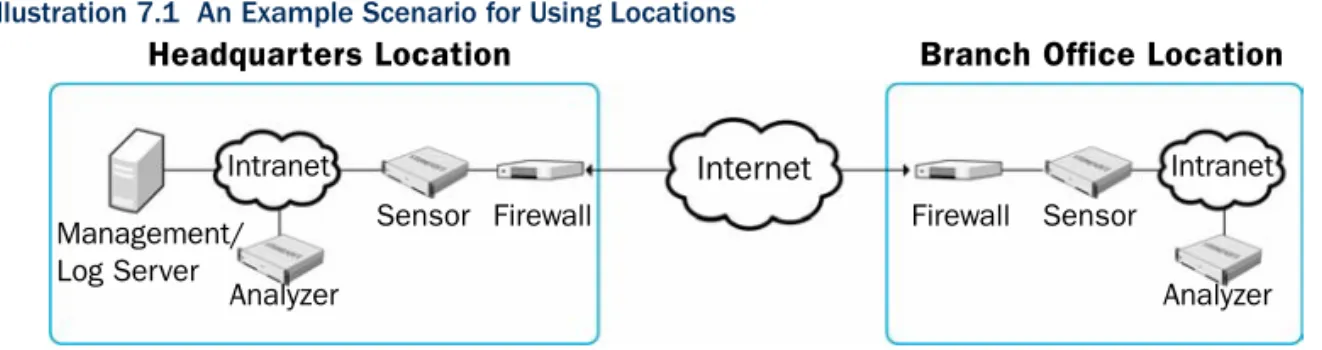
Illustration 7.1 An Example Scenario for Using Locations
In the example scenario above, a Management Server and a Log Server manage StoneGate components both at a company’s headquarters and in a branch office.
NAT could typically be applied at the following points:
•The firewall at the headquarters or an external router may provide the SMC servers external IP addresses on the Internet. The external addresses must be defined as contact addresses so that the components at the branch offices can contact the servers across the Internet. •The branch office firewall or an external router may provide external addresses for the
StoneGate components at the branch office. Also in this case, the external IP addresses must be defined as contact addresses so that the Management Server can contact the components.
When contact addresses are needed, it may be enough to define a single new Location element, for example, for the branch office, and group the StoneGate components at the branch office into the “Branch Office” Location. The same Location element could also be used to group together StoneGate components at any other branch office if they also need to connect to the SMC servers at the headquarters and NAT is applied to the communications.
To be able to view logs, the administrators at the branch office must select the “Branch Office” Location in the Management Client.
Internet
Headquarters Location Branch Office Location
Management/ Log Server
Analyzer
Sensor Sensor
Analyzer
Firewall Firewall
49 Defining Locations
Configuration Overview
1. Define Location element(s). See Defining Locations.
2. Define contact addresses for the Management Server, and Log Server(s). See Adding SMC Server Contact Addresses (page 51).
3. Select the correct Location for your Management Client. See Setting the Management Client’s Location (page 53).
4. Select the correct Location for firewalls and IPS engines when you create the Firewall or IPS elements. See the Firewall/VPN Installation Guide and IPS Installation Guide.
Defining Locations
The first task is to group the system components into Location elements based on which components are on the same side of a NAT device. The elements that belong to the same Location element always use the primary IP address (defined in the main Properties dialog of the element) when contacting each other.
To create a new Location element
1. Click the Configuration icon in the toolbar, and select Administration. The Administration Configuration view opens.
2. Expand Other Elements.
1
2
3. Right-click Locations and select New Location. The Location Properties dialog opens.
4. Type in a Name. 5. Select element(s). 6. Click Add.
7. Repeat steps 5-6 until all necessary elements are added. 8. Click OK.
Repeat to create other Locations as necessary. What’s Next?
If your Management Server or Log Server needs a contact address, proceed to Adding SMC Server Contact Addresses (page 51).
Otherwise, you are ready to configure the firewall and IPS element(s) in the
Management Client. You must configure the elements before installing the physical engines. See the Firewall/VPN Installation Guide and the IPS Installation Guide for more information.
6 5
51 Adding SMC Server Contact Addresses
Adding SMC Server Contact Addresses
The Management Server, Log Server, and Authentication Server can have more than one contact address for each Location. You must define two or more contact addresses per Location if you have secondary Management Servers or Log Servers. Multiple contact addresses are required so that remote components can connect to a Management Server or a Log Server even if the primary Management Server or Log Server fails. You must also define two or more contact addresses per Location if you have configured Multi-Link, so that remote components can connect to the server(s) even if a NetLink goes down.
To define Management Server and Log Server contact addresses
1. Right-click a server and select Properties. The Properties dialog for that server opens.
2. Select the Location of this server.
3. If necessary, enter additional Default contact address(es).
•A default contact address is automatically entered based on the element properties. •If the server has multiple Default contact addresses, separate the addresses with
commas.
•If necessary, the Exceptions button allows you to define other contact addresses for specific Locations
4. Click OK.
Note – Elements that belong to the same Location element always use the primary IP address when contacting each other instead of any Contact Addresses. All elements not specifically put in a certain Location are treated as an additional Location.
1
2