Simplifying Event Log Management
So you have servers. Probably lots of them – could be three, ten, a hundred or more. Each of them contains a wealth of information about the security, performance and reliability of your users, servers and the network they reside on. Event Logs are the window into what’s happening on your servers. They are commonly used for:
• Identifying behaviors • Ensuring security • Finding problems • Proving compliance • Quantifying performance
But when you think of Event Logs, you don’t think about how awesome they are to point out and help solve all the issues implied above. And we all know why – Event Logs are a pain.
Why are Event Logs So Painful?
Let’s start with the obvious answer: There’s an inordinate amount of data. According to Gartner, a medium - sized enterprise creates 20,000 messages per second of operational data in activity logs. In a single, 8-hour day this comes to 500 million messages, adding up to more than 150 GB of operational data.
Now, this may not accurately represent your environment, but it evokes the same emotions you already feel when you think about your servers and all the logs they contain (and your head begins to spin).
The second obvious answer: Finding the needle in the proverbial event log haystack. Make that haystacks – you’re responsible for monitoring multiple servers, multiple logs, and multiple events. And once you have a grasp on all the data you need to search through, you need to determine what are you supposed to look for - Is it the event ID, the description, the source? Which query will provide a meaningful result?
To put all of this in perspective, let’s look at five aspects of Event Log Management that need to be addressed.
Consolidation
Unless you like doing the same job repeatedly for each server you manage, you’re going to need to consolidate your logs into one location. This makes the remainder of the Event Log Management tasks far easier.
Questions addressed here usually include:
• Which server logs should I (and which should I not) consolidate? • Do I want/need to consolidate every log?
• Do I want/need to consolidate every event entry?
A medium - sized enterprise creates 20,000 messages per second of operational data in activity logs.
Management
This next aspect sounds a bit redundant (of course there’s management in Event Log Management), but what is meant here is the management of the data that is consolidated. Storage, retention, backups, further consolidation all need to be addressed from several standpoints, including security and compliance. Questions addressed here usually include:
• Where will I store the actively used logs? • How long will I maintain my log data?
• What is my archiving strategy (think both age and medium)?
Monitoring
Deciding what to monitor is always a challenge. What gets monitored usually depends on what is important to a business. If it’s security or compliance, the answer may be access to data, or account creation in Active Directory, or even logon failures. If server performance, it may be Exchange service errors, or operating system warnings. Again, it all depends.
Microsoft provides a number of fields to search on, so we’re not just talking about searching for one field. Table 1 shows a sample of the fields you can use to filter your data.
But wait, there’s more! Monitoring isn’t about a single event. The simple copying of a file will generate a myriad of entries. So it’s not always as easy as “show me the event where” but may involve defining how a number of entries correlate to represent the event you wish to monitor.
Alerting
Monitoring, by itself, is useless. Without telling someone the house is on fire, the house will simply burn to the ground. The same is true with Event Logs. It’s great to monitor for specific issues, events, actions, etc, but it is the alerting that puts IT into action. Traditionally, alerts take the form of an email, but can also be SMS texts, SMNP traps, Dialog Boxes, even sounds.
Remediation
IT folks are some of the most dedicated, hard-working folks, such that they don’t always have time to fix every issue exactly when it happens. Part of your Event Log Management strategy should be the automatic fixing (or at least the first attempt to fix) an issue. This can be reboots, restarts of services, running of scripts that perform actions and the like.
Event ID Date/Time Logged Source Task Category Log Name Keywords
Level Computer Name
User Description
Table 1: Windows 2012 Event Log Fields
Monitoring, by itself, is useless. Without telling someone the house is on fire, the house will simply burn to the ground.
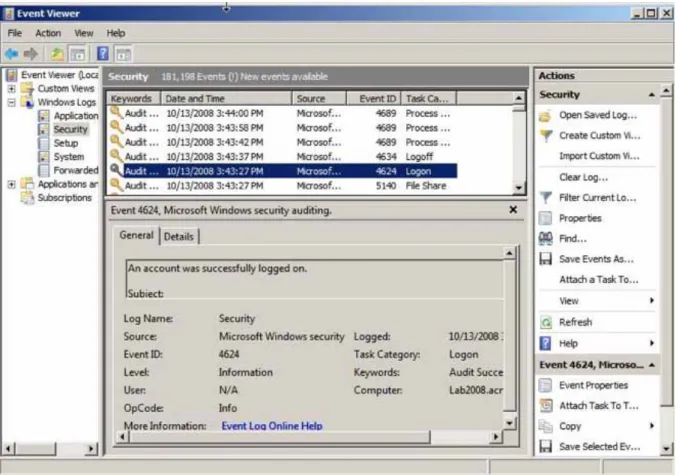
Microsoft does give credence to the idea that log management isn’t easy, which is why their Event Viewer (shown in Figure 1) has undergone changes throughout the years to include not just the ability to Find and Filter events, but also to perform some basic remediation.
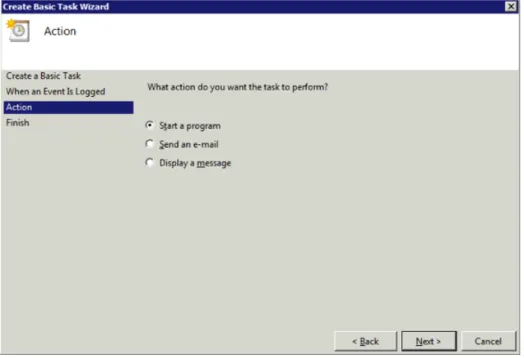
Windows Server allows you to select a specific event and perform one of three actions (shown in Figure 2), should the event occur.
Figure 1: Windows Server 2008’s Event Viewer
Microsoft Provides the Basics
Your Event Log Management strategy should include all 5 aspects: Consolidation, Management, Monitoring, Alerting and Remediation.
Event Forwarding
With Windows Server 2008, Microsoft introduced Event Forwarding, shown in Figure 3.
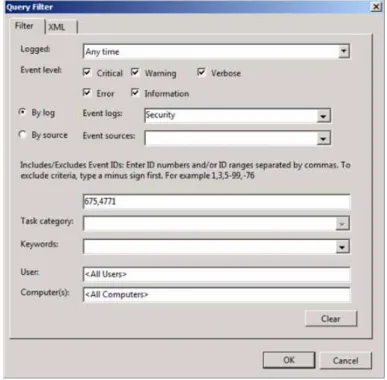
With Event Forwarding, logged events on Windows Server 2003 and 2008 servers can be forwarded to a centralized server, based on specified criteria, as shown in Figure 4.
Figure 3: Event Forwarding Subscription Properties Figure 2: Attaching a Task to an Event
The setup of Event Forwarding is a bit of work. It involves a number of steps just to get the servers ready to forward events and then you need to configure what gets forwarded. Truly, it is a good attempt at helping with the challenge of managing multiple servers by consolidating events, but is intended to scale to a few servers at most and only addresses one of the five parts of Event Log Management – Consolidation.
Table 2 shows a representative measurement of how Microsoft’s native tools address the five aspects of Event Log Management.
Don’t forget your other sources!
To make log management even more complex, Microsoft Windowsbased servers are only one source of logs you need to manage. Your non-Windows servers, firewalls, printers, switches, etc. all have valuable information to provide about the security or performance (or both) of your networks. There are other sources you need to include:
Figure 4: Specifying events to be forwarded
Table 2: Measuring Native Tools
Not Making the Grade
Consolidation None Yes, not scalable
Management None None
Monitoring Per event Per event
Alerting Basic Basic
Remediation Basic Basic
Basic Event Logs w/Event Forwarding
Monitoring, by itself, is useless. Without telling someone the house is on fire, the house will simply burn to the ground.
It’s Still Not Easy Enough. Now What?
Reducing the amount of work needed to manage Event Logs can only be accomplished by utilizing a third-party solution designed to do the work you’d be doing manually, or with limited automation with native tools.
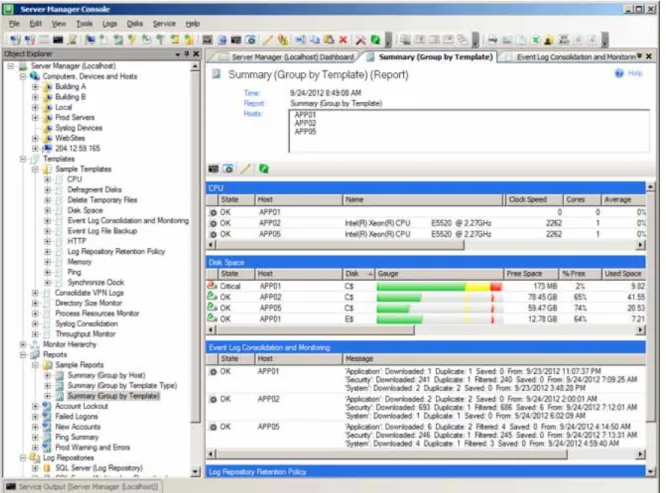
Let’s discuss how to make Event Log Management easier by discussing three key aspects you should find in a third-party solution and by introducing you to SpectorSoft Server Manager, shown in Figure 5.
• Syslogs – This is the most common standard for logging outside of Microsoft. Syslogs utilize a push
technology that require a service running somewhere to accept and consolidate the syslog data. • Text Logs – Additionally, some systems, including SQL Server, write to text-based log files.
These should also be considered.
Meet SpectorSoft Server Manager
Figure 5: SpectorSoft Server Manager
Your Event Log Management should include monitoring all relevant sources on (and in some cases, off) your network and not just Windows
Server Manager consolidates, monitors, alerts on and responds to critical events, providing centralized management and reporting of Event Log and Syslog data. Server security and performance is maintained, the health of server resources is monitored, and adhering to compliance standards can be proved.
To truly consider Event Log Management “simple’, the solution you use should meet the followingthree criteria: • Scalable
•Centralized • Automated
Let’s look at each and how Server Manager meets each.
Scalable – Single Solution
We’ve already discussed scalability a bit in this whitepaper in the context of Event Forwarding. But your work encompasses multiple logs, multiple servers, and multiple types of logs.
Server Manager provides robust capabilities to address Microsoft Event Logs, Syslogs and Text Logs from within the same solution, allowing you to consolidate, manage, monitor, alert and remediate issues across your entire network. Figure 6 shows Server Manager’s comprehensive support for consolidation, monitoring and management of all three log types.
Some of you are monitoring logs for security reasons, while others are monitoring to maintain performance levels of service. If uptime and performance are of concern, you need to be
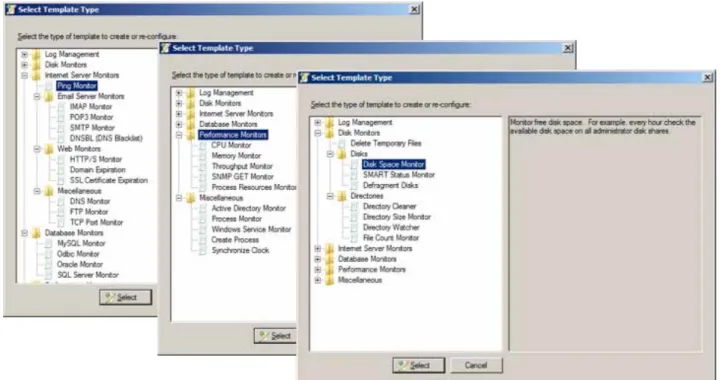
monitoring beyond just logs. Server Manager also monitors server resources, disks, applications, Windows services, databases, TCP ports, well-known web services, you name it – all under one roof so you get a comprehensive view into what’s going on from both the log and performance perspective. Figure 7 shows the various types of performance-related monitors Server Manager supports.
Scalable – Multitudes of Nodes
Server Manager was designed to support the monitoring needs of your network. It can simultaneously be monitoring your Windows servers, Unix boxes, workstations, SANs, NASs, routers, printers, hubs, switches, firewalls, appliances, websites and more.
Scalable – Template Driven
Given that Server Manager can monitor so much, it has been designed to simplify the aspects of monitoring so that you’re not repeating the same tasks over and over again.
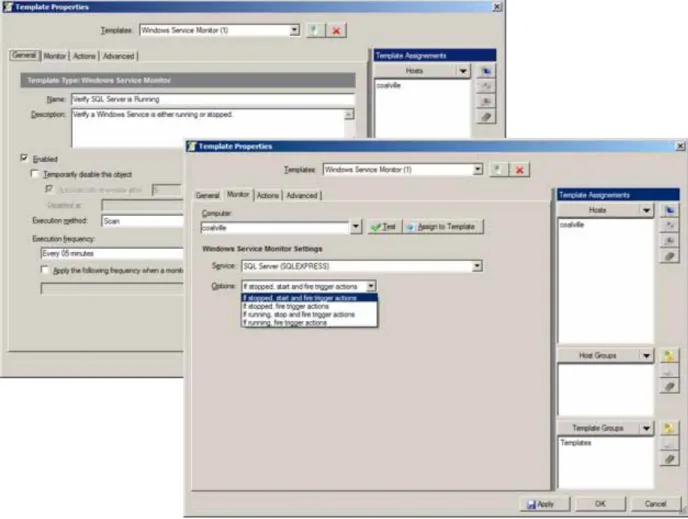
Server Manager utilizes templates, shown in Figure 8, to define the various aspects of monitoring and management of event logs, including:
• Computers to monitor • Events to monitor • Frequency • Actions
Figure 7: Server Manager monitors all aspects of performance
If performance is a concern, having a single solution that monitors both a servers logs, as well as its resources, services, processes, etc. provides you with a comprehensive view into server performance.
Let’s use at a real-world example to see how this benefits you. If you monitor multiple Exchange or SQL servers, you can simply define the events that need to be monitored, the times of day to monitor and the actions to take when the monitors are triggered then quickly apply that same template to all of the servers, as is appropriate. Likewise, should you simply want to reuse one aspect of that definition – let’s say an action to be taken – and apply it to a completely different set of servers being monitored for a completely different set of events, you can take that action template and utilize it somewhere else.
Next, let’s take a look at how a centralized solution simplifies Event Log Management.
Centralized – Log Consolidation
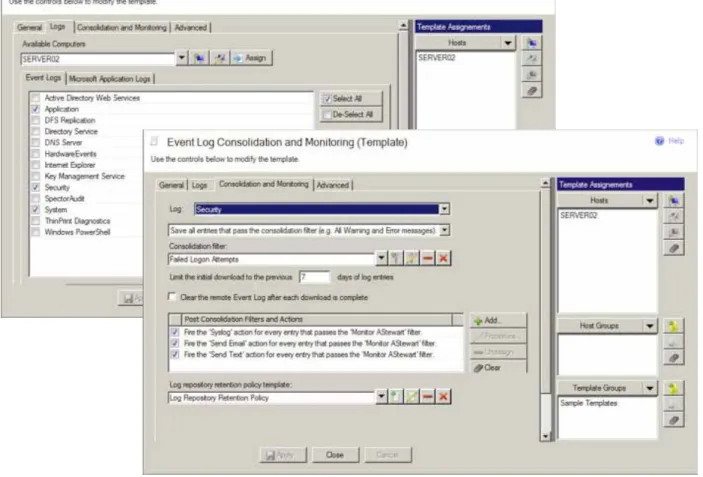
To properly monitor and manage logs, they need to be in one place. With Server Manager’s Consolidation Template, shown in Figure 9, you can easily select the servers, logs to be consolidated and filter the consolidated events (Figure 10) to ensure you only collect the events you need. Post-consolidation actions can also be applied to the logs as they are pulled in, providing you with management and alerting the moment consolidation occurs.
Figure 8: Examples of Server Manager’s template technology
To properly monitor and manage logs, they need to be in one place.
Figure 9: Template-based Event Consolidation
Centralized – Log Management
Once you have the data, you need to plan on how you will store it, back it up, and make it available (as is appropriate) for review, reporting and retention.
Server Manager supports storing consolidated Log data in 4 different mediums: • SQL Server
• Oracle • MySQL
• Server Manager’s own proprietary binary file format
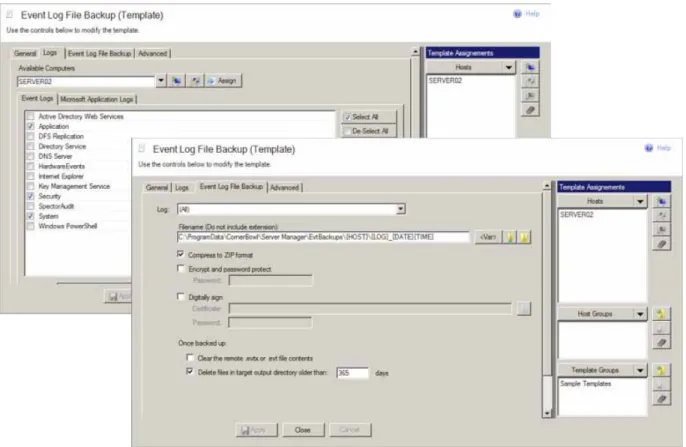
Besides backing up any consolidation databases, you may need to archive Logs directly for security or compliance purposes, including being encrypted and digitally signed. Figure 11 provides an example of how Server Manager can be configured to automatically backup Logs, which can be scheduled using Server Manager’s Schedule templates.
Figure 11: Event Log Backups
Remember that because Server Manager is template-driven, an Event filter, like the one shown in Figure 10, can be reused for additional consolidation, views of logs, and reporting.
Centralized – Log Reporting
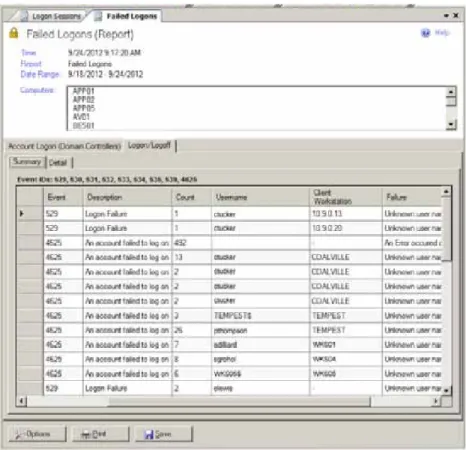
The beautiful part about event log management is you already use filters. And what’s the basis for log reporting? Filters of course! So building reports is as easy as creating a filter template (or reusing one that you’ve already created). Server Manager has 15 turnkey reports (a sample Failed Logons report is shown in Figure 12), but is designed to allow you the flexibility to quickly generate your own reports using the report templates.
Reports can easily be re-run against current data, scheduled, posted to websites for viewing and saved out to HTML, TXT or CSV formats.
Automated – Response
If Log Management stopped here, you’d be completely up to your ears in properly consolidated and monitored logs and with an Inbox full of alerts awaiting your response. Server Manager provides you with the ability to respond using a wide variety of actions, shown in Figure 13.
The actions fall into three categories:
• Alerts – Utilized to make the appropriate staff aware of an issue. These include sending an email or text,
displaying a message box and playing a sound.
• Documentation – Used to record the occurrence of an event in a separate system, log, etc. These include
writing the event to a database, another event log, a syslog server, a file and sending an SNMP trap.
• Remediation – Used as “first response” to fix issues. These include managing Windows services (stop, start,
restart) and launching a process (which opens up a wide variety of possible actions – running a script, launching a backup or restore, shutting down a server, etc. – the list is limitless).
Automated – Log Management
To make Event Log Management truly work, it needs to be “set it and forget it.” Server Manager, as a whole, meets this criterion. It was designed as a management platform that performs the actions you’d normally accomplish by manual means, and automates each aspect of Event Log Management. From consolidation, to management, to monitoring, to reporting, to responding, Server Manager does it all automatically.
Figure 13: Server Manager provides a number of actions to respond to events
What Else Does Server Manger Offer?
There’s a reason the product wasn’t given a name that implied management of event logs only. Remember, in the area of Log Management, it also manages Syslogs and Text logs, giving Server Manager the ability to monitor just about any system that produces logs.
Additionally, as was briefly mentioned in the Scalable – Single Solution section of this whitepaper, Server Manager also monitors, alerts and remediates issues for:
• Windows Resources – includes memory use, CPU utilization, and network throughput, individual
processes, services, Active Directory and clock synchronization
• Network Resources – includes email and web services, SSL and domain expiration
• Disk Resources – includes disk space, SMART status, directory sizes, and file counts
• Database Resources – includes SQL Server, Oracle, MySQL and ODBC
Let’s bring back the grading we gave to Microsoft’s native tools and see how Server Manager stacks up in Table 3.
Table 3: Seeing how Server Manager measures up
Does Server Manager Make the Grade?
Consolidation
Yes
None
Yes, not scalable
Management
Yes
None
None
Monitoring
Yes
Per event
Per event
Alerting
Yes
Basic
Basic
Remediation
Yes
Basic
Basic
Corporate Offices
SpectorSoft Corporation
1555 Indian River Drive
Vero Beach, FL 32960 1.888.598.2788 Toll Free Phone/Support 24/7 1.772.770.5670
International
United Kingdom C2, Dukes Street Woking
Surrey, GU21 5BH +44 1483 397744 West Palm Beach
1555 Palm Beach Lakes Blvd. West Palm Beach, FL 33401
Conclusion
Your efforts to manage Event Logs can be with put towards an arduous and tedious process of systematically going through logs, looking for issues, and taking the appropriate action each and every time, or you can make a one-time investment to set up an automated way to stay informed of and maintain the current state of your Windows
environment. With SpectorSoft Server Manager, Event Log Management becomes a simple task of establishing once what needs to be monitored (and what to do about it), reducing issue elevation, increasing server and service uptime and improving your productivity.
Server Manager Resources
For more information or to order, contact SpectorSoft and ask to speak to a sales consultant for your business needs.