Symantec™ Protection Engine
for Cloud Services Getting
Started Guide
Symantec™ Protection Engine for Cloud Services
Getting Started Guide
The software described in this book is furnished under a license agreement and may be used only in accordance with the terms of the agreement.
Documentation version: 7.0.3
Legal Notice
Copyright © 2014 Symantec Corporation. All rights reserved.
Symantec and the Symantec Logo are trademarks or registered trademarks of Symantec Corporation or its affiliates in the U.S. and other countries. Other names may be trademarks of their respective owners.
The product described in this document is distributed under licenses restricting its use, copying, distribution, and decompilation/reverse engineering. No part of this document may be reproduced in any form by any means without prior written authorization of Symantec Corporation and its licensors, if any.
THE DOCUMENTATION IS PROVIDED "AS IS" AND ALL EXPRESS OR IMPLIED CONDITIONS, REPRESENTATIONS AND WARRANTIES, INCLUDING ANY IMPLIED WARRANTY OF MERCHANTABILITY, FITNESS FOR A PARTICULAR PURPOSE OR NON-INFRINGEMENT, ARE DISCLAIMED, EXCEPT TO THE EXTENT THAT SUCH DISCLAIMERS ARE HELD TO BE LEGALLY INVALID. SYMANTEC CORPORATION SHALL NOT BE LIABLE FOR INCIDENTAL OR CONSEQUENTIAL DAMAGES IN CONNECTION WITH THE FURNISHING, PERFORMANCE, OR USE OF THIS DOCUMENTATION. THE INFORMATION CONTAINED IN THIS DOCUMENTATION IS SUBJECT TO CHANGE WITHOUT NOTICE.
The Licensed Software and Documentation are deemed to be commercial computer software as defined in FAR 12.212 and subject to restricted rights as defined in FAR Section 52.227-19 "Commercial Computer Software - Restricted Rights" and DFARS 227.7202, "Rights in Commercial Computer Software or Commercial Computer Software Documentation", as applicable, and any successor regulations. Any use, modification, reproduction release, performance, display or disclosure of the Licensed Software and Documentation by the U.S. Government shall be solely in accordance with the terms of this Agreement.
Symantec Corporation 350 Ellis Street
Mountain View, CA 94043 http://www.symantec.com
Getting started
... 4About Symantec™ Protection Engine for Cloud Services ... 4
What's new in Symantec Protection Engine ... 5
About supported protocols for Symantec Protection Engine ... 7
Components of Symantec Protection Engine ... 9
Before you install Symantec Protection Engine ... 12
About running other antivirus products on the Symantec Protection Engine server ... 13
Migrating to version 7.5.0 ... 13
About migrating from version 4.3.x ... 14
System requirements ... 17
System requirements to install Symantec Protection Engine on Windows ... 17
System requirements to install Symantec Protection Engine on Solaris ... 19
System requirements to install Symantec Protection Engine on Linux ... 20
About installing Symantec Protection Engine ... 23
Where to get more information ... 24
Getting started
About Symantec™ Protection Engine for Cloud
Services
Symantec™ Protection Engine for Cloud Services is hereafter referred to as Symantec Protection Engine.
Symantec Protection Engine is a carrier-class content and URL scanning engine. Symantec Protection Engine provides content scanning and URL filtering capabilities to any application on an IP network, regardless of its platform. Any application can pass files or URLs to Symantec Protection Engine for scanning.
Symantec Protection Engine accepts scan requests from the client applications that use any of the following protocols:
■ Symantec Protection Engine Native protocol
Note:From version 7.0, Native protocol has been deprecated. Symantec recommends the use of either ICAP or RPC protocol.
■ TheInternet Content Adaptation Protocol(ICAP), version 1.0, as presented in RFC 3507 (April 2003)
■ A proprietary implementation of remote procedure call (RPC)
See“About supported protocols for Symantec Protection Engine”on page 7. You can use the Symantec Protection Engine software development kit (SDK) or build your own connector to integrate Symantec Protection Engine with your application. The SDK supports version 1.0 of ICAP, as presented in RFC3507 (April 2003). Symantec also has developed connector code for some third-party applications to seamlessly integrate with Symantec Protection Engine.
TheSymantec Protection Engine Software Developers Guideprovides information about how to create customized integrations with ICAP.
See“Components of Symantec Protection Engine”on page 9.
What's new in Symantec Protection Engine
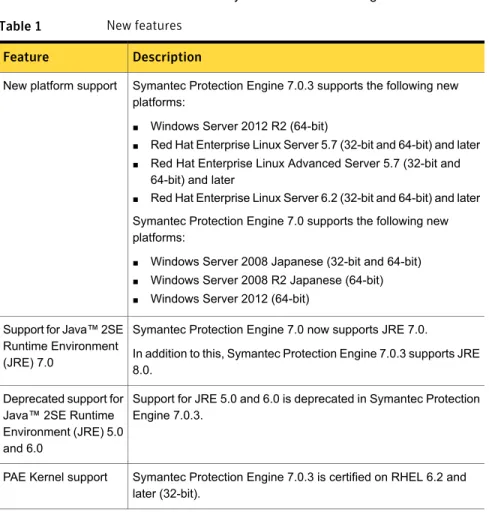
Table 1describes the new features in Symantec Protection Engine.Table 1 New features
Description Feature
Symantec Protection Engine 7.0.3 supports the following new platforms:
■ Windows Server 2012 R2 (64-bit)
■ Red Hat Enterprise Linux Server 5.7 (32-bit and 64-bit) and later
■ Red Hat Enterprise Linux Advanced Server 5.7 (32-bit and 64-bit) and later
■ Red Hat Enterprise Linux Server 6.2 (32-bit and 64-bit) and later Symantec Protection Engine 7.0 supports the following new platforms:
■ Windows Server 2008 Japanese (32-bit and 64-bit)
■ Windows Server 2008 R2 Japanese (64-bit)
■ Windows Server 2012 (64-bit) New platform support
Symantec Protection Engine 7.0 now supports JRE 7.0.
In addition to this, Symantec Protection Engine 7.0.3 supports JRE 8.0.
Support for Java™ 2SE Runtime Environment (JRE) 7.0
Support for JRE 5.0 and 6.0 is deprecated in Symantec Protection Engine 7.0.3.
Deprecated support for Java™ 2SE Runtime Environment (JRE) 5.0 and 6.0
Symantec Protection Engine 7.0.3 is certified on RHEL 6.2 and later (32-bit).
PAE Kernel support
5 Getting started What's new in Symantec Protection Engine
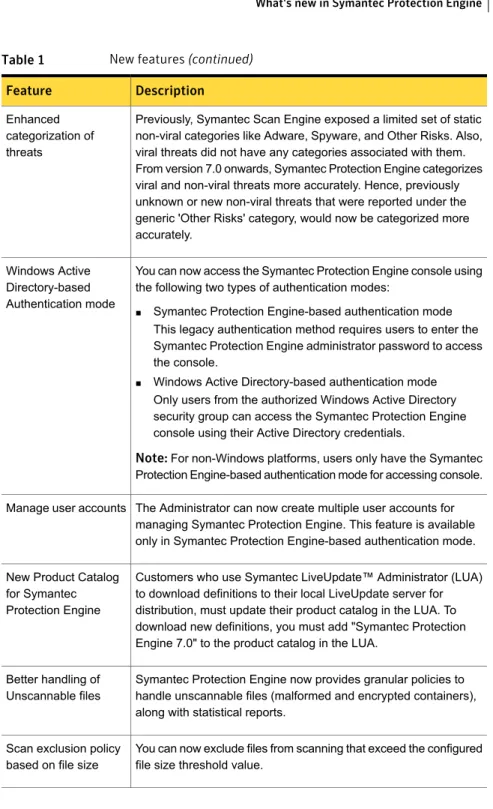
Table 1 New features (continued)
Description Feature
Previously, Symantec Scan Engine exposed a limited set of static non-viral categories like Adware, Spyware, and Other Risks. Also, viral threats did not have any categories associated with them. From version 7.0 onwards, Symantec Protection Engine categorizes viral and non-viral threats more accurately. Hence, previously unknown or new non-viral threats that were reported under the generic 'Other Risks' category, would now be categorized more accurately.
Enhanced categorization of threats
You can now access the Symantec Protection Engine console using the following two types of authentication modes:
■ Symantec Protection Engine-based authentication mode This legacy authentication method requires users to enter the Symantec Protection Engine administrator password to access the console.
■ Windows Active Directory-based authentication mode Only users from the authorized Windows Active Directory security group can access the Symantec Protection Engine console using their Active Directory credentials.
Note:For non-Windows platforms, users only have the Symantec Protection Engine-based authentication mode for accessing console. Windows Active
Directory-based Authentication mode
The Administrator can now create multiple user accounts for managing Symantec Protection Engine. This feature is available only in Symantec Protection Engine-based authentication mode. Manage user accounts
Customers who use Symantec LiveUpdate™ Administrator (LUA) to download definitions to their local LiveUpdate server for distribution, must update their product catalog in the LUA. To download new definitions, you must add "Symantec Protection Engine 7.0" to the product catalog in the LUA.
New Product Catalog for Symantec Protection Engine
Symantec Protection Engine now provides granular policies to handle unscannable files (malformed and encrypted containers), along with statistical reports.
Better handling of Unscannable files
You can now exclude files from scanning that exceed the configured file size threshold value.
Scan exclusion policy based on file size
6 Getting started What's new in Symantec Protection Engine
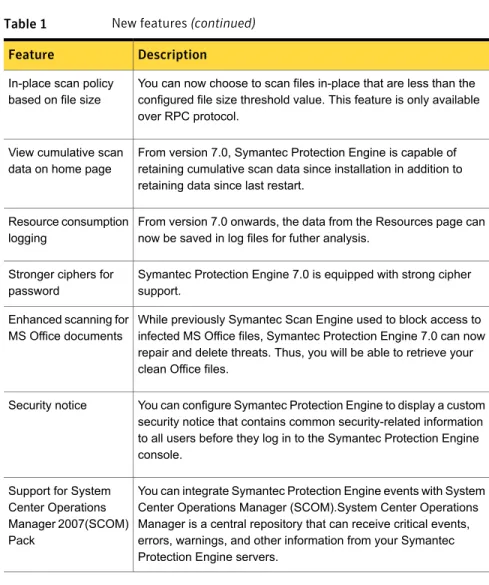
Table 1 New features (continued)
Description Feature
You can now choose to scan files in-place that are less than the configured file size threshold value. This feature is only available over RPC protocol.
In-place scan policy based on file size
From version 7.0, Symantec Protection Engine is capable of retaining cumulative scan data since installation in addition to retaining data since last restart.
View cumulative scan data on home page
From version 7.0 onwards, the data from the Resources page can now be saved in log files for futher analysis.
Resource consumption logging
Symantec Protection Engine 7.0 is equipped with strong cipher support.
Stronger ciphers for password
While previously Symantec Scan Engine used to block access to infected MS Office files, Symantec Protection Engine 7.0 can now repair and delete threats. Thus, you will be able to retrieve your clean Office files.
Enhanced scanning for MS Office documents
You can configure Symantec Protection Engine to display a custom security notice that contains common security-related information to all users before they log in to the Symantec Protection Engine console.
Security notice
You can integrate Symantec Protection Engine events with System Center Operations Manager (SCOM).System Center Operations Manager is a central repository that can receive critical events, errors, warnings, and other information from your Symantec Protection Engine servers.
Support for System Center Operations Manager 2007(SCOM) Pack
See“About Symantec™ Protection Engine for Cloud Services”on page 4.
About supported protocols for Symantec Protection
Engine
Table 2lists the supported protocols that client applications can use to send scan requests to Symantec Protection Engine.
7 Getting started About supported protocols for Symantec Protection Engine
Table 2 Supported protocols
Description Protocol
Symantec Protection Engine implements a TCP/IP protocol to provide scanning functionality to client applications. This protocol is text-based, like HTTP or SMTP. It uses ASCII commands and responses to communicate between the client and the server. To scan a file, a client connects to the default IP port. It sends the file to be scanned and then reads the results of the scan. After the client receives the scan results, the client and server disconnect and must initiate a new connection to scan each subsequent file. Native protocol
(Deprecated)
ICAP is a lightweight protocol for executing a remote procedure call on HTTP messages. ICAP is part of an architecture that lets corporations, carriers, and ISPs dynamically scan, change, and augment Web content as it flows through ICAP servers. The protocol lets ICAP clients pass HTTP messages to ICAP servers for adaptation. Adaptation might include some sort of transformation or other processing, such as scanning or content filtering. The server executes its transformation service on the messages and responds to the client, usually with modified messages. The adapted messages might be either HTTP requests or HTTP responses. In a typical integration, a caching proxy server retrieves the requested information from the Web. It caches the information and serves multiple requests for the same Web content from the cache, where possible. A caching proxy server can use ICAP to communicate with Symantec Protection Engine. It can also request the scanning of the content that is retrieved from the Web. Internet Content
Adaptation Protocol (ICAP)
Remote procedure call (RPC) is a client/server infrastructure that increases the interoperability and portability of an application. RPC lets the application be distributed over multiple platforms. The use of RPC frees the developer from having to be familiar with various operating systems and network interfaces. RPC simplifies the development of applications that span multiple operating systems and network protocols. The semantics of the remote procedure call remain the same whether or not the client and server are on the same computer.
Symantec Protection Engine uses a proprietary scanning protocol with the MS-RPC protocol to interface with client applications. This protocol is supported only on Windows 2008 Server or Windows 2012 Server. Any appropriate client can use RPC to communicate with Symantec Protection Engine to request the scanning and repairing of files.
A proprietary Remote Procedure Call (RPC) protocol
8 Getting started About supported protocols for Symantec Protection Engine
Note:From version 7.0, Native protocol has been deprecated. Symantec recommends the use of either ICAP or RPC protocol.
Components of Symantec Protection Engine
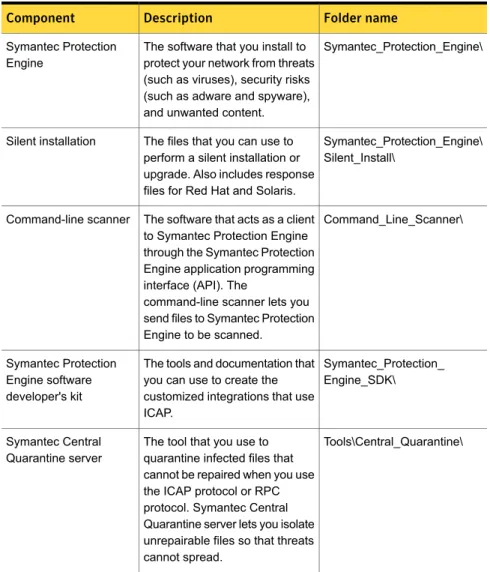
Table 3lists the components that are included in the Symantec Protection Engine.zip file.
Table 3 Product components
Folder name Description
Component
Symantec_Protection_Engine\ The software that you install to
protect your network from threats (such as viruses), security risks (such as adware and spyware), and unwanted content. Symantec Protection
Engine
Symantec_Protection_Engine\ Silent_Install\
The files that you can use to perform a silent installation or upgrade. Also includes response files for Red Hat and Solaris. Silent installation
Command_Line_Scanner\ The software that acts as a client
to Symantec Protection Engine through the Symantec Protection Engine application programming interface (API). The
command-line scanner lets you send files to Symantec Protection Engine to be scanned.
Command-line scanner
Symantec_Protection_ Engine_SDK\ The tools and documentation that
you can use to create the customized integrations that use ICAP.
Symantec Protection Engine software developer's kit
Tools\Central_Quarantine\ The tool that you use to
quarantine infected files that cannot be repaired when you use the ICAP protocol or RPC protocol. Symantec Central Quarantine server lets you isolate unrepairable files so that threats cannot spread.
Symantec Central Quarantine server
9 Getting started Components of Symantec Protection Engine
Table 3 Product components (continued)
Folder name Description
Component
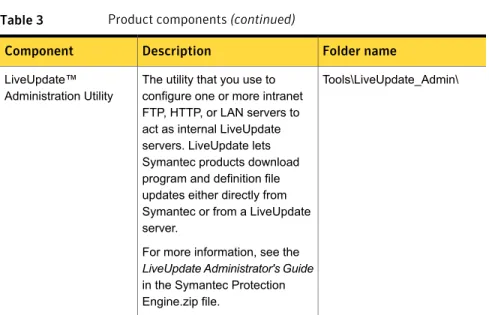
Tools\LiveUpdate_Admin\ The utility that you use to
configure one or more intranet FTP, HTTP, or LAN servers to act as internal LiveUpdate servers. LiveUpdate lets Symantec products download program and definition file updates either directly from Symantec or from a LiveUpdate server.
For more information, see the
LiveUpdate Administrator's Guide
in the Symantec Protection Engine.zip file.
LiveUpdate™ Administration Utility
10 Getting started Components of Symantec Protection Engine
Table 3 Product components (continued)
Folder name Description
Component
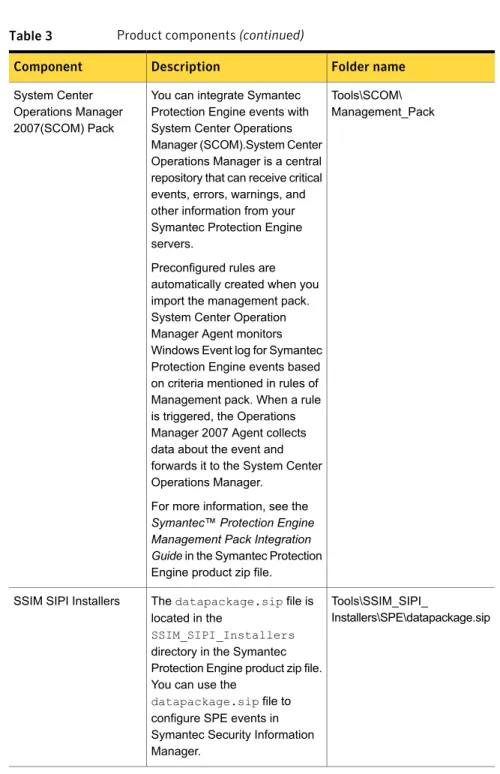
Tools\SCOM\ Management_Pack You can integrate Symantec
Protection Engine events with System Center Operations Manager (SCOM).System Center Operations Manager is a central repository that can receive critical events, errors, warnings, and other information from your Symantec Protection Engine servers.
Preconfigured rules are automatically created when you import the management pack. System Center Operation Manager Agent monitors Windows Event log for Symantec Protection Engine events based on criteria mentioned in rules of Management pack. When a rule is triggered, the Operations Manager 2007 Agent collects data about the event and forwards it to the System Center Operations Manager.
For more information, see the
Symantec™ Protection Engine Management Pack Integration Guidein the Symantec Protection Engine product zip file. System Center
Operations Manager 2007(SCOM) Pack
Tools\SSIM_SIPI_
Installers\SPE\datapackage.sip Thedatapackage.sipfile is
located in the
SSIM_SIPI_Installers
directory in the Symantec Protection Engine product zip file. You can use the
datapackage.sipfile to configure SPE events in Symantec Security Information Manager.
SSIM SIPI Installers
11 Getting started Components of Symantec Protection Engine
Table 3 Product components (continued)
Folder name Description
Component
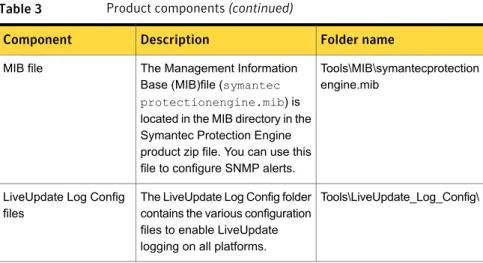
Tools\MIB\symantecprotection engine.mib
The Management Information Base (MIB)file (symantec protectionengine.mib) is located in the MIB directory in the Symantec Protection Engine product zip file. You can use this file to configure SNMP alerts. MIB file
Tools\LiveUpdate_Log_Config\ The LiveUpdate Log Config folder
contains the various configuration files to enable LiveUpdate logging on all platforms. LiveUpdate Log Config
files
Adobe Acrobat Reader is required to view the reports that are generated in.pdf
format. You can download Adobe Acrobat Reader fromhttp://www.adobe.com/.
Before you install Symantec Protection Engine
Install Symantec Protection Engine on a computer that meets the systemrequirements. Before you install Symantec Protection Engine, install and configure the operating system software and applicable updates for your server. Also ensure that your operating system software and server work correctly. For more information, see the documentation for your server.
See“System requirements”on page 17.
Before you install Symantec Protection Engine, take the following steps:
■ On Windows operating system, if you want to use Windows Active Directory-based authentication method to access the Symantec Protection Engine console, you must ensure the following:
■ Create or identify an existing security group in the Active Directory that would be authorized to access the Symantec Protection Engine console.
■ The server (on which you plan to install Symantec Protection Engine) belongs to the same domain or has trust relationship with the Active Directory, that contains the security group authorized to access the Symantec Protection Engine console.
■ Install Java 2SE Runtime Environment (JRE) 7.0 (update 45 or later). This is required if you plan to use Symantec Protection Engine in the Core server with user interface mode.
12 Getting started Before you install Symantec Protection Engine
Note:Symantec Protection Engine supports only 32-bit versions of Java Runtime Environment. Symantec Protection Engine cannot be installed with 64-bit JRE versions.
■ Disable any third-party antivirus products that are running on the server on which you plan to install Symantec Protection Engine. You can turn on antivirus protection after installation is complete.
Symantec Protection Engine scans the files that client applications pass to Symantec Protection Engine. Symantec Protection Engine does not protect the computer on which it runs. Since Symantec Protection Engine processes the files that might contain threats, the server on which it runs is vulnerable if it has no real-time protection.
Use an antivirus program to protect the server on which Symantec Protection Engine runs, such as Symantec Endpoint Protection. To prevent scanning conflicts, configure the antivirus program not to scan the temporary directory that Symantec Protection Engine uses for scanning.
■ Review the deployment considerations and recommendations. These
recommendations can enhance your overall performance. After you complete the installation, perform the post-installation tasks.
About running other antivirus products on the Symantec Protection
Engine server
Symantec Protection Engine scans the files that client applications pass to Symantec Protection Engine. Symantec Protection Engine does not protect the computer on which it runs. Since Symantec Protection Engine processes the files that might contain threats, the server on which it runs is vulnerable if it has no real-time protection.
Use an antivirus program to protect the server on which Symantec Protection Engine runs, such as Symantec AntiVirus Corporate Edition. To prevent scanning conflicts, configure the antivirus program not to scan the temporary directory that Symantec Protection Engine uses for scanning.
Migrating to version 7.5.0
While installing Symantec Protection Engine, you can choose to upgrade from the previous version to version 7.5.
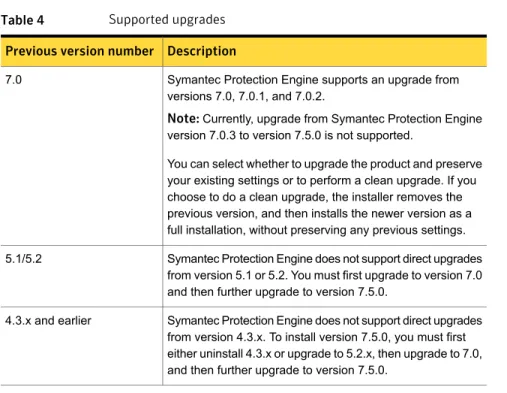
Table 4describes the upgrades that Symantec Protection Engine supports.
13 Getting started Before you install Symantec Protection Engine
Table 4 Supported upgrades
Description Previous version number
Symantec Protection Engine supports an upgrade from versions 7.0, 7.0.1, and 7.0.2.
Note:Currently, upgrade from Symantec Protection Engine version 7.0.3 to version 7.5.0 is not supported.
You can select whether to upgrade the product and preserve your existing settings or to perform a clean upgrade. If you choose to do a clean upgrade, the installer removes the previous version, and then installs the newer version as a full installation, without preserving any previous settings. 7.0
Symantec Protection Engine does not support direct upgrades from version 5.1 or 5.2. You must first upgrade to version 7.0 and then further upgrade to version 7.5.0.
5.1/5.2
Symantec Protection Engine does not support direct upgrades from version 4.3.x. To install version 7.5.0, you must first either uninstall 4.3.x or upgrade to 5.2.x, then upgrade to 7.0, and then further upgrade to version 7.5.0.
4.3.x and earlier
You must stop the Symantec Protection Engine service before you upgrade the software. If you cancel the upgrade on Solaris after selecting the upgrade type, you must reinstall the previous version.
If you want to upgrade from version 5.2/5.1 and use security certificates, take the following actions:
■ If you use the default security files that Symantec Protection Engine generated,
delete the keystore.public and keystore.private before you perform the upgrade installation.
■ If you use custom security files, you can retain the custom security files. Symantec Protection Engine automatically uses the existing files when you upgrade.
About migrating from version 4.3.x
If you want to migrate from version 4.3.x, you must first upgrade your installation to version 5.2.x (which does support a direct upgrade from version 4.3.x), and then upgrade the version 5.2.x installation to version 7.5. However, you must consider the following items:
■ The ArchiveTypes setting from version 4.3 is not preserved. Instead, the DecEngines setting in version 7.5 uses a default value.
14 Getting started Before you install Symantec Protection Engine
■ Exclusion lists are not upgraded. For security reasons, changes were made to the default exclusion list.
■ Version 7.5 does not support inclusion lists.
■ Domain blocking settings are not preserved, and the syntax of the entries has changed. The previous settings are saved into an upgrade folder in the installation directory for review and re-entry by the user in the new format.
■ If the LiveUpdate interval in Symantec AntiVirus Scan Engine 4.3 is set to a
value that is not supported in Symantec Protection Engine 7.5, then the interval is reset to every two hours.
■ Upgrades on Linux and Solaris run under the configured user of the previous installation. To change the user that Symantec Protection Engine runs as, uninstall the existing installation, and perform a clean installation of version 7.5. The installation user interface asks what (non-root) user you want Symantec Protection Engine to run as.
■ Symantec Protection Engine tries to use port 8005 after an upgrade for the
Secure Socket Layer (SSL). If that port is in use, manually change the SSL port to an available port number. Then restart the Symantec Protection Engine.
■ If you upgrade from version 4.3.7 or later, the maximum file size settings are
not preserved. The maximum file size threshold is automatically set to 2,147,483,648 bytes (2 GB).
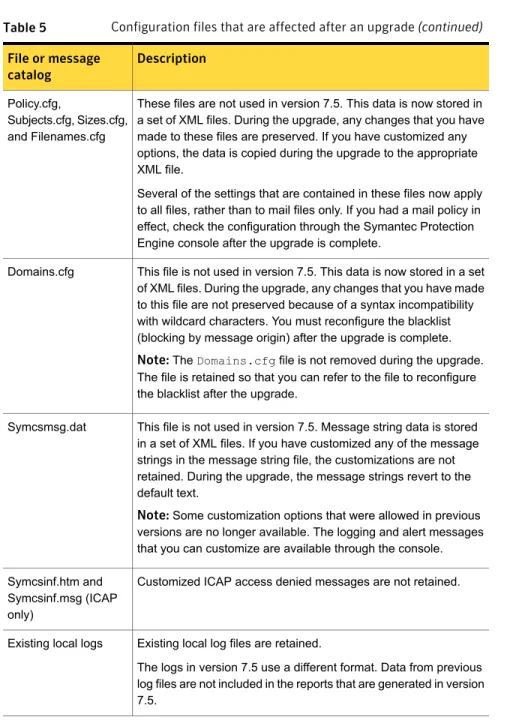
Table 5provides information about how the configuration files are affected after an upgrade from version 4.3.x.
Table 5 Configuration files that are affected after an upgrade
Description File or message
catalog
This file is no longer used. This data is now stored in a set of XML files. During the upgrade, any changes that you made to the Symantec Protection Engine configuration file,Symcscan.cfg, are preserved. If you have customized any configuration options, the data is copied during the upgrade to the appropriate XML file. A command-line configuration modifier tool is available for changing the configuration values in the XML files.
Note:Logging options have changed. Some of the previous configuration options do not map to the new options. Therefore, some customizations that you have made to the logging options are not preserved. You might need to reconfigure your logging options after you install the upgrade.
Symcscan.cfg
15 Getting started Before you install Symantec Protection Engine
Table 5 Configuration files that are affected after an upgrade (continued)
Description File or message
catalog
These files are not used in version 7.5. This data is now stored in a set of XML files. During the upgrade, any changes that you have made to these files are preserved. If you have customized any options, the data is copied during the upgrade to the appropriate XML file.
Several of the settings that are contained in these files now apply to all files, rather than to mail files only. If you had a mail policy in effect, check the configuration through the Symantec Protection Engine console after the upgrade is complete.
Policy.cfg,
Subjects.cfg, Sizes.cfg, and Filenames.cfg
This file is not used in version 7.5. This data is now stored in a set of XML files. During the upgrade, any changes that you have made to this file are not preserved because of a syntax incompatibility with wildcard characters. You must reconfigure the blacklist (blocking by message origin) after the upgrade is complete. Note:TheDomains.cfgfile is not removed during the upgrade. The file is retained so that you can refer to the file to reconfigure the blacklist after the upgrade.
Domains.cfg
This file is not used in version 7.5. Message string data is stored in a set of XML files. If you have customized any of the message strings in the message string file, the customizations are not retained. During the upgrade, the message strings revert to the default text.
Note:Some customization options that were allowed in previous versions are no longer available. The logging and alert messages that you can customize are available through the console. Symcsmsg.dat
Customized ICAP access denied messages are not retained. Symcsinf.htm and
Symcsinf.msg (ICAP only)
Existing local log files are retained.
The logs in version 7.5 use a different format. Data from previous log files are not included in the reports that are generated in version 7.5.
Existing local logs
16 Getting started Before you install Symantec Protection Engine
Table 5 Configuration files that are affected after an upgrade (continued)
Description File or message
catalog
The following tags have been removed :
■ All DDR-related tags.
■ Locale
■ DenyMalformedContainers
■ DeleteEncryptedContainers
The following tags have been modified:
■ The permissible value forFilteringModeparameter has been changed.
The following new tags are added:
■ HandleMalformedContainers
■ MalformedContainersPolicy
■ QuarantineMalformedContainers
■ HandleEncryptedContainers
■ EncryptedContainersPolicy
■ QuarantineEncryptedContainers
filtering.xml
A new tagQuarantineThreatsis added to control the quarantine of threats.
The tagQuarantineFiles controls the configure quarantine server settings.
Policy.xml
System requirements
Before you install Symantec Protection Engine, verify that your server meets the minimum system requirements.
System requirements to install Symantec Protection Engine on
Windows
The following are the minimum system requirements for installing Symantec Protection Engine on Windows:
17 Getting started System requirements
■ Windows Server 2003 (32-bit and 64-bit)
■ Windows Server 2003 R2 (32-bit and 64-bit)
■ Windows Server 2003 R2 Japanese (32-bit and 64-bit)
■ Windows Server 2008 SP2 (32-bit and 64-bit)
■ Windows Server 2008 R2 (64-bit)
■ Windows Server 2008 Japanese (32-bit and 64-bit)
■ Windows Server 2008 R2 Japanese (64-bit)
■ Windows Server 2012 (64-bit)
■ Windows Server 2012 R2 (64-bit)
Ensure that your operating system has the latest service patches available.
Operating system
Intel or AMD Server Grade Single Processor Quad Core systems or higher
Processor
4 GB of RAM or higher Memory
5 GB of hard disk space
10 GB of hard disk space for using URL Filtering feature Disk space
■ Network interface card (NIC) running TCP/IP with a static IP address
■ Internet connection to update definitions
■ 100 Mbps Ethernet link (1 Gbps recommended) Hardware
18 Getting started System requirements
■ J2SE Runtime Environment (JRE) 7.0 (update 51 or later) or JRE 8.0 (update 5 or later).
It is recommended to use JRE 7.0 (update 51or later).
Note:Symantec Protection Engine supports only 32-bit versions of Java Runtime Environment. Symantec Protection Engine cannot be installed with 64-bit JRE versions.
■ Microsoft Visual C++ 2005 (SP1 or later) redistributable package (x86)
■ One of the following Web browsers to access the Symantec Protection Engine console:
■ Microsoft Internet Explorer 8 or later
Use Microsoft Internet Explorer to access the Symantec Protection Engine console from a Windows client computer.
■ Mozilla Firefox 10 or later
Use Mozilla Firefox to access the Symantec Protection Engine console from a Solaris or Linux client computer.
The Web browser is only required for Web-based administration. You must install the Web browser on a computer from which you want to access the Symantec Protection Engine console. The computer must have access to the server on which Symantec Protection Engine runs.
Software
See“About installing Symantec Protection Engine”on page 23.
System requirements to install Symantec Protection Engine on Solaris
The following are the minimum system requirements for installing Symantec Protection Engine on Solaris:Solaris 10 and 11
Ensure that your operating system has the latest service patches available.
Operating system
UltraSPARC Processor
4 GB of RAM or higher Memory
5 GB of hard disk space
10 GB of hard disk space for using URL Filtering feature Disk space
■ Network interface card (NIC) running TCP/IP with a static IP address
■ Internet connection to update definitions
■ 100 Mbps Ethernet link (1 Gbps recommended) Hardware
19 Getting started System requirements
■ J2SE Runtime Environment (JRE) 7.0 (update 51 or later) or JRE 8.0 (update 5 or later).
It is recommended to use JRE 7.0 (update 51 or later).
Note:32-bit JRE 1.8 is not available for Solaris SPARC platform. If you install the self-extracting JRE, ensure that you note the installation location. You must provide the location of the JRE if the installer is unable to detect it.
Note:Symantec Protection Engine supports only 32-bit versions of Java Runtime Environment. Symantec Protection Engine cannot be installed with 64-bit JRE versions.
■ One of the following Web browsers to access the Symantec Protection Engine console:
■ Mozilla Firefox 10 or later
Use Mozilla Firefox to access the Symantec Protection Engine console from a Solaris or Linux client computer.
■ Microsoft Internet Explorer 8 or later
Use Microsoft Internet Explorer to access the Symantec Protection Engine console from a Windows client computer. The Web browser is only required for Web-based administration. You must install the Web browser on a computer from which you want to access the Symantec Protection Engine console. The computer must have access to the server on which Symantec Protection Engine runs.
Software
See“About installing Symantec Protection Engine”on page 23.
System requirements to install Symantec Protection Engine on Linux
The following are the minimum system requirements for installing Symantec Protection Engine on Linux:■ Red Hat Enterprise Linux Server 5.7 (32-bit and 64-bit) and later
■ Red Hat Enterprise Linux Advanced Server 5.7 (32-bit and 64-bit) and later
■ Red Hat Enterprise Linux Server 6.2 (32-bit and 64-bit) and later
■ SUSE Linux Enterprise Server 11 (32-bit and 64-bit)
Ensure that your operating system has the latest service patches available.
Operating system
Intel or AMD Server Grade Single Processor Quad Core systems or higher
Processor
4 GB of RAM or higher Memory
20 Getting started System requirements
5 GB of hard disk space
10 GB of hard disk space for using URL Filtering feature Disk space
■ Network interface card (NIC) running TCP/IP with a static IP address
■ Internet connection to update definitions
■ 100 Mbps Ethernet link (1 Gbps recommended) Hardware
21 Getting started System requirements
■ Ensure that the following packages are installed:
■ GNU sharutils-4.6.1-2 or later
Use this package to expand the Rapid Release packages.
■ 32-bit GNU libuuid-2.17.2-6 or later
■ ncompress-4.2.4-44 or later
Use this package to expand the Rapid Release packages.
■ GNU C Library (glibc)
■ Initscripts
This package is required for Red Hat Linux only.
■ aaa_base package
This package is required for SUSE only.
■ 32 bit libstdc++ library package
■ J2SE Runtime Environment (JRE) 7.0 (update 51 or later) or JRE 8.0 (update 5 or later).
It is recommended to use JRE 7.0 (update 51 or later).
Install the JRE using Red Hat Package Manager (RPM). Ensure that you note the installation location. You must provide the location of the JRE if the installer is unable to detect it.
Note:Symantec Protection Engine supports only 32-bit versions of Java Runtime Environment. Symantec Protection Engine cannot be installed with 64-bit JRE versions.
■ One of the following Web browsers to access the Symantec Protection Engine console:
■ Mozilla Firefox 10 or later
Use Mozilla Firefox to access the Symantec Protection Engine console from a Solaris or Linux client computer.
■ Microsoft Internet Explorer 8 or later
Use Microsoft Internet Explorer to access the Symantec Protection Engine console from a Windows client computer. The Web browser is only required for Web-based administration. You must install the Web browser on a computer from which you want to access the Symantec Protection Engine console. The computer must have access to the server on which Symantec Protection Engine runs.
Note:If any of the above package binary is already present on the computer and if the installer is still unable to find it, you can add the path to the binary in LD_LIBRARY_PATH environment variable. Software
See“About installing Symantec Protection Engine”on page 23.
22 Getting started System requirements
About installing Symantec Protection Engine
The Symantec Protection Engine installer checks for the previous version of the product before installing or upgrading to a newer version. The results of the check determine what happens next.
Table 6describes the action taken by the installer when no previous version is installed or an existing version of Symantec Protection Engine is installed. Table 6 Installer check results
Action taken by installer Version
A full installation is performed. No previous version is
detected
Symantec Protection Engine supports an upgrade from version 7.0. You can select whether to upgrade the product and preserve your existing settings or to perform a clean upgrade. If you choose to do a clean upgrade, the installer removes the previous version, and then installs the newer version as a full installation, without preserving any previous settings. Version 7.0 is detected
Symantec Protection Engine does not support direct upgrades from version 5.1 or 5.2. You must first upgrade to version 7.0 and then further upgrade to version 7.5.
Version 5.1 or 5.2 is detected
Symantec Protection Engine does not support direct upgrades from version 5.0. To install version 7.5, you must first either uninstall version 5.0 or upgrade to version 7.0 and then further upgrade to version 7.5.
Version 5.0 is detected
Symantec Protection Engine does not support direct upgrades from version 4.3.x. To install version 7.5, you must first either uninstall 4.3.x or upgrade to 5.2.x, then upgrade to 7.0, and then further upgrade to version 7.5.
Version 4.3.x is detected
After you install Symantec Protection Engine, activate all applicable licenses. If you upgrade from a previous version that has valid licenses, when the installation is complete, Symantec Protection Engine automatically recognizes these licenses. Symantec Protection Engine is shipped with the minimum set of URL definitions. If you want to use URL filtering feature, ensure that you run LiveUpdate and get the latest URL definitions before you start URL filtering.
If Symantec Protection Engine fails to start before it can initiate standard logging, information about the failure is written to the abort log file
23 Getting started About installing Symantec Protection Engine
(SymantecProtectionEngineAbortLog.txt). This file is located in the installation directory.
If you need to install or upgrade multiple Symantec Protection Engines on your network, you can use the silent installation or upgrade feature to facilitate the process.
Where to get more information
Symantec Protection Engine includes an online Help system. You can access topics through the Help table of contents and index, and you can search for keywords. Context-sensitive help is available for each page in the Symantec Protection Engine console.
You can visit the Symantec Web site for more information about your product. The following online resources are available:
www.symantec.com/techsupp/ent/ enterprise.html
Provides access to the technical support Knowledge Base, newsgroups, contact information, downloads, and mailing list subscriptions
http://customersupport.symantec.com/ Provides information about registration,
frequently asked questions, how to respond to error messages, and how to contact Symantec License Administration
www.enterprisesecurity.symantec.com Provides product news and updates
www.symantec.com/security_response/ index.jsp
Provides access to the Virus Encyclopedia, which contains information about all known threats, information about hoaxes, and access to white papers about threats
24 Getting started Where to get more information