Altiris Inventory Solution™
7.1 SP2 from Symantec™
User Guide
Altiris Inventory Solution™ 7.1 SP2 from Symantec™
User Guide
The software described in this book is furnished under a license agreement and may be used only in accordance with the terms of the agreement.
Legal Notice
Copyright © 2011 Symantec Corporation. All rights reserved.
Symantec and the Symantec Logo, Altiris, and any Altiris or Symantec trademarks used in the product are trademarks or registered trademarks of Symantec Corporation or its affiliates in the U.S. and other countries. Other names may be trademarks of their respective owners. This Symantec product may contain third party software for which Symantec is required to provide attribution to the third party (“Third Party Programs”). Some of the Third Party Programs are available under open source or free software licenses. The License Agreement accompanying the Software does not alter any rights or obligations you may have under those open source or free software licenses. Please see the Third Party Legal Notice Appendix to this Documentation or TPIP ReadMe File accompanying this Symantec product for more information on the Third Party Programs.
See“Altiris Inventory Solution™ 7.1 SP2 from Symantec™ Third-Party Legal Notices” on page 175.
The product described in this document is distributed under licenses restricting its use, copying, distribution, and decompilation/reverse engineering. No part of this document may be reproduced in any form by any means without prior written authorization of Symantec Corporation and its licensors, if any.
THE DOCUMENTATION IS PROVIDED "AS IS" AND ALL EXPRESS OR IMPLIED CONDITIONS, REPRESENTATIONS AND WARRANTIES, INCLUDING ANY IMPLIED WARRANTY OF MERCHANTABILITY, FITNESS FOR A PARTICULAR PURPOSE OR NON-INFRINGEMENT, ARE DISCLAIMED, EXCEPT TO THE EXTENT THAT SUCH DISCLAIMERS ARE HELD TO BE LEGALLY INVALID. SYMANTEC CORPORATION SHALL NOT BE LIABLE FOR INCIDENTAL OR CONSEQUENTIAL DAMAGES IN CONNECTION WITH THE FURNISHING,
PERFORMANCE, OR USE OF THIS DOCUMENTATION. THE INFORMATION CONTAINED IN THIS DOCUMENTATION IS SUBJECT TO CHANGE WITHOUT NOTICE.
The Licensed Software and Documentation are deemed to be commercial computer software as defined in FAR 12.212 and subject to restricted rights as defined in FAR Section 52.227-19 "Commercial Computer Software - Restricted Rights" and DFARS 227.7202, "Rights in Commercial Computer Software or Commercial Computer Software Documentation", as applicable, and any successor regulations. Any use, modification, reproduction release, performance, display or disclosure of the Licensed Software and Documentation by the U.S. Government shall be solely in accordance with the terms of this Agreement.
Symantec Corporation 350 Ellis Street
Mountain View, CA 94043 http://www.symantec.com
Technical Support
Symantec Technical Support maintains support centers globally. Technical Support’s primary role is to respond to specific queries about product features and functionality. The Technical Support group also creates content for our online Knowledge Base. The Technical Support group works collaboratively with the other functional areas within Symantec to answer your questions in a timely fashion. For example, the Technical Support group works with Product Engineering and Symantec Security Response to provide alerting services and virus definition updates.
Symantec’s support offerings include the following:
■ A range of support options that give you the flexibility to select the right amount of service for any size organization
■ Telephone and/or Web-based support that provides rapid response and up-to-the-minute information
■ Upgrade assurance that delivers software upgrades
■ Global support purchased on a regional business hours or 24 hours a day, 7 days a week basis
■ Premium service offerings that include Account Management Services For information about Symantec’s support offerings, you can visit our Web site at the following URL:
www.symantec.com/business/support/
All support services will be delivered in accordance with your support agreement and the then-current enterprise technical support policy.
Contacting Technical Support
Customers with a current support agreement may access Technical Support information at the following URL:
www.symantec.com/business/support/
Before contacting Technical Support, make sure you have satisfied the system requirements that are listed in your product documentation. Also, you should be at the computer on which the problem occurred, in case it is necessary to replicate the problem.
When you contact Technical Support, please have the following information available:
■ Hardware information
■ Available memory, disk space, and NIC information ■ Operating system
■ Version and patch level ■ Network topology
■ Router, gateway, and IP address information ■ Problem description:
■ Error messages and log files
■ Troubleshooting that was performed before contacting Symantec ■ Recent software configuration changes and network changes
Licensing and registration
If your Symantec product requires registration or a license key, access our technical support Web page at the following URL:
www.symantec.com/business/support/
Customer service
Customer service information is available at the following URL: www.symantec.com/business/support/
Customer Service is available to assist with non-technical questions, such as the following types of issues:
■ Questions regarding product licensing or serialization
■ Product registration updates, such as address or name changes
■ General product information (features, language availability, local dealers) ■ Latest information about product updates and upgrades
■ Information about upgrade assurance and support contracts ■ Information about the Symantec Buying Programs
■ Advice about Symantec's technical support options ■ Nontechnical presales questions
Support agreement resources
If you want to contact Symantec regarding an existing support agreement, please contact the support agreement administration team for your region as follows:
[email protected] Asia-Pacific and Japan
[email protected] Europe, Middle-East, and Africa
[email protected] North America and Latin America
Technical Support
... 4Chapter 1
Introducing Inventory Solution
... 11About Inventory Solution ... 11
About Inventory Pack for Servers ... 13
What's new in Inventory Solution 7.1 SP2 ... 14
Components of Inventory Solution ... 16
What you can do with Inventory Solution ... 18
Methods for gathering inventory ... 19
About inventory performance tuning ... 24
Where to get more information ... 28
Chapter 2
Installing Inventory Solution
... 31System requirements for Inventory Solution ... 31
About licensing Inventory Solution ... 32
About installing or upgrading Inventory Solution ... 34
About uninstalling Inventory Solution ... 35
Chapter 3
Preparing managed computers for inventory
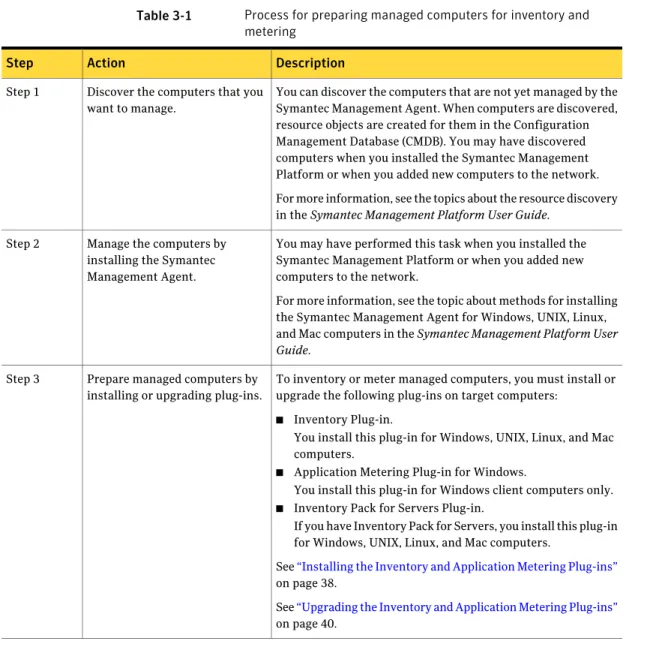
... 37Preparing managed computers for inventory and metering ... 37
Installing the Inventory and Application Metering Plug-ins ... 38
Upgrading the Inventory and Application Metering Plug-ins ... 40
Uninstalling the Inventory and Application Metering Plug-ins ... 41
Chapter 4
Gathering inventory on managed computers
... 43About gathering inventory on managed computers ... 43
About inventory policies and tasks ... 44
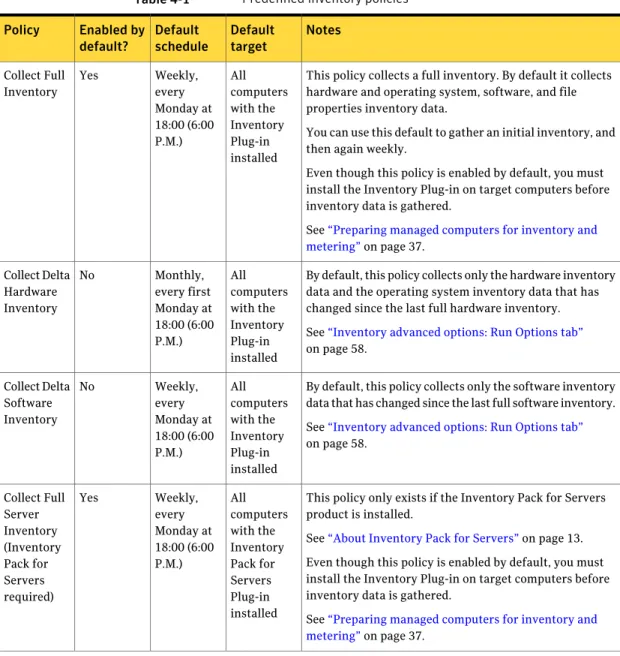
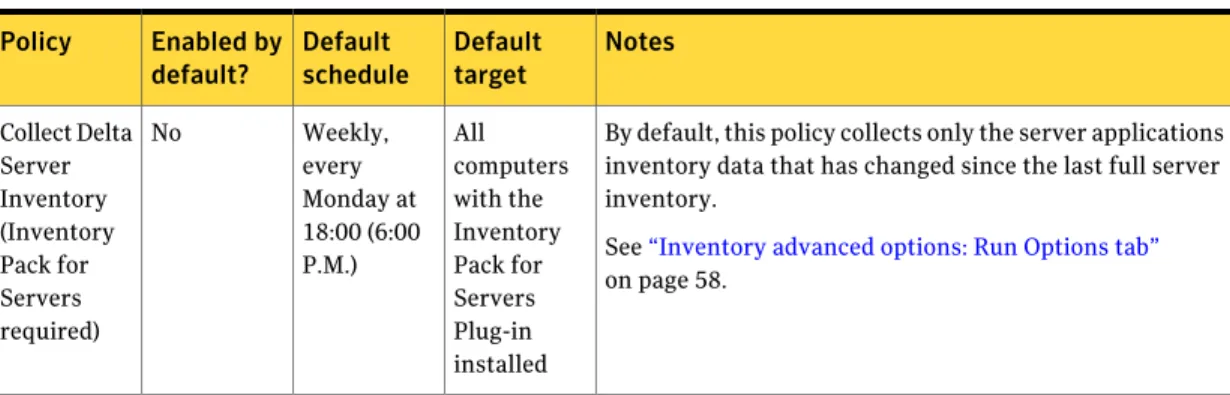
About predefined inventory policies ... 45
How inventory policies work ... 47
Gathering inventory on managed computers ... 49
Using predefined inventory policies ... 50
Creating and configuring inventory policies and tasks ... 51
Scheduling custom inventory policies to run immediately once and on a recurring schedule later ... 53
Inventory policy options ... 54
Inventory advanced options ... 56
Inventory advanced options: Data Classes tab ... 56
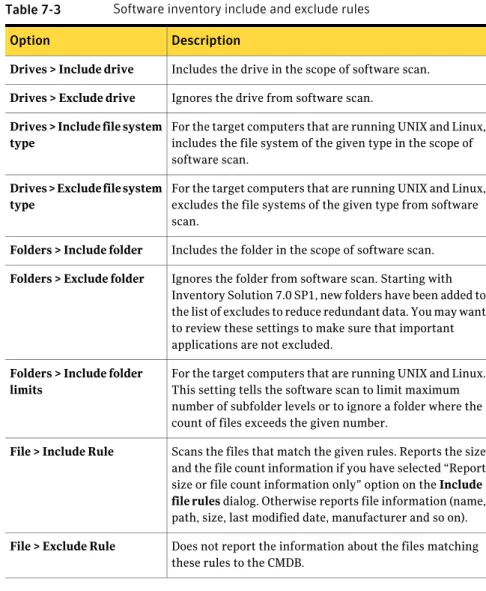
Inventory advanced options: Files Properties Scan Settings tab ... 57
Inventory advanced options: Run Options tab ... 58
Chapter 5
Gathering inventory using stand-alone
packages
... 63About gathering inventory using stand-alone packages ... 63
About gathering stand-alone software inventory ... 64
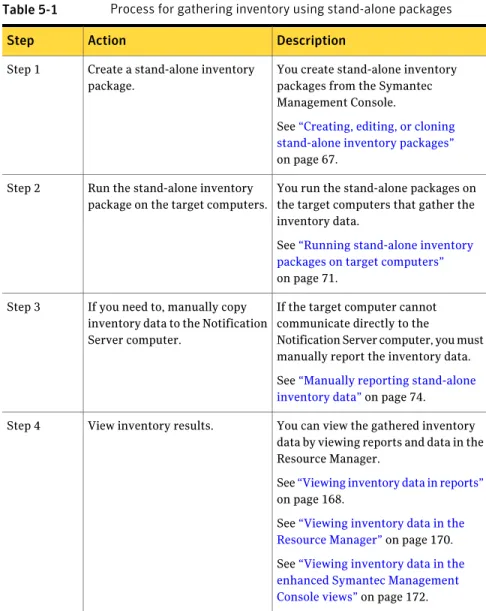
Gathering inventory using stand-alone packages ... 66
Creating, editing, or cloning stand-alone inventory packages ... 67
Stand-alone inventory package options ... 68
Running stand-alone inventory packages on target computers ... 71
About methods for making stand-alone inventory packages available to target computers ... 72
Stand-alone inventory package command-line switches ... 73
Manually reporting stand-alone inventory data ... 74
Chapter 6
Gathering custom inventory
... 75About gathering custom inventory ... 75
Gathering custom inventory ... 76
About custom inventory data classes ... 77
Creating and customizing a data class ... 78
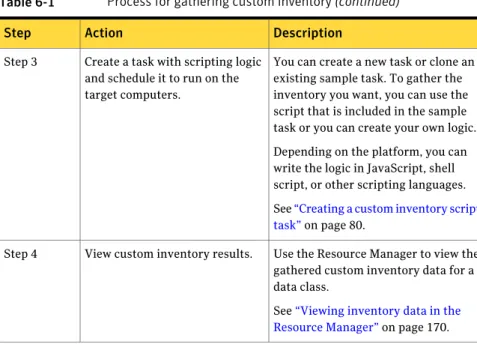
Creating a custom inventory script task ... 80
Customizing the custom inventory sample script for Windows ... 83
Custom inventory sample script for Windows ... 84
Customizing the custom inventory sample script for UNIX, Linux, and Mac ... 86
Custom inventory sample script for UNIX, Linux, and Mac ... 87
Chapter 7
Gathering software inventory
... 89About gathering software inventory ... 89
Gathering software inventory ... 90
Methods for gathering software inventory ... 92
How software inventory rules work ... 94
About targeted software inventory ... 97
Running a targeted software inventory ... 98
About software inventory using thefilescan.rulefile ... 99
Running software inventory using thefilescan.rulefile ... 101
Contents 8
About using Inventory Solution with the Software Catalog Data
Provider ... 102
How Inventory Solution works with the Software Catalog Data Provider ... 103
Chapter 8
Software-based usage tracking, metering, and
denying applications
... 107About software-based usage tracking, metering, and denying applications ... 107
Tracking usage of the managed software products in the enhanced Symantec Management Console Software view ... 109
How the intelligent software identification works ... 115
Managing software using the predefined nightly task NS.Nightly schedule to associate Software component to software product ... 117
Manually creating the managed software products ... 119
Tracking usage of the managed software products that are installed with an MSI-based installer ... 120
Tracking usage of the managed software products ... 121
Metering applications ... 123
Metering applications using predefined application metering policies ... 125
Metering applications using custom application metering policies ... 126
About defining applications to meter or deny ... 127
Defining applications to meter or deny ... 129
About application metering start, stop, and denial events ... 131
Denying applications ... 133
Denying applications using the predefined Blacklisted Applications policy ... 135
Denying applications using custom application metering policies ... 137
Configuring the purging settings for application metering data ... 139
Application summary data ... 139
Chapter 9
Gathering baseline inventory
... 143About baseline inventory ... 143
Gathering baseline inventory ... 145
About baseline files ... 146
Running file baseline or file compliance tasks ... 147
File Baseline task options ... 148
File Configuration Editor options ... 150
9 Contents
File Configuration Editor: General tab ... 152
File Configuration Editor: Extensions tab ... 153
File Configuration Editor: Duplicates tab ... 153
File Configuration Editor: Directories tab ... 154
File Configuration Editor: Known As tab ... 155
File Configuration Editor: Manufacturer Known As tab ... 155
File Configuration Editor: Exclusion Filters tab ... 156
File Configuration Editor: Baseline Scan tab ... 156
File Configuration Editor: Advanced tab ... 157
File Snapshot Editor options ... 158
File Snapshot Editor: Settings tab ... 158
File Snapshot Editor: Rules tab ... 159
Running registry baseline or registry compliance tasks ... 159
Registry Baseline task options ... 160
Registry Configuration Editor options ... 162
Registry Configuration Editor: Include Keys tab ... 163
Registry Configuration Editor: Exclude Keys tab ... 164
Registry Configuration Editor: Advanced tab ... 164
Registry Snapshot Editor options ... 165
Chapter 10
Viewing inventory data and reports
... 167About viewing inventory data ... 167
Viewing inventory data in reports ... 168
About viewing inventory data in the Resource Manager ... 169
Viewing inventory data in the Resource Manager ... 170
Viewing inventory data in the enhanced Symantec Management Console views ... 172
Appendix A
Altiris Inventory Solution™ 7.1 SP2 from Symantec™
Third-Party Legal Notices
... 175Third-Party Legal Attributions ... 175
RegExp ... 175
Linux PCI ID Repository ... 176
Linux USB ID Repository ... 177
Microsoft Windows Server 2008 Redistributables ... 178
Index
... 185Contents 10
Introducing Inventory
Solution
This chapter includes the following topics: ■ About Inventory Solution
■ About Inventory Pack for Servers ■ What's new in Inventory Solution 7.1 SP2 ■ Components of Inventory Solution ■ What you can do with Inventory Solution ■ Methods for gathering inventory
■ About inventory performance tuning ■ Where to get more information
About Inventory Solution
Obtaining and analyzing accurate inventory data is an important part of managing and securing your network. Inventory Solution lets you gather inventory data about computers, users, operating systems, and installed software applications in your environment. The application metering feature also lets you monitor and deny the usage of software applications on your network.
See“Components of Inventory Solution”on page 16.
Inventory Solution works on a wide range of supported platforms enabling you to easily gather data in a heterogeneous environment. You can gather inventory on Windows, UNIX, Linux, and Mac computers.
1
For a complete list of supported platforms and versions, see the Inventory Solution
Release Notes at the following URL:
http://www.symantec.com/business/support/overview.jsp?pid=55266 You use policies and tasks to perform inventory and application metering functions. The policies and tasks are easily configured and managed using a central Web console.
See“About inventory policies and tasks ”on page 44.
Predefined inventory policies let you gather inventory with little effort. See“About predefined inventory policies”on page 45.
The inventory data is stored in the Configuration Management Database (CMDB). The CMDB provides a central store of data that is used across the Symantec Management Platform.
For more information, see the topics about the CMDB in the Symantec Management
Platform User Guide.
You can use different methods for gathering the following types of inventory data: Computer name, domain, installed operating system, etc. Basic inventory data:
Hardware and software components, file properties, etc. Standard inventory data:
Additional data beyond the predefined data classes in Inventory Solution.
Custom inventory data:
Start, stop, deny events and summary data of monitored software applications.
Application metering inventory data:
Information about files and registry settings on computers. Baseline inventory data:
See“Methods for gathering inventory”on page 19.
To help maximize your investment, Inventory Solution does more than gather data. Inventory Solution provides a Web-based management console, policies to alert you about critical information, and professional quality predefined or custom Web reports that let you analyze gathered inventory data. Thus Inventory Solution includes the tools that you need to transform your inventory data into useful information.
See“About viewing inventory data”on page 167. Inventory Solution also has the following features: ■ Supports zero-footprint configuration.
Introducing Inventory Solution
About Inventory Solution
■ Operates in always connected, sometimes connected, and stand-alone computing environments.
■ Can be installed to run on a recurring basis with the Symantec Management Agent.
■ Posts data through SMB and/or HTTP.
■ Lets you meter, track, or deny the usage of one or more software applications and harvest unused software licenses.
See“What you can do with Inventory Solution”on page 18.
You can use Inventory Pack for Servers, which is a separate product that lets you gather server-based inventory data from servers.
See“About Inventory Pack for Servers”on page 13.
You can also use additional Symantec products to gather inventory data from handheld computers, network devices, and Windows, UNIX, Linux, and Mac servers.
See“Where to get more information”on page 28.
About Inventory Pack for Servers
Inventory Pack for Servers is a separate product with a separate license. It runs on top of Inventory Solution and uses the Inventory Pack for Servers Plug-in. Inventory Pack for Servers lets you use different methods of Inventory Solution for gathering inventory data about server-class software that is installed on servers.
See“Methods for gathering inventory”on page 19.
You can gather the following types of server-based inventory data: ■ Microsoft Windows server operating systems
■ Red Hat Enterprise Linux ■ SUSE Linux Enterprise Server ■ VMware ESX
■ ORACLE
■ Microsoft SQL Server
■ Microsoft SQL Server clusters
■ MySQL
■ Microsoft Exchange Server
13 Introducing Inventory Solution
■ Microsoft DHCP server ■ Microsoft DNS server ■ Microsoft RAS server ■ Microsoft IIS ■ Apache
■ Network load balancing ■ System DSN
For a complete list of supported platforms and versions, see the Inventory Pack
for Servers Release Notes at the following URL:
http://www.symantec.com/business/support/overview.jsp?pid=55266 See“About Inventory Solution”on page 11.
What's new in Inventory Solution 7.1 SP2
In the 7.1 SP2 release of Inventory Solution, the following new features are introduced:
Table 1-1 List of new features
Description Feature
The Inventory Solution 7.1 SP2 release lets you gather inventory on the target servers that run the following platforms:
■ SUSE Linux Enterprise Desktop 11 SP1 ■ SUSE Linux Enterprise Server 11 SP1 ■ Red Hat Enterprise Linux 6.0 ■ Red Hat Enterprise Linux 6.1 ■ Mac OS X 10.7
■ Solaris 10 9/10 (Update 9) Support for new platforms.
The Inventory Solution 7.1 SP2 release lets you gather inventory on the global zone that is created on your target Solaris platform.
Support for Solaris Zones.
The Inventory Solution 7.1 SP2 release lets you gather inventory on the logical partitions (LPARs) that run on your target IBM AIX servers. Support for IBM AIX LPARs.
Introducing Inventory Solution
What's new in Inventory Solution 7.1 SP2
Table 1-1 List of new features (continued) Description Feature
The Inventory Solution 7.1 SP2 release adds the functionality of Software Management Framework Agent to stand-alone inventory and lets you gather more detailed software inventory on the unmanaged computers.
Stand-alone software inventory.
In the Inventory Solution 7.1 SP2 release, the newly discovered software components are automatically matched against the list of approximately 400 predefined software products and correlated to the appropriate products from this list.
Software Catalog Data Provider includes approximately 400 predefined software products.
The Inventory Solution 7.1 SP2 release lets you automatically meter newly discovered key program files together with software components and software products. You do not have to manually associate program files to metered software components.
Automatic association of key program files with metered software
components.
The Inventory Solution 7.1 SP2 release provides new filters for Symantec enterprise products. For example, filters for the following products are available:
■ Symantec™ Endpoint Protection ■ Symantec™ System Recovery (formerly
Symantec Backup Exec™ System Recovery) ■ Symantec™ Data Loss Prevention
■ Veritas Storage Foundation™ from Symantec ■ Symantec pcAnywhere™
■ PGP™ Whole Disk Encryption from Symantec™ You can view all the product filters in the
Symantec Management Console, at Manage > Filters > Software Filters > Agent and Plug-in Filters > Software Products and metering/track usage configuration for the products Filter.
New filters for Symantec enterprise products.
See“About Inventory Solution”on page 11.
15 Introducing Inventory Solution
Components of Inventory Solution
Inventory Solution provides many components and tools to help you perform inventory tasks.
Table 1-2 Components of Inventory Solution Description
Component
The following plug-ins work with the Symantec Management Agent to perform inventory tasks on the target computers and communicate with Notification Server. ■ Inventory Plug-in
This plug-in lets you gather inventory data on managed client computers. ■ Application Metering Plug-in for Windows
This plug-in lets you meter or deny applications on managed client Windows computers.
■ Inventory Pack for Servers Plug-in
If you have Inventory Pack for Servers running on top of Inventory Solution, you use this plug-in to gather server-based inventory data from managed server computers.
See“About Inventory Pack for Servers”on page 13. Inventory plug-ins
Using policies, inventory data can be automatically and remotely gathered from managed client computers at scheduled intervals. Inventory policies are easily created and managed from the Symantec Management Console. This process eliminates the need for costly physical inventory processes.
In most cases you should use inventory policies. You should limit inventory tasks to automated tasks and workflows.
See“Methods for gathering inventory”on page 19. Inventory policies and tasks
This portal page provides links to commonly-used inventory tasks and a summary of inventory data and inventory policy status.
Inventory portal page
Predefined inventory reports let you easily view and analyze your inventory data. You can also create your own custom reports.
See“About viewing inventory data”on page 167. Inventory reports
You can collect inventory on the client computers that are not managed through the Symantec Management Platform. You can create and run the executables that gather inventory data and report it to the Configuration Management Database (CMDB). These executables can be delivered through login scripts, USB keys, network shares, and so on.
See“About gathering inventory using stand-alone packages”on page 63. Stand-alone inventory
executables (Windows only)
Introducing Inventory Solution
Components of Inventory Solution
Table 1-2 Components of Inventory Solution (continued) Description
Component
Inventory data is gathered for hundreds of predefined data classes. You can expand and customize the type of data you want to collect. For example, you can add specific registry data or a unique hardware component.
See“About gathering custom inventory”on page 75. Custom inventory
You can gather inventory about the software applications that are installed in your environment.
You can use the following software inventory methods: ■ Basic application file inventory.
■ Add or Remove Programs list and UNIX/Linux/Mac software packages. ■ Targeted software inventory on Windows computers and software inventory using
thefilescan.rulefile on UNIX, Linux, and Mac computers.
■ Validating gathered software inventory data with the Software Catalog Data Provider.
See“About gathering software inventory”on page 89. Software inventory
Inventory Solution lets you perform the following tasks on your managed computers: ■ Track usage of the managed software at the software product, component, and
version level by enabling the software-based usage tracking option.
This task is the primary method to use for the majority of software products. ■ Meter the use and control the availability of applications by running predefined
or custom application metering policies.
The best practice is to use this task only if you need to meter start, stop, and denial events for applications at the file level.
■ Deny multiple applications from running by configuring the predefined Blacklisted
Applications policy or running custom application metering policies.
See“About software-based usage tracking, metering, and denying applications” on page 107.
Software-based usage tracking and application metering
(Windows only)
You can determine how a client computer's inventory data changes compared to a baseline. You can detect how a computer's inventory has changed over time, or the differences between a computer and a reference computer.
See“About baseline inventory”on page 143. Baseline inventory
(Windows only)
17 Introducing Inventory Solution
Table 1-2 Components of Inventory Solution (continued) Description
Component
The Software Catalog Data Provider (SCDP) is a component that can be used to import software inventory data into the Software Catalog.
The SCDP provides a list of known applications and predefined software products that is imported into the CMDB. The SCDP helps you identify the detected software and create a software resource for that software in the Software Catalog. By default, most of the SCDP components perform automatically.
See“About using Inventory Solution with the Software Catalog Data Provider” on page 102.
Software Catalog Data Provider
(Windows only)
Inventory for Network Devices is a part of Inventory Solution and shares licenses with Inventory Solution if you install the solutions within any of the following suites: ■ Altiris™ Client Management Suite from Symantec™
■ Altiris™ Server Management Suite from Symantec™ ■ Altiris™ IT Management Suite from Symantec™
Inventory for Network Devices gathers inventory data from discovered devices in your network. This inventory is gathered from the devices that are not managed through the Symantec Management Agent. Because a management agent is not required, this inventory is considered an agentless inventory.
For more information, see the Inventory for Network Devices User Guide. Altiris™ Inventory for
Network Devices from Symantec™
What you can do with Inventory Solution
The Symantec Management Platform gathers basic inventory from managed computers. Inventory Solution adds the ability to gather substantially more data as well as other tools to help you gather and use your inventory data.
You can use standard and custom inventory data to do the following:
■ Obtain an up-to-date inventory of the computers in your network and their operating system platforms.
■ Identify the computers that do not meet minimum security requirements, such as antivirus software, application updates, management agents, and so on. ■ Determine which computers need to be replaced according to age or capabilities. ■ Identify the types and amounts of personal data that is stored on computers,
such as.MP3files,.MPGfiles, and so on.
■ Prepare for operating system migrations by doing the following:
■ Identifying the number of different operating systems that are installed.
Introducing Inventory Solution
What you can do with Inventory Solution
■ Identifying the computers that do and do not meet minimum hardware requirements for a new operating system.
■ Identifying the users of computers to be migrated.
■ Determining which applications need to be re-deployed after the migration. You can use application metering inventory data to do the following:
■ Prepare for a software license audit by providing the number of installed instances of an application.
■ Deny unauthorized applications from running on managed computers. ■ Manage your application licenses by tracking how often an application is used,
not only if it is installed.
You can use baseline inventory data to compare the files or registry settings of client computers against a baseline.
See“Methods for gathering inventory”on page 19. See“About Inventory Solution”on page 11.
Methods for gathering inventory
You can use different methods for gathering different types of inventory data. Each method has some advantages and possible disadvantages.
19 Introducing Inventory Solution
Table 1-3 Methods for gathering inventory
Advantages and disadvantages Description
Method
The advantages are as follows:
■ Inventory data is automatically collected when the Symantec Management Agent is installed on the client computer. No other components or steps are needed.
■ Inventory data is updated at regular intervals. ■ You can use this method on different
platforms.
The disadvantages are as follows:
■ Basic inventory data is limited in scope. ■ Target computers must be managed using the
Symantec Management Agent. The basic inventory method is performed
automatically when the Symantec Management Agent is installed on managed computers. This feature is a core function of the Symantec Management Platform and does not require any additional inventory components.
Basic inventory data includes computer name, domain, installed operating system, MAC and IP address, primary user account, etc. This information is updated on a regular basis as long as the Symantec Management Agent is running on the computer.
For more information, see the topics about the Symantec Management Agent and recommended Symantec Management Agent data update intervals in the Symantec Management Platform
User Guide.
Basic inventory
Introducing Inventory Solution
Methods for gathering inventory
Table 1-3 Methods for gathering inventory (continued) Advantages and disadvantages Description
Method
The advantages are as follows:
■ You can gather a broad range of inventory data. ■ Inventory data is automatically collected and updated using scheduled policies and tasks. ■ You can configure policies to report only
changed data (deltas) from the previous inventory.
■ This method can be easily used on multiple platforms.
The disadvantages are as follows:
■ Target computers must be managed using the Symantec Management Agent.
■ Target computers must have the Inventory Plug-in installed.
■ Maintaining current inventory data can be difficult on the computers that are not regularly connected to the network. To use this method, you must install the Inventory
Plug-in on your managed computers, and then run inventory policies.
The Inventory Plug-in works with the Symantec Management Agent and uses scheduled policies to gather standard inventory data that is more detailed than basic inventory. By default, standard inventory data is gathered through more than 100 predefined data classes.
Standard inventory data includes the following details about client computers:
■ Hardware components, operating system, and user accounts and groups.
For example, processors, memory devices, partitions, operating system versions, total swap space size, primary users, installed local accounts, membership of the local admin group, etc.
■ Software and virtual software layers For example, the names of the applications that are installed, etc.
■ File properties.
More detailed information about the software, such as manufacturer, version, size, etc. See“About gathering software inventory” on page 89.
When the Inventory Plug-in is installed on managed computers, all inventory policies are remotely managed from the Symantec Management Console. Inventory policies can be scheduled to run at the configurable intervals that provide up-to-date data. They can also run at the times that do not affect your network
performance.
You can use the Inventory Plug-in on Windows, Linux, UNIX, and Mac platforms.
See“About gathering inventory on managed computers”on page 43.
Standard inventory on managed computers
21 Introducing Inventory Solution
Table 1-3 Methods for gathering inventory (continued) Advantages and disadvantages Description
Method
The advantages are as follows:
■ You can gather a broad range of inventory data. ■ Target computers do not need to be managed
using the Symantec Management Agent. ■ Target computers do not need to be connected
to Notification Server.
■ Target computers do not need to have the Inventory Plug-in installed.
The disadvantages are as follows:
■ External delivery of inventory package is required.
■ Inventory schedule is not centrally managed. ■ Inventory data may not be current.
■ If target computers are not connected to Notification Server, the data must be posted manually.
■ Only Windows-based computers are supported. To use this method, you must create stand-alone
packages from the Symantec Management Console. Then you distribute the packages using email, network shares, login scripts, etc. and run the packages on your target computers. The stand-alone inventory method lets you gather standard inventory data on the computers that are not managed through the Symantec Management Agent and do not have the Inventory Plug-in installed.
You can gather detailed information about hardware components, operating system, local users and groups, software, and virtual software layers.
See“About gathering inventory using stand-alone packages”on page 63.
Stand-alone inventory
The advantages are as follows:
■ You can extend the type of inventory you gather by adding the additional data classes that may be unique to your environment and are not included by default.
■ You can use a sample script task to create or configure a custom inventory script task. ■ This method can be used on different
platforms.
The disadvantages are as follows:
■ Target computers must be managed using the Symantec Management Agent.
■ Target computers must have the Inventory Plug-in installed.
■ You must create custom inventory data classes and include the data classes in your custom scripts.
■ You must create and run the custom inventory scripts that collect your custom inventory data classes.
To use the custom inventory method, you must install the Inventory Plug-in on your managed computers.
This method lets you gather additional data beyond the predefined data classes in Inventory Solution. You can create the custom inventory data classes that may be unique to your
environment. You then run the custom inventory scripts that collect the custom inventory data classes.
See“About gathering custom inventory” on page 75.
Custom inventory
Introducing Inventory Solution
Methods for gathering inventory
Table 1-3 Methods for gathering inventory (continued) Advantages and disadvantages Description
Method
The advantages are as follows:
■ You can benefit from the usage tracking option that helps you track software usage at the product level and lets you know how often an application is used, not only if it is installed. This feature can help you manage your application licenses.
■ You can control the availability of applications and meter start, stop, and denial events for applications at the file level.
■ You can deny applications from running. You can also configure deny events to be sent to Notification Server when a user tries to run a denied application.
The disadvantages are as follows:
■ Target computers must be managed using the Symantec Management Agent.
■ Target computers must have the Inventory Plug-in and Application Metering Plug-in installed.
■ Only Windows-based computers are supported. ■ This method is not supported on Windows
servers. To use the software-based usage tracking and
application metering method, you must install the Inventory Plug-in and Application Metering Plug-in on your managed computers. This method lets you gather the data about application usage and the summary data of monitored applications.
With this method, you can perform the following tasks on your managed computers:
■ Track usage of the managed software at the software product, component, and version level by enabling the software-based usage tracking option.
This task is the primary method to use for the majority of software products.
■ Meter the use and control the availability of applications by running predefined or custom application metering policies.
The best practice is to use this task only if you need to meter start, stop, and denial events for applications at the file level.
■ Deny multiple applications from running by configuring the predefined Blacklisted
Applications policy or running custom
application metering policies.
See“About software-based usage tracking, metering, and denying applications”on page 107. Software-based usage tracking and application metering 23 Introducing Inventory Solution
Table 1-3 Methods for gathering inventory (continued) Advantages and disadvantages Description
Method
The advantages are as follows:
■ You can track the files and registries that deviate from the corporate standards. ■ You can verify the accuracy of rollouts and
upgrades.
■ System administrators or the help desk can get automatic notifications when a computer is non-compliant.
■ You can view a compliance level summary of the computer and reports of the changes in file.
The disadvantages are as follows:
■ Target computers must be managed using the Symantec Management Agent.
■ Target computers must have the Inventory Plug-in installed.
■ Only Windows-based computers are supported. To use the baseline inventory method, you must
install the Inventory Plug-in on your managed computers.
This method lets you gather the data about files and registry settings on computers.
You can generate a baseline that identifies the files or registry settings of a standard configuration computer. You can later run the compliance scans on your client computers to compare their current files or registry keys with those in the baseline. The differences between the baseline scan and compliance scan are reported to the CMDB.
See“About baseline inventory”on page 143. Baseline
inventory
About inventory performance tuning
Inventory Solution lets you gather inventory data about computers, users, operating systems, and installed software applications in your environment. You can use predefined inventory policies to collect different types of inventory. You can also modify the predefined policies or you can create new inventory policies and tasks.
See“About Inventory Solution”on page 11.
Before you set up policies and tasks to collect inventory in your environment, you need to consider the following questions:
■ How much inventory data do you need to gather? ■ How often do you need to run the inventory?
These questions help you determine how inventory collection affects performance in your environment. You need to find the balance between collecting a sufficient amount of inventory data and using your resources appropriately.
The features of Symantec Management Platform and Inventory Solution offer you the following ways of tuning the inventory performance:
Introducing Inventory Solution
About inventory performance tuning
You can gather the following major types of inventory: hardware, software, and file properties. All of these types of inventory do not have to run at the same time.
Symantec recommends that you use unique policies and schedules for different kinds of inventory.
For example, you can run different types of inventory on the following schedule: ■ Full hardware inventory every four months, every first Monday
■ Delta hardware inventory every two months, every second Monday ■ Full software inventory every month, every first Tuesday
■ Delta software inventory every week, every Wednesday ■ File scan every six months, every second Friday See“Methods for gathering inventory”on page 19. Using different
schedules
Delta inventory reports only the data that has changed since the last full inventory scan. Running delta inventory reduces the network load and increases the performance. However, you must keep in mind that the data in the Configuration Management Database (CMDB) can get outdated and a delta is not adequate anymore. For example, if the full inventory gets purged and deltas continue to come in, only the deltas remain in the database.
Symantec recommends that you also run the full inventory on a recurring basis. You can set up a schedule that serves your requirements but does not affect the performance. Using delta inventory
Using compression lets you compress the data files that client computers send to Notification Server. You can specify the minimum file size that is compressed when it is sent over the network. When you plan to use compression, you need to find the balance between client and server load, and the network utilization.
If you set the compression threshold at a lower file size, it increases the workload on both the client computer and Notification Sever. The client computer has to compress the file and the server has to decompress it. However, this setting decreases the network load. If you set the compression threshold to a higher value, it lowers the workload on the client computer and the server. However, the network load increases due to the larger files that are sent over the network.
Symantec recommends that you use compression with smaller files only when you have very low bandwidth. If your Notification Server serves a site with very high bandwidth, you do not need to use compression.
Compression is a feature of the Symantec Management Platform that is automatically enabled for all solutions. To use compression, you configure the targeted agent settings that are the general parameters that control the Symantec Management Agent. For more information, see the topics about configuring the targeted agent settings in the
Symantec Management Platform User Guide.
Using compression
25 Introducing Inventory Solution
Throttling lets you specify the amount of the time that client computers can spend sending inventory data to Notification Server.
You enable throttling when you configure advanced options on the inventory policy or task page, at Advanced > Run options.
See“Creating and configuring inventory policies and tasks”on page 51. See“Inventory advanced options”on page 56.
Symantec recommends that you use the throttling in larger environments, if inventory makes a significant affect on network bandwidth and Notification Server resources. For example, you can set the reporting period to 24 hours. At the scheduled time all systems run inventory but wait a random amount of time between now and 24 hours to send the collected inventory to Notification Server. The network and Notification Server have time to process inventory over time.
Note:This feature is currently available for Windows only. Throttling inventory
reporting
The System resource usage option lets you define the inventory process priority and thus modify the usage of the client computer's processor and disk during an inventory scan. To determine its value, consider how fast you want the inventory to be gathered and how the inventory process affects performance of the client computer.
You specify the System resource usage value when you configure advanced options on the inventory policy or task page, at Advanced > Run options.
See“Creating and configuring inventory policies and tasks”on page 51. See“Inventory advanced options”on page 56.
On the Windows platform, if you decrease the priority, the process of gathering inventory requires less system resources on the client computer but the inventory scan takes longer. If you increase the priority, the inventory scan finishes faster but also consumes more resources and can affect the performance of the client computer.
On UNIX, Linux, and Mac platforms, computers dedicate more CPU cycles for high priority processes and less CPU cycles for low priority processes. If the computer is in an idle state and runs only the inventory scan, then low priority process may take the available resources. CPU usage reduces as soon as another process with a higher priority begins to run.
Note:On the Windows platform, this option is only applicable to file scans. On UNIX, Linux, and Mac platforms, this option is applicable to the entire inventory scan process. Using System resource
usage settings on a
client computer
Adhering to the following recommendations lets you effectively tune the inventory performance:
■ Use policies for recurring inventory tasks.
Inventory policies rely on tasks and have more options to work around the systems that may be turned off at the scheduled time.
See“How inventory policies work”on page 47.
Introducing Inventory Solution
About inventory performance tuning
■ Review all inventory tasks before you enable them.
Inventory tasks have some options enabled by default. Enabling all of them can result in significant database growth. In some cases, the per client database footprint can increase to over 10-20 MB.
■ Avoid enabling the Access network file systems (UNIX/Linux/Mac) option on the inventory policy or task page, at Advanced > Run options if not necessary.
Scanning remote volumes is disabled by default to prevent numerous computers from reporting redundant inventory data.
■ On the inventory policy or task page, at Advanced, configure Files Properties
Scan Settings.
Avoid to include the drive that is not necessary to be scanned. By default, all local drives are scanned.
Drives
Include only those directories that you really want to scan. Folders
Use the Report size/file count only setting to improve
performance if you do not need to collect full information about files.
Files
See“Inventory advanced options: Files Properties Scan Settings tab” on page 57.
See“How software inventory rules work”on page 94. ■ Avoid over scheduling of inventory gathering activities.
Increasing the frequency of an inventory task in an attempt to hit an "online window" causes redundant data to be sent to Notification Server. The workload on Notification Server increases as the duplicate data must still be processed and then discarded. Schedule inventory tasks to occur at the desired data refresh rate, so that the Symantec Management Agent can locally manage the inventory collection process.
■ Prevent over usage of the Collect Full Inventory policy and its associated inventory task.
The perceived need to run a full inventory on a frequent basis is a common misconception. Run full inventory only when the Inventory Plug-in reports that Notification Server has more information about a computer than the Notification Server database stores.
Run full inventory on a monthly basis but use the System resource usage and
Throttle inventory reporting evenly over a period of X hours options to define
how fast or when inventory data is reported.
27 Introducing Inventory Solution
■ Use the Software Management Framework components in multiple cloned inventory policies in large environments.
These components separate inventory policies by geographical, departmental, or other categories. Use these components to spread the timing and receipt of inventory on Notification Server. Then, large groups of computers continue to simultaneously post their inventory data to Notification Server. But Notification Server is busy for a few minutes as opposed to several hours. SQL deadlock warnings in Notification Server log reduce. You achieve a reduction in network traffic because the Inventory Plug-in does not receive the IIS "Server too busy" message and re-post inventory data.
Where to get more information
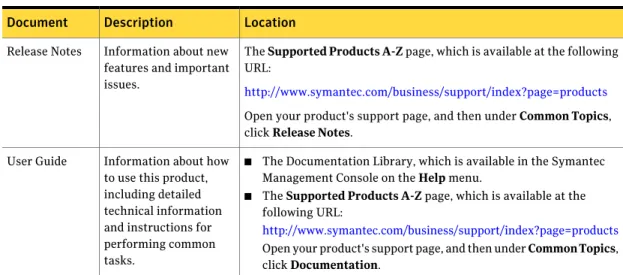
Use the following documentation resources to learn about and use this product. Table 1-4 Documentation resources
Location Description
Document
The Supported Products A-Z page, which is available at the following URL:
http://www.symantec.com/business/support/index?page=products Open your product's support page, and then under Common Topics, click Release Notes.
Information about new features and important issues.
Release Notes
■ The Documentation Library, which is available in the Symantec Management Console on the Help menu.
■ The Supported Products A-Z page, which is available at the following URL:
http://www.symantec.com/business/support/index?page=products Open your product's support page, and then under Common Topics, click Documentation.
Information about how to use this product, including detailed technical information and instructions for performing common tasks.
User Guide
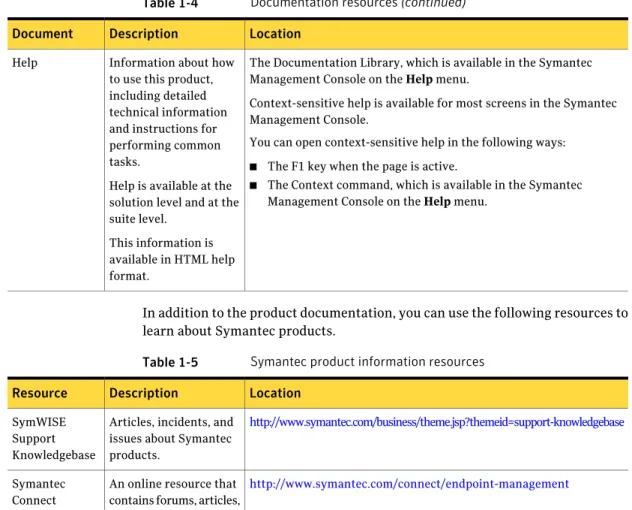
Introducing Inventory Solution
Where to get more information
Table 1-4 Documentation resources (continued) Location
Description Document
The Documentation Library, which is available in the Symantec Management Console on the Help menu.
Context-sensitive help is available for most screens in the Symantec Management Console.
You can open context-sensitive help in the following ways: ■ The F1 key when the page is active.
■ The Context command, which is available in the Symantec Management Console on the Help menu.
Information about how to use this product, including detailed technical information and instructions for performing common tasks.
Help is available at the solution level and at the suite level.
This information is available in HTML help format.
Help
In addition to the product documentation, you can use the following resources to learn about Symantec products.
Table 1-5 Symantec product information resources Location
Description Resource
http://www.symantec.com/business/theme.jsp?themeid=support-knowledgebase Articles, incidents, and
issues about Symantec products.
SymWISE Support Knowledgebase
http://www.symantec.com/connect/endpoint-management An online resource that
contains forums, articles, blogs, downloads, events, videos, groups, and ideas for users of Symantec products.
Symantec Connect
29 Introducing Inventory Solution
Introducing Inventory Solution
Where to get more information
Installing Inventory
Solution
This chapter includes the following topics: ■ System requirements for Inventory Solution ■ About licensing Inventory Solution
■ About installing or upgrading Inventory Solution ■ About uninstalling Inventory Solution
System requirements for Inventory Solution
The Inventory Solution 7.1 SP2 release has the following system requirement: ■ Symantec Management Platform 7.1 SP2
When you install or upgrade Inventory Solution through the Symantec Installation Manager, Symantec Management Platform is installed automatically.
For more information about Symantec Management Platform implementation, see the Altiris™ IT Management Suite 7.1 SP2 from Symantec™ Planning and
Implementation Guide at the following URL:
http://www.symantec.com/docs/DOC4827 See“About Inventory Solution”on page 11.
2
About licensing Inventory Solution
Each Symantec product includes a trial license that is installed by default. You can register and obtain an extended trial license through the Symantec Web site at the following URL:
http://www.symantec.com/business/products/activating/ You can also purchase a full product license.
Use the Symantec Installation Manager to install licenses.
For more information about applying licenses to a solution, see the Altiris™ IT
Management Suite 7.1 SP2 from Symantec™ Planning and Implementation Guide
at the following URL:
http://www.symantec.com/docs/DOC4827
Altiris™ Inventory for Network Devices from Symantec™ is a part of Inventory Solution and shares licenses with Inventory Solution if you install the solutions within any of the following suites:
■ Altiris™ Client Management Suite from Symantec™ ■ Altiris™ Server Management Suite from Symantec™ ■ Altiris™ IT Management Suite from Symantec™
For more information, see the Inventory for Network Devices User Guide. Altiris™ Inventory Pack for Servers from Symantec™ is a separate product. You need to purchase a separate license for it.
You start to consume a license after Notification Server receives the first standard, custom, application metering, baseline, or server inventory data from target computers.
A license is not consumed in the following situations:
■ When the Inventory plug-in exists on a managed computer but does not collect and report to Notification Server any Inventory Solution data.
■ When the Symantec Management Agent collects basic inventory.
For more information about the basic inventory and the Symantec Management Agent, see the Symantec Management Platform User Guide.
See“Methods for gathering inventory”on page 19.
After you exceed your client license limit, you continue to receive inventory data from licensed assets. Incoming inventory data from unlicensed assets is discarded. Expiration of the trial or other temporary licenses results in the following events: ■ Inventory plug-in rollouts continue to function without any problems.
Installing Inventory Solution
About licensing Inventory Solution
■ All new incoming inventory data is discarded. ■ Inventory reports display a license error.
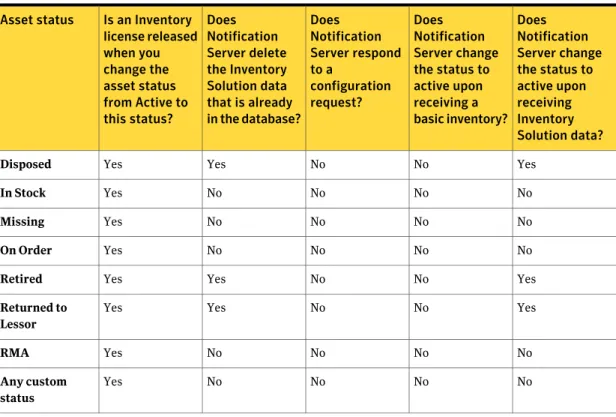
After AUP expiration, all functions continue to work normally. However, if you install newer versions of the solution, their functionality is not maintained. If you use Inventory Solution 7.1 SP2, the following actions release a license: ■ Setting an asset to the retired state or any other state except active
Note:Inventory Solution data and all associations with this resource inventory data are purged for retired, returned to lessor, and disposed assets.
The asset history of retired assets is maintained for reporting and auditing purposes.
■ Deletion of the computer resource record
Table 2-1 Asset status change influence on licensing and other behavior of Inventory Solution 7.1 SP2
Does Notification Server change the status to active upon receiving Inventory Solution data? Does Notification Server change the status to active upon receiving a basic inventory? Does Notification Server respond to a configuration request? Does Notification Server delete the Inventory Solution data that is already in the database? Is an Inventory
license released when you change the asset status from Active to this status? Asset status Yes No No Yes Yes Disposed No No No No Yes In Stock No No No No Yes Missing No No No No Yes On Order Yes No No Yes Yes Retired Yes No No Yes Yes Returned to Lessor No No No No Yes RMA No No No No Yes Any custom status 33 Installing Inventory Solution
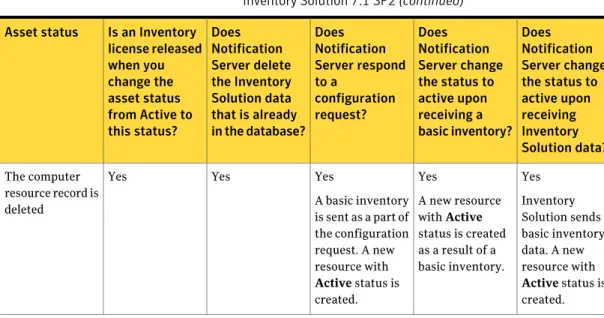
Table 2-1 Asset status change influence on licensing and other behavior of Inventory Solution 7.1 SP2 (continued)
Does Notification Server change the status to active upon receiving Inventory Solution data? Does Notification Server change the status to active upon receiving a basic inventory? Does Notification Server respond to a configuration request? Does Notification Server delete the Inventory Solution data that is already in the database? Is an Inventory
license released when you change the asset status from Active to this status? Asset status Yes Inventory Solution sends basic inventory data. A new resource with
Active status is
created. Yes
A new resource with Active status is created as a result of a basic inventory. Yes
A basic inventory is sent as a part of the configuration request. A new resource with
Active status is
created. Yes
Yes The computer resource record is deleted
See“About Inventory Solution”on page 11.
About installing or upgrading Inventory Solution
You install or upgrade Inventory Solution by using the Symantec Installation Manager. You can download the installation files directly to your server or you can create offline installation packages.For more information, see the Altiris™ IT Management Suite 7.1 SP2 from
Symantec™ Planning and Implementation Guide at the following URL:
http://www.symantec.com/docs/DOC4827
You perform the product migration from version 6.x to 7.1 SP2 and from version 7.0 to 7.1 SP2 according to the migration scenario for the IT Management Suite. For more information about migrating from 6.x and 7.0 to 7.1 SP2, see the following documentation resources:
■ IT Management Suite Migration Guide version 6.x to 7.1 SP2 at
http://www.symantec.com/docs/DOC4742
■ IT Management Suite Migration Guide version 7.0 to 7.1 SP2 at
http://www.symantec.com/docs/DOC4743 See“About Inventory Solution”on page 11.
Installing Inventory Solution
About installing or upgrading Inventory Solution
About uninstalling Inventory Solution
You uninstall Inventory Solution by using the Symantec Installation Manager. For more information, see the Altiris™ IT Management Suite 7.1 SP2 from
Symantec™ Planning and Implementation Guide at the following URL:
http://www.symantec.com/docs/DOC4827 See“About Inventory Solution”on page 11.
35 Installing Inventory Solution
Installing Inventory Solution
About uninstalling Inventory Solution
Preparing managed
computers for inventory
This chapter includes the following topics:■ Preparing managed computers for inventory and metering ■ Installing the Inventory and Application Metering Plug-ins ■ Upgrading the Inventory and Application Metering Plug-ins ■ Uninstalling the Inventory and Application Metering Plug-ins
Preparing managed computers for inventory and
metering
Inventory and application metering policies and tasks require that target computers to be managed. Managed computers are the computers that have the Symantec Management Agent installed on them.
See“About gathering inventory on managed computers”on page 43.
See“About software-based usage tracking, metering, and denying applications” on page 107.
3
Table 3-1 Process for preparing managed computers for inventory and metering
Description Action
Step
You can discover the computers that are not yet managed by the Symantec Management Agent. When computers are discovered, resource objects are created for them in the Configuration Management Database (CMDB). You may have discovered computers when you installed the Symantec Management Platform or when you added new computers to the network. For more information, see the topics about the resource discovery in the Symantec Management Platform User Guide.
Discover the computers that you want to manage.
Step 1
You may have performed this task when you installed the Symantec Management Platform or when you added new computers to the network.
For more information, see the topic about methods for installing the Symantec Management Agent for Windows, UNIX, Linux, and Mac computers in the Symantec Management Platform User
Guide.
Manage the computers by installing the Symantec Management Agent. Step 2
To inventory or meter managed computers, you must install or upgrade the following plug-ins on target computers:
■ Inventory Plug-in.
You install this plug-in for Windows, UNIX, Linux, and Mac computers.
■ Application Metering Plug-in for Windows.
You install this plug-in for Windows client computers only. ■ Inventory Pack for Servers Plug-in.
If you have Inventory Pack for Servers, you install this plug-in for Windows, UNIX, Linux, and Mac computers.
See“Installing the Inventory and Application Metering Plug-ins” on page 38.
See“Upgrading the Inventory and Application Metering Plug-ins” on page 40.
Prepare managed computers by installing or upgrading plug-ins. Step 3
Installing the Inventory and Application Metering
Plug-ins
To gather inventory data on managed computers, you must install the Inventory Plug-in on target computers. To meter applications on managed computers, you must install the Application Metering Plug-in on target computers. These plug-ins
Preparing managed computers for inventory
Installing the Inventory and Application Metering Plug-ins
work with the Symantec Management Agent to perform tasks on the target computers and communicate with Notification Server.
You use the following Inventory Solution plug-ins: ■ Inventory Plug-in.
■ Application Metering Plug-in for Windows.
Note:Software-based usage tracking and application metering are
Windows-only features and are supported on Windows XP and above client computers only. Software-based usage tracking and application metering are not supported on Windows servers.
If you have Inventory Pack for Servers, you can also use the Inventory Pack for Servers Plug-in.
To install a plug-in, you configure the policy that installs the plug-in on target computers. You select the group of computers on which the policy runs and when it runs. If you choose a group that contains a computer that already has the plug-in installed, the task is ignored on that computer. When the policy is enabled, any new computer that is a member of the target group automatically has the plug-in installed on it.
By default, no plug-in installation policies are enabled. If you install Inventory Solution for the first time, you must manually enable the policies to install the Inventory and Application Metering Plug-ins.
Before performing this task, you must install the Symantec Management Agent on target computers.
This task is a step in the process for preparing managed computers for inventory and metering.
See“Preparing managed computers for inventory and metering”on page 37. To install the Inventory or Application Metering Plug-ins
1
In the Symantec Management Console, on the Actions menu, clickAgents/Plug-ins > Rollout Agents/Plug-ins.
2
In the left pane, expand Discovery and Inventory >Windows/UNIX/Linux/Mac, and then click the policy for the plug-in that
you want to install.
3
On the plug-in install page, turn on the policy.At the upper right of the page, click the colored circle, and then click On.
39 Preparing managed computers for inventory
4
Click Apply to to select the computers on which you want to install the plug-in. For more information, see the topics about specifying the targets of a policy and specifying filtering rules in the Symantec Management Platform UserGuide.
5
Schedule the policy to run on target computers.For more information, see the topic about adding a schedule to a policy, task, or job in the Symantec Management Platform User Guide.
6
Click Save changes.Upgrading the Inventory and Application Metering
Plug-ins
If you upgrade from a previous version of Inventory Solution, and you previously installed the Inventory or Application Metering Plug-ins, you must upgrade the plug-ins on managed computers.
To upgrade a plug-in, you turn on an upgrade policy that is located with the plug-in installation policy.
This task is a step in the process for preparing managed computers for inventory and metering.
See“Preparing managed computers for inventory and metering”on page 37. To upgrade the Inventory or Application Metering Plug-ins
1
In the Symantec Management Console, on the Actions menu, clickAgents/Plug-ins > Rollout Agents/Plug-ins.
2
In the left pane, expand Discovery and Inventory >Windows/UNIX/Linux/Mac, and then click the policy for the plug-in that
you want to upgrade.
3
On the plug-in upgrade page, turn on the policy.At the upper right of the page, click the colored circle, and then click On.
4
Click Apply to to select the computers on which you want to upgrade theplug-in.
For more information, see the topics about specifying the targets of a policy and specifying filtering rules in the Symantec Management Platform User
Guide.
Preparing managed computers for inventory
Upgrading the Inventory and Application Metering Plug-ins
5
Schedule the policy to run on target computers.For more information, see the topic about adding a schedule to a policy, task, or job in the Symantec Management Platform User Guide.
6
Click Save changes.Uninstalling the Inventory and Application Metering
Plug-ins
If you do not perform inventory or application metering tasks on computers over an extended period of time, you can uninstall the plug-ins. Uninstalling unused plug-ins helps to eliminate unnecessary network traffic.
Note:Before you uninstall the Inventory or Application Metering Plug-in, make sure that you turn off the install policy of the corresponding plug-in.
See“Installing the Inventory and Application Metering Plug-ins”on page 38. To uninstall the Inventory or Application Metering Plug-ins
1
In the Symantec Management Console, on the Actions menu, clickAgents/Plug-ins > Rollout Agents/Plug-ins.
2
In the left pane, expand Discovery and Inventory >Windows/UNIX/Linux/Mac, and then click the policy for the plug-in that
you want to uninstall.
3
On the plug-in uninstall page, turn on the policy.At the upper right of the page, click the colored circle, and then click On.
4
Click Apply to to select the computers from which you want to uninstall theplug-in.
For more information, see the topics about specifying the targets of a policy and specifying filtering rules in the Symantec Management Platform User
Guide.
5
Schedule the policy to run on target computers.For more information, see the topic about adding a schedule to a policy, task, or job in the Symantec Management Platform User Guide.
6
Click Save changes.41 Preparing managed computers for inventory
Preparing managed computers for inventory
Uninstalling the Inventory and Application Metering Plug-ins
Gathering inventory on
managed computers
This chapter includes the following topics:
■ About gathering inventory on managed computers ■ About inventory policies and tasks
■ About predefined inventory policies ■ How inventory policies work
■ Gathering inventory on managed computers ■ Using predefined inventory policies
■ Creating and configuring inventory policies and tasks
■ Scheduling custom inventory policies to run immediately once and on a recurring schedule later
■ Inventory policy options ■ Inventory advanced options
About gathering inventory on managed computers
You can gather inventory data by running automated policies and tasks on managed computers. This method requires the Symantec Management Agent and an Inventory Plug-in that you install on target computers before gathering inventory. The inventory policies and tasks use the Inventory Plug-in to perform the inventory scan on the target computer. The inventory data is sent to the CMDB. See“Preparing managed computers for inventory and metering”on page 37.4
You can also use Inventory Pack for Servers, which is a separate product, to gather inventory data from servers. If you have Inventory Pack for Servers installed, it uses the same type of inventory policies.
See“About Inventory Pack for Servers”on page 13.
Inventory policies let you gather inventory on a recurring schedule. Inventory Solution includes the predefined inventory policies that you can use to gather inventory with little effort. You can also create your own inventory policies. You can use unique policies and schedules for different kinds of inventory. For example, you can have one policy collect hardware inventory daily and another policy collect software inventory weekly.
See“About inventory policies and tasks ”on page 44.
See“Gathering inventory on managed computers”on page 49. See“Methods for gathering inventory”on page 19.
About inventory policies and tasks
Inventory policies and tasks let you configure the inventory configuration options that you want to run on target computers. When you want to gather inventory only once or immediately, you use inventory tasks. When you want to gather inventory on a recurring schedule, you use inventory policies.
When you schedule an inventory policy, it runs on the schedule irrespective of whether any maintenance window is open. When you schedule an inventory task on a set of computers and do not select the Override Maintenance Window option, and the same set of computers has a maintenance window enabled, the task waits for the maintenance window to open.
When you use policies, any new computer that is a member of the target group automatically has the policy run on it.
See“How inventory policies work”on page 47.
To use inventory policies or tasks, you must install the Inventory Plug-in on target computers.
See“Preparing managed computers for inventory and metering”on page 37. You can use inventory policies and tasks in the following ways:
Gathering inventory on managed computers
About inventory policies and tasks