C H A P T E R
37
Clientless SSL VPN End User Set-up
This ections is for the system administrator who sets up Clientless (browser-based) SSL VPN for end users. It summarizes configuration requirements and tasks for the user remote system. It also specifies information to communicate to users to get them started using Clientless SSL VPN. This section includes the following topics:
• Requiring Usernames and Passwords
• Communicating Security Tips
• Configuring Remote Systems to Use Clientless SSL VPN Features
• Capturing Clientless SSL VPN Data
Note We assume you have already configured the security appliance for Clientless SSL VPN.
Requiring Usernames and Passwords
Depending on your network, during a remote session users might have to log in to any or all of the following: the computer itself, an Internet service provider, Clientless SSL VPN, mail or file servers, or corporate applications. Users might have to authenticate in many different contexts, requiring different information, such as a unique username, password, or PIN.
Table 37-1 lists the type of usernames and passwords that Clientless SSL VPN users might need to know.
Table 37-1 Usernames and Passwords to Give to Clientless SSL VPN Users
Login Username/
Password Type Purpose Entered When
Computer Access the computer Starting the computer
Internet Service Provider Access the Internet Connecting to an Internet service provider Clientless SSL VPN Access remote network Starting a Clientless SSL VPN session File Server Access remote file server Using the Clientless SSL VPN file browsing
Communicating Security Tips
Advise users always to log out from the session. (To log out of Clientless SSL VPN, click the logout icon on the Clientless SSL VPN toolbar or close the browser.)
Advise users that using Clientless SSL VPN does not ensure that communication with every site is secure. Clientless SSL VPN ensures the security of data transmission between the remote PC or workstation and the security appliance on the corporate network. If a user then accesses a non-HTTPS web resource (located on the Internet or on the internal network), the communication from the corporate security appliance to the destination web server is not secure.
Configuring Remote Systems to Use Clientless SSL VPN
Features
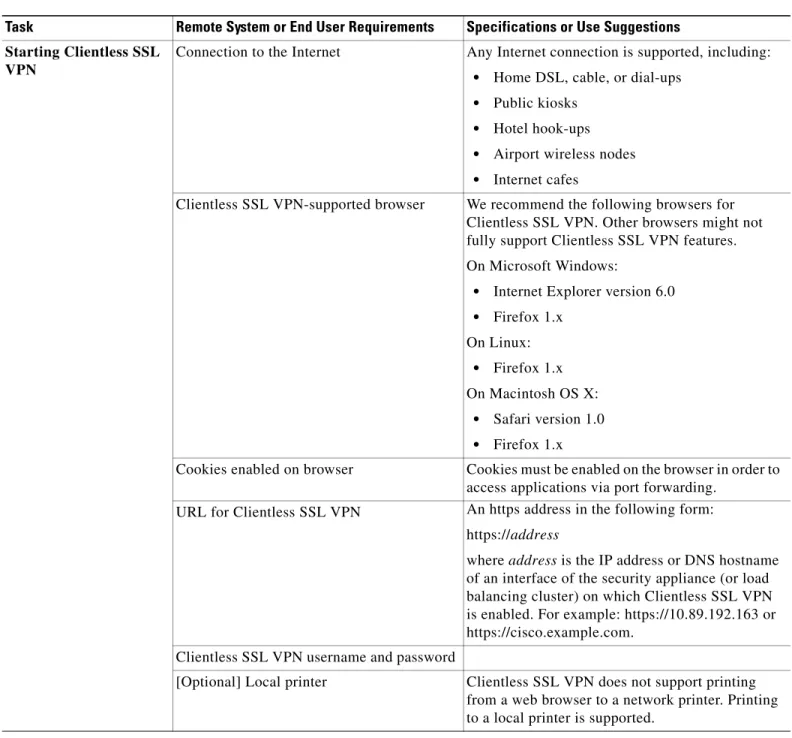
Table 37-2 includes the following information about setting up remote systems to use Clientless SSL VPN:
• Starting Clientless SSL VPN
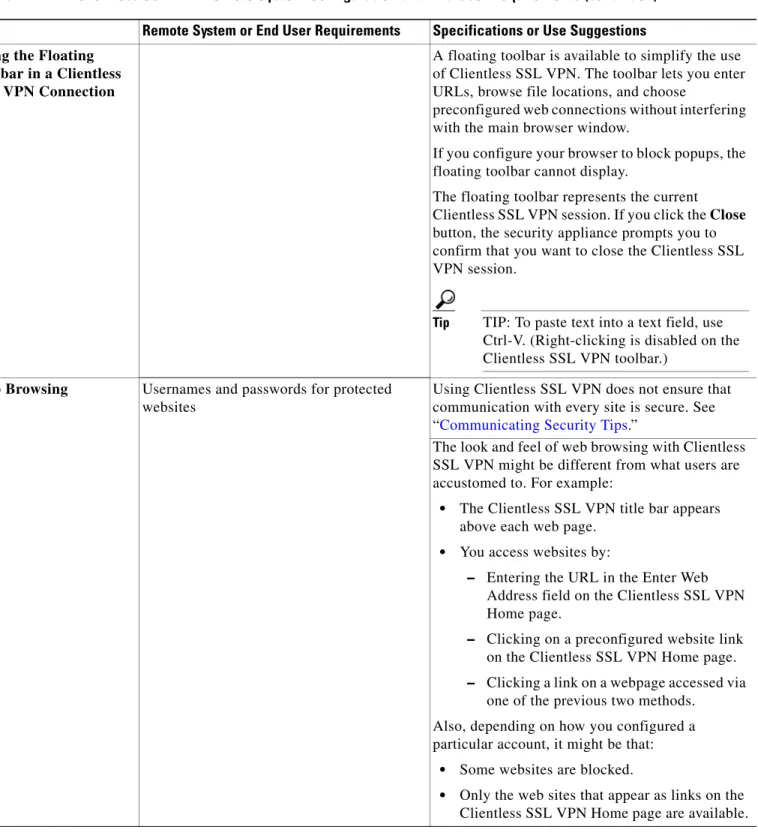
• Using the Clientless SSL VPN Floating Toolbar
• Web Browsing
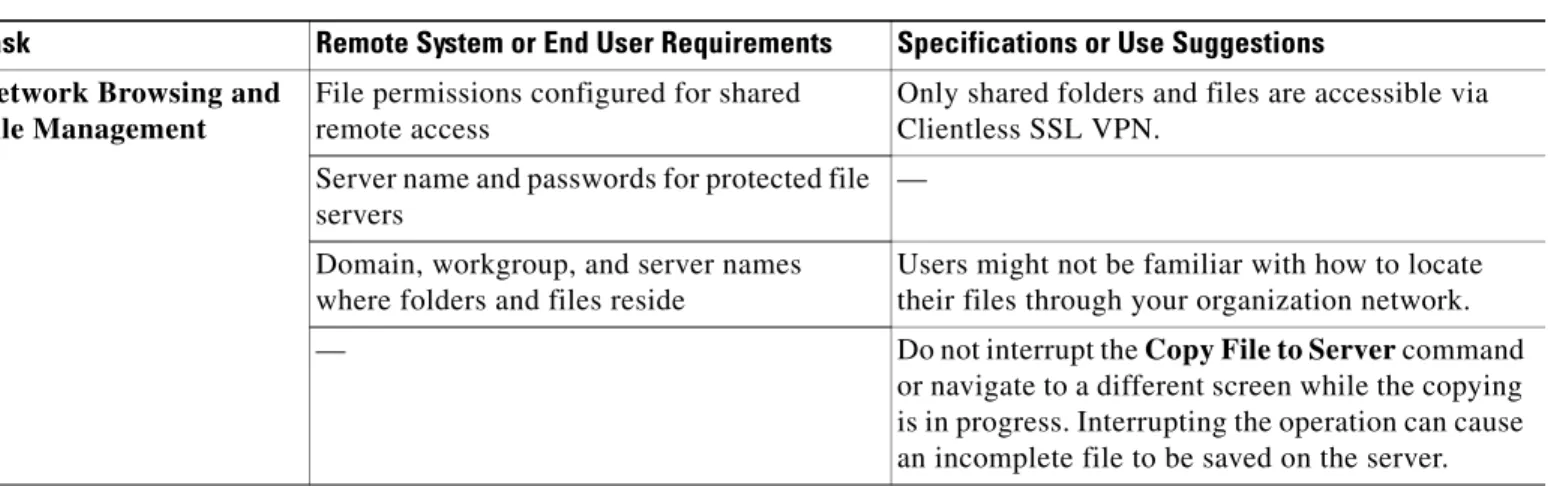
• Network Browsing and File Management
• Using Applications (Port Forwarding)
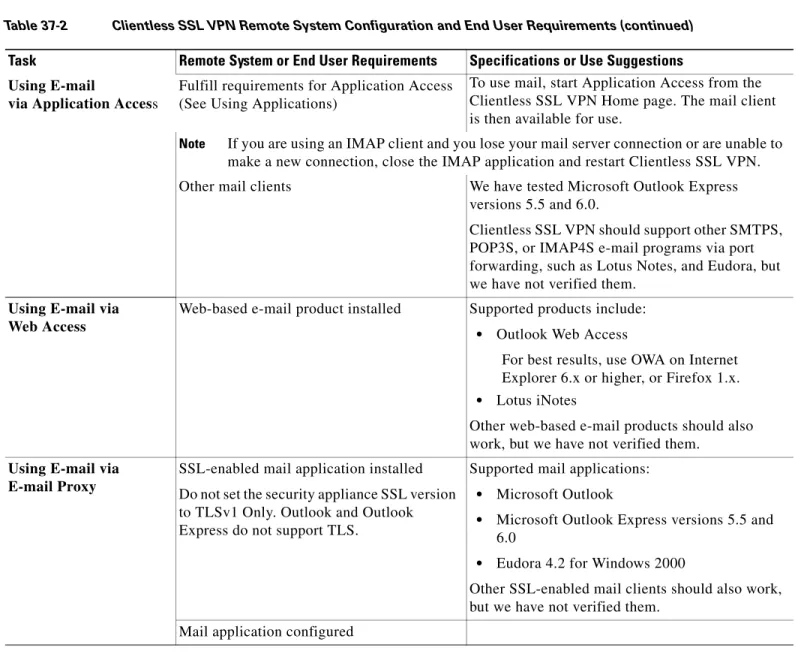
• Using E-mail via Port Forwarding
• Using E-mail via Web Access
• Using E-mail via e-mail proxy
Table 37-2 also provides information about the following:
• Clientless SSL VPN requirements, by feature
• Clientless SSL VPN supported applications
• Client application installation and configuration requirements
• Information you might need to provide end users
• Tips and use suggestions for end users
It is possible you have configured user accounts differently and that different features are available to each Clientless SSL VPN user. Table 37-2 organizes information by feature, so you can skip over the information for unavailable features.
Chapter 37 Clientless SSL VPN End User Set-up
Configuring Remote Systems to Use Clientless SSL VPN Features
Table 37-2 Clientless SSL VPN Remote System Configuration and End User Requirements
Task Remote System or End User Requirements Specifications or Use Suggestions
Starting Clientless SSL VPN
Connection to the Internet Any Internet connection is supported, including:
• Home DSL, cable, or dial-ups
• Public kiosks
• Hotel hook-ups
• Airport wireless nodes
• Internet cafes
Clientless SSL VPN-supported browser We recommend the following browsers for Clientless SSL VPN. Other browsers might not fully support Clientless SSL VPN features. On Microsoft Windows:
• Internet Explorer version 6.0
• Firefox 1.x On Linux:
• Firefox 1.x On Macintosh OS X:
• Safari version 1.0
• Firefox 1.x
Cookies enabled on browser Cookies must be enabled on the browser in order to access applications via port forwarding.
URL for Clientless SSL VPN An https address in the following form: https://address
where address is the IP address or DNS hostname of an interface of the security appliance (or load balancing cluster) on which Clientless SSL VPN is enabled. For example: https://10.89.192.163 or https://cisco.example.com.
Clientless SSL VPN username and password
[Optional] Local printer Clientless SSL VPN does not support printing from a web browser to a network printer. Printing to a local printer is supported.
Using the Floating Toolbar in a Clientless SSL VPN Connection
A floating toolbar is available to simplify the use of Clientless SSL VPN. The toolbar lets you enter URLs, browse file locations, and choose
preconfigured web connections without interfering with the main browser window.
If you configure your browser to block popups, the floating toolbar cannot display.
The floating toolbar represents the current Clientless SSL VPN session. If you click the Close button, the security appliance prompts you to confirm that you want to close the Clientless SSL VPN session.
Tip TIP: To paste text into a text field, use Ctrl-V. (Right-clicking is disabled on the Clientless SSL VPN toolbar.)
Web Browsing Usernames and passwords for protected websites
Using Clientless SSL VPN does not ensure that communication with every site is secure. See “Communicating Security Tips.”
The look and feel of web browsing with Clientless SSL VPN might be different from what users are accustomed to. For example:
• The Clientless SSL VPN title bar appears above each web page.
• You access websites by:
– Entering the URL in the Enter Web Address field on the Clientless SSL VPN Home page.
– Clicking on a preconfigured website link on the Clientless SSL VPN Home page. – Clicking a link on a webpage accessed via
one of the previous two methods. Also, depending on how you configured a particular account, it might be that:
Table 37-2 Clientless SSL VPN Remote System Configuration and End User Requirements (continued)
Chapter 37 Clientless SSL VPN End User Set-up
Configuring Remote Systems to Use Clientless SSL VPN Features
Network Browsing and File Management
File permissions configured for shared remote access
Only shared folders and files are accessible via Clientless SSL VPN.
Server name and passwords for protected file servers
— Domain, workgroup, and server names
where folders and files reside
Users might not be familiar with how to locate their files through your organization network.
— Do not interrupt the Copy File to Server command
or navigate to a different screen while the copying is in progress. Interrupting the operation can cause an incomplete file to be saved on the server.
Table 37-2 Clientless SSL VPN Remote System Configuration and End User Requirements (continued)
Using Applications (called Port Forwarding or Application Access)
Note On Macintosh OS X, only the Safari browser supports this feature.
Note Because this feature requires installing Sun Microsystems Java™ Runtime Environment and configuring the local clients, and because doing so requires administrator permissions on the local system, it is unlikely that users will be able to use applications when they connect from public remote systems.
Caution Users should always close the Application Access window when they finish using applications by clicking the Close icon. Failure to quit the window properly can cause Application Access or the applications themselves to be disabled.
Client applications installed — Cookies enabled on browser —
Administrator privileges User must have administrator access on the PC if you use DNS names to specify servers because modifying the hosts file requires it.
Sun Microsystems Java Runtime
Environment (JRE) version 1.4.x and 1.5.x installed.
Javascript must be enabled on the browser. By default, it is enabled.
If JRE is not installed, a pop-up window displays, directing users to a site where it is available. On rare occasions, the port forwarding applet fails with JAVA exception errors. If this happens, do the following:
1. Clear the browser cache and close the browser.
2. Verify that no JAVA icons are in the computer task bar. Close all instances of JAVA.
3. Establish a Clientless SSL VPN session and launch the port forwarding JAVA applet. Client applications configured, if necessary.
Note The Microsoft Outlook client does not require this configuration step. All non-Windows client applications require configuration.
To see if configuration is necessary for a Windows application, check the value of the Remote Server.
• If the Remote Server contains the server
To configure the client application, use the server’s locally mapped IP address and port number. To find this information:
1. Start Clientless SSL VPN on the remote system and click the Application Access link on the Clientless SSL VPN Home page. The Application Access window appears.
2. In the Name column, find the name of the server you want to use, then identify its corresponding client IP address and port
Table 37-2 Clientless SSL VPN Remote System Configuration and End User Requirements (continued)
Chapter 37 Clientless SSL VPN End User Set-up
Capturing Clientless SSL VPN Data
Capturing Clientless SSL VPN Data
The CLI capture command lets you log information about websites that do not display properly over a Clientless SSL VPN connection. This data can help your Cisco customer support engineer troubleshoot problems. The following sections describe how to use the capture command:
• Creating a Capture File
• Using a Browser to Display Capture Data Using E-mail
via Application Access
Fulfill requirements for Application Access (See Using Applications)
To use mail, start Application Access from the Clientless SSL VPN Home page. The mail client is then available for use.
Note If you are using an IMAP client and you lose your mail server connection or are unable to make a new connection, close the IMAP application and restart Clientless SSL VPN. Other mail clients We have tested Microsoft Outlook Express
versions 5.5 and 6.0.
Clientless SSL VPN should support other SMTPS, POP3S, or IMAP4S e-mail programs via port forwarding, such as Lotus Notes, and Eudora, but we have not verified them.
Using E-mail via Web Access
Web-based e-mail product installed Supported products include:
• Outlook Web Access
For best results, use OWA on Internet Explorer 6.x or higher, or Firefox 1.x.
• Lotus iNotes
Other web-based e-mail products should also work, but we have not verified them.
Using E-mail via E-mail Proxy
SSL-enabled mail application installed Do not set the security appliance SSL version to TLSv1 Only. Outlook and Outlook Express do not support TLS.
Supported mail applications:
• Microsoft Outlook
• Microsoft Outlook Express versions 5.5 and 6.0
• Eudora 4.2 for Windows 2000
Other SSL-enabled mail clients should also work, but we have not verified them.
Mail application configured
Table 37-2 Clientless SSL VPN Remote System Configuration and End User Requirements (continued)
Creating a Capture File
Perform the following steps to capture data about a Clientless SSL VPN session to a file.
Step 1 To start the Clientless SSL VPN capture utility, use the capture command from privileged EXEC mode. capture capture_name type webvpn user webvpn_username
where:
• capture_name is a name you assign to the capture, which is also prepended to the name of the capture files.
• webvpn_user is the username to match for capture. The capture utility starts.
Step 2 A user logs in to begin a Clientless SSL VPN session. The capture utility is capturing packets. Stop the capture by using the no version of the command.
no capture capture_name
The capture utility creates a capture_name.zipfile, which is encrypted with the password koleso.
Step 3 Send the .zip file to Cisco Systems, or attach it to a Cisco TAC service request.
Step 4 To look at the contents of the .zip file, unzip it using the password koleso.
The following example creates a capture named hr, which captures Clientless SSL VPN traffic for user2 to a file:
hostname# capture hr type webvpn user user2
WebVPN capture started. capture name hr user name user2 hostname# no capture hr
Using a Browser to Display Capture Data
Perform the following steps to capture data about a Clientless SSL VPN session and view it in a browser.
Step 1 To start the Clientless SSL VPN capture utility, use the capture command from privileged EXEC mode. capture capture_name type webvpn user webvpn_username
Chapter 37 Clientless SSL VPN End User Set-up
Capturing Clientless SSL VPN Data
https://IP_address or hostname of the security appliance/webvpn_capture.html The captured content displays in a sniffer format.
Step 4 When you finish examining the capture content, stop the capture by using the no version of the command.