MSP Client Software Guide
72E-128805-06 Revision B July 2011
© 2011 by Motorola Solutions, Inc. All rights reserved.
No part of this publication may be reproduced or used in any form, or by any electrical or mechanical means, without permission in writing from Motorola Solutions. This includes electronic or mechanical means, such as photocopying, recording, or information storage and retrieval systems. The material in this manual is subject to change without notice.
While every reasonable precaution has been taken in the preparation of this document, neither Symbol Technologies, Inc., nor Motorola Solutions, Inc., assumes responsibility for errors or omissions, or for damages resulting from the use of the information contained herein.
The software is provided strictly on an “as is” basis. All software, including firmware, furnished to the user is on a licensed basis. Motorola Solutions grants to the user a transferable and non-exclusive license to use each software or firmware program delivered hereunder (licensed program). Except as noted below, such license may not be assigned, sublicensed, or otherwise transferred by the user without prior written consent of Motorola Solutions. No right to copy a licensed program in whole or in part is granted, except as permitted under copyright law. The user shall not modify, merge, or incorporate any form or portion of a licensed program with other program material, create a derivative work from a licensed program, or use a licensed program in a network without written permission from Motorola Solutions. The user agrees to maintain Motorola Solution’s copyright notice on the licensed programs delivered hereunder, and to include the same on any authorized copies it makes, in whole or in part. The user agrees not to decompile, disassemble, decode, or reverse engineer any licensed program delivered to the user or any portion thereof.
Motorola Solutions reserves the right to make changes to any software or product to improve reliability, function, or design.
Motorola Solutions does not assume any product liability arising out of, or in connection with, the application or use of any product, circuit, or application described herein.
No license is granted, either expressly or by implication, estoppel, or otherwise under any Motorola Solutions, Inc., intellectual property rights. An implied license only exists for equipment, circuits, and subsystems contained in Motorola Solutions products.
Motorola Solutions and the Stylized M Logo and Symbol and the Symbol logo are registered in the US Patent & Trademark Office. All other product or service names are the property of their respective owners.
Motorola Solutions, Inc One Motorola Plaza
Holtsville, New York 11742-1300
Table of Contents
About This Guide ... 1
Related Documents ... 1
Service Information ... 2
Chapter 1 - Introduction ... 3
Overview ... 3
MSP Client Software for Windows Devices... 3
What is a Windows Device? ... 3
The Windows Device Client ... 3
The Device Class “Mobile Device” ... 4
MSP Client Software for Windows PCs ... 5
What is a Windows PC? ... 5
The Windows PC Client... 5
The Device Class “Windows PC” ... 5
MSP Client Software for Android Devices ... 6
What is an Android Device? ... 6
The MSP Android Client ... 6
Chapter 2 - Windows Device Client ... 7
Windows Device Client Compatibility ... 7
Windows CE ... 7
Windows Mobile ... 7
Windows Device Client Software Components ... 8
Windows Device Rapid Deployment Client (RD Client) ... 8
Windows Device Client RD Client Executable(s) ... 8
Windows Device Client RD Client User Interface ... 8
Windows Device Client RD Client Programmatic Interface ...11
Windows Device Client RD Client Registry Interface ...13
Standard Device Identifiers for On-Demand Staging ...13
Adding Device Identifiers for On-Demand Staging ...13
Windows Device AirBEAM Smart Client ...15
Windows Device AirBEAM Smart Client Executable(s) ...15
Windows Device AirBEAM Smart Client User Interface ...15
Windows Device AirBEAM Smart Client Programmatic Interface ...15
Windows Device AirBEAM Smart Client Registry Interface ...15
Windows Device Client MSP Agent ...16
Windows Device Client MSP Agent Executable(s) ...16
Windows Device Client MSP Agent User Interface ...16
Windows Device Client MSP Agent Programmatic Interface ...18
Command Line Execution ...19
Package Commands ...22
Package Command Types ...22
Package Command Formats ...22
Batch Files ...24
Windows Device Client MSP Agent Registry Interface ...24
Windows Device Client Availability ...30
Pre-Installation on Motorola Windows Devices ...30
Generic Windows Device Client .CAB Files ...31
Obtaining Generic Windows Device Client .CAB Files ...31
Add-On Kit .ZIP File Contents ...31
.ZIP File Installation ...33
Installing MSP Certificates on Generic Devices ...33
Windows Device Client Update Packages...34
Obtaining Windows Device Client Updates ...34
Add-On Kit Contents ...35
Add-On Kit Installation ...37
Windows Device Client Management Functionality ...38
Staging ...38
Asset Management ...38
Provisioning ...40
Remote Control and Troubleshooting ...41
Actions...41
Data Collection ...41
Real-Time Management ...41
Windows Device Client Troubleshooting ...41
Windows Device Client MSP Agent Log File ...41
Windows Device Client MSP Agent Job Log File ...42
Windows Device Client Licensing ...42
Windows Device Client Best Practices ...42
General Best Practices ...42
OS Update Best Practices ...43
Windows Device Anomalies ...47
WT4070 and WT4090 ...48
Windows Device Client Error Codes ...48
Chapter 3 - Windows PC Client... 63
Windows Device Client Compatibility ...63
Supported Operating Systems ...63
Windows PC Client Software Components ...63
Windows PC Client RD Client Executable(s) ...64
Windows PC Client RD Client User Interface ...64
Windows PC Client RD Client Registry Interface ...64
Windows PC Client MSP Agent ...64
Windows PC Client MSP Agent Executable(s)...64
Windows PC Client MSP Agent User Interface ...64
Windows PC Client MSP Agent Programmatic Interface ...65
Windows PC Client MSP Agent Registry Interface ...66
Windows PC Client Initial Installation ...66
Pre-requisites ...66
Manual Initial Installation Process ...67
Automation of the Initial Installation Process ...70
Windows PC Client Update Packages ...71
Obtaining Windows PC Client Updates ...71
Add-On Kit Contents ...71
Add-On Kit Installation ...71
Windows PC Client Uninstallation ...72
Windows PC Client Proxy Plug-In Support ...72
Proxy Plug-In Package Installation ...73
Proxy Plug-In Package Uninstallation ...73
Proxy Plug-In Package Updates ...73
Proxy Plug-Ins and Windows PC Client Updates ...73
Windows PC Client Management Functionality ...73
Staging ...74
Asset Management ...74
Provisioning ...75
Remote Control and Troubleshooting ...75
Actions...75
Data Collection ...75
Real-Time Management ...76
Windows PC Client Troubleshooting ...76
Windows PC Client MSP Agent Log File ...76
Windows PC Client MSP Agent Job Log File ...76
Windows Event Log ...77
Windows PC Client Licensing ...77
Windows PC Client Best Practices ...77
Chapter 4 – MSP Client for Android*™ ... 79
MSP Client for Android Compatibility ...79
Consumer Phones ...79
MSP Client for Android* Software Components ...79
Rapid Deployment Mode ...80
Rapid Deployment Mode Icon ...80
Rapid Deployment Mode User Interface ...80
Rapid Deployment Mode Programmatic Interface...81
Rapid Deployment Mode Registry Interface ...81
MSP Agent Mode ...81
MSP Agent Mode Icon ...81
MSP Agent Mode User Interface...82
MSP Agent Mode Programmatic Interface ...82
MSP Agent Mode Registry Interface ...83
Task List Mode ...83
Task List Mode Icon ...83
Task List Mode User Interface ...83
Task List Mode Programmatic Interface ...84
Task List Mode Registry Interface ...84
MSP Client for Android* Availability ...84
Pre-Installation on Motorola Devices ...84
MSP Client for Android* Add-On Kit .ZIP Files ...84
Add-On Kit .ZIP File Contents ...85
Control Modules for Android* Add-On Kit .ZIP Files ...85
Add-On Kit .ZIP File Contents ...85
Add-On Kit Installation ...86
MSP Client for Android* Manual Installation ...86
From the Android* Marketplace ...86
MSP Client for Android* Update Packages ...88
Obtaining MSP Client for Android* Updates ...89
MSP Client for Android* Management Functionality ...89
Staging ...89 Asset Management ...90 Provisioning ...91 Settings Objects ...92 Non-Applications ...92 Android* Applications ...92 Packaging Requirements ...92 Installation Limitations ...94 Device Reboots ...94 Certificate Installation ...94 Actions...94 Data Collection ...94
MSP Client for Android* Troubleshooting ...95
MSP Agent Log File ...95
MSP Agent Job Log File ...95
MSP Client for Android* Licensing ...96
MSP Client for Android* Best Practices ...96
General Best Practices ...96
MSP Client for Android* Error Codes ...96
Chapter 5 - Device Reboots, Shutdowns, and Persistence ... 97
Reboots and Shutdowns ...97
Suspend and Resume ...97
Key Requirements ...97 Common Usage ...98 Device Support...98 Windows Devices ...98 Windows PCs ...98 Android* Devices ...99 Persistence Implications ...99 Warm Boot ...99 Key Requirements ...99 Common Usage ...99 Device Support...100 Windows Devices ...100 Windows PCs ...100 Android* Devices ...100 Persistence Implications ...100
Safe Shutdown and Power-On ...100
Key Requirements ...101 Common Usage ...101 Device Support...101 Windows Devices ...101 Windows PCs ...102 Android* Devices ...102 Persistence Implications ...102 Cold Boot ...102 Key Requirements ...102 Common Usage ...103 Device Support...103 Windows Devices ...103 Windows PCs ...104 Android* Devices ...104 Persistence Implications ...104 Clean Boot ...104
Key Requirements ...105 Common Usage ...105 Device Support...105 Windows Devices ...105 Windows PCs ...106 Android* Devices ...106 Persistence Implications ...106 Restore Boot ...106 Key Requirements ...106 Common Usage ...107 Device Support...107 Windows Devices ...107 Windows PCs ...107 Android* Devices ...107 Persistence Implications ...107 OS Update ...107 Key Requirements ...108 Common Usage ...108 Device Support...108 Windows Devices ...108 Windows PCs ...108 Android* Devices ...108 Persistence Implications ...109 What is Persistence? ...109
Persistence of Common Items ...109
Date and Time...109
Windows Devices ...109
Windows PCs ...110
Android* Devices ...110
RAM ...110
RAM Disk ...110
Built-In Flash Memory ...110
Flash File System ...110
Windows Devices ...111
Windows PCs ...111
Android* Devices ...111
Storage Media File System ...111
Device Registry ...111
Windows Devices ...112
Windows PCs ...112
Android* Devices ...112
Enhanced Persistence Mechanisms ...112
Super-Persistent File Systems ...112
Transient File Persistence ...113
Device Registry Persistence ...113
Re-launch Persistence ...113
Chapter 6 – Network Adapters ... 115
What is a Network Adapter? ...115
Network Adapter Status ...115
Status = Present ...115
Adapter Condition Class ...116
AdapterTime Condition Class ...116
GetAdapters Control Module ...116
GetConfigData Control Module ...116
Status = Active ...116
Adapter Condition Class ...116
GetAdapters Control Module ...117
Status = Connected ...117
Adapter Condition Class ...117
AdapterTime Condition Class ...117
GetAdapters Control Module ...117
Network Adapter Names ...118
Network Adapter Class ...118
Virtual Private Network (VPN) ...119
Ethernet Cradle ...119
Wireless LAN (WLAN) ...119
Wireless WAN (WWAN) ...119
ActiveSync ...119
Network Adapter Priority ...119
Best Connected Network Adapter ...120
Valid IP Addresses ...120
Network Accessibility ...121
Network Adapter Extensibility ...122
Chapter 7 – Settings Classes ... 125
Overview ...125
Supported Device Classes ...125
Chapter 8 – Condition Classes ... 129
Overview ...129
Supported Device Classes ...129
Chapter 9 – Control Modules ... 131
Overview ...131
Supported Control Modules ...131
Obtaining Control Module Packages ...132
Device Class-Specific Control Modules ...133
Windows Devices ...134 GetConfigData ...134 Operation ...134 Device Attributes...134 GetCabInventory ...139 Operation ...139 Windows PCs ...139 Android* Devices ...140 GetPkgInventory ...140 Operation ...140
About This Guide
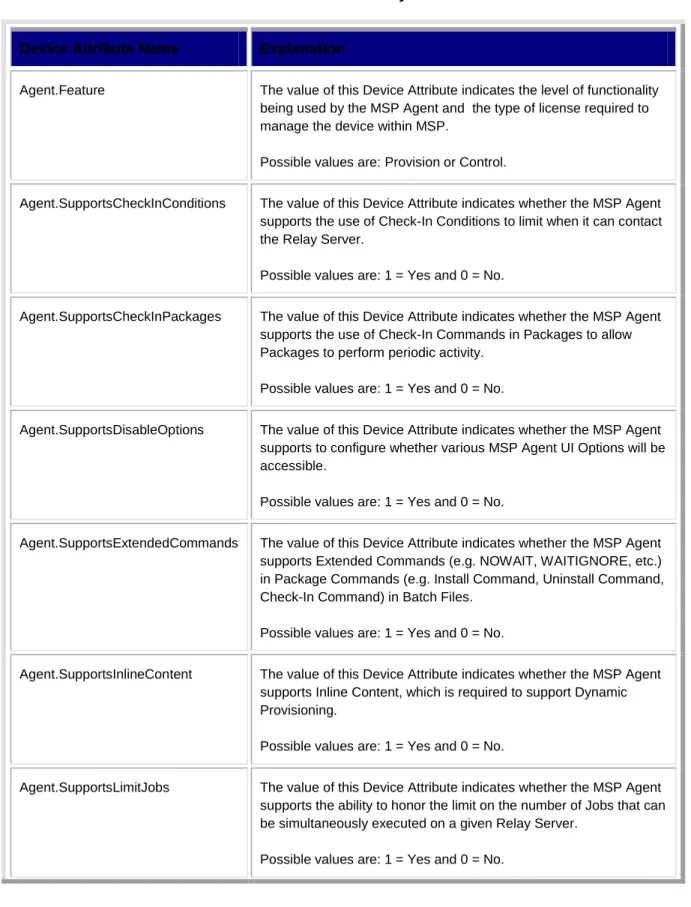
The MSP Client Software Guide document provides guidance for pre-installation planning, application set up, and the information for successfully using Mobility Services Platform software product version 3.3.1. Newer versions of this document may be available at
http://support.symbol.com/support/product/softwaredownloads.do.
Related Documents
MSP 3.3.1 Release Notes, p/n 72E-100160
Understanding Mobility Services Platform 3.3.1, p/n 72E-128712 Using Mobility Services Platform 3.3.1, p/n 72E-128802
MSP 3.3.1 Software Installation Guide, p/n 72E-100159 Administering MSP 3.3.1, p/n 72E-128775
Using the Motorola Remote Control Solution, p/n 72E-127347 Using the Motorola Data Collection Solution, p/n 72E-139416
Help text is available from the MSP Console UI via hovering the mouse pointer over certain input fields of the screen and by clicking Help in the upper-right corner of each screen (see below
Service Information
If you have a problem with your software, contact Motorola Enterprise Mobility support for your region. Contact information is available at: http://www.symbol.com/contactsupport.
When contacting Enterprise Mobility support, please have the following information available: Serial number of the software
Model number or product name Software type and version number Software license information
Motorola responds to calls by email, telephone or fax within the time limits set forth in support agreements.
If you purchased your Enterprise Mobility business product from a Motorola business partner, contact that business partner for support.
Chapter 1 - Introduction
Overview
MSP Client Software is a set of software components that execute on the device and collectively provide the device-side logic required to support MSP functionality. A device cannot be Directly Managed by MSP unless the MSP Client Software is installed on the device and the device has been properly configured for use with MSP.
There are multiple varieties of MSP Client Software to support a variety of new types of supported devices. Multiple versions of MSP Client Software may be developed to handle variations among devices in the same Device Class and/or to offer different levels of functionality.
MSP Client Software for Windows Devices
What is a Windows Device?
A Windows Device is any device that is supported by MSP and that is running a supported version of Windows CE or Windows Mobile Operating System.
The Windows Device Client
All Windows Devices will be Directly Managed by MSP via a variety of the MSP Client Software called the Windows Device Client. The Windows Device Client is described in more detail in Chapter 2 – The Windows Device Client.
Notes:
Beginning with MSP 3.3.1, additional types of devices, other than Windows Devices, are also supported.
The Device Class “Mobile Device”
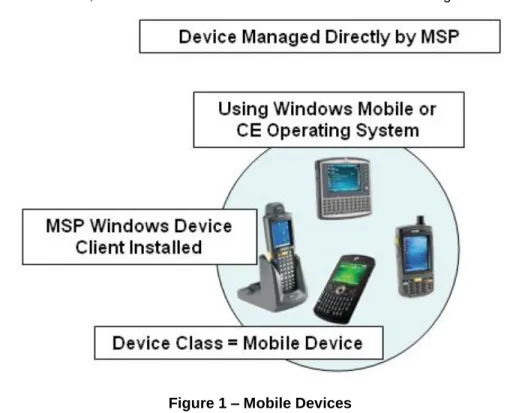
In MSP, all Windows CE or Windows Mobile Operating System devices are reported to MSP as having a Device Class of “Mobile Device”. The relationship between Windows Devices, the Windows Device Client, and the Device Class “Mobile Device” is shown in Figure 1 below.
Figure 1 – Mobile Devices Note:
Prior to MSP 3.3.1, all devices supported by MSP were Windows Devices and had the implicit Device Class “Mobile Device”. The majority of devices supported by MSP are still Windows Devices and this term will be generically used to refer to them, since they are devices that run Windows. To avoid backward compatibility issues, however, the Device Class “Mobile Device” will continue to be used in MSP for these devices.
Future versions of MSP will likely support additional types of devices that may be “mobile” but are not Windows Devices. It might seem reasonable, therefore, for such devices to have the Device Class “Mobile Device”. The likelihood is high, however, that devices that are not running
Windows CE or Windows Mobile would require different software and therefore would need to be differentiated from Windows Devices. Such devices shall therefore not use the Device Class “Mobile Device”, but instead shall use new, unique Device Classes.
Important:
No devices other than Windows Devices are allowed to be reported to MSP as having a Device Class of “Mobile Device”.
All Windows Devices are similar in terms of how they are managed and the content that
can/should be deployed to them. When necessary, distinctions among Windows Devices may be made based on Operating System version, device model, etc. Conversely, Windows Devices will be different from other types of devices, such as Windows PCs. The mechanism used in MSP to differentiate devices that are fundamentally different from each other is the Device Class.
Important:
It is important to consider Device Class when managing devices of more than one Device Class.
MSP Client Software for Windows PCs
What is a Windows PC?
A Windows PC is defined to be any “Wintel X86” PC hardware that is supported by MSP that is running a supported version of a Microsoft Windows XP Operating System. This may include Desktops, Laptops, Tablets, etc.
The Windows PC Client
All Windows PCs will be Directly Managed by MSP via a variety of MSP Client Software called the Windows PC Client. The Windows PC Client is described in detail in Chapter 3 – The Windows PC Client.
The Device Class “Windows PC”
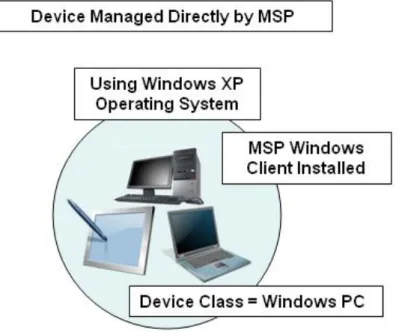
All Windows PCs shall be reported to MSP as having a Device Class of “Windows PC”. ”. The relationship between Windows PCs, the Windows PC Client, and the Device Class “Windows PC” is shown in Figure 2 below.
Notes:
The intent of the term “Windows PC” is to clearly differentiate Windows PCs, which run the Windows XP Operating System, from Windows Devices, which run the Windows CE or Windows Mobile Operating Systems.
A “mobile computer”, such as a Tablet PC running the Windows XP Operating System, will have a Device Class of “Windows PC” not a Device Class of “Mobile Device”. This is because the management of the device is more dependent on its Operating System than on its physical form or appearance.
All Windows PCs are similar in terms of how they are managed and the content that can/should be sent to them. In MSP, no means is provided to differentiate Windows PCs from each other based on Operating System or model, but this capability might be added in the future if the need arises. Conversely, Windows PCs will be different from other devices, such as Windows Devices. The mechanism used in MSP to differentiate devices that are fundamentally different from each other is the Device Class.
Important:
It is important to consider Device Class when managing devices of more than one Device Class.
MSP Client Software for Android Devices
What is an Android Device?
MSP supports Android Devices that are running the Google Android Operating System version 2.2 or later and that support the Android Market.
The MSP Android Client
All Android Device will be Directly Managed by MSP via software called the MSP Android Client. The MSP Android Client is described in detail in Chapter 4 – MSP Client for Android.
Chapter 2 - Windows Device Client
Windows Device Client Compatibility
Windows CE
The Windows Device Client is designed to support Motorola (and Symbol) devices that run the Microsoft Windows CE Operating System version 4.2 or higher.
Important:
Due to the extreme variability that can exist in OEM builds of the Windows CE Operating System, the Windows Device Client is not intended to support non-Motorola (or non-Symbol) Windows CE-based devices.
Windows Mobile
The Windows Device Client is designed to support (Motorola and non-Motorola) devices that are running various versions of the Microsoft Windows Mobile Operating System (a variant of the Microsoft Windows CE Operating System). In particular, the Windows Device Client is designed to support Windows Mobile 2003 and Windows Mobile 5.0 and higher (e.g., including 6.0, 6.1, 6.5, etc.).
Important:
Due to the very significant differences between all versions of the Microsoft Windows Mobile Operating System and the Windows Phone 7 Operating System, the Windows Device Client is not intended to support devices that are running the Windows Phone 7 Operating System.
Windows Device Client Software
Components
The Windows Device Client is comprised of the software components described in the following subsections:
Windows Device Rapid Deployment Client (RD
Client)
The RD Client provides support for MSP Staging functionality, for the MSP Legacy Staging process, and backward-compatible legacy MSP 2.x Legacy Staging functionality.
Windows Device Client RD Client Executable(s)
The Windows Device Client RD Client consists primarily of the executable file “rdclient.exe.” Depending on the characteristics of a specific Windows Device, the RD Client may be installed to various locations in the device. No matter where it may be installed (e.g., for Persistence), the RD Client is typically copied to and executed from the \Windows folder on the device.
Windows Device Client RD Client User Interface
The installation of the Windows Device Client RD Client includes the placement of a shortcut into the start menu of the device. This shortcut is typically named “Rapid Deployment Client” to make it easy for the Device User to identify it when the need to initiate Staging operations arises. The User Interface of the Windows Device Client RD Client is designed to be similar on all devices and to adapt to the limitations and capabilities of those devices. In particular, since the size of the display screen varies between devices, the User Interface of the RD Client is designed to be capable of being used effectively on a very small screen while also providing some
enhanced usability on larger screens. The best user experience will be provided on devices with a quarter VGA (240x320 pixels) display. Devices with smaller screens will not display some optional information and devices with larger screens will see no additional benefit.
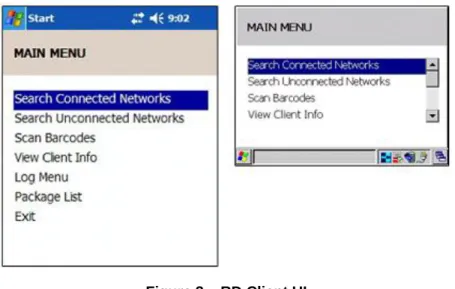
The primary User Interface of the Windows Device Client RD Client is a menu structure. Each menu consists of a title describing the menu and a list of menu options. Depending on the display screen size of a device, the number of menu items shown in the list may vary, but the list will scroll if all menu items cannot be seen on one screen.
Figure 3 below shows the main menu of the RD Client as rendered on two devices with different display screen sizes.
Figure 3 – RD Client UI The various individual menu options are described below:
Search Connected Networks
This option causes the RD Client to search connected adapters by the following process: Rapid Deployment chooses to use TCP or UDP IP protocol based on the operational status of the interface. The actual interface used by Rapid Deployment will be the first available interface.
It is possible that Rapid Deployment may select an interface that cannot communicate to an OnDemand Server because the interface routing occurs at a lower level (WinSock) than Rapid Deployment.
Examples:
A device has an established connection via Active Sync and WLAN. The WLAN connection is not connected to the same network as the OnDemand Server. Active Sync is connected to the same network as the OnDemand Server. However, the lower level may choose the WLAN interface for Rapid Deployment when the "Search Connected Networks" is selected.
The lower level could also choose an Active Sync connection instead of WLAN where Active Sync is not connected to the same network as the OnDemand Server , but the WLAN is connected.
Motorola recommends disconnecting any interfaces that are not connected to the same network as the OnDemand server. That should resolve situations like the ones in these examples.
Search Unconnected Networks
This option causes the RD Client to try to establish the “well-known connections” on the WLAN adapter to see if it can locate an On-Demand Profile Server via any of them. Once the WLAN is configured, Rapid Deployment chooses to use TCP or UDP IP protocol based on the operational status of the interface. The actual interface used by Rapid Deployment will be the first available interface.
Scan Barcodes
This option causes the RD Client to begin waiting for the Device User to scan Barcodes for a Staging Profile. Since this is the most commonly used function, the RD Client is designed to automatically select this option when the RD Client is launched. This allows the Device User to launch the RD Client and immediately begin scanning Barcodes. To exit this option and go to the main menu, use the Options button or soft key.
View Client Info
This option causes the RD Client to display information that identifies the version of the Windows Device Client that is running on the device, the model and OS of the device, the plug-in that will be used to configure WLAN settings, and the UUID of the device.
Log Menu
This option causes the RD Client to display a sub-menu presenting options to configure and view the log files being created by the RD Client. The following options are provided by the sub-menu:
o View Log
This option causes the contents of the log to be displayed.
o View Job Log
This option causes the contents of the job log to be displayed.
o Set Log Level
This option allows the amount of logging produced into the log to be adjusted.
o Set Job Log Level
This option allows the amount of logging produced into the job log to be adjusted. Package List
This option causes the RD Client to display a sub-menu presenting the list of MSP Packages currently installed on the device. Selecting any Package listed in the menu will display the name and version of the Package and provide an option to delete the Package.
The Package delete option can be disabled to prevent Device Users from deleting Packages from within the RD Client User Interface by launching the RD Client with a command line of – OD. For additional information on this and other command line arguments, see Table 1 – Command Line Arguments and Results below.
Exit
Windows Device Client RD Client Programmatic
Interface
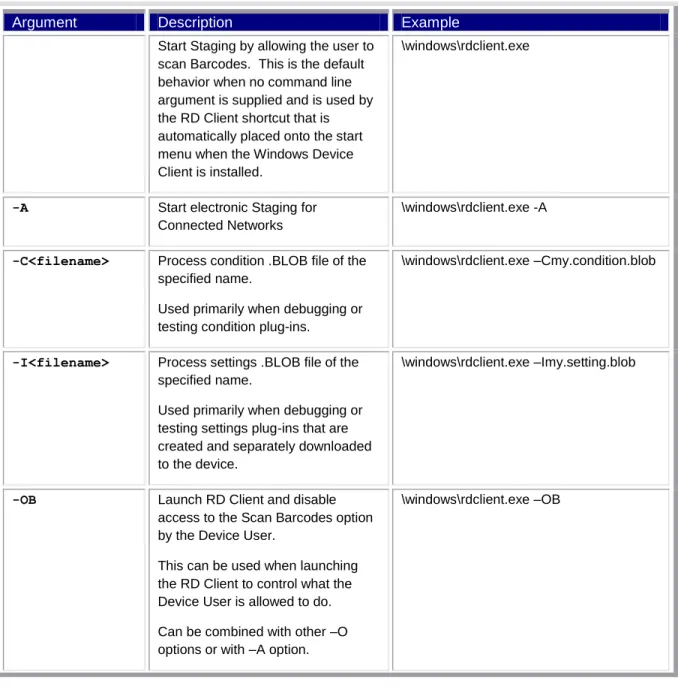
There are times when an application or other process on a device need to invoke the RD Client programmatically to perform some function. This is done by launching the executable file “\windows\rdclient.exe”, typically using the CreateProcess() API call, or equivalent. When invoking the RD Client programmatically, various command line arguments can be provided to achieve different results, as described in Table 1.
Table 1 – Command Line Arguments and Results
Argument Description Example
Start Staging by allowing the user to scan Barcodes. This is the default behavior when no command line argument is supplied and is used by the RD Client shortcut that is automatically placed onto the start menu when the Windows Device Client is installed.
\windows\rdclient.exe
-A Start electronic Staging for Connected Networks
\windows\rdclient.exe -A
-C<filename> Process condition .BLOB file of the specified name.
Used primarily when debugging or testing condition plug-ins.
\windows\rdclient.exe –Cmy.condition.blob
-I<filename> Process settings .BLOB file of the specified name.
Used primarily when debugging or testing settings plug-ins that are created and separately downloaded to the device.
\windows\rdclient.exe –Imy.setting.blob
-OB Launch RD Client and disable access to the Scan Barcodes option by the Device User.
This can be used when launching the RD Client to control what the Device User is allowed to do. Can be combined with other –O options or with –A option.
Argument Description Example
-OC Launch RD Client and disable access to the Search Connected Networks option by the Device User. This can be used when launching the RD Client to control what the Device User is allowed to do. Can be combined with other –O options.
\windows\rdclient.exe –OC
-OD Launch RD Client and disable access to the Delete Package option in the by the Device User.
This can be used when launching the RD Client to control what the Device User is allowed to do. Can be combined with other –O options.
\windows\rdclient.exe –OD
-OU Launch RD Client and disable access to the Search Unconnected Networks option by the Device User. This can be used when launching the RD Client to control what the Device User is allowed to do. Can be combined with other –O options.
\windows\rdclient.exe –OU
-P<Profilename> Launch the RD Client and attempt to perform Automatic Staging to pull the Staging Profile of the specified name from the Relay Server.
In order for this to work, the prerequisites for Automatic Staging must be met as discussed in Understanding MSP – Understanding Staging.
Windows Device Client RD Client Registry Interface
Since both the RD Client and the MSP Agent for Windows Devices perform deployment of Bundles and Packages, they share common code. As a result, they also share many of the same Registry Entries. For example, Relay Server Settings applied to a device when using the RD Client are stored identically to Relay Server Settings applied to a device when using a Provisioning Job.
The RD Client does have some unique configuration of its own, as well. The base Registry path where the RD Client stores its unique configuration is:
HKEY_LOCAL_MACHINE\SOFTWARE\MSP\RD
The unique Registry Entries supported by the RD Client are described below:
Standard Device Identifiers for On-Demand Staging
When performing On-Demand (Electronic) Staging, the RD Client sends one or more Device Identifier values to the On-Demand Profile Server . By default, the RD Client sends the device unique identifier as the Device Attribute “identity.uuid”. On newer versions of the RD Client, the Electronic Serial Number (ESN) of the device, if available, is also read and sent as the Device Attribute “identity.serial”.
Important:
Whether a device has an Electronic Serial Number (ESN) or not can vary from device to device. To determine whether a device has an Electronic Serial Number, see the product documentation for the device.
Devices with an MSP Client Software version of less than 7.0 may not be able to send the
Electronic Serial Number to the On-Demand Profile Server, even on devices that have an ESN. If a device that has an ESN ships with an older version, then it may be necessary to Stage a new version of the MSP Client Software before On-Demand Dynamic Staging based on an ESN can be used.
Adding Device Identifiers for On-Demand Staging
It is sometimes desirable for a device to send additional Device Identifiers to allow Dynamic Staging to map Dynamic Staging Profiles to devices based on alternate values. For example, on a Motorola EWP/TEAM device, the MAC Address of the device can be used as the “key” to use for Dynamic Staging since that value is used by the rest of the EWP/TEAM system to identify devices.
Important:
Adding additional Device Identifiers is not intended to be used directly by device customers. This is because the only way to configure additional Device Identifiers is to add values to the Device Registry, which cannot easily be done prior to Staging.
This is especially true since the value of a Device Identifier should be unique to each device. To accomplish this, code must be executed on each device to acquire and set the appropriate value into the Device Registry. This can easily be done before shipping a device, but is considerably more difficult to do afterwards.
Adding Device Identifiers for On-Demand Staging is therefore intended primarily to be used by device teams to enhance the capabilities of their devices . For example, the Motorola
EWP/TEAM device uses this capability to send the MAC Address of the WLAN Adapter as an additional Device Identifier. This can be beneficial since the EWP/TEAM system primarily uses MAC Address to identify devices.
To configure a device to report Additional Device Identifiers during Dynamic On-Demand Staging, it is necessary to add a suitable value to the Device Registry. The RD Client checks for Registry values under the key “HKEY_LOCAL_MACHINE\Software\MSP\RD\OnDemandAttributes”. If a value is found there, then the name of that value will be used as the name of a Device Attribute and the value will be used as the value of the Device Attribute.
Consider the following example:
[HKEY_LOCAL_MACHINE\Software\MSP\RD\OnDemandAttributes] “identity.macaddr”=”01:02:03:04:05:06”
In the above example, the RD Client will send the Device Attribute named “identity.serial” with a value of “01:02:03:04:05:06” to the On-Demand Profile Server during Dynamic On-Demand Staging.
Notes:
The name of the Registry value must be the entire name of a Device Attribute, including any dots, as it will be used in the Staging Batch. In the above example, the Staging Batch would refer to the Device Attribute as “identity.serial”, so the Registry value name must be that exact name. The value stored in the Device Registry for such a Device Attribute will be sent up as-is. This means that the Registry value must be set to the exact value to be sent for that Device Attribute. Device Attributes configured via the Device Registry to be sent to the On-Demand Profile Server during Dynamic On-Demand Staging will be sent in addition to the Standard Device Identifiers described earlier.
Using Device Identifiers for On-Demand Staging
The On-Demand Profile Server will check the names of the Device Identifiers sent by the RD Client against the name of the Device Identifier specified in the Staging Batch that is currently being served-up. If no match is found, then Dynamic Staging cannot occur. The exact failure mode may vary depending on the version of the MSP Client Software being used.
On older versions (MSP Client Software versions before 7.0), the RD Client might present a (potentially very long) list of Staging Profiles to the Device User. On newer versions, the RD Client weill present no Staging Profile at all when no matching name is found. To avoid such failures, and to make Dynamic Staging to function properly, the name of the Device Identifier specified in the Staging Batch should match the name of a Device Identifier sent to the On-Demand Profile Server by the RD Client.
Windows Device AirBEAM Smart Client
The AirBEAM Smart Client provides backward-compatible legacy AirBEAM functionality and backward-compatible legacy MSP 2.x Level 2 Agent functionality.
Note:
The AirBEAM Smart Client is not supported on all devices. Because end of life has been announced for AirBEAM Smart, support for the AirBEAM Smart Client may soon be discontinued on newer devices.
Windows Device AirBEAM Smart Client Executable(s)
The AirBEAM Smart Client consists primarily of the executable file “abclient.exe”. Depending on the characteristics of a specific Windows Device, the AirBEAM Smart Client may be installed to various locations in the device. No matter where it may be installed (e.g., for Persistence), the AirBEAM Smart Client is typically copied to and executed from the \Windows folder on the device.
Windows Device AirBEAM Smart Client User Interface
The installation of the AirBEAM Smart Client includes the placement of a shortcut into the start menu of the device. This shortcut is typically named “AirBEAM Client” to make it easy for the Device User to identify when the need to initiate Legacy AirBEAM operations arises.
Since the AirBEAM Smart Client is provided for legacy backward-compatibility purposes only, its User Interface will not be detailed in this document.
Windows Device AirBEAM Smart Client Programmatic
Interface
Since the AirBEAM Smart Client is provided for legacy backward-compatibility purposes only, its programmatic interface will not be detailed in this document.
Windows Device AirBEAM Smart Client Registry
Interface
Since the AirBEAM Smart Client is provided for legacy backward-compatibility purposes only, its Registry interface will not be detailed in this document.
Note:
Information about the AirBEAM Smart Client User Interface, Registry interface, and the
programmatic interface can be found in the document titled “AirBEAM Smart Windows CE Client Product Reference Guide (P/N 72-63060-01 Rev. B)”, which is available for download from the AirBEAM Smart sub-section of the Mobility Software section at:
http://support.symbol.com/support/product/softwaredownloads.do.
Windows Device Client MSP Agent
The Windows Device Client MSP Agent provides agent functionality for Windows Devices that are Directly Managed by MSP. The Windows Device Client MSP Agent provides Provisioning functionality when used with MSP Provision or MSP Control Editions. Data Collection functionality is available when the Windows Device Client MSP Agent is used with MSP Control Edition.
Windows Device Client MSP Agent Executable(s)
The Windows Device Client MSP Agent consists primarily of the executable file “30agent.exe.” Depending on the characteristics of a specific Windows Device, the MSP Agent may be installed to various locations in the device. No matter where it may be installed (e.g., for Persistence), the Windows Device Client MSP Agent is typically copied to and executed from the \Windows folder on the device.
Windows Device Client MSP Agent User Interface
The installation of the Windows Device Client MSP Agent includes the placement of a shortcut into the start menu of the device. This shortcut is typically named “MSP Agent” to make it easy for the device User to identify it when interaction with the User Interface (UI) of the MSP Agent is necessary.
It should be noted that the MSP Agent UI is not intended to be used by most Device Users. The MSP Agent UI is intended for monitoring and troubleshooting purposes. Operations Managers or Supervisors with advanced knowledge, skills, and training are the most appropriate users of this UI.
It is possible to configure the MSP Agent so its UI is disabled. This can be accomplished by configuring the MSP Agent using an Agent.30 Settings Object. Select “Configure MSP 3.2 Features” and set “Disable UI” to True. This may be useful to prevent Device Users from launching the MSP Agent UI which could distract from their primary tasks and/or permit them to perform undesirable actions (such as exiting the MSP Agent).
The MSP Agent UI is designed to be similar on all devices and to adapt to the limitations and capabilities of those devices. The MSP Agent UI is designed to be used effectively on a very small screen while also providing some enhanced usability on larger screens. As a general rule, the best user experience will be provided on devices with a quarter VGA (240x320 pixels) display. Devices will smaller screens may not display some optional information and devices with larger screens may see no additional benefit from the extra screen size.
The primary MSP Agent UI consists of a menu structure Each menu consists of a title describing the menu and a list of menu options. Depending on the display screen size of a device, the number of menu items shown in the list may vary, but the list will scroll if all menu items cannot be shown on the screen at once.
The various individual menu options are described below: Monitor Processing
This option causes the MSP Agent to display a window in which the progress of ongoing management operations can be viewed (monitored) by the Device User. This feature is useful when testing or troubleshooting the management of a device.
Force Check-In
This option causes the MSP Agent to execute immediately, if execution is not already in progress. It then switches to the Monitoring Processing screen, as described above, to show the progress of execution.
Notes:
This option may cause execution to occur before the next scheduled execution time,
but it does not change how the MSP Agent behaves when it executes.
Despite the name “Force Check-In”, this option may not cause a Check-In with the Relay Server to occur. If the Relay Server cannot be contacted, due to connectivity issues or because of limits imposed by Check-In Conditions, then no
communications with the Relay Server will occur.
Additional processing, such as the execution of Package Check-In Commands, will continue as on any other execution of the MSP Agent.
Package List
This option causes the MSP Agent to display a sub-menu presenting the list of MSP Packages currently installed on the device. Selecting any Package listed in the menu will display the name and version of the Package and provide an option to delete the Package. The Package delete option can be disabled to prevent Device Users from deleting Packages from within the MSP Agent UI. This can be accomplished by configuring the MSP Agent using a Settings Object. Select “Configure MSP Features” and set “Disable delete Package” to True.
View Client Info
This option causes the MSP Agent to display information that identifies the version of the Windows Device Client that is running on the device, the model and OS of the device, the plug-in that will be used to configure WLAN settings, and the UUID of the device.
Log Menu
This option causes the MSP Agent to display a sub-menu presenting options to configure and view the log files being created by the MSP Agent. The following options are provided by the sub-menu:
o View Log
This option causes the contents of the log to be displayed.
o View Job Log
This option causes the contents of the job log to be displayed.
This option allows the amount of logging produced into the log to be adjusted.
o Set Job Log Level
This option allows the amount of logging produced into the job log to be adjusted. Hide UI
This option causes the MSP Agent UI to be hidden. The MSP Agent continues to perform scheduled execution according to its current configuration, but no progress or feedback of its operation is presented to the Device User. This is the normal mode of production operation since the Device User should be unaware of and not impacted by the operation of the MSP Agent.
Exit
This option causes the MSP Agent to terminate its operation and stop all scheduled execution until it is launched again. While this option has value in some testing and
troubleshooting scenarios, it is likely not something that would be desirable for a Device User to do during production operation.
It is possible to allow the Device User to access the MSP Agent User Interface and yet prevent the Device User from this option. This can be accomplished by configuring the MSP Agent using a Settings Object. Select “Configure MSP Features” and set “Disable exit” to True.
Note:
While this option causes the MSP Agent to exit, it does not prevent the MSP Agent from starting again when the device is rebooted.
Windows Device Client MSP Agent Programmatic
Interface
There are times when it is desirable for an application or other process on a device to invoke the MSP Agent programmatically to perform some function. The MSP Agent has three primary Programmatic Interfaces: Command Line Execution, Package Commands, and Batch Files.
Command Line Execution
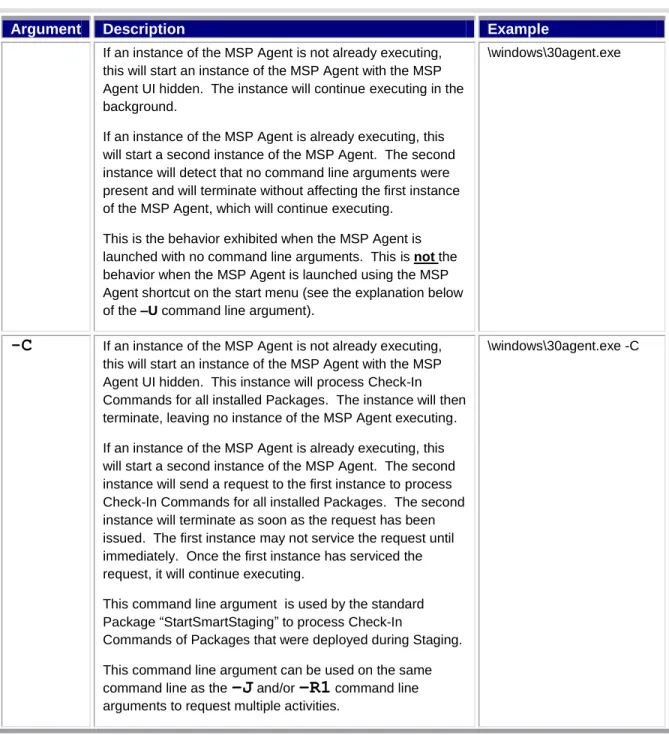
Command Line Execution is done by launching the executable file “\windows\30agent.exe”, typically using the CreateProcess() API call, or equivalent. When invoking the MSP Agent programmatically, various command line arguments can be provided to achieve different results, as described in Table 2 below.
Table 2 – Windows Device Client MSP Agent Command Line Arguments
Argument Description Example
If an instance of the MSP Agent is not already executing, this will start an instance of the MSP Agent with the MSP Agent UI hidden. The instance will continue executing in the background.
If an instance of the MSP Agent is already executing, this will start a second instance of the MSP Agent. The second instance will detect that no command line arguments were present and will terminate without affecting the first instance of the MSP Agent, which will continue executing.
This is the behavior exhibited when the MSP Agent is launched with no command line arguments. This is not the behavior when the MSP Agent is launched using the MSP Agent shortcut on the start menu (see the explanation below of the –U command line argument).
\windows\30agent.exe
-C
If an instance of the MSP Agent is not already executing, this will start an instance of the MSP Agent with the MSP Agent UI hidden. This instance will process Check-In Commands for all installed Packages. The instance will then terminate, leaving no instance of the MSP Agent executing. If an instance of the MSP Agent is already executing, this will start a second instance of the MSP Agent. The second instance will send a request to the first instance to process Check-In Commands for all installed Packages. The second instance will terminate as soon as the request has been issued. The first instance may not service the request until immediately. Once the first instance has serviced the request, it will continue executing.This command line argument is used by the standard Package “StartSmartStaging” to process Check-In
Commands of Packages that were deployed during Staging. This command line argument can be used on the same command line as the
–J
and/or–R1
command line arguments to request multiple activities.Argument Description Example
-J
If an instance of the MSP Agent is not already executing,this will start an instance of the MSP Agent executing with the MSP Agent UI hidden. This instance will contact the Relay Server, if allowed, and process Jobs, as appropriate. The instance will then terminate, leaving no instance of the MSP Agent executing.
If an instance of the MSP Agent is already executing, this will start a second instance of the MSP Agent. The second instance will send a request to the first instance to contact the Relay Server, if allowed, and process Jobs, as
appropriate. The second instance will terminate as soon as the request has been issued. The first instance may not service the request immediately. Once the first instance has serviced the request, it will continue executing.
This command line argument can be used on the same command line as the
–C
and/or–R1
command line arguments to request multiple activities.\windows\30agent.exe -J
-M
If an instance of the MSP Agent is not already executing, this will start an instance of the MSP Agent executing with the MSP Agent UI showing the Monitor Processing screen. This instance will continue running in the foreground. If an instance of the MSP Agent is already executing, this will start a second instance of the MSP Agent. The second instance will send a request to the first instance to show theMain Menu screen of the MSP Agent UI. The second
instance will terminate as soon as the request has been issued. The first instance will continue running in the foreground.
\windows\30agent.exe -M
-R1
If an instance of the MSP Agent is not already executing, this will start an instance of the MSP Agent executing with the MSP Agent UI hidden. This instance will send a Discovery Document to the Relay Server, if allowed. The instance will then terminate, leaving no instance of the MSP Agent executing.If an instance of the MSP Agent is already executing, this will start a second instance of the MSP Agent. The second instance will send a request to the first instance to send a Discovery Document to the Relay Server, if allowed. The second instance will terminate as soon as the request has been issued. The first instance may not service the request immediately. Once the first instance has serviced the request, it will continue executing.
This command line argument can be used on the same command line as the
–C
and/or–J
command line arguments to request multiple activities.Argument Description Example
-T
If an instance of the MSP Agent is not already executing,this will start an instance of the MSP Agent executing with the MSP Agent UI hidden. This instance will continue running in the background.
If an instance of the MSP Agent is already executing, this will start a second instance of the MSP Agent. The second instance will send a request to the first instance to reload its configuration and perform an execution cycle. The second instance will terminate as soon as the request has been issued. The first instance may not service the request immediately. Once the first instance has serviced the request, it will continue executing.
This is used by Packages that update the configuration of the MSP Agent and want the changes to take effect immediately without requiring a rebooting the device.
\windows\30agent.exe –T
-U
If an instance of the MSP Agent is not already executing, this will start an instance of the MSP Agent executing with the MSP Agent UI showing the Main Menu screen. This instance will continue running in the foreground.If an instance of the MSP Agent is already executing, this will start a second instance of the MSP Agent. The second instance will send a request to the first instance to show the
Main Menu screen of the MSP Agent UI. The second
instance will terminate as soon as the request has been issued. The first instance will continue running in the foreground.
This command line argument is used by the MSP Agent shortcut on the start menu.
\windows\30agent.exe –U
-X
If an instance of the MSP Agent is not already executing, this will start an instance of the MSP Agent executing. This instance will then immediately terminate, leaving no instance of the MSP Agent executing.If an instance of the MSP Agent is already executing, this will start a second instance of the MSP Agent. The second instance will send a request to the first instance to terminate. The second instance will terminate as soon as the request has been issued. The first instance may not service the request immediately. Once the first instance has serviced the request, it will terminate, leaving no instance of the MSP Agent executing.
Package Commands
Package Command Types
Install Command
When a Package is installed via the MSP Agent, the Package can contain an Install Command. When all of the files contained within the Package have been successfully written to their specified destination locations, the Install Command of the Package, if one exists, is executed. The Install Command of a Package is most commonly used to “complete” the installation of the Package by running some program, often one delivered by the Package. For example, the Install Command for a Package that delivers an application would typically launch that application.
Uninstall Command
When a Package is uninstalled via the MSP Agent, the Package can contain an Uninstall Command. Before any files by the Package are removed, the Uninstall Command of the Package, if one exists, is executed.
The Uninstall Command of a Package is most commonly used to “prepare” for the uninstallation of the Package by running some program, often one organically delivered by the Package. For example, the Uninstall Command for a Package that delivered an application would typically stop the application from running so it can be removed successfully.
Check-In Command
Once a Package has been installed via the MSP Agent, the Package can contain a Check-In Command. Each time the MSP Agent executes, the Uninstall Command of the Package, if one exists, is executed.
The Check-In Command of a Package is most commonly used to “periodically” execute some program, often one delivered by the Package. For example, the Uninstall Command for a Package that delivered a Control Module would typically execute a utility delivered by the Package to perform the function of that Control Module.
Package Command Formats
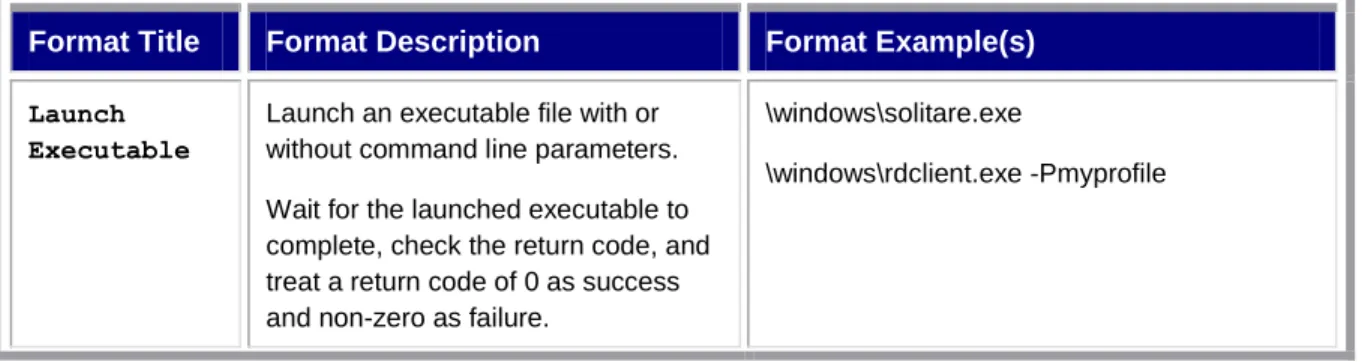
The possible formats for Package Commands are shown in Table 3 below: Table 3 – Package Command Formats
Format Title Format Description Format Example(s) Launch
Executable
Launch an executable file with or without command line parameters. Wait for the launched executable to complete, check the return code, and treat a return code of 0 as success and non-zero as failure.
\windows\solitare.exe
Format Title Format Description Format Example(s) Launch
Non-Executable
Launch a non-executable file by launching the executable file to which the non-executable file is associated based on file extension.
Wait for the launched executable to complete, check the return code, and treat a return code of 0 as success and non-zero as failure.
\temp\mysong.wma \temp\mypage.html \temp\myvideo.wmv Launch without waiting
Launch an executable file or non-executable file.
Do not wait for the launched executable to complete and proceed on the assumption that it was successful.
NOWAIT \windows\solitare.exe
NOWAIT \windows\rdclient.exe –Pmyprofile NOWAIT \temp\myvideo.wmv
Launch and ignore return code
Launch an executable file or non-executable file as described above. Wait for the launched executable to complete, but do not check the return code, and proceed on the assumption that it was successful.
WAITIGNORE \application\myapp.exe
Launch and invert return code
Launch an executable file or non-executable file as described above. Wait for the launched executable to complete, check the return code, and treat a return code of 0 as failure and non-zero as success.
INVERTRESULT \application\myapp.exe
Call a function in a DLL
Call a function exported by a DLL. The function must take a fixed number (from 0 to 5) of Unicode (i.e. LPTSTR) parameters and must return a DWORD result. The function will be passed the values of quoted string parameters specified on the command line. When the function returns, a return code of 0 will be treated as success and non-zero as failure.
The modifiers described above (NOWAIT, WAITIGNORE, and INVERTRESULT) can also be used to modify how the call is handled and how the return value is interpreted.
Format Title Format Description Format Example(s) Sleep Sleep (delay execution) for a
specified number of seconds.
SLEEP 30
Invoke a Batch File
Invoke a Batch File (see the following section on Batch Files).
Note that a Batch File cannot call another Batch File.
BATCH \temp\MyBatch.txt
Batch Files
Sometimes there is a need to do more than one thing in a Package Command. To make this possible, the “Invoke a Batch File” Package Format can be used. A Batch File allows multiple Package Commands to be placed into a text file, with one Package Command per line of the text file. Every line in the Batch File must have a trailing carriage return, as is standard for any text file.
Important:
If the last line in a Batch File does not have a trailing carriage return, it will not be executed. A Batch File would typically be included into a Package and would then be referenced from a Package Command by preceding the full path and file name of the Batch File with the “BATCH” keyword.
Important:
All Package Command Formats can be used for Package Commands in a Batch File except the “Invoke a Batch File” Format. In other words, a Batch File cannot call another Batch File. When executing a Batch File, the MSP Agent processes each line in the Batch File in the order they appear in the file. If any Package Command results in a failure (based on the rules defined for success and failure based on the Command Format used), then processing of the Batch File fails and the return code that caused the failure is returned. If all Package Commands in the Batch File are executed successfully, then the return code of the Batch File will be reported as zero (0).
Batch Files can be used for other purposes than Package Commands. In particular, the LockAndWipe Control Module allows a Batch File to be executed as part of a Wipe Action. Any time a Batch File is executed, it follows the same results defined above.
Windows Device Client MSP Agent Registry Interface
The Windows Device Client MSP Agent stores its configuration information in the Registry and, on some devices, stores this configuration Persistently in a Registry file in a folder in the super-Persistent File System (e.g., \Application\airbeam.reg). Since the MSP Agent leverages much of the same underlying code as the legacy AirBEAM Smart Client, the Registry interface for the MSP Agent is stored in the same location in the Registry and is Persisted in the same file in the File System.
Since both the MSP Agent and the RD Client perform deployment of Bundles and Packages, they share common code. As a result, they also share many of the same Registry Entries. For example, Relay Server Settings applied to a device when using the RD Client are stored identically to Relay Server Settings applied to a device when using a Provisioning Job.
Many of the individual Registry Entries defined by the legacy AirBEAM Smart Client continue to serve the identical function for the MSP Agent. These will not be detailed in this document but can be found in the following document titled “AirBEAM Smart Windows CE Client Product Reference Guide (P/N 72-63060-01 Rev. B)”, which is available for download from the AirBEAM Smart sub-section of the Mobility Software section at:
http://support.symbol.com/support/product/softwaredownloads.do.
In addition, there are a number of new Registry Entries that are used only by the MSP Agent and those are detailed starting on Page 25.
It is important to note that while the Registry interface of the MSP Agent can be used to configure the MSP Agent, it should not be used. The MSP Agent is designed to be configured using Settings Objects applied by Staging using the RD Client or by Provisioning Jobs using the MSP Agent itself. Changes applied through Settings Objects will be applied automatically to the Registry as required and Persisted automatically when appropriate. So, it should seldom be necessary or advisable to directly change the Registry interface of the MSP Agent.
It may be useful, however, to examine the Registry interface of the MSP Agent when troubleshooting a system. The process, documented here, is for important cases.
The base Registry path where AirBEAM Smart Client and the MSP Agent store their configuration is:
HKEY_LOCAL_MACHINE\SOFTWARE\AIRBEAM
The new Registry values that are used only by the MSP Agent are listed below:
ENABLE30
This Registry Value is used to indicate that the MSP Agent is enabled to function as an MSP Agent. This effectively disables other modes of client operation, including the legacy AirBEAM Smart Client and the legacy MSP 2.x Level 2 Agent.
It is important to note that all the components of the Windows Device Client are inter-related and inter-dependent. It is by design that any single device cannot be managed at any one time using more than one of the following: the legacy AirBEAM Smart Client, the legacy MSP 2.x Level 2 Agent, or the MSP Agent.
SCHEDULEMODE30
This Registry Value is used to indicate when the MSP Agent should automatically perform scheduled execution. The possible values for this Registry Value are:
Interval
This value indicates that the MSP Agent should schedule itself to execute if the device is active and the MSP Agent has not executed for at least the interval specified by the SCHEDULEINTERVAL30 Registry Value.
When the MSP Agent completes a cycle of execution, it will schedule itself to execute after the specified number of minutes. If the MSP Agent is executed for some unscheduled reason (e.g. is invoked from the MSP Agent UI), then it will schedule itself to execute after the specified number of minutes from the completion of that unscheduled execution. Fixed Time
This value indicates that the MSP Agent should schedule itself to execute at the same specified fixed time each day if the device is active.
When the MSP Agent completes a cycle of execution, it will schedule itself to execute the next time the current time on the device matches the hour specified by the
SCHEDULEHOUR30 Registry Value and the minute specified by the SCHEDULEMINUTE30 Registry Value.
Fixed Time and Interval
This value indicates that the MSP Agent should combine the functionality described above for Interval and Fixed Time by scheduling itself to execute at the soonest time that meets either criterion.
When the MSP Agent completes a cycle of execution, it will schedule itself to execute at the specified fixed time or after the specified interval, whichever comes first.
Important:
Scheduled execution does not mean that the MSP Agent will always or only execute at a scheduled time. Depending on the circumstances on the device, the MSP Agent may execute sooner (e.g. the Device User issues a request from the MSP Agent UI) or the MSP Agent may not execute until much later (e.g. the device is suspended at the scheduled time).
Scheduled execution does not mean that the MSP Agent will always communicate to the Relay Server when it executes. There could be connectivity issues that prevent the MSP Agent from reaching the Relay Server. There also could be Check-In Conditions that limit when the MSP Agent is allowed to attempt to contact the Relay Server. If the MSP Agent cannot contact the Relay Server on a given execution, it may do so on a subsequent scheduled execution.
SCHEDULEINTERVAL30
This Registry Value is used only when the SCHEDULELOADMODE30 Registry Value is Interval or Fixed Time and Interval. This Registry Value specifies the number of minutes to be used as the interval for scheduling execution of the MSP Agent.
A value of zero for this Registry Value indicates that interval-based scheduled execution should not occur.
SCHEDULEHOUR30
This Registry Value is used only when the SCHEDULELOADMODE30 Registry Value is Fixed Time or Fixed Time and Interval. This Registry Value specifies the hour part of the fixed time for scheduling execution of the MSP Agent.
SCHEDULEMINUTE30
This Registry Value is used only when the SCHEDULELOADMODE30 Registry Value is Fixed Time or Fixed Time and Interval. This Registry Value specifies the minute part of the time for scheduling execution of the MSP Agent.
SCHEDULEWAKE30
This Registry Value is used to indicate whether the MSP Agent should arrange to wake up the device if the device is suspended at time the MSP Agent has scheduled itself to execute. The possible values for this Registry Value are:
False – The MSP Agent does not arrange for the device to wake up if it is suspended at the next time the MSP Agent has scheduled itself to execute.
True – The MSP Agent does arrange for the device to wake up if it is suspended at the next time the MSP Agent has scheduled itself to execute.
It is important to note that this Registry Value only ensures that the device will wake up if it is suspended at the time the MSP Agent has scheduled itself to execute. It does not guarantee what the MSP Agent can or will do when it executes. See the notes for the Registry Value SCHEDULEMODE30 for examples.
FORCEREGDOC30
This Registry Value is used to indicate how often the MSP Agent should force a discovery document (regDoc) to be uploaded to the Relay Server even if the contents of that document has not changed. The MSP Server only updates the “Last Discovered” time for a device when a discovery document is received from that device. So there can be value in sending a discovery document even if no content has changed.
If this Registry Value is set to a value of 1 (as is done by the standard debug30 Package), then a discovery document is sent every time the MSP Agent Checks-In with the Relay Server, even if nothing in that discovery document has changed. This provides the best possible tracking of the “Last Discovered” time and may be useful when debugging or when performing demonstrations. But this would not be recommended for production use due to the potentially high impact it might have on network bandwidth. Some exceptions to this might be:
The MSP Agent is being configured to Check-In with the Relay Server relatively infrequently (e.g. every 4 hours) and it is reasonable to send a discovery document every time.
Plenty of network bandwidth is available between the devices and the Relay Server and the MSP Server and the Relay Server to handle the extra quantity of discovery documents that would be sent.
In most cases, it is better to set this Registry Value to a value larger than 1. The standard enable30 Package sets this Registry Value to a value of 32 and sets the
SCHEDULEINTERVAL30 Registry Value to a value of 15. That combination causes the MSP Agent to schedule execution every 15 minutes and to send a discovery document every 32 times it Checks-In with the Relay Server, whether the discovery document has changed or not. The net effect is that a discovery document is forced after 8 hours if it has not been sent sooner due to a change in content.
Important:
If your devices have Windows Device Client version 3.XX, use enable30 and debug30.
If your devices have RD Client or AirBEAM Client version 2.XX or older, use enable30legacy and debug30legacy.
It is important to note that this Registry Value only controls whether the sending of discovery documents is suppressed based on whether or not they have not changed. If the MSP Agent cannot contact the Relay Server, due to connectivity issues or due to limitations imposed by Check-In Conditions, then a discovery document may not be sent even if a sufficient number of attempts to Check-In with the Relay Server have been made. But once the MSP Agent is able to successfully Check-In with the Relay Server, a discovery document will be sent, whether it has changed or not, if the requisite number of attempts have been made since a discovery document was last sent.
DISABLEOPTIONS30
This Registry Value is used to disable various MSP Agent User Interface features. This Registry Value consists of a single value which can contain one or more options by ORing together multiple “bit options”. The possible bit option values for this Registry Value are:
Disable UI
This bit option value indicates that the MSP Agent User Interface should be disabled. This means that the device User will not be able to launch the will MSP Agent User Interface, such as:
o The icon for the MSP Agent will remain in the sys tray, but it will not be possible to launch the MSP Agent User Interface from that icon.
o The shortcut placed on the start menu when the Windows Device Client was installed will
not be able to be used to invoke the MSP Agent User Interface.
o The –U and –M options described above in the Programmatic Interface section will not be
able to be used to invoke the MSP Agent User Interface. Disable exit
This bit option value indicates that the Exit option will not be presented on the main menu of the MSP Agent User Interface. This means that the Device User will not be able to use the MSP Agent User Interface to cause the MSP Agent to stop executing.
Disable delete Package
This bit option value indicates that the Delete Package option should not be presented when a Package is selected from the Packages sub-menu of the MSP Agent User Interface. This means that the Device User will not be able to delete Packages from the MSP Agent User Interface.
CONTROLUPLOAD30
This Registry Value is used to control how often data collected by the device is uploaded to the Relay Server. When a device is configured to collect data on a defined schedule, it collects that data on the specified scheduled times as long as the device is not suspended at the time the sample is due. Collected data is only uploaded to the Relay Server when the MSP Agent Checks-In with the Relay Server.