© 1999-2015 EMS Database Management Solutions, Ltd.
Server
All rights reserved.
This manual documents EMS DB Comparer for SQL Server
No parts of this work may be reproduced in any form or by any means - graphic, electronic, or mechanical, including photocopying, recording, taping, or information storage and retrieval systems - without the written permission of the publisher.
Products that are referred to in this document may be either trademarks and/or registered trademarks of the respective owners. The publisher and the author make no claim to these trademarks.
While every precaution has been taken in the preparation of this document, the publisher and the author assume no responsibility for errors or omissions, or for damages resulting from the use of information contained in this document or from the use of programs and source code that may accompany it. In no event shall the publisher and the author be liable for any loss of profit or any other commercial damage caused or alleged to have been caused directly or indirectly by this document.
Use of this documentation is subject to the following terms: you may create a printed copy of this documentation solely for your own personal use. Conversion to other formats is allowed as long as the actual content is not altered or edited in any way.
Document generated on: 16.07.2015
DB Comparer for SQL Server
User's Manual
Table of Contents
Part I Welcome to DB Comparer for SQL Server!
6
...7 What's new ...8 System requirements ...9 Installation ...10 Registration ...12 How to register DB Comparer
...14 Version history
...19 Other EMS Products
Part II Getting started
26
...28 First time started
...30 Using context menus
... 30 DB Tree context m enu
... 30 Script context m enu
... 31 Definition area context m enu
...32 Selecting program language
...33 Switching windows
Part III Managing Projects
35
...36 Creating Project
...37 Opening / Saving Project
...39 Compare Project Wizard
... 39 Setting database options
... 40 Selecting databases
... 41 Selecting registered database
... 42 Setting com pare options
... 44 Select objects for com parison
... 46 Renam ed objects
...48 Viewing Summary Info
Part IV Working with Project
51
...53 Browsing Database Tree
...56 Viewing Objects Definition
...57 Information window
...59 Working with Modification Scripts
DB Comparer for SQL Server - User's Manual 4
© 1999-2015 EMS Database Management Solutions, Ltd.
...67 Report Designer
...72 Sample reports
Part VII DB Comparer Options
76
...77 Environment Options ... 77 Preferences ... 79 Project Options ... 80 Confirm ations ... 81 Com pare Options
... 83 Fonts ... 84 Languages ... 86 Colors ...88 Editor Options ... 88 General ... 90 Display ... 91 Color ... 92 Quick Code ...94 Visual Options ... 95 Bars and m enus
... 97 Trees and lists
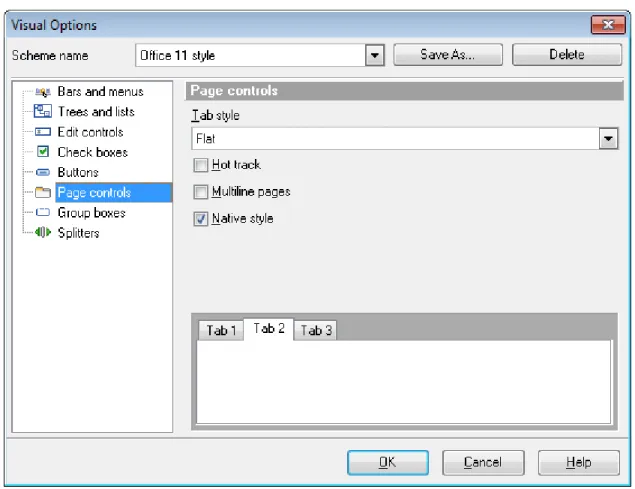
... 98 Edit controls ... 100 Check boxes ... 101 Buttons ... 103 Page controls ... 104 Group boxes ... 106 Splitters ...108 Keyboard Templates
Part VIII Console application
111
...112 Using console DB Comparer
Part IX Appendix
115
...115 Find Text dialog
...117 Replace Text dialog
...120 Customize toolbars and menus
Part
DB Comparer for SQL Server - User's Manual 6
© 1999-2015 EMS Database Management Solutions, Ltd.
1
Welcome to DB Comparer for SQL Server!
DB Comparer for SQL Server is an excellent tool for comparing SQL Server databases and discovering differences in their structures. You can view all the differences in
compared database objects and execute an automatically generated script to eliminate all or selected differences. A simple and intuitively comprehensive GUI allows you to work with several projects simultaneously, define comparison parameters, and alter modification scripts. Many other features are implemented to make your work with our database
comparison tool easy and fast.
Visit our web-site for details: http://www.sqlmanager.net/
Key features:
Comparing and synchronization of databases or schemas on different servers as well as on a single server
Comparing all database objects or selected ones only. Comparing by all or by selected properties of objects only
Visual representation of differences between databases with details and modification scripts for the different objects
Ability to synchronize databases manually step by step or automatically
Ability to generate reports with database differences. Possibility to add custom reports
Ability to automate the database comparison and synchronization using the Console Application
Working with several compare projects at once Saving and loading projects with all their parameters
A wide variety of options for comparison and synchronization Built-in SQL Script Editor with syntax highlight
New state-of-the-art graphical user interface and more... Product information: Homepage: http://www.sqlmanager.net/en/products/mssql/dbcomparer Support Ticket System: http://www.sqlmanager.net/support
1.1
What's new
Version Release date
DB Comparer for SQL Server 4.1 July 20, 2015
What's new in DB Comparer for SQL Server? Dependencies processing mechanism enhanced.
New objects support: Contracts, Services, Routes, Remote Service Binding, Message Types.
The support of defaults for procedure parameters added.
In some cases the procedure body was not displayed. Fixed now. The comparison of procedures bodies has been improved.
The new properties for Users and Certificates are supported now. The support of 'Compression' table property added.
Lots of other improvements and bug-fixes.
See also:
DB Comparer for SQL Server - User's Manual 8
© 1999-2015 EMS Database Management Solutions, Ltd.
1.2
System requirements
300 megahertz (MHz) processor; 600 MHz or faster processor recommended Microsoft Windows NT4 with SP4 or later, Microsoft Windows 2000, Microsoft Windows 2000 Server, Microsoft Windows XP, Microsoft Windows 2003 Server, Microsoft Windows 2008 Server, Microsoft Windows Vista, Microsoft Windows 7, Microsoft Windows 8, Microsoft Windows 8.1
64 MB of RAM or more; 128 MB or more recommended 20MB of available HD space for program installation
Super VGA (800x600) or higher-resolution video adapter and monitor; Super VGA (1024x768) or higher-resolution recommended
Microsoft Mouse or compatible pointing device
Microsoft Data Access Components (MDAC) or SQL Server Native Client Possibility to connect to any local or remote SQL Server™
1.3
Installation
If you are installing DB Comparer for SQL Server for the first time on your PC: download the DB Comparer for SQL Server distribution package from the download page available at our site;
unzip the downloaded file to any local directory, e.g. C :\unzippe d;
run M sC o m pa r e r Se t up.e xe from the local directory and follow the instructions of the installation wizard;
after the installation process is completed, find the DB Comparer shortcut in the corresponding group of Windows Start menu.
If you want to upgrade an installed copy of DB Comparer for SQL Server to the latest version:
download the DB Comparer for SQL Server distribution package from the download page available at our site;
unzip the downloaded file to any local directory, e.g. C :\unzippe d; close DB Comparer application if it is running;
run M sC o m pa r e r Se t up.e xe from the local directory and follow the instructions of the installation wizard.
See also:
DB Comparer for SQL Server - User's Manual 10
© 1999-2015 EMS Database Management Solutions, Ltd.
1.4
Registration
To make it easier for you to purchase our products, we have contracted with share-it! registration service. The share-it! order process is protected via a secure connection and makes online ordering by credit/debit card quick and safe. The following information about share-it! is provided for your convenience.
Share-it! is a global e-commerce provider for software and shareware sales via the Internet. Share-it! accepts payments in US Dollars, Euros, Pounds Sterling, Japanese Yen, Australian Dollars, Canadian Dollars or Swiss Franks by Credit Card (Visa, MasterCard/ EuroCard, American Express, Diners Club), Bank/Wire Transfer, Check or Cash.
If you have ordered EMS software online and would like to review your order information, or if you have questions about ordering, payments, or shipping procedures, please visit our Customer Care Center, provided by Share-it!
Please note that all of our products are delivered via ESD (Electronic Software Delivery) only. After purchase you will be able to immediately download the registration keys or passwords and download links for archives of full versions. Also you will receive a copy of registration keys or passwords by e-mail. Please make sure to enter a valid e-mail address in your order. If you have not received the keys within 2 hours, please, contact us at
To obtain MORE INFORMATION on this product, visit us at http://sqlmanager.net/en/ products/mssql/dbcomparer
Product distribution
EMS DB Comparer for SQL Server (Business license) + 1-Year Maintenance*
Register Now!
EMS DB Comparer for SQL Server (Business license) + 2-Year Maintenance*
EMS DB Comparer for SQL Server (Business license) + 3-Year Maintenance*
EMS DB Comparer for SQL Server (Non-commercial license) + 1-Year Maintenance*
EMS DB Comparer for SQL Server (Non-commercial license) + 2-Year Maintenance*
EMS DB Comparer for SQL Server (Non-commercial license) + 3-Year Maintenance*
EMS DB Comparer for SQL Server (Trial version) Download Now!
*EMS Maintenance Program provides the following benefits:
Free software bug fixes, enhancements, updates and upgrades during the maintenance period
Free unlimited communications with technical staff for the purpose of reporting Software failures
Free reasonable number of communications for the purpose of consultation on operational aspects of the software
After your maintenance expires, you will not be able to update your software or get technical support. To protect your investments and have your software up-to-date, you need to renew your maintenance.
You can easily reinitiate/renew your maintenance with our online, speed-through
Maintenance Reinstatement/Renewal Interface. After reinitiating/renewal you will receive a confirmation e-mail with all the necessary information.
See also:
DB Comparer for SQL Server - User's Manual 12
© 1999-2015 EMS Database Management Solutions, Ltd.
1.5
How to register DB Comparer
If you have not registered your copy of DB Comparer for SQL Server yet, you can do it by selecting the Help | Register DB Comparer for SQL Server main menu item or by
selecting the Help | About main menu item and pressing the Register Now button to call the Register DB Comparer for SQL Server dialog.
To register your newly purchased copy of EMS DB Comparer for SQL Server, perform the following steps:
receive the notification letter from Share-it! with the registration info; enter the Registration Name and the Registration Key from this letter;
make sure that the registration process has been completed successfully – check the registration information in the About DB Comparer for SQL Server dialog (use the Help | About main menu item to open this dialog).
See also:
DB Comparer for SQL Server - User's Manual 14
© 1999-2015 EMS Database Management Solutions, Ltd.
1.6
Version history
Product name Version Release date
DB Comparer for SQL Server Version 4.0 March 24, 2014
DB Comparer for SQL Server Version 3.3.2.2 October 7, 2009
DB Comparer for SQL Server Version 3.2.0.1 October 15, 2008
DB Comparer 2007 for SQL Server Version 3.1.0.1 April 10, 2008 DB Comparer 2007 for SQL Server Version 3.0.0.1 September 17,
2007
DB Comparer 2005 for SQL Server Version 2.2.0.1 August 28, 2006 DB Comparer 2005 for SQL Server Version 2.1.0.1 April 17, 2006 DB Comparer 2005 for SQL Server Version 2.0.0.1 March 9, 2006
MS SQL DB Comparer Version 1.3.0.1 March 8, 2005
MS SQL DB Comparer Version 1.2.0.1 February 11, 2004
MS SQL DB Comparer Version 1.1.0.1 November 10,
2003
MS SQL DB Comparer Version 1.0.0.1 May 14, 2003
Full version history is available at http://www.sqlmanager.net/products/mssql/ dbcomparer/news
Version 4.0
Significantly improved algorithm of object comparison and script generation.
Now it is possible to search and analyze renamed objects. The application analyzes databases and creates a list of objects that might have been renamed.
Added wizard for project work.
Advanced list of compared object properties allows to make database analysis more complete.
Significantly improved work with object dependencies. Added support of the following objects:
FullText Catalogs Symmetric Keys Asymmetric Keys Certificates
Added support of new features of Windows 7: progress indicator at task pane and project jump list.
Other small improvements and bug-fixes.
Version 3.3
Unicode support for metadata is implemented.
"Load last password for new projects" option worked sometimes wrong Fixed now. Other small improvements and fixes.
Version 3.2
Indexes with automatically generated names used to be compared improperly. Fixed now.
Database comparison speed is considerably increased. Other minor improvements and bug-fixes.
Version 3.1
Partition Functions used to be generated before the Partition Schemes were created. Fixed now
The functions with DECIMAL parameters different in dimension used to be compared improperly. Fixed now
When synchronizing constraints stored at servers of 2000 and 2005 versions, the Default value for SQL Server 2005 used to be generated in double parentheses (e.g. ((1))). Fixed now
When comparing an SQL Server 2000 database with the one on SQL Server 2000, identical UDFs used to be marked as different. Fixed now
When comparing databases on Chinese Windows localization, the "Error: RichEdit line insertion error" message used to appear. Fixed now
Other minor improvements and bug-fixes Version 3.0
Comparing and synchronization of databases or schemas on different servers as well as on a single server
Comparing all database objects or selected ones only. Comparing by all or selected properties of objects only
Visual representation of the differences between databases with details and modification scripts for the different objects
Ability to synchronize databases manually step by step or automatically
Ability to generate reports with database differences. Ability to add custom reports Ability to automate the database comparison and synchronization using the Console Application
Working with several compare projects simultaneously Saving and loading projects with all their parameters
A wide variety of options for comparison and synchronization Built-in SQL Script editor with syntax highlight
New state-of-the-art graphical user interface Latest SQL Server version support
Scroll to top
Version 2.2
Added the ability to filter analyzed objects using regular expressions. This allows one to analyze only required objects, and increases the speed of comparing and analyzing processes
Visual representation of definition differences implemented
The 'Hide identical objects' option added. This option allows one to hide identical objects in the DB Tree
Large databases are now compared faster
Ability to refresh different types of objects separately implemented. This may be helpful when you synchronize databases in the step-by-step style
DB Comparer for SQL Server - User's Manual 16
© 1999-2015 EMS Database Management Solutions, Ltd.
default (without defining the /E option)
The 'Fill Table View on load' option added. This option can be used to increase the speed of comparing process and decrease memory usage
The ability to set the default directories for grid exports and reports storage added No more delays occur while navigating DB Tree with large databases
Fixed the saving passwords error
Procedures were not compared correctly in some cases. Fixed now Functions were not compared correctly in some cases. Fixed now Sometimes an error occurred while refreshing databases. Fixed now
The ‘Group by schemas’ option added. This option allows to group objects in DB Tree by schema/owner
Procedures containing differences in their parameters were not synchronized correctly. Fixed now
UDFs were compared incorrectly. Fixed now and other minor improvements and small bug-fixes.
Scroll to top
Version 2.1
Now the direction of synchronization can be saved in the project file (also can be used by the Console application)
Export to Excel, Text, XML and HTML formats is now available from the Grid view
New, more detailed console application log is implemented
Now it is possible to select fields from the list when creating user reports
Hints for the objects in tree are now displayed correctly
When creating a new report, its pages used to be missing. Fixed now
When changing Compare Options for a project, the Access Violation error emerged. Fixed now
Scroll to top
Version 2.0
Completely re-designed top-of-the-art user interface
Ample opportunities for customizing your working environment New way of browsing differences between compared databases Easy viewing of all different properties of database objects
Ability to print a pre-defined differences report or create a new one New advanced comparison options
Improved sync script generation
Multilanguage support
A lot of other improvements and bug fixes and more...
Scroll to top
Version 1.3
Fixed a bug concerned with incomplete maximization of the main program window Some minor visual improvements and bug-fixes.
Scroll to top
Version 1.2
schedule your database structure synchronization routine using the database utility Now DB Comparer does not try to create a primary key if the table already has one. The utility drops the existing primary key and creates another one
Using this version you can compare and synchronize primary keys regardless of key names.
Now you can use the tool to compare names of fields and field order in views. Check the 'Names of Fields' and the 'Order of Fields' options within the Compare Options
section of the Environment Options dialog
Now you can view project properties without actually loading the project file - just open it while holding down the Shift key
We have implemented synchronous scrolling in the Master Definition and Target Definition windows
Now project files are associated with particular database comparison utilities Some small improvements and bug fixes
Scroll to top
Version 1.1
Significantly increased the comparison speed for the databases with large amount of objects
Now the fields order is considered on comparing tables. You can enable or disable this feature by using the 'Field order' option available within the Compare Options tab of the 'Project Options' dialog
Now you can view the project options just before the project loading. Check the 'Show Project Options before Loading' option available within the Project Options
section of the Environment Options dialog to enable this feature
Added two new options to the Project Options section of the Environment Options
dialog - 'Enable Forward Navigation' and 'Enable Backward Navigation'. Using these options you can customize the navigation behavior. If the forward navigation is
enabled, you can navigate between the generated SQL scripts by selecting the proper objects from object trees, and vice versa (if the backward navigation is enabled) Now you can copy the Object definition to the clipboard
Some small improvements and bug-fixes
Scroll to top
Version 1.0 Basic features:
Comparing databases on one server as well as on different servers
Synchronous navigation between database objects with displaying the corresponding scripts for modifying databases
Possibility of execution modification statements one by one or all together Possibility of editing modification statements and changing their order Built-in SQL Script Editor with syntax highlight
An ability to work with several compare projects at once, as well as save and load projects with all their parameters
Customizable and easy-to-use MDI Interface
A wide variety of options for customization
Keyboard templates for faster editing SQL scripts and more...
DB Comparer for SQL Server - User's Manual 18
© 1999-2015 EMS Database Management Solutions, Ltd. See also:
1.7
Other EMS Products
Quick navigationMySQL Microsoft SQL PostgreSQL InterBase / FireBird
Oracle IBM DB2 Tools & components
MySQL
SQL Management Studio for MySQL
EMS SQL Management Studio for MySQL is a complete solution for database administration and development. SQL Studio unites the must-have tools in one powerful and easy-to-use
environment that will make you more productive than ever before!
SQL Manager for MySQL
Simplify and automate your database development process, design, explore and maintain existing databases, build compound SQL query statements, manage database user rights and manipulate data in different ways.
Data Export for MySQL
Export your data to any of 20 most popular data formats, including MS Access, MS Excel, MS Word, PDF, HTML and more.
Data Import for MySQL
Import your data from MS Access, MS Excel and other popular formats to database tables via user-friendly wizard interface.
Data Pump for MySQL
Migrate from most popular databases (MySQL, PostgreSQL, Oracle, DB2, InterBase/Firebird, etc.) to MySQL.
Data Generator for MySQL
Generate test data for database testing purposes in a simple and direct way. Wide range of data generation parameters.
DB Comparer for MySQL
C ompare and synchronize the structure of your databases. Move changes on your development database to production with ease.
DB Extract for MySQL
C reate database backups in the form of SQL scripts, save your database structure and table data as a whole or partially.
SQL Query for MySQL
Analyze and retrieve your data, build your queries visually, work with query plans, build charts based on retrieved data quickly and more.
Data Comparer for MySQL
C ompare and synchronize the contents of your databases. Automate your data migrations from development to production database.
DB Comparer for SQL Server - User's Manual 20
© 1999-2015 EMS Database Management Solutions, Ltd. Microsoft SQL
SQL Management Studio for SQL Server
EMS SQL Management Studio for SQL Server is a complete solution for database administration and development. SQL Studio unites the must-have tools in one powerful and easy-to-use environment that will make you more productive than ever before!
EMS SQL Backup for SQL Server
Perform backup and restore, log shipping and many other regular maintenance tasks on the whole set of SQL Servers in your company.
SQL Administrator for SQL Server
Perform administrative tasks in the fastest, easiest and most efficient way. Manage maintenance tasks, monitor their performance schedule, frequency and the last execution result.
SQL Manager for SQL Server
Simplify and automate your database development process, design, explore and maintain existing databases, build compound SQL query statements, manage database user rights and manipulate data in different ways.
Data Export for SQL Server
Export your data to any of 20 most popular data formats, including MS Access, MS Excel, MS Word, PDF, HTML and more
Data Import for SQL Server
Import your data from MS Access, MS Excel and other popular formats to database tables via user-friendly wizard interface.
Data Pump for SQL Server
Migrate from most popular databases (MySQL, PostgreSQL, Oracle, DB2, InterBase/Firebird, etc.) to Microsoft® SQL Server™.
Data Generator for SQL Server
Generate test data for database testing purposes in a simple and direct way. Wide range of data generation parameters.
DB Comparer for SQL Server
C ompare and synchronize the structure of your databases. Move changes on your development database to production with ease.
DB Extract for SQL Server
C reate database backups in the form of SQL scripts, save your database structure and table data as a whole or partially.
SQL Query for SQL Server
Analyze and retrieve your data, build your queries visually, work with query plans, build charts based on retrieved data quickly and more.
Data Comparer for SQL Server
C ompare and synchronize the contents of your databases. Automate your data migrations from development to production database.
Scroll to top
SQL Management Studio for PostgreSQL
EMS SQL Management Studio for PostgreSQL is a complete solution for database administration and development. SQL Studio unites the must-have tools in one powerful and easy-to-use environment that will make you more productive than ever before!
SQL Manager for PostgreSQL
Simplify and automate your database development process, design, explore and maintain existing databases, build compound SQL query statements, manage database user rights and manipulate data in different ways.
Data Export for PostgreSQL
Export your data to any of 20 most popular data formats, including MS Access, MS Excel, MS Word, PDF, HTML and more
Data Import for PostgreSQL
Import your data from MS Access, MS Excel and other popular formats to database tables via user-friendly wizard interface.
Data Pump for PostgreSQL
Migrate from most popular databases (MySQL, SQL Server, Oracle, DB2, InterBase/Firebird, etc.) to PostgreSQL.
Data Generator for PostgreSQL
Generate test data for database testing purposes in a simple and direct way. Wide range of data generation parameters.
DB Comparer for PostgreSQL
C ompare and synchronize the structure of your databases. Move changes on your development database to production with ease.
DB Extract for PostgreSQL
C reate database backups in the form of SQL scripts, save your database structure and table data as a whole or partially.
SQL Query for PostgreSQL
Analyze and retrieve your data, build your queries visually, work with query plans, build charts based on retrieved data quickly and more.
Data Comparer for PostgreSQL
C ompare and synchronize the contents of your databases. Automate your data migrations from development to production database.
Scroll to top
InterBase / Firebird
SQL Management Studio for InterBase/Firebird
EMS SQL Management Studio for InterBase and Firebird is a complete solution for database administration and development. SQL Studio unites the must-have tools in one powerful and easy-to-use environment that will make you more productive than ever before!
DB Comparer for SQL Server - User's Manual 22
© 1999-2015 EMS Database Management Solutions, Ltd.
Data Export for InterBase/Firebird
Export your data to any of 20 most popular data formats, including MS Access, MS Excel, MS Word, PDF, HTML and more
Data Import for InterBase/Firebird
Import your data from MS Access, MS Excel and other popular formats to database tables via user-friendly wizard interface.
Data Pump for InterBase/Firebird
Migrate from most popular databases (MySQL, SQL Server, Oracle, DB2, PostgreSQL, etc.) to InterBase/Firebird.
Data Generator for InterBase/Firebird
Generate test data for database testing purposes in a simple and direct way. Wide range of data generation parameters.
DB Comparer for InterBase/Firebird
C ompare and synchronize the structure of your databases. Move changes on your development database to production with ease.
DB Extract for InterBase/Firebird
C reate database backups in the form of SQL scripts, save your database structure and table data as a whole or partially.
SQL Query for InterBase/Firebird
Analyze and retrieve your data, build your queries visually, work with query plans, build charts based on retrieved data quickly and more.
Data Comparer for InterBase/Firebird
C ompare and synchronize the contents of your databases. Automate your data migrations from development to production database.
Scroll to top
Oracle
SQL Management Studio for Oracle
EMS SQL Management Studio for Oracle is a complete solution for database administration and development. SQL Studio unites the must-have tools in one powerful and easy-to-use
environment that will make you more productive than ever before!
SQL Manager for Oracle
Simplify and automate your database development process, design, explore and maintain existing databases, build compound SQL query statements, manage database user rights and manipulate data in different ways.
Data Export for Oracle
Export your data to any of 20 most popular data formats, including MS Access, MS Excel, MS Word, PDF, HTML and more.
Data Import for Oracle
Import your data from MS Access, MS Excel and other popular formats to database tables via user-friendly wizard interface.
Data Pump for Oracle
Migrate from most popular databases (MySQL, PostgreSQL, MySQL, DB2, InterBase/Firebird, etc.) to Oracle
Data Generator for Oracle
Generate test data for database testing purposes in a simple and direct way. Wide range of data generation parameters.
DB Comparer for Oracle
C ompare and synchronize the structure of your databases. Move changes on your development database to production with ease.
DB Extract for Oracle
C reate database backups in the form of SQL scripts, save your database structure and table data as a whole or partially.
SQL Query for Oracle
Analyze and retrieve your data, build your queries visually, work with query plans, build charts based on retrieved data quickly and more.
Data Comparer for Oracle
C ompare and synchronize the contents of your databases. Automate your data migrations from development to production database.
Scroll to top
DB2
SQL Management Studio for DB2
EMS SQL Management Studio for DB2 is a complete solution for database administration and development. SQL Studio unites the must-have tools in one powerful and easy-to-use environment that will make you more productive than ever before!
SQL Manager for DB2
Simplify and automate your database development process, design, explore and maintain existing databases, build compound SQL query statements, manage database user rights and manipulate data in different ways.
Data Export for DB2
Export your data to any of 20 most popular data formats, including MS Access, MS Excel, MS Word, PDF, HTML and more.
Data Import for DB2
Import your data from MS Access, MS Excel and other popular formats to database tables via user-friendly wizard interface.
Data Pump for DB2
Migrate from most popular databases (MySQL, PostgreSQL, Oracle, MySQL, InterBase/Firebird, etc.) to DB2
Data Generator for DB2
Generate test data for database testing purposes in a simple and direct way. Wide range of data generation parameters.
DB Comparer for DB2
C ompare and synchronize the structure of your databases. Move changes on your development database to production with ease.
DB Comparer for SQL Server - User's Manual 24
© 1999-2015 EMS Database Management Solutions, Ltd.
data as a whole or partially.
SQL Query for DB2
Analyze and retrieve your data, build your queries visually, work with query plans, build charts based on retrieved data quickly and more.
Data Comparer for DB2
C ompare and synchronize the contents of your databases. Automate your data migrations from development to production database.
Scroll to top
Tools & components
Advanced Data Export
Advanced Data Export C omponent Suite (for Borland Delphi and .NET) will allow you to save your data in the most popular office programs formats.
Advanced Data Export .NET
Advanced Data Export .NET is a component suite for Microsoft Visual Studio .NET 2003, 2005, 2008 and 2010 that will allow you to save your data in the most popular data formats for the future viewing, modification, printing or web publication. You can export data into MS Access, MS Excel, MS Word (RTF), PDF, TXT, DBF, C SV and more! There will be no need to waste your time on tiresome data conversion - Advanced Data Export will do the task quickly and will give the result in the desired format.
Advanced Data Import
Advanced Data Import™ C omponent Suite for Delphi® and C ++ Builder® will allow you to import your data to the database from files in the most popular data formats.
Advanced PDF Generator
Advanced PDF Generator for Delphi gives you an opportunity to create PDF documents with your applications written on Delphi® or C ++ Builder®.
Advanced Query Builder
Advanced Query Builder is a powerful component suite for Borland® Delphi® and C ++ Builder® intended for visual building SQL statements for the SELEC T, INSERT, UPDATE and DELETE clauses.
Advanced Excel Report
Advanced Excel Report for Delphi is a powerful band-oriented generator of template-based reports in MS Excel.
Advanced Localizer
Advanced Localizer™ is an indispensable component suite for Delphi® for adding multilingual support to your applications.
Source Rescuer
EMS Source Rescuer™ is an easy-to-use wizard application for Borland Delphi® and C + +Builder® which can help you to restore your lost source code.
Part
DB Comparer for SQL Server - User's Manual 26
© 1999-2015 EMS Database Management Solutions, Ltd.
2
Getting started
DB Comparer for SQL Server gives you an opportunity to contribute to efficient SQL Server administration and development by running database comparison and
synchronization operations easily and quickly.
The succeeding chapters of this document are intended to inform you about the tools implemented in the utility. Please see the instructions below to learn how to perform various operations in the easiest way.
First time started Using context menus
Selecting program language
See also:
First time started Managing Projects Working with Project SQL Script Editor Reports management DB Comparer Options Console application
DB Comparer for SQL Server - User's Manual 28
© 1999-2015 EMS Database Management Solutions, Ltd.
2.1
First time started
This is how DB Comparer for SQL Server looks when you start it for the first time.
The main menu allows you to perform various operations.
Project (create a new project or open an existing one, view/edit database connection settings and project compare options, save the current project, close the project, exit the application).
Edit the database synchronization script using SQL Script Editor effectively, activate/ deactivate the Source object definition and Target object definition windows, show/hide the reports panel.
Manage toolbars within the View menu.
Customize application options and localization, Keyboard Templates using items of the Options menu.
Manage DB Comparer Windows.
Access Registration information and product documentation using the corresponding items available within the Help menu.
To start working with your SQL Server databases, you should first create a new project
(or open a project if it already exists) and adjust database connection parameters and
project compare options for the project.
By default the corresponding New Project, Open Project buttons are available on the toolbar and within the Project menu.
When the project is created/opened and the settings are specified, you can proceed to
Working with Project.
See also:
Using context menus
Selecting program language Switching windows
DB Comparer for SQL Server - User's Manual 30
© 1999-2015 EMS Database Management Solutions, Ltd.
2.2
Using context menus
The context menus are aimed at facilitating your work with DB Comparer for SQL Server: you can perform a variety of operations using context menu items.
Select an element of DB Comparer project interface and right-click it to call its context menu.
DB Tree context menu Script context menu
Definition area context menu
See also:
First time started
Selecting program language
2.2.1
DB Tree context menu
The context menu of the DB Tree allows you to: open all scripts in SQL Script Editor;
refresh all objects of the type (depending on the current selection in DB Tree); open a simple printing report of the tree;
expand/collapse the selected node in the tree; enable Forward Navigation for the project.
See also:
Script context menu
Definition area context menu
2.2.2
Script context menu
The context menu of a modification script allows you to:
execute the selected modification script(s);
execute all modification scripts of the project;
open the selected modification script(s) in SQL Script Editor; open all modification scripts of the project in SQL Script Editor; manage the order of the modification scripts;
copy the text of the selected script(s) to Windows clipboard.
See also:
DB Tree context menu Definition area context menu
2.2.3
Definition area context menu
The context menu of the Object Definition area allows you to: copy the object DDL definition to Windows clipboard;
enable synchronous scrolling of the Source object definition and the Target object definition text.
See also:
DB Tree context menu Script context menu
DB Comparer for SQL Server - User's Manual 32
© 1999-2015 EMS Database Management Solutions, Ltd.
2.3
Selecting program language
The Select Language dialog allows you to select one of the available interface localizations to be applied to DB Comparer for SQL Server.
To open this dialog, use the Options | Select Program Language main menu item. The window contains the list of available languages according to the directory specified within the Localization section of the Environment Options dialog.
Select a language in the list and click OK to apply changes.
See also:
First time started Using context menus
2.4
Switching windows
The Windows Toolbar allows you to switch between child windows easily, like in Windows Task Bar.
To activate the window you need, simply click one of the window buttons.
See also:
Viewing Summary Info Browsing Database Tree Viewing Objects Definition Information window
Part
3
Managing Projects
DB Comparer for SQL Server allows you to create, save and open saved pr o je c t s. To make your work easier, you can create a project, configure and save it, and open the project when necessary instead of setting all the parameters each time you need to run database comparison in DB Comparer for SQL Server.
You can modify options of an existing project any time your work with it. To do so, load
the project in DB Comparer, then press the Project Options button on the toolbar. You can also use the C t r l+P shortcut for the same purpose.
Creating Project
Opening / Saving Project Compare Project Wizard
See also:
Getting started Working with Project SQL Script Editor Reports management DB Comparer Options Console application
DB Comparer for SQL Server - User's Manual 36
© 1999-2015 EMS Database Management Solutions, Ltd.
3.1
Creating Project
To start working with DB Comparer for SQL Server, you should either create a new project or open an existing one. The project file contains connection information about the
Source and the target databases a number of comparison options.
To create the new project select the Project | New Project main menu item or use the New Project button on the toolbar (you can also use the C t r l+N shortcut for the same purpose).
Then you need to set connection properties for source and target databases.
See also:
Opening / Saving Project Compare Project Wizard Viewing Summary Info
3.2
Opening / Saving Project
To open an existing DB Comparer project, select the Project | Open Project... main menu item or use the Open Project...button on the toolbar. Alternatively, you can use the C t r l+O shortcut for the same purpose.
To save a DB Comparer project, select the Project | Save Project (Save Project As...) main menu item or use the Save Project ( Save Project As) button on the toolbar. Alternatively, you can use the C t r l+S / C t r l+Alt +S shortcuts for the same purpose.
If this is the first time that this project is being saved or if you select Save Project As..., you are to specify the path to the project file and provide a name for the project file within the Save project options dialog.
DB Comparer for SQL Server - User's Manual 38
© 1999-2015 EMS Database Management Solutions, Ltd. See also:
Creating Project
Compare Project Wizard Viewing Summary Info
3.3
Compare Project Wizard
The way of setting project options and comparison settings when creating or editing a project is to use Compare Project Wizard.
To create a new project using Compare Project Wizard, select the Project | New Project main menu item or use the New Project button on the toolbar (you can also use the C t r l+Alt +N shortcut for the same purpose).
To open an existing DB Comparer project, select the Project | Open Project... main menu item or use the Open Project...button on the toolbar. Alternatively, you can use the C t r l+O shortcut for the same purpose.
When the comparison process is finished, the project will loaded into the DB Comparer application automatically, and you will be able to start working with the project.
Wizard steps:
Setting database options Setting compare options Select objects for compare Renamed objects
See also:
Creating Project
Opening / Saving Project Viewing Summary Info
3.3.1
Setting database options
Database connection properties for the source and target databases are set in the same way. If both the source and target databases are located on the same server, you can check the Both databases on the same server option and set all the properties (except for the database/schema name) only once.
DB Comparer for SQL Server - User's Manual 40
© 1999-2015 EMS Database Management Solutions, Ltd. Connection options
Specify the host you are going to work with: type in the host name in the Host field or use the drop-down list to select one among the found servers.
Please note that if SQL Server is installed as a named instance, you should enter the name of your machine and the instance name in the Host field in the following format: computer_name\sqlserver_instance_name (e.g. "MYCOMPUTER\SQLEXPRESS").
Authentication type
Specify the type of SQL Server authentication to be used for the connection: SQ L Se r v e r or Windows authentication. It is strongly recommended to avoid using SQL Server authentication with "sa" as the login.
If SQL Server has been selected as the authentication type, you should also provide authorization settings: Login and Password.
After that it is necessary to specify the source and target databases you are going to work with: type in the database name in the Database field or use the button to select one in the Se le c t da t a ba se list.
For your convenience the Connection timeout option is implemented: set this option to optimize the performance of the utility upon connection to your instance of SQL Server. Use the Command timeout option to set time available for command execution.
If you are using the EMS SQL Management Studio for SQL Server version of DB Comparer for SQL Server then the Select registered database button is available. Click this button to pick a database already registered in the EMS SQL Management Studio in the
Select Host or Database dialog.
When done, press the Next button to set compare options.
Next step >
See also:
Setting database options Setting compare options Select objects for compare Renamed objects
3.3.1.1 Selecting databases
When the server connection settings are specified, you should select databases for comparison using the Select database dialog.
When you are done, press OK to apply the database selection.
3.3.1.2 Selecting registered database
Use this dialog to select a database for comparison. This dialog is available only in EMS SQL Management Studio version of DB Comparer for SQL Server.
DB Comparer for SQL Server - User's Manual 42
© 1999-2015 EMS Database Management Solutions, Ltd. the list.
Select the necessary database and click the OK button.
Database registration information will be filled on the first step automatically.
3.3.2
Setting compare options
Set comparison options for the project.
Compare options
Here you can specify whether to perform F ull da t a ba se or Sc he m a t o sc he m a comparing. In the latter case select So ur c e and T a r ge t schemas by clicking the ellipsis button of the corresponding controls.
Select object type in the Database object tree, set a flag to include the object type into the comparison process.
The Select All and Unselect All buttons in the popup menu are implemented to make option selection easier.
Define Compare properties in the corresponding group within the Compare Options tab.
Filter Options
For your convenience the filter of object names is added. By default, filt e r by m a sk is used. A valid mask consists of literal characters, sets, and wildcards. Each literal character must match a single character in the string. The comparison to literal
characters is case-insensitive. Each set begins with an opening bracket ([) and ends with a closing bracket (]). You can use standard wildcards such as asterix (*) or percent sign ( %) which are the same, or the question mark (?).
To apply filter using regular expression, check the Regular expression option. Enable Case sensitive option to make the regular expression filter case sensitive.
Always exclude following objects
Enter the objects (one on the line) that you do not want to be compared.
To delete filter condition you may use the Clear Filter button of the Database objects popup menu.
Analyze dependencies
Enable this option to sort the modification scripts taking object dependencies into consideration.
Case sensitive comparing
Enable this option to make the comparing process case sensitive.
Note that you can use a Case sensitive filter as well, just turn on the corresponding option.
DB Comparer for SQL Server - User's Manual 44
© 1999-2015 EMS Database Management Solutions, Ltd. Analyze renamed objects
This option enables/disables comparing tables and fields which might have been renamed.
Add comments to generated script
Use this option to toggle comments in modification script.
Trim table and field description after n characters
This option enables/disables cutting off the description for tables and fields after the specified number of characters.
< Previous step Next step >
See also:
Setting database options Setting compare options Select objects for compare Renamed objects
3.3.3
Select objects for comparison
The objects that exist in both databases are displayed in the On Source and Target window.
The objects that exist in either source or target database are displayed in On Source Only and On Target Only window correspondingly.
You need to check the objects to be synchronized.
Please note that you need to have sufficient privileges to be able to write to the source and/or destination database on SQL Server.
< Previous step Next step >
See also:
Setting database options Setting compare options
DB Comparer for SQL Server - User's Manual 46
© 1999-2015 EMS Database Management Solutions, Ltd.
3.3.4
Renamed objects
At this step you can see the list of objects which might have been renamed. This list includes similar objects with different names in source and target databases.
The script for the selected objects is displayed in the bottom part of the window.
Click the Compare button to start the database comparison process.
After the comparison has finished, the project is loaded in DB Comparer automatically and you can start working with it.
<Previous step
See also:
Setting database options Setting compare options Select objects for compare Renamed objects
DB Comparer for SQL Server - User's Manual 48
© 1999-2015 EMS Database Management Solutions, Ltd.
3.4
Viewing Summary Info
After you have created/opened a project, the selected databases/schemas are analyzed for differences. The Progress window displays the total progress of the comparison process and the sequence of operations performed by the utility appears.
Note: The comparing process cannot be stopped if renamed objects were found.
If the Show summary after comparing option is selected in the Confirmations section of the Environment Options dialog, the Summary Info window appears upon completion of the comparing process. This window contains information concerning the differences between the compared databases/schemas.
To disable this window for the future projects, check the Do not show summary option.
See also:
Creating Project
Opening / Saving Project Compare Project Wizard
Part
4
Working with Project
Having created or opened a project, you see the Project window.
By default, the Project window contains the Database Tree, Source and Target Object Definitions, Modification Scripts and Information windows.
Browsing Database Trees Viewing Objects Definition Information window
Working with Modification Scripts Switching windows
When working with your project, you are provided with a powerful project toolbar which is available at the top of the project window.
Open project in Project Wizard. Perform a full recompare
DB Comparer for SQL Server - User's Manual 52
© 1999-2015 EMS Database Management Solutions, Ltd.
Show/hide All objects node in the Database Tree
Reports:
View Summary Info Report
View Summary Info with Chart Report
View Detailed Report
Open selected scripts in SQL Script Editor
Open all scripts in SQL Script Editor Execute selected scripts
Execute all scripts
- change script order Layout
Use this drop-down list to specify a name for current positional layout of the windows. If necessary, you can click the Save Layout toolbar button to save the layout for future use, or the Remove Layout toolbar button if you do not need the current layout any longer. See also: Getting started Managing Projects SQL Script Editor Reports management DB Comparer Options Console application
4.1
Browsing Database Tree
The Database Tree contains the objects of both databases and is situated on the left (by default). It displays objects of both (source and target) databases side by side.
Database Tree consists of four major groups:
Diffe r e nt (objects are to be modified to become identical with the same objects in the source/target databases)
O nly So ur c e (objects that exist in the source database, but do not exist in the target database)
O nly t a r ge t (objects that exist in the target database, but do not exist in the source database)
Ide nt ic a l (objects in the source database coincide with the ones in the target database)
Numbers in brackets next to the captions of the group nodes denote the amount of objects inside each group.
The objects which are identical in both databases are displayed in black (by default). You can customize all the colors using the Colors section of the Environment Options dialog.
If Forward Navigation is enabled within the Project Options section of the Environment Options dialog, upon selecting an element in the Database Tree the corresponding entry will be selected in the Modification scripts window.
Note: You can expand and collapse lists of objects quickly using the context menu. Moreover, the context menu of the DB Tree allows you to open the appropriate modification scripts in SQL Script Editor.
DB Comparer for SQL Server - User's Manual 54
© 1999-2015 EMS Database Management Solutions, Ltd.
To refresh the Database Tree, use the corresponding Refresh button on the toolbar or press C t r l+F 5. To refresh a selected group of objects only, right-click the node and select the corresponding context menu item (e.g. Re fr e sh t a ble s if you want to refresh the Tables group).
See also:
Viewing Summary Info Viewing Objects Definition Information window
Working with Modification Scripts Switching windows
DB Comparer for SQL Server - User's Manual 56
© 1999-2015 EMS Database Management Solutions, Ltd.
4.2
Viewing Objects Definition
The Source Object Definition and the Target Object Definition windows contain the DDL structure (Data Definition Language) of the source and target database objects. This area is read-only, hence you cannot modify object definitions using Object Definition windows.
You can synchronize scrolling of the contents in both windows (i.e. when you scroll through one DDL text, the other scroll bar moves synchronously) using the
Synchronization item of the context menu. Moreover, the context menu of the Object Definition area allows you to copy the DDL displayed within the area to Windows
clipboard.
By default, the Object Definition windows are located at the bottom of the project window, under the Modification scripts window.
For your convenience visual representation of definition differences is implemented: you can see the corresponding DDL differences highlighted in both Object Definition windows. If necessary, you can customize the colors using the Colors section of the Environment Options dialog.
Note: You can show/hide these windows using the View | Source Object Definition and the View | Target Object Definition main menu items.
See also:
Viewing Summary Info Browsing Database Tree Information window
Working with Modification Scripts Switching windows
4.3
Information window
The Information window displays detailed information on the database objects being compared.
Depending on the current selection in DB Tree, the Information window either lists the total count of different objects in the source and the target database (if a group of objects is selected in DB Tree) or contains the complete list of properties of the source object as compared to the corresponding object in the target database (if a particular object is selected in DB Tree). At the header of the Information window the name and group of the objects are displayed (Diffe r e nt, O nly So ur c e, O nly T a r ge t, Ide nt ic a l).
If an object property in the source database /schema differs from an object property in the target database /schema, it is highlighted (red by default) in the Information window.
DB Comparer for SQL Server - User's Manual 58
© 1999-2015 EMS Database Management Solutions, Ltd. See also:
Viewing Summary Info Browsing Database Tree Viewing Objects Definition
Working with Modification Scripts Switching windows
4.4
Working with Modification Scripts
The Modification Scripts window displays differences between the database objects as a row of modification scripts.
You can view\edit any generated scripts. There is an icon for each script denoting its script type (ALTER, CREATE, DROP) and corresponding object type.
To change the direction of synchronization from Source to Target to Target to Source, switch between the corresponding tabs of the Modification scripts window.
Use the toolbar buttons or items of the context menu to manage the script order. Moreover, the context menu allows you to specify which of the scripts should be
executed and edit scripts using SQL Script Editor. You can also double-click a script to open it in SQL Script Editor.
Upon selecting an entry within the Modification scripts window, the corresponding element can be selected in the database tree: right-click the required script and use Find in DB Tree context menu item.
DB Comparer for SQL Server - User's Manual 60
© 1999-2015 EMS Database Management Solutions, Ltd.
According to the kind of difference between objects in the Source and the Target databases, DB Comparer generates the following modification scripts:
ALT ER script: if there are different objects with the same name in the Source and the Target databases, script of this type is generated to eliminate the differences;
C REAT E/ADD script: if an object exists in the Source database and it does not exist in the Target database, script of this type is generated to create the object in the Target database;
DRO P script: if an object exists in the Target database and it does not exist in the Source database, script of this type is generated to drop the object in the Target database.
Note: Synchronization is always performed in one direction (i.e. in one database) depending on the tab selected.
Note: To change the height of the script entries, use the List of modify scripts group of options available within the Preferences section of the Environment Options dialog.
See also:
Viewing Summary Info Browsing Database Tree Viewing Objects Definition Information window Switching windows
Part
DB Comparer for SQL Server - User's Manual 62
© 1999-2015 EMS Database Management Solutions, Ltd.
5
SQL Script Editor
SQL Script Editor allows you to edit and execute SQL scripts for modifying compared databases.
To open SQL Script Editor, you can either use the context menu of DB Tree, or double-click a script in the Modification scripts list or select the corresponding item of the
context menu. Alternatively, you can use the Open selected scripts in SQL Script Editor and the Open all scripts in SQL Script Editor buttons on the project window toolbar.
The main working area of SQL Script Editor is available within the Script tab of the editor window and is provided for working with SQL scripts in text mode. The drop-down list above the main working area allows you to select the database for the script execution. The status bar area at the bottom is used to view the log of the execution process; successful execution reports and error messages (if any) are listed in this area.
For your convenience the sy nt a x highlight, c o de c o m ple t io n and a number of other features are implemented. If necessary, you can enable/disable or customize most of SQL Script Editor features using the Editor Options dialog.
You can set the delay for code completion within the Quick code section of the Editor Options dialog or manually activate the completion list using the C t r l+Spa c e shortcut.
The Database combo-box allows you to switch source/target databases/schemas where the script is to be executed.
The context menu of SQL Script Editor area contains most of the standard
text-processing functions (C ut, C o py, Pa st e, Se le c t All) and specific functions for working with the script:
the Q uic k C o de submenu allows you to select a character, to toggle comments, to change case of currently selected text and to manage indents;
you are provided with saving and loading options as well - use the corresponding context menu items or the appropriate toolbar buttons;
if necessary, you can use numerical bookmarks to make navigation within the script easier. Use the Toggle Bookmarks context menu item to select a number to label the current code line. If you want to jump to a bookmark, select the Goto Bookmarks context menu item and pick one of the existing bookmarks within the submenu; the Go t o Line Num be r item allows you to jump to the specified line;
you can ease the navigation by using markers within the corresponding submenu or shortcuts. You can drop marker (F2), collect marker (ESC) or swap markers (last dropped marker will be moved to the current cursor position, and the cursor will be set to the initial marker position);
DB Comparer for SQL Server - User's Manual 64
© 1999-2015 EMS Database Management Solutions, Ltd.
When all the script parameters are set, you can immediately e xe c ut e t he sc r ipt in SQL Script Editor.
To execute a script, press the Execute toolbar button or use the F 9 hot key for the same purpose.
See also:
Getting started Managing Projects Working with Project Reports management DB Comparer Options Console application
Part
DB Comparer for SQL Server - User's Manual 66
© 1999-2015 EMS Database Management Solutions, Ltd.
6
Reports management
DB Comparer for SQL Server provides Report Designer for creating powerful reports.
By default, the Reports panel is located on the right side of the project window. Using its toolbar buttons you can create, delete, rename, view and edit reports.
Report Designer Sample reports
See also:
Getting started Managing Projects Working with Project SQL Script Editor DB Comparer Options Console application
6.1
Report Designer
Report Designer allows you to create and edit reports. This tool is opened when you create a report in the Reports window or select any of the existing reports for editing. For your convenience several sample reports are available within the %program_directory %\Reports folder.
This module is provided by FastReport (http://www.fast-report.com) and has its own help system. Press F1 key in the Report Designer to call the FastReport help.
Please find the instructions on how to create a simple report in Report Designer below:
Adding bands
In order to add a band to the report:
proceed to the Page1 tab of Report Designer;
select the Insert Band component on the toolbar (on the left); select the band to be added to the report;
click within the working area - the corresponding element appears in the area; set element properties within the Properties Inspector.
Note: The Properties Inspector panel that allows you to edit report object properties can be shown/hidden by pressing the F11 key.
DB Comparer for SQL Server - User's Manual 68
© 1999-2015 EMS Database Management Solutions, Ltd. Adding report data
In order to add data to the report:
proceed to the Data tab within the panel on the right side of the window; pick an element within the Data tree and drag it to the working area;
add all necessary elements one by one using drag-and-drop operation for each of them.
Viewing the report
To preview the newly created report, select the Project | Preview main menu item or use the corresponding Preview toolbar button. You can also use the C t r l+P shortcut for the same purpose. This mode allows you to view, edit and print the result report.
To print the report, use the Print toolbar button or the corresponding context menu item.
DB Comparer for SQL Server - User's Manual 70
© 1999-2015 EMS Database Management Solutions, Ltd. Saving the report
When all report parameters are set, you can save the report to an external *.fr 3 file on your local machine or in a machine in the LAN.
To save the report, select the Project | Save main menu item or use the corresponding Save Report toolbar button. You can also use the C t r l+S shortcut for the same purpose.
DB Comparer for SQL Server - User's Manual 72
© 1999-2015 EMS Database Management Solutions, Ltd.
6.2
Sample reports
There are several sample reports implemented in Report Designer: De t a ile d Info, Sum m a r y Info w it h C ha r t, Sum m a r y Info. The location of the templates can be defined in the
Environment options of the utility.
Sample reports can be accessed from the utility toolbar.
Detailed info
This sample report provides you with the complete list of compared database objects with their DDL, properties and their values.
Summary Info With Info Chart
Use this sample report to get graphical summary info about the compared databases.
Summary Info
The result of this report is a table with the summary numeric information about compared databases.
DB Comparer for SQL Server - User's Manual 74