Industrial
IT
Compact Control Builder AC 800M
Version 5.0
Extended Control Software
Binary and Analog Handling
Industrial
IT
Compact Control Builder AC 800M
Version 5.0
Extended Control Software
Binary and Analog Handling
NOTICE
The information in this document is subject to change without notice and should not be construed as a commitment by ABB. ABB assumes no responsibility for any errors that may appear in this document.
In no event shall ABB be liable for direct, indirect, special, incidental or consequential damages of any nature or kind arising from the use of this document, nor shall ABB be liable for incidental or consequential damages arising from use of any software or hard-ware described in this document.
This document and parts thereof must not be reproduced or copied without written per-mission from ABB, and the contents thereof must not be imparted to a third party nor used for any unauthorized purpose.
The software or hardware described in this document is furnished under a license and may be used, copied, or disclosed only in accordance with the terms of such license.
This product meets the requirements specified in EMC Directive 89/336/EEC and in Low Voltage Directive 72/23/EEC.
Copyright © 2003-2006 by ABB. All rights reserved.
Release: June 2006 Document number: 3BSE041488R101
TRADEMARKS
TABLE OF CONTENTS
About This Book
General ...13
Document Conventions ...14
Warning, Caution, Information, and Tip Icons...14
Terminology...15
Section 1 - Introduction
Extended Control Software ...17Libraries and Types ...18
Section 2 - Libraries
Introduction ...19Types and Libraries ...20
Advantages When Using Libraries and Types...25
Type Solutions...25
Libraries ...26
Building Complex Solutions With Types ...27
Library Management ...30
Tips and Recommendations ...31
Reserved Names ...33
Parameter Keywords ...33
Section 3 - Standard Libraries
Introduction ... 37
Ready-Made Objects, Templates and Building Stones... 37
Standard Library Types... 39
Where to Find Information About Standard Library Types... 39
Common Properties ... 40
Library Overview ... 42
Basic Library... 42
Icon Library ... 42
Alarm and Event Library ... 42
Signal Library ... 43
Process Object Libraries ... 43
Group Start Library... 44
Control Libraries... 44
Communication Libraries ... 45
Batch Library ... 46
Hardware Overview ... 47
Basic Hardware... 47
PROFIBUS... 47
PROFIBUS Devices... 47
Master Bus 300 ... 48
INSUM... 48
DriveBus ... 48
S200 I/O System ... 49
Satt Rack I/O System ... 49
S800 I/O System ... 49
Serial Communication ... 50
Printer and Modem ... 50
FOUNDATION Fieldbus H1 ... 50
Templates ... 51
Section 4 - Analog Process Control
Introduction ...61
Concept...62
Control Libraries Overview...62
Functions and Other Libraries Used for Analog Control...65
ControlConnection ...65
Controller Types ...74
Basic Controller Principles ...77
Controller Algorithms ...78
Hysteresis vs Dead Zone ...83
Fuzzy Control...85
How to Use Fuzzy Controller Templates ...89
Internal Data Flow of Fuzzy Controllers...90
Controller Modes ...92
Design...93
General Design Issues ...93
Control Strategies...96
Remarks on the Design of Control Loops...98
Controller Library Types ...99
Industrial Controller Types...104
Signal Handling...107
Getting Started with ControlConnection ...107
What is ControlConnection? ...107
Dealing with Data Flow Directions...108
Open the Gates to ControlConnection ...112
Creating a Control Module with ControlConnection (CC template) ...114
Advanced Functions ... 124
General... 126
Anti-Integrator Wind-Up Function ... 126
Bumpless Transfer ... 127
Deviation Alarms ... 131
Feedforward ... 132
Autotuning ... 133
Adaptive Control... 140
Gain Scheduling... 144
Gain Scheduling versus Adaptation... 146
Additional Control Functions ... 148
Input and Output Signal Handling ... 154
Supervision ... 162
Calculation ... 166
Signal Handling ... 168
Branch Objects... 176
Selector Objects ... 180
Limiter Objects ... 185
Conversion ... 188
Miscellaneous Objects ... 191
Basic Control Loop Examples ... 192
Signal Selection Example ... 193
Common Range Example ... 196
Split Range Examples ... 196
Level Detection Example... 199
Application Examples ... 201
Simple Loop Examples ... 204
Cascade Loop Examples ... 206
Section 5 - Binary Process Control
Introduction ...211
Concept...212
Process Object Libraries Overview...213
Process Object Template Concept (Core Objects) ...216
Core Object Functions and Parameters (UniCore and BiCore) ...220
Control Module Icons ...236
Interaction Windows ...236
Interaction Parameters...237
Design...238
Choose the Correct Type ...239
Use Standard Library Types ...240
Use Standard Library Types to Create Self-defined Types ...241
Group Start Interface...241
Voting Interface ...242
Alarm Handling...243
Generic Uni- and Bi-Directional Control...245
Motor and Valve Control...249
Examples ...254
Create a Library and Insert a Copy of a Type ...254
Add Functions to Self-defined Types...259
Connect to a Control Panel in Panel Mode ...262
Advanced Functions ...266
Level Detection, Commands and Alarm Texts...266
ABB Drives Control...269
INSUM Control...289
Section 6 - Synchronized Control
Introduction ...303Group Start Library ...303
Group Start Concept...303
Section 7 - Surveillance
Introduction ... 305
Signal and Vote Loop Concept... 305
Overview ... 305
Example ... 309
Standard Object Types that Support Voting Logic... 311
Vote Control Module Types ... 315
Vote Structure Control Module Types ... 316
Appendix A - Customized Online Help
Online Help Files for User-defined Libraries and Applications ... 317Online Help Files for User-defined Libraries with Hardware and Non-standard hardware 318 Access Customized Online Help from Control Builder... 318
Context-Sensitive Linking... 321
Appendix B - Library Objects Overview
System ... 324Basic Library ... 336
Communication Libraries... 347
MMSCommLib... 347
ModemCommLib... 351
COMLICommLib ... 352
ModBusCommLib ... 353
MB300CommLib... 353
S3964RCommLib ... 354
SattBusCommLib... 354
SerialCommLib... 356
INSUMCommLib ... 357
FFH1CommLib... 358
Control Libraries ...363
ControlBasicLib ...363
ControlSimpleLib...366
ControlStandardLib...369
ControlObjectLib ...379
ControlSolutionLib ...383
ControlExtendedLib ...385
ControlAdvancedLib ...388
ControlFuzzyLib ...389
Batch Library...394
Process Object Libraries...395
ProcessObjBasicLib ...396
ProcessObjExtendedLib ...401
ProcessObjDriveLib ...405
ProcessObjInsumLib ...407
Signal Library ...411
Group Start Library ...418
About This Book
General
This manual describes how to create re-usable automation solutions using the ABB standard libraries that are supplied with Compact Control Builder. It is a
continuation of the two manuals Basic Control Software, Introduction and
Configuration, and Application Programming, Introduction and Design, which
describes basic configuration and programming functions that are accessed through the Project Explorer interface.
The libraries described in this manual conform to the IEC 61131-3 Programming Languages standard, except for control modules, which are not supported by this standard.
This manual is organized in the following sections:
• Section 1, Introduction, a short introduction to the contents of the manual. • Section 2, Libraries, which describes the concepts behind using libraries when
developing automation solutions.
• Section 3, Standard Libraries, which contains a general description of the libraries delivered with the system, how to use them, and their common properties.
• Section 4, Analog Process Control, which describe how to create control loops and other analog control functions using the Control libraries.
• Section 5, Binary Process Control, which describes how to create binary control solutions using the Process Object and Signal Object libraries.
• Section 6, Synchronized Control, which describes how to create start and stop sequences for different automation solutions using the Group Start Library. • Section 7, Surveillance, which describes the Signal and Vote Loop Concept.
Document Conventions About This Book
Document Conventions
Microsoft Windows conventions are normally used for the standard presentation of material when entering text, key sequences, prompts, messages, menu items, screen elements, etc.
Warning, Caution, Information, and Tip Icons
This publication includes Warning, Caution, and Information where appropriate to point out safety related or other important information. It also includes Tip to point out useful hints to the reader. The corresponding symbols should be interpreted as follows:
Although Warning hazards are related to personal injury, and Caution hazards are associated with equipment or property damage, it should be understood that operation of damaged equipment could, under certain operational conditions, result in degraded process performance leading to personal injury or death. Therefore,
fully comply with all Warning and Caution notices.
Electrical Warning icon indicates the presence of a hazard which could result in
electrical shock.
Warning icon indicates the presence of a hazard which could result in personal
injury.
Caution icon indicates important information or warning related to the concept discussed in the text. It might indicate the presence of a hazard which could result in corruption of software or damage to equipment/property.
Information icon alerts the reader to pertinent facts and conditions.
Tip icon indicates advice on, for example, how to design your project or how to use a certain function
About This Book Terminology
Terminology
The following is a list of terms associated with Compact Control Builder. You should be familiar with these terms before reading this manual. The list contains terms and abbreviations that are unique to ABB, or have a usage or definition that is different from standard industry usage.
Term/Acronym Description
(M) (M) is used to refer to function block type and a control module type with similar functionality, for example, MotorBi(M).
Application Applications contain program code to be compiled and downloaded for execution in a controller. Applications are displayed in Project Explorer.
Control Builder A programming tool with a compiler for control software. Control Builder is accessed through the Project Explorer interface.
Control Module (Type) A program unit that supports object-oriented data flow programming. Control modules offer free-layout graphical programming, code sorting and static parameter connections. Control module instances are created from control module types.
IndustrialIT ABB’s vision for enterprise automation.
Interaction Window A graphical interface used by the programmer to interact with an object. Available for many library types.
MMS Manufacturing Message Specification, a standard for messages used in industrial communication.
OPC/DA An application programming interface defined by the standardization group OPC Foundation. The standard defines how to access large amounts of real-time data between applications. The OPC standard interface is used between automation/control applications, field systems/devices and business/office application.
Terminology About This Book
Process Object A process concept/equipment e.g. valve, motor, conveyor or tank.
Project Explorer The Control Builder interface. Used to create, navigate and configure libraries, applications and hardware. Type A type solution that is defined in a library or locally, in an
application. A type is used to create instances, which inherit the properties of the type.
Section 1 Introduction
Extended Control Software
This manual describes Extended Control Software. The word extended comes from the fact that standard libraries that are not integrated with or based on AC 800M firmware can be seen as extensions to Compact Control Builder, and to AC 800M control software, see Figure 1.
Figure 1. Basic and extended control software - standard libraries (some support libraries have been left out).
Extended (not dependent on firmware)
IEC 61131-3 code Basic (closely
integrated with firmware
AC 800M firmware
System
A&E
Basic
Comm.
Batch Group Start
Control Process Object ,
Libraries and Types Section 1 Introduction
Functions and types belonging to the Basic part of the system are described in the manual Basic Control Software, Introduction and Configuration.
This manual contains the following sections and supporting appendixces.
• Section 2, Libraries discusses what to consider when planning your own library structure, and how to use the standard libraries that are installed with Compact Control Builder.
• Section 3, Standard Libraries, contains an overview of the AC 800M standard libraries. It also explains the use of templates.
• Section 4, Analog Process Control, describes the types of the Control libraries, and how to build control loops using these.
• Section 5, Binary Process Control, describes the types of the Process Object libraries, and how to build process object control solutions using these. • Section 6, Synchronized Control, gives a short introduction to the Group Start
library.
• Section 7, Surveillance, describes the Signal and Vote Loop Concept.
• Appendix A, Customized Online Help, describes the requirements for creating help for your own libraries and applications.
• Appendix B, Library Objects Overview, gives an overview of all library objects.
Libraries and Types
A library is a collection of type solutions, which can be connected to applications and other libraries, so that they can create instances from those types. However, the Library>Hardware folder, in Project Explorer, contains libraries with hardware types, which can be connected to controllers only. Libraries and types are discussed in detail in Section 2, Libraries.
Throughout this manual, there are two library categories:
Standard libraries are installed with Compact Control Builder. User-defined libraries are libraries that you create with the purpose of storing your own type solutions, so that you can re-use them.
Section 2 Libraries
Introduction
This section describes the library concept, as implemented in the Compact Control Builder. The description is split into the following parts:
• An introduction (this part), which introduces some important concepts and discusses things such as what a type is, what a library is, different kinds of types and their intended use, and when it is suitable to use type solutions and libraries.
• Advantages When Using Libraries and Types on page 25 is a summary of the advantages of using types and libraries as a basis for all your automation system development.
• Building Complex Solutions With Types on page 27 describes the three different basic ways of building automation solutions using types from the standard libraries. This part covers important concepts such as templates. • Library Management on page 30 discusses how to plan your library structure
and maintain your libraries over a longer period of time, including version handling. This part also discusses some risks and potential problems that you have to be aware of.
• Library Command Summary on page 34 lists useful actions and commands when working with libraries.
Types and Libraries Section 2 Libraries
Types and Libraries
A library is a collection of types, which can be connected to applications and other libraries, so that they can create instances from those types. However a library in the Hardware folder contains a hardware type(s), which can be connected to
controller(s) only, that is, it is controller (s) only that can create instances of hardware types. Before we discuss what a library is, it is necessary to define what a type is.
Types Defined in Applications and Libraries
A type is a solution to a typical automation problem, small as well as big. A type can be a simple counter, or a complete control loop. Types can be defined in an application, or in a library.
A type is used to create instances, in an object-oriented manner. Each instance points to the type it is based on, which means that when an instance is executed, it is really the code stored in the type that is executed, but variables and other data is instance-specific.
The fact that it is the same code that executes in all instances is, as a matter of fact, the point of the whole type concept, for two reasons:
• Instances (often called objects) inherit the properties from their type. This allows re-use and makes your automation solution flexible, since the behavior of large numbers of instances can be changed by changing the type.
For a detailed discussion of types and objects, see the manual Basic Control
Software, Introduction and Configuration.
Types may contain instances of other types. These instances are often referred to as formal instances. Note that you can use types from another library when building types, as long as you connect this library to your application and/or library.
This means that changes made to a type affect all instances. This is a very important concept!
Section 2 Libraries Types and Libraries
• The memory consumption for each instance is smaller, compared to the memory needed to execute the type itself. For example, a MotorUni function block type consumes about 65 kB, while each additional instance only needs another 12 kB.
There is good reason to consider the above when selecting when to use type solutions and which types to use. If you create types on a very high level, you might run into problems when you want to change something for a particular object, due to the fact that this change will affect other objects of the same type.
This can partly be solved by including copies of certain types, which can then be changed without affecting the corresponding part of other types. However, the price for copying certain types is increased memory consumption, as well as an increased risk of problems when upgrading types and libraries.
Hardware Types
Hardware types represent the physical hardware units and communication protocols that can be added to AC 800M. It can be a CPU unit, a communication interface or an I/O unit (see Hardware Overview on page 47). Hardware types can be defined in libraries only.
There are some advantages by organizing hardware types in libraries:
• It is easy to upgrade to newer system versions and to let a new version of a hardware type coexist with an older version (but in different versions of the library).
• New library versions can be delivered and inserted to the system.
• Only used hardware types, in controller configuration(s), allocate memory in the system.
A hardware type contains a hardware definition file, that is, the source code of the hardware unit. Changing and replacing a type in a library may affect all instances of the hardware unit. For example, changing a hardware type of a I/O unit that is used in more than one positions in a controller, affects all positions there the I/O unit is used in the hardware tree (I/O connections and parameters may be incorrect).
Types and Libraries Section 2 Libraries
When replacing a hardware type, the user is requested to either replace or to check the affected hardware units in the hardware configuration editor (recommended).
Libraries
A library is a collection of types. Libraries are presented as objects in Project Explorer (Figure 2)
Figure 2. Libraries in Project Explorer.
For a library to show up in Project Explorer, it has to have been added to the Libraries folder of the project (see Figure 2). Right-click the Libraries/Hardware folder and select Insert Library.
Section 2 Libraries Types and Libraries
A library in Libraries folder may contains the following (see Figure 3): • Data types,
• Function block types, • Control module types, • Project constants.
Types and Libraries Section 2 Libraries
A library in the Hardware folder may contains (see Figure 4): • Hardware types (*.hwd files)
• Device capability description files (for example*.gsd files)
Figure 4. Contents of a library in the Hardware folder.
If you want to use a type from a library, it has to be connected to the application, library or controller (libraries with hardware types) in which you want to use the type.
Right-click the Connected Libraries folder for the application, library or controller in question, and select Connect Library. You can now select a library from the list. If the library does not show up in the list, it has to be added to the Libraries folder of the project, see above.
Section 2 Libraries Advantages When Using Libraries and Types
Advantages When Using Libraries and Types
The advantage of using type solutions in your automation system is enhanced further if you organize your types in libraries. This is especially true if your organization is big and develops automation solutions for a number of plants and processes. The two following subsections provide a summary of the advantages of using types and libraries.
Type Solutions
Whenever an automation solution contains a large number of similar objects, which perform similar function, but in different locations or contexts, there is reason to consider using type solutions.
This is one of the most important decisions you have to make before you start programming your automation solution: “Which types do I need?”
Some things to consider are:
• Which parts of my plant are likely to change? Typically, something might be added to a production line, or another production line might be added. • Which objects can be said to be variations on a theme, that is, can be seen as
instances of a certain type solution? Typically, this would be objects such as motors, tanks, valves.
• Which objects does my process contain that correspond to types already contained in the standard libraries that are installed with Compact Control Builder? If you can identify such objects, you only have to configure them for use in your particular environment, most of the programming work is already done.
• In which situations could it happen that one object changes, while all other similar objects remain the same?
• Standard libraries might be upgraded, as well as your self-defined ones. Type and library upgrades might cause problems in running applications.
Libraries Section 2 Libraries
If you plan your types carefully, you will benefit from it in a number of ways: • Re-usable solutions save development time, as well as memory.
• Well-tested type solutions will increase the reliability of your automation system. It is also easier to test a system that is based on type solutions. • You can change the type in one place and it will have effect on all instances,
instead of having to make the same change for many (maybe thousands of) identical objects.
Libraries
Once you have decided on which types to use in your automation solution, you should also consider how to organize them. Well-defined libraries give you the following advantages:
• All automation engineers within your organization will have access to the same type solutions. This will save development time and result in consistent automation systems.
• The knowledge of experienced programmers and specialists can be packaged and distributed to all automation engineers through libraries.
• A common standard can be implemented via the libraries, for example, a name standard.
• Complex solutions can be built with a high degree of control by using library hierarchies.
• A large number of applications can be updated by simply updating a library. • Version control of standard libraries makes it possible to upgrade some
Section 2 Libraries Building Complex Solutions With Types
Building Complex Solutions With Types
As mentioned in the introduction to this section, there are two basic ways to build automation solutions from the types in the standard libraries:
• Use ready-made types that only have to be configured and connected to the environment.
• Use template types that are modified to fit the process requirements. Using a template might also require adding functions by using other objects from the standard libraries or by writing code. See Templates on page 51.
When you cannot find a ready-made type or a template that fits your needs, then you must build your own solution. A complex type or application-specific solution can be built using a number of types from the standard libraries as building stones, together with your own types. In some cases, the best thing might be to use a template and then add functions to it.
A good example of a Complex solution where types from the standard libraries are used as building stones is a cascade control loop.
The cascade loop in Figure 5 is a good example of a complex solution. A similar cascade loop can be found in the Control Solution library.
Figure 5. Cascade loop built from control modules.
The cascade loop contains two control modules of type PidCC, one used as master, and one used as slave (Figure 5). The input consists of two AnalogInCC control modules and one Level6CC control module. The output consists of an
AnalogOutCC control module. Master
Slave
AI Level
AI
Building Complex Solutions With Types Section 2 Libraries
Figure 6. Cascade loop in Compact Control Builder.
The heart of all automation solution is the actual control of the process and/or equipment. These types you find in the Control, the Process Object and Supervision libraries. However, there are a number of supporting libraries, which can be used to create specific solutions for part of the system, or to add functions by using other function blocks or control modules:
• Signal Handling
Signal handling types are found in the Basic and Signal libraries, but also inside the Control and Process object libraries. It might, for example, be necessary to add a selector if there are several input signals to choose from. Other examples of signal handling objects that might be added are limiters and filters, if input signals sometimes are outside the desired range or contain undesired components.
• Alarm and Event Handling
The Alarm and Event library contains a number of types that can be used to add to alarm and event handling. These types can interact with existing alarms, or be added as a separate alarm function.
• Communication
Objects from the Communication libraries can be added to establish communication with other applications, or even other controllers.
Section 2 Libraries Building Complex Solutions With Types
In addition to the types in the standard libraries, you can also define your own types, both on a higher level and low-level objects.
An application can be based on a mix of types from standard libraries, self-defined types from your own libraries, and locally defined types. See Figure 7 for an example.
Figure 7. Building complex solutions based on standard libraries, self-defined libraries, and locally defined types.
Most low-level objects are already available to you as types, in the Basic library and via system firmware functions. Make sure that you check if there already is a type or function that fulfills your needs before starting to design your own types.
Library A
Type A1
Type A2
Type A3
User Library X
Type X1
Type X2
Library B X21 (based on B1)
Library C X22(based on B2)
X23 (based on C2)
Application Y (connected to Library A and User Library X)
Type Y1 (locally defined in application)
YObject1 (instance) (based on Type A3)
YObject2 (instance) (based on Type A3)
YObject3 (instance) (based on Type Y1)
YObject4 (instance) (based on Type X2)
Library A
Library Management Section 2 Libraries
Library Management
When working with libraries, it is important to be aware of how libraries are version handled, how libraries are connected, and what happens if a certain library is changed.
The following important rules apply:
• Libraries may exist in different versions in the same project. Different versions of libraries with hardware types may coexist in a controller, but it is not possible to connect libraries with different versions to the same application.
• Libraries in the Libraries folder may depend on each other in a number of layers.
• Circular dependencies of libraries in that are used in applications are not allowed. Compact Control Builder checks and will warn you if you try to connect a library that create circular dependencies.
• Standard libraries cannot be changed by the user. This applies to both the library itself and the types inside.
It is not possible to change library version of a library in the Libraries folder. However, library versions of libraries in the Hardware folder can be changed. See also the manual Library Objects Style Guide, Introduction and Design, (3BSE042835Rxxxx).
If you try to connect multiple versions of a library to an application, a warning dialog will be displayed, stating which library and which versions that cause the problem. Please note that multiple versions might occur through dependencies.
Do not interconnect libraries unless it is absolutely necessary. There is always a risk of upgrade problems if there are many dependencies between libraries.
Section 2 Libraries Tips and Recommendations
• Self-defined libraries have three possible development states: – Open,
– Closed, – Released.
• It is not possible to change a library with status Released. Make sure that a spare copy of the self-defined library is saved on local disc before changing to status Release.
• If a self-defined library has the status Open, it can be changed to Closed or Released.
• If a self-defined library has the status Closed, it can be changed to Open or Released.
Tips and Recommendations
The following list contains tips and recommendations intended to help you build an effective library structure and make good use of the standard libraries:
• All new libraries should have the suffix ‘Lib’, for example, ‘TankLib’.
• Libraries with hardware types should contain the suffix ‘HwLib’, for example, ‘S800ModulebusHwLib’.
• Libraries belonging to the same family should have a common prefix to their name, for example, ‘TankBasicLib’, ‘TankExtendedLib’.
• You can password protect your libraries, see Library Command Summary on page 34.
• All type names should follow the Control Builder naming standard and the IEC61131-3 standard.
• Short names are more important for function blocks, since there is less space to show names in the Function Block Diagram (FBD) editor.
• When naming parameters, do not use very long names. This might have undesired effects in graphical displays.
For detailed information on naming conventions, see the manual Application
Tips and Recommendations Section 2 Libraries
• Use easy-to-understand and descriptive names.
• Avoid reserved names, such as IF, THEN, ELSE. See also Reserved Names on page 33.
• Make sure that descriptions for parameters provide the user with enough information. Also, see Parameter Keywords on page 33.
• Hide or protect objects that you do not want the user of your libraries to modify (or even see).
• When creating data types, separate between two cases:
– If a data type is closely connected to a certain type, store it in the same library as the type.
– If a data type is used in many different types, and these types are stored in several libraries, there are two alternatives:
a.
Data types that are only used internally should be hidden and stored in a separate support library containing hidden types only. The name of the library should then include the word ‘Support’, for example,
‘TankSupportLib’. b.
Data types that are used for parameters that are connected to other types and to the surrounding code should be stored in a common library containing visible types. The name of this library should then include the word ‘Basic’, for example, ‘TankBasicLib’.
• Simple function blocks and control modules that are used as formal instances1 in several complex types, in several libraries, should be placed in a separate support library (this library then has to be connected to all libraries where these types are used).
• Document your libraries. Use the Project Documentation function, see Where to Find Information About Standard Library Types on page 39.
For detailed information on hiding and protecting types, see the manual Basic
Control Software, Introduction and Configuration.
1. Formal instances are objects (instances of another type) that are located inside a type. Formal instances are executed when objects based on the type execute in applications.
Section 2 Libraries Reserved Names
Reserved Names
In addition to names reserved for use in code (IF, etc. see online help or the manual
Application Programming, Introduction and Design), the use of the following
names is also reserved1, and should be avoided for other purposes.
Parameter Keywords
All parameters in control module types and all IN_OUT parameters in function block types are recommended to contain an indication of its use in the
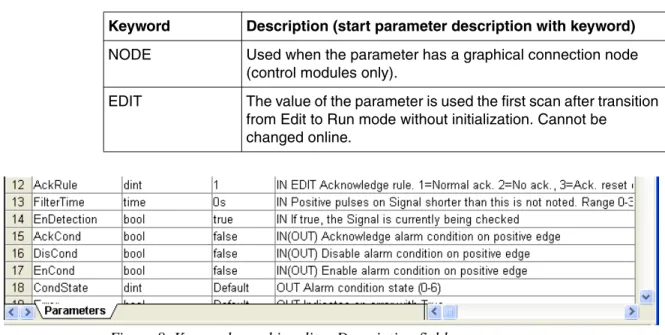
corresponding Description field. The use is indicated by keywords, see Table 2. They must contain at least one of the first four keywords. The keyword should be placed before the following descriptive text, see Figure 8.
Table 1. Reserved names.
Name Description
Template Use for templates only. Core Use for Core objects only.
HSI Use for graphics calculation objects only. Icon Use for icons only.
Info Use for interaction windows only.
1. These names are intended for use in instance names, for example, an UniCore instance would be called Core.
Table 2. Keywords for parameters
Keyword Description (start parameter description with keyword)
IN The parameter is only read. OUT The parameter is only written.
IN(OUT) The parameter is both read and written, but mostly read. OUT(IN) The parameter is both read and written, but mostly written.
Library Command Summary Section 2 Libraries
Figure 8. Keywords used in editor Description field.
Library Command Summary
The following table is intended as a quick guide to library management. For detailed information on how to work with libraries, see the Control Builder online help and to the manual Basic Control Software, Introduction and Configuration.
NODE Used when the parameter has a graphical connection node (control modules only).
EDIT The value of the parameter is used the first scan after transition from Edit to Run mode without initialization. Cannot be
changed online.
Table 3. Library command summary.
Action Command/Procedure Comment
Connect library to project
In Project Explorer, right-click the Libraries/Hardware folder and select
Insert Library
Connect library to application, library or controller
In Project Explorer, right-click intended Connected Libraries folder and select
Connect Library
The library must have been inserted to the project.
Table 2. Keywords for parameters (Continued)
Section 2 Libraries Library Command Summary
Make spare copy of self-defined library (in Libraries folder)
In Project Explorer, right-click the library and select Make Spare Copy.
It is only possible to have one spare copy of each self-defined library.
Save copy of self-defined library (in Libraries folder)
In Project Explorer, right-click the library and select Save Copy As...
The self-defined library is saved in a file with a new name and a new directory with its source contents.
Change library state In Project Explorer, right-click the library and select Properties > State, then set the new state
If the state is Released, it is only possible changing to state Open. In this case the index revision number is increased with one. Make sure that a spare copy of the self-defined library (in Libraries folder) is saved on local disc before changing to status Release.
Set protection for library
In Project Explorer, right-click the library and select Properties > Protection, then enter a password
If the library already is password protected, you must enter the old password before changing it. Disconnect library
from library, application or controller
In Project Explorer, go to the Connected Libraries folder, select the library and press Delete
If there are objects that use types from this library, a warning dialog is shown
Remove library In Project Explorer, go to the Libraries folder, select the library and press Delete
If there are applications or libraries that depend on this library, a warning dialog is shown
Table 3. Library command summary.
Section 3 Standard Libraries
Introduction
• This section describes the standard AC 800M libraries, that is, the AC 800M libraries that are installed with Compact Control Builder.This part of the section, the Introduction, describes the different types in the standard libraries, including ready-made types, templates, and types intended to be used as building-stones in complex solutions.
• Library Overview on page 42 gives an overview of all standard libraries, with a short description of each.
• Hardware Overview on page 47 gives an overview of all libraries with hardware types.
• Templates on page 51 describes the template concept, and how to use template objects and libraries to create re-usable and flexible solutions.
Ready-Made Objects, Templates and Building Stones
Standard AC 800M libraries contain:• Ready-made objects that simply have to be connected to your environment to work. Typical examples are the simple control loops in the Control libraries, and some of the motor and valve objects in the Process Object libraries. See
Standard Library Types on page 39.
The library concept and how to build and manage a library structure for your organization is described in Section 2, Libraries.
Ready-Made Objects, Templates and Building Stones Section 3 Standard Libraries
• Objects that should be seen as templates. These template types are not
protected and they can therefore be copied to your application, or to your own, self-defined library. They can then be modified to fit your specific
requirements.
In a template type, there are core functions that are protected. These core functions cannot be changed (with the exception of parameter connections), but you can add other functions, both by using other types from the standard libraries, and by adding code.
Typical template objects are the objects in Control loop solution library. Other objects are Uni and Bi process objects in the Process Object Extended library, which can be used to build process control objects for any uni- or bi-directional object. See Group Start Library on page 44 and Control Libraries on page 44. • Low-level objects that can be seen as building stones to be used for building
more high-level, complex solutions. These objects can be used to add functions to an existing template, or to build a complex solution from scratch.
Typical building stones are types for signal handling, which can be added to the output and input of, for example, control loops. See Building Complex
Solutions With Types on page 27.
If the standard libraries do not contain any type that fits one of your specific requirements, you have two options:
• You can build your own type, based on objects from the standard libraries. If the type is application-specific, you can define it directly in the application. However, if it is likely that you in the future will want to use it in other applications as well, then you should create a library and store your type solution in this library. Then, all you have to do to use the type in another application is connect the library to that particular application.
Say that you discover that you want to use a type in another application, but you have defined it in an application only. Then you should simply create a library and copy the type to this library (you can, of course, also copy it to one of your existing libraries). Then you can connect the library to all applications where you want to use the type and make sure that all instances refer to the library type. You can then delete the original type definition from your application.
Section 3 Standard Libraries Standard Library Types
• You can build your own type from scratch. This is not recommended, but might be necessary if you have a process with very specific requirements. In this case, it is strongly recommended that you store your types in a self-defined library.
Standard Library Types
When using ready-made types from the standard libraries, there are a number of things that you should know:
• When connecting parameters, the minimum requirement is that you connect the parameters that do not have default values.
• Information on individual parameters is given in the description field of the connection editor.
• For more complex types, there is often additional parameter information in the corresponding online help file. Select the type and press F1 to display online help for a certain type.
• There is information for most ready-made types, both in manuals and in online help, see below.
Where to Find Information About Standard Library Types
For details on concepts, design and configuration for a specific type, there are several sources:
• How to use types from the Alarm and Event library and the Communication libraries is described in the manual Basic Control Software, Introduction and
Configuration.
• The Basic library and system firmware functions are also described in Basic
Common Properties Section 3 Standard Libraries
• The other standard libraries are all described in this manual:
– For information on the Control libraries and the Signal library, see Section 4, Analog Process Control.
– For information on the Process Object libraries, see Section 5, Binary Process Control.
– For information on the Group Start Library, see Section 6, Synchronized Control.
– For information on the Signal and Vote Loop Concept, see Section 7, Surveillance
• All libraries have a corresponding help file. Each object has context-sensitive help, which is accessed by selecting a type and pressing F1.
• It is also possible to generate project documentation for a library. In project Explorer, select the library and select File > Documentation. This will provide you with an MS Word file, containing short descriptions of all objects in the library, including a list of all parameter descriptions.
Common Properties
InteractionPar
Most function block types and control module types having an interaction window also have a parameter, called InteractionPar. This parameter is a structured data type with components where some of them have the attribute coldretain.
Things that can be done in interaction windows/faceplates can also be done via the InteractionPar parameter from the surrounding application code. However, if no such code is implemented you should not connect the InteractionPar parameter (in the connection editor), just leave the connection field empty. The reason is to ensure that the InteractionPar is only controlled by the faceplate.
For more information on how to generate project documentation, see online help and the manual Basic Control Software, Introduction and Configuration.
Section 3 Standard Libraries Common Properties
Consider InteractionPar as an option for connecting a local variable that can, from the application code, reach any of the components inside the InteractionPar parameter. But remember, connecting the InteractionPar to your code, means that you also take over the responsibility of handling coldretain values etc.
The main purpose of InteractionPar parameter is to manipulate values from graphics (interaction windows and faceplates) only, thus not from code. Calling the
InteractionPar (in code) will override any inputs given by the operator. The
InteractionPar should be controlled by graphics, and only in exceptional cases from code.
ParError
ParError is a function that performs diagnostic tests inside an object in run-time mode. It is only SIL marked objects that can contain ParError. You recognize if an object contains ParError, by the output parameter ParError.
The function returns a Boolean output value if a user writes an 'out of range' value via the objects faceplate(s). For example, severity and class for alarms are wrong, or a high level input value is lower than the low level value in a level monitor module, etc. These are two common examples but basically it could test all kinds of input values.
The general idea of ParError is to provide you with a possibility to anticipate certain actions and handle them from your code. One drastic action may be to call the Error handler function and perform a controller shut-down.
However, ParError requires a lot of CPU load each time the diagnostics are executed. For that reason, all objects that contain ParError also have an input parameter EnableParError which is set to false by default. The input parameter guarantees that ParError will not be executing in non-SIL applications unless you want to (change the input parameter EnableParError to true).
Library Overview Section 3 Standard Libraries
Library Overview
This part describes each standard library briefly. For a list of all types in a library and a short description of each type, see the Appendix B, Library Objects Overview.
Basic Library
The Basic library (BasicLib) contains basic objects such as converters, counters, timers, pulse generators and edge detectors. This library is described in more detail in the manual Basic Control Software, Introduction and Configuration.
The Basic library is automatically added to all control projects, via the control project template.
Icon Library
The Icon Library (IconLib) contains icons that are used in Control Builder graphics in most other libraries.
The Icon library is automatically added to all control projects, via the control project template.
Alarm and Event Library
The Alarm and Event library (AlarmEventLib) contains function block and control module types for setting up alarm and event handling for objects that do not have built-in handling of alarms and events. This library is described in more detail in the manual Basic Control Software, Introduction and Configuration.
In addition to the standard libraries, there are also firmware functions that can be used in your applications. You find these in the System folder in Project Explorer. For a complete list of the system functions, please refer to Control Builder online help.
Section 3 Standard Libraries Signal Library
Signal Library
The Signal library (SignalLib) contains types for adding supervision, alarm handling and error handling to I/O signals. SignalLib also contains types to define different rules that make it possible to control the process to predetermined states (vote objects). Types from this library can be used together with both binary and analog control applications.
Process Object Libraries
The Process Object libraries contain function block types and control module types for controlling motors, valves, ABB Drives and Insum Devices. Most types in these libraries are templates, that is, you can copy them to your own libraries and
applications and modify them to fit your particular process (see Templates on page 51). Only Core objects are protected. There are a number of Process Object libraries:
• Process Object Basic Library (ProcessObjBasicLib)
The Process Object Basic library contains the basic Core types that form a basis for valve and motor control objects in other Process Object libraries. It also contains two simple types with reduced functionality and lower memory consumption.
• Process Object Extended Library (ProcessObjExtLib)
The Process Object Extended library contains a number of function block and control module types for general-purpose uni- and bi-directional control, and a number of types for valve and motor control. The types in this library can be copied to your own libraries and be used as templates.
• Process Object Drive Library (ProcessObjDriveLib)
The Process Object Drive library contains types for building ABB Drives control and supervision.
• Process Object INSUM Library (ProcessObjInsumLib)
The Process Object INSUM library contains types for building INSUM control and supervision.
Group Start Library Section 3 Standard Libraries
Group Start Library
The Group Start Library (GroupStartLib) contains control module types used to control and supervise the start and stop of process objects.
Control Libraries
The Control libraries contain types and ready-made solutions for analog control. See Section 4, Analog Process Control. There are a number of Control libraries: • Control Simple Library (ControlSimpleLib)
The Control Simple library contains a number of types that are intended to be used for building simple control loops.
• Control Basic Library (ControlBasicLib)
The Control Basic library contains function block types that are ready-made PID loops. The only thing you have to do with those function blocks is to connect them to your I/O variables.
• Control Standard Library (ControlStandardLib)
The Control Standard library contains control module types for building control loops, both stand-alone loops and cascade loops using master and slave configurations. They can be used together with types from other Control libraries, as well as together with objects from other libraries.
• Control Extended Library (ControlExtendedLib)
The Control Extended library contains a number of control modules for arithmetics and signal handling. These types are intended to be used for building advanced control loops, together with objects from other Control libraries.
• Control Advanced Library (ControlAdvancedLib)
The Control Advanced library contains control module types intended to be used to build continuous control loops with advanced PID functions and decouple filter functions. The types from this library supports adaptive control and can be used to build dead-time control loops.
• Control Object Library (ControlObjectLib)
The ControlObjectLib provides function blocks and control modules to define templates for using the control connection data type.
Section 3 Standard Libraries Communication Libraries
• Control Solution Library (ControlSolutionLib)
The Control Solution library contains a number of ready-to-use control templates, for example handling cascade, feed-forward, mid-range etc. These templates are intended to be used directly in an application, as they are, but may also be copied to a self-defined library and modified, to comply an intended usage.
• Control Fuzzy Library (ControlFuzzyLib)
The Control Fuzzy library contains types intended to be used for building fuzzy control solutions. It also contains a number of fuzzy control templates that you can copy to your own libraries, modify and use.
• Control Support Library (ControlSupportLib)
The Control Support library is an internal library that stores types used by other Control libraries. When the Control Support library is needed, it is
automatically connected, that is, you do not have to connect it by hand.
Communication Libraries
The communication libraries contain function block types for reading and writing variables from one system to another. Typical communication function block types are named using the protocol name and function, for example, COMLIRead or INSUMConnect.
For a description of how to build analog control solutions from the types in these libraries (and from other types), see Section 4, Analog Process Control.
Communication is described in more detail in the manual Basic Control
Software, Introduction and Configuration.
All supported protocols are described in the manual Communication, Protocols
Batch Library Section 3 Standard Libraries
There are a number of Communication libraries:
• COMLI Communication Library (COMLICommLib),
• Foundation FIELDBUS H1 Communication Library (FFH1CommLib), • INSUM Communication Library (INSUMCommLib),
• MB300 Communication Library (MB300CommLib), • MMS Communication Library (MMSCommLib), • ModBus Communication Library (ModBusCommLib), • Modem Communication Library (ModemCommLib), • Siemens S3964 Communication Library (S3964CommLib), • SattBus Communication Library (SattBusCommLib), • Serial Communication Library (SerialCommLib).
Batch Library
The Batch library (BatchLib) contains control module types for batch control and for control of other discontinuous processes. It can be used together with any batch system which communicates via OPC Data Access and which supports the S88 state model for procedural elements.
The control module types in the Batch library are used for the interaction between the control application for an Equipment Procedure Element (for example, a phase or an operation) and the Batch Manager.
This library is described in more detail in Control Builder online help (select the library in Project Explorer and press F1).
The BatchAdvTemplatesLib contains functionality for Batch Handling using batch advanced control modules. Templates for these control module types are provided in this library.
Section 3 Standard Libraries Hardware Overview
Hardware Overview
This part describes each standard library with hardware types briefly. For a list of all hardware types in a library and a description of each type, see Control Builder online help.
Basic Hardware
The Basic Hardware Library (BasicHWLib) contains basic hardware types such as controller hardware (for example AC 800M), CPU units, Ethernet communication links, Com ports, ModuleBus etc.
The Basic hardware library is automatically inserted to all control projects and automatically connected to the controller, via the control project template.
PROFIBUS
The PROFIBUS hardware libraries contain PROFIBUS DP communication interfaces for the AC 800M.
• The CI851 PROFIBUS hardware library (CI851PROFIBUSHWLib) contains the communication interface for PROFIBUS DP-V0 (CI851).
• The CI854 PROFIBUS hardware library (CI854PROFIBUSHwLib) contains the communication interface for PROFIBUS DP, with redundant PROFIBUS lines and DP-V1 communication.
PROFIBUS Devices
The PROFIBUS device libraries contain hardware types that can be used to configure ABB Drive hardware and ABB Process Panels.
• The ABB Drive NPBA CI851 hardware library (ABBDrvNpbaCI851HwLib) contains hardware types to be used when configuring ABB Drive NPBA-12, using PROFIBUS DP-V0 (CI851).
• The ABB Drive NPBA CI854 hardware library (ABBDrvNpbaCI854HwLib) contains hardware types to be used when configuring ABB Drive NPBA-12, using PROFIBUS DP (CI854).
Hardware libraries that contain Profibus CI851 or Foundation Fieldbus CI852 are merely for updating reasons, hence they should not be used in new projects.
Master Bus 300 Section 3 Standard Libraries
• The ABB Drive RPBA CI851 hardware library (ABBDrvRpbaCI851HwLib) contains hardware types to be used when configuring ABB Drive RPBA-01, using PROFIBUS DP-V0 (CI851).
• The ABB Drive RPBA CI854 hardware library (ABBDrvRpbaCI854HwLib) contains hardware types to be used when configuring ABB Drive RPBA-01, using PROFIBUS DP (CI854).
• The ABB Process Panel CI851 hardware library (ABBProcPnlCI851HwLib) contains hardware types to be used when configuring ABB Process Panel, using PROFIBUS DP -V0 (CI851).
• The ABB Process Panel CI854 hardware library (ABBProcPnlCI854HwLib) contains hardware types to be used when configuring ABB Process Panel, using PROFIBUS DP (CI854).
• The ABB Panel 800 CI851 hardware library (ABBPnl800CI851HwLib) contains hardware types to be used when configuring ABB Panel 800, using PROFIBUS DP -V0 (CI851).
• The ABB Panel 800 CI854 hardware library (ABBPnl800CI851HwLib) contains hardware types to be used when configuring ABB Panel 800, using PROFIBUS DP (CI854).
Master Bus 300
The CI855 Master Bus 300 hardware library (CI855MB300HwLib) contains the communication interface (CI855) for and other hardware types to be used when configuring Master Bus 300.
INSUM
The CI857 INSUM hardware library (CI857InsumHwLib) contains the communication interface (CI857) and other hardware types to be used when configuring INSUM.
DriveBus
The CI858 DriveBus hardware library (CI858DriveBusHwLib) contains the communication interface (CI858) and other hardware types to be used when configuring DriveBus.
Section 3 Standard Libraries S200 I/O System
S100 I/O System
The CI856 S100 hardware library (CI856S100HwLib) contains the S100 communication interface (CI856), S100 Rack and S100 I/O units.
S200 I/O System
The S200 I/O libraries contain S200 adapter and S200 I/O units.
• S200 CI851 hardware library (S200CI851HwLib) contains S200 slave and I/O units for PROFIBUS DP-V0 (CI851).
• S200 CI854 hardware library (S200CI854HwLib) contains S200 slave and I/O units for PROFIBUS DP (CI854).
Satt Rack I/O System
• CI865 Satt ControlNet hardware library (CI865SattIOHwLib) contain the communication interface (CI865), S200 adapters, S200 units for
Satt ControlNet, Satt Rack IO and 200RACN.
S800 I/O System
The S800 I/O libraries contain S800 adapters and S800 I/O units.
• The S800 I/O Modulebus hardware library (S800ModulebusHwLib) contains the S800 I/O units for ModuleBus.
• The S800 CI830 CI851 hardware library (S800CI830CI851HwLib) contains the adapter (CI830) and S800 I/O units for PROFIBUS DP-V0 (CI851). • The S800 CI830 CI854 hardware library (S800CI830CI854HwLib) contains
the adapter (CI830) and S800 I/O units for PROFIBUS DP (CI854).
• The S800 CI840 CI854 hardware library (S800CI840CI854HwLib) contains the adapter (CI840) and S800 I/O units for PROFIBUS DP (CI854).
• The S800 CI801 CI854 hardware library (S800CI801CI854HwLib) contains the adapter (CI801) and S800 I/O units for PROFIBUS DP (CI854).
Serial Communication Section 3 Standard Libraries
S900 I/O System
The S900 I/O libraries contain field communication interfaces, adapters and S900 I/O units.
• The S900 CI851 hardware library (S900CI851HwLib) contains PROFIBUS DP fieldbus communication interface, adapter and S900 I/O units for PROFIBUS DP-V0 (CI851).
• The S900 CI854 hardware library (S900CI854HwLib) contains PROFIBUS DP fieldbus communication interface, adapter and S900 I/O units for PROFIBUS DP (CI854).
Serial Communication
The Serial Communication libraries contain a hardware types for serial communication.
• The CI853 Serial Communication hardware library (CI853SerialComHWLib) contains the communication interface for RS-232C serial.
• The Serial hardware library (SerialHWLib) contain the serial communication protocol for SerialLib.
• The COMLI hardware library (COMLIHWLib) contain the serial communication protocol for COMLI.
• The ModBus hardware library (ModBusHWLib) contain the serial communication protocol for ModBus.
• The S3964 hardware library (S3964HWLib) contain the serial communication protocol for Siemens 3964R.
Printer and Modem
The Printer hardware library (PrinterHwLib) and Modem hardware library (ModemHwLib) contain the printer and modem protocol respectively.
FOUNDATION Fieldbus H1
The CI852 FOUNDATION Fieldbus H1 hardware library (CI852FFh1HwLib) contain the communication interface for the FOUNDATION Fieldbus H1 bus (CI852) and FF Devices.
Section 3 Standard Libraries Templates
Templates
A template is characterized by the fact that it is not protected. It is intended to be copied to one of your own libraries, and modified inside that library. For an example of how to copy a template object to one of your own libraries, see Create a Library and Insert a Copy of a Type on page 254.
For information on the execution of objects based on template types and copies of template types, see Execution of Copied Complex Types on page 55.
To help you understand how this works, we will study a typical template type, the Uni function block from the Process Object Extended library.
Figure 9. Uni function block type, with sub types and formal instances.
The moment you copy a type to your own library, the connection to the original template type is lost. This means that your copy does not reflect updates to the template.
However, a template type often consists of a number of objects from the standard libraries. Some of those might be protected (or even hidden), while some of them can be modified to suit the requirements of a particular organization, plant, or process. This also means that sometimes standard libraries still have to be connected to your library, due to the fact that they contain sub-types used inside the template type you copied. See Figure 12 on page 54.
Based on the type GroupStartObjectConn in the Basic library
Templates Section 3 Standard Libraries
The Uni function block type contains the following objects (formal instances): • GSC (based on the type GroupStartObjectConn from the Basic library), • Faceplate (based on the type FacePlateUni from the Process Object Extended
library),
• InfoPar (based on the type InfoParUni, from the Process Object Basic library), • InfoParGroupStart (based on the type InfoParUniGroupStart, from the Process
Object Basic library),
• Pres (based on the type GroupStartIconUni),
• OEText (based on the type OETextUni from the Process Object Extended library)
• Core (based on the UniCore type from the Process Object Basic library), • ObjectAE (based on the type ProcessObjectAE).
This means that the Uni type depends on the Basic library, the Process Object Basic library, and Process Object Extended library.
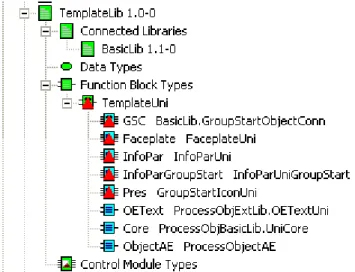
If we create our own library, TemplateLib, and copy the Uni function block type to this library, with the intention of modifying the Uni template into a uni-directional type that fits our process, it will look like Figure 10. The new function block type has been named TemplateUni
Figure 10. Uni, copied into a self-defined library TemplateLib. No connections to other libraries (red triangles on a number of types).
Section 3 Standard Libraries Templates
The red error triangles on the type and sub types come from the fact that our new library, TemplateLib, is not connected to the libraries that contain some of the sub types.
If we connect those libraries to our new library, everything will be ok.We have now created a copy of Uni, which we can modify to fit our specific requirements. For an example of how to add functions to a type, see Add Functions to Self-defined Types
on page 259.
Once we are done adding to and modifying our type, we can use it in an application, see Figure 11. All we need to do to be able to use our new type in the application is to connect TemplateLib to the application and create an instance (TestUni) from the TemplateUni type.
Figure 11. TemplateUni used in an application.
Note that there is no need to connect the libraries that are connected to
TemplateLib (the reference from instances to types is there anyway). The only time this would be necessary is when a library contains a type that is used for a parameter connection to the surrounding code or to another object outside our type.
Templates Section 3 Standard Libraries
Note that all sub types (the formal instances) retain a relation to their corresponding types. For example, a change to the OETextUni type in the Process Object Basic library will also affect the TemplateUni type, since this type contains an instance of OETextUni.
Figure 12. Overview of the template concept.
Library A
Type A1
Library B A31 (based on B1)
Library C Type A2
Type A3
A32(based on B2)
A33 (based on C2)
User Library X
Type X1
Library B X31 (based on B1)
Library C Type X2
X32(based on B2)
X33 (based on C2) Type A3 is copied to
User Library X, where it becomes type X2
1.User Library X will still depend on Library B and Library C, since X31 and X32 are instances of B1and B2, and X33 is an instance of C2.
2.User Library X will not depend upon Library A. Changes to A3 will not affect X2. Copy
Section 3 Standard Libraries Execution of Copied Complex Types
Execution of Copied Complex Types
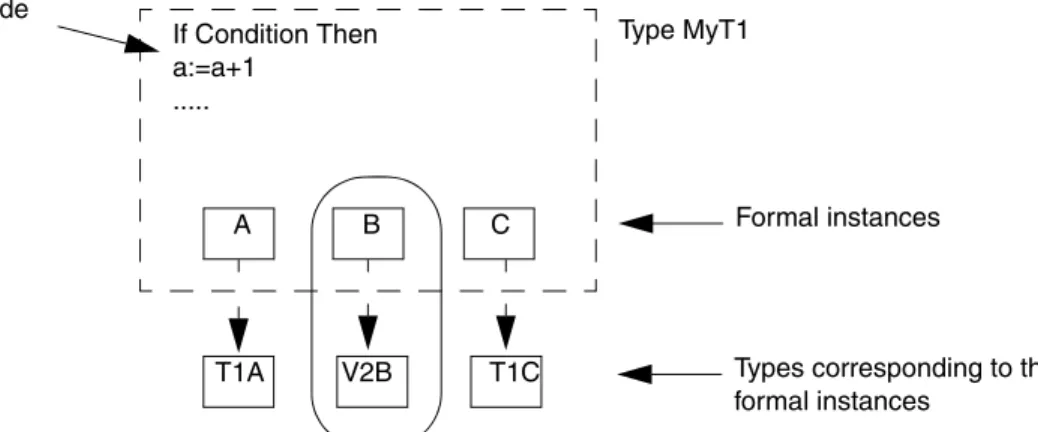
It is important to understand what happens when you copy and modify a type that contains instances of other types (formal instances). We start with a template type from one of the standard libraries, as shown in Figure 13.
Figure 13. Template type with formal instances.
Each formal instance has a corresponding type. These types are normally stored in the same library as the template object, or in a connected library (of the Basic or Support type).
If Condition Then a:=a+1
...
Template type T1 Code
Formal instances
Types corresponding to the formal instances
B C
A
T1B T1C T1A
Execution of Copied Complex Types Section 3 Standard Libraries
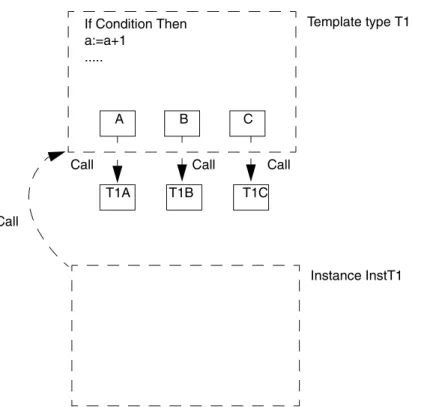
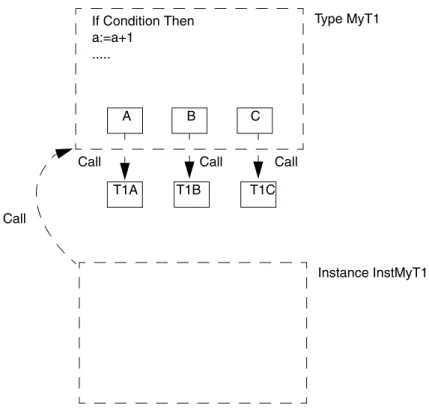
Figure 14. Execution of an instance of a template type with formal instances.
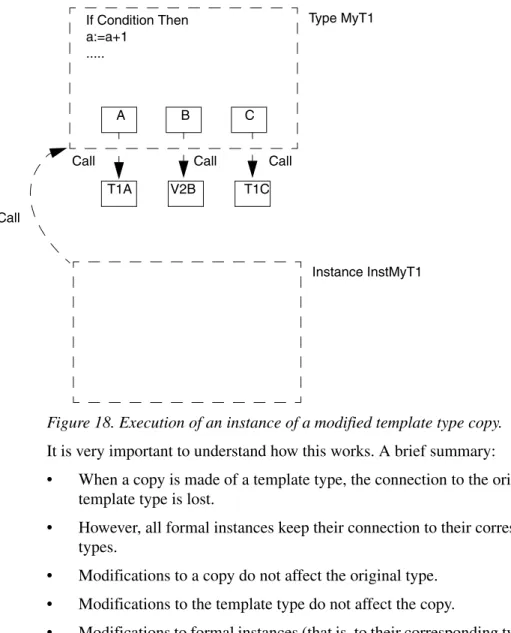
When an object (a formal instance) is created from this type and the formal instance is executed, what happens is the following, see Figure 14:
1. The object (InstT1) calls the type (T1).
2. When the type T1 is called, the code executes and calls are made to all types (T1A, T1B and T1C) corresponding to the formal instances (A, B and C). 3. Each type that is called (T1, T1A, T1B, T1C) executes, operating on data from
the corresponding object (T1) and formal instances (T1A, T1B, T1C). If Condition Then
a:=a+1 ...
Template type T1
B C
A
T1B T1C T1A
Instance InstT1 Call