will be charged student and technology fees and will have to pay them. In addition, you will be prompted to pay a UMES Enrollment Fee of $100. As a BMI student, you do not have to pay this extra fee.
b. If you are not a Maryland resident but teach in Maryland, you are eligible for in-state tuition rates under the BMI-UMES Memorandum of Understanding (MOU). Please contact our office, at 410-727-4808 x164, prior to registering for class. You must use the deferred payment plan (explained below) in order to receive the waiver.
You are not officially registered until you have paid for your courses and confirmed your payment.You have 3 options:
1. You may pay in full with a debit or credit card when you register (you may also pay by check, see instructions under step M below). Please note, UMES does not typically accept payment during early registration. This means you cannot finalize your registration until Financial Services has activated their ability to accept payment for the semester. See step C below.
2. You may arrange for the deferred payment plan when you register. The deferred payment plan gives students the semester to pay their tuition in full, rather than require payment in full at the time of registration.
a. There is a $25 fee per semester to enroll in the plan, which is added to your balance.
b. You will be responsible for making your payments online with a debit or credit card or mailing a check to UMES according to the payment plan directions. UMES does not bill you; you are responsible for sending payments to UMES in a timely manner as described on your payment plan confirmation.
c. Apayment plan can be used for the following. To select this option, skip ahead to Part IV step K.
out-of-state tuition scholarship
monthly payment plan
district school board required process
late payment by check
3. You may pay in full or arrange for the deferred payment plan after you register. It is your responsibility to return to the HawkWeb system and follow the instructions in Steps IV and V to make and CONFIRM your payment or you will NOT be registered for class! You should do this at least one week before classes begin to avoid any last minute problems (which do occur).
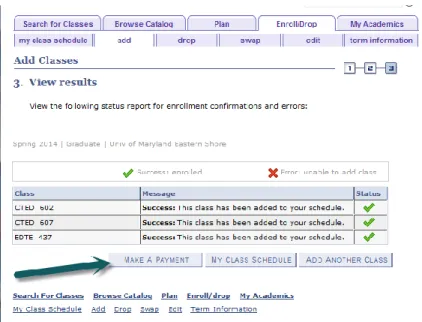
Figure 11 View Results Page Making Your Payment:
A. You should be on the View Results page (Figure 11) if you are continuing with the registration process to make your payment. If you are re-entering HawkWeb, you need to go to the Student Center and Finances then locate the “Make a Payment” option. Click on the Make a Payment button. B. You should now be on the Student Payments page. This page partially summarizes your
payments from earlier semesters. There may be a situation where you have “past-due” tuition
showing from a previous semester. You will not be able to register or pay for the current semester
until this is resolved. You can pay this online or contact Student Accounts. You have several steps
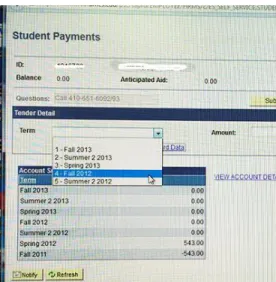
to complete before you click on the Submit Payment button (dark green arrow in Figure 12 below).
Figure 12: Student Payments Dialog Box.
Figure 13: Select Term but new term not an option yet.
D. By the time of the second open registration, the correct term and tuition amount should be displaying. If it does not under the “Online Financial Services” link, call UMES Student Accounts Bursar at 410-651-6092 or 410-651-6093 and ask them to add your tuition calculator so that you can pay for a class. You will need to give them your name and student ID #.
Figure 14 Finances Dialog Box
If the correct term is displayed, then the balance should show in the Amount box (Figure 15 gold arrow). If it does not show a balance due, first return to the Student Center screen. Under
“Finances,” click Online Financial Services (Figure 14 red arrow). Click on the magnifying glass next to the current semester, which will open a new page showing your tuition is posted. Return to the Student Center screen and then try the “Make a Payment” link again (Figure 14, dark green arrow).
Figure 15
E. You will have to type in your credit card information.
When you select credit card, you will be given a dialog box (Figure 16) to select the type of credit card. Select the card.
Figure 16
Figure 17
F. Click on “Enter Credit Card Data” (red arrow in Figure 15). The Credit Card Information dialog box will pop up (Figure 17). Fill out all menu options. When done, click OK.
G. If you did not put the correct amount in, you will receive a warning dialog box (Figure 18). If you put in the correct amount, the dialog box will look like Figure 19.
Figure 20
I.Once you have paid, the last screen will say "Payment Result." PRINT THIS PAGE AND SAVE IT FOR YOUR RECORDS...it is your credit card receipt. You may need this for reimbursement by your school system or tax purposes and there is NO WAY to re-print or return to this page.
J. You will see a notification to complete the Payment Confirmation (which is Step V), click “OK” to immediately GO to STEP V or, use the drop-down “Go To” menu in the upper right hand corner to return to the Student Center screen and proceed immediately to Step V. Please note that because these dialog boxes imply that your transaction is successful or complete, students
mistakenly believe that they are done. You are not finished - proceed to Step V to complete your registration and payment. There are several more steps!
Figure 21
K.Using theDeferred Payment Plan Option
If you need to defer payment for any of the reasons listed on page one or you prefer to extend the time to pay your tuition, you may use a payment plan. To do this, from the Student Center screen go to the Finances Menu; select Confirm (Red arrow) immediately, not make a payment. See Figure 22.
Figure 22
L. You will see a dialog box stating that you have not applied any funds to payment. See Figure 23. Once you select OK, you will now have the option to Apply for a Payment Plan (See Figure 24). You may also want to watch the video referenced in Step V below, as it illustrates how to select a payment plan.
Remember, you are not fully enrolled in a course until you complete Step V. Even if your schedule says you are registered and your credit card company says money has been deducted, UNLESS YOU CONFIRM AS DIRECTED IN STEP V, you will be dropped from the course.
The Comptroller’s Office created a video to illustrate how to CONFIRM your payment. The video also shows how to pay a past-due amount and how to establish a Deferred Payment Plan. You may find it helpful - here is the link:
http://www.umes.edu/comptroller/Default.aspx?id=609
A. To confirm payment in full
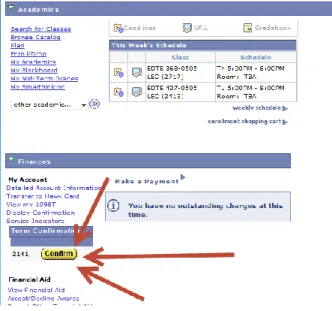
1. From the Student Center screen, on the left side under "Finances," click the yellow "Confirm" icon. See Figure 25 and three red arrows.
a. You will receive a warning notice that you are enrolled for less than full time. Just click OK.
Figure 25 2. Click "OK" then click "register."
3. Click "I agree" then “I agree” to see your final "Payment Confirmation Receipt." PRINT AND SAVE THIS PAGE...this is your proof of official enrollment and payment. You are not finished until you reach this screen.
Figure 26
B. After hitting the Confirm button, you should see the Message in Figure 26.
C. You are almost done. Close out of your HawkWeb account and then reopen it. If you have correctly completed your payment and registration, you will not see a dialog box asking you to confirm. If you do see this dialog box, you need to complete the confirmation process.
Course Payment Checklist:
___I paid for my course(s) in full, or by using a deferred payment plan, before the first class of the semester.
___After making payment I returned to the Student Center screen, located Finances and clicked on the yellow CONFIRM key to finalize my payment and registration.
___After clicking on the CONFIRM key I exited HawkWeb and re-entered to determine whether a dialogue box exists indicating that the CONFIRM key still needs to be pressed. If there is no dialogue box I am successful!
___I have printed and saved the final “Payment Confirmation Receipt” as official proof of enrollment and payment. I may need this for reimbursement by my school district later!!! ___I Did It—I am a student at UMES/BMI on my way to becoming certified!
If you have questions before you begin or that are not resolved by the directions above, please contact us immediately. Remember, we can only help you if we hear from you!