Helping Users Sync Contacts
and Events with Exchange Sync
(Beta)
© Copyright 2000–2016 salesforce.com, inc. All rights reserved. Salesforce is a registered trademark of salesforce.com, inc., as are other names and marks. Other marks appearing herein may be trademarks of their respective owners.
CONTENTS
ADMINISTERING EXCHANGE SYNC (BETA)
. . . 1Exchange Sync (Beta) Syncs your Microsoft® Items . . . 1
Exchange Sync System Requirements. . . 2
See the Big Picture for Setting Up Exchange Sync. . . 2
Prepare Your Microsoft® Exchange Server for Exchange Sync. . . 3
Set up a Microsoft® Exchange Service Account to Communicate with Exchange Sync . . . . 4
Run the Microsoft® Remote Connectivity Analyzer with Exchange Sync Parameters. . . 5
Set up Salesforce to Communicate with Microsoft® Exchange. . . 6
Run the Exchange Sync Connection Test. . . 7
Tell Users How to Prevent Calendar Events from Syncing to Salesforce. . . 7
Define Sync Settings for Sales Reps Using Exchange Sync. . . 8
Tell Users How to Sync Email Contacts with Salesforce. . . 10
Manage Exchange Sync. . . 11
Assign Users to Exchange Sync Configurations. . . 11
How Can I Avoid Syncing Data Between My Salesforce Organizations?. . . 11
Fix Sync Issues for Exchange Sync Users. . . 12
Check Exchange Sync Users’ Sync Statuses. . . 13
Build and Run an Exchange Sync Error Report. . . 13
Reset Sync for Exchange Sync Users. . . 14
Test Your Connection Between Salesforce and Microsoft® Exchange. . . 15
Exchange Sync Statuses . . . 15
ADMINISTERING EXCHANGE SYNC (BETA)
Exchange Sync (Beta) Syncs your Microsoft
®
Items
EDITIONS
Available in: both Salesforce Classic and Lightning Experience
Available in: Enterprise, Performance, Unlimited, and Developer Editions
Help users keep their contacts and events in sync between your Microsoft® Exchange server and Salesforce without installing and maintaining software.
Note: Exchange Sync is currently available as a beta feature, which means it’s a high-quality feature with known limitations. Check out our Exchange Sync Implementation Guide to set up the feature at your company.
When you set up your users’ contacts and events to sync between your company’s email system and Salesforce, you help your users increase their productivity, because there’s no need for them to duplicate their work between the two systems.
You decide whether your users sync both contacts and events by defining sync settings in Salesforce.
You can also determine whether users’ records sync between your Exchange servers and Salesforce in both directions, or just one. Your users can sync records they create and maintain either at their desks or on their mobile devices.
At this time, Exchange Sync doesn’t:
• Sync recurring events
• Sync invitees included in events
• Let users delete records from both systems in one action
However, your users can manage these actions as they always have—by manually updating recurring events, adding event invitees, and deleting records in both systems.
Exchange Sync System Requirements
EDITIONS
Available in: both Salesforce Classic and Lightning Experience
Available in: Enterprise, Performance, Unlimited, and Developer Editions
Confirm that your Microsoft® Exchange-based server meets these system requirements before you
set up your sales reps to sync contacts and events with Exchange Sync.
With these settings enabled Your company must be running either
•
• Exchange Web Services (EWS) on an SSL connection
Office 365® Enterprise Editions with
Exchange Online
• Exchange Server 2016 • Exchange Autodiscover Service
•
• Basic authentication on both your Exchange server and your Autodiscover service Exchange Server 2013 Service Pack 1
• Exchange Server 2010 Service Pack 3
See the Big Picture for Setting Up Exchange Sync
EDITIONS
Available in: both Salesforce Classic and Lightning Experience
Available in: Enterprise, Performance, Unlimited, and Developer Editions
USER PERMISSIONS To prepare your Exchange server to communicate with Salesforce:
• Administrative access to your company’s Microsoft® Exchange
server
Set up Exchange Sync at your organization so your users can sync contacts and events between your company’s Microsoft® Exchange server and Salesforce. You’ll complete several steps to prepare
the systems to communicate, both on your Exchange server and in Salesforce. Complete these steps to set up Exchange Sync.
1. Prepare Your Microsoft® Exchange Server for Exchange Sync
The first step in setting up Exchange Sync is to enable several settings on your Exchange server, including Exchange Web Services, Exchange Autodiscover Service, and Basic authentication. 2. Set up a Microsoft® Exchange Service Account to Communicate with Exchange Sync
After you’ve enabled Exchange Web Services and Exchange Autodiscover Service on your Exchange server, create an Exchange service account with impersonation rights for the mailbox of each Exchange Sync user.
3. Run the Microsoft® Remote Connectivity Analyzer with Exchange Sync Parameters
Run the Remote Connectivity Analyzer—the free web-based tool provided by Microsoft—to confirm whether you and your Exchange administrator have set up Exchange Sync successfully. Or, run the Remote Connectivity Analyzer if Exchange Sync was syncing your reps’ items successfully, but suddenly stops. Use the parameters provided to run the test for Exchange Sync.
4. Set up Salesforce to Communicate with Microsoft® Exchange
After running the Remote Connectivity Analyzer, log in to Salesforce to enable Exchange Sync and provide your service account credentials.
5. Run the Exchange Sync Connection Test
After providing your service account credentials in Salesforce, run the Exchange Sync connection test to confirm whether you and your Exchange administrator have set up Exchange Sync successfully. Or, run the connection test if Exchange Sync was syncing your reps’ items successfully, but suddenly stops.
Exchange Sync System Requirements Administering Exchange Sync (Beta)
6. Tell Users How to Prevent Calendar Events from Syncing to Salesforce
Tell your Exchange Sync users how to manage which of their Exchange calendar events sync with Salesforce. We recommend users prepare their calendars before you add users to Exchange Sync configurations and begin the sync process, but users can manage which events sync at anytime.
7. Define Sync Settings for Sales Reps Using Exchange Sync
After sales reps prepare their events to sync with Salesforce, you can define sync settings for groups of reps in Exchange Sync configurations. This step kicks off the sync process for your reps.
8. Tell Users How to Sync Email Contacts with Salesforce
Tell your Exchange Sync users that it’s time to manage the Exchange email contacts that they want to sync with Salesforce.
SEE ALSO:
Salesforce Experience in Microsoft Email Success Community
Prepare Your Microsoft
®
Exchange Server for Exchange Sync
EDITIONSAvailable in: both Salesforce Classic and Lightning Experience
Available in: Enterprise, Performance, Unlimited, and Developer Editions
The first step in setting up Exchange Sync is to enable several settings on your Exchange server, including Exchange Web Services, Exchange Autodiscover Service, and Basic authentication. These instructions vary depending on the version of Microsoft® Exchange your company uses. For
more support, visit Microsoft’s support website, search for the keywords mentioned here, and follow the instructions intended for your Exchange version.
Complete the following steps on your Exchange server.
1. Enable Exchange Web Services (EWS) on an SSL connection.
• Make sure your Exchange server has a signed certificate from one of the Salesforce-approved Certificate Authorities.
• If your organization has configured a firewall, allow an inbound connection to your Exchange client access server on ports 80 and 443.
2. Enable Exchange Autodiscover Service.
3. Enable Basic authentication on both your Exchange server and your Autodiscover service. If you need to run additional authentication methods (such as Microsoft NTLM), there is no need to disable those methods; you can run Exchange Sync without conflict.
Prepare Your Microsoft® Exchange Server for Exchange Sync Administering Exchange Sync (Beta)
Set up a Microsoft
®
Exchange Service Account to Communicate with
Exchange Sync
EDITIONS
Available in: both Salesforce Classic and Lightning Experience
Available in: Enterprise, Performance, Unlimited, and Developer Editions USER PERMISSIONS To set up a service account to communicate with Exchange Sync:
• Administrative access to your company’s Exchange server
After you’ve enabled Exchange Web Services and Exchange Autodiscover Service on your Exchange server, create an Exchange service account with impersonation rights for the mailbox of each Exchange Sync user.
Before setting up an Exchange Service account, make sure you’ve enabled the appropriate Exchange server settings to set up Exchange Sync.
To set up an Exchange service account, you’ll complete these steps on your Exchange server. Watch a Demo:
• Salesforce Exchange Sync Setup in Office 365 via Point and Click • Salesforce Exchange Sync Setup in Exchange via the Command Line
Note: For more support, visit Microsoft®’s support website, search for the keywords mentioned
here, and follow the instructions intended for your Exchange version.
1. Create an Exchange user with a mailbox that will act as the service account. You’ll use this email address for this mailbox to configure Exchange impersonation for the service account.
2. Using Exchange Management Shell, enter the commands that enable service account impersonation for your version of Exchange. If you receive a pipeline error message, wait a few minutes and re-enter the command to let your server process the requests.
• If you’re using Exchange 2010 or 2013:
a. Enable the Active Directory extended permission for ms-Exch-EPI-Impersonation on all Client Access servers.
Get-ExchangeServer | where {$_IsClientAccessServer -eq $TRUE} | ForEach-Object {Add-ADPermission -Identity $_.distinguishedname -User (Get-User -Identity
<EnterExchangeSyncServiceAccountEmailAddress> | select-object).identity
-extendedRight ms-Exch-EPI-Impersonation}
b. Enable the Active Directory extended rights for ms-Exch-EPI-May-Impersonate to let your service account impersonate all accounts on your Exchange server. You’ll set a filter later that lets you limit the users the service account syncs with Salesforce.
Get-MailboxDatabase | ForEach-Object {Add-ADPermission -Identity $_.distinguishedname -User <EnterExchangeSyncServiceAccountAddress> -ExtendedRights
ms-Exch-EPI-May-Impersonate}
• If you’re using Exchange Online offered by Microsoft Office 365™:
a. Enable customization on your Exchange server.
Enable-OrganizationCustomization
3. Using Exchange Management Shell, enter these commands to configure your service account to impersonate the group of users who’ll sync with Exchange Sync.
a. Create a management scope to define a filter that groups together the Exchange users who’ll sync with Exchange Sync. For example, if you want only your sales representatives to sync, and their Exchange mailboxes all have the same value Sales for
Set up a Microsoft® Exchange Service Account to Communicate with Exchange Sync Administering Exchange Sync (Beta)
the filterable property Department, you’d enter Department -eq 'Sales' in place of <ChooseRecipientFilter>.
New-ManagementScope -Name:<ChooseExchangeSyncScopeName> -RecipientRestrictionFilter:{<ChooseRecipientFilter>}
b. Create a management role assignment that restricts the service account to impersonate only the users you defined in the management scope.
New-ManagementRoleAssignment -Name:<ChooseExchangeSyncRoleAssignmentName> -Role:ApplicationImpersonation -User:<EnterExchangeSyncServiceAccountAddress> -CustomRecipientWriteScope:<EnterExchangeSyncScopeName>
Run the Microsoft
®
Remote Connectivity Analyzer with Exchange Sync
Parameters
EDITIONS
Available in: both Salesforce Classic and Lightning Experience
Available in: Enterprise, Performance, Unlimited, and Developer Editions
USER PERMISSIONS To get the necessary parameters to run the test: • Administrative access to
your company’s Microsoft® Exchange
server
Run the Remote Connectivity Analyzer—the free web-based tool provided by Microsoft—to confirm whether you and your Exchange administrator have set up Exchange Sync successfully. Or, run the Remote Connectivity Analyzer if Exchange Sync was syncing your reps’ items successfully, but suddenly stops. Use the parameters provided to run the test for Exchange Sync.
Before you run the Remote Connectivity Analyzer, make sure that you’ve enabled the appropriate Exchange server settings and then set up an Exchange service account. Wait a few minutes after completing those tasks to let your Exchange server process the changes you’ve made. Otherwise, the Remote Connectivity Analyzer can show a failed test summary, even though you’ve configured setup correctly.
The Remote Connectivity Analyzer checks several points of connectivity between your Salesforce organization and your Exchange server. When the test is complete, Microsoft provides a summary describing your connection status.
Note: The Microsoft Remote Connectivity Test and the Exchange Sync Connection Test check general connectivity between Exchange and your Salesforce organization. If you want to test connectivity for only one (or a few) of your reps, check their sync statuses from
Exchange Sync Status in Setup.
1. Visit Microsoft’s website and search for the Remote Connectivity Analyzer.
2. On the Exchange Server tab, select Service Account Access (Developers).
3. Click Next.
4. Complete the test fields:
Type this parameter For this test field
The email address of a sales rep you’ve set up to be impersonated by your Exchange Sync service account
Target mailbox email address
The service account domain\user name or UPN you’ve set up for Exchange Sync
Service Account User Name (Domain\User Name or UPN)
The service account password you’ve set up for Exchange Sync
Service Account Password
Run the Microsoft® Remote Connectivity Analyzer with Exchange Sync Parameters Administering Exchange Sync (Beta)
5. Select Use Autodiscover to detect server settings.
6. Select Test predefined folder.
7. Choose Contacts if you’d like to test sync connectivity for this user’s contacts, or Calendar for this user’s events.
8. Check Use Exchange Impersonation.
9. In the Impersonated User field, type the same Exchange email address you specified for Target mailbox email address.
10.For Impersonated user identifier, select SMTP Address.
11.Check the I understand that I must use the credentials of a working account...
acknowledgment.
12.Type the analyzer verification code and click verify.
13.At the top of the page, click Perform Test.
Running the test usually takes less than 30 seconds. When the test is complete, the analyzer displays a summary evaluating the sync connectivity for the Exchange user you’ve specified.
14.Take action based on the test results.
• If the test summary displays “Connectivity Test Successful” or “Connectivity Test Successful with Warnings,” it’s likely that you’ve set up your service account correctly. and you’re ready to provide your service account credentials to Salesforce.
• If the test summary displays “Connectivity Test Failed,” review the test details to troubleshoot setup issues. If the test continues to fail, verify that you’ve completed the previous setup steps correctly and then contact Salesforce Customer Support for help.
Set up Salesforce to Communicate with Microsoft
®
Exchange
EDITIONSAvailable in: Enterprise, Performance, Unlimited, and Developer Editions USER PERMISSIONS To access Exchange Sync setup in Salesforce: • “View Setup and
Configuration”
After running the Remote Connectivity Analyzer, log in to Salesforce to enable Exchange Sync and provide your service account credentials.
1. From Salesforce Setup, enter Exchange Sync in the Quick Find box, then select
Exchange Sync Setup.
2. Under Enable Exchange Sync, click Edit.
3. Check Enable Exchange Sync and click Save.
4. Enter the service account user name you created in Exchange, including your company’s domain and top-level domain. For example, if you work for AW Computing, and the service account mailbox you’ve created is [email protected], enter your user name in either of these formats:
• awcomputing.com\svcacct
Some network configurations require one format rather than the other. If your first attempt to get Salesforce and Exchange to communicate is unsuccessful, try the other format.
5. Enter your service account password.
6. If your sales reps’ email domains are different than your service account domain, enter the additional domains in a comma-separated list. For example, if your service account is [email protected], but your reps’ email addresses are in the domain
awcomputing.net, enter awcomputing.net as an additional domain so Exchange Sync can recognize it.
7. Click Save.
Set up Salesforce to Communicate with Microsoft® Exchange Administering Exchange Sync (Beta)
Run the Exchange Sync Connection Test
EDITIONS
Available in: both Salesforce Classic and Lightning Experience
Available in: Enterprise, Performance, Unlimited, and Developer Editions
USER PERMISSIONS To run the connection test: • “View Setup and
Configuration”
After providing your service account credentials in Salesforce, run the Exchange Sync connection test to confirm whether you and your Exchange administrator have set up Exchange Sync successfully. Or, run the connection test if Exchange Sync was syncing your reps’ items successfully, but suddenly stops.
The Exchange Sync connection test checks several points of connectivity between your Salesforce organization and your Exchange server. When the test is complete, it provides a summary describing your connection status.
Run both the Exchange Sync connection test and the Microsoft Remote Connectivity Analyzer when you’re testing connectivity. The tests differ slightly, so running both gives you more information about your connection status.
Test your connection status to confirm whether you and your Exchange administrator have set up Exchange Sync successfully. Or, run the connection tests if Exchange Sync was syncing successfully, but syncing suddenly stops for all reps in your Salesforce organization.
The Microsoft Remote Connectivity Test and the Exchange Sync Connection Test check general connectivity between Exchange and your Salesforce organization. If you want to test connectivity
for only one (or a few) of your reps, check their sync statuses from Exchange Sync Status in Setup.
1. From Setup, enter Exchange Sync Setup in the Quick Find box, then select Exchange Sync Setup.
2. From the Connection Test section, provide the email address for one of the reps you’ve set up your Exchange service account to impersonate.
3. Click Test.
Salesforce checks your connection between Salesforce and your Exchange server and summarizes your connection status.
Tell Users How to Prevent Calendar Events from Syncing to Salesforce
EDITIONSAvailable in: both Salesforce Classic and Lightning Experience
Available in: Enterprise, Performance, Unlimited, and Developer Editions
Tell your Exchange Sync users how to manage which of their Exchange calendar events sync with Salesforce. We recommend users prepare their calendars before you add users to Exchange Sync configurations and begin the sync process, but users can manage which events sync at anytime. If you set up users to sync events from Salesforce to Exchange only, you can skip this step and begin to define sync settings for your users.
Users might not want to sync some calendar events—like personal events—with Salesforce. In the next setup step, you define user sync settings in Exchange Sync configurations, which starts syncing your users’ items. At that time, if you set up users to sync events from Exchange to Salesforce or to sync both ways, users’ events start to sync to Salesforce right away—unless you tell users to manage their events now.
Users can prevent personal events from syncing from Exchange to Salesforce in different ways.
• Users can create a separate calendar in their calendar application to keep track of their personal events. (Exchange Sync is designed to sync only a reps’ main Exchange account calendar with Salesforce.)
• In the next setup step, you choose whether you want to sync users’ private events. If you opt not to sync users’ private events, you can tell users to assign the private option to events in their calendar applications that they’d rather not sync.
If users don’t manage their personal events before syncing begins, users can still remove those events from Salesforce by deleting personal events Salesforce manually.
Run the Exchange Sync Connection Test Administering Exchange Sync (Beta)
Define Sync Settings for Sales Reps Using Exchange Sync
EDITIONS
Available in: both Salesforce Classic and Lightning Experience
Available in: Enterprise, Performance, Unlimited, and Developer Editions
USER PERMISSIONS To access Exchange Sync setup in Salesforce: • “View Setup and
Configuration” To create, edit, or delete Exchange Sync
configurations:
• “Manage Email Client Configurations”
After sales reps prepare their events to sync with Salesforce, you can define sync settings for groups of reps in Exchange Sync configurations. This step kicks off the sync process for your reps. Defining sync settings lets you control which of your users can sync contacts and events. You can also control which direction your users sync, and create filters to limit certain records from syncing.
1. From Salesforce Setup, enter Exchange Sync Configurations in the Quick Find box, then select Exchange Sync Configurations.
2. Click New Exchange Configuration.
3. Enter the name of the configuration. For example, if you’re creating a configuration for users in a particular region, enter a unique name for it, and then select Active.
4. Assign users and profiles to this configuration.
Define Sync Settings for Sales Reps Using Exchange Sync Administering Exchange Sync (Beta)
5. Indicate the sync direction for your users’ contacts.
6. If you need to change field mappings between Salesforce and Exchange contacts, click Edit Field Mappings.
7. Indicate the sync direction for your users’ events.
8. If you need to change field mappings between Salesforce and Exchange events, click Edit Field Mappings.
9. Select Sync private events to sync events your users have marked private either in Salesforce or their calendars.
10.Click Save.
11.Set filters to specify the contacts users can sync. You are required to set filters based on your users’ record ownership. You’ll choose whether you want to:
• Limit contacts that users sync to only what users own, choose Selected Contacts, and then select User’s Records. Make sure you select both of these settings together, or no contacts sync for users in this configuration.
• Let users sync all contacts they can see in Salesforce, choose All Contacts.
Define Sync Settings for Sales Reps Using Exchange Sync Administering Exchange Sync (Beta)
Set additional sync filters, if you wish. For example, to prevent contacts from outside your users’ territories from syncing, create sync filters for specific fields on users’ contact records. Note that contact filters don’t apply to contacts syncing from Exchange to Salesforce.
12.Specify the specific events users can sync from Salesforce to Exchange. Enter a filter in the Greater or equal to field to
limit the events users can sync to these time frames.
• TODAY—Syncs events that end on or after today. The start time is 12:00 a.m.
• LAST MONTH—Syncs events that ended on or after the first day of last month.
• LAST N DAYS—Syncs events that ended on or after a specified number of days ago, such as LAST 30 DAYS. You can sync events that ended up to 180 days ago.
13.Click Save.
Contact and event syncing has begun for users in this Exchange Sync configuration.
SEE ALSO:
How Can I Avoid Syncing Data Between My Salesforce Organizations?
Tell Users How to Sync Email Contacts with Salesforce
EDITIONS
Available in: both Salesforce Classic and Lightning Experience
Available in: Enterprise, Performance, Unlimited, and Developer Editions
Tell your Exchange Sync users that it’s time to manage the Exchange email contacts that they want to sync with Salesforce.
If you’ve set up your users to sync contacts from only Salesforce to Exchange, you can skip this step—your users’ contacts and events are already syncing.
After you define users’ sync settings by adding them to Exchange Sync configurations and make the configurations active, Exchange Sync creates a folder that’s called Salesforce_Sync as a subdirectory under the Contacts directory in each user’s email account.
Users who are syncing contacts from Exchange to Salesforce or syncing both ways can choose which email contacts sync to Salesforce by moving those contacts into the Salesforce_Sync folder. Tell users to move their contacts to the Salesforce_Sync folder now.
Tell Users How to Sync Email Contacts with Salesforce Administering Exchange Sync (Beta)
Manage Exchange Sync
Assign Users to Exchange Sync Configurations
EDITIONS
Available in: both Salesforce Classic and Lightning Experience
Available in: Enterprise, Performance, Unlimited, and Developer Editions USER PERMISSIONS To view configurations • “View Setup and
Configuration” To create, edit, or delete configurations:
• “Manage Email Client Configurations”
To get your Exchange Sync users’ contacts and events to sync, you’ll have to add them to an Exchange Sync Configuration. You can do this in Salesforce by adding individual users, or multiple users with user profiles.
Before you assign a user to an Exchange Sync configuration, consider how that user’s records sync if they’re already mentioned in another configuration:
• If you assign an individual user to two Exchange Sync configurations, the user is removed from the first configuration automatically and assigned to the new one.
• If you assign a user to two Exchange Sync configurations as both an individual user and as part of a profile, the user is not removed from either configuration, but the user’s records will sync according to the configuration that lists the user individually.
• If you assign a user to one Exchange Sync configuration and one configuration, the user is not removed from either configuration, but the user’s records will sync according to the Exchange Sync configuration.
Users observe the assignments you’ve created, added, or removed the next time Exchange Sync runs a sync cycle.
To assign a user to an Exchange Sync configuration,
1. From Setup, enter Exchange Sync Configurations in the Quick Find box,
then select Exchange Sync Configurations.
2. If you’re modifying an existing Exchange Sync configuration, click Edit next to the one that you want to modify. Otherwise, click
New Exchange Configuration, and then complete the required fields.
3. In the Assign Users and Profiles section, select either Profiles or Users in the Search drop-down list.
4. If you don’t see the member you want to add, enter keywords in the search box and click Find.
5. Select members from the Available Members box, and click Add to add them to the group. If all available users are assigned to this configuration, the Users list is empty and you can only assign profiles.
6. To remove members, select those members and click Remove.
7. Click Save.
How Can I Avoid Syncing Data Between My Salesforce Organizations?
EDITIONSAvailable in: both Salesforce Classic and Lightning Experience
Available in: Enterprise, Performance, Unlimited, and Developer Editions
If your company uses Exchange Sync in multiple Salesforce organizations, make sure the data in those organizations remains separate by being mindful about how you set up your Exchange Sync configurations.
You’re using multiple organizations if you either:
• Test new features in a sandbox organization before setting up the feature in your live organization.
• Maintain separate Salesforce organizations for different divisions of your company.
To prevent Exchange Sync from syncing contacts and events between your Salesforce organizations,
Manage Exchange Sync Administering Exchange Sync (Beta)
We don’t recommend marking an Exchange Sync configuration as inactive to prevent data from syncing between your Salesforce organizations. While marking a configuration as inactive prevents it from syncing a user’s data, you risk forgetting that user is included in multiple Exchange Sync configurations, and marking the configuration as active later.
Example: You’re testing Exchange Sync features in your sandbox organization, so you add user Marianne Schumacher to an Exchange Sync configuration in the sandbox organization. After you’re satisfied with how you’ve set up Exchange Sync features for Marianne, you’re ready to add her to an Exchange Sync configuration in your live organization.
Before you add Marianne to an Exchange Sync configuration in your live organization, remove her from the configuration in your sandbox organization. Otherwise, Exchange Sync can sync contacts and events between Marianne’s email application, the sandbox organization, and the live organization, saving test and live data to all three data sources.
Fix Sync Issues for Exchange Sync Users
EDITIONS
Available in: both Salesforce Classic and Lightning Experience
Available in: Enterprise, Performance, Unlimited, and Developer Editions
If an Exchange Sync user has trouble syncing between Microsoft® Exchange and Salesforce, you
can troubleshoot sync issues by checking your users’ sync statuses or running an Exchange Sync error report. If you find a sync issue that a user can’t overcome, then you can reset that user’s sync process for them.
Check Exchange Sync Users’ Sync Statuses
If your users can’t sync, you can check their sync statuses—and the sync status of your Exchange Sync setup—to learn where sync is failing.
Build and Run an Exchange Sync Error Report
If your Exchange Sync users can’t sync, you can build and run an error report to discover what’s
causing sync to fail in your organization, and for which users. The report details provide suggestions to help you troubleshoot sync issues.
Reset Sync for Exchange Sync Users
If a user has trouble syncing between Microsoft Exchange and Salesforce, you can reset that user’s sync process. This process clears out and then restores the connections between a user’s Exchange and Salesforce records. Resetting the sync process won’t affect information stored in those records.
Test Your Connection Between Salesforce and Microsoft® Exchange
Run both the Exchange Sync connection test and the Microsoft Remote Connectivity Analyzer when you’re testing connectivity. The tests differ slightly, so running both gives you more information about your connection status.
Exchange Sync Statuses
Understanding Exchange Sync statuses helps you assess and correct Exchange Sync errors that appear on the Exchange Sync status page in Salesforce.
Fix Sync Issues for Exchange Sync Users Administering Exchange Sync (Beta)
Check Exchange Sync Users’ Sync Statuses
EDITIONS
Available in: both Salesforce Classic and Lightning Experience
Available in: Enterprise, Performance, Unlimited, and Developer Editions
USER PERMISSIONS To access Exchange Sync statuses:
• “View Setup and Configuration”
If your users can’t sync, you can check their sync statuses—and the sync status of your Exchange Sync setup—to learn where sync is failing.
1. From Setup, enter Exchange Sync Status in the Quick Find box, then select
Exchange Sync Status.
2. Type the name of the user whose sync status you’d like to check, and click Check Status. The sync status for that user is displayed.
In some cases, you may need to reset sync for a user.
If you need help interpreting sync statuses, or need recommendations on correcting sync issues, check out Exchange Sync Statuses.
Build and Run an Exchange Sync Error Report
EDITIONS
Available in: both Salesforce Classic and Lightning Experience
Available in: Enterprise, Performance, Unlimited, and Developer Editions USER PERMISSIONS To create or update custom report types:
• “Manage Custom Report Types”
To create, edit, and delete reports:
• “Create and Customize Reports”
AND
“Report Builder”
If your Exchange Sync users can’t sync, you can build and run an error report to discover what’s causing sync to fail in your organization, and for which users. The report details provide suggestions to help you troubleshoot sync issues.
First, you’ll create a custom report type using an Exchange Sync Error Report custom object we’ve set up for you in Salesforce. Then, you’ll create an Exchange Sync error report. Finally, you’ll run your report to help your users fix those pesky sync errors they’re experiencing.
1. Create a custom report type. Set the Primary Object to ExchangeSyncError.
2. Create your Exchange Sync error report. From the Reports tab, click New Report. Set the
Report Type to the Exchange Sync report type you created in step 1, and click Create.
3. Save and run your Exchange Sync error report. From the unsaved report, click Save, complete the required fields, and click Save and Run Report.
Salesforce generates a list of errors sync errors found in your organization, or displays “Grand Totals (0 records)” if the report couldn’t identify any sync errors.
If the report couldn’t identify any errors, but users still can’t sync, contact Salesforce.
Check Exchange Sync Users’ Sync Statuses Administering Exchange Sync (Beta)
Reset Sync for Exchange Sync Users
EDITIONS
Available in: both Salesforce Classic and Lightning Experience
Available in: Enterprise, Performance, Unlimited, and Developer Editions
If a user has trouble syncing between Microsoft Exchange and Salesforce, you can reset that user’s sync process. This process clears out and then restores the connections between a user’s Exchange and Salesforce records. Resetting the sync process won’t affect information stored in those records.
1. Make sure that your user’s Salesforce_Sync folder contains only the contacts the user
wants to sync with Salesforce, and the events the user doesn’t want to sync are marked as
Private in the user’s calendar application.
2. From Salesforce Setup, enter Exchange Sync Status in the Quick Find box, then
select Exchange Sync Status.
3. Type a user’s name, and click Reset Sync.
During the next sync cycle, Exchange Sync will sync:
• All contacts from the user’s Salesforce_Sync folder in Exchange to Salesforce, excluding contacts that fall outside of the filters you set in the user’s Exchange configuration.
• All events from the user’s calendar in Exchange to Salesforce, excluding events that fall outside of the filters you set in the user’s Exchange configuration, or events the user marked as Private in Exchange.
Reset Sync for Exchange Sync Users Administering Exchange Sync (Beta)
Test Your Connection Between Salesforce and Microsoft
®
Exchange
EDITIONSAvailable in: both Salesforce Classic and Lightning Experience
Available in: Enterprise, Performance, Unlimited, and Developer Editions
USER PERMISSIONS To get the necessary parameters to run the Microsoft Remote Connectivity Analyzer: • Administrative access to your company’s Microsoft® Exchange server
To run the Exchange Sync connection test:
• “View Setup and Configuration”
Run both the Exchange Sync connection test and the Microsoft Remote Connectivity Analyzer when you’re testing connectivity. The tests differ slightly, so running both gives you more information about your connection status.
Test your connection status to confirm whether you and your Exchange administrator have set up Exchange Sync successfully. Or, run the connection tests if Exchange Sync was syncing successfully, but syncing suddenly stops for all reps in your Salesforce organization.
Note: The Microsoft Remote Connectivity Test and the Exchange Sync Connection Test check general connectivity between Exchange and your Salesforce organization. If you want to test connectivity for only one (or a few) of your reps, check their sync statuses from
Exchange Sync Status in Setup.
Exchange Sync Statuses
EDITIONS
Available in: Salesforce Classic
Available in: Enterprise, Performance, Unlimited, and Developer Editions
Understanding Exchange Sync statuses helps you assess and correct Exchange Sync errors that appear on the Exchange Sync status page in Salesforce.
System Sync Statuses
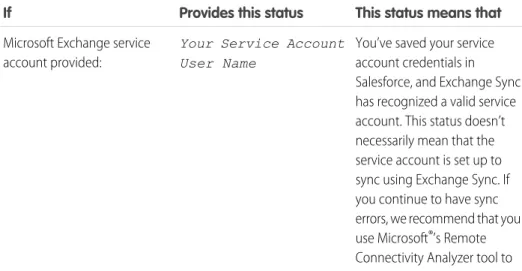
Table 1: Configuration Setup Statuses
This status means that Provides this status
If
You’ve saved your service account credentials in Your Service Account
User Name Microsoft Exchange service
account provided:
Salesforce, and Exchange Sync has recognized a valid service account. This status doesn’t necessarily mean that the service account is set up to sync using Exchange Sync. If you continue to have sync errors, we recommend that you use Microsoft®’s Remote
Connectivity Analyzer tool to
Test Your Connection Between Salesforce and Microsoft® Exchange Administering Exchange Sync (Beta)
This status means that Provides this status
If
test your connection and troubleshoot setup issues.
Exchange Sync couldn’t save your service account credentials. Verify that you’ve None
provided the correct service account ID and password and that you’ve set up a valid service account in Microsoft Exchange. Exchange Sync has recognized that the service account that you provided is valid. Salesforce recognizes Microsoft Exchange
service account:
This status doesn’t necessarily mean that the service account is set up to sync using Exchange Sync. If you continue to have sync errors, we recommend that you use Microsoft®’s Remote Connectivity Analyzer
tool to test your connection and troubleshoot setup issues.
Exchange Sync couldn’t recognize the service account credentials. Check to make sure that you’ve set up a valid service account in Microsoft Exchange.
All of your Exchange Sync users are in active Exchange configurations.
The correct number of Exchange Sync users Users in active Salesforce Exchange
configurations:
Some of your users are not in active Exchange configurations.
The incorrect number of Exchange Sync users
None of your users is in active Exchange Sync configurations.
0
All of your users’ Microsoft Exchange email addresses have mapped correctly to the corresponding Salesforce email addresses. The expected number of Exchange Sync
users Users with linked Microsoft Exchange and Salesforce email addresses:
Some of your users’ Microsoft Exchange email addresses have not mapped correctly An unexpected number of Exchange Sync
users
to the corresponding Salesforce email addresses. Compare your users’ addresses in Exchange and Salesforce to verify that they match.
None of your users’ Microsoft Exchange email addresses has mapped to its 0
corresponding Salesforce email addresses. Contact Salesforce Customer Support.
Exchange Sync Statuses Administering Exchange Sync (Beta)
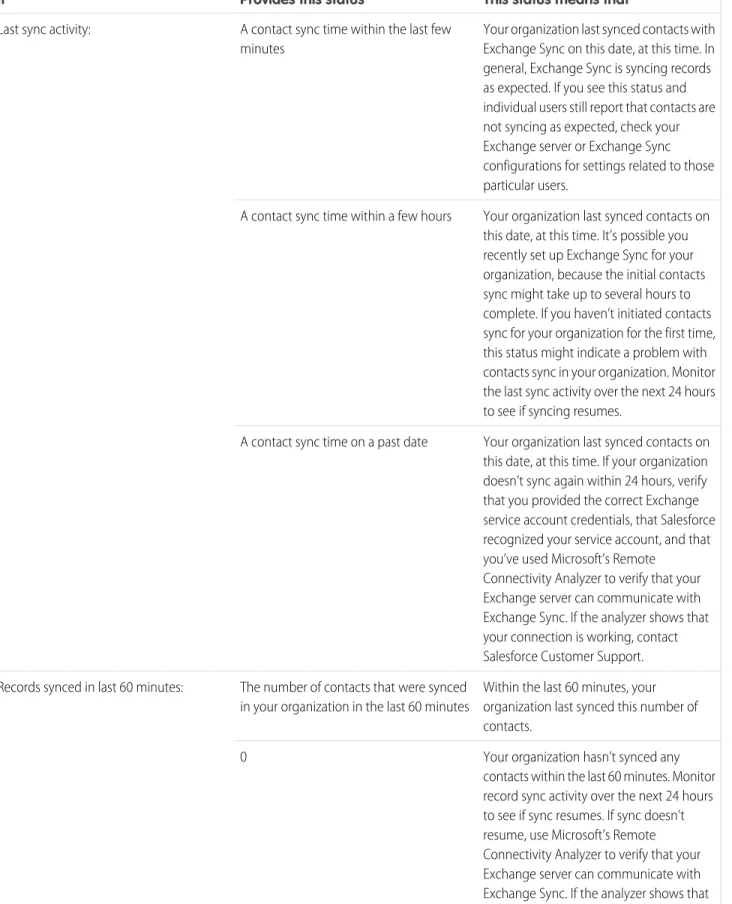
Table 2: Contacts Statuses
This status means that Provides this status
If
Your organization last synced contacts with Exchange Sync on this date, at this time. In A contact sync time within the last few
minutes Last sync activity:
general, Exchange Sync is syncing records as expected. If you see this status and individual users still report that contacts are not syncing as expected, check your Exchange server or Exchange Sync configurations for settings related to those particular users.
Your organization last synced contacts on this date, at this time. It’s possible you A contact sync time within a few hours
recently set up Exchange Sync for your organization, because the initial contacts sync might take up to several hours to complete. If you haven’t initiated contacts sync for your organization for the first time, this status might indicate a problem with contacts sync in your organization. Monitor the last sync activity over the next 24 hours to see if syncing resumes.
Your organization last synced contacts on this date, at this time. If your organization A contact sync time on a past date
doesn’t sync again within 24 hours, verify that you provided the correct Exchange service account credentials, that Salesforce recognized your service account, and that you’ve used Microsoft’s Remote
Connectivity Analyzer to verify that your Exchange server can communicate with Exchange Sync. If the analyzer shows that your connection is working, contact Salesforce Customer Support. Within the last 60 minutes, your organization last synced this number of contacts.
The number of contacts that were synced in your organization in the last 60 minutes Records synced in last 60 minutes:
Your organization hasn’t synced any contacts within the last 60 minutes. Monitor 0
record sync activity over the next 24 hours to see if sync resumes. If sync doesn’t resume, use Microsoft’s Remote Connectivity Analyzer to verify that your Exchange server can communicate with Exchange Sync. If the analyzer shows that
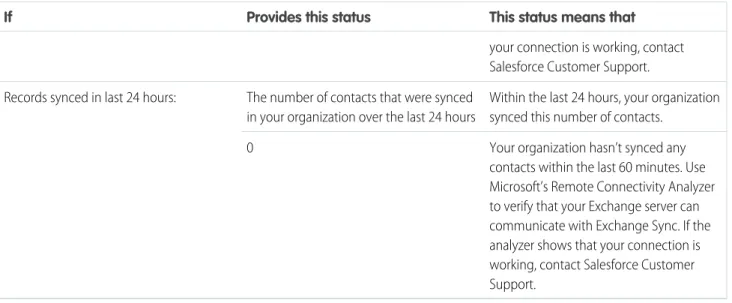
Exchange Sync Statuses Administering Exchange Sync (Beta)
This status means that Provides this status
If
your connection is working, contact Salesforce Customer Support.
Within the last 24 hours, your organization synced this number of contacts.
The number of contacts that were synced in your organization over the last 24 hours Records synced in last 24 hours:
Your organization hasn’t synced any contacts within the last 60 minutes. Use 0
Microsoft’s Remote Connectivity Analyzer to verify that your Exchange server can communicate with Exchange Sync. If the analyzer shows that your connection is working, contact Salesforce Customer Support.
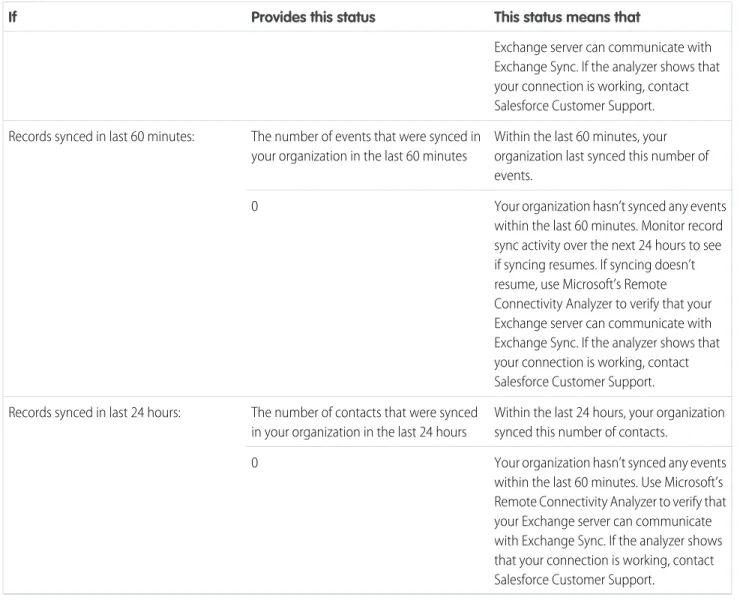
Table 3: Events Statuses
This status means that Provides this status
If
Your organization last synced events with Exchange sync on this date, at this time. In An event sync time within the last few
minutes Last sync activity:
general, Exchange Sync is syncing records as expected. If you see this status and individual users still report that events are not syncing as expected, check your Exchange server or Exchange Sync configurations for settings related to those particular users.
Your organization last synced events on this date, at this time. You might have recently An event sync time within a few hours
set up Exchange Sync for your organization, because the initial events sync might take up to several hours to complete. If you haven’t initiated events sync for your organization for the first time, this status might indicate a problem with events sync in your organization. Monitor the last sync activity over the next 24 hours to see if syncing resumes.
Your organization last synced events on this date, at this time. If your organization An event sync time on a past date
doesn’t sync again within 24 hours or longer, verify that you provided the correct Exchange service account credentials, that Salesforce recognized your service account, and that you’ve used Microsoft’s Remote Connectivity Analyzer to verify that your
Exchange Sync Statuses Administering Exchange Sync (Beta)
This status means that Provides this status
If
Exchange server can communicate with Exchange Sync. If the analyzer shows that your connection is working, contact Salesforce Customer Support. Within the last 60 minutes, your organization last synced this number of events.
The number of events that were synced in your organization in the last 60 minutes Records synced in last 60 minutes:
Your organization hasn’t synced any events within the last 60 minutes. Monitor record 0
sync activity over the next 24 hours to see if syncing resumes. If syncing doesn’t resume, use Microsoft’s Remote Connectivity Analyzer to verify that your Exchange server can communicate with Exchange Sync. If the analyzer shows that your connection is working, contact Salesforce Customer Support.
Within the last 24 hours, your organization synced this number of contacts.
The number of contacts that were synced in your organization in the last 24 hours Records synced in last 24 hours:
Your organization hasn’t synced any events within the last 60 minutes. Use Microsoft’s 0
Remote Connectivity Analyzer to verify that your Exchange server can communicate with Exchange Sync. If the analyzer shows that your connection is working, contact Salesforce Customer Support.
User Sync Statuses
Table 4: Configuration Setup Statuses
This status means that Provides this status
If
This user is set up to sync in an active Exchange Sync configuration. User assigned to active Exchange
configuration:
This user isn’t set up to sync in an active Exchange Sync configuration.
This user is represented by the service account that you’ve set up in Exchange, and User recognized by Exchange service
account:
Exchange Sync can communicate with your Exchange service account.
This user isn’t represented by the service account that you’ve set up in Exchange, or
Exchange Sync Statuses Administering Exchange Sync (Beta)
This status means that Provides this status
If
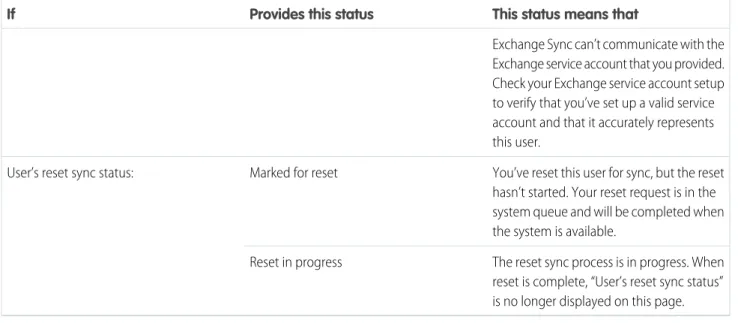
Exchange Sync can’t communicate with the Exchange service account that you provided. Check your Exchange service account setup to verify that you’ve set up a valid service account and that it accurately represents this user.
You’ve reset this user for sync, but the reset hasn’t started. Your reset request is in the Marked for reset
User’s reset sync status:
system queue and will be completed when the system is available.
The reset sync process is in progress. When reset is complete, “User’s reset sync status” is no longer displayed on this page. Reset in progress
Table 5: Contacts Statuses
This status means that Provides this status
If
The Salesforce_Sync folder was found in this user’s email account under the Contacts directory.
Salesforce_Sync folder found:
Exchange Sync can’t find the
Salesforce_Sync folder on your Exchange server or can’t create it automatically for this user. You can create the folder
Salesforce_Sync for this user as a subdirectory under the Contacts directory in this user’s email account.
This user’s Microsoft Exchange email address has mapped to the user’s Salesforce email address correctly.
Salesforce and Exchange email addresses linked:
This user’s Microsoft Exchange email address hasn’t mapped to the user’s Salesforce email address correctly. Reset sync for this user. This user’s contacts hasn’t started syncing from Salesforce to Exchange.
Not started Salesforce to Exchange sync status:
This user’s contacts are syncing from Salesforce to Exchange for the first time. This initial sync might take several hours. Initial sync in progress
This user’s contacts have completed syncing from Salesforce to Exchange for the first time.
Initial sync completed
Exchange Sync Statuses Administering Exchange Sync (Beta)
This status means that Provides this status
If
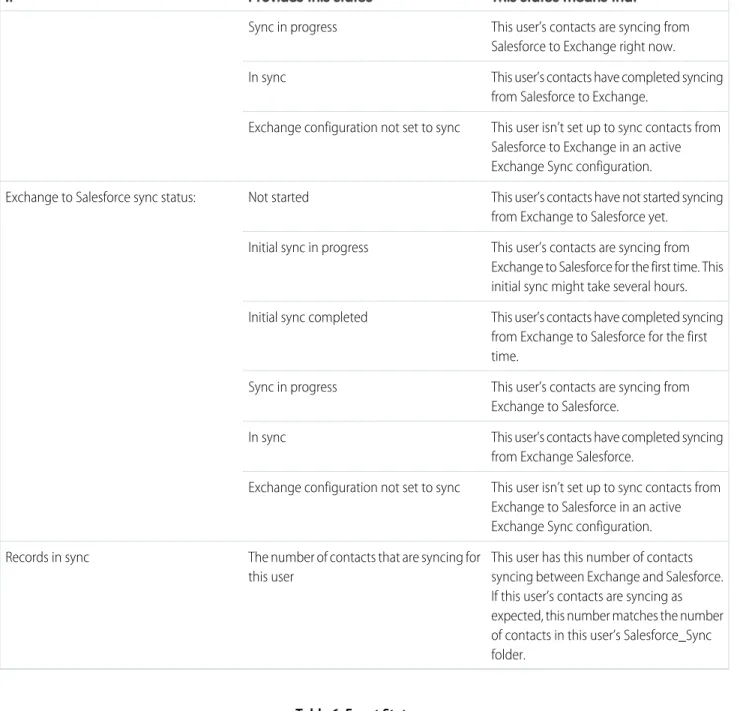
This user’s contacts are syncing from Salesforce to Exchange right now. Sync in progress
This user’s contacts have completed syncing from Salesforce to Exchange.
In sync
This user isn’t set up to sync contacts from Salesforce to Exchange in an active Exchange Sync configuration. Exchange configuration not set to sync
This user’s contacts have not started syncing from Exchange to Salesforce yet.
Not started Exchange to Salesforce sync status:
This user’s contacts are syncing from Exchange to Salesforce for the first time. This initial sync might take several hours. Initial sync in progress
This user’s contacts have completed syncing from Exchange to Salesforce for the first time.
Initial sync completed
This user’s contacts are syncing from Exchange to Salesforce.
Sync in progress
This user’s contacts have completed syncing from Exchange Salesforce.
In sync
This user isn’t set up to sync contacts from Exchange to Salesforce in an active Exchange Sync configuration. Exchange configuration not set to sync
This user has this number of contacts syncing between Exchange and Salesforce. The number of contacts that are syncing for
this user Records in sync
If this user’s contacts are syncing as expected, this number matches the number of contacts in this user’s Salesforce_Sync folder.
Table 6: Event Statuses
This status means that Provides this status
If
The calendar folder was found in this user’s email account.
Calendar folder found:
Exchange Sync can’t find the user’s calendar folder on your Exchange server.
This user’s Microsoft Exchange email address has mapped to the user’s Salesforce email address correctly.
Salesforce and Exchange email addresses linked:
Exchange Sync Statuses Administering Exchange Sync (Beta)
This status means that Provides this status
If
This user’s Microsoft Exchange email address hasn’t mapped to the user’s Salesforce email address correctly. Reset sync for this user. This user’s events haven’t started syncing from Salesforce to Exchange.
Not started Salesforce to Exchange sync status:
This user’s events are syncing from Salesforce to Exchange for the first time. This initial sync might take several hours. Initial sync in progress
This user’s events have completed syncing from Salesforce to Exchange for the first time.
Initial sync completed
This user’s events are syncing from Salesforce to Exchange right now. Sync in progress
This user’s events have completed syncing from Salesforce to Exchange.
In sync
This user isn’t set up to sync events from Salesforce to Exchange in an active Exchange Sync configuration. Exchange configuration not set to sync
This user’s events haven’t started syncing from Exchange to Salesforce.
Not started Exchange to Salesforce sync status:
This user’s events are syncing from Exchange to Salesforce for the first time. This initial sync might take several hours. Initial sync in progress
This user’s events have completed syncing from Exchange to Salesforce for the first time.
Initial sync completed
This user’s events are syncing from Exchange to Salesforce.
Sync in progress
This user’s events have completed syncing from Exchange Salesforce.
In sync
This user isn’t set up to sync events from Exchange to Salesforce in an active Exchange Sync configuration. Exchange configuration not set to sync
This user has this number of events syncing between Exchange and Salesforce. If this The number of contacts that are syncing for
this user Records in sync
user reports difficulty syncing only some events, verify that the user is set up to sync events as expected in the user’s Exchange Sync configuration and that the user didn’t assign the private option to the event.
Exchange Sync Statuses Administering Exchange Sync (Beta)
This status means that Provides this status
If
Also remember that at this time, Exchange Sync doesn’t sync all-day events, recurring events, or invitees on events.
Exchange Sync Statuses Administering Exchange Sync (Beta)
INDEX
A
Assigning
Exchange Sync configurations11
C
Contacts Events
1
Microsoft® Exchange, syncing with Salesforce1
Microsoft® Exchange, syncing with Salesforce1
E
Exchange Sync
assigning configurations11
check sync status13
Connection test7, 15
contacts between Microsoft® Exchange and Salesforce,
syncing1
data between multiple Salesforce organizations, preventing contamination between11
events between Microsoft® Exchange and Salesforce, syncing
1
Microsoft® Connectivity Analyzer test parameters5, 15
Exchange Sync (continued)
multiple Salesforce organizations, guidelines for companies with11
reset sync14
run error report13
set up2
set up, Microsoft® Exchange server settings3
set up, prepare users’ contacts10
set up, prepare users’ events7
set up, Salesforce settings6
set up, service account4
sync errors15
sync settings, define8
sync statuses15
system requirements2
S
Syncing
contacts between Microsoft® Exchange and Salesforce1–4,
6, 8, 10, 13–14
errors11, 15
events between Microsoft® Exchange and Salesforce1–4, 6–
8, 13–14