Security Products
Upgrade Guide
Release 6.3.0, Rev 02
Juniper Networks, Inc.
1194 North Mathilda Avenue Sunnyvale, California 94089 USA408-745-2000
www.juniper.net
Juniper Networks, the Juniper Networks logo, JUNOS, NetScreen, ScreenOS, and Steel-Belted Radius are registered trademarks of Juniper Networks, Inc. in the United States and other countries. JUNOSe is a trademark of Juniper Networks, Inc. All other trademarks, service marks, registered trademarks, or registered service marks are the property of their respective owners.
Juniper Networks assumes no responsibility for any inaccuracies in this document. Juniper Networks reserves the right to change, modify, transfer, or otherwise revise this publication without notice.
Products made or sold by Juniper Networks or components thereof might be covered by one or more of the following patents that are owned by or licensed to Juniper Networks: U.S. Patent Nos. 5,473,599, 5,905,725, 5,909,440, 6,192,051, 6,333,650, 6,359,479, 6,406,312, 6,429,706, 6,459,579, 6,493,347, 6,538,518, 6,538,899, 6,552,918, 6,567,902, 6,578,186, and 6,590,785.
Copyright © 2009, Juniper Networks, Inc. All rights reserved. Printed in USA.
Revision History
September 2009—Revision 02
Content subject to change. The information in this document is current as of the date listed in the revision history.
SOFTWARE LICENSE
The terms and conditions for using this software are described in the software license contained in the acknowledgment to your purchase order or, to the extent applicable, to any reseller agreement or end-user purchase agreement executed between you and Juniper Networks. By using this software, you indicate that you understand and agree to be bound by those terms and conditions.
Generally speaking, the software license restricts the manner in which you are permitted to use the software and may contain prohibitions against certain uses. The software license may state conditions under which the license is automatically terminated. You should consult the license for further details.
For complete product documentation, please see the Juniper Networks Web site at www.juniper.net/techpubs.
END USER LICENSE AGREEMENT
READ THIS END USER LICENSE AGREEMENT (“AGREEMENT”) BEFORE DOWNLOADING, INSTALLING, OR USING THE SOFTWARE. BY DOWNLOADING, INSTALLING, OR USING THE SOFTWARE OR OTHERWISE EXPRESSING YOUR AGREEMENT TO THE TERMS CONTAINED HEREIN, YOU (AS CUSTOMER OR IF YOU ARE NOT THE CUSTOMER, AS A REPRESENTATIVE/AGENT AUTHORIZED TO BIND THE CUSTOMER) CONSENT TO BE BOUND BY THIS AGREEMENT. IF YOU DO NOT OR CANNOT AGREE TO THE TERMS CONTAINED HEREIN, THEN (A) DO NOT DOWNLOAD, INSTALL, OR USE THE SOFTWARE, AND (B) YOU MAY CONTACT JUNIPER NETWORKS REGARDING LICENSE TERMS.
1. The Parties. The parties to this Agreement are (i) Juniper Networks, Inc. (if the Customer’s principal office is located in the Americas) or Juniper Networks (Cayman) Limited (if the Customer’s principal office is located outside the Americas) (such applicable entity being referred to herein as “Juniper”), and (ii) the person or organization that originally purchased from Juniper or an authorized Juniper reseller the applicable license(s) for use of the Software (“Customer”) (collectively, the “Parties”).
2. The Software. In this Agreement, “Software” means the program modules and features of the Juniper or Juniper-supplied software, for which Customer has paid the applicable license or support fees to Juniper or an authorized Juniper reseller, or which was embedded by Juniper in equipment which Customer purchased from Juniper or an authorized Juniper reseller. “Software” also includes updates, upgrades and new releases of such software. “Embedded Software” means Software which Juniper has embedded in or loaded onto the Juniper equipment and any updates, upgrades, additions or replacements which are subsequently embedded in or loaded onto the equipment.
3. License Grant. Subject to payment of the applicable fees and the limitations and restrictions set forth herein, Juniper grants to Customer a non-exclusive and non-transferable license, without right to sublicense, to use the Software, in executable form only, subject to the following use restrictions:
a. Customer shall use Embedded Software solely as embedded in, and for execution on, Juniper equipment originally purchased by Customer from Juniper or an authorized Juniper reseller.
b. Customer shall use the Software on a single hardware chassis having a single processing unit, or as many chassis or processing units for which Customer has paid the applicable license fees; provided, however, with respect to the Steel-Belted Radius or Odyssey Access Client software only, Customer shall use such Software on a single computer containing a single physical random access memory space and containing any number of processors. Use of the Steel-Belted Radius or IMS AAA software on multiple computers or virtual machines (e.g., Solaris zones) requires multiple licenses, regardless of whether such computers or virtualizations are physically contained on a single chassis.
c. Product purchase documents, paper or electronic user documentation, and/or the particular licenses purchased by Customer may specify limits to Customer’s use of the Software. Such limits may restrict use to a maximum number of seats, registered endpoints, concurrent users, sessions, calls, connections, subscribers, clusters, nodes, realms, devices, links, ports or transactions, or require the purchase of separate licenses to use particular features, functionalities, services, applications, operations, or capabilities, or provide throughput, performance, configuration, bandwidth, interface, processing, temporal, or geographical limits. In addition, such limits may restrict the use of the Software to managing certain kinds of networks or require the Software to be used only in conjunction with other specific Software. Customer’s use of the Software shall be subject to all such limitations and purchase of all applicable licenses.
d. For any trial copy of the Software, Customer’s right to use the Software expires 30 days after download, installation or use of the Software. Customer may operate the Software after the 30-day trial period only if Customer pays for a license to do so. Customer may not extend or create an additional trial period by re-installing the Software after the 30-day trial period.
e. The Global Enterprise Edition of the Steel-Belted Radius software may be used by Customer only to manage access to Customer’s enterprise network. Specifically, service provider customers are expressly prohibited from using the Global Enterprise Edition of the Steel-Belted Radius software to support any commercial network access services.
The foregoing license is not transferable or assignable by Customer. No license is granted herein to any user who did not originally purchase the applicable license(s) for the Software from Juniper or an authorized Juniper reseller.
4. Use Prohibitions. Notwithstanding the foregoing, the license provided herein does not permit the Customer to, and Customer agrees not to and shall not: (a) modify, unbundle, reverse engineer, or create derivative works based on the Software; (b) make unauthorized copies of the Software (except as necessary for backup purposes); (c) rent, sell, transfer, or grant any rights in and to any copy of the Software, in any form, to any third party; (d) remove any proprietary notices, labels, or marks on or in any copy of the Software or any product in which the Software is embedded; (e) distribute any copy of the Software to any third party, including as may be embedded in Juniper equipment sold in the secondhand market; (f) use any ‘locked’ or key-restricted feature, function, service, application, operation, or capability without first purchasing the applicable license(s) and obtaining a valid key from Juniper, even if such feature, function, service, application, operation, or capability is enabled without a key; (g) distribute any key for the Software provided by Juniper to any third party; (h) use the Software in any manner that extends or is broader than the uses purchased by Customer from Juniper or an authorized Juniper reseller; (i) use Embedded Software on non-Juniper equipment; (j) use Embedded Software (or make it available for use) on Juniper equipment that the Customer did not originally purchase from Juniper or an authorized Juniper reseller; (k) disclose the results of testing or benchmarking of the Software to any third party without the prior written consent of Juniper; or (l) use the Software in any manner other than as expressly provided herein.
5. Audit. Customer shall maintain accurate records as necessary to verify compliance with this Agreement. Upon request by Juniper, Customer shall furnish such records to Juniper and certify its compliance with this Agreement.
6. Confidentiality. The Parties agree that aspects of the Software and associated documentation are the confidential property of Juniper. As such, Customer shall exercise all reasonable commercial efforts to maintain the Software and associated documentation in confidence, which at a minimum includes restricting access to the Software to Customer employees and contractors having a need to use the Software for Customer’s internal business purposes.
7. Ownership. Juniper and Juniper’s licensors, respectively, retain ownership of all right, title, and interest (including copyright) in and to the Software, associated documentation, and all copies of the Software. Nothing in this Agreement constitutes a transfer or conveyance of any right, title, or interest in the Software or associated documentation, or a sale of the Software, associated documentation, or copies of the Software.
8. Warranty, Limitation of Liability, Disclaimer of Warranty. The warranty applicable to the Software shall be as set forth in the warranty statement that accompanies the Software (the “Warranty Statement”). Nothing in this Agreement shall give rise to any obligation to support the Software. Support services may be purchased separately. Any such support shall be governed by a separate, written support services agreement. TO THE MAXIMUM EXTENT PERMITTED BY LAW, JUNIPER SHALL NOT BE LIABLE FOR ANY LOST PROFITS, LOSS OF DATA, OR COSTS OR PROCUREMENT OF SUBSTITUTE GOODS OR SERVICES, OR FOR ANY SPECIAL, INDIRECT, OR CONSEQUENTIAL DAMAGES ARISING OUT OF THIS AGREEMENT, THE SOFTWARE, OR ANY JUNIPER OR JUNIPER-SUPPLIED SOFTWARE. IN NO EVENT SHALL JUNIPER BE LIABLE FOR DAMAGES ARISING FROM UNAUTHORIZED OR IMPROPER USE OF ANY JUNIPER OR JUNIPER-SUPPLIED SOFTWARE. EXCEPT AS EXPRESSLY PROVIDED IN THE WARRANTY STATEMENT TO THE EXTENT PERMITTED BY LAW, JUNIPER DISCLAIMS ANY AND ALL WARRANTIES IN AND TO THE SOFTWARE (WHETHER EXPRESS, IMPLIED, STATUTORY, OR OTHERWISE), INCLUDING ANY IMPLIED WARRANTY OF MERCHANTABILITY, FITNESS FOR A PARTICULAR PURPOSE, OR NONINFRINGEMENT. IN NO EVENT DOES JUNIPER WARRANT THAT THE SOFTWARE, OR ANY EQUIPMENT OR NETWORK RUNNING THE SOFTWARE, WILL OPERATE WITHOUT ERROR OR INTERRUPTION, OR WILL BE FREE OF VULNERABILITY TO INTRUSION OR ATTACK. In no event shall Juniper’s or its suppliers’ or licensors’ liability to Customer, whether in contract, tort (including negligence), breach of warranty, or otherwise, exceed the price paid by Customer for the Software that gave rise to the claim, or if the Software is embedded in another Juniper product, the price paid by Customer for such other product. Customer acknowledges and agrees that Juniper has set its prices and entered into this Agreement in reliance upon the disclaimers of warranty and the limitations of liability set forth herein, that the same reflect an allocation of risk between the Parties (including the risk that a contract remedy may fail of its essential purpose and cause consequential loss), and that the same form an essential basis of the bargain between the Parties.
9. Termination. Any breach of this Agreement or failure by Customer to pay any applicable fees due shall result in automatic termination of the license granted herein. Upon such termination, Customer shall destroy or return to Juniper all copies of the Software and related documentation in Customer’s possession or control.
10. Taxes. All license fees payable under this agreement are exclusive of tax. Customer shall be responsible for paying Taxes arising from the purchase of the license, or importation or use of the Software. If applicable, valid exemption documentation for each taxing jurisdiction shall be provided to Juniper prior to invoicing, and Customer shall promptly notify Juniper if their exemption is revoked or modified. All payments made by Customer shall be net of any applicable withholding tax. Customer will provide reasonable assistance to Juniper in connection with such withholding taxes by promptly: providing Juniper with valid tax receipts and other required documentation showing Customer’s payment of any withholding taxes; completing appropriate applications that would reduce the amount of withholding tax to be paid; and notifying and assisting Juniper in any audit or tax proceeding related to transactions hereunder. Customer shall comply with all applicable tax laws and regulations, and Customer will promptly pay or reimburse Juniper for all costs and damages related to any liability incurred by Juniper as a result of Customer’s non-compliance or delay with its responsibilities herein. Customer’s obligations under this Section shall survive termination or expiration of this Agreement.
11. Export. Customer agrees to comply with all applicable export laws and restrictions and regulations of any United States and any applicable foreign agency or authority, and not to export or re-export the Software or any direct product thereof in violation of any such restrictions, laws or regulations, or without all necessary approvals. Customer shall be liable for any such violations. The version of the Software supplied to Customer may contain encryption or other capabilities restricting Customer’s ability to export the Software without an export license.
12. Commercial Computer Software. The Software is “commercial computer software” and is provided with restricted rights. Use, duplication, or disclosure by the United States government is subject to restrictions set forth in this Agreement and as provided in DFARS 227.7201 through 227.7202-4, FAR 12.212, FAR 27.405(b)(2), FAR 52.227-19, or FAR 52.227-14(ALT III) as applicable.
13. Interface Information. To the extent required by applicable law, and at Customer's written request, Juniper shall provide Customer with the interface information needed to achieve interoperability between the Software and another independently created program, on payment of applicable fee, if any. Customer shall observe strict obligations of confidentiality with respect to such information and shall use such information in compliance with any applicable terms and conditions upon which Juniper makes such information available.
14. Third Party Software. Any licensor of Juniper whose software is embedded in the Software and any supplier of Juniper whose products or technology are embedded in (or services are accessed by) the Software shall be a third party beneficiary with respect to this Agreement, and such licensor or vendor shall have the right to enforce this Agreement in its own name as if it were Juniper. In addition, certain third party software may be provided with the Software and is subject to the accompanying license(s), if any, of its respective owner(s). To the extent portions of the Software are distributed under and subject to open source licenses obligating Juniper to make the source code for such portions publicly available (such as the GNU General Public License (“GPL”) or the GNU Library General Public License (“LGPL”)), Juniper will make such source code portions (including Juniper modifications, as appropriate) available upon request for a period of up to three years from the date of distribution. Such request can be made in writing to Juniper Networks, Inc., 1194 N. Mathilda Ave., Sunnyvale, CA 94089, ATTN: General Counsel. You may obtain a copy of the GPL at http://www.gnu.org/licenses/gpl.html, and a copy of the LGPL at http://www.gnu.org/licenses/lgpl.html.
15. Miscellaneous. This Agreement shall be governed by the laws of the State of California without reference to its conflicts of laws principles. The provisions of the U.N. Convention for the International Sale of Goods shall not apply to this Agreement. For any disputes arising under this Agreement, the Parties hereby consent to the personal and exclusive jurisdiction of, and venue in, the state and federal courts within Santa Clara County, California. This Agreement constitutes the entire and sole agreement between Juniper and the Customer with respect to the Software, and supersedes all prior and contemporaneous
agreements relating to the Software, whether oral or written (including any inconsistent terms contained in a purchase order), except that the terms of a separate written agreement executed by an authorized Juniper representative and Customer shall govern to the extent such terms are inconsistent or conflict with terms contained herein. No modification to this Agreement nor any waiver of any rights hereunder shall be effective unless expressly assented to in writing by the party to be charged. If any portion of this Agreement is held invalid, the Parties agree that such invalidity shall not affect the validity of the remainder of this Agreement. This Agreement and associated documentation has been written in the English language, and the Parties agree that the English version will govern. (For Canada: Les parties aux présentés confirment leur volonté que cette convention de même que tous les documents y compris tout avis qui s'y rattaché, soient redigés en langue anglaise. (Translation: The parties confirm that this Agreement and all related documentation is and will be in the English language)).
Abbreviated Table of Contents
Part 1
Upgrade Procedures
Chapter 1 About This Guide 3
Chapter 2 ScreenOS Upgrade Procedures 7
viii ■
Table of Contents
Part 1
Upgrade Procedures
Chapter 1 About This Guide 3
Conventions ...3
Web User Interface Conventions ...3
Command Line Interface Conventions ...4
Naming Conventions and Character Types ...4
Requesting Technical Support ...5
Self-Help Online Tools and Resources ...5
Opening a Case with JTAC ...6
Document Feedback ...6
Chapter 2 ScreenOS Upgrade Procedures 7 Device-Specific Requirements ...10
Requirements for Upgrading Security Device Firmware ...10
Upgrading Boot Loaders ...12
Method 1 ...12
High-End Security Devices ...13
Low-End Security Devices ...14
Method 2 ...15
Downloading New Firmware ...18
Upgrading to the New Firmware ...19
Upgrading Using the WebUI ...19
Upgrading Using the CLI ...20
Upgrading Using the Boot Loader ...21
Upgrading Security Devices in an NSRP Configuration ...23
Upgrading Security Devices in an NSRP Active/Passive Configuration ...24
Upgrading Security Devices in an NSRP Active/Active Configuration ...27
Upgrading Security Devices Operating in FIPS Mode ...31
Hot Patch Management ...31
Loading the Hot Patch File to Flash Memory ...32
Removing Hot Patch File from Flash Memory ...32
Maintenance of the Hot Patch File ...32
Hot Patch File Sanity Check ...34
Software Version Display ...34
Authenticating ScreenOS Images ...34
Additional Information ...35
Scan Manager Profile ...35
AV Pattern Update URL ...36
x ■ Table of Contents Upgrade Guide
List of Figures
Part 1
Upgrade Procedures
Chapter 2 ScreenOS Upgrade Procedures 7
Figure 1: Firmware Upgrade Path ...8 Figure 2: ScreenOS Upgrade Methods ...12
xii ■ List of Figures Upgrade Guide
List of Tables
Part 1
Upgrade Procedures
Chapter 2 ScreenOS Upgrade Procedures 7
Table 1: Upgrade Paths to ScreenOS 6.3.0 ...9
Table 2: Upgrade Paths to ScreenOS 6.3.0 for No-Downtime NSRP Upgrades ...23
Table 3: FSM State Description ...32
Table 4: FSM Events and Actions ...33
Table 5: Patch Management State and Events ...34
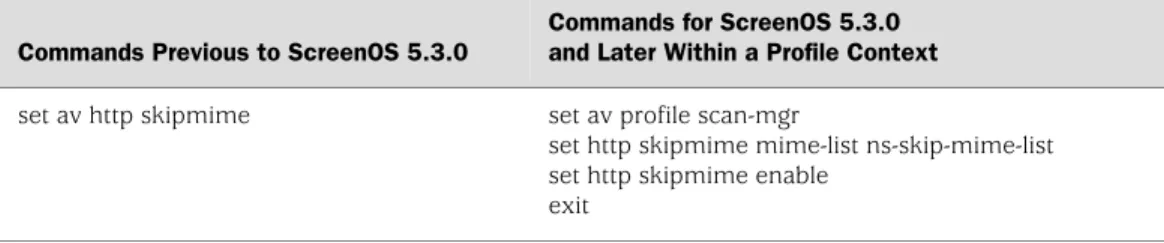
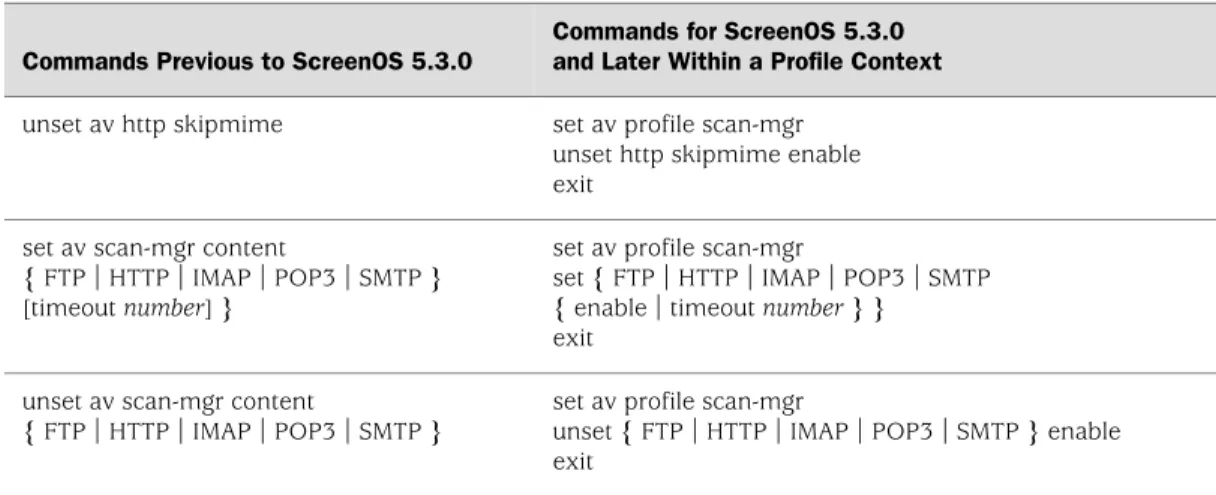
Table 6: Command Updates ...35
xiv ■ List of Tables Upgrade Guide
Part 1
Upgrade Procedures
■ About This Guide on page 3■ ScreenOS Upgrade Procedures on page 7
2 ■ Upgrade Procedures Upgrade Guide
Chapter 1
About This Guide
This guide contains procedures for upgrading existing firmware to ScreenOS 6.3.0.
■ Conventions on page 3
■ Requesting Technical Support on page 5 ■ Document Feedback on page 6
Conventions
This guide uses the conventions described in the following sections:
■ Web User Interface Conventions on page 3 ■ Command Line Interface Conventions on page 4 ■ Naming Conventions and Character Types on page 4
Web User Interface Conventions
The Web user interface (WebUI) contains a navigational path and configuration settings. To enter configuration settings, begin by clicking a menu item in the navigation tree on the left side of the screen. As you proceed, your navigation path appears at the top of the screen, with each page separated by angle brackets. The following example shows the WebUI path and parameters for defining an address: Policy > Policy Elements > Addresses > List > New: Enter the following
information, then click OK:
Address Name: addr_1 IP Address/Domain Name:
IP/Netmask: (select), 10.2.2.5/32 Zone: Untrust
To open online Help for configuration settings, click on the question mark (?) in the upper right of the screen.
The navigation tree also provides a Help > Config Guide configuration page to help you configure security policies and Internet Protocol Security (IPsec). Select an option from the list, and follow the instructions on the page. Click the ? character in the upper right for online Help on the Config Guide.
Command Line Interface Conventions
The following conventions are used to present the syntax of command line interface (CLI) commands in text and examples.
In text, commands are in boldface type and variables are in italic type. In examples:
■ Variables are in italic type.
■ Anything inside square brackets [ ] is optional. ■ Anything inside braces { } is required.
■ If there is more than one choice, each choice is separated by a pipe ( | ). For
example, the following command means “set the management options for the ethernet1, the ethernet2, or the ethernet3 interface”:
set interface { ethernet1 | ethernet2 | ethernet3 } manage
NOTE: When entering a keyword, you only have to type enough letters to identify the word uniquely. Typing set adm u whee j12fmt54 will enter the command set admin user wheezer j12fmt54. However, all the commands documented in this guide are presented in their entirety.
Naming Conventions and Character Types
ScreenOS employs the following conventions regarding the names of objects—such as addresses, admin users, auth servers, IKE gateways, virtual systems, VPN tunnels, and zones—defined in ScreenOS configurations:
■ If a name string includes one or more spaces, the entire string must be enclosed
within double quotes; for example:
set address trust “local LAN” 10.1.1.0/24
■ Any leading spaces or trailing text within a set of double quotes are trimmed;
for example, “ local LAN ” becomes “local LAN”.
■ Multiple consecutive spaces are treated as a single space.
■ Name strings are case-sensitive, although many CLI keywords are case-insensitive.
For example, “local LAN” is different from “local lan”. ScreenOS supports the following character types:
■ Single-byte character sets (SBCS) and multiple-byte character sets (MBCS).
Examples of SBCS are ASCII, European, and Hebrew. Examples of MBCS—also referred to as double-byte character sets (DBCS)—are Chinese, Korean, and Japanese.
4 ■ Conventions Upgrade Guide
■ ASCII characters from 32 (0x20 in hexadecimals) to 255 (0xff), except double
quotes ( “ ), which have special significance as an indicator of the beginning or end of a name string that includes spaces.
NOTE: A console connection supports only SBCS. The WebUI supports both SBCS and MBCS, depending on the character sets that your browser supports.
Requesting Technical Support
Technical product support is available through the Juniper Networks Technical Assistance Center (JTAC). If you are a customer with an active J-Care or JNASC support contract, or are covered under warranty, and need postsales technical support, you can access our tools and resources online or open a case with JTAC.
■ JTAC policies—For a complete understanding of our JTAC procedures and policies,
review the JTAC User Guide located at
http://www.juniper.net/customers/support/downloads/710059.pdf.
■ Product warranties—For product warranty information, visit http://www.juniper.net/support/warranty/.
■ JTAC hours of operation—The JTAC centers have resources available 24 hours a
day, 7 days a week, 365 days a year.
Self-Help Online Tools and Resources
For quick and easy problem resolution, Juniper Networks has designed an online self-service portal called the Customer Support Center (CSC) that provides you with the following features:
■ Find CSC offerings—http://www.juniper.net/customers/support/ ■ Find product documentation—http://www.juniper.net/techpubs/ ■ Find solutions and answer questions using our Knowledge Base—
http://kb.juniper.net/
■ Download the latest versions of software and review your release notes— http://www.juniper.net/customers/csc/software/
■ Search technical bulletins for relevant hardware and software notifications— http://www.juniper.net/alerts/
■ Join and participate in the Juniper Networks Community Forum— http://www.juniper.net/company/communities/
■ Open a case online in the CSC Case Manager— http://www.juniper.net/customers/cm/
■ To verify service entitlement by product serial number, use our Serial Number
Entitlement (SNE) Tool—
https://tools.juniper.net/SerialNumberEntitlementSearch/
Requesting Technical Support ■ 5
Opening a Case with JTAC
You can open a case with JTAC on the Web or by telephone.
■ Use the Case Manager tool in the CSC at http://www.juniper.net/customers/cm/.
■ Call 1-888-314-JTAC (1-888-314-5822—toll free in USA, Canada, and Mexico).
For international or direct-dial options in countries without toll-free numbers, visit us at http://www.juniper.net/customers/support/requesting-support/.
Document Feedback
If you find any errors or omissions in this document, contact Juniper Networks at [email protected].
6 ■ Document Feedback Upgrade Guide
Chapter 2
ScreenOS Upgrade Procedures
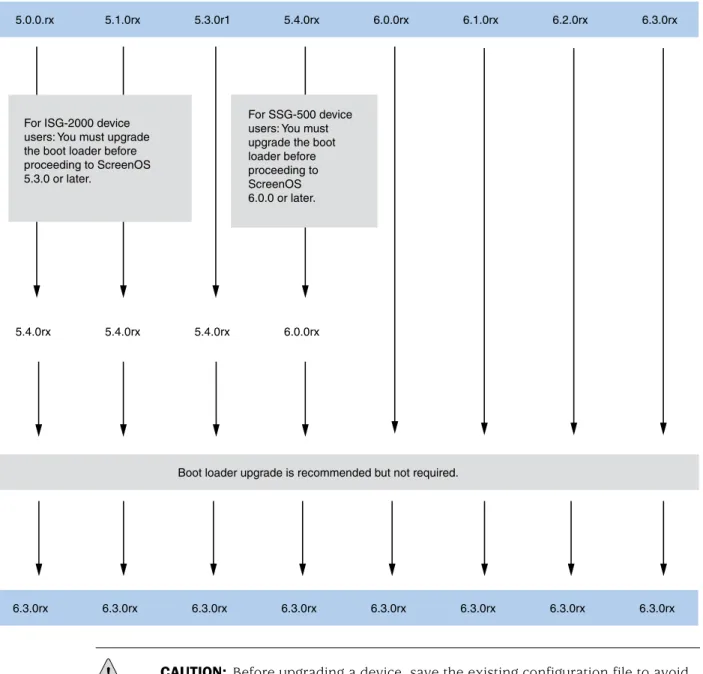
This guide contains procedures for upgrading existing firmware to ScreenOS 6.3.0. Before you upgrade a security device, you must have the most recent ScreenOS firmware stored on your local drive. Depending on the platform and the firmware your device is currently running, you also might need intermediate (or step-up) firmware, new boot-loader firmware, or both. Figure 1 on page 8 illustrates the various firmware upgrade paths to ScreenOS 6.3.0.
Figure 1: Firmware Upgrade Path
CAUTION: Before upgrading a device, save the existing configuration file to avoid losing any data. During the upgrade process, the device might remove part or all of the configuration file.
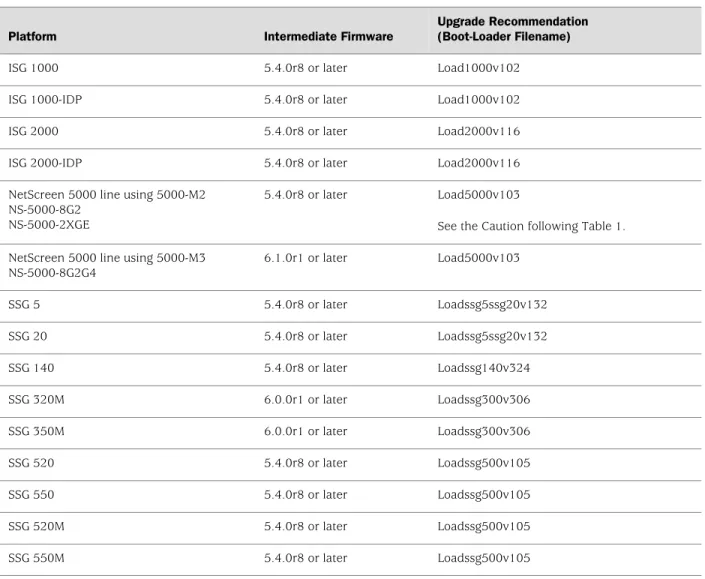
Table 1 on page 9 lists the recommended upgrade path to ScreenOS 6.3.0 based on security device model and firmware version. For example, if you are running ScreenOS 5.0.0 on a NetScreen 5000 line device, you need to upgrade to ScreenOS 5.4.0r8 or later before upgrading to ScreenOS 6.3.0. Table 1 on page 9 also lists boot-loader upgrade recommendations for each ScreenOS platform.
8 ■
NOTE: For the SSG 500/500M and SSG 300M Series devices, we strongly recommend that you upgrade the boot loader to the latest version. For other devices, boot loader upgrade is only needed if there is a failure during the upgrade.
Table 1: Upgrade Paths to ScreenOS 6.3.0
Upgrade Recommendation (Boot-Loader Filename) Intermediate Firmware Platform Load1000v102 5.4.0r8 or later ISG 1000 Load1000v102 5.4.0r8 or later ISG 1000-IDP Load2000v116 5.4.0r8 or later ISG 2000 Load2000v116 5.4.0r8 or later ISG 2000-IDP Load5000v103
See the Caution following Table 1. 5.4.0r8 or later
NetScreen 5000 line using 5000-M2 NS-5000-8G2
NS-5000-2XGE
Load5000v103 6.1.0r1 or later
NetScreen 5000 line using 5000-M3 NS-5000-8G2G4 Loadssg5ssg20v132 5.4.0r8 or later SSG 5 Loadssg5ssg20v132 5.4.0r8 or later SSG 20 Loadssg140v324 5.4.0r8 or later SSG 140 Loadssg300v306 6.0.0r1 or later SSG 320M Loadssg300v306 6.0.0r1 or later SSG 350M Loadssg500v105 5.4.0r8 or later SSG 520 Loadssg500v105 5.4.0r8 or later SSG 550 Loadssg500v105 5.4.0r8 or later SSG 520M Loadssg500v105 5.4.0r8 or later SSG 550M
CAUTION: This release requires the SIMM DRAM upgrade to 1GB on NetScreen 5000 line devices. Secure Port Modules (SPMs) affected are NS-5000-8G2 and NS-5000-2XGE manufactured before February 1, 2006. If your NS-5000 modules qualify for a memory upgrade, contact Juniper Networks at 1-866-369-5418 or email
■ 9
[email protected] for a memory-upgrade kit. The memory upgrade is free for qualified users.
Device-Specific Requirements
The NetScreen-5400 device supports two million sessions (the default) in version 6.1.0. When upgrading from 5.4.0 or 6.0.0r1 to 6.1.0 or 6.0.0r2, make sure your security device has a minimum of 450 MB of free memory. One million sessions requires approximately 340 MB of memory.
NOTE: To initialize SSG security devices, the SCCP client checks if the USB device is connected to the port and loads the configuration file usb:auto_config.txt (if the file is stored in the USB device).
Requirements for Upgrading Security Device Firmware
This section lists the requirements for upgrading security device firmware.
The information in this section and the procedures in this guide apply whether you are moving to a later release than what you are currently running or to an earlier release. However, we do not recommend downgrading because some configuration data might be lost.
NOTE: You can upgrade some security devices locally or remotely, but we recommend that you perform the upgrade of a device at the device location.
You can use any of the following methods to upgrade a security device:
■ WebUI ■ CLI
■ Boot loader
To use the WebUI, you must have the following access:
■ Root privilege to the security device
■ Network access to the device from a computer that has a browser
■ New ScreenOS firmware (downloaded from the Juniper Networks website and
saved locally)
10 ■ Device-Specific Requirements Upgrade Guide
NOTE: After upgrading to ScreenOS 6.3.0 from a previous release of ScreenOS, you might need to either clear the cookies in your Web browser or press the default Help Link Path button in the WebUI, located in Configuration>Admin>Management. Because of cookies set when managing a device, you might receive the prior version of the Help files when selecting WebUI online Help if you do not clear the cookies in your browser.
To use the CLI, you must have the following access:
■ Root or read-write privileges to the security device
■ Console connection or Telnet access to the device from a computer ■ TFTP server installed locally and to which the device has access
■ New ScreenOS firmware (downloaded from the Juniper Networks website and
saved to a local TFTP server directory)
To upgrade through the boot loader, you must have the following access:
■ Root or read-write privileges to the security device
■ TFTP server installed locally that has an IP address in the same subnet as the
device (255.255.255.0)
■ Ethernet connection from a computer to the device (to transfer data from a local
TFTP server)
■ Console connection from the computer to the device (to manage the device) ■ New ScreenOS firmware saved to a local TFTP server directory
Figure 2 on page 12 illustrates the three different ways by which you can upgrade a security device.
Requirements for Upgrading Security Device Firmware ■ 11
Figure 2: ScreenOS Upgrade Methods
To upgrade a security device, see the step-by-step procedures in “Upgrading to the New Firmware” on page 19 or “Upgrading Security Devices in an NSRP Configuration” on page 23.
Upgrading Boot Loaders
Some security devices require that you upgrade the boot loader before or during the firmware upgrade. Depending on the device, you upgrade boot loaders (if needed) in one of two ways.
■ Method 1—First upgrading the boot loader, and then upgrading the firmware ■ Method 2—Upgrading the boot loader and, after rebooting, using the boot loader
to upgrade the firmware
You can view the boot-loader version for ISG and NetScreen 5000 line security devices by entering the get envar command. For SSG devices, reboot the device by using the console connection, and then check the boot messages.
NOTE: You cannot upgrade boot loaders remotely. A console connection and TFTP server are required to upgrade the boot loader.
Method 1
The security devices for which you upgrade the boot loader and then upgrade the firmware are categorized as high end and low end.
12 ■ Upgrading Boot Loaders Upgrade Guide
High-End Security Devices
The high-end security devices are as follows:
■ ISG 1000, ISG 2000, NetScreen-5200, NetScreen-5400
NOTE: For these devices, boot loader upgrade is only needed if there is a failure during the upgrade.
The sample procedure shows the boot loader upgrade steps for an ISG 2000. To upgrade the boot loader for an ISG 2000 device to v1.1.6:
1. Download the boot loader from the Juniper Networks support site.
a. Navigate your browser to http://www.juniper.net/customers/support/. The Support page appears.
b. Locate the Download Software section, and click ScreenOS. Enter your user ID and password in the login page that appears, and then click the LOGIN button. The ScreenOS page appears.
c. In the table of software download versions, locate ISG-2000 and click version 6.3.
d. In the Software tab (under Package), click ISG-2000_Boot_loader.
2. Save and extract the boot loader zip file and put it in the root directory of your TFTP server.
3. Start the TFTP server, if necessary.
4. Make an Ethernet connection from the security device hosting the TFTP server to the MGT port on the ISG 2000 and a serial connection from your workstation to the console port on the ISG 2000.
5. Restart the ISG 2000 by entering the reset command. When prompted to confirm the command, press y. The following system output appears:
Juniper Networks ISG Series BootROM V1.0.0 (Checksum: 8796E2F3) Copyright (c) 1997-2005 Juniper Networks, Inc.
Total physical memory: 2048MB Test - Pass
Initialization... Done
6. Press the X and A keys sequentially to update the boot loader.
7. Enter the filename for the boot loader software you want to load (for example, enter load200v116.d.S), the IP address of the ISG 2000, and the IP address of your TFTP server. The following system output appears:
Serial Number [0079082004000043]: READ ONLY BOM Version [E01]: READ ONLY
Self MAC Address [0010-db7a-bd80]: READ ONLY
OS Loader File Name [eng/n2000idp-PEK0z0gi]: load2000v116.d.S
Upgrading Boot Loaders ■ 13
Self IP Address [10.155.102.103]: TFTP IP Address [10.155.127.253]:
8. Press Enter to load the file. The following system output appears:
Save loader config (112 bytes)... Done Loading file "load2000v116.d.S"... rtatatatatata...
Loaded successfully! (size = 383,222 bytes) Ignore image authentication!
Program OS Loader to on-board flash memory... ++++++++++++++++++++++++Done!
Start loading... ... Done.
You have completed the upgrade of the boot loader and can now proceed to “Downloading New Firmware” on page 18.
Low-End Security Devices
The low-end security devices are as follows:
■ SSG 320M, SSG 350M, SSG 520, SSG 520M, SSG 550, SSG 550M
CAUTION: For these devices, we strongly recommend that you upgrade the boot loader to the latest version.
The sample procedure shows the boot loader upgrade steps for an SSG 500 device.
To upgrade the boot loader for an SSG 500 device to v1.0.5:
1. Download the boot loader from the Juniper Networks support site.
a. Navigate your browser to http://www.juniper.net/customers/support/. The Support page appears.
b. Locate the Download Software section, and click ScreenOS. Enter your user ID and password in the login page that appears, and then click the LOGIN button. The ScreenOS page appears.
c. In the table of software download versions, locate SSG-500 and click version 6.3.
d. In the Software tab (under Package), click SSG-500_Boot_loader.
2. Save and extract the boot loader zip file and put it in the root directory of your TFTP server.
3. Start the TFTP server, if necessary.
14 ■ Upgrading Boot Loaders Upgrade Guide
4. Make an Ethernet connection from the security device hosting the TFTP server to the MGT port on the SSG 500 and a serial connection from your workstation to the console port on the SSG 500.
5. Restart the SSG 500 by entering the reset command. When prompted to confirm the command, press y. The following system output appears:
Juniper Networks SSG500 BootROM V1.0.2 (Checksum: 8796E2F3) Copyright (c) 1997-2005 Juniper Networks, Inc.
Total physical memory: 512MB Test - Pass
Initialization... Done
6. Press the X and A keys sequentially to update the boot loader.
7. Enter the filename for the boot loader software you want to load (for example, enter loadssg500v105), the IP address of the SSG 500, and the IP address of your TFTP server. The following system output appears:
File Name [boot2.1.0.2]: loadssg500v105 Self IP Address [10.150.65.152]: TFTP IP Address [10.150.65.151]:
8. Press Enter to load the file. The following system output appears:
Save loader config (112 bytes)... Done Loading file "loadssg500v105"... /
Loaded successfully! (size = 125,512 bytes) Ignore image authentication!
...
... Done.
You have completed the upgrade of the boot loader and can now proceed to “Downloading New Firmware” on page 18.
Method 2
The security devices for which you upgrade the boot loader and, after rebooting, use the boot loader to upgrade the firmware are as follows:
■ SSG 5, SSG 20, SSG 140
NOTE: For these devices, boot loader upgrade is only needed if there is a failure during the upgrade.
The sample procedure shows the boot loader upgrade steps for an SSG 140 device.
To upgrade the boot loader for an SSG 140 device to v3.2.4:
1. Download the boot loader from the Juniper Networks support site.
Upgrading Boot Loaders ■ 15
a. Navigate your browser to http://www.juniper.net/customers/support/. The Support page appears.
b. Locate the Download Software section, and click ScreenOS. Enter your user ID and password in the login page that appears, and then click the LOGIN button. The ScreenOS page appears.
c. In the table of software download versions, locate SSG-140 and click version 6.3.
d. In the Software tab (under Package), click SSG-140_6.3.0r1_Upgrade.
2. Save and extract the upgrade zip file and put it in the root directory of your TFTP server.
3. Start the TFTP server, if necessary.
4. Make an Ethernet connection from the security device hosting the TFTP server to the MGT port on the SSG 140 and a serial connection from your workstation to the console port on the SSG 140.
5. Restart the SSG 140 by entering the reset command. When prompted to confirm the command, press y. The following system output appears:
Juniper Networks SSG-140 Boot Loader Version 3.2.3 (Checksum: ECD688CB) Copyright (c) 1997-2006 Juniper Networks, Inc.
Total physical memory: 512MB Test - Pass
Initialization - Done Hit any key to run loader Hit any key to run loader
6. At this point, press any key to run the loader. The following system output appears:
Serial Number [0185012007000097]: READ ONLY HW Version Number [1010]: READ ONLY
Self MAC Address [0017-cb49-4d00]: READ ONLY Boot File Name [release/firmware/6.3/ssg140]: ->: release/firmware/6.3/loadssg140v324.d Self IP Address [10.150.35.229]:
TFTP IP Address [10.150.39.252]:
7. Press Enter to load the file. The following system output appears:
Save loader config (56 bytes)... Done
The configured TFTP server is connected to port 0
Loading file "release/firmware/6.3/loadssg140v324.d"... r
Receiving data block ... #448
Loaded Successfully! (size = 232,502 bytes)
16 ■ Upgrading Boot Loaders Upgrade Guide
Ignore image authentication
Save to on-board flash disk? (y/[n]/m)
8. At this point, when prompted to save to on-board flash disk, press n. (Because the boot loader upgrade is a one-time operation, you do not need to save it to on-board flash.) The following system output appears:
Run downloaded system image? ([y]/n)
9. At this point, when prompted to run the downloaded device image, press y. The following system output appears:
Start loading... ... Done. ********************************************************** * ============================================== *
* (c)1997-2006 Juniper Networks, Inc. * * All Rights Reserved * * * * --- *
* SSG140 Boot Loader Version: 3.2.x * * Compile Date: Dec 5 2007; Time: 13:45:25 * * *
* !!!!!!!!!!!!!!!!!!!!!!!!!!!!!!!!!!!!!!!!!!!!!! * * ! ! *
* ! Please don't power off during update. ! * * ! Otherwise, the system can not boot again. ! * * ! ! *
* !!!!!!!!!!!!!!!!!!!!!!!!!!!!!!!!!!!!!!!!!!!!!! * * *
* *** DON'T POWER OFF DURING BOOT LOADER UPDATE *** * * *** DON'T POWER OFF DURING BOOT LOADER UPDATE *** * * *** DON'T POWER OFF DURING BOOT LOADER UPDATE *** * * *
********************************************************** Check on-board Boot Loader... Update needed!
Are you sure you want to update Boot Loader? (y/n)
10. At this point, when prompted to answer whether you want to update the boot loader, press y. The following system output appears:
Read product information of on-board boot flash device: Manufacturer ID = 01
Device ID = 4f
Boot flash device is Am29LV040B
Erase on-board boot flash device... Done Update Boot
Loader... Done
Upgrading Boot Loaders ■ 17
Verify Boot Loader... Done
Boot Loader has been updated successfully!
You have completed the upgrade of the boot loader. The system will reboot and you can now proceed to “Downloading New Firmware” on page 18.
Downloading New Firmware
You can obtain the ScreenOS firmware from the Juniper Networks website. To access firmware downloads, you must be a registered customer with an active user ID and password. If you have not yet registered your Juniper Networks product, you must do so at the Juniper Networks website before proceeding.
NOTE: Before you begin a device upgrade, you must have the most recent ScreenOS firmware. Check Table 1 on page 9 to make sure you have the required intermediate software, if any.
To get the latest ScreenOS firmware:
1. Navigate your browser to http://www.juniper.net/customers/support/. The Support page appears.
a. Locate the Download Software section, and click ScreenOS. Enter your user ID and password in the login page that appears, and then click the LOGIN button. The ScreenOS page appears.
b. In the table of software download versions, locate the device for which you want to download software and click the version you want.
c. In the Software tab (under Package), click the upgrade link. For some devices, you need to click the management module link before you can access the Software tab.
2. Click Save, then navigate to the location where you want to save the firmware zip file.
NOTE: Before loading the firmware, you must unzip the file.
You must save the firmware onto the computer from which you want to perform the upgrade.
If you want to upgrade the device using the WebUI, save the firmware anywhere on the computer.
If you want to upgrade the device using the CLI, save the firmware in the root TFTP server directory on the computer. If you do not have a TFTP server installed on your computer, then you can download one from the Internet. If no TFTP server is available, then you must use the WebUI to load the new firmware onto the device.
18 ■ Downloading New Firmware Upgrade Guide
Upgrading to the New Firmware
This section provides instructions for upgrading firmware on the security device using the WebUI, the CLI, and the boot loader. This section also describes how to save multiple firmware images with the boot loader.
CAUTION: Before upgrading a device, save the existing configuration file to avoid losing any data.
Check Table 1 on page 9 to determine whether you need to install intermediate firmware or a boot-loader upgrade before installing ScreenOS 6.3.0. Use either the WebUI or CLI procedure to first install intermediate firmware (if required), and then install ScreenOS 6.3.0 firmware.
Upgrading Using the WebUI
This section describes how to upgrade the firmware on the security device using the WebUI. Instructions include upgrading to an intermediate version of firmware, if required, and then upgrading to ScreenOS 6.3.0.
To upgrade firmware using the WebUI:
1. Log into the security device by opening a browser.
a. Enter the management IP address in the Address field.
b. Log in as the root admin or an admin with read-write privileges.
2. Save the existing configuration.
a. Go to Configuration > Update > Config File, and then click Save to File. The File Download dialog box appears.
b. Click Save.
c. Navigate to the location where you want to save the configuration file (cfg.txt), and then click Save.
3. Upgrade to intermediate firmware, if required.
See Table 1 on page 9 to determine if intermediate firmware is required. If intermediate firmware is required, perform the following steps. Otherwise, proceed to Step 4.
a. Go to Configuration > Update > ScreenOS/Keys, and then select Firmware Update.
b. Click Browse to navigate to the location of the intermediate firmware. For example, if you upgrade a NetScreen 5000 line device running ScreenOS 5.4.0r1, you must upgrade to ScreenOS 5.4.0r8 or later and then continue this procedure.
c. Click Apply.
Upgrading to the New Firmware ■ 19
NOTE: This process takes some time. Do not click Cancel or the upgrade will fail. If you do click Cancel and the upgrade fails, power off the security device, then power it on again. Restart the upgrade procedure beginning with Step 3.
d. Click OK to continue.
The security device restarts automatically. The upgrade is complete when the device displays the login page in the browser.
e. Log into the device. You can verify the version of the security device ScreenOS firmware in the Device Information section of the WebUI page.
4. Upgrade to the new ScreenOS firmware.
a. Go to Configuration > Update > ScreenOS/Keys, and then select Firmware Update.
b. Click Browse to navigate to the location of the new ScreenOS firmware, or enter the path to its location in the Load File field.
c. Click Apply.
A message box appears with information about the upgrade time. d. Click OK to continue.
The device restarts automatically. The upgrade is complete when the device displays the login page in the browser.
e. Log into the device. You can verify the version of the security device ScreenOS firmware in the Device Information section of the WebUI page.
5. If necessary, upload the configuration file that you saved in Step 4. a. Go to Configuration > Update > Config File.
b. Select Merge to Current Configuration.
c. Enter the path and name of the configuration file, or click Browse to navigate to the file location.
d. Click Apply.
Upgrading Using the CLI
This section describes how to upgrade the firmware on the security device using the CLI. Instructions include upgrading to an intermediate version of the firmware, if required, and upgrading to ScreenOS 6.3.0.
To upgrade firmware using the CLI:
20 ■ Upgrading to the New Firmware Upgrade Guide
1. Make sure you have the new ScreenOS firmware (or the intermediate firmware, if required) in the TFTP root directory. For information about obtaining the new firmware, see “Downloading New Firmware” on page 18.
2. Run the TFTP server on your computer by double-clicking the TFTP server application. You can minimize this window, but it must be active in the background.
3. Log into the security device using an application such as Telnet or SSH (or HyperTerminal if connected directly through the console port). Log in as the root admin or an admin with read-write privileges.
4. Save the existing configuration by running the following command:
save config to { flash | slot1 | tftp }...
5. Enter the following command on the device and specify the filename of the firmware (if you are installing intermediate firmware, specify the filename of the intermediate firmware):
save soft from tftpip_addr screenos_filenameto flash
where ip_addr is the IP address of your computer, and screenos_filename is the filename of the ScreenOS 6.3.0 firmware.
NOTE: If this upgrade requires intermediate firmware and you have not already upgraded to that firmware, enter the intermediate firmware filename when entering this command.
6. Reset the device when the upgrade is complete. Run the reset command and enter y at the prompt to reset the device.
7. Wait a few minutes, and then log into the security device again.
8. Use the get system command to verify the version of the security device ScreenOS firmware.
If you upgraded to intermediate firmware, repeat Steps 5 through 8 to install the ScreenOS 6.3.0 firmware.
9. If necessary, upload the configuration file that you saved in Step 4 by executing the following command:
save config from tftp to { flash | slot1 | tftp }...
Upgrading Using the Boot Loader
The boot loader brings up the hardware system, performs basic and sometimes critical hardware configurations, and loads system software used to run a security device.
To upgrade firmware using the boot loader:
1. Connect your computer to the security device.
Upgrading to the New Firmware ■ 21
a. Using a serial cable, connect the serial port on your computer to the console port on the device (refer to your hardware manual for console settings). This connection, in combination with a terminal application, enables you to manage the device.
b. Using an Ethernet cable, connect the network port on your computer to port 1 or to the management port on the device. This connection enables the transfer of data among the computer, the TFTP server, and the device.
2. Make sure you have the new ScreenOS firmware stored in the TFTP server directory on your computer. For information about obtaining the new firmware, see “Downloading New Firmware” on page 18.
3. Run the TFTP server on your computer by double-clicking the TFTP server application. You can minimize this window, but it must be active in the background.
4. Log into the device using a terminal emulator such as HyperTerminal. Log in as the root admin or an admin with read-write privileges.
5. Restart the device.
6. Press any key on your computer when you see “Hit any key to run loader” or “Hit any key to load new firmware” on the console display. This interrupts the startup process.
NOTE: If you do not interrupt the device in time, it loads the firmware saved in flash memory.
7. Enter the filename of the ScreenOS firmware that you want to load at the Boot File Name prompt.
NOTE: If Table 1 on page 9 lists an intermediate firmware requirement, enter that filename at this step.
If you enter slot1: before the specified filename, then the loader reads the specified file from the external compact flash or memory card. If you do not enter slot1: before the filename, then the file is downloaded from the TFTP server. If the security device does not support a compact flash card, then an error message is displayed and the console prompts you to reenter the filename.
8. Enter an IP address that is on the same subnet as the TFTP server at the Self IP Address prompt.
9. At the TFTP IP Address prompt, enter the IP address of the TFTP server.
NOTE: The self IP address and TFTP IP address must be in the same subnet; otherwise, the TFTP loader rejects the self IP address and then prompts you to reenter it.
22 ■ Upgrading to the New Firmware Upgrade Guide
An indication that the firmware is loading successfully is the display of a series of “rtatatatatatata...” running on the terminal-emulator screen and a series of symbols running on the TFTP server window. When the firmware installation is complete, a message informs you that the installation was successful. Repeat these steps if your first firmware upgrade was to an intermediate version.
Upgrading Security Devices in an NSRP Configuration
For security devices in a NetScreen Redundancy Protocol (NSRP) configuration, you must upgrade each device individually. There are two different NSRP configurations: NSRP active/passive and NSRP active/active.
The upgrade paths shown in Table 2 on page 23 are valid for each of these NSRP configurations, but for no-downtime upgrades, you must follow the information shown in Table 2 on page 23. For example, if you are running ScreenOS 5.0.0 on an ISG 2000 device, you need to upgrade both units of the cluster to ScreenOS 5.4.0r10, 6.0.0r7, 6.1.0r3 or 6.2.0r2 before upgrading to ScreenOS 6.3.0. Table 2 on page 23 also lists boot-loader upgrade recommendations for the ScreenOS platforms.
Table 2: Upgrade Paths to ScreenOS 6.3.0 for No-Downtime NSRP Upgrades
Upgrade Recommendation (Boot-Loader Filename) Intermediate Firmware Platform Load1000v102 5.4.0r10, 6.0.0r7, 6.1.0r3, 6.2.0r2 ISG 1000 Series Load2000v116 5.4.0r10, 6.0.0r7, 6.1.0r3, 6.2.0r2 ISG 2000 Series Load5000v103 5.4.0r11, 6.0.0r7, 6.1.0r3, 6.2.0r2
NetScreen 5000 line using 5000-M2
Load5000v103 6.1.0r3, 6.2.0r2
NetScreen 5000 line using 5000-M3 Loadssg5ssg20v132 5.4.0r10, 6.0.0r7, 6.1.0r3, 6.2.0r2 SSG 5 Loadssg5ssg20v132 5.4.0r10, 6.0.0r7, 6.1.0r3, 6.2.0r2 SSG 20 Loadssg140v324 5.4.0r11, 6.0.0r7, 6.1.0r3, 6.2.0r2 SSG 140 Loadssg300v306 6.0.0r7, 6.1.0r3, 6.2.0r2 SSG 300M Series Loadssg500v105 6.0.0r7, 6.1.0r3, 6.2.0r2 SSG 500/500M Series
The following sections describe the procedures for each of these NSRP configurations. The procedures apply only to firmware upgrades and are based on the assumption that the security devices are identical and that there are no hardware changes. If there are any hardware changes, consult the corresponding hardware guide for each platform.
Upgrading Security Devices in an NSRP Configuration ■ 23
CAUTION: Before upgrading a security device, save the existing configuration file to avoid losing any data.
Upgrading Security Devices in an NSRP Active/Passive Configuration
This section describes the steps for upgrading—with no downtime—a basic NSRP active/passive configuration, where security device A is the primary device and security device B is the backup device. Such an upgrade is supported for identical devices only and for the platforms listed in Table 2 on page 23. These steps are also valid when you follow the information shown in Table 1 on page 9, but a
no-downtime upgrade is not guaranteed.
Before you begin, read “Requirements for Upgrading Security Device Firmware” on page 10. Also make sure you download the ScreenOS firmware to which you are upgrading each security device.
WARNING: Do not power off your device while it is upgrading to new firmware. Doing so could permanently damage the device.
To upgrade two devices in an NSRP active/passive configuration (some steps require CLI use):
1. Upgrade security device B to ScreenOS 6.3.0.
From the WebUI
a. Make sure you have the new ScreenOS firmware (and the intermediate firmware, if required). For information about obtaining the firmware, see “Downloading New Firmware” on page 18.
b. Log into security device B by opening a browser and entering the management IP address in the Address field. Log in as the root admin or an admin with read-write privileges.
c. Save the existing configuration:
1. Go to Configuration > Update > Config File, and then click Save to File.
2. Click Save in the File Download dialog box.
3. Navigate to the location where you want to save the configuration file (cfg.txt), and then click Save.
d. Click Configuration > Update > ScreenOS/Keys, and then select Firmware Update.
e. Click Browse to navigate to the location of the ScreenOS 6.3.0 firmware, or enter the path to its location in the Load File box.
f. Click Apply.
A message box appears with information about the upgrade time.
24 ■ Upgrading Security Devices in an NSRP Configuration Upgrade Guide
g. Click OK to continue.
The device restarts automatically. The upgrade is complete when the device displays the login page in the browser.
h. Verify the version of the ScreenOS firmware by logging into the device and locating the Device Information section of the WebUI page.
From the CLI
a. Make sure you have the ScreenOS 6.3.0 firmware (and the intermediate firmware, if required). For information about obtaining the firmware, see “Downloading New Firmware” on page 18.
b. Log into security device B using an application such as Telnet or SSH (or HyperTerminal if directly connected through the console port). Log in as the root admin or an admin with read-write privileges.
c. Save the existing configuration by running the following command:
save config to { flash | slot1 | tftp }...
d. Run the TFTP server on your computer by double-clicking the TFTP server application.
e. Enter the following command on the device:
save soft from tftp ip_addr screenos_filenameto flash
where ip_addr is the IP address of your computer, and screenos_filename is the filename of the ScreenOS 6.3.0 firmware.
f. Enter the reset command when the upgrade is complete, and then enter y at the prompt to reset the device.
g. Wait a few minutes, and then log into the device.
h. Enter the get system command to verify the version of the security device ScreenOS firmware.
2. Manually fail over the primary device to the backup device (CLI only).
From the CLI
a. Log into the primary device (security device A).
b. Issue one of the following CLI commands. The command that you need to run depends on whether or not the preempt option is enabled on the primary device.
■ If the preempt option is enabled:
exec nsrp vsd-group 0 mode ineligible
■ If the preempt option is not enabled:
exec nsrp vsd-group 0 mode backup
Either command forces the primary device to step down and the backup device to immediately assume the primary device role.
Upgrading Security Devices in an NSRP Configuration ■ 25
3. Upgrade the primary device (device A) to ScreenOS 6.3.0.
From the WebUI
a. Make sure you have the ScreenOS 6.3.0 firmware. For information about obtaining the firmware, see “Downloading New Firmware” on page 18. b. Log into security device A.
c. Save the existing configuration:
1. Go to Configuration > Update > Config File, and then click Save to File.
2. Click Save in the File Download dialog box.
3. Navigate to the location where you want to save the configuration file (cfg.txt), and then click Save.
d. Click Configuration > Update > ScreenOS/Keys, and then select Firmware Update.
e. Click Browse to navigate to the location of the ScreenOS 6.3.0 firmware, or enter the path to its location in the Load File box.
f. Click Apply.
A message box appears with information about the upgrade time. g. Click OK to continue.
The device restarts automatically. The upgrade is complete when the device displays the login page in the browser.
h. Verify the version of the ScreenOS firmware by logging into the device and locating the Device Information section of the WebUI page.
From the CLI
a. Make sure you have the ScreenOS 6.3.0 firmware. For information about obtaining the firmware, see “Downloading New Firmware” on page 18. b. Log into security device A.
c. Save the existing configuration by running the following command:
save config to { flash | slot1 | tftp }...
d. Run the TFTP server on your computer by double-clicking the TFTP server application.
e. Run the following command on the device:
save soft from tftpip_addr screenos_filename to flash
where ip_addr is the IP address of your computer, and screenos_filename is the filename of the ScreenOS 6.3.0 firmware.
26 ■ Upgrading Security Devices in an NSRP Configuration Upgrade Guide
f. Reset the device when the upgrade is complete. Run the reset command and enter y at the prompt to reset the device.
g. Wait a few minutes, and then log into the device again. You can verify the security device ScreenOS firmware version by using the get system command.
4. Synchronize device A (CLI only).
From the CLI
After you complete the upgrade of security device A to ScreenOS 6.3.0, manually synchronize the two devices. On device A (backup), issue the exec nsrp sync rto all from peer command from the peer CLI to synchronize the RTOs from device B (primary device).
5. Manually fail over the primary device to the backup device (CLI only).
From the CLI
a. Log into the primary device (security device B).
b. If the preempt option is enabled on device A, no action is needed. If the preempt option is not enabled on device A, issue the following command:
exec nsrp vsd-group 0 mode backup
Either command forces the primary device to step down and the backup device to immediately assume the primary device role.
Upgrading Security Devices in an NSRP Active/Active Configuration
This section applies to upgrading—with no downtime—an NSRP configuration where you paired two security devices into two virtual security device (VSD) groups, with each physical device being the primary in one group and the backup in the other. Such an upgrade is supported for identical devices only and for the platforms listed in Table 2 on page 23. These steps are also valid when you follow the information shown in Table 1 on page 9, but a no-downtime upgrade is not guaranteed. To upgrade, you first have to fail over one of the devices so that only one physical device is the primary of both VSD groups. You then upgrade the backup device first and the primary device second.
The following illustrates a typical NSRP active/active configuration where device A is the primary device for VSD 0 and the backup for VSD 1, and device B is the primary device for VSD 1 and the backup for VSD 0.
Before you begin, see “Requirements for Upgrading Security Device Firmware” on page 10. Also make sure you download the ScreenOS 6.3.0 firmware (and
intermediate firmware, if required).
WARNING: Do not power off your security device while it is upgrading to new firmware. Doing so could permanently damage the device.
Upgrading Security Devices in an NSRP Configuration ■ 27
To upgrade two devices in an NSRP active/active configuration (some steps require CLI use):
From the CLI
1. Manually fail over the primary device B in VSD group 1 to the backup device A in VSD group 1 (CLI only):
a. Log into security device B using an application such as Telnet or SSH (or HyperTerminal if directly connected through the console port). Log in as the root admin or an admin with read-write privileges.
b. Issue one of the following CLI commands. The command you need to run depends on whether or not the preempt option is enabled on the primary device.
■ If the preempt option is enabled:
exec nsrp vsd-group 1 mode ineligible
■ If the preempt option is not enabled:
exec nsrp vsd-group 1 mode backup
Either command forces device B to step down and device A to
immediately assume the primary role of VSD 1. At this point, device A is the primary of both VSD 0 and 1 and device B is the backup for both VSD 0 and 1.
2. Upgrade device B to the ScreenOS 6.3.0 firmware.
From the WebUI
a. Make sure you have the ScreenOS 6.3.0 firmware (and the intermediate firmware, if required). Check Table 1 on page 9 for details. For information about obtaining the firmware, see “Downloading New Firmware” on page 18.
b. Log into security device B by opening a browser and entering the management IP address in the Address box. Log in as the root admin or an admin with read-write privileges.
c. Save the existing configuration:
1. Go to Configuration > Update > Config File, and then click Save to File.
2. Click Save in the File Download dialog box.
3. Navigate to the location where you want to save the configuration file (cfg.txt), and then click Save.
d. Click Configuration > Update > ScreenOS/Keys, and then select Firmware Update.
e. Click Browse to navigate to the location of the ScreenOS 6.3.0 firmware, or enter the path to its location in the Load File box.
f. Click Apply.
A message box appears with information about the upgrade time.
28 ■ Upgrading Security Devices in an NSRP Configuration Upgrade Guide
g. Click OK to continue.
The device restarts automatically. The upgrade is complete when the device displays the login page in the browser.
h. Verify the version of the ScreenOS firmware by logging into the device and locating the Device Information section of the WebUI page.
From the CLI
a. Make sure you have the ScreenOS 6.3.0 firmware. For information about obtaining the firmware, see “Downloading New Firmware” on page 18. b. Log into security device B.
c. Save the existing configuration by running the following command:
save config to { flash | slot1 | tftp }...
d. Run the TFTP server on your computer by double-clicking the TFTP server application.
e. Enter the following command on the device:
save soft from tftpip_addr screenos_filename to flash
where ip_addr is the IP address of your computer, and screenos_filename is the filename of the ScreenOS 6.3.0 firmware.
f. Reset the device when the upgrade is complete. Run the reset command and enter y at the prompt to reset the device.
g. Wait a few minutes, and then log into the device again. You can verify the device ScreenOS firmware version by using the get system command.
3. Manually fail over device A completely to device B (CLI only).
From the CLI
a. Log into security device A.
b. Fail over primary device A in VSD 0 to backup device B in VSD 0 by issuing one of the following CLI commands. The command you need to run depends on whether or not the preempt option is enabled on the primary device.
■ If the preempt option is enabled:
exec nsrp vsd-group 0 mode ineligible
■ If the preempt option is not enabled:
exec nsrp vsd-group 0 mode backup
c. If the preempt option is enabled on device A, no action is needed. If the preempt option is not enabled on device A, issue the following command:
Upgrading Security Devices in an NSRP Configuration ■ 29
exec nsrp vsd-group 1 mode backup
At this point, device B is the primary device for both VSD 0 and 1, and device A is backup for both VSD 0 and 1.
4. Upgrade device A to ScreenOS 6.3.0.
From the WebUI
a. Make sure you have the ScreenOS 6.3.0 firmware (and the intermediate firmware, if required). Check Table 1 on page 9 for software details. For information about obtaining the firmware, see “Downloading New Firmware” on page 18. b. Log into security device A.
c. Save the existing configuration:
1. Go to Configuration > Update > Config File, and then click Save to File.
2. Click Save in the File Download dialog box.
3. Navigate to the location where you want to save the configuration file (cfg.txt), and then click Save.
d. Click Configuration > Update > ScreenOS/Keys, and then select Firmware Update.
e. Click Browse to navigate to the location of the ScreenOS 6.3.0 firmware, or enter the path to its location in the Load File box.
f. Click Apply.
A message box appears with information about the upgrade time. g. Click OK to continue.
The device restarts automatically. The upgrade is complete when the device displays the login page in the browser.
h. Verify the version of the ScreenOS firmware by logging into the device and locating the Device Information section of the WebUI page.
From the CLI
a. Make sure you have the ScreenOS 6.3.0 firmware. For information about obtaining the firmware, see “Downloading New Firmware” on page 18. b. Log into security device A.
c. Save the existing configuration by running the following command:
save config to { flash | slot1 | tftp }...
d. Run the TFTP server on your computer by double-clicking the TFTP server application.
e. Enter the following command on the security device:
30 ■ Upgrading Security Devices in an NSRP Configuration Upgrade Guide