Release 5.0.8
PyXLL Ltd.
1 Introduction to PyXLL 1
1.1 What is PyXLL? . . . 1
1.2 How does it work? . . . 2
1.3 Before You Start . . . 2
1.4 Next Steps . . . 2
2 What’s new in PyXLL 5 5 2.1 New Features and Improvements . . . 5
2.2 Important notes for upgrading from previous versions . . . 7
3 User Guide 9 3.1 Installing PyXLL . . . 9
3.2 Configuring PyXLL . . . 17
3.3 Worksheet Functions . . . 36
3.4 Real Time Data . . . 66
3.5 Cell Formatting. . . 71
3.6 Charts and Plotting . . . 76
3.7 Custom User Interfaces . . . 86
3.8 Customizing the Ribbon . . . 96
3.9 Context Menu Functions . . . 100
3.10 Macro Functions . . . 105
3.11 Python as a VBA Replacement . . . 107
3.12 Using Pandas in Excel . . . 114
3.13 Menu Functions . . . 117
3.14 Reloading and Rebinding . . . 119
3.15 Error Handling . . . 123
3.16 Distributing Python Code . . . 125
3.17 Workbook Metadata . . . 130
4 API Reference 131 4.1 Function Decorators . . . 131
4.2 Plotting Functions and Classes. . . 136
4.3 Custom Task Panes . . . 138
4.4 Utility Functions . . . 140
4.5 Ribbon Functions. . . 146
4.6 Cell Formatting. . . 148
4.7 Event Handlers . . . 152
4.8 Excel C API Functions . . . 154
4.9 Other Classes. . . 157
5 Examples 162 5.1 UDF Examples . . . 162
5.2 Pandas Examples . . . 165
5.3 Cached Objects Examples . . . 167
5.7 Event Handler Examples . . . 176
ONE
INTRODUCTION TO PYXLL
• What is PyXLL? • How does it work? • Before You Start • Next Steps
– Install PyXLL
– Calling a Python Function in Excel – Additional Resources
1.1 What is PyXLL?
PyXLL is an Excel Add-In that enables developers to extend Excel’s capabilities with Python code.
PyXLL makes Python a productive, flexible back-end for Excel worksheets, and lets you use the familiar Excel user interface to interact with other parts of your information infrastructure.
With PyXLL, your Python code runs in Excel using any common Python distribution(e.g. Anaconda, Enthought’s Canopy or any other CPython distribution from 2.3 to 3.9).
Because PyXLL runs your own full Python distribution you have access to all third party Python packages such as NumPy, Pandas and SciPy and can call them from Excel.
Example use cases include:
• Calling existing Python code to perform calculations in Excel
• Data processing and analysis that’s too slow or cumbersome to do in VBA • Pulling in data from external systems such as databases
• Querying large datasets to present summary level data in Excel • Exposing internal or third party libraries to Excel users
1.2 How does it work?
PyXLL runs Python code in Excel according to the specifications in itsconfig file, in which you configure how Python is run and which modules PyXLL should load. When PyXLL starts up it loads those modules and exposes certain functions that have been tagged with PyXLL decorators.
For example, an Excel user defined function (UDF) to compute the nthFibonacci number can be written in Python
as follows:
from pyxll import xl_func @xl_func
def fib(n):
"Naiive Fibonacci implementation." if n == 0:
return 0 elif n == 1: return 1
return fib(n-1) + fib(n-2)
Thexl_func-decorated functionfibis detected by PyXLL and exposed to Excel as a user-defined function. Excel types are automatically converted to Python types based on an optional function signature. Where there is no simple conversion (e.g. when returning an arbitrary class instance from a method) PyXLL stores the Python object reference as a cell value in Excel. When another function is called with a reference to that cell PyXLL retrieves the object and passes it to the method. PyXLL keeps track of cells referencing objects so that once an object is no longer referenced by Excel it can be dereferenced in Python.
1.3 Before You Start
Existing users might want to studyWhat’s new in PyXLL 5. Those upgrading from earlier versions will should read “Important notes for upgrading from previous versions”. If you prefer to learn by watching, perhaps you would prefer our video guides and tutorials.
Note that you cannot mix 32-bit and 64-bit versions of Excel, Python and PyXLL – they all must be the same. Install the add-in according to theinstallation instructions, making sure to update the configuration file if neces-sary. For specific instructions about installing with Anaconda or Miniconda seeUsing PyXLL with Anaconda. Once PyXLL is installed you will be able to try out the examples workbook that is included in the download. All the code used in the examples workbook is also included in the download.
Note that any errors will be written to the log file, so if you are having difficulties always look in the log file to see what’s going wrong, and if in doubt please contact us.
1.4 Next Steps
After you’veinstalled PyXLLbelow is an exercise to show you how to write your first Python user-defined func-tion.
1.4.1 Install PyXLL
To begin with follow the instructions forfirst time usersto install PyXLL. You can use PyXLL’scommand line toolto install the PyXLL add-in into Excel: >> pip install pyxll
>> pyxll install
1.4.2 Calling a Python Function in Excel
One of the main features of PyXLL is being able to call a Python function from a formula in an Excel workbook. First start by creating a new Python module and writing a simple Python function. To expose that function to Excel all you have to do is to apply thexl_funcdecorator to it.:
from pyxll import xl_func @xl_func
def hello(name):
return "Hello, %s" % name
Save your module and edit thepyxll.cfgfile again to add your new module to the list of modules to load and add the directory containing your module to the pythonpath.
[PYXLL]
modules = <add the name of your new module here>
[PYTHON]
pythonpath = <add the folder containing your Python module here>
Go to theAddinsmenu in Excel and selectPyXLL -> Reload. This causes PyXLL to reload the config and Python modules, allowing new and updated modules to be discovered.
Now in a worksheet you will find you can type a formula using your new Python function.: =hello("me")
Using PyCharm, Eclipse or Visual Studio?
You can interactively debug Python code running in PyXLL with Eclipse, PyCharm, Visual Studio and other IDEs by attaching them as a debugger to a running PyXLL. See our blog postDebugging Your Python Excel Add-Infor details.
If you make any mistakes in your code or your function returns an error you can check the log file to find out what the error was, make the necessary changes to your code and reload PyXLL again.
1.4.3 Additional Resources
The documentation explains how to use all the features of PyXLL, and contains a complete API reference. PyXLL’s features are also well demonstrated in the examples included in download. These are a good place to start to learn more about what PyXLL can do.
More example code can be found onPyXLL’s GitHub page.
If there is anything specifically you’re trying to achieve and can’t find an example or help in the documentation please contact us and we will do our best to help.
TWO
WHAT’S NEW IN PYXLL 5
Looking for an earlier version?
See 4.x/whatsnew for a detailed overview of the features added in PyXLL 4.
• New Features and Improvements – Easier Installation – Custom Task Panes – Plotting Integrations – Serialized Cached Objects – Entry Points
– Composite Ribbon Toolbars – Auto-Rebinding
– Improved Cell Formatting
• Important notes for upgrading from previous versions – Updated Software License Agreement
– Deep reloading is now enabled by default
– RTD functions no longer recalculate on open by default – async_func has been replaced with schedule_call
2.1 New Features and Improvements
2.1.1 Easier Installation
The PyXLL Excel add-in can now be installed and uninstalled via a newcommand line tool. To install the PyXLL Excel add-in first usepip installto install the PyXLL wheel, eg > pip install "pyxll >= 5.0.0"
Once the PyXLL wheel is installed the newpyxllcommand line toolcan be used to install, configure and uninstall the PyXLL Excel add-in, eg
SeePyXLL Command Line Tool.
2.1.2 Custom Task Panes
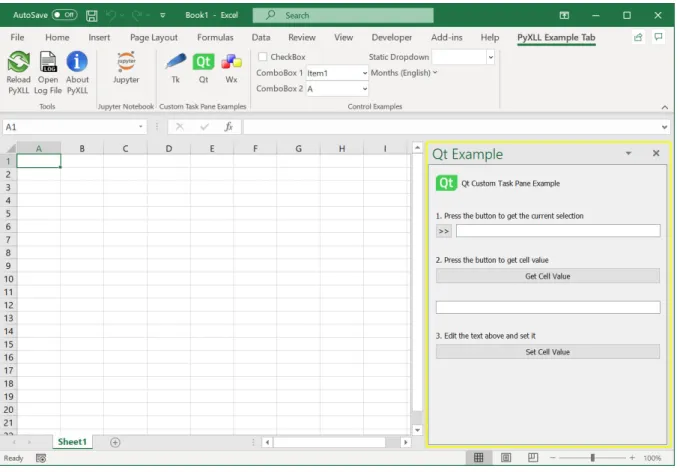
Task Panes are Excel windows that can be floating or docked as part of the Excel user interface.
PyXLL 5 adds the capability to write custom task panes in Python using any of the following Python UI toolkits: • PySide2
• PyQt5 • wxWindows • tkinter
SeeCustom User Interfaces.
2.1.3 Plotting Integrations
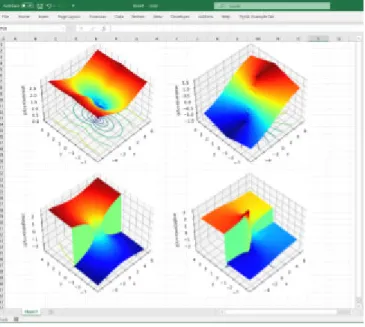
PyXLL 5 adds integration with the following Python plotting and charting packages: • matplotlib
• plotly • bokeh • altair
SeeCharts and Plotting.
2.1.4 Serialized Cached Objects
Cached objects can be serialized and saved as part of the Excel workbook. When a workbook containing saved objects is opened they are deserialized and loaded into PyXLL’s object cache.
To specify that an object should be saved use thesaveparameter to theobjectreturn type. SeeSaving Objects in the Workbook.
2.1.5 Entry Points
Python packages can now be loaded by PyXLL via setuptools’entry-points.
This allows package developers to distribute functionality to other PyXLL users more easily as no additional PyXLL configuration is required when installing a package with PyXLL entry points.
SeeSetuptools Entry Points.
2.1.6 Composite Ribbon Toolbars
The ribbon toolbar can now be composed of multiple xml files instead of a single file. Theribbonsetting can now be a list of files, which PyXLL will merge into a single ribbon.
This can be used by package authors who want to add a ribbon to their package via an entry point without needing changes to be made to the main PyXLL configuration or ribbon xml file.
2.1.7 Auto-Rebinding
When using thexl_func,xl_macroorxl_menudecorators outside of the usual module imports as PyXLL is starting, PyXLL will automatically reflect these functions in Excel without needing to callrebind.
This simplifies working with adhoc worksheet functions from an interactive Python prompt in Excel, such as a Jupyter notebook.
2.1.8 Improved Cell Formatting
• Cell formatting can now be applied to RTD functions as well as standard worksheet functions.
• The DataFrameFormatter can now do conditional formatting based on the values in the returned DataFrame.
SeeConditional Formatting.
2.2 Important notes for upgrading from previous versions
PyXLL 5.0 contains some changes that may require you to make changes to your code and/or config before upgrading from previous versions.
2.2.1 Updated Software License Agreement
The PyXLL software license agreement has been updated.See terms-and-conditions or the software license agreement PDF file included in the PyXLL download for details.
2.2.2 Deep reloading is now enabled by default
This can be disabled for backwards compatibilityDeep reloading is now enabled by default. SeeReloading and Rebindingfor details about how PyXLL reloads modules.
To disable deep reloading set the following in your PyXLL config file. [PYXLL]
deep_reload = 0
2.2.3 RTD functions no longer recalculate on open by default
This can be disabled for backwards compatibilityIn previous versions of PyXLL RTD functions were implicitly marked as needed to be recalulated when opening a workbook. This was done to be consistent with earlier behaviour where RTD functions were registered as volatile. As of PyXLL 5 RTD and standard functions behave in the same consistent way. That is, unless the recalc_on_open=Trueis passed toxl_func, or defaulted via the config, RTD functions will not recal-culate and start ticking when a workbook is opened automatically.
To enable recalculation on open as the default for all RTD functions you may set the following in your config file. [PYXLL]
2.2.4 async_func has been replaced with schedule_call
If your code usesasync_callyou should replace it with the newschedule_call. The oldasync_call is still available but has been deprecated and will log a warning if used.
THREE
USER GUIDE
3.1 Installing PyXLL
Before you start you will need to have Microsoft Excel for Windows installed, as well as acompatible version of Python.
PyXLL works with any Python distribution, includingAnaconda.
3.1.1 First Time Users
The easiest way to get started with PyXLL is to use thePyXLL Command Line Tool.
1. To install PyXLL from scratch open a Python command line prompt and install the PyXLL package using pip.
If you are using conda or a virtual environment then activate it before doing this step. >> pip install pyxll
2. Next you need to install the PyXLL Excel add-in into Excel.
• If youhaven’t yetdownloaded PyXLL fromthe download pagethen you can let the PyXLL command line tool do that for you. Runpyxll installand follow the prompts to let it download and install everything for you:
>> pyxll install
• Follow the on screen instructions to complete the installation.
Note: If you have already downloaded PyXLL you can drag and drop the zip file from Windows Explorer onto the command prompt when asked for the path!
If you have any trouble using the installer please contact us to let us know. You can find additional instructions for how to use the command line toolhere.
Next Steps
In the folder you’ve installed PyXLL into you will find an example workbook,examples.xlsx. This contains a number of examples to demonstrate some of the features of PyXLL. You can find the Python code for these examples in theexamplesfolder in your PyXLL installation.
Try adding your own modules (.pyfiles) and writing your own functions.
To add your own modules you will need to add them to themoduleslist that you can find in thepyxll.cfgfile. Use pyxll configureto quickly open the config file.
You can include modules from other folders too, not just the examples folder. Add your own folders to the pythonpathsetting in thepyxll.cfgfile.
SeeWorksheet Functionsfor details of how you can expose your own Python functions to Excel as worksheet functions, or browse theUser Guidefor information about the other features of PyXLL.
3.1.2 PyXLL Command Line Tool
The PyXLL command line tool automates tasks around installing, updating and switching between different ver-sions of PyXLL.
In order to use the PyXLL command line tool you first need to install it using pip: >> pip install pyxll
If you are using a conda or virtual env you should activate the environment you want to use first. To get the latest version of the PyXLL command line too you should update the package using pip: >> pip install --upgrade pyxll
The PyXLL wheel file is also included in thePyXLL downloadand may be installed from there. After installing, the following commands are available:
• pyxll install • pyxll configure • pyxll status • pyxll update • pyxll activate • pyxll uninstall pyxll install
Theinstallcommand installs the PyXLL Excel add-in into Excel. It is necessary to either perform this step or to install PyXLL manually before the PyXLL Excel add-in can be used.
>> pyxll install [OPTIONS] [PATH]
Options:
--version Version of PyXLL to install.
--debug Output more information when running the command. • Can be run with or withoutPATH.
– IfPATHis not specified then either the latest version of PyXLL or the version specified will be down-loaded. You will be prompted for some details in order to complete the download.
– IfPATHis specified it can be a zip file downloaded from the download page, or a folder containing the extracted downloaded zip file.
• If you already have PyXLL installed you will be warned but may continue. – Any existing files that will be over-written will be backed up.
– You will be given the choice to change the location of the installation, allowing you to maintain multiple copies of PyXLL.
– If installing in the same folder as your existing installation, your existing config file will be backed up and a new one will be created with the default configuration.
• PyXLL will be configured automatically to use the active Python environment.
Further configuration can be performed by editing the pyxll.cfg file included in the installation or by using thepyxll configurecommand.
pyxll configure
Theconfigurecommand opens the pyxll.cfg configuration file for the currently active PyXLL addin. >> pyxll configure [OPTIONS]
Options:
--debug Output more information when running the command. • The default editor for the file type.cfgwill be used to open the config file.
• PyXLL can have been installed usingpyxll installor manually.
pyxll status
Thestatuscommand checks the status of the active PyXLL installation and reports information about it. >> pyxll status [OPTIONS]
Options:
--debug Output more information when running the command.
If there are any issues with your current PyXLL installation this command may help identify what the problem is.
pyxll update
Theupdatecommand updates your active PyXLL installation to the latest version of PyXLL. >> pyxll update [OPTIONS] [PATH]
Options:
--version Version of PyXLL to update to.
--force For the update, even if the installed version is newer. --debug Output more information when running the command. • Your existingpyxll.cfgfile will not be modified.
• Can be run with or withoutPATH.
– IfPATHis not specified then either the latest version of PyXLL or the version specified will be down-loaded. You will be prompted for some details in order to complete the download.
– IfPATHis specified it can be a zip file downloaded from the download page, or a folder containing the extracted downloaded zip file.
• If you want to try out a new version of PyXLLbeforeupgrading use thepyxll installcommand and specify a different folder to install it to. You can use thepyxll activatecommand to switch between installs easily.
pyxll activate
Theactivatecommand switches between different PyXLL installations quickly. >> pyxll activate [OPTIONS] [PATH]
Options:
--debug Output more information when running the command.
• You can maintain multiple versions of PyXLL at the same time by installing PyXLL into different folders. • This command selects which PyXLL add-in is active in Excel and does not change any files or configuration. • Can be run with or withoutPATH.
– IfPATHis not specified then it will look forpyxll.xllin the current working directory and activate that, or prompt for a path ifpyxll.xllis not found.
– IfPATHis specified it should be a folder containing the PyXLL add-in to be activated.
pyxll uninstall
Theuninstallcommand uninstalls the PyXLL Add-In from Excel. >> pyxll uninstall
Options:
--force Uninstall without any confirmation.
--dry-run Log what would happen without actually uninstalling. --debug Output more information when running the command. • This command only uninstalls the PyXLL add-in from Excel.
• No files will be deleted.
• To reinstall the same PyXLL add-in runpyxll activate.
3.1.3 Manual Installation
Before you start you will need to have Microsoft Excel for Windows installed, as well as acompatible version of Python.
PyXLL works with any Python distribution, including Anaconda. For specific instructions about installing with Anaconda or Miniconda seeUsing PyXLL with Anaconda.
Warning: These instructions are formanuallyinstalling the PyXLL Excel Add-In.
1. Download the PyXLL Zipfile
PyXLL comes as a zipfile you download from the download page. Select and download the correct version depending on the versions of Python and Excel you want to use and agree to the terms and conditions.
Warning: Excel, Python and PyXLL all come in 64-bit and 32-bit versions. The three products must beall32-bit orall64-bit.
2. Unpack the Zipfile
PyXLL is packaged as a zip file. Unpack the zip file where you want PyXLL to be installed.
There is no installer to run; you complete the installation in Excel after any necessary configuration changes.
3. Edit the Config File
You configure PyXLL by editing thepyxll.cfgfile. Any text editor will do.
Set theexecutablesetting in thePYTHONsection of your config file to the full path to your Python executable.
pythonw.exe or python.exe
You may have noticed we’ve usedpythonw.exeinstead ofpython.exe.
The only difference between the two is thatpythonw.exe doesn’t open a console window and so using that means that we don’t see a console window is a Python subprocess is started (e.g. if using thesubprocessor multiprocessingPython packages).
If you prefer to usepython.exethen that will work fine too.
[PYTHON]
executable = <path to your pythonw.exe>
PyXLL uses this setting to determine where the Python runtime libraries and Python packages are located. You can determine where the executable for an installed Python interpreter with the command:
pythonw -c "import sys; print(sys.executable)"
While you have thepyxll.cfgfile open take look through and see what other options are available. You can find documentation for all available options in theConfiguring PyXLLsection of the user guide.
One important section of the config file is theLOGsection. In there you can set where PyXLL should log to and the logging level. If you are having trouble, set the log verbosity todebugto get more detailed logging.
[LOG]
verbosity = debug
Warning: The “;” character is used to comment out lines in the config file. If a line starts with “;” then it will not be read by PyXLL.
4. Install the Add-In in Excel
DLL not found
If you get an error saying that Python is not installed or the Python dll can’t be found you may need to set the Python executable in the config.
If setting the executable doesn’t resolve the problem then it’s possible your Python dll is in a non-standard location. You can set the dll location in the config to tell PyXLL where to find it.
Once you’re happy with the configuration you can install the add-in in Excel by following the instructions below. • Excel 2010 - 2019 / Office 365 Select the File menu in Excel and go toOptions -> Add-Ins -> Manage
Excel Addinsand browse for the folder you unpacked PyXLL to and select pyxll.xll.
• Excel 2007 Click the large circle at the top left of Excel and go toOptions -> Add-Ins -> Manage Excel Addinsand browse for the folder you unpacked PyXLL to and select pyxll.xll.
• Excel 97 - 2003 Go toTools -> Add-Ins -> Browseand locate pyxll.xll in the folder you unpacked the zip file to.
Warning: If Excel prompts you to ask if you want to copy the add-in to your local add-ins folder then select No.
When PyXLL loads it expects its config file to be in the same folder as the add-in, and if Excel copies it to your local add-ins folder then it won’t be able to find its config file.
5. Install the PyXLL Stubs Package(Optional)
If you are using a Python IDE that provides autocompletion or code checking or if you want to execute your code outside Excel, say for testing purposes, you will need to install the pyxll module to avoid your code raising ImportErrorexceptions.
In the downloaded zip file you will find a.whlfile whose exact filename depends on the version of PyXLL. That’s a Python Wheel containing a dummy pyxll module that you can import when testing without PyXLL. You can then use code that depends on the pyxll module outside of Excel (e.g. when unit testing).
To install the wheel run the following command (substituting the actual wheel filename) from a command line: > cd C:\Path\Where\You\Unpacked\PyXLL
> pip install "pyxll-wheel-filename.whl"
The real pyxll module is compiled into the pyxll.xll addin, and so is always available when your code is running inside Excel.
If you are using a version of Python that doesn’t support pip you can instead unzip the.whlfile into your Python site-packages folder (the wheel file is simply a zip file with a different file extension).
Next Steps
Now you have PyXLL installed you can start adding your own Python code to Excel.
SeeWorksheet Functionsfor details of how you can expose your own Python functions to Excel as worksheet functions, or browse theUser Guidefor information about the other features of PyXLL.
3.1.4 Using PyXLL with Anaconda
• What is Anaconda
• Which Anaconda Distribution to Choose • Creating a Virtual Environment (optional) • Installing PyXLL with Anaconda
• Switching Virtual Environments
What is Anaconda
Anaconda is an open source Python distribution that aims to simplify Package management and distribution. The Anaconda distribution includes over a thousand Python packages as well as its own package and virtual environment manager, Conda.
For users wanting just the package and virtual environment manager, Conda, without the large download and install size of the full Anaconda distribution, there is also Miniconda.
Which Anaconda Distribution to Choose
PyXLL will work fine with any Anaconda or Miniconda distribution for Windows. Note that PyXLL only supports Microsoft Windows and will not work on macOS.
When downloading Anaconda you are given the choice between Python 2 and Python 3. All current Python versions are supported by PyXLL, and so you are free to choose whichever version is right for you.
The Anaconda download page also offers the choice between a 64 bit installer and a 32 bit installed. The 64 bit installer is the default selection, but which one you need depends on the version of Excel you are using.
It is not possible to use a 64 bit Python environment with the 32 bit version of Excel. To determine which version of Excel you are using, in Excel go to File -> Account -> About.
If your Excel version does not inclide “64-bit” as shown above, you are using the 32 bit version of Excel and will need to download the 32 bit version of Anaconda or Miniconda.
Creating a Virtual Environment (optional)
When using Anaconda or Miniconda it’s recommended to work within a virtual environment.
A virtual environment is a Python environment where you can install and update packages without modifying the base Python install. You can have multiple environments at any time, so you could have a virtual environment dedicated to everything you do in Excel with PyXLL without having to change any other environments you might have for other tasks.
Virtual environments are created using the “conda create” command.
For example, to create a Python 3.7 environment for use with PyXLL named “pyxll”, start an Anaconda command prompt and run the following:
>> conda create -n pyxll python=3.7
This will create a new Python 3.7 environment called “pyxll” (the name can be anything, it doesn’t have to be pyxll).
You then have to activate that environment and install the packages you want: >> activate env
>> conda install pandas
To see what environments you have, use “conda info –envs”. That will give you the path to where the new pyxll environment has been created.
Installing PyXLL with Anaconda
PyXLL can be used with the Anaconda and Miniconda distributions. Use of either a virtual env or the base Python environment is supported.
Follow theinstallation instructionsto install PyXLL.
If you are using thePyXLL Command Line Toolthen be sure to activate your conda environment first. (base) >> activate env
(env) >> pip install pyxll (env) >> pyxll install
If you are installing the PyXLL add-in manually then edit yourpyxll.cfgfile so that theexecutablesetting refer-ences the Python executable from your conda environment:
[PYTHON]
executable = C:\Program Files\Anaconda\envs\pyxll\pythonw.exe
To determine what Python executable to use, open an Anaconda Command prompt and activate the virtual envi-ronment you want to use and type “where pythonw”:
(base) >> activate env (env) >> where pythonw
C:/Program Files/Anaconda/envs/env/pythonw.exe
Switching Virtual Environments
To change the virtual environment that PyXLL uses from the one your originally configured, simply update your pyxll.cfgconfig file to use the new virtual env and restart Excel.
Don’t forget that you may also need to install the pyxll stubs package in the new virtual environment if you require code completion in your IDE, or if you are importing pyxll outside of Excel for any other reason.
3.2 Configuring PyXLL
Finding the config file
In PyXLL’sAboutdialog it displays the full path to the config file in use. Clicking on the path will open the config file in your default editor.
The PyXLL config is available to your addin code at run-time viaget_config.
If you add your own sections to the config file they will be ignored by PyXLL but accessible to your code via the config object.
If you’ve not installed the PyXLL addin yet, seeInstalling PyXLL.
The config file is a plain text file that should be kept in the same folder as the PyXLL addin .xll file, and should have the same name as the addin but with a.cfgextension. In most cases it will simply bepyxll.cfg. You can load the config file from an alternative location by setting the environment variable PYXLL_CONFIG_FILEto the full path of the config file you wish to load before starting Excel.
Paths used in the config file may be absolute or relative. The latter (those not beginning with a slash) are interpreted relative to the directory containing the config file.
Warning: Lines beginning with a semicolon are ignored as comments.
When setting a value in the configuration file, make sure there is no leading semicolon or your changes will have no effect.
THIS WILL HAVE NO EFFECT
;setting = value
SETTING IS EFFECTIVE WITH NO SEMICOLON setting = value
3.2.1 Python Settings
[PYTHON];
; Python settings ;
pythonpath = semi-colon or new line delimited list of directories executable = full path to the Python executable (python.exe) dll = full path to the Python dynamic link library (pythonXX.dll) pythonhome = location of the standard Python libraries
ignore_environment = ignore environment variables when initializing Python
The Python settings determine which Python interpreter will be used, and some Python settings. Generally speak-ing, when your system responds to thepythoncommand by running the correct interpreter there is usally no need to alter this part of your configuration.
Sometimes you may want to specify options that differ from your system default; for example, when using a Python virtual environment or if the Python you want to use is not installed as your system default Python.
• pythonpath The pythonpath is a list of directories that Python will search in when importing modules. When writing your own code to be used with PyXLL you will need to change this to include the directories where that code can be imported from.
[PYTHON] pythonpath =
c:\path\to\your\code
c:\path\to\some\more\of\your\code .\relative\path\relative\to\config\file
• executable If you want to use a different version of Python than your system default Python then setting this option will allow you to do that.
Note that the Python version (e.g. 2.7 or 3.5) must still match whichever Python version you selected when downloading PyXLL, but this allows you to switch between different virtual environments or different Python distributions.
PyXLL does not actually use the executable for anything, but this setting tells PyXLL where it can expect to find the other files it needs as they will be installed relative to this file (e.g. the Python dll and standard libraries).
[PYTHON]
executable = c:\path\to\your\python\installation\pythonw.exe
If you wish to set the executable globally outside of the config file, the environment variable PYXLL_PYTHON_EXECUTABLEcan be used. The value set in the config file is used in preference over this environment variable.
• dll PyXLL can usually locate the necessary Python dll without further help, but if your installation is non-standard or you wish to use a specific dll for any reason then you can use this setting to indform PyXLL of its location..
[PYTHON]
dll = c:\path\to\your\python\installation\pythonXX.dll
If you wish to set the dll globally outside of the config file, the environment variable PYXLL_PYTHON_DLLcan be used. The value set in the config file is used in preference over this environment variable.
• pythonhome The location of the standard libraries is usually determined by the location of the Python executable.
If for any reason the standard libraries are not installed relative to the chosen or default executable then setting this option will tell PyXLL where to find them.
Usually if this setting is set at all it should be set to whateversys.prefixevaluates to in a Python prompt from the relevant interpreter.
[PYTHON]
pythonhome = c:\path\to\your\python\installation
If you wish to set the pythonhome globally outside of the config file, the environment variable PYXLL_PYTHONHOMEcan be used. The value set in the config file is used in preference over this environment variable.
• ignore_environment New in PyXLL 3.5
When this option is set to any value, any standard Python environment variables such asPYTHONPATH are ignored when initializing Python.
This is advisable so that any global environment variables that might conflict with the settings in the pyll.cfg file do not affect how Python is initialized.
This must be set if using FINCAD, as FINCAD sets PYTHONPATH to it’s own internal Python distribution.
3.2.2 PyXLL Settings
• Common Settings • Reload Settings • Abort Settings • Array Settings • Object Cache Settings • AsyncIO Settings • win32com Settings • Error Handling • RTD Settings • Metadata • Other Settings [PYXLL] ;modules = comma or new line delimited list of python modules ribbon = filename (or list of filenames) of a ribbon xml documents
developer_mode = 1 or 0 indicating whether or not to use the developer mode name = name of the addin visible in Excel
external_config = paths or URLs of additional config files to load
;
; reload settings ;
auto_reload = 1 or 0 to enable or disable automatic reloading (off by default) auto_rebind = 1 or 0 to enable or disable automatic rebinding (on by default) deep_reload = 1 or 0 to activate or deactivate the deep reload feature
deep_reload_include = modules and packages to include when reloading (only when ˓→deep_reload is set)
deep_reload_exclude = modules and packages to exclude when reloading (only when ˓→deep_reload is set)
deep_reload_include_site_packages = 1 or 0 to include site-packages when deep ˓→reloading
(continued from previous page) deep_reload_disable = 1 or 0 to disable all deep reloading functionality
;
; allow abort settings ;
allow_abort = 1 or 0 to set the default value for the allow_abort kwarg abort_throttle_time = minimum time in seconds between checking abort status abort_throttle_count = minimum number of calls to trace function between checking
˓→abort status
;
; array settings ;
auto_resize_arrays = 1 or 0 to enable automatic resizing of all array functions always_use_2d_arrays = disable 1d array types and use ``[]`` to mean a 2d array allow_auto_resizing_with_dynamic_arrays = Resize CSE array formulas even when
˓→dynamic arrays are available
disable_array_formula_check = Don't check whether an array formula is a CSE array ˓→formula or not
;
; object cache settings ;
get_cached_object_id = function to get the id to use for cached objects clear_object_cache_on_reload = clear the object cache when reloading PyXLL recalc_cached_objects_on_open = recalculate cached object functions when opening
˓→workbooks (default=1)
disable_loading_objects = disable loading cached objects saved in the workbook ˓→(default=0)
;
; asyncio event loop settings ;
stop_event_loop_on_reload = 1 or 0 to stop the event loop when reloading PyXLL start_event_loop = fully qualified function name if providing your own event loop stop_event_loop = fully qualified function name to stop the event loop
;
; win32com settings ;
win32com_gen_path = path to use for win32com's __gen_path__ for generated wrapper ˓→classes
win32com_delete_gen_path = 1 or 0. If set, win32com's __gen_path__ folder will be ˓→deleted when starting
win32com_no_dynamic_dispatch = 1 or 0. If set, don't use win32com's dynamic ˓→wrappers
;
; error handling ;
error_handler = function for handling uncaught exceptions
error_cache_size = maximum number of exceptions to cache for failed function calls
;
; RTD settings ;
recalc_rtd_on_open = recalculate RTD functions when opening workbooks (default=1) rtd_volatile_default = make RTD functions volatile by default (default=0)
;
; metadata ;
metadata_custom_xml_namespace = namespace to use instead of the default for saved ˓→CustomXMLPart metadata
disable_saving_metadata = disable saving any metadata with the workbook
;
; other settings ;
disable_com_addin = 1 or 0 to disable the COM addin component of PyXLL
(continued from previous page) disable_recalc_on_open = 1 or 0 to disable recalculating any cells on the opening
˓→of a workbook.
ignore_entry_points = 1 or 0 to ignore entry points quiet = 1 or 0 to disable all start up messages
Common Settings
• modules When PyXLL starts or is reloaded this list of modules will be imported automatically.
Any code that is to be exposed to Excel should be added to this list, or imported from modules in this list.
The interpreter will look for the modules usings its standard import mechanism. By adding folders using thepythonpathsetting, which can be set in the[PYTHON]config section, you can cause it to look in specific folders where your software can be found.
• ribbon If set, theribbonsetting should be the file name (or list of files) of custom ribbon user interface XML file. The file names may be absolute paths or relative to the config file.
The XML files should conform to the Microsoft CustomUI XML schema (customUI.xsd) which may be downloaded from Microsoft here https://www.microsoft.com/en-gb/download/details.aspx? id=1574.
If a list of files is given then all of those files will be loaded. Any tabs or groups with the same ids found in the files will be merged.
See theCustomizing the Ribbonchapter for more details.
• developer_mode When the developer mode is active a PyXLL menu with aReloadmenu item will be added to the Addins toolbar in Excel.
If the developer mode is inactive then no menu items will be automatically created so the only ones visible will be the ones declared in the imported user modules.
This setting defaults to off (0) if not set.
• name Thenamesetting, if set, changes the name of the addin as it appears in Excel.
When using this setting the addin in Excel is indistinguishable from any other addin, and there is no reference to the fact it was written using PyXLL. If there are any menu items in the default menu, that menu will take the name of the addin instead of the default ‘PyXLL’.
• external_config This setting may be used to reference another config file (or files) located elsewhere, either as a relative or absolute path or as a URL.
For example, if you want to have the main pyxll.cfg installed on users’ local PCs but want to control the configuration via a shared file on the network you can use this to reference that external config file. Multiple external config files can be used by setting this value to a list of file names (comma or newline separated) or file patterns.
Values in external config files override what’s in the parent config file, apart frompythonpath,modules andexternal_configwhich get appended to.
In addition to setting this in the config file, the environment variable PYXLL_EXTERNAL_CONFIG_FILE can be used. Any external configs set by this environment variable will be added to those specified in the config.
Reload Settings
• auto_reload When set PyXLL will detect when any Python modules, config or ribbon files have been modified and automatically trigger a reload.
This setting defaults to off (0) if not set.
• auto_rebind If any of the decoratorsxl_func,xl_macroorxl_menuare called after PyXLL has started PyXLL can automatically re-create the function bindings in Excel. This is useful if dynamically importing modules after PyXLL has started.
This setting defaults to on (1) if not set.
• deep_reload Reloading PyXLL reloads all the modules listed in the modules config setting. When working on more complex projects often you need to make changes not just to those modules, but also to modules imported by those modules.
PyXLL keeps track of anything imported by the modules listed in themodulesconfig setting (both imported directly and indirectly) and when thedeep_reload feature is enabled it will automatically reload the module dependencies prior to reloading the main modules.
Standard Python modules and any packages containing C extensions are never reloaded. It should be set to 1 to enable deep reloading 0 (the default) to disable it.
• deep_reload_include Optional list of modules or packages to restrict reloading to when deep reload-ing is enabled.
If not set, everything excluding the standard Python library and packages with C extensions will be considered for reloading.
This can be useful when working with code in only a few packages, and you don’t want to reload everything each time you reload. For example, you might have a package like:
my_package \ - __init__.py - business_logic.py - data_objects.py - pyxll_functions.py
In your config you would addmy_package.pyxll_functionto the modules to import, but when reloading you would like to reload everything inmy_packagebut not any other modules or packages that it might also import (either directly or indirectly). By addingmy_packagetodeep_reload_includethe deep reloading is restricted to only reload modules in that package (in this case,my_package.business_logic andmy_package.data_objects).
[PYXLL]
modules = my_package deep_reload = 1
deep_reload_include = my_package
• deep_reload_exclude Optional list of modules or packages to exclude from deep reloading when deep_reloadis set.
If not set, only modules in the standard Python library and modules with C extensions will be ignored when doing a deep reload.
Reloading Python modules and packages doesn’t work for all modules. For example, if a module modifies the global state in another module when its imported, or if it contains a circular dependency, then it can be problematic trying to reload it.
Because the deep_reload feature will attempt to reload all modules that have been imported, if you have a module that cannot be reloaded and is causing problems you can add it to this list to be ignored.
Excluding a package (or sub-package) has the effect of also excluding anything within that package or sub-package. For example, if there are modulesa.b.xanda.b.ythen excludinga.bwill also excludea.b.xanda.b.y.
deep_reload_excludecan be set whendeep_reload_includeis set to restrict the set of modules that will be reloaded. For example, if there are modules ‘a.b and ‘a.b.c’, and everything in ‘a’ should be reloaded except for ‘a.b.c’ then ‘a’ would be added todeep_reload_includeand ‘a.b.c’ would be added todeep_reload_exclude.
• deep_reload_include_site_packages Whendeep_reload is set, any modules inside the site-packagesfolder will be ignored unless this option is enabled.
This setting defaults to off (0) if not set.
• deep_reload_disable Deep reloading works by installing an import hook that tracks the dependen-cies between imported modules. Even whendeep_reloadis turned off this import hook is enabled, as it is sometimes convenient to be able to turn it on to do a deep reload without restarting Excel. Whendeep_reload_disableis set to 1 then this import hook is not enabled and settingdeep_reload will have no effect. .. warning::Changing this setting requires Excel to be restarted.
Abort Settings
• allow_abort(defaults to 0) Theallow_abort setting is optional and sets the default value for the al-low_abortkeyword argument to the decoratorsxl_func,xl_macroandxl_menu.
It should be set to 1 for True or 0 for False. If unset the default is 0.
Using this feature enables a Python trace function which will impact the performance of Python code while running a UDF. The exact performance impact will depend on what code is being run.
• abort_throttle_time When a UDF has been registered as abort-able, a trace function is used that gets called frequently as the Python code is run by the Python interpreter.
To reduce the impact of the trace function Excel can be queried less often to see if the user has aborted the function.
abort_throttle_timeis the minimum time in seconds between checking Excel for the abort status. • abort_throttle_count When a UDF has been registered as abort-able, a trace function is used that
gets called frequently as the Python code is run by the Python interpreter.
To reduce the impact of the trace function Excel can be queried less often to see if the user has aborted the function.
abort_throttle_countis the minimum number of call to the trace function between checking Excel for the abort status.
Array Settings
• auto_resize_arrays(defaults to 0) Theauto_resize_arrayssetting can be used to enable automatic resizing of array formulas for all array function. It is equivalent to theauto_resizekeyword argument toxl_funcand applies to all array functions that don’t explicitly setauto_resize.
It should be set to 1 for True or 0 for False (the default).
• always_use_2d_arrays(defaults to 0) Before PyXLL 4.0, all array arguments and return types were 2d arrays (list of lists). The type suffix[]was used to mean a 2d array type (e.g. afloat[]argument would receive a list of lists).
Since PyXLL 4.0, 1d arrays have been added and [][]should now be used when a 2d array is required. To make upgrading easier, this setting disables 1d arrays and any array types specified with []will be 2d arrays as they were prior to version 4.
• allow_auto_resizing_with_dynamic_arrays(defaults to 1) In 2019 Excel added a new “Dy-namic Arrays” feature to Excel. This replaces the need for auto resized arrays in PyXLL.
It is still possible to enter old-style Ctrl+Shift+Enter (CSE) arrays however, and these will continue to be resized automatically by PyXLL ifauto_resizeis set for the function.
PyXLL’s auto-resizing can be disabled completely if Excel has the new dynamic arrays feature by setting this option to 0.
New in PyXLL 4.4
• disable_array_formula_check(defaults to 0) PyXLL checks the formula of array functions to determine whether the function is an old style Ctrl+Shift+Enter (CSE) formula or a new style dynamic array.
It uses this to determine whether or not to use its own auto-resizing for the the array function. This check can be disabled by setting this to 1.
New in PyXLL 4.4
Object Cache Settings
• get_cached_object_id When Python objects are returned from an Excel worksheet function and no suitable converter is found (or the return typeobjectis specified) the object is added to an internal object cache and a handle to that cached object is returned.
The format of the cached object handle can be customized by settingget_cached_object_idto a custom function, e,g
[PYXLL]
get_cached_object_id = module_name.get_custom_object_id
def get_custom_object_id(obj):
return "[Cached %s <0x%x>]" % (type(obj), id(obj))
The computed id must be unique as it’s used when passing these objects to other functions, which retrieves them from the cache by the id.
• clear_object_cache_on_reload Clear the object cache when reloading the PyXLL add-in. Defaults to 1, but if using cached objects that are instances of classes that aren’t reloaded then this can be set to 0 to avoid having to recreate them when reloading.
• recalc_cached_objects_on_open If set, default all functions that return cached objects as need-ing to be recalculated when openneed-ing a workbook.
This is the equivalent to settingrecalc_on_open=Truein thexl_funcdecorator. Disabling it does not prevent cells that have already been saved with this flag set from be calculated when a workbook opens. For that, setdisable_recalc_on_open=1in your config.
This setting can be overridden on specific functions by settingrecalc_on_openin thexl_func decorator.
Defaults to 0.
SeeRecalculating On Open.
• disable_loading_objects If set, any cached objects saved as part of a workbook will be ignored when opening the workbook.
Defaults to 0.
AsyncIO Settings
• stop_event_loop_on_reload If set to ‘1’, the asyncio Event Loop used for async user defined functions and RTD methods will be stopped when PyXLL is reloaded.
SeeAsynchronous Functions. New in PyXLL 4.2.0.
• start_event_loop Used to provide an alternative implementation of the asyncio event loop used by PyXLL.
May be set to the fully qualified name of a function that takes no arguments and returns a started asyncio.AbstractEventLoop.
If this option is set thenstop_event_loopshould also be set. SeeAsynchronous Functions.
New in PyXLL 4.2.0.
• stop_event_loop Used to provide an alternative implementation of the asyncio event loop used by PyXLL.
May be set to the fully qualified name of a function that stops the event loop started by the function specified by the optionstart_event_loop.
If this option is set thenstart_event_loopshould also be set. SeeAsynchronous Functions.
New in PyXLL 4.2.0.
win32com Settings
• win32com_gen_path This sets thewin32com.__gen_path__ path used for win32com’s gener-ated wrapper classes.
By default win32com uses the user’s Temp folder, but this is shared between all Python sessions, not just PyXLL. If this becomes corrupted or updated by an external Python script then it can stop the win32com package from functioning correctly, and setting it to a folder specifically for PyXLL can avoid that problem.
• win32com_delete_gen_path If set the win32com.__gen_path__ folder used for generated wrapper classes will be deleted when PyXLL starts.
This is not usually necessary as settingwin32com_gen_pathwill ensure that no other Python code will use the same generated wrapper classes, however it can be set if you are experiencing problems with the wrapper classes becoming corrupted or invalid.
If using this option you will also want to set win32com_gen_path so the wrapper classes are created somewhere other than the default location. The folder referenced bywin32com_gen_path is the one that will be deleted.
Care should be taken to ensure that there is nothing in the folder you do not want to be deleted before setting this option, although the folder can be recovered from the recycle bin.
• win32com_no_dynamic_dispatch When returning a COM object using the win32com package, PyXLL will attempt to use a static wrapper generated by win32com. If that fails and this setting is not set then it will fallback to using a dynamic dispatch wrapper.
Dynamic wrappers are suitable in most cases and behave in the same way as the static wrappers, but the win32com.client.constants set of constants only contains constants included by static wrappers, and so falling back to dynamic dispatch can result in missing constants.
Error Handling
• error_handler If a function raises an uncaught exception, the error handler specified here will be called and the result of the error handler is returned to Excel.
If not set, uncaught exceptions are returned to Excel as error codes. See Error Handling.
• error_cache_size If a worksheet function raises an uncaught exception it is cached for retrieval via theget_last_errorfunction.
This setting sets the maximum number of exceptions that will be cached. The least recently raised exceptions are removed from the cache when the number of cached exceptions exceeds this limit. The default is 500.
RTD Settings
• recalc_rtd_on_open Default all RTD functions as needing to be recalculated when opening a work-book.
This is the equivalent to settingrecalc_on_open=Truein thexl_funcdecorator. Disabling it does not prevent cells that have already been saved with this flag set from be calculated when a workbook opens. For that, setdisable_recalc_on_open=1in your config.
This setting can be overridden on specific functions by settingrecalc_on_openin thexl_func decorator.
Defaults to 1.
SeeRecalculating On Open.
• rtd_volatile_default Make all RTD functions volatile by default. This restores the behaviour prior to PyXLL 4.5.0.
When enabled RTD functions are volatile so they will be calculated when opening a workbook, but the wrapped Python function will only be called if the arguments to the function are actually changed. Usually this should be left disabled as RTD functions are now calculated when the workbook opens using theRecalculating On Openfeature of PyXLL instead.
Defaults to 0.
Metadata
• metadata_custom_xml_namespace Custom metadata is saved in order to support certain features of PyXLL such as recalculating cells when a workbook opens.
This is saved in the workbook as a CustomXMLPart using an XML namespace specific to the PyXLL add-in so as not to conflict with data saved by other add-ins. If you have specified a name for your add-in using thenamesetting that will be used to avoid conflict with any other PyXLL add-ins you may have loaded.
If you prefer to specify the namespace to use instead of having PyXLL use it’s own namespace you can do so by setting this option.
[PYXLL]
metadata_custom_xml_namespace = urn:your_name:metadata
• disable_saving_metadata Set this option to disable writing any metadata.
Note that this will affect all PyXLL features that require metadata such asrecalculating on open, as well asformatting dynamic arrays.
Other Settings
• startup_script Path or URL of a batch or Powershell script to run when Excel starts.
This script will be run when Excel starts, but before Python is initialized. This is so that the script can install anything required by the add-in on demand when Excel runs.
SeeStartup Script.
• disable_com_addin PyXLL is packaged as a single Excel addin (the pyxll.xll file), but it actually implements both a standard XLL addin and COM addin in the same file.
Settingdisable_com_addinto 1 stops the COM addin from being used.
The COM addin is used for ribbon customizations and RTD functions and if disabled these features will not be available.
• disable_recalc_on_open Disable any automatic recalculations when a workbook is opened that would otherwise be caused by theRecalculating On Openfeature.
This does not stop Excel from calculating anything else, such as volatile functions or other dirty cells in the saved workbook.
SeeRecalculating On Open.
• ignore_entry_points If your Python packages are on a network drive it can be slow to look for entry points, which may result in slow start times for Excel.
This setting stops PyXLL from looking for entry points. SeeSetuptools Entry Points.
• quiet Thequietsetting is for use in enterprise settings where the end user has no knowledge that the functions they’re provided with are via a PyXLL addin.
When set PyXLL won’t raise any message boxes when starting up, even if errors occur and the addin can’t load correctly. Instead, all errors are written to the log file.
3.2.3 Logging
PyXLL redirects all stdout and stderr to a log file. All logging is done using the standard logging python module. The[LOG]section of the config file determines where logging information is redirected to, and the verbosity of the information logged.
[LOG]
path = directory of where to write the log file file = filename of the log file
format = format string
verbosity = logging level (debug, info, warning, error or critical) encoding = encoding to use when writing the logfile (defaults to 'utf-8')
PyXLL creates some configuration substitution values that are useful when setting up logging. Substitution Variable Description
pid process id
date current date
xlversion Excel version
• path Path where the log file will be written to.
This may include substitution variables as listed above, e.g. [LOG]
• file Filename of the log file.
This may include substitution variables as listed above, e.g. [LOG]
file = pyxll-log-%(pid)s-%(xlversion)s-%(date)s.log
• format The format string is used by the logging module to format any log messages. An example format string is:
[LOG]
format = "%(asctime)s - %(name)s - %(levelname)s - %(message)s"
For more information about log formatting, please see theloggingmodule documentation from the Python standard library.
• verbosity The logging verbosity can be used to filter out or show warning and errors. It sets the log level for the root logger in theloggingmodule, as well as setting PyXLL’s internal log level. It may be set to any of the following
– debug (most verbose level, show all log messages including debugging messages) – info
– warning – error
– critical (least verbose level, only show the most critical errors)
If you are having any problems with PyXLL it’s recommended to set the log verbosity todebugas that will give a lot more information about what PyXLL is doing.
• encoding Encoding to use when writing the log file. Defaults to ‘utf-8’.
New in PyXLL 4.2.0.
3.2.4 License Key
[LICENSE]key = license key
file = path to shared license key file
If you have a PyXLL license key you should set it in[LICENSE]section of the config file.
The license key may be embedded in the config as a plain text string, or it can be referenced as an external file containing the license key. This can be useful for group licenses so that the license key can be managed centrally without having to update each user’s configuration when it is renewed.
• key Plain text license key as provided when you purchased PyXLL. This does not need to be set if you are settingfile.
The environment variablePYXLL_LICENSE_KEYcan be used instead of setting this in the config file. • file Path or URL of a plain text file containing the license key as provided when you purchased PyXLL.
The file may contain comment lines starting with#. This does not need to be set if you are settingkey.
The environment variablePYXLL_LICENSE_FILEcan be used instead of setting this in the config file.
3.2.5 Environment Variables
Config values may include references to environment variables. To substitute an environment variable into your value use
%(ENVVAR_NAME)s
When the variable has not been set, (since PyXLL 4.1) you can assert a default value using the following format %(ENVVAR_NAME:default_value)s
For example: [LOG]
path = %(TEMP:./logs)s
file = %(LOG_FILE:pyxll.log)s
It’s possible to set environment variables in the[ENVIRONMENT]section of the config file. [ENVIRONMENT]
NAME = VALUE
For each environment variable you would like set, add a line to the[ENVIRONMENT]section.
3.2.6 Startup Script
New in PyXLL 4.4.0 • Introduction • Example • Script Commands IntroductionThestartup_scriptoption can be used to run a batch or Powershell script when Excel starts, and again each time PyXLL is reloaded.
This can be useful for ensuring the Python environment is installed correctly and any Python packages are up to date, or for any other tasks you need to perform when starting Excel.
The script runs before Python is initialized, and can therefore be used to set up a Python environment if one doesn’t already exist. The PyXLL config can be manipulated from the startup script so any settings such as themodules list,pythonpathor even the Pythonexecutablecan be set on startup rather than being fixed in the pyxll.cfg file.
The startup script can be a local file, a file on a network drive, or even a URL. Using a network drive or a URL can be a good option when deploying PyXLL to multiple users where you want to have control over what’s run on startup without having to update each PC.
Batch files (.bat or .cmd) and Powershell files (.ps1) are supported. Script files must use one of these file exten-sions.
The script is run with the current working directory (CWD) set to the same folder as the PyXLL add-in itself, and so relative paths can be used relative to the xll file.
If successful the script should exit with exit code 0. Any other exit code will be interpreted as the script not having been run successfully by PyXLL.
Example
A startup script could be used to download a Python environment and configure PyXLL.
REM startup-script.bat
@ECHO OFF
REM If the Python env already exists no need to download it
IF EXIST ./python-env-xx GOTO SKIPDOWNLOAD
REM Download and unpack a Python environment to ./python-env-xx/
wget https://intranet/python/python-env-xx.tar.gz tar -xzf python-env-xx.tar.gz --directory python-env-xx :SKIPDOWNLOAD
REM Update the PyXLL settings with the executable
ECHO pyxll-set-option PYTHON executable ./python-venv-xx/pythonw.exe The script is configured in the pyxll.cfg file, and could be on a remote network drive or web server. [PYXLL]
startup_script = https://intranet/pyxll/startup-script.bat
Script Commands
When PyXLL runs the startup script (either a batch or Powershell script) it monitors the stdout of the script for special commands. These commands can be used by your script to get information from PyXLL, update settings, and give the user information.
To call one of the commands from your script you echo it to the stdout. For example, the command pyxll-set-option can be used to set one of PyXLL’s configuration options. In a batch file, to set the LOG/verbositysetting todebugit would be called as follows:
ECHO pyxll-set-option LOG verbosity debug Calling the command from Powershell is the same:
Echo "pyxll-set-option LOG verbosity debug"
Some commands return results back to the script. They do this by writing the result to the script’s stdin. To read the result from a command that returns something you need to read it from the stdin into a variable. The command pyxll-get-commandis one that returns a result and can be used from a batch file as follows:
ECHO pyxll-get-option PYTHON executable SET /p EXECUTABLE=
REM The PYTHON executable setting is now in the variable %EXECUTABLE%
Or in Powershell it would look like:
Echo "pyxll-get-option PYTHON executable"
$executable = Read-Host
Below is a list of the available commands.
• pyxll-get-option • pyxll-set-option • pyxll-unset-option
• pyxll-set-progress • pyxll-show-progress • pyxll-set-progress-status • pyxll-set-progress-title • pyxll-set-progress-caption • pyxll-get-version • pyxll-get-python-version • pyxll-get-arch • pyxll-get-pid • pyxll-restart-excel pyxll-get-option
Gets the value of any option from the config.
Takes two arguments, SECTION and OPTION, and returns the option’s value. • Batch File
ECHO pyxll-get-option SECTION OPTION SET /p VALUE=
• Powershell
Echo "pyxll-get-option SECTION OPTION"
$value = Read-Host
If used on a multi-line option (e.g. PYTHON/modules and PYTHON/pythonpath) the value returned will be a list of value delimited by the separator documented for the setting.
pyxll-set-option Sets a config option.
Takes three arguments, SECTION, OPTION and VALUE. Doesn’t return a value. • Batch File
ECHO pyxll-set-option SECTION OPTION VALUE • Powershell
Echo "pyxll-set-option SECTION OPTION VALUE"
When used with multi-line options (e.g. PYTHON/modules and PYTHON/pythonpath) this command appends to the list of values. Usepyxll-unset-optionto clear the list first if you want to overwrite any current value.
pyxll-unset-option Unsets the specified option.
Takes two arguments, SECTION and OPTION. Doesn’t return value. • Batch File
ECHO pyxll-unset-option SECTION OPTION • Powershell
Echo "pyxll-unset-option SECTION OPTION"
pyxll-set-progress
Display or update a progress indicator dialog to inform the user of the current progress.
This is useful for potentially long running start up scripts, such as when downloading files from a network location or installing a large number of files.
Takes one argument, the current progress as a number between 0 and 100. Doesn’t return a value. • Batch File
ECHO pyxll-set-progress PERCENT_COMPLETE • Powershell
Echo "pyxll-set-progress PERCENT_COMPLETE"
pyxll-show-progress
Displays the progress indicator without setting the current progress.
This shows the progress indicator in ‘marquee’ style where it animates continuously rather than showing any specific progress.
If the progress indicator is already shown this command does nothing. Takes no arguments and doesn’t return a value.
• Batch File
ECHO pyxll-show-progress • Powershell
pyxll-set-progress-status
Sets the status text of the progress indicator dialog.
This does not show the progress indicator if it is not already shown. Use pyxll-show-progress or pyxll-set-progressto show the progress indicator.
Takes one argument, STATUS, and doesn’t return a value. • Batch File
ECHO pyxll-set-progress-status STATUS • Powershell
Echo "pyxll-set-progress-status STATUS"
pyxll-set-progress-title
Sets the title of the progress indicator dialog.
This does not show the progress indicator if it is not already shown. Use pyxll-show-progress or pyxll-set-progressto show the progress indicator.
Takes one argument, TITLE, and doesn’t return a value. • Batch File
ECHO pyxll-set-progress-title TITLE • Powershell
Echo "pyxll-set-progress-title TITLE"
pyxll-set-progress-caption
Sets the caption text of the progress indicator dialog.
This does not show the progress indicator if it is not already shown. Use pyxll-show-progress or pyxll-set-progressto show the progress indicator.
Takes one argument, CAPTION, and doesn’t return a value. • Batch File
ECHO pyxll-set-progress-caption CAPTION • Powershell
pyxll-get-version
Gets the version of the installed PyXLL add-in. Takes no arguments and returns the version.
• Batch File ECHO pyxll-get-version SET /p VERSION= • Powershell Echo "pyxll-get-version" $version = Read-Host pyxll-get-python-version
Gets the version of Python the installed PyXLL add-in is compatible with in the form PY_MAJOR_VERSION.PY_MINOR_VERSION.
Takes no arguments and returns the Python version. • Batch File ECHO pyxll-get-python-version SET /p VERSION= • Powershell Echo "pyxll-get-python-version" $version = Read-Host pyxll-get-arch
Gets the machine architecture of the Excel process and PyXLL add-in. Takes no arguments and returns either ‘x86’ for 32 bit or ‘x64’ for a 64 bit.
• Batch File ECHO pyxll-get-arch SET /p ARCH= • Powershell Echo "pyxll-get-arch" $arch = Read-Host
pyxll-get-pid
Gets the process id of the Excel process. Takes no arguments and the process id.
• Batch File ECHO pyxll-get-pid SET /p PID= • Powershell Echo "pyxll-get-pid" $pid = Read-Host pyxll-restart-excel
Displays a message box to the user informing them Excel needs to restart. If the user selects ‘Ok’ then Excel will restart. The user can cancel this and if they do so the script will be terminated.
This can be used if your script needs to install something that would require Excel to be restarted. When Excel restarts your script will be run again and so you should ensure that it doesn’t repeatedly request to restart Excel. One possible use case is if you want to upgrade the PyXLL add-in itself. You can rename the existing one (it can’t be deleted while Excel is using it, but it can be renamed) and copy a new one in its place and then request to restart Excel.
Takes one optional argument, MESSAGE, which will be disaplyed to the user. Doesn’t return a result. • Batch File
ECHO pyxll-restart-excel MESSAGE • Powershell
Echo "pyxll-restart-excel MESSAGE"
3.2.7 Menu Ordering
Menu items added via thexl_menudecorator can specify what order they should appear in the menus. This can be also be set, or overridden, in the config file.
To specify the order of sub-menus and items within the sub-menus use a “.” between the menu name, sub-menu name and item name.
The example config below shows how to order menus with menu items and sub-menus. [MENUS]
menu_1 = 1 # order of the top level menu menu_1
menu_1.menu_item_1 = 1 # order of the items within menu_1 menu_1.menu_item_2 = 2
menu_1.menu_item_3 = 3
menu_2 = 2 # order of the top level menu menu_2
menu_2.sub_menu_1 = 1 # order of the sub-menu sub_menu_1 within menu_2 menu_2.sub_menu_1.menu_item_1 = 1 # order of the items within sub_menu_1 menu_2.sub_menu_1.menu_item_2 = 2
menu_2.menu_item_1 = 2 # order of item within menu_2 menu_2.sub_menu_2 = 3
menu_2.sub_menu_2.menu_item_1 = 1 menu_2.sub_menu_2.menu_item_2 = 2