AppAssure 5
User Guide
Version 5.3.6
Notes, Cautions and Warnings
Information in this publication is subject to change without notice. © 2013 Dell Inc. All rights reserved.
Reproduction of these materials in any manner whatsoever without the written permission of Dell Inc. is strictly forbidden. Trademarks used in this text: Dell™, the Dell logo, and AppAssure™ are trademarks of Dell Inc. Microsoft®, Windows®, Windows Server®, Internet Explorer®, MS-DOS®, Windows Vista® and Active Directory® are either trademarks or registered trademarks of Microsoft Corporation in the United States and/or other countries. Red Hat® and Red Hat® Enterprise Linux® are registered trademarks of Red Hat, Inc. in the United States and/or other countries. Novell® and SUSE® are registered trademarks of Novell Inc. in the United States and other countries. VMware®, Virtual SMP®, vMotion®, vCenter® and vSphere® are registered trademarks or trademarks of VMware, Inc. in the United States or other countries.
2013-11
A NOTE indicates important information that helps you make better use of your computer.
A CAUTIONindicates potential damage to hardware or loss of data if instructions are not followed.
Chapter 1:
What’s New in AppAssure 5
What’s New in AppAssure 5 User Guide . . . 11
Additional Changes . . . 16
Chapter 2:
Introduction to AppAssure 5
About AppAssure 5 . . . 17AppAssure 5 Core Technologies . . . 18
Live Recovery . . . 18
Recovery Assure . . . 18
Universal Recovery . . . 19
True Global Deduplication . . . 19
Product Features of AppAssure 5 . . . 19
Repository . . . 20
True Global Deduplication . . . 20
Encryption . . . 22
Replication . . . 23
Recovery-as-a-Service (RaaS) . . . 24
Retention and Archiving . . . 24
Virtualization and Cloud . . . 26
Alerts and Event Management . . . 26
AppAssure 5 License Portal . . . 26
Web Console . . . 26
Service Management APIs . . . 27
White Labeling . . . 27
Chapter 3:
Working with the AppAssure 5 Core
Accessing the AppAssure 5 Core Console . . . 30Roadmap for Configuring the AppAssure 5 Core . . . 30
Managing Licenses . . . 30
Changing a License Key . . . 31
Contacting the License Portal Server . . . 31
Managing AppAssure 5 Core Settings . . . 32
Changing the Core Display Name . . . 32
Adjusting the Nightly Job Time . . . 32
Modifying the Transfer Queue Settings . . . 33
Adjusting the Client Timeout Settings . . . 33
Configuring Deduplication Cache Settings . . . 34
Modifying AppAssure 5 Engine Settings . . . 34
Modifying Database Connection Settings . . . 35
About Repositories . . . 36
Roadmap for Managing a Repository . . . 36
Creating a Repository . . . 37
Viewing Details about a Repository . . . 40
Modifying Repository Settings . . . 40
Adding a Storage Location to an Existing Repository . . . 41
Checking a Repository . . . 44
Deleting a Repository . . . 44
Managing Security . . . 44
Adding an Encryption Key . . . 45
Editing an Encryption Key . . . 45
Changing an Encryption Key Passphrase . . . 46
Importing an Encryption Key . . . 46
Exporting an Encryption Key . . . 47
Removing an Encryption Key . . . 47
Understanding Replication . . . 48
About Replication . . . 48
About Seeding . . . 50
About Failover and Failback in AppAssure 5 . . . 51
About Replication and Encrypted Recovery Points . . . 51
About Retention Policies for Replication . . . 51
Performance Considerations for Replicated Data Transfer . . . 52
Roadmap for Performing Replication . . . 53
Replicating to a Self-Managed Core . . . 53
Replicating to a Core Managed by a Third Party . . . 55
Consuming the Seed Drive on a Target Core . . . 59
Abandoning an Outstanding Seed Drive . . . 60
Monitoring Replication . . . 60
Pausing and Resuming Replication . . . 62
Managing Replication Settings . . . 62
Removing Replication . . . 62
Recovering Replicated Data . . . 64
Roadmap for Failover and Failback . . . 65
Setting Up an Environment for Failover . . . 65
Managing Events . . . 68
Configuring Notification Groups . . . 68
Configuring an Email Server and Email Notification Template . . . 70
Configuring Repetition Reduction . . . 72
Configuring Event Retention . . . 72
Managing Recovery . . . 73
About System Information . . . 74
Viewing System Information . . . 74
Downloading Installers . . . 74
About the Agent Installer . . . 74
Downloading the Agent Installer . . . 75
About the Local Mount Utility . . . 75
Downloading and Installing the Local Mount Utility . . . 75
Adding a Core to the Local Mount Utility . . . 76
Mounting a Recovery Point Using the Local Mount Utility . . . 77
Exploring a Mounted Recovery Point Using the Local Mount Utility . . . 79
Dismounting a Recovery Point Using the Local Mount Utility . . . 79
About the Local Mount Utility Tray Menu . . . 80
Using AppAssure 5 Core and Agent Options . . . 80
Managing Retention Policies . . . 81
About Archiving . . . 81
Creating an Archive . . . 82
Importing an Archive . . . 82
Managing SQL Attachability . . . 83
Configuring SQL Attachability Settings . . . 84
Configuring Nightly SQL Attachability Checks and Log Truncation . . . 85
Forcing a SQL Server Attachability Check . . . 85
Managing Exchange Database Mountability Checks and Log Truncation . . . 86
Configuring Exchange Database Mountability and Log Truncation . . . 86
Forcing a Mountability Check . . . 87
Forcing Checksum Checks . . . 87
Forcing Log Truncation . . . 88
Recovery Point Status Indicators . . . 88
Chapter 4:
Protecting Workstations and Servers
About Protecting Workstations and Servers . . . 92Protecting a Machine . . . 92
Deploying the Agent Software When Protecting an Agent . . . 94
Creating Custom Schedules for Volumes . . . 96
Modifying Exchange Server Settings . . . 97
Modifying SQL Server Settings . . . 97
Pausing and Resuming Protection . . . 98
Viewing and Modifying Configuration Settings . . . 98
Viewing System Information for a Machine . . . 99
Configuring Notification Groups for System Events . . . 100
Editing Notification Groups for System Events . . . 103
Customizing Retention Policy Settings . . . 105
Viewing License Information . . . 107
Modifying Protection Schedules . . . 108
Modifying Transfer Settings . . . 110
Restarting a Service . . . 114
Viewing Machine Logs . . . 115
Deploying an Agent (Push Install) . . . 115
Replicating a New Agent . . . 116
Managing Machines . . . 117
Removing a Machine . . . 117
Replicating Agent Data on a Machine . . . 118
Setting Replication Priority for an Agent . . . 119
Canceling Operations on a Machine . . . 119
Viewing Machine Status and Other Details . . . 120
Managing Multiple Machines . . . 121
Deploying to Multiple Machines . . . 122
Monitoring the Deployment of Multiple Machines . . . 128
Protecting Multiple Machines . . . 129
Monitoring the Protection of Multiple Machines . . . 131
Managing Snapshots and Recovery Points . . . 133
Viewing Recovery Points . . . . 133
Viewing a Specific Recovery Point . . . 134
Mounting a Recovery Point for a Windows Machine . . . 136
Dismounting Select Recovery Points . . . 137
Dismounting All Recovery Points . . . 137
Mounting a Recovery Point Volume on a Linux Machine . . . 138
Removing Recovery Points . . . 139
Deleting an Orphaned Recovery Point Chain . . . 140
Forcing a Snapshot . . . 141
Restoring Data . . . 142
About Exporting Protected Data from Windows Machines to Virtual Machines . . . 142
Dynamic and Basic Volumes Support Limitations . . . 143
Exporting Backup Information for your Windows Machine to a Virtual Machine . . . 144
Exporting Windows Data using ESXi Export . . . 144
Exporting Windows Data using VMware Workstation Export . . . 147
Exporting Windows Data using Hyper-V Export . . . 150
Performing a Rollback . . . 153
Performing a Rollback for a Linux Machine by Using the Command Line . . . 154
Prerequisites for Performing a Bare Metal Restore for a Windows Machine . . . 158
Managing a Windows Boot Image . . . 159
Creating a Boot CD ISO Image for Windows . . . 159
Defining Boot CD ISO Image Parameters . . . 160
Transferring the Boot CD ISO Image to Media . . . 163
Loading the Boot CD and Starting the Target Machine . . . 163
Launching a Bare Metal Restore for Windows . . . 164
Selecting a Recovery Point and Initiating Rollback for BMR . . . 165
Mapping Volumes for a Bare Metal Restore . . . 166
Injecting Drivers to Your Target Server . . . 167
Verifying a Bare Metal Restore . . . 168
Viewing the Recovery Progress . . . 169
Starting a Restored Target Server . . . 169
Troubleshooting Connections to the Universal Recovery Console . . . 170
Repairing Startup Problems . . . 170
Roadmap for Performing a Bare Metal Restore on Linux Machines . . . 171
Prerequisites for Performing a Bare Metal Restore for a Linux Machine . . . 172
Managing a Linux Boot Image . . . 173
Downloading a Boot ISO Image for Linux . . . 173
Transferring the Live DVD ISO Image to Media . . . 174
Loading the Live DVD and Starting the Target Machine . . . 174
Managing Linux Partitions . . . 175
Creating Partitions on the Destination Drive . . . 175
Mounting Partitions from the Command Line . . . 177
Launching a Bare Metal Restore for Linux . . . 177
Starting the Screen Utility . . . 178
Launching a Bare Metal Restore for a Linux Machine using the Command Line . . . 179
Verifying the Bare Metal Restore from the Command Line . . . 182
Performing a File System Check on the Restored Volume . . . 182
Creating Bootable Partitions on the Restored Linux Machine using the Command Line 183 Viewing Events and Alerts . . . 186
Chapter 5:
Protecting Server Clusters
About Server Cluster Protection in AppAssure 5 . . . 189Supported Applications and Cluster Types . . . 190
Protecting a Cluster . . . 191
Protecting Nodes in a Cluster . . . 192
Process of Modifying Cluster Node Settings . . . 193
Roadmap for Configuring Cluster Settings . . . 194
Modifying Cluster Settings . . . 194
Configuring Cluster Event Notifications . . . 195
Modifying the Cluster Retention Policy . . . 196
Modifying Cluster Transfer Settings . . . 197
Converting a Protected Cluster Node to an Agent . . . 198
Viewing Server Cluster Information . . . 198
Viewing Cluster System Information . . . 198
Viewing Cluster Events and Alerts . . . 199
Viewing Summary Information . . . 199
Working with Cluster Recovery Points . . . 200
Managing Snapshots for a Cluster . . . 201
Forcing a Snapshot for a Cluster . . . 201
Pausing and Resuming Cluster Snapshots . . . 201
Dismounting Local Recovery Points . . . 202
Performing a Rollback for Clusters and Cluster Nodes . . . 202
Performing a Rollback for CCR (Exchange) and DAG Clusters . . . 202
Performing a Rollback for SCC (Exchange, SQL) Clusters . . . 203
Replicating Cluster Data . . . 203
Removing a Cluster from Protection . . . 204
Removing Cluster Nodes from Protection . . . 204
Removing All Nodes in a Cluster from Protection . . . 205
Viewing a Cluster or Node Report . . . 205
Chapter 6:
Reporting
About Reports . . . 207About the Reports Toolbar . . . 208
About Compliance Reports . . . 208
About Errors Reports . . . 209
About the Core Summary Report . . . 209
Repositories Summary . . . 209
Agents Summary . . . 210
Generating a Report for a Core or Agent . . . 210
About the Central Management Console Core Reports . . . 211
Generating a Report from the Central Management Console . . . 211
Appendix A: Scripting 213
Scripting in AppAssure 5 . . . 213About PowerShell Scripting in AppAssure 5 . . . 214
Prerequisites for PowerShell Scripting . . . 214
Testing PowerShell Scripts . . . 215
Input Parameters for PowerShell Scripting . . . 215
Sample PowerShell Scripts . . . 226
PreExportScript.ps1 . . . 229
PostExportScript.ps1 . . . 230
PreNightlyJobScript.ps1 . . . 231
PostNightlyJobScript.ps1 . . . 234
About Bourne Shell Scripting in AppAssure 5 . . . 237
Prerequisites for Bourne Shell Scripting . . . 238
Testing Bourne Shell Scripting . . . 238
Input Parameters for Bourne Shell Scripting . . . 238
Sample Bourne Shell Scripts . . . 240
PreTransferScript.sh . . . 240
PostTransferScript.sh . . . 241
Glossary
Index
This chapter lists new and changed features in this release of AppAssure 5.
What’s New in AppAssure 5 User Guide
The following table lists the changes that are described in this version of the documentation to support AppAssure 5.
1
What’s New in AppAssure 5
Topic Description
Modifying AppAssure 5 Engine Settings on
page 34 Modified topic. It describes how to configure the engine settings for AppAssure 5 to include parameters such as the preferable port. The recommendation to leave the No Delay option unchecked was added to the procedure; as not doing so could impact network efficiency.
Creating a Repository on page 37 Modified topic. It describes how to create a repository in AppAssure 5. The support for Windows 8.1 and Windows Server 2012 R2 was added to the sizing parameter for storage locations that are NTFS volumes.
Adding a Storage Location to an Existing
Repository on page 41 Modified topic. It describes how to create a repository in AppAssure 5. The support for Windows 8.1 and Windows Server 2012 R2 was added to the sizing parameter for storage locations that are NTFS volumes.
Checking a Repository on page 44 Modified topic. It describes how to check repositories when errors occur as a result of hardware failure, improperly shutting down a server, or when a repository fails to import properly.
Configuring an Email Server and Email
Notification Template on page 70 Modified topic. It describes how to configure an email server and email notification template. The steps in the procedure were updated to reflect the workflow in the user interface.
About the Local Mount Utility on page 75 Modified topic. It describes the Local Mount Utility (the LMU). Updated language in this topic and in each related subtopic for clarity.
Dismounting a Recovery Point Using the Local
Mount Utility on page 79 Modified topic. It describes how to dismount recovery points in the LMU. Clarified steps to launch the LMU; changed the presentation of some content to procedural steps; clarified that closing the LMU window minimizes the application; and added steps to close the LMU properly through the tray menu.
About the Local Mount Utility Tray Menu on
page 80 Modified topic. It describes the LMU tray menu. Changed the presentation of content to tabular form for clarity and updated references to user interface elements.
About Protecting Workstations and Servers on page 92
Modified topic. It describes the requirements for protecting your data using the AppAssure 5 Core Console. Information about Windows 8.1 and Windows Server 2012 R2 was added to note regarding FAT32 EFI partitions.
Information about the support of Microsoft Windows Storage Spaces was added. Additionally, information was added with regard to bare metal restore and Windows 8.1 Storage Spaces.
Mounting a Recovery Point for a Windows
Machine on page 136 Modified topic. It describes how to mount a recovery point for a Windows machine to access stored data through a local file system. Added step regarding monitoring the completed task using the Active Task dialog box. Information about mounting recovery points from restored data with data
deduplication enabled was also added to the topic.
Restoring Data on page 142 Modified topic. It describes how to export protected data from a Windows machine to a virtual machine or roll back a Windows or Linux machine to a previous recovery point. Information about Windows 8.1 and Windows Server 2012 R2 was added to note regarding FAT32 EFI partitions. Information was also added with regard to the support of Microsoft Windows Storage Spaces and data
deduplication on Windows 8.1.
Exporting Backup Information for your Windows Machine to a Virtual Machine on page 144
Modified topic. It describes how to export data from a Windows machine to a virtual machine. It also lists the virtual machines that are supported. In this release of AppAssure 5, Version 5.3.6.125, a limitation exists when attempting to perform a VM export on machines that have Windows 8.1 or Windows Server 2012 R2 installed.
Understanding Bare Metal Restore on page 156 Modified topic. Formerly titled About Bare Metal Restore for Windows Machines, it describes conceptual information about performing a Bare Metal Restore (BMR) for Windows and Linux machines. It includes samples of similar and dissimilar restores, and indicates BMR functionality is used for both disaster recovery and server migration. Noted that BMR not supported for Windows 8.1 Storage Spaces.
Roadmap for Performing a Bare Metal Restore for a Windows Machine on page 157
Modified topic. Expanded roadmap to include several new and updated topics. This roadmap is parallel to the new roadmap for performing BMR for Linux machines.
Prerequisites for Performing a Bare Metal Restore
for a Windows Machine on page 158 Modified topic. Expanded to add image media; clarified requirement for image media and software; clarified drivers needed; added requirement for storage space and partitions. Relocated this topic.
Managing a Windows Boot Image on page 159 New topic. This topic includes the
information related to the Boot CD ISO image required to perform a BMR for Windows machines.
Creating a Boot CD ISO Image for Windows on page 159
Modified topic. This topic includes steps to create a boot CD ISO image. Renamed from Creating the Boot CD.
Defining Boot CD ISO Image Parameters on page 160
New topic. This topic includes the parameters that may be required when defining a boot CD in the Create Boot CD dialog box.
Transferring the Boot CD ISO Image to Media on page 163
New topic. This topic describes burning the boot CD ISO image to media such as a CD or DVD, which is required for performing BMR on a physical machine.
Loading the Boot CD and Starting the Target
Machine on page 163 Modified topic. This topic, formerly titled Loading a Boot CD, describes loading the boot CD and starting the destination machine from the boot image.
Launching a Bare Metal Restore for Windows on page 164
New topic. This topic collects the information required to launch a BMR for Windows machines.
Selecting a Recovery Point and Initiating Rollback for BMR on page 165
New topic. This topic, replacing “Launching a Restore from the AppAssure 5 Core,”
describes selecting the recovery point from the Core Console that contains the source of data for the BMR. It includes the step to begin the restore by connecting to the Universal Core Console. Noted that BMR not supported for Windows 8.1 Storage Spaces.
Mapping Volumes for a Bare Metal Restore on
page 166 Modified topic. This topic, previously entitled “Mapping Volumes,” describes mapping volumes in the recovery point with those volumes on the destination machine.
Injecting Drivers to Your Target Server on page 167
New topic. This topic describes the process of injecting additional drivers to the new hardware that may be required by the restored operating system to perform properly for dissimilar hardware.
Verifying a Bare Metal Restore on page 168 New topic. This topic collects the information regarding verifying a BMR.
Starting a Restored Target Server on page 169 Modified topic. It describes how to start a server on which you have successfully completed a bare metal restore. Added a note suggesting verification of the restore, and a procedure to eject the boot CD before restarting.
Troubleshooting Connections to the Universal Recovery Console on page 170
New topic. This topic includes steps to troubleshoot connecting to the boot CD image when attempting to select a recovery point and initiate a rollback.
Repairing Startup Problems on page 170 Modified topic. This topic describes how to repair startup problems after completing a BMR. Simplified language for accuracy.
Roadmap for Performing a Bare Metal Restore on
Linux Machines on page 171 New topic. This topic shows all possible steps that may be required to perform a BMR on Linux machines. This roadmap is parallel to the roadmap for performing BMR for Windows machines.
Prerequisites for Performing a Bare Metal Restore
for a Linux Machine on page 172 Modified topic. This topic lists prerequisites for performing a BMR for Linux machines. Added the requirement for a suitable recovery point to restore; added similar or dissimilar hardware; changed the name of the Live CD to Live DVD; added the requirement for CD or DVD media onto which to burn the Live DVD image; and included storage drivers and network adapters.
Deleted instructions to install the Screen utility, which is now included on the Live DVD.
Managing a Linux Boot Image on page 173 New topic. It includes the information related to the Live DVD boot ISO image required to perform a BMR for Linux machines.
Downloading a Boot ISO Image for Linux on page 173
New topic. It indicates the requirement for the Live DVD boot image to match the release of AppAssure 5, and describes how to download the latest Live DVD image from the license portal.
Transferring the Live DVD ISO Image to Media on
page 174 New topic. It describes burning the Live DVD boot ISO image to media such as a CD or DVD, which is required for performing BMR on a physical machine.
Loading the Live DVD and Starting the Target Machine on page 174
New topic. It describes loading the Live DVD boot disk and starting the destination machine from the boot image.
Managing Linux Partitions on page 175 New topic. It presents information about destination drive and what you need to consider for restoring data.
Creating Partitions on the Destination Drive on page 175
New topic. It describes how to create a partition on the destination drive of hardware used for a bare metal restore to match the volume in the recovery point.
Mounting Partitions from the Command Line on
page 177 New topic. It describes creating and mounting partitions on Linux machines.
Launching a Bare Metal Restore for Linux on page 177
New topic. This topic explains two methods for performing BMR for Linux (using the Core Console UI or from the aamount utility at the command line) and lists the steps required for each.
Starting the Screen Utility on page 178 New topic. It describes the use of the optional Screen utility included on the Live DVD ISO image, which is convenient if performing a BMR from the command line.
Launching a Bare Metal Restore for a Linux
Machine using the Command Line on page 179 Modified topic. Formerly entitled “Performing a Bare Metal Restore for a Linux Machine using the Command Line.” This topic walks users through launching a BMR from the command line. Removed step to load the Live DVD and start the machine, and removed step to manage partitions, as these now appear in earlier sections. Added step to mount volumes before launching aamount. Moved steps for verification and creating bootable partitions to their own sections.
Verifying the Bare Metal Restore from the
Command Line on page 182 New topic. It lists steps to verify a successful BMR for Linux machines.
Performing a File System Check on the Restored Volume on page 182
New topic. It indicates how to verify whether appropriate partitions are mounted, describes unmounting files, running a file system check, and remounting volumes.
Creating Bootable Partitions on the Restored Linux Machine using the Command Line on page 183
New topic. It describes in detail steps required to create bootable partitions on the restored Linux machine.
Additional Changes
This version of the AppAssure 5 User Guide also includes the following general changes:
This chapter provides an introduction and overview of AppAssure 5. It describes the features, functionality, and architecture, and consists of the following topics:
About AppAssure 5 on page 17
AppAssure 5 Core Technologies on page 18 Product Features of AppAssure 5 on page 19
About AppAssure 5
AppAssure 5 sets a new standard for unified data protection by combining backup, replication, and recovery in a single solution that is engineered to be the fastest and most reliable backup for protecting virtual machines (VM), physical machines, and cloud environments.
AppAssure 5 combines backup and replication into one integrated and unified data protection product that also provides application awareness to ensure reliable application data recovery from your backups. AppAssure 5 is built on the new, patent-pending True Scale™ architecture which delivers the fastest backup performance with very aggressive, near-zero recovery time objectives (RTO) and recovery point objectives (RPO).
AppAssure 5 combines several unique, innovative, and breakthrough technologies:
Live Recovery Recovery Assure Universal Recovery True Global Deduplication
These technologies are engineered with secure integration for cloud disaster recovery and deliver fast and reliable recovery. With its scalable object store, AppAssure 5 is uniquely capable of handling up to petabytes of data very rapidly with built-in global deduplication, compression, encryption, and replication to any private or public cloud infrastructure. Server applications and data can be recovered in minutes for data retention and compliance purposes.
Today's legacy backup tools and first generation VM backup tools are inefficient and ineffective. The outdated backup tools lack the ability to handle large-scale data and do not offer the level of performance and reliability needed for protecting business-critical applications. Combine this with complex and mixed IT environments and it presents an administrative challenge for IT professionals and vulnerability of system data.
AppAssure 5 addresses this complexity and inefficiency through our core
technology and support of multi-hypervisor environments including those running on VMware vSphere and Microsoft Hyper-V, which comprise both private and public clouds. AppAssure 5 offers these technological advances while dramatically
reducing IT management and storage costs.
AppAssure 5 Core Technologies
Details about the core technologies of AppAssure 5 are described in the following topics.
Live Recovery
Live Recovery is instant recovery technology for VMs or servers. It gives you near-continuous access to data volumes on virtual or physical servers. You can recover an entire volume with near-zero RTO and an RPO of minutes.
AppAssure 5 backup and replication technology records concurrent snapshots of multiple VMs or servers, providing near instantaneous data and system protection. You can resume the use of the server directly from the backup file without waiting for a full restore to production storage. Users remain productive and IT departments reduce recovery windows to meet today's increasingly stringent RTO and RPO service-level agreements.
Recovery Assure
Recovery Assure lets you perform automated recovery testing and verification of backups. It includes, but is not limited to, file systems; Microsoft Exchange 2007, 2010, and 2013; and, the different versions of Microsoft SQL Server 2005, 2008, 2008 R2, and 2012. Recovery Assure provides recoverability of applications and backups in virtual and physical environments, and features a comprehensive integrity checking algorithm based on 256-bit SHA keys that check the correctness of each disk block in the backup during archiving, replication, and data seeding operations. This ensures that data corruption is identified early and prevents corrupted data blocks from being maintained or transferred during the backup process.
Universal Recovery
Universal Recovery technology gives you unlimited machine restoration flexibility. You can restore your backups from physical to virtual, virtual to virtual, virtual to physical, or physical to physical, and carry out bare metal restores to dissimilar hardware; for example, P2V, V2V, V2P, P2P, P2C, V2C, C2P, C2V.
It also accelerates cross-platform moves among virtual machines; for instance, moving from VMware to Hyper-V or Hyper-V to VMware. It builds in application-level, item-application-level, and object-level recovery: individual files, folders, email, calendar items, databases, and applications. With AppAssure 5, you can also recover or export physical to cloud, or virtual to cloud.
True Global Deduplication
AppAssure 5 provides true global deduplication that dramatically reduces your physical disk capacity requirements by offering space reduction ratios exceeding 50:1, while still meeting the data storage requirements. True Scale inline block-level compression and deduplication with line speed performance, along with built-in integrity checking, prevents data corruption from affecting the quality of the backup and archiving processes.
Product Features of AppAssure 5
Using AppAssure 5, you can manage all aspects of protection and recovery of critical data through the following features and functionality. They include:
“Repository” on page 20
“True Global Deduplication” on page 20 “Encryption” on page 22
“Replication” on page 23
“Recovery-as-a-Service (RaaS)” on page 24 “Retention and Archiving” on page 24 “Virtualization and Cloud” on page 26 “Alerts and Event Management” on page 26 “AppAssure 5 License Portal” on page 26 “Web Console” on page 26
“Service Management APIs” on page 27 “White Labeling” on page 27
Repository
The AppAssure repository uses deduplication volume manager (DVM) to implement a volume manager that provides support for multiple volumes, each of which could reside on different storage technologies such as Storage Area Network (SAN), Direct Attached Storage (DAS), Network Attached Storage (NAS), or cloud storage. Each volume consists of a scalable object store with deduplication. The scalable object store behaves as a records-based file system, where the unit of storage allocation is a fixed-sized data block called a record. This architecture lets you configure block-sized support for compression and deduplication. Rollup operations are reduced to metadata operations from disk intensive operations because the rollup no longer moves data but only moves the records.
The DVM can combine a set of object stores into a volume and they can be expanded by creating additional file systems. The object store files are pre-allocated and can be added on demand as storage requirements change. It is possible to create up to 255 independent repositories on a single AppAssure 5 Core and to further increase the size of a repository by adding new file extents. An extended repository may contain up to 4,096 extents that span across different storage technologies. The maximum size of a repository is 32 Exabytes. Multiple repositories can exist on a single core.
True Global Deduplication
True Global Deduplication is an effective method of reducing backup storage needs by eliminating redundant or duplicate data. Deduplication is effective because only one unique instance of the data across multiple backups is stored in the repository. The redundant data is stored, but not physically; it is simply replaced with a pointer to the one unique data instance in the repository.
Conventional backup applications have been performing repetitive full backups every week, but AppAssure performs incremental block-level backups of the machines forever. This incremental-forever approach in tandem with data
deduplication helps to drastically reduce the total quantity of data committed to the disk.
The typical disk layout of a server consists of the operating system, application, and data. In most environments, the administrators often use a common flavor of the server and desktop operating system across multiple systems for effective
deployment and management. When backup is performed at the block level across multiple machines at the same time, it provides a more granular view of what is in the backup and what is not, irrespective of the source. This data includes the operating system, the applications, and the application data across the environment.
Figure 1. True Global Dedupl ication
AppAssure 5 performs target-based inline data deduplication. This means that the snapshot data is transmitted to the Core before it is deduplicated. Inline data deduplication simply means the data is deduplicated before it is committed to disk. This is very different from at-source or post-process deduplication, where the data is deduplicated at the source before it is transmitted to the target for storage, and in post-process the data is sent raw to the target where it is analyzed and deduplicated after the data has been committed to disk. At-source deduplication consumes precious system resources on the machine whereas the post-process data
deduplication approach needs all the requisite data on disk (a greater initial capacity overhead) before commencing the deduplication process. On the other hand, inline data deduplication does not require additional disk capacity and CPU cycles on the source or on the Core for the deduplication process. Lastly, conventional backup applications perform repetitive full backups every week, while AppAssure performs incremental block-level backups of the machines forever. This incremental forever approach in tandem with data deduplication helps to drastically reduce the total quantity of data committed to the disk with a reduction ratio of as much as 80:1.
Encryption
AppAssure 5 provides integrated encryption to protect backups and data-at-rest from unauthorized access and use, ensuring data privacy. AppAssure 5 provides strong encryption. By doing so, backups of protected computers are inaccessible. Only the user with the encryption key can access and decrypt the data. There is no limit to the number of encryption keys that can be created and stored on a system. DVM uses AES 256-bit encryption in the Cipher Block Chaining (CBC) mode with 256-bit keys. Encryption is performed inline on snapshot data, at line speeds without impacting performance. This is because DVM implementation is multi-threaded and uses hardware acceleration specific to the processor on which it is deployed. Encryption is multi-tenant ready. The deduplication has been specifically limited to records that have been encrypted with the same key; two identical records that have been encrypted with different keys will not be deduplicated against each other. This design decision ensures that deduplication cannot be used to leak data between different encryption domains. This is a benefit for managed service providers, as replicated backups for multiple tenants (customers) can be stored on a single core without any tenant being able to see or access other tenant data. Each active tenant encryption key creates an encryption domain within the repository where only the owner of the keys can see, access, or use the data. In a multi-tenant scenario, data is partitioned and deduplicated within the encryption domains.
In replication scenarios, AppAssure 5 uses SSL 3.0 to secure the connections between the two cores in a replication topology to prevent eavesdropping and tampering.
Replication
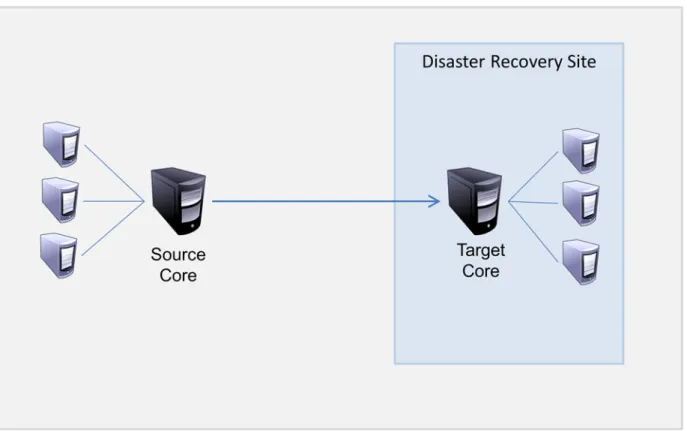
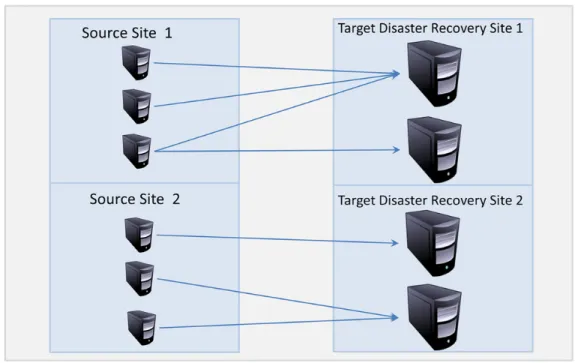
Replication is the process of copying recovery points and transmitting them to a secondary location for the purpose of disaster recovery. The process requires a paired source-target relationship between two cores. Replication is managed on a per-protected-machine basis; meaning, backup snapshots of a protected machine are replicated to the target replica core. When replication is set up, the source core asynchronously and continuously transmits the incremental snapshot data to the target core. You can configure this outbound replication to your company’s own data center or remote disaster recovery site (that is, a “self-managed” target core) or to a managed service provider (MSP) providing off-site backup and disaster recovery services. When you replicate to an MSP, you can use built-in workflows that let you request connections and receive automatic feedback notifications.
Figure 2. Repl ication
Replication is self-optimizing with a unique Read-Match-Write (RMW) algorithm that is tightly coupled with deduplication. With RMW replication, the source and target replication service matches keys before transferring data and then replicates only the compressed, encrypted, deduplicated data across the WAN, resulting in a 10x reduction in bandwidth requirements.
Replication begins with seeding: the initial transfer of deduplicated base images and incremental snapshots of the protected agents, which can add up to hundreds or thousands of gigabytes of data. Initial replication can be seeded to the target core using external media. This is typically useful for large sets of data or sites with slow links. The data in the seeding archive is compressed, encrypted and deduplicated. If the total size of the archive is larger than the space available on the removable media, the archive can span across multiple devices based on the available space on the media. During the seeding process, the incremental recovery points replicate to the target site. After the target core consumes the seeding archive, the newly replicated incremental recovery points automatically synchronize.
Recovery-as-a-Service (RaaS)
Managed service providers (MSPs) can fully leverage AppAssure 5 as a platform for delivering recovery as a service (RaaS). RaaS facilitates complete recovery-in-the-cloud by replicating customers' physical and virtual servers along with their data to the service provider's cloud as virtual machines to support recovery testing or actual recovery operations. Customers wanting to perform recovery-in-the-cloud can configure replication on their protected machines on the local cores to an
AppAssure service provider. In the event of a disaster, the MSPs can instantly spin-up virtual machines for the customer.
MSPs can deploy multi-tenant AppAssure 5-based RaaS infrastructure that can host multiple and discrete organizations or business units (the tenants) that ordinarily do not share security or data on a single server or a group of servers. The data of each tenant is isolated and secure from other tenants and the service provider.
Retention and Archiving
AppAssure 5 offers flexible backup and retention policies that are easily configurable. The ability to tailor retention polices to the needs of an organization not only helps to meet compliance requirements but does so without compromising recovery time objectives (RTO).
Retention policies enforce the periods of time in which backups are stored on short-term (fast and expensive) media. Sometimes certain business and technical
requirements mandate extended retention of these backups, but use of fast storage is cost prohibitive. Therefore, this requirement creates a need for long-term (slow and cheap) storage. Businesses often use long-term storage for archiving both compliance and non-compliance data. The archive feature supports extended retentions for compliance and non-compliance data, as well as being used for seeding replication data to a target core.
In AppAssure 5 retention policies can be customized to specify the length of time a backup recovery point is maintained. As the age of the recovery points approach the end of their retention period, they age out and are removed from the retention pool. Typically, this process becomes inefficient and eventually fails as the amount of data and the period of retention start growing rapidly. AppAssure 5 solves the big data problem by managing the retention of large amounts of data with complex retention policies and performing rollup operations for aging data using efficient metadata operations.
Backups can be performed with an interval of a few minutes; and, these backups age over days, months, and years. Retention policies manage the aging and deletion of old backups. A simple waterfall method defines the aging process. The levels within the waterfall are defined in minutes, hours, and days; weeks, months, and years. The retention policy is enforced by the nightly rollup process.
For long term archival, AppAssure 5 lets you create an archive of the source or target core on any removable media. The archive is internally optimized, and all data in the archive is compressed, encrypted, and deduplicated. If the total size of the archive is larger than the space available on the removable media, the archive will span across multiple devices based on the available space on the media. Recovery from an archive does not require a new core; any core can ingest the archive and recover data if the administrator has the passphrase and the encryption keys.
Virtualization and Cloud
The AppAssure 5 Core is cloud-ready, which allows you to leverage the compute capacity of the cloud for recovery.
AppAssure 5 can export any protected or replicated machine to licensed versions of VMware or Hyper-V. Exports can be ad-hoc or continuous. With continuous exports, the virtual machine is incrementally updated after every snapshot. The incremental updates are very fast and provide standby-clones that are ready to be powered up with a click of a button. The supported exports are VMware Workstation/Server on a folder, direct export to a Vsphere / VMware ESX(i) host, and Microsoft Server 2008 R2 Hyper-V.
Alerts and Event Management
In addition to HTTP REST APIs, AppAssure 5 also includes an extensive set of features for event logging and notification using email, syslog, or Windows Event Log. Email notifications can be used to alert users or groups of the health or status of different events in response to an alert. The syslog and Windows Event Log methods are used for centralized logging to a repository in multi-operating system environments; while in Windows-only environments, only the Windows Event Log is used.
AppAssure 5 License Portal
The AppAssure 5 License Portal provides easy-to-use tools for managing license entitlements. You can download, activate, view, and manage license keys and create a company profile to track your license assets. Additionally, the portal enables service providers and re-sellers to track and manage their customer licenses.
Web Console
AppAssure 5 features a Web-based central console that manages distributed AppAssure 5 cores from one central location. MSPs and enterprise customers with multiple distributed cores can deploy this console to get a unified view for
centralized management. The AppAssure 5 Central Management Console lets you organize the managed cores in hierarchical organizational units. These
organizational units can represent business units, locations, or customers for MSPs with role-based access. Using the central console, you can also run reports across all of your managed cores.
Service Management APIs
AppAssure 5 comes bundled with a set of service management APIs and provides programmatic access to all of the functionality available through the AppAssure 5 Central Management Console. The service management API is a REST API. All the API operations are performed over SSL and are mutually authenticated using X.509 v3 certificates. The management service can be accessed from within the environment or directly over the Internet from any application that can send and receive an HTTPS request and response. The approach facilitates easy integration with any Web application such as relationship management methodology (RMM) tools or billing systems. Also included with AppAssure 5 is an SDK client for PowerShell scripting.
White Labeling
AppAssure 5 can be re-branded and white-labeled for select enterprise and OEM partners under the Platinum service provider program. The Platinum service provider program lets partners brand AppAssure 5 with their custom name, logo, and color themes and deliver the product or service with their own branding and look-and-feel to their customers.
As an AppAssure partner, you can tailor the software to meet your business requirements. To further explore how you can brand AppAssure 5 to suit your business needs, contact AppAssure Sales at [email protected] for more information.
This chapter describes the various aspects of working with, configuring, and managing the AppAssure 5 Core. It includes the following topics:
Accessing the AppAssure 5 Core Console on page 30 Roadmap for Configuring the AppAssure 5 Core on page 30 Managing Licenses on page 30
Managing AppAssure 5 Core Settings on page 32 About Repositories on page 36
Roadmap for Managing a Repository on page 36 Managing Security on page 44
Understanding Replication on page 48
Roadmap for Performing Replication on page 53 Removing Replication on page 62
Roadmap for Failover and Failback on page 65 Managing Events on page 68
Managing Recovery on page 73 About System Information on page 74 Downloading Installers on page 74 About the Agent Installer on page 74 About the Local Mount Utility on page 75 Managing Retention Policies on page 81 About Archiving on page 81
Managing SQL Attachability on page 83
Managing Exchange Database Mountability Checks and Log Truncation on page 86
3
Working with the AppAssure 5
Accessing the AppAssure 5 Core Console
Complete the following steps to access the AppAssure 5 Core Console.
To access the AppAssure 5 Core Console
1. Perform one of the following to access the AppAssure 5 Core Console:
a. Log on locally to your AppAssure 5 Core server, and then select the Core Console icon.
b. Or, type one of the following URLs in your Web browser:
https://<yourCoreServerName>:8006/apprecovery/admin/core, or https://<yourCoreServerIPaddress>:8006/apprecovery/admin/core
Roadmap for Configuring the AppAssure 5 Core
Before you can use AppAssure 5, you must configure the AppAssure 5 Core. Configuration includes tasks such as creating and configuring the repository for storing backup snapshots, defining encryption keys for securing protected data, and setting up alerts and notifications. After you complete the configuration of the AppAssure 5 Core, you can then protect agents and perform recovery.
Configuring the AppAssure 5 Core involves understanding certain concepts and performing the following initial operations:
Create a repository. For more information about repositories, see “Creating a
Repository” on page 37.
Configure encryption keys. For more information on configuring encryption
keys, see “Adding an Encryption Key” on page 45.
Configure event notification. For more information on configuring event
notifications, see “Configuring an Email Server and Email Notification Template” on page 70.
Configure retention policy. For more information on configuring retention
policies, see “Managing Retention Policies” on page 81.
Configure SQL attachability. For more information on configuring SQL
attachability, see “Configuring SQL Attachability Settings” on page 84.
Managing Licenses
AppAssure 5 lets you can manage AppAssure 5 licenses directly from the AppAssure 5 Core Console. From the console, you can change the license key and contact the license server. You can also access the AppAssure 5 License Portal from the
The Licensing page includes the following information:
License type License status License pool size
Number of machines protected
Status of last response from the licensing server Time of last contact with the licensing server
Next scheduled attempt of contact with the licensing server
For more information, see the documentation, Managing AppAssure 5 Licenses, on the AppAssure 5 Technical Documentation page at: http://docs.appassure.com/ display/AA50D/AppAssure+5+Technical+Documentation.
Changing a License Key
Complete the steps in this procedure to change a license key from within the AppAssure 5 Core Console.
To change a license key
1. Navigate to the AppAssure 5 Core Console and then select the Configuration tab.
2. Click Licensing.
The Licensing page appears.
3. From the license details, click Change. The Change License Key dialog box appears.
4. In the Change License Key dialog box, enter the new license key and click OK.
Contacting the License Portal Server
The AppAssure 5 Core Console frequently contacts the portal server to remain current with any changes made in the license portal. Typically, communication with the portal server occurs automatically at designated intervals; however, you can initiate communication on-demand.
Complete the steps in this procedure to contact the portal server.
To contact the portal server
1. Navigate to the AppAssure 5 Core Console and then click the Configuration tab.
For information about obtaining a license key, see the documentation, Managing AppAssure 5 Licenses, on the AppAssure 5 Technical Documentation page at:
2. Click Licensing.
The Licensing page appears.
3. From the License Server option, click Contact Now.
Managing AppAssure 5 Core Settings
The AppAssure 5 Core settings are used to define various settings for configuration and performance. Most settings are configured for optimal use, but you can change the following settings as necessary:
General Nightly Jobs Transfer Queue
Client Timeout Settings
Deduplication Cache Configuration Database Connection Settings
Changing the Core Display Name
Complete the steps in this procedure to change the Core display name.
To change the Core display name
1. Navigate to the AppAssure 5 Core Console and click the Configuration tab, and then Settings.
2. In the General area, click Change. The Display Name dialog box displays.
3. In the Name text box, enter a new display name for the Core.
4. Click OK.
Adjusting the Nightly Job Time
Complete the steps in this procedure to adjust the nightly job time.
To adjust the nightly job time
1. Navigate to the AppAssure 5 Core Console and click the Configuration tab, and then Settings.
3. In the Start Time text box, enter a new start time.
4. Click OK.
Modifying the Transfer Queue Settings
Transfer queue settings are core-level settings that establish the maximum number of concurrent transfers and the maximum number of retries for transferring data. Complete the steps in this procedure to modify transfer queue settings.
To modify the transfer queue settings
1. Navigate to the AppAssure 5 Core Console and click the Configuration tab, and then Settings.
2. In the Transfer Queue area, click Change. The Transfer Queue dialog box displays.
3. In the Maximum Concurrent Transfers text box, enter a value to update the number of concurrent transfers.
Set a number from 1 to 60. The smaller the number, the lesser the load on network and other system resources. As the number of agents that are processed increases, so does the load on the system.
4. In the Maximum Retries text box, enter a value to update the maximum number of retries.
5. Click OK.
Adjusting the Client Timeout Settings
Complete the steps in this procedure to adjust client timeout settings.
To adjust the client timeout settings
1. Navigate to the AppAssure 5 Core Console and click the Configuration tab, and then Settings.
2. In the Client Timeout Settings Configuration area, click Change. The Client Timeout Settings dialog box displays.
3. In the Connection Timeout text box, enter the number of minutes and seconds before a connection time out occurs.
4. In the Read/Write Timeout text box, enter the number of minutes and seconds you want to lapse before a time out occurs during a read/write event.
Configuring Deduplication Cache Settings
Complete the steps in this procedure to configure deduplication cache settings.
To configure deduplication cache settings
1. Navigate to the AppAssure 5 Core Console and click the Configuration tab, and then Settings.
2. In the Deduplication Cache Configuration area, click Change. The Deduplication Cache Configuration dialog box displays.
3. In the Primary Cache Location text box, enter an updated value to change the primary cache location.
4. In the Secondary Cache Location text box, enter an updated value to change the secondary cache location.
5. In the Metadata Cache Location text box, enter an updated value to change the metadata cache location.
6. Click OK.
NOTE: You must restart the Core service for the changes to take effect.
Modifying AppAssure 5 Engine Settings
Complete the steps in this procedure to modify AppAssure 5 engine settings.
To modify AppAssure 5 engine settings
1. Navigate to the AppAssure 5 Core Console and click the Configuration tab, and then Settings.
2. In the Replay Engine Configuration area, click Change. The Replay Engine Configuration dialog box displays.
3. Enter the configuration information as described in the following table.
Text Box Description
IP Address Specify the IP address by choosing one of the following:
Click Automatically Determined to use the preferred IP
address from your TCP/IP.
Or, click Use a specific address to manually enter an IP
address.
Preferable Port Enter a port number or accept the default setting. The default port is 8007.
The port is used to specify the communication channel for the AppAssure engine.
4. Click OK.
Modifying Database Connection Settings
Complete the steps in this procedure to modify the database connection settings.
To modify database connection settings
1. Navigate to the AppAssure 5 Core Console and click the Configuration tab, and then Settings.
2. In the Database Connection Settings area, perform one of the following:
Click Apply Default. Or, click Change.
The Database Connection Settings dialog box displays.
3. Enter the settings for modifying the database connection as described in the following table.
Allow port auto-assigning Click for allow for automatic TCP port assignment. Admin Group Enter a new name for the administration group. The
default name is BUILTIN\Administrators.
Minimum Async I/O Length Enter a value or choose the default setting. It describes the minimum asynchronous input/output length.
The default setting is 65536.
Receive Buffer Size Enter an inbound buffer size or accept the default setting. The default setting is 8192.
Send Buffer Size Enter an outbound buffer size or accept the default setting. The default setting is 8192.
Read Timeout Enter a read timeout value or choose the default setting. The default setting is 00:00:30.
Write Timeout Enter a write timeout value or choose the default setting. The default setting is 00:00:30.
No Delay It is recommended that you leave this check box unchecked as doing otherwise will impact network efficiency. If you determine that you need to modify this setting, contact Dell Support for guidance in doing so.
Text Box Description
Host name Enter a host name for the database connection. Port Enter a port number for the database connection.
User name (optional) Enter a user name for accessing and managing the database connection settings. It is used to specify the logon credentials for accessing the database connection.
4. Click Test Connection to verify your settings.
5. Click Save.
About Repositories
A repository is used to store the snapshots that are captured from your protected workstations and servers. The repository can reside on different storage
technologies such as Storage Area Network (SAN), Direct Attached Storage (DAS), or Network Attached Storage (NAS).
When you create a repository, the AppAssure 5 Core pre-allocates the storage space required for the data and metadata in the specified location. You can create up to 255 independent repositories on a single core that span across different storage technologies; in addition, you can further increase the size of a repository by adding new file extents or specifications. An extended repository can contain up to 4096 extents that span across different storage technologies.
Key repository concepts and considerations include:
The repository is based on the AppAssure Scalable Object File System. All data stored within a repository is globally deduplicated.
The Scalable Object File System can deliver scalable I/O performance in tandem
with global data deduplication, encryption, and retention management. NOTE: AppAssure 5 repositories should be stored on primary storage devices. Archival storage devices such as Data Domain are not supported due to performance limitations. Similarly, repositories should not be stored on NAS filers that tier to the cloud as these devices tend to have performance limitations when used as primary storage.
Roadmap for Managing a Repository
Before you can use AppAssure 5, you need to set up one or more repositories on the AppAssure 5 Core server. A repository stores your protected data; more specifically, it stores the snapshots that are captured from the protected servers in your
environment.
When you configure a repository, you can perform a variety of tasks such as specifying where to locate the data storage on the Core server, how many locations should be added to each repository, the name of the repository, how many current
Password (optional) Enter a password for accessing and managing the database connection settings.
Retain event and job history for, days
Enter the number of days to retain the event and job history for the database connection.
When you create a repository, the Core pre-allocates the space required for storing data and metadata in the specified location. You can create up to 255 independent repositories on a single core. To further increase the size of a single repository, you can add new storage locations or volumes.
Managing a repository involves creating, configuring, and viewing a repository and includes the following operations:
Access the Core Console. For more information on how to access the AppAssure
5 Core Console, see “Accessing the AppAssure 5 Core Console” on page 30.
Create a repository. For more information about creating a repository, see
“Creating a Repository” on page 37.
View repository details. For more information about viewing repository details,
see “Viewing Details about a Repository” on page 40.
Modify repository settings. For more information about modifying repository
settings, see “Modifying Repository Settings” on page 40.
Add a new storage location. For more information on adding a new storage
location, see “Adding a Storage Location to an Existing Repository” on page 41.
Check a repository. For more information about checking a repository, see
“Checking a Repository” on page 44.
Delete a repository. For more information about deleting a repository, see
“Deleting a Repository” on page 44.
Creating a Repository
Complete the following steps to create a repository.
To create a repository
1. From the AppAssure 5 Core Console, click the Configuration tab. The Repositories page displays.
2. In the Actions drop-down menu, click Add New Repository. The Add New Repository dialog box displays.
3. Enter the information as described in the following table.
Text Box Description
Repository Name Enter the display name of the repository.
By default, this text box consists of the word Repository and an index number, which corresponds to the number of the new repository. You can change the name as needed. You can enter up to 150 characters.
Concurrent Operations Define the number of concurrent requests you want the repository to support. By default the value is 64.
4. Click Add Storage Location to define the specific storage location or volume for the repository.
NOTE: AppAssure 5 repositories should be stored on primary storage devices. Archival storage devices such as Data Domain are not supported due to performance limitations. Similarly, repositories should not be stored on NAS filers that tier to the cloud as these devices tend to have performance limitations when used as primary storage.
The Add Storage Location dialog box appears.
5. Specify how to add the file for the storage location. You can choose to add the file on the local disk or on CIFS share.
Select Add file on local disk to specify a local machine, and then enter the
information as described in the following table.
Or, select Add file on CIFS share to specify a network share location, and then
enter the information as described in the following table.
If the AppAssure repository that you are creating in this step is later removed, all files at the storage location of your repository will be deleted. If you do not define a dedicated folder to store the repository files, then those files will be stored in the root; deleting the repository will also delete the entire contents of the root, resulting in catastrophic data loss.
Text Box Description
Metadata Path Enter the location for storing the protected metadata. For example, type X:\Repository\Metadata.
When specifying the path, use only alphanumeric characters, the hyphen, and the period (only to separate host names and domains). The letters a to z are case-insensitive. Do not use spaces. No other symbols or punctuation characters are permitted.
Data Path Enter the location for storing the protected data. For example, type X:\Repository\Data.
The same limitations to the path apply; use only alphanumeric characters, hyphen, or period, with no spaces or special characters.
Text Box Description
UNC Path Enter the path for the network share location.
If this location is at the root, define a dedicated folder name (for example, Repository).
The path must begin with \\. When specifying the path, use only alphanumeric characters, the hyphen, and the period (only to separate host names and domains). The letters a to z are case-insensitive. Do not use spaces. No other symbols or punctuation characters are permitted.
6. In the Details pane, click Show/Hide Details and enter the details for the storage location as described in the following table.
7. Click Save.
The Repositories screen displays to include the newly added storage location.
8. Optionally, repeat Step 4 through Step 7 to add additional storage locations for the repository.
9. Click Create to create the repository.
The Repository displays in the Configuration tab.
Text Box Description
Size Set the size or capacity for the storage location. The default is 250 MB. You can choose from the following:
MB GB TB
NOTE: The size that you specify cannot exceed the size of the volume.
If the storage location is a New Technology File System (NTFS) volume using Windows XP or Windows 7, the file size limit is 16 TB.
If the storage location is a NTFS volume using Windows 8, 8.1 or Windows Server 2012, 2012 R2, the file size limit is 256 TB.
NOTE: For AppAssure 5 to validate the operating system, Windows Management Instrumentation (WMI) must be installed on the intended storage location.
Write Caching Policy The write caching policy controls how the Windows Cache Manager is used in the repository and helps to tune the repository for optimal performance on different configurations. Set the value to one of the following:
On Off Sync
If set to On, which is the default, Windows controls the caching.
NOTE: Setting the write caching policy to On could result in faster performance. If you are using a version of Windows Server prior to Server 2012, the recommended setting is Off.
If set to Off, AppAssure 5 controls the caching.
If set to Sync, Windows controls the caching as well as the synchronous input/output.
Bytes per Sector Specify the number of bytes you want each sector to include. The default value is 512.
Average Bytes per Record Specify the average number of bytes per record. The default value is 8192.
Viewing Details about a Repository
Complete the following step to view the details for a repository.
To view details about a repository
In the AppAssure 5 Core Console, click the Configuration tab.
The Repositories page displays.
Click the right angle bracket > symbol next to the Status column of the repository
for which you want to view the details.
From the expanded view, you can perform the following actions for a repository: Modify Settings
Add a Storage Location Check a Repository Delete a Repository
Details also display for the repository to include the storage locations and
statistics. Storage location details include:
Metadata Path Data Path Size
The statistical information available for you to view consist of:
Deduplication Record I/O Storage Engine
The level of detail available for Deduplication is reported as the number of block dedupe hits, block dedupe misses, and block compression rate.
The detail rendered for Record I/O consists of the rate (MB/s), read rate (MB/s), and write rate (MB/s).
The storage engine details are include the rate (MB/s), read rate (MB/s), and write rate (MB/s),
Modifying Repository Settings
After you add a repository, you can modify the repository settings such as the description or the maximum concurrent operations. You can also add a new storage location for the repository. For more information on adding a new storage location, see
“Adding a Storage Location to an Existing Repository” on page 41
.
To modify repository settings
2. Click the right angle bracket > symbol next to the Status column of the repository that you want to modify.
3. Next to Actions, click Settings.
The Repository Settings dialog box displays.
4. Edit the repository information as described in the following table.
5. Click Save.
Adding a Storage Location to an Existing Repository
Adding a storage location lets you define where you want the repository or volume to be stored. Complete the steps in the following procedure to specify the storage location for the repository or volume.
To add a storage location to an existing repository
1. Click the right angle bracket > symbol next to the Status column of the repository for which you want to add a new storage location.
2. In the Actions pane, click Add Storage Location. The Add Storage Location dialog box displays.
3. Specify how to add the file for the storage location. You can choose to add the file on the local disk or on CIFS share.
Text Box Description
Repository Name Represents the display name of the repository. By default, this text box consists of the word Repository and an index number, which corresponds to the number of the repository.
NOTE: You cannot edit the repository name.
Description Optionally, enter a descriptive note about the repository. Maximum Concurrent
Operations Define the number of concurrent requests you want the repository to support. Enable Deduplication Clear this checkbox to turn off deduplication, or select this
checkbox to enable deduplication.
NOTE: Changing this setting only applies to backups taken after the setting has been made. Existing data, or data replicated from another core or imported from an archive, will retain the deduplication values in place at the time the data was captured from an agent.
Enable Compression Clear this checkbox to turn off compression, or select this checkbox to enable compression.
NOTE: This setting applies only to backups taken after the setting has been changed. Existing data, or data replicated from another core or imported from an archive, will retain the compression values in place at the time the data was captured from an agent.