IEI Technology Corp.
User Manual
MODEL:
AUPS-C20
VESA Mount Intelligent UPS Module,
9 V ~ 28 V DC Input, 100 W Power Output,
Revision
Date Version Changes
30 October, 2012 1.01 Updated the DC input range to 9 V ~ 28 V
Copyright
COPYRIGHT NOTICE
The information in this document is subject to change without prior notice in order to improve reliability, design and function and does not represent a commitment on the part of the manufacturer.
In no event will the manufacturer be liable for direct, indirect, special, incidental, or consequential damages arising out of the use or inability to use the product or documentation, even if advised of the possibility of such damages.
This document contains proprietary information protected by copyright. All rights are reserved. No part of this manual may be reproduced by any mechanical, electronic, or other means in any form without prior written permission of the manufacturer.
TRADEMARKS
All registered trademarks and product names mentioned herein are used for identification purposes only and may be trademarks and/or registered trademarks of their respective owners.
Table of Contents
1 INTRODUCTION... 1
1.1 INTRODUCTION... 2
1.2 FEATURES... 2
1.3 EXTERNAL OVERVIEW... 3
1.3.1 I/O Interface Panel ... 3
1.3.2 LED Indicators... 4
1.4 DIMENSIONS... 6
1.5 TECHNICAL SPECIFICATIONS
... 7
1.6 BATTERY SPECIFICATIONS
... 8
2 PACKING LIST ... 9
2.1 ANTI-STATIC PRECAUTIONS
... 10
2.2 UNPACKING PRECAUTIONS... 10
2.3 P
ACKING LIST...113 INSTALLATION ... 13
3.1 ANTI-STATIC PRECAUTIONS
... 14
3.2 INSTALLATION PRECAUTIONS
... 14
3.3 INSTALLATION AND CONFIGURATION STEPS
... 15
3.4 INSTALLING THE BATTERY P
ACKS... 153.5 MOUNTING THE AUPS-C20 ... 18
3.6 CONNECTING THE AUPS-C20 ... 20
4 SOFTWARE APPLICATION... 21
4.1 INTRODUCTION... 22
4.2 MONITORING DC POWER AND SMART BATTERY
... 22
4.2.1 Driver Installation ... 22
4.2.2 Application Installation... 26
4.2.3 Status Information... 29
4.2.3.1 DC Detection ... 29
4.2.3.3 Battery Detection ... 30
4.2.4 Battery Information... 31
4.2.5 LAN Setting ... 32
4.2.6 Setting ... 33
4.3 REMOTE CONTROL AND MONITORING... 34
A HAZARDOUS MATERIALS DISCLOSURE ... 38
A.1 HAZARDOUS MATERIALS DISCLOSURE T
ABLE FOR IPB PRODUCTS CERTIFIED ASROHS COMPLIANT UNDER 2002/95/EC WITHOUT MERCURY
... 39
List of Figures
Figure 1-1: AUPS-C20 ...2
Figure 1-2: AUPS-C20 I/O Interface Connectors ...3
Figure 1-3: AUPS-C20 LED Indicators ...4
Figure 1-4: AUPS-C20 Dimensions (mm) ...6
Figure 3-1: Top Cover Retention Screws ...15
Figure 3-2: Battery Board Retention Screws ...16
Figure 3-3: Battery Bracket Retention Screws ...16
Figure 3-4: Battery Pack Installation ...17
Figure 3-5: Reinstalling the Battery Bracket and Battery Board ...17
Figure 3-6: Battery Pack Installation On The Upper Layer...18
Figure 3-7: Mounting Bracket Installation...19
Figure 3-8: Mounting the AUPS-C20...19
Figure 3-9: AUPS-C20 and Panel PC Connection ...20
Figure 4-1: Preparing Setup Screen ...22
Figure 4-2: Driver Welcome Screen ...23
Figure 4-3: Driver License Agreement Screen ...23
Figure 4-4: Choose Destination Location ...24
Figure 4-5: Ready to Install the Driver...24
Figure 4-6: InstallShield Wizard Complete Screen...25
Figure 4-7: CP210x USB to UART Bridge Driver Installer ...25
Figure 4-8: Installation Complete...25
Figure 4-9: Welcome Screen ...26
Figure 4-10: Select Installation Folder...27
Figure 4-11: Ready to Install the Program ...27
Figure 4-12: Installing AUPS ...28
Figure 4-13: Installation Complete...28
Figure 4-14: AUPS Battery Status Monitor Application...29
Figure 4-15: Status Information ...29
Figure 4-16: DC Detection...29
Figure 4-18: Battery Detection ...30
Figure 4-19: Battery Information ...31
Figure 4-20: LAN Setting...32
Figure 4-21: Application Setting ...33
Figure 4-22: RJ-45 Remote LAN Connector...34
Figure 4-23: IEI REMOTE AP ...35
Figure 4-24: IEI REMOTE AP – IP Address ...35
Figure 4-25: Remote Management Web Interface - Status ...36
Figure 4-26: Remote Management Web Interface - Send Email ...36
Figure 4-27: Enter User Name and Password...37
List of Tables
Table 1-1: LED Indications...4
Table 1-2: Total Battery Capacity Indications...5
Table 1-3: AUPS-C20 Specifications...7
Table 1-4: AUPS-C20 Battery Specifications ...8
Table 2-1: Packing List...12
Chapter
1
1.1 Introduction
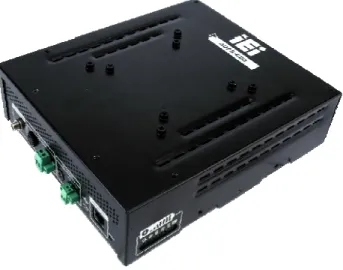
Figure 1-1: AUPS-C20
The highly efficient, high-performance AUPS-C20 UPS (Uninterruptible Power Supply) module could be installed with four Li-ion batteries to provide stable 12V output and uninterruptible power to the IEI AFOLUX series panel PCs. The UPS module also receives a wide range of inputs between 9 V and 28 V DC. The AUPS-C20 is built on an intelligent design and provides outstanding line and load regulations. The AUPS-C20 is capable of providing power for certain of time in power failure.
The AUPS-C20 UPS module comes with the utility software that provides information on current power source and battery status. With the AUPS software installed and network connected, the AUPS-C20 can be monitored and turned on/off through a remote computer.
1.2 Features
Some of the AUPS-C20 UPS module features are listed below:
Rugged metal enclosure for standard VESA 75/100 mounting
Wide range power input (9 V ~ 28 V) by DC jack or terminal block
100 W power output
Network management through web-based interface in remote computer. No additional administration software installation is required.
Supports PC-based utility for monitoring power and battery status
Auto shut down when battery low
Provides stable power to AFOLUX PPC during line sags and spikes
Absorb power surges and transients
1.3 External Overview
1.3.1 I/O Interface Panel
The I/O interface panel contains:
1 x 9 V ~ 28 V DC input connector
1 x 9 V ~ 28 V DC input terminal block
1 x 12 V DC output jack
1 x DC output on/off button
1 x DC output switch terminal block
1 x MCU reset button
1 x Network remote management port (RJ-45)
1 x USB mini-B connector
1.3.2 LED Indicators
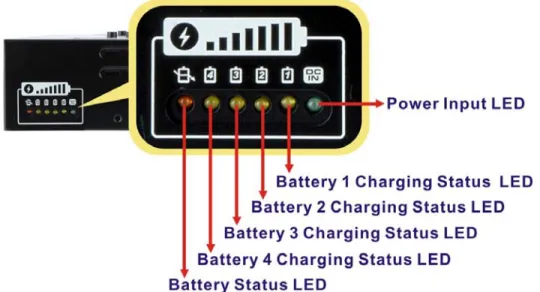
The side panel of the AUPS-C20 has six LED indicators to indicate the power and battery status (Figure 1-3).
Figure 1-3: AUPS-C20 LED Indicators
All the LED statuses are listed in Table 1-1.
LED (Color)/Status On Blinking Power Input (Green) DC power in --
Battery 1 Charging Status
(Yellow) Discharging (battery full) Charging Battery 2 Charging Status
(Yellow) Discharging (battery full) Charging Battery 3 Charging Status
(Yellow) Discharging (battery full) Charging Battery 4 Charging Status
(Yellow) Discharging (battery full) Charging Battery Status (Orange) Battery discharging Battery low
To see the approximate total battery capacity, press the DC output on/off button for four seconds. The LED indicators will light up, showing the corresponding total battery capacity as listed in Table 1-2.
Total Battery Capacity
< 20% 20% ~ 40% 40% ~ 60% 60% ~ 80% 100%
V
V
V
V
V
1.4 Dimensions
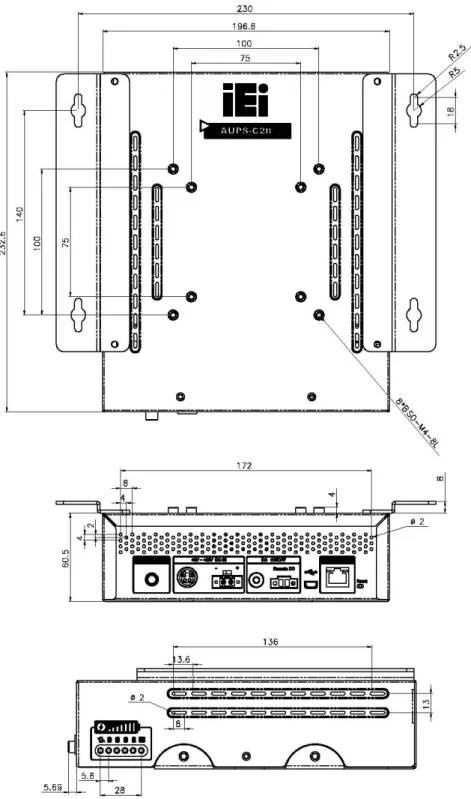
The main dimensions of the AUPS-C20 are shown in the diagram below.
1.5 Technical Specifications
The AUPS-C20 technical specifications are listed below.
Specification/Model
AUPS-C20
VESA Type VESA 75 and VESA 100
Input voltage DC +9V ~ +28V
Standby power
consumption 0.3A (0.2A if Network Management is disabled) Input
Charging time 8~12 hrs
Output voltage DC +12 V +/-5%
Output current Max. 7.6 A
Output
Battery capacity 225 Wh
Short-circuit protection Yes
Protection
Exhaustive discharge
protection Yes Regulatory EMC/Safety certification CE, FCC
Ethernet interface Web-based, 10/100Mbps
Monitoring
USB interface PC-capable, USB 2.0
Dimensions (LxWxH) 233 mm x 197 mm x 59 mm
Physical
Weight 3.8 kg
Green DC power input
Yellow Battery charging
LED
Orange Battery discharging
Operating temperature 0°C ~ 40°C
Environment
Storage temperature -20°C ~ 50°C
1.6 Battery Specifications
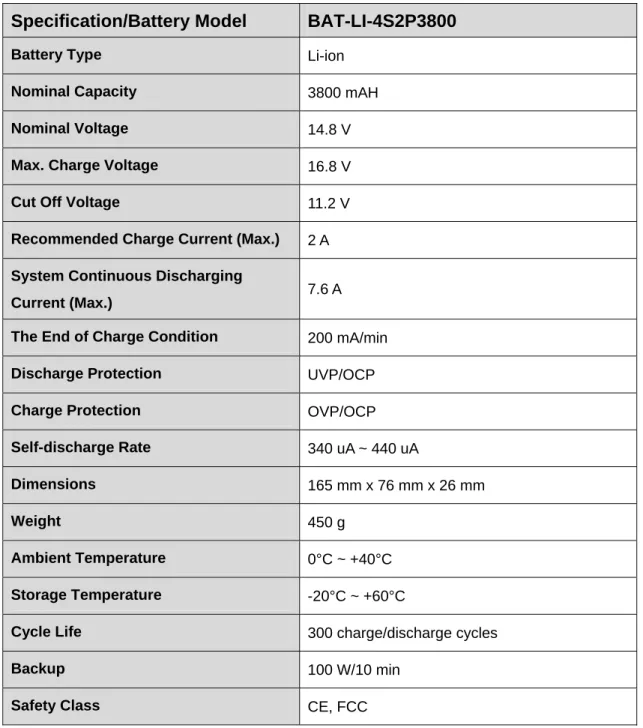
The AUPS-C20 can be installed with four Li-ion smart batteries. The Li-ion battery specifications are listed below.
Specification/Battery Model
BAT-LI-4S2P3800
Battery Type Li-ion
Nominal Capacity 3800 mAH
Nominal Voltage 14.8 V
Max. Charge Voltage 16.8 V
Cut Off Voltage 11.2 V
Recommended Charge Current (Max.) 2 A
System Continuous Discharging
Current (Max.) 7.6 A The End of Charge Condition 200 mA/min
Discharge Protection UVP/OCP
Charge Protection OVP/OCP
Self-discharge Rate 340 uA ~ 440 uA
Dimensions 165 mm x 76 mm x 26 mm
Weight 450 g
Ambient Temperature 0°C ~ +40°C
Storage Temperature -20°C ~ +60°C
Cycle Life 300 charge/discharge cycles
Backup 100 W/10 min
Safety Class CE, FCC
Chapter
2
2.1 Anti-static Precautions
WARNING!
Static electricity can destroy certain electronics. Make sure to follow the ESD precautions to prevent damage to the product, and injury to the user.
Make sure to adhere to the following guidelines:
Wear an anti-static wristband: Wearing an anti-static wristband can prevent electrostatic discharge.
Self-grounding: Touch a grounded conductor every few minutes to discharge any excess static buildup.
Use an anti-static pad: When configuring any circuit board, place it on an anti-static mat.
Only handle the edges of the PCB: Don't touch the surface of the motherboard. Hold the motherboard by the edges when handling.
2.2 Unpacking Precautions
When the AUPS-C20 is unpacked, please do the following:
Follow the antistatic guidelines above.
Make sure the packing box is facing upwards when opening.
2.3 Packing List
NOTE:
If any of the components listed in the checklist below are missing, do not proceed with the installation. Contact the IEI reseller or vendor the AUPS-C20 was purchased from or contact an IEI sales representative directly by sending an email to [email protected].
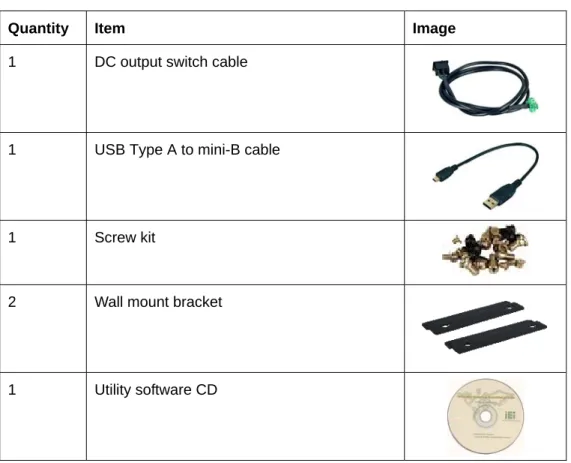
The AUPS-C20 is shipped with the following components:
Quantity Item Image
1 AUPS-C20 UPS module
4 Li-ion battery pack (optional) 1 Mounting bracket
1 DC output cable (DC plug to DC plug) 1 DC output cable (DC plug to 4-pin mini-DIN) 1 Power transfer cable (DC plug to 4-pin
Quantity Item Image
1 DC output switch cable 1 USB Type A to mini-B cable 1 Screw kit
2 Wall mount bracket 1 Utility software CD
Chapter
3
3.1 Anti-static Precautions
Electrostatic discharge (ESD) can cause serious damage to electronic components, including the AUPS-C20. Dry climates are especially susceptible to ESD. It is therefore critical that whenever the AUPS-C20 or any other electrical component is handled, the following anti-static precautions are strictly adhered to.
Wear an anti-static wristband: - Wearing a simple anti-static wristband can help to prevent ESD from damaging the board.
Self-grounding:- Before handling the board touch any grounded conducting material. During the time the board is handled, frequently touch any
conducting materials that are connected to the ground.
Use an anti-static pad: When configuring the AUPS-C20, place it on an antic-static pad. This reduces the possibility of ESD damaging the AUPS-C20.
Only handle the edges of the PCB:-: When handling the PCB, hold the PCB by the edges.
3.2 Installation Precautions
When installing the power module, please follow the precautions listed below:
Power turned off: When installing the power module, make sure the power is off. Failing to turn off the power may cause severe injury to the body and/or damage to the system.
Certified Engineers: Only certified engineers should install and modify onboard functionalities.
Anti-static Discharge: If a user open the top cover of the power module, to configure the jumpers or plug in added peripheral devices, ground themselves first and wear an anti-static wristband.
WARNING:
Failure to take ESD precautions during the installation of the AUPS-C20 may result in permanent damage to the AUPS-C20 and severe injury to the user.
3.3 Installation and Configuration Steps
The following installation steps must be followed.
Step 1: Unpack the UPS module
Step 2: Install the battery packs
Step 3: Mount UPS module to the AFOLUX panel PC
Step 4: Connect the UPS module to the AFOLUX panel PC
3.4 Installing the Battery Packs
NOTE:
Before installing the battery packs into the AUPS-C20, it is recommended to press the MCU reset button to return the AUPS-C20 to the factory default settings.
The AUPS-C20 could be installed up to four battery packs. To install the battery packs, follow the steps below.
Step 1: Remove the six top cover retention screws (Figure 3-1) and lift the top cover off
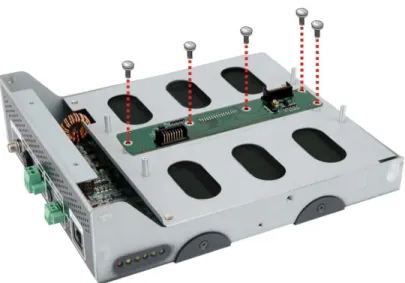
Step 2: Remove the five battery board retention screws (Figure 3-2) and lift the battery board off the AUPS-C20 module.
Figure 3-2: Battery Board Retention Screws
Step 3: Remove the six battery bracket retention screws (Figure 3-3) and lift the battery
bracket off the AUPS-C20 module.
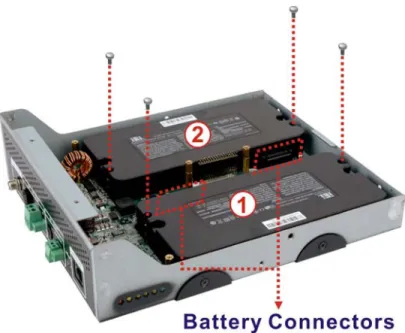
Step 4: Install battery 1 and battery 2 into the AUPS-C20 (Figure 3-4). Make sure the battery packs are connected to the battery connectors on the board (Figure 3-4).
Figure 3-4: Battery Pack Installation
Step 5: Secure each battery pack with two retention screws (Figure 3-4).
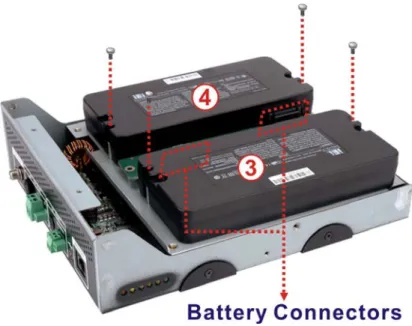
Step 7: Install battery 3 and battery 4 into the AUPS-C20 (Figure 3-6). Make sure the battery packs are connected to the battery connectors on the battery board (Figure 3-6).
Figure 3-6: Battery Pack Installation On The Upper Layer
Step 8: Secure each battery pack with two retention screws (Figure 3-6).
Step 9: Replace the top cover.
3.5 Mounting the AUPS-C20
To mount the AUPS-C20 onto the rear panel of the AFOLUX panel PC, follow the steps below.
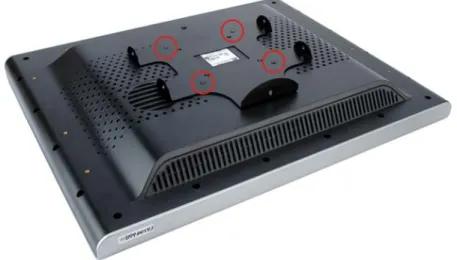
Step 1: Install the mounting bracket onto the rear panel of the AFOLUX panel PC.
Align the screw holes in the mounting bracket with the VESA screw holes in the rear of the panel PC. Secure the mounting bracket to the panel PC with four retention screws (Figure 3-7).
Figure 3-7: Mounting Bracket Installation
Step 2: Install the AUPS-C20 onto the rear panel of the AFOLUX panel PC. Place
the AUPS-C20 onto the mounting bracket. Secure the AUPS-C20 to the bracket with five retention screws, one on the rear panel and two on each side panel (Figure 3-8).
3.6 Connecting the AUPS-C20
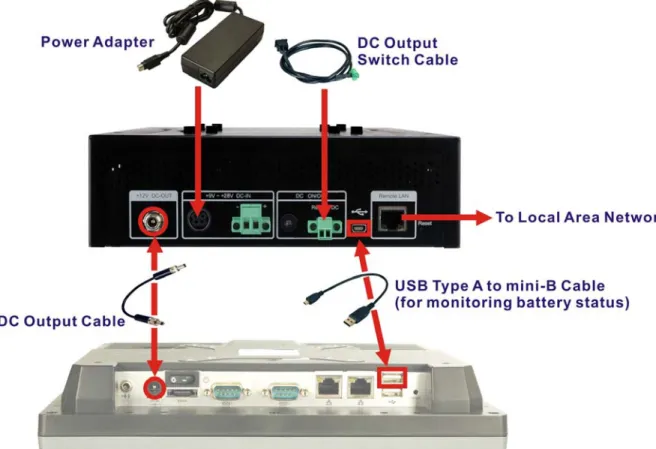
To support the UPS function to the panel PC, the AUPS-C20 must be connected to the power source and to the panel PC. Figure 3-9 shows the connections.
Chapter
4
4.1 Introduction
The IEI AUPS Battery Status Monitor application detects the information of the smart battery and monitors the battery status.
4.2 Monitoring DC Power and Smart Battery
4.2.1 Driver Installation
Follow the steps below to install the necessary drivers.
Step 1: Insert the driver CD into the system. Open the x:\Driver directory. Double click
the CP210x_VCP_Win_XP_S2K3_Vista_7 icon.
The InstallShield Wizard prepares the setup as shown (Figure 4-1).
Step 2: A welcome screen appears (Figure 4-2). To continue the installation process click Next.
Figure 4-2: Driver Welcome Screen
Step 3: The license agreement in Figure 4-3 appears. Read the License Agreement.
Check I accept the terms of license agreement and click Next to continue.
Step 4: The Choose Destination Location window appears (Figure 4-4). Select a folder to install the driver.
Figure 4-4: Choose Destination Location
Step 5: Click Next and the InstallShield Wizard is ready to install the driver (Figure 4-5).
Step 6: Click Install to start the installation.
Step 7: The InstallShield Wizard Complete window appears (Figure 4-6). Check
Launch the CP210x VCP Driver Installer and click Finish to launch the CP210x USB to UART Bridge Driver Installer.
Figure 4-6: InstallShield Wizard Complete Screen
Step 8: Click Install to start installing the CP210x USB to UART Bridge driver (Figure
4-7).
Figure 4-7: CP210x USB to UART Bridge Driver Installer
Step 9: When the installation is complete, the screen in Figure 4-8 appears. Click
4.2.2 Application Installation
Follow the steps below to install the AUPS Battery Status Monitor application.
Step 1: Insert the driver CD into the system. Open the x:\AUPS_2.6_setup\
AUPS_SetupV2.6 directory. Double click the AUPS_Setup v2.6 icon.
Step 2: A welcome screen appears (Figure 4-9). To continue the installation process,
click Next.
Step 3: The Select Installation Folder window appears (Figure 4-10). Select a folder to install the application.
Figure 4-10: Select Installation Folder
Step 4: Click Next and the Installshield Wizard is ready to install the program (Figure
Step 5: Click Next to continue. The Installing AUPS_Setup screen appears as the program is installed (Figure 4-12).
Figure 4-12: Installing AUPS
Step 6: The Installation Complete window appears (Figure 4-13). Click Close to exit.
Step 7: To launch the application, double click the shortcut (Figure 4-14) on the desktop.
Figure 4-14: AUPS Battery Status Monitor Application
4.2.3 Status Information
The IEI AUPS Battery Status Monitor application shows the DC power status and battery status (Figure 4-15). The following sections describe the status information in details.
Figure 4-15: Status Information
4.2.3.1 DC Detection
When the DC power is connected to the AUPS-C20 power module, the AUPS Battery Status Monitor detects it and shows in the screen as Figure 4-16.
4.2.3.2 Total Battery Time
The total battery time is shown in the top right corner (Figure 4-17) of the status screen to indicate the total battery remaining time.
Figure 4-17: Total Battery Time
4.2.3.3 Battery Detection
Four batteries can be connected to the AUPS-C20 power module at the same time. When the smart battery is connected to the AUPS-C20 power module, the AUPS Battery Status Monitor detects it and shows in the screen as Figure 4-18. Click the battery number on the right of the status screen to display its battery information.
Figure 4-18: Battery Detection
The battery is connected to the AUPS-C20.
Off The battery is not connected to the AUPS-C20.
Full The battery is fully charged. Low The battery is low.
Using The battery is being used. Charging The battery is being charged.
Standby The battery is fully charged and ready to be used anytime. The battery temperature is above 60°C.
The battery temperature is below 60°C.
4.2.4 Battery Information
Click the BATTERY tab to view the information of the connected batteries. Click the battery number on the right side of the battery screen to display its battery information. The listed information includes battery type, capacity, output voltage, temperature, charging rate, discharging rate and battery status (Figure 4-19). The values listed are updated per second.
4.2.5 LAN Setting
The LAN Setting page is where to configure the Remote LAN settings for power on/off remote control and battery monitoring. To save the modified parameters of this page, click the Save Config button. To load the default settings, click the Load Default button.
4.2.6 Setting
Click the SETTING tab to enable/disable buzzer, LAN and automatic DC output (Figure 4-21).
Figure 4-21: Application Setting
Functions can be set in the SETTING tab include:
Check to disable the buzzer that warns when the system is switching to use battery power.
Check to enable the LAN for remote monitoring function.
Check to enable the remote computer to turn the system power on or off.
Check to enable the AUPS-C20 to output power automatically when a power adapter is connected to the AUPS-C20.
4.3 Remote Control and Monitoring
The AUPS-C20 can be controlled (power on/off) and monitored the battery status through a remote computer located in the same subnet with the AUPS-C20. To control and monitor the AUPS-C20 remotely, follow the steps below.
Step 1: Connect the RJ-45 remote LAN connector on the I/O interface panel of the
AUPS-C20 (Figure 4-22) to a local area network connector.
Figure 4-22: RJ-45 Remote LAN Connector
Step 2: In a remote computer, install the IEI REMOTE AP. Double click the
AUPS_REMOTE_APv14 file in the x:\AUPS_REMOTE_APv14 directory. Follow the steps to install the IEI REMOTE AP. After installation, launch the AP. If there is a problem to launch the tool, execute the dotnetfxRedist20.exe first (located in the same directory of the driver CD).
Step 3: The IEI REMOTE AP tool appears (Figure 4-23). All the AUPS-C20 modules in
the same subnet with this remote computer are shown in the list on the right. Click the function buttons on the left to control the AUPS-C20.
Figure 4-23: IEI REMOTE AP
Step 4: To access the web interface for advanced monitoring and functions, double click
the IP address of the connected AUPS-C20 (Figure 4-24).
Figure 4-24: IEI REMOTE AP – IP Address
Figure 4-25: Remote Management Web Interface - Status
Step 6: To send an email to an administrator through the SMTP server, click Send
E-mail button on the left. Fill out the information as indicated in Figure 4-26.
Click the Send Message button to send the email.
Figure 4-26: Remote Management Web Interface - Send Email
Step 7: To configure the AUPS-C20 network setting, click the Configuration button on
Step 8: A window prompts for the user name and password. The default user name and password for the LAN setting page are:
User name: admin
Password: IEI
Figure 4-27: Enter User Name and Password
Step 9: The Board Configuration window appears. Configure the network settings and
click the Save Config button. Incorrect settings may cause the board to lose network connectivity.
Appendix
A
A
Hazardous Materials
A.1 Hazardous Materials Disclosure Table for IPB Products
Certified as RoHS Compliant Under 2002/95/EC Without
Mercury
The details provided in this appendix are to ensure that the product is compliant with the Peoples Republic of China (China) RoHS standards. The table below acknowledges the presences of small quantities of certain materials in the product, and is applicable to China RoHS only.
A label will be placed on each product to indicate the estimated “Environmentally Friendly Use Period” (EFUP). This is an estimate of the number of years that these substances would “not leak out or undergo abrupt change.” This product may contain replaceable sub-assemblies/components which have a shorter EFUP such as batteries and lamps. These components will be separately marked.
Toxic or Hazardous Substances and Elements Part Name Lead (Pb) Mercury (Hg) Cadmium (Cd) Hexavalent Chromium (CR(VI)) Polybrominated Biphenyls (PBB) Polybrominated Diphenyl Ethers (PBDE)
Housing X O O O O X
Display X O O O O X
Printed Circuit Board
X O O O O X
Metal Fasteners
X O O O O O
Cable Assembly
X O O O O X
Fan Assembly X O O O O X
Power Supply Assemblies
X O O O O X
Battery O O O O O O
O: This toxic or hazardous substance is contained in all of the homogeneous materials for the part is below the limit requirement in SJ/T11363-2006
X: This toxic or hazardous substance is contained in at least one of the homogeneous materials for this part is above the limit requirement in SJ/T11363-2006
此附件旨在确保本产品符合中国 RoHS 标准。以下表格标示此产品中某有毒物质的含量符
合中国RoHS标准规定的限量要求。
本产品上会附有”环境友好使用期限”的标签,此期限是估算这些物质”不会有泄漏或突变”的
年限。本产品可能包含有较短的环境友好使用期限的可替换元件,像是电池或灯管,这些元 件将会单独标示出来。
有毒有害物质或元素 部件名称
铅
(Pb)
汞
(Hg)
镉
(Cd)
六价铬
(CR(VI))
多溴联苯
(PBB)
多溴二苯 醚
(PBDE)
壳体 X O O O O X
显示 X O O O O X
印刷电路板 X O O O O X
金属螺帽 X O O O O O
电缆组装 X O O O O X
风扇组装 X O O O O X
电力供应组装 X O O O O X
电池 O O O O O O
O: 表示该有毒有害物质在该部件所有物质材料中的含量均在SJ/T11363-2006 标准规定的限量要求以下。